


A Complete Guide on How to Use Smartsheet for Project Management

Fecilia Clarke
Solutions Marketing Specialist
Aug 5, 2026
Fecilia Clarke
Aug 5, 2026

14 min read


Keeping a project on track is one of the most persistent challenges in any modern business. We all strive to deliver high-quality work on time and on budget, but the reality is often a frantic scramble across spreadsheets, emails, and chat notifications. The search for clarity and control leads many teams to powerful tools like Smartsheet. This popular solution for project management leverages the familiar comfort of a spreadsheet to bring structure to complex work.
If you’re here, you are likely looking for a clear, practical guide on how to make the most of this tool. You want to understand the steps, master the features, and finally feel in command of your project’s moving parts. This guide is built to give you exactly that. We will walk through the entire project lifecycle, from initiation to closure, showing you precisely how to use Smartsheet for project management. But we will also go one step further. We'll explore what a truly seamless and integrated system can feel like, and question if simply to track work is enough when you could be transforming your processes.
Understanding the basics of Smartsheet project management
At its heart, Smartsheet is a work execution platform that grew from a powerful, spreadsheet-like foundation. Its immediate appeal is that it feels familiar. For anyone who has ever organized a list in Excel or Google Sheets, the grid view of Smartsheet feels intuitive. This design choice is one of its greatest strengths, allowing a new user to start building project plans and task lists without a steep learning curve. It provides a structured environment where every piece of data has a clear place in a cell, within its specific rows and columns.
To effectively use Smartsheet for project management, you must first understand its core building blocks. The Sheet is your primary canvas, the grid where your entire project plan lives. The gantt view transforms your sheet's timeline data into a classic gantt chart, visualizing dependencies and durations. You can collect information using Forms, and then visualize key metrics from one or multiple sheets using Dashboards and a report. These components work together to form the foundation of the smartsheet project management software features, offering a powerful way to organize and monitor progress from your workspace.
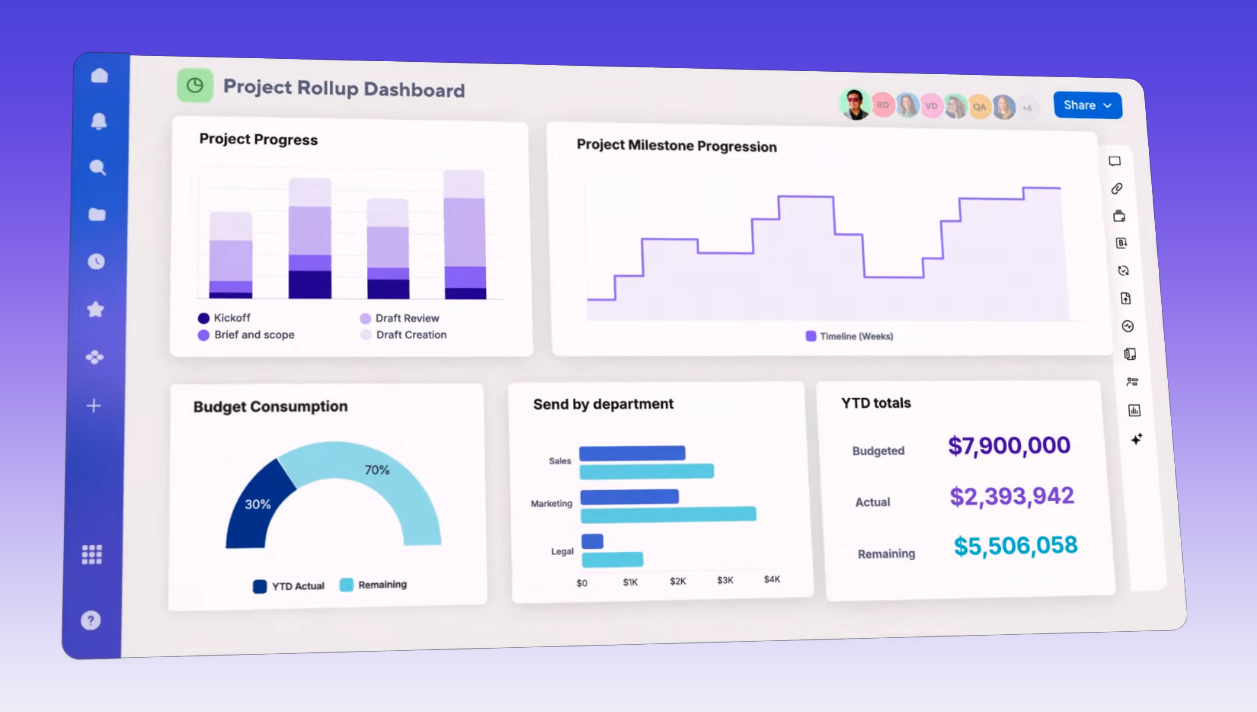
Image source: smartsheet.com
A step-by-step guide to your first Smartsheet project plan
To truly grasp how to use Smartsheet for project management, the best approach is to follow the natural flow of a project from concept to completion. You can learn the basics quickly, almost as if you were to watch educational videos broken into simple chapters. Let's walk through the five essential phases of the project management lifecycle and see how to apply Smartsheet’s features at each step. This practical journey will equip you with the skills to manage your own work within the platform, giving you a tangible feel for its strengths and where you might encounter friction.
Phase 1: Initiating your project with Smartsheet templates
Every successful project begins with a solid foundation. This initial phase is all about defining what you are going to do and why. In Smartsheet, this process is streamlined with a gallery of pre-built templates. Instead of starting with a blank grid, you can select and choose a smartsheet project management template. Look for options like "Project with Gantt & Dependencies" to get a head start. This kind of template comes pre-configured with the essential columns and even some sample data to guide your initial setup. It’s a huge time-saver.
Once you’ve chosen your template, the next step is to customize your CRM. This is where you define your project scope, objectives, and key details directly within the sheet. You might create a "Project Charter" section or use the sheet summary to document information for stakeholders. This is also the perfect time to establish your core project hierarchy, using indentation to create high-level phases and then nesting individual tasks within them. An admin on the account can then set the right permissions for every user on the team.
Phase 2: Building your project plan and timeline
With the foundation laid, it’s time to build the detailed project plan. This is where Smartsheet’s grid view truly shines. Begin by listing all the tasks required to complete the project. For each task, you’ll use the pre-built columns to add crucial details. You can assign each task to individuals using a contact list column, set ‘Start Date’ and ‘End Date’ values, and estimate the ‘Duration’. A ‘Status’ column is essential for tracking progress over the coming week and months until the project end.
The magic happens when you switch to the Gantt View. Smartsheet automatically converts your task list and dates into a visual gantt chart. Here, you can create dependencies, specifying that one task cannot start until another is finished. This helps you visualize the project's critical path and manage your schedule. In the resource management section, you can ensure that no single person is overallocated. You can even use formulas to automate calculations, further enhancing your planning process.
Phase 3: Executing the project and team collaboration
Now the work begins. As the project moves forward, team members will start working on their assigned tasks. In Smartsheet, collaboration is primarily handled through a few key features. For discussions related to a specific task, the commenting feature allows you to @mention a team member. This keeps conversations tied to the relevant work item. Every user, from an editor to a viewer, can be given specific access to the sheet, ensuring people only see what they need to, which is a key part of the smartsheet project management features.
Phase 4: Using Smartsheet for project management reporting
As your project progresses, providing clear status updates is crucial. Smartsheet offers powerful tools for monitoring and reporting. One of the most important features is cell linking, which allows you to mirror a cell's value from one sheet to another. This is incredibly useful for creating a master report or dashboard. You can pull in key metrics from dozens of individual project sheets, providing a high-level overview without having to copy and paste data manually. It’s a great ability for portfolio managers.
From there, you can build a dashboard. Smartsheet dashboards are widget-based canvases where you can display real-time data. You can add charts, display key metrics, and even embed an entire report. For a different perspective, you can use the Card View to see your tasks as cards on a board, which is great for managing workflows. However, a dashboard tells you what is happening, but the discussion about why it's happening still has to happen somewhere else, often leading to yet another meeting.
Phase 5: Closing out your project successfully
The final phase of any project is the closure. This involves confirming that all work has been completed, gaining final approval, and archiving all materials. In Smartsheet, this process is straightforward. You can use the reporting features to generate a final project summary. Once the project is officially closed, you can lock the sheets to prevent accidental changes and move them into an "Archive" workspace for future reference. This final step is crucial for saving a historical record of your team’s efforts and achievements.
This is also a critical time for a project retrospective. These discussions help you identify what went well and what could be improved for future projects. While you can document these notes in a new sheet, you once again face the challenge of storing this valuable knowledge in a system designed for structured data. This is where having a connected knowledge base becomes invaluable, allowing you to build a searchable library of insights that everyone, from the company founder to new subscribers of a service, can learn from over time. You simply open the file and review.

The hidden friction in a spreadsheet-centric workflow
Following the steps outlined earlier, it's clear that you can effectively manage a project using the smartsheet project management software. It offers the structure and tracking capabilities that many teams require. However, a subtle friction often accumulates within this workflow, akin to the cumulative effect of a thousand tiny papercuts. This friction doesn't stem from a specific feature's flaw but rather from the fragmented nature of relying on multiple, specialized tools for a unified endeavor. When selecting a long-term system, it's crucial to consider these underlying challenges.
The high cost of constant context switching
The most significant productivity drain is the high cost of context switching. Your project plan resides in Smartsheet. Your team's communications take place in a separate application. Your project charter is stored in a distinct document. Each instance where a user needs to integrate information across these disparate systems incurs a "mental tax." They are compelled to navigate away from one application, launch another, locate the relevant information, and subsequently reintegrate it. This continuous toggling disrupts focus, impedes deep work, and ultimately diminishes overall efficiency. There needs to be a better way.
The myth of a single source of truth
Fragmentation also undermines the notion of a "single source of truth." Although the Smartsheet grid is intended to serve as this central hub, it seldom truly achieves this goal. The real-time status of a particular task may be confined to a chat thread, while the approval for a budget modification might be concealed within an email chain. When critical information is dispersed across multiple locations, it inevitably leads to the creation of multiple, conflicting versions of the truth. This, in turn, results in confusion, misalignment, and a significant amount of wasted time spent searching for the definitive answer within various account settings. The absence of a unified source of information can severely hinder project clarity and progress.
Unify your work with an all-in-one project management solution
What if you could eliminate this friction entirely? What if your tasks, conversations, documents, and meetings were part of one seamless, interconnected ecosystem? This is the fundamental promise of a truly all-in-one platform like Lark. It’s designed from the ground up to solve the problem of digital fragmentation, allowing you to manage your projects in a way that is more intuitive, collaborative, and efficient. Instead of just tracking work, Lark transforms how you get it done by offering a comprehensive suite of features. These capabilities span the entire project lifecycle, promoting efficiency, clarity, and collaboration.
Project kickoff & alignment
Lark streamlines project initiation, fostering clear communication and shared understanding from the outset.
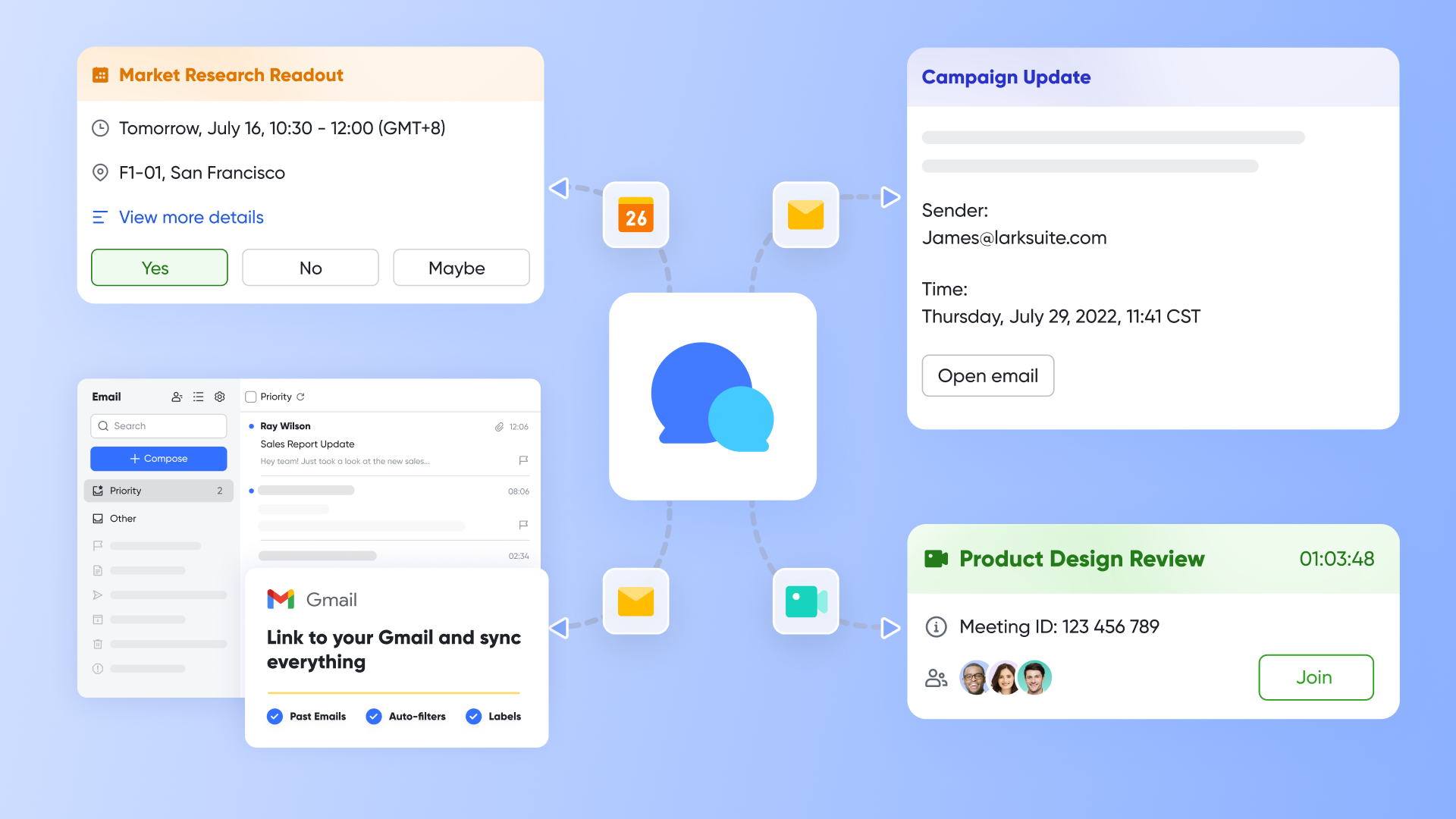
- Centralized communication: Lark facilitates the creation of dedicated project groups within Lark Messenger. This ensures all updates, discussions, and decisions are kept in one secure and easily accessible location, removing the need for disjointed email threads or disparate chat platforms.
- Project wiki: Lark enables centralizing project plans, timelines, and essential documents in a single, meticulously organized, and always accessible project wiki. This ensures everyone is on the same page, promoting transparency and reducing information silos.
Project planning & tracking
Lark empowers teams to stay ahead of deadlines and maintain real-time visibility into project progress.
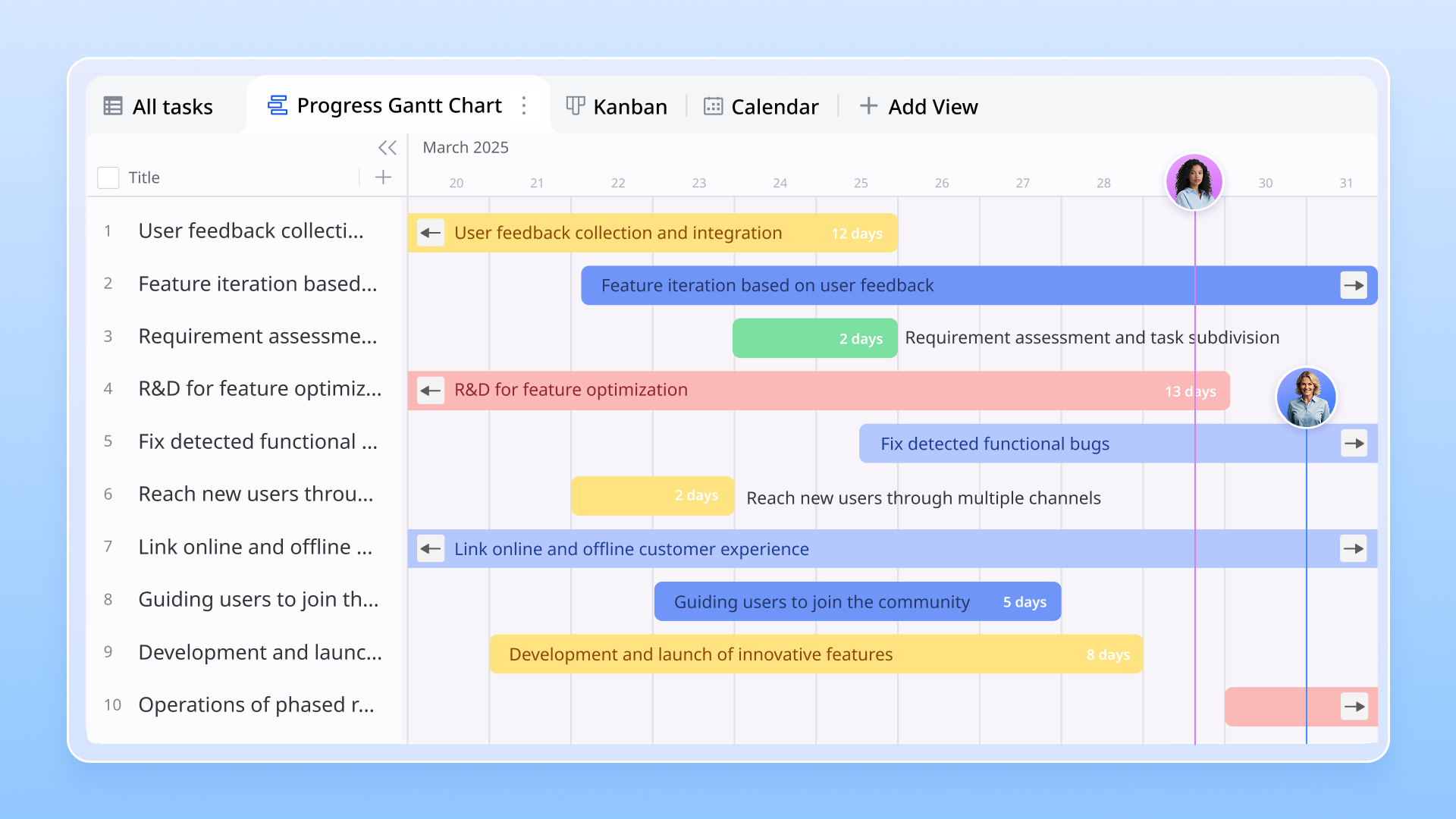
- Versatile task wiews: Track tasks by owner, priority, or phase, with customizable views like Kanban boards for agile workflows and Gantt charts for visualizing timelines and dependencies.
- Automated reminders: Lark automates the process of following up on tasks. Auto-remind task owners to update progress regularly, reducing the need for manual follow-ups and ensuring accountability.
- Real-time alerts: Lark provides instant alerts for any potential delays or blockers. Managers can swiftly identify potential issues and take corrective actions before timelines slip, mitigating risks.
Built-in approvals
Lark combines approval workflows directly into the project management process, bringing structure and accountability to every decision.
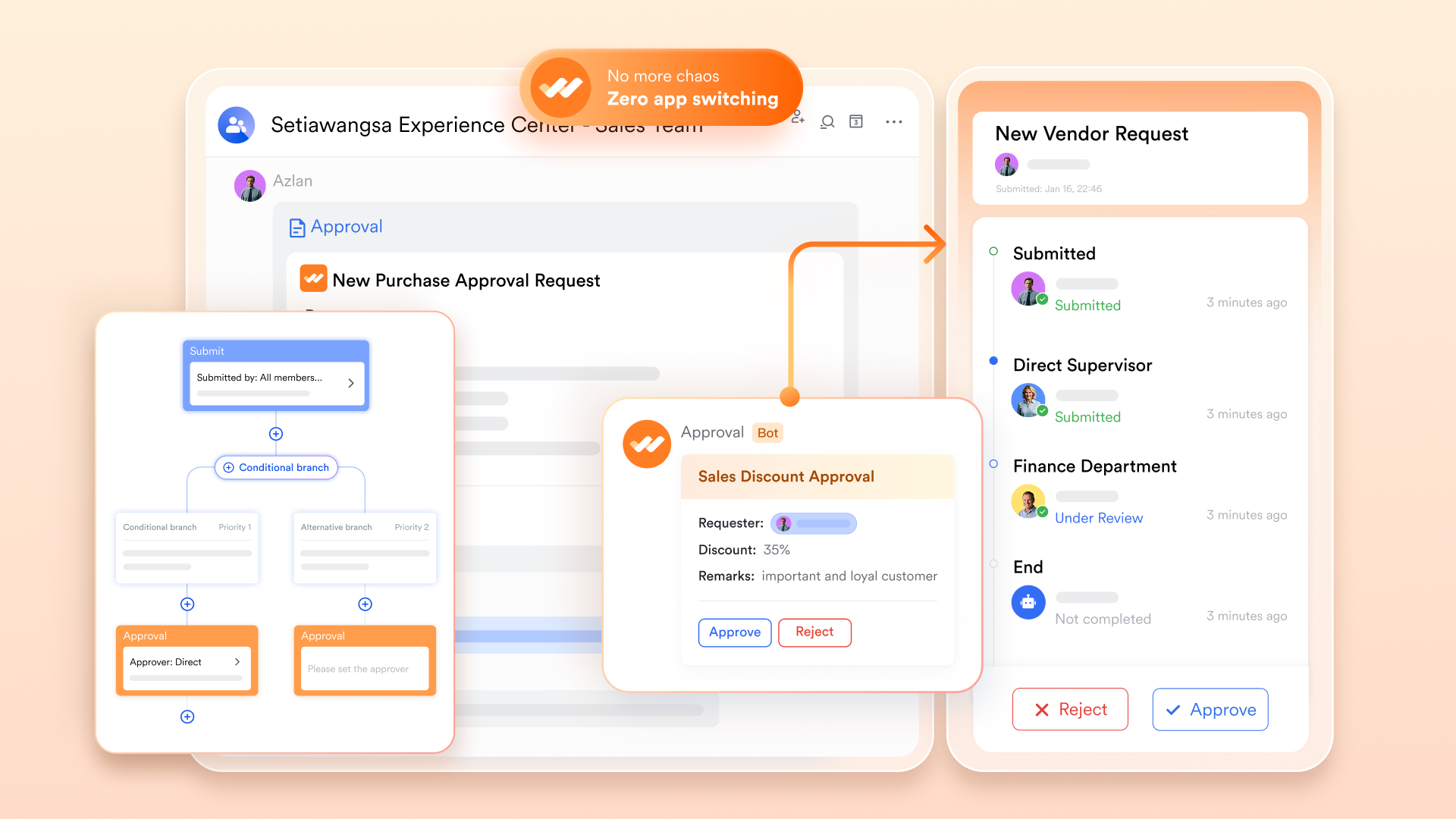
- Custom approval workflows: Teams can create approval stages tailored to specific project needs, specifying the right reviewers and ensuring appropriate control and visibility over key decisions.
- Streamlined request routing: Lark enables routing requests for scope changes, resource allocations, or sign-offs directly within the project chat. This expedites the approval process and keeps all communication contextualized.
- Audit trails: Maintain a comprehensive audit trail of every project decision within Lark, ensuring compliance with internal policies and facilitating accountability across the team.
Project dashboards
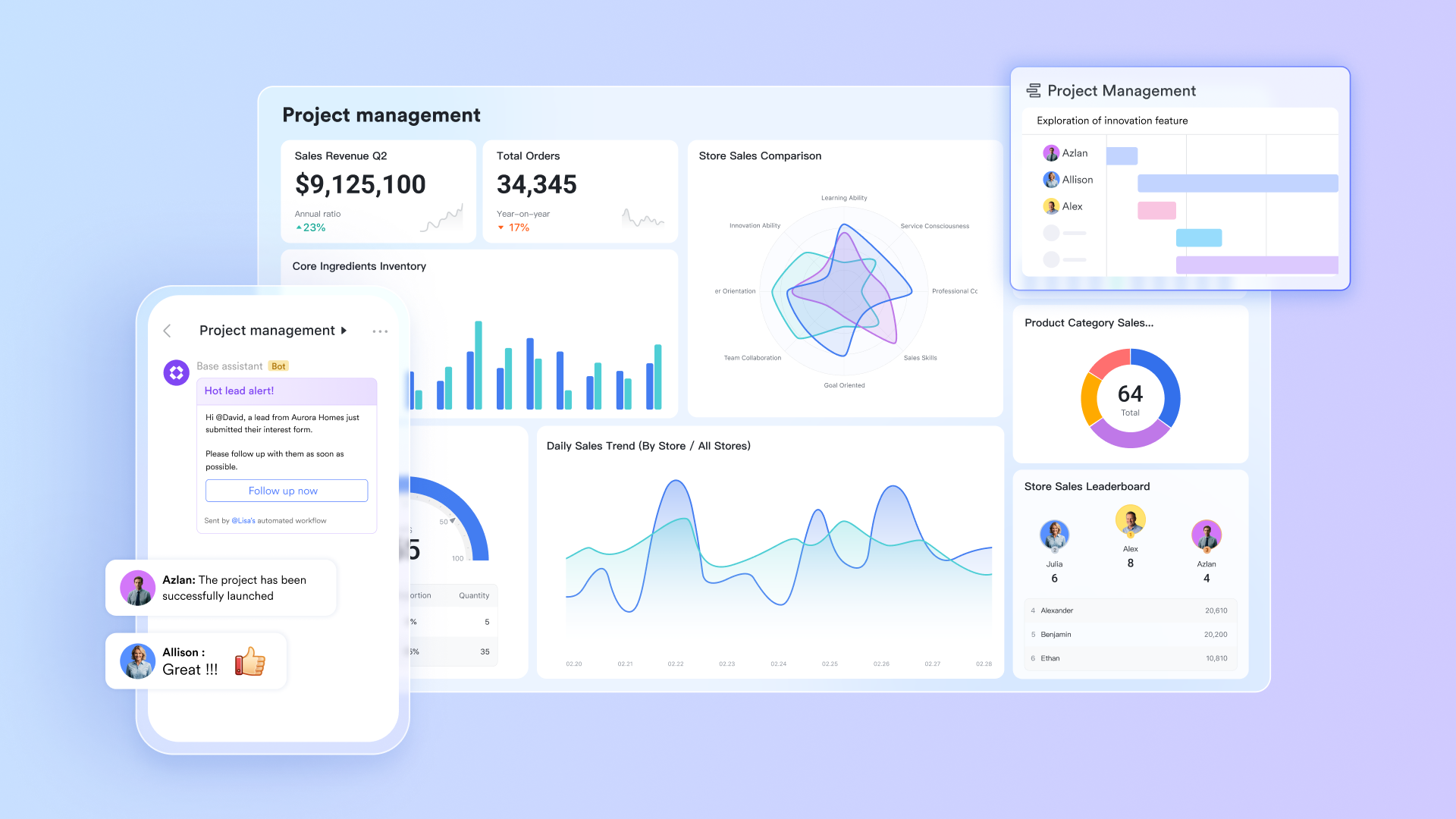
Lark provides real-time dashboards to drive project success using data-driven decisions.
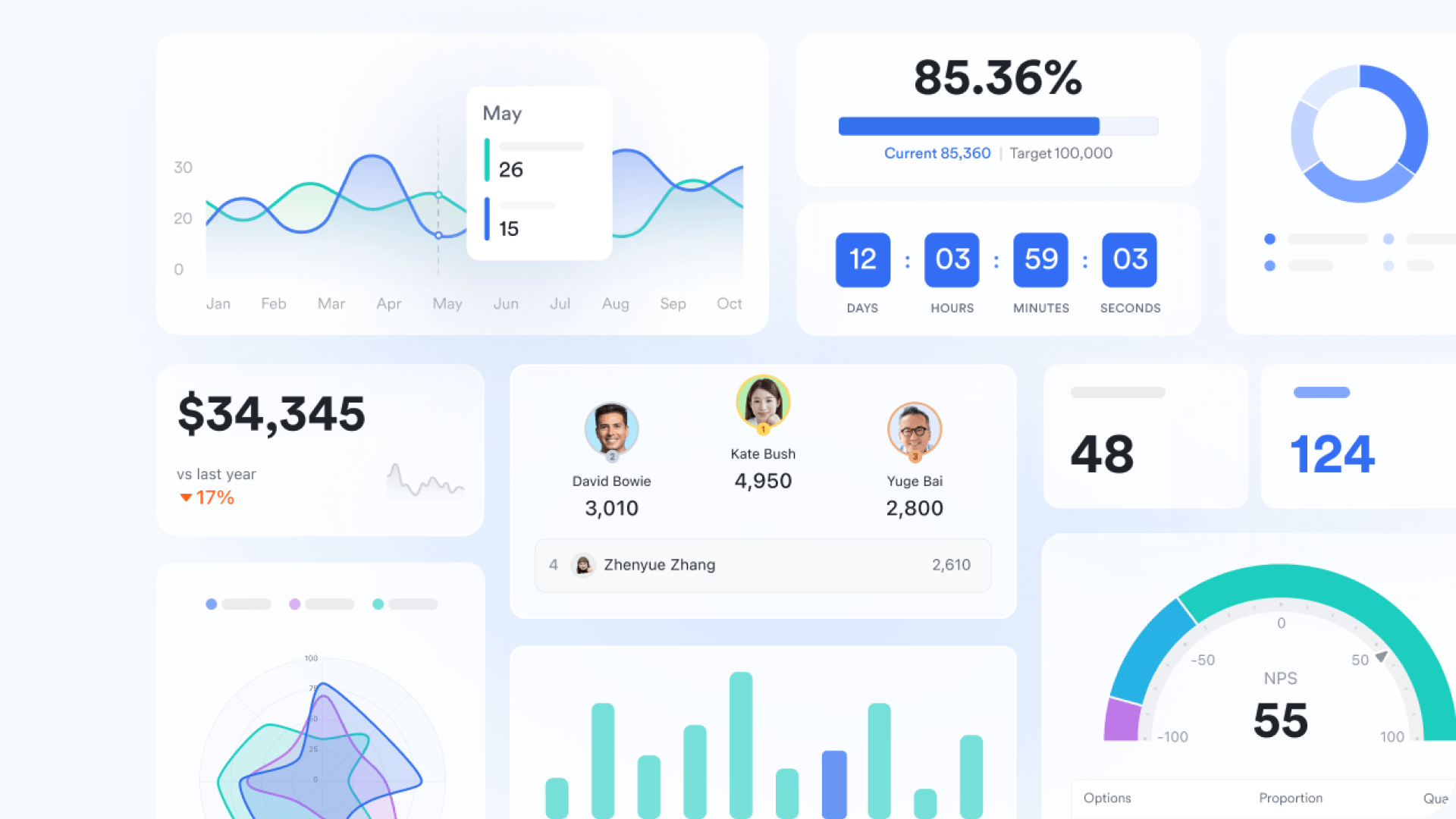
- Real-time visibility: Obtain real-time visibility into project health, timelines, and team activity without needing to chase updates or manually compile reports.
- Key metric monitoring: Monitor vital project metrics, enabling managers to identify potential risks early on. This allows them to make informed decisions and ensure projects remain on track to meet their objectives.
- Customizable reports: Generate tailored reports to communicate project status to stakeholders, fostering transparent communication and ensuring everyone is informed and aligned.
👉Try Lark’s savings calculator: Switching to Lark’s Pro plan can lead to significant cost savings— for example, a 100-employee company using Slack, Google Workspace, and Airtable could save approximately $25,200 annually by consolidating their tools with Lark.
Conclusion
There is no question that Smartsheet is a capable project management tool. By following the guide above, you can effectively plan, execute, and monitor your projects using its robust features. It provides a clear path for organizing tasks and tracking progress. For many teams, that structure is a significant step up from disconnected spreadsheets and email chains.
However, the future of work isn't about having a better spreadsheet. It's about breaking down the silos between where we track work, where we discuss it, and where we store our knowledge. True productivity and team alignment come from an integrated ecosystem. By unifying your project plans, team conversations, documents, and meetings into a single platform, you eliminate the hidden friction that drains focus. You move from simply tracking tasks to fundamentally transforming how your team collaborates. You have the option to make that change. Ready to experience a more seamless way to manage your projects? Explore Lark for your team today.
FAQs
Can Smartsheet be used for project management?
Yes, Smartsheet is a powerful tool specifically designed for project management. It enables teams to plan projects, assign tasks, track timelines with Gantt charts, and monitor progress using real-time dashboards. Its spreadsheet-like interface makes it accessible for planning, while its advanced features provide robust capabilities for managing complex projects from initiation through to completion.
Is Smartsheet better than Excel for project management?
For dedicated project management, Smartsheet is significantly better than Excel. While Excel is a versatile spreadsheet tool, it lacks built-in project management features. Smartsheet offers native Gantt charts, automated workflows, dependency tracking, and real-time collaborative dashboards out-of-the-box. These features automate processes that would be manual and cumbersome to build and maintain in Excel.
What is Smartsheet and how to use it?
Smartsheet is a cloud-based work execution platform that uses a spreadsheet-like interface to help teams manage and collaborate on projects. To use it, you typically start with a template, list your tasks in rows, and use columns for details like assignees and due dates. You can then visualize your timeline with Gantt charts and build dashboards for real-time reporting.
What are the disadvantages of Smartsheet?
Key disadvantages of Smartsheet include its per-user pricing model, which can become costly for large teams, and a steeper learning curve for its more advanced features. Its biggest drawback, however, is that it creates information silos, forcing teams to constantly switch between their project plan and separate communication tools, which fragments conversations and disrupts workflows.
Related reading
Table of contents
Start using Lark today

Manage all your work in one place
Boost team efficiency by 10x
Save up to 70% on software costs
Table of contents
Start using Lark today
Manage all your work in one place
Boost team efficiency by 10x
Save up to 70% on software costs
Keep reading








2026 Lark Technologies Pte. Ltd.
Headquartered in Singapore with offices worldwide.






Explore: