Starting a new initiative often begins with a blank spreadsheet. For many teams, an Excel template for tracking projects is the quickest, most familiar way to organize tasks, assign responsibilities, and map out deadlines. It costs nothing extra to start, and almost everyone knows how to enter data into rows and columns.
However, as your team grows and your workflows become more complex, a simple spreadsheet can easily turn into a confusing web of broken formulas and outdated versions. In this guide, we will explore the essential components of a robust project tracker, share practical template structures you can use immediately, such as , and discuss how modern unified workspaces can solve the common frustrations associated with traditional spreadsheet management.
What makes a good project tracking template?
A spreadsheet is only as useful as the structure you build into it. If you dump tasks into a grid without a clear system, your team will likely abandon the document within a week. A highly functional tracker provides immediate clarity: anyone opening the file should understand exactly where the project stands in seconds, similar to how a well-designed surfaces priorities and ownership at a glance.
To achieve this, every effective project tracker must include a few critical elements, and a customizable can bring these together efficiently:
- Actionable task descriptions: Avoid vague entries like "Website." Use specific verbs, such as "Draft homepage copy."
- Clear ownership: Every task needs a single point of contact. If a task has two owners, it essentially has no owner, so a structured can help clarify who is responsible for each deliverable.
- Status indicators: Use standardized drop-down menus (e.g., Not Started, In Progress, Blocked, Completed) rather than free-text fields. This allows you to filter and sort the data cleanly.
- Time boundaries: Include both start dates and deadlines to measure project velocity, ideally visualized in a structured .
Mini-scenario: Imagine your marketing team is launching a new campaign. If the designer finishes the graphics but forgets to update the spreadsheet, the copywriter might lose two days waiting for assets that are already done. A good template uses clear status drop-downs and conditional formatting (like turning a row green when completed), so handoffs happen faster.
Discover a flexible tool to track projects better
Top free Excel templates for tracking projects
Depending on the scope of your work, you might need different layouts. Here are the most common template structures teams use to manage their work.
Project charter template
Before any actual work begins, you need a document that officially authorizes the initiative. A project charter template captures the high-level objectives, scope, key stakeholders, and initial resource allocations.
- Best for: The planning phase. It ensures alignment between the project manager and the project sponsor before the budget is spent.
- Key elements: Project goals, core deliverables, major milestones, and assigned project manager authority.
Gantt chart template
A standard task list fails when you need to see how tasks overlap. A Gantt chart template uses horizontal bars to visually map out project schedules and task dependencies over time.
- Best for: Visualizing the entire project timeline and identifying the critical path (the sequence of tasks that cannot be delayed without extending the project).
- Key elements: Task start and end dates, task owners, and visual indicators for dependencies.
Simple to-do list template
Not every project requires a massive, multi-tab workbook. A straightforward to-do list template helps individuals or very small teams keep track of daily or weekly action items without unnecessary complexity.
- Best for: Personal organization, micro-projects, or simple administrative workflows.
- Key elements: Task description, priority level, due date, and a simple checkbox or status column.
Issue tracking log template
No project goes exactly as planned. An issue tracking log provides a centralized place to record roadblocks, bugs, or unexpected delays so they do not fall through the cracks.
- Best for: Software development, construction, or any project where mitigating risks and resolving dependencies are daily requirements.
- Key elements: Issue description, reported by, assigned to, priority level (High/Medium/Low), and resolution status.
Multiple project tracking dashboard template
When managing a portfolio of work, you cannot afford to open a dozen different spreadsheets to check statuses. This dashboard template aggregates high-level data from various projects into a single, clean view.
- Best for: Project Management Office (PMO) leaders, department heads, or small business owners juggling various initiatives simultaneously.
- Key elements: Project name, overall health indicator (Red/Yellow/Green), budget utilization percentage, and upcoming major milestones.
Project plan template
A general project plan template serves as the central hub for defining the project structure. It goes a step deeper than a charter but remains broad enough to cover all moving parts of a standard business initiative.
- Best for: Standardizing how your team approaches recurring project types, such as marketing campaigns or event planning.
- Key elements: Phased breakdowns, task assignments, estimated vs. actual durations, and baseline budget figures.
How to use an Excel template for tracking multiple projects
Centralized portfolio dashboard setup
When managing multiple projects, avoid scattered files by creating a master sheet that aggregates key data (project name, status, budget spent, milestones) from individual project tabs. This provides a high-level overview without digging through excessive rows.
Visual clarity via formatting
Use color coding and conditional formatting to highlight critical risks. For example, set cells to red if actual costs exceed estimates, or yellow if deadlines are within 3 days, similar to structured .
Data aggregation challenges
Pulling data from multiple files requires complex formulas or Power Query. Accidental deletion of referenced rows in sub-sheets can break the master dashboard, causing #REF! errors before stakeholder meetings.
The hidden costs of static project spreadsheets
- Initial appeal for small teams: Spreadsheets are familiar and cost-free, especially with free project management templates, making them a common starting point for small businesses.
- Productivity loss at scale: As teams grow, static files create more operational friction than paid tools. Version control becomes a major issue, with endless email threads of updated file versions (e.g., Q3_Launch_Tracker_v4_Final_UPDATED.xlsx) and frustrating waiting periods for locked files.
- Data silos and manual overhead: Spreadsheets isolate project data from communication tools and meeting notes, forcing project managers to act as human notification systems to track status updates
A better way: Transitioning from static sheets to Lark
While a simple Excel template for tracking projects is a great starting point, distributed teams quickly outgrow static spreadsheets. When real-time collaboration, automated status updates, and portfolio visibility become essential, traditional files often create bottlenecks. Lark replaces disconnected templates by unifying your tasks, project data, and team communication into a single workspace, eliminating the constant context-switching between emails and tracking sheets.
Real-time teamwork via collaborative editing
One of the biggest frustrations with a shared project tracking template is the dreaded "File is locked for editing" error. and solve this version control nightmare through simultaneous collaborative editing. Instead of emailing different file versions, dozens of team members can update the tracker at the same time. You can use the @mention function to tag a colleague directly on a specific task row, and a comprehensive version history ensures everyone is looking at a single, live source of truth.
Scalable architecture with link fields
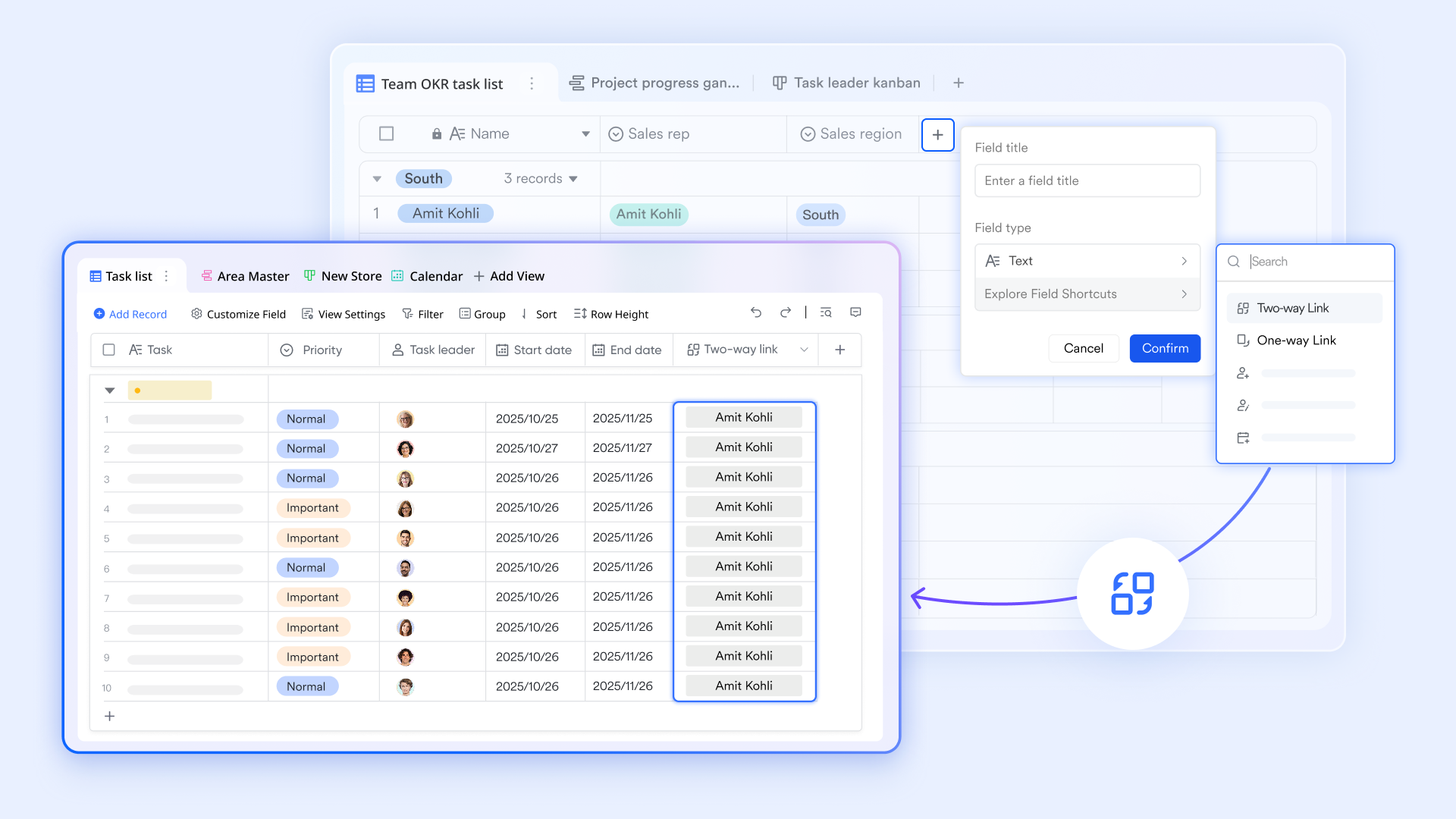
Using an Excel template for tracking multiple projects often leads to bloated files and broken formulas spread across dozens of tabs. To handle growing complexity, Lark Base uses a relational database structure powered by two-way links. For example, you can connect a "Client" record in one table directly to multiple "Projects" in another without manually copying data. If a client's details change, updating them once reflects across your entire tracking system, offering a much more stable foundation than a traditional spreadsheet.
Project insights via block-based dashboard
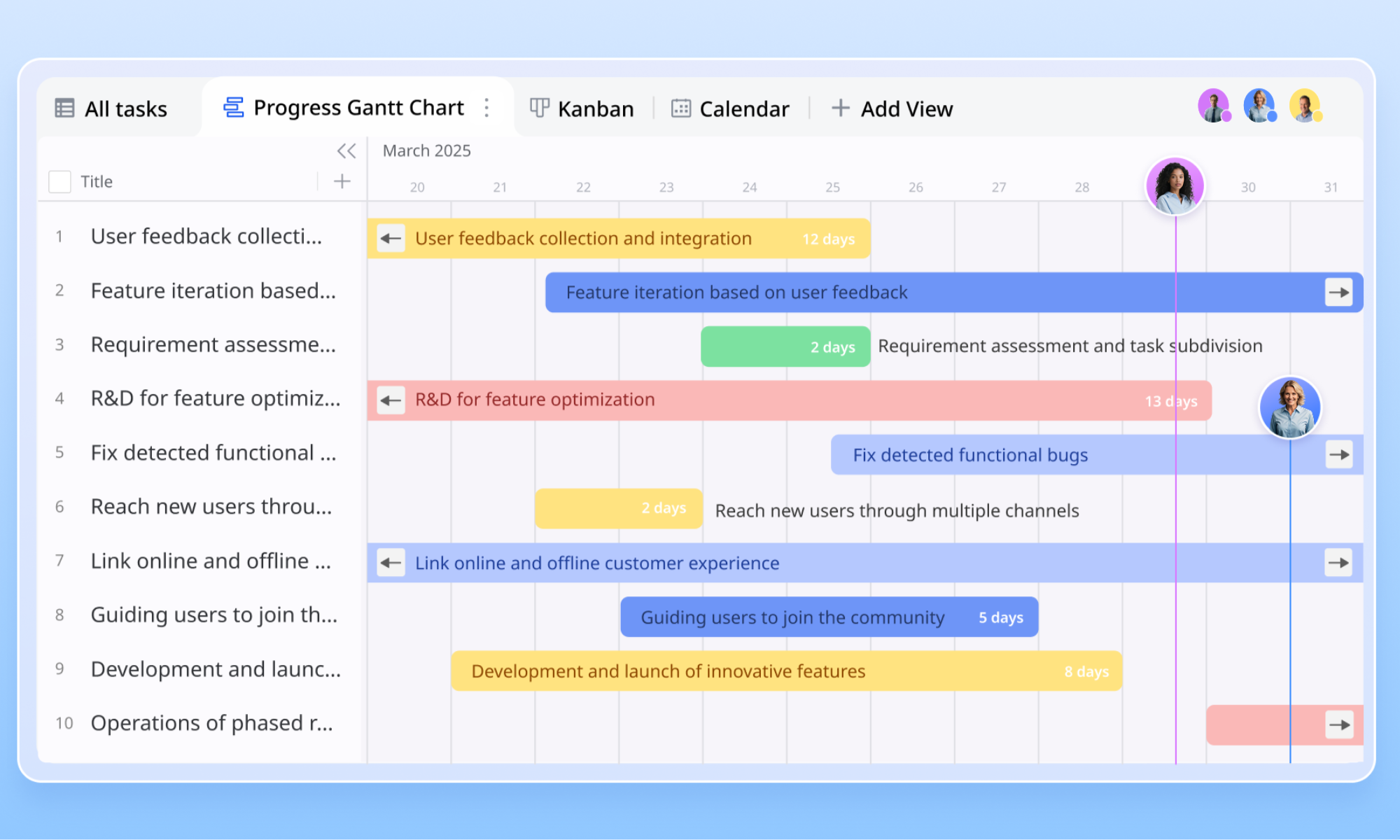
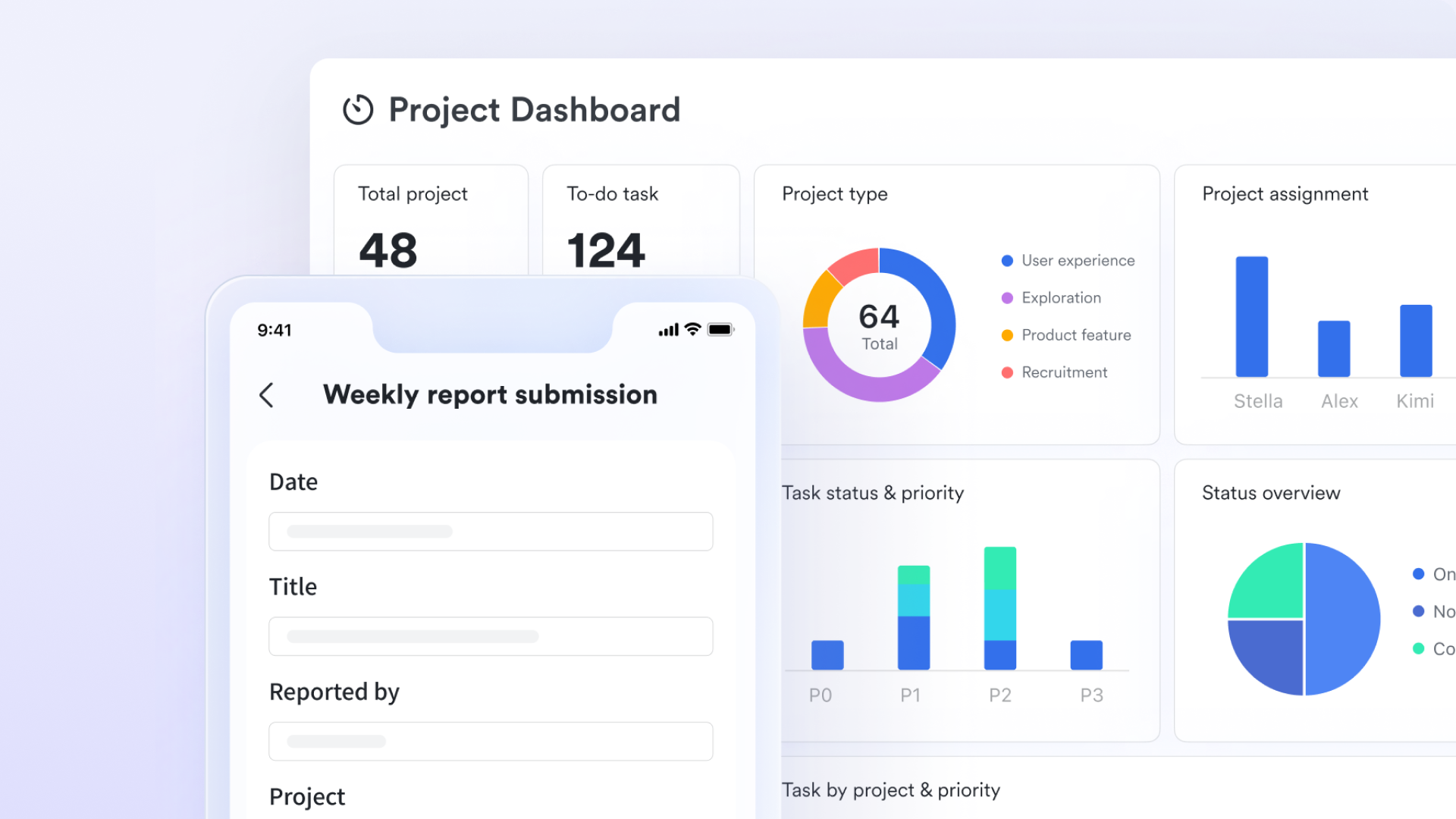
Building a dashboard in an Excel template often requires complex pivot tables and manual data refreshes. In contrast, Lark Base dashboards turn your project tracking data into a live command center using over 30 customizable chart types and blocks. Instead of manually updating static graphs, managers can switch instantly between specialized Gantt and Kanban views to monitor dependencies, while automated progress blocks reflect the true,
Automated triggers for status changes
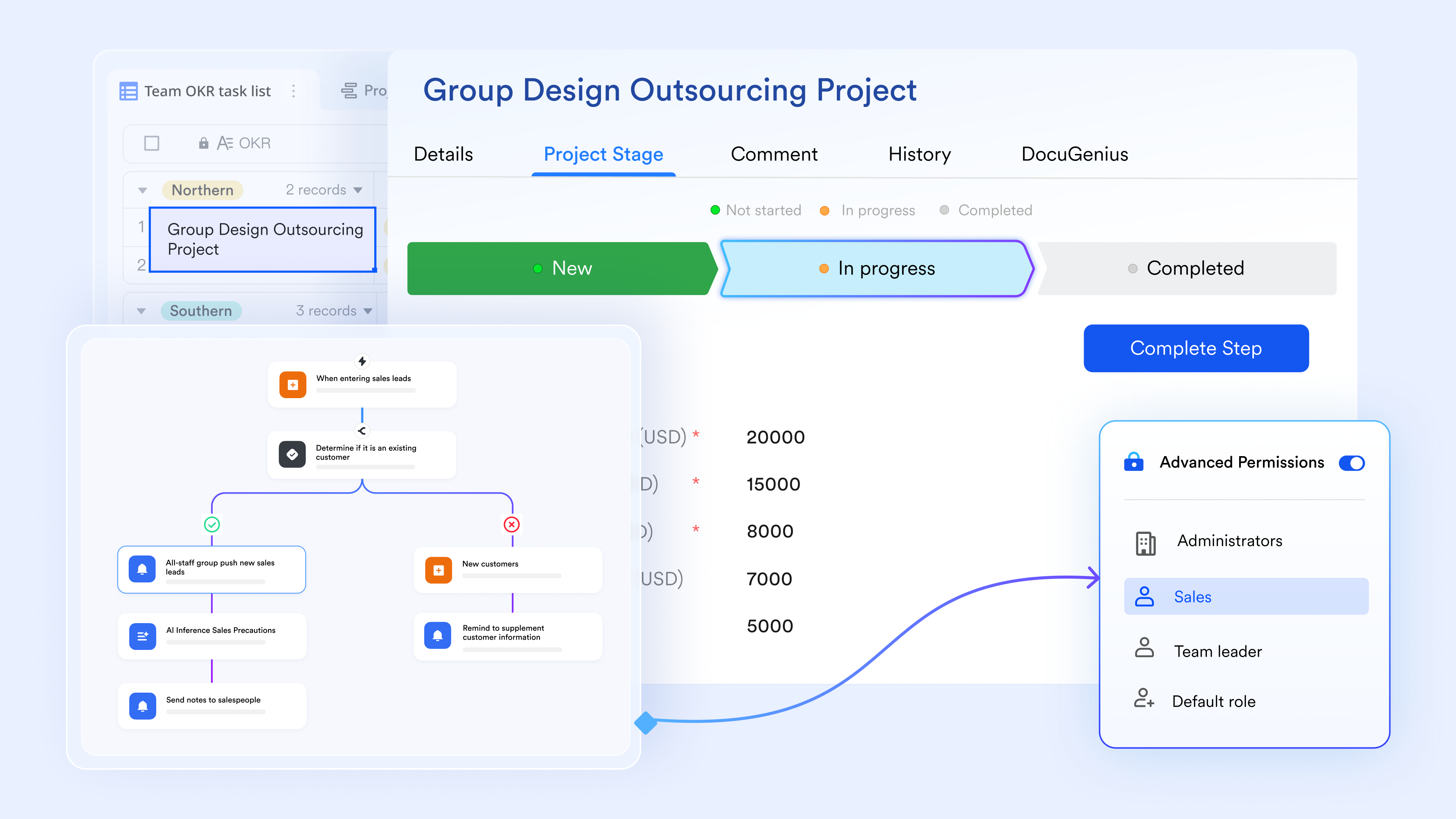
A standard Excel tracker is entirely passive; it relies on project managers to manually check for overdue tasks or status updates. Lark transforms this process by letting you design directly within your tracker. Using the "When a record matches certain conditions" trigger, you can set rules so that if a project status changes to "Delayed," Lark automatically executes a "Send a message" action to the relevant chat group in . Your tracker becomes an active, self-reporting system.
:
- Starter plan: Free forever plan that includes 11 powerful tools for up to 20 users. It also includes 100GB of storage, 1,000 automation runs, AI translations, and more.
- Pro plan: $12/user/month (billed annually) for up to 500 users. It includes everything in Starter plus group calling for up to 500 attendees, 15 TB of storage, 50,000 automation runs, and more.
- Enterprise plan: for custom pricing. Supports unlimited users and includes even more automation runs and advanced security, compliance, and management features.
For small teams with simple communication needs

18 months message history
1000 Base automation runs/month
2000 rows per table in Base
Most POPULAR
For companies with comprehensive collaboration and management needs
Unlimited message history
500-participant video meetings
50k Base automation runs/month
20k rows per table in Base
For large companies with advanced security and organizational management needs
Get a personalized demo and pricing
Unlimited message history
500-participant video meetings
15 TB storage + 30 GB storage/user
500k Base automation runs/month
50k Base automation runs/month
Most POPULAR
For companies with comprehensive collaboration and management needs
Unlimited message history
500-participant video meetings
50k Base automation runs/month
20k rows per table in Base
Conclusion
Spreadsheets remain a fantastic starting point for mapping out new initiatives. They offer unmatched flexibility for quick planning. However, as your team's workload scales and multiple projects overlap, sticking to static, disconnected files creates unnecessary friction and version control headaches. Upgrading to a unified workspace transforms how your team collaborates, saving hours of manual updates. By moving to a cloud-native database, you keep your data, communication, and team perfectly aligned. offers ready-to-use templates and built-in communication tools that can complement or extend what you already do in Excel. Try Lark today to see how your team can track projects with greater clarity and collaboration.
Streamline project tracking with Lark
FAQs
Can you track multiple projects in one Excel file?
Yes, you can track multiple projects in one file by dedicating a separate tab to each project and creating a master dashboard tab that pulls high-level data from the others. However, as the file grows, it can become slow to load and prone to formula errors if multiple users edit it.
How do I create a project tracker from scratch?
Start by defining your core columns: Task Name, Assignee, Start Date, Due Date, and Status. Select your Status column and use the "Data Validation" feature to create a standardized drop-down menu (e.g., Not Started, In Progress, Done). Finally, apply conditional formatting to visually highlight overdue tasks or completed items.
What is the best alternative to Excel for project management?
The best alternatives are unified productivity suites and cloud-native databases. Tools like Lark Base provide the familiar grid interface of a spreadsheet but add real-time collaboration, relational data linking, and automated workflow triggers that keep your team connected without jumping between different apps.
Related reading