














Learn How to Create a Project Plan in Excel with Guide, Examples and Templates

Ryan Tanner
Product Marketing Specialist
Sep 18, 2026
Ryan Tanner
Sep 18, 2026

22 min read


Learning how to create a project plan in Excel is one of the easiest ways to bring structure and clarity to your work. Excel's built-in tools let you organize tasks, set timelines, assign responsibilities, and track progress—all in one place. Whether you're managing a marketing campaign, launching a product, or coordinating cross-team initiatives, Excel offers a flexible foundation for visualizing every phase of your project.
In this guide, you'll learn how to structure your task list, add dependencies, and build a Gantt chart for visual tracking. You'll also discover how to overcome common limitations of spreadsheets as projects grow. For teams looking to collaborate more seamlessly, modern platforms like Lark extend this planning foundation with real-time updates and connected workflows—making project tracking smoother from start to finish.

What is a project plan?
A project plan is a structured document that outlines how a project will be executed, monitored, and completed. It serves as a roadmap that defines the project's objectives, scope, timeline, resources, tasks, and deliverables, helping teams stay organized and aligned.
A well-crafted project plan clarifies who is responsible for each task, when milestones are due, and how progress will be tracked. Whether created manually or using tools like Excel project templates, it ensures consistency and visibility across all project stages. Learning how to create a project plan in Excel allows teams to build a clear framework for task management, budgeting, and scheduling. It also helps identify potential risks and dependencies early.
How to create a project plan in Excel
When you're starting a new project and need clarity fast, Excel can act as your go-to planning tool. The process of how to create a project plan in Excel becomes straightforward when you follow a clear structure. With a few key steps, you'll move from undefined scope to a task list, timeline and visual dashboard. Below is the guide on how to create a project management plan in Excel:
Step 1: Define your project goals and scope
Before diving into Excel, articulate what the project aims to achieve and its boundaries. This means listing key objectives (ideally SMART: Specific, Measurable, Achievable, Relevant, Time-bound) and aligning them with stakeholders. Also define what's in-scope and out-of-scope to avoid scope creep and ensure the plan remains focused.
Step 2: Add project information
Create a new workbook and set up your worksheet with clear headers (e.g., Task, Assigned To, Start Date, End Date, Duration, Status). Enter your task data: task names, owners, dates, then use formulas (like =EndDate–StartDate) to calculate durations. Make sure the layout is clean—bold headers, autofit columns for visibility.
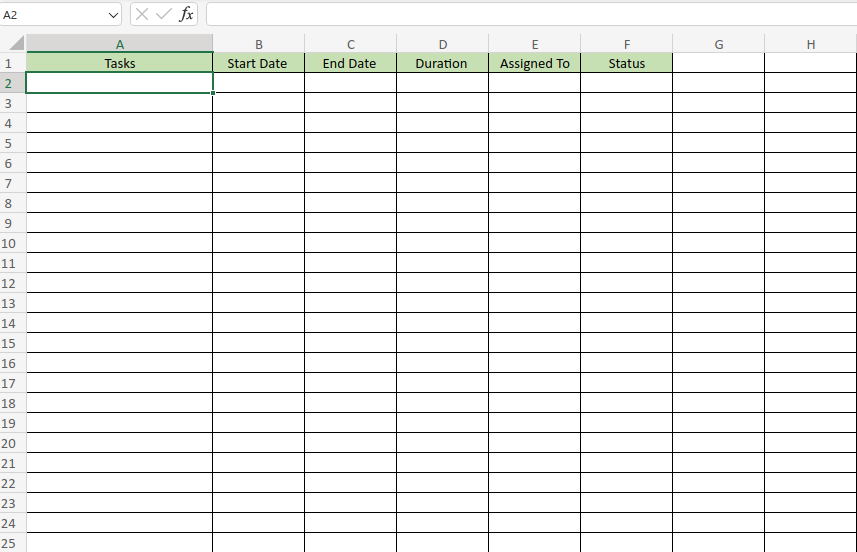
Image source: microsoft.com
Step 3: Assign tasks to team members
Populate the "Assigned To" column with names of people responsible and add comments for clarity (Excel → Insert Comment). Use notes or @mentions if supported to tag specific individuals. This step ensures accountability and clarity on who owns each task and any related comments or clarifications
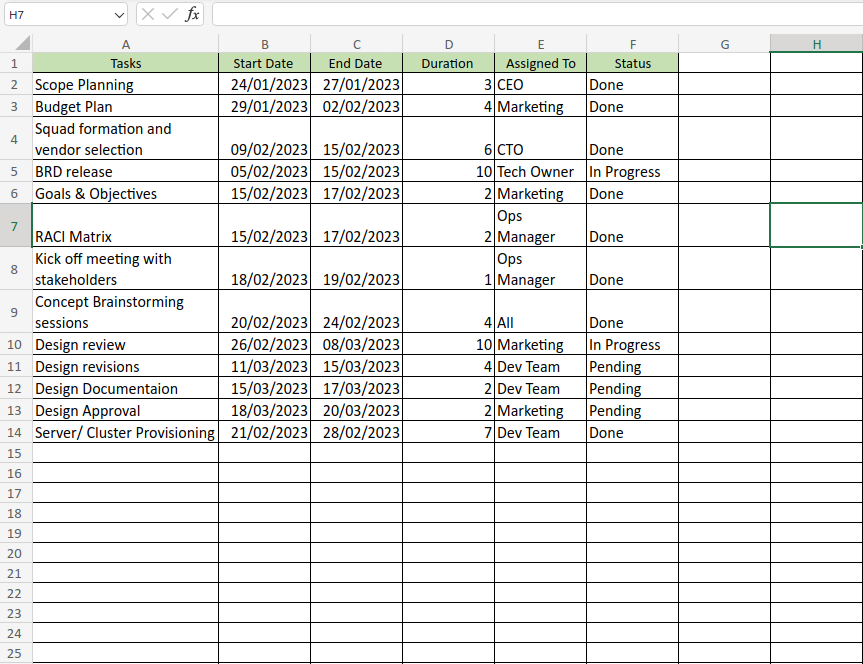
Image source: microsoft.com
Step 4: Visualise the project timeline
Since Excel doesn't have a built-in Gantt chart, you simulate one: select your task data, insert a stacked bar chart, then format the "Start Date" series with No Fill to hide it so only the duration bars show. Reverse the category order so tasks appear top-to-bottom correctly. Then, you can save it on your computer and never need to search for "how to create a project plan template in Excel" anymore.
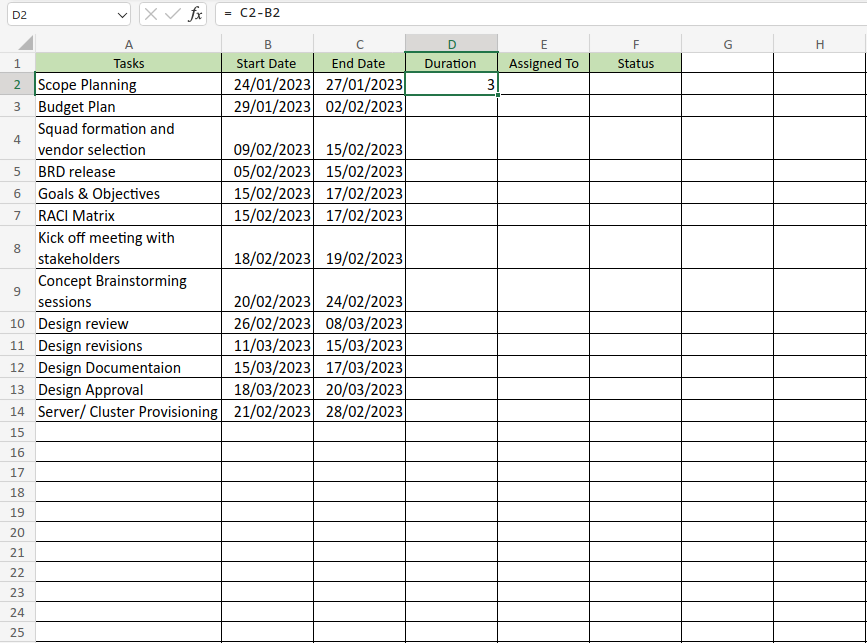
Image source: microsoft.com
Limitations of project planning in Excel
While Excel is a powerful starting point for managing projects, it has limitations that can impact efficiency as your team or project grows. What works for small projects often becomes cumbersome when collaboration, real-time updates, or automation are required. Understanding these drawbacks helps you decide when to move from static spreadsheets to dynamic project management tools. Below are the main limitations of project planning in Excel.
- Manual updates: Excel relies heavily on manual data entry and updates, which increases the risk of errors and outdated information. Every task completion or timeline change must be entered manually. Over time, this slows teams down and makes reporting less reliable.
- Limited collaboration: Multiple people editing the same Excel file can cause version conflicts and data overwrites. While shared workbooks help, they still lack true real-time collaboration. This makes it hard for teams to work together efficiently across departments.
- No real-time visibility: Excel doesn't provide live project dashboards or instant status tracking. Stakeholders must open and refresh files to see changes. As a result, delays or progress updates often go unnoticed until reviews or meetings.
- No automated notifications: When a task is delayed or dependent work shifts, Excel won't alert the team automatically. This lack of automation increases the chance of missed deadlines. Teams must constantly check the sheet to stay informed.
- Scalability: As projects expand, managing hundreds of tasks and dependencies in Excel becomes inefficient. Large datasets slow down performance and increase complexity. For multi-team projects, this makes coordination and reporting extremely difficult.
Try a smart way: Turn static plans into living workflows with Lark
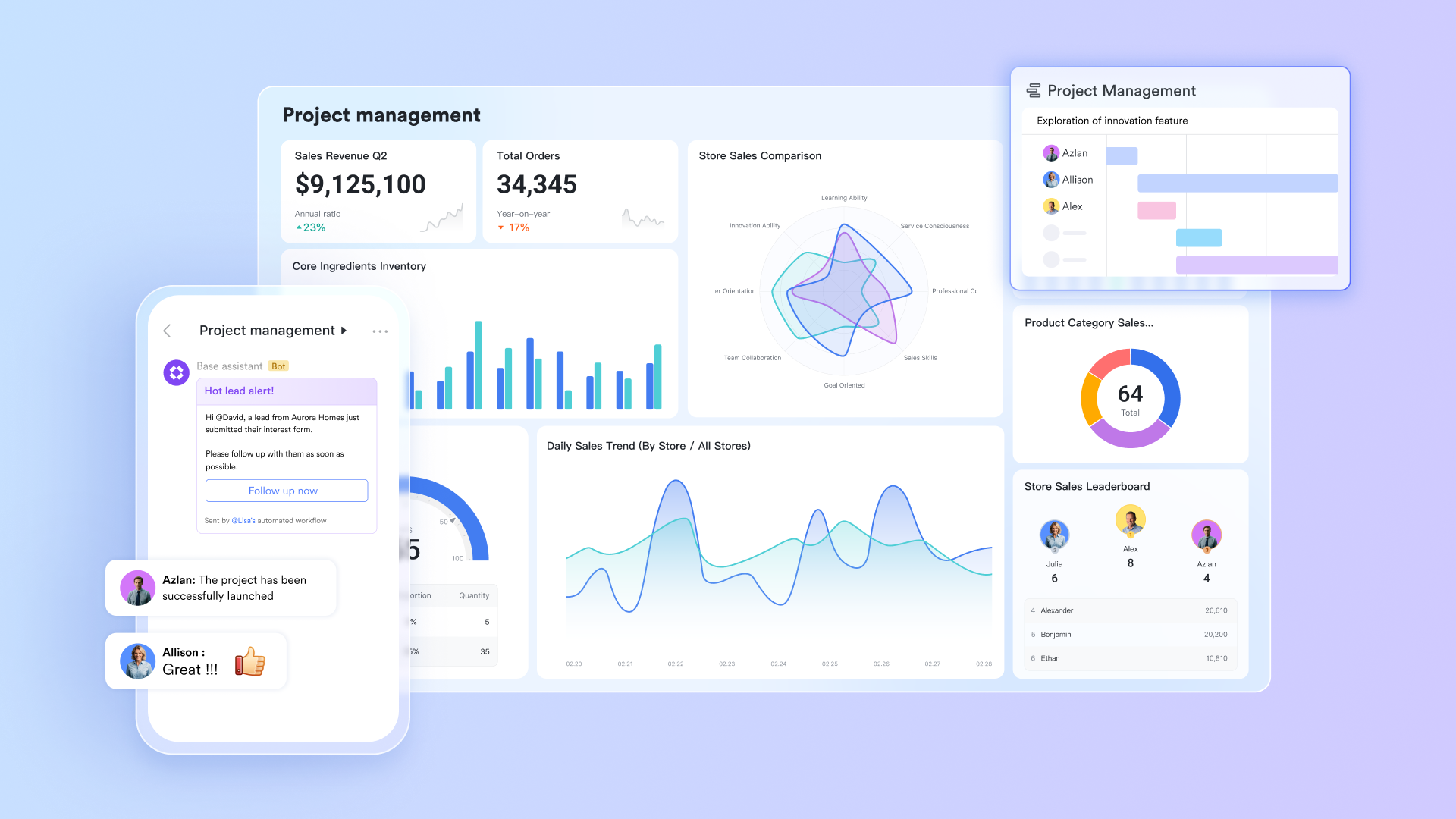
Turning static Excel plans into living workflows with Lark helps teams move from manual tracking to automated, real-time project management. Lark connects your data, tasks, and communication in one collaborative workspace, eliminating the silos of traditional spreadsheets. Instead of updating rows manually, progress syncs automatically across dashboards, tasks, and documents. Team members can track dependencies, share updates, and resolve blockers instantly.
Lark Base: Structured project data and real-time visibility
Lark Base gives you a centralized hub for every project detail—owners, timelines, dependencies, and milestones. You can view data as tables, Kanban boards, or timelines to track progress from multiple perspectives. Dashboards update automatically, showing completion rates and bottlenecks in real time. Automated workflows flag overdue tasks or delayed milestones before they escalate. It's your live command center for everything happening across projects.
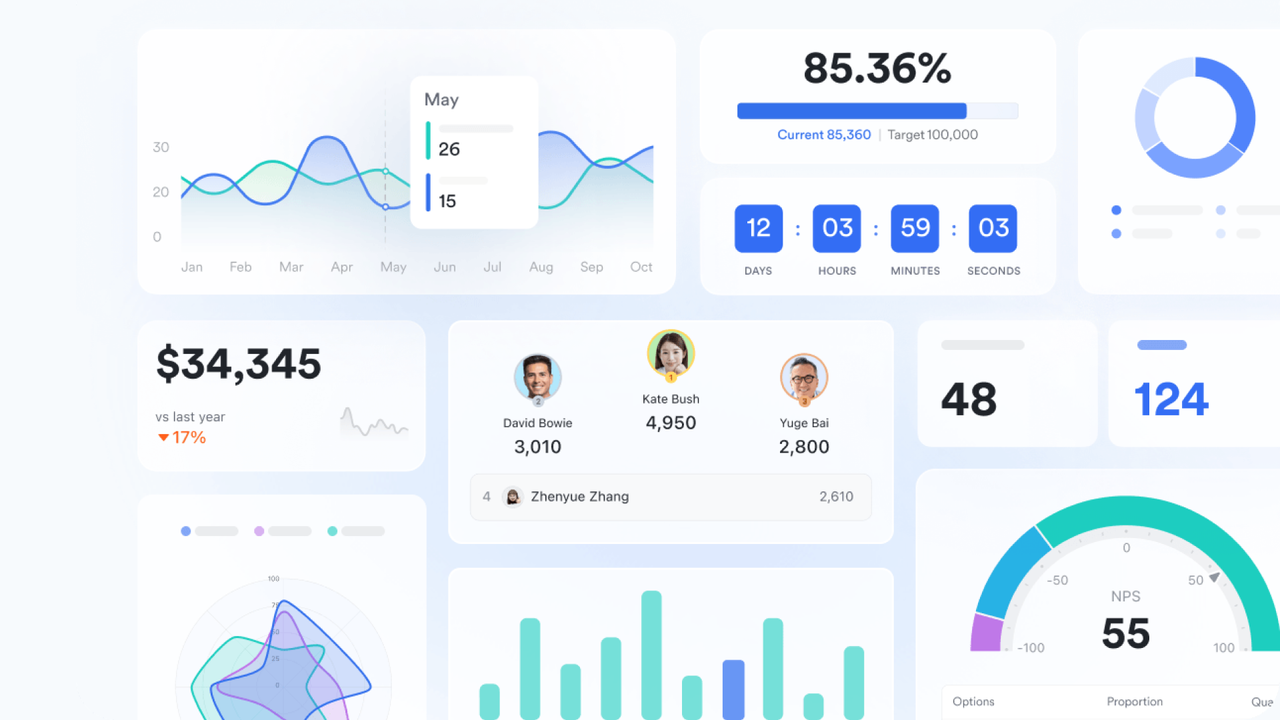
Lark Tasks: Clear ownership and consistent accountability
Lark Tasks turns plans into action by assigning deliverables with clear owners, priorities, and due dates. Each task synced automatically to its project in Base, so progress updates flow automatically. Subtasks roll up into parent tasks, keeping completion metrics accurate without manual reporting. Task lists can be shared and managed collaboratively, and you can view tasks by role (Owned, Assigned, Created, Subscribed).
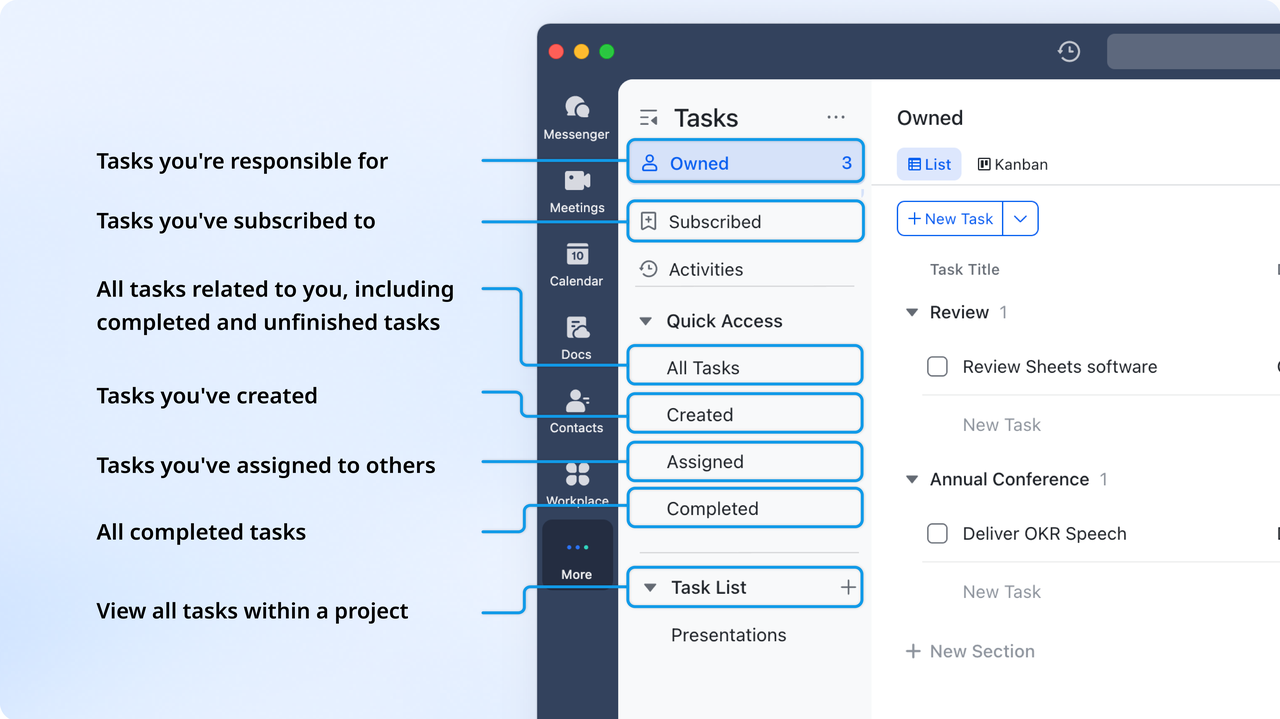
Lark Docs: Living project briefs and decision records
Lark Docs keeps every project note, scope document, and meeting record in one shared, editable space. Teams co-edit in real time, leave comments, and embed tables or charts from Base for instant reference. Each document stays current, reducing version chaos and information gaps. Decisions, approvals, and rationale are captured in the same place as your plan. It transforms static files into living records that evolve with your project.
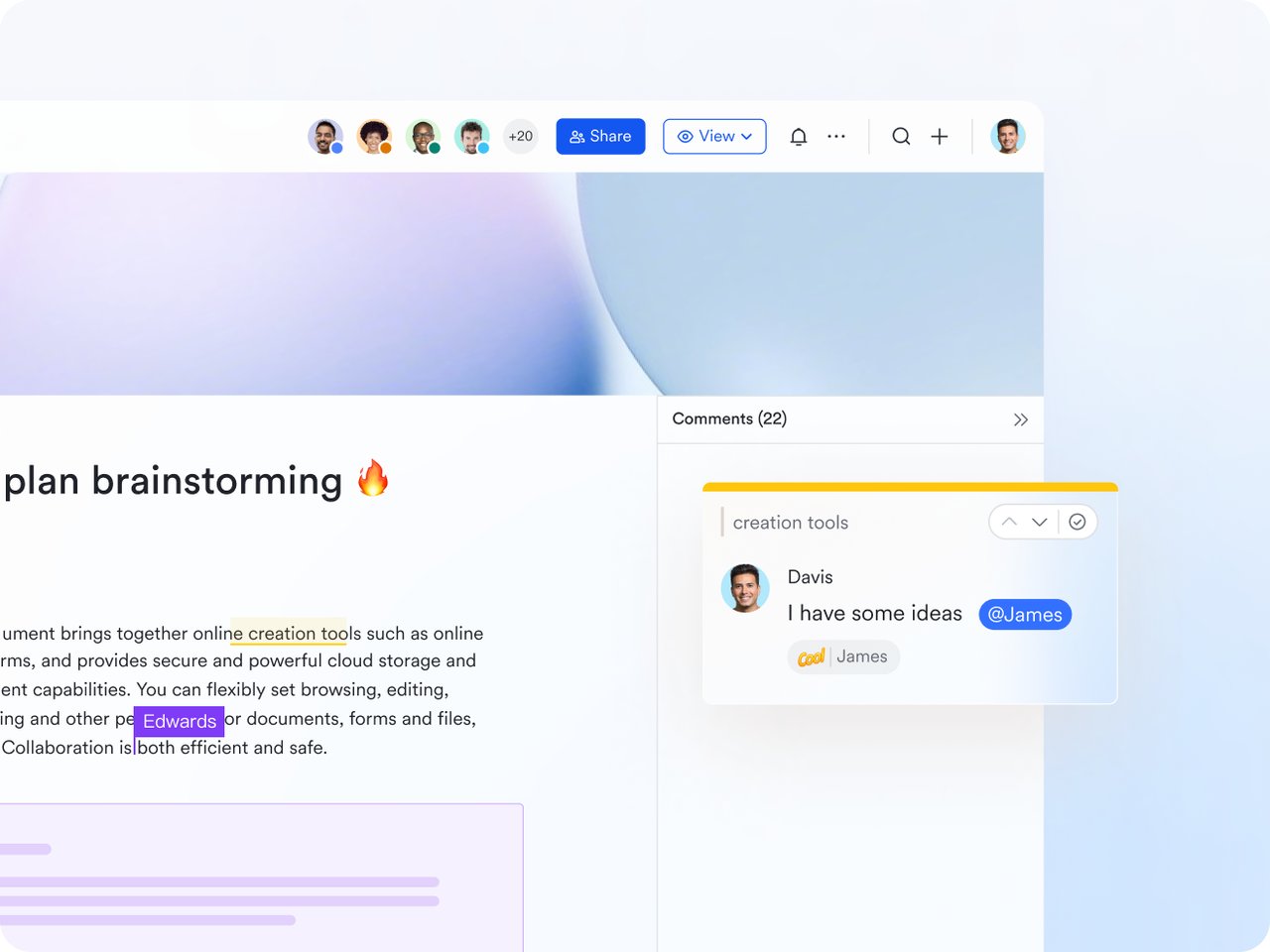
Lark Messenger: Real-time communication that drives action
Lark Messenger brings project conversations right where the work happens. Lark Messenger supports group chats, replies to specific messages to retain context, and for focused discussions. If thread subscribed, when a timeline shifts or an update occurs, automatic notifications alert the right people instantly. Team members can discuss blockers, approve changes, or update progress directly in chat. It shortens response times, reduces confusion, and keeps everyone aligned around the same data.
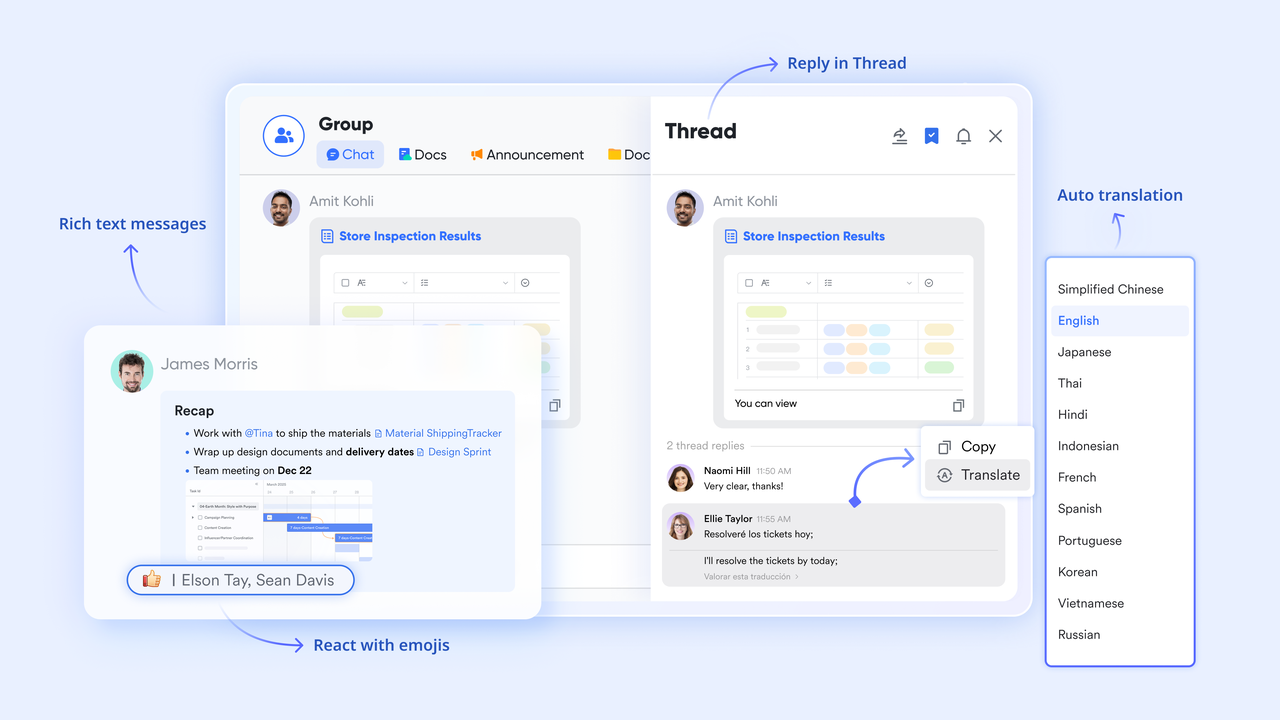
Lark Meetings: Smarter reviews with built-in accountability
Lark Meetings connects live discussions with live project data. You can review Base dashboards during meetings, track performance metrics, and adjust plans in real time. After meetings, you can create group chats for continued collaboration. With Minutes enabled the meeting is recorded, a Minutes file containing the meeting recording, transcript, and AI-enhanced meeting notes will be generated after the meeting ends. Every review ends with clarity, accountability, and immediate follow-up inside the same workspace.

- Starter plan: Free forever plan that includes 11 powerful tools for up to 20 users. It also comes with 100GB of storage, 1000 automation runs, AI translations, and more.
- Basic plan: $6/user/month (billed annually) for up to 500 users. Includes everything in Starter plus unlimited message history, 5TB storage, 1,000 automation runs, and more. Some users may need to contact sales to purchase.
- Pro plan: $12/user/month (billed annually) for up to 500 users. It includes everything in Starter plus group calling for up to 500 attendees, 15TB of storage, 50,000 automation runs, and more.
- Enterprise plan: Contact sales for custom pricing. Supports unlimited users and includes even more automation runs and advanced security, compliance, and management features.
Use Lark templates to start your next project plan instantly
Starting a new project from scratch can be time-consuming, especially when setting up task lists, timelines, and dependencies. Lark's ready-to-use project templates make it effortless to launch your next plan in minutes. Simply choose a template, customize it to your needs, and start tracking progress instantly.
Project plan
The project plan template in Lark provides a structured framework to outline objectives, milestones, and deliverables clearly. It helps you break down complex projects into manageable tasks with defined owners, timelines, and dependencies. You can view progress in multiple formats—table, Kanban, or timeline—depending on your workflow. Automated updates and smart reminders keep every stakeholder aligned, ensuring nothing falls through the cracks from kickoff to completion.
Roadmap
The roadmap template offers a clear, visual overview of your project's direction and progress. It helps teams map out major phases, milestones, and deadlines in a single, easy-to-follow timeline. You can track dependencies and align cross-functional teams around shared goals. With real-time updates and customizable views, it ensures everyone stays informed about what's next and how each phase contributes to the bigger picture.
Project management Gantt chart
The project management gantt chart template helps you visualize your entire project timeline at a glance. It displays tasks, durations, and dependencies in a dynamic, interactive format that updates in real time. Teams can easily adjust schedules, monitor progress, and identify bottlenecks before they escalate. With color-coded timelines and automatic syncing across tasks, it simplifies complex scheduling and keeps every stakeholder aligned on deliverables and deadlines.
Multi-project tracker
The multi-project tracker template enables teams to manage several projects simultaneously within a single, organized workspace. It consolidates timelines, owners, and progress metrics across multiple initiatives, giving leaders a unified view of performance. You can filter by project, priority, or status to identify risks and allocate resources effectively. With automated updates and real-time dashboards, it streamlines oversight and ensures every project stays on track without switching between multiple files.
Project planning & implementation
The project planning & implementation template helps teams move seamlessly from strategy to execution. It provides a structured layout to define project goals, assign responsibilities, and set key milestones. Each phase—from planning to delivery—is tracked with clear timelines and dependencies. Built-in automation and progress dashboards keep everyone aligned, ensuring that implementation stays efficient, transparent, and on schedule.
OKR task subdivision and progress control
The OKR task subdivision and progress control template helps teams translate high-level objectives into actionable, measurable tasks. It breaks down OKRs into clear deliverables, assigns ownership, and tracks progress in real time. Visual dashboards display completion rates and highlight areas needing attention. With automated updates and reminders, it keeps teams focused on outcomes and ensures consistent alignment between daily work and strategic goals.
Team task allocation
The team task allocation template simplifies workload distribution and accountability across teams. It allows managers to assign tasks with clear priorities, deadlines, and owners—all visible in one shared workspace. Real-time updates ensure everyone knows who's responsible for what and when it's due. With customizable views like table, Kanban, or timeline, teams can easily track progress and maintain balanced workloads for optimal productivity.
Design project management
The design project management template is built to help creative teams plan, execute, and deliver design projects efficiently. It organizes every stage—from brainstorming and concept approval, to production and delivery—within one collaborative workspace. Tasks, deadlines, and feedback are centralized to reduce confusion and version issues. With real-time updates, visual timelines, and comment threads, design teams can stay aligned, meet deadlines, and ensure smooth creative workflows from start to finish.
Short-term project plan
The short-term project plan template is perfect for managing fast-moving projects with tight deadlines. It provides a clear framework to outline key tasks, milestones, and owners for quick execution. Teams can monitor progress in real time, adjust timelines instantly, and stay aligned on priorities. With built-in automation and progress tracking, it ensures short-term goals are met efficiently without missing critical details.
Bonus know-how: Components of a good project plan
Besides knowing how to create a project plan in Excel, you should also notice that a good project plan acts as the foundation for successful project execution. It defines what needs to be achieved, how it will be done, and who is responsible for each step. Clear structure and defined components make it easier to manage timelines, allocate resources, and measure progress. Below are the essential components that make a project plan effective and actionable.
- Project objectives: Clearly defined objectives outline the purpose and expected outcomes of the project. They help align the team with shared goals and decision-making. Objectives should be specific, measurable, achievable, relevant, and time-bound (SMART).
- Deliverables: Deliverables are tangible or measurable outputs produced during the project. They can include reports, designs, prototypes, or completed products. Each deliverable should be linked to a project milestone or goal for clarity.
- Milestones: Milestones mark significant progress points in a project's timeline. They help track achievements, assess progress, and keep teams motivated. Common examples include project kickoffs, approvals, or completion of major phases.
- Tasks & dependencies: Tasks break the project into actionable steps required to achieve milestones. Dependencies identify which tasks rely on others to start or finish. Tracking both ensures efficient sequencing and avoids workflow bottlenecks.
- Timeline: The timeline visualizes the project schedule, outlining start and end dates for each task. It helps teams forecast workloads and identify potential delays. Tools like Gantt charts in Excel make timelines easy to view and adjust.
- Resources & owners: This section assigns team members, tools, and budgets to specific tasks. Clearly identifying owners ensures accountability and balanced workload distribution. Proper resource planning helps optimize productivity and prevent bottlenecks.
Conclusion
Creating a project plan in Excel is a great starting point for organizing your goals, tasks, and timelines. It offers flexibility and simplicity, making it ideal for smaller teams or short-term projects. However, as your projects grow in complexity, Excel's limitations—like manual updates and lack of real-time collaboration—can slow progress and create inefficiencies. That's where modern tools like Lark come in.
Lark transforms static spreadsheets into dynamic, connected workflows by combining project tracking, task management, communication, and documentation in one platform. You can visualize progress, automate updates, and collaborate instantly with your team—no version conflicts or missed deadlines. Whether you're managing multiple projects or leading large teams, Lark ensures transparency, accountability, and speed at every stage.
FAQs
How to create a project plan Gantt chart in Excel?
It is recommended to use Excel's stacked bar chart to create a simple Gantt chart. Start by listing your tasks with start and end dates, then insert a stacked bar chart to visualize durations. Format the bars to show only the timeline portion by removing the fill for start dates. Adjust colors and labels to highlight milestones and dependencies clearly.
How to create a project plan with dependencies in Excel?
To create a project plan with dependencies in Excel, start by setting up a task table with columns for Task Name, Start Date, Duration, End Date, and Predecessors. Calculate End Dates using formulas that account for predecessors so tasks start after dependent tasks finish. Then, create a Gantt chart by inserting a stacked bar chart with Start Dates and Durations to visualize the schedule. This lets you track timelines and task dependencies efficiently.
How do I manage dependencies in Excel project planning?
You can manage dependencies in Excel by linking task dates using formulas like =EndDate+1 or by color-coding related tasks. However, this requires manual updates whenever timelines change. Tracking complex dependencies may become cumbersome, so ensure you review task sequences regularly to avoid overlaps or missed connections.
Can I use Excel for long-term or complex projects?
Excel can handle long-term projects to an extent, but it becomes harder to manage as the number of tasks and dependencies grow. Manual updates, limited collaboration, and version issues can slow teams down. For complex or cross-departmental projects, dedicated project management tools provide more scalable and automated solutions.
How does Lark simplify project planning and collaboration?
Lark unifies project planning, task tracking, and communication into one connected workspace. Unlike Excel, it updates data in real time, automates task dependencies, and syncs progress across dashboards. Teams can co-edit, comment, and review updates instantly—making planning more transparent, efficient, and collaborative from start to finish.
Related reading
Table of contents
Start using Lark today

Manage all your work in one place
Boost team efficiency by 10x
Save up to 70% on software costs
Table of contents
Start using Lark today
Manage all your work in one place
Boost team efficiency by 10x
Save up to 70% on software costs
Keep reading







2026 Lark Technologies Pte. Ltd.
Headquartered in Singapore with offices worldwide.






Explore: