














How to Install OpenClaw: Your Step-by-Step Guide for Streamlined AI Integration with Lark
Lark Team
Sep 18, 2026
Lark Team
Sep 18, 2026

10 min read


This guide is designed to walk you through the process of installing OpenClaw, regardless of your operating system or preferred method. We'll cover everything from native installations on Linux/macOS to Windows, and even a specific guide for integrating OpenClaw directly into your team's workflow using Lark. Beyond facilitating smarter communication and seamless collaboration, Lark's unified workspace enables efficient resource management and streamlined process automation, ultimately helping your team accomplish tasks with greater agility and impact. Our goal is to ensure you can get OpenClaw up and running with confidence, paving the way for you to integrate AI insights into your daily workflow effectively.
Get started with OpenClaw: Your smart development companion
Looking to integrate OpenClaw's powerful features into your development workflow? Don't worry, installing OpenClaw is much simpler than you might think. Whether you're on macOS or Linux, and no matter your preferred installation method, we've got a detailed guide for you.
Before we jump into the installation, here are a few things to keep in mind:
- Node.js Version: OpenClaw strongly recommends Node 24. However, if you're still using Node 22 LTS (22.16+), that's perfectly fine—it's also supported.
- Operating System: OpenClaw supports macOS, Linux, and Windows.
- Special Note for Windows Users: We highly recommend running OpenClaw within WSL2 (Windows Subsystem for Linux 2) for the smoothest experience.
- Cloud Host Tip: If you're installing on a VPS or cloud host, try to avoid "one-click install" third-party images. Opting for a clean base OS (like Ubuntu LTS) and then manually installing OpenClaw will ensure a more stable setup.
Install and configure OpenClaw (Linux/macOS, Windows) 🤖
💡 Note: If you have already installed and configured OpenClaw, you can skip ahead to Bring OpenClaw to Lark.
- Follow the official guide and run one of the installation commands:
- Linux/macOS:
- Windows:
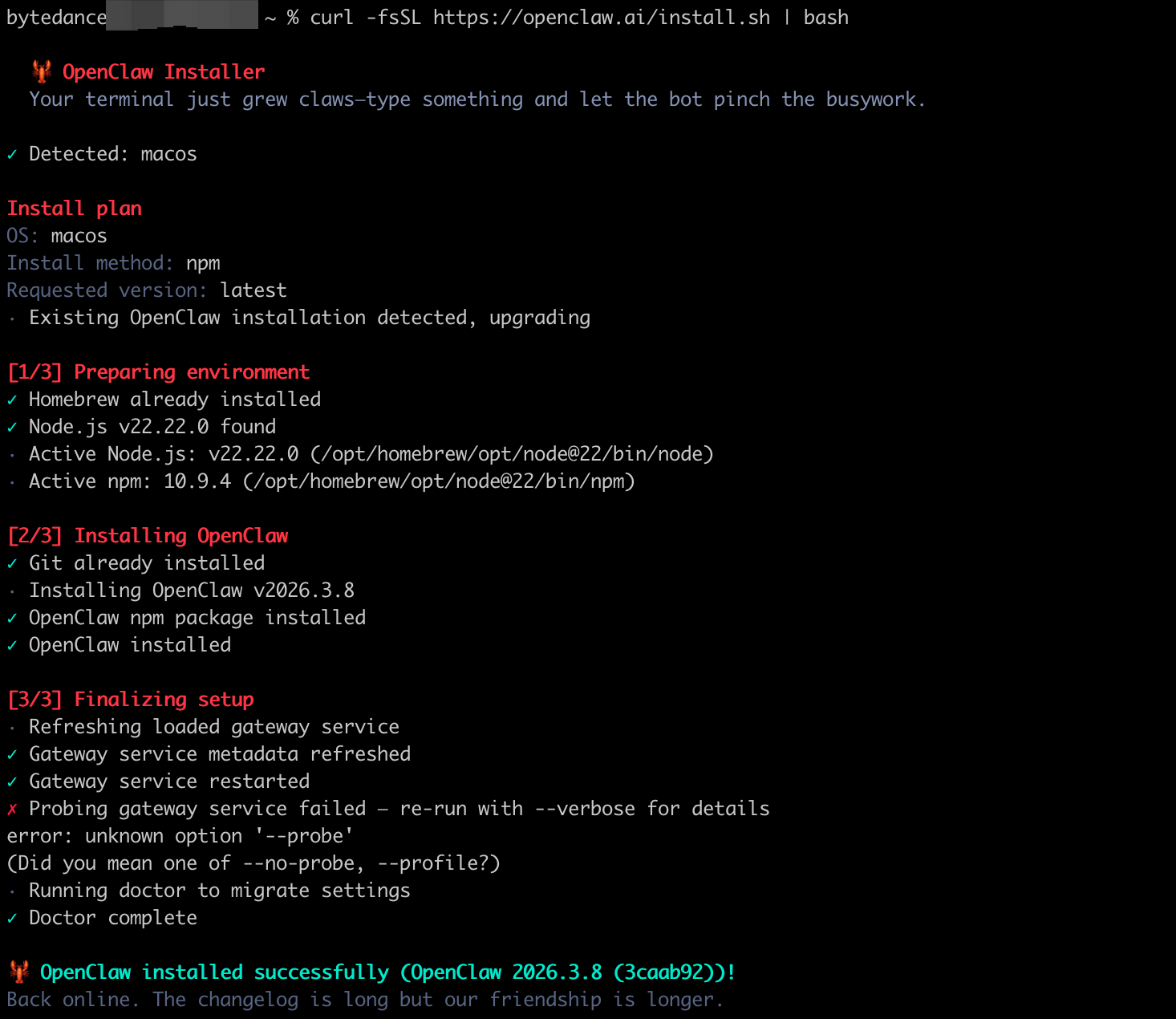
- Complete the OpenClaw configuration as prompted. For example, you can refer to ModelArk coding plan integration instructions.
- Open the OpenClaw Dashboard URL. If it loads successfully, installation is complete.
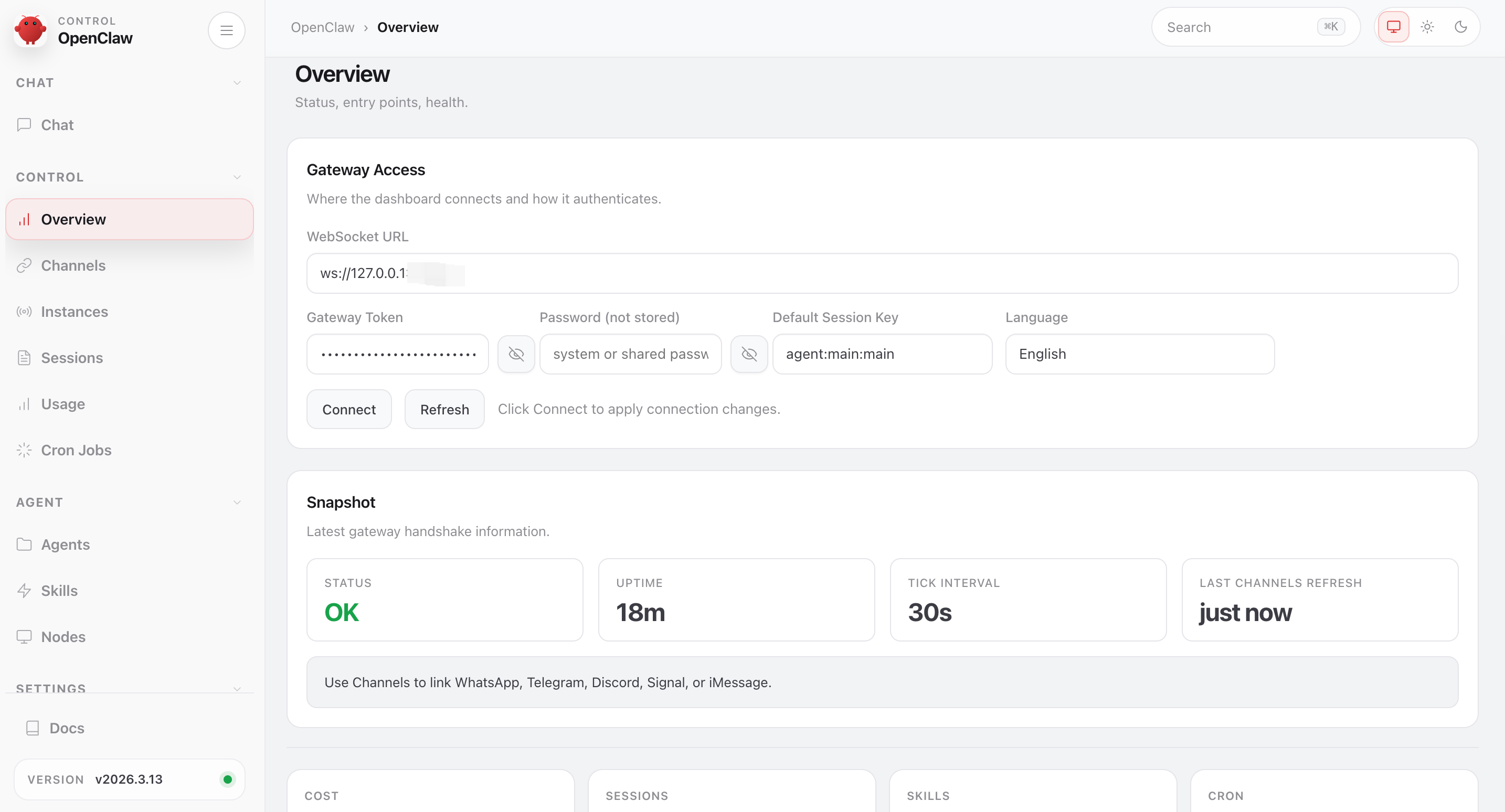
- On the Dashboard chat page, send a test prompt to verify that the assistant responds normally.
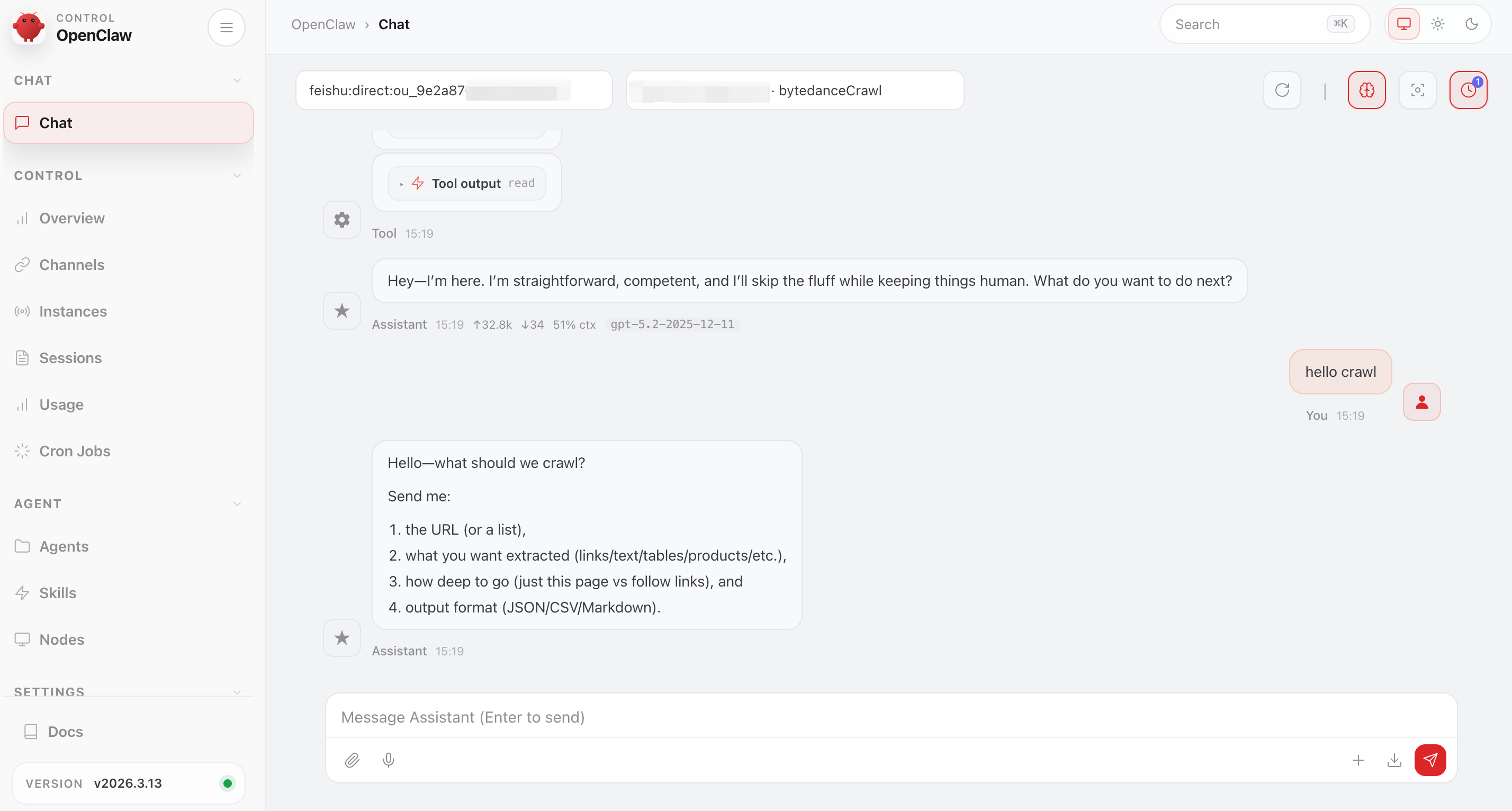
Bring OpenClaw to Lark 🦞
By seamlessly connecting OpenClaw, we fully leverage Lark's capabilities as an enterprise collaboration tool. What's more, the official OpenClaw Lark plugin is now available. After you authorize it, OpenClaw can read and update documents, search for information, check calendar availability, and use a group chat context with Lark directly. We'll also provide detailed, step-by-step instructions, empowering you to effortlessly integrate OpenClaw’s intelligence and boost your team's efficiency to new levels.
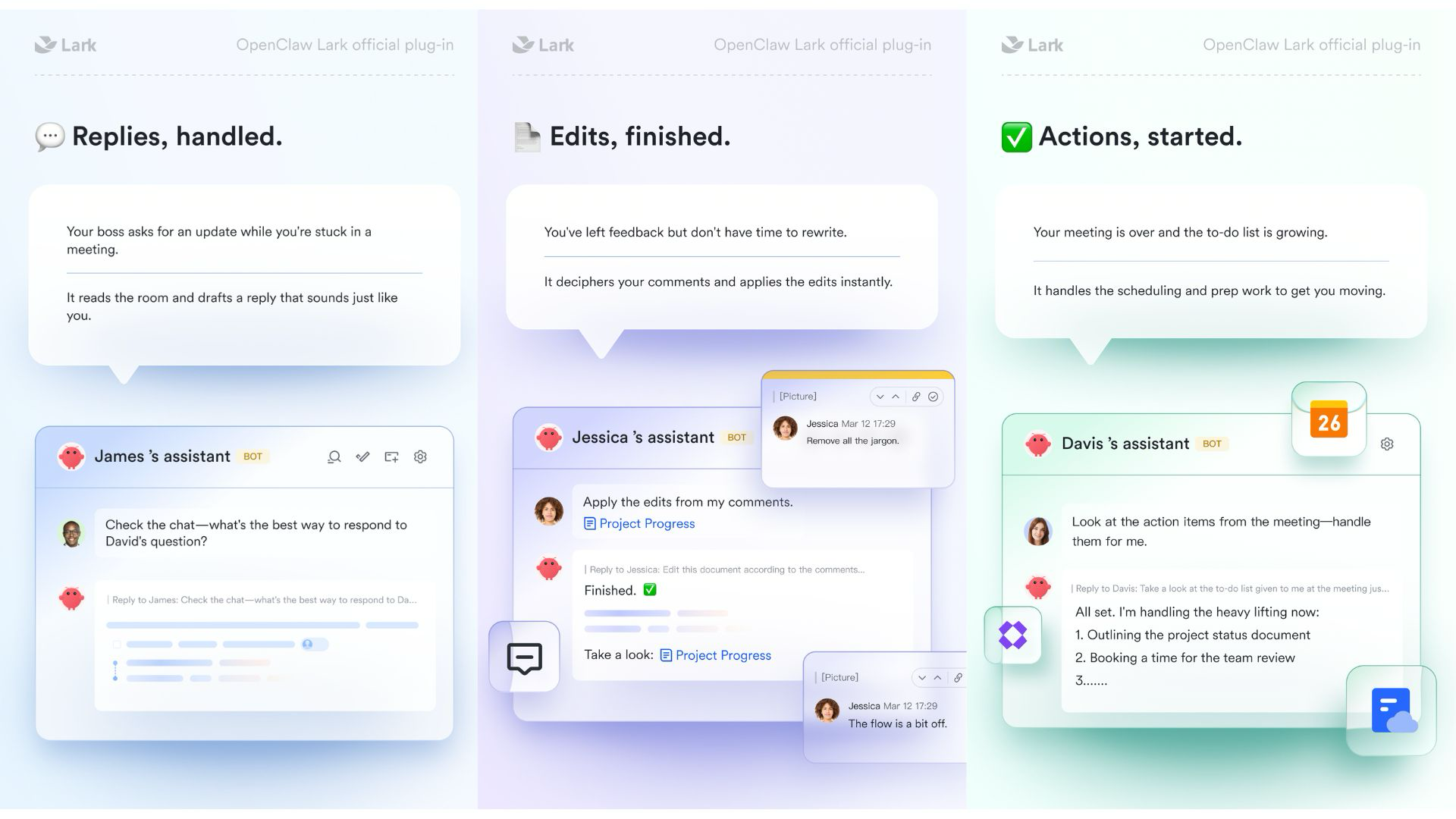
Supported Lark capabilities
Sending messages on behalf of the user requires additional Lark permission im:message.send_as_user. Some organizations may restrict or disable this permission due to security policy.
The official Lark plugin also improves the interaction experience, including streaming card replies (must be enabled manually), identifying forwarded combined messages and emojis, and more.
Now, let's dive into the operational procedures.
Install the Lark plugin
- Run the following command on a command line interface (if it fails, try adding sudo at the beginning):
- During the setup, choose either Create a new bot or Use an existing bot linked to OpenClaw.

If prompted with an invalid App ID or App Secret when linking an existing bot, you can manually enter the correct credentials.

- If you want to create a new bot, scan the QR code with your Lark app and tap Create.
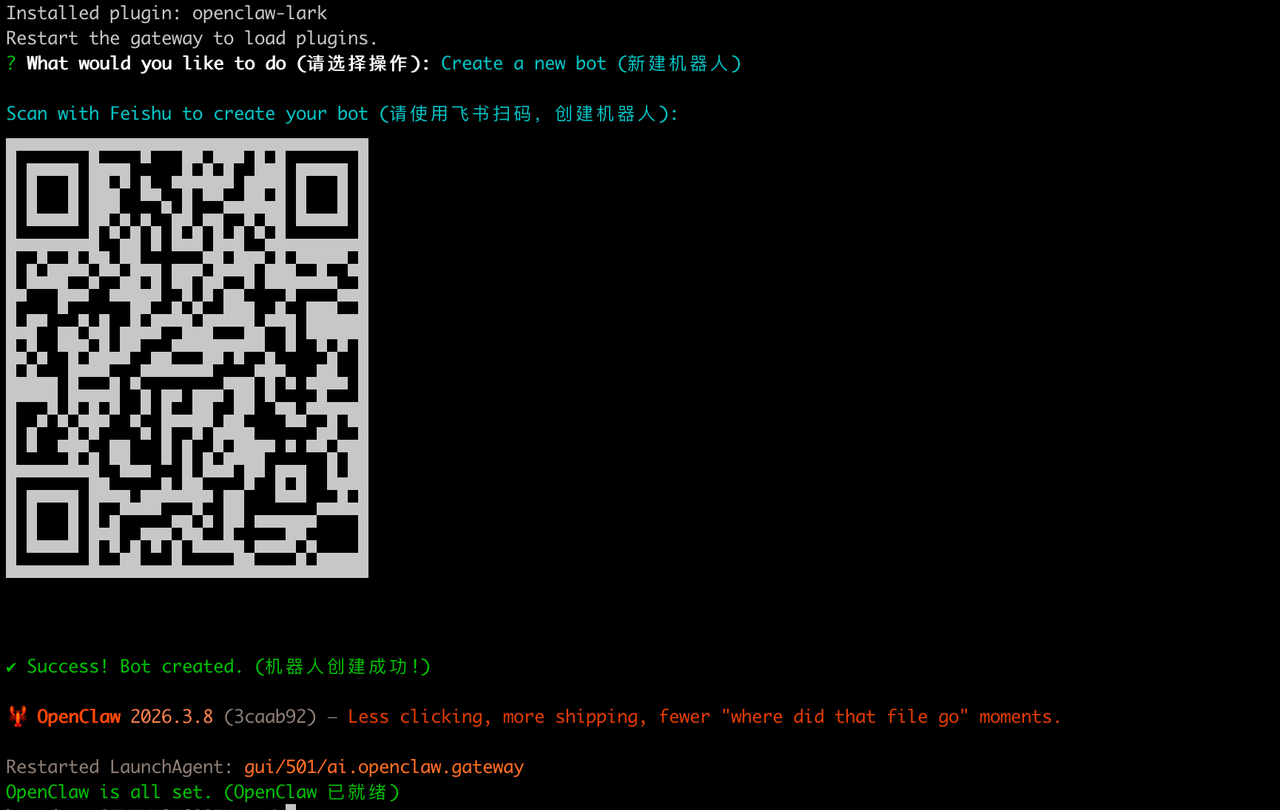
If you fail to scan the QR code on a Windows device, it may be a resolution issue. Try again using Cmder.
- After creation, click Open bot, then send any message to start a chat.
- To batch grant permissions for OpenClaw to access resources you authorize, send /feishu auth.
- To help OpenClaw learn the new capabilities, send: Review the newly installed Lark plugin and list its capabilities.
- To verify the plugin is working, send /feishu start. If it returns version info, the installation is successful.
- One-click installation of Lark CLI capabilities in the OpenClaw Lark plugin
Simply send the following content to OpenClaw via Lark:
Please follow this document to help me install cli:https://open.feishu.cn/document/mcp_open_tools/feishu-cli/set-up-lark-cli-for-ai-agents-in-openclaw_hermes.md
- Unlock a comprehensive suite of powerful Lark capabilities, including: Messages & Groups, Docs, Drive, Sheets, Base, Calendar, Video Meetings, Minutes, Mail, Tasks, Wiki, Contacts, Slides, Whiteboard, OKRs, Approvals, and Attendance.
- During installation, you can choose how OpenClaw interacts with your workspace:
- As a Bot: The AI will operate within Lark as a dedicated bot. This is ideal for acting as a team assistant in multi-user collaborative scenarios, such as group Q&A, team announcements, and maintaining public documents.
- As Yourself: The AI will perform all actions in Lark on your behalf (e.g., reading/writing documents, searching messages, managing your schedule). This is recommended for personal use only. Note: To protect your privacy and prevent data leaks, do not share the bot with others when using this mode.
💡Note: If you are using the default Lark plugin built into OpenClaw, you can also leverage the Lark CLI capabilities in the exact same way.

Upgrade the Lark plugin
- Check your OpenClaw version with openclaw -v. Minimum versions required by the Lark plugin:
- Linux / macOS: 2026.2.26 or later
- Windows: 2026.3.2 or later
If you're using a lower version, upgrade OpenClaw with: npm install -g openclaw.
- Run the following command to upgrade the Lark plugin to the latest version. If it fails, try adding sudo at the beginning.
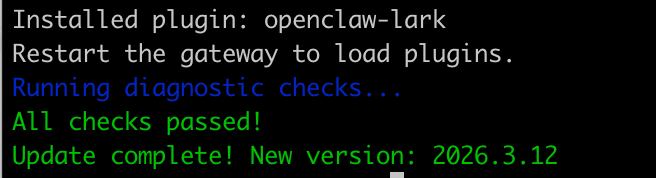
Advanced configurations
Enable streaming outputs
- To switch to streaming outputs, run the following command. For local deployments, enter it on your device; for cloud deployments, enter it in the chat.
- To disable streaming outputs, run the following command:
- To display more information on the streaming card, run the following command:
Enable multi-tasking and independent thread context
The bot can obtain independent context and execute multiple tasks in parallel for each post in topic groups or message thread in chat groups.
- To enable this feature, run the following command:
- To disable this feature, run the following command:
Configure the bot's reply mode in group chats
By default, a bot only responds when @mentioned in a group chat. You can configure its reply behavior using the following modes:
Mode 1: Respond only to the app owner (Recommended)
The bot only responds when @mentioned by the app owner, ignoring messages from other members. This is the recommended configuration and has been the default policy for version 3.17 and later.
Example:
To enable this, set groupPolicy to "allowlist" and add your Open ID to groupAllowFrom. (Note: You can get your Open ID by sending a direct message to the bot.)
Additionally, ensure requireMention is set to true so the bot only replies when it is @mentioned.
Mode 2: Respond to anyone who @mentions the bot
The bot responds to any group member who @mentions it.
Run the following commands:
Example:
Mode 3: Respond to all messages (no @mention required)
⚠️ Warning: This mode can easily cause spam in large groups.
Prerequisite: You must additionally apply for im:message.group_msg (read all messages in group chats) for your app in the Developer Console. This is a sensitive permission.
Run the following commands:
Example:
Mode 4: Require @mention only in specified groups (advanced)
This mode allows you to apply different rules to different groups. For example, you can apply stricter rules for work groups, flexible rules for casual chat groups.
- In most groups, the bot either replies without an @mention or stays silent.
- In specific groups, the bot replies only when it's @mentioned.
Steps:
- Obtain the chat ID of the group in either of the following ways:
- Add the bot to the group, send a random message, and ask the bot to reply with the chat ID.
- Click the the ··· icon in the upper-right corner of the group > Settings to view the Chat ID.
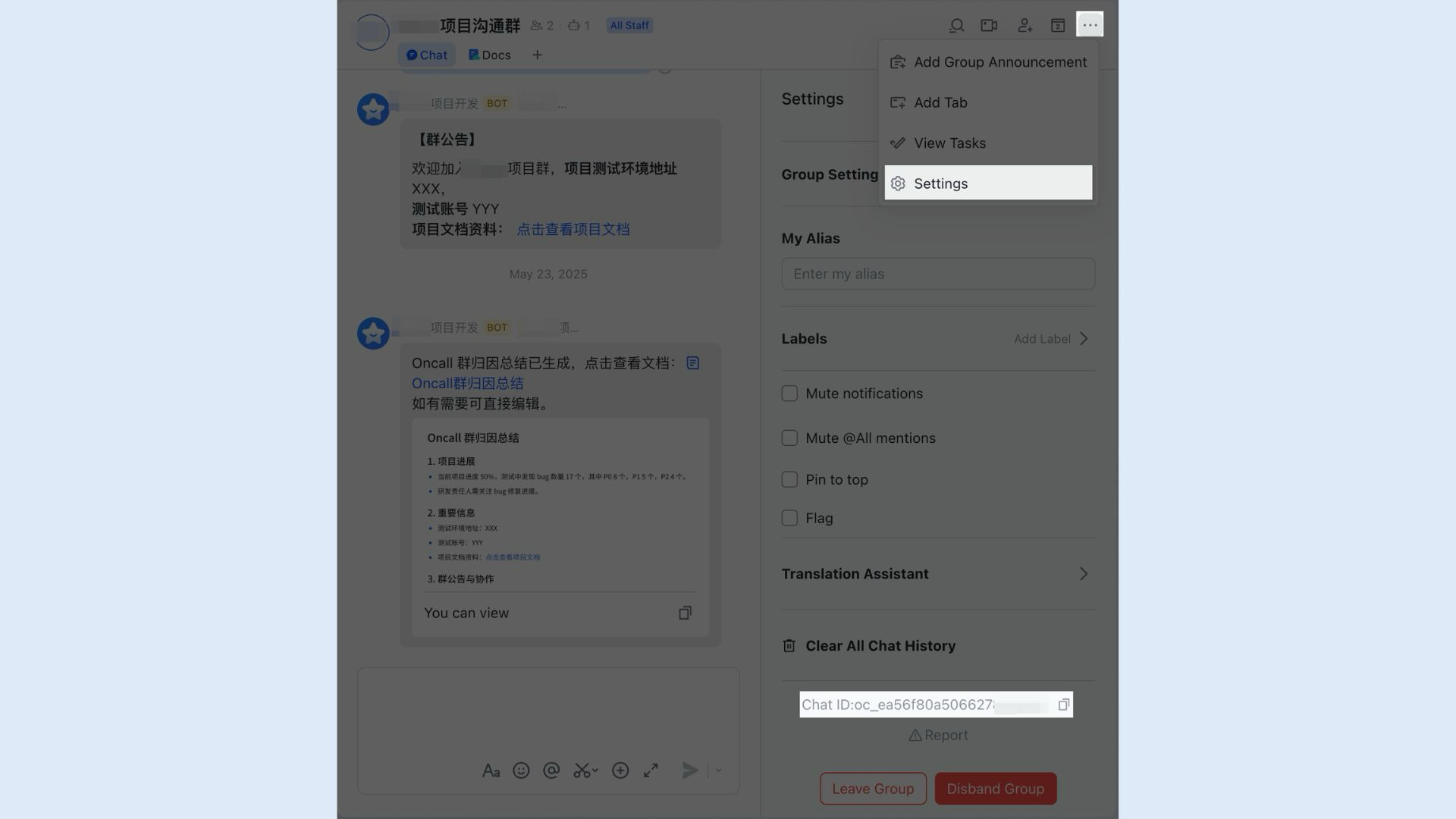
- Configure group-specific rules using the following commands:
Example:
Configure multiple Lark bots for multiple agents
Quick start tips:
- Create a new Lark bot with one click at open.larksuite.com.
- Tell the bot what kind of new agent you want and which Lark account it should use, provide this guide, and ask it to complete the setup.
Frequently used diagnostic commands and fixes
Send these commands in the chat with OpenClaw:
- /feishu start: Confirm whether installation is successful.
- /feishu doctor: Check whether configurations are correct.
- /feishu auth: Batch grant permissions.
The plugin embeds solutions for common issues, so you can always ask the bot itself for help first. If it fails to provide a solution, run the following command to diagnose and fix the issue yourself:

Run the fix command to try auto-fixing:

If the issue persists, report it in the feedback group with the following information:
- Version info: Run the command below and include the output in your report.

- Detailed configuration: Use the --all command for more details.
Security warning
While AI's capabilities are rapidly advancing, it's crucial to address security concerns head-on before diving into new integrations. Here are our essential security warnings and recommendations for using OpenClaw with Lark.
🔴 Core risks
This plugin connects to your Lark data through Lark APIs, such as messages, docs, calendars, and contacts. Any data that the bot can access could be exposed if the system is misused or compromised. While we implement safeguards, LLMs are probabilistic and can behave unexpectedly, so zero risk cannot be guaranteed.
⚠️ Warning
Using this bot in a multi-user environment or with a corporate Lark account may introduce data security and privacy risks. Please ensure you strictly comply with your organization's data security and privacy policies to prevent data leaks, unauthorized access, or privacy violations.
📌 Other risks
- AI is not perfect and may hallucinate: It can sometimes misunderstand your intent or generate content that sounds plausible but is factually incorrect.
- Some actions are irreversible: For instance, messages sent by the AI on your behalf cannot be recalled.
- Best Practice: For critical actions involving sending, editing, or writing, always "preview, then confirm". Never leave the AI on "full autopilot" without human oversight.
💡 OpenClaw usage suggestions
Start with a personal account. Wait until our security and isolation features are more mature before connecting it to your work environment.
Maximizing OpenClaw with Lark: A Unified Approach to AI-Powered Productivity
Imagine OpenClaw as your team's intelligent assistant, silently working in the background to process information. When integrated with Lark, its outputs become immediately accessible and actionable within the same space where your team communicates, manages projects, and shares documents. This prevents the common pitfall of AI tools becoming isolated "black boxes" whose valuable insights are trapped and not readily shared or acted upon.
Here's how this unified approach can elevate your team's productivity:
- Real-time AI Insights in Team Communication: OpenClaw can process complex data, summarize lengthy reports, or answer specific queries based on your team's knowledge base. When connected to Lark, these AI-generated insights can be shared directly within relevant chat groups or channels. For instance, if OpenClaw analyzes customer feedback and identifies a recurring issue, it could automatically post a summary and potential solutions to your customer support team's Lark chat, prompting immediate discussion and action.
- Centralized Knowledge Management with Lark Docs/Wiki: Beyond live chat, Lark offers robust document and wiki capabilities. You can use Lark Docs to create and maintain living documents that explain your OpenClaw configurations, custom scripts, or best practices for leveraging its AI features. OpenClaw’s outputs can even be directly embedded or linked within these documents, creating a dynamic, AI-enhanced knowledge base accessible to the entire team. This ensures that everyone understands how to use OpenClaw effectively and where to find the most up-to-date information.
- Automated Workflows Driven by OpenClaw Data: Lark's automation tools may be powerful allies when combined with OpenClaw. Picture this mini-scenario: OpenClaw processes market data and detects a significant shift in competitor pricing. Through a pre-configured automation in Lark, this detection could automatically trigger a chain of events: an alert sent to the sales team's chat, a task created in a project management board for the marketing team to review pricing strategies, and an update posted to a relevant Lark Doc. This kind of integration transforms raw data into a catalyst for proactive team action, reducing manual oversight and accelerating response times.
By bringing OpenClaw into the Lark ecosystem, you're not just adding another tool; you're creating a smarter, more integrated workspace where AI-driven intelligence fuels collective efficiency and informed decision-making.
Conclusion
Getting OpenClaw installed and integrated, especially with a powerful collaboration platform like Lark, is a foundational step toward enhancing your team's AI-powered capabilities. We've walked through various installation methods, ensuring there's a clear path for every user. Furthermore, the detailed guide for connecting OpenClaw with Lark demonstrates how to embed this intelligent tool directly into your team's daily communication and workflow.
The effort invested in a proper setup yields significant returns, transforming OpenClaw from a technical utility into a central player in your team's pursuit of efficiency and insight. By following these steps, you're not just installing software; you're laying the groundwork for a more unified and intelligent workspace where AI contributions are seamlessly woven into your collaborative fabric.
Frequently Asked Questions (FAQs)
🙋 General Questions Regarding OpenClaw Installation:
How do I install OpenClaw?
You can install OpenClaw using various methods depending on your operating system and preference. This guide provides detailed step-by-step instructions for native installation on macOS, using Docker for a universal approach, and installing on Windows via WSL. Please refer to the respective sections or the official OpenClaw documentation for comprehensive guidance.
What are the prerequisites for OpenClaw?
Before installation, you'll need to ensure your system meets certain requirements. Key prerequisites include Node.js (version 22.x LTS), Git, and optionally Docker Desktop if you plan to use the Docker installation method. We also recommend sufficient CPU, RAM, and storage. A detailed list is available in the "Essential Prerequisites" section.
Can I install OpenClaw on Windows/Mac/Linux?
Yes, OpenClaw is designed for cross-platform compatibility. You can install it on macOS (natively), Windows (ideally via WSL for a robust environment, or natively), and Linux (typically using Docker for consistency). This article covers the installation process for each of these environments.
How do I get OpenClaw to run my first chat?
After successfully installing OpenClaw and configuring its integration with Lark (as detailed in the "Configuring OpenClaw for Lark" section), you can initiate your first chat by sending a test message to your OpenClaw bot in Lark. The bot will then provide a pairing code that you use in your terminal to approve the connection, allowing you to begin interacting with it.
Is OpenClaw free to use?
OpenClaw typically refers to open-source projects or components that are free to use and often allow for community contributions. However, the exact licensing and any associated costs for specific implementations or hosted services would depend on the project's official documentation.
Do I need a GPU to run OpenClaw?
While OpenClaw can often run on CPUs, a powerful GPU (Graphics Processing Unit) can significantly accelerate performance, especially for tasks involving large language models, complex data processing, or real-time AI interactions. For basic usage, a CPU may suffice, but a dedicated GPU is recommended for optimal speed and efficiency.
How often is OpenClaw updated?
As an active project, OpenClaw typically receives updates periodically to introduce new features, improve performance, and address bugs. The frequency of updates can vary, but it's generally good practice to check the official OpenClaw repository or documentation for release notes and upgrade instructions.
Can I use OpenClaw with my existing data?
Yes, OpenClaw is designed to work with various data sources. The specific methods for integrating your existing data will depend on OpenClaw's features and your data's format, often involving configuration files, APIs, or data connectors. Refer to OpenClaw's documentation for detailed instructions on data ingestion and integration.
What if my installation fails?
If your installation fails, first review the error messages in your terminal or logs. Common causes include unmet prerequisites (like incorrect Node.js version), permission issues, or network problems. Re-check the troubleshooting section of this guide, consult OpenClaw's official documentation, and consider seeking help from the OpenClaw community or support channels.
🙋 Specific Questions About Using OpenClaw with Lark
How to apply for required permissions to fix "Insufficient permissions"?
- In the Lark Developer Console, click Permissions & Scopes in the left navigation bar, then click Batch import/export scopes.
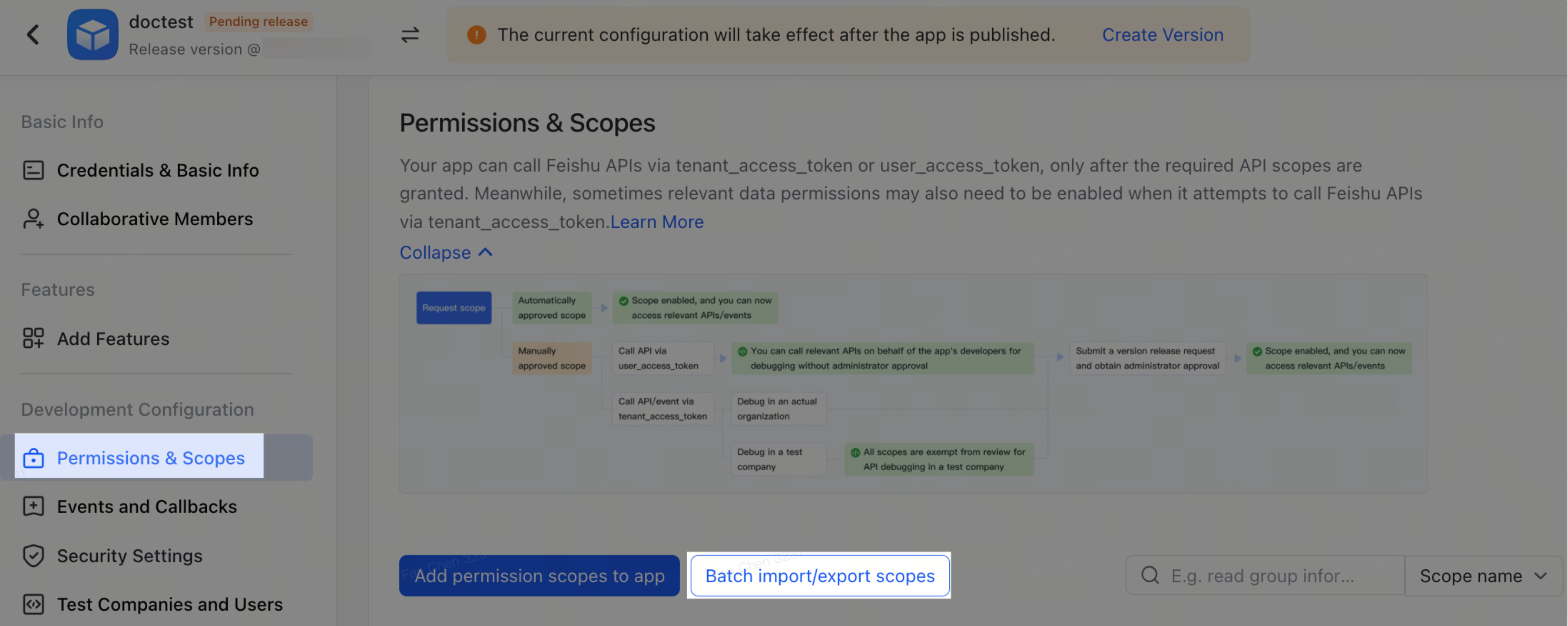
- In the Import tab, clean up the content in the Import tab, and paste the following:
- Click Next, Review New Scopes, then click Add.
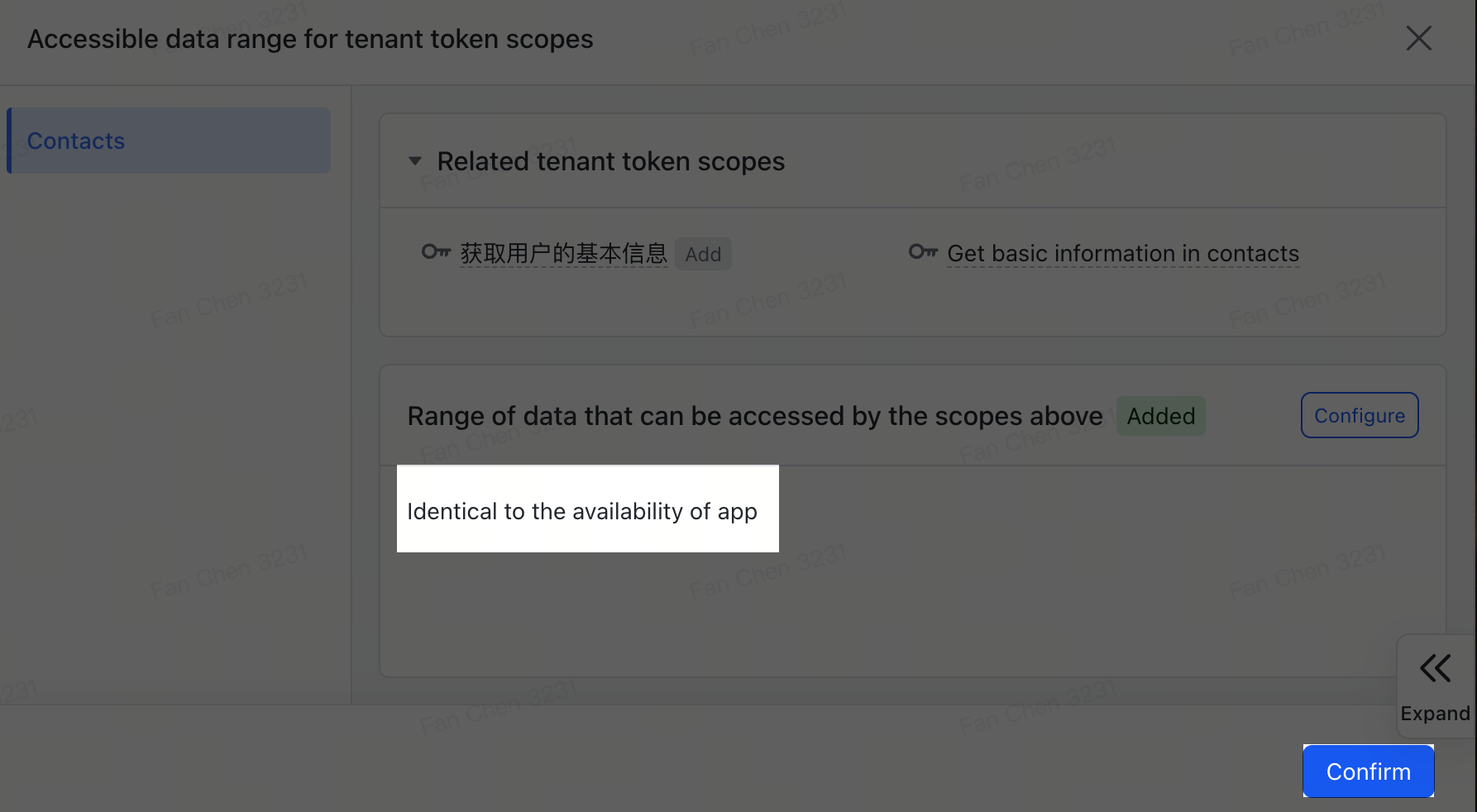
- Make sure the range of accessible data of the tenant token scopes is the default value of "Identical to the availability of app", and click Confirm.
How to deploy the Lark plugin if I don't have OpenClaw?
OpenClaw is required to run this plugin. Choose a deployment option that fits your needs:
- For local deployment, use coding agents such as TRAE SOLO to help with installation.
- For cloud deployment, try ModelArk, which supports one-click setup and can also assist with debugging.
It reports "cannot find module xxx" when I run the plugin. What should I do?
- Cause: Plugin dependencies were not installed, likely due to interrupted installation or permission issues.
- Solution: Navigate to the plugin directory and run npm install.
Unable to call tools with OpenClaw 3.2
In OpenClaw 3.2, tool permissions for new agents are disabled by default. To fix this, open your openclaw.json file and update it with the following snippet:
What's the difference between the official Lark plugin and the OpenClaw bundled Feishu plugin?
The official Lark plugin can read and write messages and docs on the user's behalf, and also provides a smoother experience. See Supported Lark capabilities.
Related reading
Table of contents
Start using Lark today

Manage all your work in one place
Boost team efficiency by 10x
Save up to 70% on software costs
Table of contents
Start using Lark today
Manage all your work in one place
Boost team efficiency by 10x
Save up to 70% on software costs
Keep reading







2026 Lark Technologies Pte. Ltd.
Headquartered in Singapore with offices worldwide.






Explore: