


Asana Kanban Boards: Features, Limitations, and A Better Option

Matthew Sia
Product Marketing Manager
Aug 5, 2026
Matthew Sia
Aug 5, 2026

11 min read


Asana kanban boards refer to Asana's Board View, a layout option that transforms tasks into draggable cards organized into columns representing workflow stages. Teams across software development, marketing, and operations use this view to visualize work, track progress, and manage flow. This article explains how a kanban board in Asana works, summarizes community feedback, including discussions from Asana company Reddit kanban boards threads, evaluates the platform's strengths and weaknesses, and compares Asana's approach with unified suites like Lark Suite.
What is Kanban, and how does it work in Asana?
Kanban originated as a visual workflow system emphasizing continuous flow over batched work cycles. Asana implements these principles through Board View, layering kanban-style management onto its foundational task and project structure.
At its core, kanban relies on a few simple ideas. Work items become cards that move across columns representing different stages of a process. Teams visualize their entire workflow at a glance, identify bottlenecks quickly, and focus on completing existing work before pulling new tasks. Unlike fixed sprints, kanban encourages continuous improvement through steady, manageable flow.
Asana maps these principles in a specific way. Tasks serve as cards containing titles, descriptions, assignees, due dates, and attachments. Sections within a project become columns that represent stages like To Do, In Progress, and Done. Team members move tasks by dragging cards between columns as work progresses. The platform also allows switching between board, list view, timeline, and calendar views using the same underlying data, which enables multi-perspective visibility without duplicating work.
It helps to understand that Asana started as a task list and project management tool before adding boards later in its evolution. This means Board View overlays kanban principles onto a list-first data model, creating some structural dependencies that affect flexibility for advanced kanban setups.
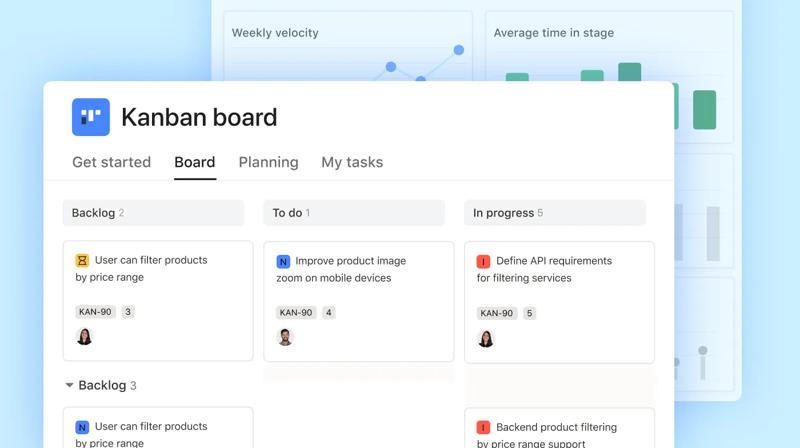
Image source: asana.com
Typical use cases for a kanban board in Asana include:
- Marketing content pipeline: Moving articles and campaigns from Ideas through Drafting, Review, and Published stages
- Product feature flow: Tracking features from Backlog through Development, QA, and Release
- IT ticket triage: Managing support requests from New through In Progress to Resolved
- HR recruiting funnel: Following candidates from Sourced through Screening, Interviewing, and Hired
Core components of a kanban board in Asana
To evaluate Asana on kanban boards fairly, readers need to understand each building block that shapes how the board functions and where its boundaries lie.
Columns and workflow stages
Columns in Asana represent workflow stages configured via project sections. When you create sections in your project, they automatically become the columns displayed in Board View. Common configurations include:
- Backlog: Ideas and requests awaiting refinement or prioritization
- Ready: Work that has been groomed and is prepared for someone to pull
- In progress: Tasks actively being worked on by team members
- In review: Items undergoing peer review, QA check, or stakeholder approval
- Blocked: Work waiting on external dependencies or decisions
- Done: Completed and accepted tasks ready for archiving
The horizontal arrangement allows teams to see the entire process at once and quickly identify where work accumulates. However, wide boards with many columns require horizontal scrolling, and Asana provides no native mechanism to prevent column sprawl.
Cards and individual tasks
Cards represent individual tasks and carry rich details that provide context for the work. Each card supports:
- Action-oriented titles: Clear descriptions like "Design Q4 landing page" or "Fix login timeout bug"
- Multi-line descriptions: Space for acceptance criteria, context, and requirements
- Assignee fields: One or multiple team members responsible for the task
- Due dates: Deadlines with optional reminders
- Tags: Categorization labels like #bug, #feature, or #urgent
- Attachments: Files up to 100MB, including design mockups, specifications, or reference documents
- Subtasks and checklists: Breaking complex work into smaller steps
These elements make cards scannable during standups and provide enough detail for assignees to understand what done looks like.
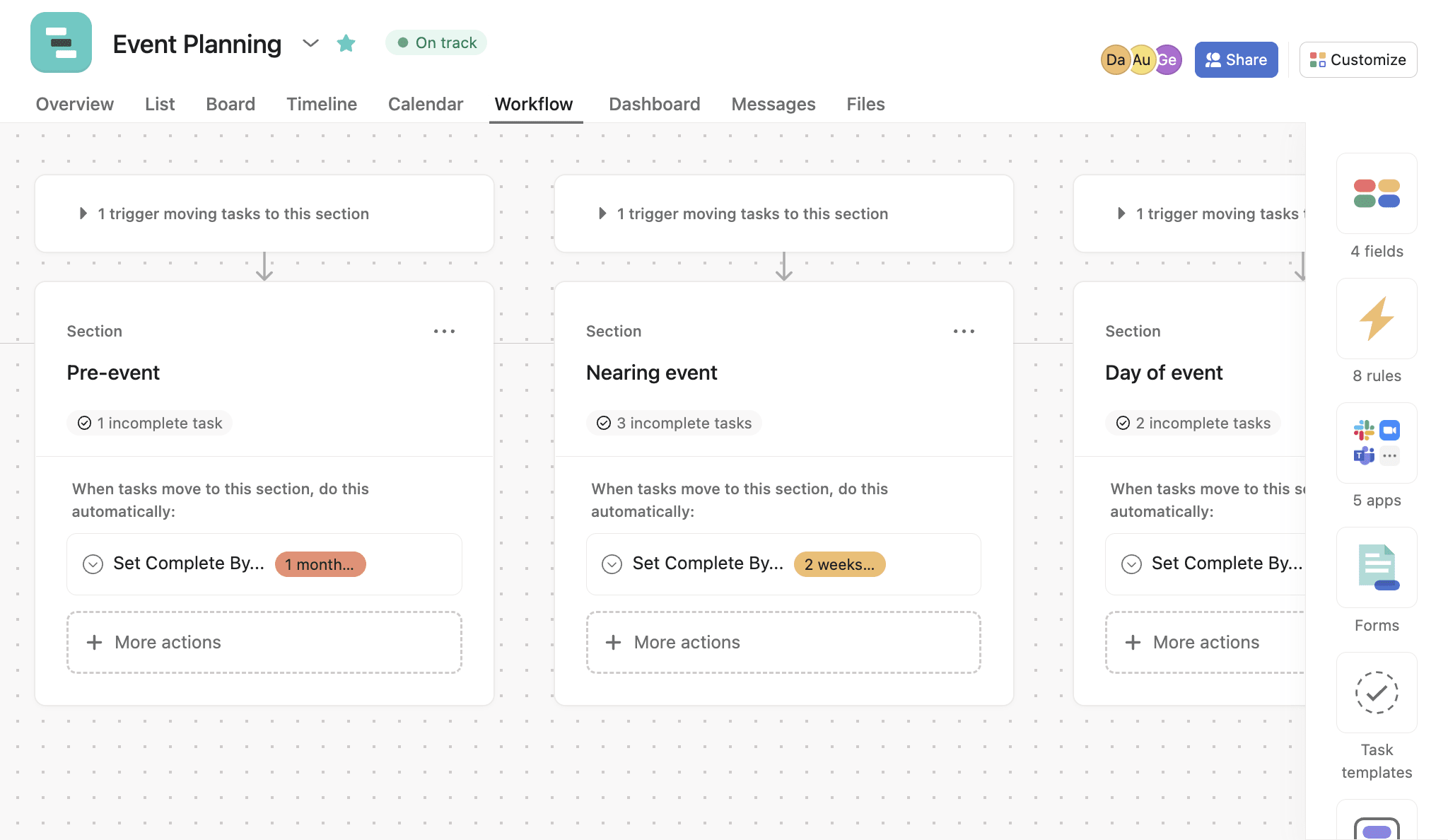
Image source: asana.com
Custom fields for enhanced visibility
Custom fields extend what cards can communicate at a glance. Asana supports several field types:
- Dropdown: Options like priority (High, Medium, Low) or task type (Bug, Feature, Chore)
- Number: Effort estimates in hours or story points
- Text: Client names, version numbers, or additional identifiers
- Date: Review deadlines or milestone dates separate from the main due date
- People: Team leads, reviewers, or stakeholders beyond the primary assignee
These fields can be configured to display directly on cards in Board View, enabling quick scanning without opening each task. Teams often use priority and status detail fields to add information layers that Asana's native column structure cannot capture alone.
Swimlanes and grouping limitations
Traditional kanban boards often include horizontal swimlanes that separate work streams visually, such as rows for different clients, teams, or work types. Asana does not support native horizontal swimlanes in Board View. Users approximate this functionality through tags, multiple separate projects, or vertical section stacking, but these workarounds fragment visibility and require more effort to maintain compared with using dedicated swimlane diagram tools that model responsibilities and process steps explicitly.
WIP limits and flow management
A core kanban principle involves limiting work in progress to maintain focus and identify bottlenecks. Asana provides no native WIP limits that cap how many cards can exist in a column. Teams must rely on conventions like "no more than five cards per person in In Progress," tracked through custom field counters or daily standups. Rules can trigger notifications when columns become overloaded, but they cannot block additions or enforce policies automatically.
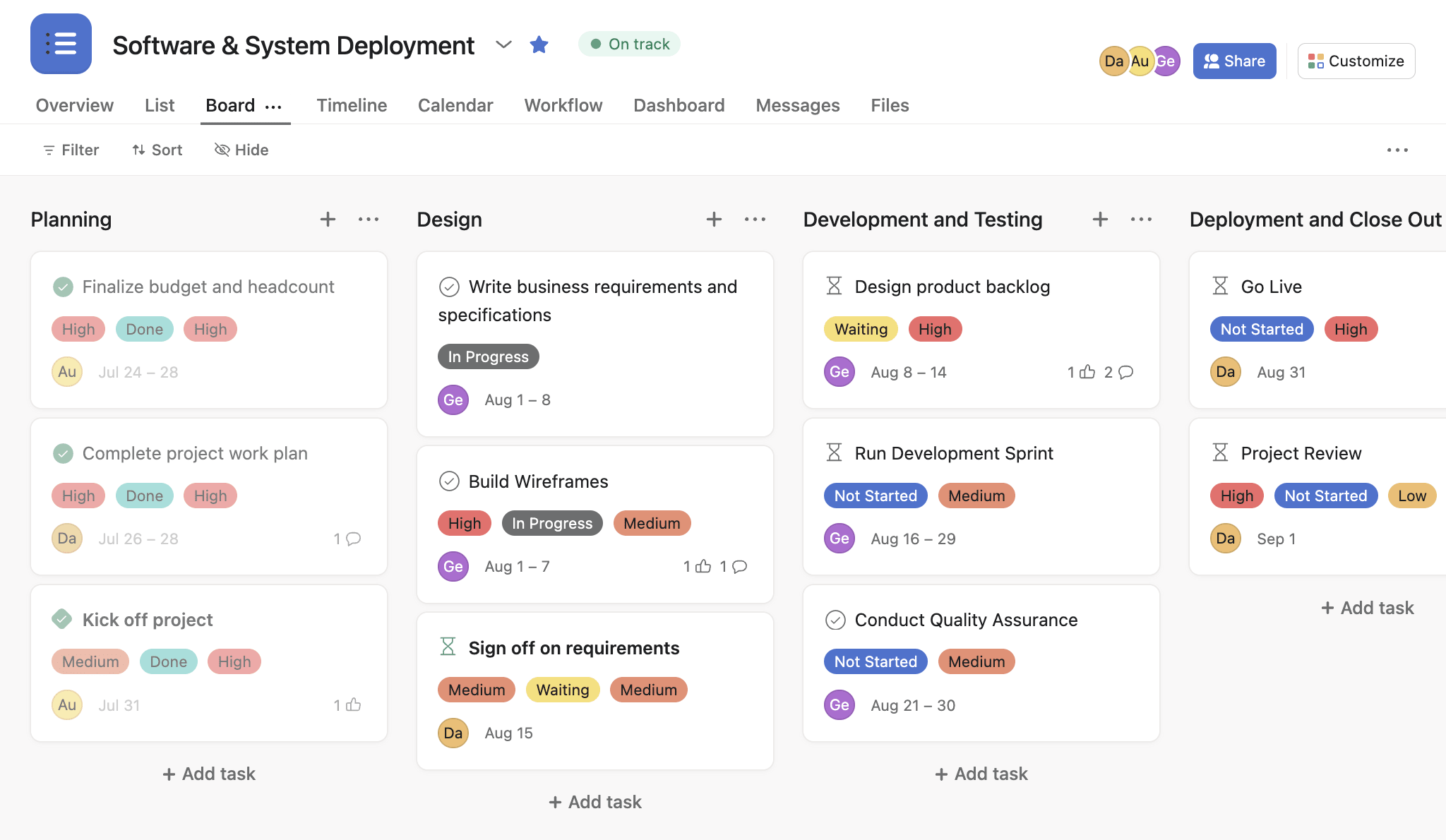
Image source: asana.com
Filters and sorting
Board View supports filtering by assignee, due date, custom fields, and completion status. Sorting options help prioritize urgent items or group related work. These filters update the board display dynamically without altering the underlying task data, allowing different team members to view the same project through personalized lenses.
These capabilities and constraints shape how far teams can push Asana kanban boards for true agile workflows. Understanding them helps set realistic expectations before building out a complex project structure.
How to create and configure a kanban board in Asana
This section walks through setting up a practical board for day-to-day work, covering project creation, stage design, task configuration, and automation.
Creating a new kanban project in board view
Starting a new project in Board View takes just a few steps: create a new project, select Board as the layout, name it to reflect its purpose (e.g., "Product Development Kanban Q4"), and set privacy and team access. For existing list-view projects, switch to Board View via the view selector—columns auto-generate from sections, so plan your section structure carefully if you'll switch views frequently. Tailor column names to your team's actual workflow: software teams might use Backlog, Ready, Development, Code Review, QA, Deployed; marketing teams Ideas, Planning, Drafting, Review, Published; and operations teams New, Assigned, In Progress, Resolved. Avoid generic templates that don't match how work moves through your process.
Designing stages and policies for your Asana columns
Define workflow stages based on team maturity: beginners can start with a simple To Do, Doing, Done setup, while experienced teams may use 6–8 nuanced stages for handoffs and reviews. Document explicit policies for each column (e.g., "Ready" tasks need clear acceptance criteria and assignees) in the project description for transparency. Handle blocked work with either a dedicated Blocked column (for quick visibility) or a custom field/tag (to keep column count low). Keep total columns manageable to avoid horizontal scrolling and overwhelm, sticking to what fits comfortably on a standard screen.
Adding tasks, fields, and templates to your board
Create task cards with action-verb titles (e.g., "Write Q4 launch brief") to avoid confusion, and include key details: context/acceptance criteria in descriptions, relevant attachments, subtasks for complex work, and custom fields for priority or effort estimates. Use Asana's task templates for recurring work (like bug reports) to save time and ensure consistency. Sections can act as epics or themes to approximate backlog hierarchy, but remember section structure directly impacts Board View columns—so plan this layout intentionally to avoid frequent restructuring needs.
Using rules and automation on Asana kanban boards
Asana rules automate repetitive tasks to keep boards synchronized, such as syncing status changes to move tasks to the right column, escalating priority for overdue work, triggering team notifications, or routing new tasks to a default assignee. These rules help nudge teams toward kanban best practices, but can't fully enforce WIP limits. Each project supports up to 50 rules, which cover most basic workflows, but more complex logic or cross-project coordination may require external integrations or platforms with deeper native automation capabilities.
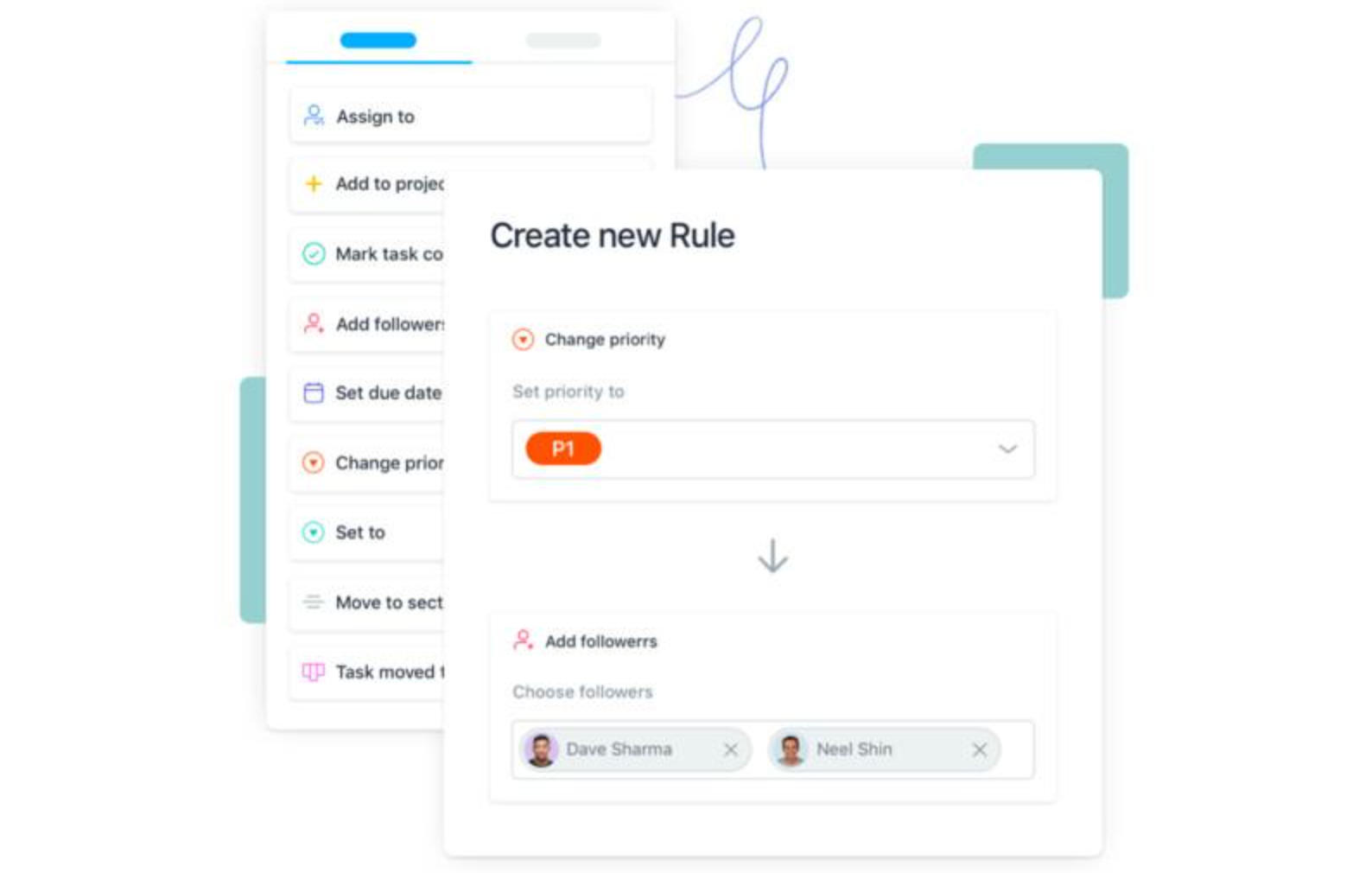
Image source: asana.com
Using Asana kanban boards for different teams and scenarios
Kanban adapts well to functions beyond software engineering. Understanding team-specific use cases helps determine if Asana's kanban boards fit your needs.
Software development and product squads
Software teams use Asana's kanban as a flow-based alternative to sprint boards, with columns like Backlog, Development, QA, and Deployed. A key limitation is that sections (used for epics) become Board View columns, forcing trade-offs. Fixes include custom fields for status or separate roadmap/execution projects. Teams needing flow metrics (e.g., cycle time) need external tools, as Asana's native analytics lack these.
Marketing and content operations
Marketing teams structure columns around content stages (Ideas, Drafting, Scheduled, Published). Asana's custom fields, attachments, and automation rules support content workflows, while calendar/timeline integration boosts planning. Unified platforms with these native views reduce coordination overhead.
IT operations and support teams
IT teams use Asana's kanban as a basic ticket board (New, Triaged, Resolved) to track requests and balance workloads. Priority fields and tags sort urgent items, but Asana lacks SLA tracking and knowledge base integration—dedicated tools work better for high-volume support. Linking cards to runbooks speeds up resolutions.
HR, recruiting, and internal process management
HR tracks candidates via kanban (Sourced, Interviewing, Hired) and uses templates for onboarding. Private projects and restricted access protect sensitive candidate data. HR workflows (approvals, document sign-offs) are more seamless with unified platforms like Lark than with a basic kanban board.
Asana pricing overview: Plans, costs, and what you get
Asana offers a tiered pricing structure to match teams of different sizes and needs. Based on their official pricing page, here is a clear breakdown of the available plans and their core features.
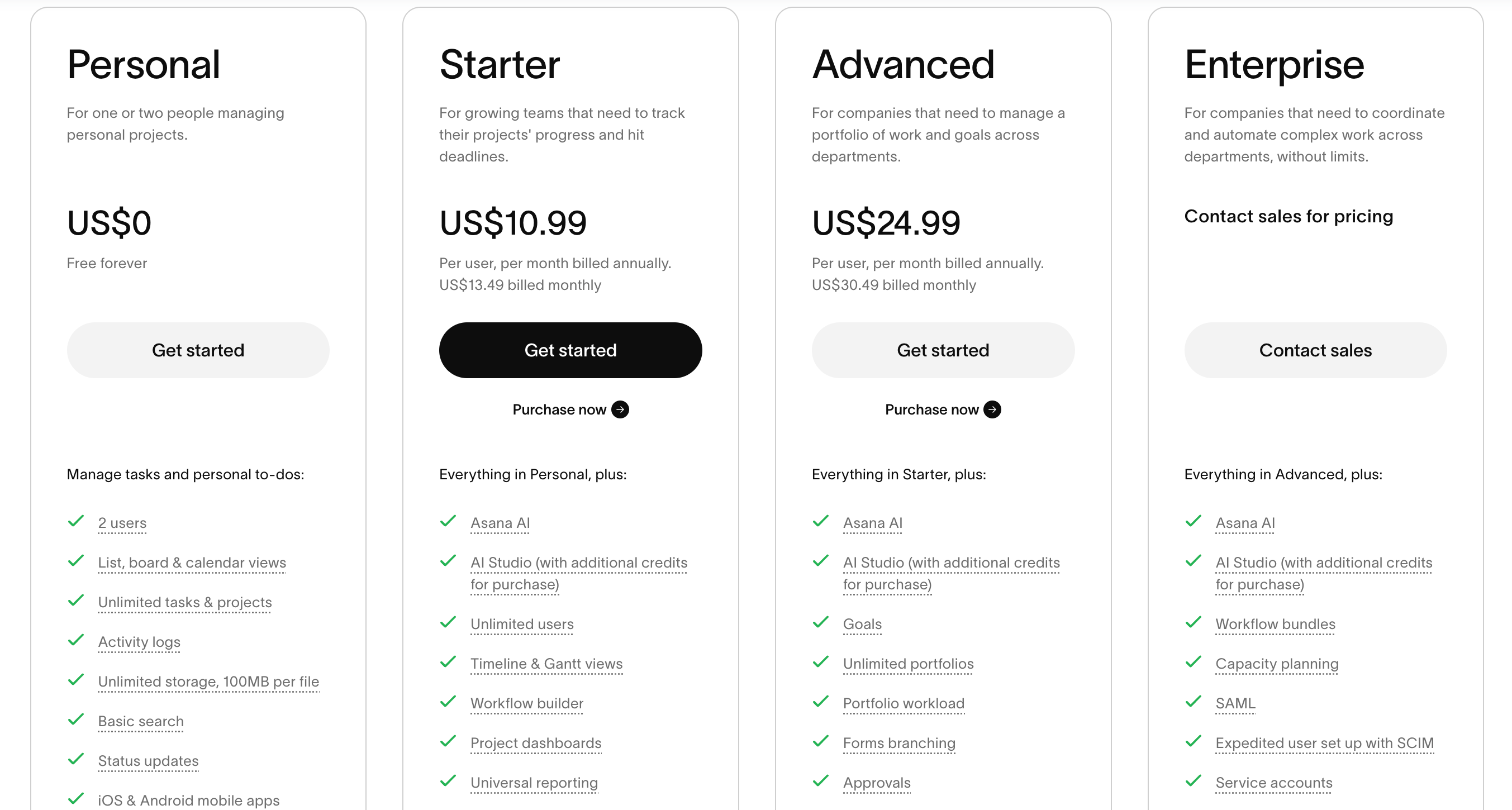
Image source: asana.com
Personal
This plan is free forever for up to 2 users. It includes unlimited tasks, projects, and activity logs. You get list, board, and calendar views, basic search, status updates, and 100+ free integrations with tools like Slack and Google Drive. File storage is unlimited, but each file is capped at 100MB. It is ideal for individuals or very small teams managing personal projects.
Starter
Priced at $10.99 per user per month (billed annually) or $13.49 (monthly). This plan builds on Personal, adding unlimited users. Key additions include Timeline and Gantt views, a no-code workflow builder, project dashboards, unlimited automation rules, custom fields, forms, and an admin console. It is designed for growing teams that need to track progress and hit deadlines.
Advanced
At $24.99 per user per month (billed annually) or $30.49 (monthly). This tier is for companies managing portfolios and goals across departments. It includes everything in Starter, plus goals to track objectives, unlimited portfolios, workload management for portfolios, forms with branching logic, approvals, proofing for design assets, native time tracking, and integrations with Salesforce, Tableau, and Power BI.
Enterprise
Pricing is custom and requires contacting sales. It is for organizations that need to coordinate complex work without limits. It includes all Advanced features, plus SAML single sign-on, SCIM user provisioning, service accounts, workflow bundles for standardizing processes, and 24/7 support. Additional paid add-ons are available for compliance (like audit logs and SIEM integration) and permissions management.

Evaluating Asana on kanban boards: Strengths and limits
Many teams wonder how well Asana really supports kanban versus functioning primarily as a general task management tool. This section provides a balanced assessment based on features, community feedback, and practical usage patterns.
Strengths of Asana kanban boards for everyday teams
- Ease of use: Low barrier for cross-functional teams. Asana's Board View is quick to set up in minutes, with a drag-and-drop interface that requires minimal training. Non-technical teams in marketing, HR, and customer success can adopt it without extensive onboarding or process changes, making agile workflows accessible to all.
- Multi-view flexibility: Unified data for diverse work styles. Teams can switch seamlessly between board, list, calendar, and timeline views using the same underlying task data. This lets project managers visualize work as a kanban board while team leads review progress on a timeline, eliminating duplicate data entry and keeping everyone aligned.
- Deep Asana integration: Extended visibility and reporting. Boards connect natively to Asana's Goals, Portfolios, and Workload views to show cross-project capacity. Basic board-based reporting is available in native dashboards, helping teams track progress and maintain a holistic view of work across the organization.
- Lightweight workflow fit: Ideal for beginners and small teams. Asana kanban boards work well for lightweight workflows like marketing content calendars, small product squads, customer success queues, and internal operations. They also serve as a gentle introduction to kanban practices for teams new to visual workflow management before adopting stricter processes or specialized tools.
Limitations that experienced kanban teams often encounter
- No native WIP limits: Reliance on manual enforcement. Asana lacks hard WIP (work in progress) limits for columns, so flow policy enforcement depends entirely on team discipline. While rules can alert teams to overloaded columns, they cannot prevent new cards from being added or block violations, leading to potential workflow bottlenecks.
- Column-section linkage: Trade-off between hierarchy and status tracking. Board columns are directly tied to list-view sections, meaning sections used for epics or releases in list view become workflow columns in Board View. This forces teams to choose between hierarchical organization and clear status tracking, a common pain point for software teams managing complex projects.
- Absence of swimlanes: Limited parallel work visualization. Native swimlane support is missing, so teams cannot horizontally organize work by client, squad, or work type. Workarounds with tags or multiple projects fragment visibility and increase administrative overhead, hindering clear parallel workflow visualization.
- Limited board-level analytics: Barriers to continuous improvement. Dedicated flow metrics dashboards (e.g., cycle time, lead time, throughput, cumulative flow diagrams) are not available natively. Teams focused on continuous improvement must export data to external tools or build custom reporting solutions, adding friction to process optimization.
- Poor complex hierarchy support: Awkward visualization for deep structures. Asana's kanban boards struggle to elegantly represent deep hierarchies (epics, stories, subtasks). While subtasks and dependencies are supported, the visual layout does not handle layered relationships smoothly, creating usability challenges for scaled, complex projects.
Asana excels at introductory kanban for everyday teams, offering ease of use and flexible views within its ecosystem. However, for experienced kanban users or complex projects, its limitations in WIP limits, column-section linkage, swimlanes, and advanced analytics become apparent. While good for beginners, Asana may not meet the demands for robust kanban or deep hierarchical visualization. For advanced needs and a unified collaboration platform, consider Lark.
Lark: A smarter approach to Kanban boards
Asana offers solid Kanban capabilities, but Lark takes the concept further by integrating Kanban boards directly into your team's daily communication and documentation flow. Instead of switching between a separate project tool and your chat app, Lark brings everything together in one unified workspace.
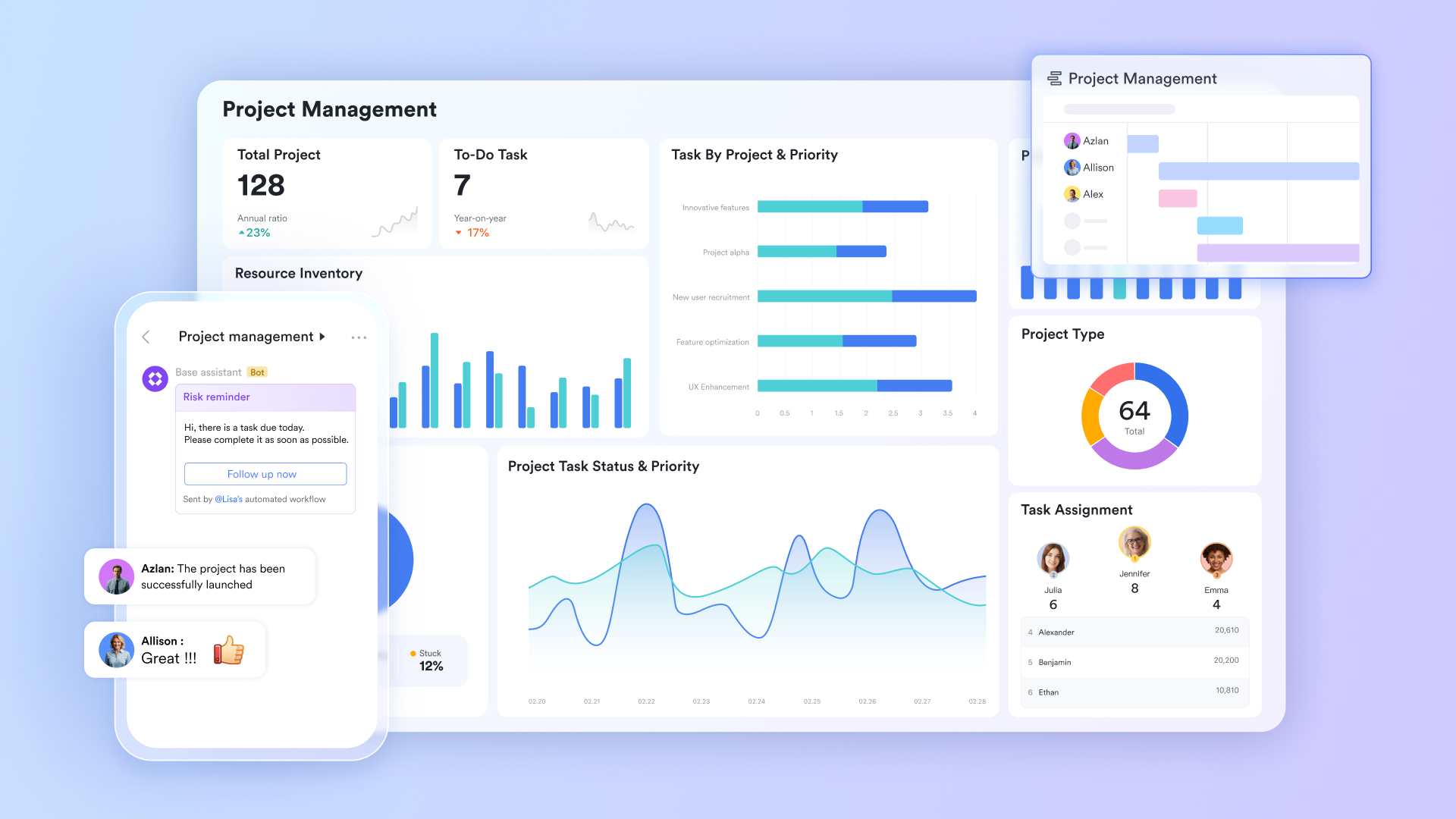
Build fully customizable Kanban boards
Lark Base provides a powerful no-code database that lets you build Kanban boards tailored to your team's specific needs. You can customize columns to represent each stage of your workflow—like "To Do," "In Progress," "Review," and "Done." Each card can contain detailed task information, including assignees, due dates, attachments, and even links to related records.
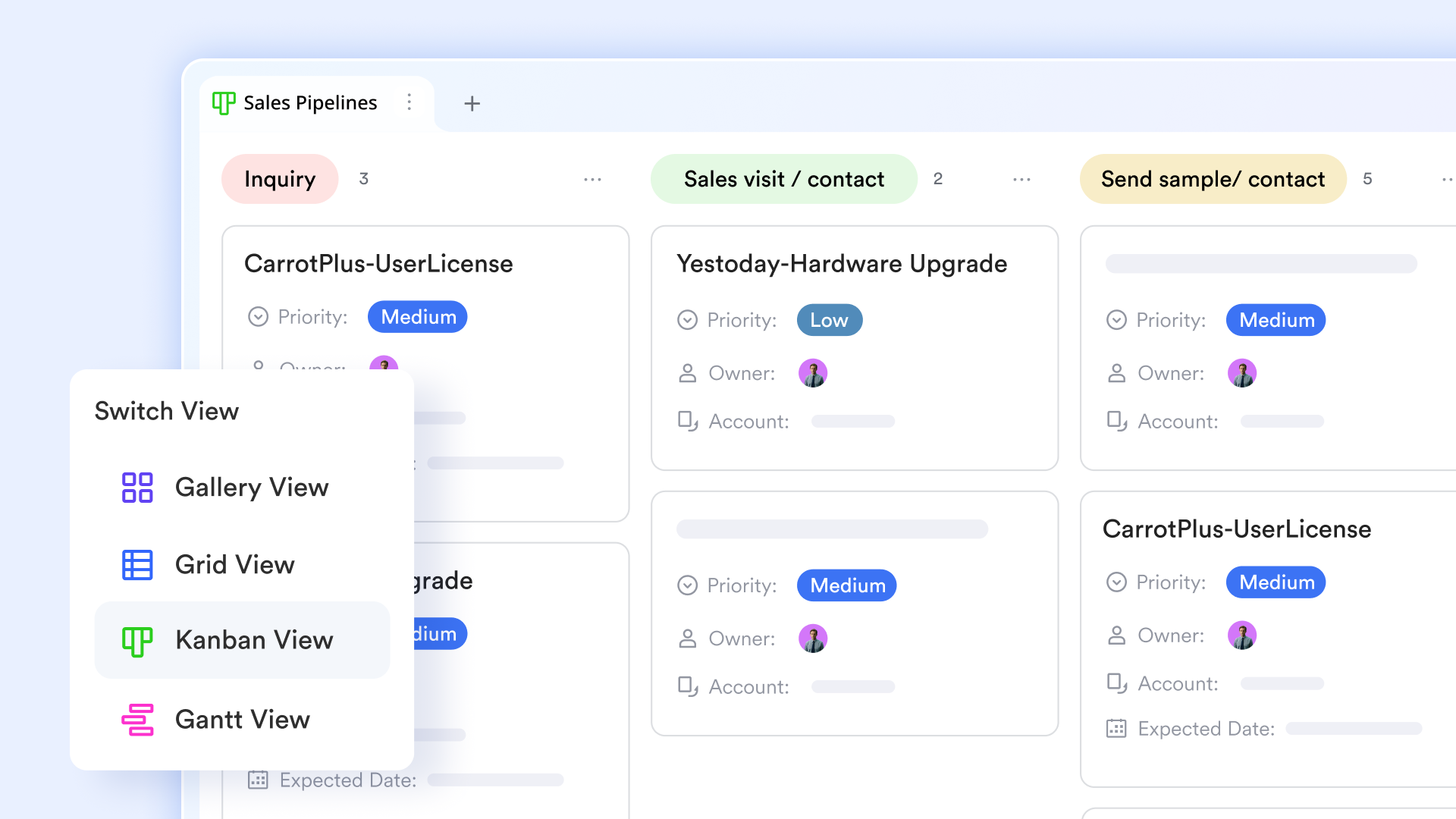
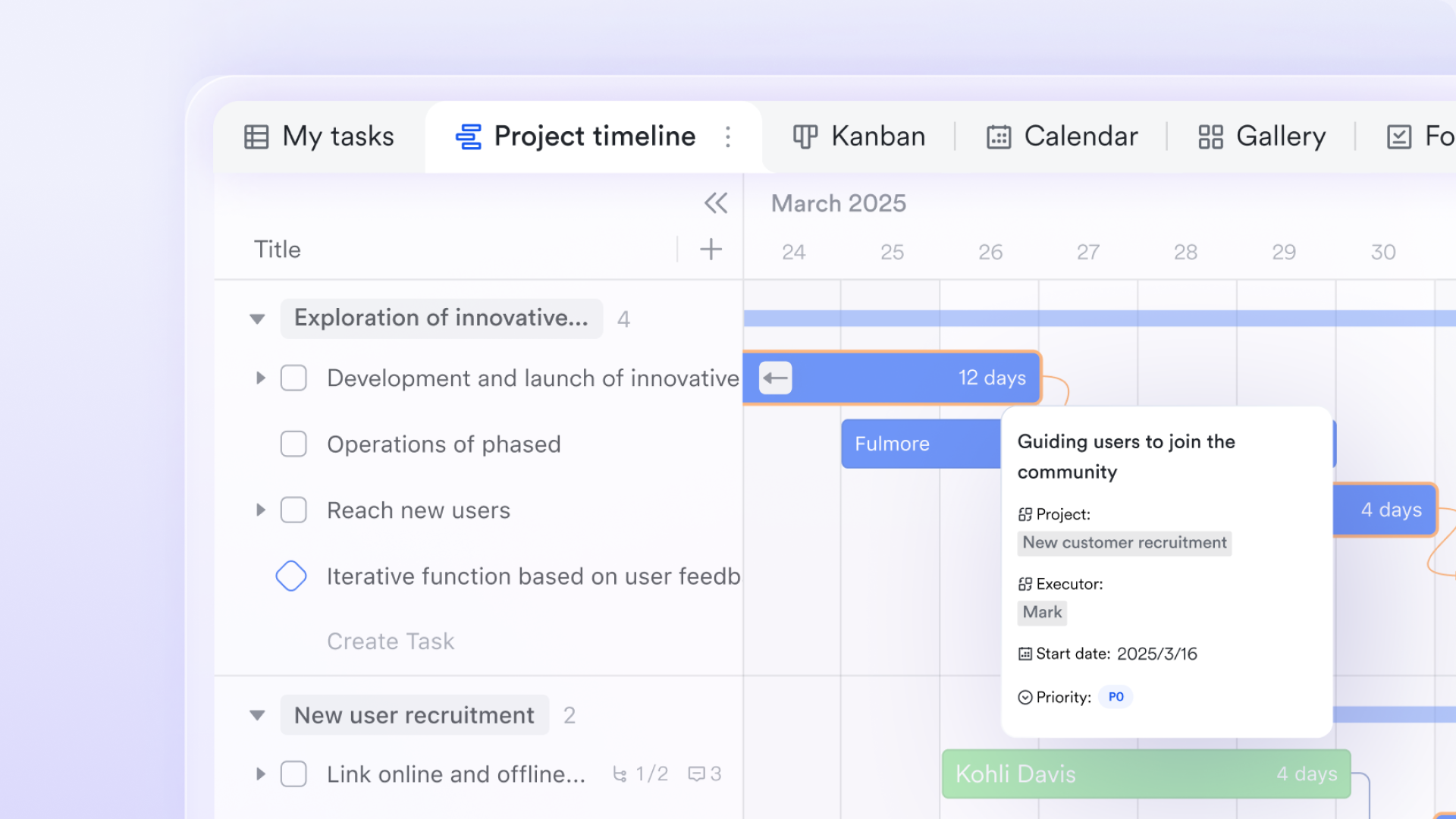
More importantly, Lark Base supports multiple view switching. For the same project data, you can use a Kanban view to track task progress, a table view to maintain a complete task list, a Gantt chart to see timeline dependencies, or a calendar view to manage deadlines. All views draw from the same data source. Update something in one view, and it syncs everywhere automatically. This means your development team can focus on dragging cards in the Kanban board, while the project manager gets a bird's-eye view from the Gantt chart at the same time.
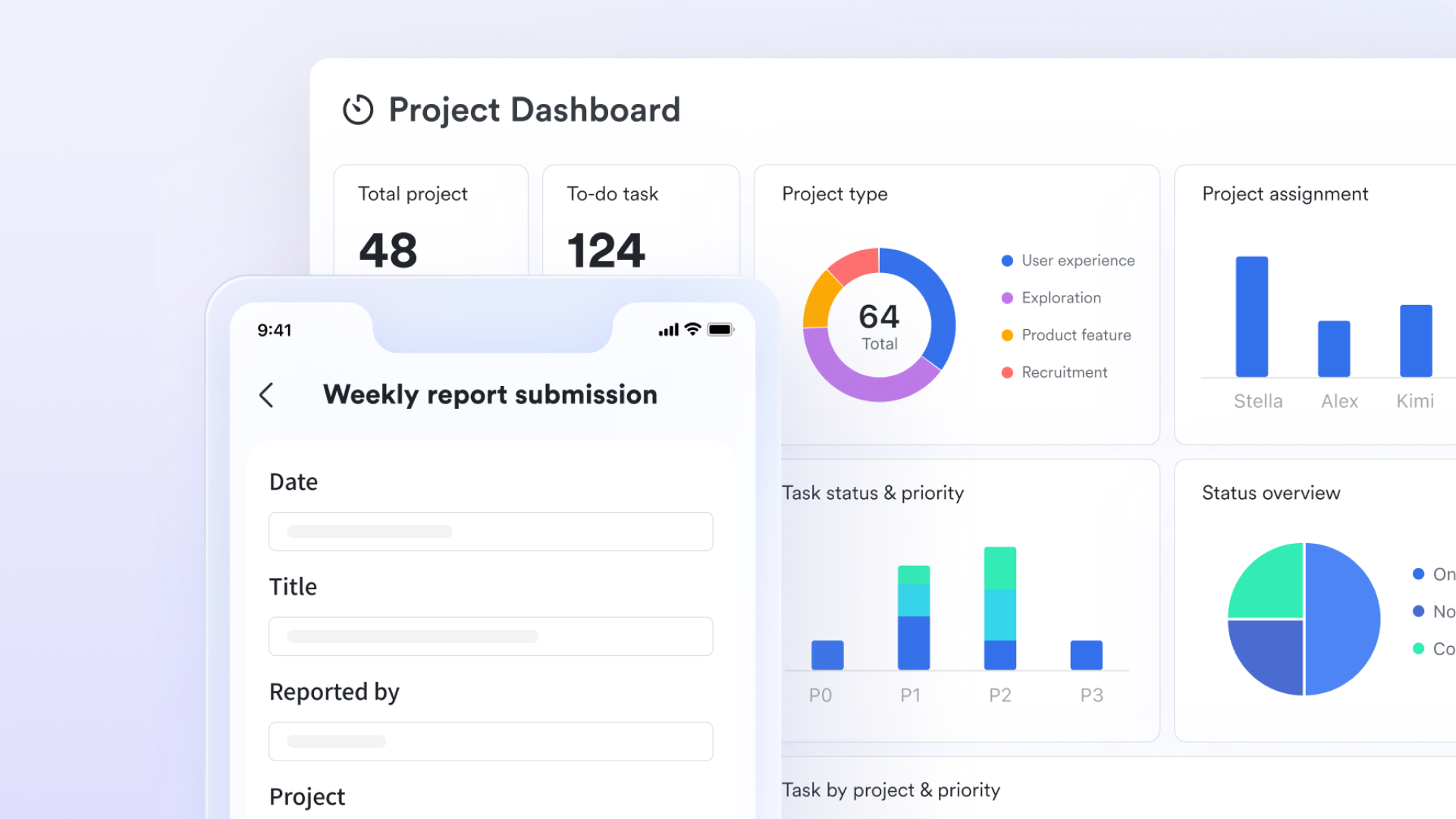
Gain real-time insights with visual dashboards
Kanban boards show you where tasks are in your workflow, but team leaders need a higher-level perspective—like whether overall progress is healthy, where bottlenecks are, and if team workload is balanced. Lark Base's dashboard feature is built for exactly this. Based on the data behind your Kanban board, you can create visual charts with one click: bar charts to show task distribution across stages, pie charts to display task types, and line charts to track sprint burndown trends. All charts update in real time as your Kanban data changes. When a developer drags a card to update its status, the dashboard statistics refresh automatically.
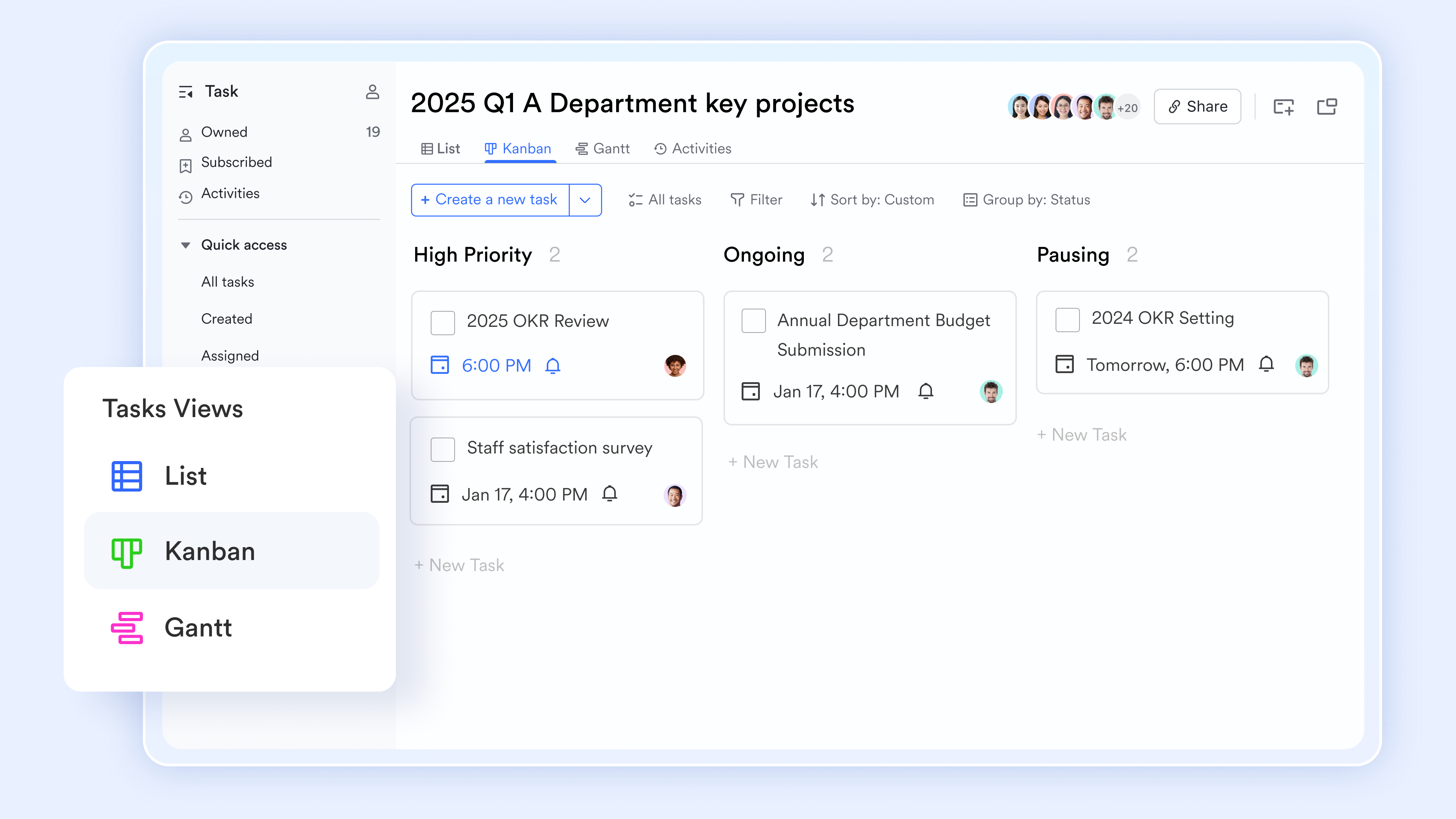
Manage personal tasks with Kanban views
Beyond team-level project boards, Lark also offers built-in Kanban views for personal task management. In Lark Tasks, you can switch tasks assigned to you or specific task lists into Kanban mode. Tasks can be grouped into different columns by criteria like task list, due date, creator, or source. You can customize sorting—by due date, creation time, or last modified time—so the most important tasks always appear first. With filters, you can quickly focus on tasks due today or view all to-dos for a specific project.
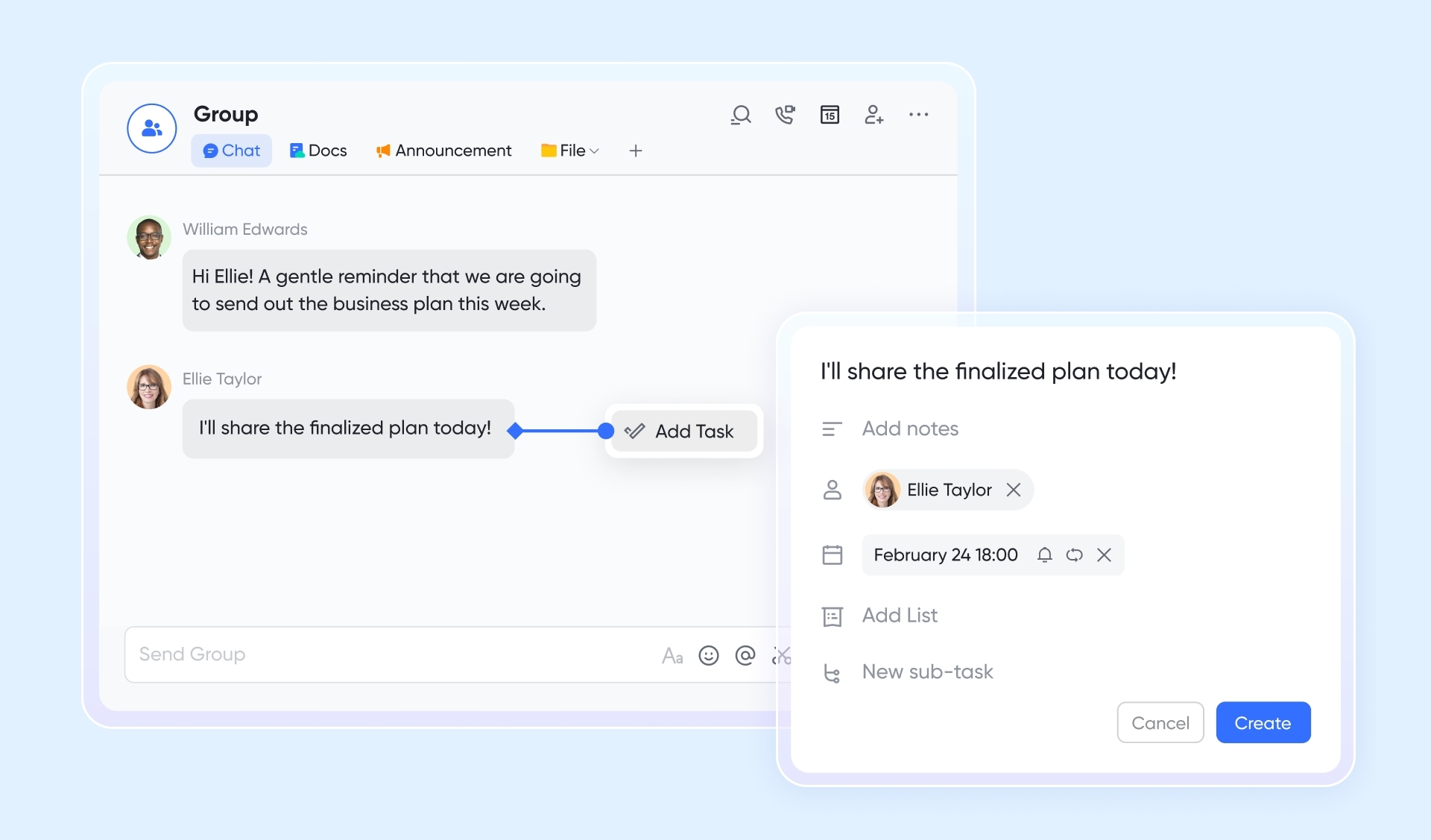
Turn chat discussions into Kanban cards instantly
The biggest risk with Kanban boards is that tasks get discussed but never created as cards. Lark Messenger lets you convert any message into a task with one click, and it appears in your Kanban board automatically. When your team discusses a new requirement in a group chat, simply turn that message into a task—assign an owner, set a due date, and add description details. The task appears automatically in your Lark Tasks Kanban view. The gap between discussion and execution disappears completely. Every commitment becomes trackable.
Conclusion
Asana kanban boards offer teams a clear visual way to manage work and track workflow progress, with intuitive drag-and-drop, multi-view flexibility, and integration with broader project management features. They work well for teams new to kanban or managing simple workflows, with a minimal learning curve.
However, structural limits emerge as teams mature: missing native WIP limits, section-column dependencies, absent swimlanes, and basic analytics constrain advanced agile practices.
Teams should evaluate if Asana fits their workflow complexity and collaboration needs. For organizations seeking to consolidate tools and reduce context switching, Lark offers a unified alternative that combines messaging, meetings, docs, and agile-style task tracking in one workspace—use Lark for a seamless, all-in-one solution.
FAQs
Does Asana have a Kanban board?
Yes, Asana offers a built-in Kanban board (called Board View) for visual workflow management. It features an intuitive drag-and-drop interface, customizable columns to match team processes, and integration with Asana’s other project management tools, making it easy to track work progress at a glance.
Is Asana Kanban free?
Asana includes basic Kanban board functionality in its free plan. The free tier allows teams to create and use Board View, manage tasks, and access core features like attachments and basic automation. Advanced Kanban-related features, such as custom fields or advanced reporting, require a paid subscription.
What are the 4 principles of Kanban?
The 4 core Kanban principles are designed to optimize workflow efficiency: visualize work (make tasks visible on a board), limit work in progress (WIP) to avoid bottlenecks, manage flow (monitor and optimize how work moves through stages), and continuously improve (refine processes based on feedback and data).
Which is better, Kanban or Scrum?
There is no “better” option—choice depends on team needs. Kanban is ideal for teams with continuous, unstructured work (e.g., support, marketing) and prioritizes flexibility. Scrum works best for teams with fixed deadlines and deliverables (e.g., software development), using time-boxed sprints and defined roles for structure.
Related reading
Table of contents
Start using Lark today

Manage all your work in one place
Boost team efficiency by 10x
Save up to 70% on software costs
Table of contents
Start using Lark today
Manage all your work in one place
Boost team efficiency by 10x
Save up to 70% on software costs



2026 Lark Technologies Pte. Ltd.
Headquartered in Singapore with offices worldwide.






Explore: