


A Complete Guide to Zapier Workflow Automation

Ryan Tanner
Product Marketing Specialist
Aug 5, 2026
Ryan Tanner
Aug 5, 2026

19 min read


Zapier workflow automation gives teams a simple, reliable way to connect tools and automate routine tasks without writing code. By linking triggers, actions, and logic paths, Zapier helps teams reduce manual work, increase efficiency, and keep information synchronized across multiple apps. Whether you are automating customer communications, updating records, or routing information between tools, Zapier allows workflows to run automatically in the background. This guide explains how Zapier automation works, explores everyday use cases, covers AI-powered features, and highlights key limitations for teams planning to scale automation.

What is Zapier workflow automation?
Zapier workflow automation lets teams connect apps and automate repetitive tasks with simple, logic-based workflows. It relies on triggers and actions to create a structured flow that moves information across different tools in real time. These automated sequences help eliminate manual steps and reduce operational friction for teams of all sizes. Because Zapier supports thousands of apps, it is widely used across marketing, customer support, operations, sales, and small business teams. Its visual interface and no-code approach make it accessible even to non-technical users.
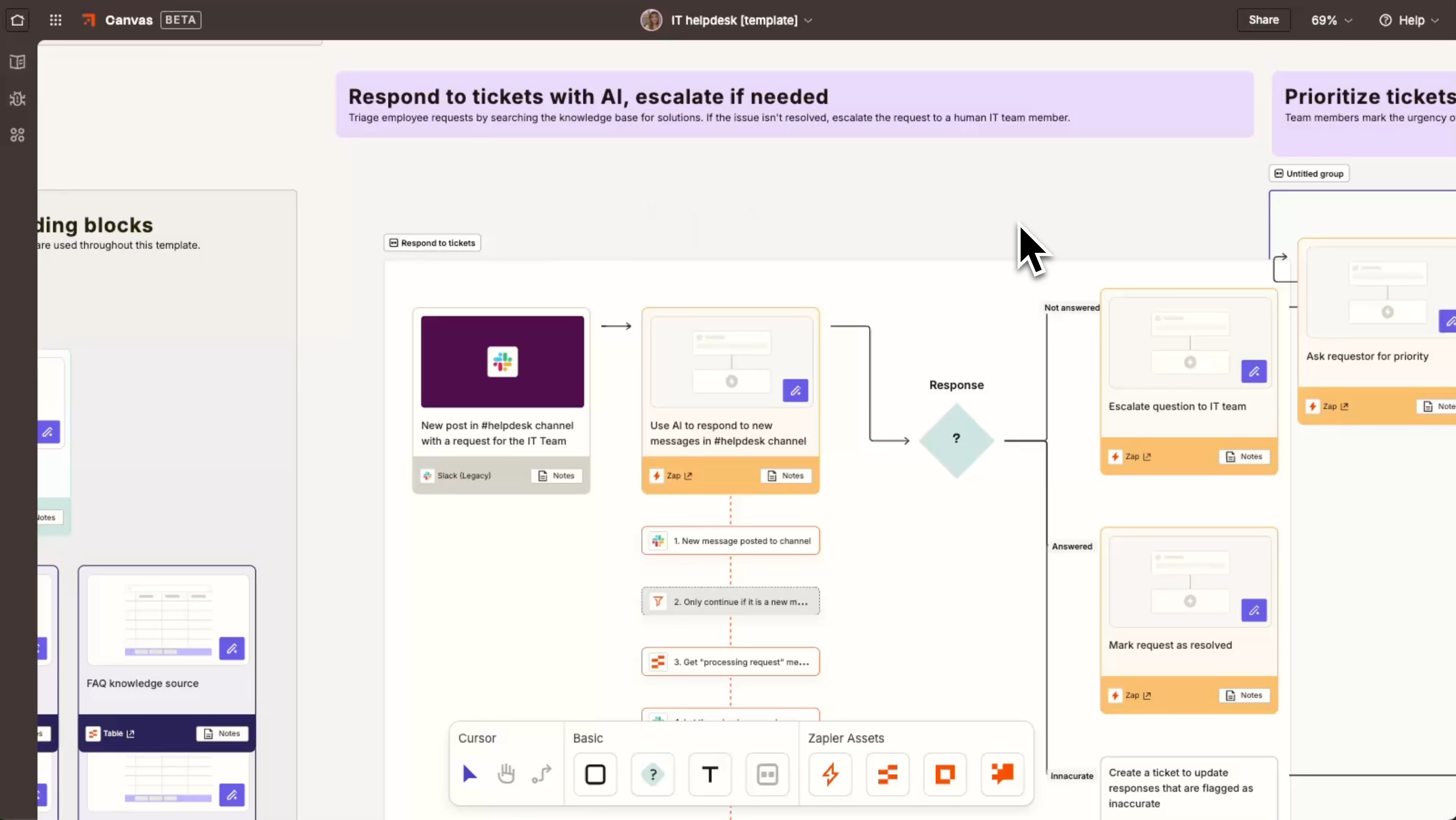
Image source: zapier.com
How Zapier workflow automation works: Step-by-step guide
Zapier helps teams move data between apps automatically by linking triggers and actions. Instead of manually copying updates from one tool to another, Zapier watches for an event in one app and performs a predefined action in another. Here's how the full setup process works:
Step 1. Identify the task and the apps involved
Start by choosing a repetitive task you want to automate, like sending notifications, syncing contacts, updating spreadsheets, or logging form submissions. Clarify which apps are involved and what final outcome you want. This preparation ensures your automation solves the right problem.
Step 2. Set the trigger that starts your automation
Every Zap begins with a trigger event, such as:
- A new row was added to Google Sheets
- A form submission in Typeform
- A new deal was created on HubSpot
- A message sent in Slack
Zapier continuously watches for this event, so the workflow activates at the right moment.
Step 3. Connect your apps and define the initial action
Sign in to each app once so that Zapier can move data securely in the background. After that, choose what should happen right after the trigger fires—create a task, send an email, update a CRM field, or add data to a spreadsheet. You can also stack multiple actions to complete several tasks from one trigger.
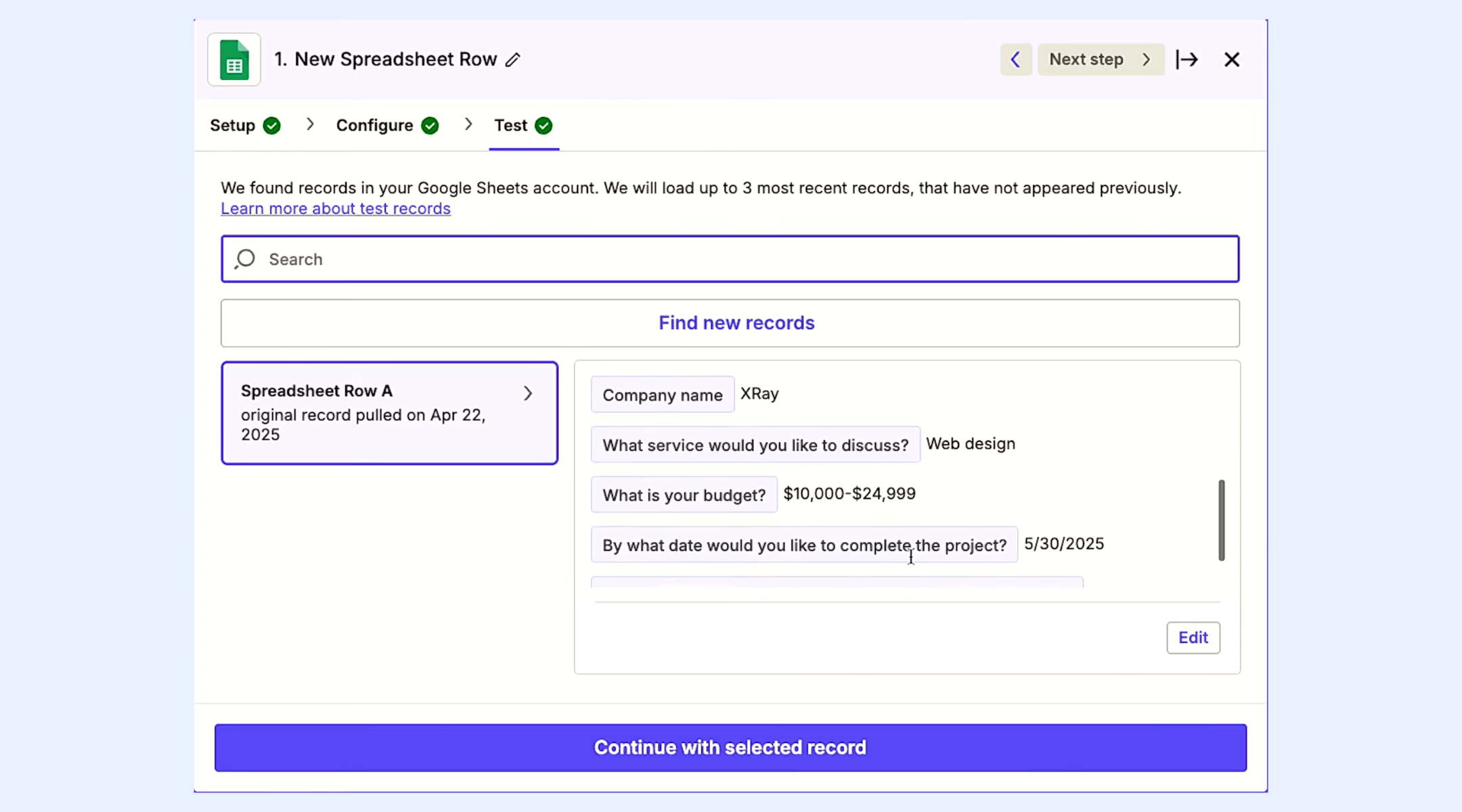
Image source: zapier.com
Step 4. Refine automation with filters, conditions, and branching paths
Use filters to control when the workflow should continue, for example, only run if the deal value is above a threshold or if a task is marked high priority. For more complex processes, add branching logic (Paths) that send different outcomes depending on the data, like notifying an account manager for referrals but sending automated emails to web leads.
Step 5. Format your data and set delays or schedules
Before passing data to another app, Zapier can clean it—split text, adjust dates, extract numbers, or combine fields. If timing matters, add delays (like waiting 24 hours before a reminder) or create scheduled actions (such as weekly follow-up emails or daily summary reports).
Step 6. Test your Zap, activate it, and monitor performance
Run tests to verify that the trigger fires correctly and that every action behaves as expected. Once everything runs smoothly, turn the Zap on. Zapier will now execute the workflow automatically in the background. Use the dashboard to monitor task runs, troubleshoot errors, and refine automation over time.
Zapier workflow examples you can build today
Zapier supports a wide range of automation patterns that help teams eliminate repetitive tasks and keep tools aligned. These examples show how workflows can support communication, reporting, operations, finance, and customer engagement. Because Zapier connects thousands of apps, even simple automations can create significant time savings and reduce errors. The examples below demonstrate workflows that teams can make within minutes while still delivering meaningful impact across daily operations.
- Auto-send welcome emails from forms: When a user submits a form, Zapier can instantly send them a personalized welcome message through email. This ensures new sign-ups or inquiries receive timely communication without manual intervention. The workflow improves lead engagement and reduces repetitive follow-ups for teams. It can also store contact information inside a CRM or spreadsheet for future nurturing. This allows onboarding communication to stay consistent and structured across all channels.
- Sync CRM contacts with spreadsheets: A common Zap synchronizes CRM updates with a spreadsheet, ensuring contact lists stay accurate and up to date. New records added to the CRM appear automatically in the sheet, reducing the need for manual data entry. Teams can use this workflow for reporting, segmentation, or tracking. It also eliminates errors caused by inconsistent data across systems. Automation has become a reliable source of truth for sales and marketing teams.
- Auto-create tasks from new deals: When new deals are created in a crm software, Zapier can automatically create tasks in a project or task management tool. This keeps sales and operations aligned and ensures next steps are always documented. It reduces the risk of missed follow-ups and ensures deal progress is tracked consistently. Teams can assign ownership, set deadlines, and prepare supporting documentation instantly, creating smoother handoffs between departments.
- Route customer inquiries to Slack: Zapier can route incoming messages, tickets, or inquiry forms directly into relevant Slack channels. This helps teams respond faster and collaborate effectively. The workflow can categorize inquiries based on type and send them to dedicated groups. It ensures urgent messages are visible in real time and prevents customer issues from being overlooked. This improves communication and strengthens team responsiveness across support operations.
- Notify teams when invoices are paid: Finance teams can automate notifications whenever an invoice is marked as paid inside their accounting tool. Zapier delivers instant alerts to email, Slack, or other communication apps. This helps maintain cash flow visibility and ensures teams can update records quickly. Automated notifications also reduce back-and-forth communication between finance and operations. It keeps everyone aligned on payment status without manual checks.
- Daily reports sent automatically: Zapier can gather data from multiple apps, compile it, and send daily summaries to teams via email or chat. This removes the need to check dashboards manually. Reports can include metrics, completed tasks, sign-ups, ticket counts, or system activity. These automated summaries help teams stay informed and support better decision-making. They also ensure important updates are delivered consistently without extra work.
Zapier AI workflow automation features
Zapier's AI workflow automation features help teams handle information intelligently by analyzing messages, generating summaries, and making context-based decisions. These AI components introduce powerful new capabilities that reduce manual evaluation and support faster execution. Teams can use AI to categorize requests, identify intent, generate content, or route information based on meaning. When applied carefully, AI enhances both accuracy and efficiency. Understanding its strengths and limitations ensures teams use it responsibly across increasingly complex automation patterns.
- AI Actions for content, summaries, routing: Zapier's AI Actions can generate text, summarize long content, extract key information, or classify messages. These tools help teams automate repetitive interpretation tasks that previously required human review. They allow workflows to adapt to context and improve response quality. For example, AI can summarize customer messages before routing them or generate draft replies for support teams. These features help streamline communication-heavy workflows.
- AI-based triggers and intelligent decision paths: AI-powered triggers automatically detect intent or categorize incoming data, enabling workflows to start based on meaning rather than simple conditions. Intelligent paths guide workflows down different routes depending on context, sentiment, or detected categories. This makes automation more flexible and nuanced. Teams can create flows that respond intelligently to customer requests, data changes, or service issues without the need for rigid rule-based filters.
- Use cases such as customer support triage, content generation, lead scoring: In support workflows, AI triages messages by urgency or category, helping teams focus on high-impact issues first. For content workflows, AI drafts outlines, creates summaries, or expands initial concepts. In sales automation, AI evaluates leads based on engagement or message intent. These use cases demonstrate how AI can improve quality, speed, and consistency across daily operations.
- When AI speeds up workflows and adds complexity: AI helps when workflows involve interpretation, classification, or text generation. It reduces manual work and speeds up decision-making. However, AI can introduce complexity when prompts need tuning or accuracy fluctuates. Teams must test outputs, validate logic, and ensure AI steps do not disrupt larger flows. Automation remains most effective when AI is used selectively and supported by clear guardrails.
Limitations of Zapier workflow automation
Zapier supports a wide range of automation capabilities, but teams reaching higher scale or advanced logic requirements may face certain limitations. Understanding these constraints helps teams plan their automation strategy properly and avoid unexpected issues as workflows grow. While Zapier excels at simple to medium-complexity tasks, it becomes less flexible in highly technical or enterprise-grade scenarios. Recognizing these boundaries ensures teams know when to use Zapier and when to consider more powerful or self-hosted tools.
- Higher cost for task-heavy workflows: Zapier charges per task, so workflows that generate many actions can become expensive. Teams often pay significantly more as automations expand. Reviewing task usage and optimizing steps can help reduce costs, but highly repetitive workflows may exceed the budget. Organizations with intensive automation sometimes need to explore alternatives that offer more cost-efficient models, especially for large-scale or data-heavy processes.
- Limited advanced logic compared to n8n or Make: While Zapier is easy to use, it lacks the advanced branching, scripting, and custom logic available in n8n or Make. Teams that need robust data management or multi-layered decision paths may find Zapier too restrictive. Technical users who require complete control over workflows often prefer open, flexible systems. Zapier remains better suited to straightforward automations than to highly customized logic frameworks.
- Dependency on connectors: Zapier relies on pre-built app connectors, and limitations within those connectors can restrict automation capabilities. If an app offers limited triggers or actions, workflows may not perform as expected. Teams become dependent on connector quality, which varies by app. In some cases, key functionality is missing, preventing full automation. This dependency makes it challenging to automate edge cases or specialized tasks that require deeper integration.
- Complex debugging for multi-step flows: As workflows grow longer or more complicated, debugging becomes harder. Errors may occur at specific steps, in data formats, or in conditional paths. Zapier logs help, but do not provide complete visibility into nested logic. Teams may spend more time troubleshooting as flows expand. This complexity can slow down deployments and create maintenance challenges for teams managing multiple interconnected automations.
- Restrictions for enterprise-grade automation: Zapier is not designed for heavy data workloads, multi-layered enterprise logic, or advanced security requirements. Larger organizations often need deeper customization, governance tools, audit logs, or on-premise deployment options. Zapier focuses primarily on small to mid-sized teams, making it less suitable for highly regulated industries or enterprise-level automation ecosystems.
Given these limitations, many teams eventually begin evaluating whether Zapier remains the right fit as their automation needs grow. What works well for simple, everyday tasks can become harder to manage—or more expensive—when workflows grow or require more complex logic. At that point, it's helpful to look at how Zapier compares with other automation platforms that offer different strengths, from more flexible logic to cost efficiency better. The following section provides a comparison table that offers a clearer view of where Zapier stands alongside other popular tools.
Best workflow automation software: Zapier or other tools?
Modern teams rely on workflow automation to reduce repetitive work, connect scattered apps, and operate with consistent, real-time accuracy. While Zapier remains one of the most widely used automation tools, many teams now explore more flexible or cost-efficient alternatives as their needs grow.
Choosing the right workflow automation tool comes down to how your team works, the complexity of your processes, and whether you need collaboration built in. Below is a clear, side-by-side comparison that shows how all three platforms stack up—and why Lark ultimately stands out.
Top choice: Why Lark wins the workflow automation race
Lark offers a unified workspace where automation, collaboration, documentation, and communication all function together without relying on disconnected apps. Instead of building isolated Zaps across multiple tools, teams can automate work directly inside the systems they already use. This creates smoother handoffs, fewer integration failures, and faster execution. With automation built into a single unified platform, teams gain clarity, reduce costs, and streamline daily workflows with far less complexity.
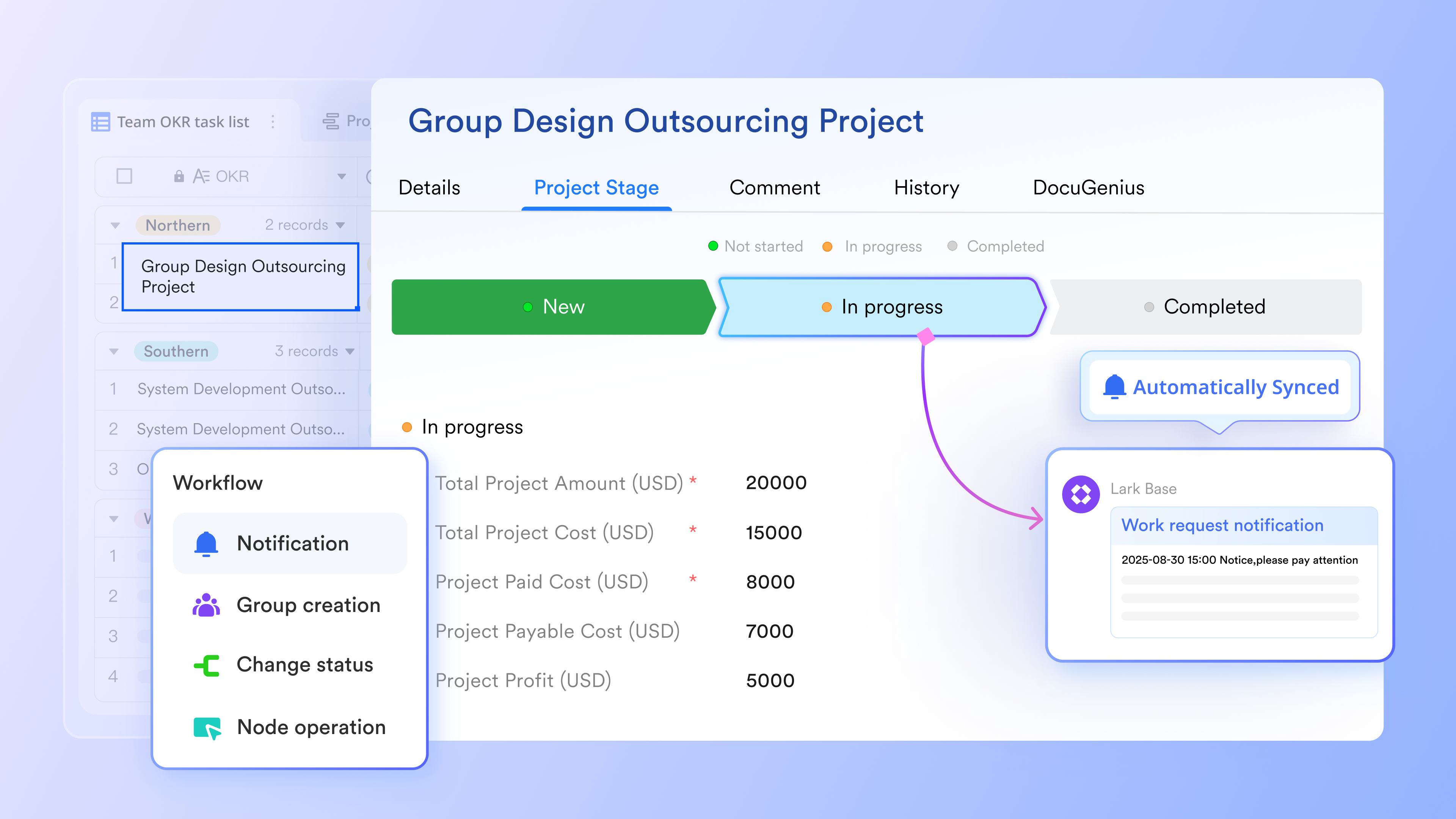
Lark Base: A combined workflow engine + Database
Lark Base provides teams with a structured data environment where records, fields, and workflow rules live together. Teams can store leads, tickets, purchase requests, onboarding steps, or project milestones in Base—then automate actions such as updates, notifications, assignments, or approvals directly from those records. Because Base is part of the same workspace, workflows always read the most accurate data without relying on third-party apps.
Why Lark is better than Zapier:
Zapier has no internal database, so users must connect to Google Sheets, Airtable, or CRM tools just to store workflow data. This creates higher complexity, more breakpoints, and rising costs as tasks increase. Lark Base replaces all of this with a built-in system—faster, cleaner, and more reliable.
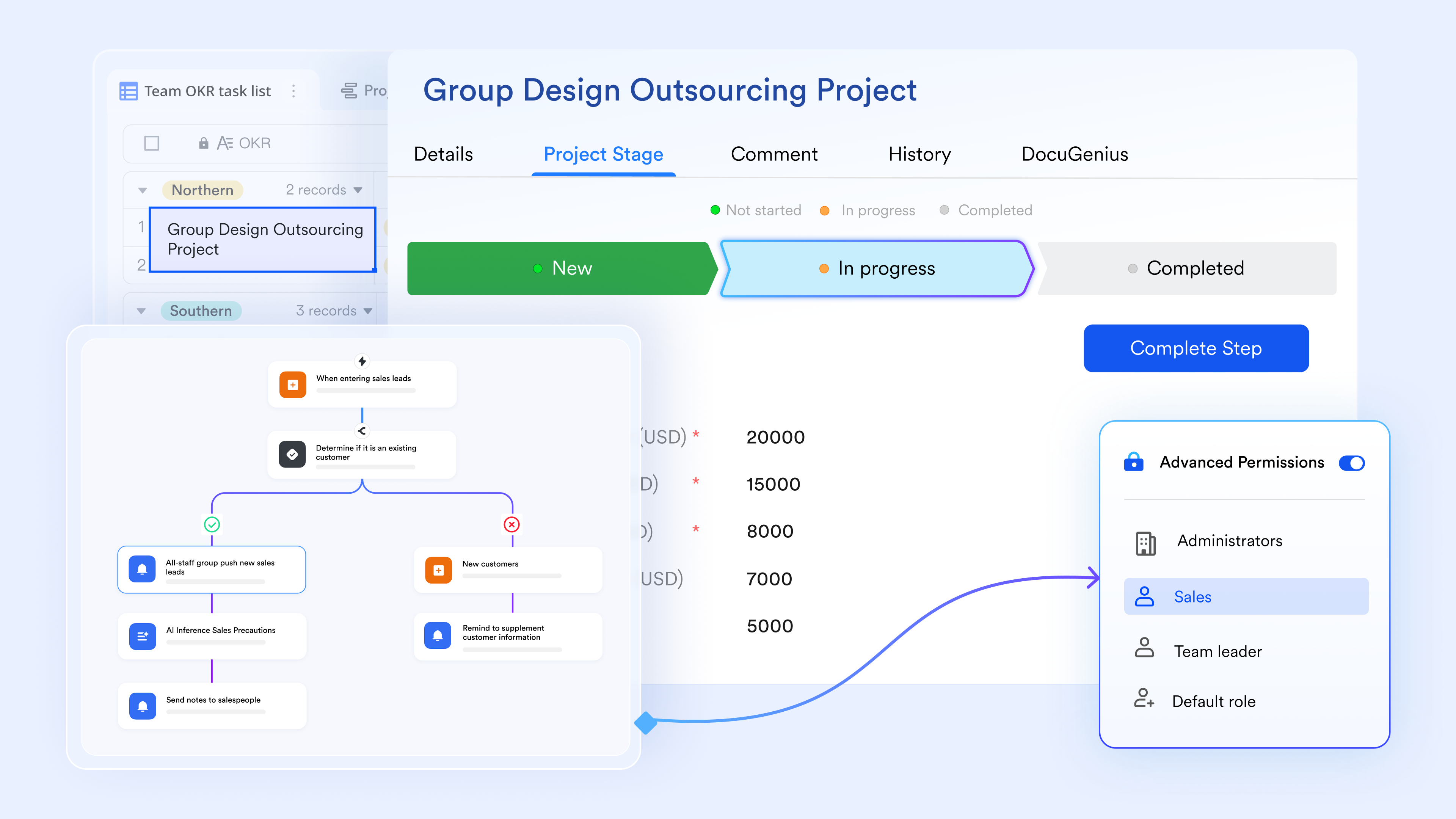
Lark Approval: Native routing & decision automation
Lark Approval supports multi-level routing, auto-escalation, conditional logic, and reminders—all within the same workspace. HR teams can route leave requests, finance teams can process expense approvals, and operations can handle purchase workflows without needing different apps. Approvers receive notifications instantly in Messenger or on mobile devices, and the entire approval history is automatically stored.
Why Lark is better than Zapier:
Zapier cannot run approvals natively. Users must rely on email, Slack, or task apps to send approval messages, which increases delays and makes the process fragmented. Lark Approval centralizes routing, response tracking, and workflow logic in one place—far simpler and much more controlled.
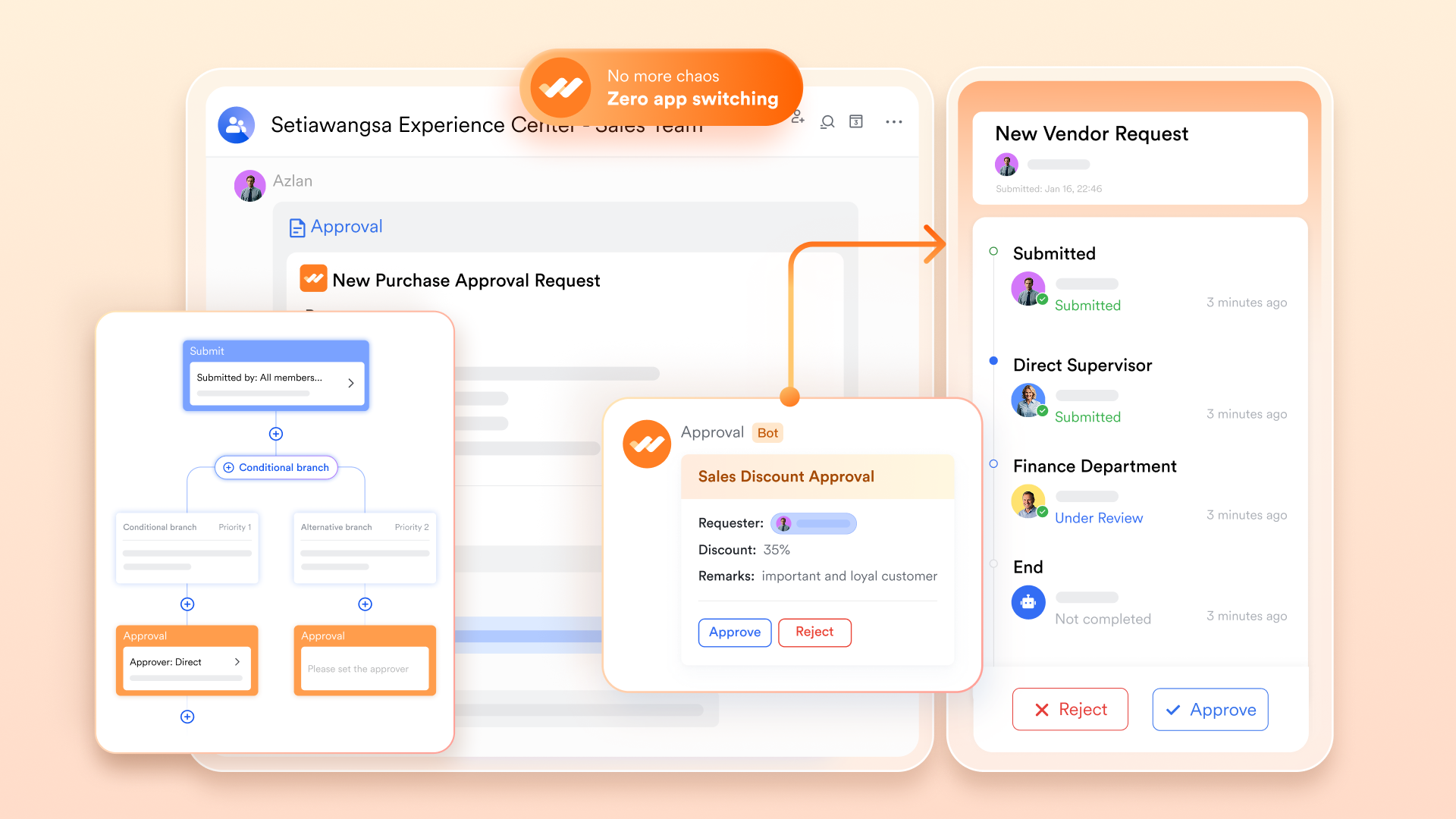
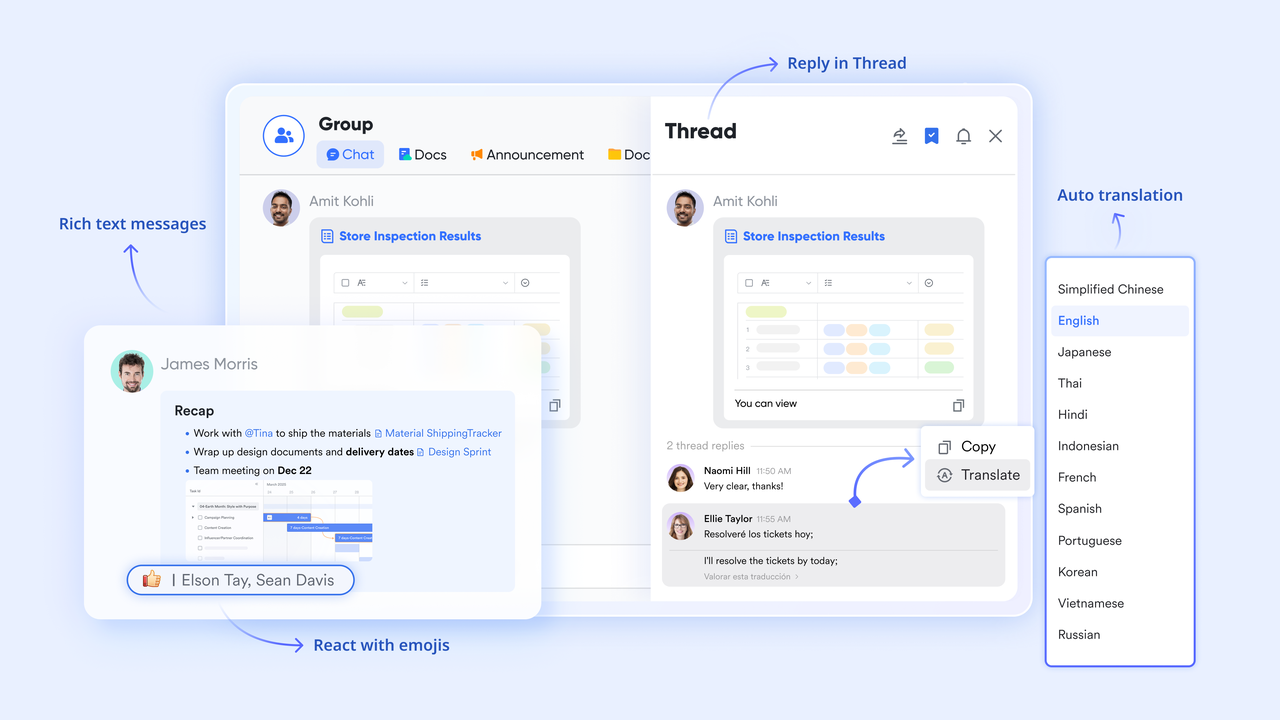
Lark Messenger: Communication that connects seamlessly with workflows
Lark Messenger lets teams send real-time updates, tag teammates, attach files, convert messages into tasks, and trigger workflow actions directly from the chat window. —such as "New sales lead added" or "Approval required"—arrive in relevant group chats in context. This keeps collaboration close to the workflows that need attention.
Why Lark is better than Zapier:
Zapier must depend heavily on Slack or email for communication. This means every workflow update becomes an external dependency. With Lark, communication is part of the workspace—so decisions, follow-ups, and escalations happen instantly and reliably.
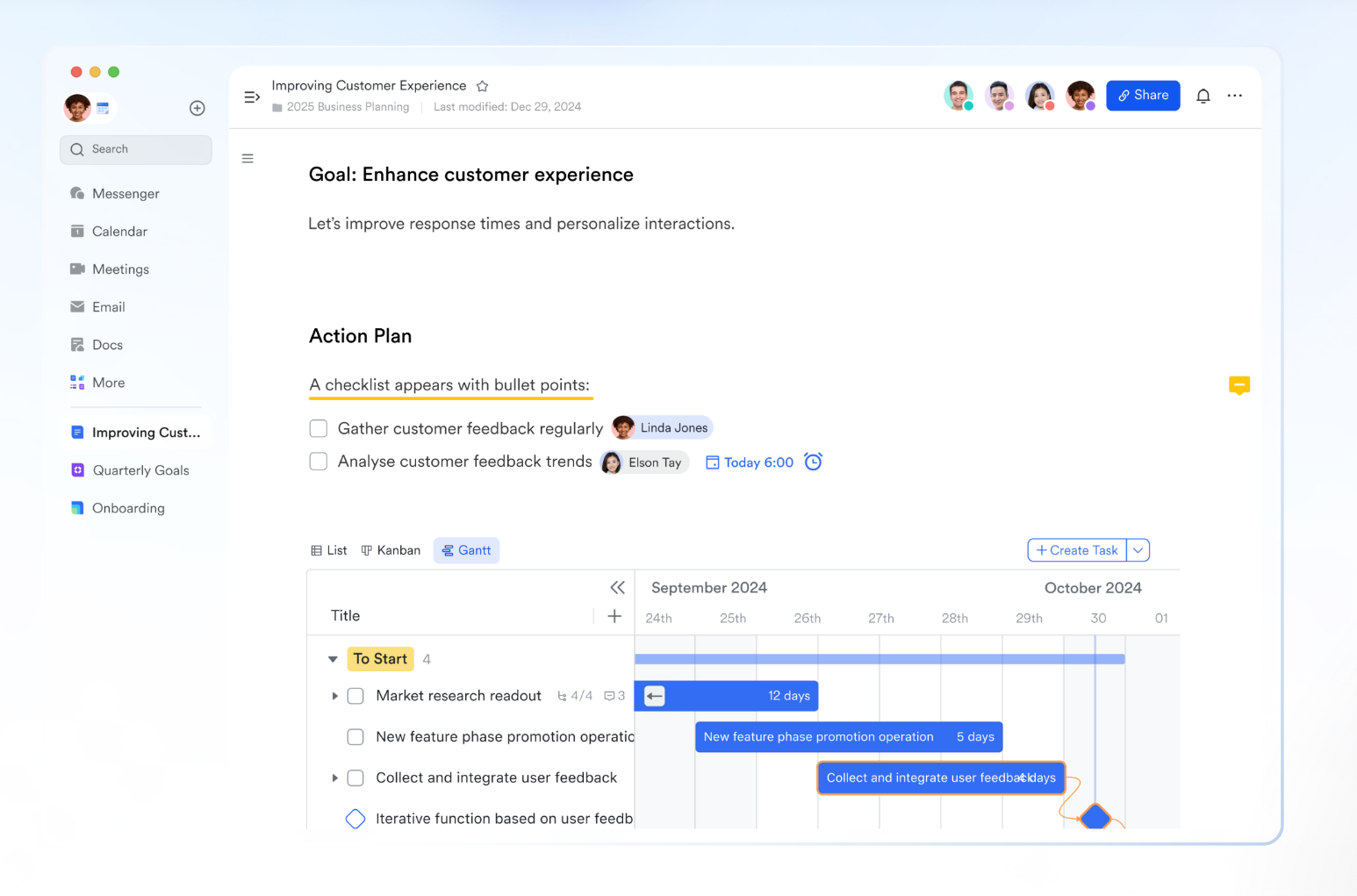
Lark Docs & Sheets: Documents and data connected to workflows
Teams can co-edit documents and spreadsheets inside Lark without switching platforms. Lark Docs store SOPs, templates, and workflow rules; Sheets maintain structured data; and both can trigger or respond to workflow actions. For example, a marketing plan edited in Docs can automatically update related tasks, or a sales sheet can update Base records. Because content lives in the same workspace, workflows always remain aligned with documentation.
Why Lark is better than Zapier:
Zapier relies entirely on external apps like Google Docs, Notion, and Sheets. This requires additional connectors, extra configuration steps, and higher task usage. Lark has everything built in—no additional systems, no syncing issues, and no hidden task costs.
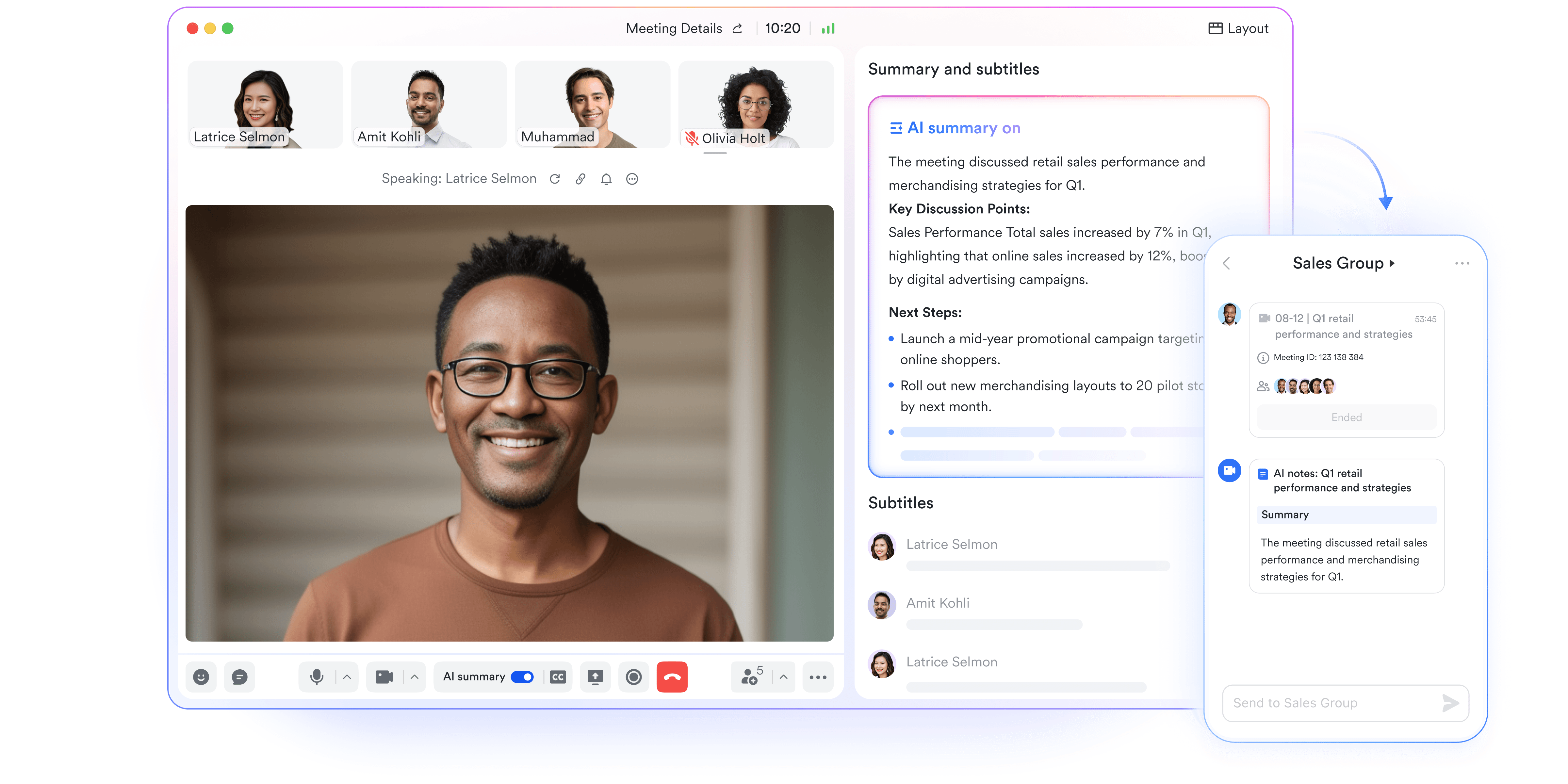
AI Meeting Notes: Turning discussions into automated actions
Lark's AI Meeting Notes automatically capture key points, decisions, next steps, and follow-ups during meetings. Teams can turn AI-generated summaries into tasks, update Base records, or trigger automated workflows without manual transcription. This is especially powerful for recurring reviews, project check-ins, and sprint planning sessions.
Why Lark is better than Zapier:
Zapier has neither a built-in meeting platform nor an AI meeting summary tool. Users would need Zoom/Google Meet, Otter, and Zapier to achieve anything similar—and even then, turning notes into actions requires extra steps. Lark delivers this capability natively inside the same workspace where workflows live.
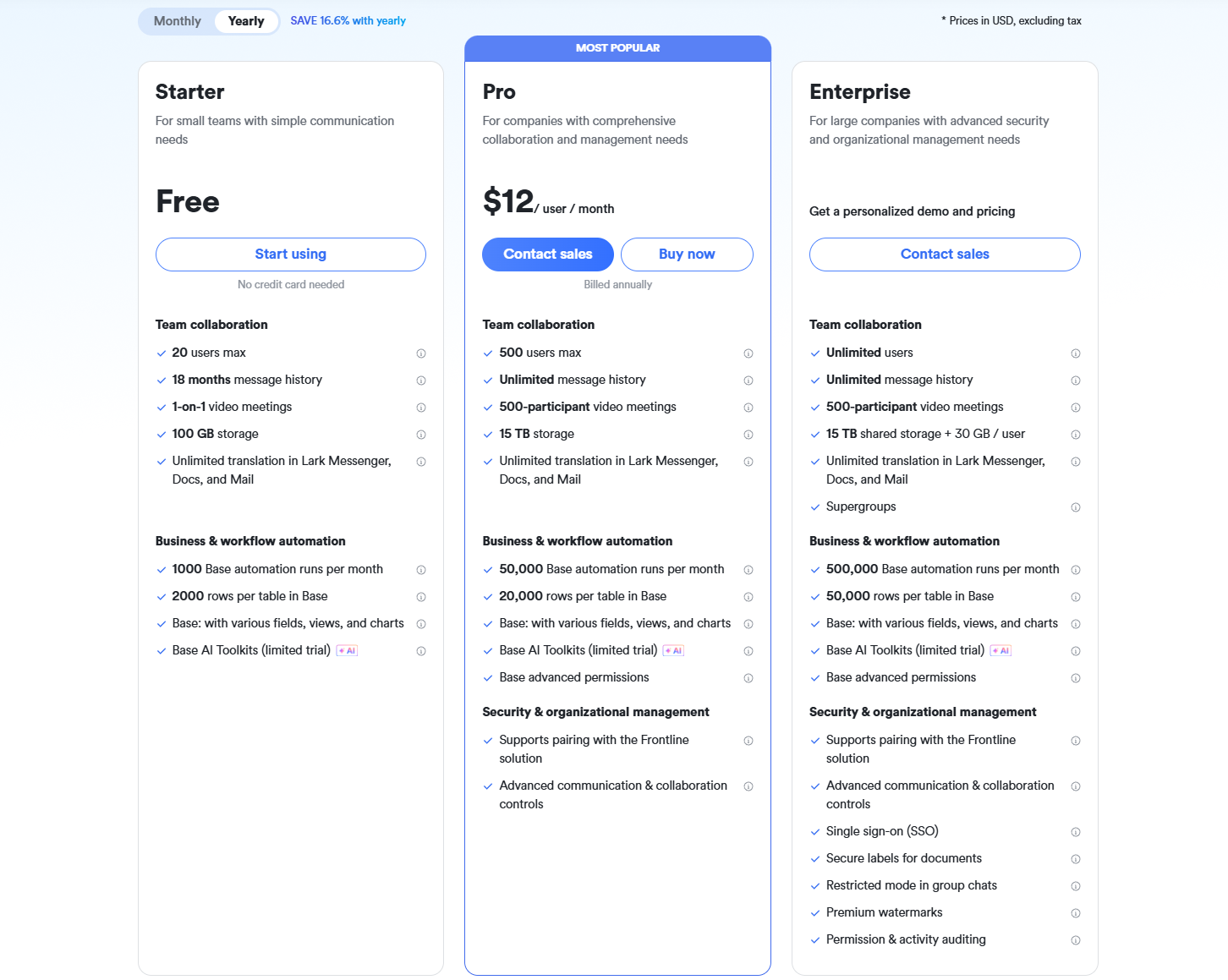
- Starter plan: Free forever plan that includes 11 powerful tools for up to 20 users. It also comes with 100GB of storage, 1000 automation runs, AI translations, and more.
- Pro plan: $12/user/month (billed annually) for up to 500 users. It includes everything in Starter plus group calling for up to 500 attendees, 15TB of storage, 50,000 automation runs, and more.
- Enterprise plan: Contact sales for custom pricing. Supports unlimited users and includes even more automation runs and advanced security, compliance, and management features.
Conclusion
Zapier remains a reliable choice for teams seeking quick, no-code automation, especially for simple, app-to-app workflows. Tools like Make and n8n offer greater flexibility for technical teams that need deeper logic and customization. Each platform has strengths depending on workflow complexity, scale, and budget. However, teams looking for a more unified, streamlined approach often prefer Lark, where automation, collaboration, documentation, and data tools exist in one connected workspace. This reduces integration overhead, avoids task-based limitations, and keeps every workflow aligned. Choosing the right solution ultimately depends on how seamlessly you want your entire work ecosystem to operate.
FAQs
Can Zapier run workflows on a schedule without a trigger?
Yes, Zapier can run workflows on a schedule using its built-in Scheduler feature, which lets you trigger automations hourly, daily, weekly, or monthly. However, scheduling options remain limited for complex timing patterns. Teams that need greater scheduling flexibility often prefer unified platforms like Lark for end-to-end coordination.
How many tasks can Zapier run before hitting usage limits?
Zapier's task limits depend on your plan, and high-volume workflows can quickly use up available tasks, especially when multi-step or repeated actions run frequently. Once the limit is reached, workflows pause until the next cycle. Teams wanting predictable usage often consider platforms like Lark that avoid task-based constraints.
Does Zapier support multi-step approvals or conditional routing?
Zapier supports conditional paths and basic approval flows, but more advanced, multi-layered logic may require additional tools or workarounds. Complex approvals with branching logic or cross-team reviews often exceed Zapier's native capabilities. This is where integrated workspaces like Lark offer smoother, built-in routing and collaborative review flows.
Can Zapier automate workflows across different user accounts or teams?
Zapier can automate workflows across accounts if the connected apps support shared access, but some tools restrict cross-user automations for security reasons. Managing multiple user connections can also become complex. Centralized platforms like Lark simplify this by consolidating automation, permissions, and collaboration within a single workspace.
What happens to Zapier workflows if a connected app goes down or changes permissions?
If an app experiences downtime or changes authentication requirements, Zapier workflows may fail, pause, or require re-authentication before running again. Critical workflows can be disrupted until the connection is restored. Systems like Lark reduce this risk by keeping key actions and data flows inside a unified environment.
Related reading:
Table of contents
Start using Lark today

Manage all your work in one place
Boost team efficiency by 10x
Save up to 70% on software costs
Table of contents
Start using Lark today
Manage all your work in one place
Boost team efficiency by 10x
Save up to 70% on software costs



2026 Lark Technologies Pte. Ltd.
Headquartered in Singapore with offices worldwide.






Explore: