The hardest part of project planning is usually not the work itself. It is getting everyone aligned before the work starts. Teams often jump into task assignments too quickly, skip basic planning steps, and end up fixing preventable mistakes later. That is exactly why a basic project plan template is useful. It gives you a clear starting point, with the right fields already in place, so you can focus on the project itself instead of wasting time building a tracker from scratch.
A simple template still works well for many teams. Some prefer a basic project plan template Excel file because it is easy to update and good for tracking dates. Others use a basic project plan template in a Word document when they need a more formal project brief for leadership or client approval. Both formats can be useful. But once projects become more collaborative and move faster, teams usually need something more connected. That is where Lark becomes relevant, especially when planning, updates, and communication need to stay in one place.
What is a basic project plan template?
A basic project plan template is a ready-made layout for planning and tracking a project without starting from a blank file. It gives project managers a simple framework that already includes the most important planning fields, like tasks, owners, dates, status, and milestones. Instead of spending the first hour formatting columns or building a structure, you can start planning the real work right away.
Most teams use these templates for smaller internal projects, repeatable workflows, client deliverables, , product launches, and operational rollouts. The goal is not to build a perfect enterprise PM system. The goal is to make sure every project starts with the same minimum level of clarity. That includes what needs to happen, who is doing it, when it is due, and how progress will be tracked.
If the project is small, that setup is often enough. If the project becomes more dynamic, with lots of updates, dependencies, or , that is usually when teams start moving from static templates into tools like Lark.
What a basic project plan template must include
A good basic project plan template should be simple, but it still needs the right structure. If the file only lists tasks and dates, it will not be enough once the project starts moving. The best templates give teams just enough detail to plan clearly, assign work properly, and track progress without making the sheet harder to use. Below is the same section in your preferred format. - Project name and objective: Every project plan should start with a clear project name and a short objective.
- Phase or work stream: This helps group tasks into logical sections, making the plan easier to read and manage. You can organize work by , department, or delivery stage, depending on the project.
- Task ID: A task ID gives each row a unique reference number. It may seem small, but it becomes very useful once the project grows and dependencies start mattering.
- Task name and description: This is where the actual work gets defined, so it needs to be clear enough to assign without extra explanation.
- Owner: Every task should have one named owner, not a team or department. Clear ownership makes follow-up easier and prevents the common problem where everyone assumes someone else is handling it.
- Start date and due date: Dates turn a task list into a real project plan. The start date shows when work can begin, and the due date shows when it needs to be finished.
- Duration (formula-driven in Excel): Duration indicates how long each task is expected to take and is usually calculated from the start and due dates.
- Dependency: A dependency shows which task must be completed before another one can start. This is one of the most important fields for building a realistic schedule.
- Priority (High, Medium, Low): Priority helps the team understand which tasks matter most when time or resources are limited. Not every task needs the same level of urgency, and this field makes it easier to see.
Want a more structured project engine for your team
13 basic project plan templates chosen for you
Below are 13 template options worth considering. Each one works a little differently, so the best choice depends on how detailed your project needs to be.
Project plan template
If you need a simple starting point that still feels complete, this is one of the most practical options. It works well for teams that want a clean project tracker without having to build everything from scratch in Excel. You get the core structure most teams need, including tasks, owners, deadlines, and progress fields.
Project management plan template
This template is better for teams that need more than a task list. It gives you room to manage execution while also keeping the broader planning layer visible, which is useful for cross-functional projects. If your current basic project management plan template feels too static or too hard to maintain across teams, this is a much stronger setup.
Project planning implementation template
Implementation projects usually follow repeatable steps, but they still get messy when teams rebuild the same tracker every time. This template is useful because it provides a consistent structure for rollouts, onboarding, deployments, and internal setup projects. If your team keeps copying the same basic Excel project plan template for every implementation, this can save a lot of setup time.
Project milestone template
Some teams do not need to track every single task in detail. They just need a clear view of the major checkpoints that leadership cares about. This template is useful when milestone visibility matters more than daily task management. If you currently use a basic project plan template Word file to summarize key delivery points, this provides a cleaner, more structured way to do so.
Project tracker template
This is a good choice when the team needs a practical day-to-day tracker that is easy to keep updated. It works well for projects where weekly status checks, owner accountability, and deadline visibility matter more than formal planning documents. Compared with a standard basic project plan template, it feels more usable for live execution.
Workback plan template
When a final deadline cannot be moved, working backwards is often the smartest way to plan. This template is built for teams that need to map tasks in reverse order so nothing critical gets missed before launch day. It is especially useful for events, campaigns, product launches, and deadline-driven implementations. If you have ever tried forcing this into a basic project plan template Excel file manually, this setup is much easier to manage. It helps teams plan around the real deadline instead of just listing tasks forward.
Workback schedule template
This template is similar to a workback plan, but it puts even more focus on timeline structure and sequencing. It is useful when the project is heavily deadline-driven, and the schedule itself needs to be very clear from the start. Teams that rely on a basic Excel project plan template for launch planning often find this much easier to use for fixed-date work.
Microsoft Office basic project plan template
It has a single-tab layout with task name, start date, duration, and a basic bar chart. Clean and low-maintenance. Does not include owner assignment, dependency column, or status field. Best as a starting point for very simple projects where the Gantt is the only output required.
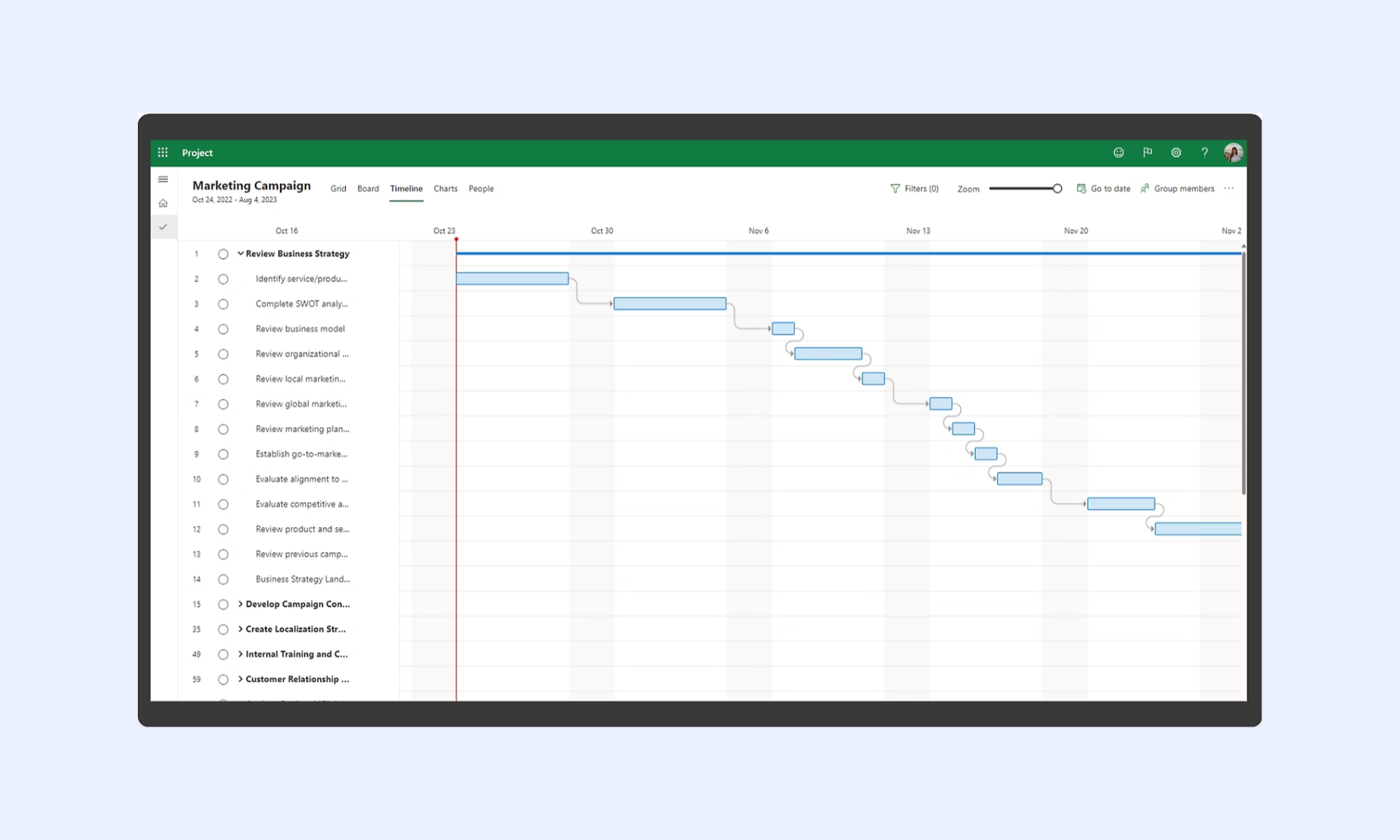
Image source: microsoft.com
ProjectManager free basic project plan template Excel
Multi-tab workbook with a task table, a Gantt chart auto-generated from date entries, tab, and a budget summary. The most structurally complete free Excel option. Includes owner, priority, and dependency columns. Main limitation: the Gantt chart requires manual reconfiguration when dates change significantly.
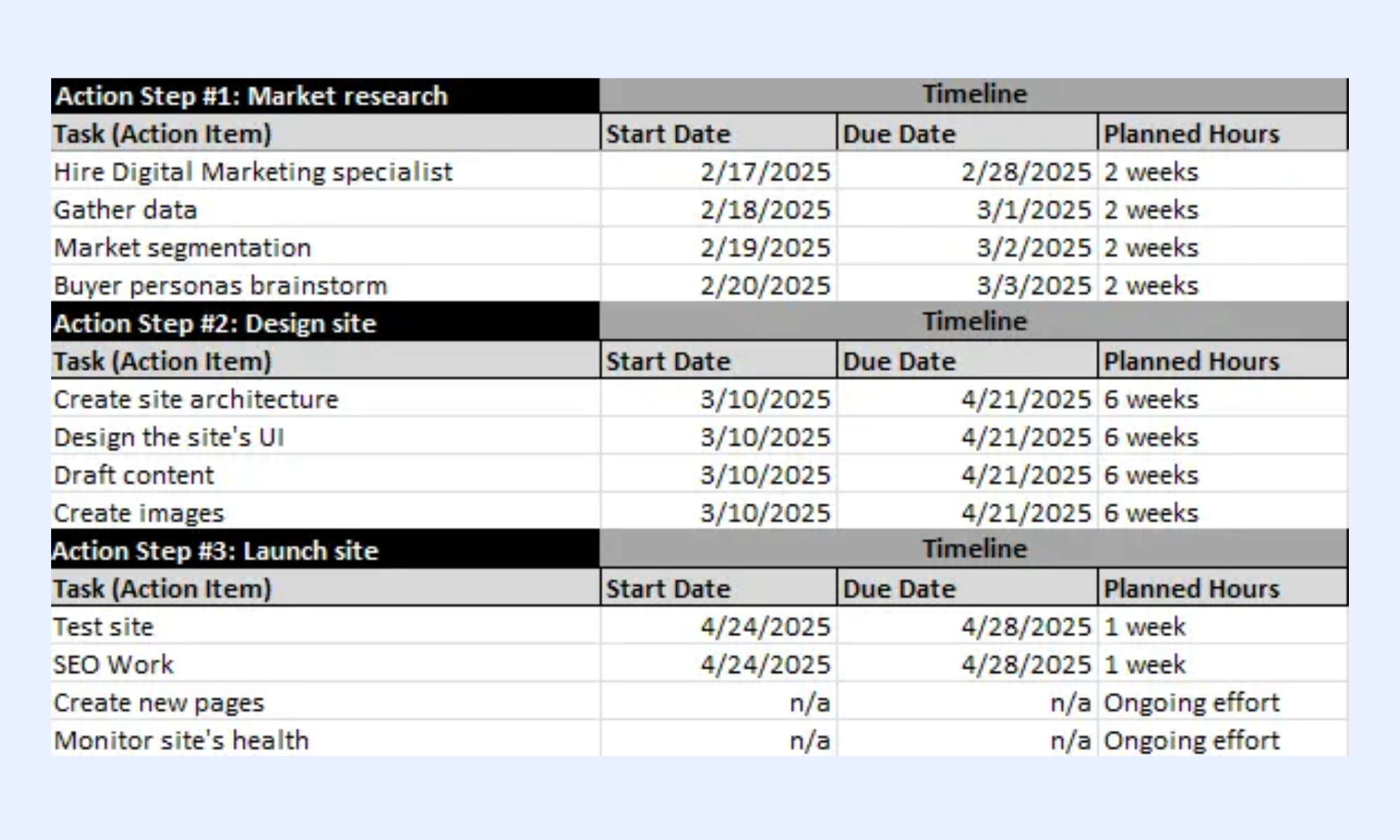
Image source: projectmanager.com
Vertex42 project plan template
Task-based structure with formula-driven duration calculation and a stacked bar Gantt chart. Includes milestone rows formatted differently from task rows for visual clarity. Well-documented with a setup tab explaining each field. Main limitation: no status column and no conditional formatting for overdue tasks out of the box.
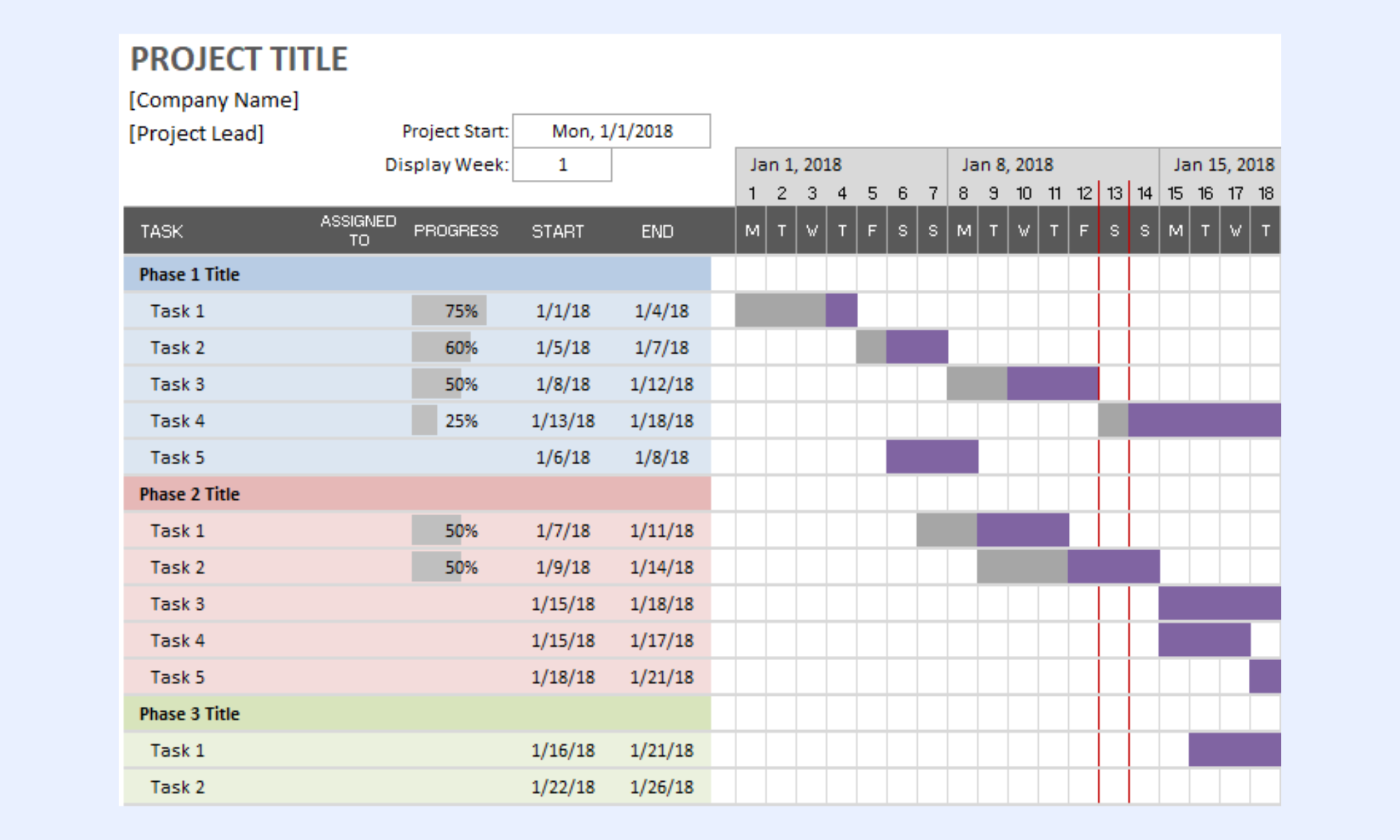
Image source: vertex42.com
Smartsheet free basic project plan template Excel
Grid-based format with phase grouping, task ownership, milestone flags, and conditional formatting pre-applied. Designed to be imported into Smartsheet but fully functional in Excel. Closest free option to a production-ready tracker. Main limitation: does not include a project summary tab or a narrative section for scope documentation.
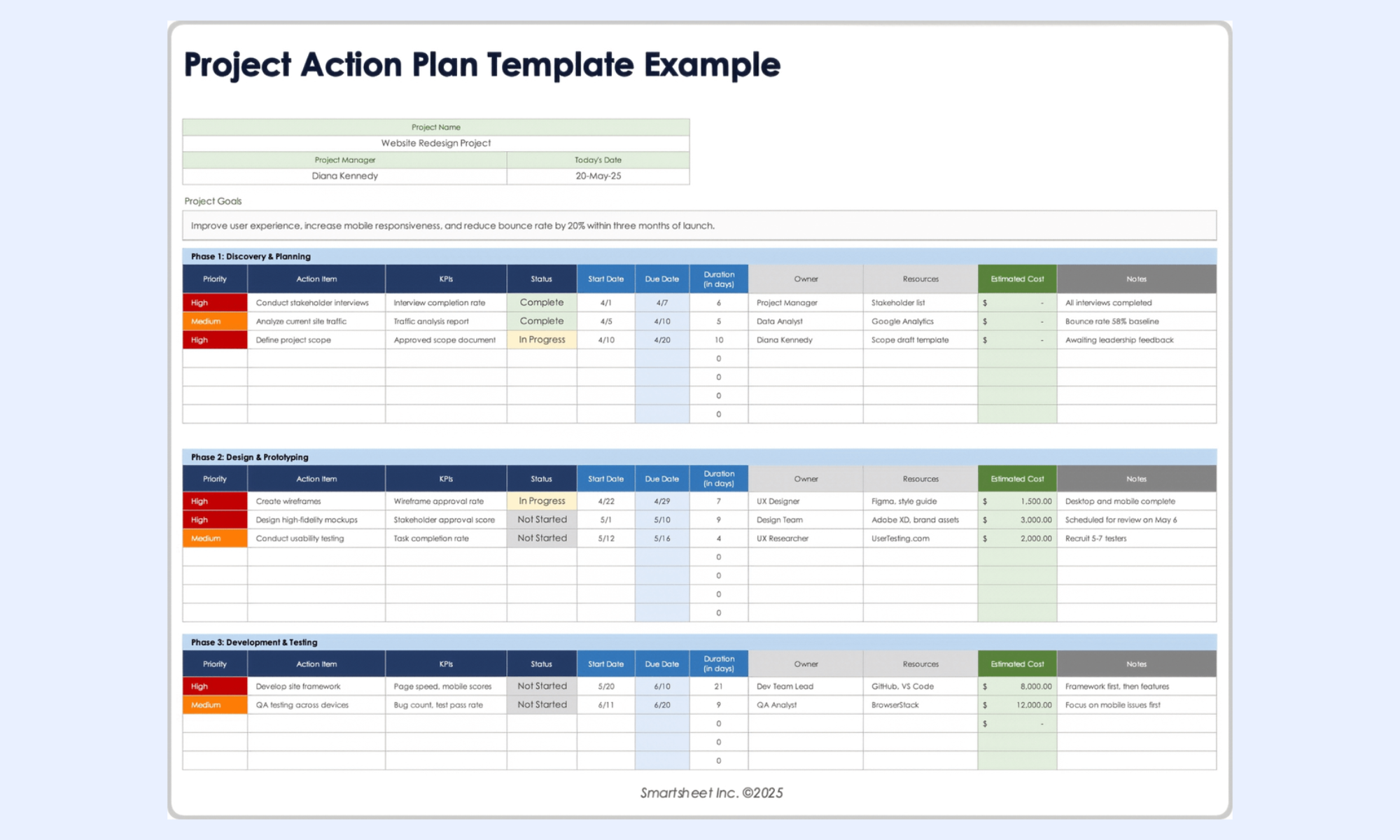
Image source: smartsheet.com
TeamGantt free Excel project plan template
Simplified Gantt-only format designed for teams that want timeline visibility without a complex task table. Includes task name, start date, end date, and bar chart only. Best for quick planning exercises and stakeholder timeline presentations. Not suitable for execution tracking — no owner, status, or dependency fields.
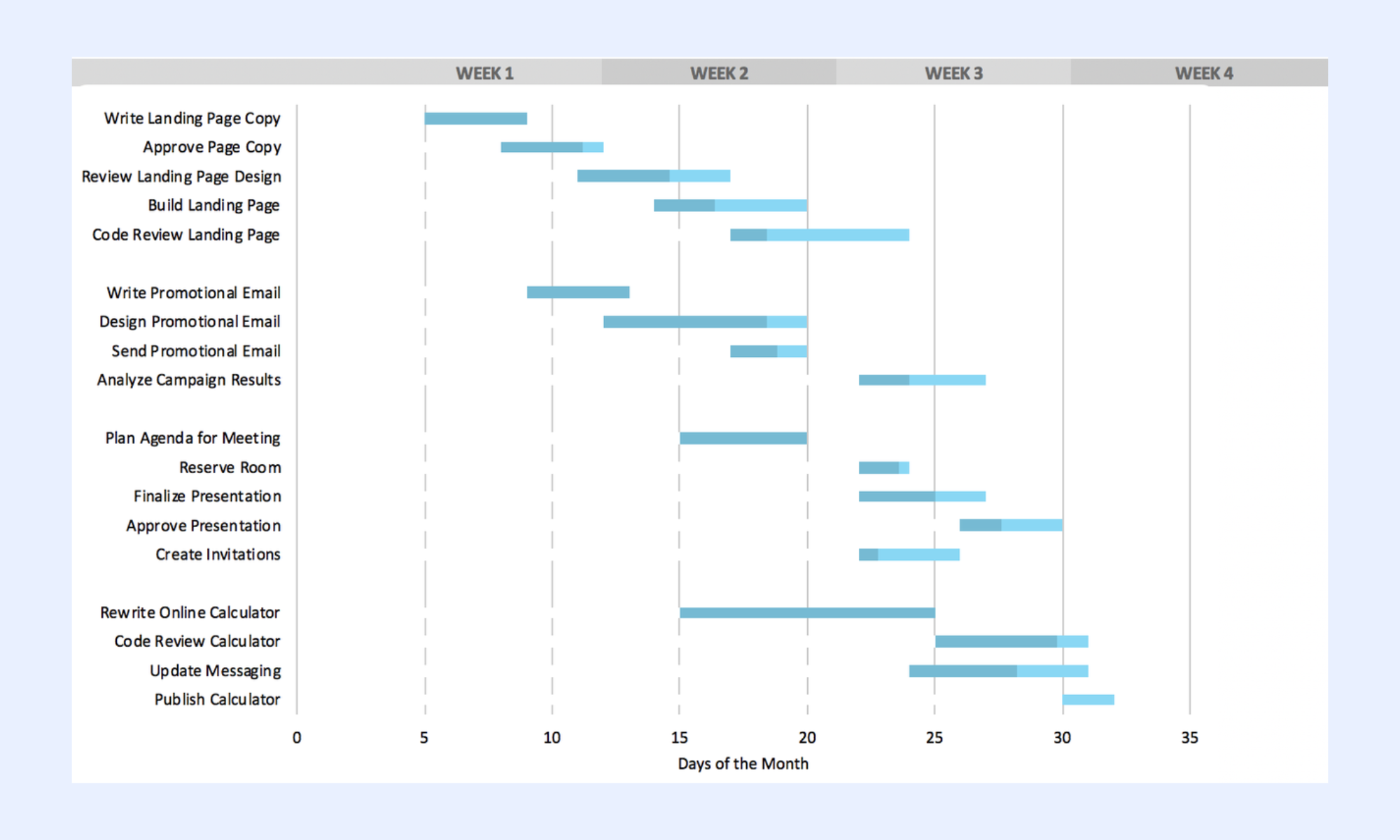
Image source: teamgantt.com
TemplateLab basic project plan template Excel
Clean two-tab workbook with a project information tab (name, sponsor, PM, dates, objective, scope) and a task tab with a Gantt chart. Covers both the narrative and execution layers in one file. Main limitation: the project information tab is a static form rather than a dynamic document, and the Gantt chart requires manual formatting when more than 20 tasks are added.
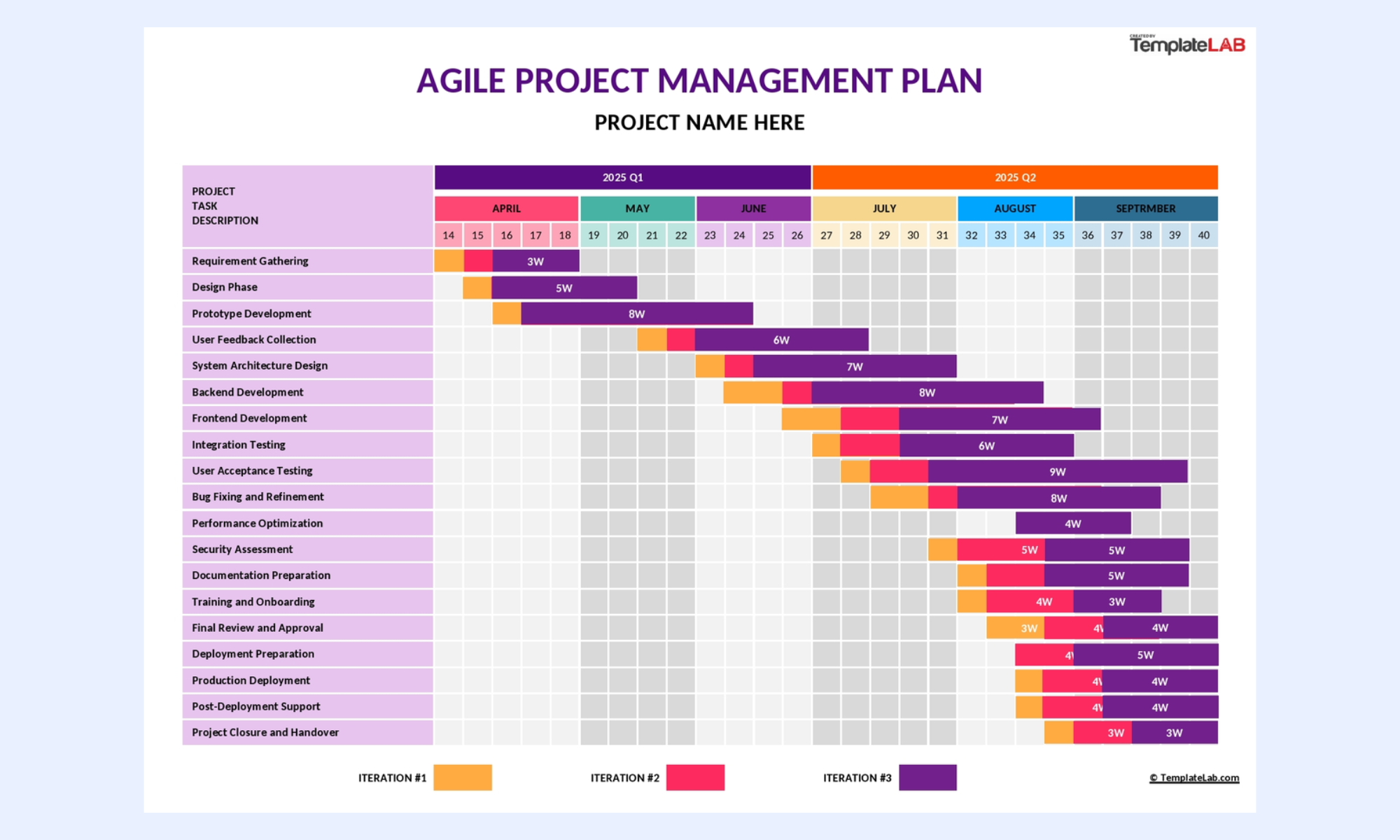
Image source:templatelab.com
Where basic project plan templates stop working
A basic project plan template is useful at the start, especially for small teams or simple projects. But once more, people are involved, and updates start happening daily, the limits show up quickly. What works during planning often becomes harder to manage during execution. This is usually the point where spreadsheets stop saving time and start creating extra admin work.
- Simultaneous editing creates version conflicts: When two team members save the Excel file at the same time, one person's updates overwrite the other's. For projects with three or more active contributors updating status throughout the day, data integrity breaks within the first week of execution.
- No automated deadline alerts: Conditional formatting highlights overdue rows for whoever opens the file. It cannot notify the task owner when a deadline passes without a status update. The alert is passive and exists only for the person checking the spreadsheet at the right moment.
- Gantt charts break when dates change: Excel Gantt charts are built on stacked bar charts. When task dates shift, the chart frequently requires manual axis reconfiguration to render correctly. In a project where the timeline adjusts frequently, the Gantt becomes unreliable within the first sprint.
- No connection between the plan and team communication: The project plan lives in Excel. The lives in a separate messaging tool. Every status update requires both a file edit and a separate message. Two records diverge immediately.
- Progress percentages are always stale: Completion fields in Excel reflect whatever was last manually typed. There is no mechanism to derive actual progress from completed subtasks. The tracker shows what someone believed was true at the last update, not the current reality.
Beyond spreadsheets: Lark streamline project workflows for you
A template is useful when the project is still simple. But once you need real collaboration, live updates, and less manual chasing, static files start showing their limits. That is where becomes a better fit. Instead of using separate tools for planning, documents, status updates, and team chat, Lark brings them together in a single connected workspace.
A live project plan that every team member updates in real time
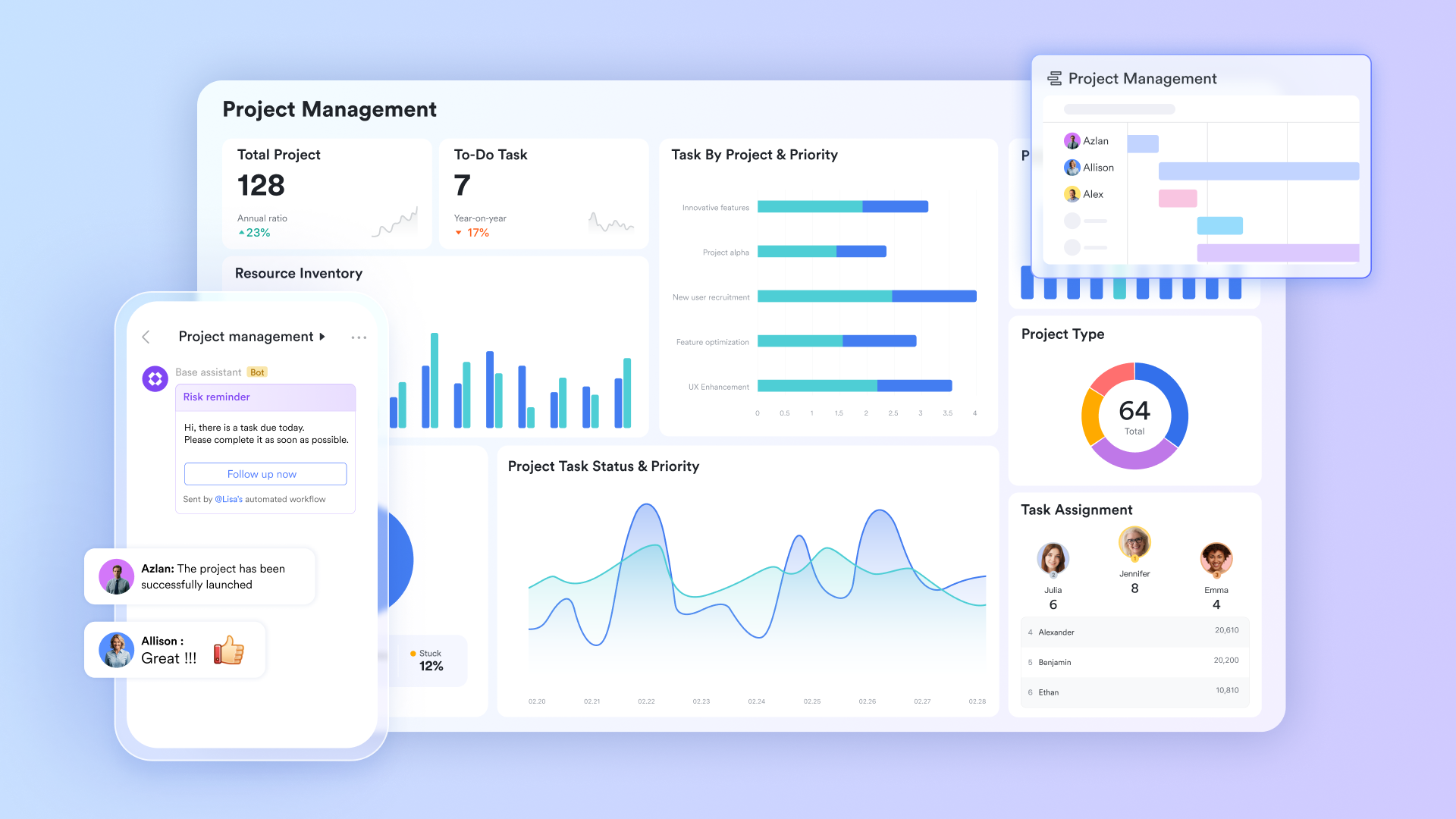
transforms project plans into dynamic databases by mapping start and due dates into automated Gantt, Kanban, and Calendar views. With custom fields and structured tables, you can assign multiple owners from your organization and link records across tables (e.g., linking "Tasks" to "Clients"). By utilizing advanced formula fields and granular permissions, it provides a secure, high-level dashboard of project health and team workload in real time.
Overdue alerts that fire before the status meeting
Lark Base automation fires notifications to task owners when due dates pass without a complete status update. When a dependent task is marked complete, automation advances the next task from "Not started to In Progress" and notifies the incoming owner. When a milestone is reached, the automation posts a summary to the project group chat. 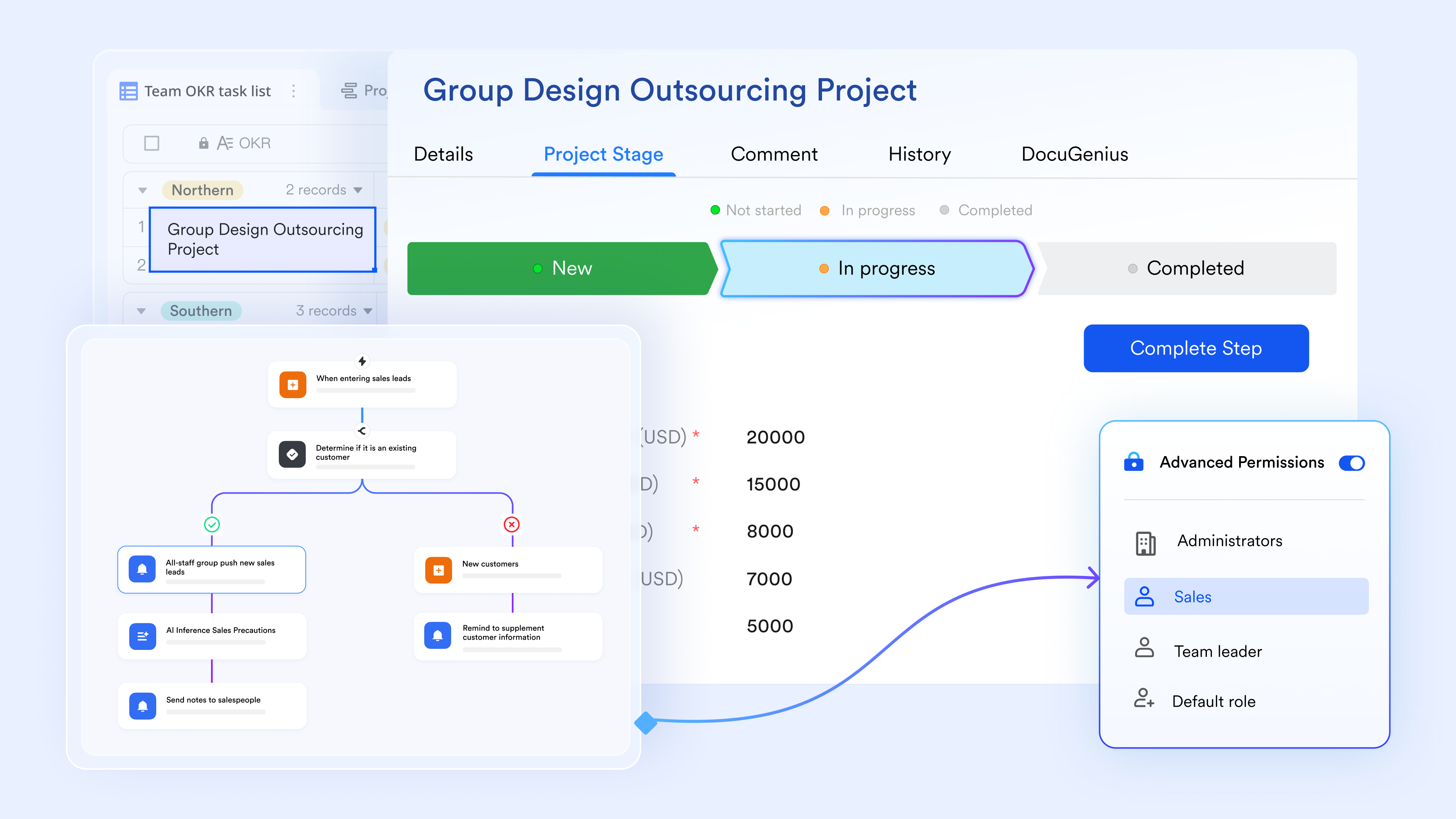
Plan updates connected to the task they reference
When Lark Base automation fires a deadline or milestone alert, it arrives in as a structured notification with the task record embedded as a card that shows the task name, owner, due date, and current status. Team members share task records in Lark Messenger threads to discuss blockers or reassign ownership. Decisions are stored in threads linked to the specific task records they reference, not buried in a general project channel with no connection to the plan.
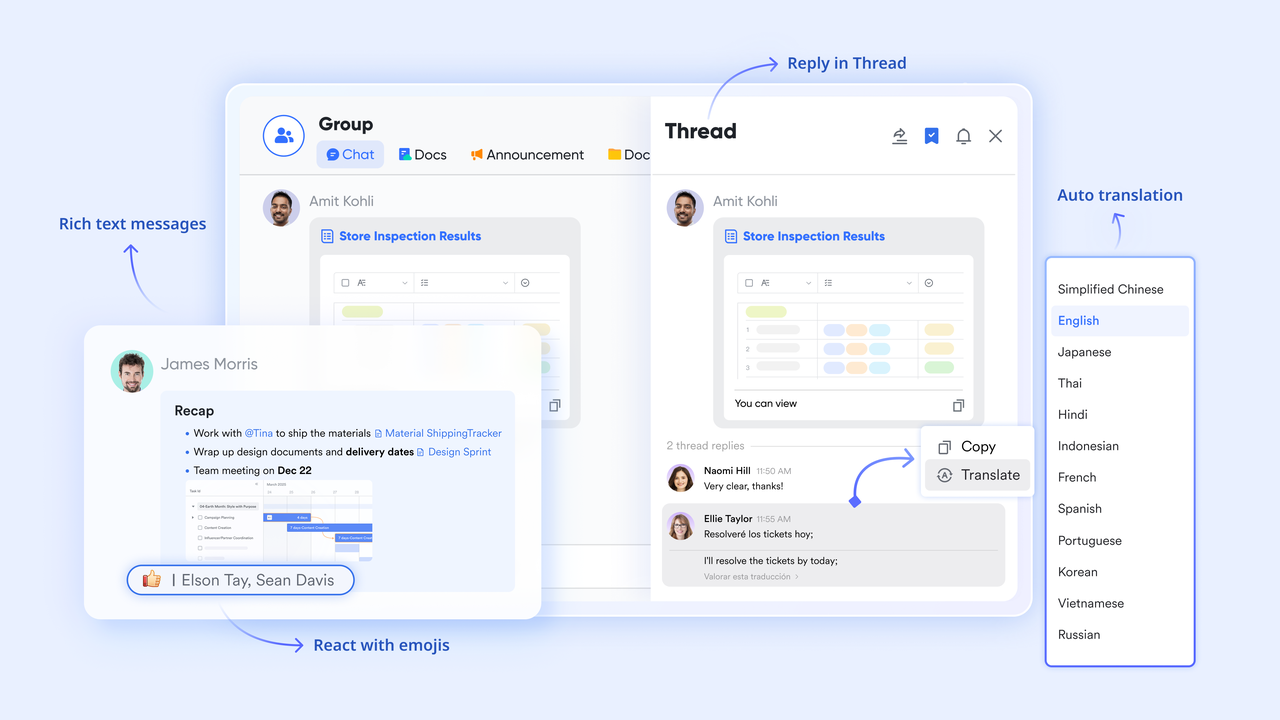
Project brief and scope documentation linked to the plan
stores the project brief, scope statement, stakeholder register, and meeting notes with real-time collaborative editing and version history. Each document links directly to the relevant phase or record in Lark Base. When a team member opens a task record and needs context on the scope or acceptance criteria for a deliverable, the linked Lark Docs are accessible from the same view, without a separate folder search or email attachment download.
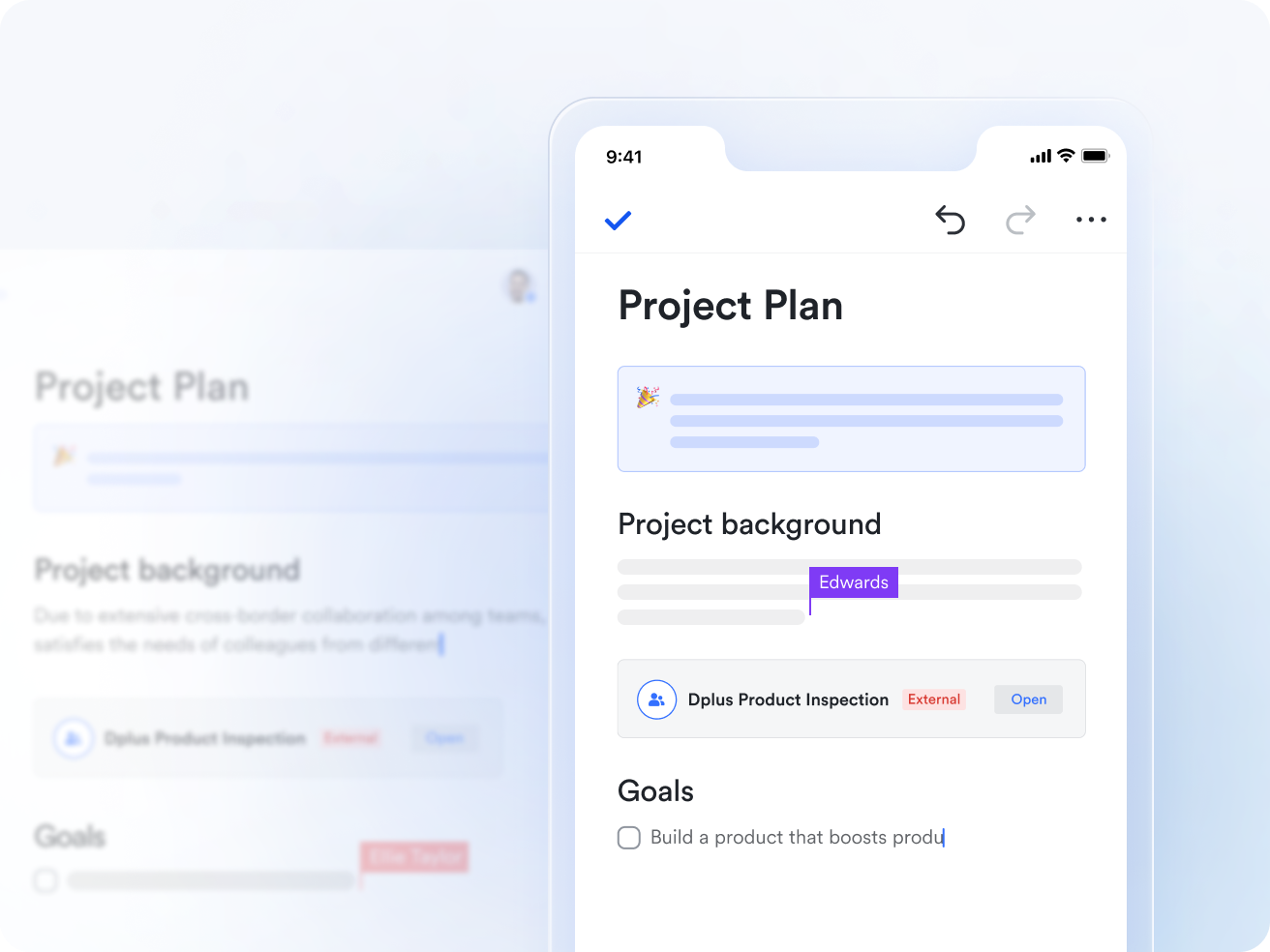
:
- Starter plan: Free forever plan that includes 11 powerful tools for up to 20 users. It also comes with 100GB of storage, 1000 automation runs, AI translations, and more.
- Pro plan: $12/user/month (billed annually) for up to 500 users. It includes everything in Starter plus group calling for up to 500 attendees, 15TB of storage, 50,000 automation runs, and more.
- Enterprise plan: for custom pricing. Supports unlimited users and includes even more automation runs and advanced security, compliance, and management features.
For small teams with simple communication needs

18 months message history
1000 Base automation runs/month
2000 rows per table in Base
Most POPULAR
For companies with comprehensive collaboration and management needs
Unlimited message history
500-participant video meetings
50k Base automation runs/month
20k rows per table in Base
For large companies with advanced security and organizational management needs
Get a personalized demo and pricing
Unlimited message history
500-participant video meetings
15 TB storage + 30 GB storage/user
500k Base automation runs/month
50k Base automation runs/month
Most POPULAR
For companies with comprehensive collaboration and management needs
Unlimited message history
500-participant video meetings
50k Base automation runs/month
20k rows per table in Base
Conclusion
A basic project plan template is still one of the most practical ways to start a project well. It gives structure to the planning process, helps teams define the work clearly, and makes it easier to assign ownership before deadlines begin to move. For smaller projects, a basic project plan template in Excel or Word can absolutely be enough. In many cases, the smartest move is not to overcomplicate the process too early.
But templates also have a ceiling. Once your project needs , shared updates, deadline reminders, linked documentation, and a timeline that stays accurate without manual repairs, static files create more admin work than they save. That is usually when teams outgrow the spreadsheet stage. If your team is still relying on a basic project management plan template or a basic Excel project plan template for active execution, is a natural next step. It keeps the structure you already like from templates, but adds live updates, automations, shared docs, and connected communication.
Master every project deadline with Lark
FAQs
Should I use a basic project plan template in an Excel file or a Word file?
Use a basic project plan template Excel file when you need a live tracker with tasks, dates, formulas, and maybe a Gantt chart. Use a basic project plan template Word file when you need a more formal project document for approvals, scope, or stakeholder communication. Many PMs use both together. If maintaining both becomes messy, Lark is a cleaner option because it brings the plan and the documentation together in one place.
Is a basic Excel project plan template enough for small teams?
Yes, a basic Excel project plan template can work very well for small teams, especially when a single project manager maintains it, and the project has a clear scope. It is familiar, flexible, and easy to customize. The main issue starts when multiple people need to update the plan regularly. That is where Lark becomes more useful, as the team can work from a single live version rather than passing files around.
What should every basic project plan template include?
At a minimum, every basic project plan template should include project name, objective, task ID, task name, owner, start date, due date, duration, status, priority, milestone flag, and notes. If possible, add dependencies too, because they make the schedule much more realistic. Those fields give you enough structure to manage both planning and execution. In Lark Base, these same fields can be built as a live project tracker with less manual maintenance.
When should I stop using a spreadsheet and switch to Lark?
If your spreadsheet is creating version issues, outdated status data, manual reminder work, or constant Gantt chart fixes, it is probably time to move on. A basic project plan template in Excel is great for getting started, but it becomes harder to manage as the team grows or the project becomes more dynamic. Lark is a better fit when you need real-time updates, automations, linked docs, and tied directly to work. That is usually the point where the plan needs to be live, not just shared.
Related reading

















