


Project Management for Mac: 10 Best Tools Compared

Ryan Tanner
Product Marketing Specialist
Aug 5, 2026
Ryan Tanner
Aug 5, 2026

21 min read


Mac users often look for intuitive, visually clean, and performance-optimized tools that match the macOS experience. When it comes to choosing project management software for Mac, the goal is to keep workflows seamless, collaborative, and easy to navigate across devices. Whether you're coordinating team workloads, managing client deliverables, or tracking construction timelines, the software should feel natural within the macOS environment. However, not all platforms are built with Mac users in mind—some lack native desktop apps, while others don't integrate smoothly with tools like Calendar, Finder, or iCloud.
Here is a list of 10 project management software for Mac we will review:
1. Lark: All-in-one project management hub for Mac teams
2. Asana: Visual task tracking with macOS desktop app support
3. ClickUp: Customizable workspace built for Mac browsers & apps
4. Trello: Simple Kanban-style boards accessible from Mac
5. Monday.com: Platform with Mac browser compatibility and a native look
6. Notion: Flexible documentation + lightweight project work for Mac
7. Wrike: Native Mac desktop app + task/workflow management
8. Smartsheet: Spreadsheet-style project tool compatible with Mac
9. Teamwork: Mac-friendly interface for client & agency project tracking
10. Basecamp: Remote-team project tool with native Mac access

What makes great project management software for Mac?
Choosing the right project management software for Mac means looking beyond task lists and board layouts. Mac teams often need tools that feel visually clean, run smoothly, and integrate well across macOS devices. Performance, collaboration, and usability play a major role in helping teams stay aligned. The best project management tools reduce switching between apps and help everyone work in one connected environment.
- macOS compatibility and native app performance: Great Mac software should feel natural to use, with interfaces that reflect macOS design standards. Native desktop apps or strong browser optimization ensure smooth project performance. This creates fewer slowdowns and helps teams stay focused.
- Ease of use and accessibility: A project management tool should be intuitive, even for non-technical users. Clear navigation and minimal setup help teams onboard quickly. The goal is to make project tracking feel easy, not overwhelming.
- Real-time collaboration: Teams work faster when communication and project updates happen instantly. Real-time commenting, sharing, and editing keep everyone aligned. This eliminates delays and reduces back-and-forth messaging across multiple apps.
- Task and timeline visualization: Projects are easier to manage when work is displayed visually. Tools that offer Kanban boards, timelines, and Gantt charts help teams see priorities and upcoming deadlines. This supports better planning and workload distribution.
- File sharing and automation: Centralized file access ensures everyone is working from the same materials. Automations reduce manual updates and repetitive tasks, improving efficiency. Together, these features help projects move faster with fewer mistakes.
- Pricing flexibility for teams and individuals: Teams grow and change—pricing should adapt too. Look for tools that offer free plans, scalable tiers, and transparent upgrade paths. This helps both individuals and organizations adopt project management at a sustainable cost.
10 Mac project management software: Find the right tool
1. Lark: All-in-one project management hub for Mac teams
Lark provides a connected workspace designed to help Mac teams manage work in one unified environment. Instead of switching between separate apps for chat, docs, tasks, and scheduling, Lark brings these functions together, so work stays organized and context remains clear. Its clean interface and smooth performance align well with macOS expectations, making collaboration feel natural and distraction-free. Teams can plan projects, document decisions, track progress, and coordinate schedules all within the same platform.
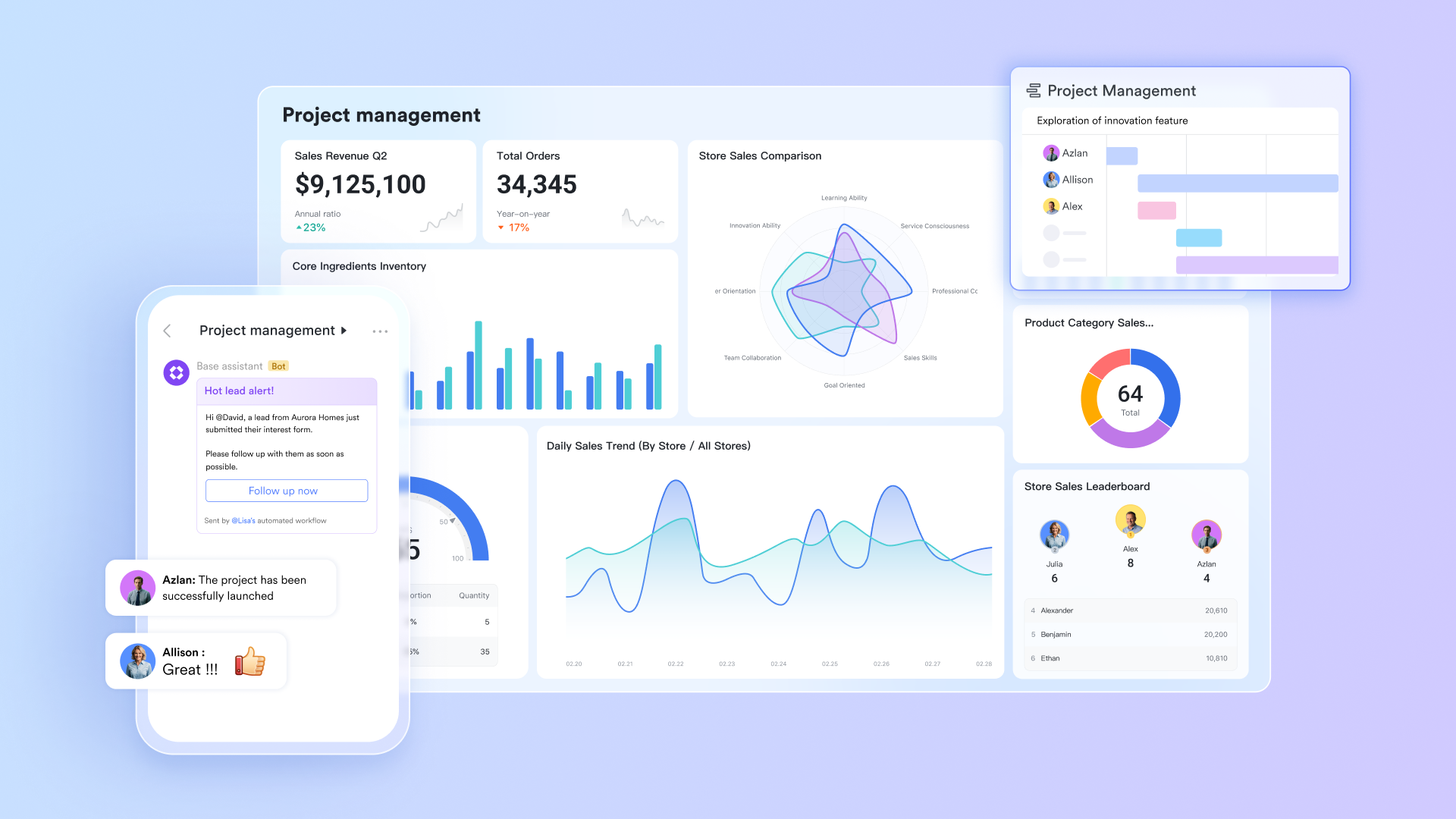
Lark Base: Visualize and manage workflows
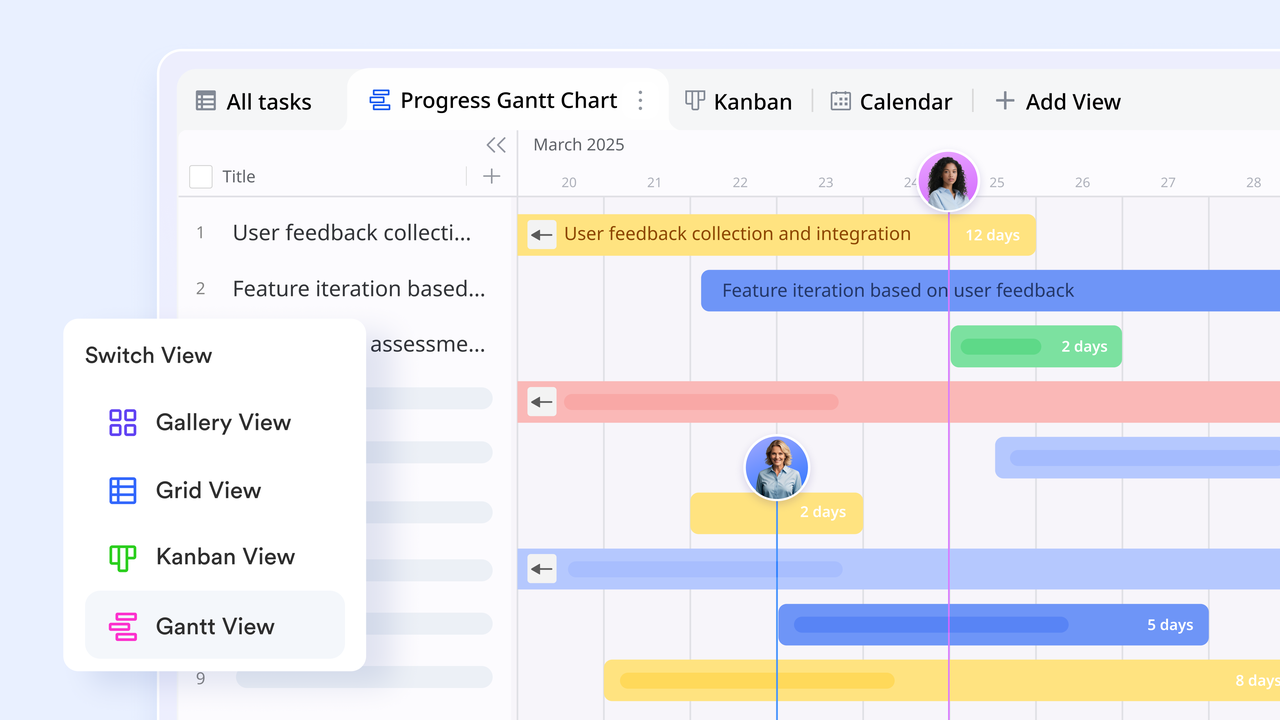
Lark Base lets Mac users design structured project databases to organize every aspect of their workflow from timelines to deliverables. You can build tables, Kanban, Grids, Gantt Views, or dashboards that reflect real project structures, providing instant visibility into progress. Its grid and gallery views are visually intuitive for Mac's clean interface. Automated updates and reporting keep teams informed without manual tracking. With Base, managing multiple projects becomes effortless and data-driven.
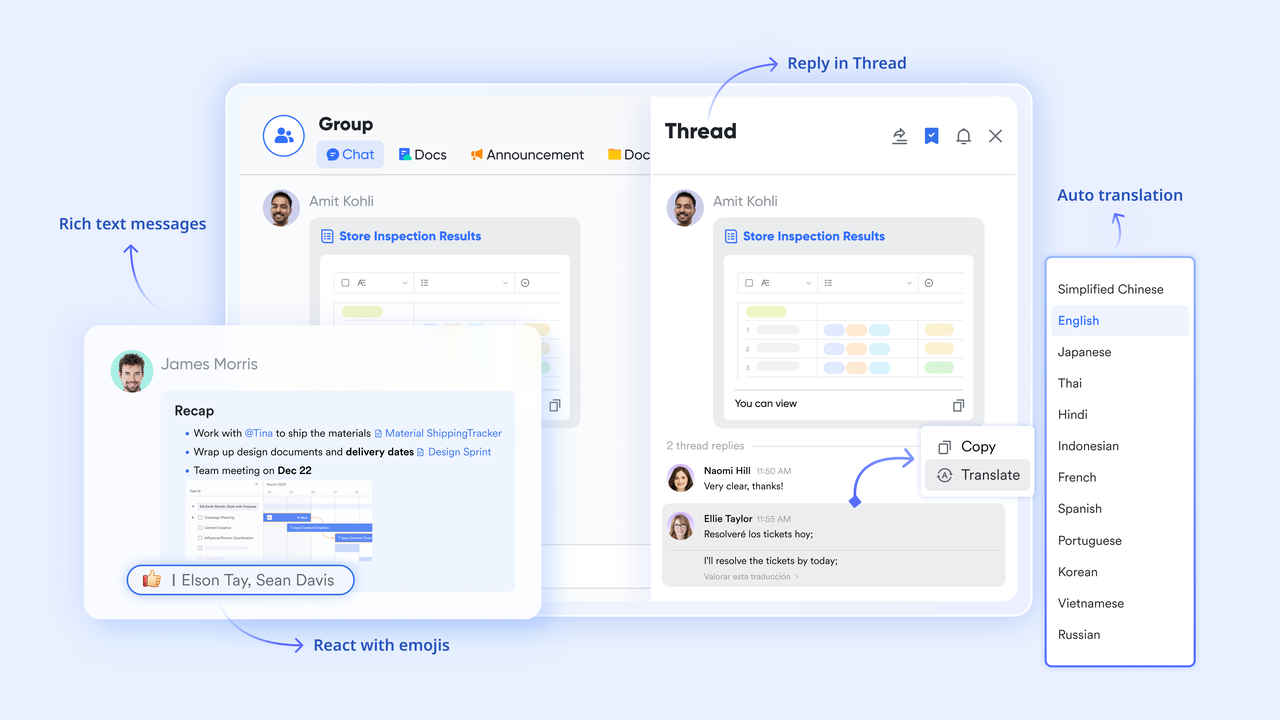
Lark Messenger: Keep team communication contextual
Lark Messenger transforms how Mac teams collaborate by linking conversations directly to the work being discussed. Instead of juggling emails or external chat apps, users can comment beside a task, document, or database record. Real-time threads keep discussions focused, searchable, and relevant. Message notifications appear seamlessly across Mac devices, ensuring you never miss an update. It's communication that lives inside your workflow—not separate from it.
Lark Docs & Lark Wiki: Collaborate on documentation and plans
Lark Docs empowers teams to co-edit project documentation, SOPs, or meeting notes within a unified space optimized for macOS. Real-time comments, version history, and instant saving make collaboration smooth and secure. Once finalized, files can be published to Lark Wiki for organization-wide access and long-term reference. Everything—from project charters to feedback forms—stays in one structured ecosystem. Mac users benefit from a responsive interface that mirrors the simplicity and speed they expect.
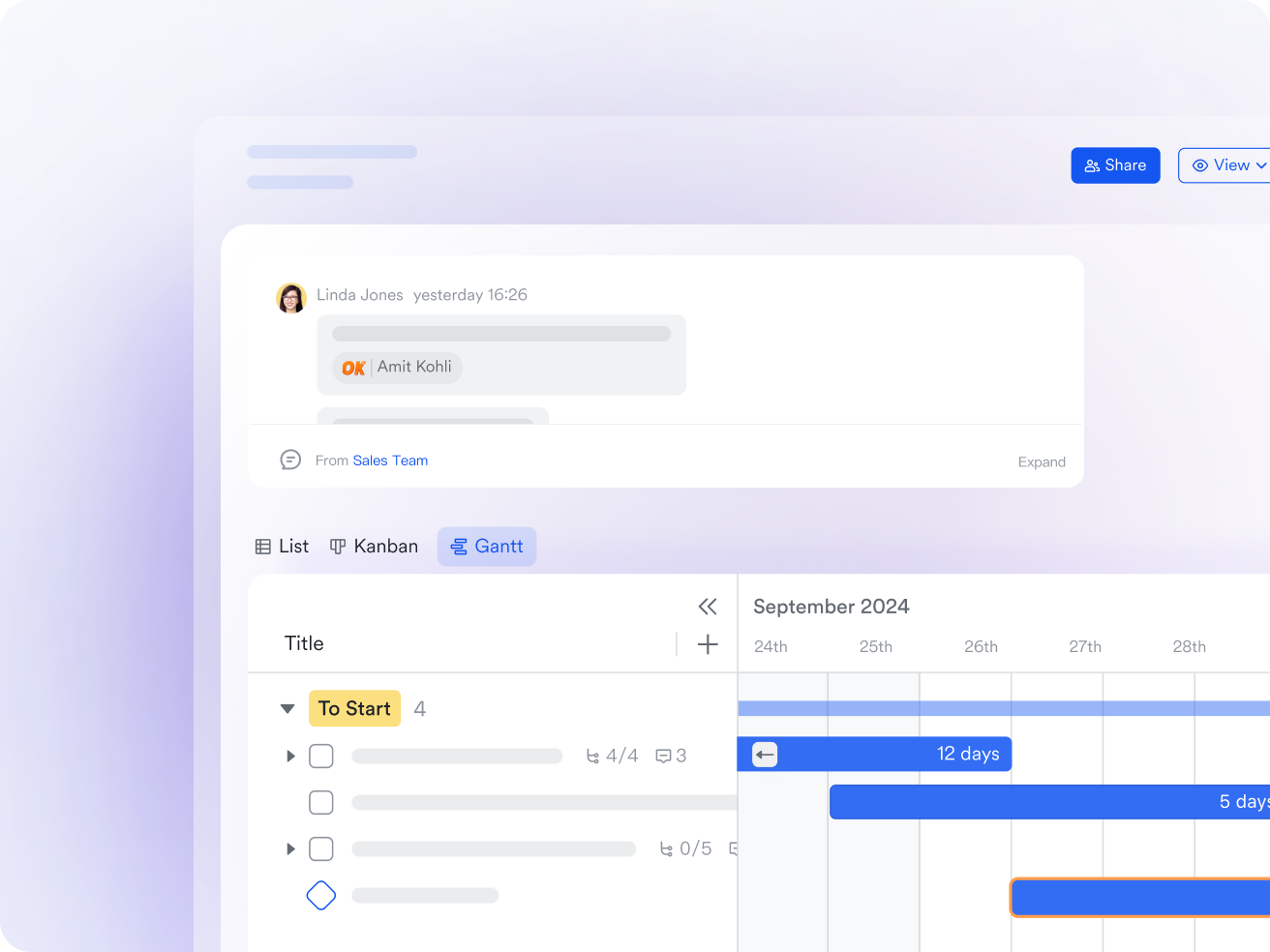
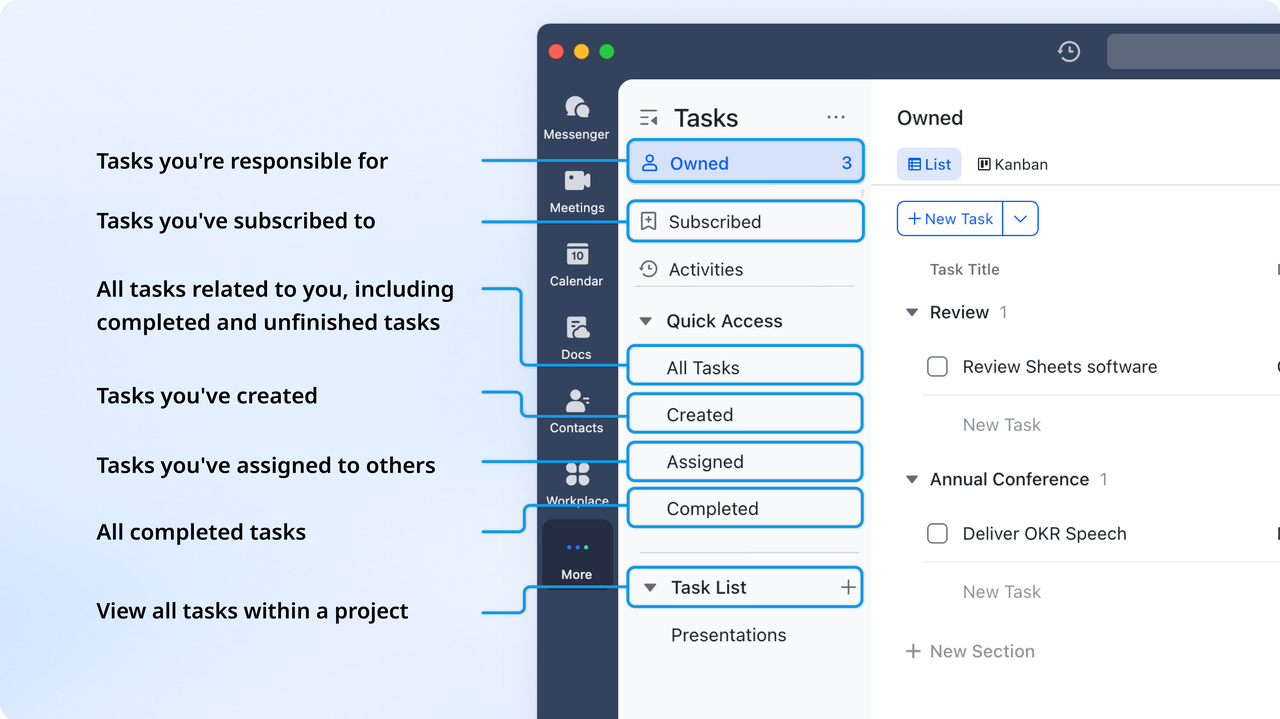
Lark Tasks: Assign and track ownership
With Lark Tasks, Mac users can turn ideas into clear, actionable steps. Every discussion or document can become a task, complete with deadlines, owners, and progress indicators. Visual dashboards and timeline tracking keep everyone accountable while reducing missed deliverables. Tasks sync automatically with Lark Calendar, so milestones appear in your schedule. For teams managing multiple projects on Mac, this ensures structure, transparency, and full alignment.
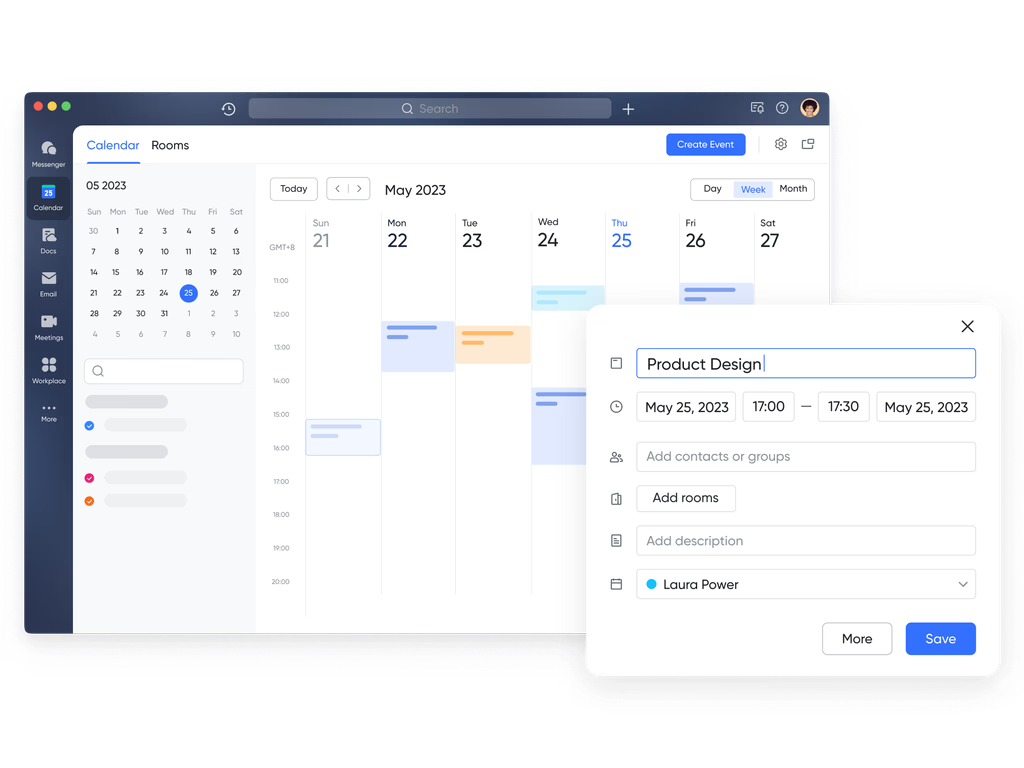
Lark Calendar: Plan, schedule, and sync effortlessly
Lark Calendar brings project communication and time management together for Mac users. You can create public project calendars to highlight key dates and milestones, ensuring every stage is clearly visible for team alignment. Regular meetings—daily or weekly—can be scheduled to keep communication flowing and everyone up to date. Publishing product release schedules helps communicate milestones and promotes accountability, with colleagues able to subscribe for full transparency.
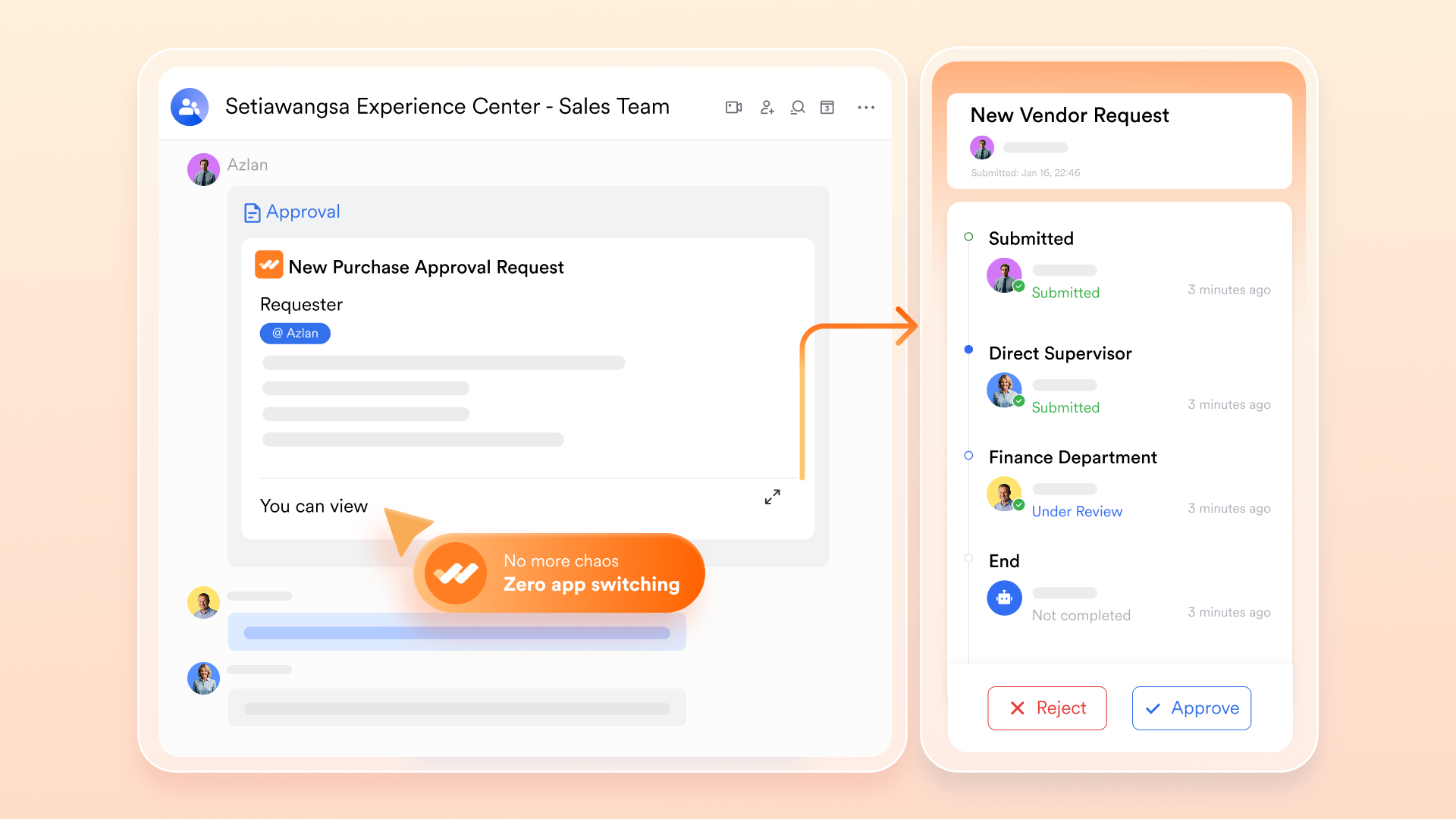
Lark Approval: Streamline internal reviews and requests
Lark Approval helps Mac users automate review and decision-making workflows—such as expense requests, budget sign-offs, or document approvals. You can create multi-level approval routes, set reminders, and track status in real time. Every request is logged for transparency, while notifications appear directly in Messenger and Mail. This reduces bottlenecks and accelerates response times across teams. For Mac-based organizations, it ensures smoother, faster, and fully auditable project processes.
- Starter plan: Free forever plan that includes 11 powerful tools for up to 20 users. It also comes with 100GB of storage, 1000 automation runs, AI translations, and more.
- Basic plan: $6/user/month (billed annually) for up to 500 users. It includes everything in Starter plus group calling for up to 500 attendees, 5TB of storage, 1000 automation runs, and more.
- Pro plan: $12/user/month (billed annually) for up to 500 users. It includes everything in Starter plus group calling for up to 500 attendees, 15TB of storage, 50,000 automation runs, and more.
- Enterprise plan: Contact sales for custom pricing. Supports unlimited users and includes even more automation runs and advanced security, compliance, and management features.
2. Asana: Visual task tracking with macOS desktop app support
Asana offers a modern project management experience that supports Mac users via its macOS desktop app and browser version designed for Apple ecosystem workflows. By focusing on visual task management, timelines, and team collaboration, it appeals to teams who prefer a clean design and structured tracking. With support for lists, boards, calendars and timeline views, Asana makes it easier to visualise what's next and who is responsible. For Mac teams seeking a blend of usability and functionality, Asana represents a strong option.
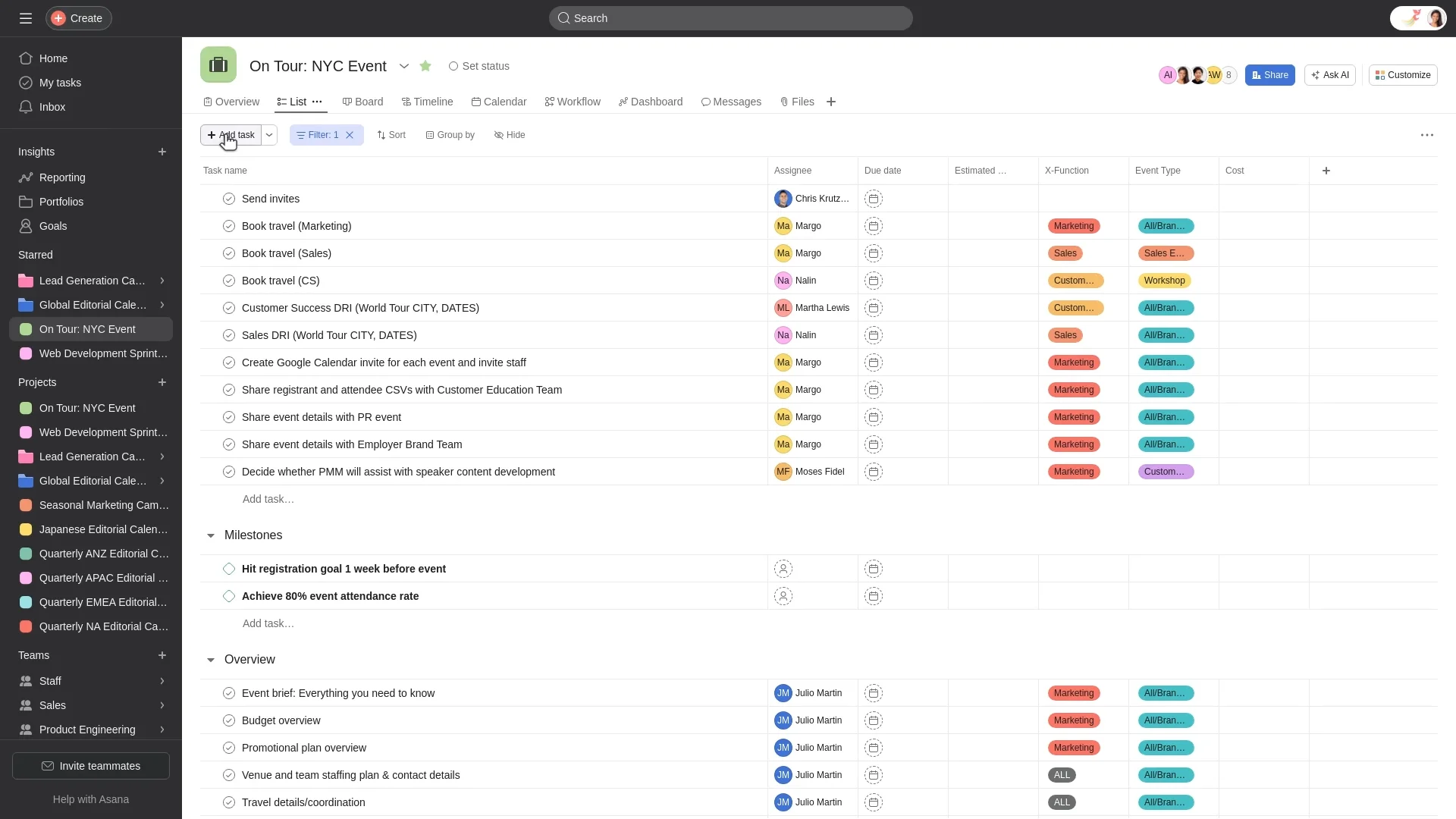
Image source: asana.com
Key features:
- Timeline and Gantt-style project planning.
- List, board, and calendar task views.
- Task dependencies and custom fields.
- macOS desktop app support.
- Workflow automations and templates.
Pros:
- Strong visual planning views for clear scheduling.
- Easy for teams to adopt and navigate.
- Wide integration support to fit existing workflows.
Cons:
- Advanced reporting and planning features require higher plans.
- Can feel complex for very simple task tracking needs.
Pricing:
- Starter Plan: $10.99 per user/month (billed annually).
- Advanced Plan: $24.99 per user/month (billed annually).
- Enterprise Plans: Custom pricing.
3. ClickUp: Customizable workspace built for Mac browsers & apps
ClickUp is designed for teams that want deep customization in how they plan, track, and report on work. Mac users can access ClickUp via a desktop app or browser, allowing flexibility based on performance preferences. The platform supports tasks, docs, dashboards, goals, and automation under one workspace, making it suitable for multi-department collaboration. For teams that have varied workflows or require tailored project structures, ClickUp provides a high degree of control and visibility. However, because of its breadth of features, teams may need some onboarding time to find the right setup.
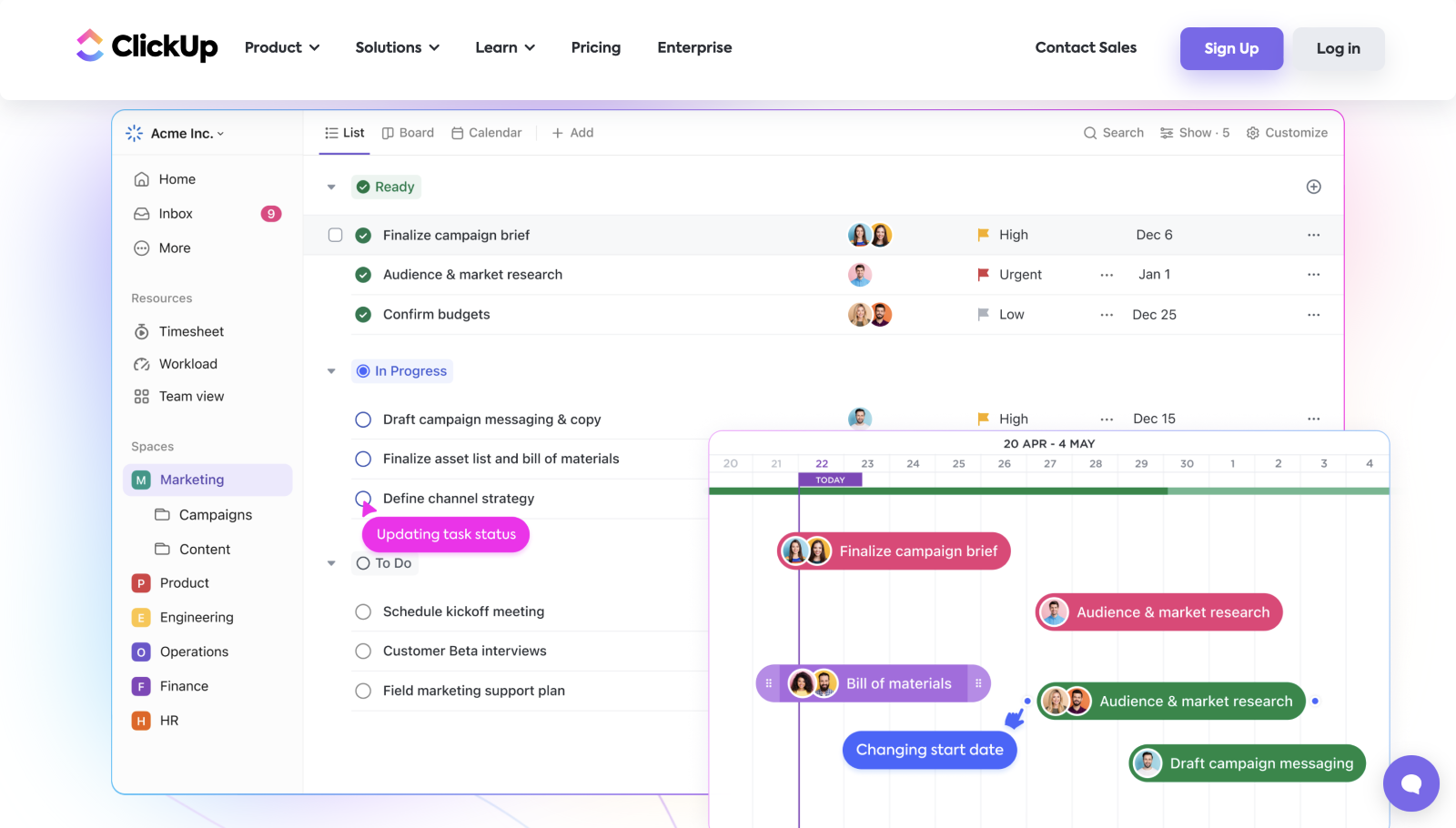
Image source: clickup.com
Key features:
- Multiple view options including list, board, timeline, and Gantt.
- Custom fields, statuses, and task automation.
- Built-in Docs and whiteboards for collaborative planning.
- Dashboard reporting for project metrics.
- Native desktop app for macOS and mobile syncing.
Pros:
- Highly customizable workspace for different team processes.
- Combines docs, tasks, and dashboards in one platform.
- Scales well from small teams to large organizations.
Cons
- Requires setup time to configure workflows effectively.
- Performance can vary depending on workspace complexity
Pricing
- Unlimited Plan: $7 per user/month (billed annually).
- Business Plan: $12 per user/month (billed annually).
- Enterprise Plan: Custom pricing.
4. Trello: Simple Kanban-style boards accessible from Mac
Trello is ideal for teams and individuals who prefer a straightforward visual approach to project management. It uses Kanban-style boards and drag-and-drop cards to represent tasks, making it easy to see what's in progress, what's completed, and what needs attention. Trello works seamlessly in Mac browsers and through its desktop app, offering a clean, minimal interface that fits small teams or lightweight project workflows. While it doesn't offer advanced planning or reporting capabilities by default, it provides a simple and intuitive way to stay organized.
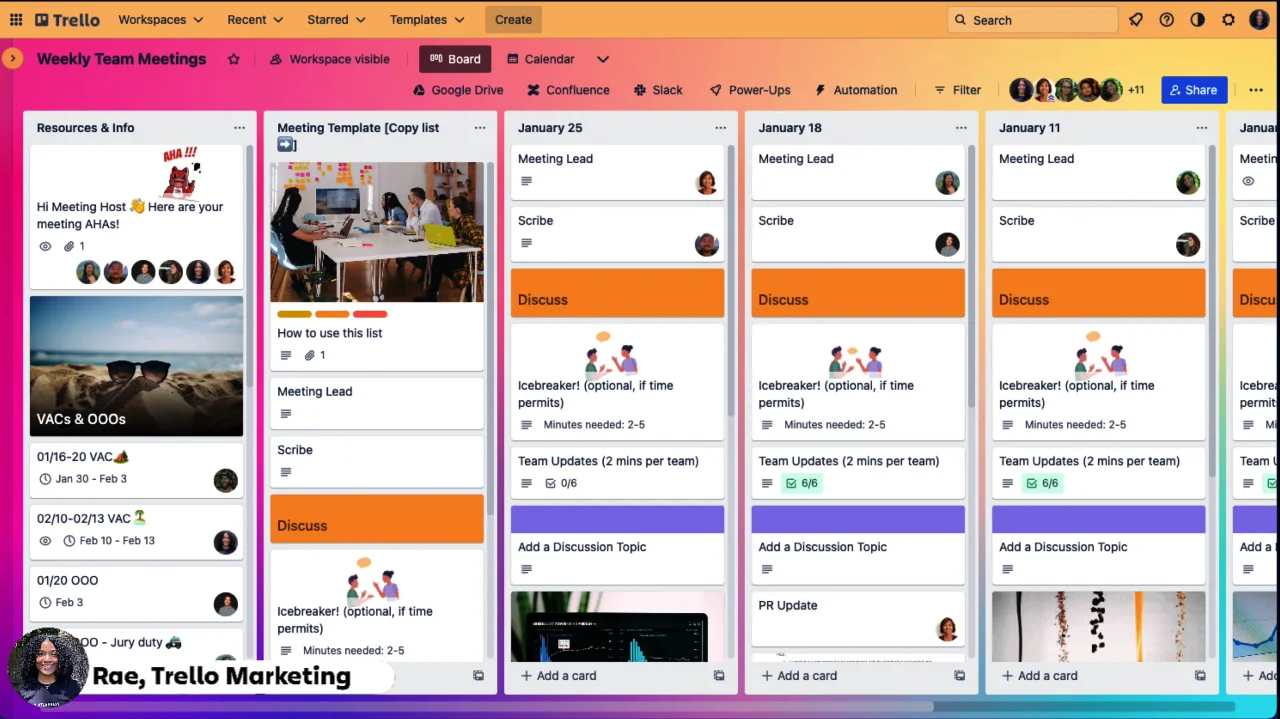
Image source: trello.com
Key features:
- Kanban boards with flexible card organization.
- Labels, due dates, checklists, and attachments on tasks.
- "Power-Ups" to extend functionality (e.g., calendars, automation).
- Mac desktop app and web access.
- Drag-and-drop task movement for progress tracking.
Pros:
- Extremely easy to learn and use.
- Ideal for visual workflows and simple task tracking.
- Works well for individuals, freelancers, and small teams.
Cons:
- Limited support for complex timelines or dependencies.
- Reporting and resource management are not built in.
Pricing:
- Standard Plan: $5 per user/month (billed annually).
- Premium Plan: $10 per user/month (billed annually).
- Enterprise Plan: Custom pricing.
5. Monday.com: Platform with Mac browser compatibility and native look
Monday.com offers a flexible work management system that adapts to a wide range of project styles—from marketing campaigns to product roadmaps to client deliverables. Its visual boards and multiple view options allow teams to design workflows that match how they naturally operate. The Mac-compatible web and desktop experience is polished, responsive, and easy to navigate, making it suitable for teams that need structure but don't want rigid templates. While it's powerful, it can feel feature-heavy for very simple workflows.
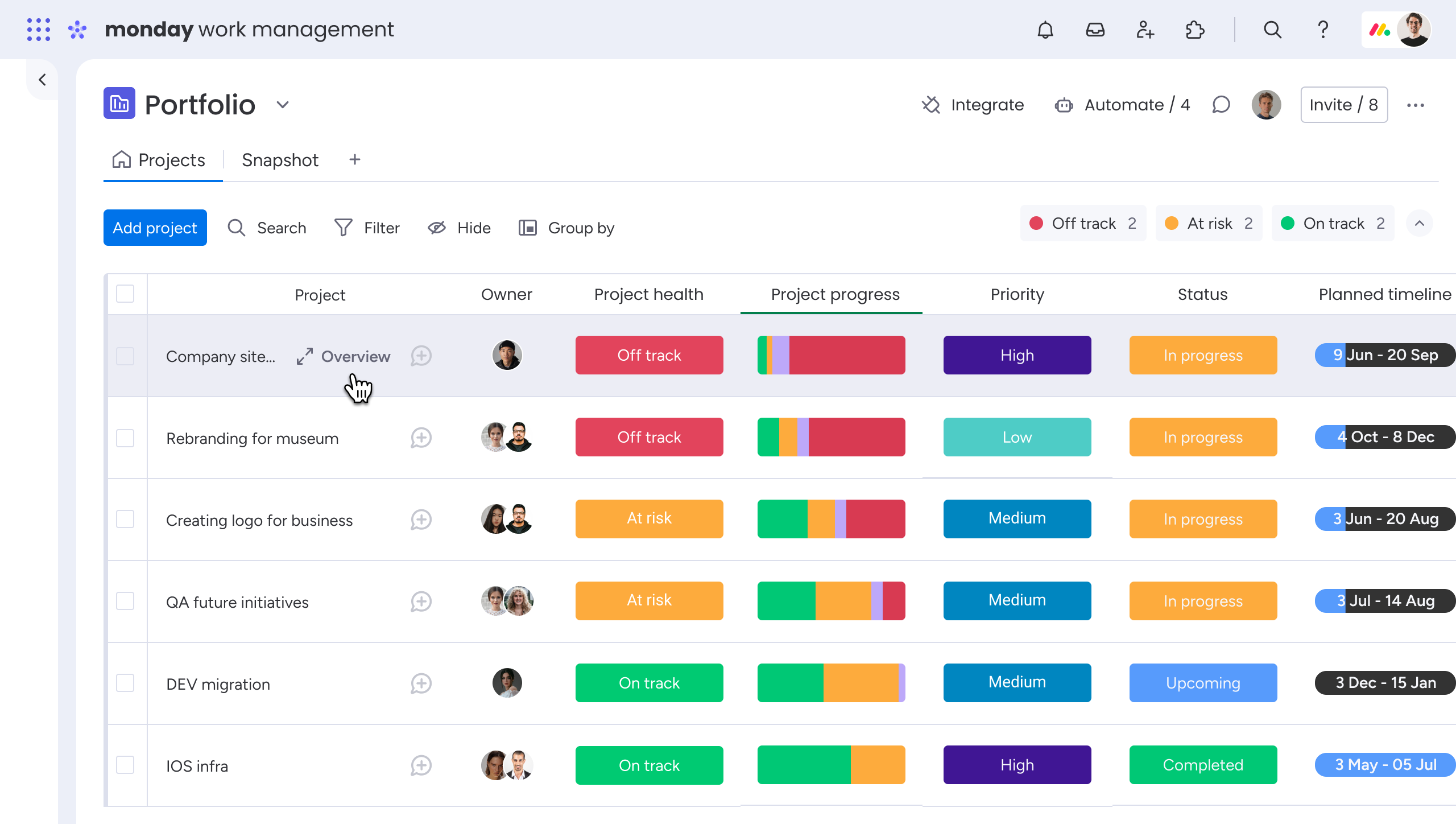
Image source: monday.com
Key features:
- Customizable boards for tasks, workflows, and pipelines.
- Multiple views: Kanban, Gantt, Timeline, Calendar, and Dashboard.
- Automations for recurring actions (e.g., status changes, reminders).
- Integrations with Gmail, Slack, Google Drive, Zoom, and more.
- Real-time team collaboration and activity tracking.
Pros:
- Highly customizable for different project types.
- Visual dashboards support clearer progress tracking.
- Strong workflow automation capabilities.
Cons:
- Advanced features often require higher-tier plans.
- Customization takes setup time to get right.
Pricing:
- Basic Plan: $9 per user/month (billed annually).
- Standard Plan: $12 per user/month (billed annually).
- Pro Plan: $19 per user/month (billed annually).
- Enterprise Plan: Custom pricing.
6. Notion: Flexible documentation + lightweight project work for Mac
Notion is a highly customizable workspace that lets Mac users create project dashboards, task boards, documents, and knowledge bases all in one place. Its interface is clean and minimal, aligning well with the macOS aesthetic while allowing users to design workflows that fit their style. Teams can centralize discussion, documentation, planning, and project updates without switching between multiple tools. While extremely flexible, Notion often requires setup and structure-building before it becomes fully efficient for project management.
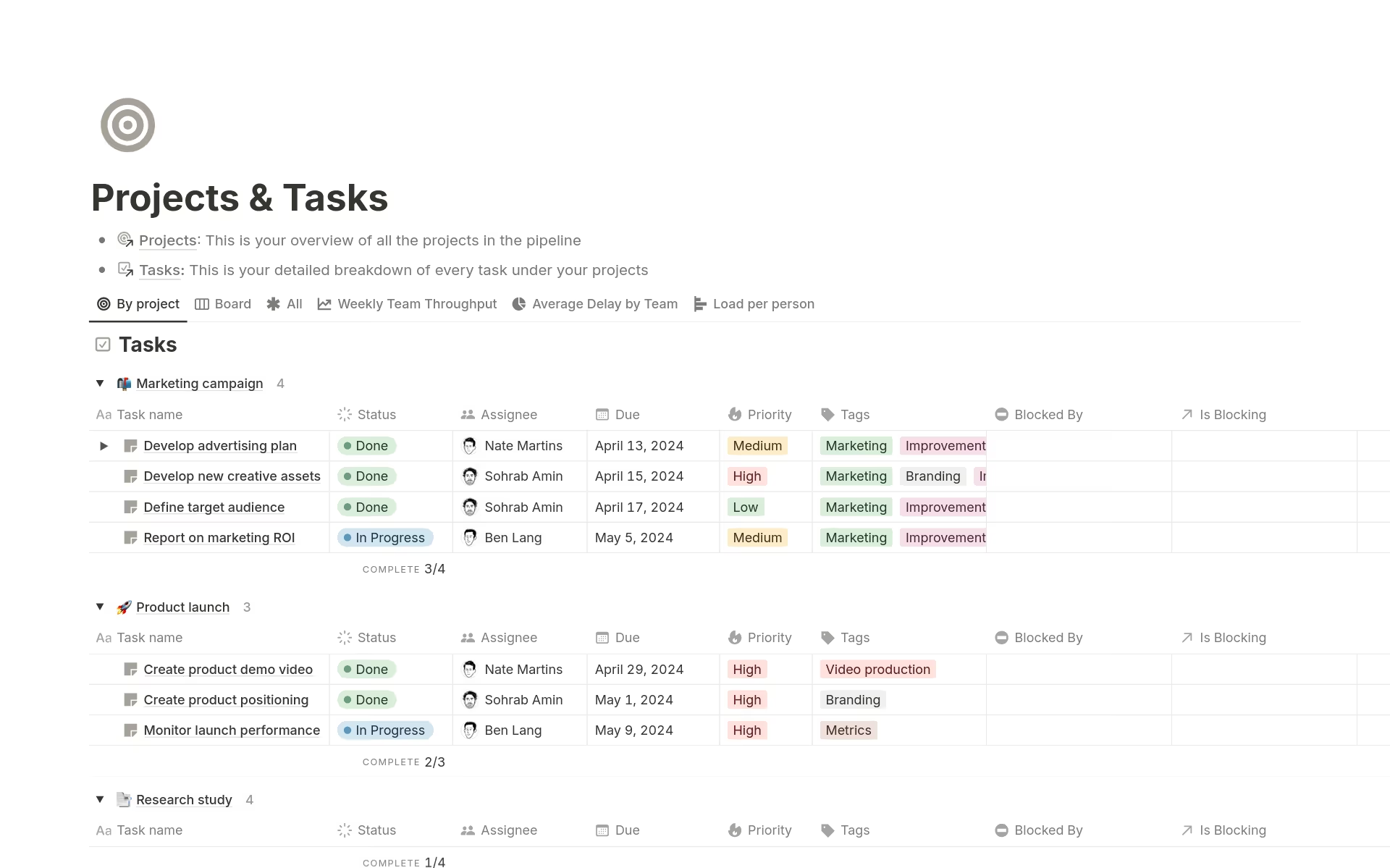
Image source: notion.com
Key features:
- Combined workspace for docs, task boards, wikis, and notes.
- Customizable database views: Kanban, Table, Timeline, Calendar, Gallery.
- Collaborative editing and inline commenting.
- Integrations with Slack, Google Drive, GitHub, and more.
- Templates for project planning, sprint boards, documentation, and team knowledge hubs.
Pros:
- Highly flexible structure for different workflows.
- Excellent for combining documentation and project planning.
- Clean, minimal interface that Mac users often appreciate.
Cons:
- Requires customization to work well for complex projects.
- Limited native reporting and workload management features.
Pricing:
- Plus Plan: $8 per user/month (billed annually).
- Business Plan: $15 per user/month (billed annually).
- Enterprise Plan: Custom pricing.
7. Wrike: Native Mac desktop app + task/workflow management
Wrike is designed for teams that need structured project planning, clear task ownership, and detailed oversight across multiple workstreams. It includes strong reporting, workload planning, and approval workflows—making it suitable for operations, marketing, consulting, and cross-functional project teams. The browser-based experience works smoothly on Mac, and the desktop app provides easy access. While powerful, Wrike may feel too complex for users who only need simple task tracking.
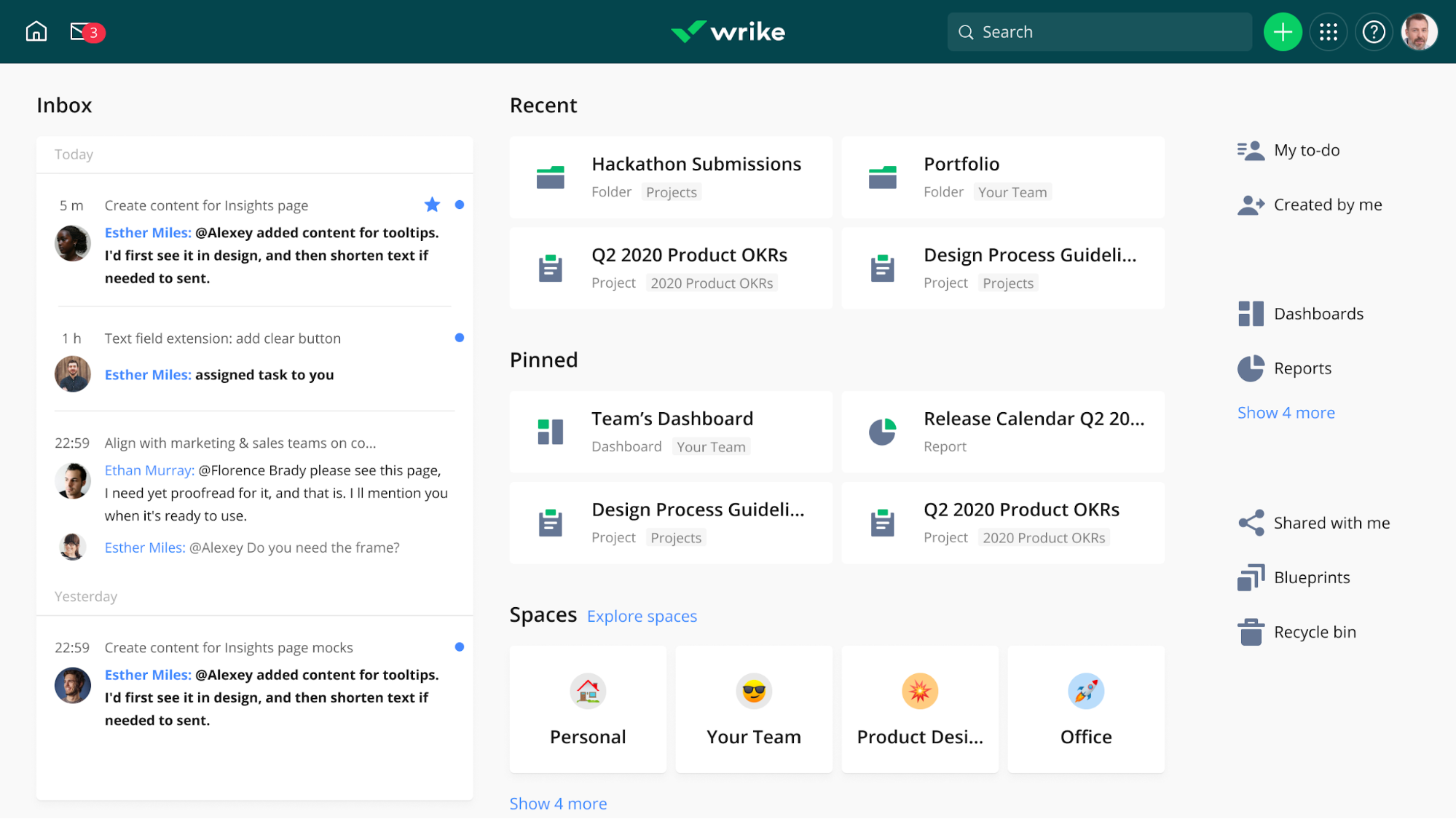
Image source: wrike.com
Key features:
- Task management with dependencies and critical paths.
- Custom dashboards and advanced reporting.
- Proofing and approval tools for creative and document workflows.
- Automation for recurring actions and status updates.
- Mac desktop app + cloud sync.
Pros:
- Excellent for teams managing complex projects.
- Strong reporting and resource/workload planning tools.
- Designed for cross-team visibility and structured processes.
Cons
- Can feel complex for small or informal projects.
- Advanced features often require higher-tier plans.
Pricing:
- Team Plan: $9.80 per user/month (billed annually).
- Business Plan: $24.80 per user/month (billed annually).
- Enterprise Plan: Custom pricing.
8. Smartsheet: Spreadsheet-style project tool compatible with Mac
Smartsheet is built for teams that rely on spreadsheet-like project tracking but need more structure, automation, and collaboration than traditional Excel or Google Sheets can provide. It offers a grid-style interface that feels familiar, while adding Gantt charts, workflow automation, and resource tracking for more complex planning. Mac users can access Smartsheet through the browser or desktop app, though the interface is more functional than visually polished. It works especially well for operations, construction management, PMOs, and enterprise teams.
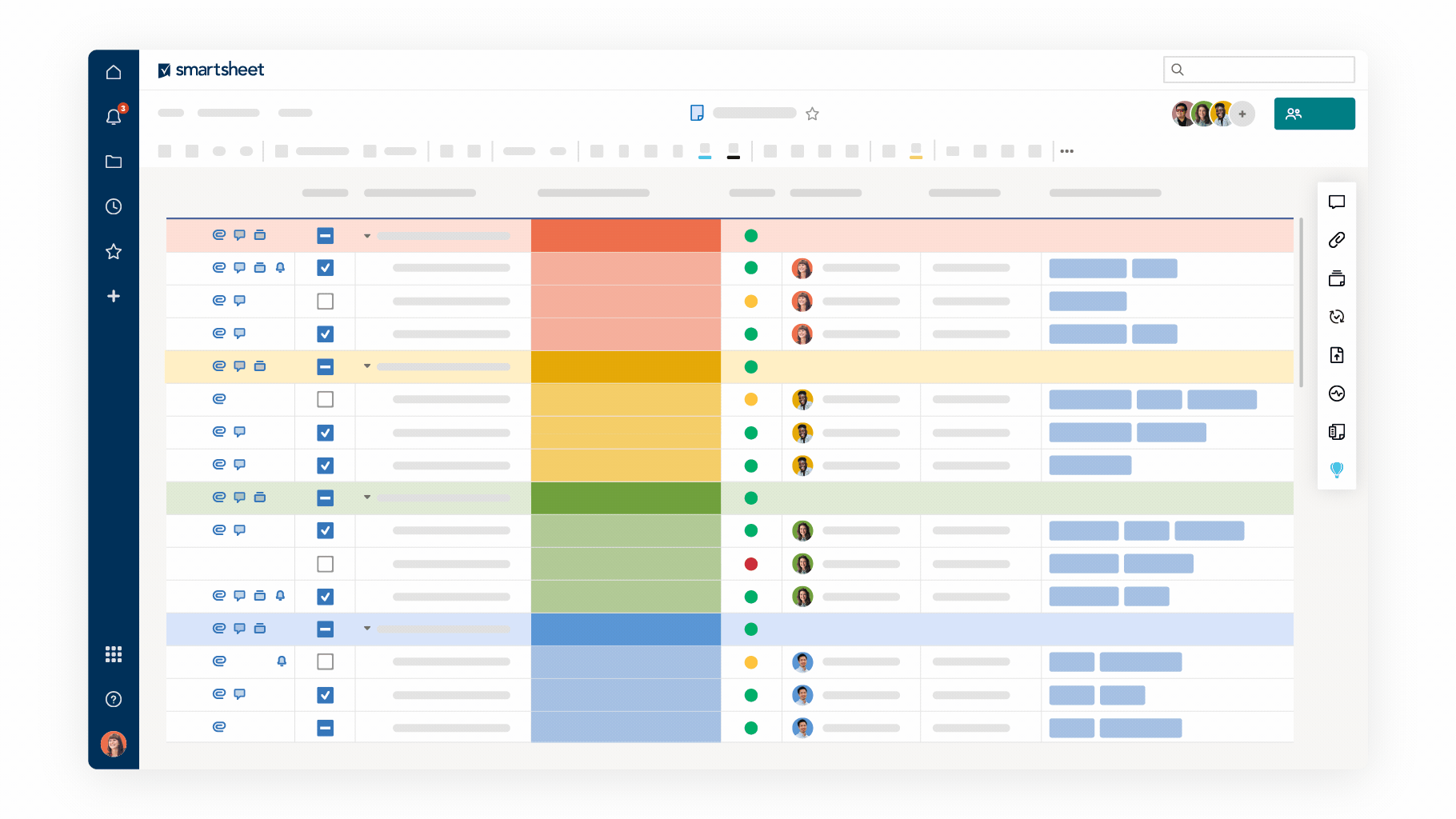
Image source: smartsheet.com
Key features:
- Spreadsheet-based task management with formulas and dependencies.
- Gantt, Card, Calendar, and Grid views for flexible tracking.
- Automated workflows for approvals, reminders, and task updates.
- Resource, budget, and timeline monitoring tools.
- Integrations with Slack, Teams, Google Workspace, Microsoft 365, Jira, and more.
Pros
- Familiar spreadsheet layout reduces the learning curve.
- Strong for large, complex projects and cross-org coordination.
- Powerful automation and resource management tools.
Cons
- The interface is more functional than visually sleek.
- Advanced controls and reporting require higher-tier pricing.
Pricing:
- Pro Plan: $7 per user/month (billed annually).
- Business Plan: $25 per user/month (billed annually).
- Enterprise Plan: Custom pricing.
9. Teamwork: Mac-friendly interface for client & agency project tracking
Teamwork is designed for service-based businesses like agencies, consultants, and client-facing teams who need structured project delivery and billing workflows. Its interface is clean and easy to use on Mac through the web or desktop app, with tools for task planning, project timelines, team time tracking, and client access. The platform also includes built-in capabilities for invoicing and workload planning, making it particularly strong for teams managing multiple external client projects. While powerful, some features are most useful for billable work environments rather than internal team operations.
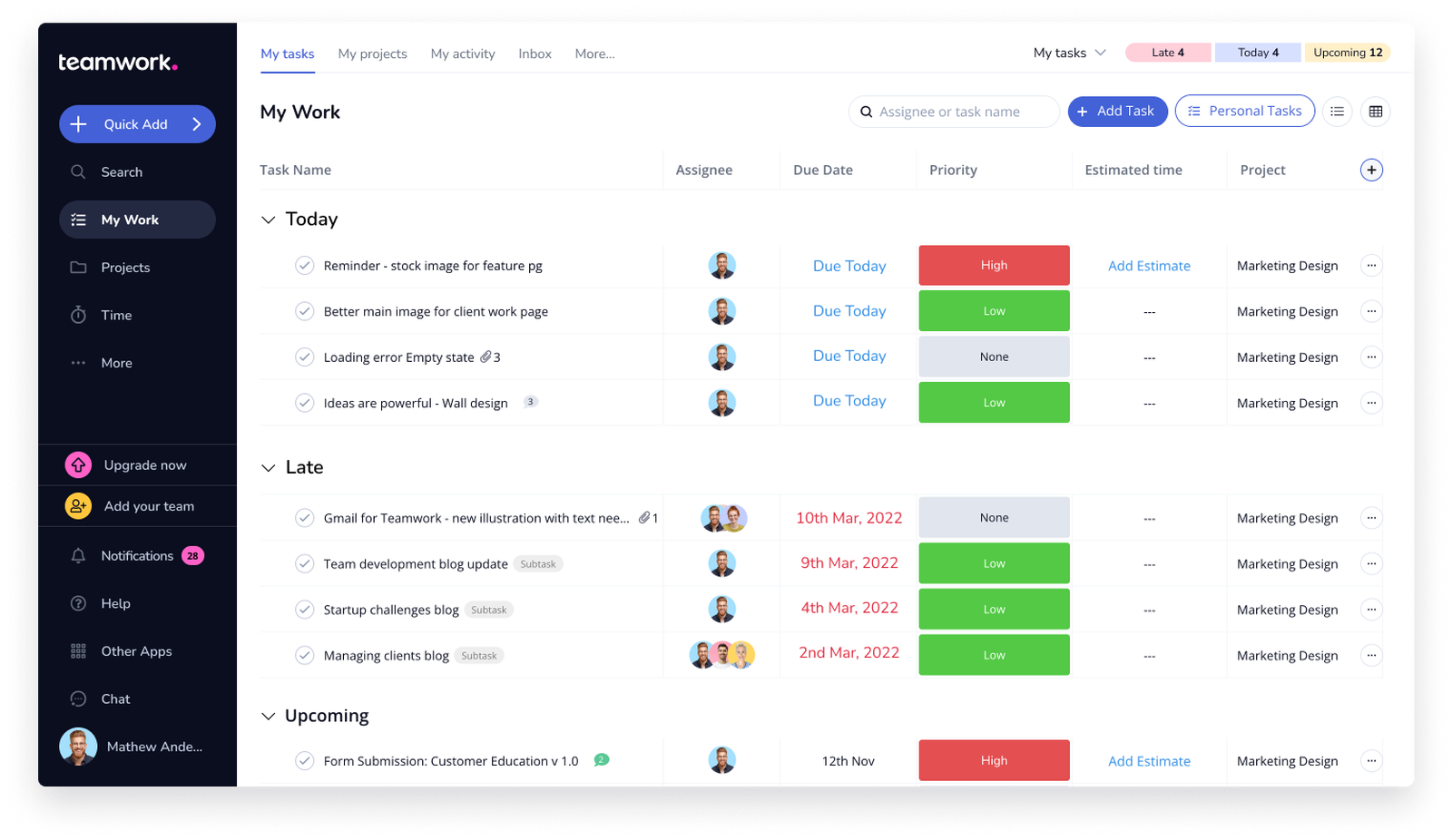
Image source: teamwork.com
Key features:
- Task lists, boards, and Gantt views for project tracking.
- Time tracking and billable hours reporting.
- Client access portals for transparency.
- Workload planning and resource scheduling.
- Integrations with Slack, Google Drive, HubSpot, and QuickBooks.
Pros:
- Excellent for agencies and client-based workflows.
- Integrated time tracking and invoicing tools.
- Clear visibility across multiple projects.
Cons:
- Less ideal for purely internal products or R&D teams.
- Setup can take time for larger project structures.
Pricing:
- Deliver Plan: $9.99 per user/month (billed annually).
- Grow Plan: $19.99 per user/month (billed annually).
- Scale Plan: Custom pricing.
10. Basecamp: Remote-team project tool with native Mac access
Basecamp focuses on simplicity and team alignment, making it popular among remote and distributed teams who prefer straightforward communication and task tracking. Mac users can access Basecamp through a dedicated desktop app that mirrors the clean, minimal style of macOS. Instead of complex workflows or layers of customization, Basecamp keeps all communication, files, tasks, and schedules organized in unified project spaces. This makes it easy for teams to stay on the same page, though it may feel limited for teams that require advanced reporting, automation, or detailed task dependencies.
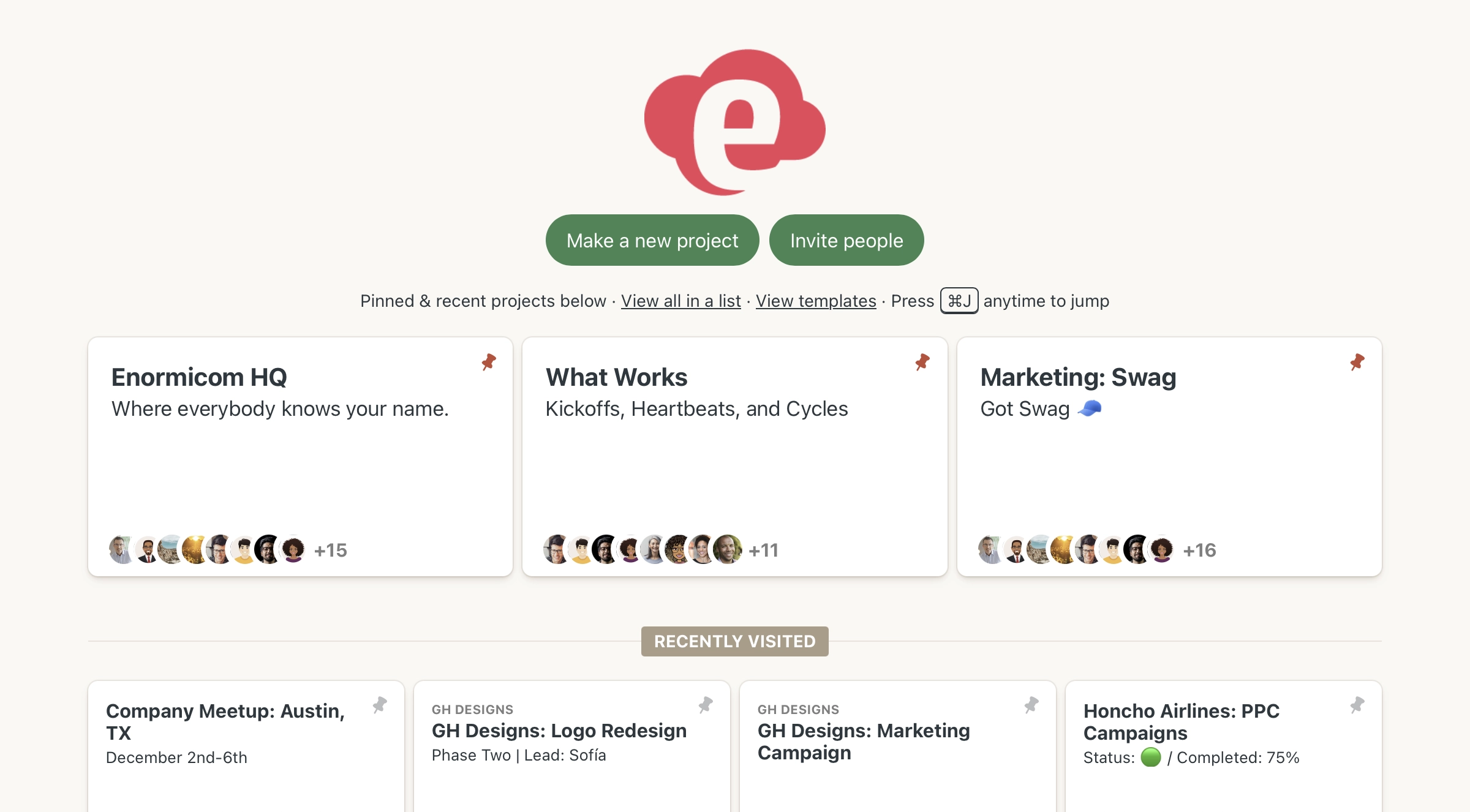
Image source: basecamp.com
Key features:
- To-dos, message boards, and project chat rooms.
- File sharing and document organization.
- Client access for external collaboration.
- Mac desktop app and seamless browser experience.
Pros:
- Clean, simple interface ideal for everyday collaboration.
- Easy to onboard new team members quickly.
- Reduces complexity and keeps communications centralized.
Cons:
- Limited task hierarchy and dependency management.
- Not ideal for complex project planning or PMOs.
Pricing:
- Basecamp Standard: $15 per user/month (billed annually).
- Basecamp Pro Unlimited: $299/month (billed annually).
How to choose the right project management tool for your Mac
Selecting the right project management software for Mac depends on how your team works, the complexity of your projects, and the depth of collaboration you need. Mac users often value tools that feel intuitive and responsive—software that matches the smooth design experience of macOS. Whether you manage internal teams, client work, or cross-departmental projects, choosing the right platform can significantly streamline workflows and reduce time spent switching between apps. Consider your long-term needs, integration requirements, and how well the tool scales with growing teams.
- Evaluate your team size, workflow complexity, and automation needs: Small teams may only need simple task tracking, while larger teams require advanced workflows and approvals. Automation tools can reduce manual work and improve consistency across projects. Choose a tool that scales as your organization expands.
- Consider collaboration depth, not just task tracking: Good project management isn't only about assigning tasks—it's about keeping everyone aligned. Look for features like shared workspaces, real-time commenting, and version control. Tools that centralise communication help reduce misunderstandings and maintain project clarity.
- Look for native macOS performance and cloud compatibility: Native Mac apps usually offer smoother navigation, faster performance, and better notification handling. Cloud-based platforms ensure your data syncs across devices and can be accessed anywhere. The best tools work seamlessly across MacBooks, iMacs, iPads, and mobile devices.
- Choose platforms that minimize tool switching and context loss: Multiple disconnected apps can lead to scattered files and missed messages. Platforms that combine tasks, chat, documentation, and scheduling help teams stay focused. Reduced context switching leads to faster decision-making and more consistent output.
Conclusion
Choosing the right project management software for Mac comes down to understanding how your team works, communicates, and plans projects. Mac users generally prefer tools that are clean, intuitive, and responsive—platforms that feel at home within macOS while supporting collaboration across devices. Whether your team needs simple task boards, detailed Gantt timelines, or client billing workflows, each tool in this list offers a distinct approach to organizing work. The key is selecting a solution that reduces friction rather than adding complexity.
If you're looking for a workspace that brings tasks, communication, documents, and scheduling together, Lark offers an integrated environment that can help teams stay aligned without constantly switching tools. It's designed to support collaboration natively across Mac and other devices, making teamwork seamless and efficient.
FAQs
Which project management app works best with Apple ecosystem tools?
Lark works smoothly across Mac, iPad, and iPhone while supporting real-time collaboration, scheduling, and document creation in one workspace. Tools like Notion and Asana also integrate well with macOS and offer native desktop apps. The best fit depends on whether you need a unified collaboration hub or lightweight task tracking. Mac users generally benefit from apps that sync seamlessly with system notifications and calendar tools.
Can project management software for Mac work offline?
Some project management tools allow offline access for tasks, notes, or document editing, which then sync when you reconnect. Notion, Basecamp, and ClickUp offer partial offline capabilities, while web-first platforms may require continuous internet. If offline access is essential, check app-specific limitations before committing. Teams that travel or work in unstable network environments benefit most from offline support.
Are there project management tools for Mac that support automation?
Yes, many Mac-compatible platforms now include workflow automation to reduce repetitive manual tasks. ClickUp, Monday.com, Wrike, and Lark offer automation for task assignments, status updates, reminders, and approvals. Automation helps maintain project consistency and reduces delays caused by oversight. Look for tools with visual automation builders if your team prefers simple setup.
Can I manage remote teams using Mac-based project management tools?
Absolutely—modern project management platforms are built with distributed teams in mind. Tools like Lark, Basecamp, and Teamwork centralize communication, file sharing, and task progress in one place. Real-time messaging and shared documentation help maintain alignment across time zones. Remote teams benefit most from platforms that reduce switching between apps.
Which project management tool offers the best value for Mac users?
The best value depends on your workflows and team size. Lark offers strong value by combining messaging, tasks, docs, scheduling, and database-style project planning in a single workspace. Trello and Notion provide great cost efficiency for smaller or simpler projects. For larger organizations, Wrike or Monday.com may offer deeper reporting and workflow automation.
Related reading
Table of contents
Start using Lark today

Manage all your work in one place
Boost team efficiency by 10x
Save up to 70% on software costs
Table of contents
Start using Lark today
Manage all your work in one place
Boost team efficiency by 10x
Save up to 70% on software costs
Keep reading







2026 Lark Technologies Pte. Ltd.
Headquartered in Singapore with offices worldwide.






Explore: