I used to juggle five to six different tools to run even simple projects. Project management became more like tool management, with information scattered across different platforms, which made me easily distracted. If these pain points sound familiar, it's probably time to try some new tools.
I've tried dozens of project management tools over the years, and found firsthand that the software really has a noticeable effect on team dynamics and productivity. To find out how effective the tools are in the real world, we put the top tools on the market through hands-on testing to see how they handle different workflows, goals, and team needs.
If you're short on time, take a quick look at my top 3 picks:
- Lark is excellent for teams looking for an AI work platform that unifies chat, documents, calendars, and other essential tools, and are ready to spend some time learning a broad platform.
- Asana is ideal for Agile teams that don’t mind paying for a bigger feature set and don't need complex dependencies.
- Monday.com offers the most customization for teams that are prepared to set up and maintain it.
Why you can trust our reviews
Our recommendations rely entirely on hands-on testing by real people who understand the daily complexities of project management. We've actively tested over a hundred tools based on a custom scoring system with six dimensions: core PM features (30%), ease of use (20%), customization and integrations (15%), customer reviews (15%), pricing (10%), and support (10%). Plus, we regularly check and update all pricing and feature information to guarantee accuracy. Our goal is to share authentic, practical insights so you can find the platform that genuinely improves your team's workflow. Read our for a deeper dive into our process.
Top project management tools comparison table
To sum up, if you want to get all your work done on a single platform, go for Lark. For simplicity, Trello will be the best, while Asana and Jira are both great for agile project management. If you're looking for a truly usable free plan (not just a free trial) that provides essential tools and AI access for small to medium-sized teams, Lark again is your best bet.
Get the best project management tool for free
20 best project management software in 2026: In-depth reviews
Prefer to watch a video instead? Watch the breakdown of our top three project management recommendations here.
1. Lark: Best for all-in-one project management & collaboration
Overall score: 8.7
is the top choice for growing teams that want all-in-one project management software designed to both streamline work and power more effective AI. This is because messenger, documents, emails, meetings, calendar, approvals, and other essential tools all live on a single platform.
Previously, I used separate apps for messaging, documentation, task tracking, and everything in between, so project delays and missed updates were common. After switching to Lark, collaboration within and across teams became a lot smoother, and everyone stayed aligned with all the necessary context and data in a unified workspace.
Key features:
- Truly useful AI: Lark AI auto-generates reports, , status updates, and feedback analysis from existing project data, so routine reporting and follow-ups do not require manual drafting.
- Project chat as the hub: Each project gets a dedicated where discussions, files, and task threads stay linked to the work instead of scattered across email.
- Multi-view task tracking in Base: Tasks live in with owners, deadlines, and priority fields, viewable as Gantt, kanban, grid, or calendar, with drag-and-drop reassignment.
- No-code automations: Trigger-and-action rules handle reminders, status changes, and cross-table updates without scripting.
- In-chat : Travel, budget, and resource requests route through configurable approval chains and resolve inside the same chat feed.
Pros and cons:
Supported platforms: Web, iOS, Android, , Windows, Linux
Integrations: Supports connecting to almost any third-party app with
Not ideal for: Companies required to maintain communication and project management in separate, isolated systems
Reviews:
"What amazes me most is how seamlessly Lark brings people, tools and workflows so easily together, making it easy for ideas to spark, evolve and take shape, turning everyday conversations into real innovations, no matter where they come from in the organization."

Cubic Wu
Chief Information Officer
Notable updates: In September 2026, two new question types debuted on Lark Forms: The formula question type that allows users to generate formulas using AI and the lookup question type that can show the original values in the field.
Pricing:
- Starter plan: that includes more than 11 powerful tools for up to 20 users. It also comes with 100GB of storage space, 1000 automation runs, AI translations, and more. No credit card needed.
- Basic plan: (billed annually) for up to 500 users. It includes everything in Starter and unlimited message history, 5TB of storage space, 1,000 automation runs, and more. Some users may need to to purchase this plan.
- Pro plan: (billed annually) for up to 500 users. It includes everything in Basic plus group calling for up to 500 attendees, 15TB of storage space, 50,000 automation runs, and more.
- Enterprise plan: for custom pricing. Supports unlimited users and includes even more automation runs and advanced security, compliance, and management features.
For small teams with simple communication needs

18 months message history
1000 Base automation runs/month
2000 rows per table in Base
Most POPULAR
For companies with comprehensive collaboration and management needs
Unlimited message history
500-participant video meetings
50k Base automation runs/month
20k rows per table in Base
For large companies with advanced security and organizational management needs
Get a personalized demo and pricing
Unlimited message history
500-participant video meetings
15 TB storage + 30 GB storage/user
500k Base automation runs/month
50k Base automation runs/month
Most POPULAR
For companies with comprehensive collaboration and management needs
Unlimited message history
500-participant video meetings
50k Base automation runs/month
20k rows per table in Base
2. Asana: Best for agile teams & cross-functional workflows
Overall score: 8.6
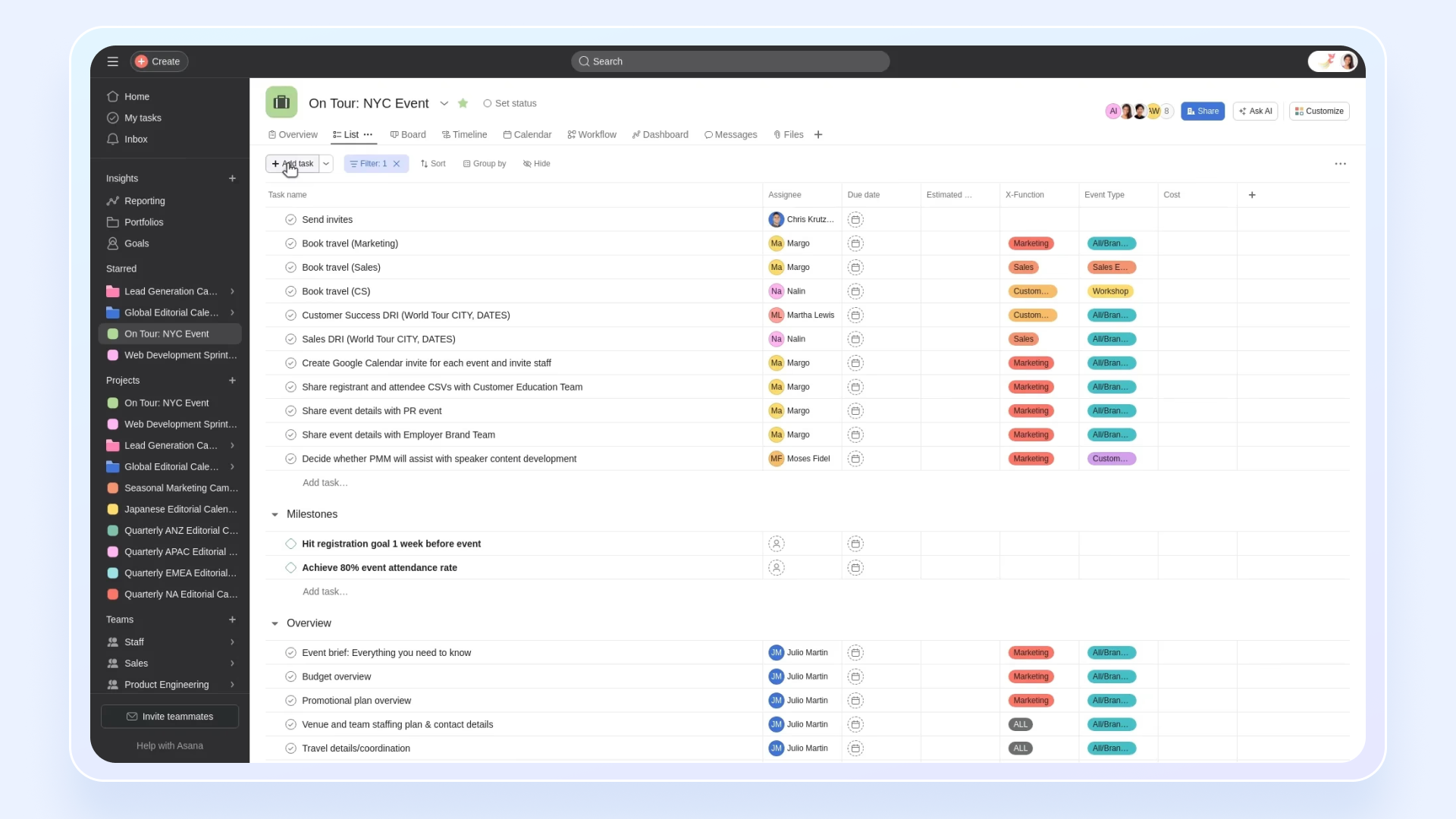
Image source: asana.com
is a flexible work management platform that helps teams organize their daily tasks and long-term goals using lists, boards, and timelines. It offers a user-friendly interface that simplifies task creation, assignment, and tracking. It is also particularly popular among teams that emphasize Agile methodologies.
What stands out to me is how it packs a deep feature set into an interface that stays easy to use. I appreciate how easy it is for a new user to log in and understand what they need to do without relying on extensive training materials. The Portfolios feature is particularly useful for managers who need to check the status of multiple projects at a glance. It provides a highly visual way to track progress, which makes the routine process of updating task statuses much more engaging for the average team member.
Key features:
- Workflow Bundles and goals: Reusable workflow templates ship with Goals & Portfolios that link tasks to measurable OKRs across the organization.
- Rules & Bundles: Reusable automation recipes that can be packaged into Bundles and applied across projects, teams, or an entire organization.
- Asana AI Studio: Build no-code AI agents that triage incoming requests, draft project briefs, and auto-fill custom fields using workspace context.
- Universal Reporting dashboards: Charts that pull live data across projects and portfolios, with drill-downs to tasks, custom fields, and workloads.
Pros and cons:
Supported platforms: Web, iOS, Android, Mac, Windows
Integrations: Slack, Microsoft Teams, Salesforce, GitHub, Zapier, and more
Not ideal for: Enterprises managing massive-scale projects with intricate dependencies, or teams wanting advanced features on a free plan
Reviews:
"I appreciate that Asana offers multiple layers of options for organizing tasks and projects. Features like recurrences, dependencies, and other tools that let you add complexity to a more nuanced project aren’t typically included in out-of-the-box services, and that’s something I felt our team really needed. From the trainings, I also noticed genuine care put into the getting started section, and it was refreshing to see how far Asana has come since I first started using it back in 2018."
- Kyunjun P. Senior Director, Mid-Market, on G2.
Notable updates: Asana expanded its AI Teammates offering in March 2026 with prebuilt agents for briefs, workflow optimization, and compliance. It also detailed how those agents collaborate within shared team workflows.
Pricing:
- Personal: Free for up to 2 users - Offers unlimited tasks, projects, and basic management
- Starter: $10.99/user/month (billed annually) for unlimited users - Moving to this level introduces Gantt charts, advanced search, and task dependencies
- Advanced: $24.99/user/month (billed annually) for unlimited users - Stepping up brings in workload views, , and portfolio management
- Enterprise/Enterprise+: Custom pricing (billed annually) for unlimited users - The highest tiers unlock advanced admin controls, comprehensive security, and dedicated support
Read more about Asana:
3. Monday.com: Best for visual management & customizable workflows
Overall score: 8.5
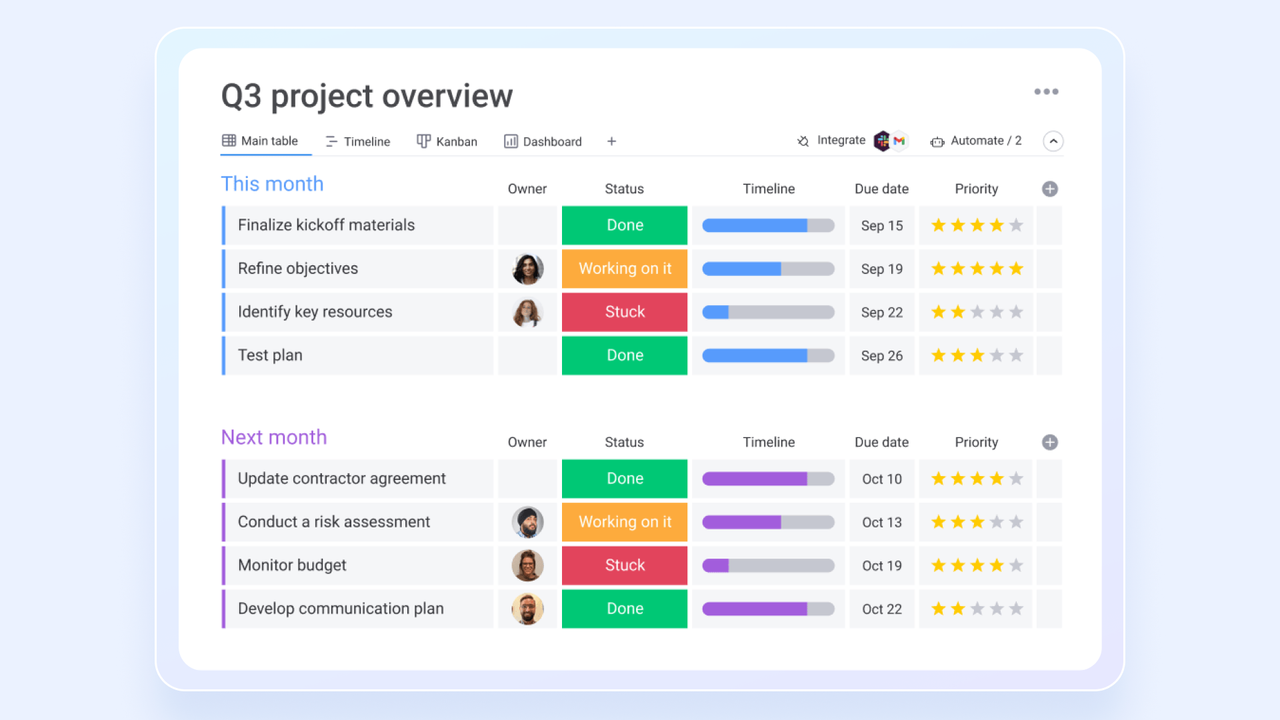
Image source: monday.com
operates as a customizable work operating system built around flexible boards, allowing teams to track everything from project milestones to CRM pipelines. The boards can be interlinked, making it especially beneficial for teams that require a customizable and dynamic work operating system.
Its primary strength is its highly visual and adaptable design, which helps make project tracking feel less tedious. I like how customizable the boards are for various industries, allowing users to shape the software to fit their specific operational needs. The automation is a strong point too. I can just set up a rule to change a status or ping a teammate when a task wraps, and the busywork mostly takes care of itself. It effectively saves me a lot of manual data entry that comes with managing projects.
Key features:
- 200+ column types: Status, timeline, formula, mirror, dependency, people, and numeric columns drive filters, grouping, and automations on every board.
- Dashboards with 20+ widgets: Combine multiple boards into a single executive dashboard with battery, chart, workload, and formula widgets.
- Automation recipes: 250+ no-code recipe templates that trigger status moves, notifications, item creation, and multi-step cross-board actions.
- Mirror and connect-boards columns: Pull live data from other boards into one view so cross-team dependencies, roll-ups, and sub-item progress stay in sync automatically.
Pros and cons:
Supported platforms: Web, iOS, Android, Mac, Windows
Integrations: Slack, Microsoft Teams, Salesforce, GitHub, Zendesk, and more
Not ideal for: Large teams or enterprises with strict budget limitations, or organizations needing highly specialized PM features
Reviews:
"The product has significant customization opportunities. The work management tool is quick to learn and has the adaptability we need for our work which is always changing. Our entire team uses it daily."
- Jody C. Associate Vice Chancellor of Online Learning, Small Business, on G2.
Notable updates: The May 2026 redesign is a major revamp that recast monday.com as an AI Work Platform built around people and agents working together. The shift is less about adding a single AI feature and more about designing the platform around mixed human-agent teams.
Pricing:
- Free: Free for up to 2 users - Provides up to 3 boards and basic templates at no cost
- Basic: $9/user/month (billed annually) for unlimited users - This plan expands capabilities to include unlimited boards, 5GB file storage, and AI credits
- Standard: $12/user/month (billed annually) for unlimited users - Upgrading introduces timeline/Gantt views, guest access, and 250 monthly automations
- Pro: $19/user/month (billed annually) for unlimited users - Moving up unlocks private boards, time tracking, and 25,000 monthly automations
- Enterprise: Custom pricing (billed annually) for unlimited users - The top tier brings multi-level access, advanced analytics, and enterprise-grade security
Read more about monday.com:
4. ClickUp: Best for customization and reporting features
Overall score: 8.4
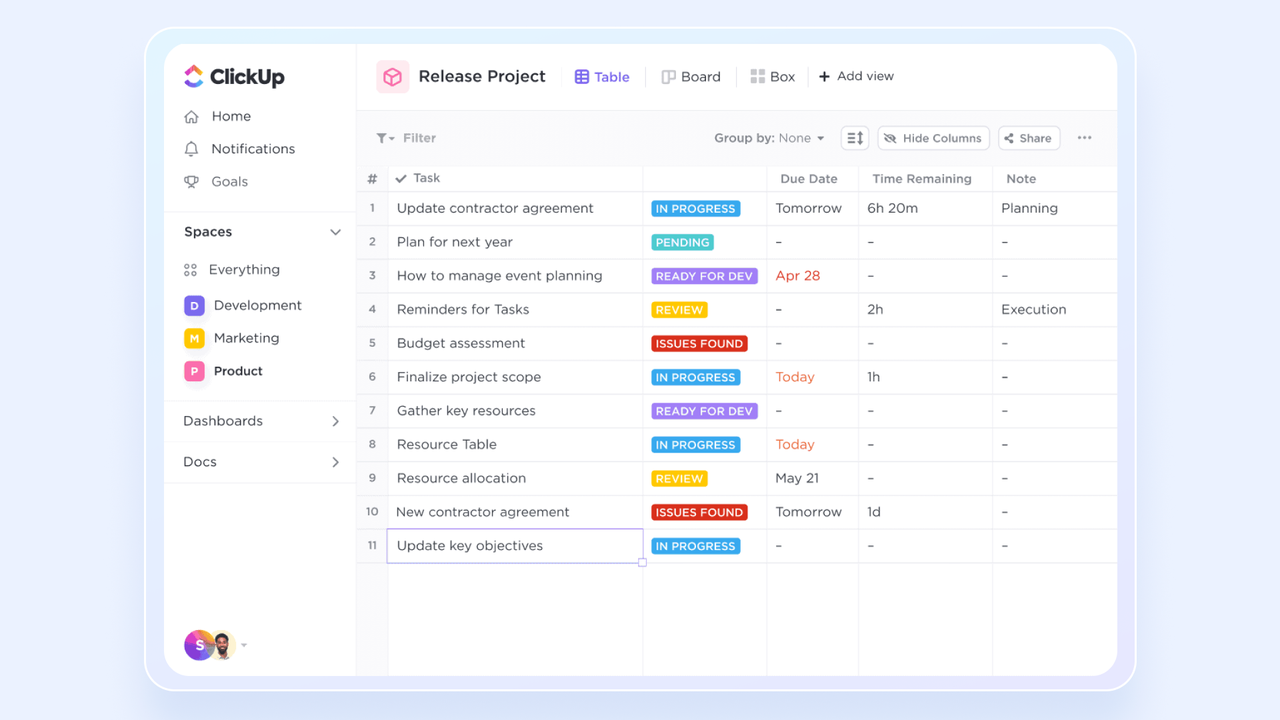
Image source: clickup.com
positions itself as an all-in-one workspace, pulling tasks, documents, digital whiteboards, and team communication into a single environment. This consolidation is particularly advantageous for teams weary of juggling multiple tools.
Its approach to consolidating multiple tools into one platform is what makes it unique, providing value for teams looking to reduce their software subscriptions. I appreciate that it attempts to minimize context switching by keeping wikis, spreadsheets, and tasks in one centralized . The customization options are extensive, allowing users to view their data as lists, workload charts, or mind maps based on their personal preferences. It offers a lot of flexibility for users who prefer to tailor their digital workspace to their exact specifications.
Key features:
- ClickUp Brain: Built-in AI that writes task updates, generates sub-tasks from a prompt, and answers natural-language questions grounded in your workspace data.
- Nested Spaces, Folders, Lists hierarchy: Organizes work into a four-level hierarchy so one workspace can hold hundreds of teams and still filter cleanly.
- 1,000+ native integrations: Connects to Slack, GitHub, Figma, HubSpot, Zoom, and more, including two-way sync with GitHub pull requests and Figma files inside a task.
- 15+ work views: Lists, Boards, Gantt, Mind Map, Calendar, Workload, Timeline, Table, Activity, Chat, Doc, Form, Whiteboard — each view can be saved per space.
Pros and cons:
Supported platforms: Web, iOS, Android, Mac, Windows, Linux
Integrations: Slack, Microsoft Teams, Google Drive, HubSpot, Zapier, and more
Not ideal for: Smaller teams, beginners, or users who prefer a simple, streamlined interface without feature bloat.
Reviews:
"How easy it is to customize to my needs and flex with my business. I also appreciate the support available like webinars and help documents when I have questions. As someone new to the use of AI agents, I have learned so much through their help and it has allowed me to grow my business"
- Lindsey T. Owner, Small Business, on G2.
Notable updates: ClickUp expanded its AI ambitions in June 2026 with Brain², connected MCP servers, and Super Agents that can take action across external apps. The result is a more action-oriented AI layer that can reach beyond ClickUp instead of stopping at summaries or drafting.
Pricing:
- Free Forever: Free for unlimited users - Features unlimited tasks, Kanban boards, collaborative docs, and 60MB storage
- Unlimited: $7/user/month (billed annually) for unlimited users - This level removes storage limits while introducing unlimited integrations and Gantt charts
- Business: $12/user/month (billed annually) for unlimited users - Stepping up unlocks advanced time tracking, unlimited dashboards, and workload management
- Enterprise: Custom pricing (billed annually) for unlimited users - This custom-priced plan brings white-labeling, advanced permissions, and dedicated onboarding
Read more about ClickUp:
5. Trello: Best for simple kanban-style task management
Overall score: 8.3
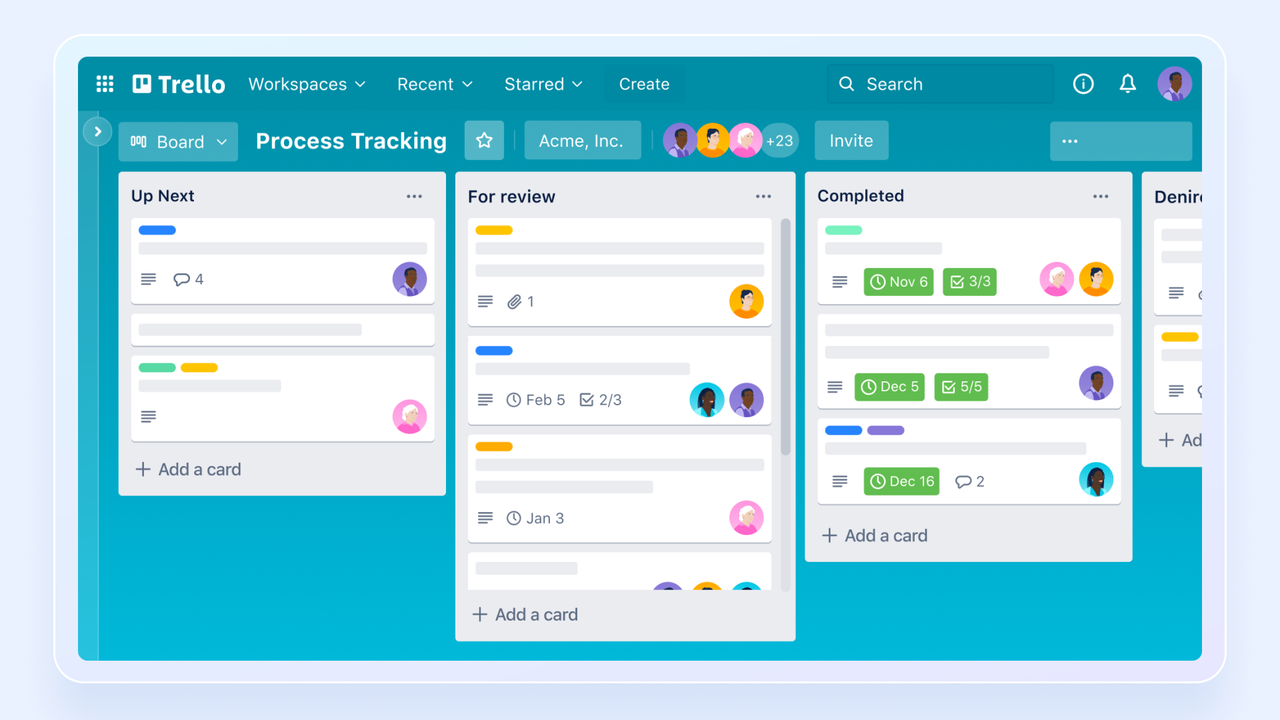
Image source: trello.com
is a visual and straightforward project management tool based entirely on moving digital cards across a Kanban board to represent different stages of work. The kanban board interface and intuitive drag-and-drop functionality make it especially effective for quickly tracking progress and collaborating on small to medium-sized projects.
Undoubtedly, Trello's primary appeal is its simplicity and intuitive design. I like that a new user can understand how to navigate a Trello board in a matter of minutes without needing formal training. Moving a card from one column to the next provides a clear, immediate visual indicator of progress, which works very well for freelancers or small teams managing standard tasks. The available power-ups allow users to add specific functionalities, like calendar views, without cluttering the core experience.
Key features:
- Card-back checklists with assignable items: Each card holds multiple checklists where every item can be individually assigned and given its own due date, so lightweight boards still track sub-steps.
- Butler automation: A no-code rule engine with buttons, scheduled commands, and card-triggered rules that automate repetitive board actions without add-ons.
- Power-Ups marketplace: 200+ installable Power-Ups (calendar, timeline, voting, custom fields, mirror) let teams add only the features they need.
- Google Workspace and Atlassian Power-Ups: Attach Drive files, embed Calendar events, and link Jira/Confluence/Bitbucket items directly on a card through 200+ installable Power-Ups.
Pros and cons:
Supported platforms: Web, iOS, Android, Mac, Windows
Integrations: Slack, Jira, Google Drive, MailChimp, Miro, and more
Not ideal for: Complex projects requiring detailed reporting, task dependencies, or large-scale organization across multiple teams
Reviews:
"It helps me do things in a more organized way by using this kind of Kanban board. I can customize it to match the responsibilities and tasks I need to manage. The fact you can set up meeting with Calendar or just put it for visibility is helpful."
- Juan B. Staff Talent Acquisition, Enterprise, on G2
Notable updates: Trello got a practical AI upgrade in July 2026: seven new features cut recurring board busywork, while MCP support connected boards to ChatGPT, Claude, Gemini, and Cursor.
Pricing:
- Free: Free for unlimited users - Includes up to 10 boards and 250 monthly workspace automations
- Standard: $5/user/month (billed annually) for unlimited users - Upgrading introduces unlimited boards, advanced checklists, and custom fields
- Premium: $10/user/month (billed annually) for unlimited users - Moving up unlocks multiple workspace views like Timeline and Calendar, plus advanced admin controls
- Enterprise: $17.50/user/month (billed annually) for unlimited users - This top plan brings organization-wide permissions and free SSO
Read more about Trello:
6. Wrike: Best for large teams with structured workflows
Overall score: 8.2
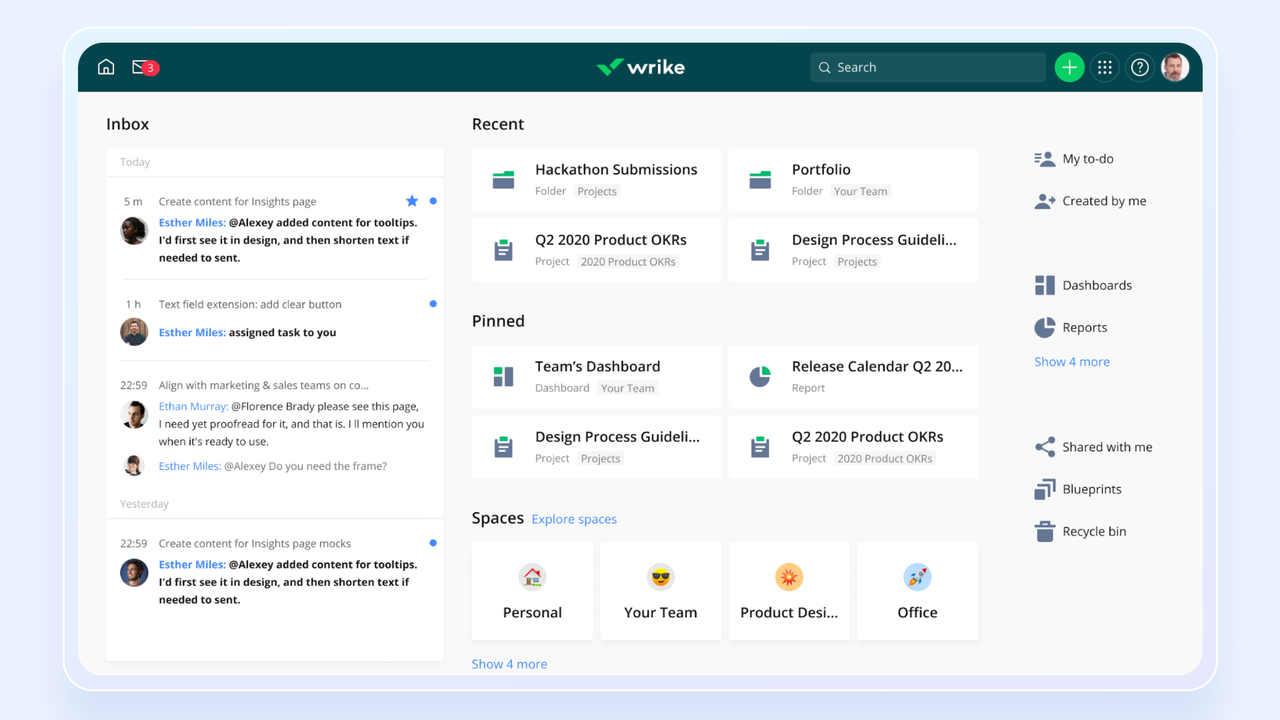
Image source: wrike.com
is a highly scalable project management platform built for enterprise-level needs. It's good for managing complex projects and gives you deep visibility into resource allocation and team workloads. That makes it a strong fit for large organizations that lean on structured planning and detailed oversight.
I find its analytics and resource allocation tools to be highly effective for large-scale operations. It reliably handles extensive amounts of interconnected tasks across different departments, which is a practical necessity for enterprise users and large agencies. The custom request forms are a very useful feature, automatically converting incoming requests into structured projects with assigned tasks and deadlines. If management needs to track workload capacity across hundreds of employees, Wrike provides the necessary infrastructure to do so clearly.
Key features:
- Workload chart with effort scoring: Hour-level workload view uses each task's effort estimate to flag over-allocated people, and managers rebalance by dragging bars between resources.
- Custom item types and blueprints: Define item types like Campaigns or Initiatives with their own fields and workflow, and save folder structures as reusable blueprints for new teams.
- Cross-tagging across folders: One task can live in multiple folders and projects simultaneously without duplication, keeping cross-functional work and shared services in sync.
- Request forms and dynamic request routing: Submitters answer branching questions on a form, and Wrike auto-routes the resulting task to the right team, folder, and template.
Pros and cons:
Supported platforms: Web, iOS, Android, Mac, Windows
Integrations: Microsoft Teams, Salesforce, GitHub, Jira, Quickbooks, and more
Not ideal for: Smaller teams, organizations with tight budgets, or those looking for a tool with a quick and easy onboarding process.
Reviews:
"The customization. We always say "everything is in pencil, not pen". Makes it easy for us to try out new workflows, make sure it works before transfering everything over. The user interface is easy to understand and does not require a lot of training from my end for the entire team. The support is great, I always get a speedy response from our rep whenever I need clarification or support."
- Ellie K. Head of Operations, Small Business, on G2.
Notable updates: Wrike's September 2026 release touched several everyday workflows, pairing more capable AI Agents with improvements to Inbox, dependencies, reporting, Gantt, and Whiteboards.
Pricing:
- Free: Free for unlimited users - Offers centralized task management and 2GB overall storage
- Team: $10/user/month (billed annually) for up to 25 users - Upgrading unlocks interactive Gantt charts, customized workflows, and shareable dashboards
- Business: $24.80/user/month (billed annually) for up to 200 users - Moving to this tier introduces time tracking, resource management, and advanced reporting
- Enterprise/Pinnacle: Custom pricing (billed annually) for unlimited users - The highest plans bring capacity forecasting, budgeting tools, and enterprise security
Read more about Wrike:
7. Smartsheet: Best for traditional spreadsheet users
Overall score: 8.1
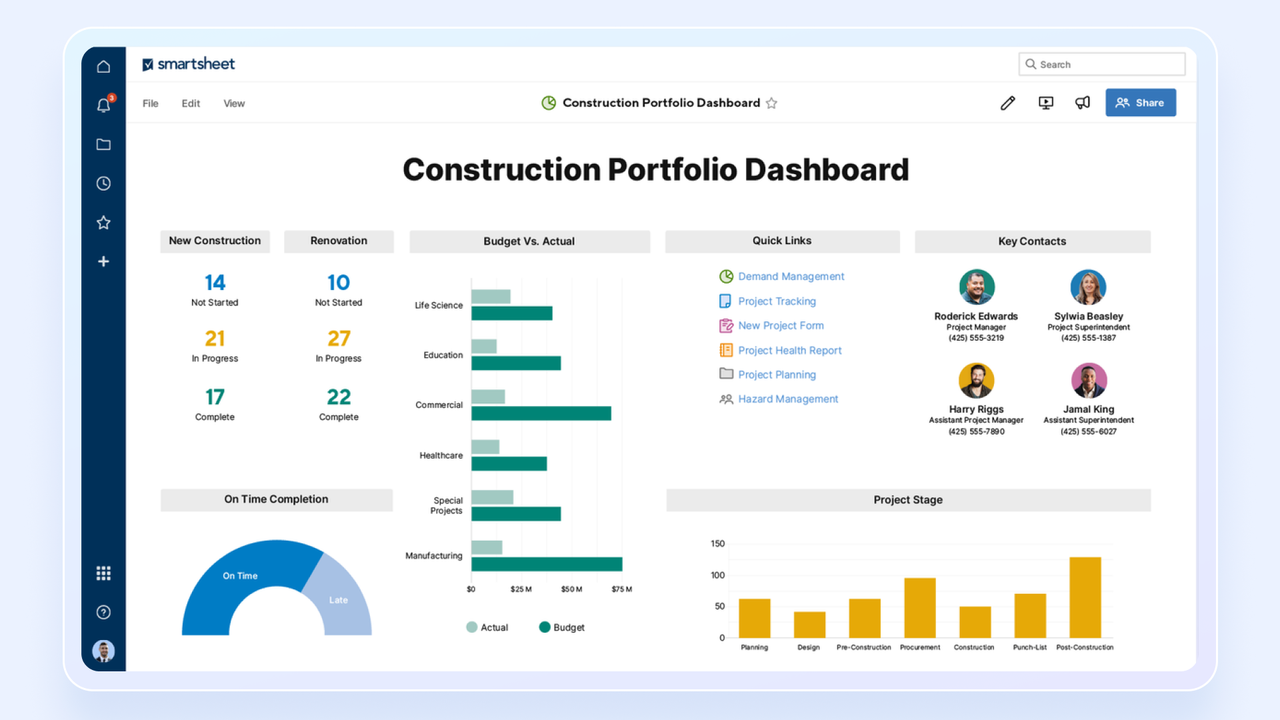
Image source: smartsheet.com
stands out for its familiar, spreadsheet-based layout that appeals to users who prefer structured, grid-like project management. Its automation and reporting tools are best for teams that mostly rely on spreadsheets.
I appreciate that its interface is immediately familiar to anyone who has used Excel, which significantly lowers the barrier to entry for teams transitioning from older methods. It takes a classic format and turns it into a collaborative tool where users can attach files directly to rows and switch their view to a Gantt chart when needed. The ability to build external-facing forms that feed data directly into the master sheet is a practical way to collect client requests or survey responses. It bridges the gap between traditional data entry and modern task tracking effectively.
Key features:
- Grid plus 100+ spreadsheet formulas: Full formula engine with cross-sheet INDEX/MATCH, conditional formatting, and cell linking runs on project data without exporting to Excel.
- Approval and update-request automations: Pre-built workflow blocks for approval routing, reminders, and status-based cell changes without a scripting layer.
- Cross-sheet references and reports: Pull live data from multiple sheets into one report or dashboard without copy-paste or external BI tools.
- Smartsheet Control Center: Program-management layer that provisions new projects from blueprints and rolls up portfolio data without manual consolidation.
Pros and cons:
Supported platforms: Web, iOS, Android, Mac, Windows
Integrations: Jira, Salesforce, Microsoft Teams, Slack, Adobe CC, and more
Not ideal for: Teams averse to traditional spreadsheet layouts, or budget-conscious users who want advanced features without add-on costs
Reviews:
"Honestly, it just makes project tracking a lot less chaotic. It looks and feels like a regular spreadsheet at first, so it was super easy for my team to pick up, but the automation options and dashboards are what actually save us time. It's great for keeping everyone on the same page without constantly sending follow-up emails."
- Abhinandan L. Copyeditor, Enterprise, on G2
Notable updates: Smartsheet brought its AI tools into the newer Table, Gantt, Board, and Timeline views in October 2026. It brings AI into the views teams already use to plan and execute work rather than leaving it in a separate experience.
Pricing:
- Pro: $9/user/month (billed annually) for up to 10 users - Includes unlimited sheets, basic dashboards, and 250 monthly automations
- Business: $19/user/month (billed annually) for unlimited users - Upgrading unlocks unlimited guests, advanced reporting, and team workload tracking
- Enterprise/Advanced: Custom pricing (billed annually) for unlimited users - These custom-priced tiers introduce enterprise-grade governance, SSO, and advanced IT controls
Read more about Smartsheet:
8. Jira: Best agile project management software
Overall score: 8.0
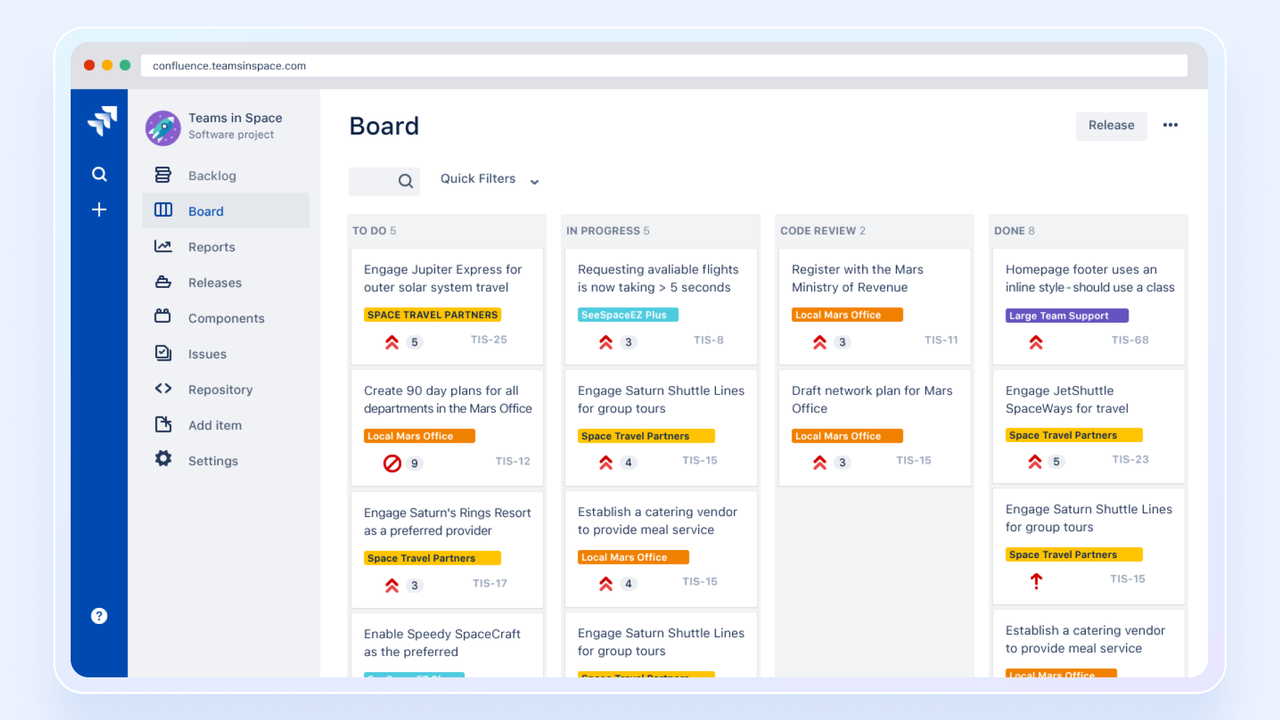
Image source: atlassian.com
, developed by Atlassian, is one of the most popular agile project management software on the market. Although it is primarily designed for software development and IT teams, its comprehensive issue-tracking capabilities and support for Agile and methodologies have made it a staple among technical teams.
I respect how well it aligns with the specific needs of software developers, acting as a reliable central hub for technical teams. Its extensive ecosystem of plugins in the Atlassian Marketplace allows users to connect it to almost any other development tool they use. I particularly like how it integrates with code repositories, linking specific lines of code directly to a project task ticket so managers can track technical progress accurately. For teams utilizing Scrum or Agile methodologies, it provides all the necessary structural frameworks.
Key features:
- Scrum and Kanban boards tied to issues: Sprints, backlog grooming, story points, and burndown charts are first-class concepts linked to every issue type, with native support for scaled frameworks.
- Atlassian Marketplace: 7,000+ paid and free apps extend Jira with time tracking, test management, and roadmapping that the core product does not include.
- Configurable issue schemes: Issue types, workflows, screens, and field-level permissions are configurable per project, so one Jira site can host engineering bugs, HR tickets, and legal reviews side by side.
- JQL and agile reports: Jira Query Language lets teams filter across projects, with ready-made burndown, velocity, sprint, and cumulative flow reports.
Pros and cons:
Supported platforms: Web, iOS, Android, Mac, Windows
Integrations: Slack, Microsoft Teams, GitHub, Zendesk, Trello, and more
Not ideal for: Non-technical teams, simple projects, or organizations doing traditional project management outside of software development
Reviews:
"The best thing I know about what Jira can do is that it can connect directly or more easily to AI agents. It always finds the information about what you ask and pulls the actual latest status of any topic you are looking for at that moment. I really think that gives it a huge advantage that could keep it at the top."
- Aaron B. Manufacturing Engineer, Enterprise, on G2
Notable updates: The August 2026 Jira release added 15 capabilities, spanning smarter agents, rebuilt core views, capacity planning, and formula fields. It's a fairly significant AI update, refreshing both agent capabilities and core project-planning workflows.
Pricing:
- Free: Free for up to 10 users - Provides unlimited project boards, basic reporting, and 2GB storage
- Standard: $7.91/user/month (billed annually) for up to 100,000 users - This plan introduces user roles, audit logs, 250GB storage, and AI features
- Premium: $14.53/user/month (billed annually) for up to 100,000 users - Stepping up unlocks advanced cross-team planning, unlimited storage, and 24/7 support
- Enterprise: Custom pricing (billed annually) for unlimited users - The top tier brings multiple instances, advanced admin controls, and a 99.95% uptime SLA
Read more about Jira:
9. Microsoft Planner: Best for team task management inside the Microsoft 365 ecosystem
Overall score: 7.9
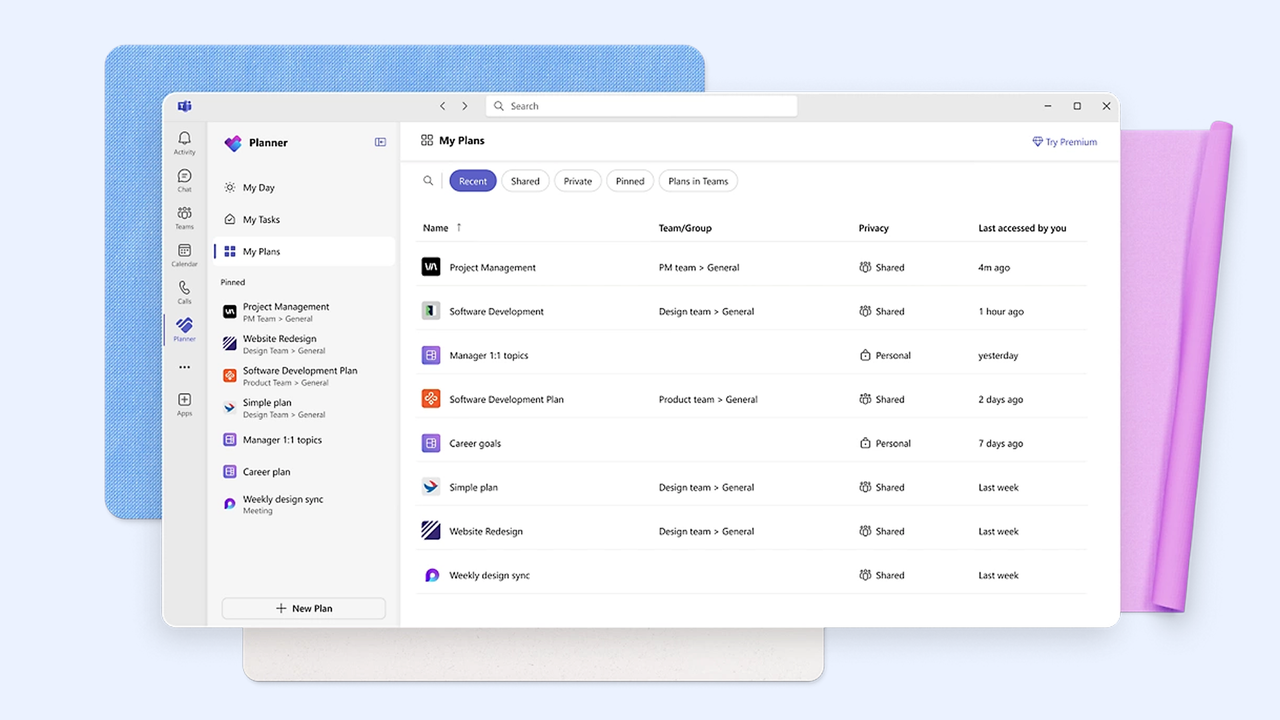
Image source: microsoft.com
is a task and work management tool built natively into the Microsoft 365 ecosystem. In 2025, Microsoft consolidated its work management apps, retiring Project for the web in August 2025 and folding its capabilities into a single, unified Planner experience that spans from simple to-do lists to enterprise project management. The version included with most Microsoft 365 business subscriptions centers on collaborative, board-style task management, offering Grid, Board, Schedule, and Charts views for organizing and tracking teamwork.
I find its integration with Microsoft Teams and Outlook to be highly practical since it allows users to manage tasks directly from their communication channels. This tight integration makes it a logical and secure choice for enterprise environments that already rely on the Windows ecosystem for their daily operations. The ability to build detailed Gantt charts and map out strict task dependencies supports project managers who need to forecast timelines accurately. It provides a reliable framework for corporate planning and resource management.
Key features:
- Plans surfaced inside Teams, Outlook, and To Do: The same plan appears as a tab in Teams channels, a view in Outlook, and tasks in Microsoft To Do without duplication.
- Resource and capacity view: Premium plans add a people-centric view that shows each resource's assignments, workload, and availability across all plans.
- Copilot in Planner: Natural-language prompts generate project plans, suggest tasks, and summarize status directly inside Microsoft 365.
Pros and cons:
Supported platforms: Web, iOS, Android
Integrations: Microsoft Teams, SharePoint, Microsoft 365 apps, and more
Not ideal for: Smaller teams, organizations with limited software budgets, or teams operating entirely outside of the Microsoft ecosystem
Reviews:
"Planner helps me organise tasks and keep track of what I need to do. It’s very easy to flag emails in Outlook, and they automatically flow into Planner with a date and time tag for follow-up. I can add reminders and extra details, and Planner is integrated with other MS apps, which makes it easy to access wherever I’m working. The UI is intuitive and simple to navigate. Performance in the Task app is solid, and it also syncs with the calendar as planned."
- Rahul S. Assistant Manager, Enterprise, on G2
Notable updates: Microsoft Planner made its AI features easier to reach in September 2026 by adding Planner Agent chat to basic plans and refining task-detail layouts.
Pricing:
- Plan 1: $10/user/month (billed annually) for unlimited users - This level introduces timeline views, task dependencies, and premium templates
- Plan 3: $30/user/month (billed annually) for unlimited users - Upgrading unlocks advanced dependencies, task history, and detailed resource assignments
- Plan 5: $55/user/month (billed annually) for unlimited users - The highest tier brings enterprise portfolio management, demand management, and advanced resource allocation
Read more about Microsoft Planner:
10. Adobe Workfront: Best enterprise project management software
Overall score: 7.8
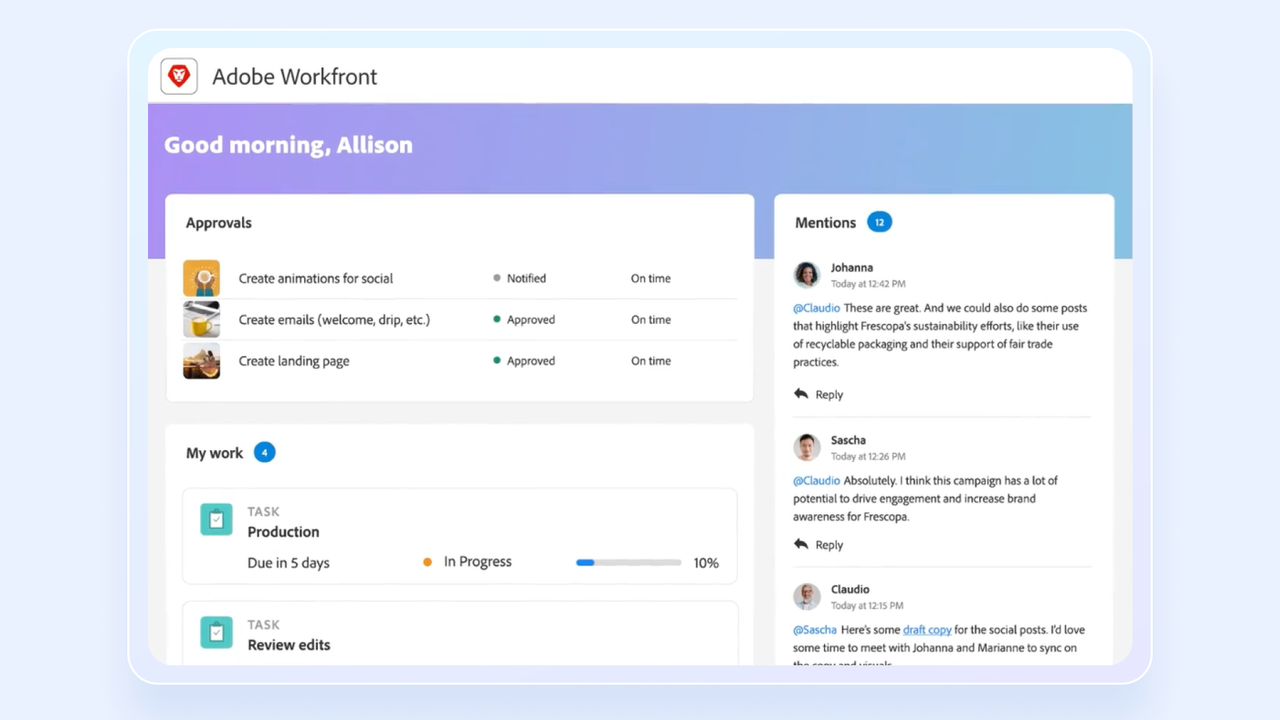
Image source: business.adobe.com
is a popular enterprise project management software, catering to large organizations with diverse project management needs. Its comprehensive features include resource management, portfolio planning, and detailed reporting. Additionally, the integration with Adobe Creative Cloud provides added value for creative teams.
I appreciate how it allows creatives to remain in their native Adobe applications, like Photoshop or Premiere Pro, while still keeping project managers informed of their progress. It effectively connects project data with the actual creative design process. The built-in proofing tools are notably useful, enabling stakeholders to leave specific feedback directly on a video timeline or a PDF draft. This reduces miscommunication and streamlines the revision cycle for design agencies.
Key features:
- Scenario Planner: Side-by-side what-if modeling that compares staffing, budget, and timeline scenarios before committing resources to a portfolio.
- Portfolio Optimizer: Ranks and funds projects against strategic objectives using scoring criteria, so leadership can rebalance the portfolio when priorities or resources shift mid-year.
- Creative Cloud deep links: Workfront Proof opens assets in Photoshop, InDesign, or Premiere Pro, pushes approver comments back as design-tool annotations, and auto-advances the task when the file is approved.
- Workfront Fusion: Visual integration builder for multi-system automations across Adobe Experience Cloud, Salesforce, Jira, and Workday without custom code.
Pros and cons:
Supported platforms: Web, iOS, Android
Integrations: Adobe Creative Cloud, Jira, Slack, Microsoft Teams, and more
Not ideal for: Smaller teams, simple project workflows, or organizations lacking specialized personnel to configure the platform
Reviews:
"What I like best about Workfront is how it keeps projects, tasks, and team communication organized in one place. It makes it easier to track progress, manage priorities, assign responsibilities, and keep everyone aligned on deadlines without constantly switching between different tools."
Ashkan K. Senior Financial Analyst, Enterprise, on G2
Notable updates: Adobe Workfront's October 2026 updates pushed its AI experience toward CX Coworker and added Form Fill that can use context from linked Workfront objects.
Pricing:
- Select: Custom pricing (billed annually) for unlimited users - Offers essential enterprise work management, resource management, and reporting
- Prime: Custom pricing (billed annually) for unlimited users - Upgrading expands Select features with strategic portfolio planning and enhanced compliance
- Ultimate: Custom pricing (billed annually) for unlimited users - The top tier brings workflow automation and enterprise-grade scalability to the Prime features
Read more about Adobe Workfront:
11. Zoho Projects: Best for organizations with basic project management needs
Overall score: 7.7
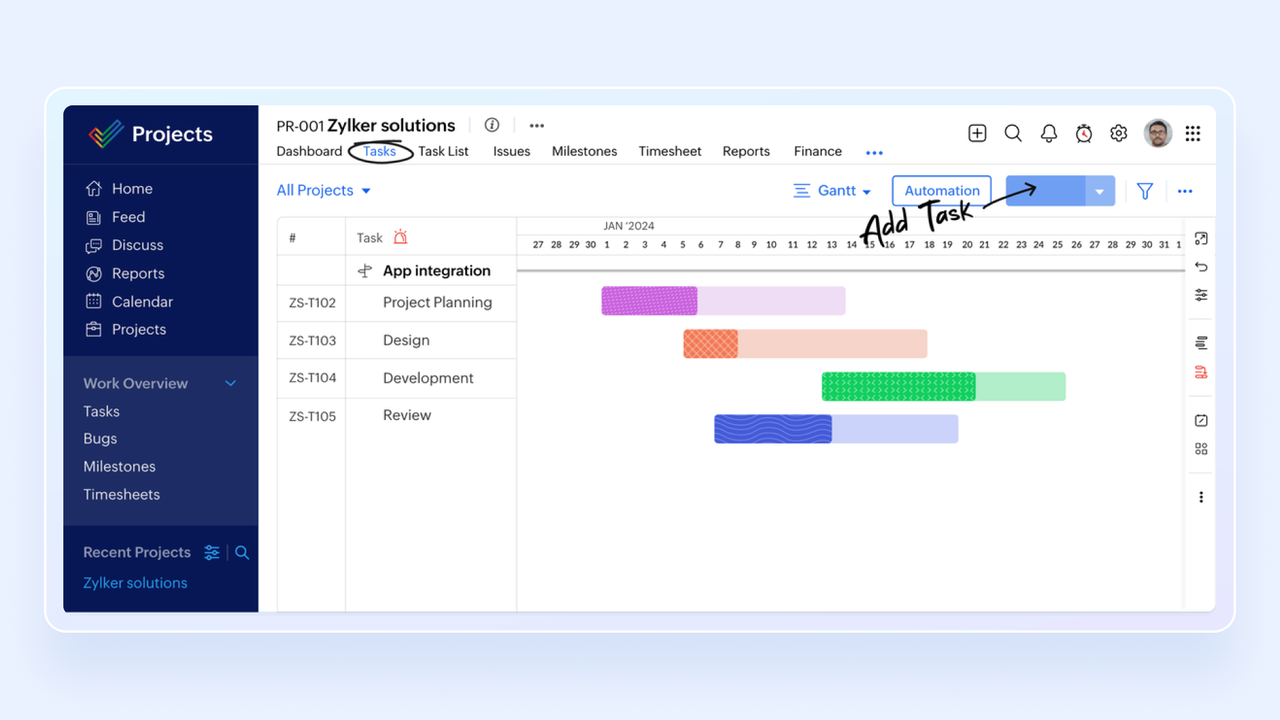
Image source: zoho.com
is a traditional project management tool featuring task lists, Gantt charts, and timesheets, serving as a core component of the broader Zoho application suite.
I find it offers an extremely wide range of features at competitive prices. Zoho Projects works particularly well if your team is already using the Zoho ecosystem, so data can flow from their CRM platform through to their invoicing software. The built-in timers for tracking billable hours are practical for service-based businesses that need to monitor their time closely. For organizations already utilizing Zoho applications, it is a logical addition to their operational workflow.
Key features:
- Issue tracking plus task management: Combines standard tasks with a built-in bug tracker that supports SLAs, severity, and reproducibility fields in one project.
- Timesheet approvals plus Zoho Invoice sync: Billable hours logged on tasks flow through a timesheet approval workflow and auto-push to Zoho Invoice as billable line items for client invoicing.
- Critical path and baseline on Gantt: Interactive Gantt highlights the critical path, saves baselines, and shows planned-vs-actual slippage per task.
- Zoho One cross-app automation: Native triggers push project data into Zoho CRM deals, Zoho Books invoices, and Zoho Desk tickets without a middleware layer, since all apps share one tenant and one user directory.
Pros and cons:
Supported platforms: Web, iOS, Android
Integrations: Zoho CRM, Google Calendar, GitHub, Zendesk, Zapier, and more
Not ideal for: Teams that prioritize cutting-edge, highly modern user interfaces, or larger teams hoping to rely entirely on a free plan
Reviews:
"What I like best about Zoho Projects is its flexibility and ease of use. It helps me keep projects organized with clear task structures, timelines, and collaboration features, while requiring minimal administration. I also like that it can support both simple internal initiatives and more complex client projects within the same platform."
- Andrea M. Market and ESG Expert, mid-market, on G2
Notable updates: Zoho Projects received a major overhaul in April 2026 with Projects Infinity, bringing customizable modules, reports, dashboards, and an AI layer. That makes the product more adaptable for teams that want to shape workflows and reporting around their own operating model.
Pricing:
- Free: Free for up to 5 users - Supports up to 3 projects with basic task lists and milestones
- Premium: $4/user/month (billed annually) for unlimited users - Upgrading unlocks unlimited projects, advanced Gantt charts, and 100GB storage
- Enterprise: $9/user/month (billed annually) for unlimited users - Moving up brings global Gantt charts, custom roles, and 120GB storage
Read more about Zoho:
12. ProofHub: Best for teams needing a predictable pricing model
Overall score: 7.6
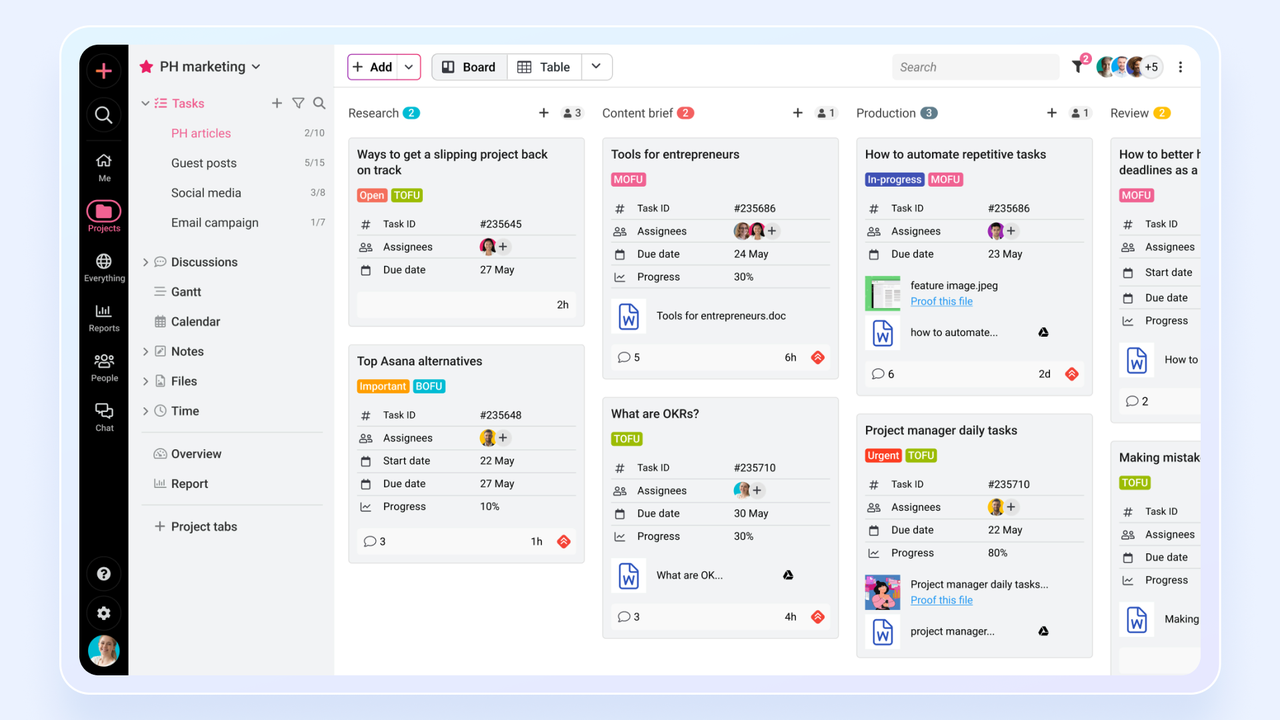
Image source: proofhub.com
ProofHub offers an all-in-one platform that centralizes project management and team collaboration into a single, cohesive space. Its flat-rate, unlimited-user pricing model distinguishes it from competitors that charge per seat. This means that a growing company can add new employees or invite freelance contractors into the system without steadily increasing their monthly software expenses.
Beyond the pricing, it provides a solid combination of features, including built-in group chat and document proofing tools alongside standard task lists. It serves as a practical, all-in-one management solution for mid-sized teams monitoring their overhead costs.
Key features:
- Flat-rate pricing with unlimited users: Fixed monthly fee covers unlimited users, projects, and clients, with no per-seat charges, marking it predictable for agencies that onboard freelancers or clients each month.
- Online proofing with version control: Markup PDFs, images, and documents directly in ProofHub and keep each revision on the task card for a full approval trail.
- Custom roles with field-level access: Define unlimited roles that control which project sections, tasks, time entries, and files each user can see, including client-facing roles that hide internal costs and notes.
- Built-in online proofing: Markup and version comparison for images, PDFs, and videos so creative sign-off cycles stay inside the project, not in email.
Pros and cons:
Supported platforms: Web, iOS, Android, Mac, Windows
Integrations: Slack, Box, Dropbox, Google Calendar, QuickBooks, and more
Not ideal for: Enterprises requiring highly specialized Agile frameworks, or teams heavily reliant on a massive ecosystem of third-party integrations
Reviews:
"The thing I like most is that I can reach out to anyone on my team or other teams instantly. I don't even remember the last time we used email to communicate with each other internally. Everything happens inside ProofHub now, and it just feels faster and more direct."
- Kanika G. Marketing Manager, Mid-Market, on G2
Notable updates: No major announcements in 2026.
Pricing:
- Essential: $45/month flat fee (billed annually) for unlimited users - Manages up to 40 projects with 15GB storage
- Ultimate Control: $89/month flat fee (billed annually) for unlimited users - Upgrading unlocks unlimited projects, 100GB storage, and custom roles
13. Basecamp: Best for SMBs favoring low administrative overhead
Overall score: 7.5
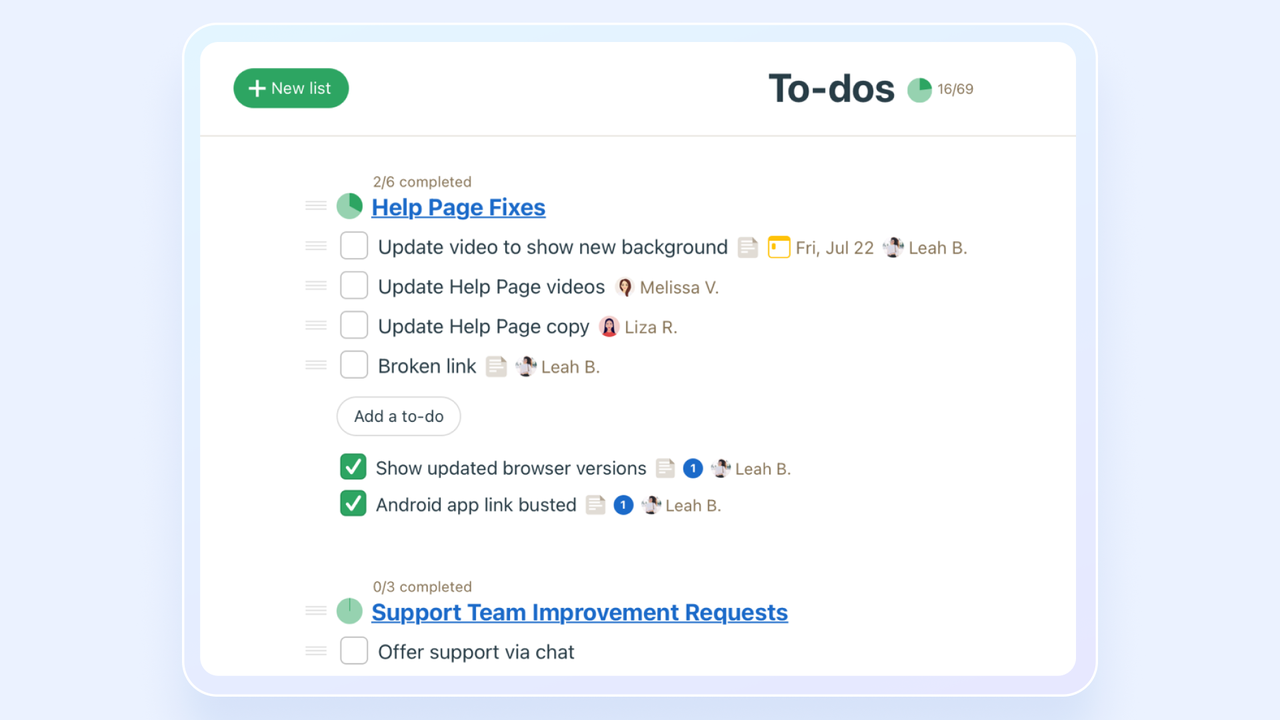
Image source: basecamp.com
is designed around simplicity and clear communication, consolidating to-do lists, messages, scheduling, and file storage into one place. Its minimalist, non-technical approach is perfect for teams that want to reduce complexity and administrative overhead, focusing on collaboration rather than intricate project tracking features.
I appreciate its focus on clear, text-based communication, which encourages teams to move away from scattered email threads. It deliberately omits complex project management features like Gantt charts to maintain a simple, uncluttered user experience. The automated daily check-in feature, which prompts team members to share what they worked on, is a practical way to maintain alignment without scheduling additional meetings. It is a fitting tool for companies that prioritize straightforward collaboration over detailed metric tracking.
Key features:
- Six fixed tools per project: Every project auto-provisions the same six sections — Message Board, To-dos, Schedule, Docs & Files, Campfire chat, and Automatic Check-ins.
- Automatic Check-ins: Scheduled recurring questions (e.g. “What did you work on today?”) are posted to the whole team on a cadence, replacing standups and status meetings.
- Hill Charts: A Basecamp-exclusive progress view that plots each to-do on an "uphill (figuring it out) / downhill (executing)" curve, replacing percent-complete with a judgment-based signal.
- Flat $299/mo Pro Unlimited plan: One company-wide price covers unlimited users and projects, with no per-seat upcharges.
Pros and cons:
Supported platforms: Web, iOS, Android, Mac, Windows
Integrations: Zapier, Google Sheets, Slack, Airtable, HubSpot, and more
Not ideal for: Teams needing advanced tracking tools like Gantt charts, task dependencies, and detailed metric reporting
Reviews:
"I really like Basecamp for its familiarity since we've used it for quite some time, and the UI is easy to navigate. I appreciate the many features available, and they keep adding more. The ease of use is crucial for us, and it makes everything easier. We've never had any issues with Basecamp; it has always worked great for our IT department. The initial setup was very easy, and I'm very likely to recommend Basecamp to others."
- Austin O. IT Support Engineer, Mid-Market, on G2
Notable updates: Basecamp 5 arrived in May 2026 with more than 100 improvements, including full-screen calendars and simpler core navigation. The release keeps Basecamp's simplicity angle while broadening its scheduling and navigation capabilities.
Pricing:
- Free: Free for up to 20 users - Allows management of 1 active project with 1GB storage
- Plus: $15/user/month (billed annually) for unlimited users - This tier introduces unlimited projects, 500GB storage, and month-to-month billing
- Pro Unlimited: $299/month flat fee (billed annually) for unlimited users - The premium option unlocks 5TB storage and priority support
Read more about Basecamp:
14. Scoro: Best professional services project management software
Overall score: 7.4
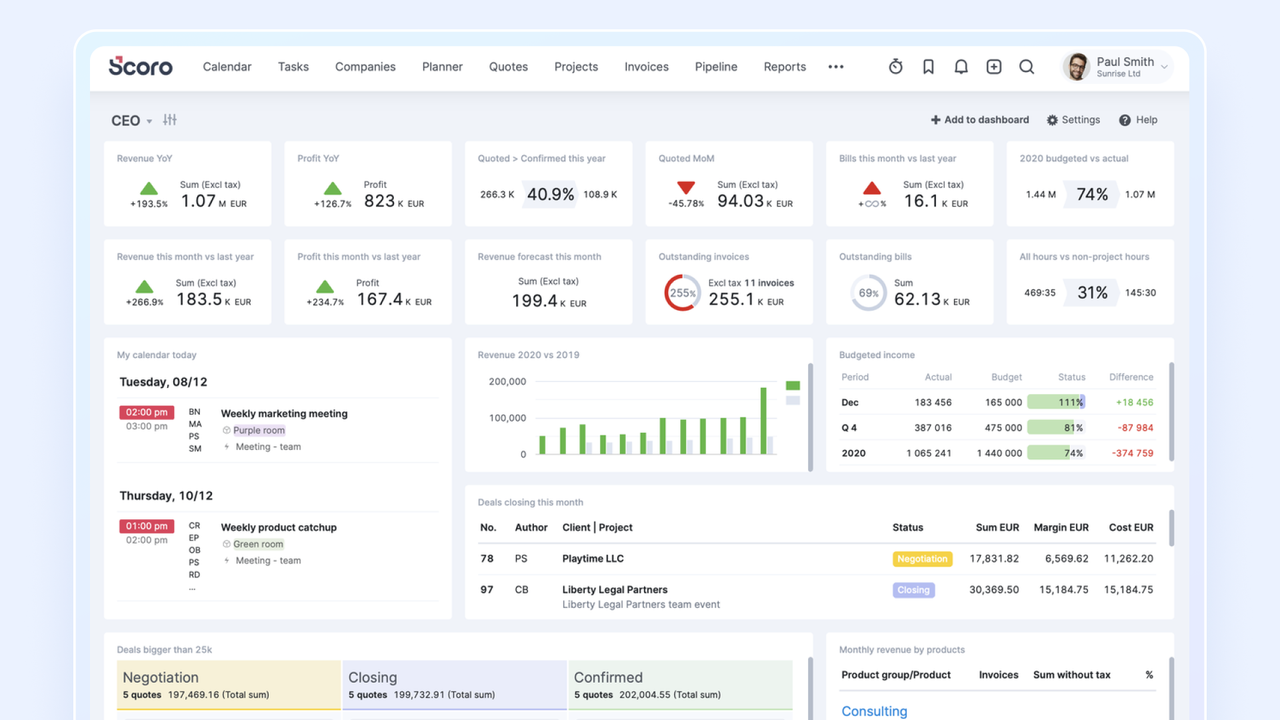
Image source: scoro.com
is an end-to-end work management platform that combines project management with CRM, billing, and financial reporting. It is specifically designed for professional services firms, agencies, and consultancies that need a single source of truth to manage the entire client work lifecycle, from the initial quote to the final invoice.
I view Scoro as a thorough solution for professional services that need to align their billable hours with overall business profitability. The main advantage is its ability to connect individual project tasks directly to financial outcomes, allowing executives to see the profit margins of a specific client in real time. By tracking the entire process from the initial sales proposal to the final invoice, it reduces the need to use multiple separate software platforms.
Key features:
- CRM plus PM plus billing in one record: A single Scoro record carries a deal from quote to project to invoice, so sales pipeline, project delivery, and accounts receivable share the same ID and audit history.
- Real-time project profitability: Each project shows live revenue, cost, and margin by combining logged hours at per-user bill/cost rates with expenses and fixed-fee splits, flagging over-budget projects before invoicing.
- Retainer and fixed-fee billing rules: Supports monthly retainers with hour buckets, milestone-based billing, and automatic rollovers, generating invoice drafts from logged time without manual reconciliation.
- Quote-to-cash reporting: Dashboards tie quotes, orders, timesheets, and invoices to each project so services firms can see billable utilization and margin in real time.
Pros and cons:
Supported platforms: Web, iOS, Android
Integrations: Salesforce, Slack, Google Calendar, QuickBooks, Xero, and more
Not ideal for: Small teams, budget-conscious organizations, or teams wanting a fast, simple setup without minimum user requirements
Reviews:
"Scoro is really good for tracking progress and creating tasks for the team. It's especially helpful for working remotely. It also gives you the possibility of centralising everything from a project into one place, and making it easily accessible to the whole team."
- Bianca C. Account Manager, Small Business, on G2
Notable updates: Scoro's ELI assistant graduated from beta in April 2026, allowing users to ask questions and take actions through conversation. Scoro's AI has transformed from a question-answering layer toward an assistant that can also help carry out work.
Pricing:
- Essential: $26/user/month (billed annually) for unlimited users - Includes task boards, basic Gantt charts, and quoting features
- Standard: $37/user/month (billed annually) for unlimited users - This level introduces project budgets, recurring tasks, and detailed financial reports
- Pro: $63/user/month (billed annually) for unlimited users - Upgrading unlocks advanced capacity forecasting and resource planning
- Ultimate: Custom pricing (billed annually) for unlimited users - The top tier brings advanced automation, multiple custom fields, and tailored onboarding
Read more about Scoro:
15. Teamwork: Best for client-facing teams
Overall score: 7.3
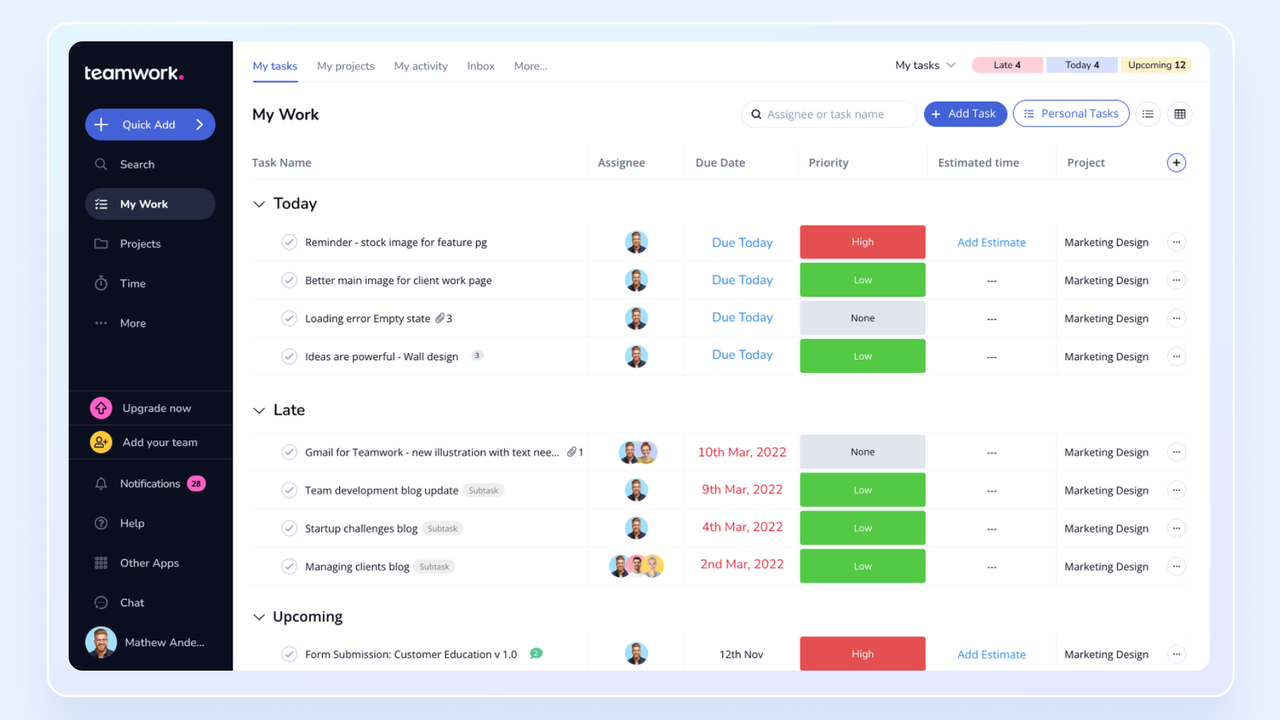
Image source: teamwork.com
is a project management platform built specifically for client work and service-based businesses. It gives you a solid set of tools for managing projects, tracking time, and billing clients. The biggest advantage is that client collaboration and communication live in the same place, so everything stays in one environment.
I find its built-in profitability tracking and its ability to convert logged hours directly into invoices to be highly practical. It addresses the agency model well by making external client collaboration straightforward. Additionally, permission settings can be configured to allow managers to invite clients into the platform to view timelines and approve deliverables while keeping internal drafts and team communications private.
Key features:
- Free client user seats with branded portal: Invite unlimited clients at no extra cost into a branded project portal where they only see tasks, files, and comments marked client-visible.
- Billable rates per user, project, and task: Set different hourly rates by role, project, or task type, and Teamwork generates branded invoices directly from approved time entries with retainer tracking.
- Client-side user permissions: A separate client user tier keeps clients free, limits them to assigned projects, and hides internal tasks, comments, and billing data.
- Project health and utilization reports: Dashboards show budget burn, planned-vs-actual hours, and billable utilization per person, with alerts when a project is on track to lose margin.
Pros and cons:
Supported platforms: Web, iOS, Android, Mac, Windows
Integrations: Slack, MS Office, QuickBooks, HubSpot, Stripe, and more
Not ideal for: Users who prefer a minimalist interface, or budget-conscious teams requiring advanced reporting without paying for top-tier plans
Reviews:
"What I like most about Teamwork.com is how it brings project execution together with real business outcomes—like time tracking and billing—in one place. It doesn’t just help me manage tasks; it also helps me understand the value of the work being done. Because of that, it feels more practical and business-focused than most project tools."
- Aditya T. Software Engineer, Mid-Market, on G2
Notable updates: Teamwork made project setup more conversational in May 2026, pairing a redesigned AI Project Wizard with an MCP connection for managing work through ChatGPT. For agencies and service teams, that links faster planning with a more natural way to update projects from an AI assistant.
Pricing:
- Free: Free for up to 5 users - Supports up to 2 projects with basic milestone and time tracking
- Deliver: $10.99/user/month (billed annually) for unlimited users - This tier introduces up to 300 projects, templates, and automations
- Grow: $19.99/user/month (billed annually) for unlimited users - Stepping up unlocks up to 600 projects, workload management, and advanced budgeting
- Scale: $54.99/user/month (billed annually) for unlimited users - The top plan brings unlimited projects, advanced reporting, and profitability tracking
Read more about Teamwork:
16. Teamhood: Best for combining detailed scheduling with Agile responsiveness
Overall score: 7.2
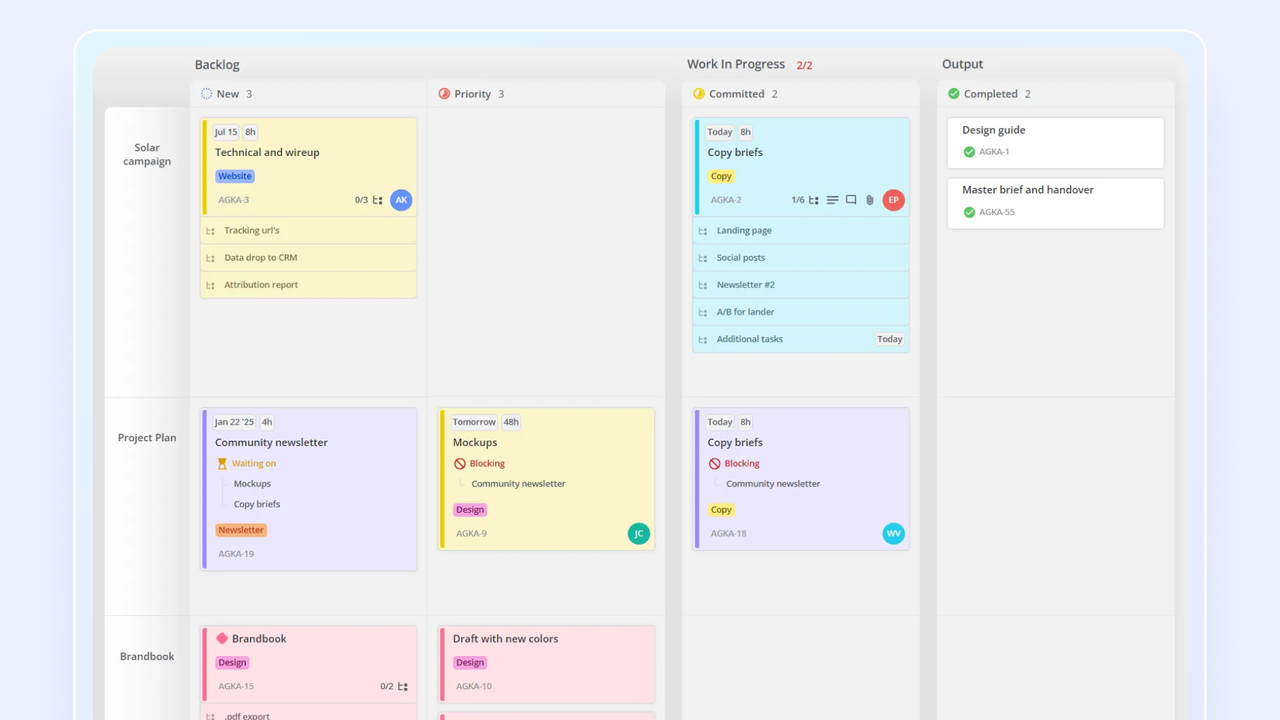
Image source: teamhood.com
Teamhood is a visual project management tool that supports hybrid methodologies by seamlessly integrating detailed Gantt chart scheduling with flexible kanban boards. This approach makes it particularly useful for teams in engineering and manufacturing, which need to manage long-term plans while maintaining day-to-day agility.
I like how clearly it visualizes team workloads, making it easy for managers to identify when an employee is overbooked. It handles hybrid project management smoothly, allowing for structured, top-level planning while enabling the team to execute tasks with Agile flexibility. The advanced Kanban boards are well-designed, featuring swimlanes that let you monitor multiple sub-projects on a single screen without visual clutter. It serves as a practical middle ground for engineering and product development teams.
Key features:
- Gantt and kanban in one synchronized view: Dragging a card on the kanban board updates its date range on the Gantt chart in real time, so planners and doers work on the same tasks without separate exports.
- Workload chart with estimated vs tracked time: Compares each person's estimated effort against logged time on a stacked bar, surfacing under-estimated tasks and burn-out risk early in the sprint.
- Swimlane and WIP limits on kanban: Rows group cards by project, assignee, or priority, and column WIP limits enforce flow policies — proper Kanban Method support that generic board tools skip.
- Earned-value timesheets: Combines time estimates with logged time to show earned value, variance, and remaining effort per task.
Pros and cons:
Supported platforms: Web, iOS, Android, Mac, Windows
Integrations: Jira, Slack, MS Teams, Azure DevOps, Zapier, and more
Not ideal for: Mobile-first users who need a robust mobile app, or teams relying on a vast library of established third-party integrations
Reviews:
"The ease of setup and straightforward UI gets you running in minutes. The ability to customize cards with custom fields makes capturing and filtering data that makes sense for your project and day-today task needs a breeze."
- JW E. Founder, Mid-Market, on G2
Notable updates: Importing complex plans became easier in March 2026, when Teamhood improved its import workflow and added Primavera support.
Pricing:
- Personal: Free for up to 10 users - Provides basic Kanban boards and foundational task management
- Team: €9/user/month (billed annually) for teams with over 3 users - This plan introduces advanced task visualization and basic project tracking
- Business: €18/user/month (billed annually) for teams with over 3 users - Upgrading unlocks comprehensive portfolio management and advanced team collaboration
- Enterprise: Custom pricing (billed annually) for teams with over 25 users - This plan includes more automations, SSO, user provisioning, and advanced security and admin controls
Note: Teamhood's official pricing is in euros.
17. Notion: Best marketing project management software for documentation and task management
Overall score: 7.1
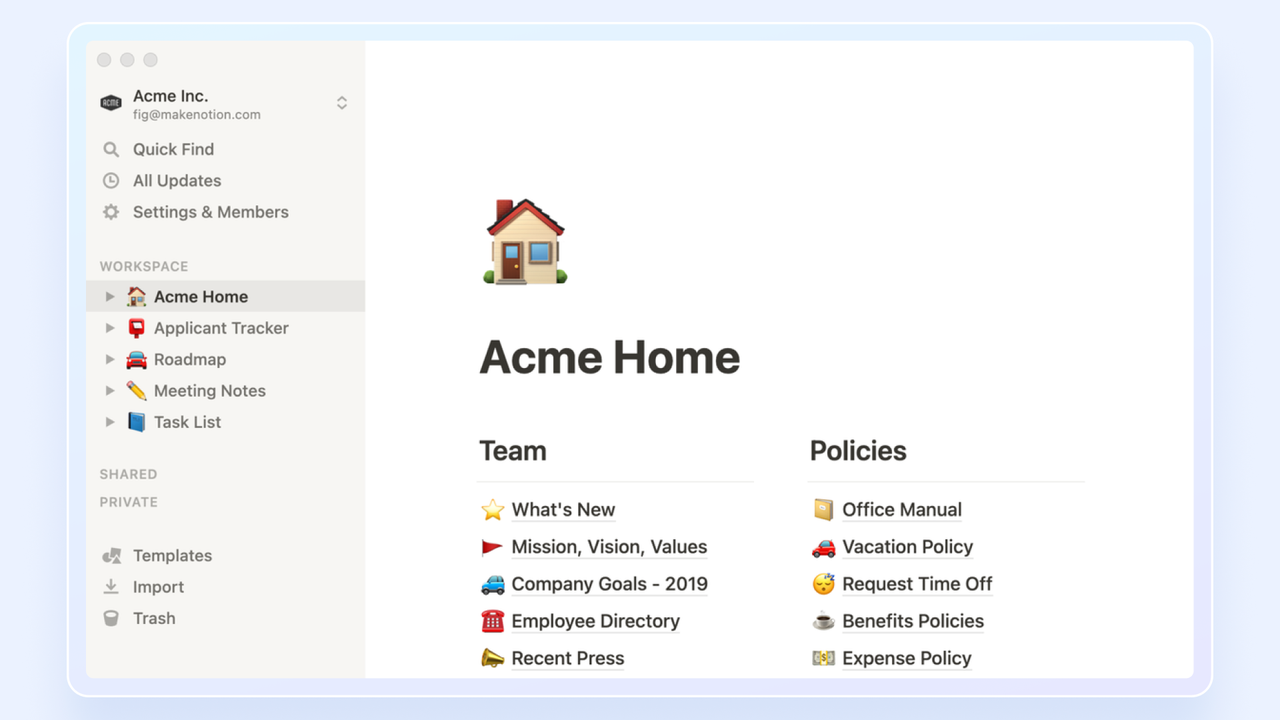
Image source: notion.com
is an all-in-one workspace that combines notes, documents, wikis, and project management into a single, highly customizable platform. It has a modular, building-block design that allows teams to create their own tools and workflows, making it perfect for those who want to unify their knowledge base with their task management system.
I appreciate how it merges knowledge management with task tracking, reducing the need to switch between a document editor and a separate task application. Its flexibility allows users to embed a Kanban board directly into a meeting agenda or a policy document. This adaptability means teams can build custom internal tools and databases that align with their specific operational processes. It functions well for users who prefer to design their own structural frameworks.
Key features:
- Block-based pages mixing docs and databases: Any page can embed a database view, toggle list, synced block, or inline math alongside prose, so project briefs, specs, and trackers live in the same editable canvas.
- Relation and rollup properties across databases: Link two databases with a relation property and roll aggregated values up (count, sum, latest date), building lightweight relational models without SQL.
- Linked database views with per-view filters: One source database can appear on dozens of pages as filtered views (My tasks, This sprint, Blocked), so each team sees its slice without duplicating data.
- Notion AI inside the page: Summarizes meeting notes, autofills database fields, and generates action items from any page without switching apps.
Pros and cons:
Supported platforms: Web, iOS, Android, Mac, Windows
Integrations: Slack, Google Drive, Jira, GitHub, Make, and more
Not ideal for: Teams wanting a ready-made project management solution right out of the box, or those requiring built-in time tracking and advanced reporting
Reviews:
"I use it mostly to organize creative ideas or work through structural things like budget organization. I like it best that it feels like it's own website pages personalized to you."
- Kristina L. Email Copywriter and Book Editor, Small Business, on G2
Notable updates: Notion focused on giving agents better context in October 2026, adding shared context, MCP connections, governance controls, stronger version history, and database permissions. The theme is control as much as capability: agents get more context, while teams get stronger permissions and governance.
Pricing:
- Free: Free for up to 10 guests - Allows unlimited blocks for individuals and a 5MB file upload limit
- Plus: $10/user/month (billed annually) for unlimited users - Moving to this tier introduces unlimited blocks for teams, unlimited uploads, and a 30-day page history
- Business: $20/user/month (billed annually) for unlimited users - Stepping up unlocks advanced page permissions, a 90-day history, and integrated AI
- Enterprise: Custom pricing (billed annually) for unlimited users - The highest plan brings advanced security controls, audit logs, and unlimited page history
Read more about Notion:
18. Airtable: Best for flexible automated data organization
Overall score: 7.0
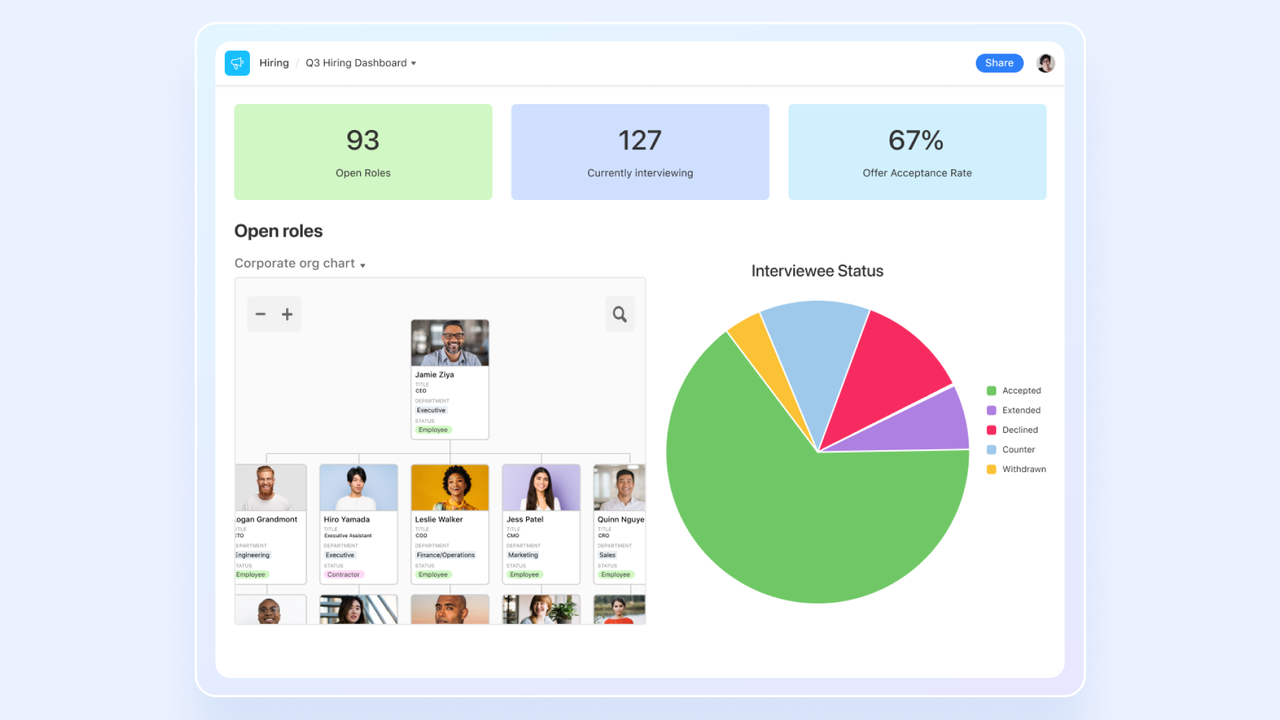
Image source: airtable.com
elevates the familiar spreadsheet into a powerful and flexible database, allowing users to organize any type of information, project, or data. Its ability to create relationships between data, build custom views, and automate workflows makes it ideal for teams that need to manage complex information in a collaborative and visual way.
I am most impressed by its flexibility and its automation capabilities, which can reduce the need for manual data entry. It is highly effective for linking complex datasets together—such as connecting a specific task to a client profile and an inventory item—to build custom workflows. The Interface Designer is a practical feature that I used often, which allows users to build simplified dashboards so management can view high-level metrics without navigating the raw database.
Key features:
- Linked records across bases: True relational links join records across tables with lookup and rollup fields, supporting many-to-many relationships that pure spreadsheets cannot model.
- Sync tables from external sources: Mirror live data from Salesforce, Jira, GitHub, Google Drive, and SQL databases into an Airtable base, keeping the single source of truth upstream while enabling Airtable-side views and automations.
- Airtable Automations & AI fields: Trigger scripts and webhooks, and use generative AI fields that classify records, extract data from text, or summarize linked rows.
- Interface Designer apps: Build no-code internal apps on top of a base with record-detail layouts, dashboards, and approval screens that read and write the underlying data, with per-user access.
Pros and cons:
Supported platforms: Web, iOS, Android, Mac, Windows
Integrations: Salesforce, Jira, Google Drive, Box, Zendesk, and more
Not ideal for: Organizations looking for a plug-and-play PM tool, or rapidly scaling teams that need advanced features without escalating costs
Reviews:
"Airtable brings the power of relational databases to builders who are not software engineers by trade. It allows a wide range of users to build custom apps and run their everyday workflows much more easily and efficiently"
- Ernesto S. Director, Small Business, on G2
Notable updates: Airtable's August 2026 updates moved its AI connections beyond record lookup: the MCP server could build interfaces and automations, while connected assistants could configure workflow logic.
Pricing:
- Free: Free for up to 5 editors - Includes unlimited bases with up to 1,000 records per base
- Team: $20/user/month (billed annually) for unlimited users - This level expands limits to 50,000 records per base, 25,000 automation runs, and standard sync
- Business: $45/user/month (billed annually) for unlimited users - Upgrading unlocks 125,000 records per base, 100,000 automation runs, and advanced admin controls
- Enterprise Scale: Custom pricing (billed annually) for unlimited users - The top tier brings 500,000 records per base, enterprise API access, and robust security
Read more about Airtable:
19. Hive: Best for flexible, user-driven project management
Overall score: 6.9
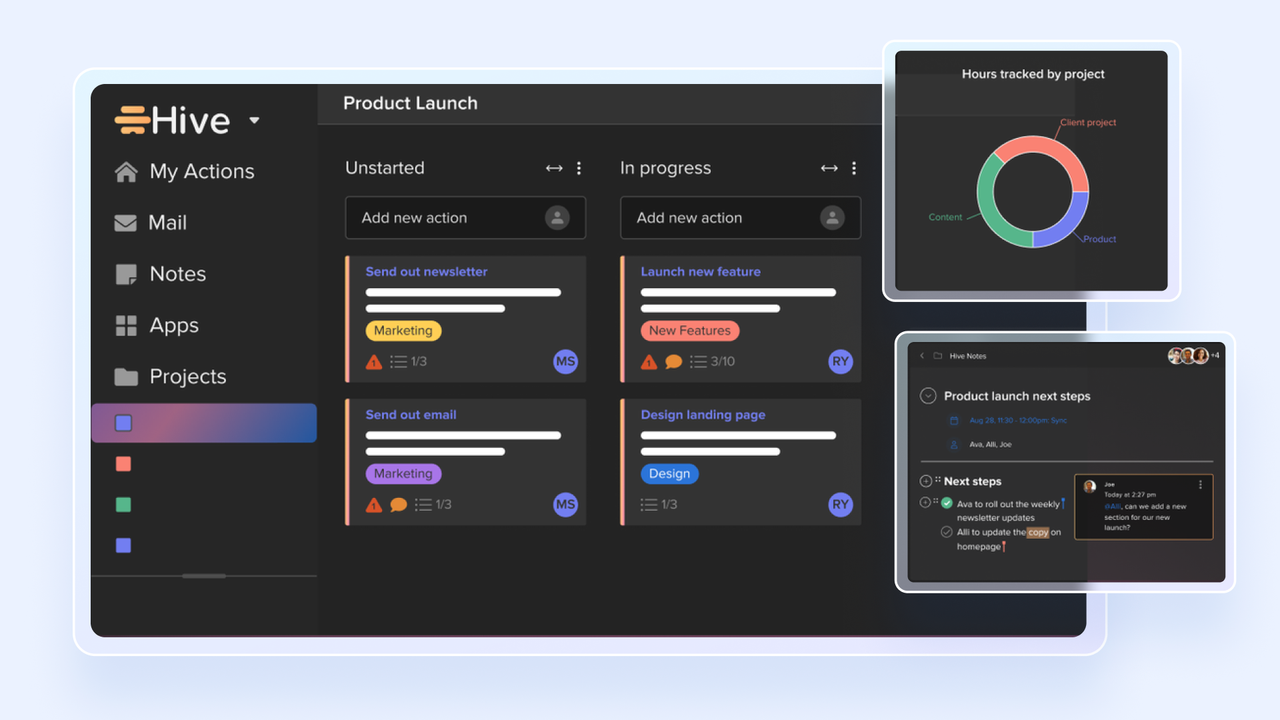
Image source: g2.com
markets itself as the first democratic project management platform, built based on user feedback. It aims to be a flexible workspace that centralizes project tasks, team communication, and files, with multiple project views and deep integrations.
I appreciate that it includes an email inbox and team chat directly in the main dashboard, which helps reduce context switching throughout the workday. The ability to turn an incoming client email into an actionable task card within the same window is a practical workflow improvement. Moreover, allowing users to vote on upcoming features is a transparent approach to software development that keeps the platform aligned with actual user needs.
Key features:
- Action cards with sub-actions: Each task card can host nested sub-actions, forms, attachments, and dependencies, so complex workstreams live on one card.
- Native chat and email inside tasks: HiveMail and HiveChat live beside the task list, so a Gmail/Outlook thread or 1:1 message can be converted into a Hive action with one click, keeping context attached.
- Flexible project views per user: The same project data can be rendered as Gantt, Kanban, Calendar, Portfolio, Summary, or Table views, and each user can save their preferred layout independently.
- Hive Automate (HiveMind AI): Native AI assistant and no-code automation builder that drafts tasks, writes replies, and routes work between apps like Slack, Gmail, and Zoom.
Pros and cons:
Supported platforms: Web, iOS, Android, Mac, Windows
Integrations: Jira, Slack, GitHub, Box, Shopify, Salesforce, and more
Not ideal for: Teams that strongly prefer a minimalist, uncluttered design
Reviews:
"Hive is quite easy to get the hang of. Whilst we don't use all the components of Hive, what we do use has been very helpful in our day-to-day business - we can leave each other notes and assign members to tasks to make it easy to see what needs to be done for every job."
- Sam M, Project Coordinator, Small Business, on G2
Notable updates: Hive made its AI setup more connected in October 2026 by adding a Connect your apps section to its MCP and AI workspace settings.
Pricing:
- Free: Free for up to 10 members - Includes unlimited tasks, native messaging, and 200MB storage
- Starter: $5/user/month (billed annually) for up to 10 members - This level introduces up to 10 active projects, Gantt views, and unlimited storage
- Teams: $12/user/month (billed annually) for unlimited users - Upgrading unlocks unlimited projects, advanced time tracking, and customizable dashboards
- Enterprise: Custom pricing (billed annually) for unlimited users - The highest tier brings enterprise-grade security, custom analytics, and dedicated onboarding
Learn more about Hive:
20. Motion: Best for AI-powered scheduling and project management
Overall score: 6.8
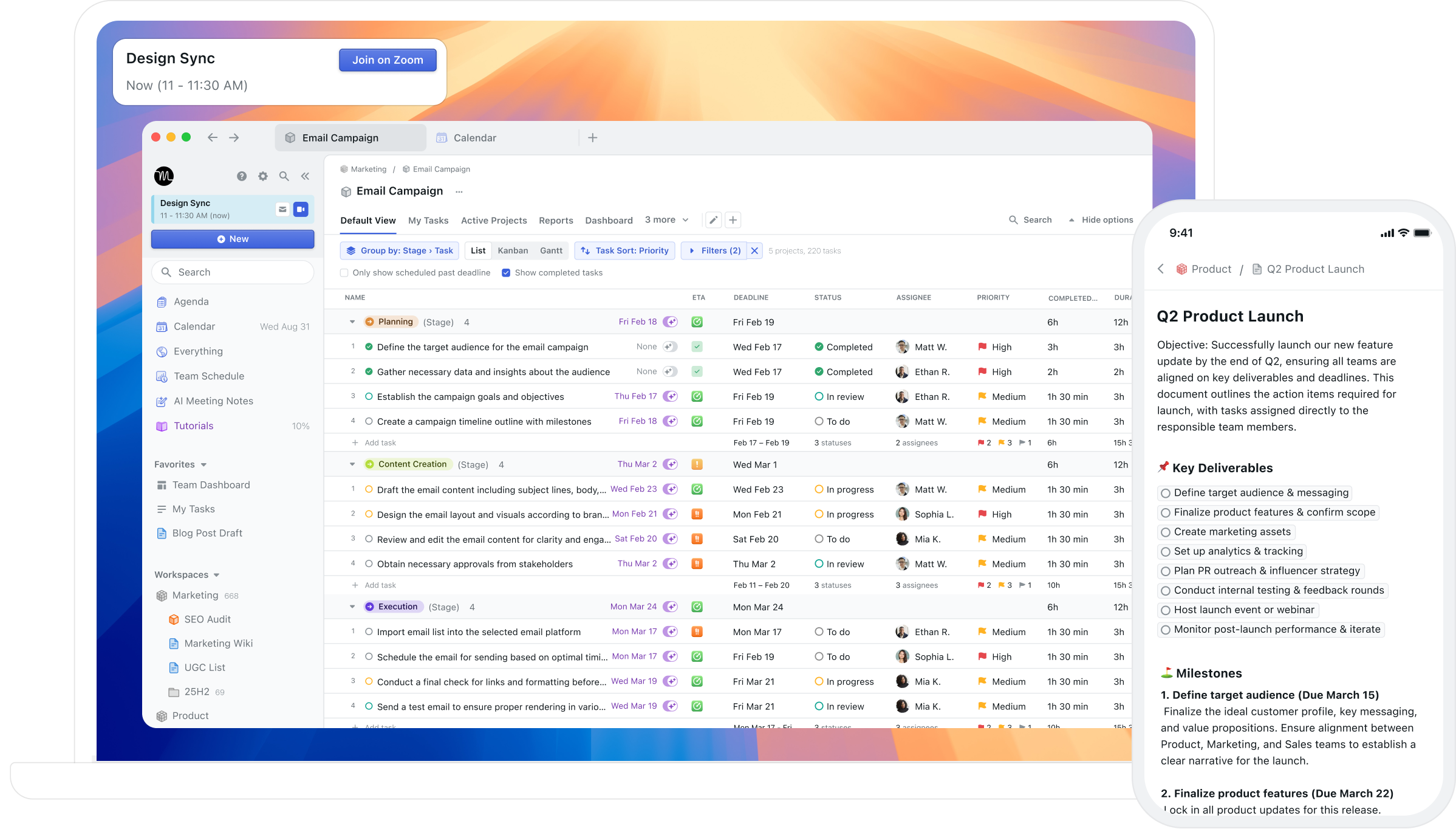
Image source: usemotion.com
Motion is an AI-powered productivity platform that merges your task list with your calendar, automatically scheduling work into open time blocks based on deadlines, priorities, and time estimates. Founded in 2019, it has grown from a simple auto-scheduler into a full productivity suite that combines AI task planning, project management, meeting scheduling, and docs in a single workspace. It's designed for professionals and teams who want to stop manually time-blocking their days and let AI handle the cognitive load of deciding when work gets done.
What I like most about this platform is its intelligent auto-scheduling engine, which places tasks into optimal calendar slots and dynamically reshuffles them whenever plans change, such as when a meeting is added or moved. Motion's AI Project Manager can generate an entire project, with tasks, deadlines, and assignees, from a short description, and it works backward from deadlines to flag at-risk work days or weeks in advance. When paired with team capacity planning and automatic status updates, it removes much of the manual babysitting that traditional PM tools require, making it a strong fit for busy individuals, founders, and small-to-mid-sized teams.
Key features:
- AI auto-scheduling: Automatically time-blocks tasks into your calendar and re-optimizes your plan dozens of times a day as priorities and meetings change.
- AI project management: Build entire projects in seconds, with tasks, deadlines, and assignees, and view work in list, board, timeline, and Gantt formats.
- Deadline intelligence: Works backward from due dates to schedule work in chunks and proactively warns you when a task or project is at risk of slipping.
- AI meetings and docs: An AI notetaker captures meeting summaries and action items, while AI Docs turn messy notes into organized tasks and projects.
Pros and cons:
Supported platforms: Web, iOS, Android, Desktop
Integrations: Google Calendar, Outlook, iCloud, Gmail, Zoom, Google Meet, Microsoft Teams, Slack, and more
Not ideal for: Teams on a tight budget seeking a free plan, or users who need a tool to discover and capture tasks for them rather than schedule tasks they already know about
Reviews:
"Motion has elevated my productivity to the max. I am am able to enter task for different projects and have an organized and timely calendar to follow. I use motion every single day and it has been instrumental to improving my work flow."
- Sabrina A. Senior Director Curriculum Development, Small Business, on G2
Notable updates: No major update announced in 2026.
Pricing:
- Pro AI: $19/user/month (billed annually) - includes chat, projects, tasks, and other collaboration tools and 7,500 AI credits.
- Business AI: $29/user/month (billed annually). Includes everything in Pro AI and advanced dashboards and reports, timeline and Gantt charts, and more.
Other project management tools for 2026
These are the project management tools I tested that didn't make the top 20, but they might still be a good fit depending on your needs.
- : An intuitive Gantt chart tool for project planning and scheduling. Teams can visualize tasks, set dependencies, and track progress with a simple drag-and-drop interface.
- ProjectManager: A comprehensive platform combining task management, Gantt charts, and resource planning. ProjectManager allows teams to assign tasks, monitor workloads, and generate reports to keep projects on track.
- : A web-based Gantt chart solution that simplifies project scheduling and collaboration. Users can create timelines, assign tasks, and track progress visually, with built-in time tracking.
- : A free task management tool with lightweight project management features. It helps users create projects, set priorities, and track deadlines, ideal for individuals or small teams.
- Forecast: An AI-powered platform that automates planning, resource allocation, and project insights. It offers time tracking, budget management, and predictive analytics to optimize workflows.
- Zenhub: A project management tool built into GitHub for software development teams. It enables sprint planning, issue tracking, and workflow visualization without leaving the development environment.
- Taiga: A project management platform for agile teams, supporting Scrum and Kanban workflows. Users can manage backlogs, sprints, and tasks while tracking progress through intuitive boards and dashboards.
- OpenProject: Another open-source project management tool. It offers Gantt charts, task tracking, time tracking, and collaborative project planning for both small and large teams.
- : A collaborative online whiteboard for project planning and visualization. Teams can map workflows, brainstorm, and organize tasks using templates such as Kanban boards and mind maps.
Project management tools by use case
Best project management collaboration tools
Recommended tools: Lark, Asana
Why it fits: Lark excels here by unifying chat, documents, and tasks into a single workspace, eliminating data silos between departments. Asana is highly effective at cross-functional alignment due to its portfolio views and timeline dependencies, allowing different teams to see how their work impacts the bigger picture.
Potential pitfalls: Tool adoption resistance. If one department refuses to leave their legacy apps, the cross-functional visibility breaks down.
Best project management tool for field and remote teams
Recommended tools: Lark, Trello
Why it fits: Lark features an incredibly robust mobile app that retains desktop-level functionality, allowing field workers and remote teams to submit approvals, chat, and update project records on the go. Trello offers a highly visual, swipe-friendly mobile interface that makes quick, on-the-go task updates effortless for field teams.
Potential pitfalls: Complex planning features like adjusting Gantt charts or building automations are inherently difficult to execute on mobile screens.
Best project management tool for security and compliance
Recommended tools: Microsoft Planner, Wrike
Why it fits: Microsoft Planner natively inherits the enterprise-grade security, compliance protocols, and governance of the Microsoft 365 ecosystem. Wrike offers enterprise tiers designed specifically for strict compliance, featuring advanced admin controls, SSO, and detailed audit logs.
Potential pitfalls: Rigid permissions and strict governance can create bottlenecks, slowing down fast-moving tasks. Additionally, accessing these compliance features almost always requires the most expensive enterprise tiers.
Best open-source project management tool
Recommended tools: OpenProject, Taiga
Why it fits: OpenProject provides a comprehensive, open-source alternative to traditional enterprise tools, complete with Gantt charts and time tracking. Taiga is a powerful open-source option specifically tailored for agile teams running strict Scrum and Kanban workflows.
Potential pitfalls: Self-hosting requires dedicated in-house technical expertise to maintain, secure, and update the software. Furthermore, community support may not resolve urgent issues as quickly as dedicated enterprise customer service.
Best agile project management tool
Recommended tools: Jira, Teamhood
Why it fits: Jira provides robust support for sprint planning, backlog management, and Scrum frameworks. Teamhood natively combines Kanban boards with detailed scheduling for flexible, agile execution.
Potential pitfalls: Jira's complexity can be overwhelming for non-technical teams, while Teamhood has fewer third-party integrations compared to older tools.
Read more: .
Best construction and real estate project management software
Recommended tools: Lark, Wrike
Why it fits: Lark's robust mobile app allows on-site workers to share real-time updates, photos, and approvals directly from the field. Wrike handles the complex, multi-phase scheduling, strict task dependencies, resource allocation, and Gantt charts needed by back-office project managers.
Potential pitfalls: Wrike's advanced features have a steep learning curve and can be expensive to scale, while Lark may require initial configuration to align perfectly with highly traditional construction workflows.
Read more: .
Best free project management tool
Recommended tools: Lark, ClickUp
Why it fits: Lark offers a highly generous free tier that includes 100GB of storage and core tools for up to 20 users. ClickUp provides a feature-rich free plan for unlimited users, including Kanban boards and collaborative docs.
Potential pitfalls: Free plans eventually hit storage limits or restrict access to advanced reporting, automations, and enterprise security features as the team scales.
Read more: .
Project management tools by business size
To make choosing the right PM tool even easier, here's a breakdown of common considerations and platform suggestions based on your business size:
Project management tools by team function
How to choose the right project management tool for your team
Here are some quick tips on finding a project management tool that your team will love. The "best" platform isn't necessarily just the one with the most features, but rather one that your team will actually use every day.
Before you jump into the free trials, take a minute to define what you actually need. I've seen teams struggle with powerful, expensive software simply because it was too complicated for their needs. Ask yourself these key questions to narrow down your search:
- How complex are your projects? If you're managing simple to-do lists, a clean kanban board is perfect. If you're juggling complex projects with multi-stage dependencies, you'll need robust Gantt charts and resource management, like those in Lark and Microsoft Planner.
- What's your preferred workflow? Do you prefer Agile sprints? A tool like Jira is built for that. Do you prefer highly visual, customizable boards? Lark, monday.com, or ClickUp might be your best bet. Are you a traditional spreadsheet user? Smartsheet will feel right at home.
- What are your reporting needs? Determine if you need real-time analytics to track team performance, budgets, and project health. If deep reporting and custom dashboards are a priority, platforms like Lark, Asana, or Smartsheet are highly recommended.
- Do you need client collaboration? Consider how often you need to share progress or deliverables with external stakeholders. If client transparency is key, look for tools that offer secure guest access or client portals, like Basecamp or Notion.
- How much automation do you need? Evaluate how much time your team wastes on repetitive administrative tasks. To streamline your processes, choose tools with strong no-code automation builders and integrations, such as Lark or monday.com.
- What's your budget? Price models vary wildly. Most charge per user, but some (like ProofHub) offer flat-rate pricing. Don't just look at the starting price. You also need to look at what features are locked behind higher-priced tiers.
- What's your team size and structure? A tool with a generous free plan for small teams (like Lark or Trello) has different benefits than an enterprise-grade platform (like Adobe Workfront) built for advanced security and managing hundreds of users.
What features should I look for in project management tools?
What counts as a good solution depends on your team's needs. A may be better if you're only tracking basic to-dos, while project management software may be needed for more complex undertakings.
Use the checklist below to prioritize what matters, with tools known to execute each area well.
- Real-time collaboration: Built-in chat, @mentions, comments, versioned file sharing, and shared calendars keep discussion in-context. Strong picks: Lark, Basecamp, Notion.
- Task management & dependencies: Create, assign, prioritize, deadline, subtask, and tag work with full status tracking. Strong picks: Asana, ClickUp, Wrike.
- Visual planning: Seeing data in different views, such as and kanbans, can reveal critical paths, dependencies, and status at a glance. Strong picks: Lark, Smartsheet, Teamhood, Trello.
- Reporting & dashboards: Customizable dashboards and auto-aggregated progress reports for stakeholders. Strong picks: ClickUp, Scoro, monday.com.
- Resource & budget planning: Spot who is free vs. stretched and track spend against budget. Strong picks: Adobe Workfront, Wrike, Scoro.
- Time tracking: Native timers tied to tasks for billing, payroll, and profitability. Strong picks: Teamwork, Hive, Scoro.
- Project portfolio management: One view across many projects to flag risk and rebalance priorities. Strong picks: Adobe Workfront, Wrike, Jira.
- Customization & automation: No-code rules, custom fields and statuses, and trigger-based notifications. Strong picks: Lark, monday.com, ClickUp, Airtable.
- AI scheduling & assistants: Agents that execute tasks and build schedules from plain language. Strong picks: Lark, Motion, Asana.
- Mobile apps: Full-featured iOS/Android for remote and field teams. Strong picks: Lark, Asana, Trello.
- Integrations & open APIs: Connectors for CRM, accounting, dev, and comms, plus APIs for custom work. Strong picks: ClickUp, monday.com, Zoho Projects.
How AI features work in project management tools
The bigger shift in 2026 is what the AI is allowed to do. Just a year ago, it could basically just draft text and answer simple questions. Today, a lot of tools come with advanced AI features and agents that can act on the task itself. Here are the five trends worth knowing before you buy.
Agents that actually do the work
Team members can hand off a repeatable job, such as intake or status chasing, and the agent executes it inside your existing boards instead of just suggesting what to do. For example, Asana's AI Teammates can pick up a task and run it end-to-end.
Summarize-and-catch-up as a default
Most tools can summarize long threads, docs, and meetings into a few lines, which matters most when you join a project late and need the gist without reading three weeks of comments. Lark AI Meeting Notes, for instance, generates a summary doc and organizes decisions into searchable chapters.
Turning plain language into tasks and workflows
You can now simply describe what you want to configure automations. monday's AI Blocks, for example, turn a plain-language request into a working workflow.
Data analysis with context
The more useful implementations live in the table itself, where a column can translate, categorize, or summarize its own rows, so tagging that used to be manual just happens. For example, the built-in AI in Lark Base can help you make sense of your data with the click of a button.
Predictive signals and risk flags
AI can read historical and in-flight data to flag slipping timelines and workload imbalances before they become problems. Some tools, such as Wrike's, have shown that they are capable of surfacing at-risk work early.
What are the benefits of project management software?
A good project management tool can make a big difference for both project managers and team members. Here are some key benefits:
Improved organization and centralized information
Workers spend 20% of their workweek looking for information or tracking a colleague down. How? Project management software acts as a single source of truth, centralizing tasks, deadlines, documents, and communications so everyone works from the most up-to-date details. Enhanced team collaboration
These platforms facilitate seamless teamwork through real-time communication, clear task assignments, file sharing, and progress updates. Indeed, ineffective communication is the main cause of project failure 33% of the time, according to PMI. Remote and distributed teams are especially vulnerable and can benefit the most. Visual project timelines
Gain clear oversight with Gantt charts and timelines that show task dependencies, critical paths, milestones, and progress at a glance, making it easier to anticipate bottlenecks and manage deadlines.
Streamlined task management
Team can more efficiently create, assign, track, and manage tasks. With features like priority setting, status updates, and notifications, teams can stay on top of their responsibilities, leading to increased accountability and better workload distribution.
Improved resource management
Project management tools help teams to optimize the allocation and utilization of resources, including personnel, budget, and equipment, helping to prevent overallocation and ensure project resources are used effectively.
Higher efficiency
By improving planning, tracking, and collaboration, PM software helps teams to complete projects efficiently. Clear visibility into progress and potential roadblocks allows for proactive adjustments, so projects can stay on schedule and budget.
Better risk management
Many tools offer features to identify, track, and mitigate potential risks. Early identification of issues allows teams to address them proactively, minimizing their impact on the project's timeline and budget.
Standardized processes and reporting
Implement consistent project management methodologies across your organization. These tools often come with reporting features that provide valuable insights into project performance, team productivity, and resource allocation, aiding in data-driven decision-making.
Increased accountability
With clearly defined roles, responsibilities, and transparent task tracking, team members are more accountable for their contributions, leading to improved ownership and performance.
Reap these benefits with Lark
How do I ensure successful implementation?
According to a , 70% of digital initiatives fail to reach their goal, so choosing the right software is only half the battle. Many companies face challenges during implementation, often not because of the tool itself, but due to a lack of a proper execution strategy. Rolling out the software successfully is what is critical for long-term success. Why? Because a powerful tool that no one uses is worthless.
Here are a few tips to ensure smooth team adoption:
- Get leadership buy-in: Implementation should be championed from the top down. Management should clearly articulate the core objectives of introducing the new tool (e.g., boosting efficiency, improving cross-departmental communication) and specify its significance for the company's future to build team consensus. When leaders actively use and advocate for the new tool, it signals its importance and encourages the rest of the team to get on board.
- Implement a phased rollout: Rolling out a complex system comprehensively all at once can easily trigger confusion and resistance. You can select a medium-sized team with a higher acceptance of digital tools for a small-scale pilot instead. The key is to set clear phased goals and treat the implementation itself as a project to be gradually expanded.
- Establish clear "Rules of the Road": Don't just give your team a login and wish them luck, but use this opportunity to review and optimize your existing project workflows. Create and share a simple document outlining how the tool should be used. For example: "All task requests must be submitted via the form," or "Follow uniform task naming rules." Additionally, you can use built-in templates to ensure consistency across the organization.
- Provide hands-on training: Host a training session (or two) to walk the team through the core workflows they'll be using every day to demonstrate how the new tool practically simplifies their daily tasks so they proactively embrace the change. Record the session so new hires can watch it later. You can also establish an internal community or dedicated Q&A channels (such as a mutual support group) for real-time troubleshooting.
- Celebrate early wins: Once the tool is up and running, highlight a project that was completed more smoothly or a process that was made easier because of the new software. Showing tangible benefits and recognizing individuals who actively use the tool is a good way to win over skeptics and build momentum. Furthermore, continuously collect users' pain points through surveys or meetings, flexibly adjusting system configurations or workflows based on this feedback.
- Integrate with existing systems: To prevent the new tool from becoming just another "information silo," ensure it integrates smoothly with your existing systems (like CRM, ERP, or HR) right from the planning phase. All-in-one platforms offer an advantage in this regard, as they can save you from cumbersome API integrations and constant app switching.
Read more: , , .
What are the different types of project management software?
The market offers a diverse range of project management apps, each tailored to different needs, team structures, and project complexities:
Cloud-based (SaaS) solutions
These platforms are hosted by the vendor and accessed via the internet. They offer significant advantages in terms of accessibility (from anywhere with an internet connection), real-time data synchronization for all users, automatic updates, and typically operate on a subscription-based pricing model, which can be cost-effective.
Agile project management tools
Specifically designed to support methodologies like , , or , these tools are popular in software development and other fast-paced industries. They often feature sprint planning boards, backlog grooming capabilities, burndown/burnup charts, and facilitate iterative development cycles and continuous feedback.
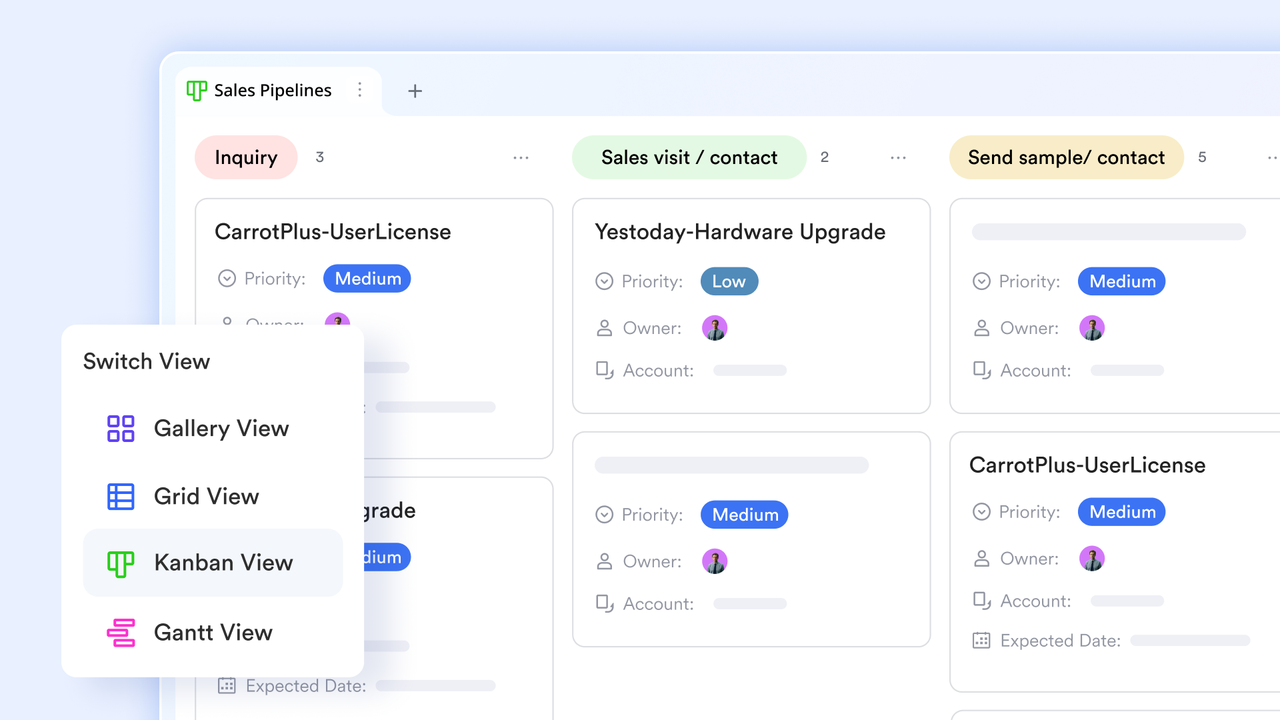
Integrated/all-in-one platforms
These aim to provide a holistic suite of functionalities beyond core project management. They often combine project planning with document management, team communication channels (chat/forums), time tracking, invoicing, and sometimes even CRM features, thereby reducing the need for multiple disparate software tools.
Traditional/Waterfall focused software
Some tools are geared more towards traditional project management methodologies like Waterfall, which emphasize linear phases and upfront planning. These often feature robust Gantt chart capabilities, critical path analysis, and detailed dependency management, making them suitable for projects with well-defined scopes and sequential tasks.
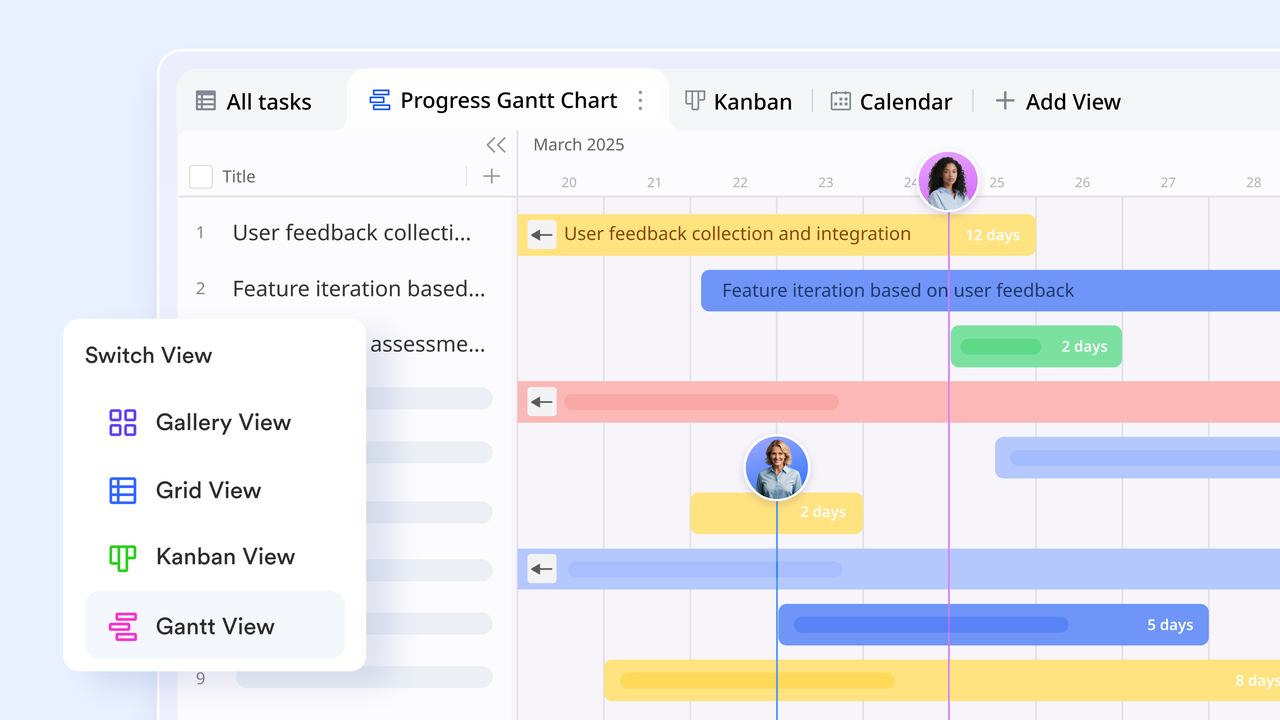
Understanding these distinct categories allows organizations to select a solution that best aligns with their established workflows, typical project complexity, and collaborative requirements.
Read more:
Maximize your productivity with an all-in-one project management tool
With the right project management tool, your team's day-to-day work can become easier. You can spend less time in confusing email threads or figuring out who's doing what, and more time actually getting things done together.
Of all the tools tested and reviewed, I found Lark's solution to be above the rest. Task management, knowledge management, scheduling, videoconferencing, calendar, messaging, and document tools are unified on one platform. Everything just clicks when you can consolidate your operations, like from sales, campaign management for , applicant trackers for , and more on a single platform.
Try Lark for free, no credit card needed
FAQs on project management tools
What is the best AI project management tools for my team?
Several platforms stand out for their AI depth. Our Best AI Project Management Tools guide ranks the top picks for 2026, including Lark that offers all-in-one AI across chat, docs, Base, and Meeting Notes. ClickUp is another top tool, which supports natural-language task creation through ClickUp Brain. Then, we have Asana, which provides AI Studio summaries and smart task prioritization. The most important thing is to pick the one whose AI features map to your team's biggest bottleneck, whether that is meetings, planning, workload balancing, or risk tracking.
What are some key terms for project management?
There is no shortage of jargon and technical terms in the world of project management. Here are a few that you should know:
What are project management tools?
Project management tools provide a central workspace for teams to plan, organize, and execute their work. Consider such a tool your single source of truth for any project. Inside this digital hub, you can define objectives, build schedules, assign tasks, and manage resources, all while keeping the entire team aligned and on schedule. Most are online project management tools, so the whole team works from the same live view in any browser.More than just a task tracker, a great platform boosts collaboration and offers real-time visibility into a project's health. Scattered email chains and messy spreadsheets are replaced by visual timelines, automated workflows, and dashboards instead. As a result, teams can spot risks, adapt to changes, and stay focused on successful delivery.
Is there any project management software with free plans?
Yes, there is free project management software, such as Lark, ClickUp, and Monday. Most project management tools also offer limited-time free trials, such as Asana, Trello, and Jira. Unlike other project management software, Lark's free plan is very generous, giving up to 20 members access to 11 powerful tools and workflow automation. With Lark, teams not only get a free project management tool, but also task management software, knowledge management, team collaboration, and more. Read more: The Ultimate Guide to Free Project Management Software.
What's the best personal project management tool?
The best personal project management tool really depends on your specific habits and workflows, but if you want a single platform that can handle absolutely everything, Lark is my top pick. It's refreshing to use such a versatile workspace where you can manage your personal calendar, notes, messages, and daily tasks without needing to constantly switch between different apps. If you just want a lightweight, visual board for simple personal to-dos, Trello is a solid runner-up.
What is the best project management software for small teams or businesses?
For small businesses or small teams, simplicity and budget friendliness are key. Lark delivers in both aspects, with an all-in-one solution that unifies project management with chat, documents, and approvals. Its free forever plan, which supports up to 20 users, makes it an exceptionally cost-effective and powerful option for growing teams.
Which project management tool is easiest to use?
With its simple drag-and-drop boards, Trello is incredibly easy to learn for basic task tracking. For a more comprehensive solution, Lark's all-in-one platform makes completing day-to-day tasks and collaboration a lot easier, without the need for constant app switching.
Which project management tools support both Gantt and Kanban?
Lark, Wrike, and Hive all allow users to seamlessly switch back and forth between Gantt and Kanban views as needed. Additionally, Teamhood is notable because it natively combines interactive Gantt scheduling with Kanban swimlanes on a single screen.
What is the best project management software for enterprise teams?
Adobe Workfront and Wrike are excellent traditional enterprise choices, offering comprehensive features like strategic portfolio planning and massive-scale resource management. Lark is also a top contender for large organizations looking to consolidate their software stack into a single, AI-powered superapp. Lark's Enterprise plan provides the advanced security, compliance, and management controls that large teams require, while significantly lowering overall software costs.
What are the best project management tools for different industries?
Your project management needs may differ depending on the industry you're in. Here are some of our guides to help you find the right tools:TechnologyMarketingProfessional servicesConstructionOthers
How can I use AI for project management?
60% of project managers are eager to explore AI, according to a McKinsey report, so the growth potential of this technology is high. The landscape is also evolving rapidly, and its role in project management is changing just as fast. Today, you can use AI to automatically generate complete project schedules from a simple brief, summarize long meetings into clearly assigned action items, and balance team workloads in real time. You can now also use AI to flag unclear tasks, generate weekly progress summaries, or highlight key feedback insights. In short, as AI technology advances, the use cases for project management will expand as well. To learn more, see 10 Must-Have AI Project Management Tools for Smarter Work.
What project management tools do you recommend for switching from Excel?
If you are moving away from Excel, look for a tool that keeps the familiar grid view while adding real project management power. Lark is a strong choice, since its Base offers spreadsheet-style tables alongside Gantt and Kanban views, automations, and built-in messaging and docs. Asana, monday.com, and Smartsheet also ease the transition for teams that want a structured, collaborative upgrade.
This article was last updated on Oct 29, 2026.
- Oct 29, 2026: Added product update section for each product, updated pricing, and simplified some sections
- Aug 31, 2026: Added a new section on AI trends in project management tools and updated product ranking and details
- July 1, 2026: Updated product descriptions
- May 8, 2026: Added a main tradeoff column to the comparison table.
- April 20, 2026: Updated the latest pricing for all products, added a guide for choosing project management tools based on use cases, added integration support, and add-on details for some products.
Related reading