Searching for a to do list app for Windows usually leads you down a rabbit hole of personal productivity tools. But if you manage a team, tracking your own chores is only half the battle. You need a reliable way to organize your to-dos while assigning work and monitoring team progress—without constantly switching windows. I have evaluated dozens of desktop clients to find the ones that respect your time and workflow. Here is a look at the tools that actually perform well on Windows OS and help managers keep everything on track.
What makes the best to do list app for Windows actually work for managers?
Evaluating software for enterprise management requires a different lens than picking an app for personal grocery lists. To avoid context switching and maintain a clear overview of your team's output, a Windows desktop app needs to meet three specific criteria.
A native, focused desktop experience
Relying on a web-based to-do manager means your to-do list gets buried among thirty other open browser tabs. A dedicated, provides system-level notifications, quick keyboard shortcuts, and a permanent place on your to-dobar. You want quick access without the distraction of your web browser.
Unified context for every to-do
The most effective tools link the to-do directly to the source material. If a to-do comes from a project proposal, the to-do card should contain a direct, clickable link to that cloud document. Better yet, the should live inside the same application where your documents and chats are hosted, allowing you to move from reading to doing in one click.
Effortless delegation and tracking
Many popular Windows to-do managers excel at "My to-dos" but completely fail at "Our to-dos." A manager needs to a direct report, set a deadline, and receive an automated notification when the status changes. You should not have to purchase a secondary, highly complex project management license just to assign a simple to-do item to a colleague.
Manage team to-dos freely with Lark
6 best to do list apps for Windows - 2026 comparison
Finding the right tool requires looking past flashy marketing and evaluating how an application handles the friction of daily work. Based on user feedback, native software capabilities, and the specific need for team delegation, I have compiled a breakdown of the top six desktop applications for Windows users.
1. Lark: The unified workspace for to-do delegation and context
takes a fundamentally different approach by eliminating the boundary between your communication and your to-do management. Instead of acting as a standalone checklist, Lark combines messaging, video meetings, cloud-native documents, and to-dos into a single Windows desktop application.
For managers, this solves the context problem. You can assign an action item directly from a team chat or within a shared document, ensuring the person responsible has immediate access to the background information they need.
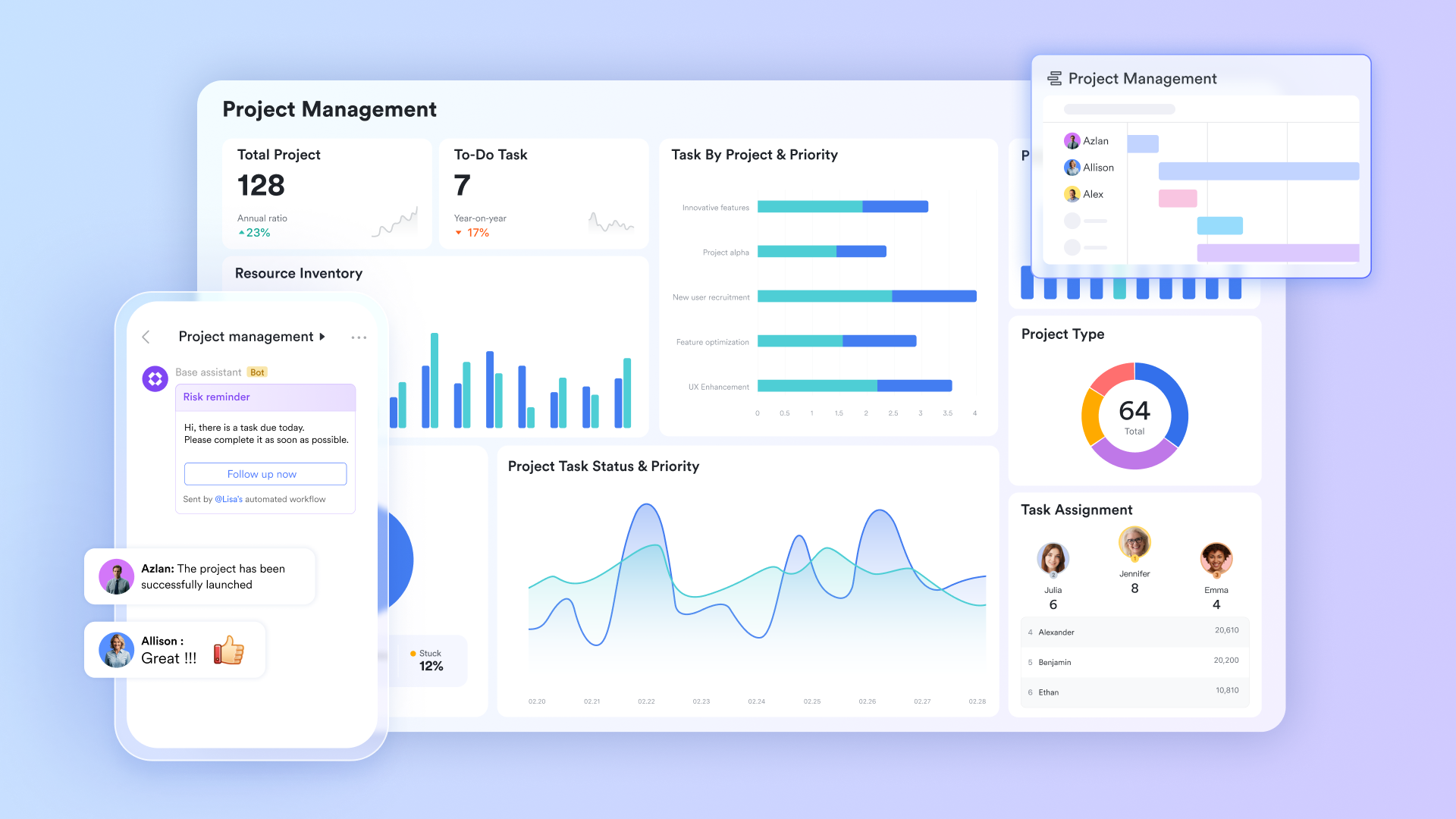
Unified to-do list management hub for assignment, monitoring, & execution
In the Lark ecosystem, Lark tasks functions as the unified task list management hub. Using custom fields, you can categorize to-dos by priority or risk level, which you can then use to group, sort, and filter your view in a checkbox-style interface. Capacity management is clarified through role-based views (Owned, Assigned, Subscribed), allowing leaders to see workload distribution. Finally, the native provide real-time data on execution progress, helping you detect bottlenecks and navigate them easily. 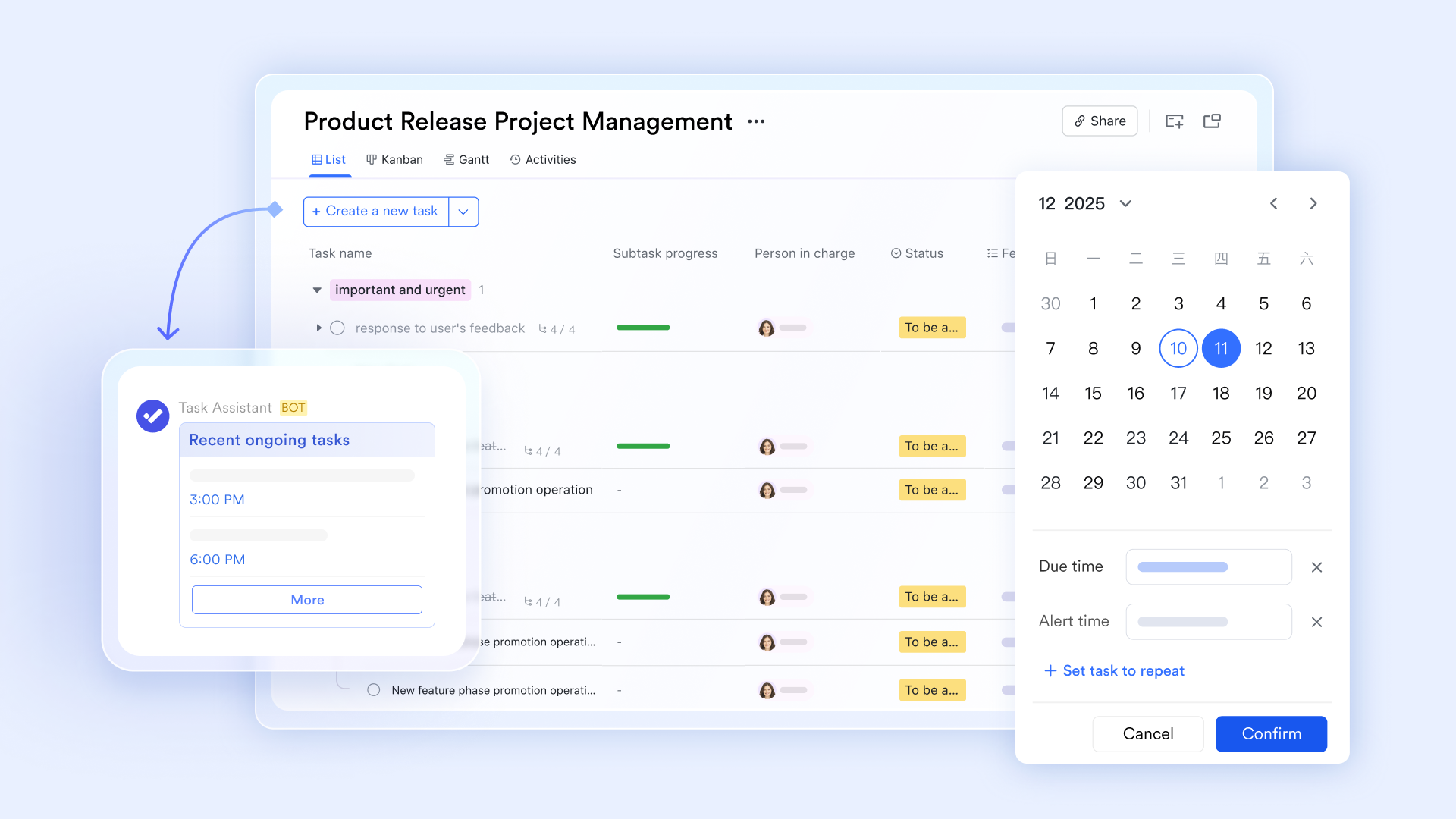
Priority changes are reflected instantly across views and teams
Lark Tasks supports multiple synchronized views of the same to-do data, including list view, Kanban view, and Gantt view. When a to-do's priority, status, or deadline changes in one view, the update is reflected everywhere in real time. Also, a reprioritized to-do automatically reshapes project timelines, board order, and personal to-do lists, ensuring that everyone works from the same priority signal without manual coordination. 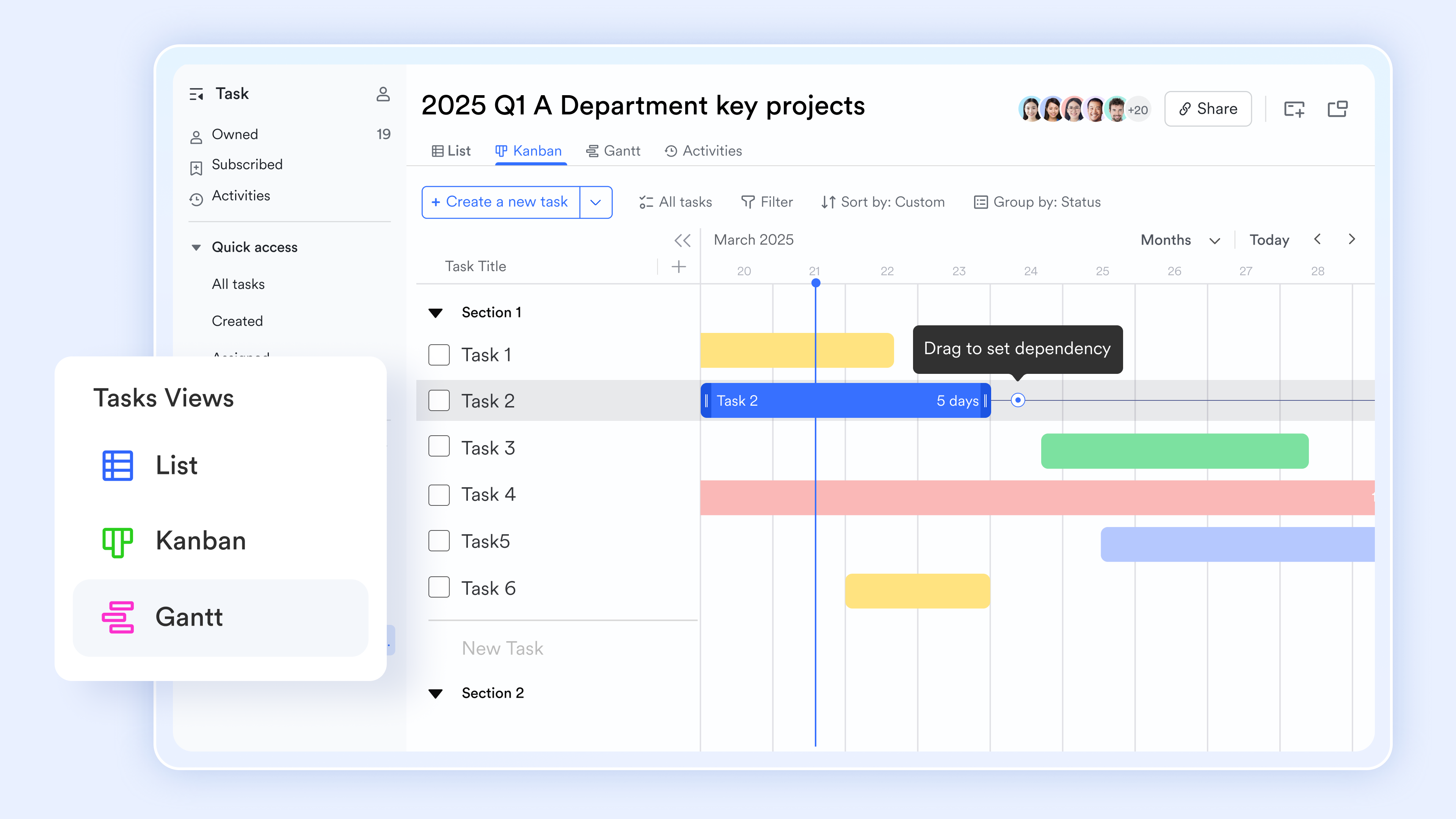
to-do lists connected to real project context, not isolated
In Lark, lists do not exist as standalone checklist items. Task lists can be created from your daily chat, your personal documents, email, or workflow logic in Base. Every task list can be linked directly to project records in Lark Base, related documents in Lark Docs, conversations in Lark Messenger, and the timeline displayed in Lark Calendar. This means a task always carries its full context, objectives, dependencies, owners, and reference materials without switching tools. 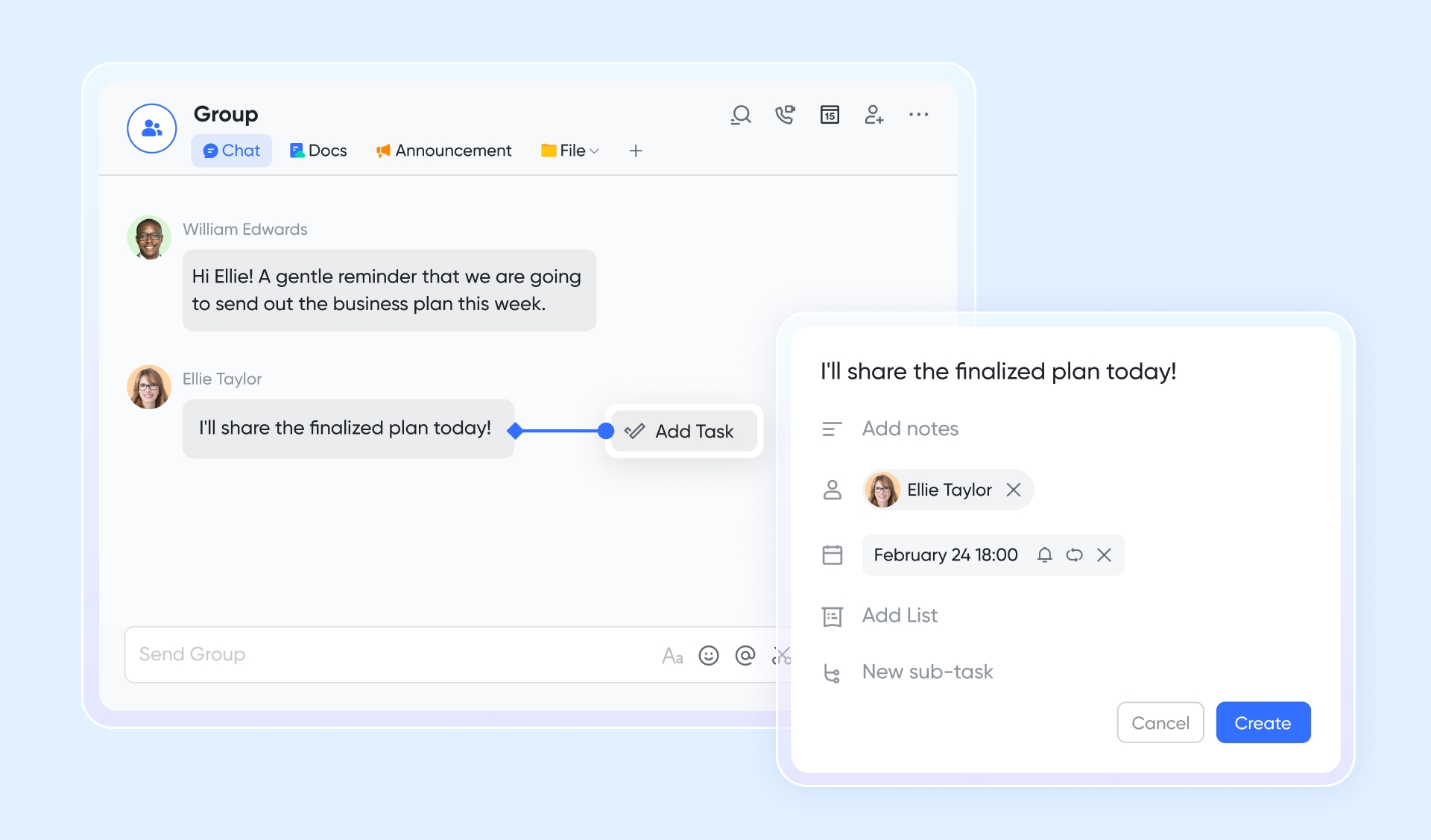
Automated workflow that reduces decision fatigue
Lark Base workflows streamline to-do prioritization through advanced conditional branching and IF/Else nodes that automatically route urgent items to specialized paths. This logic allows for complex multi-step processes, such as escalating overdue to-dos or notifying specific stakeholders based on priority fields. The visual canvas interface makes it easy to manage these hierarchies and adjust logic as project needs evolve. By replacing multiple manual steps with , it ensures critical to-dos are surfaced efficiently while staying within your annual plan's automation limits. 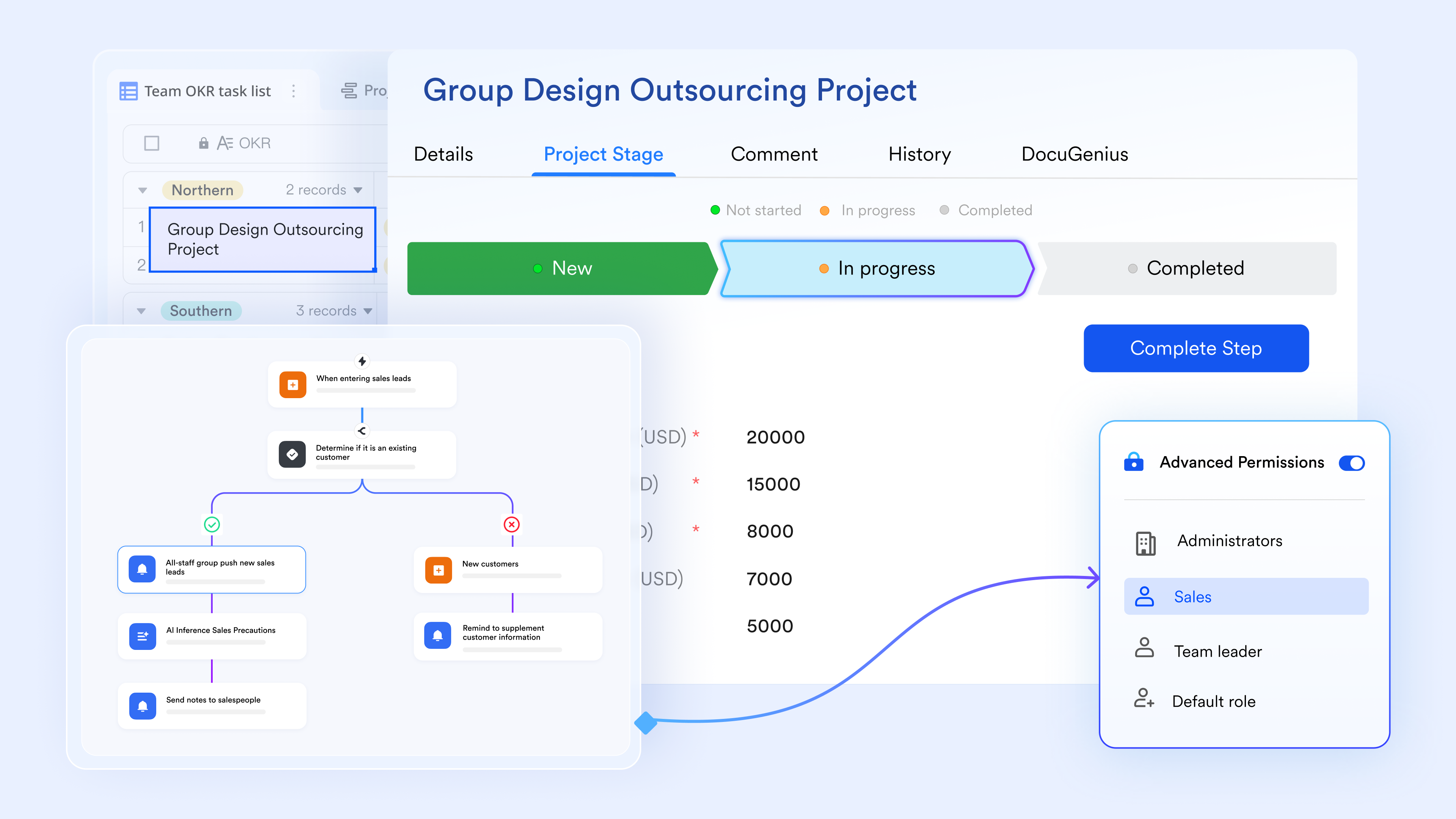
Pros
- Chat + to-dos in one: create/assign to-dos directly from chats/docs, naturally preserving context.
- Full collaboration suite: messaging, meetings, cloud docs, to-dos in one desktop app.
Cons
Can feel heavy if you only need a simple checklist.
:
- Starter plan: that includes 11 powerful tools for up to 20 users. It also comes with 100GB of storage space, 1000 automation runs, AI translations, and more. No credit card needed.
- Basic plan: (billed annually) for up to 500 users. It includes everything in Starter and unlimited message history, 5TB of storage space, 1,000 automation runs, and more. Some users may need to to purchase this plan.
- Pro plan: (billed annually) for up to 500 users. It includes everything in Basic plus group calling for up to 500 attendees, 15TB of storage space, 50,000 automation runs, and more.
- Enterprise plan: for custom pricing. Supports unlimited users and includes even more automation runs and advanced security, compliance, and management features.
For small teams with simple communication needs

18 months message history
1000 Base automation runs/month
2000 rows per table in Base
Most POPULAR
For companies with comprehensive collaboration and management needs
Unlimited message history
500-participant video meetings
50k Base automation runs/month
20k rows per table in Base
For large companies with advanced security and organizational management needs
Get a personalized demo and pricing
Unlimited message history
500-participant video meetings
15 TB storage + 30 GB storage/user
500k Base automation runs/month
50k Base automation runs/month
Most POPULAR
For companies with comprehensive collaboration and management needs
Unlimited message history
500-participant video meetings
50k Base automation runs/month
20k rows per table in Base
2. Microsoft To Do: The native Windows companion for personal focus
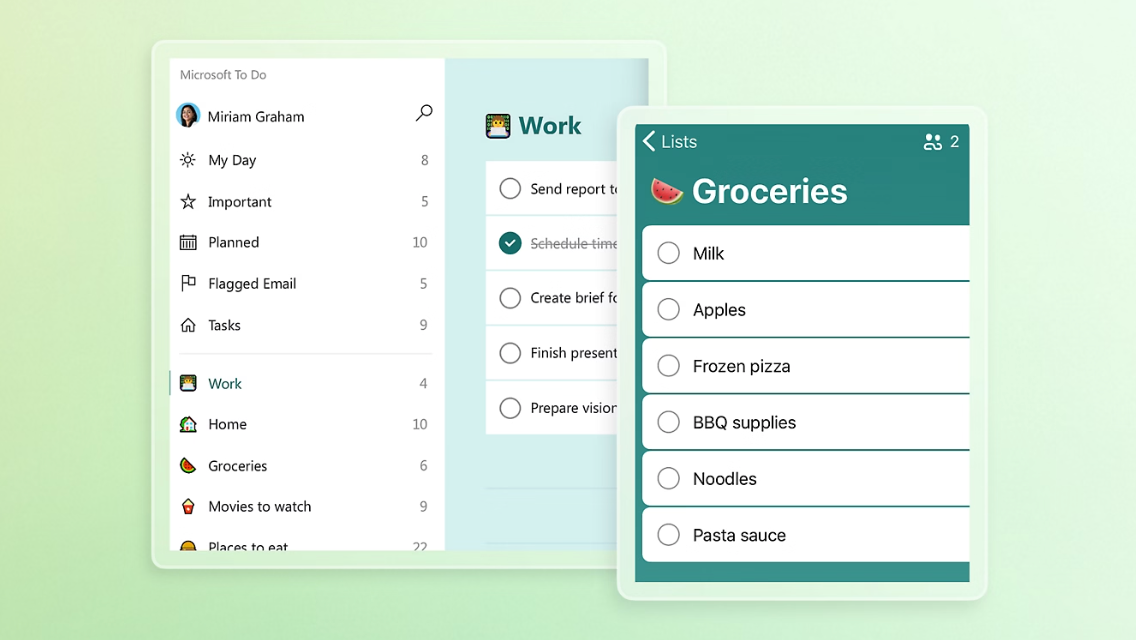
Image source: microsoft.com
Developed by the team behind Wunderlist, Microsoft To Do offers a highly optimized native experience for Windows users. Its standout feature is "My Day," a daily planning tool that helps individuals reset and prioritize their mornings.
Because it integrates closely with Outlook to-dos, it is a logical choice for individual contributors already entrenched in the Microsoft ecosystem. However, it is primarily a personal to-do manager. When a project requires deep collaboration, assigning to-dos to multiple team members, or linking complex cloud documents, managers often find its structural limits restrictive.
Pros
- Native Windows feel; lightweight; “My Day” encourages daily reset and prioritization.
- Strong Outlook to-dos integration for Microsoft 365 users.
Cons
Mainly for personal to-dos; limited team collaboration and delegation structure.
Pricing
3. Todoist: The natural language organizer for personal productivity
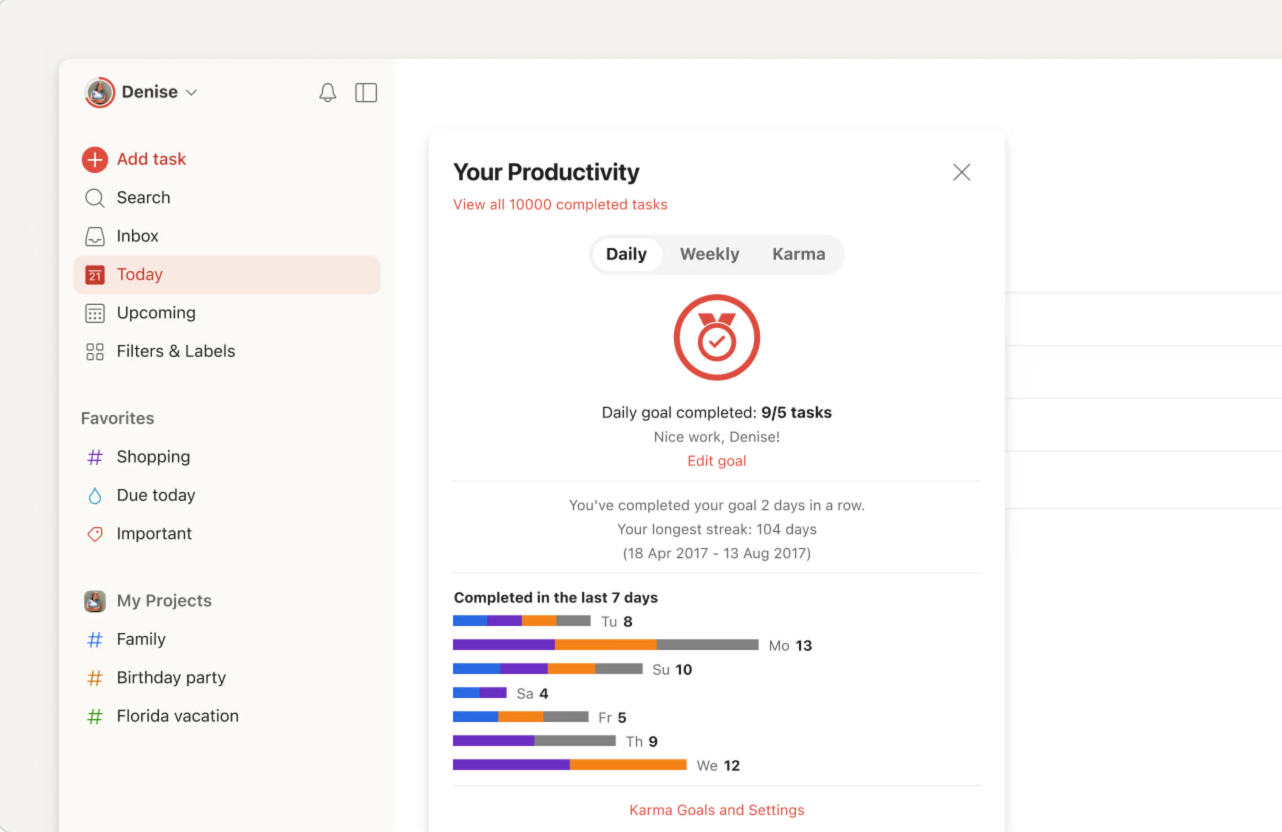
Image source: todoist.com
Todoist has built a strong reputation over the last decade for its speed and user-friendly interface. The Windows desktop app is lightweight and allows users to add to-dos using natural language processing. Typing "Review Q3 report every Friday at 10 AM" instantly categorizes and schedules the item.
With over 50 project templates and robust SOC 2 Type II security compliance, Todoist is excellent for personal organization. The main drawback for enterprise leaders is that it still operates as an isolated tool. You will still need to manually copy links from your internal chat or email into Todoist to give your to-dos meaning.
Pros
- Fast natural-language input; lightweight desktop experience.
- Strong templates and ecosystem; works for individuals and light teams.
Cons
Context from internal chats or docs often needs manual linking.
Pricing
4. TickTick: The built-in Pomodoro tool for habit tracking
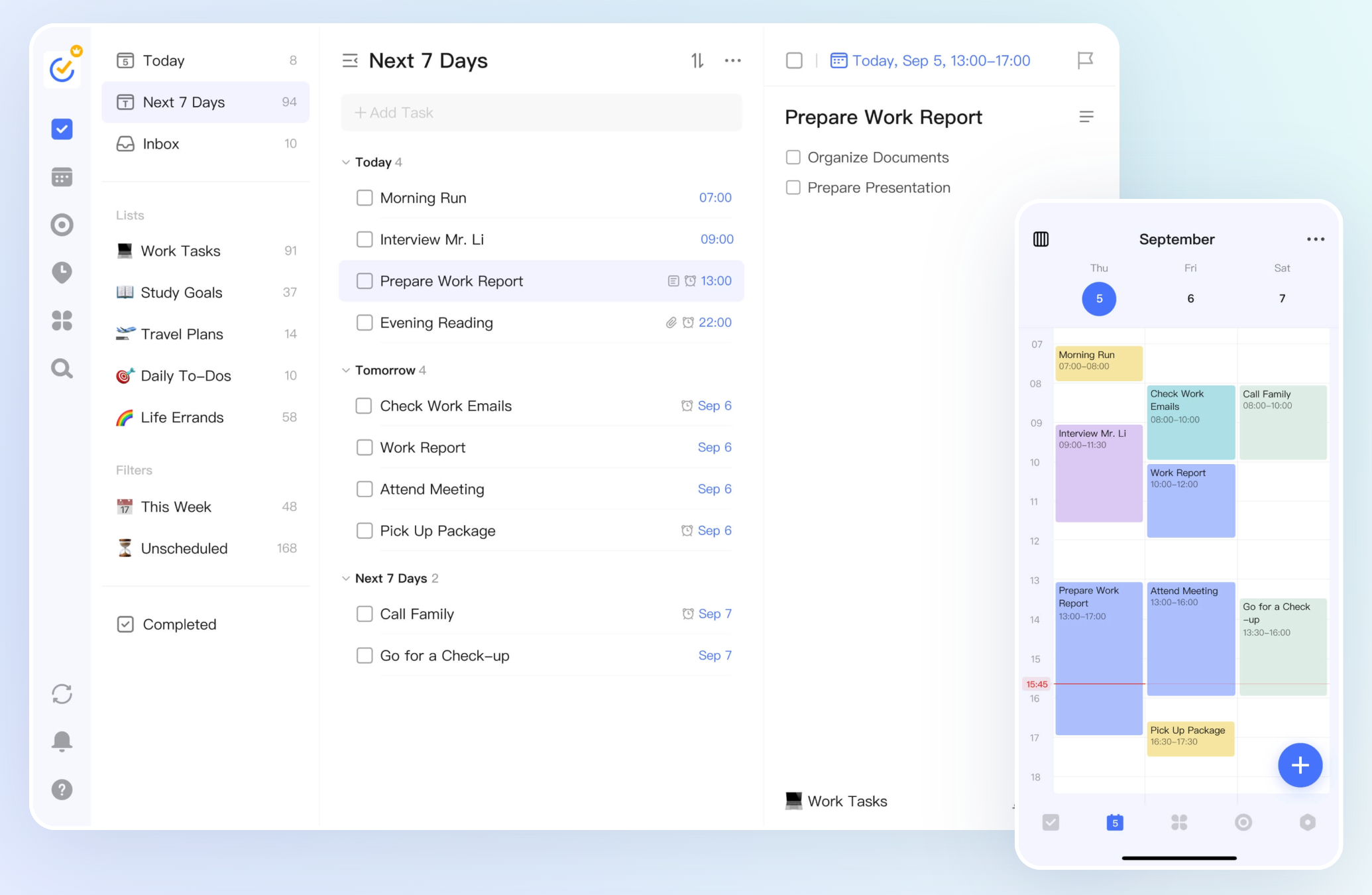
Image source: ticktick.com
TickTick goes beyond standard checklists by integrating time management methodologies directly into its Windows application. It features various calendar views—monthly, weekly, daily, and agenda—alongside a built-in Pomodoro timer and habit tracking capabilities.
If your primary goal is to minimize personal distraction and track how long you spend on individual to-dos, TickTick is highly effective. It is heavily geared toward individual time management rather than collaborative enterprise workflows or document sharing, meaning it rarely replaces a dedicated team management platform.
Pros
- Strong personal time management: tasks + multiple calendar views, suitable for daily execution.
- Built-in Pomodoro timer and habit tracking help reduce distraction and track time spent per to‑do.
- Mature cross‑platform ecosystem; quick to adopt for individual GTD workflows.
Cons
- Not designed as an enterprise collaboration platform (limited workflow/permission/document sharing compared with team suites).
- Pricing can vary by purchase channel (web vs app stores); the official upgrade page prominently shows the annual plan.
Pricing
- Premium: annual plan for $35.99 (less than $3/month)
5. Singularity: The deep scheduler for individual planners
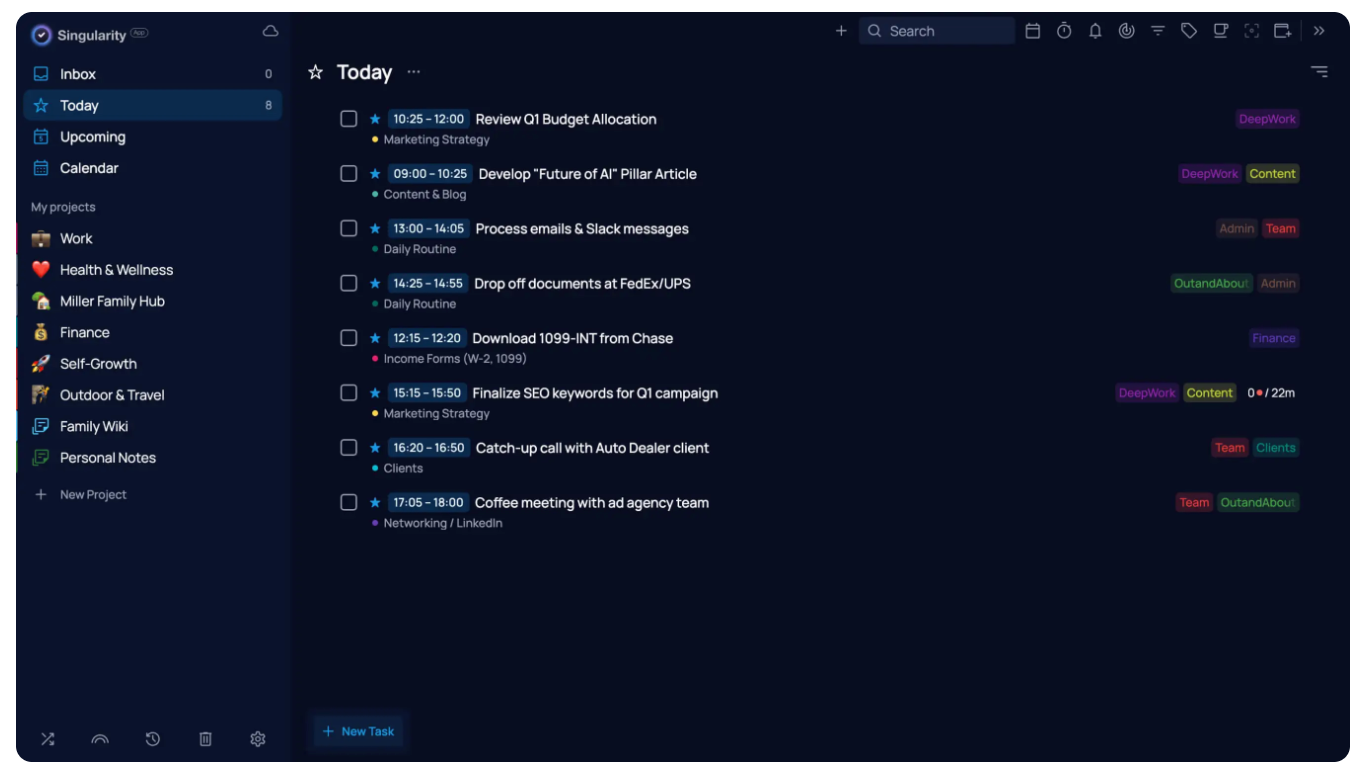
Image source: singularity-app.com
Singularity distinguishes itself with advanced scheduling capabilities and the ability to build complex to-do hierarchies. It is designed for planners who want to map out every detail of their day, week, or month with precision.
While it is a powerful native Windows app, its deep feature set caters almost entirely to solo users managing their own chaotic schedules. Team leaders trying to quickly delegate a brief action item might find the interface too heavy for rapid team coordination.
Pros
- Advanced scheduling (“deep planner”) and complex task hierarchies for detailed day/week/month planning.
- Highly customizable; a good fit for solo planners managing busy or chaotic schedules.
- Official pricing page clearly defines tiers and (light) collaboration limits.
Cons
- Heavier UI/feature set; may feel slow for quick capture or rapid team delegation.
- Collaboration exists, but it's oriented toward small teams rather than full enterprise workflow management.
Pricing
6. WeekToDo: The minimalist privacy-focused calendar
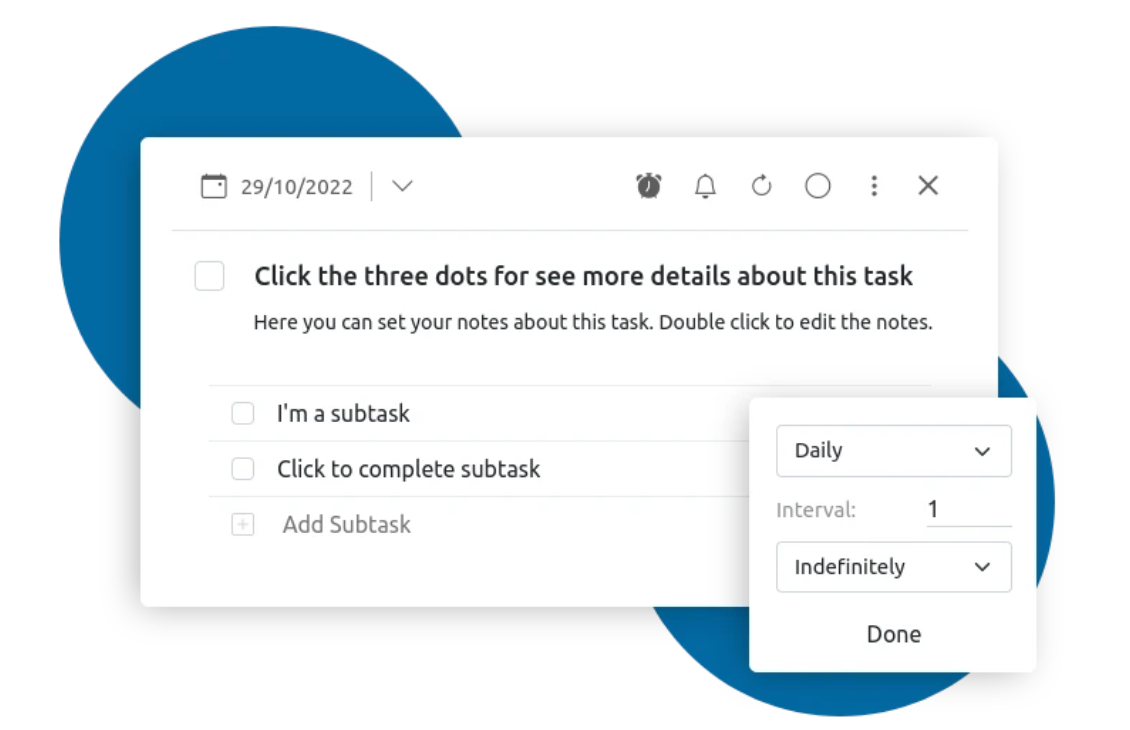
Image source: weektodo.me
WeekToDo takes a unique angle by focusing entirely on privacy and minimalistic design. It uses local storage, meaning your data stays on your Windows machine rather than sitting on a cloud server.
The text-based planning layout is incredibly simple, mimicking a basic paper planner. While this is great for offline needs and strict personal data control, the lack of cloud synchronization makes it impractical for team collaboration, file sharing, or remote delegation.
Pros
- Strong focus on privacy and minimalism; suitable for offline / local-first planning.
- Free and open-source; simple weekly layout similar to a paper planner.
Cons
- Lack of cloud sync makes it impractical for cross-device workflows and team collaboration.
- Minimalist approach means fewer advanced integrations and team features.
Pricing
- Subscription: contact sales
How to turn a team chat into an actionable to-do in Windows
The most common workflow bottleneck for a manager is losing track of action items agreed upon in a chat. When you use a unified workspace like Lark on your Windows desktop, you can capture these items instantly without breaking your focus or opening a new browser tab.
Consider a scenario where your marketing team is discussing a new landing page in a group chat. The lead designer posts a link to the new mock-up, and you need the copywriter to review it by tomorrow afternoon. Instead of copying that link and opening a separate to-do list, you can handle it directly in the conversation.
Here is how you execute that workflow:
- Hover over the specific chat message containing the mock-up link.
- Click the specific menu option to convert that message directly into a task.
- An assignment window will appear right next to your chat. Here, you can assign the to-do to your copywriter and set a firm deadline for the next day.
- Add any brief instructions, then save.
The copywriter immediately receives a notification. When they open the to-do, they see your instructions, the exact deadline, and a direct link back to the original and mock-up. They have the complete context, you have an to track their progress, and neither of you had to leave the application.
Assign the owner and set a deadline in the popup window
To do list app for Windows free vs. paid: Which should a manager choose?
When evaluating your options, deciding between a free or paid to-do list app for Windows usually comes down to team size and workflow complexity. Here is how a manager should break down the decision:
The illusion of "free forever" personal apps
A basic to do list app for Windows free of charge works well if you only need to manage personal grocery lists or daily reminders. However, for a manager, these apps hide a steep cost in lost productivity. As you try to scale, you will likely hit hard paywalls for critical team features. Suddenly, you are asked to pay just to attach a file to a to-do, assign an item to a fourth team member, or view a shared project history.
The high cost of paid standalone tools
On the other hand, shelling out $5 to $10 per user every month solely for a dedicated to-do list application can rapidly drain a department's software budget, all without solving the core issue of disconnected workflows.
The financial advantage of a unified suite
Consolidating your tools makes the most financial sense for managers. Instead of buying separate licenses for a chat app, a document drive, and a manager, you bring them together. For instance, growing teams can utilize Lark's Free Starter plan, which covers up to 20 users and includes 11 powerful tools right out of the box. As your organization grows, moving to a unified paid tier ensures you pay one single subscription for your entire , rather than juggling multiple vendor contracts.
Conclusion
Finding the right to do list app for Windows ultimately comes down to how your team actually operates. If you manage others, relying on a standalone checklist will eventually create a workflow bottleneck. You need a system that brings your daily communication, cloud documents, and action items into one shared, accessible space.
Evaluate your current setup: if you spend more time copying and pasting context between windows than actually completing the work, it is time for an upgrade. Stop forcing a simple personal checklist to do a manager's job. Prioritize a unified platform that keeps your team aligned, your workflows connected, and your budget intact.
Ready to eliminate context switching and streamline your team's execution? Download for Windows today and start managing your to-dos, chats, and documents in one powerful, unified workspace.
FAQs
What is the best to do list app for Windows?
The best option depends entirely on whether you are working alone or leading a team. For managing personal habits and straightforward reminders, Microsoft To Do and Todoist are excellent lightweight choices. However, if you manage projects and need to delegate work, the best application is one that connects to-dos directly to your team chat and documents, such as Lark, to prevent daily context switching.
Does Microsoft have a Todo List app?
Yes, Microsoft To Do is the company's dedicated task management application. It was developed after Microsoft acquired Wunderlist. It integrates closely with Outlook to-dos and features a "My Day" planner designed to help individuals prioritize their daily workload.
Does Windows have a built-in todo list?
Yes, modern versions of Windows 10 and Windows 11 include Microsoft To Do pre-installed. You can access it directly from your Start menu. Additionally, Windows offers basic native tools like Sticky Notes for users who just want to jot down rapid, unstructured thoughts without setting up a formal project board.
What is replacing the Microsoft Lists app?
Microsoft Lists is not being entirely replaced; it remains an active tool within Microsoft 365 for tracking database-style information and inventory. However, Microsoft has been consolidating its core task management software. They are bringing Microsoft To Do, Microsoft Planner, and Microsoft Project together into a newly unified "Planner" experience within Microsoft Teams to reduce user confusion over which tool to use for daily action items.
Is there a simple to do list app for Windows 10 free download?
Yes, there are several solid options available. Microsoft To Do is natively integrated into Windows 10 and 11, offering a great free experience for personal daily planning. Open-source tools like sleek also provide free, text-based task management. If you need a free option that supports team collaboration, look for unified suites that offer robust free starter plans.
How do I sync my Windows to-do list across my mobile devices?
To maintain an updated to-do list on the go, choose a cloud-based application that offers a dedicated native app for both Windows and mobile operating systems (iOS and Android). When you check off an item or assign a new task on your desktop, cloud synchronization immediately updates the status on your smartphone.
Can I manage team projects with a basic to-do list app?
Managing team projects with a basic personal to-do app is generally difficult. Simple checklist apps lack the necessary infrastructure for enterprise workflows, such as file sharing, deep integration with chat histories, and advanced permission controls. For actual project management, you are better off using a platform designed to connect tasks with your broader team communication tools.
Related reading