Sitting in front of a cluttered screen with dozens of open tabs is a frustration every modern professional knows too well. In our current hybrid work environment, the difference between a chaotic day and a successful one often comes down to the software toolkit you employ. Finding the right productivity apps for Windows is no longer just about installing a word processor; it is about curating an ecosystem that helps you filter noise and maintain focus. Whether you are looking for essential productivity apps for PC workstations or lightweight tools for travel, the Windows platform offers an incredibly diverse range of solutions. From all-in-one platforms that streamline communication to specialized utilities that enhance the operating system itself, we have analyzed the market to help you reclaim your time.
Key takeaways: Top 3 picks to save your time
To help you build the perfect stack, we have handpicked the top 3 most recommended productivity tools for Windows currently shaping the industry for their exceptional performance.
1. Lark: Best all-in-one productivity tool for Windows users
2. Microsoft Office (Microsoft 365): Best document suite for Windows productivity
3. Todoist: Best lightweight task manager for daily focus
Go ahead to the top tool to save your time
Why your choice of desktop productivity apps matters
For many users, productivity software is an afterthought—something simply downloaded when a specific need arises. However, taking a deliberate approach to selecting your tools can fundamentally change how you interact with your computer. It is not merely about what features an app lists on its marketing page; it is about how that application behaves within the Windows environment and how it impacts your system's resources.
Performance and system efficiency
The most overlooked aspect of software selection is the impact on hardware resources. In an era where web browsers consume massive amounts of RAM, relying entirely on web-based tools can cripple your computer's speed. When you select high-performance desktop strategically, you are ensuring that your system remains responsive even under heavy loads. Native Windows applications are often optimized to manage memory more efficiently than a browser tab running a heavy script. This is particularly crucial when choosing productivity apps for laptop environments effectively, where battery life and available memory are finite resources. A well-coded native app can run quietly in the background without draining your battery, whereas a browser-heavy workflow might tether you to a power outlet by midday.
Deep integration with the operating system
To truly determine the best Windows apps for productivity objectively, one must look at how deeply they integrate with the operating system's core features. A web page cannot interact with your local files or system notifications in the same way a native application can. The most effective tools leverage Windows-specific capabilities such as the "Action Center", "Focus Assist", and "Snap Layouts".
- Action center and notifications: A native app can send rich, actionable notifications to the Windows Action Center, allowing you to reply to a message or without even opening the app window.
- Taskbar and tray functionality: Superior tools often reside in the system tray, offering background functionality—like quick capture or clipboard management—that is instantly accessible but visually unobtrusive.
- File explorer context: The ability to right-click a file in Windows Explorer and immediately send it to your or cloud storage is a massive time-saver that web apps simply cannot replicate seamlessly.
The "stack" mental model
It is a common mistake to look for a single "silver bullet" application that does everything perfectly. While standard form the foundation for many corporate environments, relying on them exclusively may leave gaps in your personal workflow. The most productive users adopt a "stack" mental model—combining a set of specialized tools that talk to each other. You might need a "Communication Layer" (like Lark or Slack), a "Creation Layer" (like Adobe or Office), and a "Management Layer" (like Todoist or Asana). By curating your own Windows productivity suite deliberately, you create a personalized engine for getting things done. This approach allows you to swap out a single component of your stack if a better tool comes along, without disrupting your entire workflow.
Compatibility across Windows versions
Finally, the longevity and support of the software are critical. As Microsoft continues to evolve its operating system, the divide between legacy and modern software grows. We are currently seeing a wave of for Windows 11 that utilize new design languages (like Mica material) and improved window snapping features to look and feel like a natural extension of the OS. However, backward compatibility remains vital for those seeking the best productivity apps for Windows 10 specifically, as many enterprise environments have not yet upgraded. Premium developers ensure their tools work across this divide. Whether you are running the latest OS build or need stable productivity apps for Windows 10 locally, the best choice is always software that is actively maintained to bridge the gap between stability and innovation.
How do we select and assess software in our reviews?
Our editorial team follows a transparent, repeatable methodology. Every review is based on using experience in realistic working scenarios, and we always stick to a set of consistent scoring criteria.
- Features and functionality
- Security, privacy, and compliance
- Integrations and compatibility
Our team reviews and assesses tools using consistent datasets and real-world scenarios, focusing on the things users care about most—such as sales pipelines, marketing automation, collaboration, and knowledge management. We confirm the official pricing and release notes of each product we review, and gather user feedback from across different channels. We do not accept paid placements and ensure our reviews are completely unbiased and fair. Additionally, as software and digital work environments constantly evolve, we review our content at least quarterly and update articles whenever products undergo significant changes. For more information about our review methodology, read the full rundown of.
Top 10 productivity apps for Windows to install today
Navigating the vast ecosystem of software can be overwhelming, but we have curated a list of tools that stand out for their performance, integration, and utility on the Windows platform. Whether you are looking to streamline or optimize your personal file management, these applications represent the best in class.
1. Lark: Best all-in-one productivity tool for Windows users
Overview
, one of the versatile , is increasingly recognized as a "superapp" that aims to solve the fragmentation problem plaguing modern workspaces. Instead of forcing users to toggle between a chat app, a tool, a document editor, and a calendar, Lark unifies these functions into a single, cohesive interface. For Windows users who struggle with system lag caused by running multiple Electron-based apps simultaneously, Lark offers a refreshing alternative. By consolidating these core functions, it significantly reduces RAM usage compared to keeping separate tabs open for Slack, Zoom, and Google Docs. It is particularly effective for teams looking for streamlined productivity apps for Windows 11 currently, as its modern design language fits perfectly with the latest OS aesthetics while maintaining a lightweight footprint.
Best for
- Teams and organizations seeking to consolidate their software stack and reduce subscription fatigue
- Startups and SMBs consolidating daily work tools.
- Cross-functional teams (ops, sales, product, support).
- Hybrid/remote teams collaborating across locations.
- Teams on Windows laptops needing lighter app loads.
Key features
Unify work tracking with flexible, database-style views: On Windows, Lark helps teams replace scattered spreadsheets and single-purpose trackers with a structured system that still feels familiar. In , the same dataset can be displayed in multiple views, for example, Grid view for fast editing, Kanban view for stage-based workflows, Calendar view for , and Gantt for timelines and dependencies. Because every view points to one source of truth, updates made by a teammate in one view instantly reflect everywhere else, cutting down on duplicate files, version confusion, and manual status reporting.
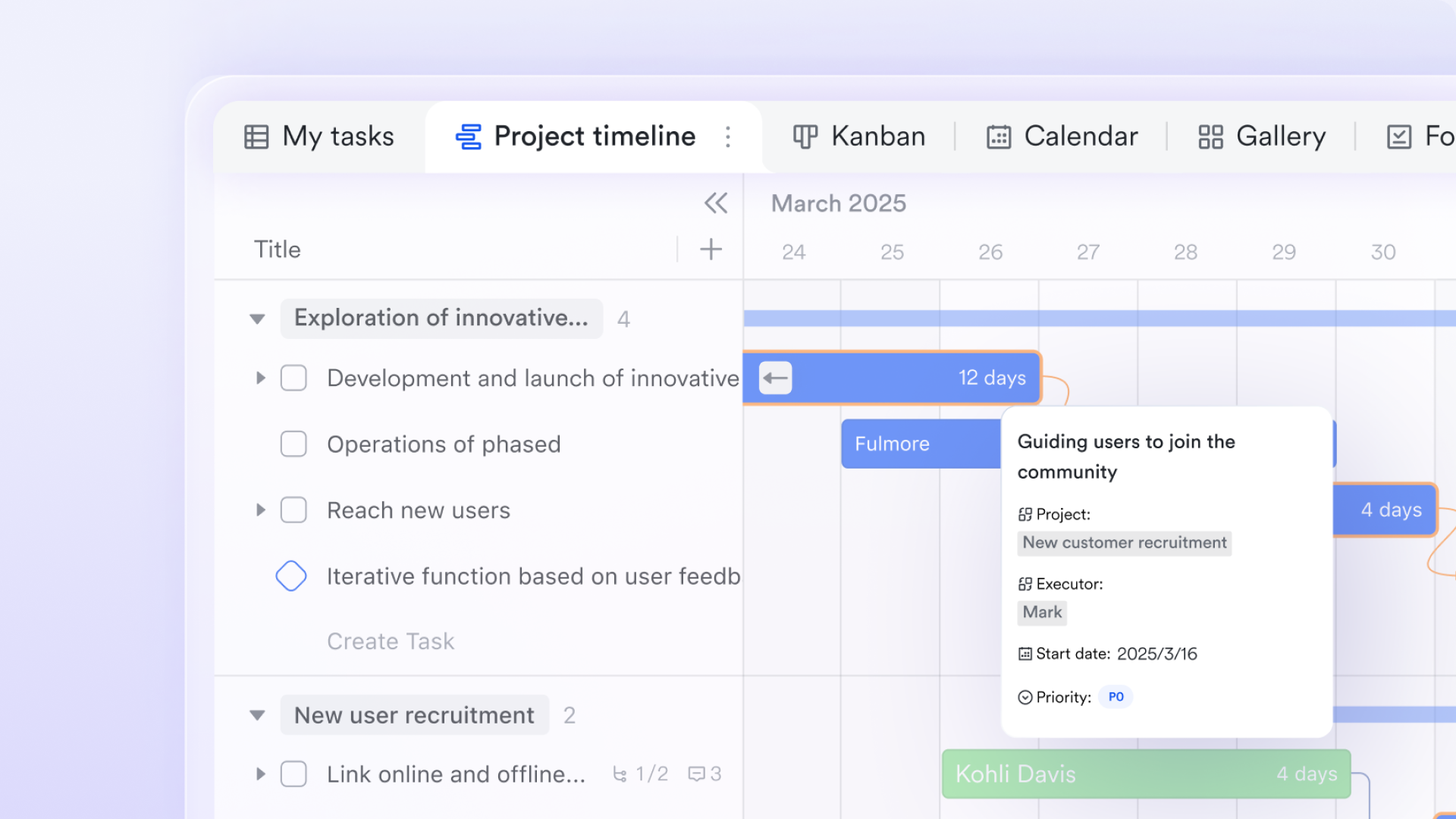
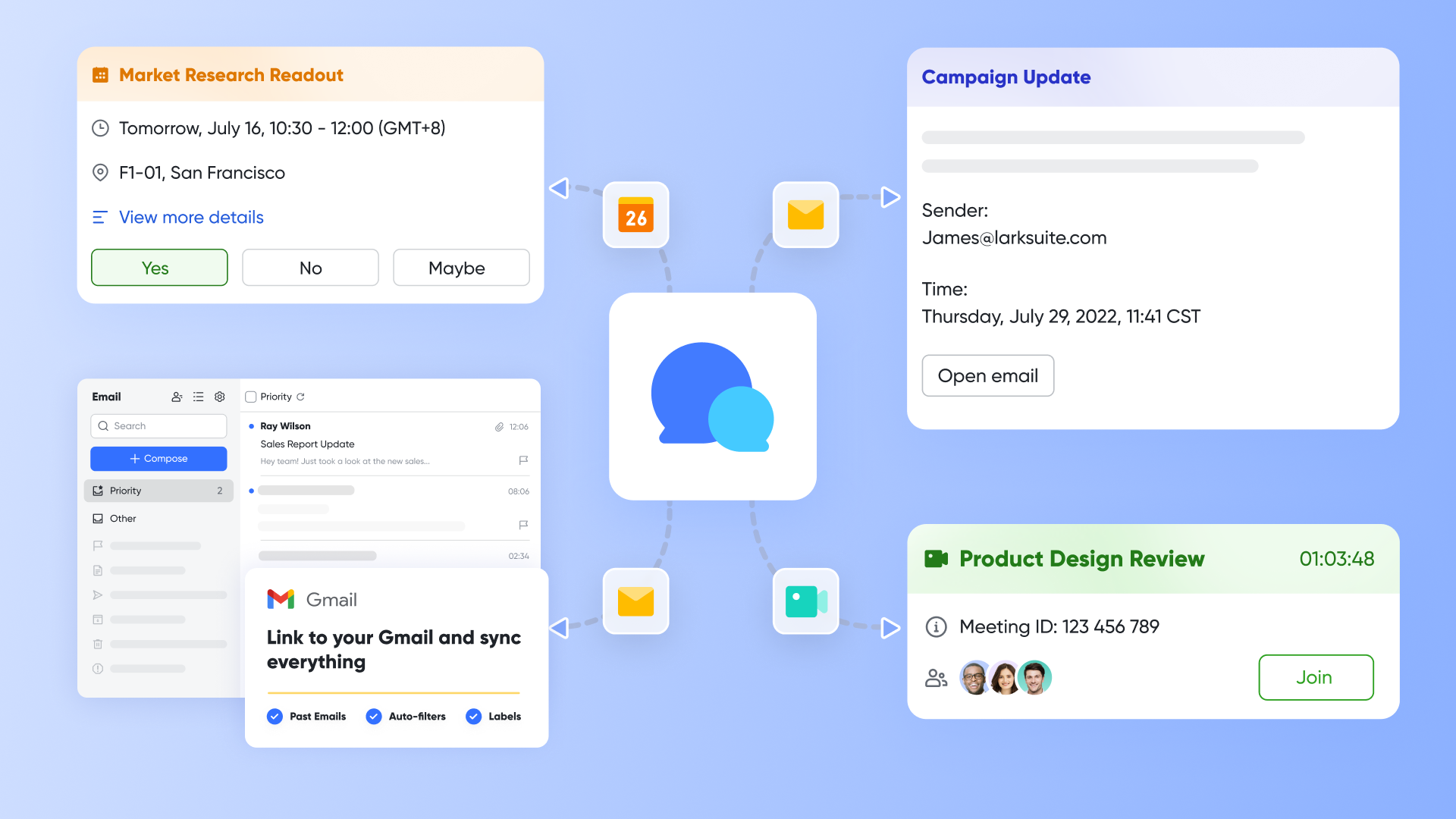
Turn daily communication into action—not noise: Many Windows setups suffer from "too many apps open" and constant tab switching. reduces that friction by keeping messaging tightly connected to work artifacts. Conversations can link directly to docs, tasks, or records, so decisions stay attached to context. This is especially helpful for laptop users managing limited screen space: Less window juggling, fewer lost links, and faster handoffs between .
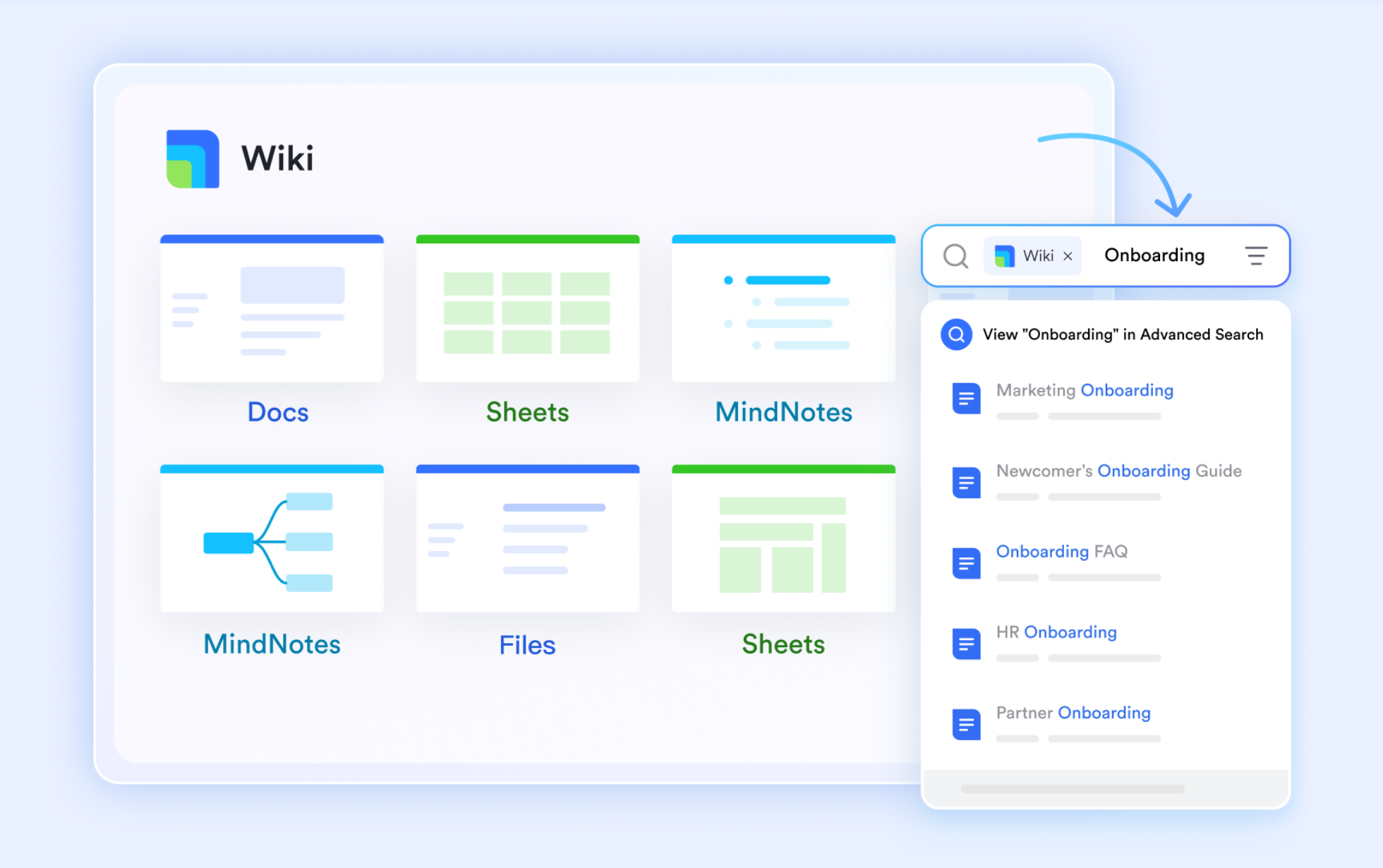
Make documents and knowledge easier to create and reuse: Productivity on Windows improves when teams stop recreating the same materials. supports real-time co-editing and structured writing, while Lark Wiki helps organize pages into a browsable for onboarding, SOPs, project playbooks, and FAQs. Instead of searching across scattered folders and chat logs, teammates can find the "current answer" quickly—and keep it updated—reducing repetitive questions and shortening ramp-up time for new hires.
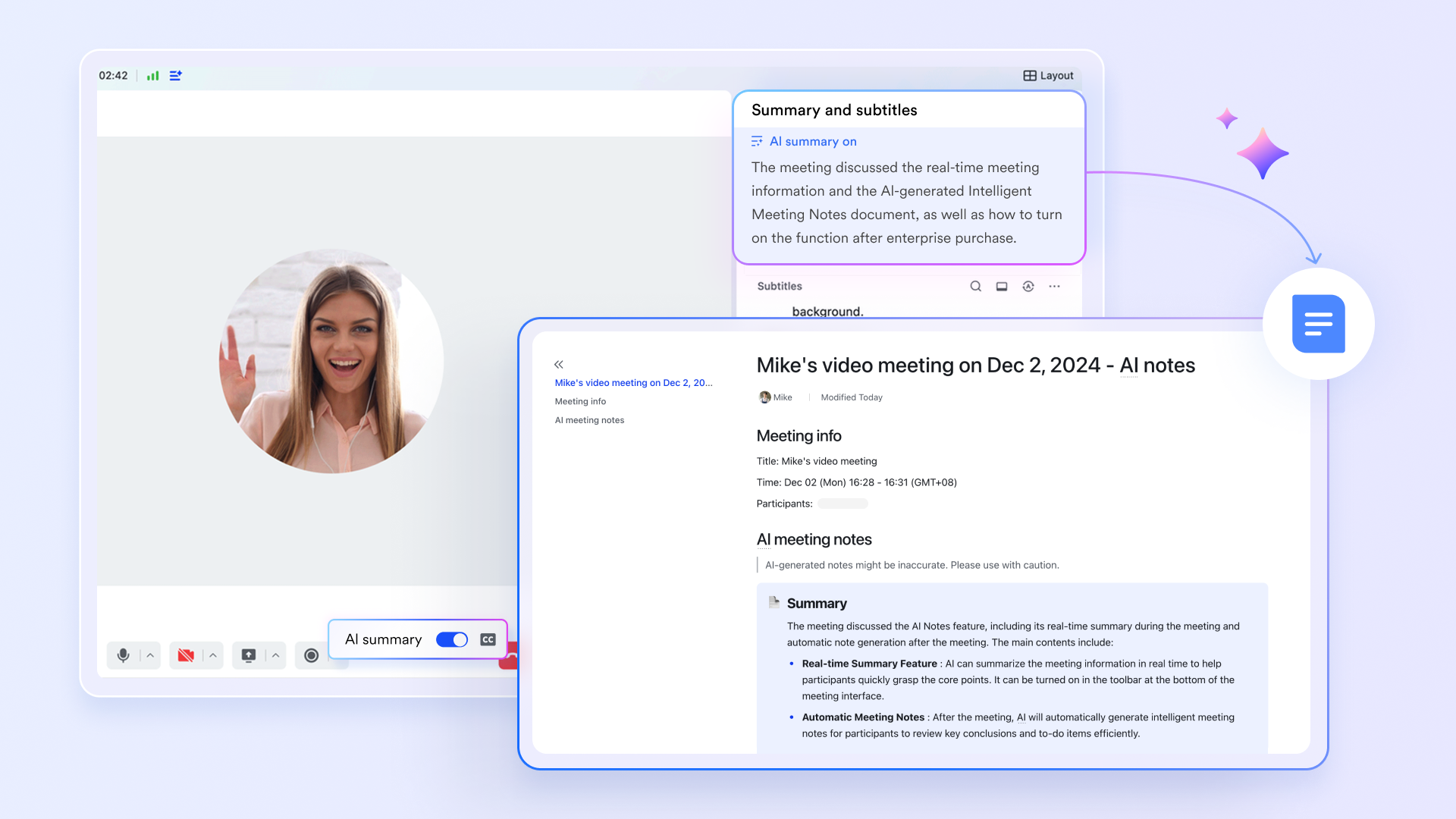
Run meetings that automatically produce follow-ups: Meetings often create invisible work: Someone must summarize, translate, and assign next steps. plus and Minutes records aim to convert live discussions into usable outputs—capturing key points, decisions, and action items that can be shared right after the call. For distributed Windows teams, features like real-time subtitles and translation can also and speed alignment across languages.
Pros
- Significantly lower memory usage than running equivalent separate apps.
- The "all-in-one" design eliminates context switching and improves focus.
- Generous free tier for startups and small businesses.
Cons
- A little learning curve. Although user-friendly, new users may require time to adapt to its functionalities. But can assist users with potential problems.
- Starter plan: Free forever plan with 11 powerful tools for up to 20 users, 100GB storage, 1,000 automation runs, AI translations, and more. No credit card needed.
- Basic plan: $6/user/month (billed annually) for up to 500 users. Includes everything in Starter plus unlimited message history, 5TB storage, 1,000 automation runs, and more. Some users may need to to purchase.
- Pro plan: $12/user/month (billed annually) for up to 500 users. Includes everything in Basic plus group calling for up to 500 attendees, 15TB storage, 50,000 automation runs, and more.
- Enterprise plan: for custom pricing. Supports unlimited users and includes advanced automation, security, compliance, and management features.
For small teams with simple communication needs

18 months message history
1000 Base automation runs/month
2000 rows per table in Base
Most POPULAR
For companies with comprehensive collaboration and management needs
Unlimited message history
500-participant video meetings
50k Base automation runs/month
20k rows per table in Base
For large companies with advanced security and organizational management needs
Get a personalized demo and pricing
Unlimited message history
500-participant video meetings
15 TB storage + 30 GB storage/user
500k Base automation runs/month
50k Base automation runs/month
Most POPULAR
For companies with comprehensive collaboration and management needs
Unlimited message history
500-participant video meetings
50k Base automation runs/month
20k rows per table in Base
2. Microsoft Office (Microsoft 365): Best document suite for Windows productivity
Overview
It is impossible to discuss this topic without acknowledging the standard bearer. Microsoft 365 remains the backbone of enterprise work, offering a suite of tools that define how business is done. Unlike the web-based versions, the installed desktop applications for Word, Excel, and PowerPoint offer unparalleled performance and feature depth. They are the quintessential Microsoft productivity apps globally, designed to handle massive datasets and complex formatting that would crash a browser-based editor. The integration with OneDrive creates a seamless bridge between local file storage and cloud collaboration, allowing Windows users to utilize File Explorer for management while enjoying real-time autosave features.
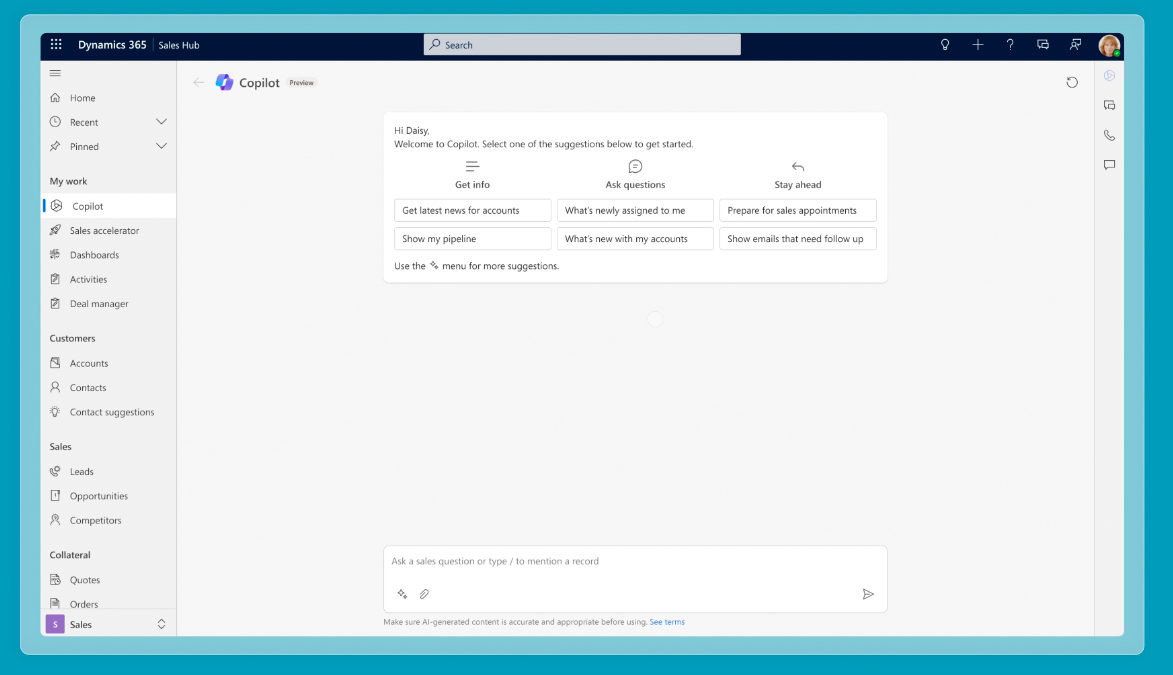
Image source: microsoft.com
Best for
- Professionals and students who require industry-standard document creation and spreadsheet analysis.
- Finance, analysts, and roles heavy on Excel.
- Corporate teams needing standard Office formats.
- Students and professionals preparing formal documents/slides.
Key features
- Real-time collaboration: Co-author documents in the desktop app with zero latency.
- Advanced formatting: Excel macros and complex Word layouts that web apps cannot match.
- OneDrive integration: "Files On-Demand" lets you see all files in Explorer without downloading them.
Pros
- Extremely stable and familiar interface for most users.
- Deepest possible integration with the Windows operating system.
- Offline capabilities are superior to almost all competitors.
Cons
- The subscription model can be expensive for individuals.
- Can feel "bloated" with features that casual users may never touch.
Pricing
- Microsoft 365 Business Basic: $6.00 user/month, paid yearly
- Microsoft 365 Business Standard: $12.50 user/month, paid yearly
- Microsoft 365 Business Premium: $22.00 user/month, paid yearly
3. Todoist: Best lightweight task manager for daily focus
Overview
Todoist is a task manager that excels through its simplicity and its powerful natural language processing. For Windows users, the experience is elevated by a dedicated desktop client that supports global hotkeys. You can simply press a shortcut (like Win + Alt + q) to bring up the Quick Add bar, type "Submit report every Friday at 4 pm #Work," and the app instantly categorizes and schedules the task without you ever leaving your current window. It acts as one of the most reliable productivity apps for pc environments where speed of capture is essential to maintaining workflow momentum. Its clean, distraction-free interface ensures you spend time doing tasks, not managing them.
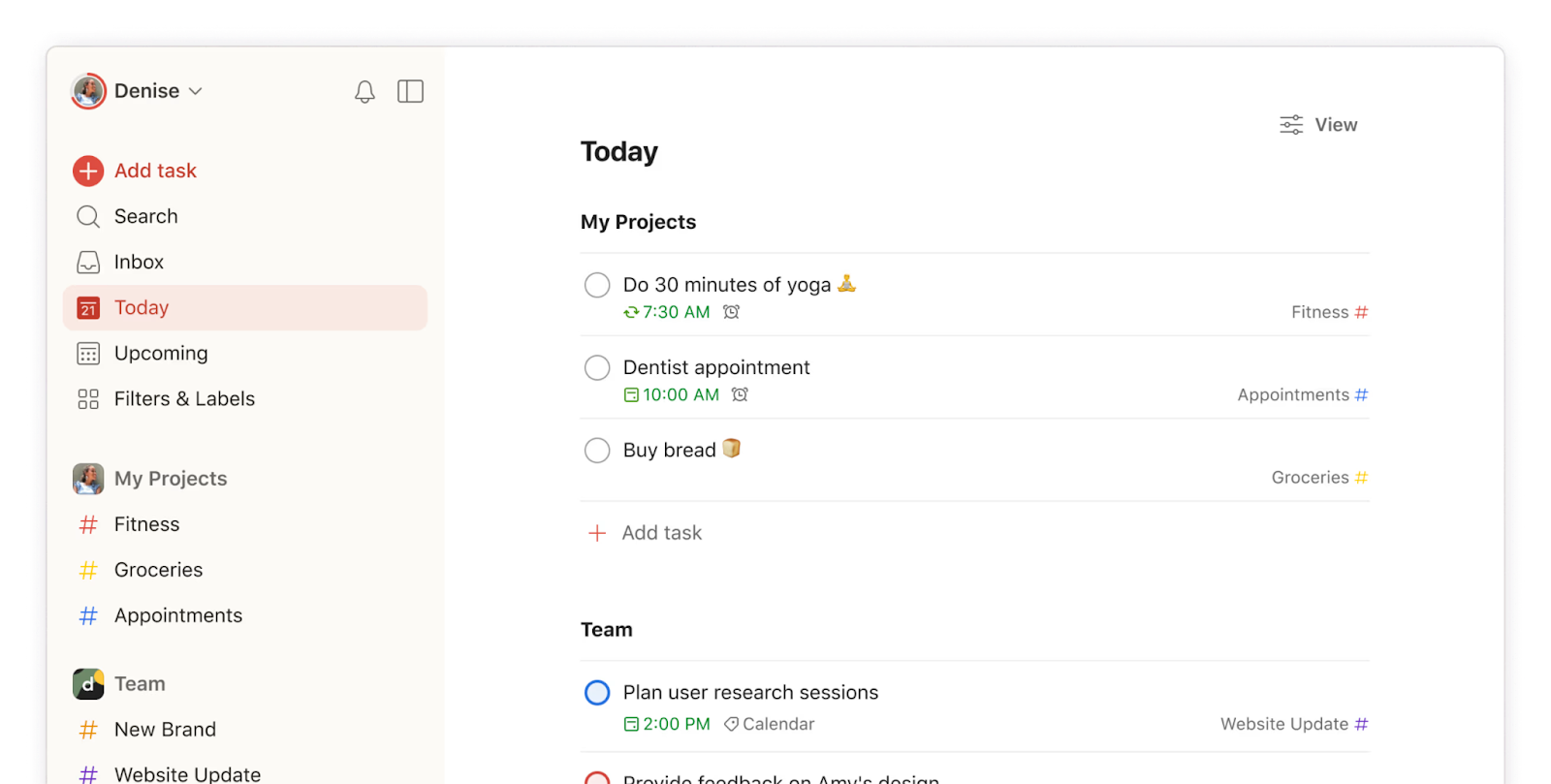
Image source: todoist.com
Best for
- Individuals who need a reliable, fast system to capture tasks and organize their daily life.
- Busy professionals needing quick task capture.
- Students balancing classes and deadlines.
Key features
- Natural language input: intelligently interprets dates, times, and priorities from simple text.
- Karma system: Gamifies productivity by tracking completion streaks.
- Windows quick add: A system-wide shortcut to add tasks from anywhere.
Pros
- Incredibly fast task entry minimizes friction.
- Syncs instantly across all devices (mobile, watch, desktop).
- Clean, minimalist design that looks great on Windows.
Cons
- Some essential features (like reminders) are locked behind the paid wall.
- Project views are less visual compared to Kanban-focused tools like Trello.
Pricing
- Pro: $5 user/month, paid yearly
- Business: $8.00 user/month, paid yearly
4. ShareX: Best power screenshot tool for Windows workflows
Overview
ShareX is the ultimate open-source utility for those who find the native Windows Snipping Tool insufficient. It is much more than a screenshot tool; it is a productivity powerhouse for capturing, editing, and sharing information. Users can configure automated workflows—for example, taking a screenshot, automatically blurring confidential information, adding a watermark, saving it to a specific local folder, and uploading it to a cloud host simultaneously. For power users seeking the best productivity apps for Windows 10 specifically, ShareX offers a level of customization and control that modern, simplified apps often lack. It represents the classic Windows ethos of utility and configurability over flashiness.
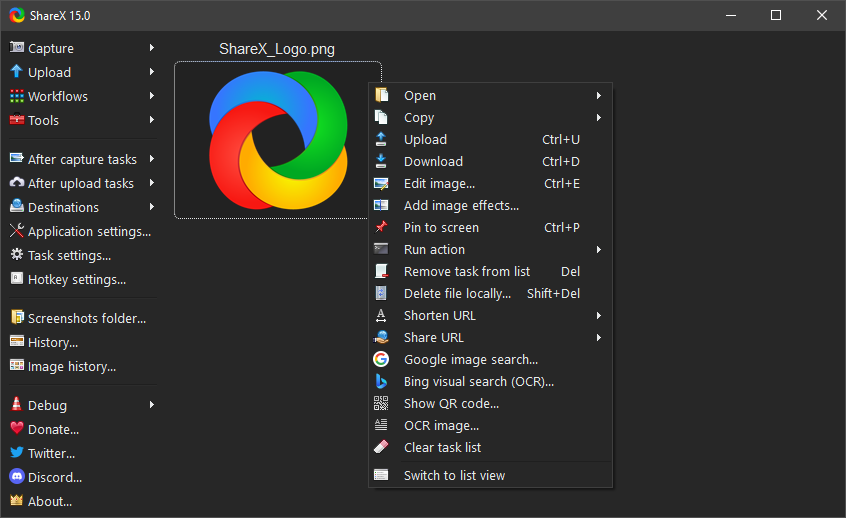
Image source: getsharex.com
Best for
- Support/CS teams documenting issues and steps.
- QA testers and developers file bug reports.
- Trainers and writers creating how-to guides.
Key features
- Capture methods: Scrolling capture, region capture, screen recording (GIF/MP4), and text capture (OCR).
- Automated workflows: Chain tasks together to run automatically after capture.
- Productivity tools: Includes a color picker, ruler, image combiner, and QR code generator.
Pros
- Completely free and open source with no ads.
- Extremely lightweight and resource-efficient.
- Unmatched feature set for screen capture and file handling.
Cons
- The interface is dated and can be intimidating for casual users.
- Setup requires time to configure workflows effectively.
Pricing
Custom pricing is available exclusively via demo request.
5. Slack: Best team chat for integration-heavy workplaces
Overview
Slack transformed business communication by moving conversations out of email inboxes and into organized channels. While it started as a web tool, the standalone Windows application provides a more robust experience with better notification management. You can fine-tune exactly when and how the app alerts you—whether through sound, a taskbar flash, or a pop-up toast. While it is resource-intensive, it remains one of the most critical desktop productivity apps widely used in the tech industry today. The ability to integrate with virtually every other tool on this list makes it a central hub for notifications, ensuring you don't miss updates from Jira, Trello, or Google Drive.
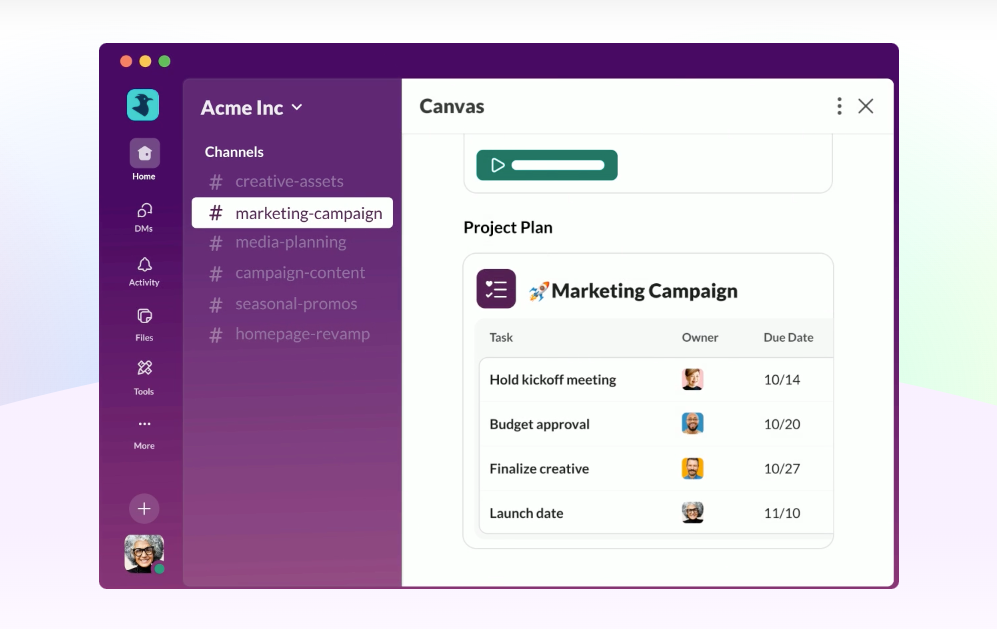
Image source: slack.com
Best for
- Tech companies with many SaaS tools to connect.
- Large teams coordinating across many channels.
- Agencies collaborating with external partners.
Key features
- Huddles: Quick, informal audio/video chats that mimic stopping by a desk.
- Workflow builder: Automate routine updates and requests without coding.
- Channel organization: Group conversations by topic, project, or team to reduce noise.
Pros
- Massive library of integrations with third-party apps.
- Intuitive interface that is easy for new employees to adopt.
- Powerful search functionality to find old messages and files.
Cons
- Can be a significant RAM hog on older machines.
- The "always-on" nature can contribute to distraction if not managed well.
Pricing
- Pro: $8.75 user/month, paid yearly
- Business+: $18 user/month, paid yearly
- Enterprise+: Custom pricing
6. Airtable: Best database-meets-spreadsheet for organized work
Overview
Airtable bridges the gap between a simple spreadsheet and a complex relational database. It looks like Excel but behaves like a database, allowing users to organize projects, content calendars, and inventories with rich field types like attachments, checkboxes, and dropdowns. The Windows desktop app offers a smoother experience than the browser version, particularly when handling bases with thousands of records. It caches data locally, making navigation snappier. This tool is essential for those who need to structure data but lack coding skills, providing a flexible canvas to build custom workflows.
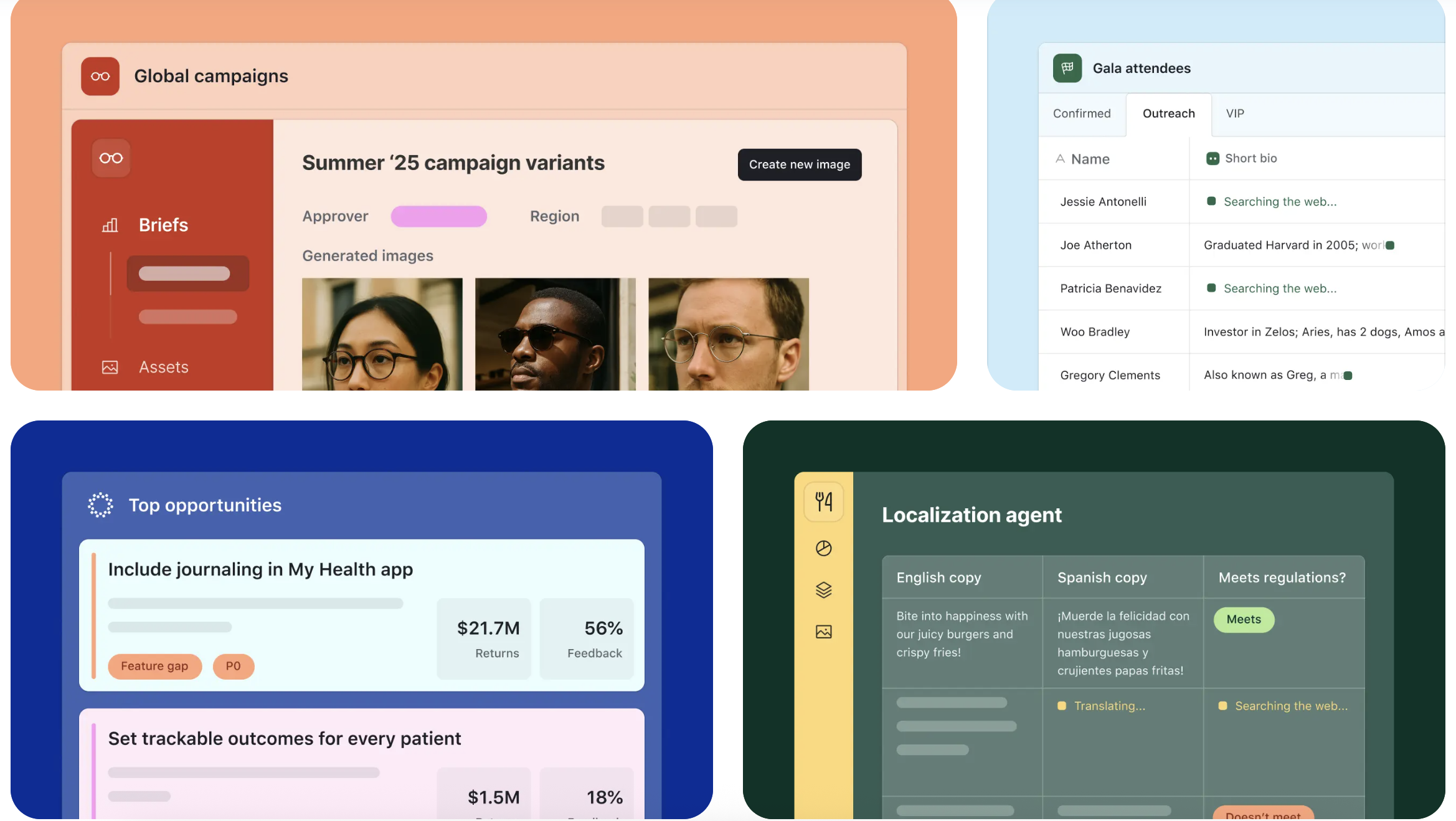
Image source: airtable.com
Best for
- Operations teams tracking structured workflows.
- Content teams managing calendars and assets.
- Small teams needing a lightweight "internal system."
Key features
- Interface designer: Turn your data into a drag-and-drop dashboard for your team.
- Views: Switch between Grid, Kanban, Calendar, and Gallery views instantly.
- Automations: Trigger emails or status updates based on record changes.
Pros
- Highly visual and flexible adaptation to various use cases.
- User-friendly entry point into database management.
- Strong community templates to get started quickly.
Cons
- Record limits on lower-tier plans can be restrictive.
- Advanced reporting features require a learning curve.
Pricing
- Team: $20 user/month, paid yearly
- Business: $45 user/month, paid yearly
- Enterprise: Custom pricing
7. Asana: Best structured project tracking for cross-team clarity
Overview
Asana is a heavyweight in the project management space, designed to help teams orchestrate their work, from daily tasks to strategic initiatives. The Windows app wraps the powerful web functionality in a distraction-free container. It excels at visualizing complex timelines and dependencies, making it clear who is doing what and by when. Unlike simple to-do lists, Asana handles multi-stage projects with ease. For professionals who move between the office and the road, using productivity apps for laptop configurations efficiently is vital; Asana's offline mode in the desktop app allows for limited access and quick updates even when Wi-Fi is spotty.
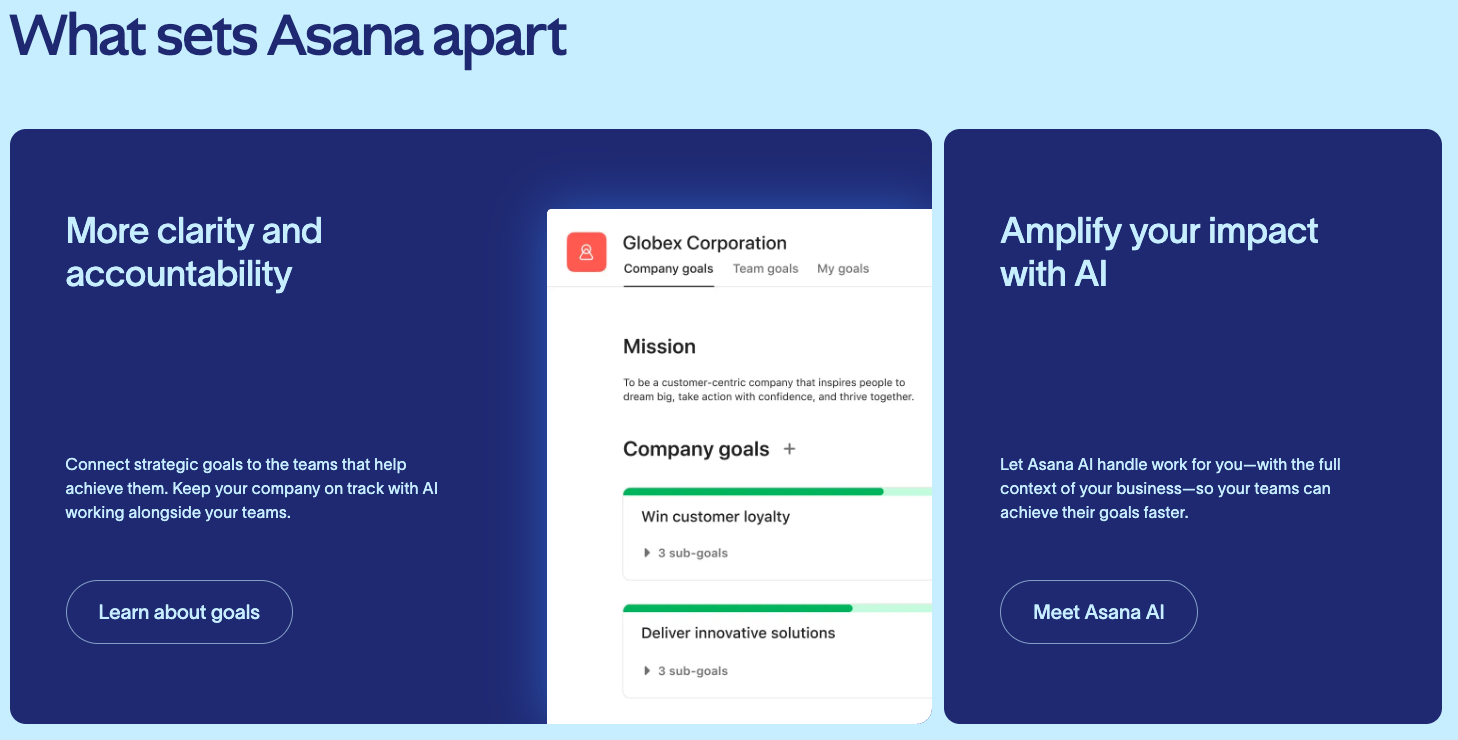
Image source: asana.com
Best for
- Project managers coordinating cross-team delivery.
- Marketing teams running campaigns and launches.
- Product/engineering teams tracking initiatives (non-code).
Key features
- Timeline view: A Gantt-style view to map out project schedules and dependencies.
- Portfolios: Monitor the status of multiple projects in one high-level view.
- Workload management: visualize team capacity to prevent burnout.
Pros
- Beautiful, intuitive interface that encourages usage.
- Flexible views allow different teams to work the way they prefer.
- Good balance between structure and flexibility.
Cons
- Can feel overwhelming for very small teams or simple personal tasks.
- Advanced features like Portfolios are expensive.
Pricing
- Starter: $10.99 user/month, paid yearly
- Advanced: $24.99 user/month, paid yearly
- Enterprise: Custom pricing
8. Monday.com: Best visual work management for operations teams
Overview
Monday.com markets itself as a Work OS, a platform where anyone can create the tools they need to run every aspect of their work. It is highly colorful and customizable, using a system of "boards" and "pulses" to track tasks. The Windows application ensures that your dashboards are always accessible and that notifications are delivered natively. It is particularly strong in automation, allowing users to eliminate repetitive manual work. Monday.com scales well, serving as a viable solution for everything from CRM to software development tracking.
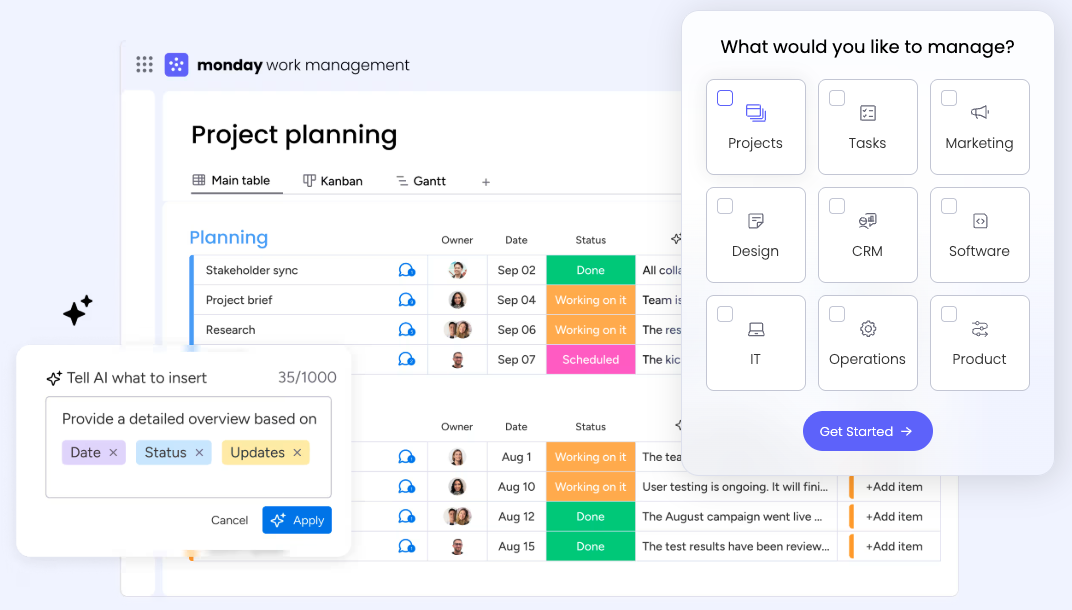
Image source: monday.com
Best for
- Teams who want a highly visual, customizable platform to track any type of workflow.
- Operations and PMO teams standardizing processes.
- Sales ops and HR teams tracking pipelines/workflows.
- Teams that need reporting dashboards for leadership.
Key features
- Automations center: Pre-built recipes to automate status changes and notifications.
- Dashboards: Aggregate data from multiple boards into one reporting screen.
- Column types: Over 30 different column types to capture specific data.
Pros
- Extremely visual and easy to understand at a glance.
- High level of customization without needing IT support.
- Great tutorial system and customer support.
Cons
- Pricing structure is based on seat groups (e.g., 3, 5, 10), which can be awkward.
- The interface can become cluttered if not organized properly.
Pricing
- Basic: $9 user/month, paid yearly
- Standard: $12 user/month, paid yearly
- Pro: $19 user/month, paid yearly
- Enterprise: Custom pricing
9. Obsidian: Best local-first notes for knowledge building
Overview
Obsidian creates a "second brain" for your thoughts, operating on a philosophy of locally stored, plain-text Markdown files. Unlike cloud-first apps, where your data is locked in a proprietary format, Obsidian lives on your hard drive. This makes it incredibly fast and completely functional offline. For users building a Windows productivity suite securely, Obsidian is a cornerstone because it guarantees data ownership. You can link notes together to form a web of knowledge, mimicking how the human brain makes associations. It is a favorite among researchers, writers, and developers who appreciate the ability to customize the interface via community plugins.
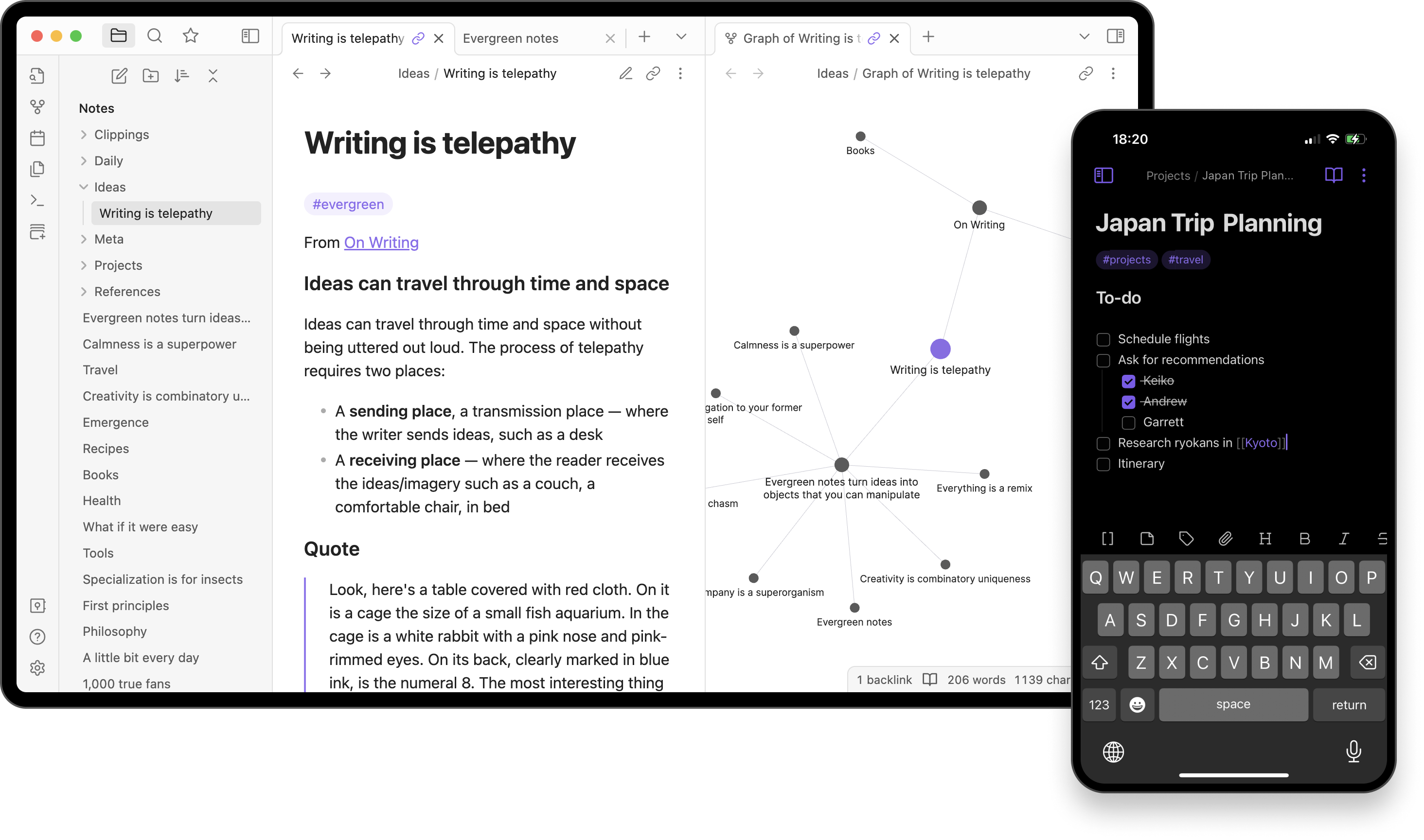
Image source: obsidian.com
Best for
- Knowledge workers, writers, and students building a long-term personal knowledge base.
- Researchers, writers, and knowledge workers.
- Students building long-term study notes.
- Privacy-conscious users who prefer local files.
Key features
- Bi-directional linking: Connect notes to discover hidden relationships in your ideas.
- Graph view: A visual representation of your note network.
- Plug-in ecosystem: Hundreds of community plugins to add features like calendars or Kanban boards.
Pros
- Files are 100% local, ensuring privacy and future-proofing.
- Highly extensible and customizable.
- Free for personal use with no feature restrictions.
Cons
- Requires learning Markdown syntax.
- Syncing across devices requires payment or technical setup (e.g., via Git or iCloud).
Pricing
- Sync: $4 user/month, paid yearly
- Publish: $8 user/month, paid yearly
- Catalyst: $25 user/month, paid yearly
- Commercial: $50 user/month, paid yearly
10. Flow Launcher: Best keyboard launcher for faster Windows navigation
Overview
Flow Launcher is an open-source productivity tool that replaces or augments the standard Windows Start Menu. Activated by a simple keystroke (usually Alt + Space), it creates a search bar in the center of your screen. From here, you can launch apps, search for files, do calculations, execute system commands (like shutdown or sleep), and even search the web. It is designed for keyboard-centric users who want to keep their hands off the mouse. While the native Windows search has improved, Flow Launcher remains one of the best productivity apps for Windows 10 and 11 alternatives due to its speed and plugin support.
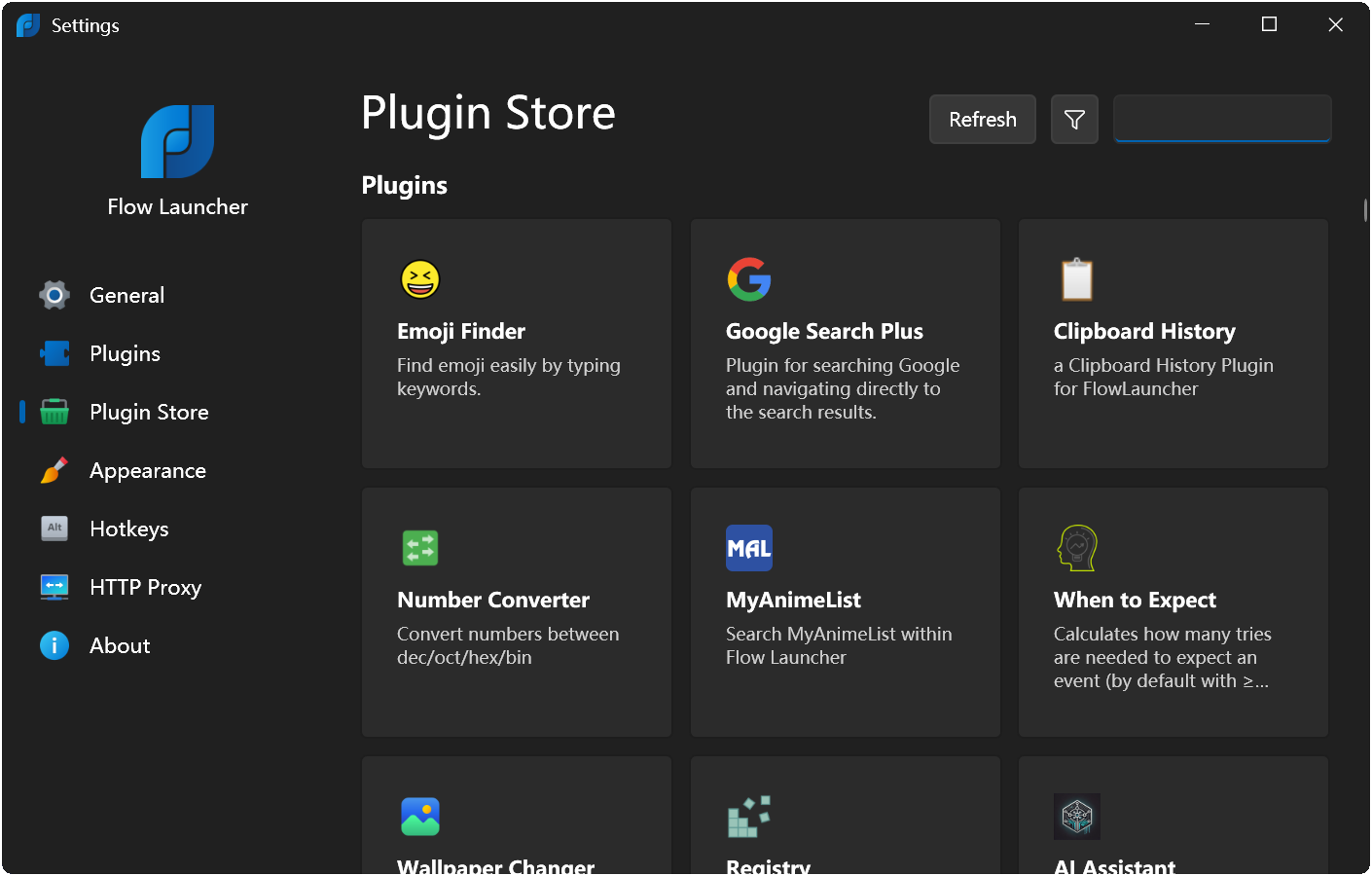
Image source: flowlauncher.com
Best for
- Power users who want to navigate their PC and execute commands purely via keyboard.
- Power users who prefer keyboard-first workflows.
- Developers and IT pros navigating many tools daily.
- Users frustrated with slow Windows search.
Key features
- Instant search: Find files and apps with zero lag.
- Plugin store: Add functionality like Spotify control, currency conversion, or color translation.
- System commands: fast access to sleep, restart, or empty recycle bin.
Pros
- Open source and community-driven.
- Highly themable to match your desktop aesthetic.
- Significantly faster than native Windows search.
Cons
- Requires some initial configuration to set up plugins.
- Not as "plug-and-play" as the default Start Menu.
Pricing
Custom pricing is available.
Eager to gain more features but spend less?
Selecting the best Windows apps for productivity: A step-by-step approach
Choosing the best Windows apps for productivity is less about chasing a "#1 app" and more about removing friction from your day—one step at a time. Here's a practical way I recommend building your stack on Windows without overbuying or overcomplicating.
Start by naming your biggest bottleneck
If you lose time in back-and-forth conversations and scattered files, begin with a tool that reduces app switching. Lark is a strong first pick because it combines chat, meetings, and docs in one place, so you're not juggling multiple Windows all day. If your team depends on many third-party alerts and integrations, can still be a fit—just expect more context switching.
Add a system for
If your work involves multi-step projects, choose a tool that matches your complexity. Asana is great when you need structured timelines and clear ownership. Monday.com suits teams that want flexible dashboards and configurable workflows. If your work is data-heavy and you want "spreadsheet meets database," Airtable is a smart option.
Capture personal tasks and knowledge fast
For daily follow-through, pick one lightweight capture tool: Todoist is excellent for quick task entry and recurring routines. For long-term thinking and documentation, Obsidian works well because it's local-first and fast, even offline.
Fix small workflow leaks with one utility
If you create docs, tutorials, or bug reports, ShareX saves time with powerful capture and annotation. If Windows search slows you down, Flow Launcher speeds up launching apps and finding files.
Keep only what you'll actually use
Aim for one "hub" (often Lark), one project tool (Asana/Monday/Airtable if needed), and one personal system (Todoist/Obsidian). Then reassess after a week and remove anything that adds noise.
Optimizing productivity apps for laptop users
Laptop work is a trade-off: You gain mobility, but you inherit tighter limits on battery, thermals, and screen space—and you cannot assume reliable Wi‑Fi. To stay productive on the move, I organize optimization around three priorities: Power, space, and offline continuity.
Protect battery life and keep the system responsive
The most common productivity killer on a laptop is background load. Many are built with web technologies (often Electron), meaning each app can behave like its own mini-browser. Run several at once and you may hear the fan ramp up and feel performance dip—even during "light" work.
- Consolidate where it makes sense: An like Lark can reduce overhead by combining chat, docs, and meetings into a single running app, instead of keeping multiple heavy clients active at once.
- Trim what launches at startup: Open "Task Manager" → "Startup" apps and disable anything you do not need immediately. Many productivity apps for PC add auto-start entries by default, and removing them can keep your laptop cooler and faster.
Make small screens feel bigger
Moving from dual monitors to a single 15-inch display requires stricter window discipline. The goal is to reduce UI clutter so your "work surface" stays visible.
- Collapse UI chrome while creating: In Microsoft Office or , hide ribbons, sidebars, and panels when you are writing or editing. It's a simple habit that restores valuable vertical space.
- Use virtual desktops to separate contexts: With Win + Tab, create one desktop for communication (email/Slack) and another for deep work (writing/coding). This reduces visual clutter and makes switching intentional.
Prioritize offline continuity for travel
A mobile workflow fails the moment your connection drops. The "cloud-only" trap is real: Some tools cannot even open key content without the internet.
- Prefer local-first where possible: Obsidian stores notes as local Markdown files, so it works fully offline and syncs later. Todoist also supports offline task capture and updates.
- Prepare critical files for offline access: For cloud-heavy Microsoft productivity apps, use "Always keep on this device" in File Explorer for essential working folders, so you can keep moving even without Wi‑Fi.
Conclusion
An effective digital setup isn't about one "perfect" app—it's about a workflow that fits how you work on Windows. Audit your current Windows productivity suite and remove tools that create friction, duplicate notifications, or slow your PC. Start with one bottleneck: capture tasks (Todoist), organize knowledge (Obsidian), speed up navigation (Flow Launcher), or run projects (Asana). As the best productivity apps for Windows 10 evolve and productivity apps for Windows 11 add smarter OS integrations, stay intentional and keep your stack lean. If your biggest drain is constant app-switching, consider to unify chat, docs, and meetings in one place. It's a practical way to simplify without losing collaboration.
Elevate your laptop productivity with Lark
FAQs
What is the #1 productivity app?
There isn't one universal #1—it depends on your workflow. If you want fewer logins and less app-switching than Slack + docs + meetings, Lark is a strong all‑in‑one. For personal tasks, Todoist is excellent.
What are the best free productivity apps?
Great free options include Lark (generous team features), Todoist (solid basics), Obsidian (local notes), ShareX (powerful capture), and Flow Launcher (fast search). Many "free" SaaS tools restrict history, automations, or collaboration seats.
What are the 5 most commonly used productivity tools?
Microsoft 365 (Office), Slack, Google Workspace, Zoom, and Trello/Asana-style project tools are common. The downside is fragmentation: multiple subscriptions, duplicate notifications, and constant context switching. Lark can replace several of these for many teams.
What 3 Microsoft programs can you use to manage time?
Outlook (calendar and reminders), Microsoft To Do (tasks), and OneNote (planning and meeting notes). They work well, but collaboration can feel scattered across apps; pairing them with an all‑in‑one like Lark can simplify daily execution.
How can I reduce app fatigue on Windows without losing collaboration?
Running separate chat, docs, and meeting apps often increases distractions and RAM use. Lark consolidates them into one workspace, while you can still keep specialist tools like Airtable or Asana for complex project tracking.
Related reading