Modern teams rely heavily on consistent, automated processes to keep work flowing, approvals moving, and information accessible across departments. Microsoft offers several workflow tools, from MS Teams workflows to Power Automate and SharePoint automation, but the ecosystem is often complex, fragmented, and difficult for non-technical users to manage. While MS workflow tools are powerful, many organizations now seek a smoother, unified alternative that keeps collaboration, automation, and data in one place.
This guide breaks down what MS workflow automation is, how it works across Teams and Power Automate, its essential features, everyday use cases, limitations, and why Lark delivers a far cleaner, more modern workflow experience.
Upgrade your workflow efficiency
What is MS workflow?
MS workflow refers to the built across Microsoft's ecosystem, primarily using MS Teams workflow, Power Automate, SharePoint, Outlook, and Dynamics 365. It helps teams automate tasks such as approvals, notifications, data syncing, document routing, and multi-step business processes. MS workflow supports everything from to finance approvals, IT support, sales operations, and even specialized workflows such as LC-MS/MS or LC-MS for nucleotide analysis, where structured data capture and step sequencing are essential.
Most MS workflows rely on Power Automate triggers, scheduled flows, and connectors that move information between Outlook, Excel, SharePoint Lists, OneDrive, and Teams. This makes Microsoft workflow automation powerful but often complex, requiring multiple modules and technical setup. While workflows built inside Teams are useful for simple triggers, advanced processes, such as LC-MS analysis of nucleotide workflow, depend on Power Automate logic, conditional routing, and careful governance.
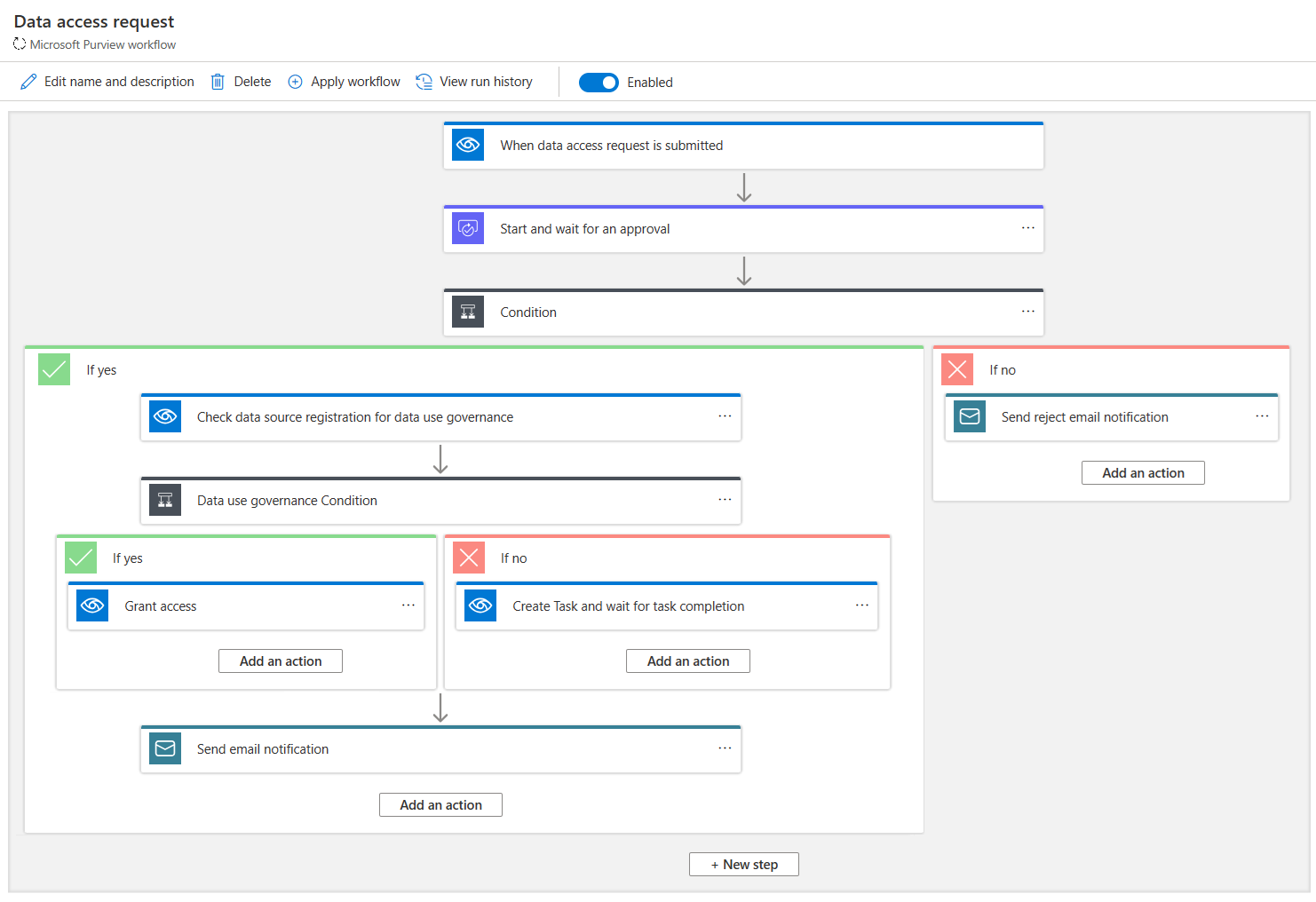
Image source: microsoft.com
How Microsoft Teams workflow operate
Microsoft has rebuilt the MS Teams workflow experience to make simple automation easier for everyday users. While it still connects deeply with Power Automate, Microsoft Teams now offers a more guided, lightweight way to trigger actions, send responses, and streamline routine tasks inside chats and channels.
- Overview of the new Microsoft Teams workflow experience: The updated interface focuses on quick, no-code automation for routine actions such as sending alerts, creating tasks, and routing approvals. It centralizes templates for onboarding, reminders, and team notifications. This makes the MS workflow setup simpler for non-technical users while still allowing deeper customization through Power Automate.
- Triggers (new message, new team member, file shared): Microsoft Teams workflows trigger events such as a new message on a channel, a new team member joining, or a file being shared. These triggers allow Microsoft Teams to automate welcome messages, updates, and task creation. They form the foundation of lightweight Microsoft Teams workflow automation without switching tools.
- Approvals inside Teams: Microsoft Teams includes a built-in Approvals app for requesting and tracking sign-offs directly in chat. Users can attach files, add notes, and monitor status from one panel. However, advanced routing, conditions, or multi-step approvals still require Power Automate, creating inconsistency across Microsoft's workflow tools.
- Notifications + auto-replies: Microsoft Teams workflows can send automated notifications to individuals or channels when specific triggers occur. Auto-replies help teams acknowledge messages instantly, send FAQs, or confirm submissions. These features improve response speed but are limited when compared to the advanced notification logic available in Power Automate.
- How workflows connect with Planner, SharePoint, and OneDrive: Microsoft Teams workflows can create Planner tasks, update SharePoint Lists, or sync files with OneDrive as part of a process. These connections extend but also introduce dependencies on multiple Microsoft modules. For more complex cross-app routing, users must configure multiple connectors and permissions.
- Pros and limitations based on recent Microsoft Teams workflow updates: Recent updates make Teams workflows easier for beginners, with improved templates and faster setup. They work well for reminders, simple approvals, and team notifications. However, limitations remain; Microsoft Teams workflows lack the depth of Power Automate, depend heavily on connectors, and often split processes across multiple apps.
Steps to Microsoft workflow automation with Power Automate (easy way)
Microsoft Teams workflows run on Power Automate, enabling teams to automate task updates, alerts, approvals, and data movement across Microsoft 365 apps. Instead of manually sharing updates or routing requests through chat, team workflows trigger automatically based on events, such as a new message, file upload, form submission, or channel activity. Here's a simple, practical step-by-step guide to help you understand how modern teams' workflows operate.
Step 1. Identify the workflow scenario you want to automate
Start by choosing a repetitive action that frequently slows your team down, such as notifying a channel when a task changes, creating follow-up reminders after a meeting, sending approval requests to managers, or posting alerts when files are updated in SharePoint/OneDrive. Clarifying the exact scenario helps you choose the right trigger and actions in the following steps.
Step 2. Select the trigger that starts the workflow
Power Automate workflows begin with a trigger connected to Teams or another Microsoft 365 app. This could be a new message posted on a channel, an incoming chat keyword, a recorded meeting summary, a new task created in Planner, or a form submission in Microsoft Forms. Once you select the trigger that best matches your scenario, Power Automate will continuously monitor that event.
Step 3. Add conditions to shape the workflow logic
Conditions help you filter when the workflow should continue. For example, you may want the workflow to run only when a message contains a certain keyword, when a form response meets specific criteria, or when a planner task is assigned to a particular owner. Adding conditions ensures that the workflow responds intelligently instead of running every time the trigger fires.
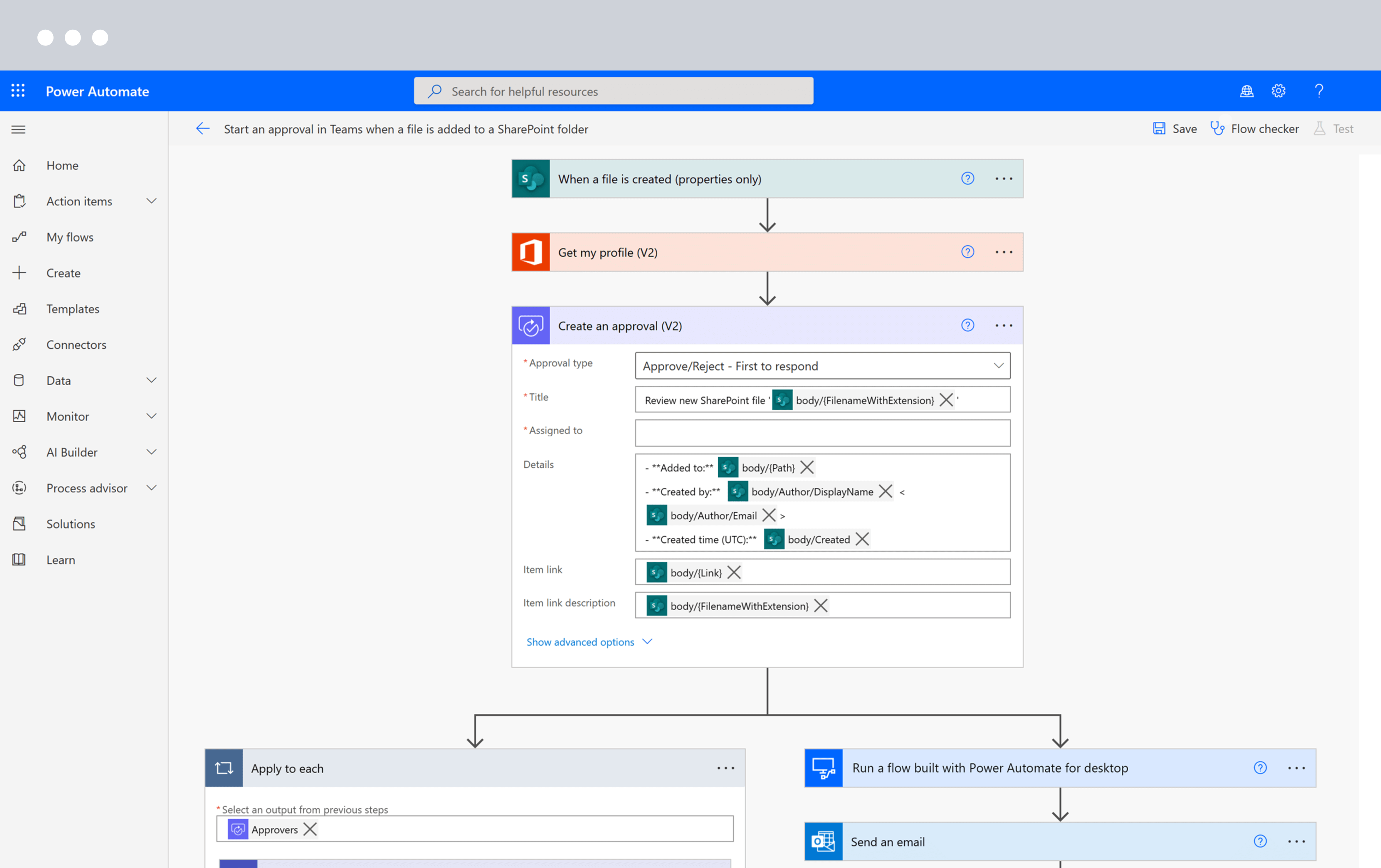
Image source: microsoft.com
Step 4. Add actions that execute work inside Teams
Next, define what the workflow should do once the trigger and conditions are met. With team-focused automation, everyday actions include posting notifications to channels, sending direct messages to teammates, updating a Planner task, generating an approval request, or attaching a file from SharePoint. You can stack multiple actions to build end-to-end sequences, such as notifying a channel, logging information to a list, and assigning a task, all in a single automated flow.
Step 5. Include cross-app steps for complete automation
Team workflows often rely on Power Automate's deep connection with Microsoft 365 apps. You can easily pull data from SharePoint, Outlook, Excel, Dynamics 365, or Forms to create more powerful workflows. For example, after a Form response is received, the workflow can automatically create a Planner task, store the data in a SharePoint list, and send a Teams DM to the owner.
Step 6. Test, refine, and monitor the workflow for reliability
Once the workflow is configured, run tests to ensure the trigger fires correctly, the conditions filter properly, and each action executes as expected. After turning the flow on, monitor its run history inside Power Automate to catch errors, improve performance, and refine steps as your operational needs evolve.
Everyday use cases for Microsoft workflow automation
Microsoft workflow automation supports a wide range of business processes across HR, finance, IT, sales, and operations. These workflows help teams standardize tasks, reduce manual effort, and ensure consistent information flow across the Microsoft ecosystem.
- HR workflows (reviews, onboarding): MS workflow automation streamlines HR processes such as onboarding, , and leave approvals. Power Automate can send welcome emails, set up accounts, and assign tasks through Teams or Planner. These automations ensure new hires receive a consistent, well-structured experience.
- Finance workflows (approvals, invoice routing): Finance teams use Microsoft workflows to route invoices, trigger multi-step approvals, and enforce spending policies. SharePoint Lists and Power Automate often work together to track submissions and approvals. This reduces manual errors while maintaining financial compliance.
- IT workflows (provisioning, access requests): IT teams rely on MS workflow automation to provision new accounts, process access requests, and route service tickets. Automated notifications keep employees updated on IT actions. These flows improve response times and reduce the load on IT helpdesks.
- Team collaboration workflows in MS Teams: MS Teams workflows automate reminders, task creation, and quick approvals directly in the chat. Triggers like new messages or mentions can initiate specific actions. These lightweight workflows improve alignment but often require Power Automate for more profound logic.
- Document workflows in SharePoint and OneDrive: These services handle document approvals, metadata updates, and version tracking via automated workflows. Teams can route files for review, archive older versions, or flag updates to relevant stakeholders. These automations support compliance-heavy environments.
- Sales/CRM workflows via Dynamics 365: Dynamics 365 uses business process flows to guide sales reps through qualification, proposal, and closing stages. Automations can route leads, update opportunities, or notify managers of stalled deals. This creates a structured, consistent sales pipeline across the organization.
Essential features of Microsoft workflow automation
Microsoft workflows bring structure, speed, and automation across everyday business processes. This section breaks down the core capabilities that enable seamless approvals, notifications, and data movement across the Microsoft 365 ecosystem.
- Multi-step approval flows: These let teams automate for HR, finance, procurement, or IT. Each stage routes to the correct approver based on rules, deadlines, or conditions. This ensures consistent governance, reduces manual follow-ups, and accelerates final signoff.
- Email + Teams notifications: Workflows automatically send alerts via Outlook email and Microsoft Teams to keep users updated in real time. Notifications can include reminders, approval prompts, action items, or auto-responses. This eliminates delays and ensures every stakeholder stays aligned.
- Data syncing across Office apps: Microsoft workflows sync data across Excel, SharePoint, OneDrive, and Dataverse without manual entry. Changes made in one app instantly update across connected systems. This ensures accuracy, prevents duplication, and maintains a single source of truth.
- Role-based routing: Role-based routing sends tasks and approvals to the correct users based on job function, department, or access level. It reduces bottlenecks and eliminates manual triage. This is especially useful for structured processes like access control, HR approval chains, and IT governance.
- Templates for HR, finance, IT: Microsoft provides for onboarding, expense approvals, asset requests, ticketing, and more. These reduce setup time and offer proven best-practice structures. Teams can customize them to align with internal policies and compliance requirements.
- Integration with SharePoint Lists: SharePoint Lists act as the data backbone for many workflows, storing requests, logs, assets, or submissions. Workflows can read, update, or trigger actions from List changes. This makes it ideal for ticketing systems, approval pipelines, and document governance.
- AI Builder predictions: enhances workflows with predictive insights, including risk scoring, sentiment analysis, and classification. It can auto-approve low-risk items, flag anomalies, or categorize data. This brings intelligent automation to routine processes without needing custom AI development.
Limitations of the Microsoft workflow to consider
While Microsoft workflows are powerful, they come with structural limitations that affect speed, usability, and collaboration. These challenges often surface as teams scale their automation across departments.
- Heavy reliance on multiple Microsoft modules: Workflows often require Teams, SharePoint, Outlook, and Forms working together, leading to dependency overload. Each module has its own settings, permissions, and maintenance tasks. This increases admin complexity and slows down deployment.
- Complex connector setups for : Building workflows that span HR, finance, or IT requires multiple connectors and permissions. Mapping triggers and actions across services can feel overwhelming. As complexity grows, troubleshooting becomes harder for everyday users.
- Steeper learning curve for non-technical users: Non-technical teams struggle with Power Automate's logic, branching rules, and data mapping. Even simple workflows require comfort with variables, connectors, and error handling. This limits adoption unless teams invest in training.
- Approvals and notifications spread across interfaces: Approvals may appear in Teams, Outlook, or the Power Automate app, depending on setup. Users must check multiple places to stay updated. This fragmentation often leads to missed tasks and slower response times.
- Automation logic differs between Teams and Power Automate: Teams workflows offer simplified automation, while Power Automate supports advanced logic. The inconsistency creates confusion when switching between the two. Users often rebuild flows because capabilities don't translate 1:1.
- Collaboration context gets lost across tools: Because communication lives in Teams while workflow data sits in SharePoint, Lists, or Power Automate, context becomes fragmented. Users switch tabs to track comments, files, and decisions. This slows decision-making and breaks process continuity.
- High reliance on cloud: As organizations scale their sales operations and rely more heavily on cloud-based tools, many are turning to to modernize their infrastructure and support seamless integrations. Migrating sales platforms, CRMs, and data pipelines to Microsoft Azure enables better performance, centralized data management, and improved security across systems. This ensures that sales teams can access real-time insights, collaborate effectively, and maintain consistent workflows—especially in distributed or fast-growing environments.
Upgrade your business with smarter workflow automation
New option: How Lark's unified platform outperforms MS workflow tools
Microsoft's workflow ecosystem is robust, but its fragmented tools can slow teams down. Switching between Teams, SharePoint, Outlook, and Power Automate often creates friction, scattered notifications, and governance challenges. Modern teams need a workspace that's unified, intuitive, and easy to maintain , not a maze of connectors. This is where a cleaner, more streamlined workflow experience stands out, and delivers precisely that.
Fully automated workflows built for no-code processes
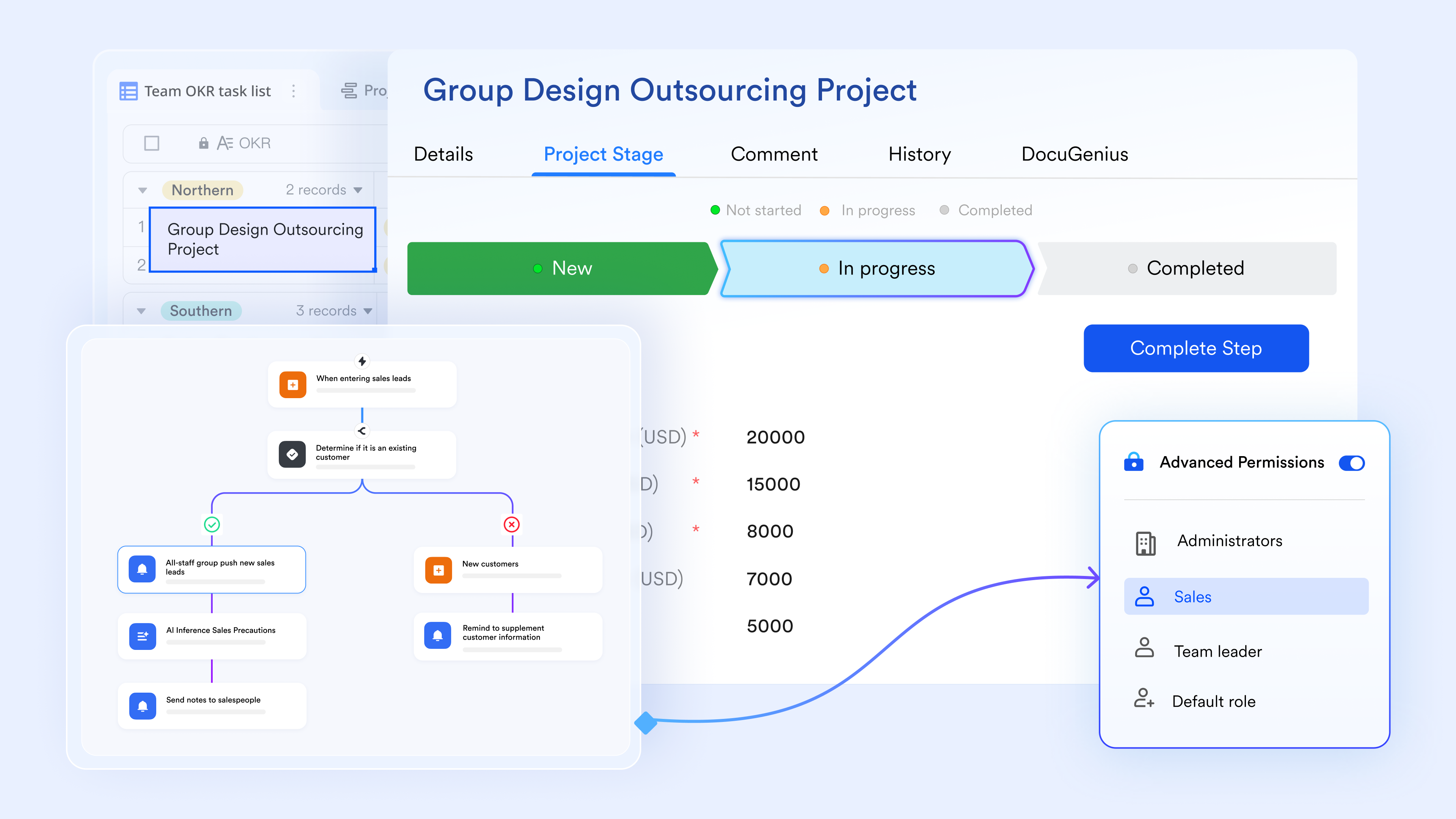
As Lark's data hub, Lark Base provides multiple ways to manage projects and data. As the automation engine, Lark Base workflow effortlessly turns even the most complex, multi-step processes into smooth, fully automated flows. With powerful If/Else and Switch conditional branches, it handles sophisticated logic with ease, automatically choosing the right path based on real-time data, approvals, or custom rules, while the intuitive drag-and-drop visual editor lets you build, view, and adjust everything in seconds without writing a line of code. The moment conditions are met, actions fire instantly—updating records, notifying the right people, or advancing tasks—so your team no longer wastes hours chasing updates or fixing missed steps. 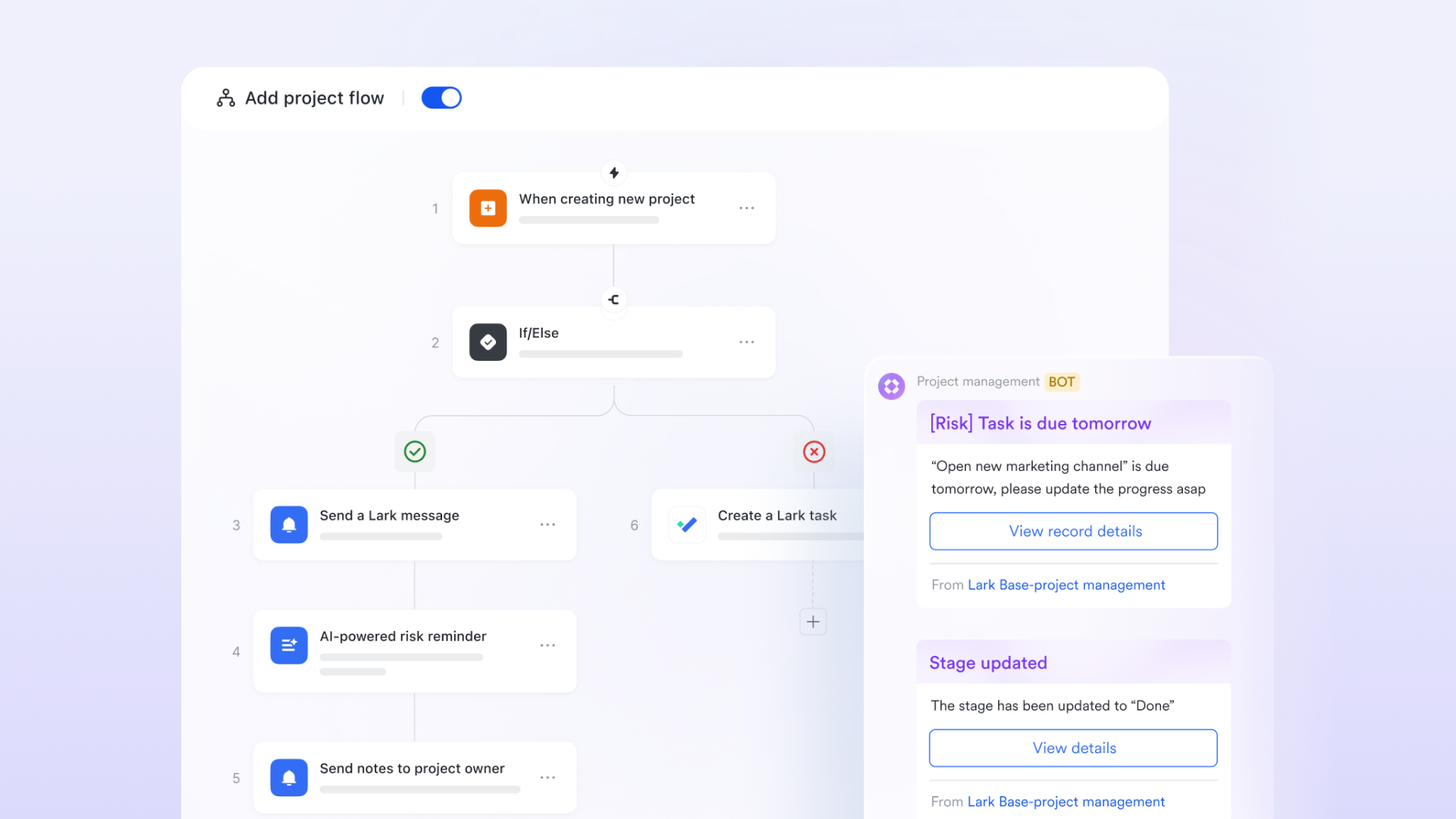
Automatic approval rules for predictable scenarios
allows teams to set policy-driven auto-approval rules, such as "auto-approve expenses under $25" or "skip second review for low-risk requests." These rules reduce manual workload and eliminate unnecessary decision layers. With Microsoft, similar automation requires building conditional logic inside Power Automate, mapping connectors, and managing error paths, something non-technical teams often struggle with. Lark's rule setup is straightforward, accessible directly from the approval panel, and easy for business users to maintain without IT involvement. 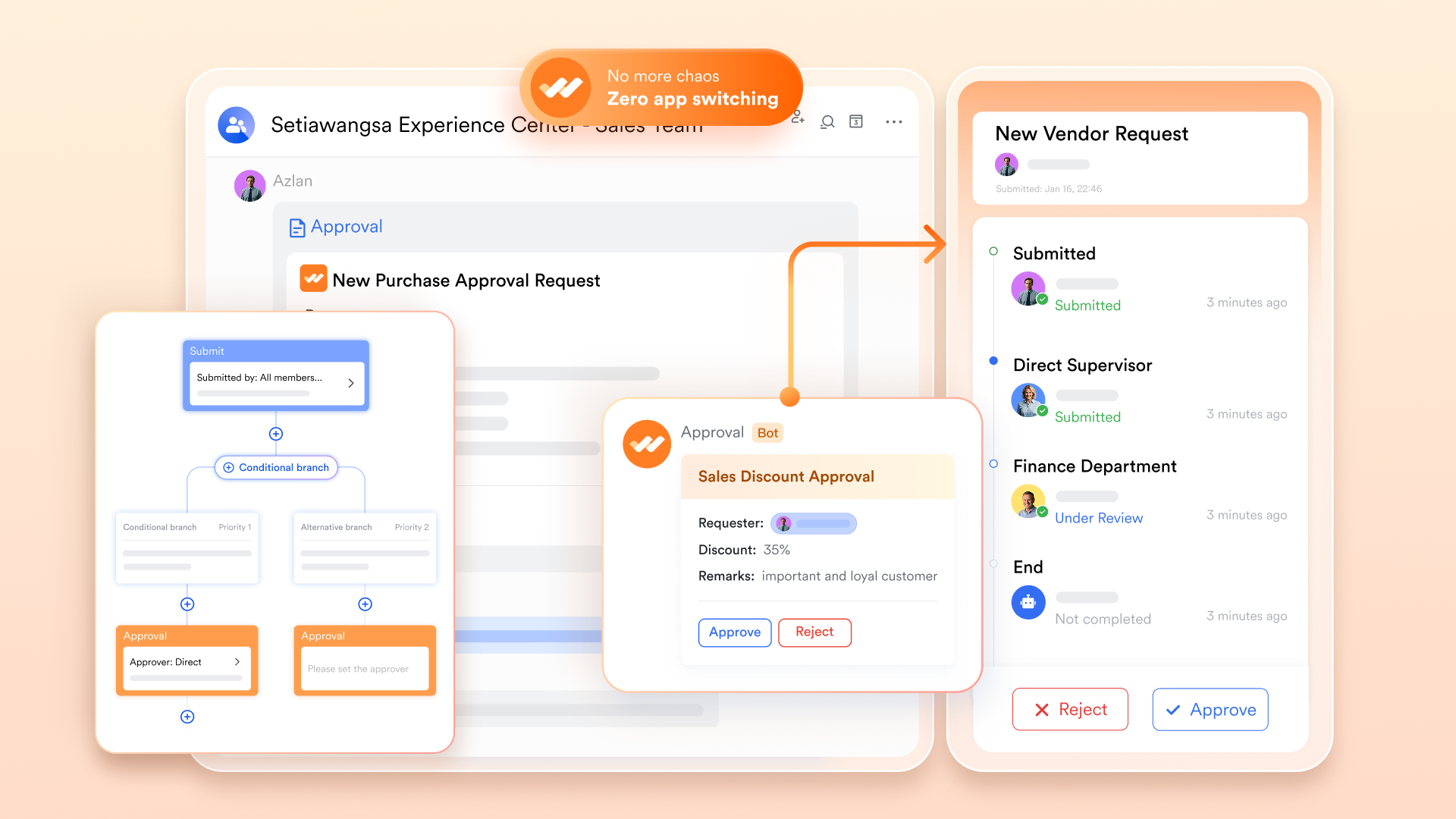
Automated reminders that prevent delays
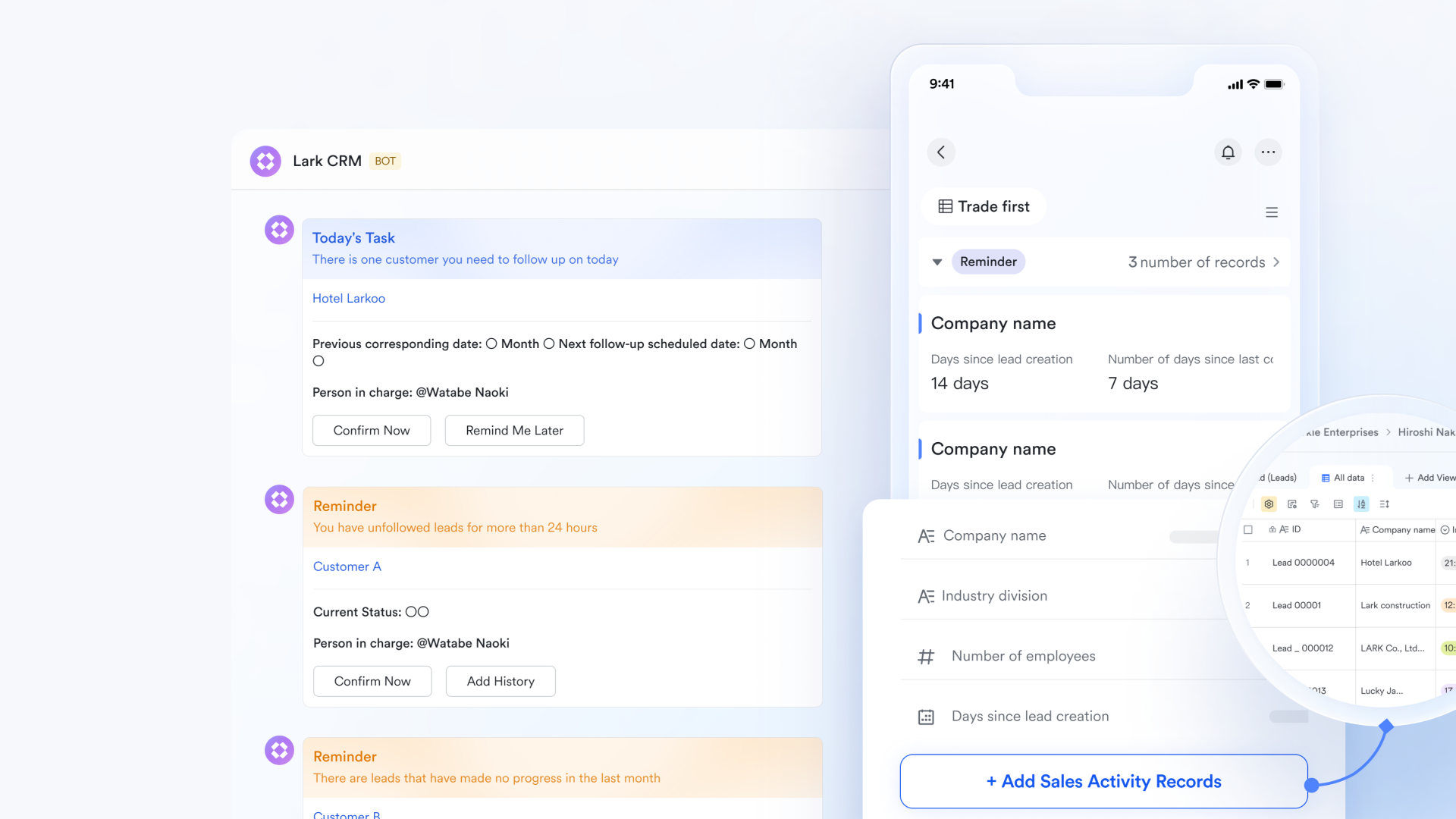
Approvals often stall because someone forgot to review an item or missed an email notification. Lark solves this with that trigger based on time rules, such as sending a follow-up message after 24 hours or nudging a reviewer when a deadline is near. In the Microsoft workflow environment, reminders typically require manual configuration of Power Automate conditions, time triggers, and email steps. Lark makes reminders effortless in the workflow, reducing bottlenecks and keeping processes moving without .
Seamless workflow across desktop, mobile, and tablet
Given that people need to address multiple workflows every day, Lark enables users to adjust workflows right on mobile and tablet. Employees can comment, and approve from desktops, phones, or tablets without switching apps, treating Lark as a portable project management hub or . Microsoft workflows often force users to open attachments in SharePoint or OneDrive separately, hop between apps on mobile, or rely on Outlook to access files. With the Mobile app, teams can review requests, open files, leave comments, and approve tasks instantly from anywhere, ensuring decisions move forward even when people are away from their desks.
Built-in connection with Messenger and Base for real-time updates
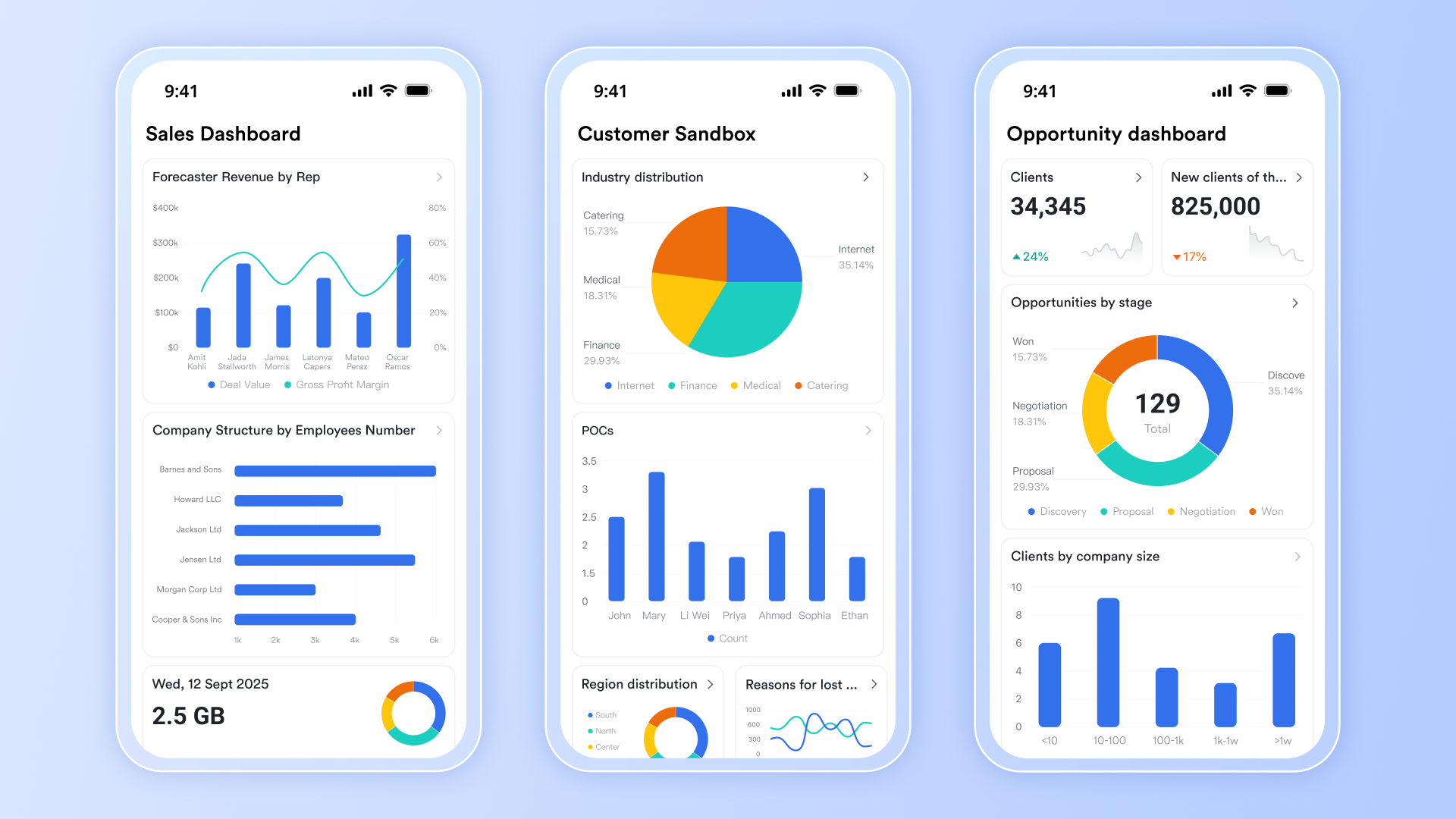
Lark Base seamlessly integrates with to enable real-time updates and automation. You can use incoming Lark messages as triggers for Base automations—when the Base bot detects a message that matches your set criteria in a group or private chat, it automatically executes the configured actions. Automated messages can also be sent to collaborators, featuring interactive buttons that let users add or edit records, open links, or trigger workflows directly from the message. Additionally, message content and related data can be referenced in follow-up automation actions, ensuring a smooth and connected workflow across your team. In contrast, Microsoft's ecosystem usually forces you to stitch together Power Automate flows, Teams connectors, Outlook rules, and SharePoint triggers; any single link in that chain can break, lag, or silently fail. With Lark, everything stays native, instant, and unbreakable inside one unified workspace.

:
- Starter plan: Free forever plan that includes 11 powerful tools for up to 20 users. It also comes with 100GB of storage, 1000 automation runs, AI translations, and more.
- Pro plan: $12/user/month (billed annually) for up to 500 users. It includes everything in Starter plus group calling for up to 500 attendees, 15TB of storage, 50,000 automation runs, and more.
- Enterprise plan: for custom pricing. Supports unlimited users and includes even more automation runs and advanced security, compliance, and management features.
For small teams with simple communication needs

18 months message history
1000 Base automation runs/month
2000 rows per table in Base
Most POPULAR
For companies with comprehensive collaboration and management needs
Unlimited message history
500-participant video meetings
50k Base automation runs/month
20k rows per table in Base
For large companies with advanced security and organizational management needs
Get a personalized demo and pricing
Unlimited message history
500-participant video meetings
15 TB storage + 30 GB storage/user
500k Base automation runs/month
50k Base automation runs/month
Most POPULAR
For companies with comprehensive collaboration and management needs
Unlimited message history
500-participant video meetings
50k Base automation runs/month
20k rows per table in Base
How to choose between MS workflow and alternatives
Before adopting Microsoft workflows at scale, organizations must evaluate operational readiness and long-term automation strategy. These factors help determine whether Power Automate (+ workflows in Teams) or Lark is your final solution
Conclusion
Microsoft workflows offer strong automation capabilities, especially for organizations already invested in Teams, SharePoint, Outlook, and Power Automate. They streamline approvals, sync data across Office apps, and support multi-department processes, but complexity, governance challenges, and a steep learning curve can slow adoption.
As workflows expand, maintaining connectors, permissions, and cross-tool context becomes more difficult, increasing overall operational costs. Businesses need to balance flexibility with usability, ensuring their automation stack enhances collaboration rather than fragments it. For teams seeking faster deployment, simpler governance, and unified communication and workflow execution, a more integrated platform can deliver greater efficiency, such as .
Enhance your process governance
FAQs
Can MS workflows run without Power Automate?
Yes, some Microsoft workflows can run without Power Automate, such as elementary MS Teams workflow actions like reminders, channel posts, and lightweight approvals. But advanced routing, conditions, and integrations rely on Power Automate. Even when basic tasks can be performed independently, organizations eventually adopt full automation to reduce manual effort and maintain consistency across processes, using a structured execution LC-MS/MS workflow model. How do Teams workflows differ from Power Automate flows?
Teams workflows are designed for quick, conversational tasks within Teams, such as approvals, notifications, and channel automation. Power Automate supports more profound logic, multi-step sequences, and enterprise integrations. Teams simplify user experience, while Power Automate provides scale and control. Together, they address both advanced and straightforward automation needs, much as an LC-MS workflow balances simplicity with analytical depth.
Can MS workflow automation work with non-Microsoft apps?
Yes, Microsoft workflow automation integrates with hundreds of third-party apps using connectors or APIs. Power Automate bridges Microsoft 365 with CRM systems, HR tools, finance software, and cloud services. This flexibility makes it ideal for hybrid tech environments, much like an LC-MS nucleotide analysis workflow, which brings together diverse components to deliver unified operational output across systems. What skills are needed to build MS workflow automations?
Users need basic logic skills, understanding of triggers, conditions, and variables, plus familiarity with Teams, SharePoint, and Outlook. More advanced flows require JSON, APIs, error handling, and connector configuration. The learning path resembles building an LC-MS analysis of nucleotides workflow, simple at the start, but increasingly technical as complexity, precision, and integrations expand.
How do organizations maintain governance across MS workflows?
Governance requires policies for permissions, lifecycle management, auditing, and flow ownership across departments. Admin centers help enforce compliance, monitor errors, and manage data access. Standardized templates and documentation reduce risk and maintain scale. This structured oversight mirrors the controlled setup found in an LC-MS workflow for nucleotide analysis, where consistent rules ensure accurate, repeatable outcomes.
Related reading












