


Guide to Trello Automation: Explanation, Steps & Reviews

Ryan Tanner
Product Marketing Specialist
Aug 5, 2026
Ryan Tanner
Aug 5, 2026

21 min read


Trello automation has become an essential part of how teams simplify task management and reduce repetitive work. As workflows grow more complex, teams look for tools that help them move beyond manual card updates. Trello offers its own automation engine called Butler, which helps users create rules, buttons, and scheduled actions. This guide explores how Trello workflow automation works, the role of Trello automation variables, and how Butler helps teams create flexible processes. You will also see how modern collaboration platforms like Lark offer deeper workflow support for growing teams.

What is Trello automation?
Trello automation refers to any automated workflow within Trello that reduces manual card updates and repetitive tasks. It allows teams to move cards between lists, assign members, update fields, set due dates, or send reminders. Trello automation makes it easier to keep boards organized and ensures tasks progress consistently without users having to perform every step manually. Most automations are created using the built-in Butler system, but users can also rely on Power-Ups and templates to expand what cards can do. Trello automation helps improve consistency and provides a structure that works for both simple and moderately complex workflows.
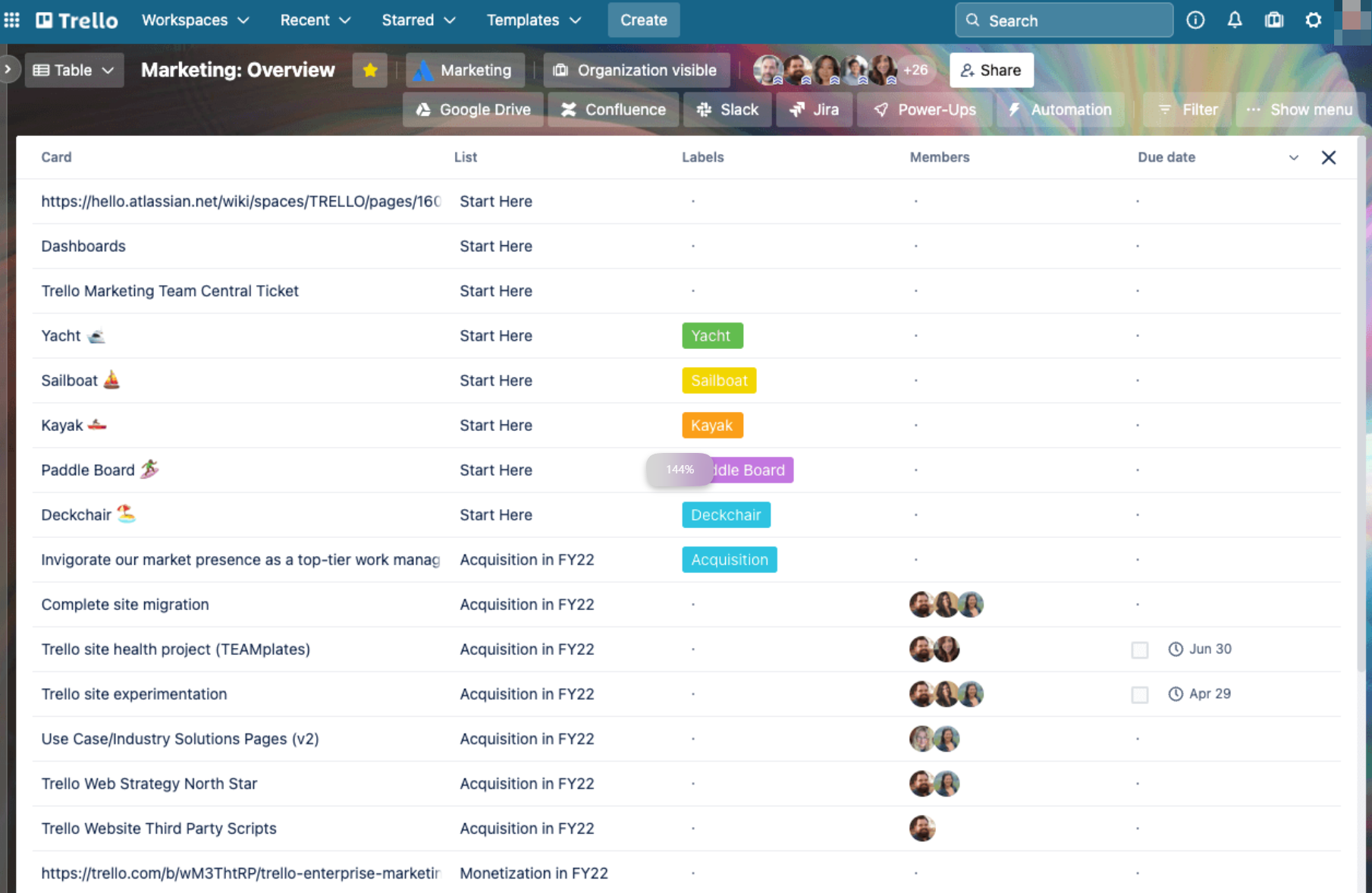
Image source: Trello.com
What is Trello Butler automation?
Trello Butler automation is the core automation engine built directly into Trello. It helps users create rules, buttons, and scheduled tasks. With Trello Butler automation, teams can use triggers, conditions, and actions to make multi-step workflows run on their own. It also supports Trello automation variables, which help rule reference card details such as due dates, fields, or labels. Trello Butler automation offers more customization compared to basic automation features, giving teams a reliable way to run advanced card logic. Many users depend on it for multi-action sequences that manage task routing and card organization.
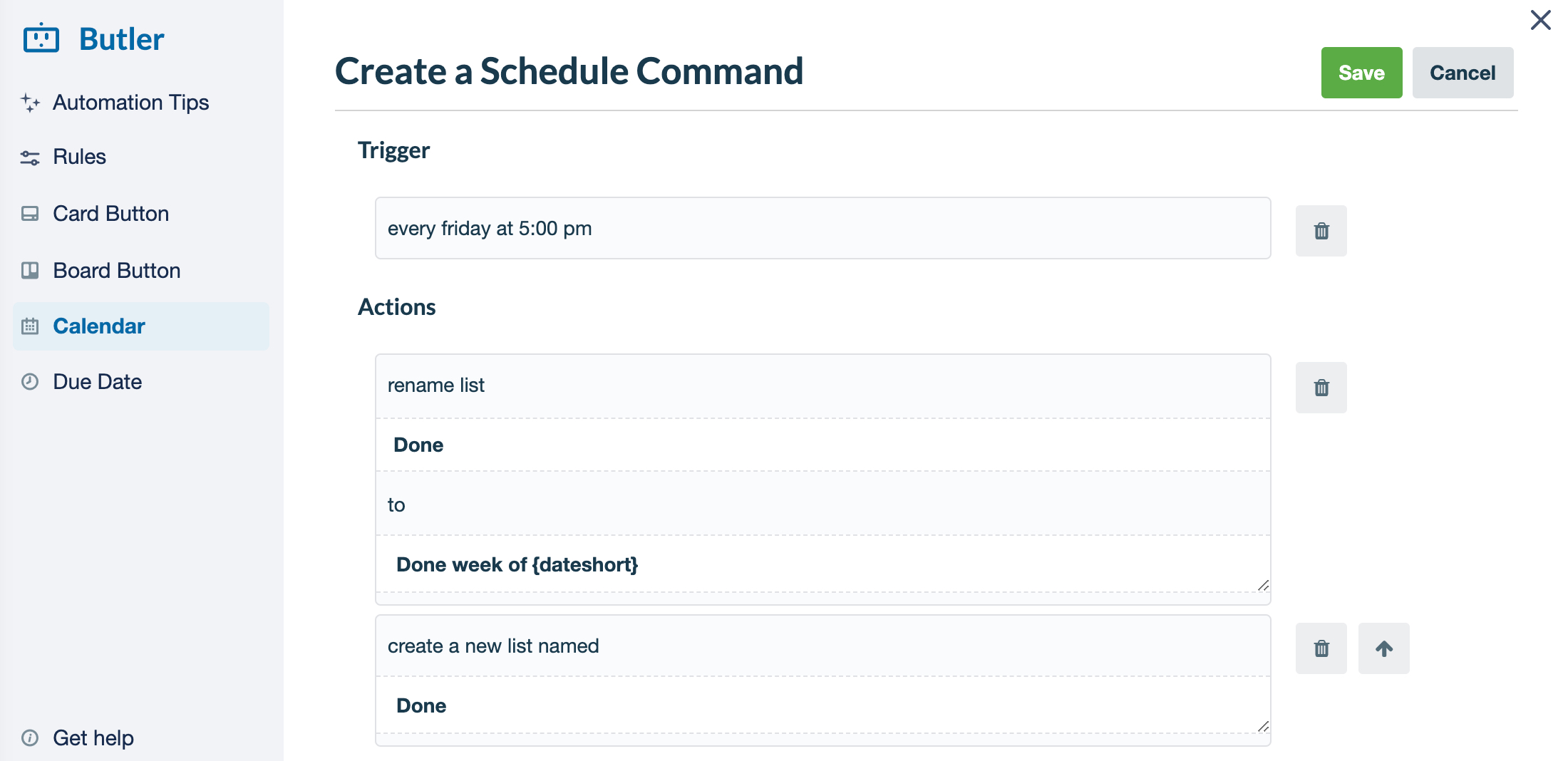
Image source: Trello.com
Difference between Trello automation and Trello Butler automation
Before building workflows, it helps to understand how Trello automation and Trello Butler automation compare, since both operate inside the Trello environment.
How Trello automation works: step-by-step guide
Trello automation offers multiple ways to reduce repetitive work across boards. It includes rules, buttons, scheduled actions, calendar-based triggers, and Power Ups that expand how tasks can run automatically. These steps help you understand the broader automation system before moving into workflow-specific logic.
Step 1. Understand the available automation types
Before creating automation, explore the full set of tools Trello provides. These include rules for automatic reactions, buttons for manual triggers, scheduled actions for timed processes, and Power Ups for extended automation features. Understanding these options helps you choose the right method for each task. It also ensures your automation supports the type of work your team manages.
Step 2. Choose the automation area you want to configure
Trello allows automation at the card level, board level, and time-based levels. Card buttons support on-demand actions, board buttons help run multi-step sequences on the board, and scheduled commands handle tasks that run at intervals. Selecting the right area ensures your automation behaves consistently within the environment where it is needed.
Step 3. Open the automation dashboard
The automation dashboard gives you access to rules, buttons, and schedules in one place. From here, you can view all existing automations, create new ones, and manage the overall setup. This dashboard acts as your central workspace for managing Trello automation. It helps keep everything organized so you can update logic easily.
Step 4. Pick a command type to build
Select whether you want a rule that reacts automatically, a button that users click manually, or a scheduled command that runs at specific times. Each command type serves a different purpose. This choice depends on how predictable, on demand, or time-based your process is. Picking the right type ensures your automation supports the workflow correctly.
Step 5. Add triggers and optional filters
Triggers define when the automation begins. These may include card movements, due date reminders, checklists being completed, or labels being applied. You can also add filters, such as specific labels or fields, to narrow down when automation should apply. This helps keep actions targeted and prevents unnecessary updates across the board.
Step 6. Add the actions Trello should perform
Actions are the steps Trello executes automatically. These include moving cards, assigning members, creating checklist items, posting comments, or modifying fields. You can add multiple actions in a single command to support more complex sequences. This flexibility helps teams build both simple and advanced automations.
Step 7. Review and save your automation
Once you set the trigger and actions, review the configuration to ensure everything is correct. Confirm that the automation supports the intended workflow and does not conflict with other commands. Saving automation publishes it so Trello can begin running it on your board.
Step 8. Test automation in real usage
Run a small test to verify that your automation behaves as expected. Move a card, update a field, or trigger the rule to confirm that actions fire correctly. If the automation does not perform as intended, you can return to the dashboard and adjust the logic. Testing helps guarantee reliability before automation becomes part of daily work.
How Trello workflow automation works: Step-by-step guide
As noted in the table, basic automations handle simple tasks within a board, while Butler provides a powerful, customizable system for cross-board workflow automation. Trello’s automation system, formerly known as Butler, helps teams streamline repetitive tasks by automatically organizing cards, updating fields, sending reminders, and routing work across boards. Instead of manually moving cards or assigning tasks, Trello automation executes predefined rules based on triggers, conditions, and actions. Below is a simple step-by-step guide to help you build your first automated workflow.
Step 1. Map out the task you want to automate
Start by identifying a manual action that happens repeatedly in your workflow, such as moving cards between lists, assigning team members, setting due dates, or sending follow-up reminders. Clarify when this action should happen and what result you expect. Understanding this upfront ensures you build a rule that solves the real problem instead of adding unnecessary steps.
Step 2. Choose your automation type (Rules, Buttons, or Scheduled)
Trello provides three categories of automation, and selecting the right one ensures your workflow behaves exactly as intended. Rules handle actions that should run automatically whenever a specific event occurs, such as a card moving into a list. Card or board buttons are designed for on-demand actions that teams trigger with a single click to execute multiple steps at once. Scheduled automations run at recurring intervals daily, weekly, or monthly to manage routine tasks like cleanup or reporting. Choose the type that best aligns with the frequency and control you need.
Step 3. Set your trigger event
The trigger defines the moment Trello should start automation. It could be a card entering a particular list, a due date approaching, a label being added, or a checklist being completed. Selecting the right trigger ensures the workflow activates at precisely the right point in your process, whether it's tied to task progress, timelines, or updates made by team members.
Step 4. Add conditions to refine when the rule applies
Conditions help Trello decide whether the automation should run after the trigger fires. For example, you may only want automation to apply when the card has a certain label, when a field isn't blank, or when a checklist still has open items. Adding conditions prevents your automation from running unnecessarily or affecting the wrong tasks.
Step 5. Define the actions Trello should perform
Actions determine what Trello will do once the trigger and conditions are met. This can include moving a card to another list, assigning team members, adding labels or due dates, posting comments, or even generating new cards or checklists. You can combine several actions to create a complete workflow sequence. For example, moving a card, assigning an owner, and setting a due date, all from a single rule. These stacked actions help automate multi-step tasks in one cohesive flow.
Step 6. Test your automation and refine the workflow
After creating the rule, run a quick test by manually triggering the event. Ensure the card moves correctly, fields update as expected, and no unwanted steps occur. If something doesn't behave as intended, adjust the conditions or actions. Once automation works smoothly, let Trello run it in the background while your team focuses on higher-value work.
Trello automation pricing
As we mentioned earlier, Trello's automation is primarily powered by Butler. Here is the extracted automation pricing of Trello. Before selecting a productivity suite, it's worth reviewing the latest Google Workspace pricing and ClickUp pricing plans. For overall plan of Trello, check the picture from its official website.
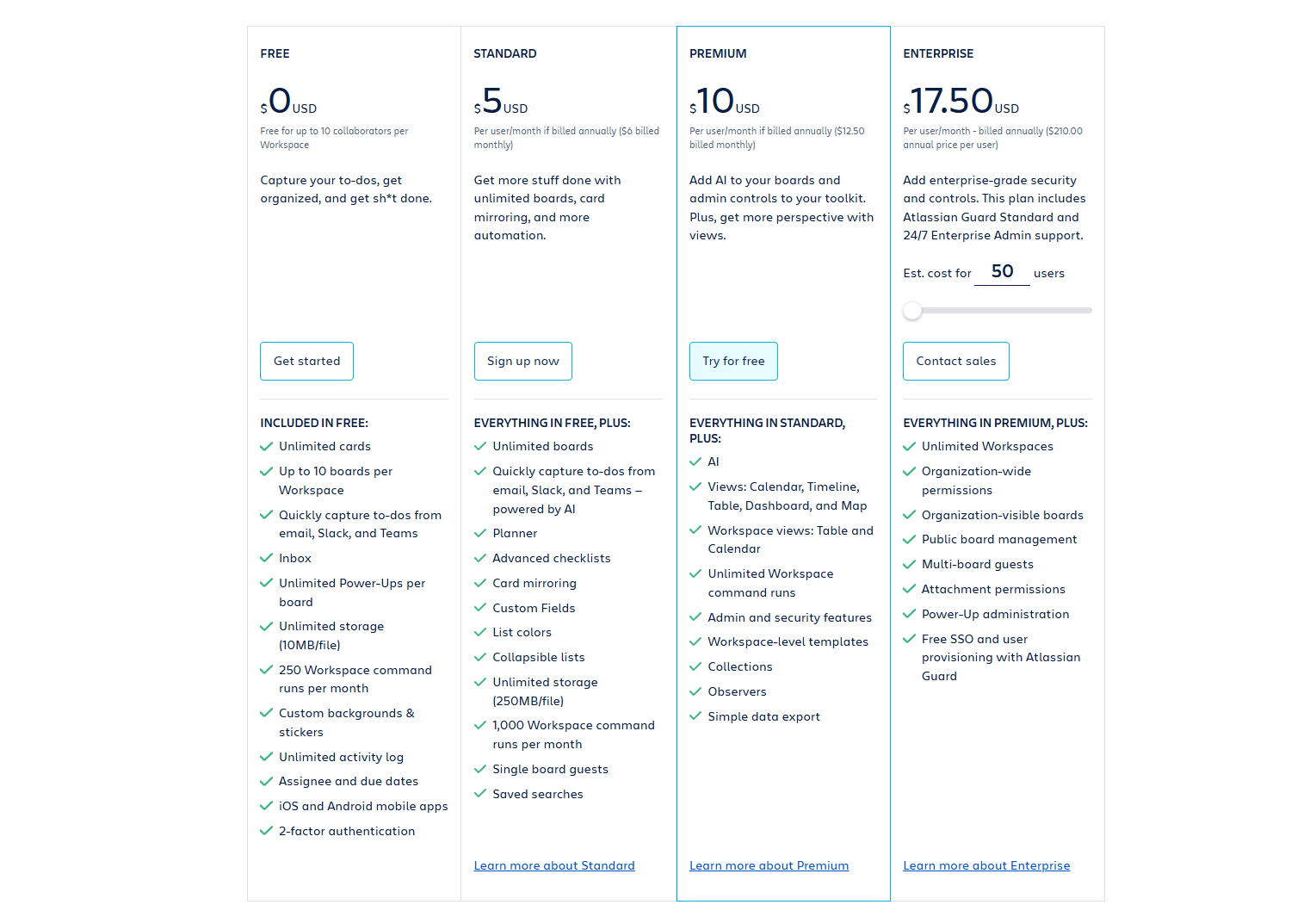
Image source: Trello.com
Information source: Official sites
Update time: 2025-11-24
Note: Pricing and plan details reflect publicly available data as of the update date and may vary based on region, billing cycle, and number of agents.
Trello workflow automation use cases across teams
Each team uses Trello workflow automation differently, depending on tasks, volume, and complexity. The following examples illustrate how different departments benefit from structured automation sequences.
For marketing teams
Marketing teams rely on Trello workflow automation to move content pieces across stages. Automating steps helps maintain consistency in managing campaign tasks. Workflows can route design drafts, content approvals, or publishing tasks smoothly.
For sales teams
Sales teams use Trello automation variables to track lead progress and automate handoffs. Automations can assign owners, update deal stages, or remind sales reps about follow-ups. This helps ensure opportunities move forward without communication gaps.
For operations
Operational teams depend on Trello workflow automation features that help them track repetitive tasks. Automation can manage task cycles, distribute responsibilities, and manage handovers between team members. This keeps operations predictable and reduces manual oversight.
For support
Support teams use Trello Butler automation features to categorize tickets, assign priorities, and notify agents. Automated triggers also help escalate overdue cases or update resolution stages. These actions help teams respond faster and keep service levels consistent.
Limitations of Trello automation to consider
Trello automation offers useful features, but teams often reach limitations as workflows grow.
- Butler command limits: Trello imposes monthly command limits depending on the plan. Heavy usage can quickly consume these quotas and pause workflows. This restricts teams running larger processes and requires careful planning.
- Slower at scale: As boards grow, Trello workflow automation may process actions more slowly. Delays can affect teams relying on quick task routing and time-sensitive work.
- Limited cross-board coordination: Trello automates activities within a board, but cross-board workflows become inconsistent. Teams managing multi-department operations may need to duplicate logic manually.
- No unified space for workflow records: Trello manages cards but does not provide a structured location for long-form content or documentation. Teams need external tools for approvals or reference materials.
- Fragmented collaboration: Comments stay on cards, and teams must rely on external tools for discussions or document creation. This can break the workflow context and slow progress.
Trello’s automation is great for managing tasks within boards, but as workflows grow or span multiple teams, some challenges can emerge, like cross-board coordination or keeping all workflow records in one place. For teams looking for a more unified space that combines automation, data management, and real-time collaboration, Lark offers a seamless solution.
How Lark offers stronger, end-to-end workflow automation
Modern teams need workflows that adapt to structured information, cross-team collaboration, and multi-step business processes. Trello helps with card-based actions, but many teams eventually require deeper workflow coverage. Lark brings together data, collaboration, and automation in one unified environment. This lets organizations support more complex work without switching between disconnected tools.
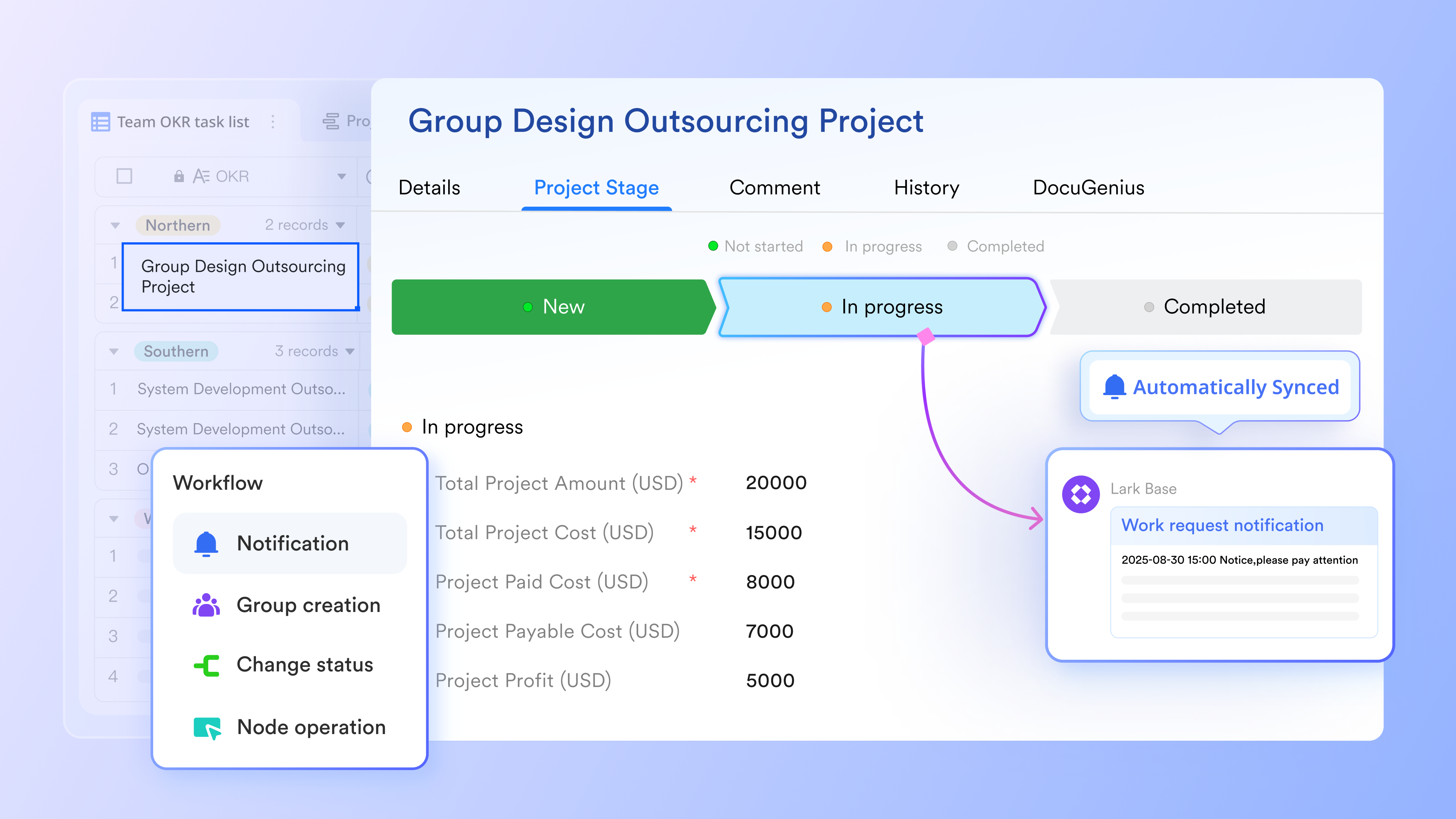
Automation built on structured records, not just cards
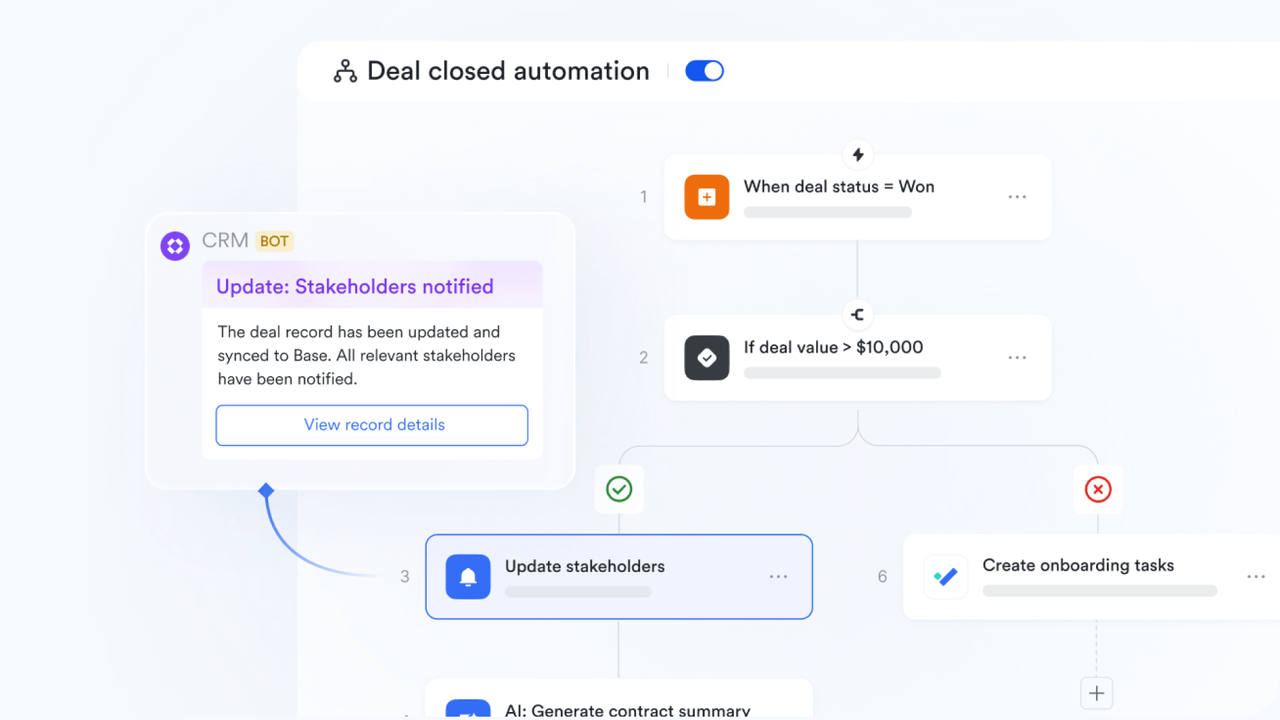
Lark relies on Base records that store structured data in relational tables rather than isolated cards. This gives teams a foundation where every workflow begins with clean, consistent information. Base workflows can read and update fields, trigger actions when values change, route items through multi-step processes, and connect approvals directly to the same dataset.
A procurement team, for example, can start a complete multi-department workflow from one vendor record, allowing HR, finance, IT, or operations to work from shared data without duplicating entries. This unified structure helps teams avoid scattered information and supports richer workflow patterns that reflect real business processes. By tying automation directly to base records, Lark enables workflows that follow actual operational logic rather than card-level actions.
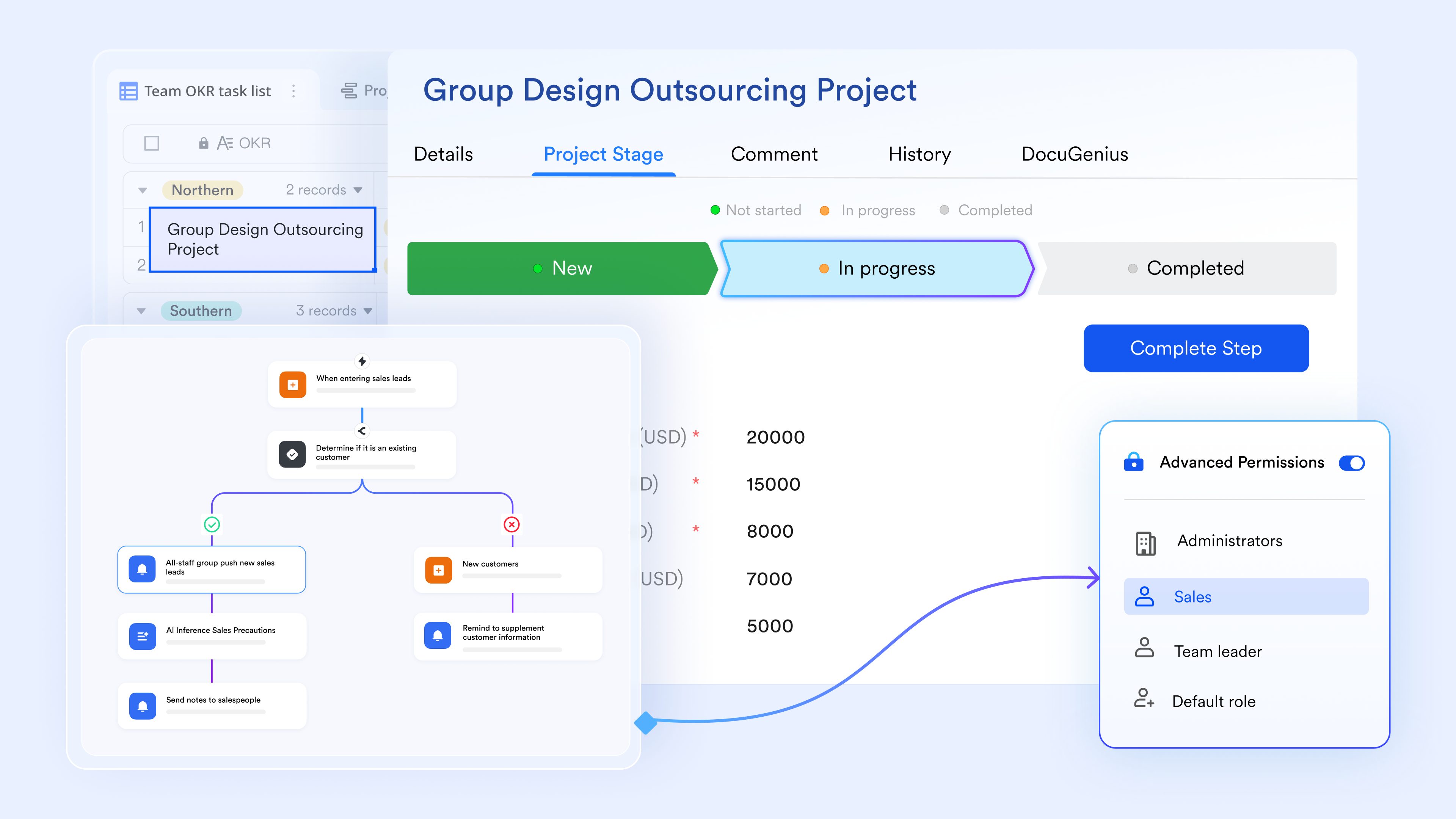
Cross-team workflows that extend beyond one board
Trello operates within board boundaries, which can make cross-team workflows difficult to manage. When HR, finance, operations, and leadership must follow one shared process, board-level differences can cause misalignment. Lark solves this by letting all departments work from the same Base and automation rule set. With automations in Lark Base, a new hire request moves through each team without switching tools or recreating workflow logic. Every step follows a consistent structure and stays fully linked to the original record. This helps teams avoid fragmentation and maintain unity across the entire workflow.
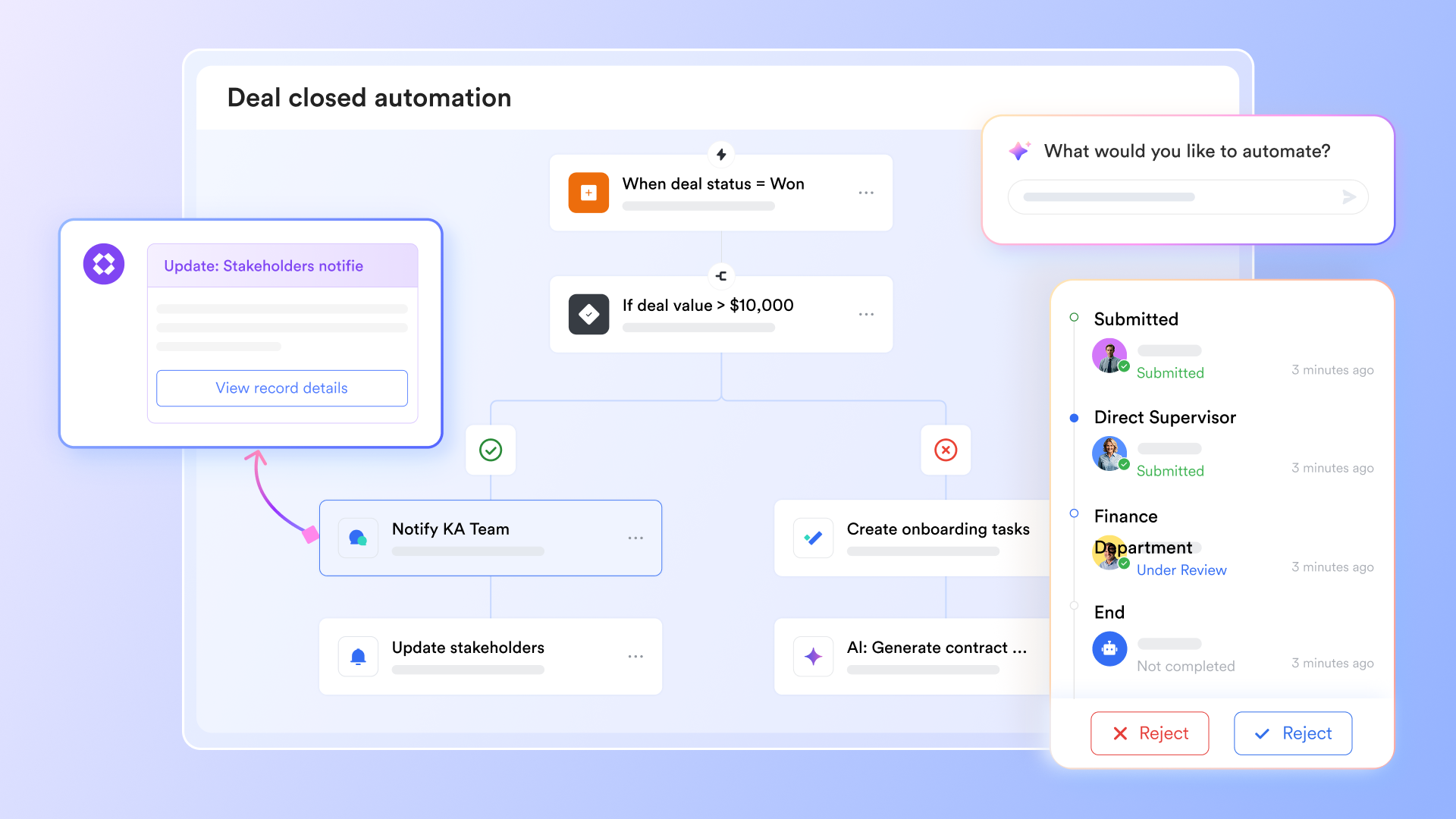
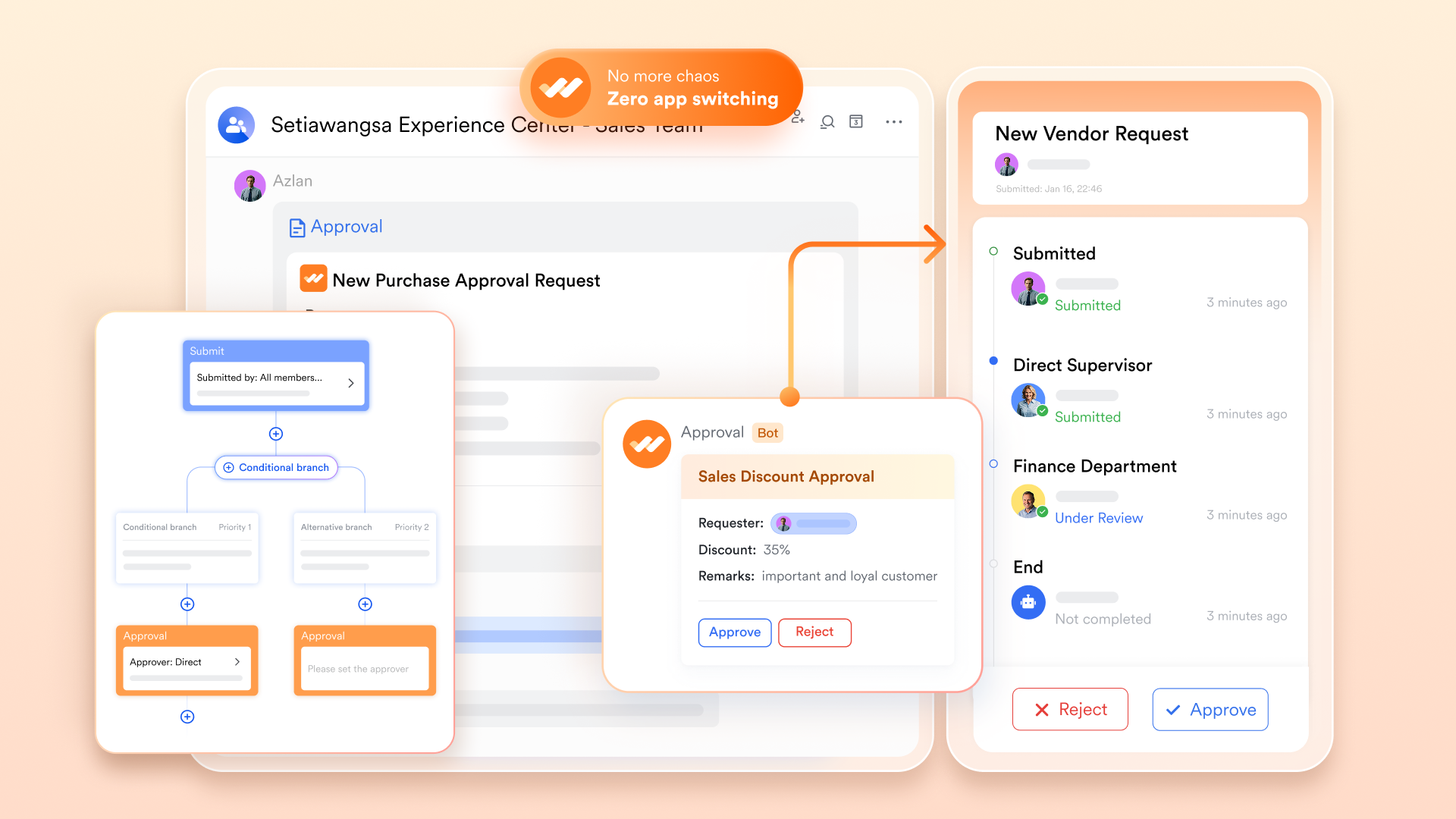
Approvals connected directly to workflow data
Trello approvals often rely on label changes, custom fields, or checklist updates, which do not provide structure or audit detail. Lark Approval supports a complete approval workflow where each stage is clearly defined, routed, and recorded. Every request and approval workflow follows a controlled path that captures timestamps, reviewer information, comments, and the next steps. A budget request can move from the manager to finance and then to leadership, with each decision documented in sequence. All approval workflow data remains linked to the Base record so teams can trace the entire process at any time. This gives businesses a dependable and auditable approval experience that fits real operational requirements.
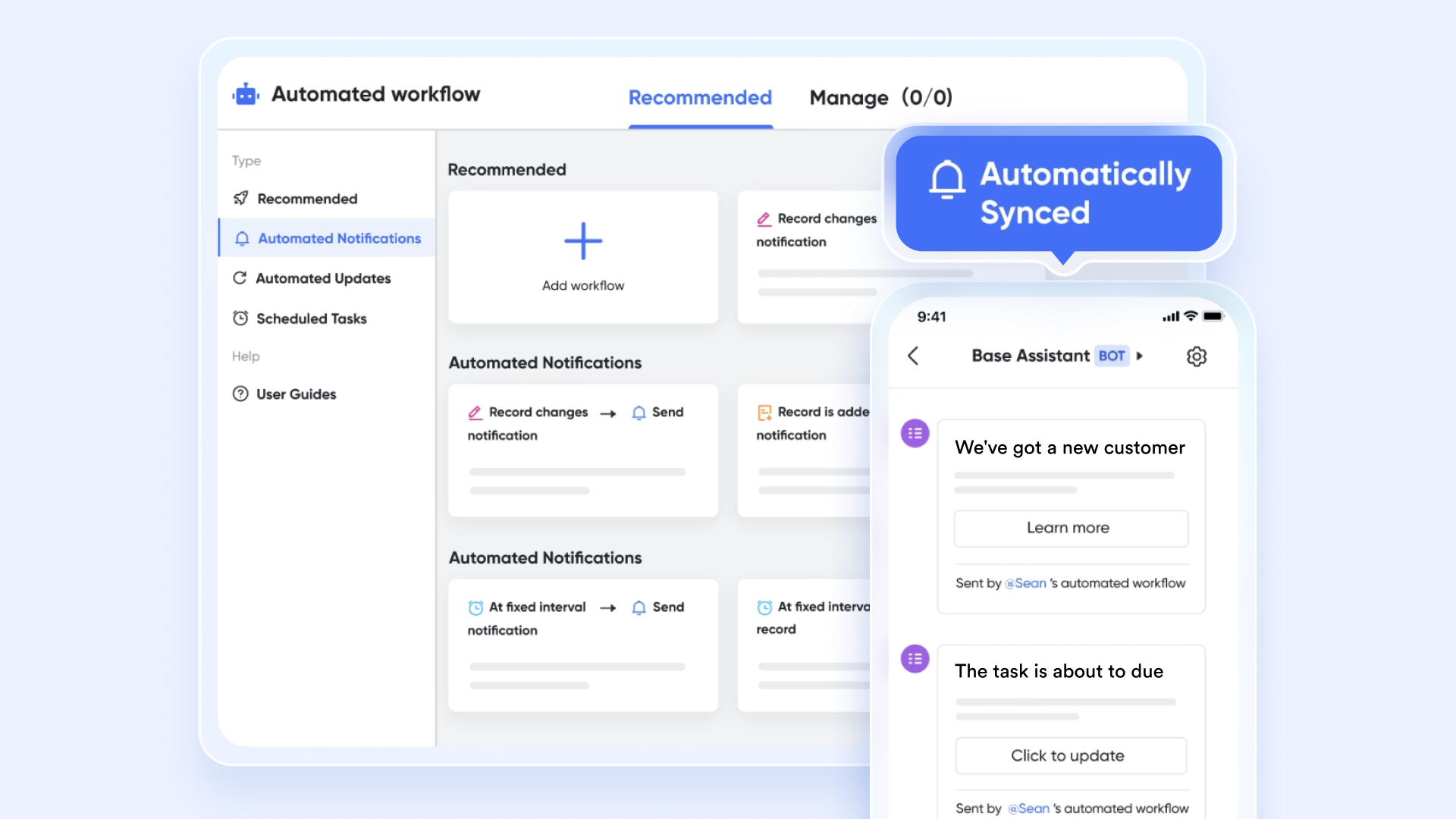
Set automation to enable real-time notifications that carry process context
Trello notifications usually show only basic card activity, so users must open the board to understand what changed. Lark Base automations let you send that carry full process context, keeping your team instantly informed. After the configuration, every time a record in your Base is added or updated, the system can automatically push a message with key details, links, and interactive buttons. By referencing variables and formatting messages with Markdown, each notification clearly shows what changed and what actions may be needed. This helps teams stay aligned, act quickly, and reduce the need for manual updates or follow-ups.
Automation capacity designed for heavy operational teams
Trello's automation runs depend on plan limits, which can restrict teams that manage high-volume operations. Heavy usage can quickly reach these caps and interrupt processes for the rest of the month. Lark provides generous automation capacities with 1000 runs on Starter and Basic, 50000 runs on Pro, and higher limits on Enterprise tiers. This supports HR requests, IT tickets, procurement cycles, or financial approvals at scale. Teams that depend on constant automation can run their workflows without concerns about hitting ceilings. Lark becomes more suitable for continuous operational workloads.
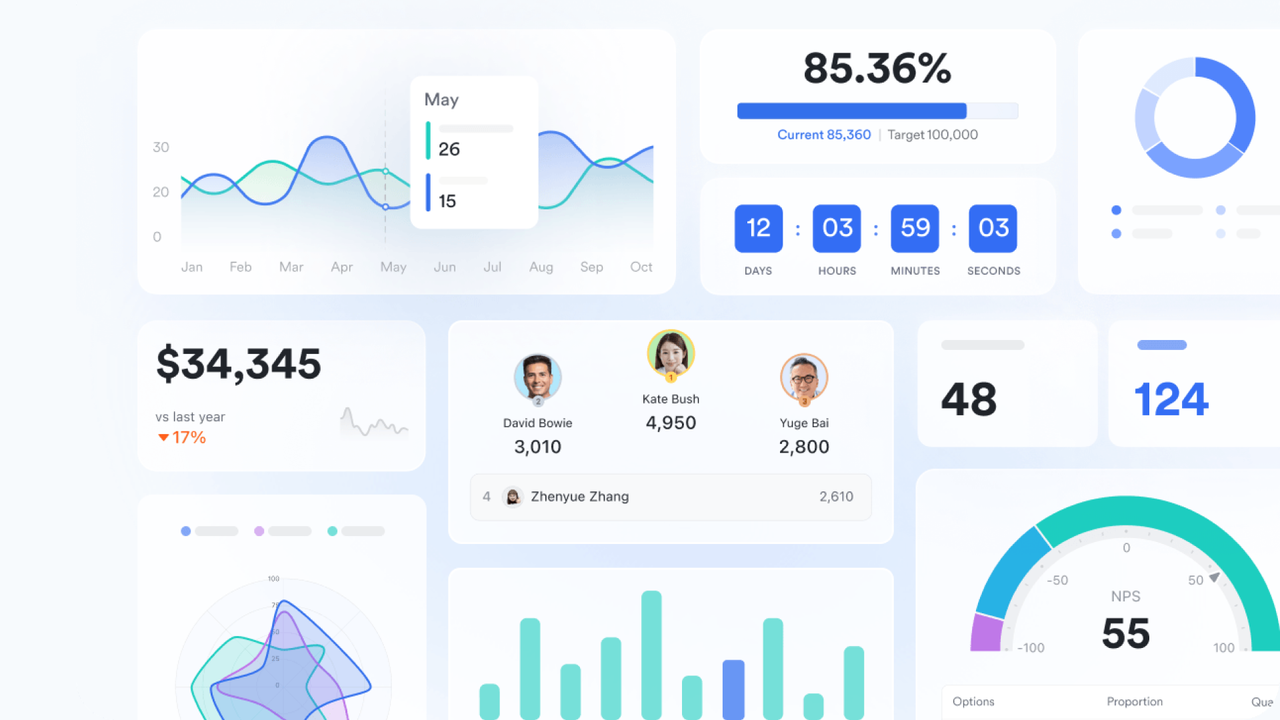
Dashboards that update automatically from workflow activity
Trello analytics show board-level information and cannot capture dataset-wide performance. Lark Base dashboards draw data directly from Base records, with updates applied automatically for most fields and synced approval data refreshing every hour. Teams can use these dashboards to monitor processing times, approval delays, workload distribution, or bottlenecks with a clearer view than card-based reporting. The dashboard reflects a more complete operational picture because it is built on structured data rather than isolated tasks. This helps leadership and operational teams make informed decisions and track improvements with broader and more detailed insights.
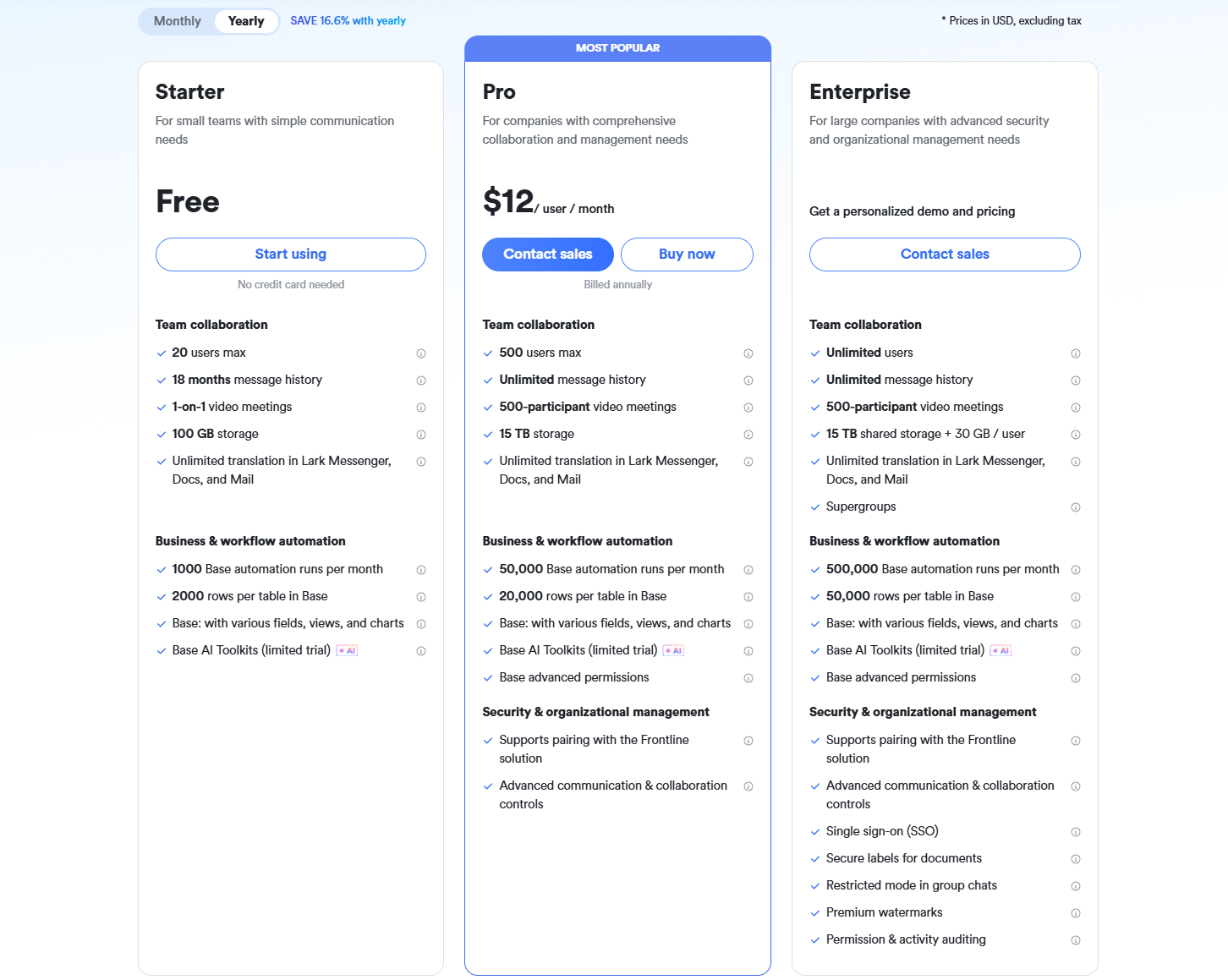
- Starter plan: Free forever plan that includes 11 powerful tools for up to 20 users. It also comes with 100GB of storage, 1000 automation runs, AI translations, and more.
- Basic plan: $6/user/month (billed annually) for up to 500 users. It includes everything in Starter plus group calling for up to 500 attendees, 5TB of storage, 1000 automation runs, and more. For more details, please contact sales.
- Pro plan: $12/user/month (billed annually) for up to 500 users. It includes everything in Basic plus group calling for up to 500 attendees, 15TB of storage, 50,000 automation runs, and more.
- Enterprise plan: Contact sales for custom pricing. Supports unlimited users and includes even more automation runs and advanced security, compliance, and management features.
Bonus section: Lark ready-to-use templates for automation
Lark, a standout choice among modern Google Workspace alternatives, not only lets teams build custom automation flows, but it also provides a growing library of ready-to-use templates that help teams launch structured workflows in minutes. These templates combine base tables, triggers, approvals, and task routing so teams can automate repeatable processes without starting from scratch. Below are some of the most popular templates for immediate automation setup
Build an automation checklist template
This template helps teams set up structured task sequences that follow a consistent pattern from start to finish. It includes predefined steps for planning, execution, review, and completion, so teams avoid missing important details. The layout works well for recurring processes that require predictable checkpoints. Users can adapt the fields to match their internal steps or department-specific routines.
Marketing automation workflow for tech template
This template gives marketing teams a clear structure for handling content schedules, campaign milestones, and collaboration steps. It includes stages for creative briefing, drafting, reviews, and publishing. The workflow makes it easier to coordinate multi-team marketing tasks while keeping everything organized in one view. Tech-focused teams use it to maintain campaign accuracy and speed.
End-to-end CRM project automation template
This template supports teams managing customer lifecycle projects from initial intake to completion. It standardizes every stage, including qualification, documentation, approvals, and follow-ups. The workflow helps sales and CRM teams stay aligned with details while reducing manual coordination work. It also ensures every customer project moves through a consistent and traceable path.
Healthcare marketing automation template for marketing directors
This template provides a structured flow for healthcare marketing teams that manage regulated content, campaign approvals, and multi-step activities. It includes stages for research, compliance review, creative development, and distribution. The workflow helps teams maintain accuracy and reduce delays caused by complex approval requirements. Marketing directors use it to keep campaigns organized while ensuring compliance readiness.
Workflow template
This general workflow template provides a flexible starting point for any team wanting to automate recurring tasks. It includes a clear sequence of steps that can be customized for operations, HR, finance, or project work. Users can adjust the fields, triggers, and routing rules to support specific processes. The template helps teams move from manual routines to predictable automated sequences.
Final checklist: Automation comparison of Trello vs Lark
Category | Trello (via Butler) | Lark |
Core automation | Rule-based: Triggers like card moves, due dates; actions like add members/labels (250 runs/mo free, unlimited on Premium+) | No-code triggers/actions: Data changes, forms, approvals; supports multi-step flows with instant execution |
Conditional logic | Basic if/then (e.g., if label added, move card); limited branching | Advanced If/Else, Switch branches; handles sophisticated rules like nested approvals or data validation |
Integrations | 100+ Power-Ups (e.g., Slack, Google Drive); some automation via Zapier (extra cost) | 1,000+ native Marketplace (e.g., Outlook, Slack); built-in API/webhooks for seamless cross-app sync |
Visual builder | Simple rule composer; board-centric, easy for beginners | Drag-and-drop canvas; previews full workflows with real-time testing |
Best for | Quick, repetitive board tasks; small teams (1-10 users) | Complex processes (e.g., HR onboarding, approvals); mid-large teams (20+ users) |
Pricing for automation | Free (limited runs); Standard: $5/user/mo (500 runs); Premium: $10/user/mo (unlimited) | Starter: Free (1,000 runs); Basic: $6/user/mo (1,000 runs); Pro: $12/user/mo (50,000 runs) |
Conclusion
Trello automation offers an effective way for teams to manage repetitive tasks and maintain organized boards. Its rule-based patterns help users streamline card updates, reduce manual work, and maintain a predictable flow across different task stages. As teams grow, Trello workflow automation features may begin to show limits in areas like approvals, cross-department coordination, or structured data management. Many businesses eventually explore platforms that offer fuller workflow coverage. Lark introduces this expanded approach by connecting documents, data structures, collaboration, and automation in a single environment. This makes it easier for teams to support real operational workflows and long-term processes.
FAQs
Does Trello automation work across multiple boards or only one?
Trello automation mostly works within individual boards, and cross-board logic can feel limited. Although cards can move between boards, multi-team workflows often require manual adjustments. Larger companies explore platforms such as Lark when workflow coordination needs a shared data source and consistent business process management across teams.
Can Trello automation replace full workflow management platforms?
Trello helps with structured task movements but does not manage deeper workflows such as approvals, multi-step routing, or data-driven processes. Businesses needing long-form documentation, coordinated approvals, or cross-team operations often look toward platforms like Lark for more comprehensive workflow support.
What happens when Trello Butler automation command limits are reached?
When command limits are reached, Trello pauses further automation until the next cycle. This affects teams that rely heavily on Butler for daily tasks. Many businesses explore tools such as Lark when they need higher automation volumes for continuous operations.
Does Trello automation support approval chains or decision checkpoints?
Trello does not offer built-in approval routing. Users typically rely on workarounds such as labels or checklists. Teams that require structured approvals often choose platforms like Lark, which provides built-in approval logs, reviewer routing, and contextual notifications.
Can Trello automation unify with documents or long-form content?
Trello cards support attachments, but long-form documents require external tools. Workflows involving documentation often become fragmented. Many companies prefer platforms like Lark, where documents, messages, and tasks remain connected to the same workflow.
Related reading
Table of contents
Start using Lark today

Manage all your work in one place
Boost team efficiency by 10x
Save up to 70% on software costs
Table of contents
Start using Lark today
Manage all your work in one place
Boost team efficiency by 10x
Save up to 70% on software costs
Keep reading








2026 Lark Technologies Pte. Ltd.
Headquartered in Singapore with offices worldwide.






Explore: