Every project, big or small, thrives on clarity. Knowing what needs to happen, when, and by whom is fundamental to staying on track. This is where a well-structured project timeline becomes indispensable. For many, timeline templates Excel offers an accessible and familiar starting point. It’s more than just a schedule; it’s a visual roadmap that guides your team and stakeholders from inception to completion.
In this article, we’ll explore the power of free Excel timeline templates for visualizing your project journey, offering practical guidance to help you master project planning and communication.
Why excel remains a go-to for project timelines
In an era filled with specialized project management software, you might wonder why Excel still holds its ground as a popular choice for creating project timelines. The answer lies in its and inherent flexibility.
Accessibility and simplicity: Most professionals already have Excel installed on their computers and are familiar with its interface. This eliminates the learning curve associated with new software, allowing teams to dive straight into planning using readily available free Excel project timeline templates. The perceived "simplicity" of Excel often becomes its greatest strength, offering a powerful, customizable solution without requiring a significant investment in new tools or training.
Adaptability and customization: Excel's adaptable nature means you aren't confined to rigid structures. While dedicated tools offer robust features, they can sometimes be prescriptive. Excel, on the other hand, provides a blank canvas—or in this case, a flexible grid—that can be tailored to almost any project scenario. For instance, a small marketing team might use a simple linear timeline to track content creation and publishing dates, while a construction manager could adapt a more complex template to visualize phases of a build, from foundation pouring to final inspection, utilizing construction timeline templates Excel. This inherent flexibility, coupled with many readily available , provides a great starting point for various needs.
Demystifying excel timeline templates: What they are and how they work
At its core, an Excel timeline template is a pre-formatted spreadsheet designed to over a period. These templates simplify the often-complex process of timeline creation by providing a structured framework.
Key components of an Excel timeline template:
- Fundamental elements: These templates typically include task descriptions, start and end dates, and durations. They might also incorporate fields for assigned resources or milestones.
- Leveraging Excel's native functionalities: The effectiveness of these templates often stems from their use of Excel’s built-in charting and conditional formatting capabilities.
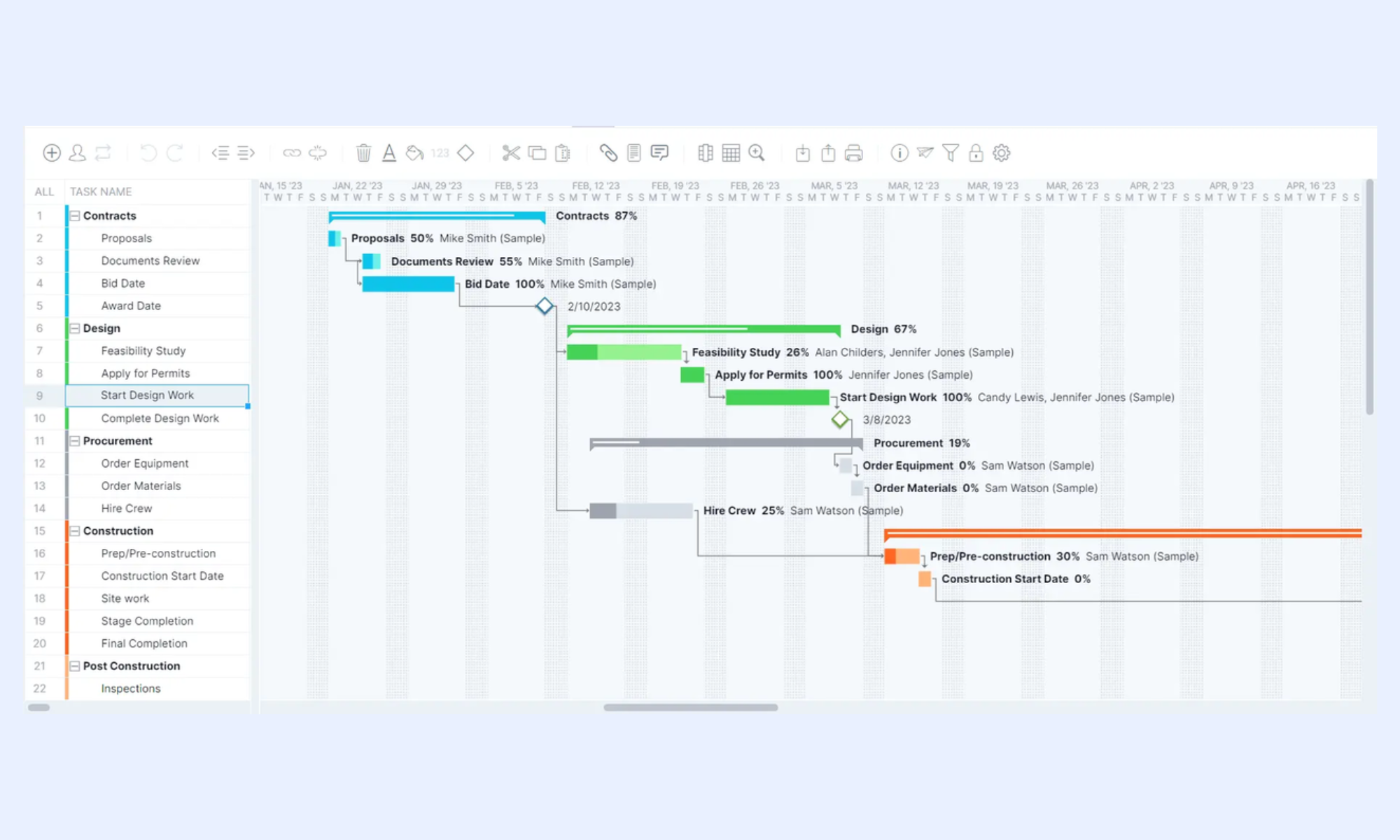
- Visualizing with charts: A common approach is to use a modified bar chart (resembling a Gantt chart) where each task is a horizontal bar, its length indicating duration, and its position aligning with the project's timeline.
- Enhancing with conditional formatting: Conditional formatting can automatically color-code tasks based on their status (e.g., green for completed, red for overdue), providing immediate visual insights into project health.
Consider a simple product launch timeline. You might have tasks like "Develop marketing materials," "Finalize product features," and "Launch event planning." In an Excel template, you'd input the start and end dates for each. The template would then automatically generate for each task, allowing you to instantly see the entire project's duration and overlapping activities. This visual representation makes it much easier to identify potential bottlenecks or adjust schedules as needed.
Finding Your Fit: Best Free Excel Timeline Templates for Every Project
The beauty of Excel timeline templates lies in their diversity. There isn't a single "best" template; rather, the ideal choice depends entirely on your project's scope, complexity, and specific needs.
Choosing the right template based on project needs
When starting your search, consider the kind of information you need to convey. Do you need to show individual task owners? Resource allocation? Budget alongside timelines? Many templates are designed with specific use cases in mind.
- For comprehensive project management:
If you're managing projects with interconnected tasks, durations, and dependencies, a Gantt chart for project timeline offers a more comprehensive view. These templates, widely available from platforms like Lark or other online repositories, are ideal for tracking overall progress and identifying overlapping activities.
- For highlighting critical checkpoints:
If your primary focus is on key delivery points and crucial achievements, a project milestone chart template is invaluable. It visually signifies important checkpoints, giving stakeholders a quick overview of project progress and completion.
- For marketing campaign planning:
A marketing timeline template is a strategic tool designed to help marketing teams plan and visualize their campaigns over a specified period. These templates outline key marketing activities, deadlines, and milestones, enabling effective coordination and resource allocation.
- For content and event scheduling:
For specific needs like managing guest appearances for a podcast or outlining an event schedule, consider templates like the podcast program schedule guest timeline template. These are tailored to manage specific details, ensuring smooth execution and consistent delivery.
- For personal or professional goal tracking:
If you're looking to set, track, and achieve personal or professional objectives, a goal setting for time management template can help you define goals, establish timelines, and outline actionable steps.
In project management, selecting the appropriate Excel timeline template is crucial. For instance, a construction project demands a template that clearly delineates phases like excavation, framing, and finishing, along with their respective deadlines. Conversely, a marketing campaign timeline might prioritize creative review cycles and publication dates. Therefore, choosing the right template based on specific project needs ensures that your Excel timeline effectively conveys the necessary information.
Reliable sources for free Excel timeline templates:
- Official software providers, such as the Microsoft Office template gallery, offer a range of professionally designed options.
- Many and provide downloadable templates tailored to various industries and project types.
Step-by-step: How to create and customize your timeline in Excel
Once you've selected a template, creating and customizing your timeline in Excel is a straightforward process.
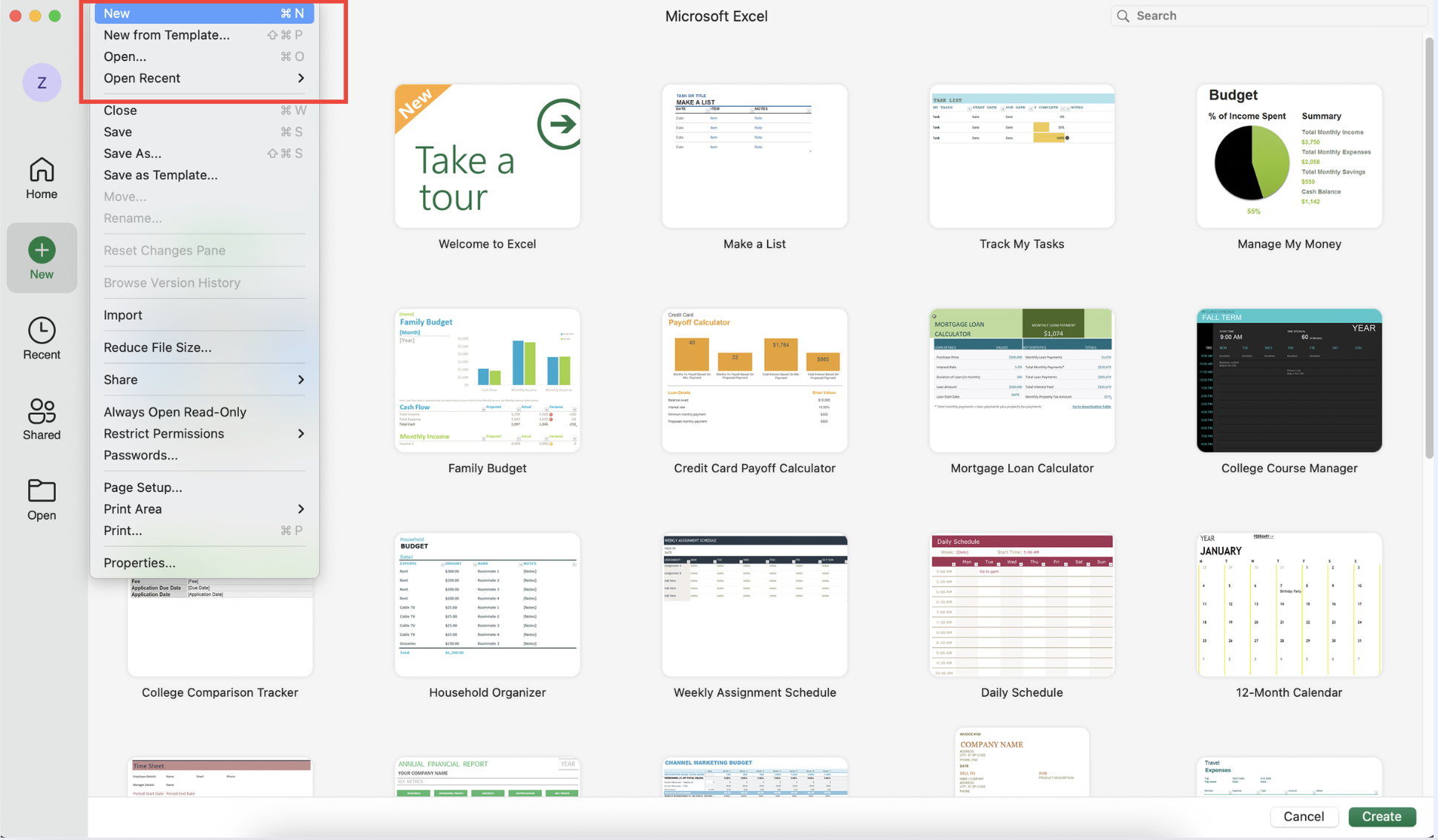
Step 1: Download and open your chosen template
Download the chosen template and open it in Excel. You'll typically find pre-filled example data that you’ll replace with your own project information.
Step 2: Input your project data
Focus on inputting your project data. This usually involves populating columns for task names, start dates, end dates, and durations. For instance, if you're planning a website redesign, you might enter "Content Creation" with a start date of April 8th, 2026, and an end date of April 22nd, 2026. Many templates will automatically calculate the duration based on your start and end dates. Some templates also allow for additional details like assigned team members or task status, which can be useful for tracking.
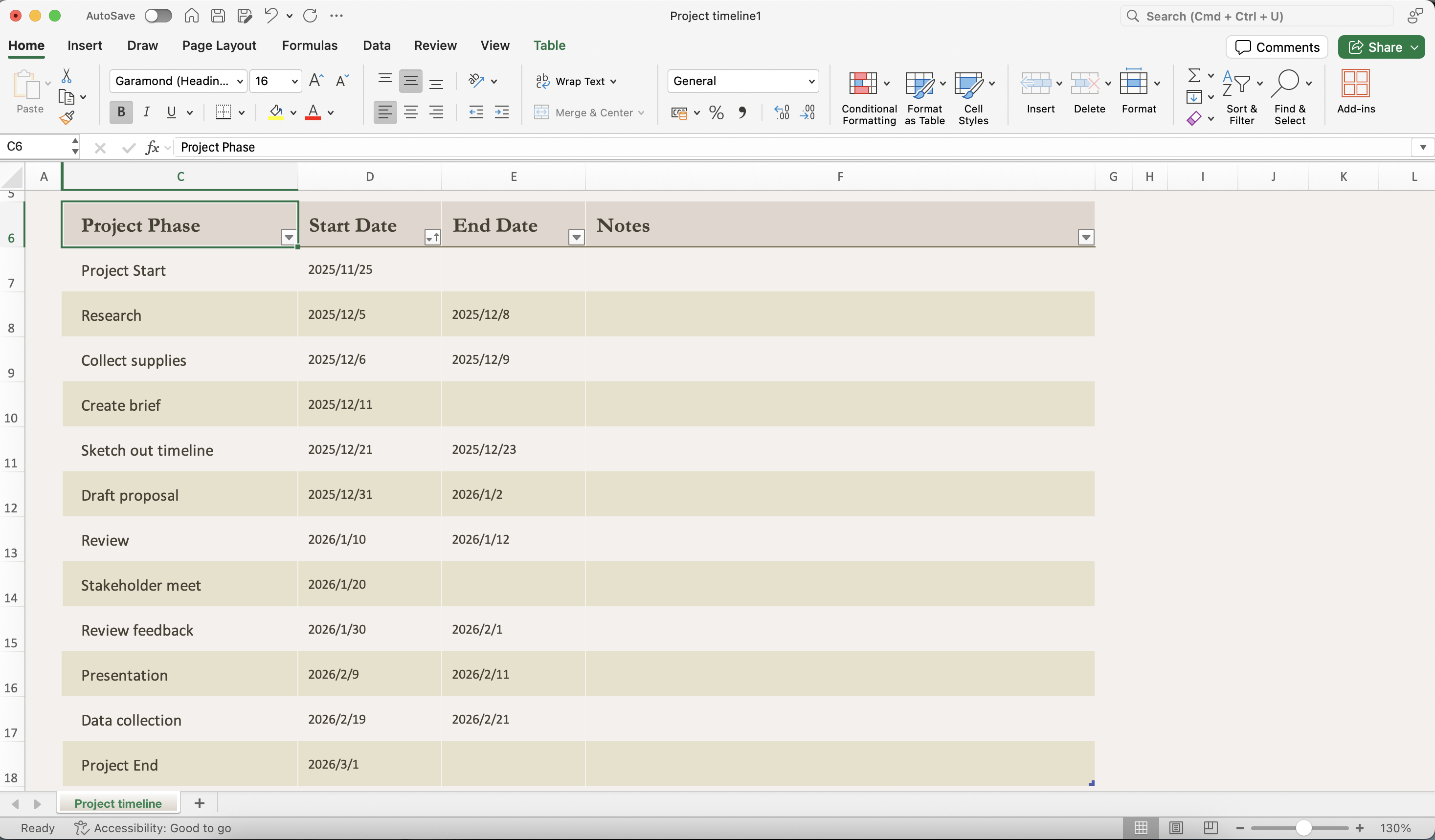
Step 3: Customize your timeline
Come customization. This is where you make the timeline truly your own and reflective of your project. Don't hesitate to adjust colors to match your brand guidelines or project theme. You can change fonts to improve readability, add your company logo for a professional touch, and modify the scale of the timeline (e.g., daily, weekly, monthly) to fit your project's duration. You can also adjust the visual elements, such as the size and shape of task bars or milestone markers, to emphasize critical information. The goal is to create a timeline that is not only accurate but also easy to understand and visually engaging for your audience.
Enhance your Excel timelines with Lark's collaborative features
Advanced techniques: Enhancing your Excel timelines for greater impact
While basic timeline creation is valuable, Excel offers advanced techniques to elevate your timelines, making them more dynamic and insightful.
Leveraging conditional formatting for visual insights
Conditional formatting allows you to automatically highlight specific tasks or data points based on predefined rules. For example, you can set up a rule to automatically turn a task bar red if its end date has passed and its status is not "completed." Conversely, you could make upcoming critical milestones appear in a distinct color, drawing immediate attention to them. This can be incredibly helpful for quickly identifying potential issues or priorities at a glance.
Incorporating formulas for automation and calculated insights
Beyond simple data entry, you can incorporate basic Excel formulas to . For instance, you might use a formula to automatically calculate the percentage complete for each task based on a manual input of "work done." Another useful application is calculating the number of working days between two dates, ensuring your timeline accurately reflects actual effort rather than calendar days. While these won't replicate a full project management suite, they add a layer of intelligence to your Excel timeline.
Creating sophisticated visual representations with Gantt charts
For those looking to create more sophisticated visual representations, you can learn to create a simple directly within Excel. This typically involves using a stacked bar chart where the first "stack" represents the start date (and is made invisible), and the second stack represents the task duration. This method provides a powerful visual representation of task durations and overlaps, allowing for clearer project scheduling and progress tracking. While it requires a bit more setup than using a pre-made template, it offers immense control over the visual output.
Common pitfalls to avoid when using Excel timelines
While Excel is a powerful tool for timeline creation, it's not without its potential pitfalls. Being aware of these common mistakes can help you create more effective and sustainable project timelines.
Pitfalls to avoid:
- Over-complicating the timeline with too much detail: Including every minute sub-task can make the timeline cluttered and difficult to read. Focus on key milestones and tasks. A good rule of thumb is that if a task takes less than a few hours, it might be better managed within a daily task list rather than on the main timeline.
- Neglecting : A timeline is a living document. Failing to update it as project parameters change, or not communicating those changes to the team, renders it useless. Schedule regular review meetings to ensure the timeline reflects current reality.
- Relying solely on Excel for large, complex projects: While Excel is versatile, it has limitations for very large projects with hundreds of tasks, intricate dependencies, and extensive resource management. For such scenarios, often offers more robust features, automated scheduling, and advanced reporting capabilities. Excel is a strong starting point, but recognize when your project has outgrown its capabilities.
Challenges with traditional Excel for collaboration:
While Excel excels at individual timeline creation and customization, traditional Excel files can present challenges in collaborative environments, especially with version control and real-time updates.
- Version control issues: Multiple team members editing the same file can lead to confusion and lost work.
- Real-time updates: Manual sharing and merging of files are inefficient and time-consuming.
- Communication silos: Timeline updates are often separate from project discussions.
By being mindful of these potential issues, you can maximize the effectiveness of your Excel timelines and ensure they remain valuable tools throughout your project's lifecycle. This is where modern collaboration platforms, like , can significantly enhance your Excel timeline workflow.
Collaborative project tracking with Excel and Lark
With Lark, your static Excel timeline files are transformed into dynamic, interactive, and collaborative assets. This integration empowers teams to move beyond basic tracking, fostering real-time collaboration and streamlined project management.
How Lark enhances Excel timeline collaboration
Shared spreadsheets:
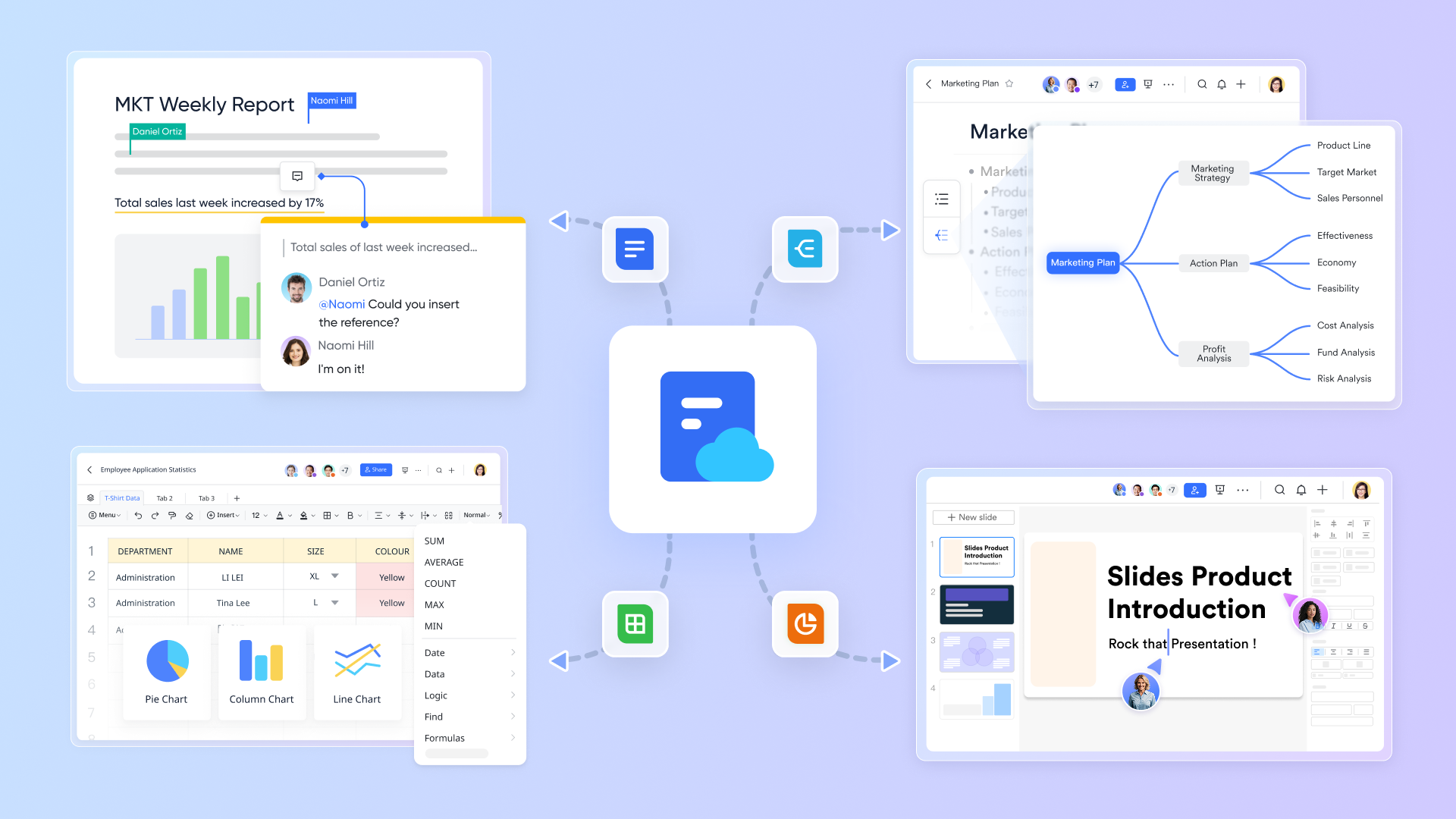
Lark's cloud-native documents and sheets allow multiple team members to access and edit Excel timelines simultaneously, with changes reflected in real-time. This eliminates version control headaches and ensures everyone is always working with the most current information.
Built-in communication:
Embed your Excel timeline templates directly into or use for more dynamic project tracking. This links your visual timelines with ongoing project discussions, decisions, and feedback, keeping all relevant information in one place.
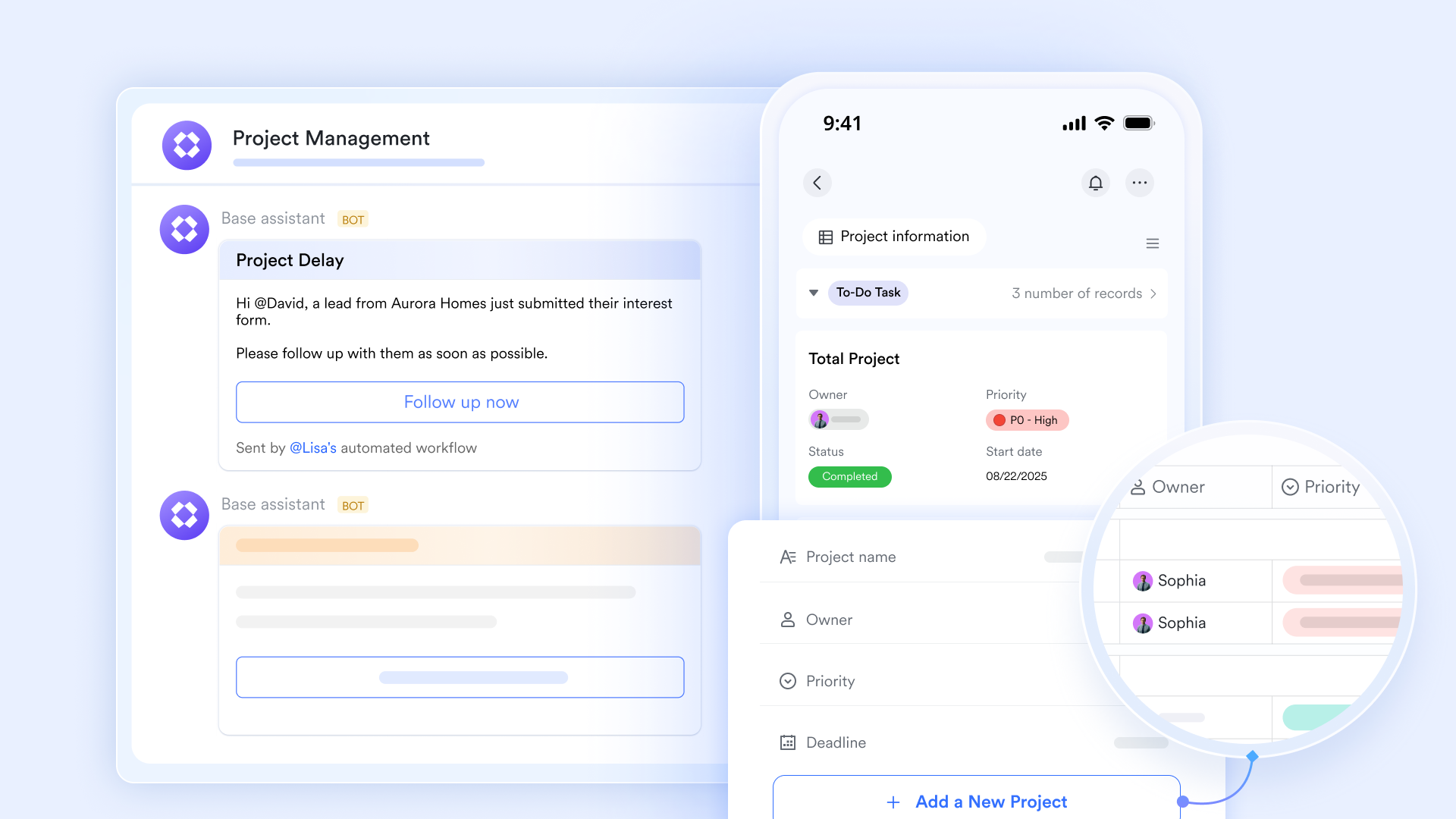
Streamlined workflows:
Combine workflows with your Excel timelines. For instance, a task completion on the timeline can trigger an automated approval request within , ensuring that dependent tasks only begin once necessary sign-offs are received. This integration helps maintain project momentum and accountability.
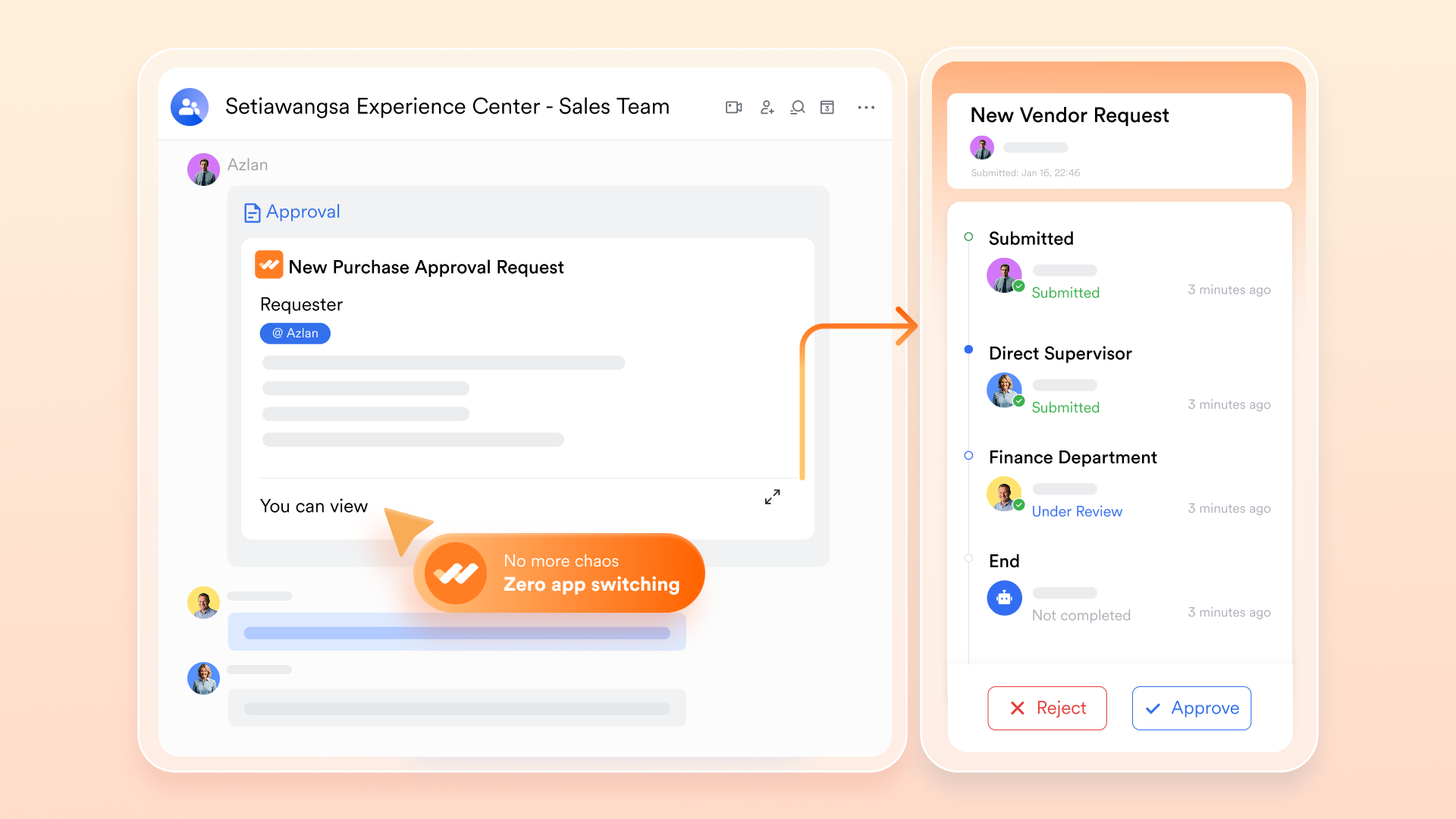
By leveraging a platform like Lark, you can transform your static Excel timelines into dynamic, collaborative tools that drive project efficiency and transparency, particularly for remote or hybrid teams.
:
- Starter plan: that includes 11 powerful tools for up to 20 users. It also comes with 100GB of storage space, 1000 automation runs, AI translations, and more. No credit card needed.
- Pro plan: (billed annually) for up to 500 users. It includes everything in Starter plus group calling for up to 500 attendees, 15TB of storage space, 50,000 automation runs, and more.
- Enterprise plan: for custom pricing. Supports unlimited users and includes even more automation runs and advanced security, compliance, and management features.
For small teams with simple communication needs

18 months message history
1000 Base automation runs/month
2000 rows per table in Base
Most POPULAR
For companies with comprehensive collaboration and management needs
Unlimited message history
500-participant video meetings
50k Base automation runs/month
20k rows per table in Base
For large companies with advanced security and organizational management needs
Get a personalized demo and pricing
Unlimited message history
500-participant video meetings
15 TB storage + 30 GB storage/user
500k Base automation runs/month
50k Base automation runs/month
Most POPULAR
For companies with comprehensive collaboration and management needs
Unlimited message history
500-participant video meetings
50k Base automation runs/month
20k rows per table in Base
Conclusion
Free Excel timeline templates are powerful tools, offering accessibility and flexibility for visualizing project journeys. From straightforward task tracking to more complex Gantt-style charts, Excel can adapt to various project needs. By understanding how to choose the right template, input your data, and leverage advanced features like conditional formatting, you can create clear, accurate, and visually engaging timelines. Integrating these with collaborative platforms further enhances their utility, fostering better teamwork and streamlined workflows. Embrace the versatility of Excel to bring clarity to your projects, enabling more effective planning, tracking, and communication for your team. Start leveraging the power of today to transform your Excel timelines into dynamic, collaborative assets!
Start leveraging Lark to transform your Excel timelines today
FAQs
Does Excel have timeline templates?
Yes, Excel offers a variety of timeline templates. You can find built-in options within Excel, as well as numerous downloadable templates from Microsoft's official website and other online sources. These range from simple chronological layouts to more complex Gantt chart formats, catering to different project needs. Many of these templates are designed to be user-friendly, customizable, and visually appealing, making them suitable for project management, event planning, and educational purposes.
Are there free timeline chart templates?
Absolutely. There are many free timeline chart templates available for Excel. Microsoft's website is a great resource, offering a wide selection of free excel project timeline templates. Additionally, many project management resource sites provide downloadable templates, including those for construction timeline templates excel and general project timeline excel templates. These free resources allow you to quickly get started with creating professional-looking timelines without any cost.
How to make a Gantt timeline in Excel?
You can create a Gantt timeline in Excel using a stacked bar chart. The basic method involves using one stack to represent the start date (which is then made invisible) and another stack to represent the task duration. Many existing timeline templates for Excel are already pre-configured as Gantt charts, simplifying the process. This method allows for a powerful visual representation of task durations and overlaps, which is crucial for clear project scheduling and progress tracking.
What is the best format for a project timeline?
The best format for a project timeline largely depends on the project's complexity and your target audience. For straightforward projects with a clear sequence of events, a simple chronological list or a basic timeline with key milestones might suffice. However, for more complex projects involving numerous tasks, intricate dependencies, and resource allocation, Gantt charts are generally considered the most effective due to their visual clarity and ability to display task overlaps and progress over time.
Are Excel timeline templates compatible with older versions of Excel?
While many modern timeline templates for Excel are designed for Excel 2010 and newer versions, compatibility with older versions can vary. Older Excel versions might have limited functionality, or you might encounter display issues with newer template features. It's always a good idea to check the compatibility notes provided with the template to ensure it will function correctly with your specific Excel version. If you're using an older version, you may need to look for templates explicitly designed for it or be prepared for some adjustments.
How do I share my Excel timeline with team members who don't have Excel?
To share your Excel timeline with team members who don't have Excel, saving it as a PDF is an excellent option for easy viewing. This preserves the formatting and ensures everyone sees the timeline as intended. For collaborative editing and real-time updates without requiring Excel licenses, consider using cloud-based solutions. Platforms like Microsoft Excel Online, which is a free web-based application, allow multiple team members to access and edit Excel timelines simultaneously. You can also leverage Built-in collaboration tools such as Lark's shared spreadsheets for enhanced team collaboration, ensuring everyone is working with the most current information.
What are the limitations of using Excel for project timelines?
While versatile, Excel has limitations when used for very large and complex projects. It can be less efficient for projects with extensive dependencies, hundreds of tasks, and detailed resource management. Excel generally lacks advanced features found in specialized project management software, such as automated critical path analysis, advanced reporting capabilities, and Built-in risk management tools. While you can adapt Excel for many project needs, it's important to recognize when a project has outgrown Excel's capabilities and might benefit from more robust, dedicated project management software.
Can Excel timelines be used for agile project management?
Yes, Excel can be adapted for agile project management, especially for visualizing sprints and milestones. You can use templates to track individual sprint tasks, burn-down charts, and project backlogs. However, for more dynamic and comprehensive agile tracking, dedicated agile platforms or specialized integrations might be more suitable. These platforms often offer features like real-time dashboards, Built-in communication, and automated workflow management that can streamline agile processes more effectively than Excel alone.
Related reading