














How to Create a Database in Access: A Practical, Templates-Driven Guide

Cecilia Lin
Go-to-Market Associate
Nov 3, 2026
Cecilia Lin
Nov 3, 2026

24 min read
Add to preferred sources


Using Access to build a database is practical and effective, especially for beginners and those looking to sharpen their skills. Creating a database in Access can feel daunting at first, but with the right approach and community-driven tips, database builders can move from confusion to a reliable design and a functional database quickly.
In this guide, we blend practical, step-by-step instructions with real-world insights from user communities, along with how-to templates and workflows you can reuse. We'll show you how to plan, design, implement, and maintain a small Access database—without overwhelming jargon. In addition, reliable alternatives like Lark will be introduced to help you choose the solution that fits your needs. Whether starting from scratch or looking to refine an existing project, this article aims to be your hands-on companion.

What is Microsoft Access and databases
Access is a relational database management tool designed to help individuals and small teams model, store, and query data without enterprise-scale infrastructure. It combines a robust engine with a user-friendly interface for building tables, relationships, forms, queries, and reports, plus lightweight automation through macros and VBA. Accessible for beginners, yet capable of automation for more advanced users.
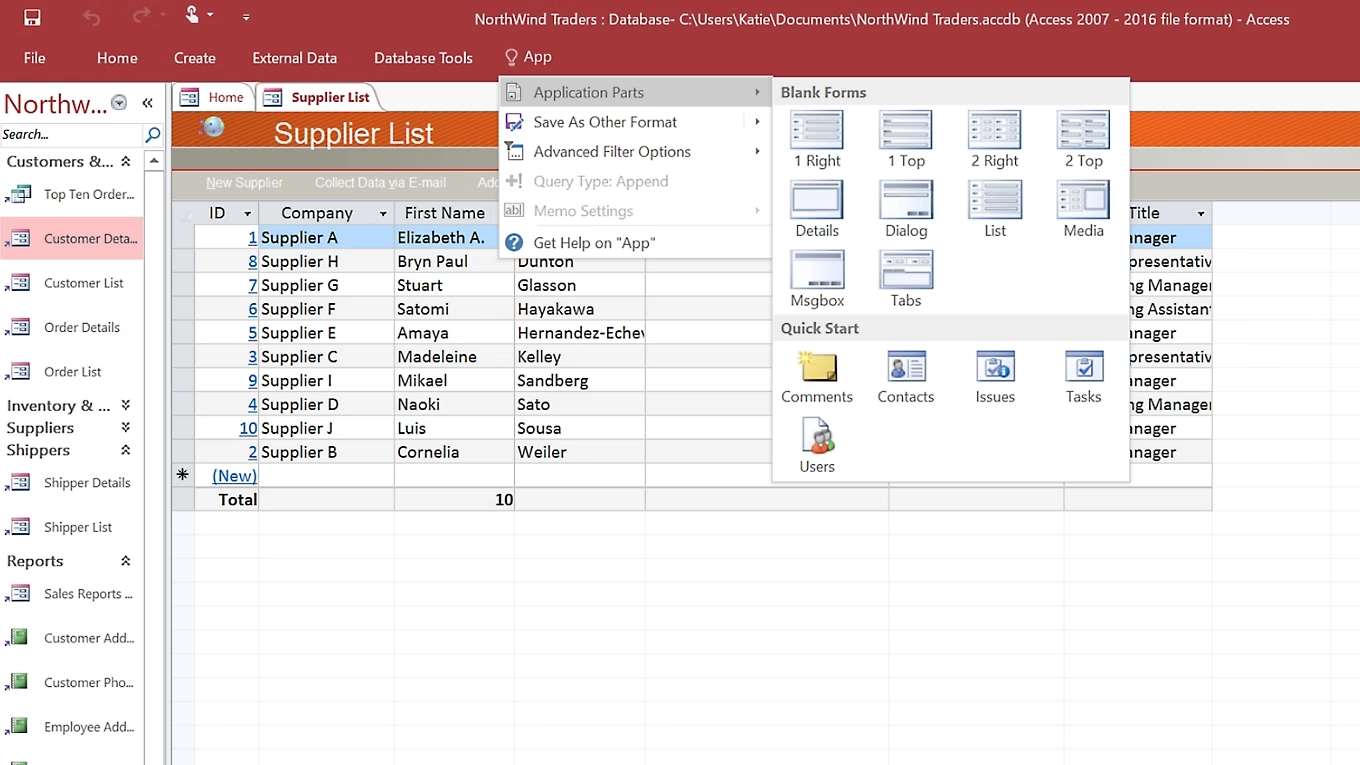
Image source: microsoft.com
Core concepts of Access and databse
- Tables: core storage units where data resides as rows (records) and columns (fields).
- Fields and data types: define the kind of data stored in each column (text, number, date/time, yes/no, etc.).
- Primary keys: provide a unique identifier for each record, ensuring data integrity.
- Relationships: connections between tables, enabling meaningful joins and queries.
- Queries: tools to extract, filter, join, and summarize data.
- Forms: interfaces for streamlined data entry and updates.
- Reports: formatted outputs for sharing insights and decisions.
- Automation: macros or VBA can automate repetitive tasks, boosting efficiency.
Step-by-step guide to creating a database in Access
Build a well-structured, maintainable Access database including tables, relationships, queries, forms, reports, and a backup strategy.
Step 1: Create a new database in Access
- Open Access, choose "Blank Database," and provide a file name and save location; or create a database by using a template.
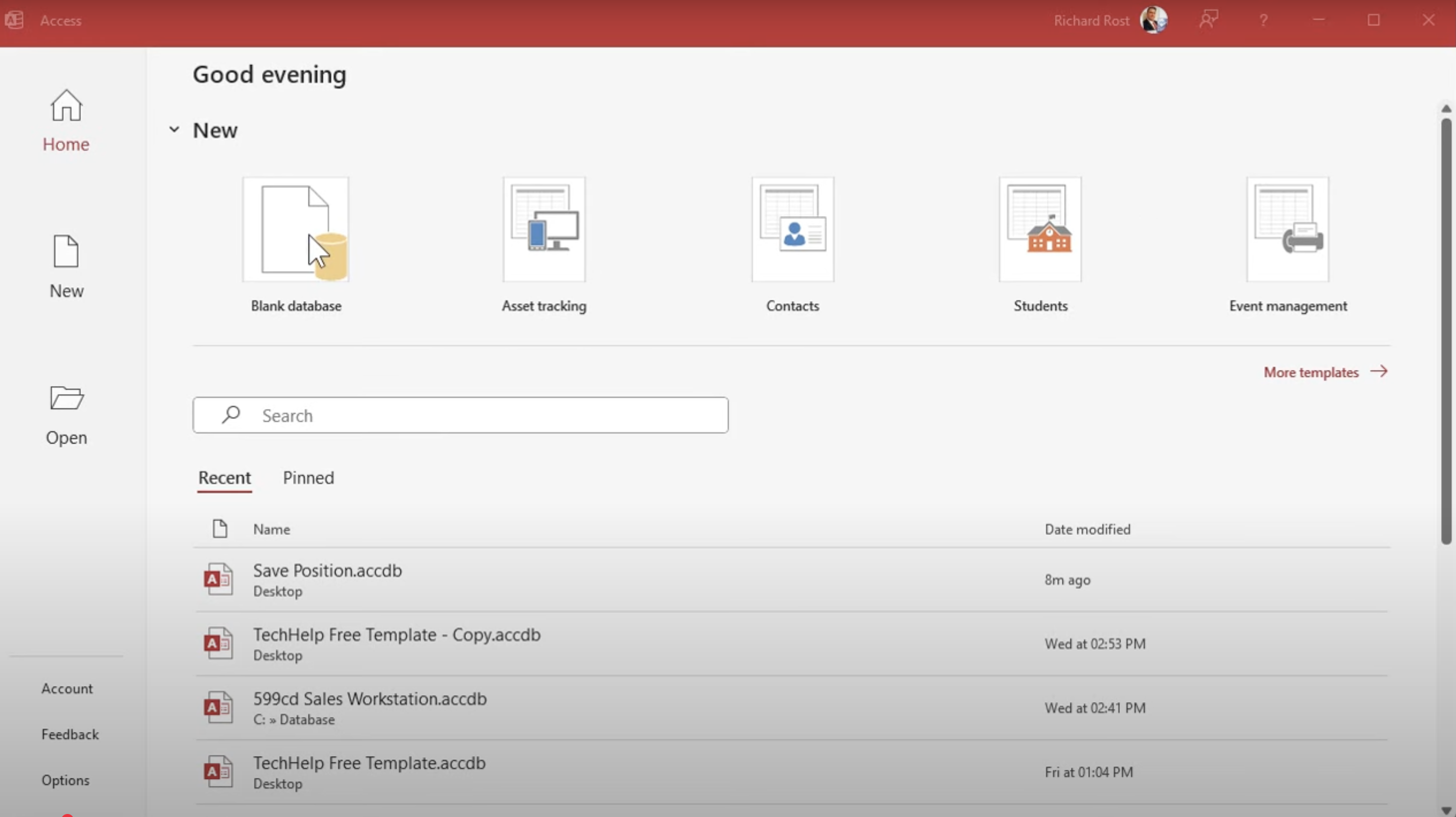
Image source: youtube.com
Step 2: Adding to the database (tables, fields, columns, data types)
For each entity (e.g., customer, order, product), create a table with appropriate fields and data types. Define primary keys and establish foreign keys to enforce relations.
- Adding tables: entering the database, there will be a default table named "Table 1". You can establish new tables and rename tables by clicking "Table Design" on top bar. After adding a table, remember to rename it without adding space while naming.
- Adding fields: Click "Click to Add" to add one or more fields of different types of data including short text, number, large number, currency, data & time, and so on. After adding a field, remember to rename it without adding space while naming. Each column is called a field.
- Adding records: simply click certain rows to enter content. Each row is called a record.
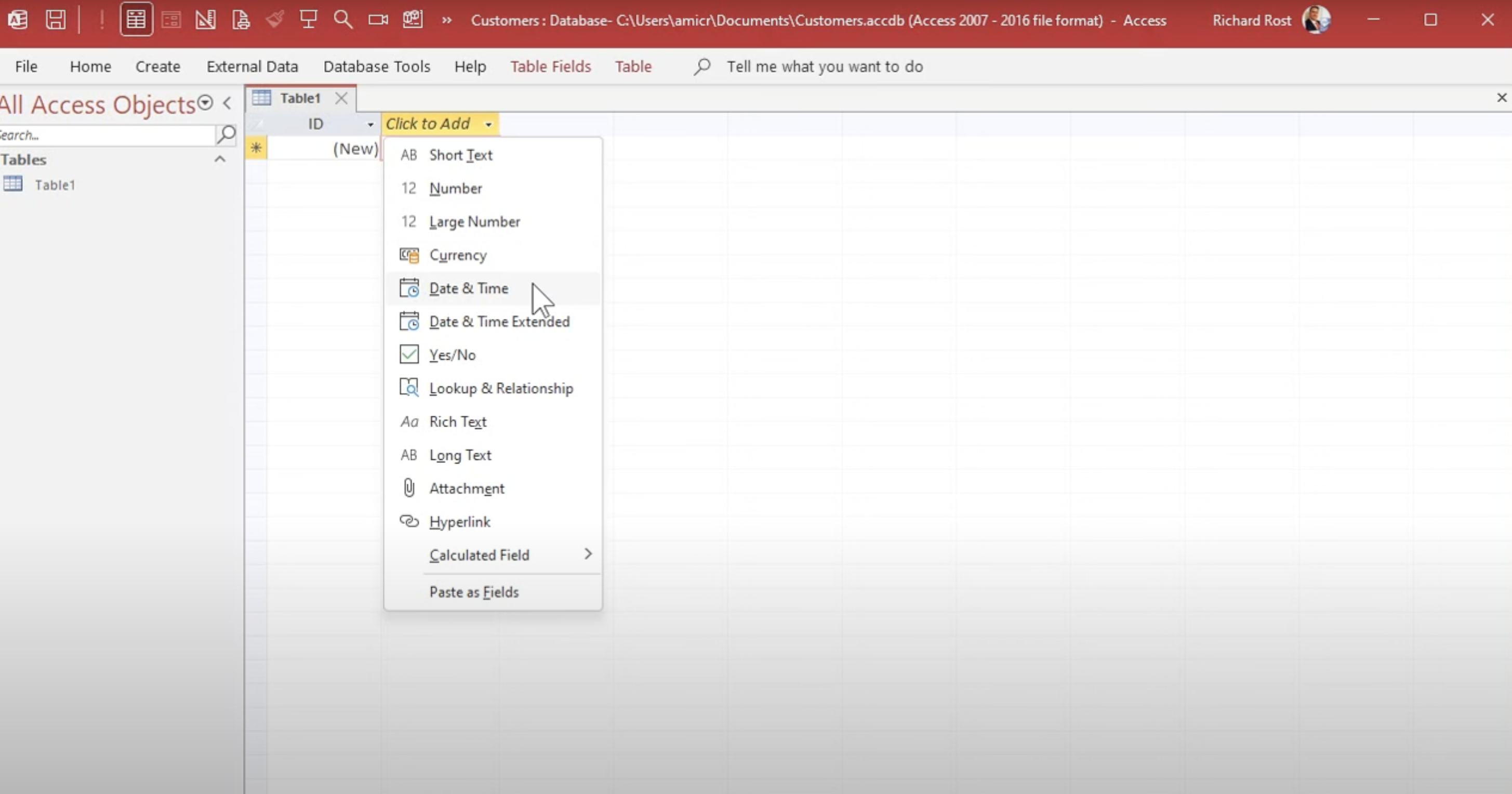
Image source: youtube.com
Step 3: Establish relationships between tables
- Open Database Tools (the top bar) > Relationships; drag foreign keys to related primary keys.
- Enable referential integrity and optional cascading updates/deletes as needed.
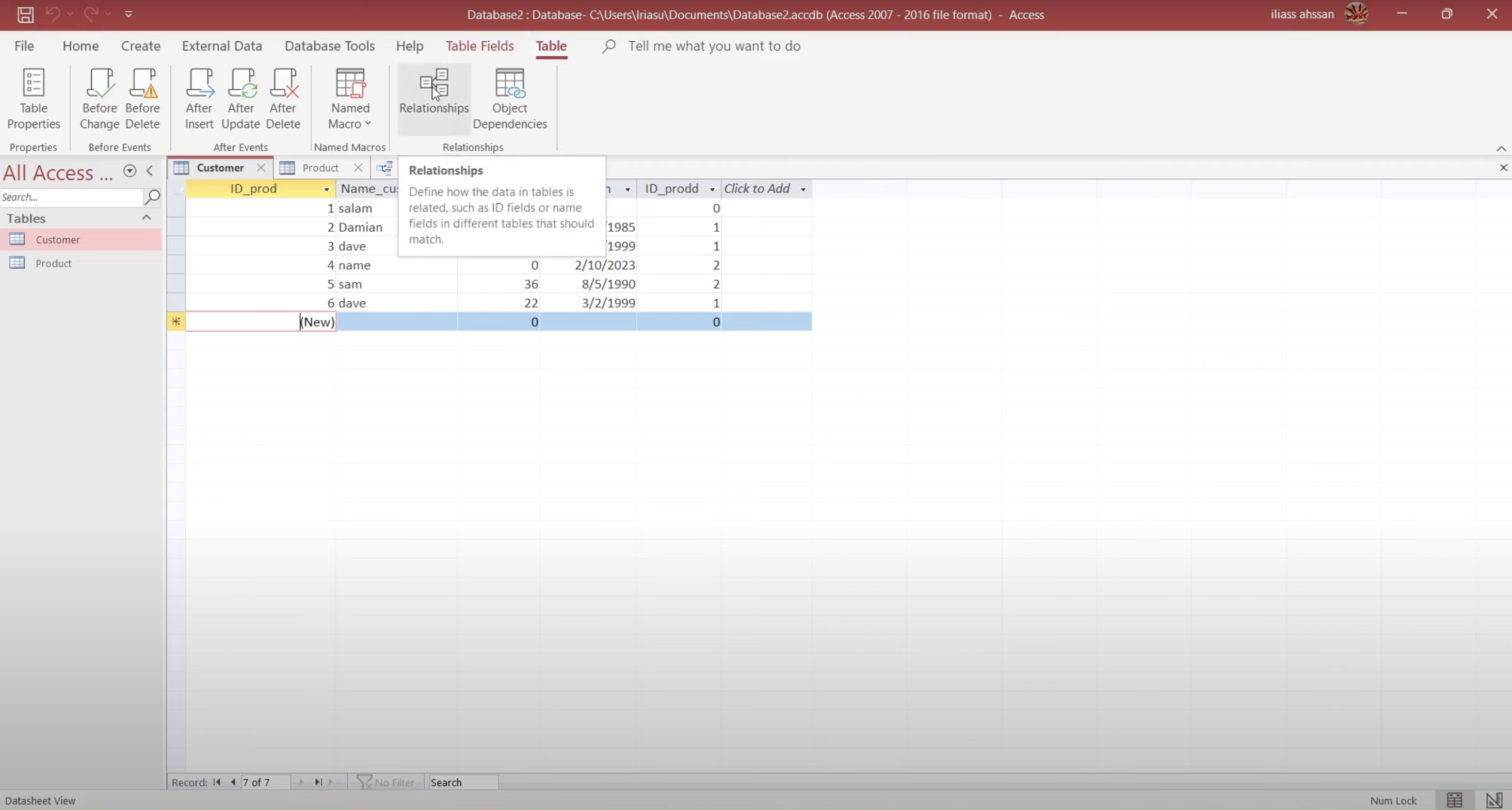
Image source: youtube.com
Step 4: Create queries, forms, and reports templates
- Build basic queries (filters, sorts, aggregates); design forms for data entry; craft reports for summaries and details.
- Save and test templates for common use case
Step 5: Data entry and validation
- Enter data directly or via forms and apply input masks, default values, and validation rules.
- Include simple validation messages to guide users.
Step 6: Create and use templates
- Export common tables, queries, forms, and reports as templates for quick replication.
- Store templates and governance materials in a collaborative team with the right platform (e.g., Lark) for version control and cross-team sharing.
Step 7: Security and permissions
- Set database passwords or user/group permissions as needed.
- For multi-user setups, consider front-end/back-end architecture to improve concurrency and security.
Step 8: Backup and recovery
- Establish a regular backup plan (manual and automated where possible).
- Backup methods: Copy the database file to a safe location (network share or cloud storage); keep multiple historical versions using reliable backup and recovery solutions.
- Recovery: Restore from the latest backup, or use built-in restore options if available.
Step 9: Maintenance and iteration
- Document data dictionary, ER diagrams, and change logs; schedule periodic reviews.
- Use version control practices to annotate changes and enable rollback if needed.
Why use Access for database creation
Access stands out as an approachable yet capable platform for mastering relational database design and executing real-world prototypes. This chapter explains the rationale behind choosing Access and how community-driven templates and guidance enhance practical outcomes.
Key reasons for Access database use
- Quick start, low barrier to entry: A working database can be created without server software; the interface guides table creation, relationships, forms, and reports.
- Integrated within the Microsoft 365 ecosystem: Interaction with Excel, SharePoint, Outlook, and Power BI enables familiar data workflows and exchanges as needs grow.
- Cost-effective for small-scale needs: For small teams or personal projects, Access offers robust features without heavy infrastructure.
- Rich support ecosystem: Official resources, community tutorials, and practical templates accelerate progress.
- Flexible automation options: Macros provide quick automation; VBA expands capabilities as learning deepens.
- Rapid prototyping: Templates and data dictionaries facilitate iterative design decisions and quick validation with real data.
Practice-informed guidance
- Start small: Build a coherent data model with a few related tables, verifying relationships early.
- Leverage templates, then tailor: Community templates for data dictionaries and ER sketches serve as solid starting points; domain-specific adjustments are crucial.
- Embrace iterative learning: Consume a tutorial or discussion, implement a concrete example, compare outcomes with documented approaches to refine skills.
- Plan forms and reports early: Designing intuitive entry forms and clear, decision-oriented reports reduces later rework.
Path to mastery
- Approach database creation with a structured plan: define goals, sketch the data model, implement in Access, test with representative data, and refine based on feedback.
- Tap into community wisdom for problem-solving: Try ready-to-use templates while starting building a blank database, or find other users' suggestions for more effective use. Selecting data types, establishing relationships, and shaping useful reports becomes more efficient.
- Build a personal knowledge base (e.g., in a tool like Lark Base) to capture templates, common pitfalls, and lessons learned, enabling faster future projects.
Key limitations and downsides to Access
While Access can be a useful tool for small-scale database management, it has significant limitations that become apparent as data volume, user count, and collaboration needs grow.
Concurrency and corruption risks from its file-based architecture
Access operates on a file-sharing architecture, where the .accdb database file is typically stored on a shared network drive. This design is prone to issues such as usage scales.
- Increased risk of corruption: As concurrent user numbers and data transactions increase, the likelihood of file locks and database corruption grows. Microsoft itself acknowledges this, stating, "there is a small chance that a database file can become corrupted; the risk grows as the database file grows over time."
- Locking conflicts: When multiple users attempt to write to the database simultaneously, record-locking or page-locking can lead to performance bottlenecks and user frustration.
Poor scalability for multi-user environments
Access is not designed to be a true multi-user, server-based system. Real-world user feedback confirms that it hits a practical ceiling quickly.
- Practical user limits: Community discussions highlight that performance degrades significantly beyond a small team.
- Performance bottlenecks: As the number of concurrent users grows, the application becomes slow, and connection failures become more frequent.
Hard limits on file size and object counts
Access imposes several hard limits that make it unsuitable for large or complex applications.
- 2 GB file size cap: This is a major constraint for any application that needs to store a significant amount of data, such as historical records, images, or large datasets.
- Object and connection limits: The database has limits on the number of objects (tables, queries, forms) and concurrent connections it can handle.
- High maintenance overhead: Users frequently need to run the "Compact and Repair" utility to manage file bloat and fix inconsistencies. Errors like "Error 3048 – Cannot open any more databases" or databases entering an "inconsistent state" require manual intervention.
Lack of native cloud and cross-platform support
In an era of remote work and diverse operating systems, Access's desktop-centric nature is a significant drawback.
- Deprecated web apps: Microsoft has retired Access Web Apps, its previous solution for web-based databases, and recommends migrating away from them.
- No macOS or mobile support: Access is a Windows-only application. There is no native client for macOS or mobile devices, forcing users to rely on virtual machines or other workarounds, which complicates deployment and support.
The limitations of Access highlight the need for a modern, cloud-native solution that aligns with today's collaborative work environments. Platforms allow real-time co-editing, cloud-based storage like Lark are designed from the ground up to address these shortcomings.
How to create a database beyond Access
Whether using Access or other modern database management tools, the fundamental concepts of organizing and managing data are remarkably similar. They all follow a core workflow of designing the structure, inputting data, and performing queries and analysis. To better illustrate this universal approach, the following guide will use Lark as an example to demonstrate how these essential database management principles are applied on a modern collaborative platform.
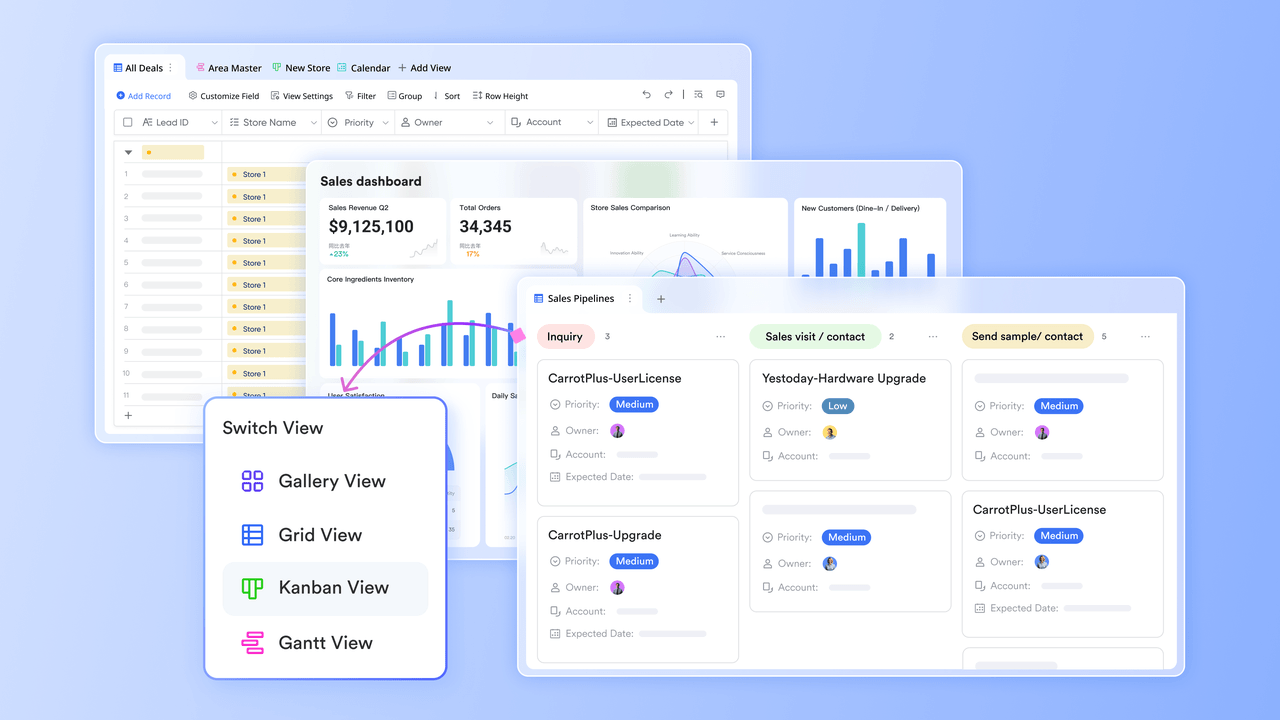
Planning database: requirements and scope
Planning a database begins with a clear, actionable map of what needs to be built and why. A solid plan reduces rework, aligns stakeholder expectations, and speeds up the transition from design to implementation. The planning phase centers on defining goals, identifying core entities, and sketching initial relationships, all of which guide later decisions about tables, fields, and forms.
Tips for practical planning:
- Define the problem and success criteria: Articulate what the database will accomplish and how success will be measured (e.g., data accuracy, timely reporting, efficient data entry).
- Identify core entities and relationships: Draft a high-level list of entities (e.g., customers, orders, products) and how they relate (one-to-many, many-to-many).
- Create a lightweight data dictionary: Capture potential fields, data types, allowed values, and validation rules to prevent design drift.
- Sketch an initial ER diagram: A rough map of tables and key relationships to visualize data flows.
- Consider forms and reports early: Envision what data entry screens and decision-support outputs will look like, ensuring the design supports those tasks.
- Plan for growth and maintenance: Anticipate future tables, new fields, and evolving business rules; design with modular templates in mind.
- Risk assessment and governance: Note potential data quality issues and establish simple validation patterns and naming conventions to keep the project organized.
Practical database planning:
Effective database planning is less about complex theories and more about collaborative, iterative action. Lark's comprehensive suite of tools provides a perfect environment for this modern approach, transforming abstract planning into tangible progress. For instance, teams can use Lark Docs to collaboratively draft a data dictionary, sketch out an initial Entity-Relationship (ER) diagram, and document key decisions in real-time. When discussions are needed, Lark Meetings can be launched easily to resolve ambiguities, with action plans captured, assigned, and summarized automatically by Lark AI Meeting Notes.
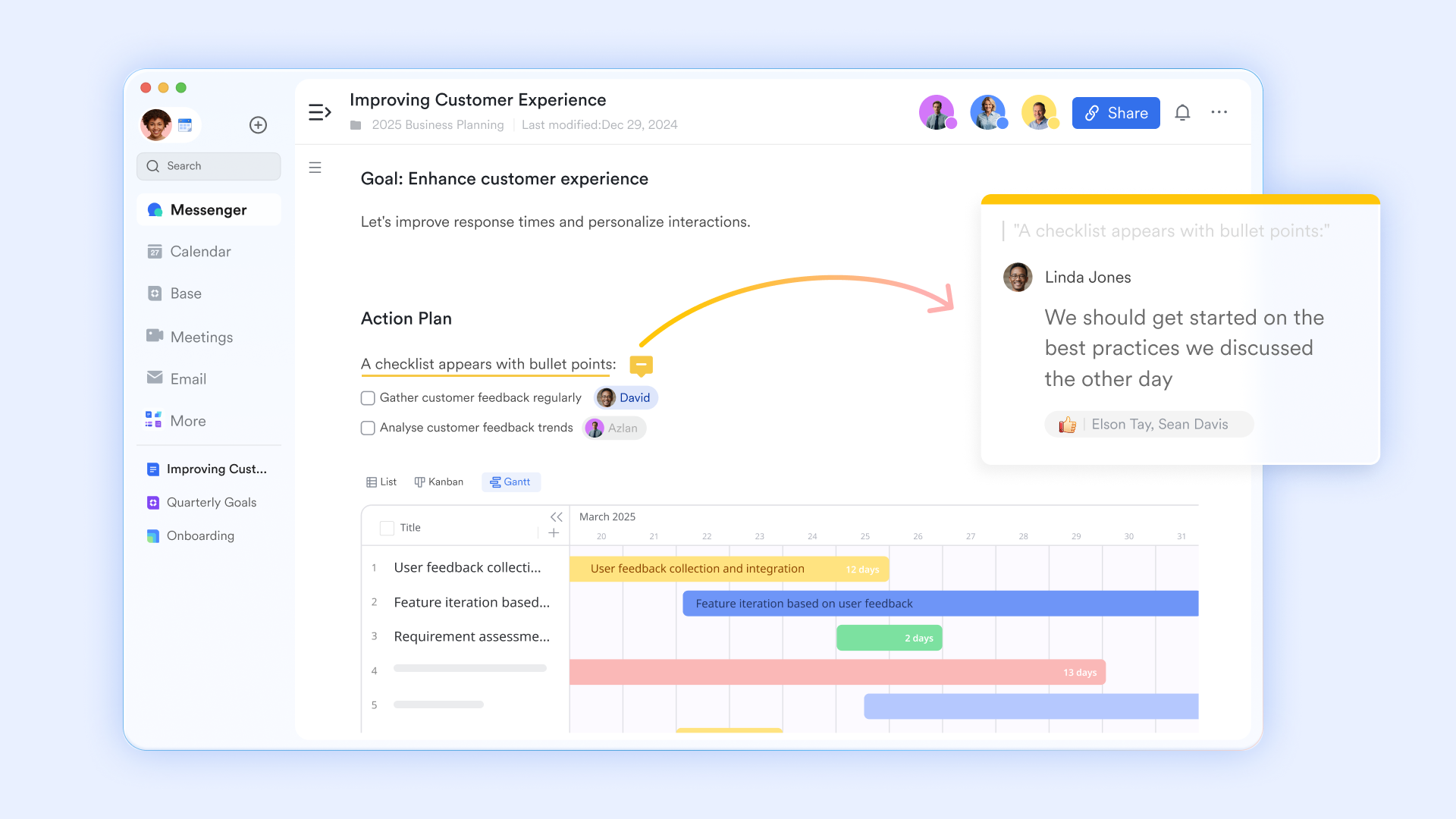
Designing tables: data types, primary keys, and relationships
Table design is the backbone of a robust database. A well-structured set of tables, with appropriate data types and clear primary keys, paves the way for reliable relationships and efficient queries.
Tips for designing principles:
- Normalize where sensible: Aim for data integrity and reduce redundancy, but avoid over-normalization that complicates queries and form design.
- Define stable primary keys: Every table benefits from a unique identifier that remains constant over time.
- Choose data types carefully: Match each field to the most appropriate data type to minimize validation work and maximize data quality.
- Establish meaningful relationships: Plan one-to-many and, when needed, many-to-many relationships with junction tables; enforce referential integrity to prevent orphaned records.
- Document decisions: Record naming conventions, data type choices, and relationship rationale to support future maintenance.
Templates and scripting:
Instead of writing complex SQL scripts or navigating cumbersome menus, designing tables in many database software is as easy as creating a spreadsheet. You can add fields (columns), select data types from a clear dropdown menu (like text, number, date, or attachment), and designate a primary key with a single click.
This convenience is enhanced by a gallery of pre-built templates for common use cases like project management, inventory tracking, or CRM. When you select a template, Lark Base instantly creates a set of well-structured tables with predefined fields, data types, and relationships. This not only saves time but also provides a practical, real-world example of effective table design that you can customize to fit your specific needs.
Building relationships and enforcing constraints
Relationships and constraints are the safeguards that keep data coherent across the database lifecycle, emphasizing practical, community-informed approaches to building relationships. The focus remains on actionable steps and templates readers can reuse while scaling their expertise.
Tips for practical relationship-building:
- Define relationship types early: Identify one-to-many and many-to-many patterns; plan junction tables for complex associations.
- Implement referential integrity: Set up primary and foreign keys, configure cascade options where appropriate, and enforce valid data paths between related records.
- Use validation rules: Add field-level validation to prevent incorrect data entry.
- Visualize relationships: Confirm the diagram matches real-world processes, ensuring that the model supports meaningful joins and accurate reporting.
- Test with representative scenarios: Simulate common transactions to reveal edge cases and potential design weaknesses.
- Consider data governance: Document ownership, update rules, and change management to support long-lived data quality.
Building relationships and enforcing constraints:
- Building relationships:Create a two-way link field in one of the tables, select the other table you want to link to, and double-click the cell in the link field to choose the record from the other table, and click "Confirm".
- Use validation rules with field options: Tools like Lark Base provide powerful, built-in validation without needing to write any code. For "single-select" or "multi-select" fields, pre-define a list of allowed options, ensuring users can only input valid choices. For other data types, like numbers or dates, you can set specific ranges or formats. Setting a field as "Required" ensures that critical information is never left blank.
- Visualize and test relationships instantly: The most powerful feature is Lark Base's immediate feedback. As soon as you link tables, the relationship is live.
Building queries to extract insights
Queries convert raw data into actionable information. They enable filtering, joining, and aggregating data to support decisions and reporting.
Tips for building queries:
- Define goals first: Determine the insights needed (counts, trends, summaries) and translate them into query logic.
- Simple selections and filters: Retrieve relevant records using clear criteria.
- Joins across related tables: Use inner joins for related data; outer joins when relationships are optional.
- Aggregations and groupings: Summarize data with GROUP BY and filter groups with HAVING.
- Parameterized queries: Replace fixed values with parameters to reuse queries across scenarios.
- Reusable templates: Maintain a library of common query structures for quick reuse.
- Testing and validation: Run queries with representative sample data to ensure accuracy.
How to build queries
- Filter: Instantly isolate the exact information you need by applying one or more filter conditions. This allows you to ask specific questions about data. Example query: Find all sales leads where "Status" is "Closed-Won" AND "Deal Size" is greater than $10,000.
- Sort: Arrange records in ascending or descending order based on any field to quickly identify patterns and priorities. Example query: In a task list, sort by "Due Date" in ascending order to see the most urgent items first.
- Group: Grouping records by a specific field is one of the most powerful query tools in Lark Base. It provides a clear, structured overview and automatically calculates summary metrics for each category. Example query: In a project table, group tasks by "Assignee." Lark Base will automatically display summary statistics like the count, sum, or average for any numerical fields within each person's group, enabling effortless comparative analysis.
- Visualize with views: Queries are not limited to tables. For example in Lark Base, with a single click, you can transform your data into visual formats that answer questions in a more intuitive way, including kanban view and Gnatt views.
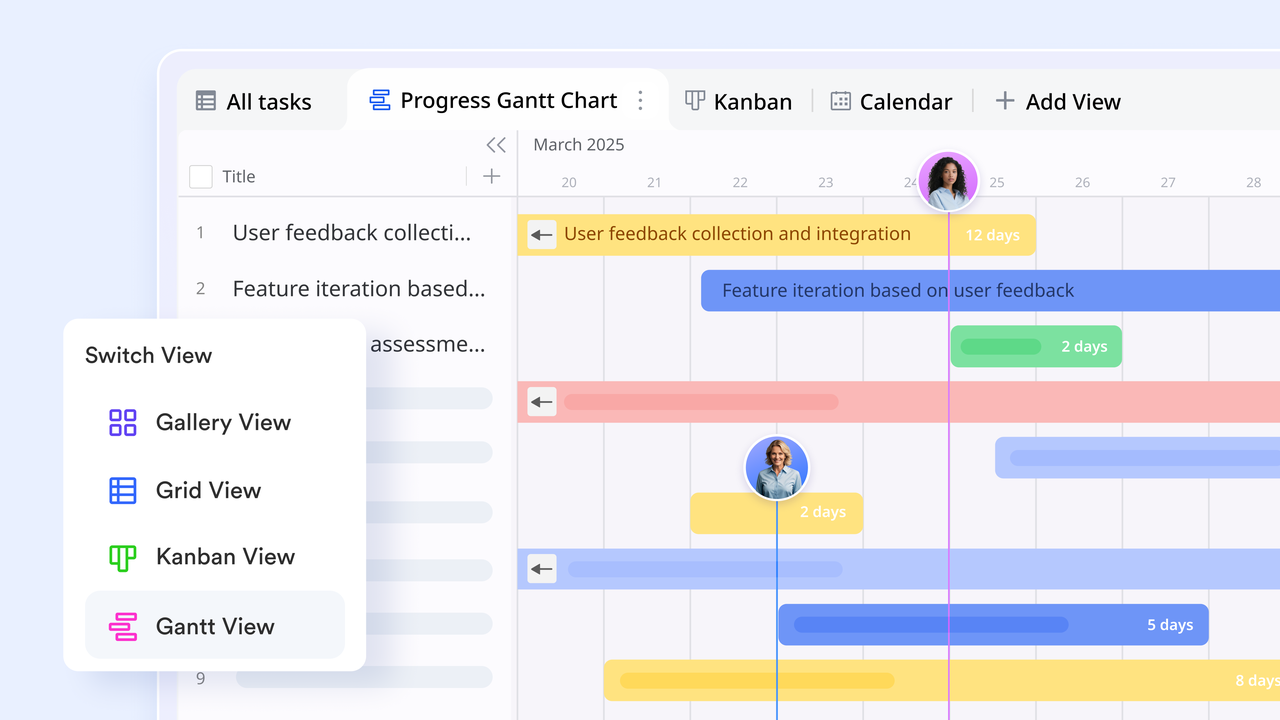
- Query page: Simply input or select query conditions to search through the data in a table in Base, users can configure settings to allow users to add or edit query results, allowing users to edit, add, or execute other actions on records on a single page.
Basic VBA/Macros for automation
Automation accelerates routine tasks, reduces errors, and unlocks repeatable workflows.
Tips for automation:
- Why automation helps: Repetitive tasks, data validation, batch processing, and consistent user experience.
- VBA vs. macros: Macros are quick to start for simple tasks; VBA offers deeper control and error handling.
- Safety and maintainability: Include error handling, comments, and version control-friendly code structure.
Automating database management:
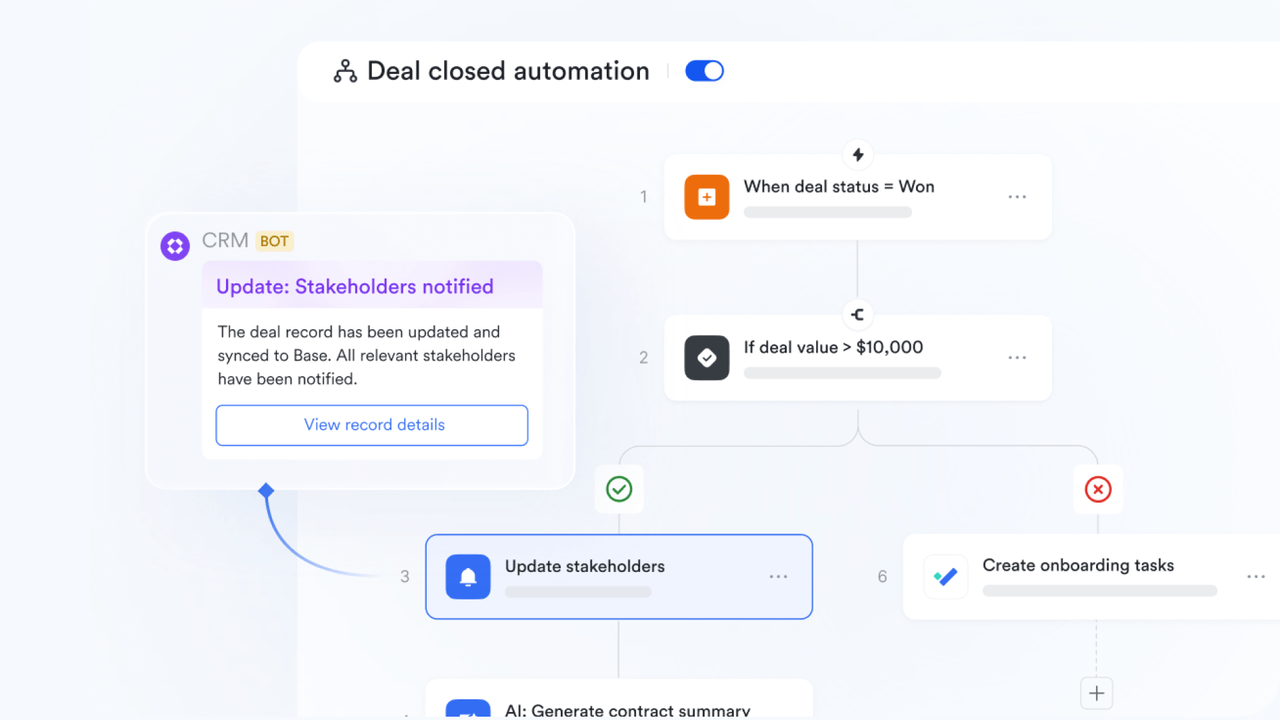
Modern databasement management tools transform complex database automation from a code-heavy task into an intuitive, visual workflow builder. Instead of writing VBA scripts or macros, you can use Lark Base's automations to create powerful, event-driven rules that manage your data, ensure its integrity, and streamline your team's processes.
- Automate data entry and post-save actions: Automated workflow really speed up data management efficiency. In Lark Base, you can set up automated workflow that triggers it whenever a record is created or updated. For example, you can create a rule that: After a new record is added via a Lark Form, automatically assigns it to a project manager, sets the status to "New," and sends a notification to the relevant team channel.When a record's "Status" field is changed to "Complete," locks the record to prevent further edits and moves it to an archive table.
- Enable batch processing with a button: Lark allows you to create a special "Button" field in your tables. You can configure this button to trigger custom automation for that specific record or for a group of selected records.
- Automate report generation and notifications: While direct PDF/Excel export automation is handled via API, Lark excels at creating and distributing live reports.
- Create reusable automation "recipes": Lark's automations are inherently modular and reusable. You can easily duplicate and adapt any automation for a new table or a different use case. This allows you to maintain a library of common patterns without writing any code.
Security and governance
Database security is the cornerstone of trustworthy data management, serving as the first and last line of defense for an organization's most valuable asset: its information.
Why security matters:
- Protects core assets: Database security is the first and last line of defense for an organization's most valuable asset—its data.
- Ensures data integrity: It prevents data from being corrupted or altered, either accidentally or maliciously, ensuring its accuracy and reliability.
- Meets compliance requirements: It is essential for adhering to data protection regulations like GDPR and CCPA, helping to avoid significant fines and legal penalties.
- Maintains customer and brand trust: Safeguarding sensitive customer and company information is critical for preventing data breaches that can damage brand reputation and erode customer trust.
- Avoids business risks: Effective security measures prevent severe financial losses, operational disruptions, and business chaos that result from data breaches.
Ensuring security
Choosing a database platform which is secure and safe is of great importance. Lark's automation framework is designed with security and simplicity in mind, reducing the risks associated with custom code.
- Advanced permissions: Only users with permissions agreed by creator or admin members for a base can build or modify automations, preventing unauthorized changes to business logic.
- Transparent and documented: Since automations are built visually, anyone with access can easily understand the trigger, conditions, and actions, eliminating the need to decipher complex, hard-coded scripts, boosting collaboration.
- Reliable execution: All logic is managed by Lark's platform, avoiding issues like broken file paths or environment-specific errors that can plague traditional macros.
A powerful, cost-effective alternative to Access
Despite its long-standing role in desktop database development, Access is not the only viable path for lightweight, end-user database solutions. A modern alternative that combines collaborative capabilities, ease of use, and scalable workflows is Lark. While Lark is primarily known as an all-in-one, collaborative workspace and knowledge-management platform, its built-in features can be leveraged to manage database-related tasks end-to-end—sometimes with simpler setup and lower total cost of ownership than traditional desktop DBMS approaches. Here is how Lark can address core database management needs in practical scenarios.
How Lark boosts database management
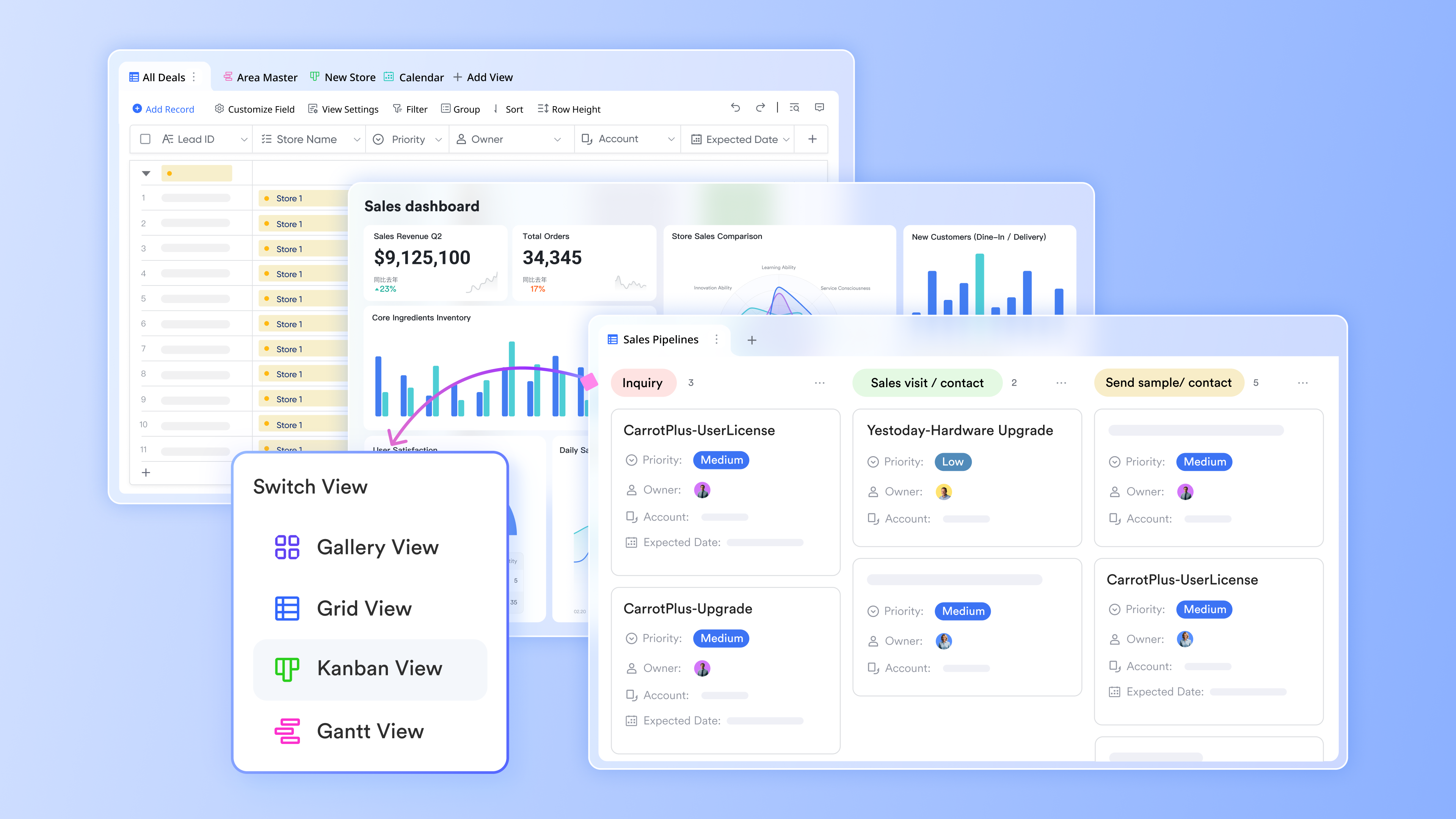
- Data modeling and documentation
- Knowledge bases, templates, and dictionaries: Lark Base makes reusable data dictionaries, field definitions, validation patterns, and ER sketches as living documents.
- Centralized requirements and governance: Capture stakeholder requirements, decision logs, and change control notes in a single collaborative space.
- Template-driven design and reuse
- Starter templates: Store starter data models, table schemas, and form/layout templates that can be cloned for new projects. For example, Lark provides customer database templates for easy use.
- Versioning and collaboration: Use page history and comments to track changes and gather team feedback without separate project management tools.
- Lightweight data capture and forms
- Structured forms and forms workflows: Build standardized entry forms with guided fields, validation notes, and conditional sections within pages or embedded tools.
- Validation patterns: Define rules and checks that team members can apply consistently across entries.
- Workflow automation and process orchestration
- Task lists and automation hooks: Convert data-management steps into task templates, assign owners, and track progress; lightweight automation can trigger notifications or document updates.
- Simple integration points: Connect forms and data entries to other services via built-in connectors or lightweight scripts, enabling end-to-end processes (data capture → review → archive).
- Knowledge-driven reporting and dashboards
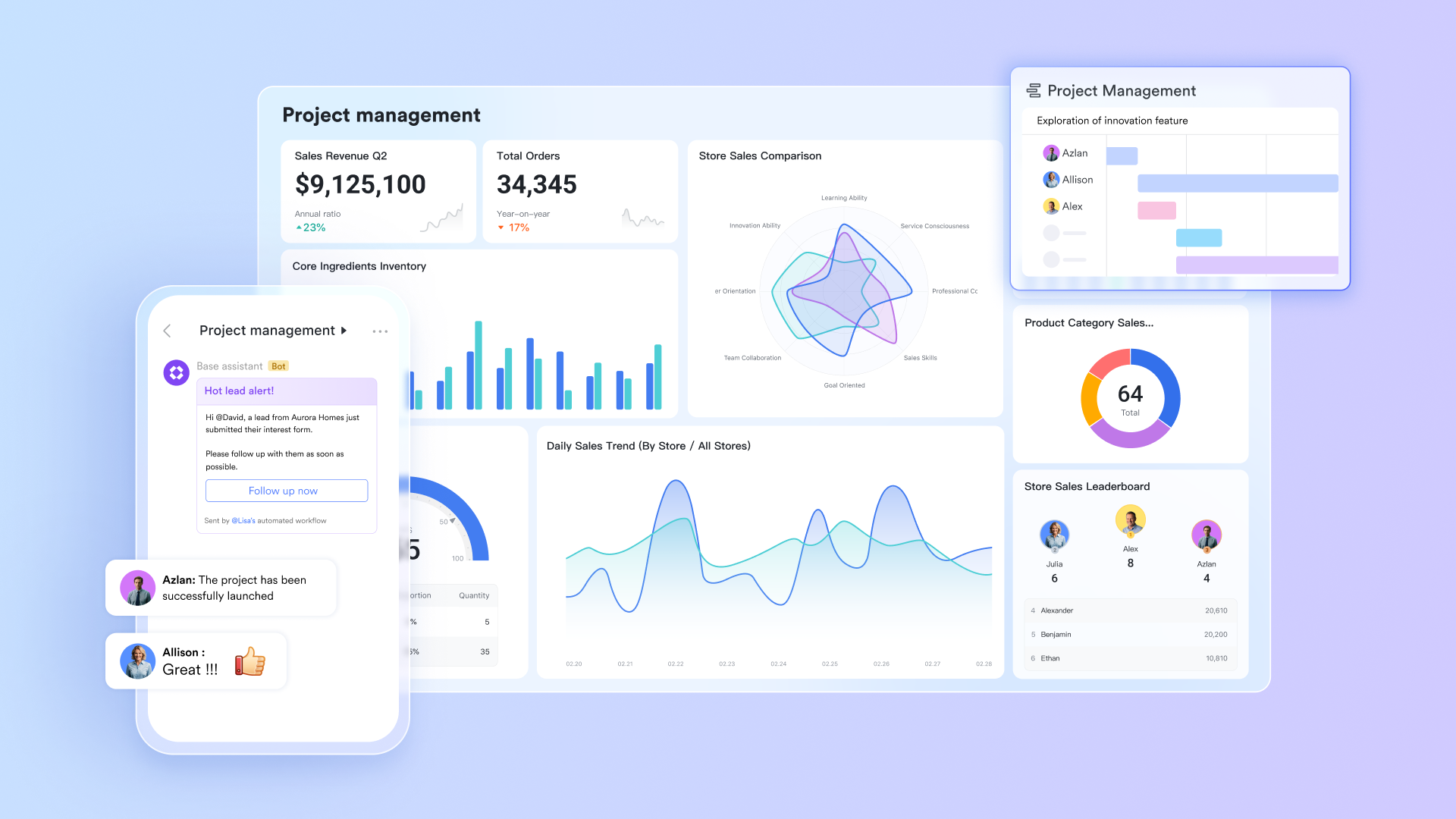
- Reporting templates and dashboards: Create adjustable report layouts with Lark Base dashboards and boost working efficiency powered by Lark's AI functions, linking to data dictionaries and collection templates.
- Cross-project visibility: Share dashboards with stakeholders, supporting governance and decision-making without exporting to external BI tools.
- Build reports for data presentation: Within any base, users can create a custom dashboard that serves as a live, shareable report. Simply add widgets to the canvas and link them to data tables, choosing from a variety of chart types like bar, line, pie, and scatter plots, or display key metrics with number cards. These charts are not static images; they are interactive and updated in real-time as the underlying data changes, ensuring your report is always current. You can arrange these visualizations alongside rich text blocks to add context and embed filtered views of your tables for detailed drill-downs.
- Collaboration and governance
- Single source of truth: Centralize design decisions, data definitions, and rules to reduce ambiguity.
- Access control and audibility: Manage permissions at the workspace or document level, enabling appropriate data handling and traceability.
Scenarios where Lark can substitute or complement Access
- Small team CRM or inventory-lite projects: Use Lark templates for data structures, capture workflows, and lightweight reporting to replace local Access databases.
- Cross-functional data collection: Leverage Lark's collaboration features to standardize data entry forms, review cycles, and approvals across departments.
- Documentation-centric data projects: When the emphasis is on knowledge management, governance, and repeatable templates, Lark Docs's capabilities can outperform traditional flat-file databases in portability and collaboration.
- Hybrid setups: Use Access for heavy data processing and local forms, while embedding links or references to Lark templates for governance, version control, and knowledge sharing.
Practical guidance for adoption
- Start with a hybrid approach: Use Lark to standardize templates, governance, and collaboration, while keeping data storage and heavy processing in a traditional database if needed.
- Map tasks to features: Define which database management activities (modeling, data entry, validation, reporting) map best to Lark artifacts (templates, forms, plans) and which require separate data stores.
- Pilot with a small domain: Clone starter templates, capture requirements, and iteratively refine workflows before scaling.
- Starter plan: Free forever plan that includes 11 powerful tools for up to 20 users. It also comes with 100GB of storage, 1000 automation runs, AI translations, and more.
- Pro plan: $12/user/month (billed annually) for up to 500 users. It includes everything in Starter plus a group calling for up to 500 attendees, 15TB of storage, 50,000 automation runs, and more.
- Enterprise plan: Contact sales for custom pricing. Supports unlimited users and includes even more automation runs and advanced security, compliance, and management features.
Conclusion
This practical, workflow-centered approach to building database solutions in Access also highlights how lightweight, collaborative platforms can complement or substitute desktop databases in appropriate contexts; it emphasizes actionable steps, reusable templates, governance, and a hybrid strategy that leverages Access for local data handling alongside templating and knowledge-management features of a collaborative platform, with a final invitation to try such a platform—specifically Lark—to see how it fits the team's needs.
FAQs
What are the basic steps to create a database in Access?
Start by creating a new database and designing tables with fields and data types, then define relationships. Create basic forms, queries, and reports templates, and import initial data. For collaboration and templates, share related docs in Lark.
How do you design tables and relationships to avoid data redundancy in Access?
Begin with requirement modeling, identify primary and foreign keys, and apply normalization principles. Index common queries to improve performance and ensure referential integrity. Use Lark to maintain data dictionaries and ER diagrams for governance.
How can I automate data entry forms in Access?
Use macros or VBA to validate input and cascade updates on save. Store reusable templates in Lark for team reuse.
How do you maintain reusable templates and documentation for an Access database?
Build reusable templates for tables, queries, forms, and reports and manage them with version control. Document with clear comments and usage guides; maintain a data dictionary and ER diagrams. Place templates and governance materials in Lark to boost cross-team sharing.
In what scenarios is it beneficial to combine Access with Lark?
Let Access handle local data processing and complex calculations, while Lark supports templates and governance. For projects needing strong collaboration and template reuse, Lark's documents and workflows add noticeable value.
Related Readings
Table of contents
Start using Lark today

Manage all your work in one place
Boost team efficiency by 10x
Save up to 70% on software costs
Table of contents
Start using Lark today
Manage all your work in one place
Boost team efficiency by 10x
Save up to 70% on software costs
Keep reading








2026 Lark Technologies Pte. Ltd.
Headquartered in Singapore with offices worldwide.






Explore: