














Google Calendar: How to Use it to set reminders

Jennifer Taylor
Product Demand Generation Specialist
Sep 18, 2026
Jennifer Taylor
Sep 18, 2026

16 min read


Staying on top of meetings, tasks, and personal dates gets easier when reminders show up at the right moment. Google Calendar is still a top choice for this. Today, what used to be "Reminders" now live inside Google Tasks, but most people still search for "how to set reminders on Google Calendar," so I'll use that language and show the current, correct steps.
You'll learn the essentials on desktop and mobile, how to set up reminders on Google Calendar for tasks and events, and simple ways to handle daily and birthday reminders. I'll also flag common pitfalls so your alerts arrive reliably.

Understanding reminders in Google Calendar today
Google Calendar is far more than a simple scheduling tool; it's a central hub for organizing your time and tasks. While its core function of creating and managing events—meetings, appointments, and social gatherings—is robust, one of its most powerful features is the integrated Reminder system.
Unlike regular calendar events, Reminders are designed for personal tasks that don't necessarily have a fixed time or duration. Think of things like "Pick up dry cleaning," "Submit a report," or "Call the dentist." You can create these quickly and set them for a specific day or a specific time.
The key advantage of Reminders is their persistence. If you don't mark a Reminder as complete, it doesn't just disappear at the end of the day. It intelligently moves to the next day, staying at the top of your calendar as a gentle nudge until you finally check it off. This ensures that important to-dos are never forgotten.
By seamlessly blending scheduled events with these persistent tasks, Google Calendar becomes a comprehensive productivity system. It helps you manage not only where you need to be but also what you need to do, making it an indispensable tool for staying organized and reducing mental clutter.
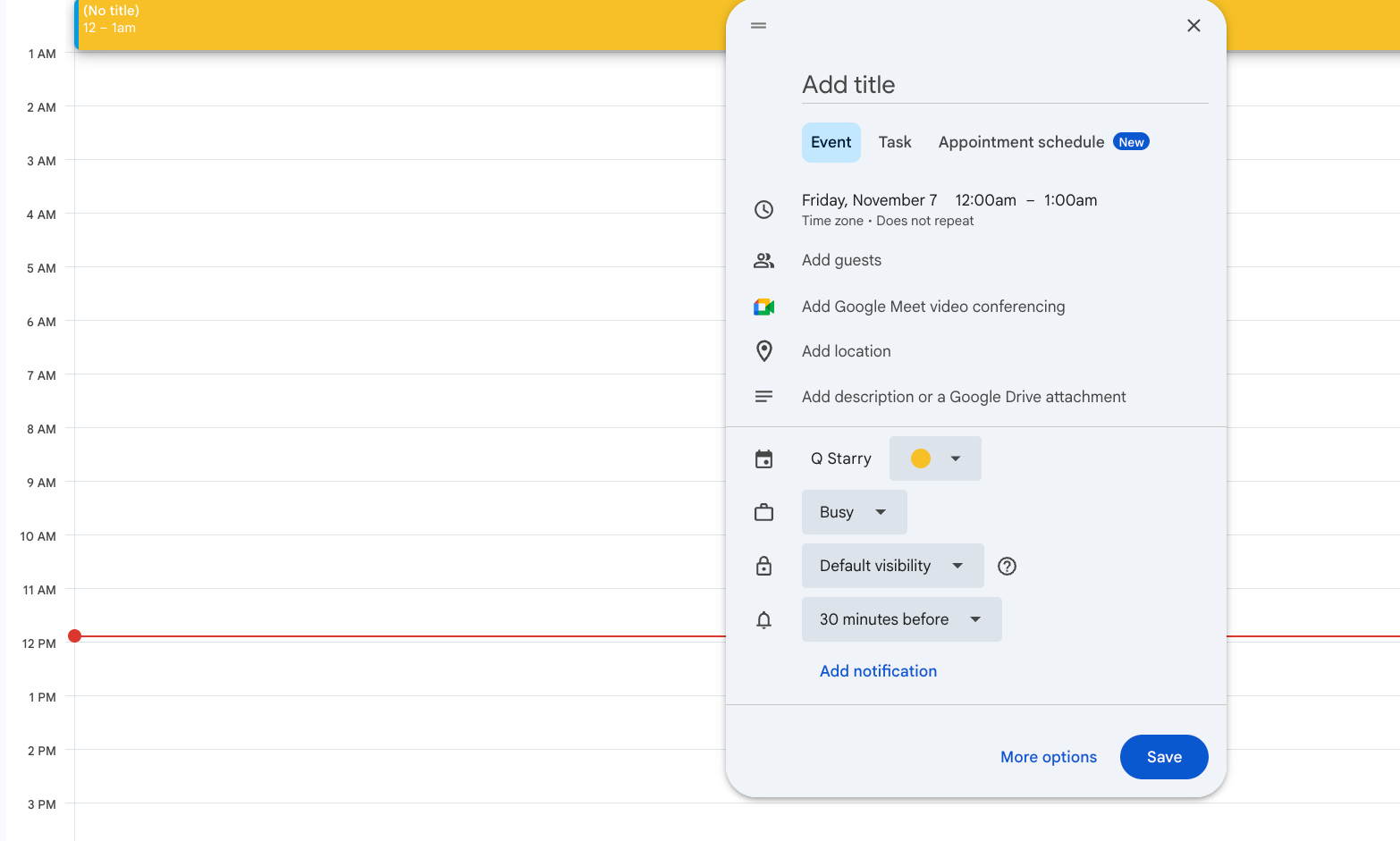
Image source: google.com
Since Google Calendar is part of a larger productivity ecosystem, understanding Google Workspace pricing can help teams evaluate the total cost of adopting Google's business tools.
How to set reminders on Google Calendar on desktop
Quick answer:
- Open calendar.google.com and sign in.
- Make sure the "Tasks" calendar is checked in the left sidebar.
- Press the Tasks icon on the right panel (blue circle with a checkmark).
- Click "Add a task," give it a title, and set a date and time.
- Save. You'll see it on your calendar and get a reminder at that time.
Quick steps to create a task as a reminder
This is the fastest route if you're focused on how to set reminders for tasks on Google Calendar:
- Open Google Calendar on the web.
- In the right sidebar, open Tasks → Add a task.
- Add a clear title (e.g., "Send client update").
- Click "Add date/time," choose the date and time, then Save.
- Ensure your browser and devices allow notifications.
Pro tip: Use short, action-first titles so the notification is immediately understandable.
Create event-based reminders from the event editor
Use this when an item has a start time and may involve other people:
- Click a time slot → Event.
- Add title, date/time, guests (if any).
- Click "Notifications" (bell icon):
- Add one or more notifications (minutes, hours, days, or weeks before).
- Choose "Notification" (push) or "Email."
- Save.
Examples:
- For a client call: 1 day before (email) + 30 minutes before (push).
- For a webinar: 2 days before (email), 1 hour before (push), 10 minutes before (push).
Add multiple reminders for important events
- Open the event → Notifications → "Add notification" to stack alerts.
- Suggested stack: 1 day before, 2 hours before, and 10 minutes before.
- Keep it minimal to avoid alert fatigue.
Set default notification settings for a calendar
If you create many similar events, defaults save time:
- Click the gear icon → Settings.
- Under "Settings for my calendars," choose your calendar.
- Open "Event notifications" → Add default notifications (e.g., 30 minutes before).
- Optional: Set "All-day event notifications" (useful for birthdays and anniversaries).
Make tasks visible on the calendar
- In the left sidebar, under "My calendars," check "Tasks."
- Click the three dots next to "Tasks" to pick a color that stands out.
- Refresh the page if you don't see recent changes.
Keyboard shortcuts and productivity tips
- Press "Q" to quickly create something (then switch type if needed).
- Press "E" to edit an event.
- Press "Shift + ?" to see all shortcuts.
- Name recurring items with prefixes like "CALL:" or "DUE:" for faster scanning.
How to set daily, hourly, and birthday reminders on desktop
- How to set daily reminders on Google Calendar:
- For events: Create an event → "Does not repeat" → "Custom" → Repeat daily (choose end date if needed) → Add notifications.
- For tasks: Create a Task → Set date/time. Then, if you need daily repetition, manually duplicate tasks or consider using automation (Tasks do not yet support true hourly/daily repeat with flexible rules on web).
- How to set hourly reminders on Google Calendar:
- Google Calendar does not offer "repeat every hour" for Tasks. Events have limited hourly recurrence options; in many accounts, hourly repeat isn't available in the standard UI.
- Workaround: Create multiple event notifications (e.g., every 2–3 hours) or use automation (Google Assistant routines, Zapier, or Apps Script) to generate hourly events.
- How to set birthday reminders on Google Calendar:
- Go to Settings → "Settings for my calendars" → "Birthdays."
- Under "All-day event notifications," add a default (e.g., 1 day before at 9:00 AM).
- Ensure the "Birthdays" calendar is visible in the sidebar.
Note: Including these patterns now helps cover common searches like how to set daily reminders on Google Calendar and how to set birthday reminders on Google Calendar without waiting for the advanced section.
How to set reminders on Google Calendar on mobile (Android and iOS)
This section also addresses how to set Google Calendar reminders on iPhone specifically, since iOS needs a couple of extra permission checks.
Add a task reminder in the mobile app
- Open the Google Calendar app.
- Tap the "+" button → Task.
- Enter a clear title → Set date and time → Save.
- You'll get a push notification at the scheduled time.
Tip: If you don't see the notification, check app notification permissions (see below).
Add or adjust event notifications on mobile
- Tap an existing event (or create a new one).
- Tap "Notifications" (or "Add notification").
- Choose when to alert (e.g., 1 day before, 30 minutes before).
- Save.
Use multiple notifications for high-stakes events, just like on desktop.
Use widgets and lock-screen notifications
- Add a Calendar or Tasks widget to your home screen for quick visibility.
- Allow lock-screen previews so you see reminders without unlocking your phone.
Manage mobile notification permissions
For reliable delivery, confirm both app and system-level settings.
- Android:
- Settings → Apps → Google Calendar → Notifications: On.
- Turn off aggressive battery optimization for Calendar (and for Google Tasks if installed).
- Allow background activity and data.
- iPhone (how to set Google Calendar reminders on iPhone):
- iOS Settings → Notifications → Google Calendar → Allow Notifications (Lock Screen, Notification Center, Banners).
- iOS Settings → Google Calendar → Background App Refresh: On.
- Open the Google Calendar app → Menu → Settings → ensure notifications are enabled for your account.
- If using Gmail/Tasks integration, keep the Google app permissions enabled as well.
Daily, hourly, and birthday reminders on mobile
- How to set daily reminders on Google Calendar:
- Event: Create an event → Repeat → Daily (or Custom) → Add notifications → Save.
- Task: Add a Task with date/time. For true daily repeats, you may need to duplicate tasks or use automation, as Tasks repetition remains limited.
- How to set hourly reminders on Google Calendar:
- Native hourly repeats are limited. If your app version doesn't show hourly options, create multiple notifications or use third-party automation (e.g., Google Assistant routines) to simulate hourly nudges.
- How to set birthday reminders on Google Calendar:
- In the app, go to Menu → Settings → Your "Birthdays" calendar.
- Add an "All-day notification" (e.g., 1 day before).
- Ensure the Birthdays calendar is toggled on in the main view.
If reminders don't appear on iPhone after setup, recheck iOS notification permissions and Focus/DND settings, then force-quit and reopen the Calendar app.
Where Google Calendar can fall short for reminders
- Tasks vs events confusion: Classic Reminders were folded into Tasks, which makes "how to set reminders for tasks on Google Calendar" feel inconsistent across desktop and mobile.
- Limited recurrence for Tasks: Daily or hourly nudges often need workarounds (events, automations), adding complexity.
- Meeting-to-task gap: Turning a meeting or note into assigned follow-ups isn't native; you rely on extra apps.
- Context switching: Calendar, chat, docs, and task tracking live in separate tools, so reminders are easy to miss.
- Team ownership: Google Tasks are personal; assigning owners, due dates, and status for the team requires a separate system.
- Notification friction on mobile: Tuning delivery across iPhone and Android can be fussy, especially with Focus/DND and multiple apps.
These pain points are common even if you've mastered how to set up reminders on Google Calendar. Organizations facing these challenges often explore Google Workspace alternatives that combine scheduling, collaboration, communication, and task management in a more unified environment.
Google Calendar swap? Lark saves more and syncs all
If you came here searching for how to set up reminders on Google Calendar, you're not alone. Google folded classic Reminders into Google Tasks, so reminders now appear either as dated Tasks or as event notifications. That shift introduced common friction: confusion between Tasks vs events, limited recurrence for Tasks, gaps between meetings and assigned follow‑ups, and context switching across calendar, chat, docs, and task tools. Even if you've mastered how to set reminders for tasks on Google Calendar, teams often struggle with ownership and mobile notification consistency—especially on iPhone or Android when Focus/DND is active. That's where a focused alternative like Lark Calendar helps.
Why consider Lark Calendar as your reminder and scheduling hub
Lark Calendar is built for modern teams who need more than a slot‑booker. It lives inside the Lark superapp, so calendar, messaging, video meetings, docs, tasks, and workflows stay connected—reminders live where work happens.
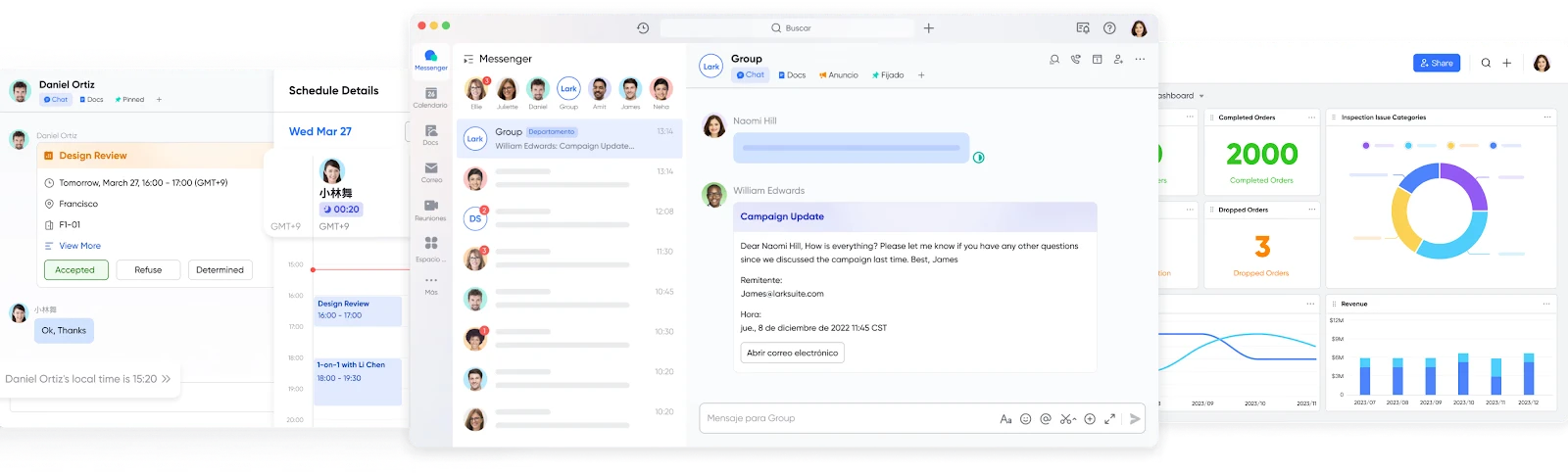
- Lark Calendar supports importing third-party calendars—such as Google Calendar—which appear in your Calendar sidebar once synced. You can edit existing Google Calendar events or create new ones in Lark, and your changes will sync back to Google Calendar.
- Clear ownership from the calendar: Convert meetings into assigned tasks with due dates and reminders without leaving the event. Ownership and timelines stay visible so follow‑ups don't vanish.
- Calmer, consistent alerts: Tune notifications to working hours and DND for fewer distractions and more reliability across devices.
- Multi‑time‑zone clarity: See teammate time zones in the calendar view, find overlapping windows faster, and keep recurring meetings stable.
- Less app‑hopping: Attach agendas, notes, and files to events so context stays with the reminder and handoffs are smoother.
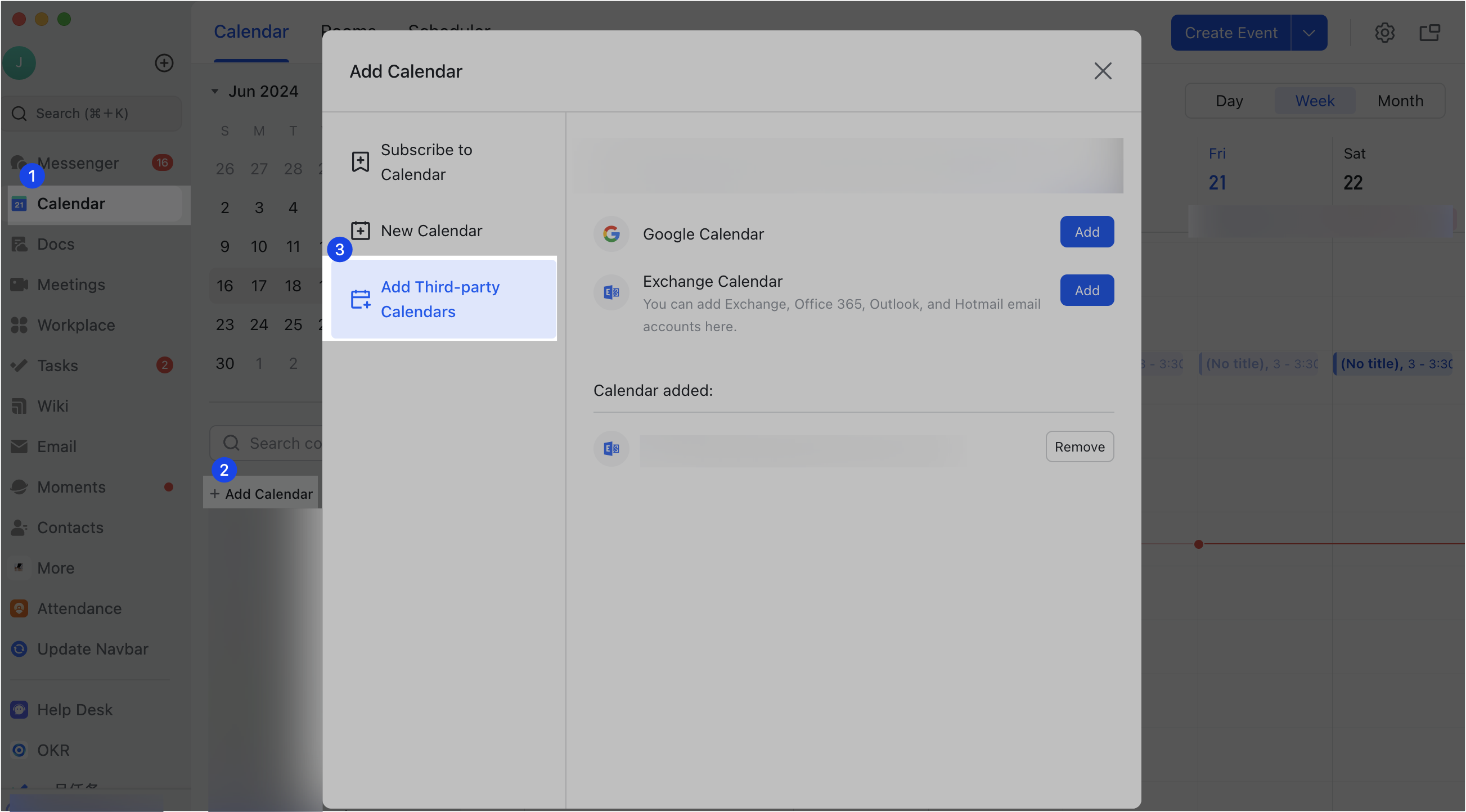
What Lark Calendar Does Especially Well
- Find the time that works: Compare teammates' calendars side by side—right inside chat—and pick a fair slot using automatic local‑time views.
- Reserve rooms as you schedule: Link office resources so rooms are bookable from the event editor, with automatic conflict prevention.
- See meetings and deadlines together: Display task due dates on your calendar for a unified view of commitments.
- Share self‑serve availability: Lark's Scheduler lets others book you in a few clicks—ideal for demos, interviews, and customer calls, without the usual back‑and‑forth.
- Host meetings without switching apps: Check availability, send invites, and start Lark Meetings in one click.
- Follow team calendars: Subscribe to shared calendars for editorial plans, launches, or town halls—and filter personal vs work calendars to cut noise.
- Transform collaboration: Chat, schedule, meet, assign tasks, edit docs, and manage projects in one place for fewer dropped details and faster execution.
How to set a reminder on Lark Calendar
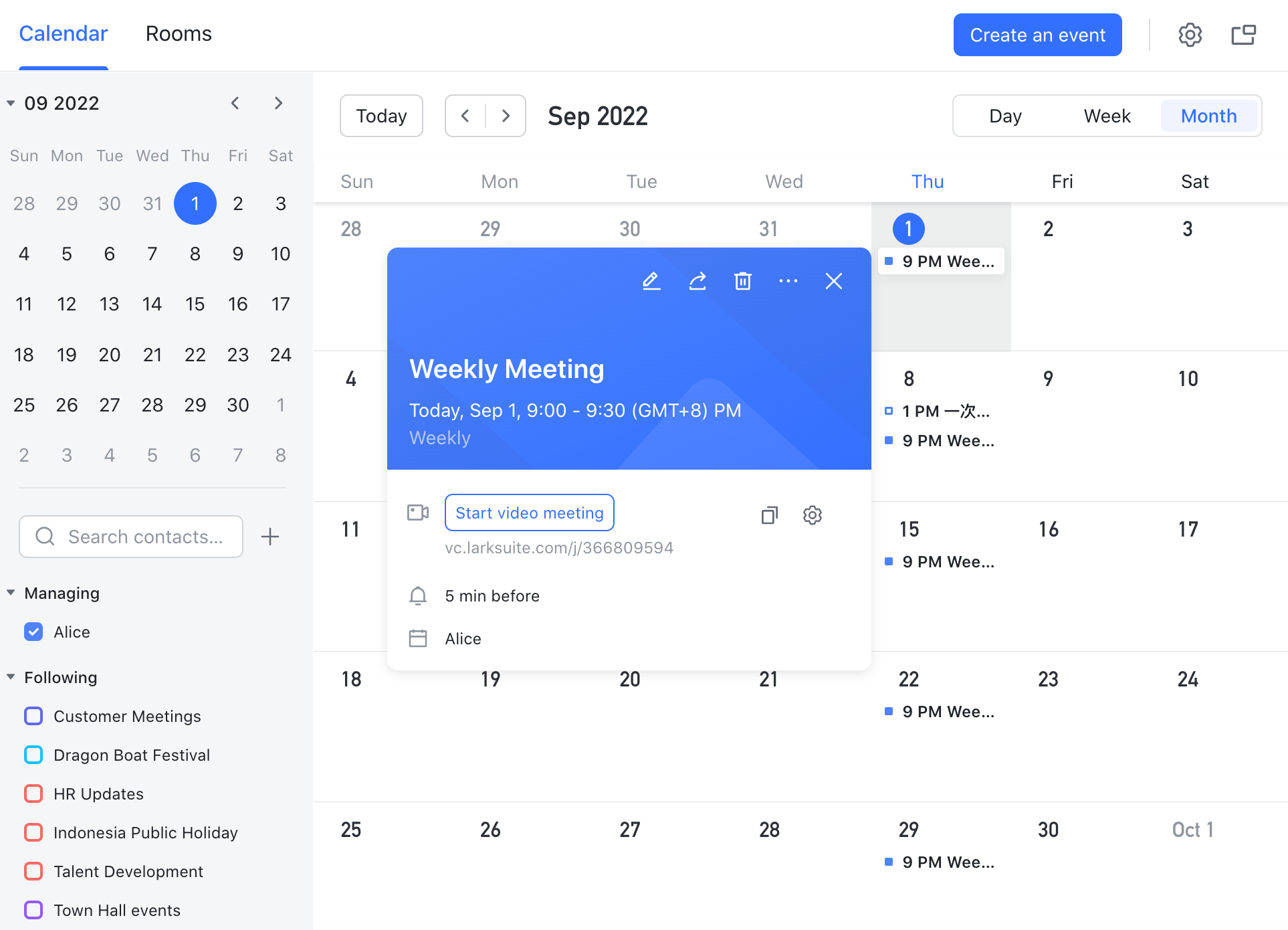
- When creating or editing an event, open the Calendar settings for that event and customize the reminder time.
- For non–all-day events: Choose an alert anytime from two weeks before up to the event start.
- For all-day events: Pick a fixed alert time at 8:00, 9:00, or 10:00, either the day before or the day of the event.
- If you set the alert time to "None," you won't receive event alerts.
Tip: Use a two-alert pattern for critical meetings—one early heads-up (e.g., day before at 9:00) and one short-fuse alert (e.g., 10 minutes before).
Key features of Lark Calendar
Turn meetings and notes into action without leaving Calendar
- Convert a meeting into assigned tasks with due dates and reminders directly from the event, so owners and timelines are explicit.
- Keep notes, agendas, and files attached to the event so context travels with the reminder.
- Track ownership and status to ensure follow‑ups don't disappear after the meeting ends.
Smarter notifications that respect your time
- Focus time and DND: Lark respects focus windows and working hours to reduce noise while preserving critical alerts.
- Channel reminders: Post pre‑meeting alerts to the right team chat—say, 1 day and 10 minutes before—to improve attendance and prep.
- Consistent delivery on mobile: Enable notifications on iPhone or Android for clear event alerts without juggling multiple apps.
Team scheduling across time zones
- See teammate time zones at a glance from the calendar view.
- Use overlap‑friendly scheduling to minimize back‑and‑forth.
- Keep recurring meetings stable by aligning reminders with participants' working hours.
Quick pilot plan to evaluate Lark Calendar
- Create or import your next two key meetings in Lark Calendar.
- Add two alerts to each (a day before and 10 minutes before) to simulate your preferred cadence.
- Attach the agenda doc and convert at least one discussion point into an assigned task with a due date and reminder.
- Add a channel reminder for one team meeting to reduce no‑shows.
- After one to two weeks, review outcomes: fewer misses, clearer ownership, and smoother follow‑ups.
Quick tips for you to choose
Where Google Calendar still shines
Stick with Google Calendar if:
- You primarily schedule for yourself and your workflow already fits how to set up reminders on Google Calendar (Tasks for personal nudges, event notifications for scheduled blocks).
- You need native Gmail/Meet integration, simple shared calendars, or you're heavily invested in email‑based reminders (e.g., 1 day before via email plus a push just before).
- You rely on built‑in system calendars like Birthdays or Holidays and prefer Google's default alert behavior. For instance, how to set birthday reminders on Google Calendar is straightforward via the Birthdays calendar with default all‑day notifications.
When a team alternative makes more sense
- You want reminders, ownership, and follow‑ups unified with chat and docs so action items are captured and tracked.
- You need calm, reliable notifications across desktop and mobile—including channel reminders before key meetings.
- You coordinate across time zones, need easy room booking, and value meeting‑to‑task handoffs without app switching.
- You want a scheduler that lets others book from your availability in a click, suitable for interviews, demos, and customer calls.
Conclusion
If you're satisfied with Google's model—Tasks for personal nudges and event notifications for scheduled blocks—keep using it, especially when email alerts and default calendars matter. But when collaboration, ownership, and reliable multi‑device delivery are critical, Lark Calendar offers a connected alternative: sync your Google calendars, schedule in context, assign follow‑ups, and deliver calmer reminders that help teams show up prepared and act on decisions.
FAQs
Can you set reminders on Google Calendar?
Yes—use event notifications or dated Tasks. Task alerts are push-only and recurrence can feel basic across devices. If you want finer timing and workspace alerts, other tools like Lark offer customizable reminder windows and cross‑device delivery.
What happened to reminders in Google Calendar?
Google moved Reminders into Google Tasks; you now create dated Tasks for personal nudges, while events use notifications. Some find the split tricky for team follow‑ups; other tools like Lark keep events, notes, and task ownership together for smoother handoffs.
Do Google Calendar tasks have alerts?
Yes. A dated Task triggers a push notification at its due time. Email alerts and advanced repeats aren't built in. If you need richer channels or staged alerts, tools like Lark support configurable event reminders across desktop and mobile.
How to make calendar events automatically remind Google?
Set default notifications in Settings → your calendar → Event notifications, and add separate defaults for all‑day events. Defaults are broad; attendees still manage their own alerts. For shared visibility, other tools such as Lark can post pre‑meeting reminders into team spaces.
Are there better alternatives to Google Calendar?
It depends on needs. If you want integrated tasks/notes, focus‑aware multi‑channel reminders, or smoother team ownership, consider Lark, Microsoft Outlook, or Fantastical. Pilot by importing events, adding staged alerts, and converting meeting notes to tasks to see if execution improves.
Related reading
Table of contents
Start using Lark today

Manage all your work in one place
Boost team efficiency by 10x
Save up to 70% on software costs
Table of contents
Start using Lark today
Manage all your work in one place
Boost team efficiency by 10x
Save up to 70% on software costs



2026 Lark Technologies Pte. Ltd.
Headquartered in Singapore with offices worldwide.






Explore: