The Jira defect tracking tool helps teams document issues, manage progress, and maintain structure across development cycles. Many organizations start by reviewing resources like a Jira bug tracking template or a Jira bug report example to standardize reporting. As teams scale, they look for clarity in their Jira bug workflow and visual guides, such as a Jira bug workflow diagram. Others compare systems by exploring a bug tracking tools list or searching for a free bug tracking tool to support smaller teams. Some companies also examine newer collaborative platforms, including Lark, as they gradually evaluate simpler reporting environments.
Start organizing QA processes with automated workflows
What is Jira defect tracking?
Jira defect tracking is the process of using Jira to record, manage, and resolve throughout the development lifecycle. Teams log defects as issues, capturing key details such as severity, priority, environment, steps to reproduce, attachments, and assigned owners. Each bug moves through a customizable workflow with stages like New, In Progress, In Review, QA Testing, and Done, allowing teams to monitor progress clearly. Jira supports collaboration through comments, mentions, file sharing, and activity logs, ensuring developers, testers, and product managers stay aligned. and reports provide visibility into defect trends, bottlenecks, resolution times, and workload distribution, helping teams improve release quality and predict delivery risks.
In practice, Jira defect tracking enables structured communication and accountability across testing and engineering teams. Automation rules can assign issues, trigger notifications, or escalate critical defects automatically. Integration with agile boards, sprints, and release planning also ensures that bug fixes align directly with development timelines, making defect resolution measurable, trackable, and continuously improvable.
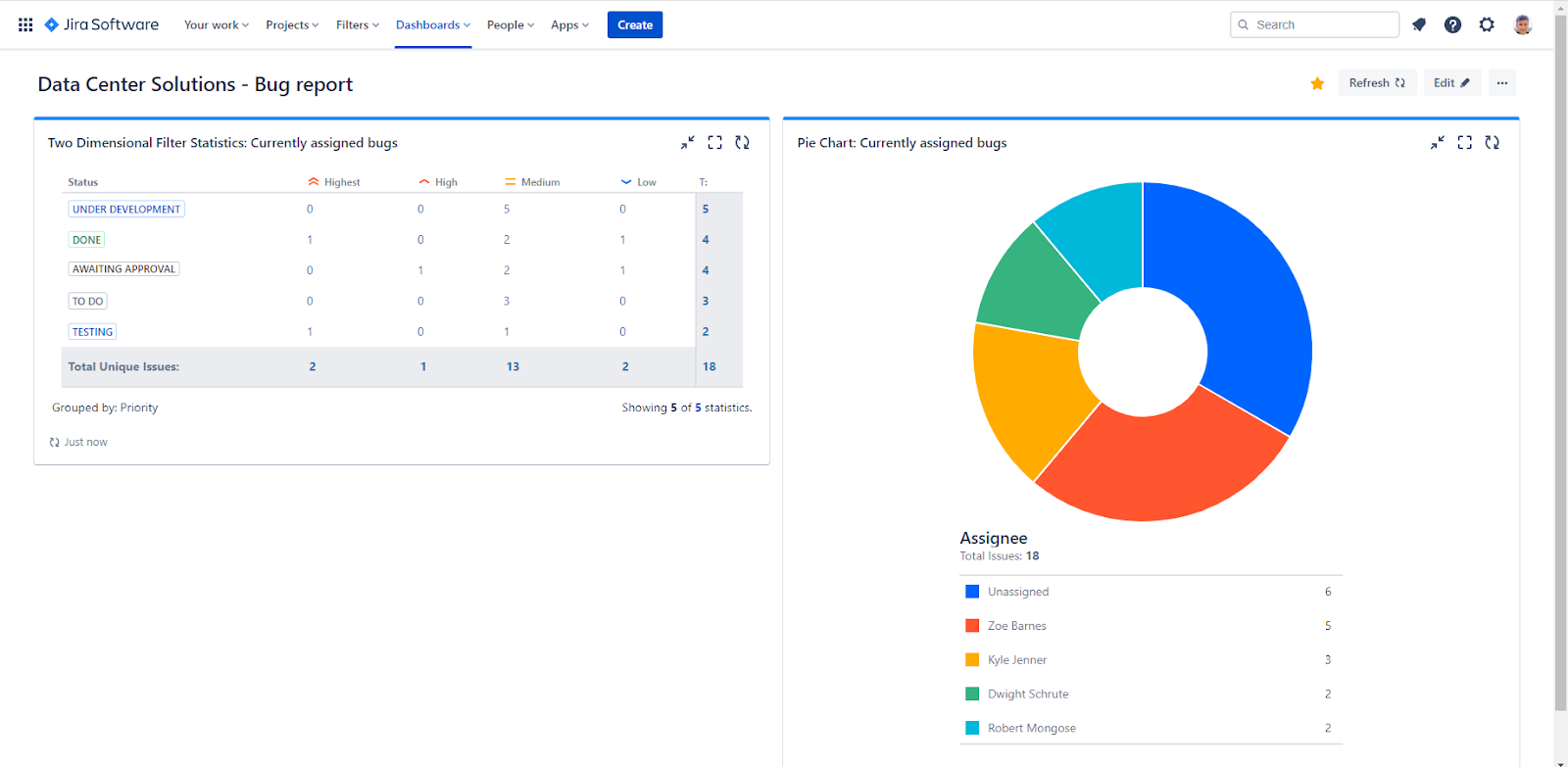
Image source: jira.com
Key features of Jira bug tracking tool
- Custom issue types and fields: Jira lets teams define issue types and custom fields to capture complete defect details such as severity, priority, environment, versions affected, and reproduction steps. This ensures every bug record is standardized and easy to analyze across projects.
- Configurable workflows: Workflows can be customized with statuses and transitions that match each team's testing and . This creates clear handoffs between QA, developers, and reviewers while enforcing process discipline.
- Kanban and Scrum boards: Boards visualize the status of all defects across sprints or continuous flows. Teams can quickly spot bottlenecks, overdue fixes, and stalled tickets in real time.
- Advanced search with JQL: Jira Query Language (JQL) enables precise filtering of defects by assignee, status, severity, release version, or custom rules. This helps QA leads instantly surface critical issues without manual sorting.
- Automation rules: Automation handles repetitive actions like auto-assigning bugs, updating priorities, sending alerts, and escalating blockers. These rules reduce administrative work and prevent missed follow-ups.
- Attachments and commenting: Users can attach screenshots, videos, logs, and documents directly to defect tickets. Threaded comments support between testers and developers.
- Issue linking and dependency mapping: Defects can be linked to related bugs, user stories, or epics. This shows root cause relationships and ensures fixes align with broader development work.
- Dashboards and reporting: Dashboards present charts on open bugs, resolution rates, aging issues, and workload distribution. Reports help teams track quality trends and identify process gaps.
- Role-based permissions: Permission schemes define who can view, edit, transition, or close defect tickets. This safeguards sensitive data while supporting controlled collaboration.
- Sprint and release tracking: Bugs can be added directly to sprints or upcoming releases. This keeps defect resolution closely aligned with delivery timelines and product launches.
- Notifications and activity logs: notify teams about status changes, assignments, or comments. Activity logs maintain a transparent audit trail for accountability.
- Marketplace extensions: Add-ons expand Jira with test management, reporting, and QA workflow enhancements. Teams tailor the system when native tools alone don't meet advanced requirements.
Five main stages of Jira workflow to handle bugs
- Bug reporting (Open/New): A defect is logged by a tester or user with full details such as reproduction steps, environment data, priority level, and attachments. This stage creates the official record and triggers the initial review process.
- Triage and assignment:QA leads or managers review the bug, verify its validity, set severity and priority, and assign it to the appropriate developer or team. Duplicate or low-impact issues may be closed or deferred at this stage.
- Development and fixing (In progress): Developers analyze the root cause and implement code fixes. Status updates indicate work activity and ensure visibility into ongoing remediation efforts.
- Testing and validation (QA/Review): After the fix is submitted, QA retests the defect to confirm proper resolution and check for regressions. Bugs may be approved for closure or reopened if issues persist.
- Closure (Done/Closed): Once verification passes, the bug is formally closed and included in release . The completed record remains archived for audits, metrics, and historical reference.
How to create a bug workflow in Jira? A step-by-step guide
Designing a clear helps your team move every defect from report to resolution without confusion or guesswork. Whether you start from a built-in Jira bug tracking template or build your own process from scratch, the steps below show you exactly how to set up a workflow that fits your QA and development needs.
Step 1: Configure a bug-tracking project in Jira
Start by creating a dedicated project specifically for defect tracking so bugs stay organized and separate from other work items. Log in to Jira, open the Projects menu, select Create project, choose the Software Development category, and then use the Jira bug tracking template. Enter your project name and key, and confirm creation. This instantly gives you a ready-to-use environment with basic bug fields and workflows that can be refined later.
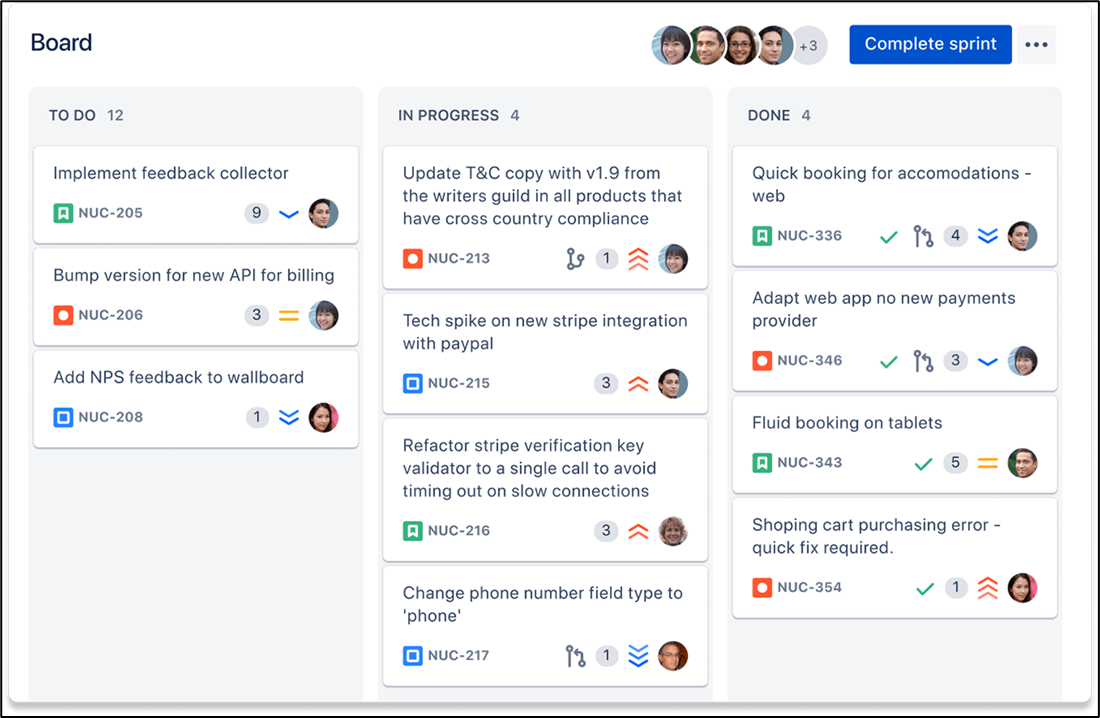
Image source: jira.com
Step 2: Create custom issue types for bugs
Although Jira provides a default "Bug" issue type, expanding it with custom issue types ensures the workflow fits your testing process. Navigate to Global Settings> Issues> Add Issue Type, add the new type, and attach it to your project through the Issue Type Scheme. Configure screens to display fields such as Summary, Description, Priority, Severity, and Environment, then connect those screens to the corresponding issue types so testers capture complete defect information consistently.
Step 3: Customize your Jira workflow for defects
Tailor workflows to reflect how bugs move through your QA and development lifecycle. Go to Project Settings> Workflows and edit the active workflow. Add statuses such as Triage, In Progress, QA Testing, or Reopen, and configure transitions that match your team's handoff rules. Make sure transitions allow backward movement so defects can be reopened or reassigned when verification fails.
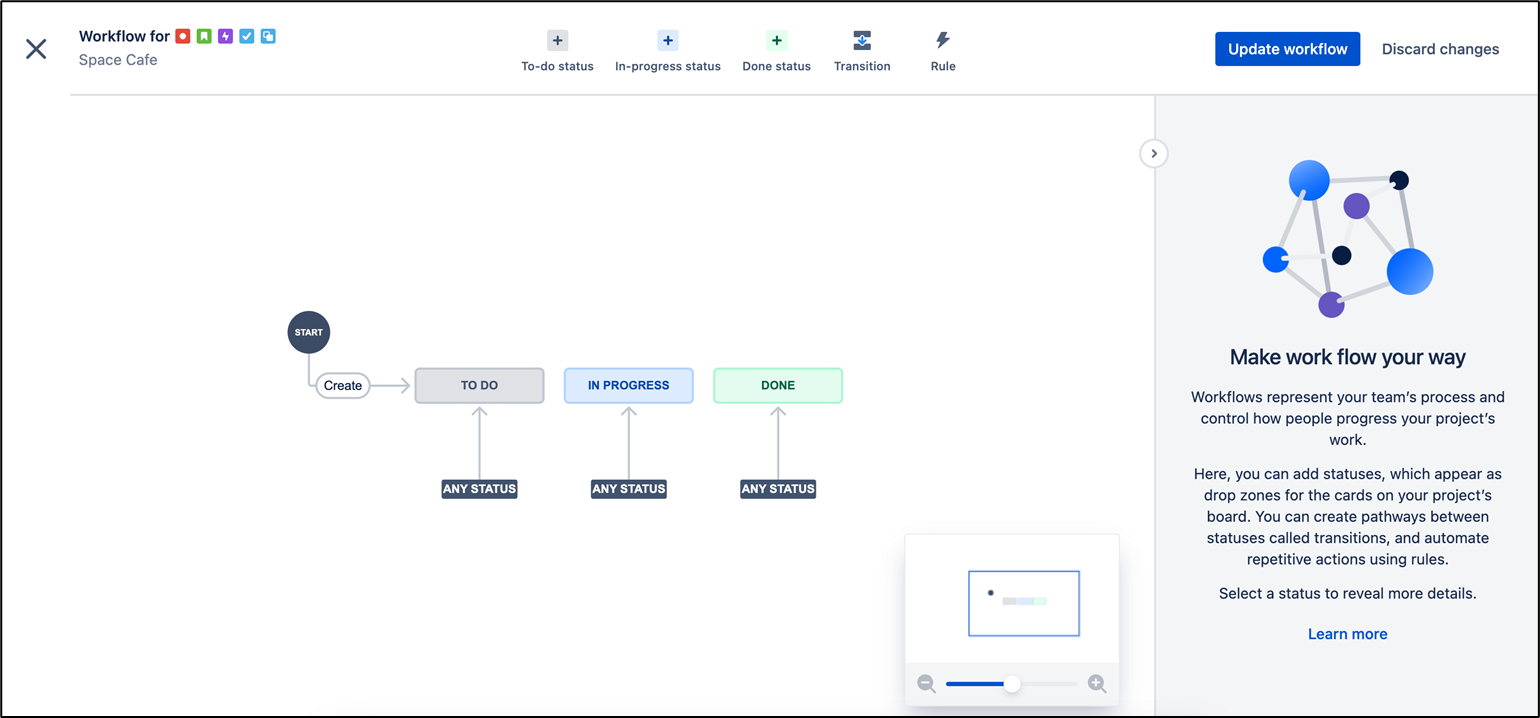
Image source: jira.com
Step 4: Prepare a dedicated Kanban or Scrum board
Create a board to visualize bug progress and team workload. From Boards>Create board, choose either for continuous flows or Scrum for sprint-based work, then link the board to your bug-tracking project. The board displays defects across workflow columns, helping teams spot bottlenecks, overdue fixes, and blocked issues quickly.
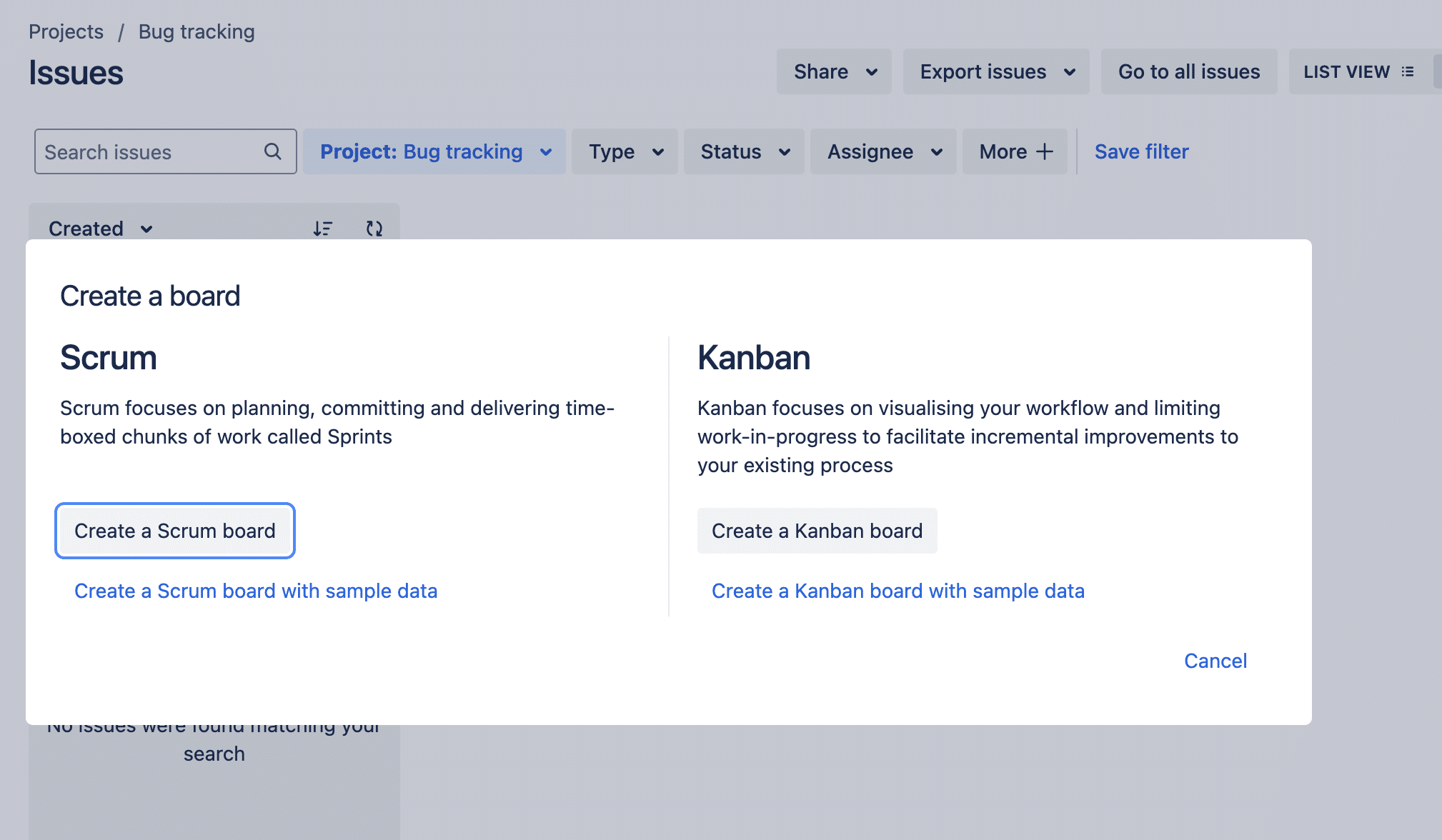
Image source: jira.com
Step 5: Prioritize bugs transparently for your team
Apply Jira's built-in priority system to rank defects by urgency and business impact. Set priority values during triage and adjust them during backlog reviews so everyone understands which issues demand immediate attention. Visual prioritization tools and plugins can further highlight defect relationships, making planning clearer and resolution faster for both testers and developers.
Best practices for Jira bug tracking
This section outlines important habits that help teams get the most from the Jira defect tracking tool. These practices reduce confusion, improve clarity, and maintain system hygiene.
- Standardize templates across teams: Create uniform with required fields such as severity, reproduction steps, environment, and expected results. Consistent templates ensure every defect is documented clearly and can be analyzed or prioritized without missing information.
- Limit over-customization: Avoid excessive workflow statuses, custom fields, or automation layers that complicate issue handling. Keeping configurations streamlined makes Jira easier for testers to use and prevents process slowdowns caused by unnecessary complexity.
- Use automation rules wisely: Apply automation to repetitive actions like issue assignment, notifications, and priority escalation. Focus on simple, high-impact rules that save manual effort rather than building complex chains that are hard to maintain or audit.
- Enforce triage routines: Hold regular bug triage sessions to review new issues, remove duplicates, clarify unclear reports, and assign severity levels. This keeps the backlog healthy and ensures development teams focus only on verified, high-value defects.
- Maintain clean workflow statuses: Move bugs promptly through statuses and close resolved issues quickly. Eliminating stale or miscategorized tickets improves reporting accuracy and prevents false backlog inflation.
- Keep dashboards actionable: Design dashboards that display only meaningful metrics such as open defects by severity, resolution times, and aging tickets. help leaders identify risks quickly without being overwhelmed by excessive charts or filters.
Jira bug tracking limitations teams must consider
Teams often encounter challenges when using Jira for defect tracking, especially as projects expand, roles diversify, and collaboration needs increase. Some limitations become more noticeable when workflows get more complex or when different teams rely on the system in different ways.
- Setup and configuration complexity: Jira's powerful customization requires significant setup time and technical expertise. Teams often struggle to design and maintain workflows that remain usable as projects scale.
- Over-customization leading to workflow friction: Excessive custom fields, statuses, and rules can slow usage, confuse testers, and create inconsistent reporting across teams.
- Collaboration gaps outside development teams: Non-technical stakeholders often find Jira difficult to navigate, leading to fragmented communication that shifts to external tools for discussions and documentation.
- Rising costs as teams grow: Per-user licenses and paid plugins increase total expenses, making Jira costly for large or cross-functional QA teams.
- Reliance on add-ons for advanced QA needs: Essential testing features such as test case management, enhanced reporting, and audit traceability typically require marketplace plugins, adding complexity and operational overhead.
Streamline your defect tracking process today
New solution: Meet Lark for smart bug reporting, collecting, & tracking
Many teams begin comparing platforms with Jira when they look for tools that reduce complexity and support faster coordination. is designed for teams that value flexibility and , offering an all-in-one environment where messaging, meetings, tasks, docs, and work seamlessly together. While some organisations need rigid, highly structured systems, others look for a lighter, more adaptive workspace that keeps daily communication and project execution tightly connected.
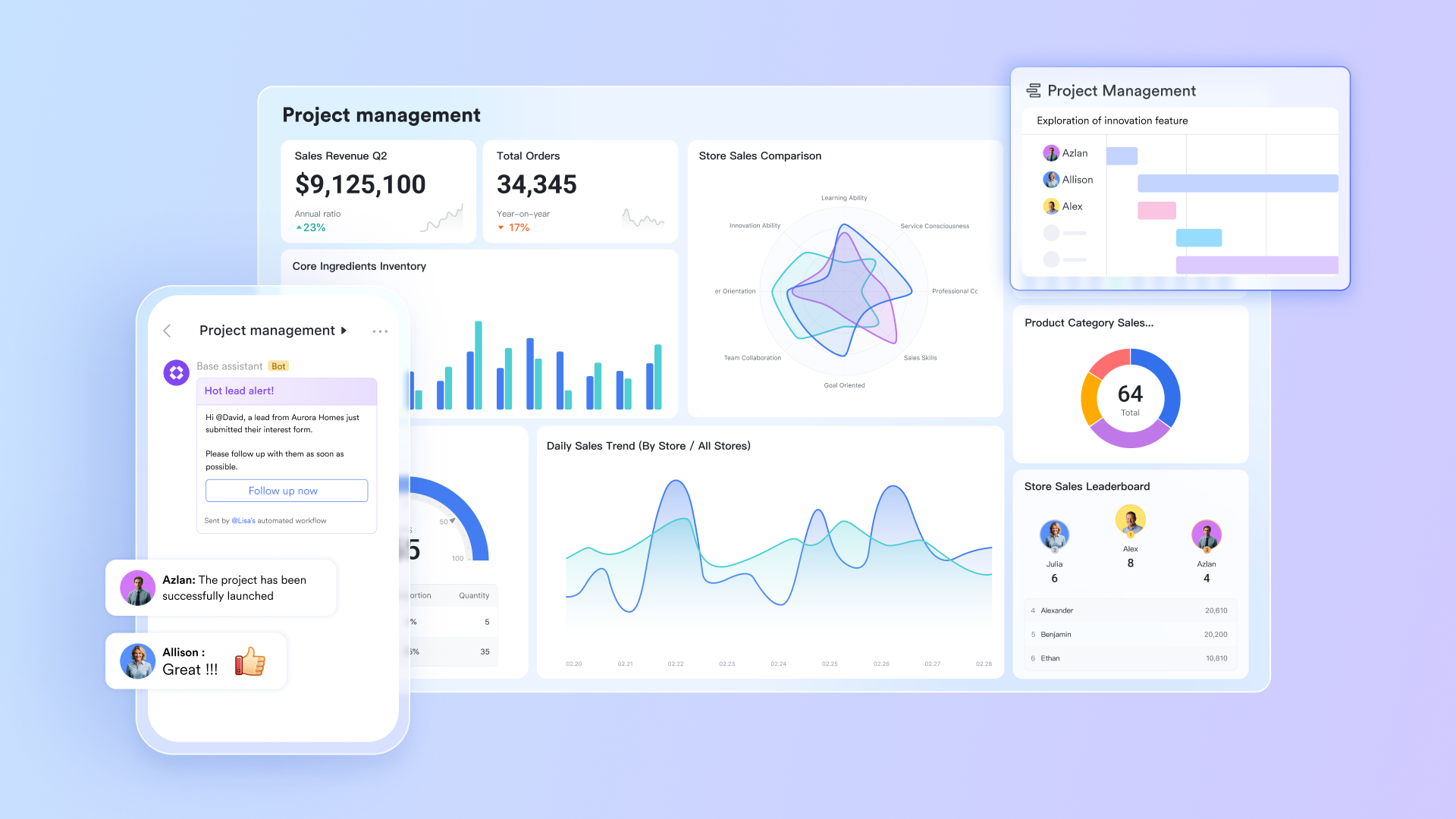
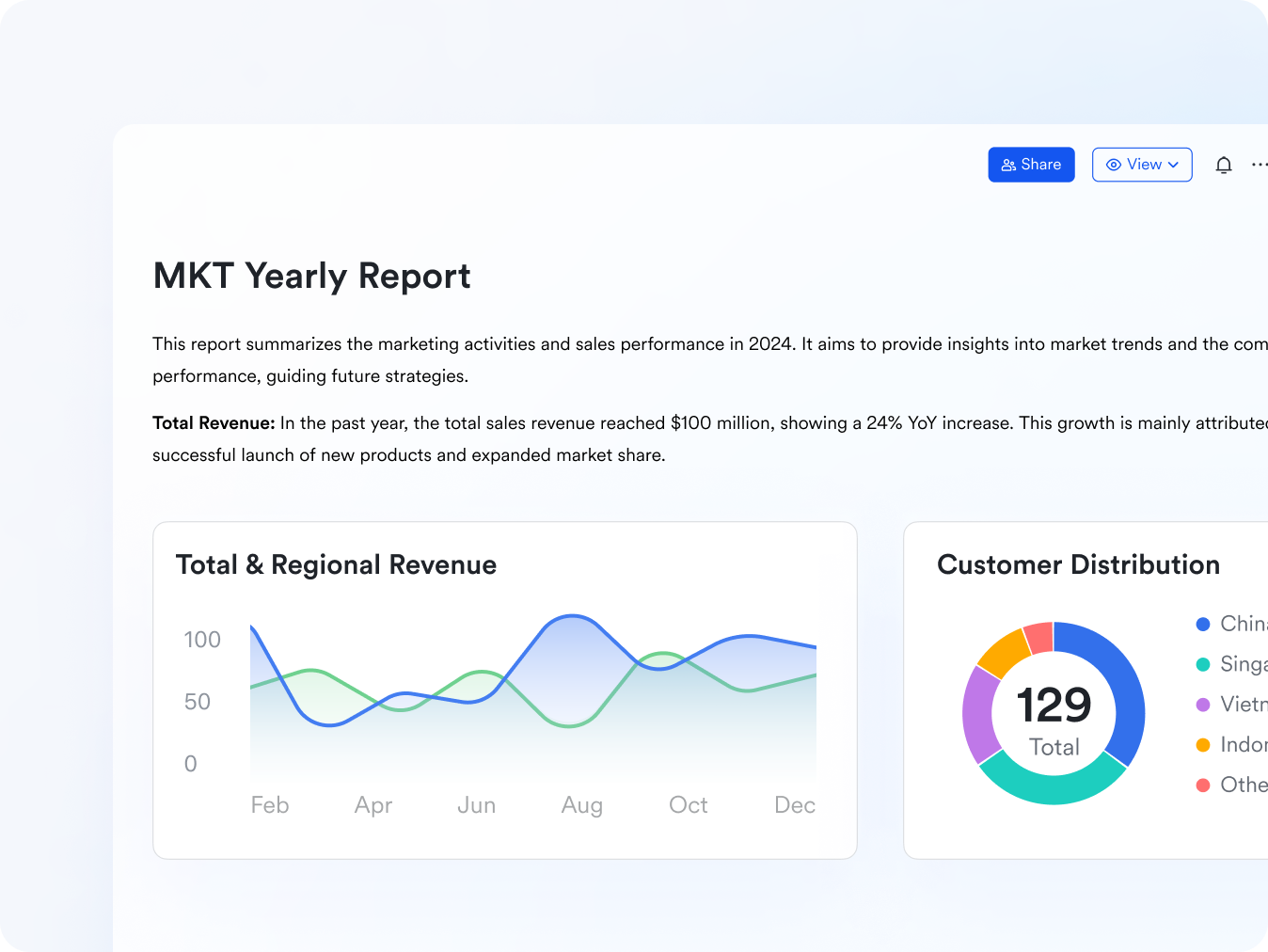
Centralised bug database built in Lark Base
serves as the core workspace where teams record, categorise, and monitor bugs in a structured format. Each bug can include fields like severity, priority, affected module, environment, reproduction steps, and expected fix version. Because Base is fully customizable, teams can add fields that match their testing or development process. Flow fields provide stage visibility, while Groups and Filters allow project leads to quickly isolate issues by severity, sprint, developer, or component. This creates a transparent repository that always reflects the latest status of every defect.
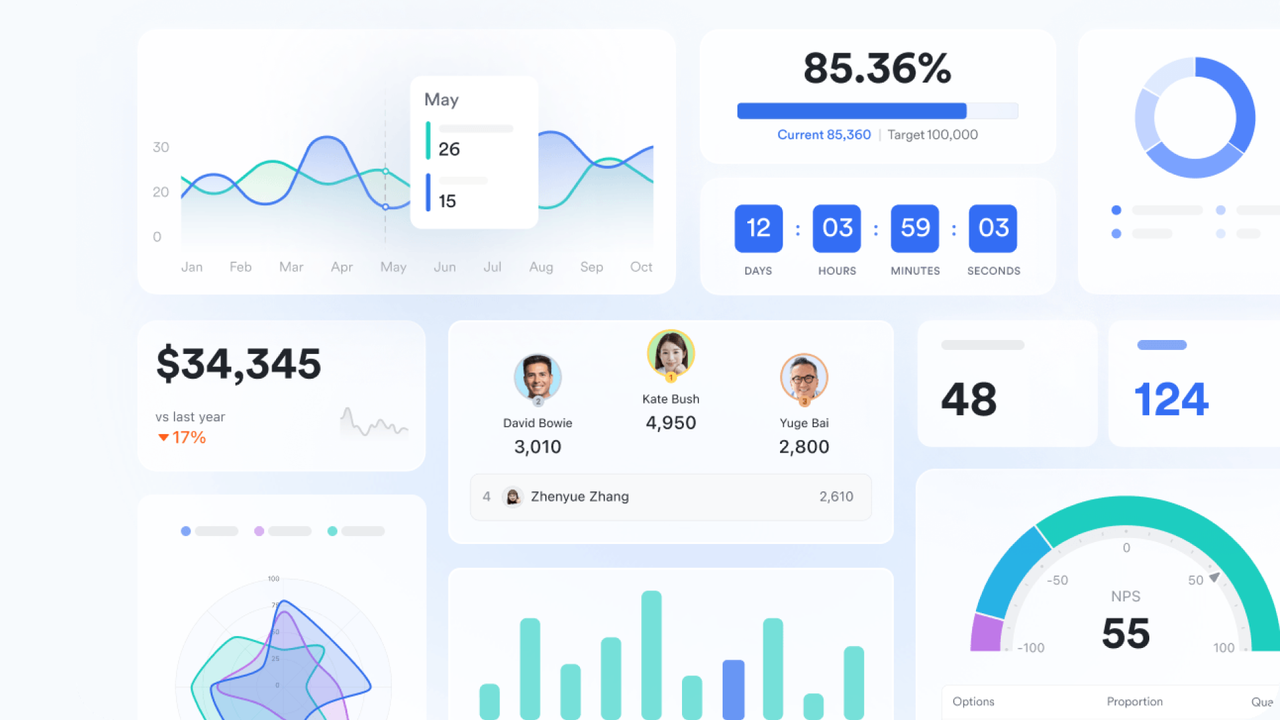
Ready-to-use bug tracking template for quick setup
Lark includes a free bug tracking template in Lark Base, giving teams an immediate starting point without building workflows from scratch. The template includes standard fields and a structured table, helping teams begin logging defects, assigning owners, and tracking progress within minutes. The template can be expanded with custom fields or linked to Lark Tasks, making it flexible for both simple and complex development environments. Task ownership and execution tracking through Lark Tasks
Every bug can be converted into a Task for action. This ensures each issue has a clear owner, deadline, and execution plan. Lark Tasks allow teams to create checklists, add subtasks (such as coding, testing, and review), and leave comments describing investigation progress. Reminders help developers stay on top of incoming or pending issues, and tags make it easier to group bugs across modules, teams, or priority levels. Because tasks stay connected to the base record, project leaders get both a high-level and execution-level view of each defect. 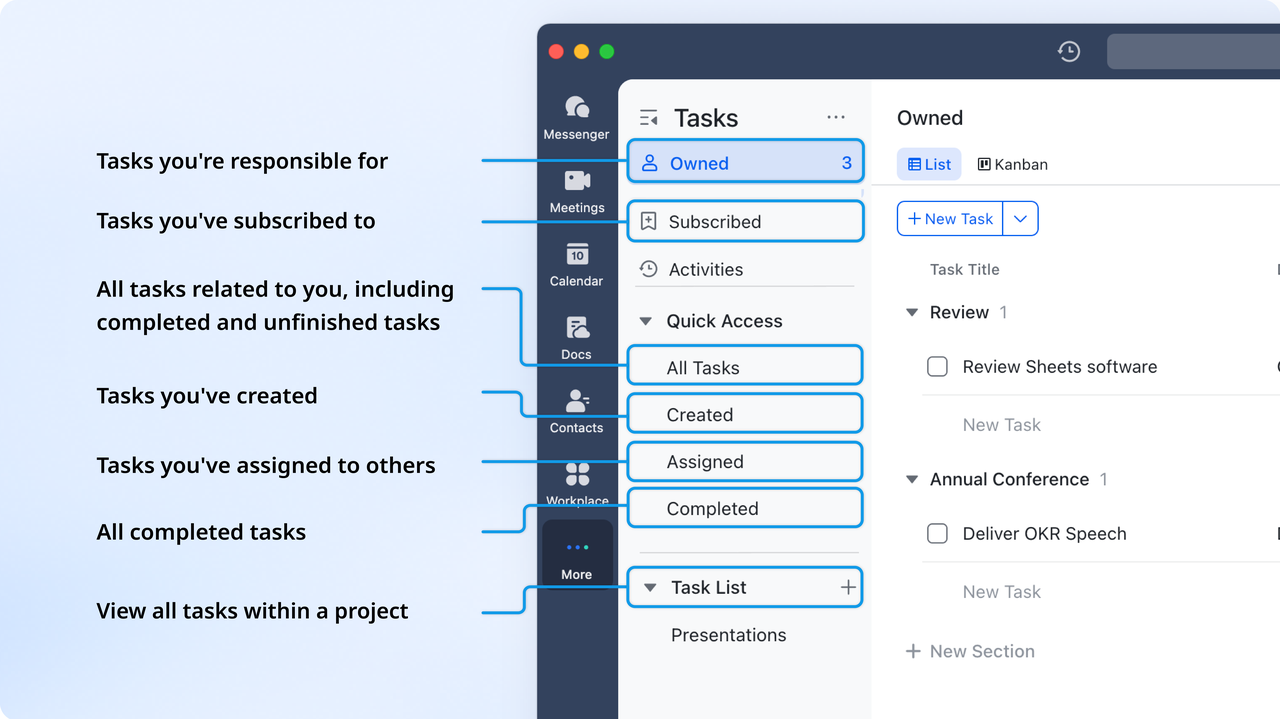
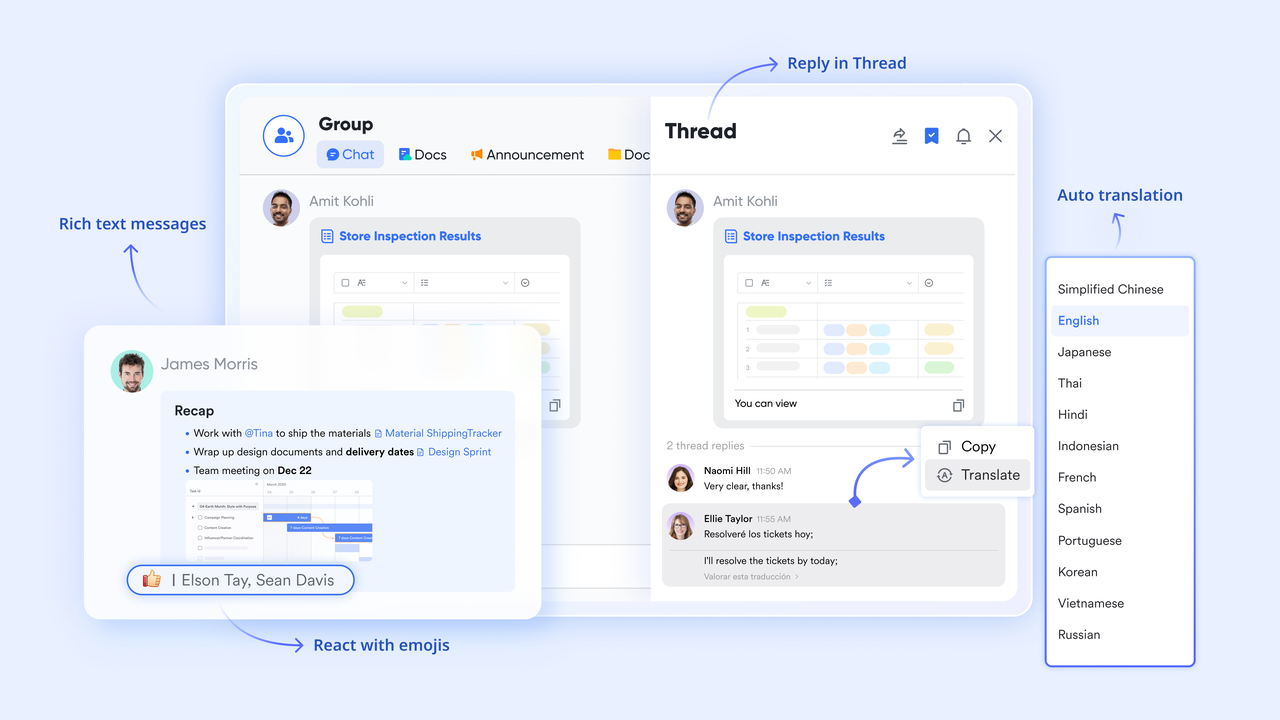
Real-time collaboration through Messenger threads, pins, and shared references
keeps discussions focused and tied to the actual bug being handled. Teams can create a thread specifically for a bug to discuss reproduction details, attach logs, share screenshots, or clarify expected behavior. Pins keep important messages like key steps to reproduce visible. Flags help team members return to messages requiring follow-up. Sharing a base bug record directly in Messenger ensures everyone is referencing the correct issue, reducing confusion during triage or testing cycles.
Detailed documentation support through Lark Docs
Bug fixes, root cause analyses, design notes, or long reproduction steps can be written in . These documents can include images, tables, code snippets, or checklists. Docs can be linked directly to base entries or tasks, creating a connected knowledge trail. Anchors inside Docs help teams jump to specific sections, making large documents easier to navigate during testing or code review. This is especially useful when QA, developers, and PMs need shared documentation during release cycles.
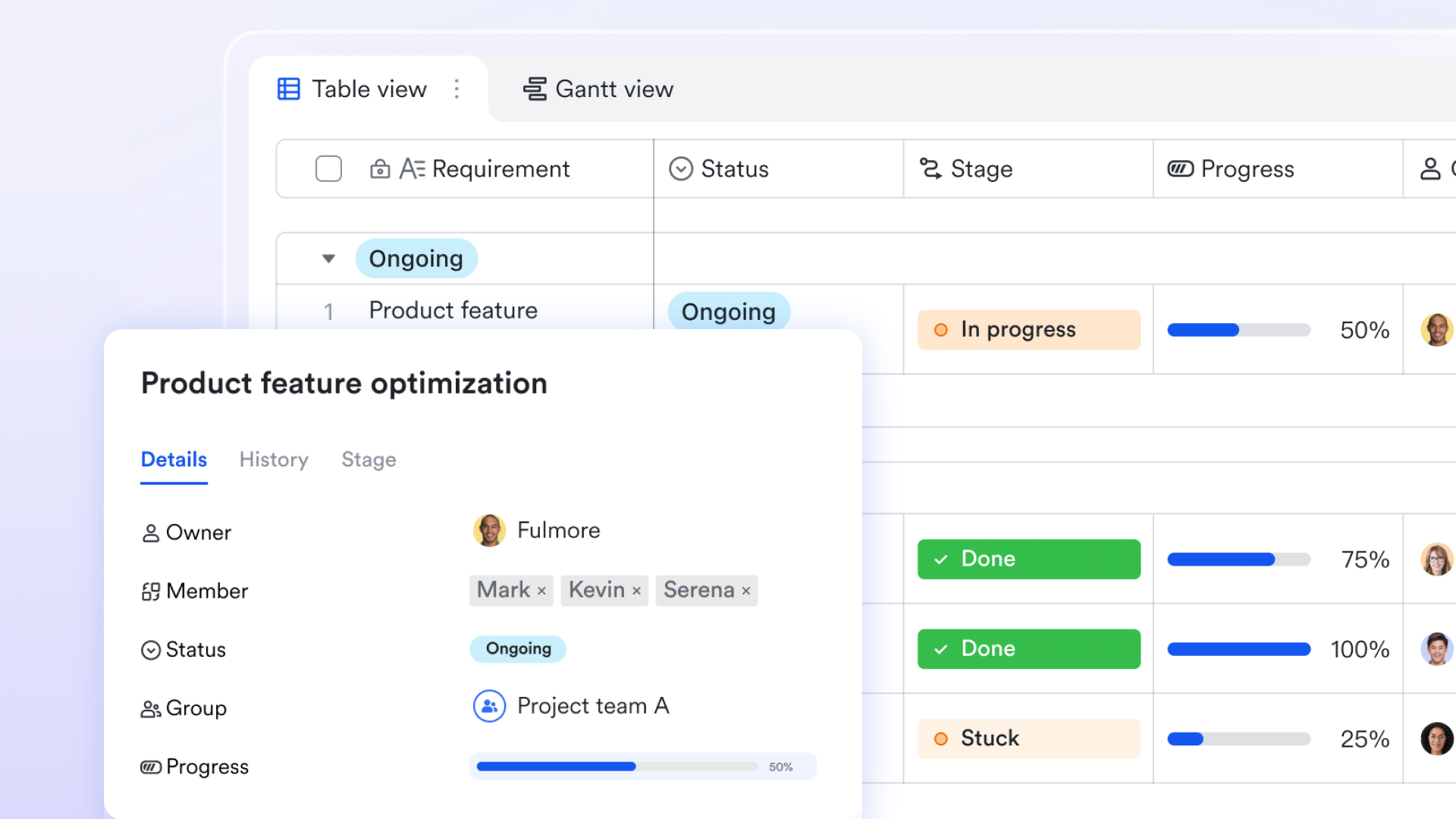
Customizable workflows and bug lifecycle tracking
gives teams flexibility to set their own lifecycle stages, including sequences like Reported, Triaged, In Progress, In Review, QA Verified, and Closed. Status fields can be updated manually or through automation, so progress stays accurate at every step. Flow fields show how long each bug remains on a stage, helping the project leads to spot delays or repeated obstacles. Teams can adjust these lifecycle settings to match their preferred approach, whether they work in agile sprints, Kanban systems, or mixed project styles.
Automation rules that keep bugs moving
Lark Base automation sends notifications when a new bug is logged, assigns default owners for specific modules, triggers reminders for overdue issues, or moves bugs to the next stage when conditions are met. Automated alerts reduce manual oversight and help teams avoid forgotten or stalled bugs. This streamlines triage and ensures that severity-1 or high-risk issues get immediate attention. 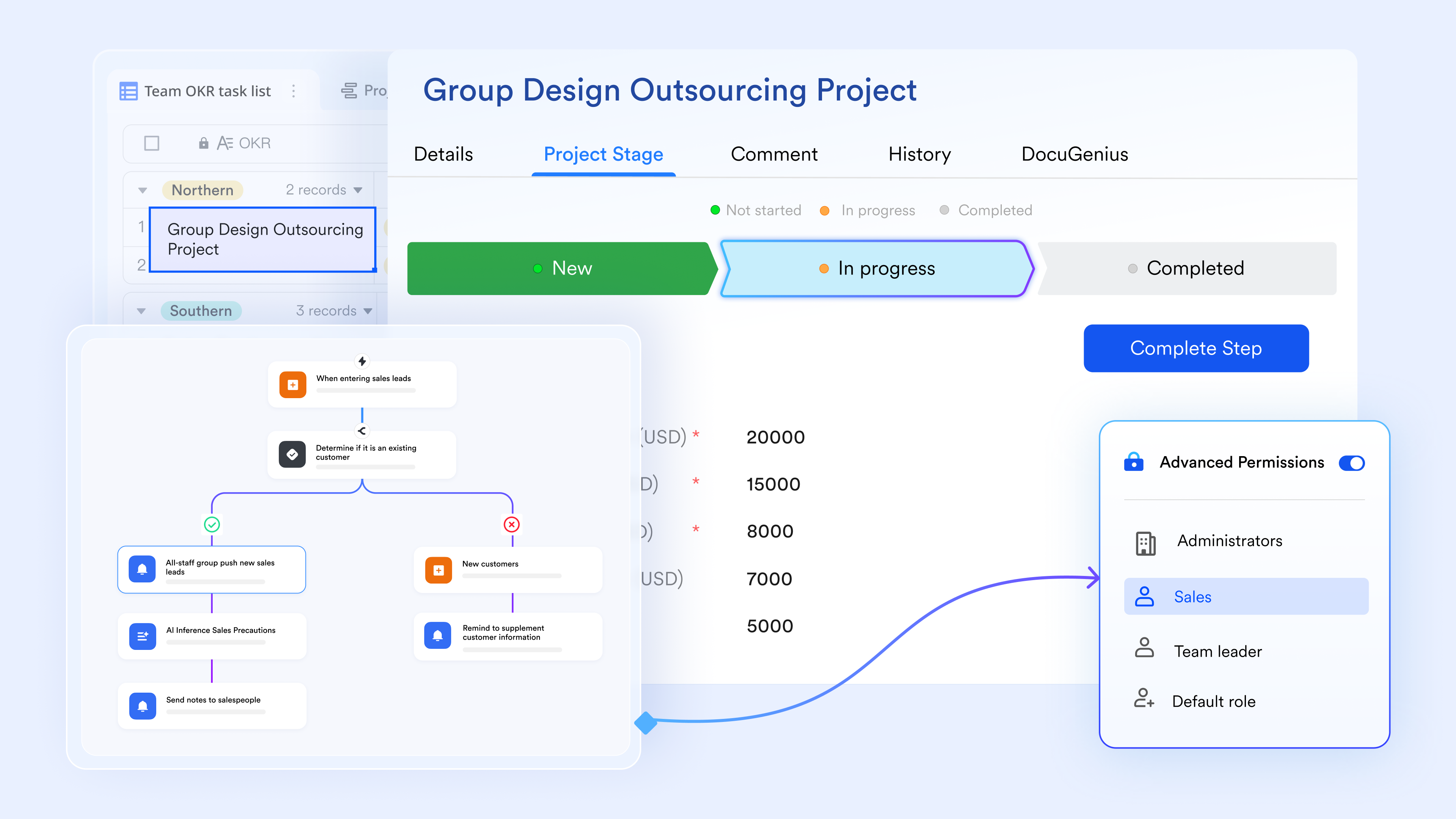
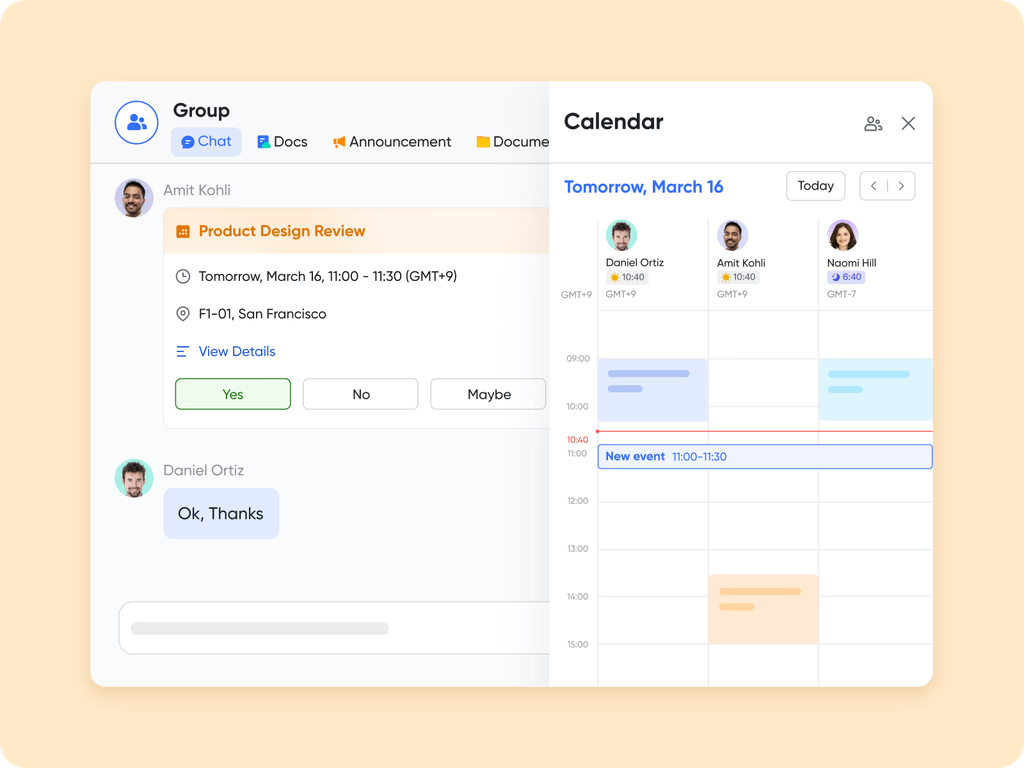
Release and sprint planning with Lark Calendar
helps teams map deadlines, sprint review meetings, and release checkpoints. Bugs can be linked to events, so teams understand what must be fixed before a milestone. For projects with strict release readiness requirements, Calendar provides clarity on timelines and aligns QA, development, and PM expectations.
:
- Starter plan: Free forever plan that includes 11 powerful tools for up to 20 users. It also comes with 100GB of storage, 1000 automation runs, AI translations, and more.
- Basic plan: $6/user/month (billed annually) for up to 500 users. It includes everything in Starter plus group calling for up to 500 attendees, 5TB of storage, 1000 automation runs, and more. Contact sales for further details regarding this plan.
- Pro plan: $12/user/month (billed annually) for up to 500 users. It includes everything in Basic plus group calling for up to 500 attendees, 15TB of storage, 50,000 automation runs, and more.
- Enterprise plan: for custom pricing. Supports unlimited users and includes even more automation runs and advanced security, compliance, and management features.
For small teams with simple communication needs

18 months message history
1000 Base automation runs/month
2000 rows per table in Base
Most POPULAR
For companies with comprehensive collaboration and management needs
Unlimited message history
500-participant video meetings
50k Base automation runs/month
20k rows per table in Base
For large companies with advanced security and organizational management needs
Get a personalized demo and pricing
Unlimited message history
500-participant video meetings
15 TB storage + 30 GB storage/user
500k Base automation runs/month
50k Base automation runs/month
Most POPULAR
For companies with comprehensive collaboration and management needs
Unlimited message history
500-participant video meetings
50k Base automation runs/month
20k rows per table in Base
How to choose the right defect tracking system for your team
Teams often begin by reviewing the Jira issue tracking tool to understand the level of structure, reporting, and workflow control they might need. Different platforms suit different team sizes, collaboration patterns, and , so selecting the right option depends on how work is organized. A clear assessment of expectations, automation needs, and team maturity makes it easier to choose a system that fits both current and future development processes.
- Align with team size and technical comfort: Choose a system that matches your team's size and experience. For small teams or non-technical stakeholders, a simple, user-friendly tool works better than a feature-heavy platform built for developers.
- Evaluate workflow flexibility vs. Simplicity: If your process needs many custom statuses, fields, or approval steps, go for a system with deep workflow customization. If you prefer streamlined, minimal overhead, pick a tool that delivers simplicity over configurability.
- Check collaboration and documentation capabilities: Ensure the system supports clear communication, attachments (screenshots, logs), shared notes or docs, and collaboration between QA, developers, and product teams — especially important for cross-functional workflows.
- Prioritize automation and reporting support: The tool should allow automated notifications, status updates, reminders, and provide reporting or dashboards to track defect trends, resolution times, and workload. This ensures you don't rely solely on manual tracking.
- Consider cost, scalability, and long-term maintainability: Factor in licensing costs per user, plugin or add-on expenses, scalability as your team grows, and how maintainable customizations and workflows will be over time. A tool might be cheap up front but expensive to maintain at scale.
Conclusion
Choosing a defect tracking platform depends on team maturity, reporting needs, and collaboration patterns. The Jira defect tracking tool supports structure through its Jira bug workflow, customizable fields, and . Many teams save time by using a Jira bug tracking template or referencing a Jira bug report example for consistency. Others explore a free bug tracking tool or consult a bug tracking tools list to consider cost and flexibility. When teams want lighter collaboration, they sometimes shift attention gradually toward platforms like to support conversations, documentation, and tracking in a single workspace. Lark appears naturally in these conversations because they allow teams to manage bug tracking, documentation, messaging, and tasks in one connected workspace. This reduces context switching and helps teams resolve issues faster.
Discover flexible options for connected work
FAQs
How does Jira handle duplicate bug reports?
Jira allows teams to link duplicate issues so everything points to one primary record. QA members typically search before logging new bugs to reduce noise. Linked comments keep context clear. Some teams compare this with simpler connected discussions available on platforms like Lark.
Yes, Jira supports rule-based assignments, so bugs route automatically based on fields like severity or component. This removes repetitive triage work. Growing teams sometimes look at lighter routing options on tools like Lark, where ownership updates appear naturally in shared conversations.
How do testers manage regression bugs inside Jira?
Testers track regression issues using labels, linked tickets and detailed attachments. This helps isolate repeated failures and gives developers full context. Teams wanting regression notes, chats and documents in one place occasionally compare this with unified systems like Lark.
What's the difference between Jira bug and Jira task?
A Jira bug documents unexpected behaviour or defects, while a Jira task describes planned work that does not involve an error. Each issue type follows its own lifecycle and priority rules, so teams maintain clarity during execution. This separation helps during and backlog reviews. Some teams later explore tools like Lark, where both items can sit closer to everyday discussions and documents.
How do teams keep Jira workflows from becoming too complex?
Teams simplify Jira workflows by removing unused statuses, reducing transitions, and standardizing naming across projects. Admin reviews help keep workflows understandable for both technical and non-technical members. Clean workflows reduce confusion and support faster .
Related reading