As an enterprise manager, you sit through hours of meetings. You record them, hoping to capture every critical detail. But raw audio is difficult to search, and manual typing wastes valuable hours. If you need to transcribe voice recording to text, you are likely looking for speed and accuracy. However, solving the transcription problem is only half the battle. The real challenge is making that text actionable without compromising your company's data security. In this guide, I will show you how to convert your recordings efficiently and build a searchable knowledge base for your team.
Why standalone transcription tools drain your team's productivity
We often assume that finding a free online tool to convert audio to text is a quick win. In reality, relying on single-purpose transcription websites usually costs your team more time than it saves.
Consider a typical scenario: You just finished a crucial client discovery call on your phone. To get those insights to your engineering team, you have to download the M4A file, upload it to a third-party transcription site, wait for the processing, and then manually copy and paste the raw text into your team's shared workspace. This fragmented workflow creates friction. By the time the transcript reaches the people who need it, the context is often lost.
Beyond inefficiency, standalone tools introduce serious compliance risks. Many free speech-to-text services do not guarantee enterprise-grade security. Uploading internal discussions—which might contain proprietary data, financial figures, or client information—to an unvetted platform is a massive vulnerability. If a tool does not explicitly offer SOC2 or GDPR compliance, your sensitive audio files might be stored on unsecured servers or used to train public AI models.
Instead of asking just how to transcribe a file, managers should ask how to integrate transcription safely into their existing and habits.
How to transcribe a voice recording to text: A standard workflow
If you are using a dedicated tool or a built-in feature to handle your audio, the fundamental process remains fairly consistent. Here is a practical framework to ensure you get the best possible output from your recordings.
Step 1:Prepare your audio and check formats
AI speech recognition relies heavily on audio clarity. Whenever possible, reduce background noise during the recording phase. Before you begin the transcription process, verify your file type. Most professional platforms handle standard formats like MP3, WAV, and M4A, but high-resolution formats like FLAC might not be universally supported by free web tools.
Step 2: Select a platform with speaker identification
A transcript of a multi-person meeting is unreadable if you cannot tell who is speaking. When choosing your software, look for a feature called diarization (speaker identification). This allows the AI to tag different voices, separating the text into a readable script rather than a massive, confusing paragraph.
Step 3: Upload and process
Upload your file to your chosen platform. Processing times vary, but a reliable tool generally transcribes an hour of audio in just a few minutes.
Mini-scenario: Let's say you have a 45-minute MP3 of a weekly sync. You upload it to your secure portal. While it processes, you do not sit and wait—you move on to other tasks. The system should notify you once the text is ready.
Step 4: Export and assign
Once the transcript is generated, do not just leave it as a TXT or PDF file buried in a local download folder. Export the text to your team's collaborative workspace. Highlight the key decisions and immediately tag team members to assign follow-up tasks based on the conversation.
Simplify audio transcription with Lark
Evaluating top transcription tools for business use
When you decide to implement a transcription solution for your team, the software market offers a variety of paths. Let's look at how some of the most popular tools stack up for enterprise managers trying to transcribe voice recording to text.
1. Lark
goes far beyond standard transcription—it is a unified digital workspace built to streamline team collaboration. While handles meeting recordings and transcriptions, its true strength lies in its seamless integration with Lark’s broader ecosystem of chat, calendar, docs, and project management tools. Instead of static files, transcripts become living, actionable documents seamlessly woven into your team's daily workflow.
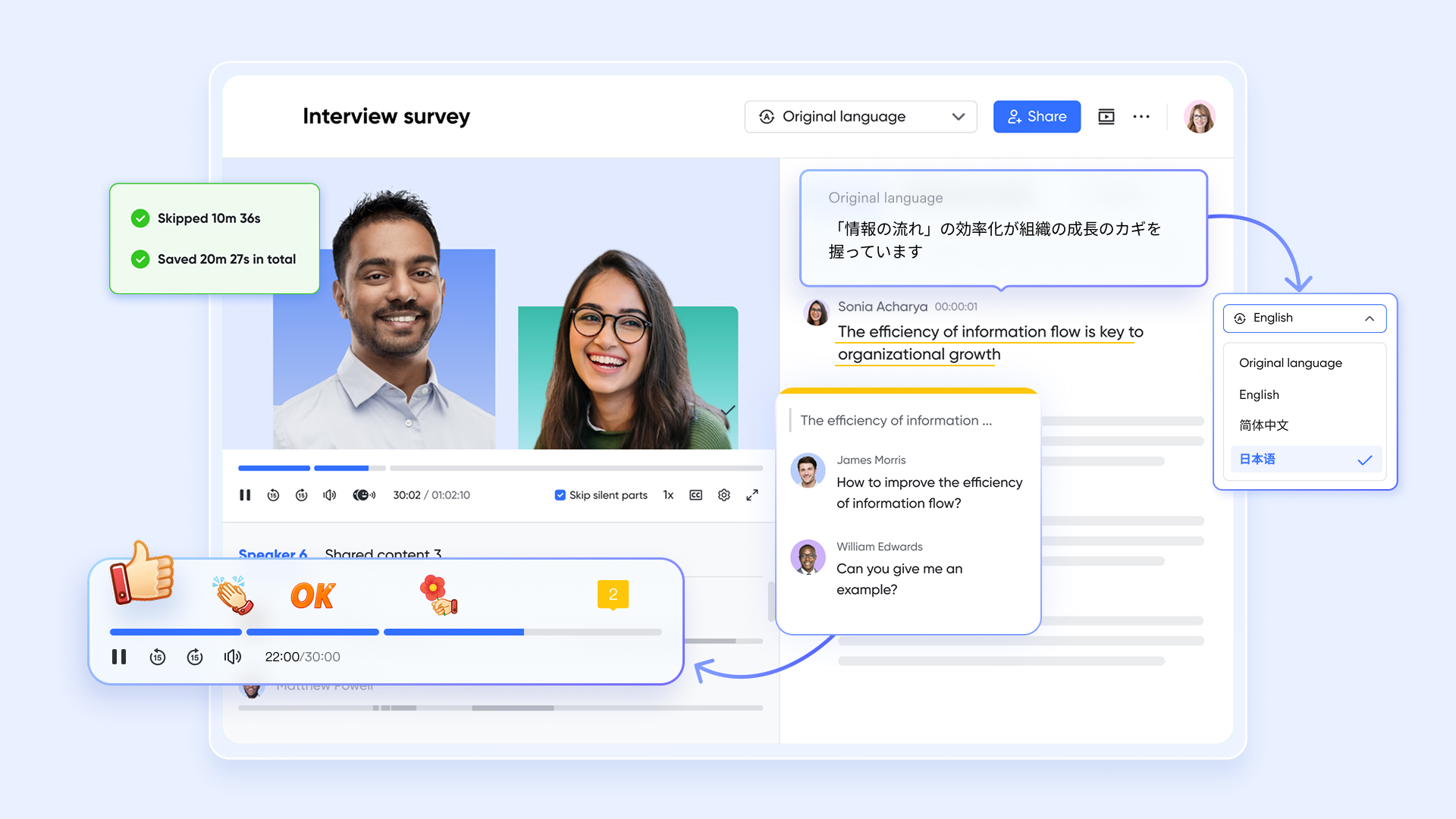
Consolidate the tool stack into an All-in-One suite
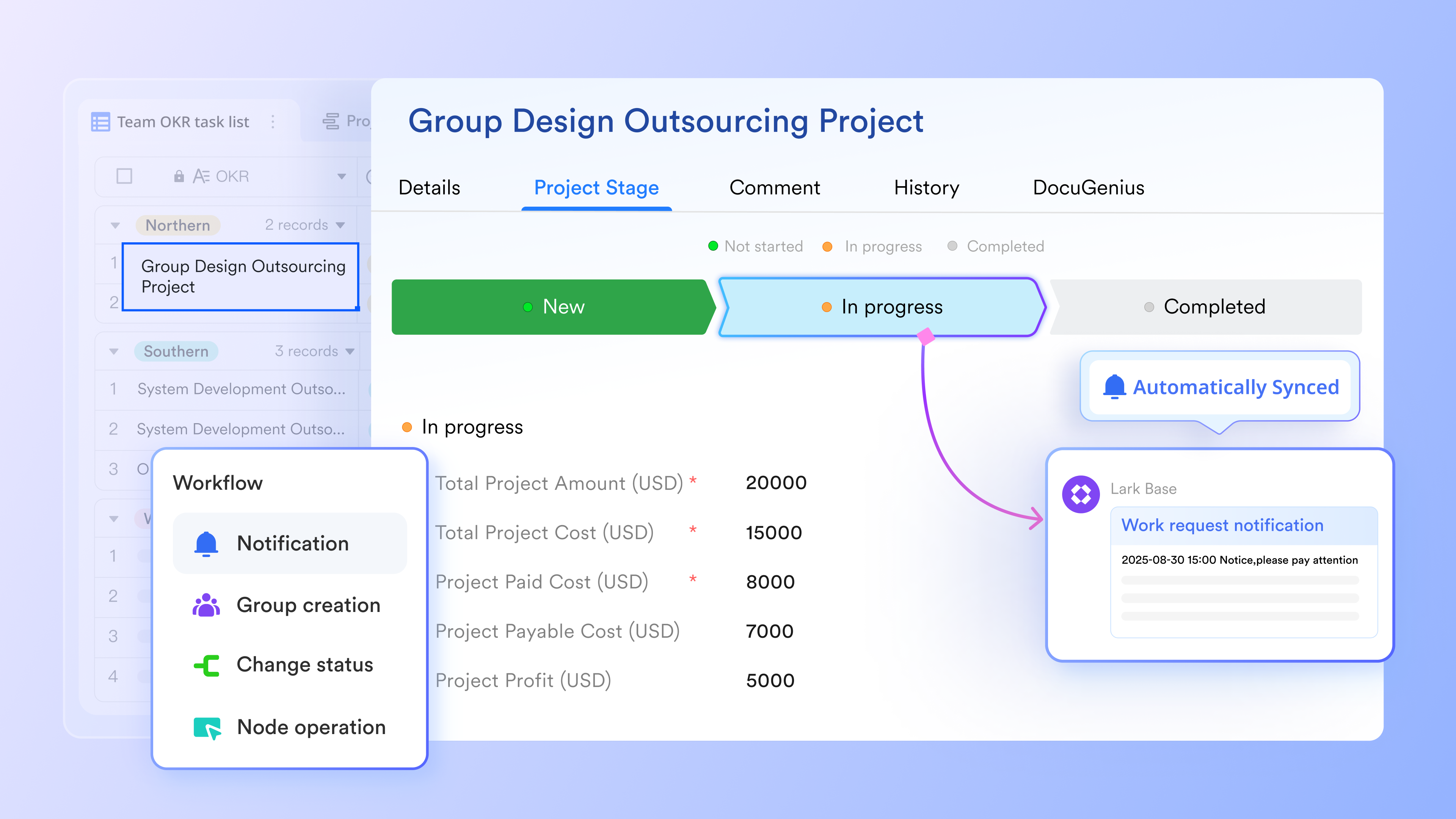
Both expanding SMEs and major enterprises leverage to centralize their software stack into a single, comprehensive platform. By integrating messaging, video conferencing, cloud-based documents, calendars, approval processes, and automation capabilities into one cohesive workspace, this integrated architecture fundamentally transforms the way and manage data, particularly audio information.
Enable Zero-Click meeting follow-up
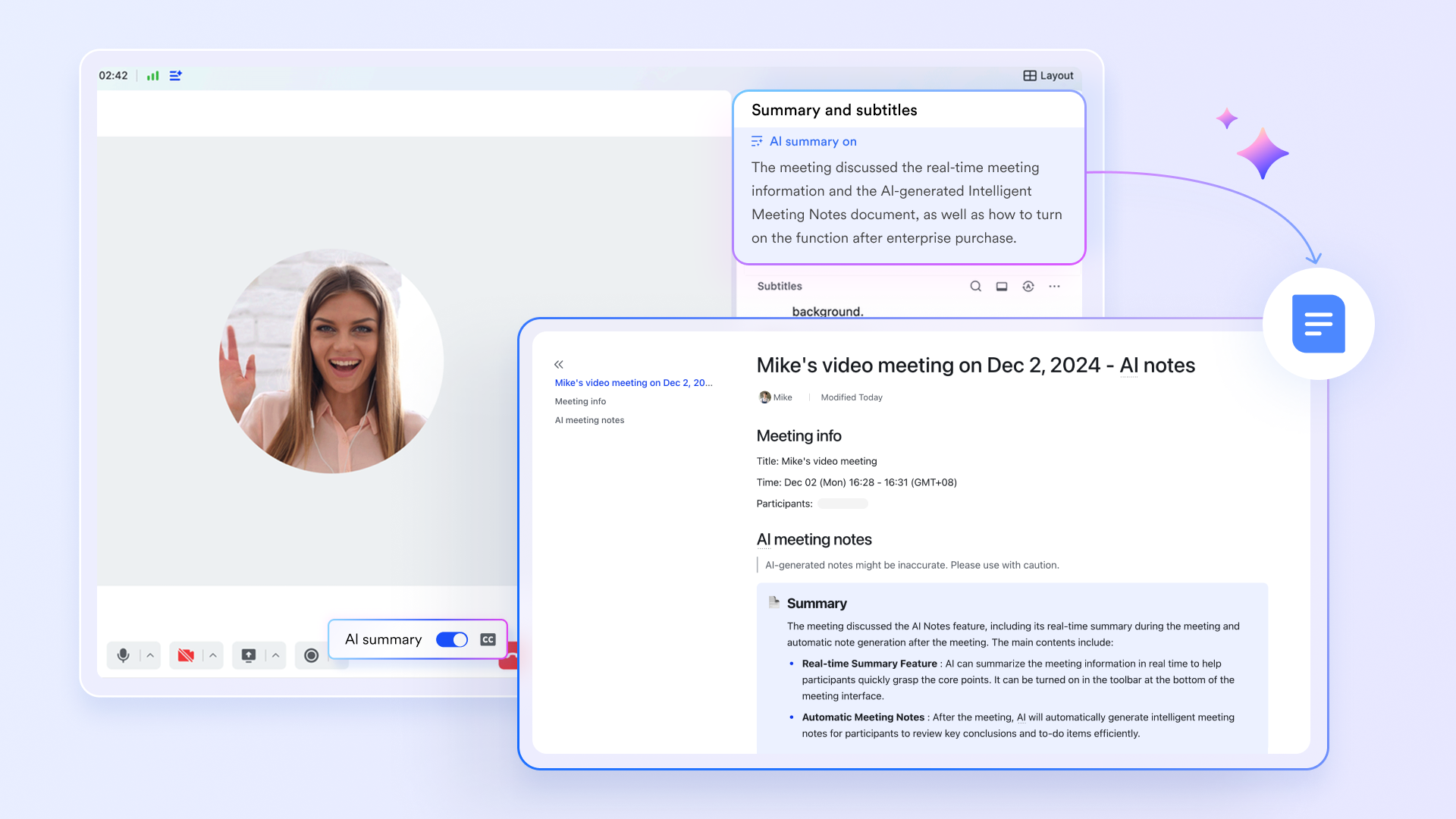
Teams can effortlessly capture meeting sessions natively using . Once a session is recorded, the platform's AI autonomously converts the audio into text, distinguishes between various speakers, and embeds the fully searchable transcript directly within your collaborative environment. This drives maximum efficiency by creating a seamless "zero-click" post-meeting experience, entirely eliminating the need to download audio files, upload them to third-party transcription tools, or manually copy and paste notes.
Bridge language barriers with AI translations
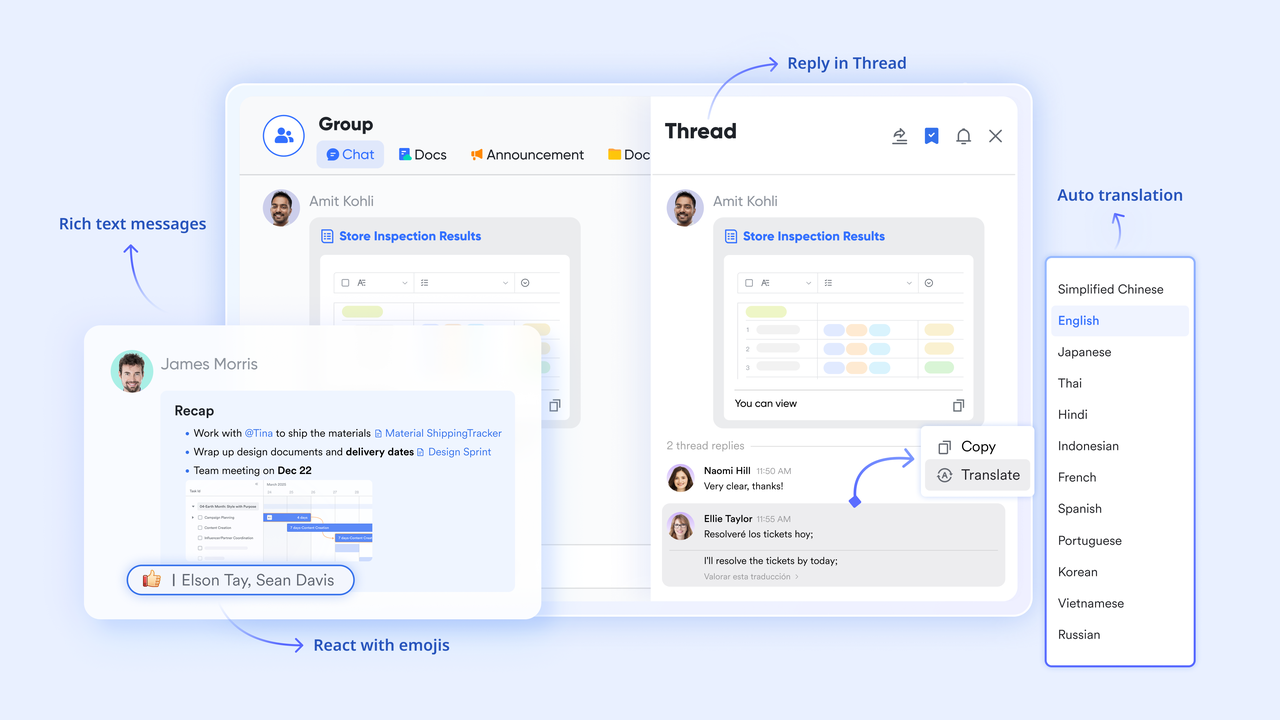
For distributed or hybrid teams scattered across various regions, language differences can severely hinder project progress. To combat this, Lark features built-in AI capabilities within its Messenger that instantly translate voice-to-text transcripts for international teams, streamlining . As a result, a supervisor based in London can immediately read the notes from a Tokyo-based meeting in their native language, effectively bridging communication gaps and bypassing the need to hire third-party translators.
Mini scenario (Seamless task conversion)
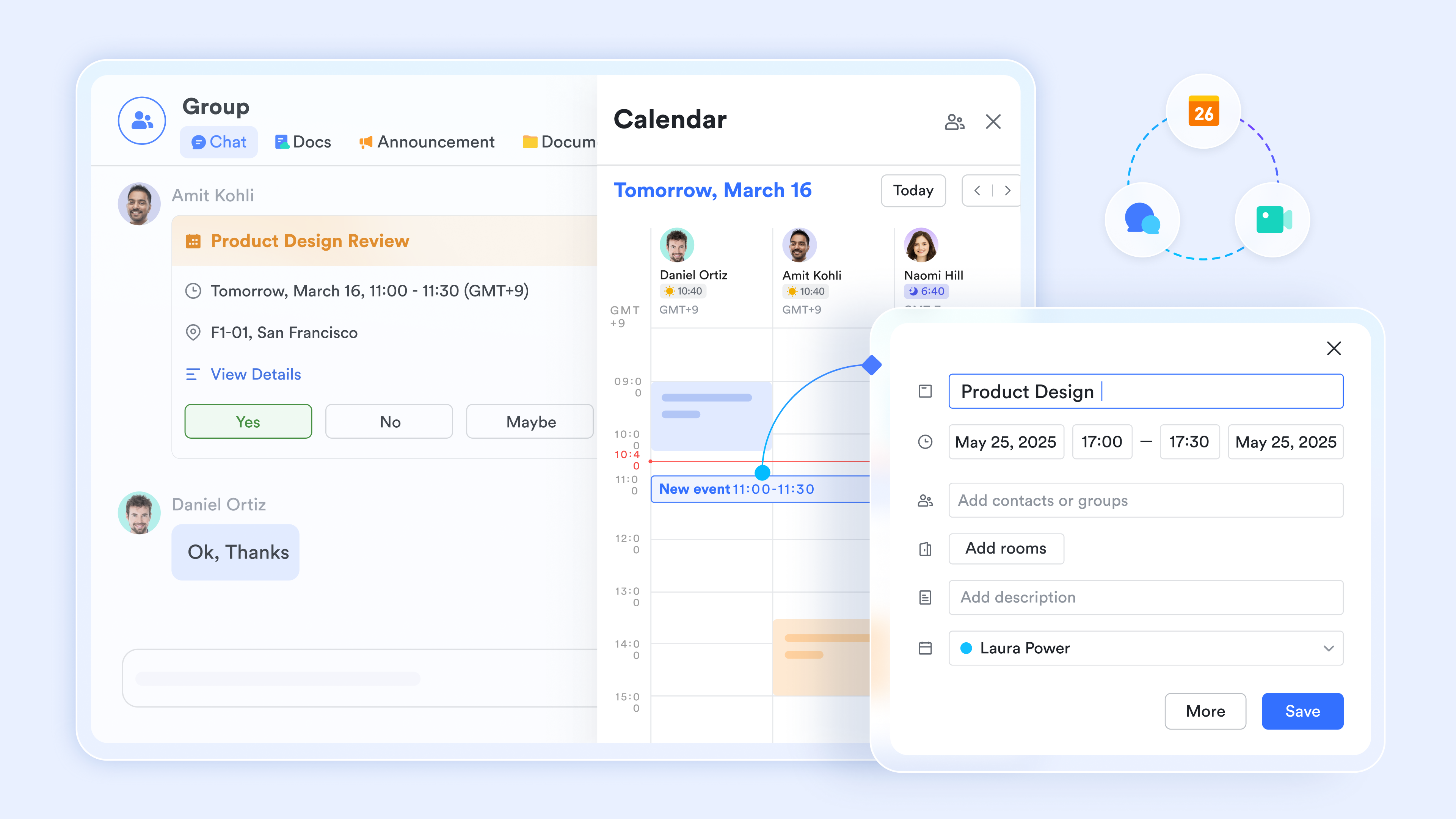
Imagine hosting a brief morning stand-up through a Lark video conference, which is automatically recorded and transcribed by Lark Minutes. Within the linked , you can simply select a specific sentence where a developer reports a bug and immediately transform that highlighted text into an actionable, assigned task complete with a due date. This seamless integration between Calendar, Messenger, and Meetings ensures that conversations instantly turn into tracked progress.
:
- Starter plan: that includes 11 powerful tools for up to 20 users. It also comes with 100GB of storage space, 1000 automation runs, AI translations, and more. No credit card needed.
- Pro plan: (billed annually) for up to 500 users. It includes everything in Basic plus group calling for up to 500 attendees, 15TB of storage space, 50,000 automation runs, and more.
- Enterprise plan: for custom pricing. Supports unlimited users and includes even more automation runs and advanced security, compliance, and management features.
For small teams with simple communication needs

18 months message history
1000 Base automation runs/month
2000 rows per table in Base
Most POPULAR
For companies with comprehensive collaboration and management needs
Unlimited message history
500-participant video meetings
50k Base automation runs/month
20k rows per table in Base
For large companies with advanced security and organizational management needs
Get a personalized demo and pricing
Unlimited message history
500-participant video meetings
15 TB storage + 30 GB storage/user
500k Base automation runs/month
50k Base automation runs/month
Most POPULAR
For companies with comprehensive collaboration and management needs
Unlimited message history
500-participant video meetings
50k Base automation runs/month
20k rows per table in Base
2. Microsoft Word Transcribe
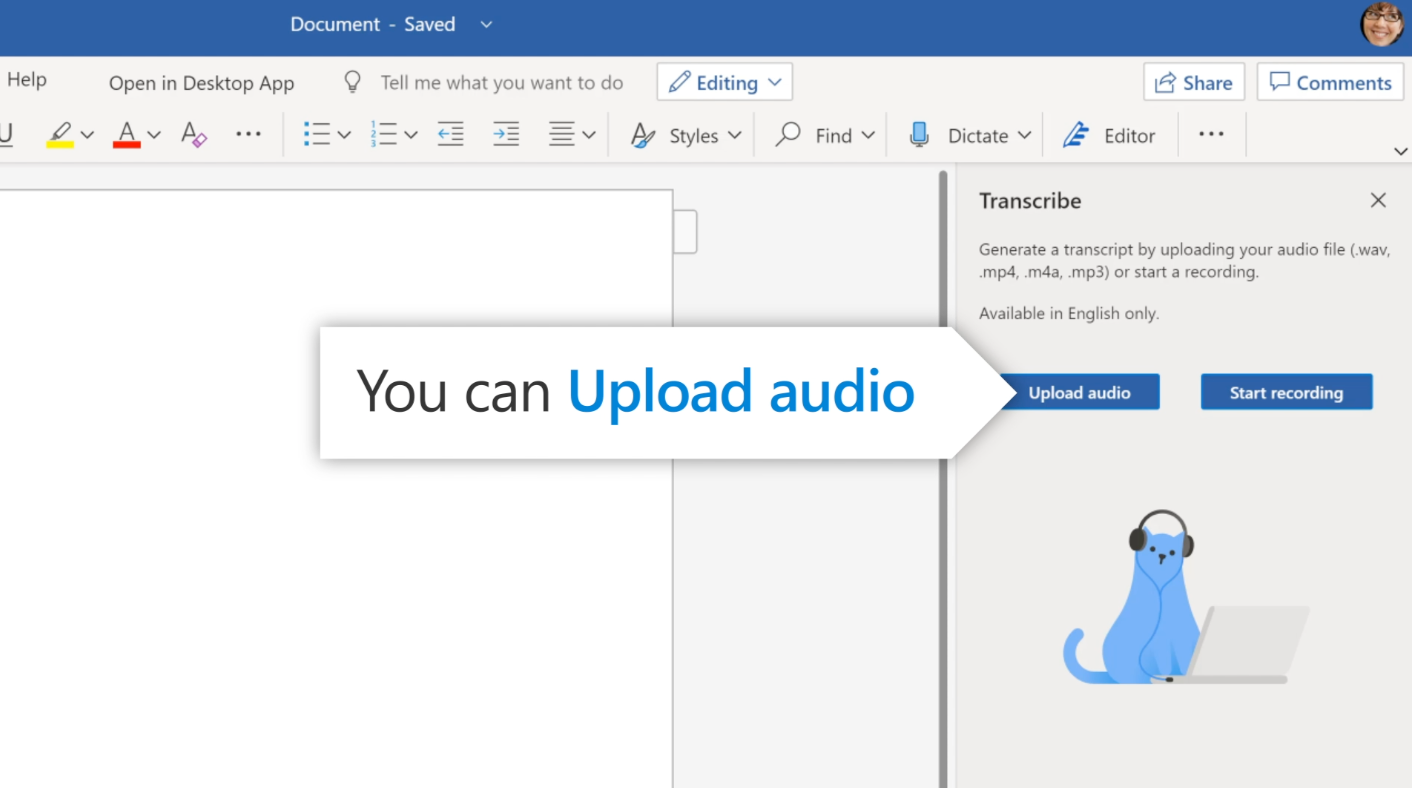
Image source: microsoft.com
If your company is already deep into the Microsoft 365 ecosystem, using Word’s built-in transcribe feature feels like a natural step. You can record directly in the app or upload standard audio files to generate text with speaker labels. However, it comes with a significant bottleneck for heavy users. Standard commercial tenants are capped at a maximum of 300 transcription minutes per month. That equals just five hours of meetings. To get beyond that limit, your company needs to purchase Microsoft Copilot licenses, which can heavily impact your software budget.
Feature usage limits (what users actually get)
- Microsoft 365 subscribers: max 300 minutes of uploaded audio per month
- Microsoft Copilot license: max 30,000 minutes of uploaded audio per month
Pricing
- Microsoft 365 Personal: $99.99/year or $9.99/month
- Microsoft 365 Family: $129.99/year or $12.99/month
3. HappyScribe
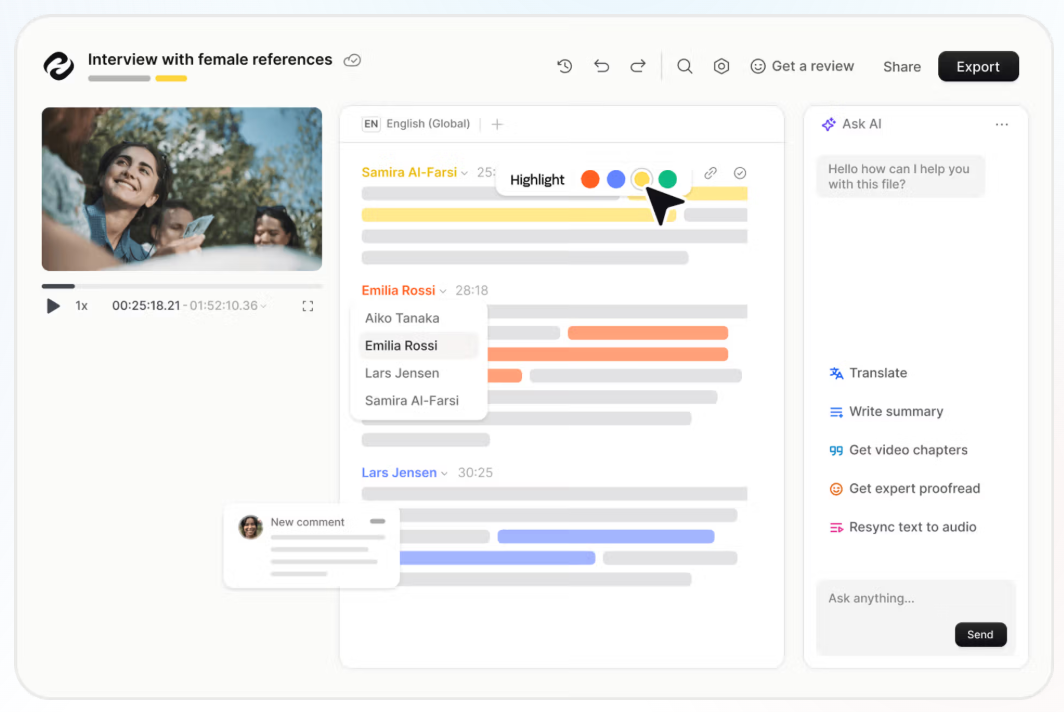
Image source: happyscribe.com
HappyScribe is a strong contender if you are looking for a dedicated, professional-grade transcription service. It supports over 120 languages and actively promotes its compliance with SOC2 and GDPR security standards. While it handles background noise well and provides highly accurate text, it remains a standalone tool. Once the audio is transcribed, you still bear the burden of exporting that data and migrating it into your company's actual workflow and task management systems.
Pricing
- Basic: $17 (monthly) / $8.50 per month (annual)
- Pro: $29 (monthly) / $19 per month (annual)
- Business: $89 (monthly) / $59 per month (annual)
4. Canva Audio to Text
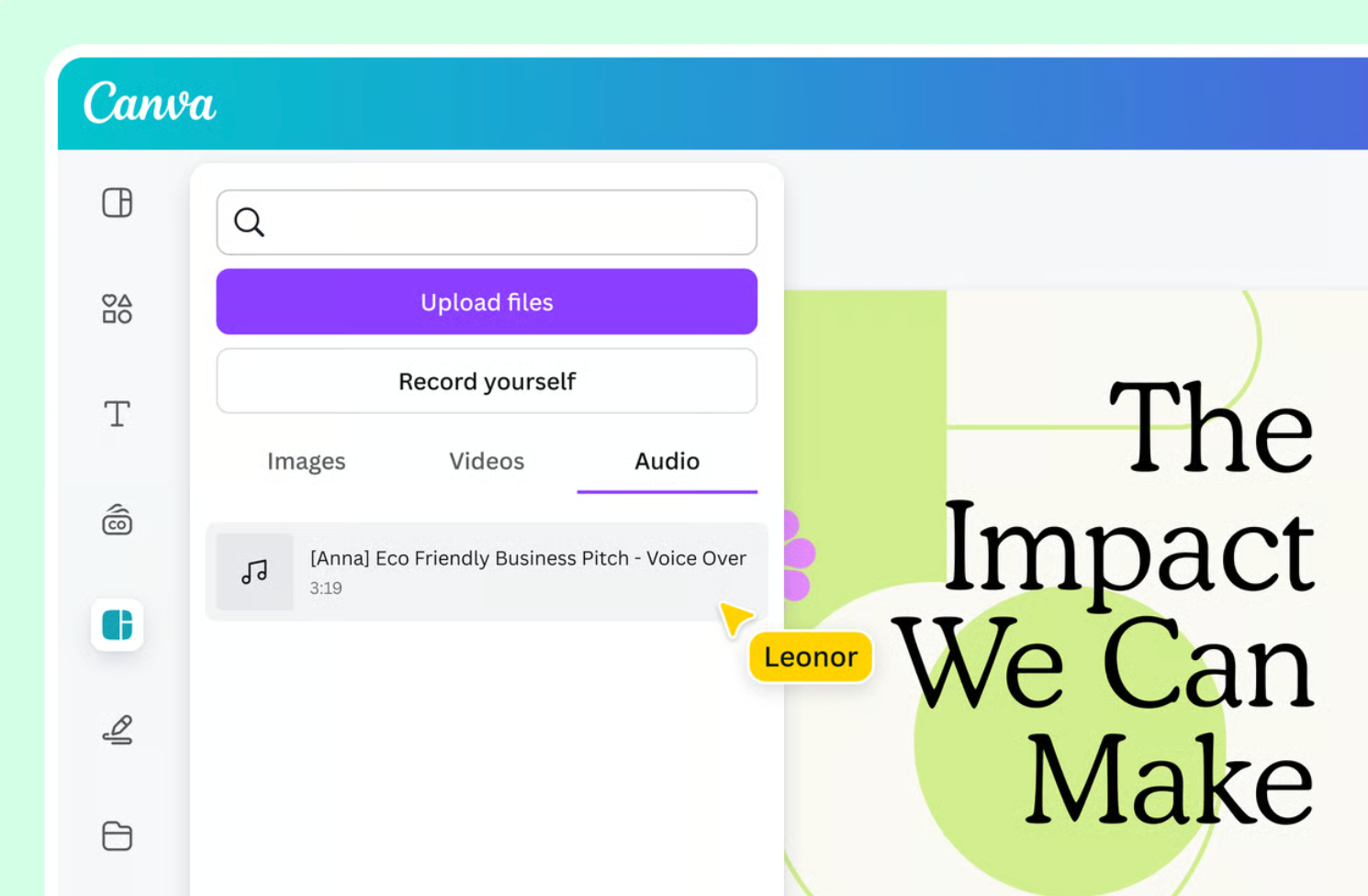
Image source: canva.com
Canva recently introduced an AI-powered audio-to-text converter. It is brilliant for content creators who need to generate quick video captions and customize font colors or sizes. But for an enterprise manager? It falls short. Canva imposes a strict 4.5MB file size limit on audio uploads. You simply cannot use it to transcribe a 60-minute quarterly review or a lengthy client interview.
Pricing
- Business: £250 / year per person
5. Otter.ai
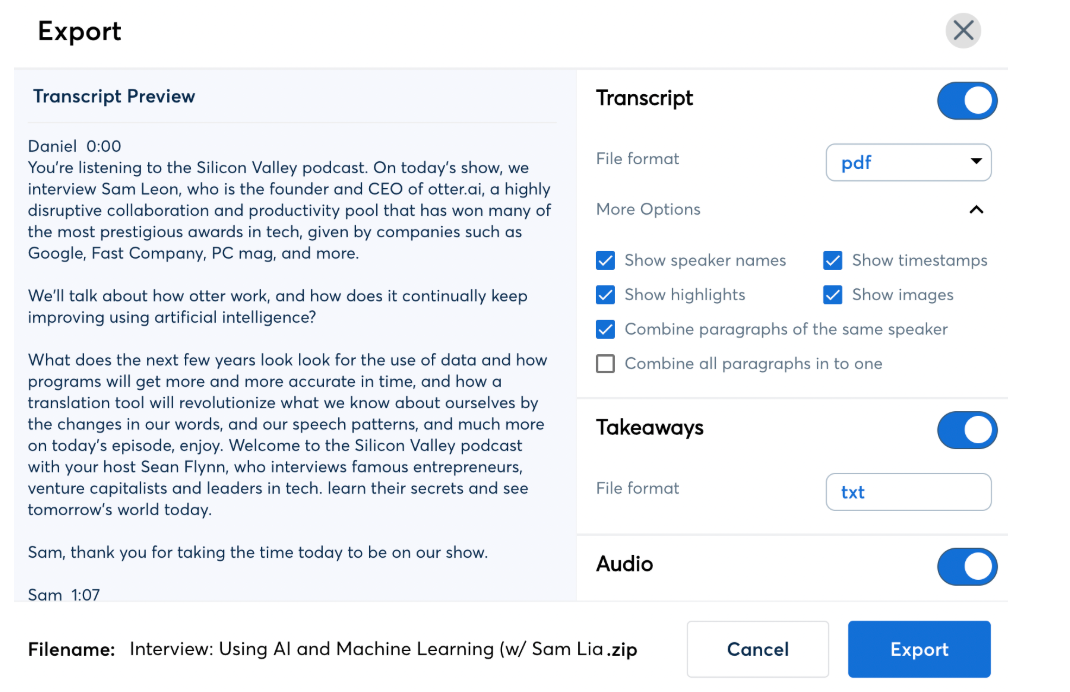
Image source: canva.com
Otter.ai is a dedicated AI meeting notetaker and transcription SaaS. It can join Zoom / Microsoft Teams / Google Meet meetings (or record from your device) to generate real-time transcripts, speaker recognition, and automated summaries with action items. Compared with “transcribe-only” tools, Otter’s strength is turning meeting content into a searchable knowledge base and letting teams collaborate on notes.
Pricing
- Basic: Free forever (for individuals getting started)
- Business: From $19.99/month per user (per Otter homepage; pricing varies by billing cycle)
Transitioning from raw transcripts to actionable business intelligence
A perfect verbatim transcript is an impressive technical feat, but a 30-page wall of text is virtually useless to a busy executive. If you stop at simply generating the text, you have not actually solved a business problem; you have just changed the format of the data.
The goal is to shift your perspective from simple transcription to building actionable business intelligence. To do this, you need to apply a framework that extracts value from the conversation immediately.
Prioritize AI summarization over raw reading
- Action: Stop skimming through small talk to find core business decisions. Let modern tools analyze the transcript to automatically pull out key discussion points, unresolved questions, and strict deadlines.
- Mini-scenario: During a 60-minute product roadmap sync, an intelligent workspace automatically highlights key decisions (like a launch date at minute 42) so managers don't have to hunt through a raw text file. It then prompts you to create a specific task assignment right next to the transcript.
Treat transcripts as a searchable, shared knowledge base
- Action: Convert audio files into text and store them in a unified cloud document so they become searchable company assets.
- Benefit: When a new engineer joins, they don't need a briefing on past architectural decisions. They can simply search the shared workspace for a keyword, read the specific paragraph, and understand the context immediately.
Keep it in a unified environment
- The requirement: Moving from text to intelligence requires keeping the transcript inside the very same environment where your team actually works and communicates.
Turn meetings into action, securely & automatically with Lark.
Conclusion
Finding a way to transcribe voice recording to text is simple, but making that text work for your enterprise is the real challenge. Relying on disconnected, single-purpose tools creates data silos and introduces unnecessary security risks. By integrating your audio transcription directly into an all-in-one workspace like , you turn raw conversations into a searchable, secure knowledge base. Evaluate your current software stack today. Prioritize tools that keep your internal data safe while helping your team move quickly from discussion to action without the manual busywork.
FAQs
What audio formats are supported by most transcription tools?
Most professional transcription platforms easily handle standard formats like MP3, WAV, and M4A. Some advanced tools also support high-resolution formats like FLAC or video files like MP4, though free online converters often struggle with larger file sizes or less common extensions.
Is it secure to transcribe internal meetings using free online tools?
Generally, no. Uploading proprietary internal meetings to unvetted free tools exposes your company to significant data privacy risks. For enterprise use, you should only utilize platforms that explicitly state their compliance with strict security standards like SOC2 and GDPR, ensuring your data is not stored unsecured or used to train public AI models.
Can AI speech-to-text tools identify different speakers?
Yes, high-quality transcription tools feature speaker identification, also known as diarization. This technology recognizes distinct voice patterns and separates the transcript into a readable, script-like format with different speaker tags, which is essential for understanding multi-person meetings.
How long does it take to transcribe an hour of audio?
Modern AI-driven transcription tools are highly efficient. While exact times depend on the platform's processing power and server load, most enterprise-grade tools can transcribe an hour of clear audio in just a few minutes.
What's the best audio transcription software?
The "best" tool depends on your specific needs:
- Office Work: Microsoft Word (Microsoft 365) features a built-in tool that separates speakers (up to 300 mins/month for standard users).
- Apple Users: The iPhone Voice Memos app offers real-time, built-in transcription.
- High-Accuracy AI: HappyScribe (up to 99% accuracy) and UniScribe (generates summaries and mind maps).
- Content Creators: Canva provides an intuitive AI converter for easy video captions.
- Live Dictation: Speechnotes is a reliable, web-based dictation notepad.
If you are looking to transcribe voice recording to text free, take advantage of the free tiers from HappyScribe and UniScribe, Canva's tools, or the native features on your iPhone or Microsoft 365.
How do I convert audio to text?
If you frequently wonder, "how do i transcribe a voice recording to text?" or "how to transcribe a voice recording to text," the process takes just a few clicks:
- Upload: Choose a platform (like Word, UniScribe, or Canva) and upload your file (MP3, WAV, M4A).
- Convert: Click the convert button. The software's AI will automatically transcribe voice recording to text and label different speakers.
- Export: Quickly review for accuracy and export as a TXT, DOCX, or PDF.
For mobile users trying to figure out how to transcribe voice recording to text on the go, simply use the iPhone Voice Memos app to automatically generate text while you speak.
Can AI transcribe audio to text?
Absolutely. AI is the core technology behind almost all modern transcription services.
Tools like HappyScribe and Canva use advanced algorithms to quickly convert speech to text, identify different voices (speaker diarization), filter background noise, and add punctuation. Beyond just generating text, modern AI can also automatically translate transcripts into over 100 languages and condense long meetings into readable summaries.
Related reading




















![What Is a 2-2-3 Work Schedule? Explanation and More [2026]](https://framerusercontent.com/images/uKHRfkp4v7y4azRNTYUmuteNQz8.png)








