Webex web meetings have become a popular option for teams that need quick, browser-based access to video calls without installing software. Whether you are hosting a client discussion, joining an external meeting, or collaborating remotely, the Webex Meetings web app makes it easy to connect from any modern browser. In this guide, we explain what a Webex web meeting is, its key features, pricing plans, common challenges, and when it makes sense to consider alternatives. Let's explore everything you need for Webex meetings now.
What is a Webex web meeting
A Webex web meeting allows users to join or host meetings directly from a browser without installing desktop software. This experience is delivered through the Webex Meetings web app, which runs on modern browsers such as Chrome, Edge, and Firefox. It is commonly used by participants who need quick access without administrative permissions.
Cisco designed the Cisco Webex meeting web experience to support core meeting features like video, audio, chat, and. Participants can join using a meeting link or Webex Join meeting by number, making it convenient for external attendees. This approach reduces friction when inviting guests outside the organization.
In practice, a WebEx meeting is best suited for . While it supports essential meeting functions, some advanced controls, performance optimizations, and integrations are stronger in the desktop version. Understanding these differences helps teams decide when browser access is sufficient and when additional tools are needed.
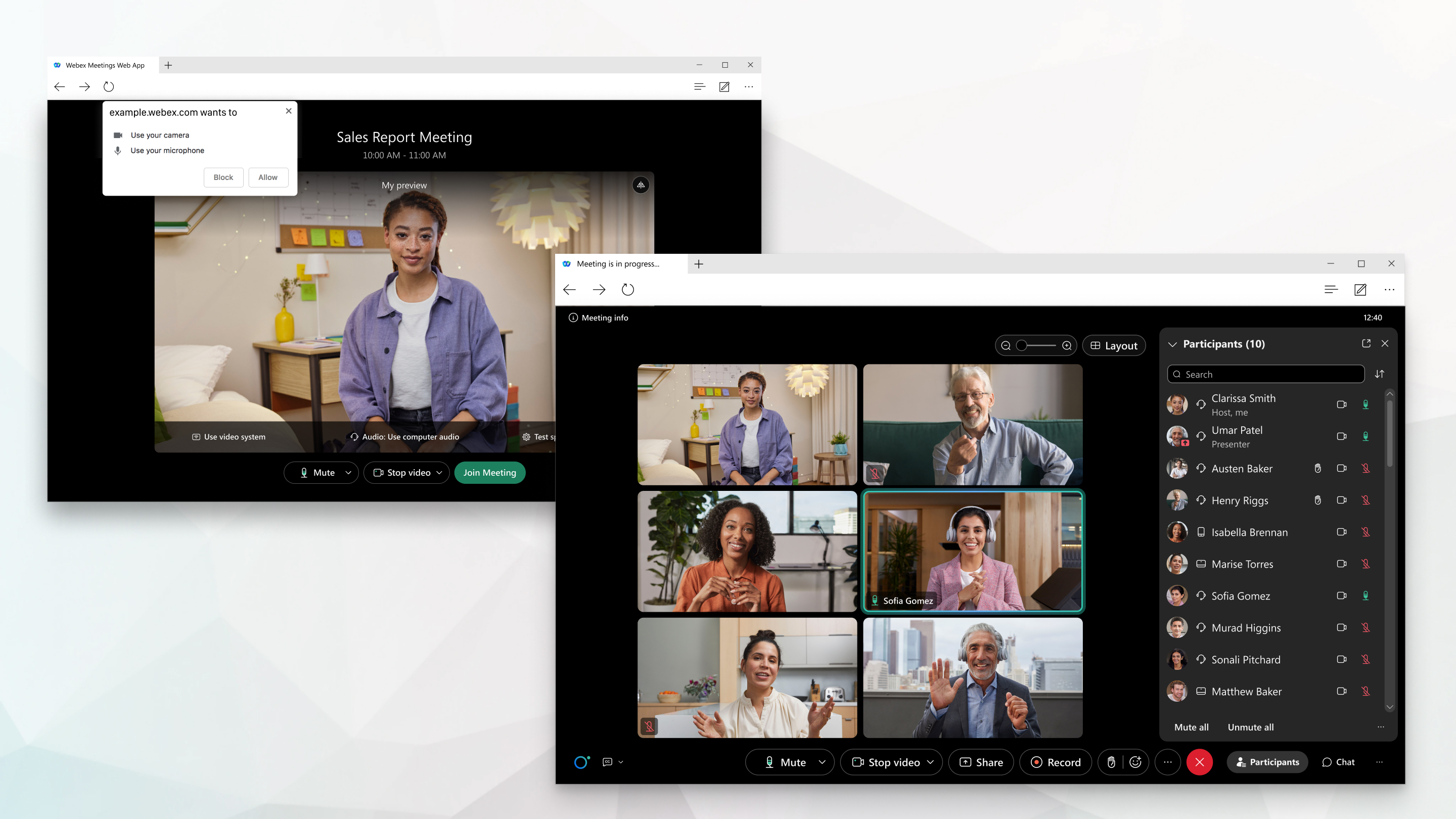
Image source: webex.com
5 key features of Webex web meetings
Webex web meetings are designed to deliver essential collaboration features inside the browser. These features support common meeting scenarios such as presentations, discussions, and short workshops. Below is a breakdown of the most important capabilities.
- Screen sharing: Screen sharing allows presenters to share their entire screen, a specific application, or a browser tab during a Webex web meeting. It works directly within the Webex meeting browser without downloads. Hosts can control sharing permissions to avoid interruptions. Performance depends on the browser and system resources.
- In meeting chat: In meeting chat enables participants to exchange messages, links, and quick notes during the session. Chat is available to users joining through the Webex Meetings web app. It helps clarify points without interrupting speakers. Chat history may not persist after the meeting ends.
- Recording availability: Recording options depend on the host's subscription plan and permissions. Paid plans support cloud recording for web Cisco Webex meeting sessions. Participants are notified when the recording is active. Recordings capture audio, video, and shared screens.
- Breakout rooms: allow hosts to split participants into smaller groups during a Webex web meeting. This is useful for training, workshops, and brainstorming. Hosts can assign participants automatically or manually. Management controls are simpler in the browser.
- Live captions: Live captions convert spoken audio into on-screen text in real time. They improve accessibility for international and hearing-impaired participants. Users can enable captions individually in the Webex meeting browser. Accuracy depends on audio quality.
Webex meeting plans and pricing overview
Webex offers multiple pricing plans to support individuals, teams, and large enterprises. Each plan defines limits on meeting duration, participant capacity, and advanced features. Browser access is available across plans, but functionality varies by tier.
Understanding these plans helps teams choose the right Webex web meeting setup. Pricing reflects Cisco's emphasis on security, reliability, and scalability.
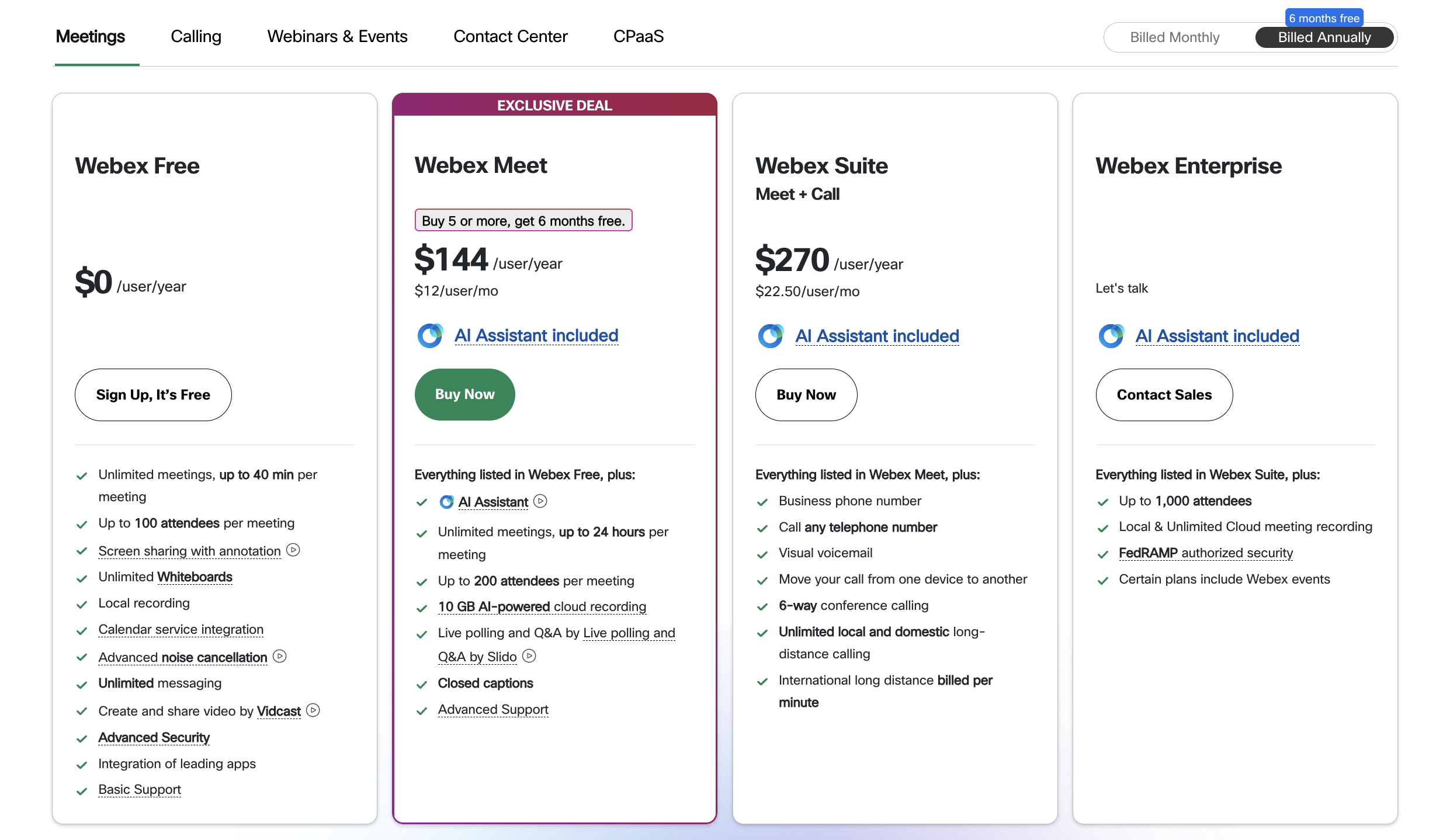
Image source: webex.com
Information source: Official vendor sites
Update time: 2026-01-14
Note: Pricing and plan details reflect publicly available data as of the update date and may vary based on region, billing cycle, and number of agents.
Pricing explained
- Webex free: Webex Free is designed for individuals who need basic browser-based meetings. It supports short meeting durations and smaller groups. Screen sharing and messaging are included. This plan is best for occasional or personal use.
- Webex Meet: Webex Meet increases meeting duration limits and participant capacity. It includes AI assistance, cloud recording, and live polling. Teams hosting frequent external meetings benefit from this tier. It balances cost and professional features.
- Webex Suite: Webex Suite combines meetings with business calling capabilities. It supports organizations that rely heavily on voice communication. are managed together. This plan suits communication-centric teams.
- Webex Enterprise: Webex Enterprise offers custom pricing and extended capabilities. It supports very large meetings and advanced security controls. Compliance features are included for regulated industries. This plan is built for large-scale deployments.
How to set up a Webex meeting in the Outlook web app
Many organizations rely on Outlook for scheduling, making it important to understand how to set up a Webex meeting in the Outlook web app. This process ensures participants receive clear invitations with browser-friendly join options. It also supports consistent scheduling workflows.
Step 1: Open Outlook Web
Start by visiting outlook.office.com in your web browser and signing in with your . This gives you access to your email, calendar, and scheduling tools through the Outlook web interface. Make sure you are using the correct work or personal account where you want to schedule the meeting.
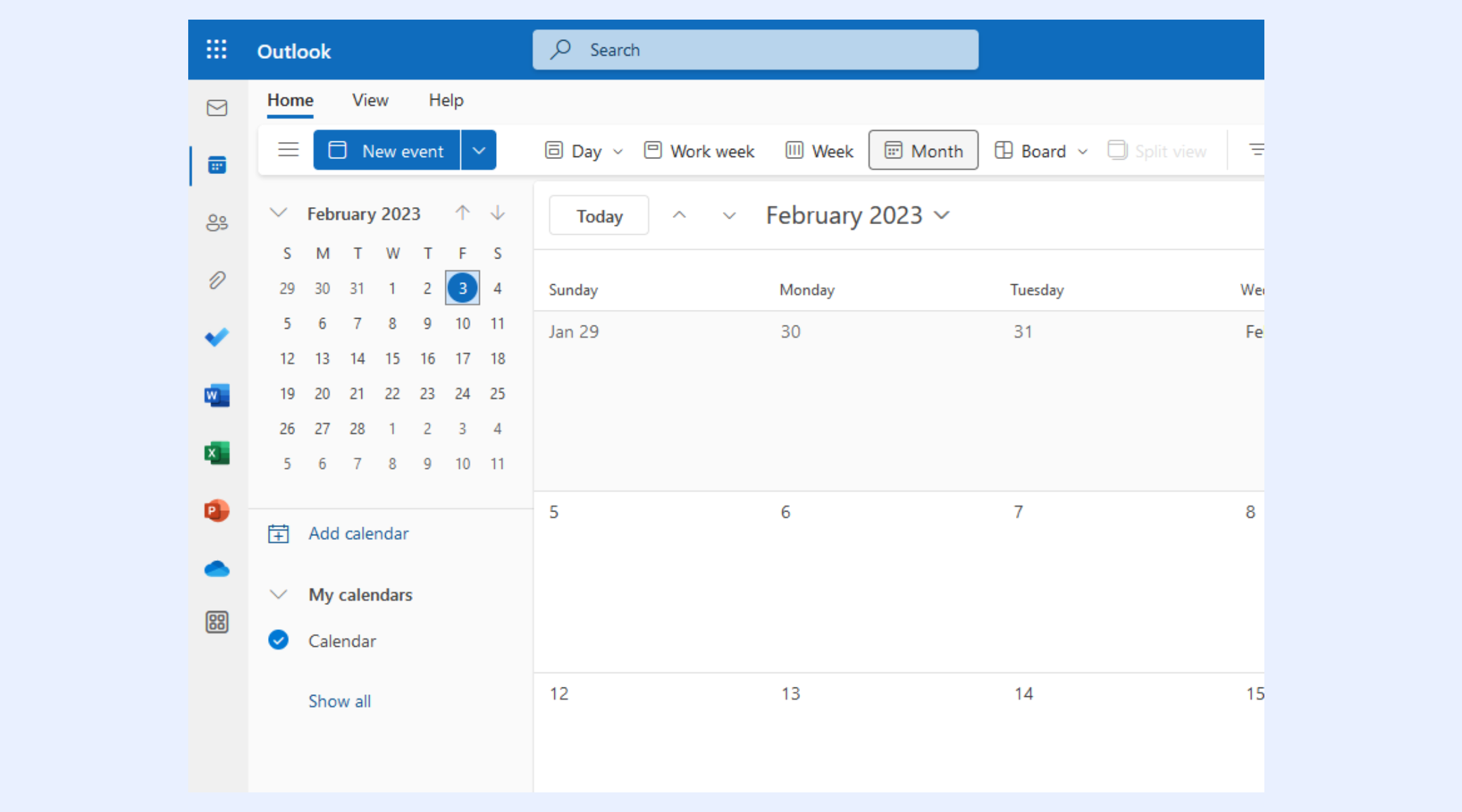
Step 2: Access the calendar
Once logged in, locate the Calendar icon on the left-hand navigation panel. Clicking this will open your scheduling view, where you can see your existing meetings, upcoming events, and availability. This is where all your appointment management takes place.
Step 3: Create a new event
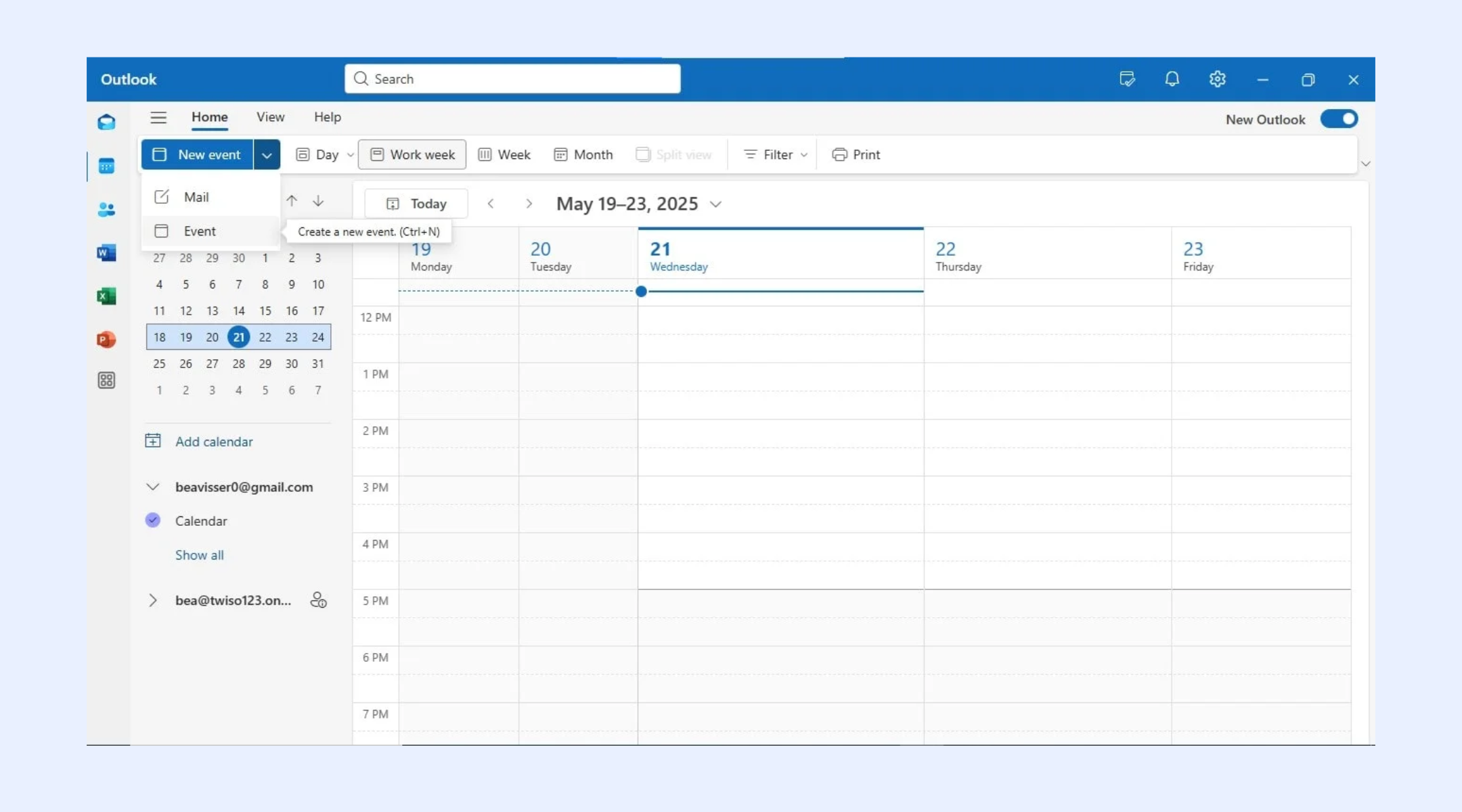
Click the New event button at the top-left of the calendar screen. This opens a meeting form where you can start creating your Webex session. You'll use this form to define the meeting's basic structure and timing.
Step 4: Add meeting details
Enter the meeting title so participants understand the purpose of the call. Select the correct date and time, and add attendee email addresses to send invitations. You can also include an agenda or brief description to help participants prepare and understand what will be discussed during the meeting.
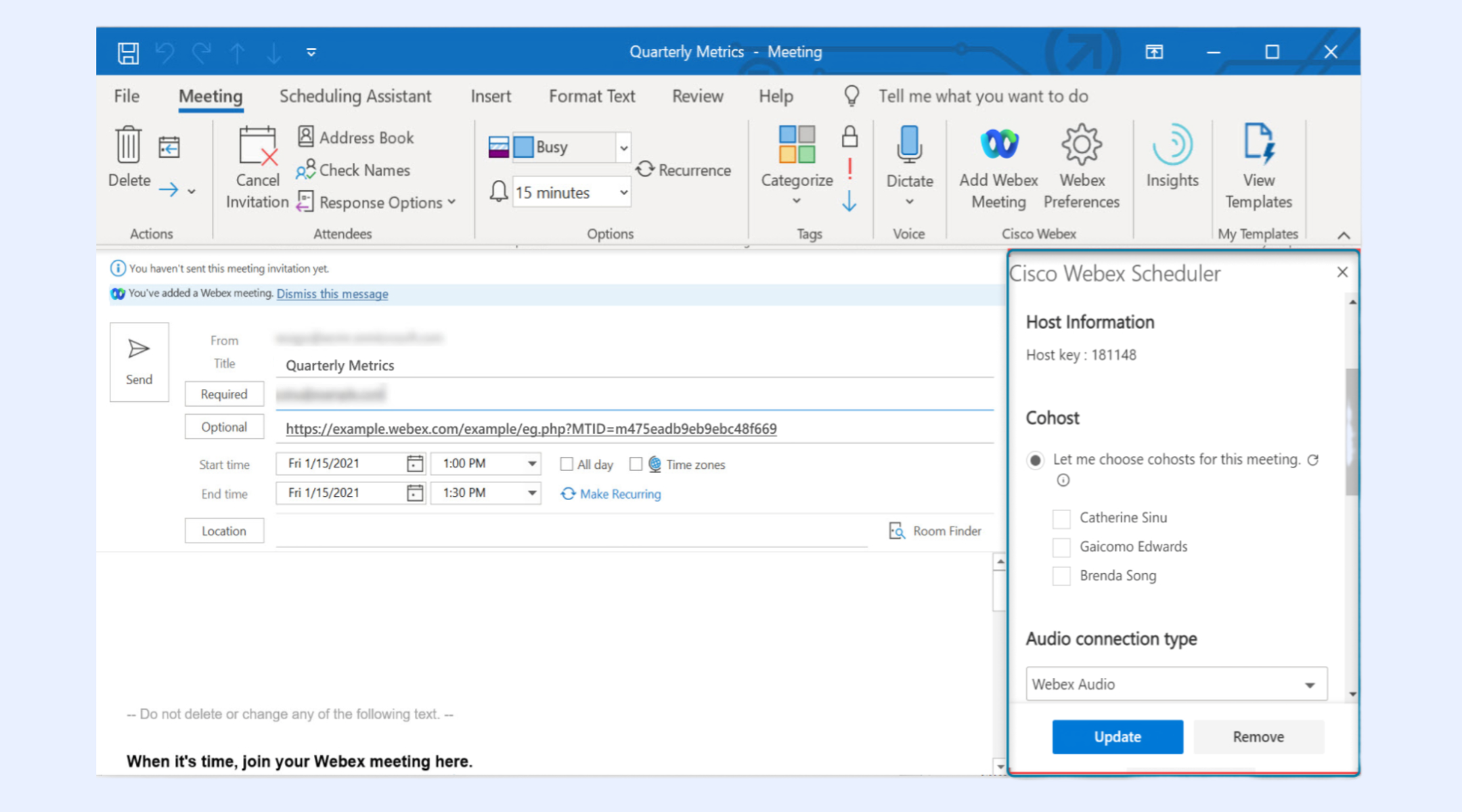
Step 5: Add Webex meeting link
If you have the Webex add-in installed, click More options and select Add Webex Meeting. Outlook will automatically generate and insert the meeting link and dial-in details for you. If you don't have the add-in, manually schedule a meeting on webex.com, copy the generated meeting link, and paste it into the event description. This ensures participants have direct access to join the call.
Step 6: Send the invite
After reviewing all details, click Save or Send to distribute the invitation to all participants. Attendees will receive the meeting link and information via email, and the event will appear on their calendars. You can edit the invite later if any changes are needed.
Try an easier way for browser-based meetings
Security and privacy in Webex web meetings
Security is a core focus of Webex web meeting design. Cisco applies to protect meeting content and participant data. These protections are available even in browser-based sessions.
- Encryption: Webex uses encryption to protect audio, video, and shared content. Data is secured during transmission. This helps prevent unauthorized access.
- Meeting locks: Hosts can lock meetings after all participants join. This prevents unexpected attendees. Locks can be managed during the meeting.
- Waiting rooms: Waiting rooms allow hosts to screen participants before admitting them. This is useful for external meetings. It adds an extra layer of control.
- Host controls: Hosts can mute participants, remove attendees, and . These controls help maintain meeting order. They are accessible in the Webex meeting browser.
4 common problems users face with Webex web meetings
While Webex web meetings are reliable, browser-based access can introduce challenges. These issues are usually related to system configuration, network conditions, or browser limitations. Understanding common problems helps teams prepare better.
- Audio issues: Audio problems often occur due to browser permissions or incorrect device selection. Users may need to manually select microphones or speakers. Refreshing the browser can sometimes resolve issues.
- Browser compatibility: Not all browsers support every feature equally. Some older browsers may limit screen sharing or captions. Keeping browsers updated improves reliability.
- : Browsers may require explicit permission before screen sharing starts. Users sometimes miss these prompts. This can delay presentations.
- Lag or connection drops: Network instability can affect video and audio quality. Browser meetings rely heavily on internet performance. Wired connections usually provide better stability.
Avoid these problems with a brand new solution
New option: Enjoy smooth conferencing and collaboration in Lark
Online meetings are no longer isolated events that end when the call disconnects. Teams now expect meetings to connect naturally with conversations, documents, and follow-up work. approaches online meetings as part of a rather than a standalone tool. Meetings are embedded directly into chat threads, calendars, and shared documents, allowing context to carry forward before and after each call. Instead of being caught in tool sprawl, teams can discuss, plan, meet, and execute in one workspace.
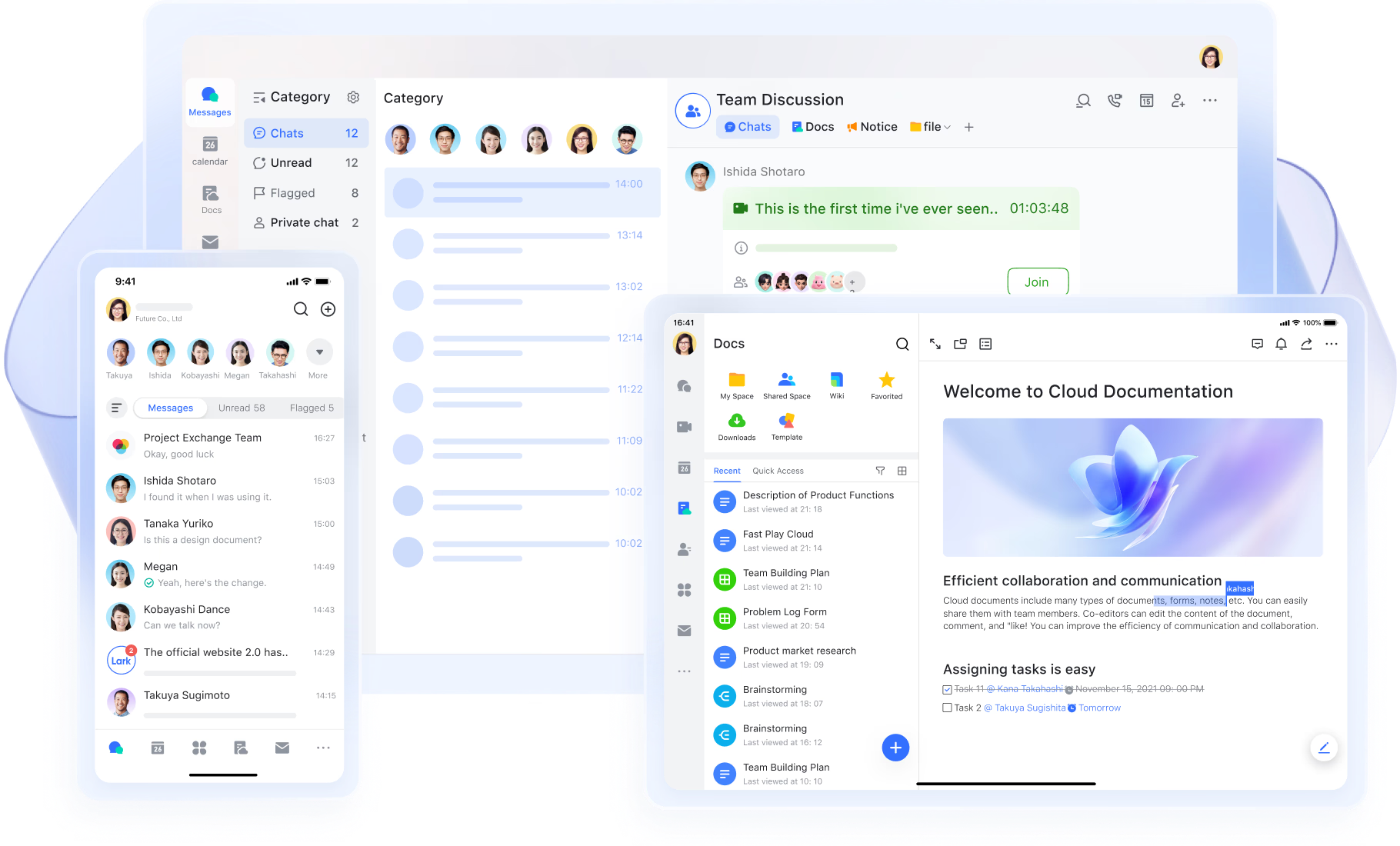
Built-in HD video meetings
is a native part of the workspace, not a separate add-on or plugin. This means users can start a 1080p HD video call directly from any chat thread with a single click, without switching platforms. The built-in structure enables advanced capabilities such as real-time subtitles and automatic translation into more than 100 languages. With these flexibilities, clear communication is ensured across regions and language barriers.
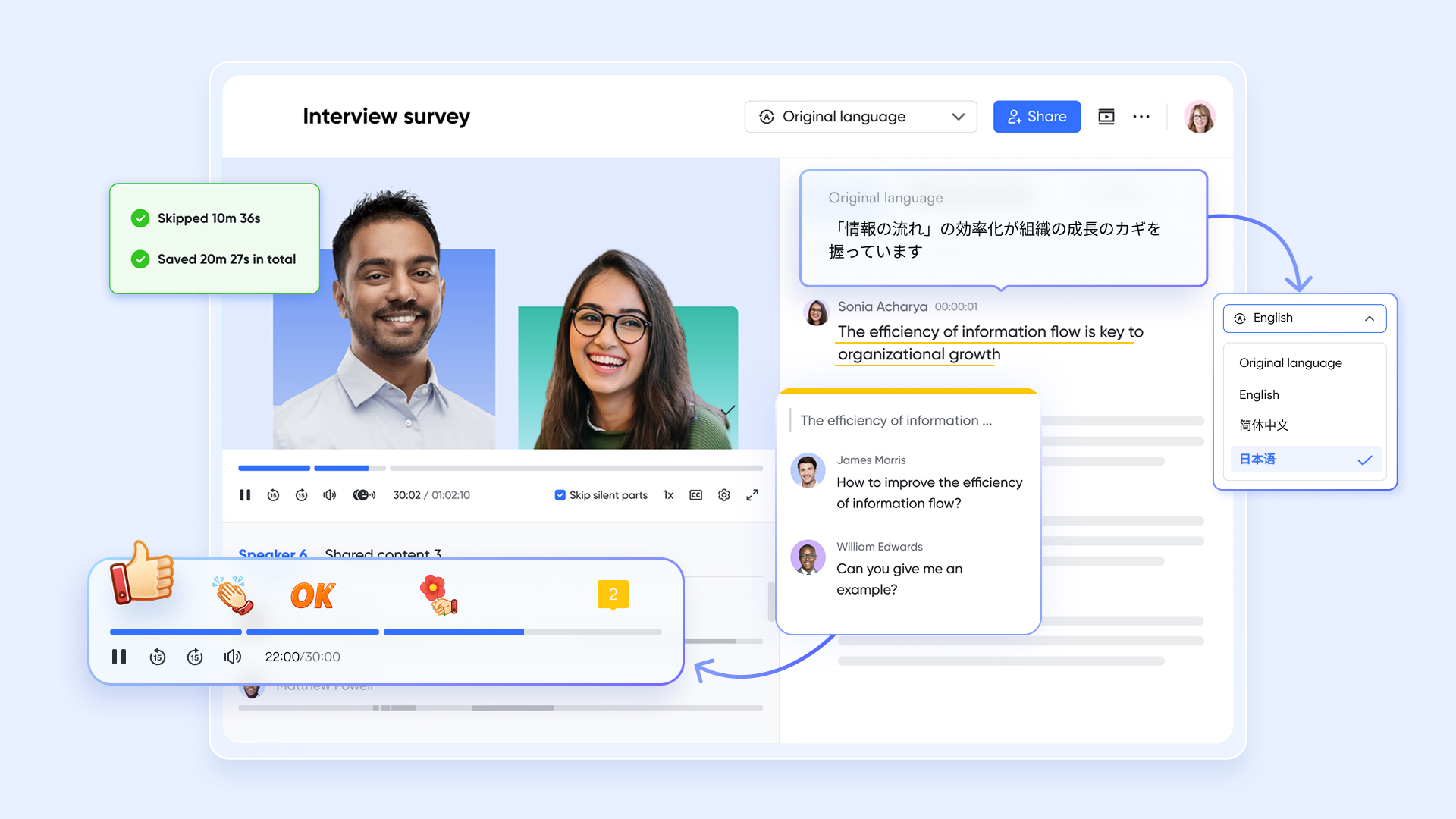
Real-time chat during calls
Lark preserves every meeting conversation by connecting in-meeting chat with group chats. Unlike traditional platforms, where chat disappears after the call, all messages, shared links, and uploaded files remain accessible in the related chat thread. This ensures meeting context is never lost and allows participants to revisit discussions, decisions, and shared resources at any time after the call ends.
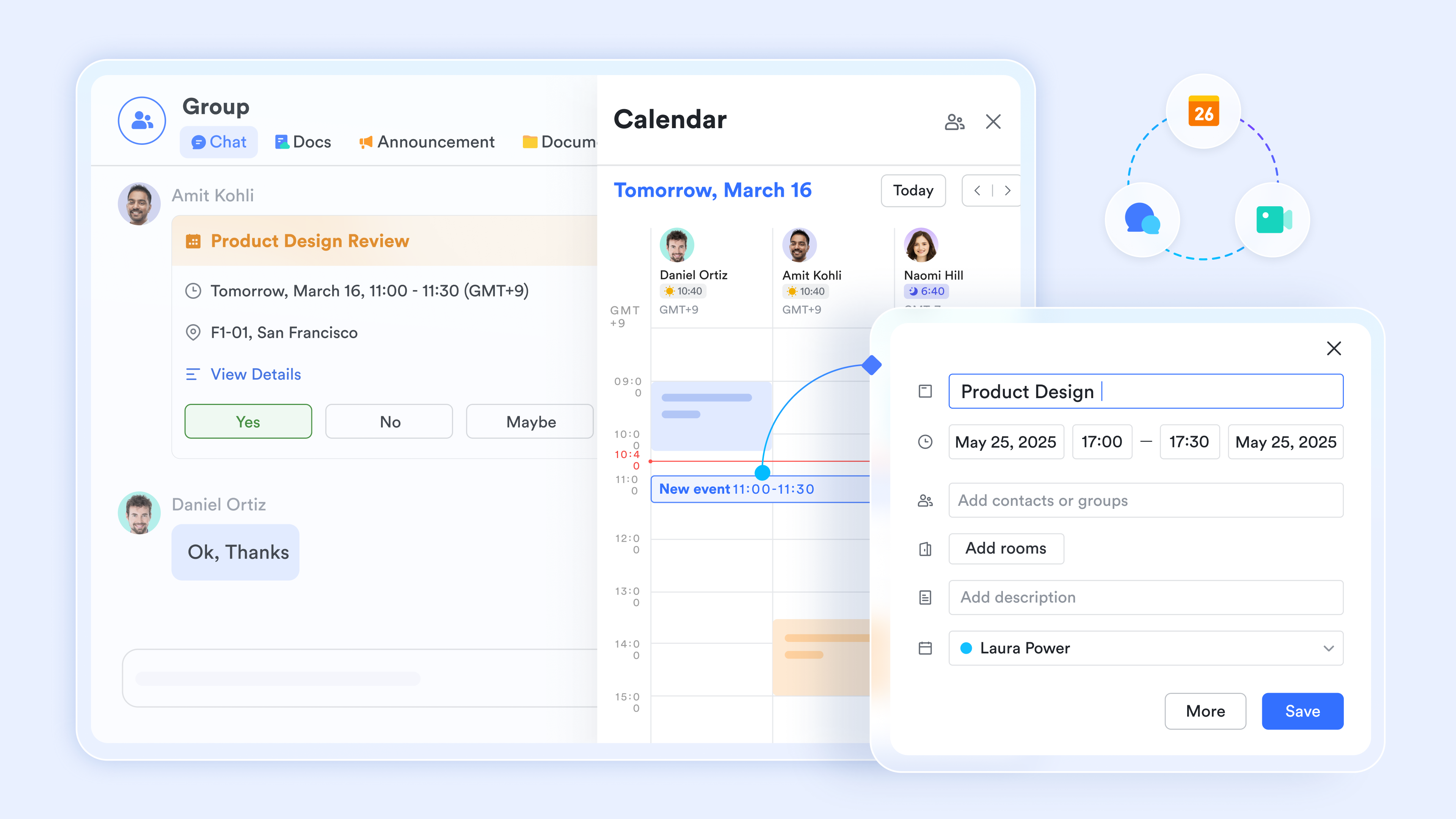
Live document collaboration
Magic Share transforms screen sharing into an interactive collaboration experience. Instead of passively viewing a presenter's screen, participants can open a live document, slides, or sheet directly in the meeting window. Everyone can scroll independently, click links, and co-edit content in real time. This keeps the team focused on a single shared document and eliminates the need to switch between tabs or applications. 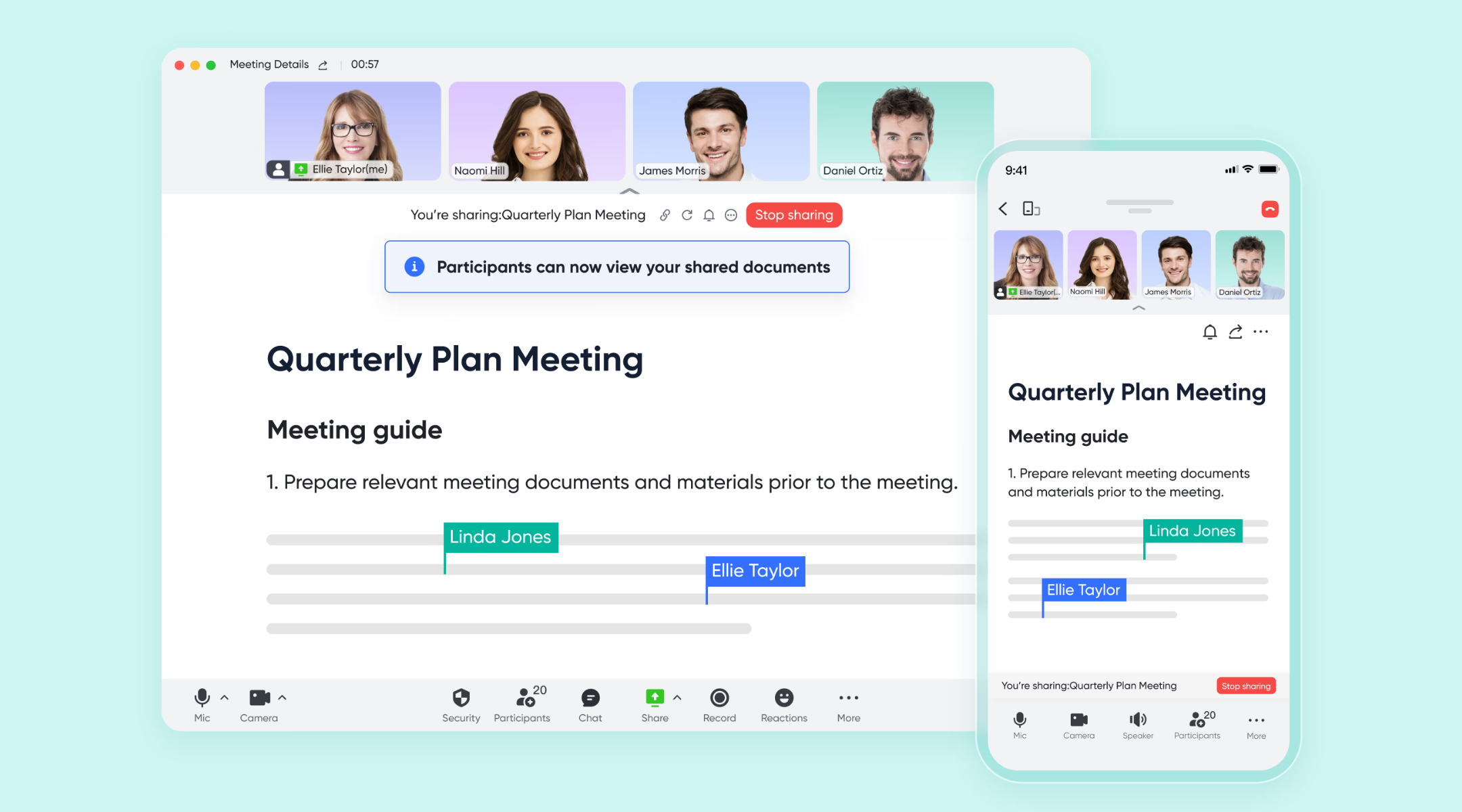
Automatic meeting notes
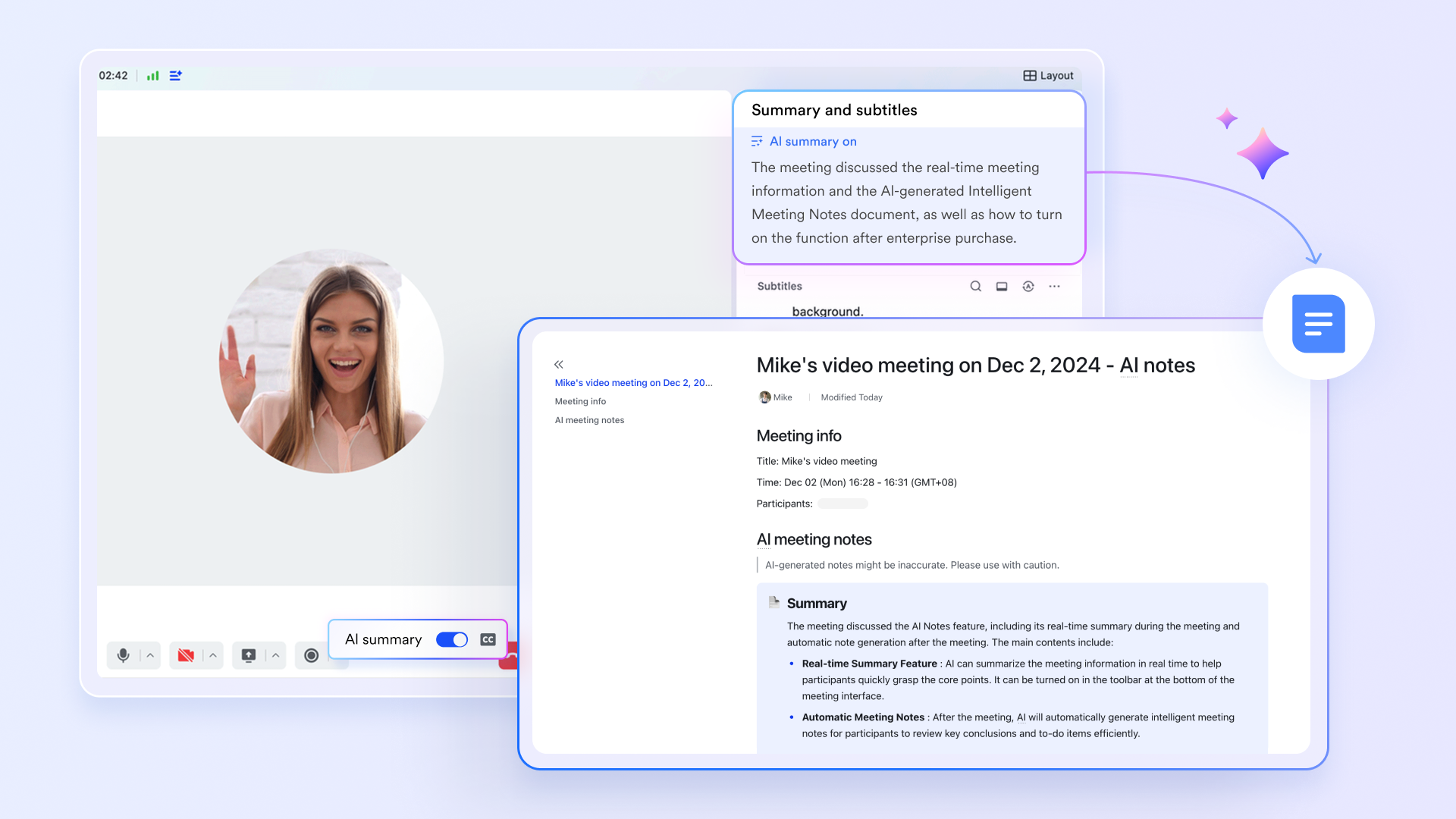
To reduce manual note-taking, Lark shows its flex via . When AI Summary is enabled, the platform automatically generates a structured meeting document during the call or sends it after the call ends. This includes a full transcript, searchable topic chapters, and a task list with assigned owners. Teams receive clear documentation and actionable next steps without extra effort, improving accountability and follow-through.
Intelligent team scheduling
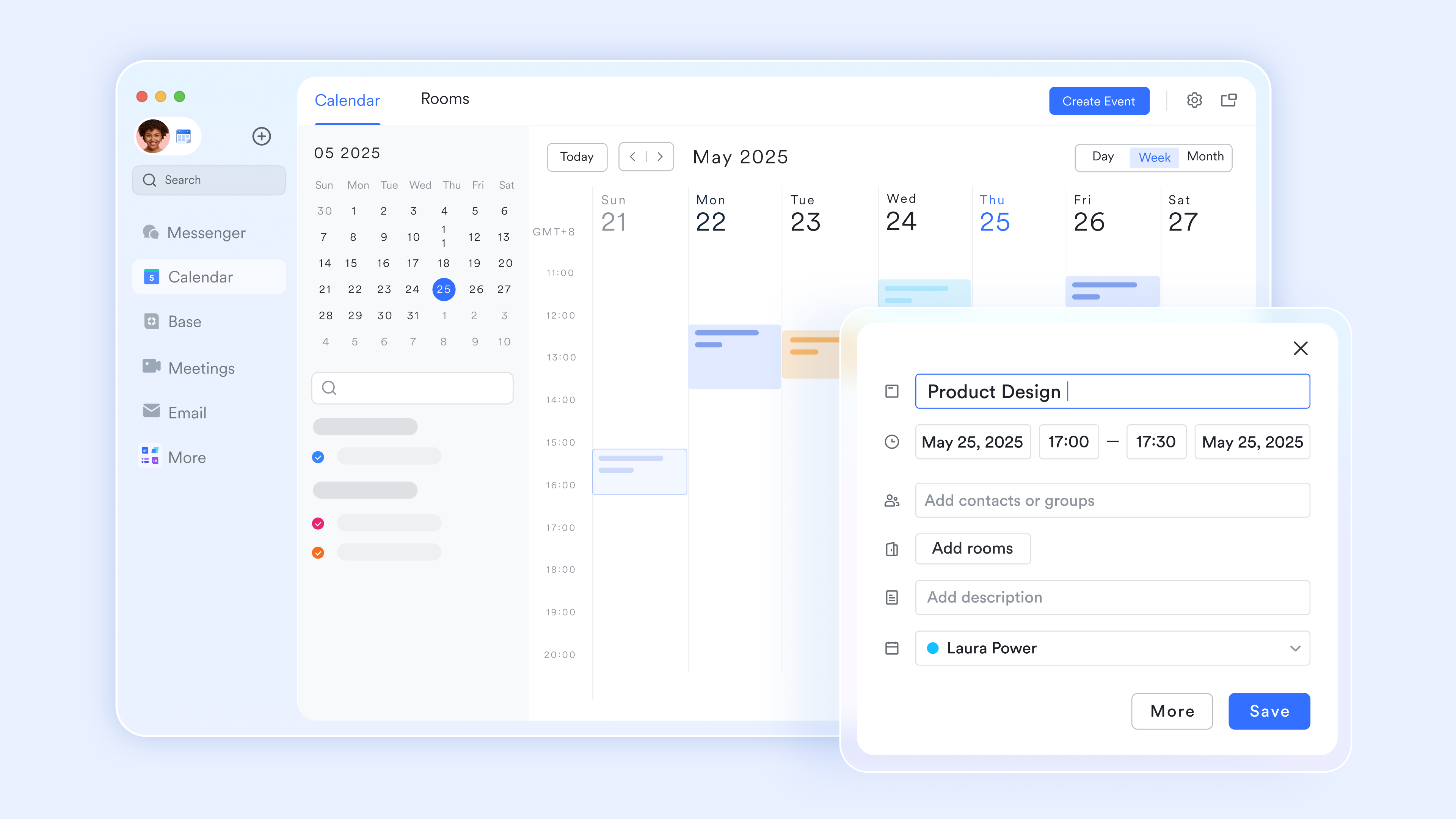
simplifies scheduling by showing team availability directly from group chats. The Check Availability feature displays participants' calendars side-by-side, making it easy to find the best time slot. Once a meeting is booked, the platform automatically creates a dedicated group chat for all attendees. This space is used to share pre-meeting materials, agendas, and post-meeting follow-ups, keeping the entire meeting lifecycle organized in one place.
Encrypted meetings and access controls
To ensure maximum privacy, every meeting is fully encrypted. Lark does not record meeting content; it retains only essential metadata, such as the topic, host, participant list, and meeting duration. To further secure your sessions, you can implement access controls, such as mandatory passcodes or virtual waiting rooms, to ensure only authorized participants can join with the host's permission. :
- Starter plan: Free forever plan that includes 11 powerful tools for up to 20 users. It also comes with 100GB of storage, 1000 automation runs, AI translations, and more.
- Pro plan: $12/user/month (billed annually) for up to 500 users. It includes everything in Starter plus group calling for up to 500 attendees, 15TB of storage, 50,000 automation runs, and more.
- Enterprise plan: for custom pricing. Supports unlimited users and includes even more automation runs and advanced security, compliance, and management features.
For small teams with simple communication needs

18 months message history
1000 Base automation runs/month
2000 rows per table in Base
Most POPULAR
For companies with comprehensive collaboration and management needs
Unlimited message history
500-participant video meetings
50k Base automation runs/month
20k rows per table in Base
For large companies with advanced security and organizational management needs
Get a personalized demo and pricing
Unlimited message history
500-participant video meetings
15 TB storage + 30 GB storage/user
500k Base automation runs/month
50k Base automation runs/month
Most POPULAR
For companies with comprehensive collaboration and management needs
Unlimited message history
500-participant video meetings
50k Base automation runs/month
20k rows per table in Base
Webex vs Lark: Which suits you better?
To give a balanced perspective, here we break down the features of Webex and Lark:
When Webex is enough
Webex web meeting is well-suited for scenarios where fast access and minimal setup are the top priorities. Browser-based entry allows participants to join without installing software, which is especially helpful for external or time-sensitive meetings. Below are common use cases where Webex web meetings work effectively.
- One-time client calls: Webex web meeting allows clients to join quickly through a browser link. No installation is required, which reduces friction. This is ideal for short discussions or introductory calls. Meeting access remains simple and professional.
- External meetings: can join without needing internal system access. The Webex meeting browser supports secure entry. Hosts maintain control over permissions. This makes external collaboration straightforward.
- Guest participants: Guests can join using Webex Join meeting by number or a meeting link. This simplifies access for users unfamiliar with the platform. It reduces technical support needs. Guest participation remains smooth.
- Quick browser access: Webex web meeting works well on shared or restricted devices. Users can join from any modern browser. This is useful for interviews or public workstations. Setup time stays minimal.
When to switch from Webex to Lark
As teams grow and collaboration becomes continuous, meetings often need deeper connections with daily work. This is where standalone browser meetings may start to feel limiting.
- Meeting duration and value: One of the most significant triggers for a switch is time limits. While Webex free often restricts meetings to 40 or 60 minutes, Lark offers much longer durations and advanced features even on its free tier. This ensures that deep-dive strategy sessions or training workshops are never cut short by a timer.
- Ongoing : Teams benefit from persistent chat and shared context. Switching tools causes information loss. Continuous collaboration needs a unified workspace.
- Project-based meetings: Projects require follow-ups, updates, and shared visibility. Meetings alone do not capture progress. Teams need ongoing coordination.
- Document-heavy discussions: Screen sharing limits interaction with documents. Live co-editing improves clarity and engagement. Document-centric work needs tighter integration.
- needs: Manual follow-ups and slow execution. Automated tasks and notifications improve accountability. Modern teams rely on connected workflows.
Conclusion
Webex web meetings continue to be a practical solution for organizations that need dependable, browser-based meetings with minimal setup. It works especially well for external calls, guest participants, and situations where quick access is more important than . For these use cases, Webex delivers a consistent and secure meeting experience.
However, as teams rely more on meetings for daily coordination and execution, expectations often shift beyond video and audio alone. Many teams start looking for ways to keep conversations, documents, and follow-ups connected after meetings end. Platforms such as address this need by placing meetings within a unified environment where communication and work continue seamlessly. Choosing the right approach depends on whether meetings are isolated events or a core part of how teams collaborate every day.
See how Lark connects meetings with daily work
FAQs
Can I test Webex before a meeting?
Yes, Webex allows users to test audio, video, and browser compatibility before joining a meeting. The Webex Meetings web app provides a preview screen to check devices in advance. This helps reduce last-minute issues, especially for important calls. Some teams later prefer platforms like Lark that keep testing, meetings, and follow-up work in one connected space.
Does Webex web meeting support virtual backgrounds?
Webex web meeting supports basic virtual background options in the browser, depending on the system and browser capabilities. Advanced background effects usually work better in the desktop app. Browser performance may vary across devices. In contrast, tools such as Lark focus more on collaboration continuity than visual effects.
How many participants can join via browser?
The number of participants depends on the host's Webex plan, with free plans supporting up to 100 attendees and paid plans allowing more. Browser users count toward the total participant limit. Large meetings may perform better with a mix of browser and desktop users. Teams that run frequent large meetings sometimes explore platforms like Lark for more integrated group collaboration.
Can hosts manage attendees from the web app?
Yes, hosts can mute participants, remove attendees, and manage basic permissions directly from the Webex meeting browser. Core host controls are available without installing the desktop app. Some advanced controls may be limited in the browser. As meeting needs grow, teams may look at solutions like Lark that connect host controls with ongoing team workflows.
Related reading