














8 Best Flowchart Software for Creating Clear Diagrams

Benjamin Grant
Lark Content Manager
Sep 18, 2026
Benjamin Grant
Sep 18, 2026

20 min read


I've seen what happens when our team tries to follow a complex process from text alone. Even if the guide seems clear, someone will interpret a critical step differently from someone else. Then, days later, we'd find a mistake and have to redo the work. Just writing out the steps was clearly not enough to get everyone on the same page.
Flowcharts have been a huge help for my work, and thankfully, lots of tools now make them simple to create. To find the best, I put the top flowchart software on the market to the test. This review comes from my hands-on experience to find which platforms are genuinely easy to use and give you the most value.
Top flowchart software
- Lark: Best for all-in-one team collaboration
- Miro: Best for collaborative whiteboard brainstorming
- Lucidchart: Best for advanced data linking and automation
- Microsoft Visio: Best for teams deeply embedded in the Microsoft ecosystem
- FigJam: Best for design teams and quick ideation workshops
- SmartDraw: Best for automated diagramming and intelligent formatting
- Draw.io (Diagrams.net): Best for privacy-focused teams
- EdrawMax: Best for templates

8 best flowchart software: In-depth reviews
1. Lark: Best for all-in-one team collaboration
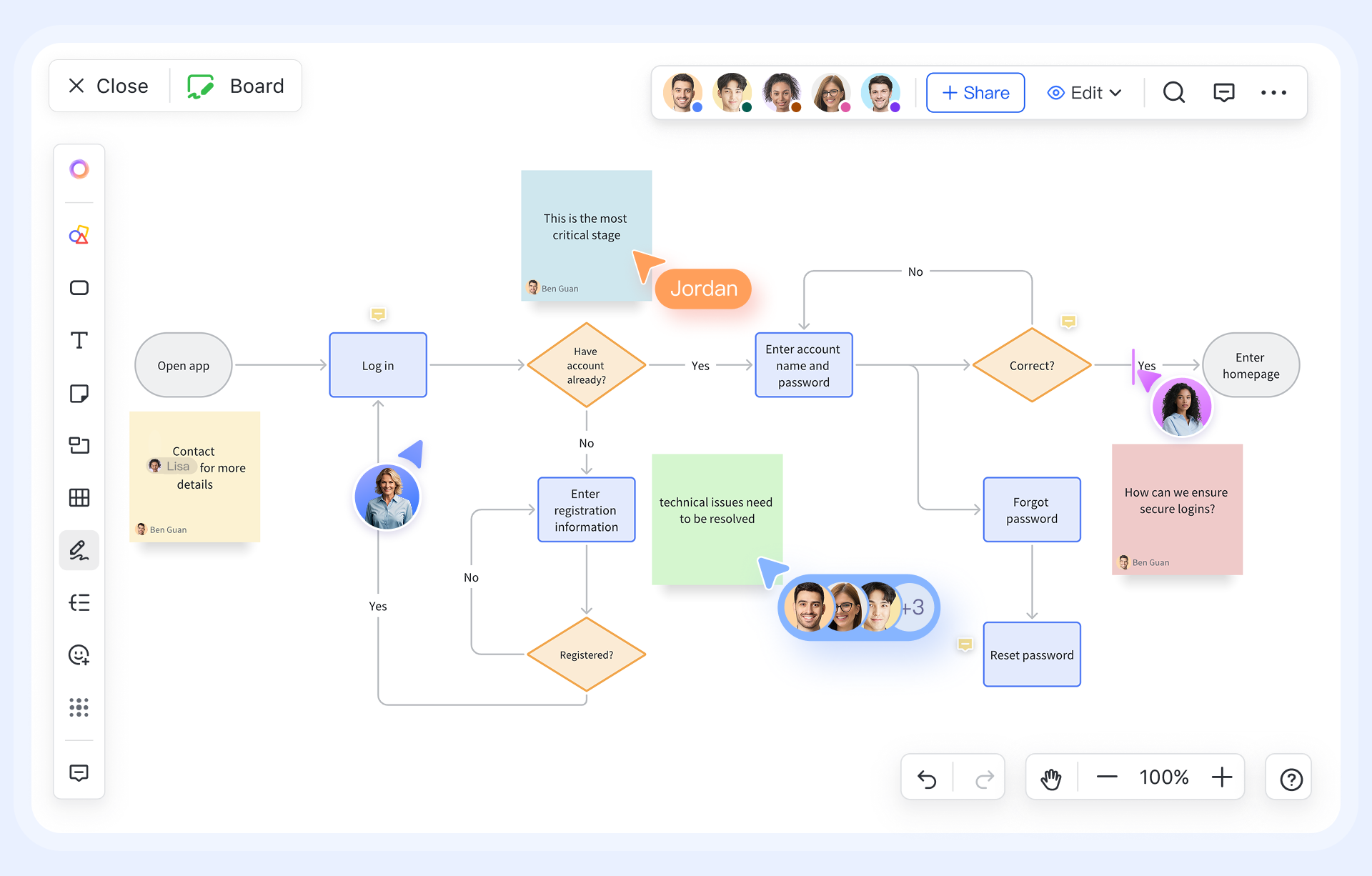
What I find compelling about Lark is that diagrams are not treated as static images, but as living parts of your team's workflow. Let's take mapping out a new user onboarding process as an example. Instead of creating a flowchart in one app and pasting it into a document in another, you can build it directly inside a Lark Doc using a Lark Board. This means your visual plan can live right alongside your project brief, technical specs, and whatever else you may be working on.
When it's time to discuss the flowchart, you can share it in Lark Meetings and allow all participants to collaborate together. Team members can make edits or scroll through the diagram at their own pace, and drop comments on specific steps in real-time. For example, a project manager can map out a workflow, and during the call, an engineer can add technical details while a designer refines the user-facing steps simultaneously.
Standout features
- Unified workspace: You can embed diagrams into any project document, meeting agenda, or team wiki or share them to a chat. Furthermore, you can link elements within your flowchart directly to your teammates, making it clear who's responsible for what.
- Versatile digital whiteboard: You can build UML diagrams, brainstorm with sticky notes, Venn diagrams, and mind maps, or organize complex workflows using swimlane diagrams through drag and drop. It also supports freehand drawing and the ability to insert images, icons, and even use PlantUML for code-based diagrams.
- Deeply integrated collaboration: Multiple users can edit and comment on a diagram in the document at the same time. During a video meeting, the board can be shared and co-edited by all participants directly in the call window, eliminating the need to switch between apps.
- Rich template library: Get a head start with a wide variety of pre-built templates for different use cases, from system architecture diagrams to generic process flows and decision-making charts.
Pros:
- A truly all-in-one platform that combines chat, meetings, approvals, documents, project management, and more.
- A rich set of diagramming elements and features suitable for a wide range of business needs.
- Excellent real-time collaboration in documents or live video meetings.
- Highly cost-effective, with a generous free plan and affordable paid tiers. For example, a team of 100 can save around $25,200 per year by switching to Lark.
Cons:
- The extensive feature set may take users some time to get familiar with
Reviews
- G2: 4.5/5
- Capterra: 4.4/5
"Implementing the right tool at the right time enabled us to organize our team, strategize effectively, and deploy with precision and efficiency, ensuring flawless execution during outlet openings."
- Eddie Goh, General Manager of ZUS Coffee
Pricing:
- Starter plan: Free forever plan that includes 11 powerful tools for up to 20 users. It also comes with 100GB of storage space, 1000 automation runs, AI translations, and more. No credit card needed.
- Pro plan: $12/user/month (billed annually) for up to 500 users. It includes everything in Basic plus group calling for up to 500 attendees, 15TB of storage space, 50,000 automation runs, and more.
- Enterprise plan: Contact sales for custom pricing. Supports unlimited users and includes even more automation runs and advanced security, compliance, and management features.
2. Miro: Best for collaborative whiteboard brainstorming
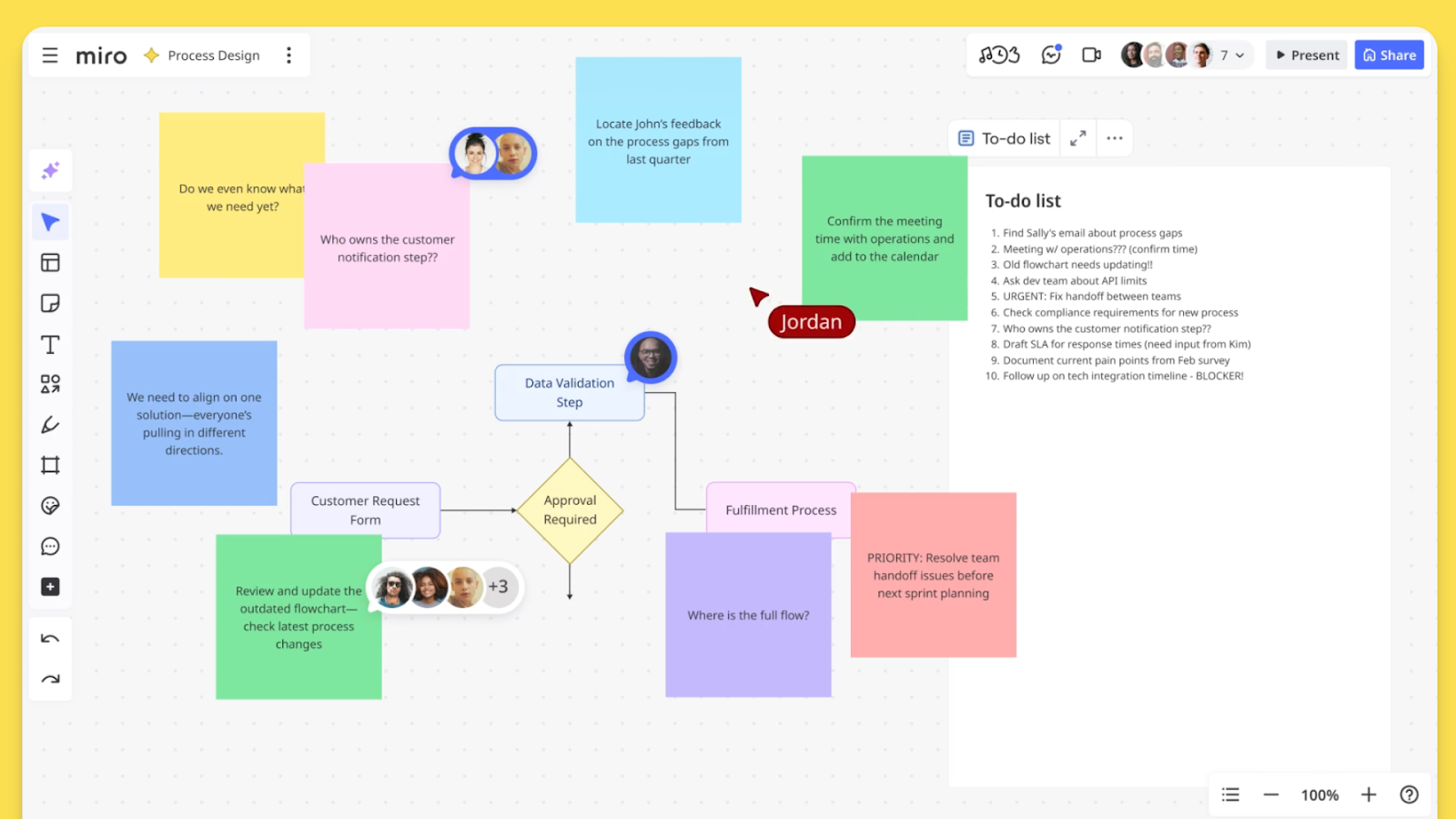
Image source: miro.com
Miro is a digital infinite whiteboard where flowcharting is just one of many things you can do. It excels at unstructured, free-form collaboration, making it my go-to tool for remote workshops, design sprints, and creative brainstorming sessions. If your goal is to get a cross-functional team together in a virtual room to map out ideas on digital sticky notes, Miro is hard to beat.
Standout features
- Infinite canvas: Lets ideas flow without limits during live, interactive sessions.
- Real-time collaboration: Features like live cursors show you exactly where your teammates are working.
- Miroverse template library: Offers a massive community-driven library of templates.
- Workshop tools: Includes built-in features like a timer and voting system to facilitate workshops.
- Miro AI: Can help generate ideas or summarize sticky notes automatically.
Pros:
- Best-in-class for real-time collaboration and workshops.
- Huge template library.
- Perfect for unstructured ideation and brainstorming.
Cons:
- Can feel overwhelming for simple diagramming tasks.
- Less focused on executing the processes you design.
- Performance can lag on very large, content-heavy boards.
Reviews
- G2: 4.8/5
- Capterra: 4.7/5
Pricing
- Free: Includes 3 editable boards and core collaboration features.
- Starter: $8 per user/month (billed annually) for unlimited boards and private board sharing.
- Business: $16 per user/month (billed annually) for advanced features like SSO, unlimited guests, and advanced diagramming shape packs.
3. Lucidchart: Best for advanced data linking and automation
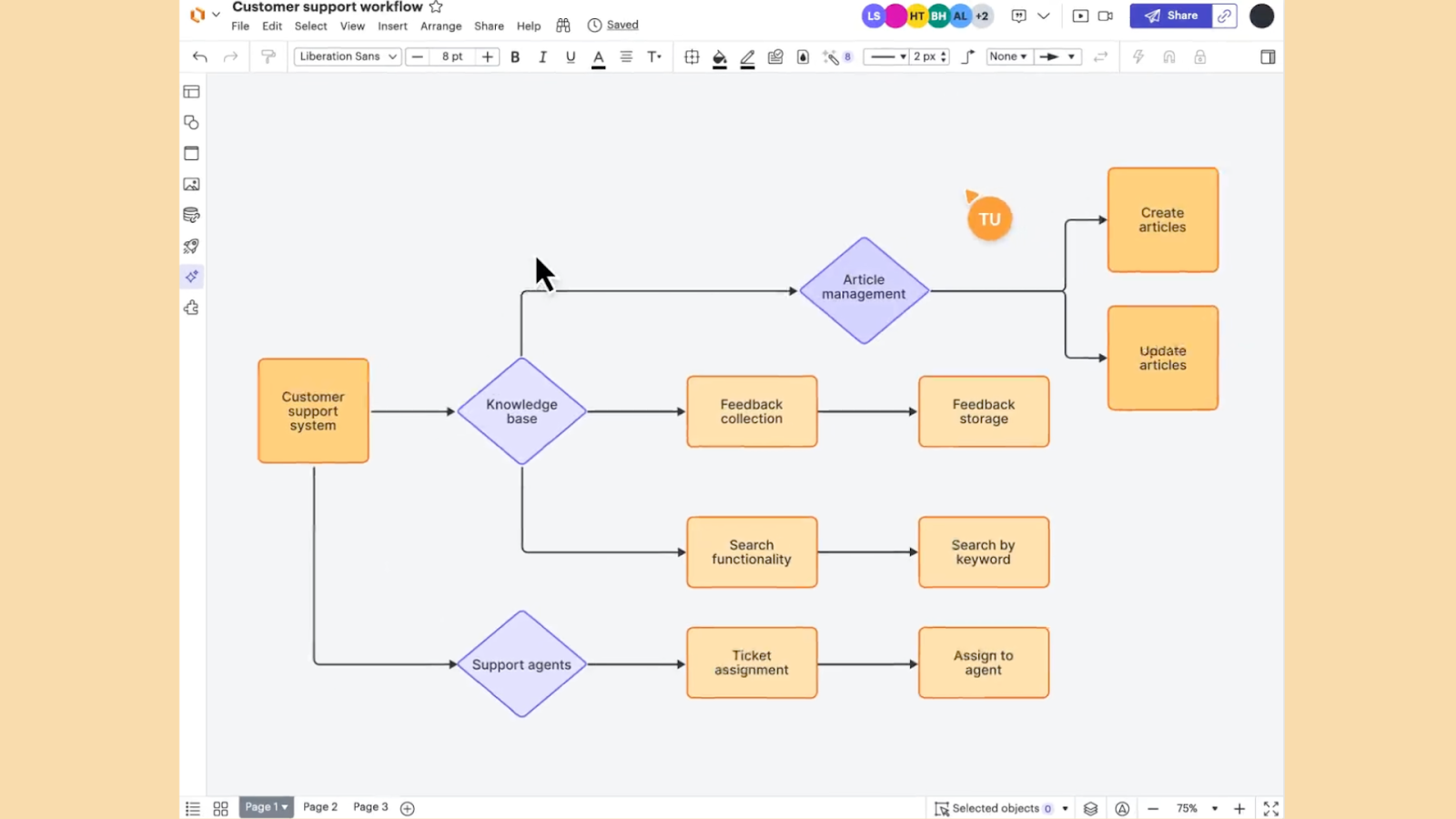
Image source: lucidchart.com
Lucidchart is widely considered the industry standard for powerful, dedicated diagramming. Its core strength is its ability to connect diagrams to live data from spreadsheets and other sources. This makes it the ideal choice for technical teams, engineers, and business analysts who need to visualize complex, data-driven systems and processes.
Standout features
- Data linking: Link shapes and data fields to Google Sheets, Excel, or a CSV file, so your diagrams update automatically as the data changes.
- Auto-generation: Automatically generate diagrams like organizational charts from spreadsheet data or create entity-relationship diagrams (ERDs) from database schemas.
- Advanced diagramming tools: Includes features like conditional formatting, layers, and extensive technical shape libraries for professional use.
Pros:
- Unmatched data and automation capabilities.
- Creates highly professional and technical diagrams.
- Integrates with a wide range of business and technical applications.
Cons:
- Can be overly complex for simple flowcharting needs.
- Real-time collaboration feels less fluid than Miro.
- The pricing can get steep for teams needing advanced features.
Reviews
- G2: 4.5/5
- Capterra: 4.5/5
Pricing
- Free: Includes 3 editable documents with a limit of 60 shapes per document.
- Individual: $9 per month for one user with unlimited documents and shapes.
- Team: Starts at $10 per user/month (billed annually) with a 3-user minimum, adding admin controls and advanced collaboration features.
4. Microsoft Visio: Best for teams deeply embedded in the Microsoft ecosystem
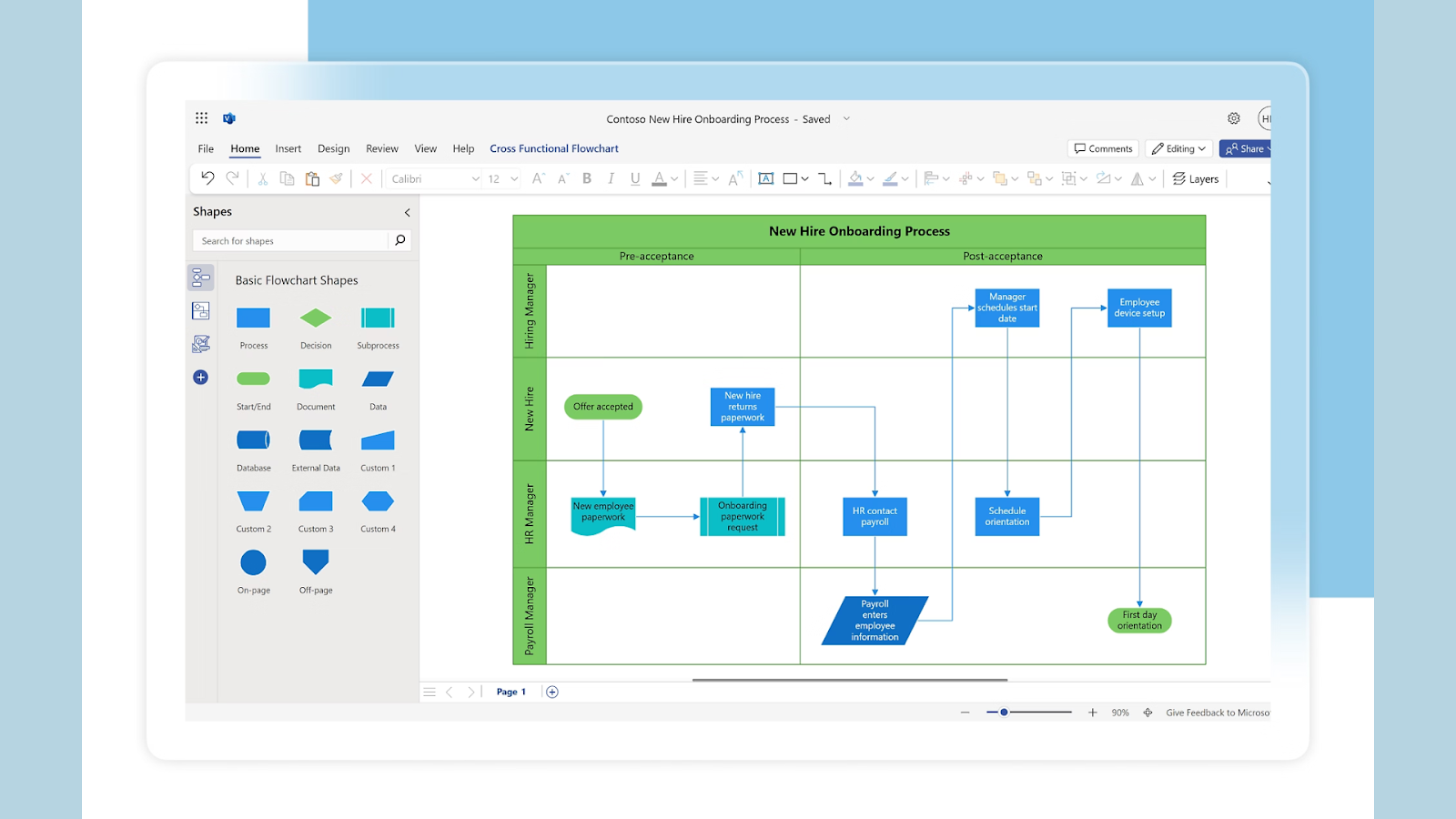
Image source: Microsoft.com
Microsoft Visio is one of the original and most well-known professional diagramming tools. Its primary advantage today is its deep and seamless integration with the Microsoft 365 suite, including Teams, SharePoint, Excel, and Power BI. For large enterprises that run on Microsoft's tech stack, Visio is often the default and most logical choice.
Standout features
- Deep Microsoft 365 integration: Create, view, and collaborate on diagrams directly within Microsoft Teams.
- Enterprise-grade security: Inherits security, compliance, and accessibility features from the Microsoft cloud.
- Extensive technical library: The desktop version offers a vast collection of stencils and templates for network diagrams, engineering schematics, and floor plans.
Pros:
- Unbeatable integration with Microsoft apps.
- An industry standard for many technical fields.
- Robust security and compliance features.
Cons:
- The user interface can feel clunky and outdated compared to modern web-based tools.
- The experience on non-Windows platforms is limited.
- Its collaboration features are less intuitive than competitors.
Reviews
- G2: 4.2/5
- Capterra: 4.5/5
Pricing
- Visio in Microsoft 365: A lightweight web version is included with most commercial Microsoft 365 plans, offering basic flowcharting features.
- Visio Plan 1: $5 per user/month (billed annually) for the full-featured web app.
- Visio Plan 2: $15 per user/month (billed annually) for access to both the web app and the more powerful Windows desktop app.
5. FigJam: Best for design teams and quick ideation workshops
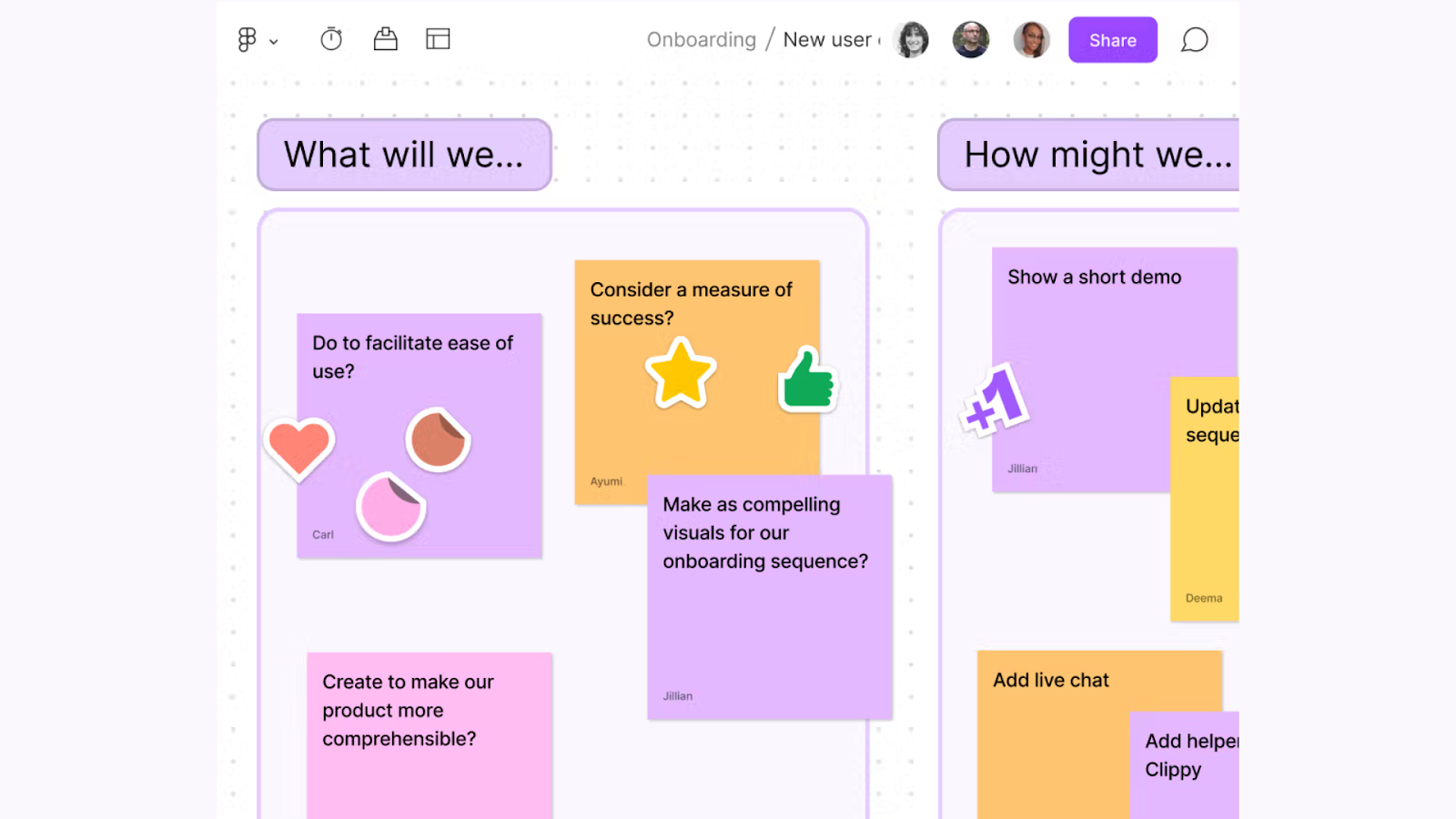
Image source: figma.com
FigJam is the online whiteboard companion to Figma, the leading UI/UX design tool. Its killer feature is the seamless, two-way integration with Figma. Teams can easily copy and paste components between the two, allowing them to move effortlessly from brainstorming and user flow mapping in FigJam to creating high-fidelity mockups in Figma. This makes it an absolute no-brainer for design teams in my opinion.
Standout features
- Playful interface: Includes engaging features like stamps, emotes, and a music player to set the mood during workshops.
- AI-powered diagram generation: Helps create diagrams quickly to get started.
- Design-focused templates: Offers templates specifically for design sprints and retrospectives.
- Built-in audio: Allows for live audio conversations directly within the tool for real-time collaboration.
Pros:
- Perfect integration for Figma users.
- Fun and intuitive interface.
- Great for design-centric brainstorming and workshops.
Cons:
- Less powerful for complex, non-design-related technical diagrams.
- It's not a standalone solution for teams outside the design and product world.
Reviews
- G2: 4.6/5
- Capterra: N/A
Pricing
- Starter: Free for up to 3 FigJam files.
- Professional: $3 per editor/month (billed annually) for unlimited files.
- Organization: $5 per editor/month (billed annually) for organization-wide libraries and advanced admin controls.
6. SmartDraw: Best for automated diagramming and intelligent formatting
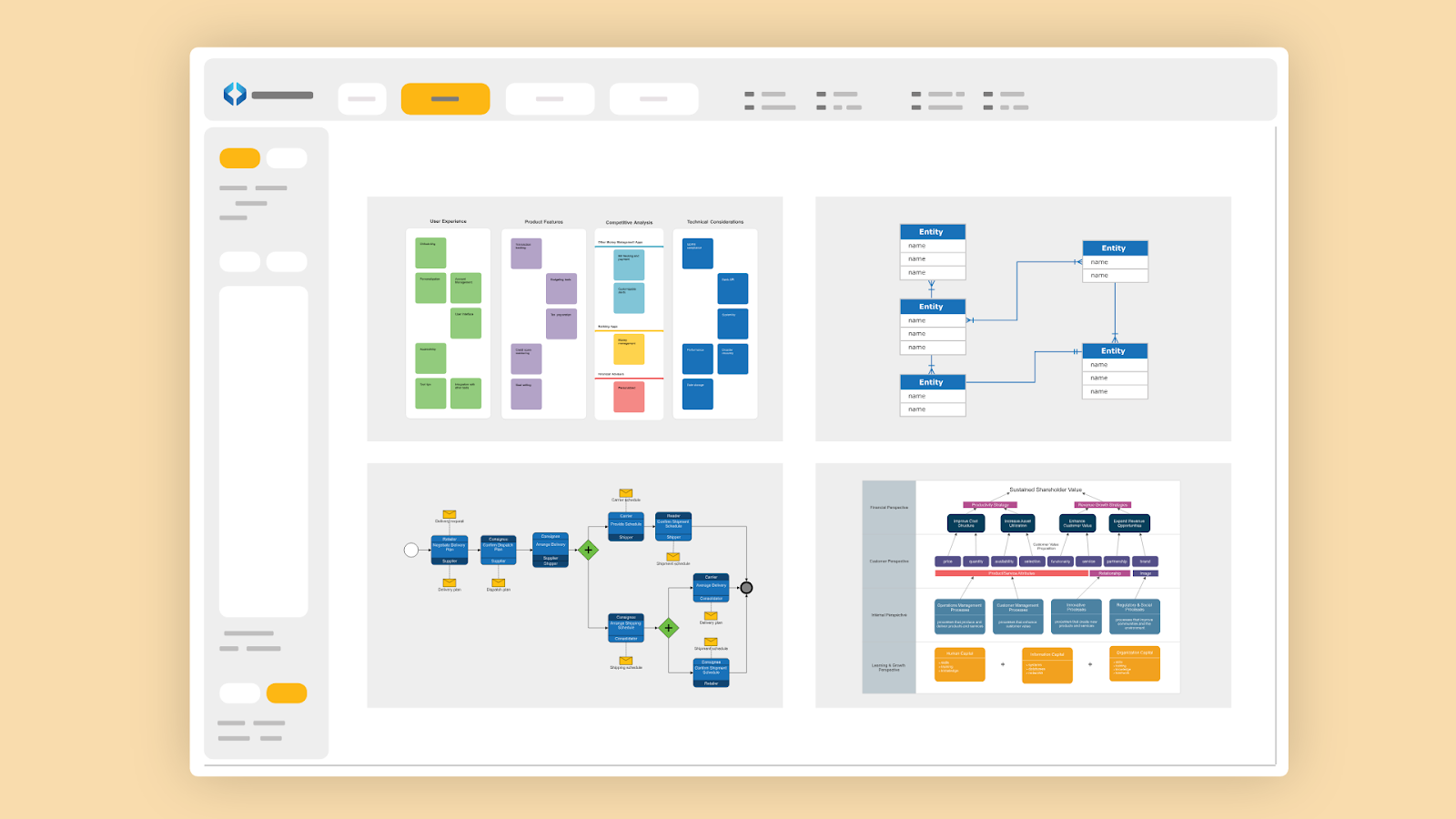
Image source: smartdraw.com
SmartDraw's main promise is that it does most of the drawing for you. Its core strength is "intelligent formatting," which automatically aligns shapes, spaces them perfectly, and routes connector lines as you add, move, or delete elements. This automation can save a tremendous amount of time, especially when I'm creating large, complex diagrams like org charts or network maps.
Standout features
- Extensive template library: Provides a massive library with over 70 different diagram types and thousands of templates.
- Data import for generation: Can import data to automatically generate certain types of diagrams.
- CAD-like drawing capabilities: Offers advanced drawing tools suitable for creating scaled architectural diagrams and floor plans.
Pros:
- Incredibly fast for creating polished, professional-looking diagrams.
- Powerful automation saves a lot of manual effort.
- Supports highly specialized diagram types.
Cons:
- Has a steeper learning curve for some users.
- Less intuitive for free-form brainstorming.
- Does not offer a free-forever plan.
Reviews
- G2: 4.5/5
- Capterra: 4.0/5
Pricing
- Individual: $9.95 per month (billed annually).
- Team: $8.25 per user/month (billed annually, with a 3-user minimum).
- Site: Starts at $5 per user/month (billed annually) for larger organizations.
7. Draw.io (Diagrams.net): Best for privacy-focused teams
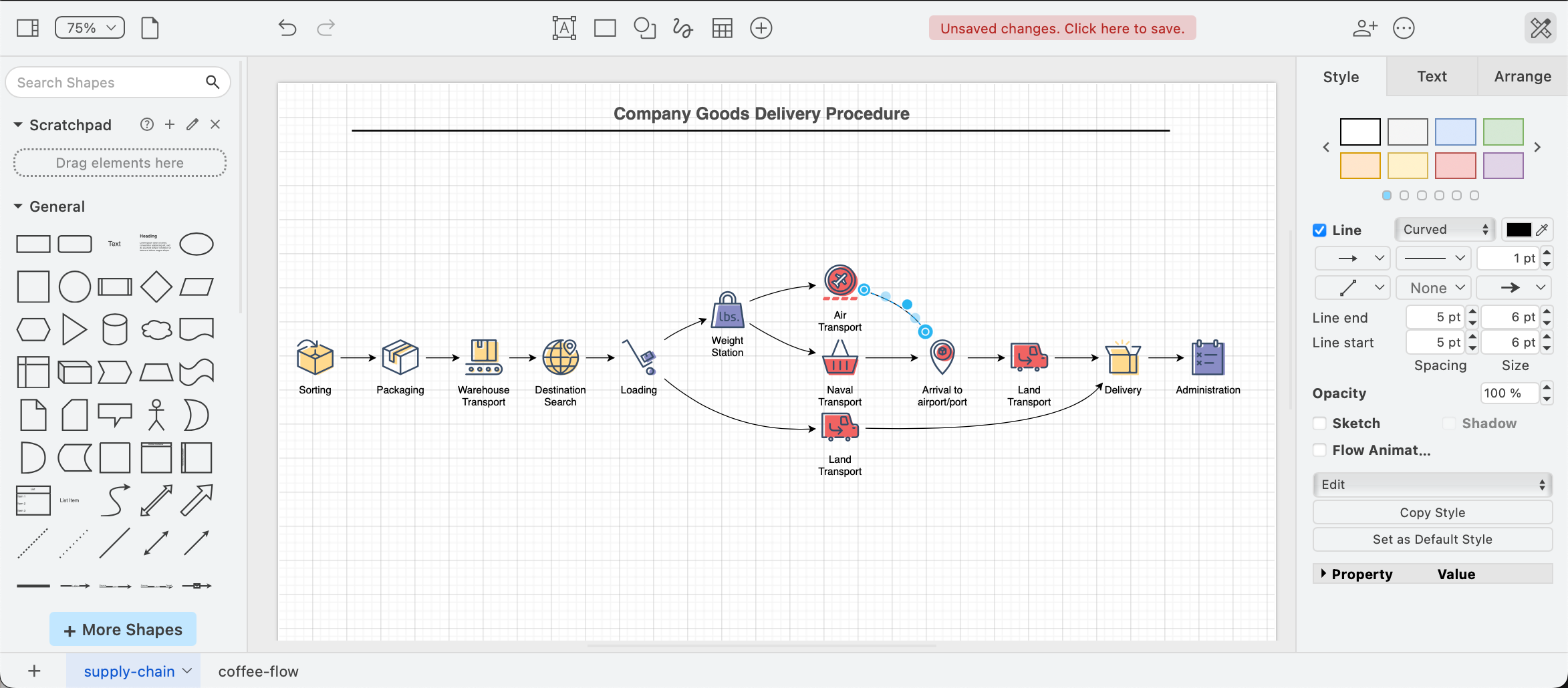
Image source: drawio.com
Draw.io (now officially known as Diagrams.net) is one of the best no-cost options on the market. It's a surprisingly powerful and security-first tool that is unique because it doesn't store your diagram data on its servers. Instead, it integrates directly with the cloud storage you already use, such as Google Drive, OneDrive, and Dropbox, or lets you save files locally to your device for complete privacy.
Standout features
- Cross-platform availability: Works online and has offline desktop apps for Windows, macOS, and Linux.
- Extensive technical shape libraries: Offers a wide range of shapes for technical diagrams, including UML, network, and electrical symbols.
- Broad integrations: Integrates with popular platforms like Google Workspace, Microsoft Office, Confluence, and Jira.
Pros:
- Privacy-focused design.
- Flexible deployment options (web, desktop, self-hosted).
- Surprisingly feature-rich for a free tool.
- Works great with Google Docs.
Cons:
- Real-time collaboration is less seamless than paid competitors.
- The user interface is functional but less polished.
- Official support is limited.
Reviews
- G2: 4.4/5
- Capterra: 4.5/5
Pricing
- Web and Desktop App: Free.
- Atlassian Integration (Confluence & Jira): Paid plans are available for deep integration, starting from $5 per month for 10 users.
8. EdrawMax: Best for templates
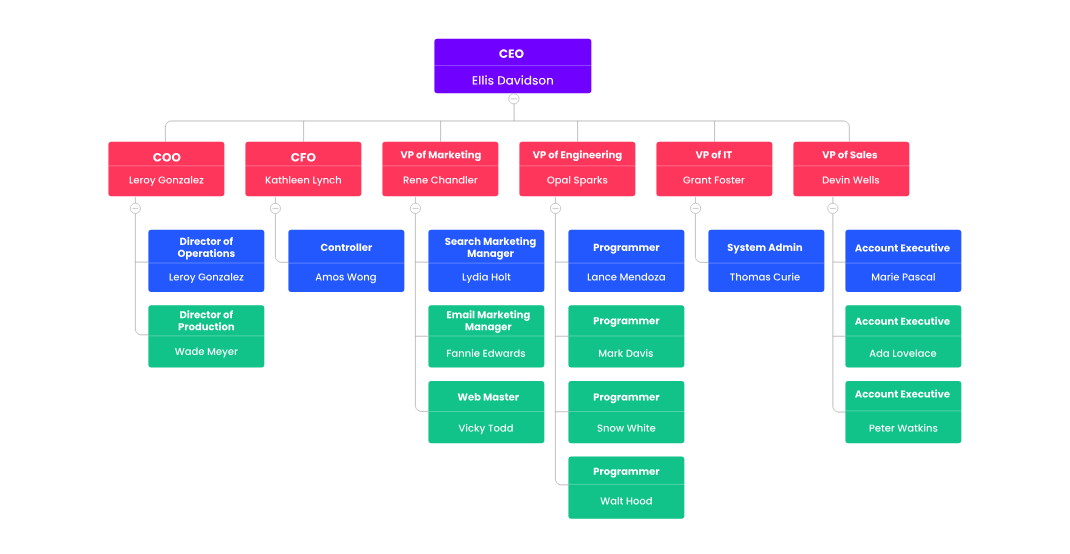
Image source: edrawsoft.com
EdrawMax is a highly versatile, cross-platform diagramming tool that stands out for its sheer breadth, supporting over 280 different diagram types. From flowcharts and org charts to floor plans and electrical engineering schematics, it has a template for almost everything. Its major strength is its powerful AI, which can generate complete, multi-step diagrams from a single text prompt, a massive time-saver.
Standout features
- Unmatched diagram support: Supports over 280 different diagram types.
- AI generation tools: Creates a solid first draft of a flowchart, timeline, or SWOT analysis from a text prompt in seconds.
- Massive resource library: Includes over 26,000 symbols and 1,500 templates.
- Cross-platform access: Available on desktop (Windows, Mac, Linux) and the web.
Pros:
- Unmatched versatility in supported diagram types.
- Excellent AI generation capabilities.
- A huge library of resources.
Cons:
- The pricing model and AI token system can be confusing.
- The collaboration features feel more structured and less fluid than tools like Miro.
Reviews
- G2: 4.5/5
- Capterra: 4.6/5
Pricing
- Free: Limited features and includes 500 AI tokens.
- Basic Plan (Online): $5.90 per month (billed annually), which includes 10,000 AI tokens per month.
- Unlimited Plan (Online): $11.90 per month (billed annually), which includes unlimited AI tokens and access to premium community templates.
How we evaluated these flowchart tools
There's no such thing as the best flowchart software, so we evaluated a wide range of platforms to find the right fit for different needs. Our review process focused on these key criteria:
- Core diagramming features: We assessed the essentials, including the variety of shape libraries, the intelligence of connectors, template availability, collaboration tools like real-time editing and commenting, and sharing/exporting options.
- Ease of use: A tool is useless if no one uses it. We evaluated the user interface, overall experience, and learning curve to gauge how quickly a team can get up and running.
- Customization & integrations: We looked at the platform's flexibility, from creating custom templates and shape libraries to its ability to connect with the other tools like project management and communication apps.
- Pricing & scalability: Our analysis covered the overall value of each plan and whether the tool can effectively grow with your team as your diagramming needs become more complex.
- Support & resources: We checked the quality and availability of customer support, including tutorials, knowledge bases, and direct help channels for when you get stuck.
To see how these tools perform in a real-world setting, we actively used each tool, running common workflows like creating a complex process map from scratch, collaborating on a mind map in real-time, using templates to build organizational charts, and exporting the final diagrams.
What is flowchart software?
Flowchart software is a specialized tool designed to help you create visual representations of processes, systems, and workflows. Simply put, it lets you use a standard set of shapes and lines with text to map out the steps of any process, from a simple to-do list to a complex software development lifecycle.
I like to think of it as a GPS for business processes. It shows you the start, the end, and every turn or decision point required along the way. These tools are not just for basic flowcharts; their versatility allows for creating mind maps, organizational charts, network diagrams, and more, making them invaluable for organizing and managing complex information.
To learn more about flowcharts, see Unleashing the Power of Flowcharts: Enhance Team Collaboration and Efficiency
What are the benefits of flowchart software?
Investing in flowchart software delivers more than just pretty diagrams; it solves tangible business problems. When you start visualizing your workflows, you can unlock some powerful benefits.
- Brings crystal-clear clarity to complex processes: The main advantage of a flowchart is its ability to break down a complex operation into simple, easy-to-understand steps. By organizing information on a map with directional arrows and clear actions, you remove ambiguity and create a shared understanding that’s easy for anyone to follow.
- Gets everyone on the same page: A flowchart acts as a single source of truth for your team. It ensures that everyone, from new hires being onboarded to senior stakeholders reviewing a proposal, understands their role within the overall workflow. When the entire team can see the process, they can follow it consistently, which dramatically reduces misunderstandings and errors, not to mention duplicated work.
- Helps you spot and eliminate bottlenecks: You can't fix what you can't see. Mapping out a process visually makes it incredibly easy to identify inefficiencies, redundancies, and delays that are otherwise hidden in day-to-day work. This is the first and most critical step toward process improvement, streamlining operations, and boosting overall productivity.
- Creates clear, living documentation: Flowcharts serve as excellent documentation for training, onboarding, and standard operating procedures (SOPs), as well as for compliance. Unlike a static document saved on a shared drive, a digital flowchart is a "living document." It can be updated instantly and shared widely, ensuring everyone is always working with the most current version of the process.
How to choose the right flowchart software for your team
With so many great options, the "best" tool really depends on your team's specific needs. I recommend asking yourself these questions to find your perfect fit.
- Who will be using it? Consider the technical skill level of your team. Are they engineers and developers who need advanced, specialized features for creating UML or network diagrams? A tool like Lucidchart or Visio might be best. Or is it a non-technical team in marketing or HR that needs something simple, intuitive, and highly collaborative? In that case, a tool like Lark, Miro, or Whimsical would be a better fit.
- What is your main goal? What problem are you trying to solve? If your primary goal is to create highly detailed, data-linked technical diagrams as a final output, a dedicated specialist tool like Lucidchart is a strong contender. However, if your goal is to facilitate team brainstorming, map out a process, and then immediately turn that plan into actionable tasks, an integrated platform like Lark or ClickUp will be far more efficient.
- What's your budget? Price is always a factor. Consider the per-user cost and how it scales as your team grows. Don't forget to evaluate the free plans. A generous free plan, like the ones offered by Lark or Draw.io, can often meet all the needs of a small team or allow you to thoroughly test the platform before committing.
- What other software do you use? Your existing ecosystem is critical. If your entire company lives and breathes Microsoft 365, Visio is a natural choice. If your design team is built around Figma, then FigJam is a must-have. If you need a tool that integrates broadly with many different apps, check the integration lists carefully to ensure your key tools are supported.
- Do you need a dedicated tool or an all-in-one suite? This is the most important question in my view. A dedicated diagramming tool will offer the deepest and most powerful features for creating visuals. However, it adds another app to your team's stack, and the diagrams it produces are often disconnected from where the actual work happens.
Final thoughts
The key to finding the right flowchart software comes down to understanding your team's workflow.
Specialized tools like Lucidchart offer incredible power for technical diagramming, and collaborative whiteboards like Miro are unmatched for free-form brainstorming. They are excellent at what they do.
But for most teams I've worked with, the real challenge isn't just visualizing a process. The bigger challenge is connecting that vision to the day-to-day work of getting things done. The most effective workflows are those that move seamlessly from idea to action without friction.
For teams that need to not only visualize work but also do the work, an all-in-one platform is the most efficient and powerful choice. With Lark, teams can stop switching between apps for different tasks. All flowcharts, projects, and conversations can be found in one place.
FAQs on flowchart software
What software is best for flowcharts?
The best software for flowcharts typically includes features like real-time collaboration, multiple layout options, and strong data linking capabilities. Popular choices include Lark, Lucidchart, and SmartDraw for visual collaboration.
What is the best Microsoft software for flowcharts?
Microsoft Visio is the best Microsoft software for flowcharts, offering extensive layout options, data linking, and must-have features for connecting shapes and creating large diagrams efficiently within organizations. However, innovative options like Lark are also worth your consideration.
Is Word or PowerPoint better for flowcharts?
PowerPoint is generally better for flowcharts due to its visual collaboration capabilities, allowing users to connect shapes easily and utilize slide layouts for clearer process steps compared to Word.
Does Excel do flowcharts?
Yes, Excel can create flowcharts using its shapes and connecting lines features. However, it’s better suited for data-related visualizations like Gantt charts, rather than extensive flowcharting.
What is the best free flowchart software?
Both Miro and Lark offer excellent free plans. Miro's free tier includes three editable boards perfect for brainstorming workshops, while Lark's generous free plan supports up to 20 users with an integrated suite of tools, making it great for small to midsized teams.
Related reading
Table of contents
Start using Lark today

Manage all your work in one place
Boost team efficiency by 10x
Save up to 70% on software costs
Table of contents
Start using Lark today
Manage all your work in one place
Boost team efficiency by 10x
Save up to 70% on software costs
Keep reading








2026 Lark Technologies Pte. Ltd.
Headquartered in Singapore with offices worldwide.






Explore: