














How to Add Your Outlook Calendar to Google Calendar

Fecilia Clarke
Solutions Marketing Specialist
Sep 18, 2026
Fecilia Clarke
Sep 18, 2026

15 min read


If you've found your way here, you are likely trying to solve a very common yet incredibly frustrating modern problem: you're living a double life, dictated by your calendars. Your professional world, managed within Microsoft Outlook, is a landscape of meetings, deadlines, and project milestones. Meanwhile, your personal life is neatly organized in Google Calendar, a vibrant map of family commitments, social gatherings, and personal goals.
This challenge of managing multiple calendars is a significant drain on mental energy. You are not just tracking events; you are managing information silos. We understand this challenge deeply, and we want you to know there is a better way. This definitive guide will walk you through every method to manage your calendars. We will explore how to add Outlook to google calendar with your Google account, covering the free methods, mobile-specific solutions, and ultimately, a more powerful and integrated way to not just view your schedule, but to unify your entire workflow in one app.
Key takeaways: Quick comparison of your calendar syncing options
Your time is your most precious resource, so let's begin with a clear overview of your options. When it comes to making your Outlook and Google calendars work together, there are fundamentally different approaches you can take. Each path has its own set of trade-offs regarding functionality, cost, and overall convenience. This comparison table is crafted to help you quickly identify the method that best aligns with your specific needs, whether you're just looking for a quick glance at your busy schedule or you require a deeply integrated, real time calendar solution.
Choosing the right path depends on your tolerance for manual updates and your need for real-time accuracy. Now, let’s explore the intricate event details of each of these methods.
Method 1: The free way to add your outlook calendar to google calendar
The most common and widely documented method to connect your digital schedules is by subscribing to your Outlook calendar using a special web link. This link uses the iCal format, creating what's known as an ICS link or an internet calendar feed. This process essentially "publishes" a version of your Outlook calendar that Google Calendar can then periodically read and display. It’s a relatively straightforward process, but before we dive into the step-by-step instructions, it is absolutely essential to understand its single biggest limitation, which is often glossed over in other guides.
Let's be perfectly clear: this method creates a one-way, read-only sync. This means that while Google Calendar events will appear alongside your Outlook events, you cannot edit your work events or create new events for your Outlook calendar from the Google interface. You are simply a spectator. Furthermore, the sync is not instantaneous. According to Google's own documentation, it can take up to 24 hours for changes made in Outlook to be reflected. If you require real-time updates to avoid scheduling conflicts or need the ability to manage your work life from a single interface, this method will quickly become a source of frustration.
With that critical information in mind, here is how to execute the process.
First, you need to publish your Outlook calendar
To get started on this journey to integrate calendars, you must first generate a private sharing link from your Outlook account. The steps can vary slightly depending on whether you're using the Outlook app on the web or the full desktop application. We strongly recommend you use the web version (accessible via any browser), as it offers the most reliable and consistent method, especially for those using a company-provided Microsoft Outlook account.
For Outlook on the web (Microsoft 365 / Outlook.com):
- Navigate to Settings. Launch Outlook in your web browser and log in. Find and click the Settings icon—which often looks like a gear icon—typically located in the top-right corner of the page. This is your gateway to configuring your Outlook experience.
- Go to shared calendars. In the comprehensive settings menu that appears, select the Calendar option, and then choose Shared calendars. This is the central hub where you can control all sharing permissions for your various Outlook calendars.
- Publish your calendar. Within this calendar section, look for a subsection titled "Publish a calendar." Use the first dropdown menu to select the specific calendar you wish to sync (e.g., "Calendar," which is often your primary calendar). Next, and this is crucial, use the "Select permissions" dropdown to choose "Can view all details." This ensures you can see the titles and descriptions of your events, not just a useless "Busy" block.
- Copy the ICS link. Now, you need to click publish. After you do, Outlook will generate two distinct links for you: an HTML link (for viewing in a browser) and an ICS link. You must use the ICS link for this process to work. Click on this link, and then select the option to copy it to your clipboard. You now possess the secret address to your calendar feed, ready to be added to your Google Account details.
We want to reiterate that using the desktop Outlook app for this can be problematic. IT policies often restrict this functionality, and the interface can be less intuitive. Sticking to the web app is your surest path to success. If you don't have the web app, you may need to download Microsoft Outlook's latest version or contact your IT department.
Next, you'll subscribe to that link in Google Calendar
With your private ICS link copied and ready, the final step is to introduce it to your Google Calendar. This part of the process is refreshingly quick and simple. It is essential that you perform these steps on a desktop computer, as the option to add a calendar from a URL is not currently available in the Google Calendar mobile app.
- Open Google Calendar. In your preferred web browser, navigate to calendar.google.com. Double-check that you are logged into the correct one of your Gmail accounts to avoid adding your work schedule to the wrong personal calendar.
- Find "Other calendars." On the left sidebar of your screen, you’ll see the list of your existing calendars. Below this list is a section clearly labeled "Other calendars." To proceed, click the plus sign (+) right next to it.
- Select "From URL." A small menu will appear. From this menu, you must choose the "From URL" option. This is the specific function designed to let you subscribe to any public or private iCalendar feed, which is exactly what you have.
- Paste and Add. A new screen will prompt you for the link. Paste the ICS link you copied from Outlook into the "URL of calendar" field. It's very important that you do not check the "Make the calendar publicly accessible" box. Then, simply click add calendar.
After a few moments, Google Calendar will process the link. You will then see your new calendar appear in the left sidebar under the "Other calendars" section. From here, you can click on its three dot icon to rename it (e.g., "Work Calendar"), assign it a distinct color to differentiate it from your personal events, and use the checkbox to toggle its visibility on and off. You have now successfully managed to add outlook calendar to google.
A serious note on calendar sharing and your privacy
Before we continue, let's pause for a crucial discussion about security. When you create and share that ICS link, you are essentially creating a digital key that unlocks a detailed view into your professional life. While this is undeniably convenient for achieving one calendar to rule them all, it is absolutely vital to handle this key with care and responsibility. Most guides show you how to perform this action, but dangerously few discuss the potential privacy risks involved, leaving you unknowingly vulnerable.
The secret address you copied is designed to be unguessable, but it is not password-protected. Anyone who obtains this link can add your calendar to their feed and see your full schedule. If you were to accidentally paste it into a public forum or forward an email containing the link to the wrong recipient, your calendar data and privacy could be severely compromised. This could expose sensitive meeting titles, locations, and attendee lists to people who should not see them. Your personal account details are safe, but your schedule's privacy is at risk.
To mitigate this exposure, always follow these security best practices. First, double-check that you are sharing with "view only" permissions. Second, be extremely mindful of where you paste and save this link. Finally, if you ever suspect the link has been exposed, you must immediately return to your Outlook sharing settings. There, you can click "Unpublish" or "Reset" to instantly revoke access for that old link and generate a new, secure one.
Method 2: The mobile-only fix for a unified view on the go
Perhaps your primary goal is simpler and more immediate. You don't necessarily need a flawlessly integrated desktop system; you just want to stop the frantic app-switching on your phone every time you need to schedule meetings or check your availability. If a unified mobile view is all you're after, there’s a more direct solution that bypasses the complexities and delays of iCal feeds entirely. This method involves adding your Outlook account directly to your phone's operating system or primary calendar app.
It's critical to understand that this approach does not sync calendars at the account level. Your desktop Google Calendar will still be completely unaware of your Outlook events. This solution is confined entirely to your mobile device, pulling both of your Gmail email accounts and your Outlook account into a single interface for viewing. It's a great on-the-go fix.
For your Android phone (via the Gmail or Google Calendar App)
The Android ecosystem, being part of the Google Workspace, is expertly designed to handle multiple accounts. You can add your Outlook account directly through your phone’s main settings or, even more easily, through the Google Calendar or Gmail menu itself.
- Open the Google Calendar app on your android phone. You'll recognize it by its distinct calendar icon.
- Tap the menu icon (three horizontal lines) in the top-left corner and scroll down to select "Settings."
- Tap "Add account."
- From the list of account types, choose "Outlook, Hotmail & Live" or "Exchange and Microsoft 365," depending on your work account type.
- Follow the on-screen prompts to sign in with your Outlook email and password, and grant the necessary permissions for syncing. After this, make sure the calendar toggle is switched on for that account.
Once added, your Outlook calendar will appear as an option within the Google Calendar app. Its events will be displayed in the same timeline as your Google events, providing that unified view you were seeking on your mobile device. Many of the default google apps work this way.
For iPhone and iPad users (via iOS Settings)
Apple's iOS platform features a centralized account management system that makes this process incredibly streamlined. By adding your Outlook account at the system level, you can make its calendar, mail, and contacts available across Apple’s native applications.
- Open the "Settings" app on your iPhone or iPad.
- Scroll down and tap on "Calendar," then tap on "Accounts."
- Tap "Add Account" and select "Microsoft Exchange" or "Outlook.com" from the list of providers.
- Enter your Outlook email address and password, and follow the sign-in instructions provided by Microsoft.
- On the final screen, ensure that the "Calendars" toggle is switched on. This is the key step that makes your Outlook calendar visible in the native iOS calendar app.
Now, when you open the Apple Calendar app, you will see events from both your Google and Outlook accounts in one cohesive timeline, finally solving the problem on your mobile device. You won't even need the Outlook mobile app installed if you prefer Apple's interface.
The frustration of basic syncing: Why you're still wasting time
You've taken the steps, jumped through the hoops, and finally achieved the initial goal: your Outlook calendar is now appearing, in some form, within your Google Calendar. For a fleeting moment, you feel a sense of accomplishment, a feeling of having conquered the calendar chaos. However, as the initial excitement fades, a subtle but persistent digital friction begins to creep in. It’s death by a thousand papercuts, but in the digital world. You begin to realize that the supposed "solution" has only traded one set of problems for another. The initial promise of a unified view quickly crumbles under the weight of daily realities. Let’s break down why a basic calendar sync ultimately falls short.
The sync is anything but instant: Lingering ghosts of schedules past
One of the most immediately noticeable limitations is the painfully slow sync speed. A work meeting gets rescheduled, moved, or even outright canceled, and yet, the old entry stubbornly persists on your personal calendar for hours afterward. This creates moments of genuine confusion and even panic, as you second-guess your availability and fear missing crucial updates. It becomes clear that a laggy calendar is almost as bad as no calendar at all.
A one-way street: You can look, but you can't touch
Perhaps even more frustrating is the realization that the connection is largely one-directional. You're sitting on your personal laptop, wanting to decline a work meeting that clashes with a family event. However, you can’t – the synced entry is read-only. You're forced to hunt down your work device, launch Outlook, navigate through the interface, and then manage the event. The convenience of the unified view is completely undermined by the inability to take action. You’re essentially a passive observer in your own life.
A disembodied schedule: Events without context
The synced events, while visually present, are essentially disembodied entities. The Outlook calendar to Google feed becomes more like a ghost of your schedule, a superficial representation without any of the supporting details. It's just a block of time with a title, completely disconnected from everything that makes the event meaningful. The agenda your manager diligently sent, the pre-read documents, the lively group chat where your team is hashing out the meeting's objectives—all of that vital context remains trapped in a separate digital ecosystem, light-years away from your calendar.
The perpetual tab-switching cycle: The illusion of efficiency
Ultimately, the basic sync fails to solve the core problem: the relentless need to switch between countless tabs and different calendar apps just to prepare for a single one-hour call. You might have a bird’s-eye view of your obligations, but you're still forced to engage in a digital scavenger hunt to gather all the necessary information. What was intended to create efficiency ends up being a highly elaborate and time-consuming illusion. The "simple sync" has given you a fractured and incomplete view, but it has utterly failed to provide you with control, genuine efficiency, or that holy grail of a truly unified and real-time calendar.

The true solution: Ditch the sync entirely with Lark's all-in-one platform
What if you didn't need to sync Google Calendar with Outlook in the first place? What if, instead of constantly patching together disparate apps, you could have your emails, calendar, and collaborative workspace all seamlessly combined in one platform? That's the core advantage Lark provides. Instead of being a collection of tools that require constant effort to connect, Lark is a unified solution and a standout choice among modern Google Workspace alternatives, built from the ground up to work together effortlessly.
No more syncing: Built-in mail and calendar
Unlike trying to force Google Calendar and Outlook to play nice, Lark features its own powerful built-in Mail and Calendar applications. This means you can connect your existing email accounts (including Outlook and Gmail) and manage all of your schedules within Lark, without relying on clunky external syncing methods, iCal feeds, or third-party tools. It's all there, designed to work in harmony.
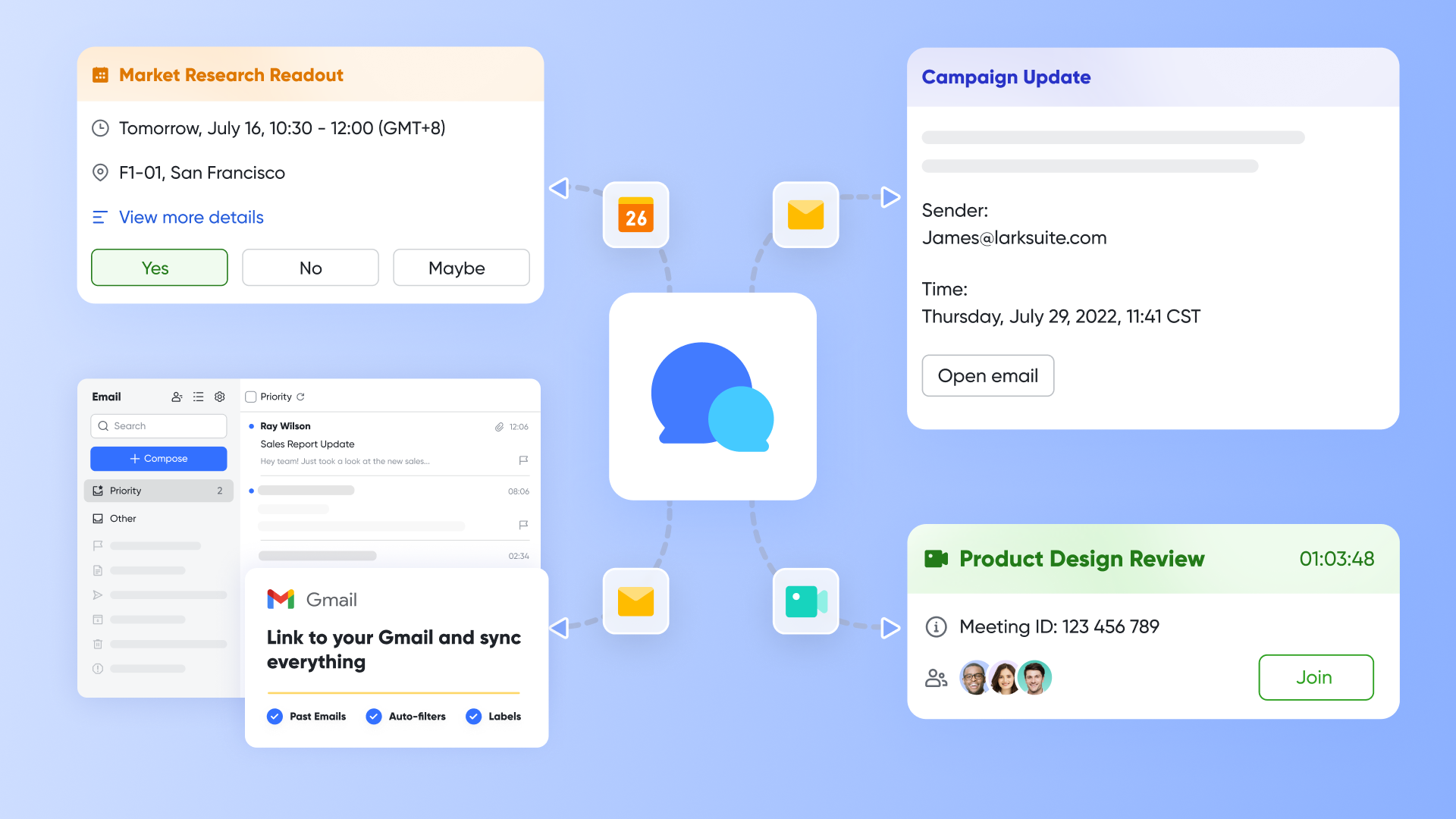
Now, beyond eliminating the need to add an external calendar, Lark unlocks a new level of productivity by deeply integrating your schedule with the rest of your work.
From a static schedule to a living workspace
When you create a meeting in Lark Calendar with multiple attendees, a Lark Messenger group chat can be automatically created for that specific event. This instantly provides a dedicated digital space to share an agenda created in Lark Docs, discuss talking points, or run a quick poll to gather feedback before the call even begins. Suddenly, all the pre-meeting chaos has a logical home, directly linked to the event on your calendar. You'll never have to search through old email chains for that one crucial attachment again.
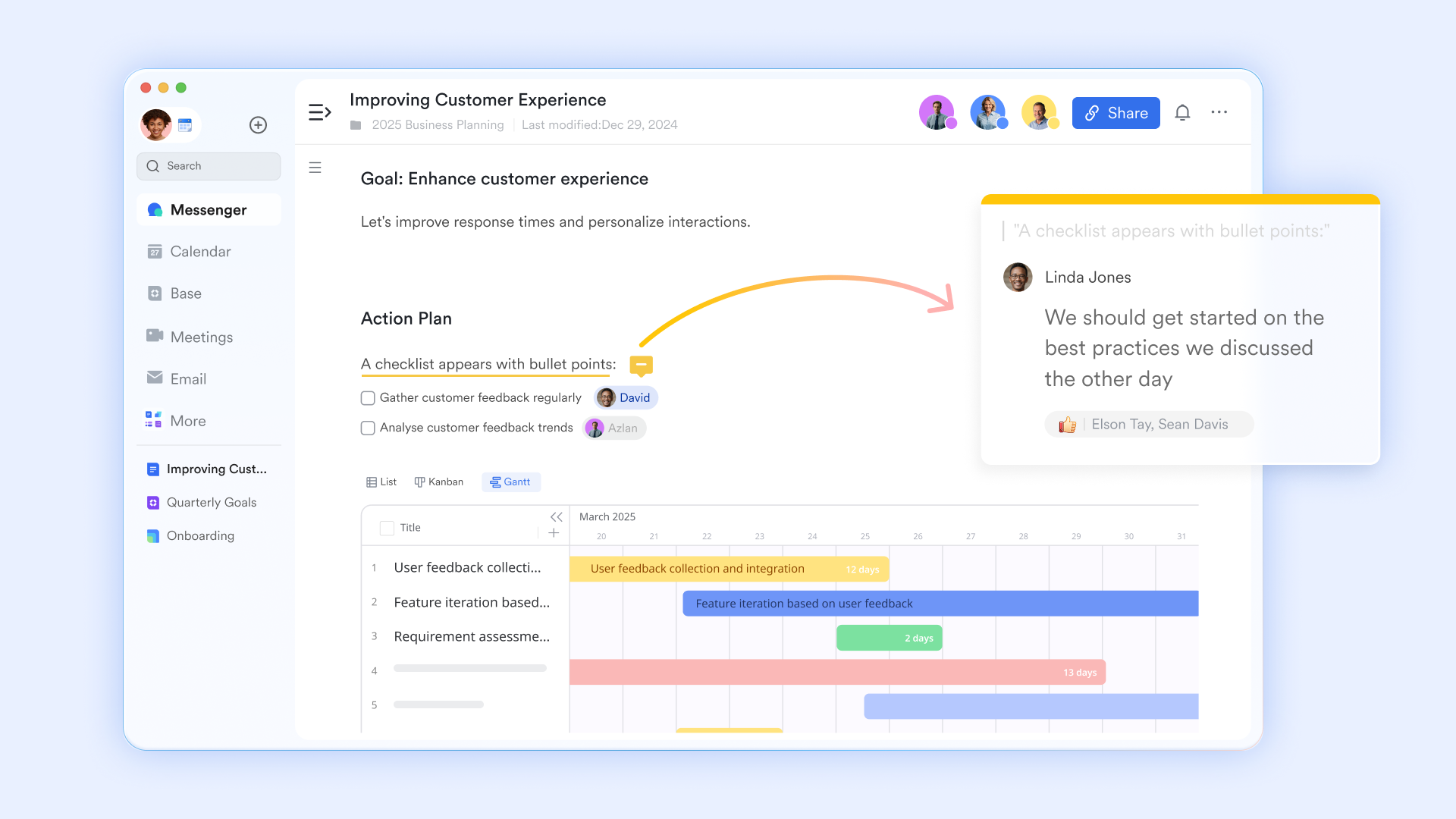
Run meetings that actually move work forward
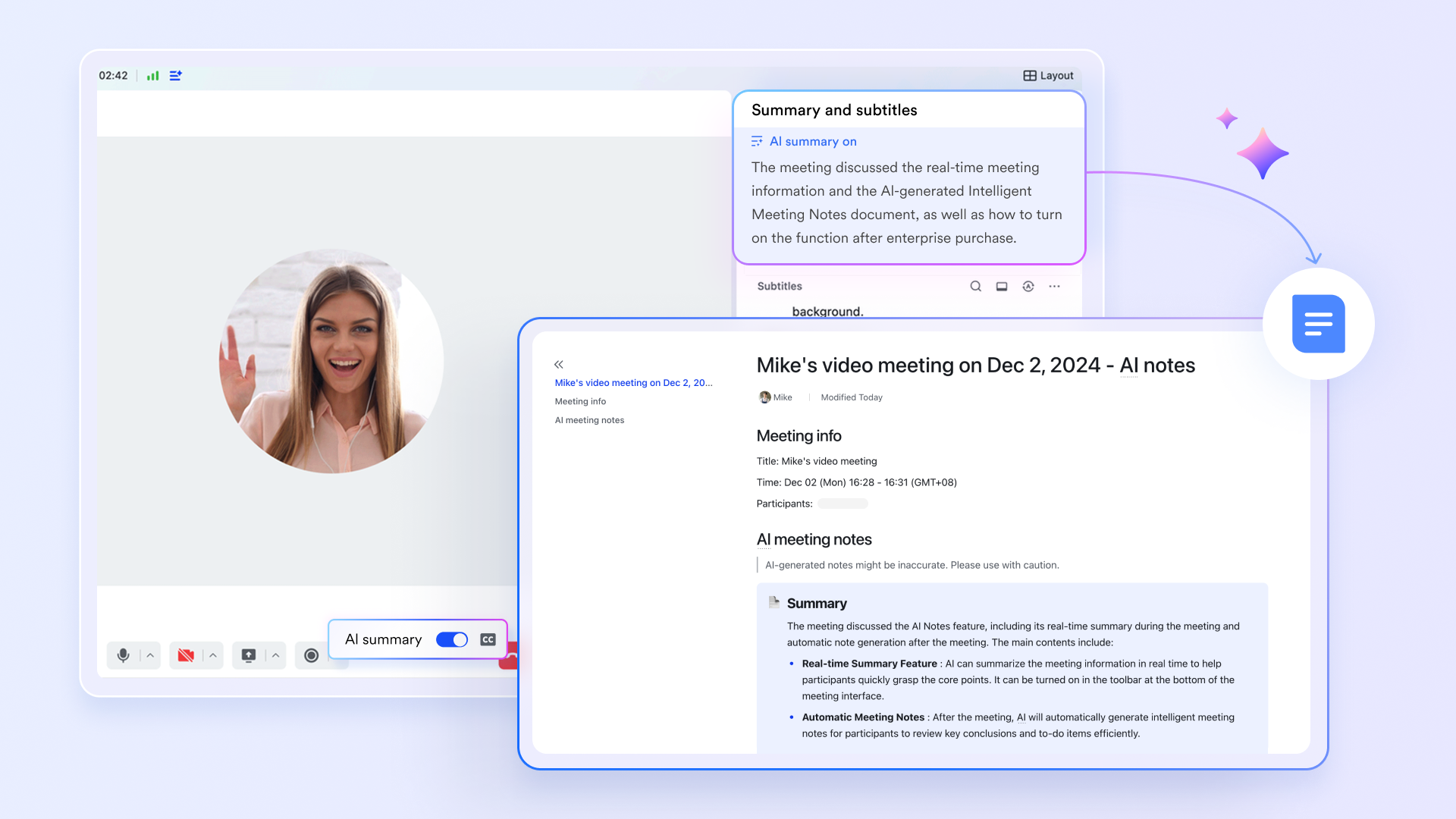
The combination continues when the meeting begins. With a single click, you can launch a video conference directly from the calendar event. This is where the real transformation happens, thanks to Lark's AI Meeting Notes. As you and your team discuss, the AI automatically transcribes the entire conversation in real-time. It can even generate a concise summary, identify key decisions made, and extract a clear list of action items.
Transform your calendar into a knowledge base
After the meeting concludes, that AI-generated summary and list of actionable items are automatically attached back to the original calendar event. Imagine returning to an event from three weeks ago and finding a full transcript, a perfect summary, and a checklist of who was assigned to do what, all waiting for you. This transforms your calendar from a historical record of where you were into a searchable, intelligent knowledge base of what you and your team decided. It helps you manage tasks and track progress, all from a single, unified interface.
🌟 Learn more about Lark's pricing:
As an all-in-one solution, you don't need to use two distinct apps and get lost in the information silos. Lark includes all these apps in every plan, even the free plan:
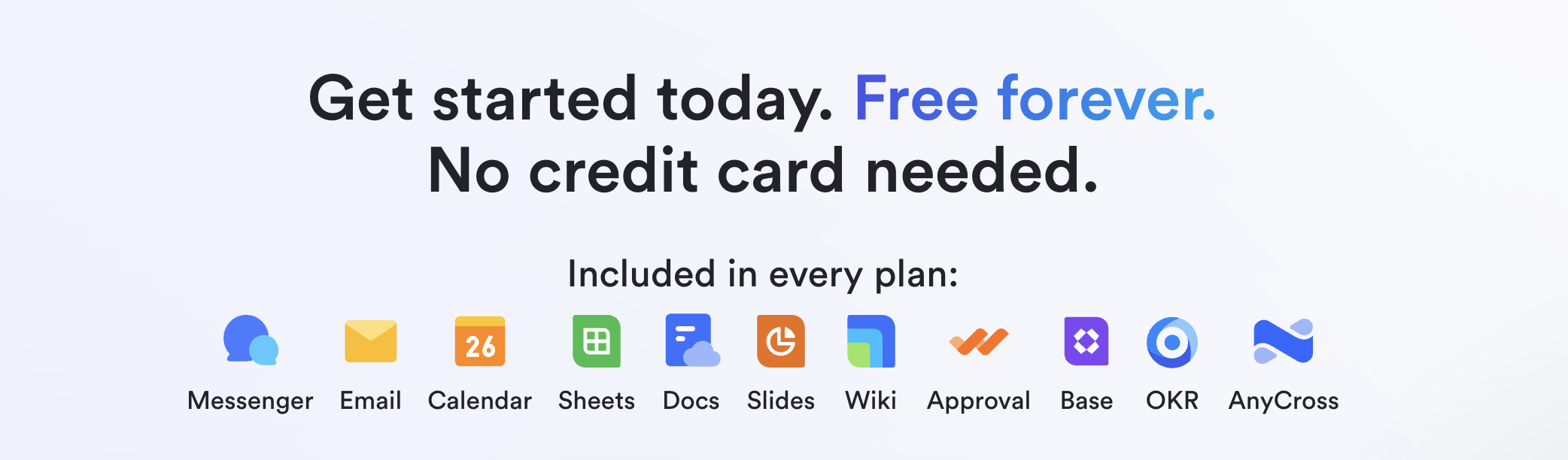
- Free plan: Includes 11 powerful products, supporting up to 20 users, 100 GB storage, 1,000 automation runs and unlimited AI translation in chats, docs and email.
- Paid plans: The most popular pricing plan is $12/user/month, supporting up to 500 users. Includes unlimited message history, 50,000 automated Base workflow executions per month. A closer look at Google Workspace pricing and ClickUp pricing can help businesses determine whether the platform fits their budget.
- Enterprise plan: Custom pricing.
Conclusion
We have navigated the entire journey together—from the initial, hopeful attempt to create a simple, read-only view of your Outlook calendar to Google, to a deep understanding of the profound limitations of that approach. While it is technically possible to stitch your two calendars together using iCal links, you are ultimately left with a system that is slow, disconnected, and fundamentally incomplete. It solves the superficial problem of viewing but ignores the larger ecosystem of work that surrounds every single event on your schedule.
The future of productivity is not about finding ever more clever ways to sync disparate apps. It's about eliminating the need for syncing in the first place. It is about having a single, cohesive platform where your schedule, your emails, your conversations, your ideas, and your action items all live together in perfect, seamless harmony. It’s time to stop just managing time blocks on a screen. It's time to start turning your schedule into a catalyst for tangible progress. Ready to see what a truly connected and real time calendar can do for you? Discover how Lark can become the command center for your entire workday.
FAQs
How to sync Google with Outlook?
Yes, you can sync your Google Calendar to appear in Outlook. In your Google Calendar settings, find the "Secret address in iCal format" for the calendar you want to share and copy this private link. Then, in the desktop version of Outlook, use the "Add Calendar from Internet" feature and paste the link. This creates a one-way, read-only view of your Google events inside Outlook.
Is it possible to link Google Calendar to Outlook?
Absolutely, it is possible to link Google Calendar to Outlook for viewing purposes. The most common method is by subscribing to your Google Calendar's private iCal feed from within the Outlook application. This allows you to see your Google events alongside your Outlook schedule. It's important to remember this "link" is a one-way, read-only connection, not a true bi-directional sync for editing events.
Can you add a Microsoft account to Google Calendar?
While you can't add a full Microsoft account directly to the Google Calendar web interface, you can add its calendar. The process involves publishing your Outlook calendar to get a private ICS link, as detailed in this guide. You then subscribe to this link within Google Calendar, which effectively adds and displays your Microsoft account's calendar events alongside your Google ones.
Can I sync an Outlook email to Gmail?
Yes, you can sync your Outlook email with your Gmail account, a feature often called Gmailify. Within your Gmail settings on the web, you can choose to "Add a mail account" and link your Outlook.com address. This allows you to read, reply, and organize your Outlook emails directly from the Gmail interface, providing a unified inbox for all your messages.
Related reading
Table of contents
Start using Lark today

Manage all your work in one place
Boost team efficiency by 10x
Save up to 70% on software costs
Table of contents
Start using Lark today
Manage all your work in one place
Boost team efficiency by 10x
Save up to 70% on software costs
Keep reading



Lark recognized in 2023 Gartner® Collaborative Content Workspaces and Meeting Solutions reports
Lark, the global superapp for productivity, is delighted to announce it receives recognition in the Gartner's 2023 Innovation Insight for Collaborative Content Workspaces and Market Guide for Meeting Solutions.





2026 Lark Technologies Pte. Ltd.
Headquartered in Singapore with offices worldwide.






Explore: