Organizations depend on repeatable processes to keep work moving smoothly across departments. As these processes grow, many teams rely on automation tools to reduce manual tasks and improve accuracy. A Power Automate workflow helps users move information between apps, trigger actions, and manage routine steps with more consistency.
In this guide, we will deeply explain this product and its built-in workflow for you to have a clear picture of how modern workflow should be.
Optimize your everyday workflow with ease
What is a Power Automate workflow?
A Power Automate workflow is a sequence of actions that runs automatically when a specific event occurs. These flows help users reduce repetitive work, connect Microsoft apps, and manage approvals or data routing with consistency. The tool is designed for both technical and non-technical teams, offering a visual builder interface that simplifies the creation of automated sequences. Many organizations use Power Automate for document routing, notifications, updates to records, and approval flows. Power Automate workflows are commonly used for business processes that require predictable steps. For example, a may move through emails, document submissions, and approvals before reaching completion. The platform allows users to build these flows using triggers, actions, connectors, and conditions. For teams heavily invested in the Microsoft ecosystem, Power Automate becomes an important part of daily operations. However, teams often evaluate newer tools that reduce complexity and keep collaboration closer to the work.
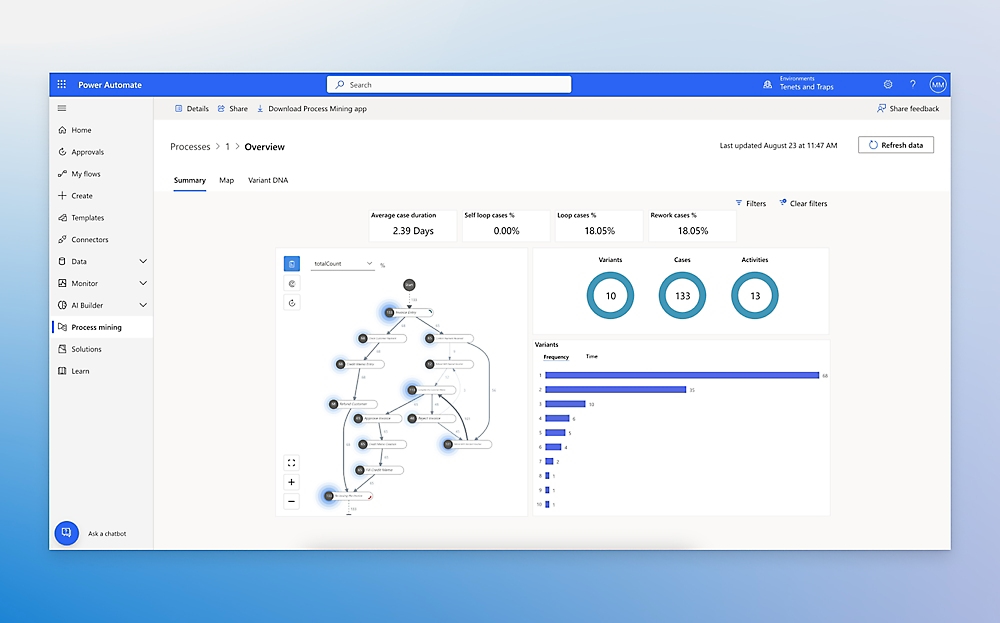
Image source: mircosoft.com
Understand the workflow inside Microsoft Power Automate
inside Microsoft Power Automate is built on a structured sequence of triggers, connectors, and actions. The system follows a clear flow pattern so processes can run without human intervention. Each step helps the workflow collect information, route tasks, or update systems. Below is a complete breakdown of how a Power Automate workflow operates from start to finish.
Step 1: Define the trigger that starts your workflow
Every Power Automate workflow begins with a starting point that activates the entire process. This starting point is called a trigger, and it determines exactly when automation will begin running. Triggers are based on system events, user actions, or scheduled times. For example:
- A new email arrives: New email triggers help workflows start immediately when messages meet certain conditions. Many teams use them to route requests, generate tasks, or store messages in SharePoint. These triggers are helpful for support teams that receive high volumes of incoming queries.
- A file is added to SharePoint: This trigger activates automatically when new files are uploaded to a SharePoint library. It is commonly used in the Power Automated document approval workflow where documents need to move across reviewers. Teams rely on it for structured document cycles.
- A response form is submitted: Form triggers are helpful for structured data collection. When a user submits a Microsoft Form, the workflow can update records, notify teams, or start Power Automate approval workflow steps.
- A scheduled time is reached: Scheduled triggers help teams automate recurring tasks. These can run hourly, daily, weekly, or monthly depending on business needs. They are often used for reporting or reminder workflows.
Step 2: Add connectors to link Microsoft and third-party apps
Connectors serve as bridges between Power Automate and other applications. They help workflows move information, update data, and perform coordinated tasks across different systems. Microsoft provides a wide selection of connectors to support both internal tools and external services.
Connectors let your workflow exchange data with:
- Outlook: Outlook connectors let workflows send or receive emails automatically. They are used for notification flows, reminders, ticket responses, or approval updates. Many basic workflow automation with Microsoft Power Automate tasks rely on this connector.
- Teams: Team connectors allow workflows to post messages, send alerts, and update channels. These connectors are popular for status notifications and quick approvals.
- SharePoint: SharePoint connectors are essential for the Power Automate users rely on. They help upload files, move documents, update metadata, or track version changes.
- Excel: Excel connectors help workflows read and update spreadsheet data. Many teams use this for reporting, data cleanup, or dynamic list updates.
- Dynamics 365: Dynamics connectors allow workflows to update CRM records, add notes, and manage customer data. Sales teams use these connectors heavily.
- OneDrive: OneDrive connectors help manage personal or team storage workflows. They are helpful for syncing files or personal document automation.
- 1,000 plus external apps: Power Automate supports a vast library of third-party services. Many of these require premium licenses, especially when connecting to business-level platforms.
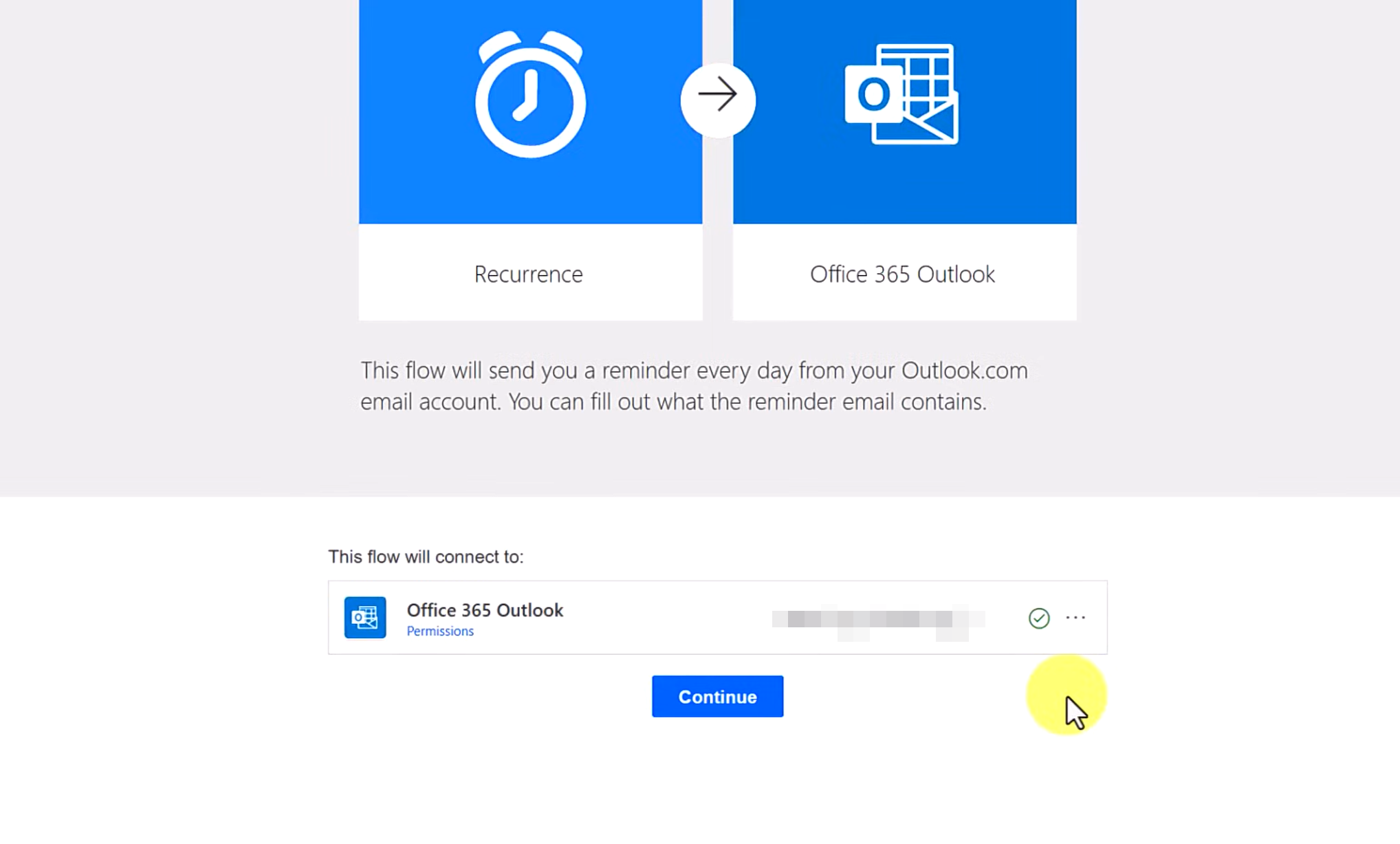
Image source: mircosoft.com
Step 3: Build the workflow steps using the visual designer
Once the trigger and connectors are defined, users begin designing the actions that make up the main workflow. Power Automate provides a visual builder where each action appears as a block in the flow. This format helps non-technical users understand the structure clearly. Actions include:
- Sending emails: Automating email notifications helps reduce manual communication. Workflows can send updates, reminders, summaries, or approval messages. This is widely used in Power Automated approval workflow setups.
- Updating records: Workflows can modify items across apps such as SharePoint lists, Excel sheets, or . This helps maintain consistency across data systems.
- Moving files: File actions allow Power Automate to shift documents across folders or libraries. This is especially important for Power Automated document approval workflow processes that require multiple review stages.
- Filling fields: Power Automate can populate fields in forms or records automatically. This saves time and avoids errors when working with structured data.
- Creating tasks: Task creation helps bring workflow outcomes directly to action items. Teams often use this for follow ups or reminders.
- Adding approvals: Approval actions build structured sign off processes. These actions are central to most document routing workflows.
- Branching into different logic paths: Branching helps workflows make decisions based on conditions. Teams can create complex flows that handle multiple scenarios.
Step 4: Add conditions, logic, and rules to control the flow
Conditions help workflows behave differently depending on the situation. Power Automate includes a variety of logic tools that help teams build dynamic processes that respond to data, user inputs, or system states. Logic tools include:
- IF or ELSE conditions: These conditions help workflows choose between different paths. They allow teams to run specific actions only when certain criteria are true.
- Parallel branches: Parallel branches allow multiple actions to run at the same time. This is helpful for processes that require simultaneous updates.
- Loops: Loop actions repeat steps until a condition is met. They are used when working with lists or multi item records.
- Filters: Filters help workflow narrow down data before processing. This improves performance and accuracy.
- Expressions: Expressions allow advanced calculations inside workflows. They support complex business rules and data transformations.
Step 5: Incorporate approval steps when needed
Approval workflows are one of the most common uses of Power Automate. They help route requests, collect responses, and track decisions in a structured way. Users can configure approvals at one or multiple levels depending on the requirement. Approvals can be:
- Sequential: Sequential approvals move one step at a time. Each approver receives the request after the previous person completes their review. This is often used for financial approvals.
- Parallel: Parallel approvals send requests to everyone at the same time. The workflow waits until all assigned reviewers respond.
- First to respond: This option completes as soon as the first approver replies. It is helpful for urgent or time-sensitive requests.
- Multi level: Multi-level setups route requests to different reviewers based on conditions. This is used in detailed Power Automated approval workflow setups.
Approvers can respond from Teams, Outlook, or the Power Automate mobile app.
Step 6: Include file handling for document workflows
Document-based workflows require clear routing, version management, and structured approvals. Power Automate supports file movement and metadata tracking to support these business needs. Document workflows usually involve: - Routing files through SharePoint libraries: SharePoint serves as the main storage location for most document approval workflow Power Automate setups. It handles permissions, folders, and version history.
- Notifying reviewers: Reviewers receive automatic alerts when files reach them. This helps reduce delays in approval cycles.
- Tracking version changes: Version history allows teams to compare edits and maintain control over documents. Power Automate updates metadata automatically.
- Updating metadata: Metadata fields help categorize documents, track progress, and store approval results.
- Storing final approved documents: Approved files usually move to a dedicated folder for archival or future reference. This is important for compliance.
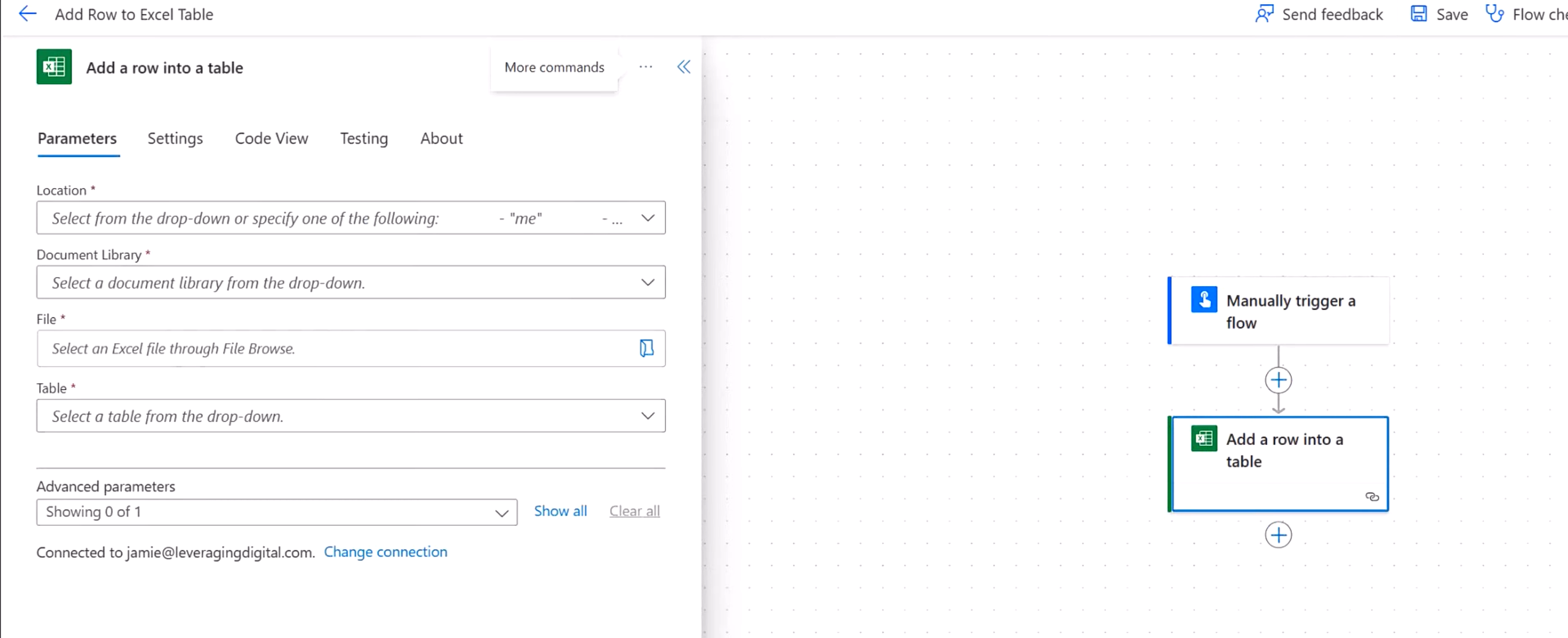
Image source: mircosoft.com
Step 7: Test, monitor, and maintain the workflow
Workflows often evolve as business needs change. Regular monitoring and updates help ensure flows run smoothly and continue delivering value.
Teams must:
- Test the workflow: Testing helps confirm that triggers and actions work as expected.
- Monitor run history: The run history dashboard provides logs for every execution.
- Review failures: Failed runs contain error messages that indicate issues with connectors or logic.
- Adjust logic when conditions change: Business rules change frequently, so workflows require periodic updates.
Complex workflows often require ongoing admin support.
Common know-how: Approval workflows in Power Automate
Approval processes form the foundation of many business workflows. Power Automate helps teams route documents, track user responses, and maintain centralized records. These approval flows depend heavily on SharePoint and Microsoft services. Approval workflows include:
- Routing files for review: Files move automatically from one reviewer to another. This keeps approval cycles standardized.
- Extracting metadata: Metadata helps categorize documents and determine the next step in the flow.
- Tracking edits: Edit tracking ensures accountability and visibility across the workflow.
- Versioning and SharePoint document libraries: Version management helps teams compare and store document changes over time.
Common challenges with Power Automate workflows
While Power Automate offers powerful automation capabilities, many organizations face practical challenges when scaling their workflows. These challenges often appear when processes become complex or when multiple connectors are involved. Challenges include:
- Technical complexity for non-technical users: Many users find it difficult to work with expressions, conditions, and branching logic because these features require technical understanding. This creates a learning curve that slows down adoption across teams.
- Need for connectors and licensing: Premium connectors increase overall cost and require additional licenses to access advanced integrations. Teams often rely on admins to manage permissions and connector availability.
- Error logs and troubleshooting: Failed runs often display technical error messages that are hard for non-technical users to interpret. This slows down issue resolution and may require help from IT teams.
- Workflow maintenance overhead: Business rules change frequently, so workflows must be updated, retested, and monitored to remain accurate. This ongoing maintenance adds operational workload over time, which is why some teams separate lightweight data syncing from full automation and use tools like the Data Connector for spreadsheet-based updates.
- Document storage dependency on SharePoint or OneDrive: Users must understand SharePoint structure, folder rules, and permissions to manage documents effectively. This adds complexity to document-heavy workflows.
Power Automate looks great until your workflows grow: flows break silently when a connector updates, debugging eats hours, and premium connectors or per-flow pricing suddenly inflate the bill. Many teams end up spending more time maintaining automation than they save. Lark eliminates these headaches by keeping forms, multi-level approvals, notifications, and data storage natively inside one platform. Keep scrolling and find out how Lark renews your workflow.
Improve your workflows with smart control
Meet Lark: A smart, unified platform with streamlined workflows
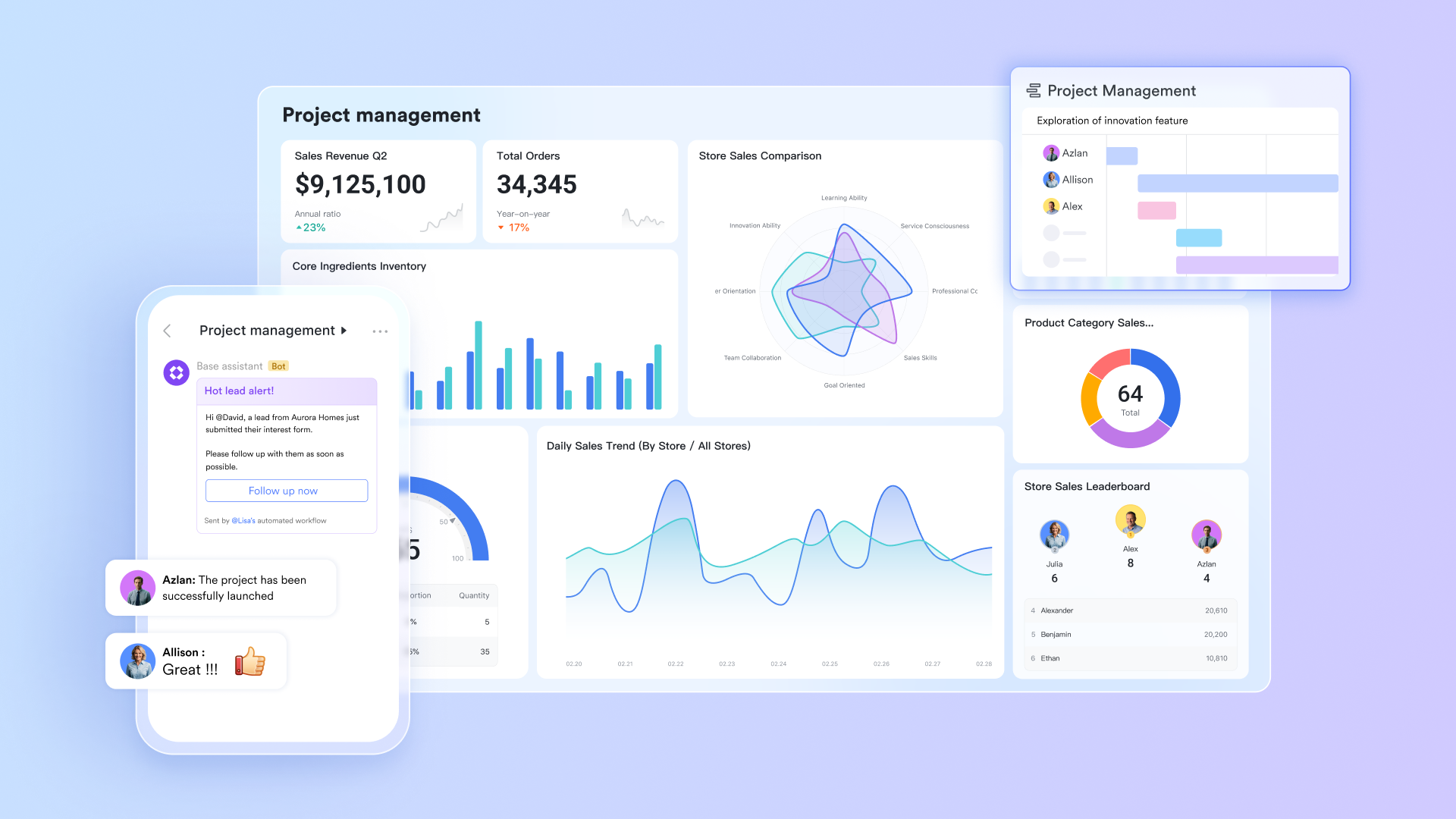
Teams often look for that simplify work, reduce setup effort, and keep collaboration closer to the process. offers a unified workspace where documents, chat, tasks, and workflow tools work together naturally. Instead of managing multiple systems, teams can that stay connected to daily communication and project activity.
Conditional logic through if or else and switch branches
Workflow in Lark Base allows teams to add powerful decision logic to workflows using If/Else and Switch branches. These branches analyze incoming data and automatically direct the workflow down the correct path, ensuring the right steps happen at the right time. For example, a sales lead can automatically route to a department head if the status is updated, or a request can skip specific steps based on region, priority, or project type. This conditional capability makes workflows responsive, intelligent, and adaptable to real business rules. 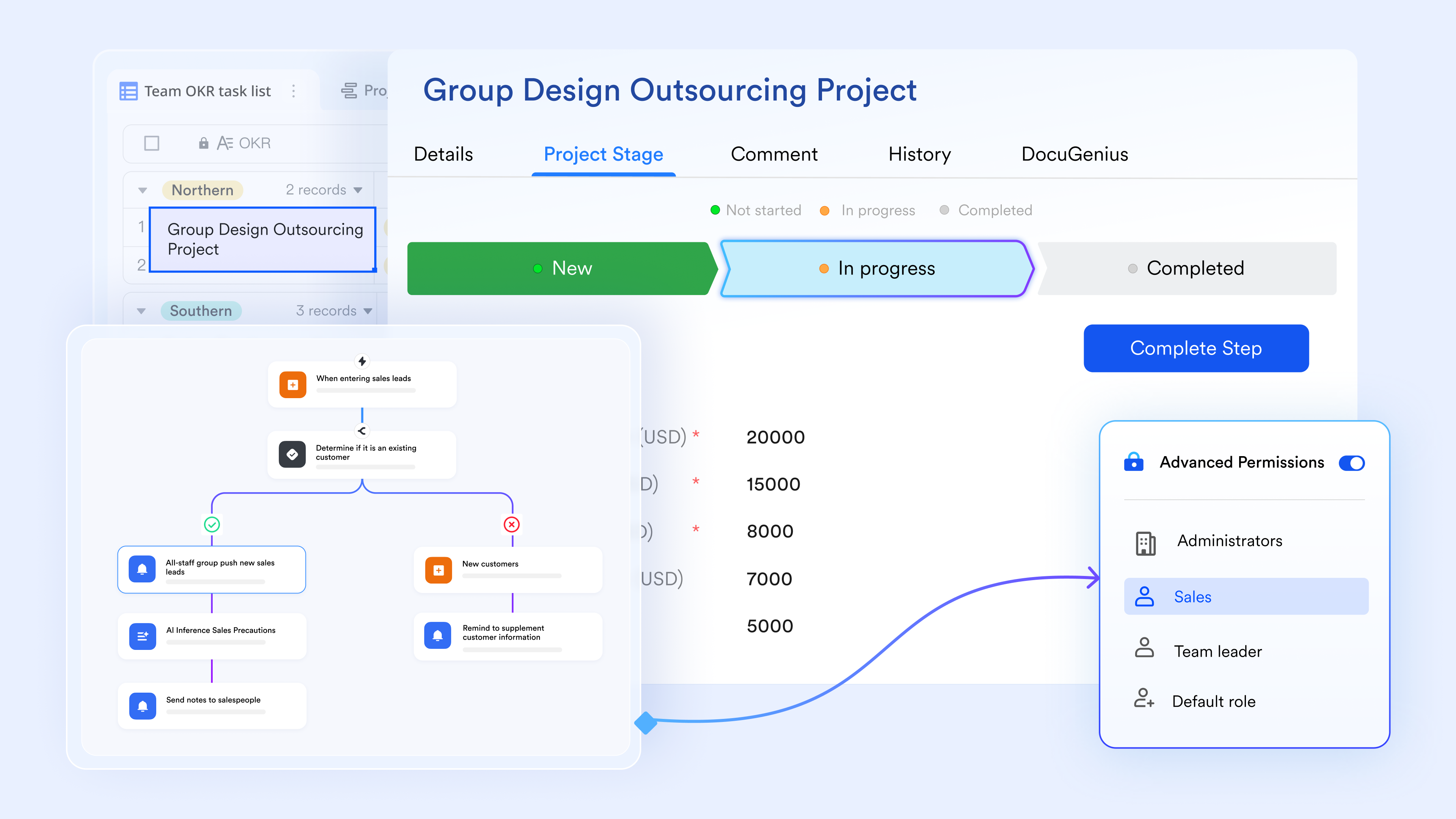
Flexible, reusable nodes that can be duplicated or rearranged
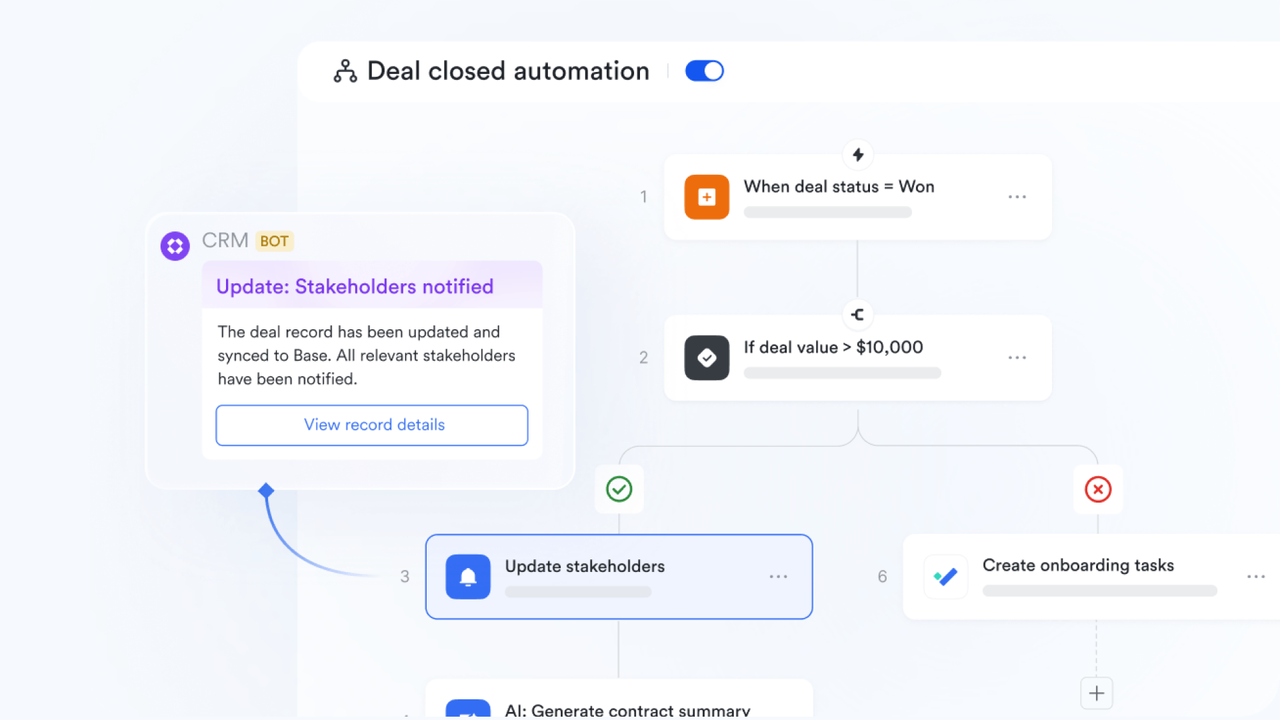
Inside , nodes are fully movable, allowing teams to rearrange steps with drag-and-drop ease. When building new workflows, users can duplicate existing nodes, saving time and ensuring consistency across processes. This flexibility is especially valuable for teams with recurring workflows such as purchase , onboarding flows, or recurring quality checks. Instead of recreating logic from scratch, teams can replicate patterns and adapt them quickly, increasing efficiency and reducing build time.
Formula support for advanced data handling and workflow logic
Lark Base includes formula capabilities that let teams compute values, check conditions, and enrich workflow logic. Formulas can pull information from base records, calculate totals, categorize data, or validate entries before the workflow proceeds. This enables workflows to make informed decisions automatically, such as calculating reimbursement amounts, determining priority levels, or checking if a request meets compliance thresholds. It transforms simple workflows into dynamic systems that respond intelligently to data. 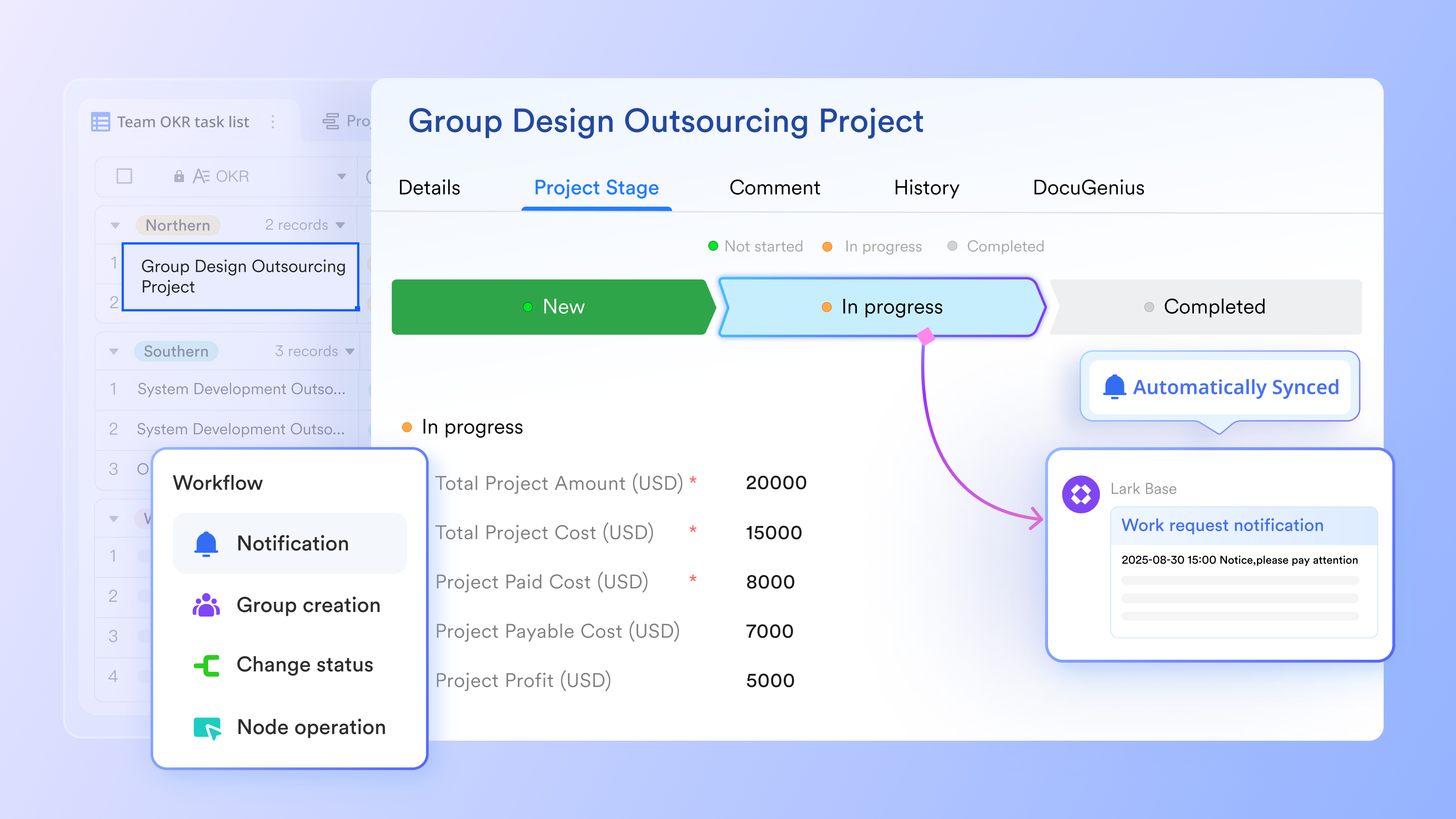
Instant & seamless communication for daily workflow
and streamline communication and teamwork across daily workflows. Messenger supports rich text, mentions, emojis, and easy file sharing, keeping conversations clear and efficient. You can share documents in chats, adjust permissions, and receive notifications for comments and likes to keep feedback timely. In meetings, the Magic Share feature enables everyone to view and co-edit the same file. You can also schedule meetings directly from chats by checking teammates' availability. 
Collaborative document & a centralised knowledge hub
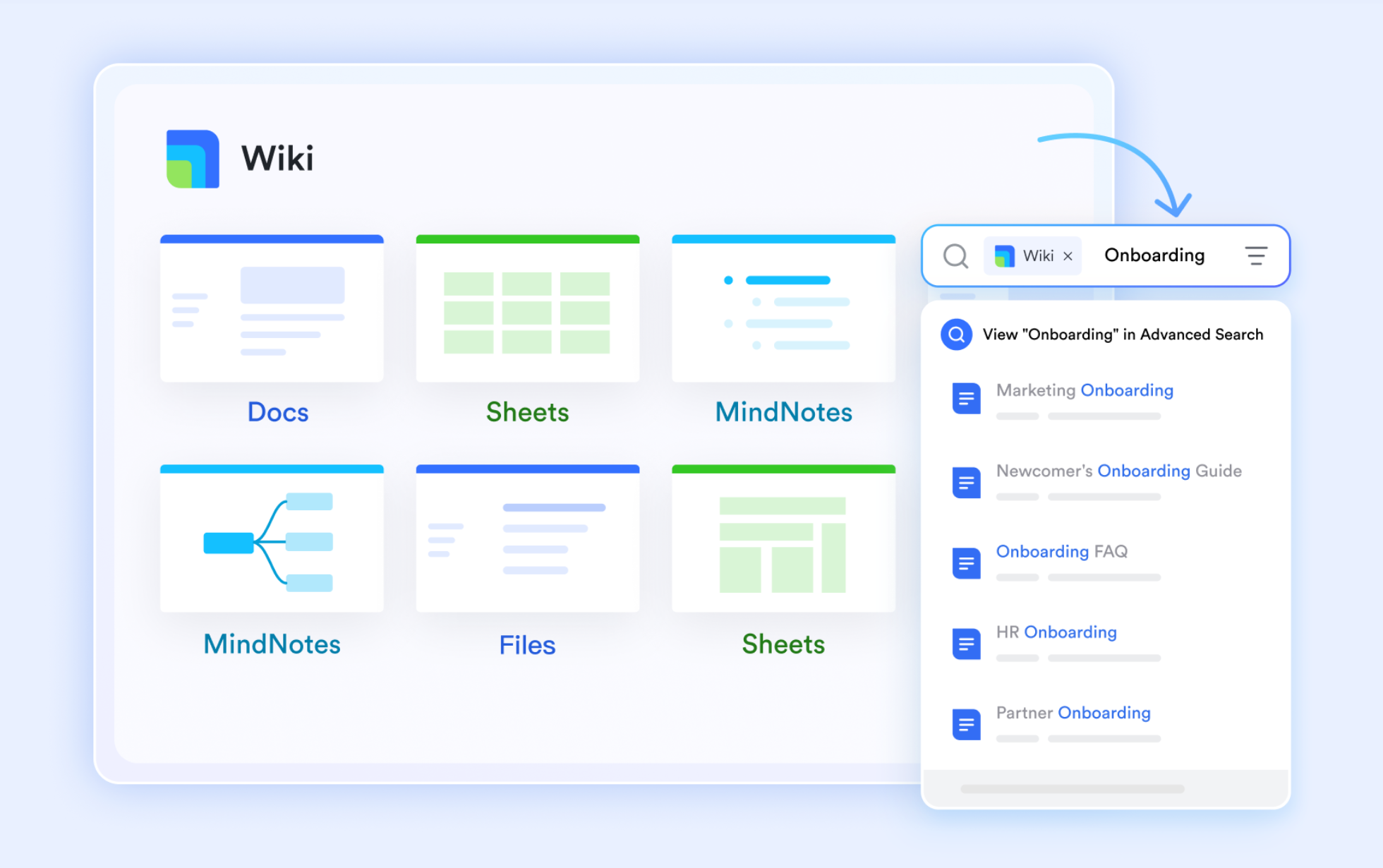
As an information hub, Lark also provides a productive solution for documents. lets you create workflow documentation, share it with teammates, and coordinate progress in one place. Team members can comment, provide feedback, and mention others to keep responses clear and timely. helps organize complex documents for easy search and reference, ensuring important information stays accessible. Wiki pages also support comments, enabling collaborative discussions directly on the documentation.
:
- Starter plan: Free forever plan that includes 11 powerful tools for up to 20 users. It also comes with 100GB of storage, 1000 automation runs, AI translations, and more.
- Pro plan: $12/user/month (billed annually) for up to 500 users. It includes everything in Starter plus group calling for up to 500 attendees, 15TB of storage, 50,000 automation runs, and more.
- Enterprise plan: for custom pricing. Supports unlimited users and includes even more automation runs and advanced security, compliance, and management features.
For small teams with simple communication needs

18 months message history
1000 Base automation runs/month
2000 rows per table in Base
Most POPULAR
For companies with comprehensive collaboration and management needs
Unlimited message history
500-participant video meetings
50k Base automation runs/month
20k rows per table in Base
For large companies with advanced security and organizational management needs
Get a personalized demo and pricing
Unlimited message history
500-participant video meetings
15 TB storage + 30 GB storage/user
500k Base automation runs/month
50k Base automation runs/month
Most POPULAR
For companies with comprehensive collaboration and management needs
Unlimited message history
500-participant video meetings
50k Base automation runs/month
20k rows per table in Base
Choose your tool: Power Automate vs Lark
Power Automate and Lark both provide robust workflow automation, but they follow very different philosophies. Here's a clear side-by-side comparison of how the two really stack up for everyday workflow automation:
Conclusion
A Power Automate document approval workflow helps teams manage reviews, track decisions, and route files through predictable steps. For organizations that already rely on Microsoft tools, these workflows offer a structured way to reduce manual tasks and keep documents organized across SharePoint and other connected apps. As processes expand, teams often spend more time managing connectors, licenses, and ongoing updates to maintain accuracy. This leads many organizations to look for options that simplify collaboration and reduce the number of systems involved.
enters the conversation gradually for teams wanting a more unified workspace where chat, documents, and automation stay closer together. By bringing communication and workflow tools into a single environment, teams can design processes with greater clarity and adjust them more easily as needs change. Choosing the right platform helps organizations scale their with more confidence and consistency.
Discover solutions that streamline processes
FAQs
Does Power Automate require coding skills?
Power Automate does not require coding for basic workflows, but more advanced flows often need expressions or detailed logic that can feel technical for beginners. Many users rely on templates to get started before adding more complex steps. As teams scale, some look for tools like Lark that keep setup more visual and easier to adjust. This helps reduce the learning curve for non-technical users.
Is Power Automate included in Microsoft 365 plans?
Many plans offer access to standard Power Automate features, although premium connectors require extra licensing. Organizations usually review plan details to understand what is included before building large scale workflows. Some teams explore alternatives like Lark when they want predictable pricing and built-in automation features without add ons. This gives them more clarity as workflows grow.
Can Power Automate run workflows across non-Microsoft apps?
Power Automate connects to more than a thousand external apps, making it useful for cross platform automation. Some connectors require additional licenses, which adds complexity for teams that rely on many third party tools. When teams want simpler integration without connector limits, they sometimes consider platforms like Lark that keep data, messages, and workflows in one workspace. This helps reduce dependency on external app connectors.
How secure are Power Automate workflows?
Power Automate follows and supports encryption, permissions, and compliance controls. Admins can regulate who builds, edits, or runs flows to maintain governance. Organizations that want unified security across documents, communication, and automation in a single environment sometimes explore Lark for its consolidated workspace model. This can help reduce fragmentation across tools.
Does Power Automate support mobile workflow approvals?
Power Automate supports approvals through its mobile app, Teams mobile, and Outlook mobile, allowing users to take action on the go. Mobile access improves response times and keeps workflows moving even when users are away from their desks. Some teams prefer tools like Lark that bring chat, tasks, documents, and approvals into one mobile interface. This helps users manage everything from a single app with fewer switches.
Related reading