














Project Management Process Map: Streamline Workflows with Best Tools

Ryan Tanner
Product Marketing Specialist
Sep 18, 2026
Ryan Tanner
Sep 18, 2026

22 min read


Many organisations face challenges with unclear workflows, communication gaps, and inconsistent project outcomes. A project management process map helps teams visualise how work flows across different stages, improving alignment, transparency, and efficiency. By outlining each step and responsibility, it enables better collaboration and reduces bottlenecks in execution.
This guide explains what a project management process map is, why it's important, and how to create one effectively. It also explores top tools that simplify the mapping process to help teams connect their workflows, documents, and communication in one unified space. Here is the list of tools for creating a project management process map:
- Lark for all-in-one process mapping, collaboration, and automation.
- Miro for visual brainstorming and real-time workflow mapping.
- Lucidchart for professional and structured process diagrams.
- Microsoft Visio for enterprise-grade process documentation.
- Draw.io for quick and free process mapping online.
- Teamwork for mapping workflows alongside task and time tracking.
- Gliffy for simple and fast flowchart creation.
- Canva whiteboard for creative and presentation-style process maps.
- Notion for combining documentation and workflow visualisation.
- ClickUp for process mapping integrated with task management and automation.

What is a project management process map
A project management process map is a visual representation of how tasks, decisions, and responsibilities flow within a project from start to finish. It outlines each step, showing who is responsible and how different activities connect, helping teams understand the overall workflow. Unlike Gantt charts or project roadmaps that focus on timelines, a process map emphasises how work moves between people and departments. Common types include linear maps, cross-functional or swimlane diagrams, hierarchical maps, and detailed process charts.
Using a project management process map helps teams clarify roles, reduce confusion, and identify inefficiencies that slow progress. It brings structure, transparency, and accountability to project execution, making collaboration smoother and results more consistent. By visualizing the entire workflow, teams can standardize processes, improve communication, and ensure each stage of the project contributes effectively to overall goals.
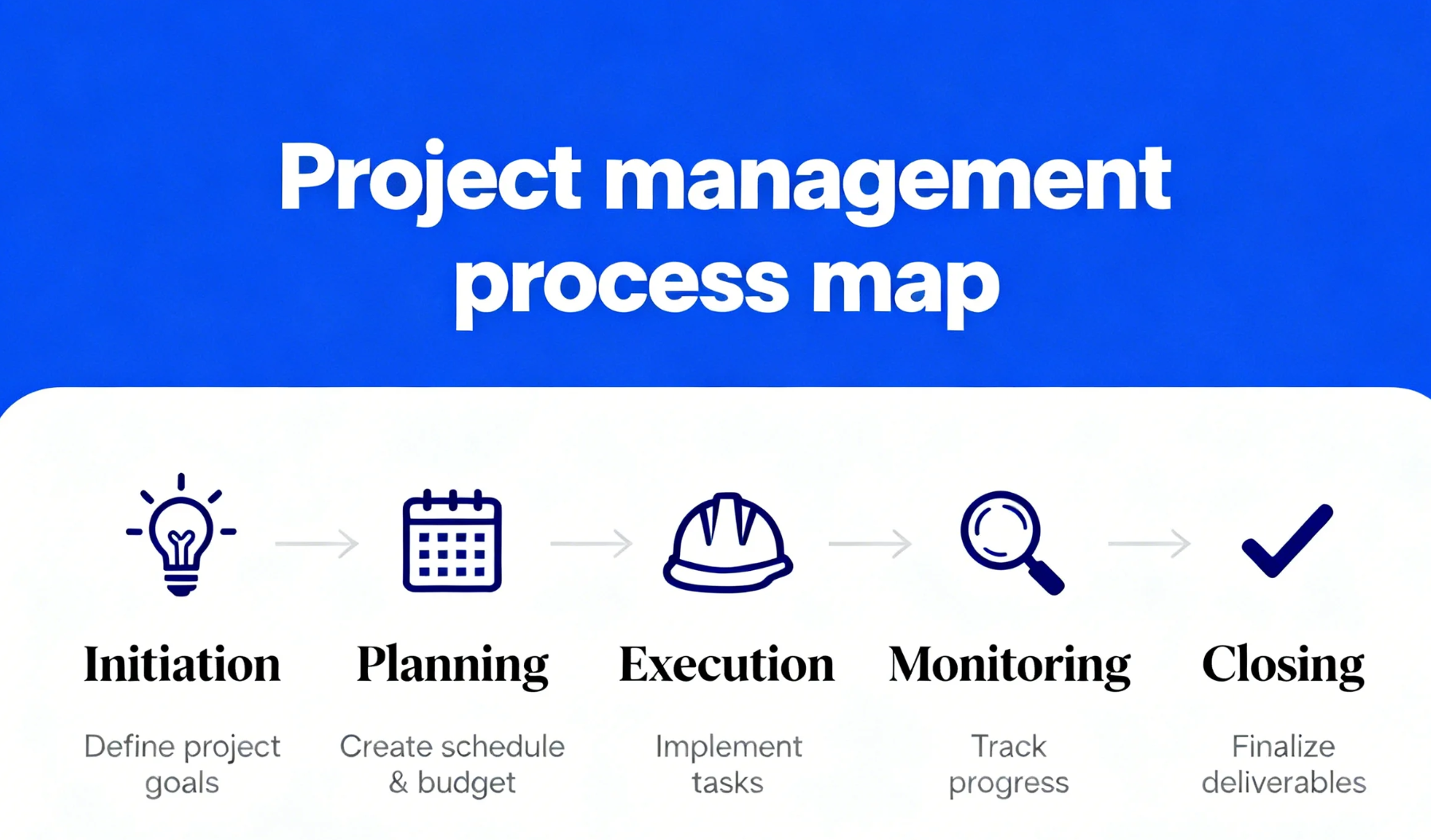
Image source: unsplash.com
How to create a project management process map
Creating a project management process map is a strategic exercise that helps teams visualize how work actually flows. It's not just about drawing steps but understanding dependencies, roles, and decisions that shape outcomes. By following a structured approach, you can design a process map that improves efficiency, reduces confusion, and aligns everyone toward a common goal.
Step 1. Define the purpose and scope: Start by clarifying why you are creating the process map and what you want to achieve. Define which part of the project or workflow you're focusing on and set clear objectives for improvement. This ensures your process map stays relevant and actionable.
Step 2. Gather information: Collect data from team members, documents, and observations to understand how the process currently works. This helps capture real-world insights instead of assumptions, ensuring your map reflects actual operations.
Step 3. Identify key steps and decision points: List each task, approval, and decision that occurs during the process. Assign responsibilities to specific roles or departments to show accountability and make handoffs between stages clearer.
Step 4. Draw the initial map: Use a whiteboard or a digital tool to visualise the process. Begin with the main stages and add sub-steps, connections, and decision points to show how work flows from one phase to another.
Step 5. Validate with stakeholders: Share your draft with team members and stakeholders for feedback. This step ensures that all perspectives are considered and that your process map accurately represents how the project operates.
Step 6. Analyse and improve: Review the map to identify bottlenecks, redundant steps, or unclear transitions. Simplify wherever possible and explore opportunities for automation to increase efficiency.
Step 7. Implement and communicate: Publish the final version and make it accessible to the entire team. Conduct brief sessions to explain the process map so everyone understands their roles and how tasks connect.
Step 8. Update regularly: Revisit your process map periodically to keep it accurate. As projects evolve, update steps, responsibilities, or tools to ensure the process remains efficient and relevant.
Brief preview of the tools for project management process maps
Top tools for project management process maps
Lark: For all-in-one process mapping, collaboration, and automation
Lark is an all-in-one collaboration and productivity suite that combines process mapping, workflow automation, and team communication into a single connected platform. It eliminates the need to switch between multiple apps by combining tools like Lark Docs, Lark Base, and Flow, enabling teams to create, manage, and optimize processes from start to finish. With everything centralised, Lark helps organisations enhance visibility, speed up execution, and improve collaboration across departments. Designed for hybrid and fast-moving teams, it ensures every stage of a project is transparent, efficient, and results-driven.
Key features:
Real-time document collaboration: Lark Docs enables teams to co-edit content in real time, making it easy to build, update, and share process documentation collaboratively. Teams can embed flowcharts, process maps, and visuals directly within documents to connect discussions with actionable follow-ups. Built-in commenting, version tracking, and mentions improve feedback cycles, ensuring teams stay aligned throughout the process.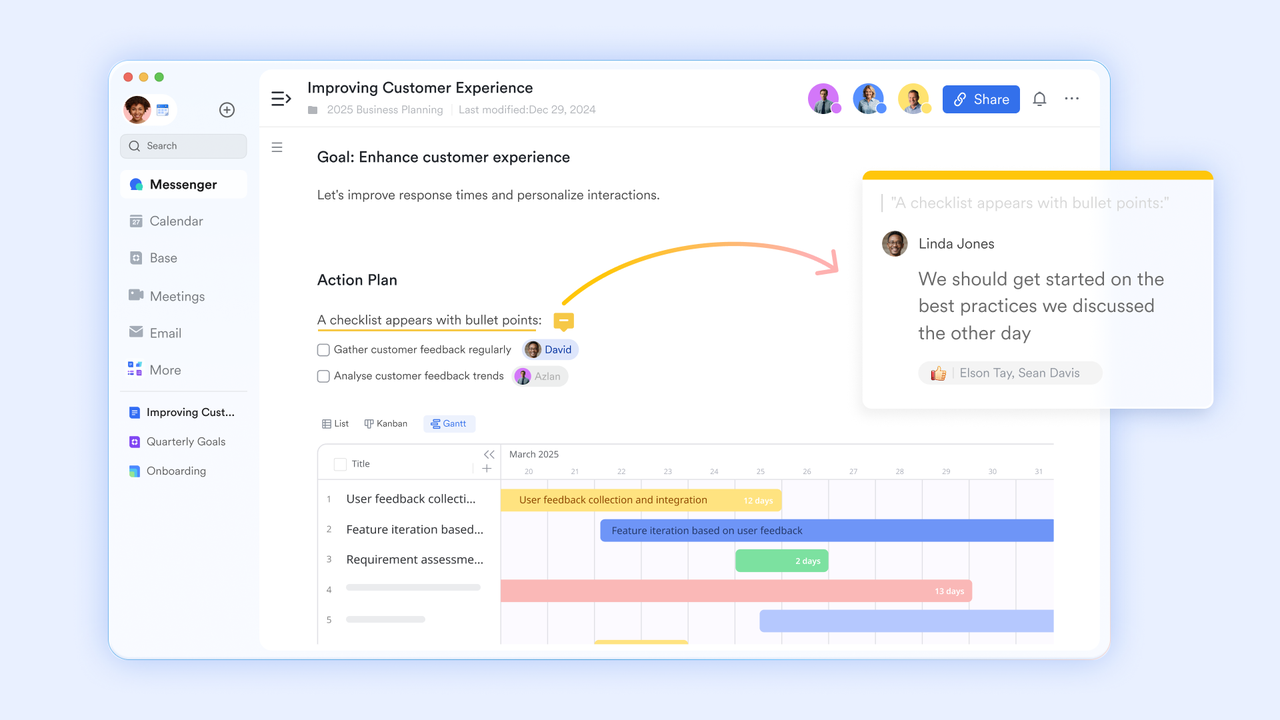
Workflow management with Lark Base: Lark Base functions as a powerful visual database and task-tracking system, helping teams organize complex workflows with clarity. Users can customize tables, link records, and switch between grid, kanban, or form views depending on project needs. By connecting Base with Lark Docs, teams can centralize project data, making progress tracking and decision-making effortless.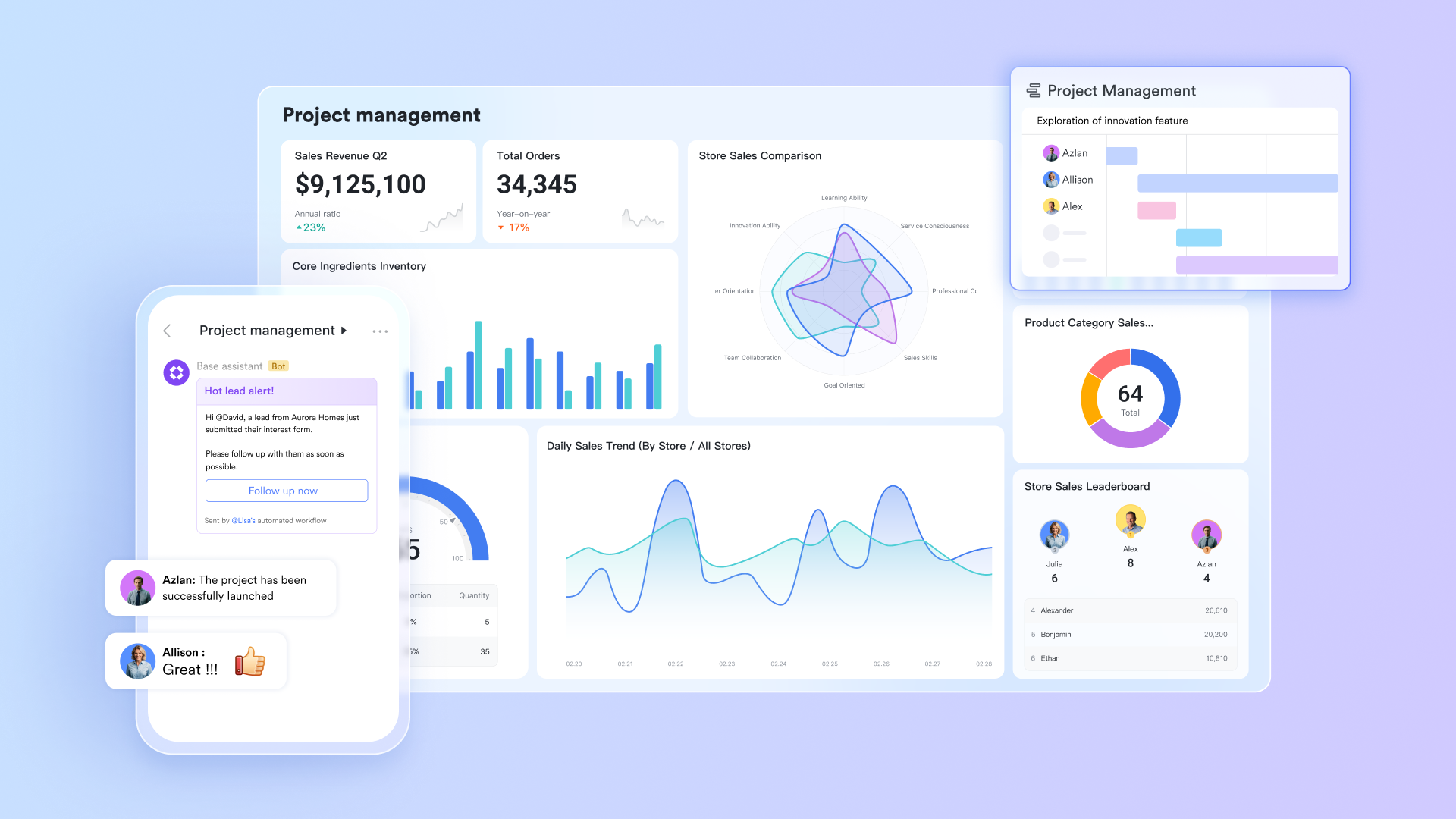
Process automation with Lark flow in Base: Lark flow automates repetitive tasks such as approvals, task assignments, notifications, and status updates. It allows teams to create automated workflow that trigger based on conditions, saving valuable time and reducing manual errors. The automation builder is visual and easy to use, enabling non-technical users to design efficient workflows that improve speed and productivity across departments.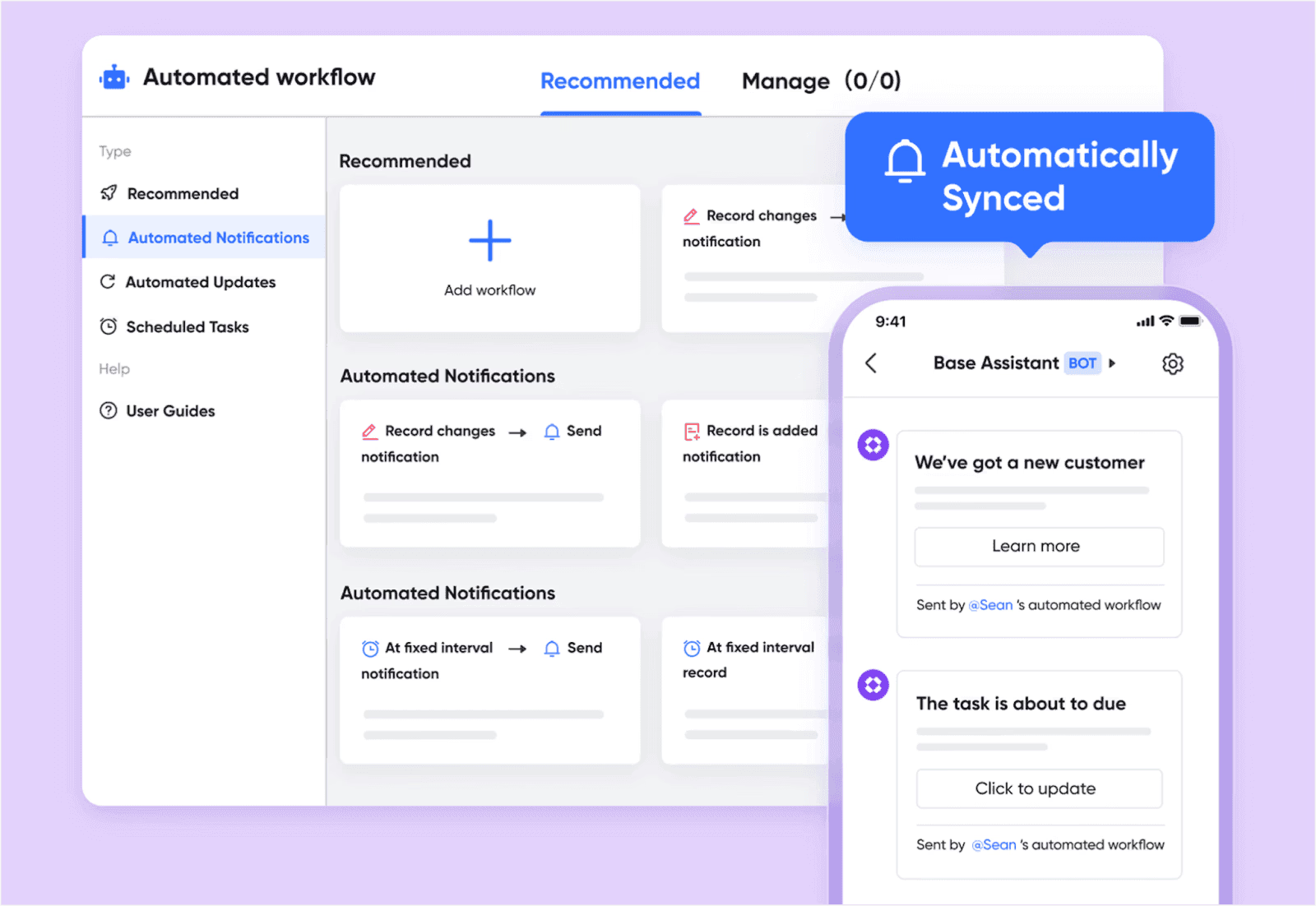
Collaborative communication tools: Lark Messenger enables real-time, seamless communication within and across teams through chat, file sharing, and in-message comments. Teams can stay aligned without switching project management tools. Messenger works alongside Lark’s video meetings, email, and calendar, so all communication happens in one place. Conversations can be linked to tasks, workflow items, or documents, allowing teams to move from discussion to action quickly. This helps reduce missed updates, speed up decisions, and maintain project momentum especially when working remotely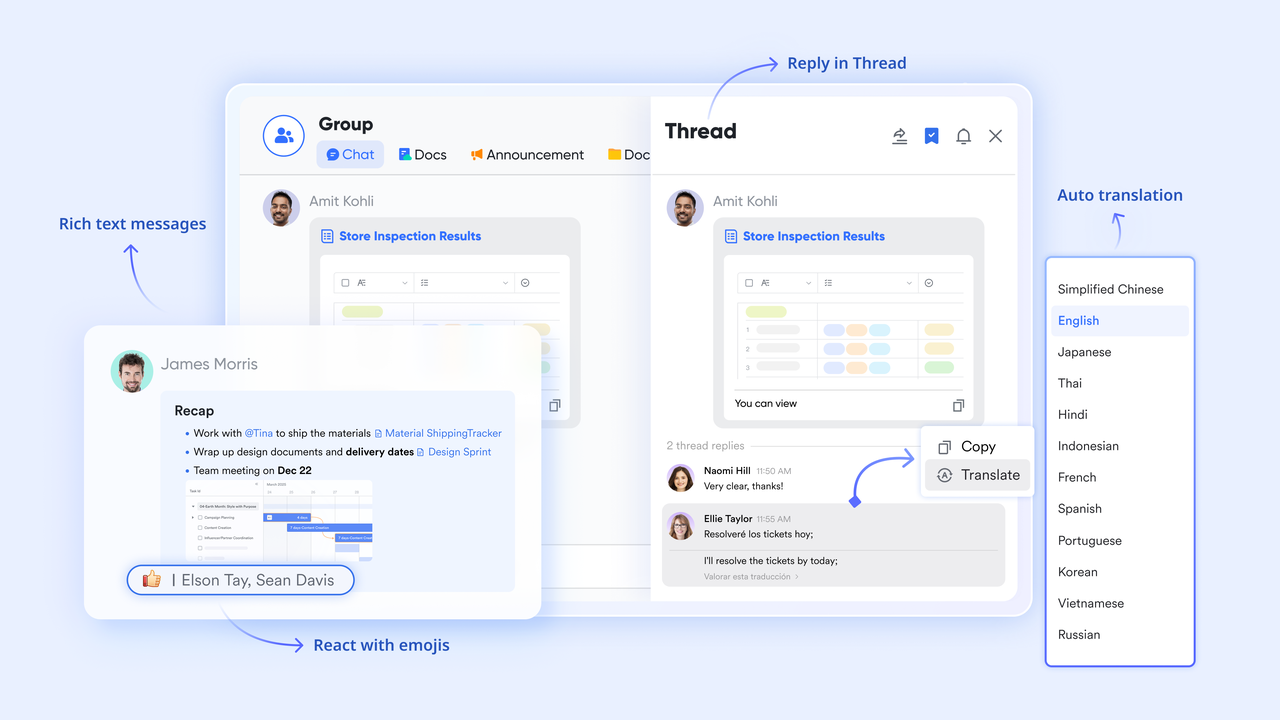
Secure collaboration and version control: Lark offers enterprise-grade security and permission management, giving teams full control over document access and sharing. Version control ensures that every edit or update is tracked, allowing users to view history and restore previous versions easily. With built-in compliance and data encryption, Lark ensures that sensitive project data remains secure and accessible only to authorised members.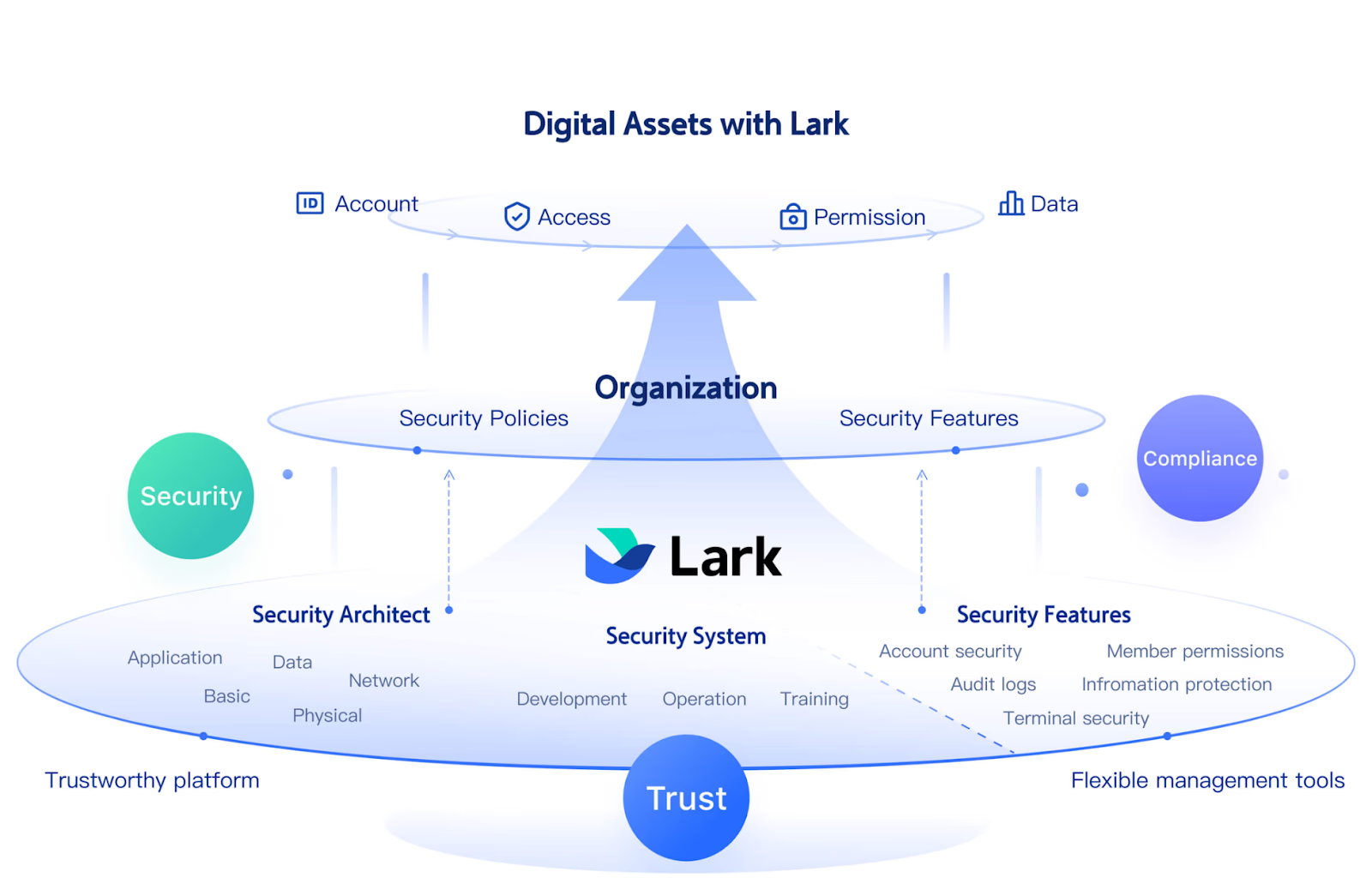
Best for: Lark is ideal for teams that want to bring all aspects of project management — from process mapping to automation and collaboration into one platform. It's best suited for organisations seeking efficiency, transparency, and connected workflows without juggling multiple tools. Whether for small teams or large enterprises, Lark helps projects move faster, smarter, and more cohesively.
- Starter plan: Free forever plan that includes 11 powerful tools for up to 20 users. It also comes with 100GB of storage, 1000 automation runs, AI translations, and more.
- Pro plan: $12/user/month (billed annually) for up to 500 users. It includes everything in Starter plus group calling for up to 500 attendees, 15TB of storage, 50,000 automation runs, and more.
- Enterprise plan: Contact sales for custom pricing. Supports unlimited users and includes even more automation runs and advanced security, compliance, and management features.
Miro: For visual brainstorming and real-time workflow mapping
Miro is a powerful visual collaboration platform that enables teams to brainstorm, plan, and create process maps together in real time. Its intuitive whiteboard interface helps visualise workflows, connect ideas, and drive clarity across projects. With templates, integrations, and easy accessibility, Miro supports both in-person and remote collaboration. It's ideal for teams that value creativity, flexibility, and visual organization in project planning.
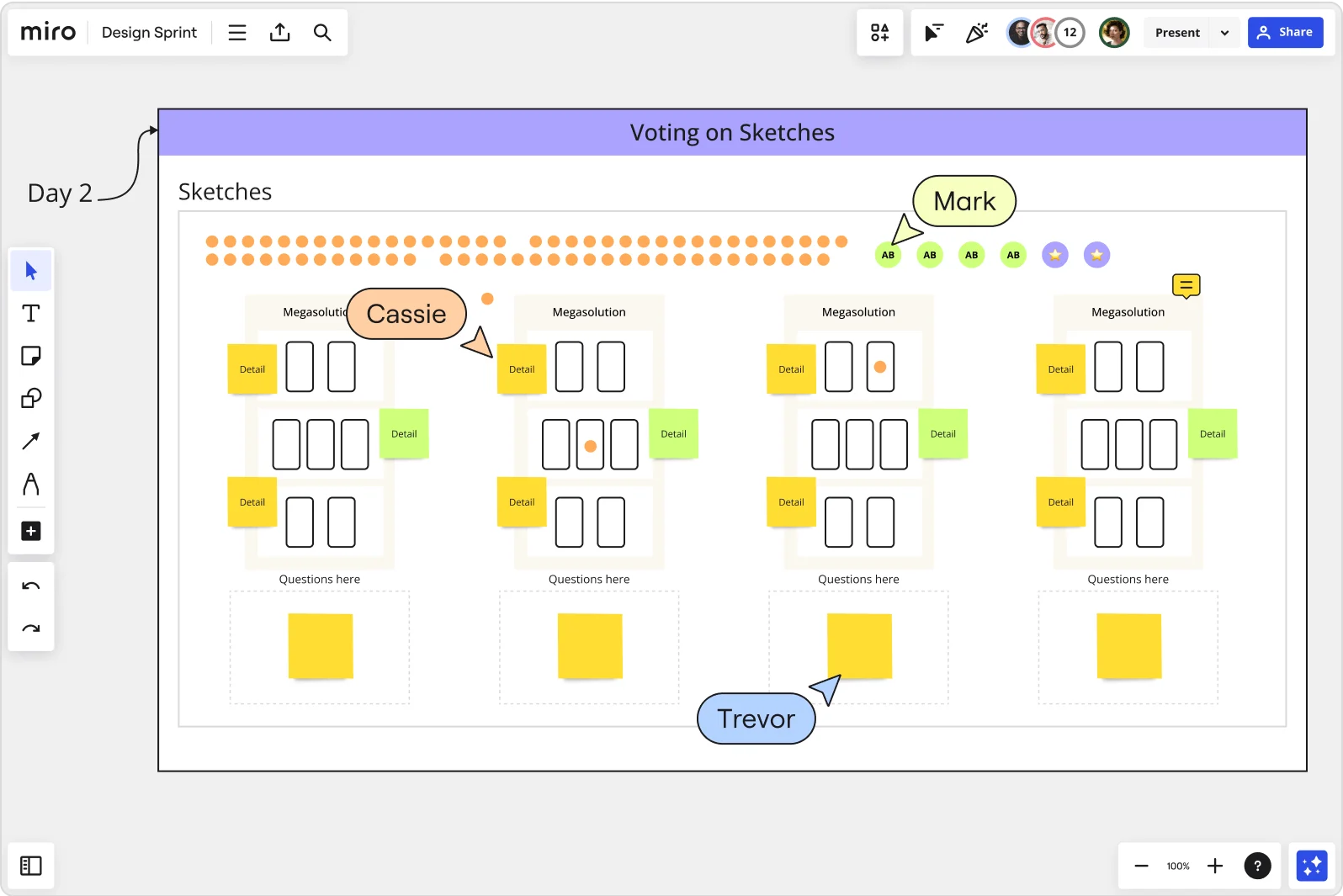
Image source: miro.com
Key features:
- Interactive online whiteboard: Allows multiple users to collaborate in real time, mapping workflows and brainstorming visually.
- Template library: Offers pre-designed templates for process mapping, agile workflows, and design thinking sessions.
- Real-time communication: Built-in video chat, comments, and sticky notes keep collaboration fast and engaging.
- Seamless integrations: Connects easily with tools like Slack, Jira, Asana, and Google Workspace.
- Cross-platform access: Works across desktop, tablet, and mobile for anytime, anywhere collaboration.
Best for: Miro is best for remote, hybrid, and creative teams that use visual methods to plan and manage workflows. It supports collaborative workshops, agile sprints, and process improvement sessions.
Pricing:
- Free plan: Up to 3 editable boards for individuals or small teams.
- Team plan: From ~$10 per user per month with unlimited boards.
- Business plan: From ~$20 per user per month with advanced collaboration and integration.
Lucidchart: For professional and structured process diagrams
Lucidchart is a leading diagramming and visualization tool designed to help teams create professional, data-driven process maps with ease. It enables users to visualize complex workflows, organizational structures, and project dependencies in a clear, structured format. With its drag-and-drop interface, real-time collaboration, and integration capabilities, Lucidchart is widely used by technical and enterprise teams. It's an excellent choice for those who need precision and scalability in their project management process mapping.
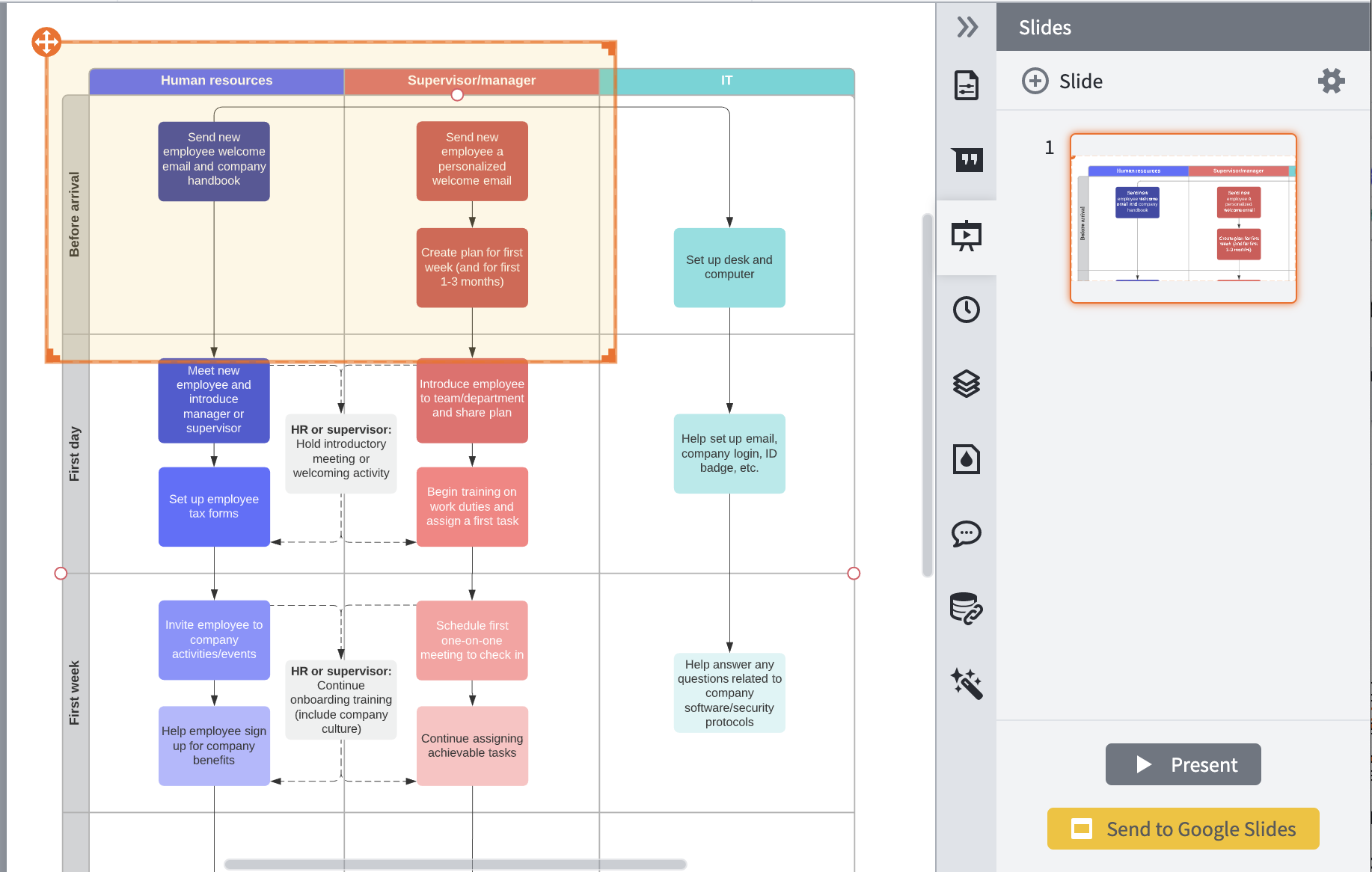
Image source: lucidchart.com
Key features:
- Professional diagramming interface: Offers a wide range of shapes and templates for flowcharts, process maps, and network diagrams.
- Data linking and visualization: Syncs diagrams with live data from sources like Google Sheets or Excel for real-time updates.
- Real-time collaboration: Multiple users can edit and comment simultaneously, ensuring accuracy and alignment.
- Integrations with enterprise tools: Works seamlessly with Atlassian, Microsoft 365, Google Workspace, and Slack.
- Cloud-based access: Enables secure access to diagrams from anywhere, with automatic version control and backups.
Best for: Lucidchart is best for technical, enterprise, and operations teams that require structured, data-linked process diagrams for detailed project visualization. It's ideal for creating standardized workflows across departments.
Pricing:
- Free plan: Limited features and storage for individual users.
- Individual plan: From ~$7.95 per user per month.
- Team plan: From ~$9 per user per month with collaboration tools.
- Enterprise plan: Custom pricing with advanced security, integrations, and admin controls.
Microsoft Visio: For enterprise-grade process documentation
Microsoft Visio is a professional diagramming and process mapping tool designed for enterprises that need formal, standardized workflow documentation. It allows teams to create detailed project management process maps using BPMN and flowchart templates, ensuring consistency across departments. With seamless integration into the Microsoft 365 ecosystem, Visio supports collaboration, version control, and data visualization at scale. It's particularly suited for organizations with complex operational structures and compliance requirements.
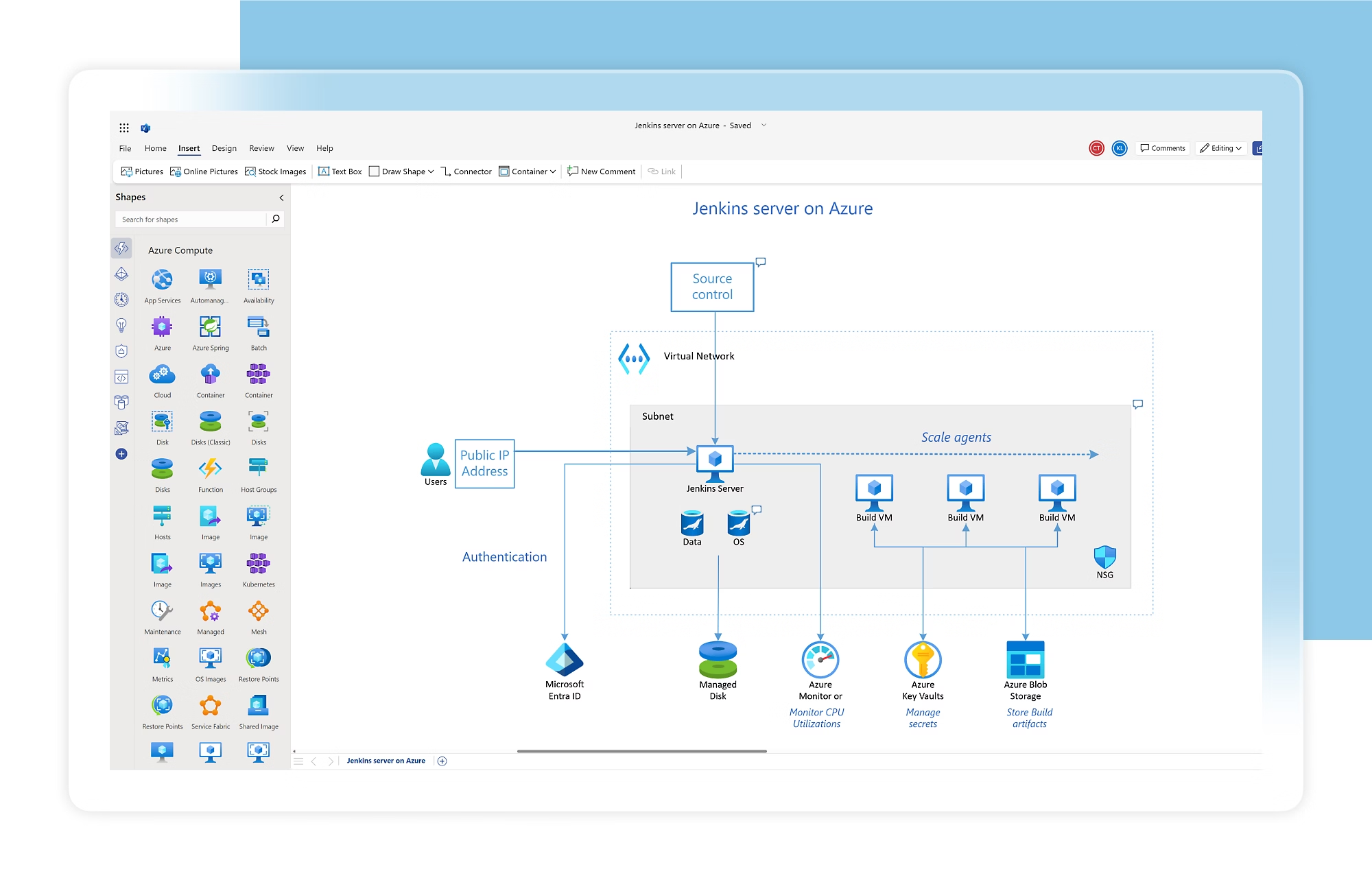
Image source: microsoft.com
Key features:
- Comprehensive diagramming templates: Includes BPMN, flowcharts, org charts, and network diagrams for structured process documentation.
- Microsoft 365 integration: Works directly with Excel, Teams, and SharePoint, making it easy to embed and share diagrams organization-wide.
- Real-time collaboration: Allows multiple users to co-author, comment, and update diagrams simultaneously.
- Data visualization tools: Links process maps to live data from Excel or SQL databases for automatic updates.
- Enterprise-grade security: Provides role-based permissions, encrypted storage, and compliance with organizational standards.
Best for: Microsoft Visio is best for large organizations and enterprise teams that need formal process documentation, compliance-ready diagrams, and deep Microsoft ecosystem integration.
Pricing:
- Visio Plan 1: ~$5 per user per month for web-based access.
- Visio Plan 2: ~$15 per user per month with desktop app and advanced features.
- Enterprise licenses: Custom pricing available for large-scale deployments and admin controls.
Draw.io (Diagrams.net): For quick and free process mapping online
Draw.io, also known as Diagrams.net, is a free and open-source diagramming tool that makes creating simple project management process maps fast and accessible. It offers an intuitive drag-and-drop interface with a variety of shapes and templates suitable for flowcharts, workflows, and organizational charts. Ideal for individuals or small teams, Draw.io integrates smoothly with tools like Google Drive, OneDrive, and Confluence, allowing users to save and share diagrams effortlessly. Despite being free, it offers strong functionality and flexibility for basic process visualization needs.
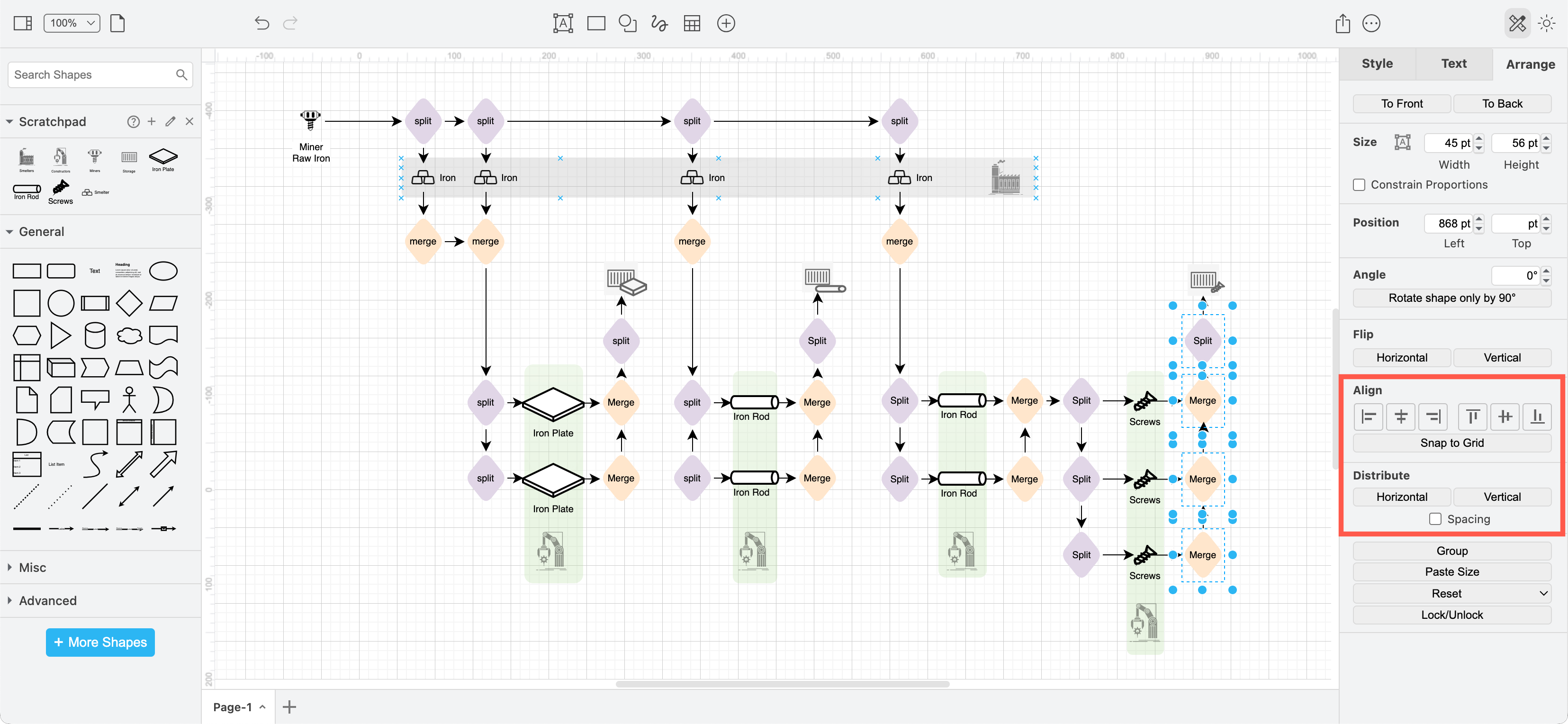
Image source: drawio.com
Key features:
- Simple and intuitive interface: Drag-and-drop elements make it easy to create flowcharts and process maps without a learning curve.
- Cloud integrations: Works directly with Google Drive, OneDrive, Dropbox, and Confluence for easy storage and sharing.
- Wide range of templates: Includes pre-built shapes and diagrams for project workflows, mind maps, and organizational charts.
- Offline and online access: Users can create, edit, and save diagrams locally or in the cloud.
- Completely free and open-source: Offers full functionality with no premium tiers or paywalls.
Best for: Draw.io is best for individuals, freelancers, and small teams looking for a simple, no-cost tool for creating and sharing process maps without complexity.
Pricing:
- Free: 100% free to use for all features.
- Paid options: Available only for enterprise add-ons or premium cloud storage integrations (optional).
Teamwork: For mapping workflows alongside task and time tracking
Teamwork is a comprehensive project management platform that integrates process mapping with task tracking, time management, and collaboration features. It helps teams plan, execute, and monitor projects while maintaining visibility into every stage of the workflow. With features designed for agencies, consultants, and cross-functional teams, Teamwork simplifies complex projects by combining structured workflows with real-time progress tracking. Its intuitive interface and reporting tools make it an excellent option for teams managing multiple projects or clients simultaneously.
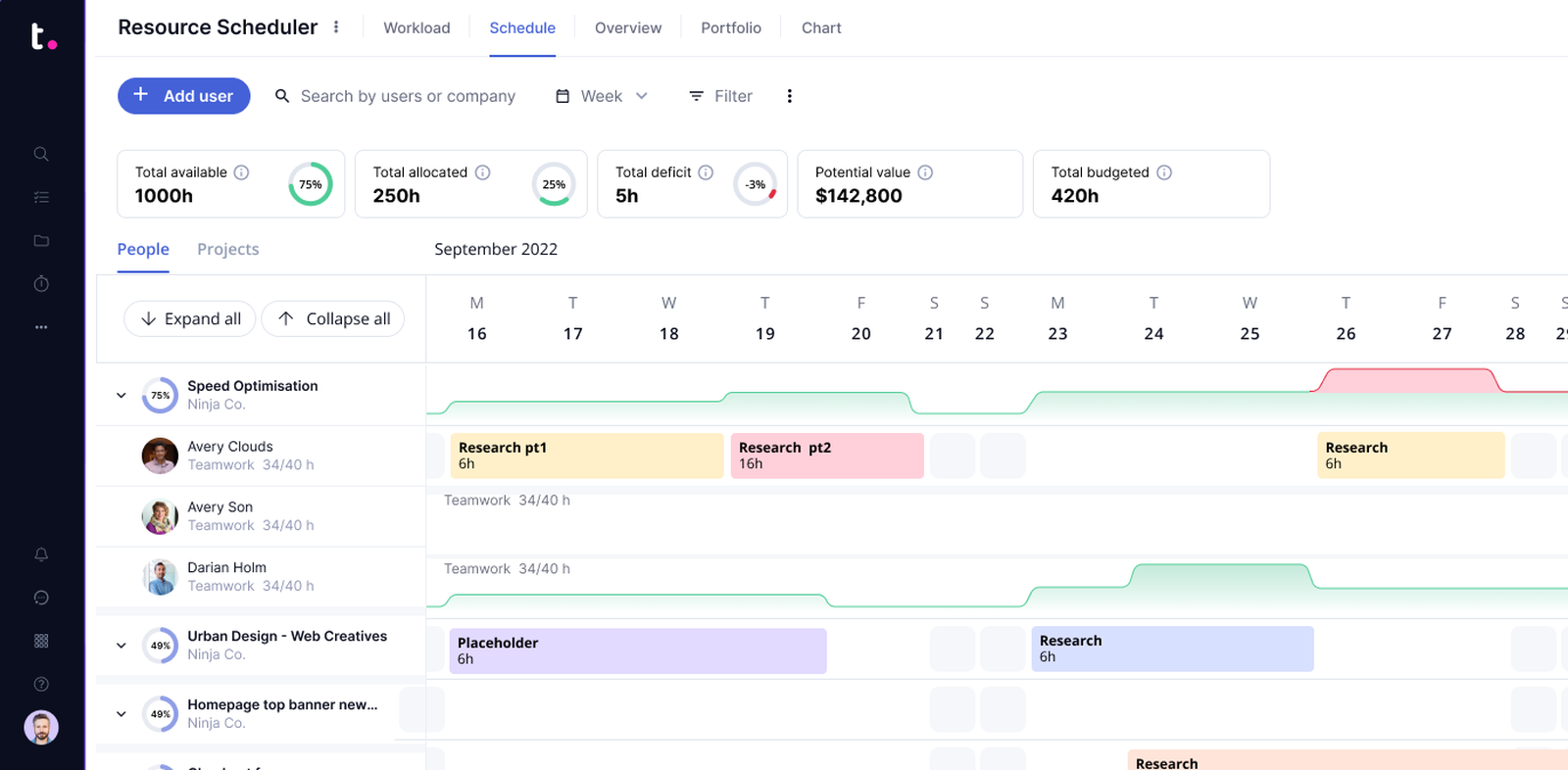
Image source: teamwork.com
Key features:
- Workflow visualization: Create structured workflows and process maps using lists, boards, and task dependencies.
- Task and time tracking: Monitor task progress and time spent to improve resource management and accountability.
- Collaboration tools: Built-in chat, file sharing, and comments keep communication within the project context.
- Advanced reporting: Generate real-time reports to track productivity, billable hours, and project performance.
- Integrations and scalability: Connects with tools like Slack, Google Drive, HubSpot, and Zapier for seamless workflow management.
Best for: Teamwork is best for agencies, consultancies, and project-based organizations that manage multiple clients or departments and need combined process mapping and time tracking capabilities.
Pricing
- Free plan: Basic task management for small teams.
- Deliver plan: ~$12.50 per user per month with full project management tools.
- Grow plan: ~$20 per user per month with advanced reporting and automation.
- Scale plan: Custom pricing for large or enterprise teams with tailored support and integrations.
Gliffy: For simple and fast flowchart creation
Gliffy is a lightweight diagramming and process mapping tool designed for teams that need to create quick, easy-to-understand visuals. With its drag-and-drop interface and pre-built templates, Gliffy simplifies the creation of project management process maps, flowcharts, org charts, and wireframes. It's particularly useful for small to medium-sized teams that need a straightforward solution for documenting and sharing workflows. Because it's browser-based, users can collaborate and update diagrams instantly without installing software.
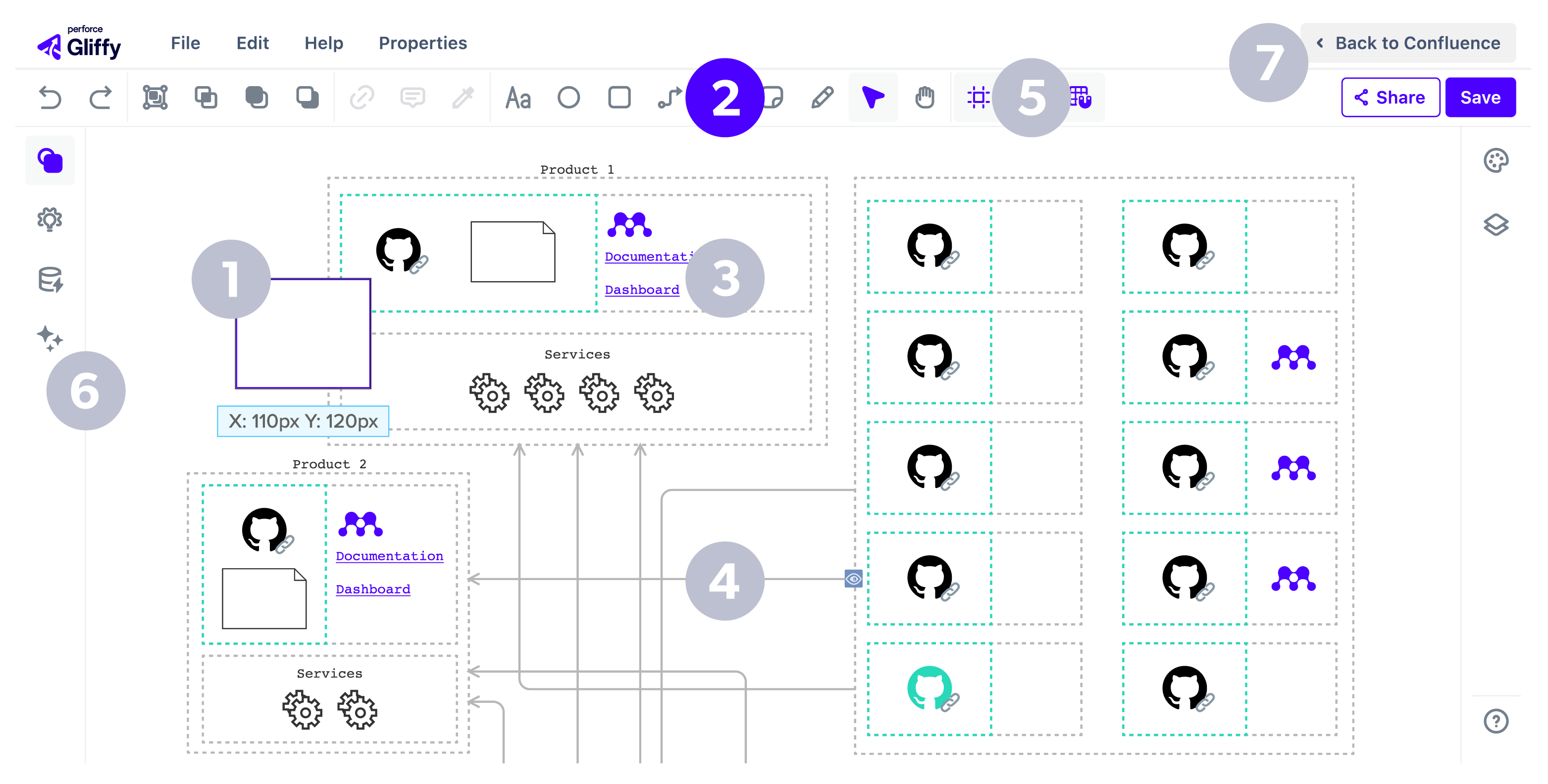
Image source: gliffy.com
Key features
- Easy drag-and-drop editor: Quickly build process maps and flowcharts without technical skills or setup.
- Ready-to-use templates: Access a wide range of templates for project workflows, network diagrams, and system flows.
- Real-time collaboration: Multiple users can edit diagrams simultaneously, improving team alignment.
- Integration with Confluence and Jira: Embed Gliffy diagrams directly into project documentation or task boards.
- Cloud-based access: Save, share, and manage diagrams securely from any browser.
Best for: Gliffy is best for small to mid-sized teams and project managers who want a simple, quick, and collaborative way to create and share process visuals.
Pricing:
- Free trial: Available with limited functionality.
- Professional plan: From ~$8 per user per month with full diagramming tools.
- Enterprise plan: Custom pricing with advanced admin and security controls for large teams.
Canva whiteboard: For creative and presentation-style process maps
Canva Whiteboard is a visual collaboration and design tool that helps teams create creative, presentation-ready process maps and workflows. Known for its simplicity and stunning visuals, Canva allows both technical and non-technical users to design attractive process diagrams without any prior experience. Its drag-and-drop interface, extensive template library, and real-time collaboration make it perfect for brainstorming sessions, planning meetings, and cross-functional discussions. Canva Whiteboard blends creativity with practicality, turning complex project workflows into clear, engaging visuals.
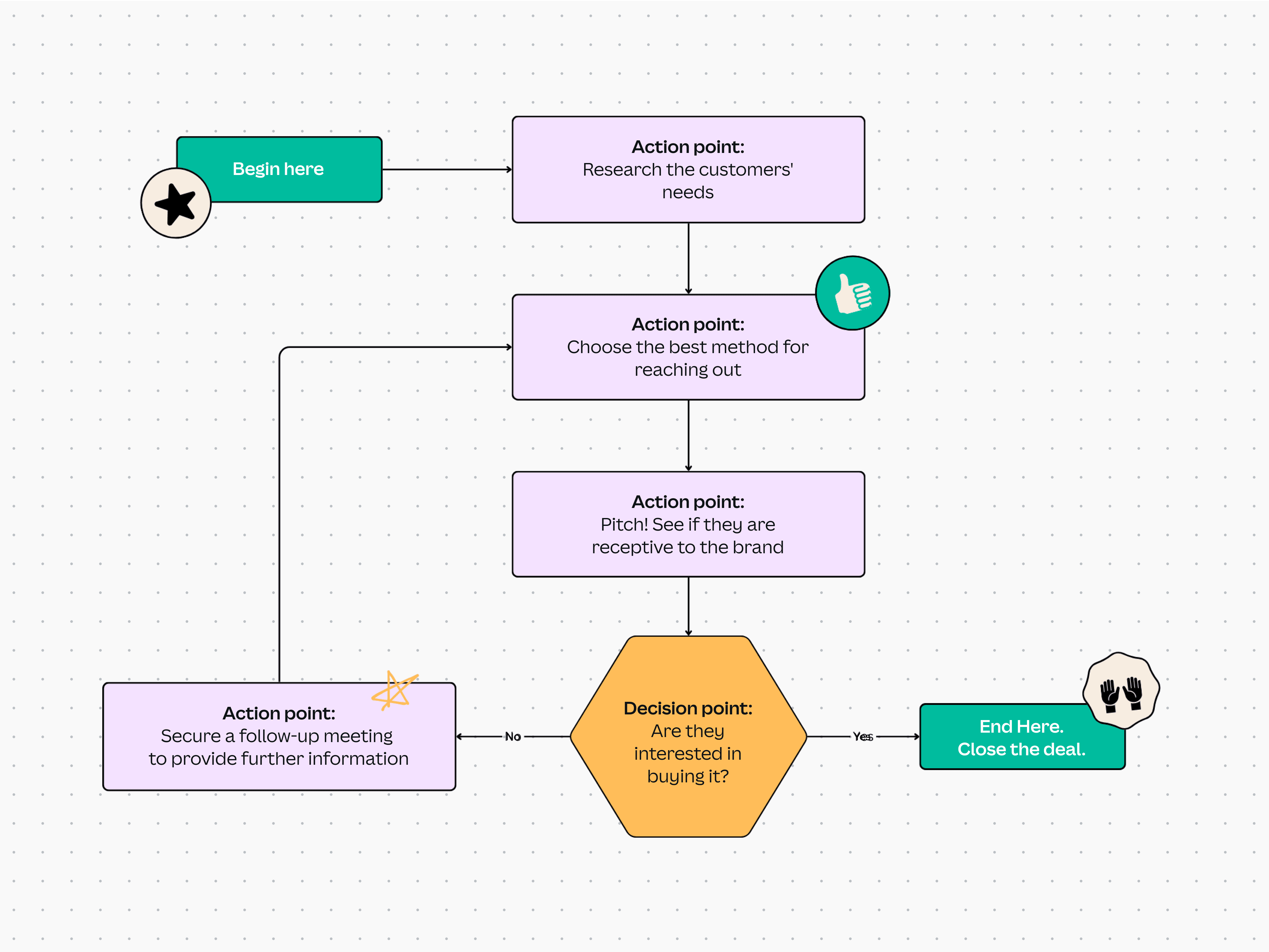
Image source: canva.com
Key features:
- Easy-to-use design interface: Create visually appealing process maps with drag-and-drop tools and pre-set layouts.
- Extensive template collection: Access hundreds of templates for flowcharts, project maps, and brainstorming sessions.
- Collaborative editing: Multiple team members can edit, comment, and brainstorm together in real time.
- Integration with Canva suite: Seamlessly switch between presentations, infographics, and whiteboards for unified project visuals.
- Accessible anywhere: Cloud-based platform that works across desktop and mobile for instant access and sharing.
Best for: Canva Whiteboard is best for marketing, design, and cross-functional teams that want to create visually engaging process maps and collaborative brainstorming visuals.
Pricing:
- Free plan: Includes core design and collaboration features.
- Pro plan: From ~$13 per month with premium templates, brand kits, and unlimited folders.
- Enterprise plan: Custom pricing for larger organizations with advanced collaboration and admin controls.
Notion: For combining documentation and workflow visualization
Notion is a flexible workspace and documentation platform that combines note-taking, database management, and workflow visualization in one place. It allows teams to map out projects, document processes, and link related tasks in a structured and visually intuitive way. With its customizable pages, databases, and templates, Notion makes it easy to create and manage project management process maps alongside meeting notes, wikis, and reports. It's ideal for teams that want an all-in-one knowledge and process management system.
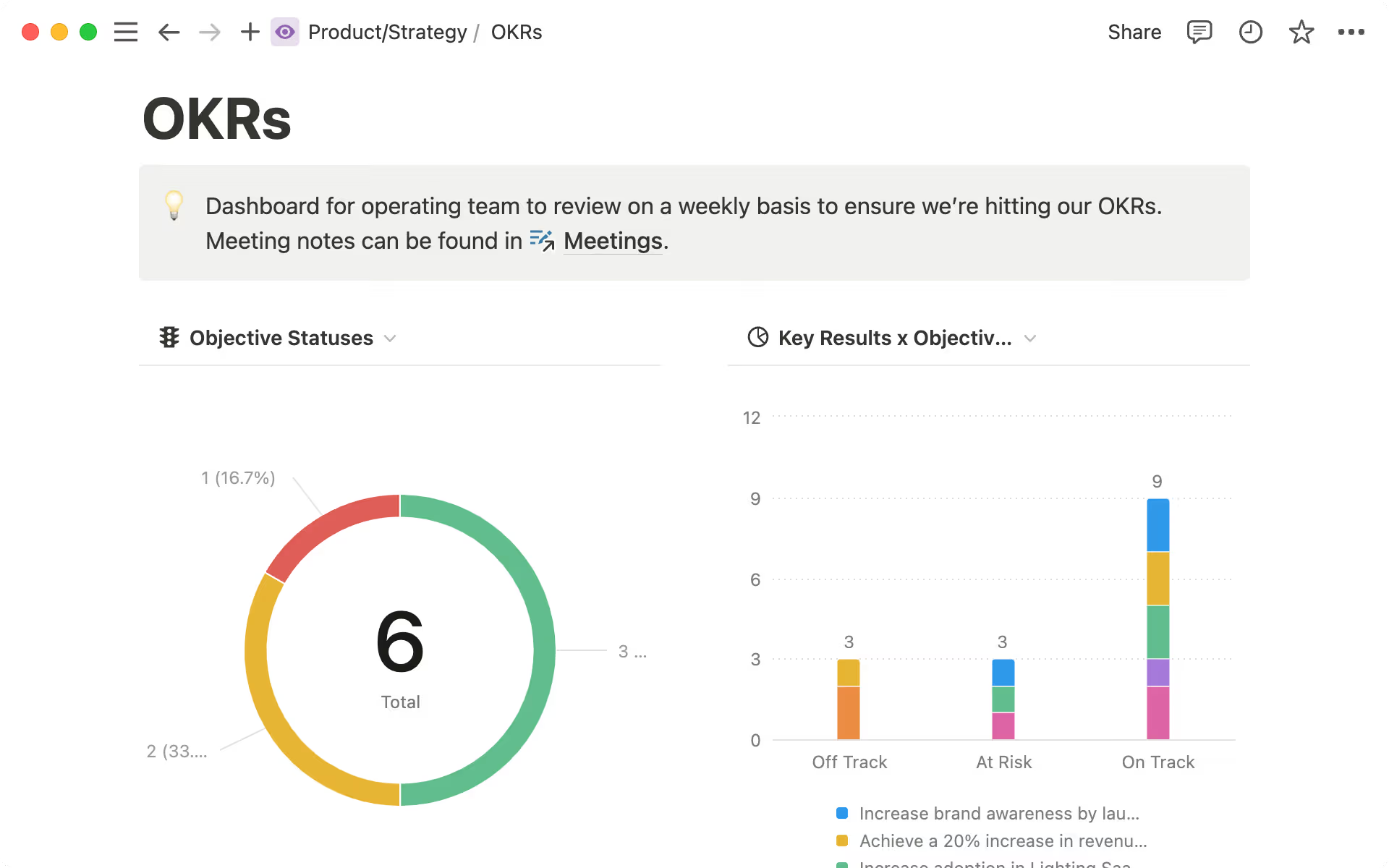
Image source: notion.com
Key features
- Customizable workspaces: Build interactive pages, process maps, and databases tailored to specific project needs.
- Linked databases: Connect project data across multiple pages for real-time visibility and easy navigation.
- Visual workflow views: Switch between table, board, timeline, or calendar views to visualize process progress.
- Collaboration and commenting: Share pages with team members, leave feedback, and track changes easily.
- Integrations and API support: Connect with tools like Slack, Google Drive, and Zapier for streamlined workflows.
Best for: Notion is best for knowledge-driven teams, startups, and project managers who want to combine process documentation, workflow mapping, and team collaboration in one flexible platform.
Pricing:
- Free plan: Ideal for individuals or small teams with basic features.
- Plus plan: From ~$10 per user per month with unlimited pages and blocks.
- Business plan: From ~$15 per user per month with advanced collaboration tools and security.
- Enterprise plan: Custom pricing for large organizations requiring admin and compliance controls.
ClickUp: For process mapping integrated with task management and automation
ClickUp is a powerful project management and productivity platform that combines process mapping, task tracking, and automation in a single workspace. It enables teams to visualize workflows through mind maps, Gantt charts, and process diagrams, ensuring every step of a project is transparent and actionable. ClickUp's flexibility allows teams to manage everything from simple task lists to complex automated workflows, making it an all-in-one solution for optimizing project execution. With robust customization options, it adapts easily to the unique needs of teams of all sizes.
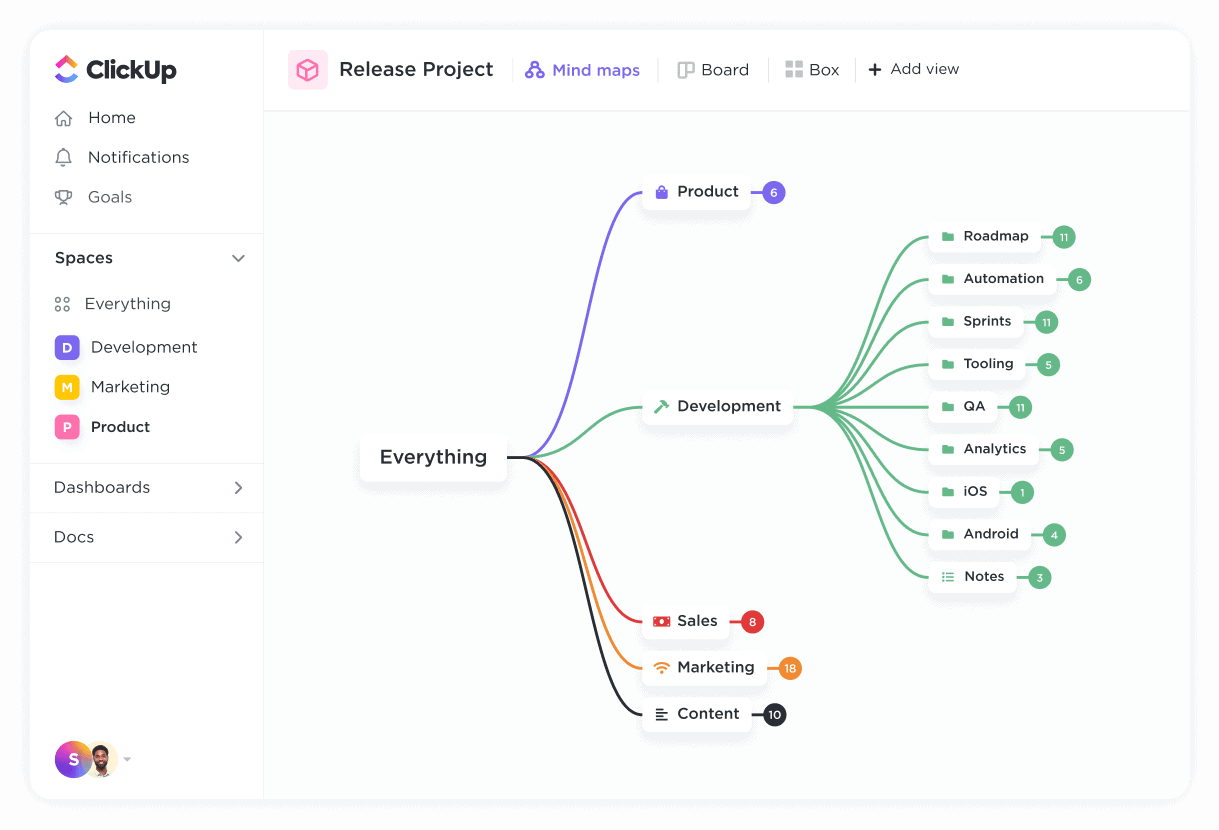
Image source: clickup.com
Key features
- Process visualization tools: Create interactive flowcharts, mind maps, and Gantt charts to outline every stage of a project.
- Task and goal management: Link process steps directly to actionable tasks and set measurable goals for each stage.
- Automation and integrations: Automate repetitive actions and connect ClickUp with tools like Slack, Zoom, and Google Workspace.
- Custom views and dashboards: Track progress across multiple projects using list, board, or timeline views.
- Collaboration and reporting: Built-in chat, document sharing, and reporting features help teams stay aligned and informed.
Best for: ClickUp is best for project managers, operations teams, and growing businesses that need a centralized hub for process mapping, task management, and workflow automation.
Pricing:
- Free plan: Includes core task management and collaboration features.
- Unlimited plan: From ~$7 per user per month with advanced views and reporting.
- Business plan: From ~$12 per user per month with automation and integrations.
- Enterprise plan: Custom pricing for organizations requiring high-level security and admin controls.
Example of a project management process map
A project management process map provides a clear visual framework that outlines how a project moves from start to finish. It defines roles, responsibilities, and key decision points, ensuring structure and accountability at every stage. Most process maps include the following five core phases, each interconnected through decision gates and feedback loops for continuous improvement:
- Initiation: Define project objectives, identify stakeholders, and establish the project’s purpose and scope.
- Planning: Break down tasks, set timelines, allocate resources, and create a detailed project roadmap.
- Execution: Implement the project plan, assign work, track deliverables, and manage team communication.
- Monitoring and control: Track performance, manage risks, review progress, and make adjustments to stay on schedule and within budget.
- Closure: Finalise deliverables, conduct project reviews, document lessons learned, and obtain formal approval.
A well-structured project management process map ensures clarity, alignment, and consistent project success across all phases.
Best practices and common mistakes
Creating an effective project management process map requires balance, clarity, and collaboration. Follow these best practices and avoid common pitfalls to keep your maps accurate and actionable:
Best practices:
- Start small, test, and refine before scaling to larger processes.
- Involve key stakeholders early to ensure realistic and accurate mapping.
- Combine visuals with short notes or explanations for clarity.
- Keep diagrams simple, focusing on essential phases and decisions.
- Review and update regularly as workflows and tools evolve.
Common mistakes:
- Overcomplicating diagrams with unnecessary detail.
- Creating maps without input from the teams executing the work.
- Ignoring exceptions or alternate paths that occur in real scenarios.
- Failing to connect process maps with actual project management tools.
- Treating process mapping as a one-time task instead of an ongoing effort.
Following these tips ensures your process maps remain relevant, practical, and valuable for continuous improvement.
Conclusion
A project management process map helps teams visualize, structure, and optimize workflows across every stage of a project, from initiation to closure. It provides clarity on responsibilities, improves communication, and ensures projects move forward efficiently and consistently. The key is to start small map one process, gather team input, and refine it over time based on feedback and performance.
As your organization grows, adopting a unified platform like Lark can bring process mapping, collaboration, and automation together in one connected workspace, streamlining everything from documentation to execution. With the continued advancement of AI-assisted process mapping, workflows will become even smarter, faster, and more adaptive helping teams achieve greater accuracy, agility, and productivity in every project they manage.
FAQs
What is a project management process map?
A project management process map is a visual representation that outlines how tasks, decisions, and responsibilities flow throughout a project. It helps teams understand the sequence of activities, improve coordination, and identify inefficiencies across different phases of the project.
Why is process mapping important in project management?
Process mapping brings clarity and structure to complex workflows. It helps define roles, streamline communication, eliminate bottlenecks, and ensure all team members follow a standardized approach. This leads to better project visibility, efficiency, and accountability.
What are the main types of process maps used in project management?
Common types include linear process maps (showing simple task sequences), cross-functional or swimlane maps (dividing tasks by departments), hierarchical maps (showing different process levels), and detailed maps (breaking workflows into step-by-step actions).
Which tools are best for creating a project management process map?
Top tools include Lark, Miro, Lucidchart, Microsoft Visio, and ClickUp. Among these, Lark stands out for integrating process mapping, workflow automation, and communication in one unified platform, making it ideal for end-to-end project collaboration.
How often should a project process map be updated?
A project process map should be reviewed and updated regularly — ideally after major project milestones or process changes. Continuous updates ensure the map stays relevant, reflects actual workflows, and supports ongoing improvement across future projects.
Related reading
Table of contents
Start using Lark today

Manage all your work in one place
Boost team efficiency by 10x
Save up to 70% on software costs
Table of contents
Start using Lark today
Manage all your work in one place
Boost team efficiency by 10x
Save up to 70% on software costs
Keep reading







2026 Lark Technologies Pte. Ltd.
Headquartered in Singapore with offices worldwide.






Explore: