














How to Share Spreadsheets Effectively: Examples & Tools

Ryan Tanner
Product Marketing Specialist
Sep 18, 2026
Ryan Tanner
Sep 18, 2026

12 min read


Spreadsheets remain one of the most powerful tools for tracking data, projects, and performance. Yet, when multiple people need to collaborate, managing them can get messy fast. A shared spreadsheet—one that multiple users can access and edit at the same time—solves this challenge by enabling teamwork without endless file versions.
While Excel and Google Sheets are the most common choices, both come with limitations that can slow teams down. That's where Lark steps in, offering real-time collaboration, built-in communication, and advanced workflows that reduce version chaos.

What is a shared spreadsheet?
A shared spreadsheet is a file designed for multiple people to access, update, and edit simultaneously. Instead of emailing attachments back and forth, everyone works in the same document, ensuring one source of truth.
Teams typically use shared spreadsheets for:
- Project tracking (tasks, deadlines, ownership).
- Team planning and resource allocation.
In today's hybrid and fast-paced work environment, shared spreadsheets aren't optional—they're essential for avoiding confusion, saving time, and maintaining accurate data.
How to share an Excel spreadsheet
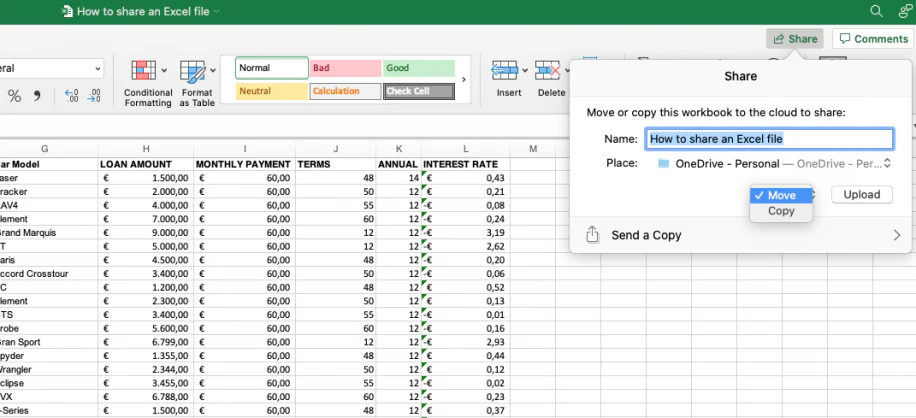
Image source: microsoft.com
Step 1: Save the file to OneDrive or SharePoint
For a spreadsheet to be shared in real time, it needs to be stored in the cloud. By saving your Excel file to OneDrive or SharePoint, you ensure that collaborators can access the same version from anywhere, without sending email attachments back and forth.
Step 2: Click Share in the Excel ribbon
Once your file is in the cloud, open Excel and look for the Share button on the top-right ribbon. This allows you to start inviting collaborators without leaving the application, making the process seamless and integrated.
Step 3: Add email addresses of collaborators
Enter the email addresses of the people you want to work with. You can invite internal team members or external partners, and they'll receive an email notification with access to the shared spreadsheet.
Step 4: Set permissions (view/edit)
Decide whether collaborators can view only or have full edit rights. Setting the right permission level is key—view-only prevents accidental changes, while edit access enables joint updates and data entry.
Step 5: Track changes with version history
Excel automatically maintains a version history for cloud files. This makes it easy to see who changed what and when, and restore earlier versions if something goes wrong. It's a safety net for shared work.
How to share a Google Sheets file
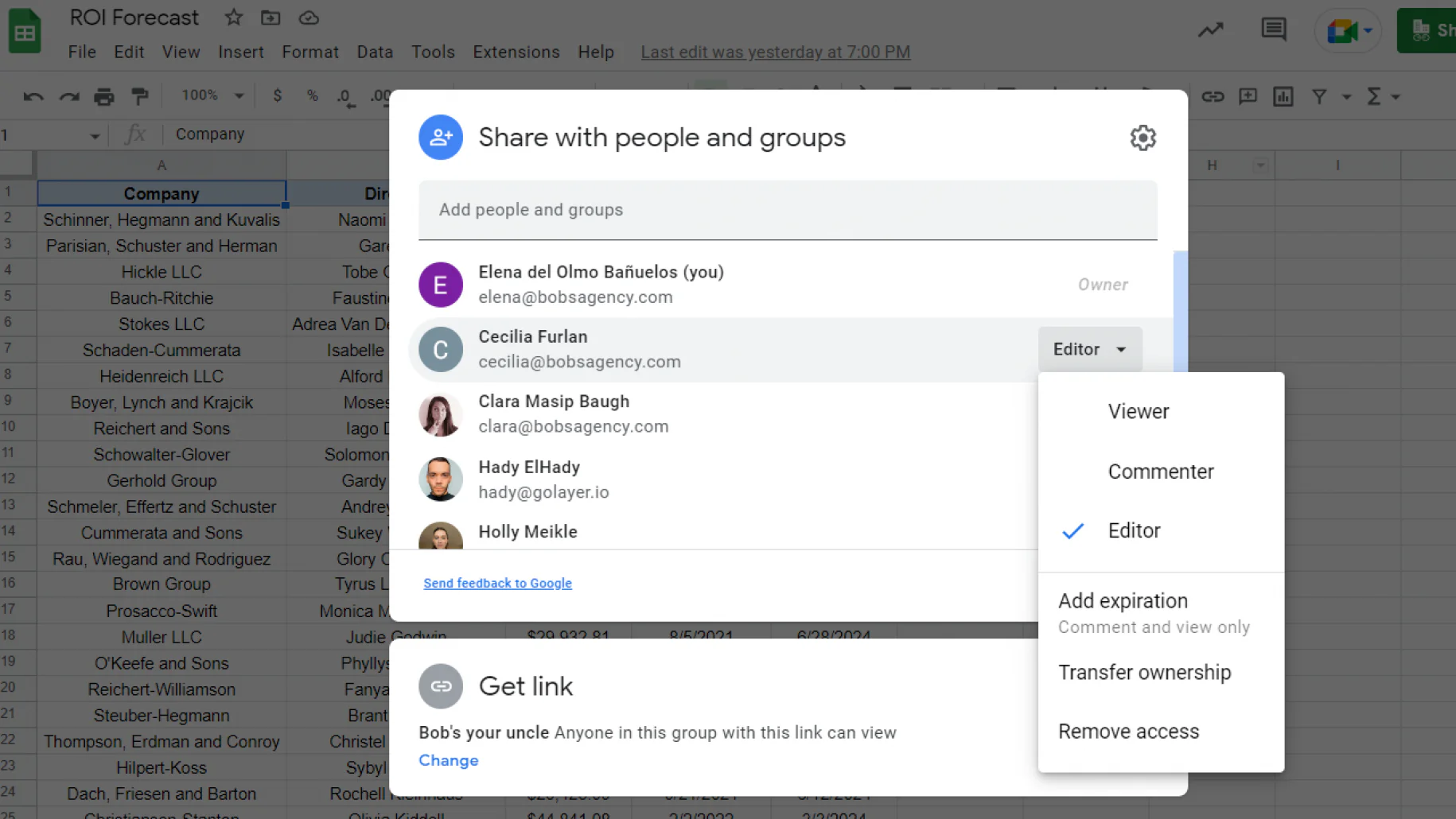
Image source: Google.com
Step 1: Open the sheet in Google Drive
Start by opening your Google Drive and navigating to the spreadsheet you want to share. Google Sheets is cloud-based by default, which means every file is already online and accessible without needing extra setup.
Step 2: Click Share in the top-right corner
Inside your Google Sheet, look to the top-right corner and click the Share button. This is where you manage access settings, invite collaborators, and generate links for wider distribution.
Step 3: Add collaborators' emails or create a shareable link
You can directly enter collaborators' email addresses to send them an invite, or generate a shareable link that you can distribute manually. The email option ensures only specific people get access, while links are convenient for broader teams.
Step 4: Choose permissions (viewer, commenter, editor)
Finally, decide what level of access each person should have. Set them as Viewer (read-only), Commenter (can suggest changes without editing), or Editor (full editing rights). Picking the right permission helps balance collaboration with control.
Challenges of shared spreadsheets
While a shared spreadsheet makes teamwork easier, it also comes with pitfalls that can slow projects down or create errors. Knowing these challenges helps teams choose smarter project management tools for collaboration.
- Version control issues: When multiple copies of a spreadsheet are emailed around, it's easy to lose track of the “latest” version. This leads to conflicting updates, confusion, and wasted time consolidating changes.
- Risk of overwriting or accidental deletions: With many editors working on the same file, one wrong keystroke can wipe out critical data. Even with version history, recovering changes can be time-consuming and stressful.
- Limited automation: Traditional tools like Excel and Google Sheets offer limited built-in automation. Teams often need third-party add-ons or manual workarounds, which slows down workflows and increases the risk of human error.
- Offline access struggles: Google Sheets relies heavily on internet access, and while Excel supports offline editing, syncing back changes isn't always seamless. This makes shared spreadsheets less reliable in remote or low-connectivity environments.
- Scalability issues: Large datasets with formulas, pivot tables, or macros often slow down in Google Sheets. Excel can handle bigger files, but sharing them across teams makes performance inconsistent.
- Permission complexity: Managing who can view, comment, or edit can get complicated—especially with external collaborators. Misconfigured permissions may result in sensitive data being exposed or edited unintentionally.
Pro Tip: Avoid these issues with modern tools like Lark Sheets, where real-time sync ensures one source of truth and built-in collaboration keeps data safe and accessible.
Use Lark: A smarter way to share spreadsheets
Unlike Excel and Google Sheets, Lark Sheets is built inside a connected workspace, so sharing doesn't require plugins, emails, or external links. Teams collaborate on live data while discussing changes and scheduling reviews in the same platform.
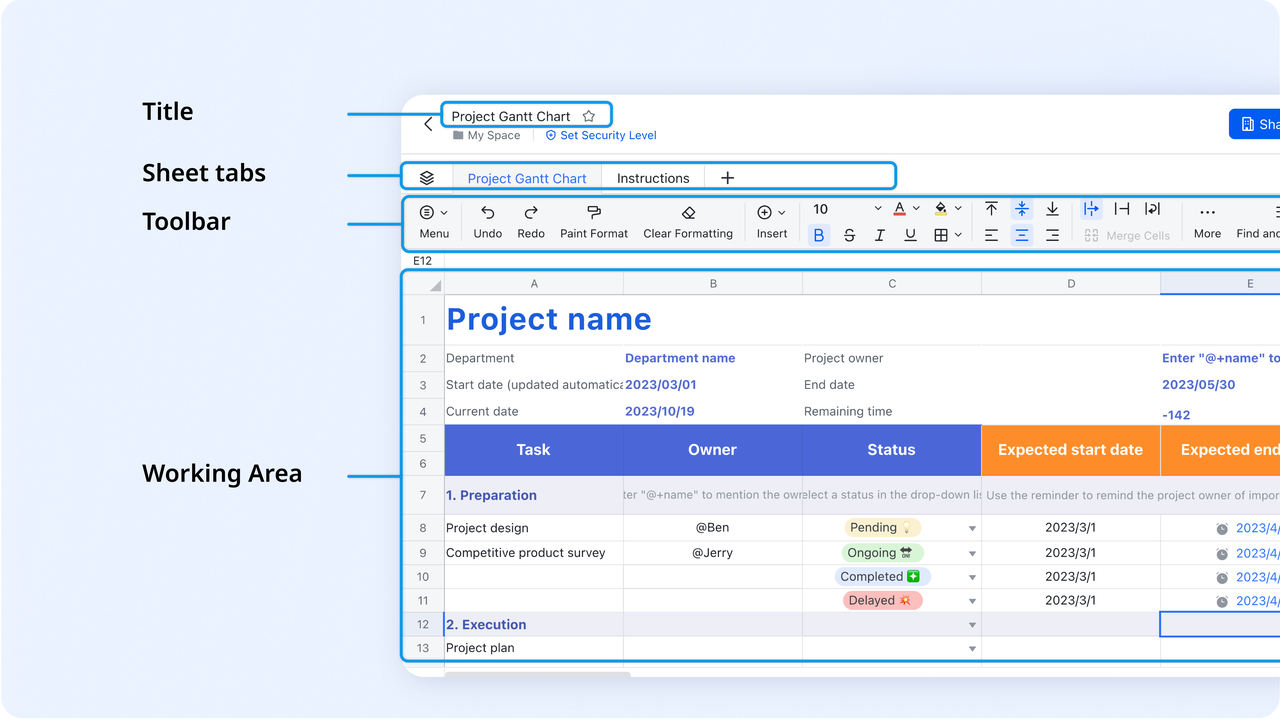
Instant sharing
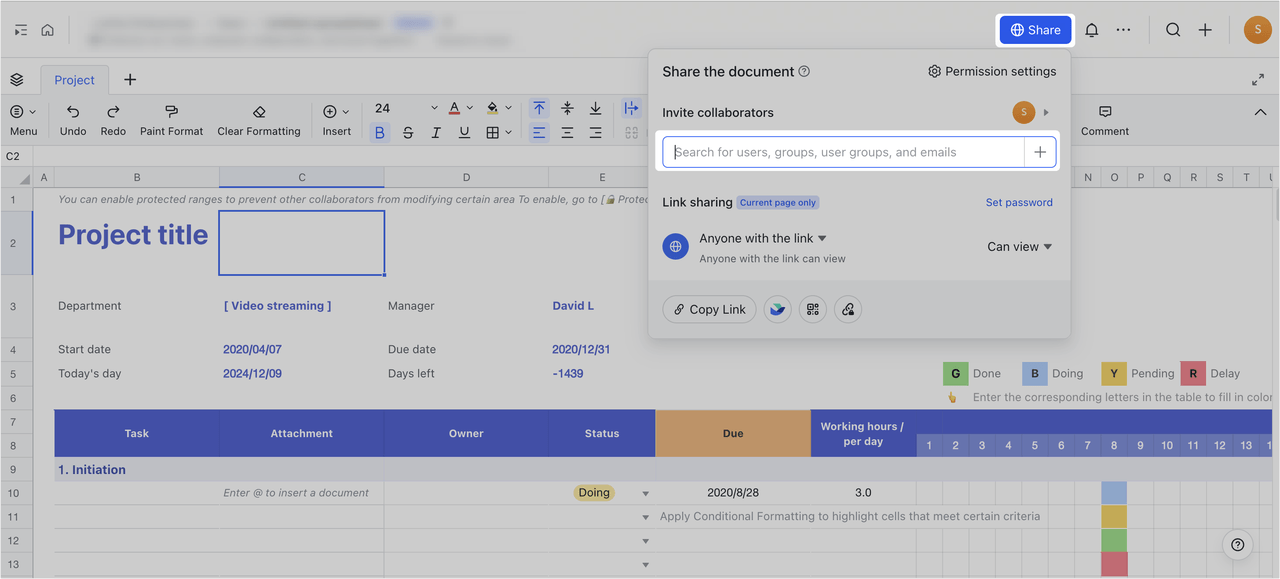
Lark Sheets is cloud-native, so creating or uploading a sheet means it's immediately available inside your workspace—no file attachments or manual uploads to external services. Sharing is as simple as granting workspace access or sending a permission link; admins can control who sees or edits which files, so security and governance stay intact. Because there's one live file, onboarding new collaborators is faster: they open the same sheet everyone else uses and get the current state instantly. In practice this means fewer emailed copies, less merging, and a much cleaner audit trail of who was given access and when.
Real-time editing
Multiple people can work on the same sheet at once and see others' edits instantly, which prevents the “which version is the latest” problem and reduces reconciliation overhead. Edits propagate to formulas and charts in real time, so a change in one cell updates dependent calculations for everyone viewing the sheet. Inline comments and @mentions let reviewers call out rows or cells without altering data, and comments act as contextual discussion threads tied to the live content. The result: faster co-authoring, more accurate live reviews, and far fewer errors from late-stage merges.
Sync information via Lark Messenger and Lark Calendar
Because Lark Sheets sit in the same workspace as Messenger and Calendar, conversations and scheduling happen right where the data lives.
- In Lark Messenger, you can reply to a message about the Sheet to create a thread. Hover over the message and select the "Reply in Thread" icon (desktop), or touch and hold the message and tap "Reply in Thread" (mobile). This keeps related discussions organized.
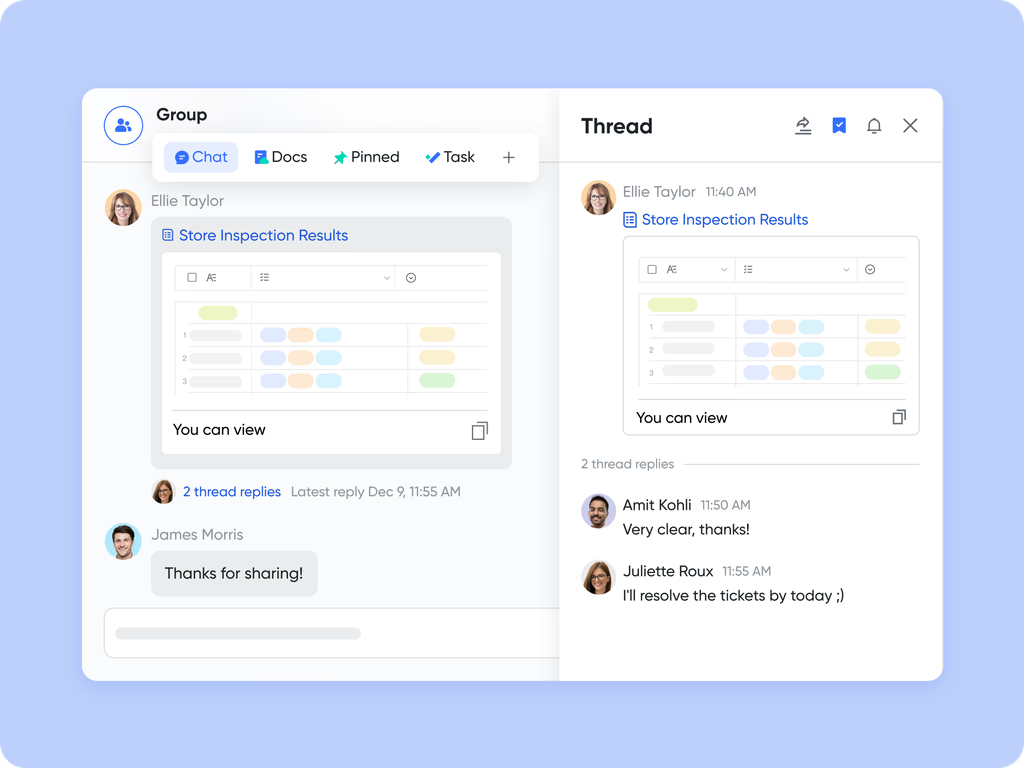
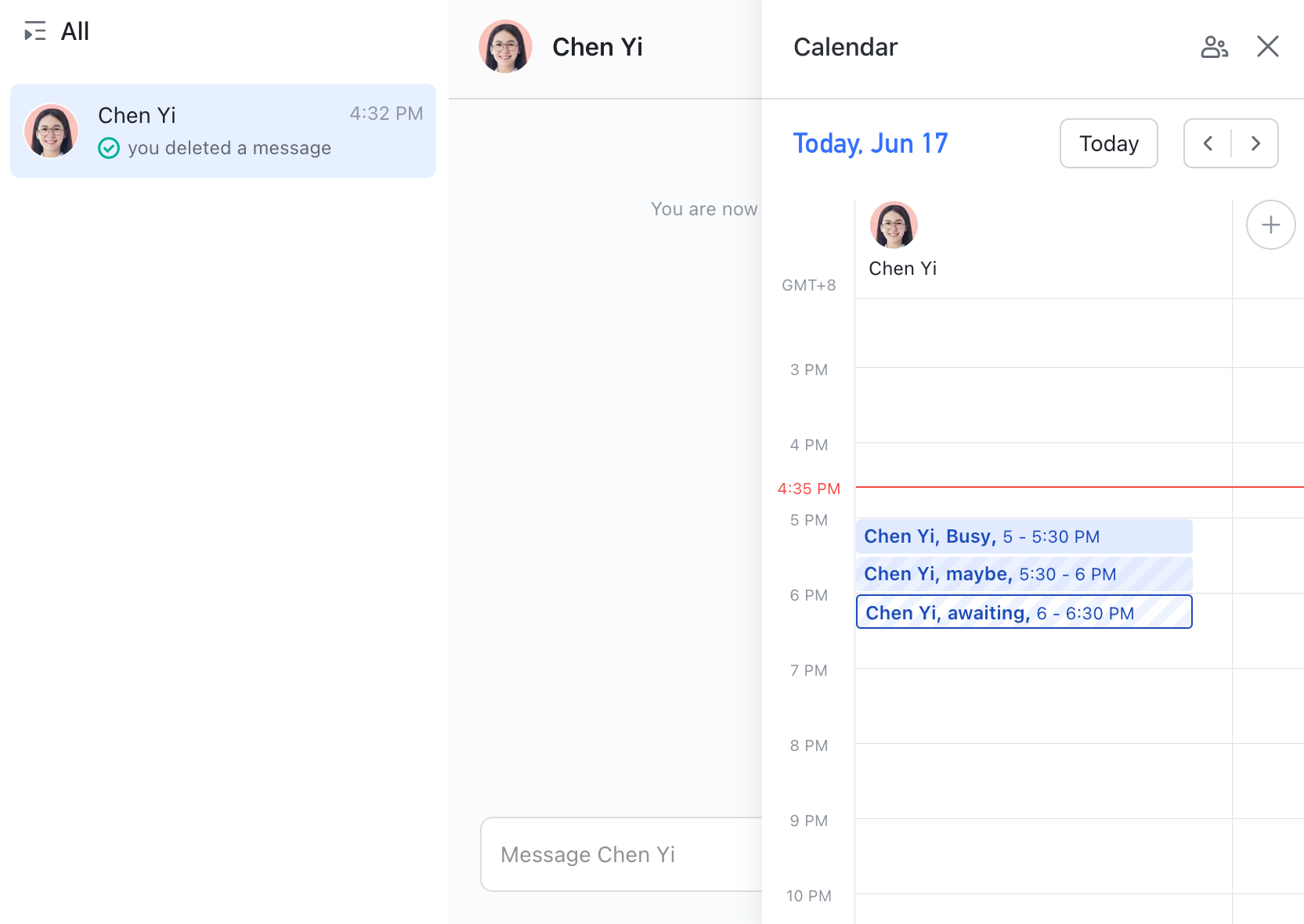
- In Lark Calendar, you can schedule a review session or project meeting directly from the Sheet, attach the file, and invite participants. This way, meeting prep, the agenda, and the live data are automatically linked.
Lark Docs embedding for reports
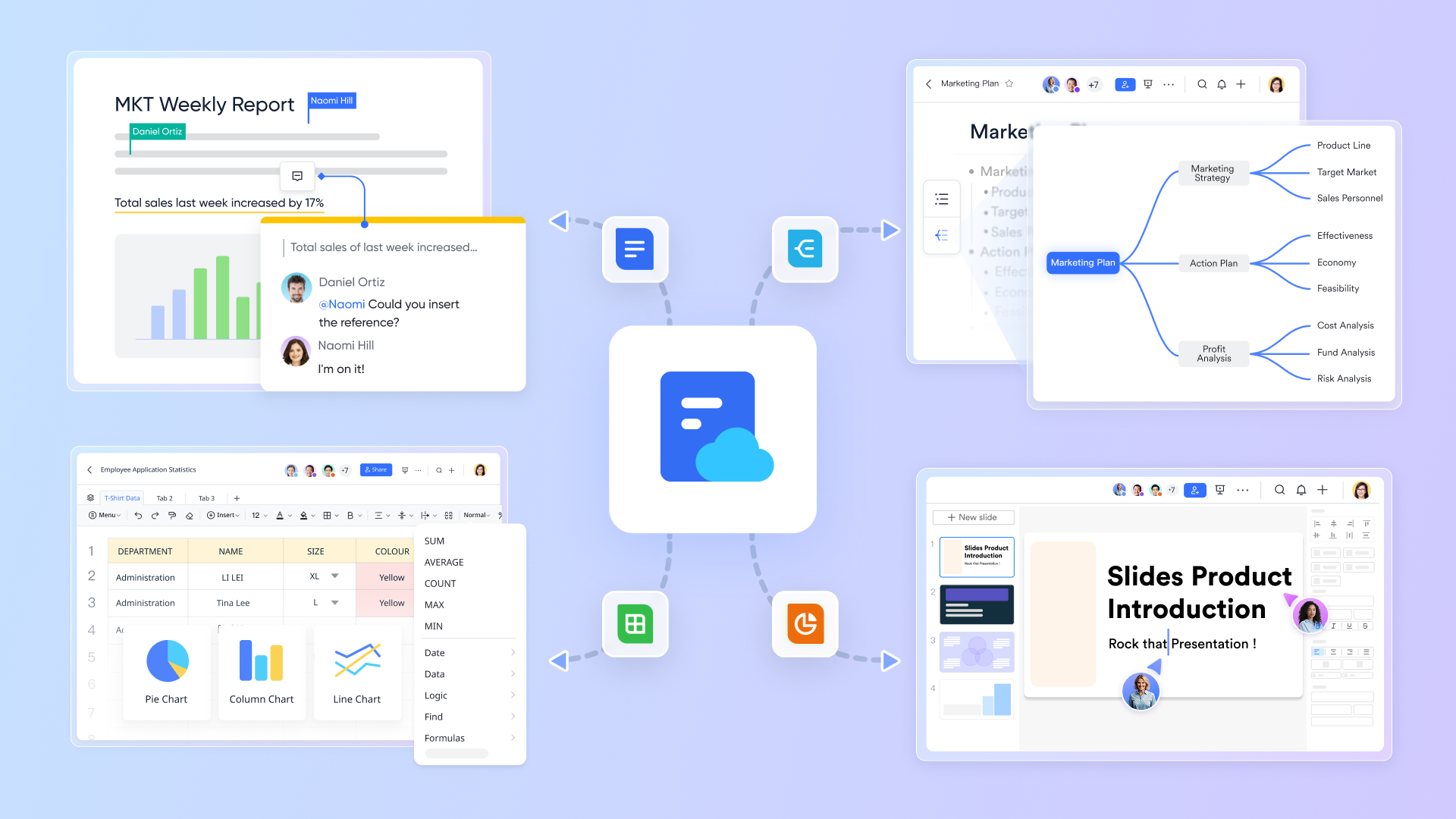
Instead of copying tables into separate reports, you can embed a live sheet or chart into a Lark Docs so narrative and numbers appear together. Embedded content reflects the latest data, meaning monthly reports, proposals, or SOPs always display current figures without manual updates. That keeps readers from hunting for underlying files and reduces the chance of presenting stale numbers in decision meetings. Practically, embedding turns a sheet from an isolated dataset into a living part of your project documentation.
Automated workflows with Lark Base
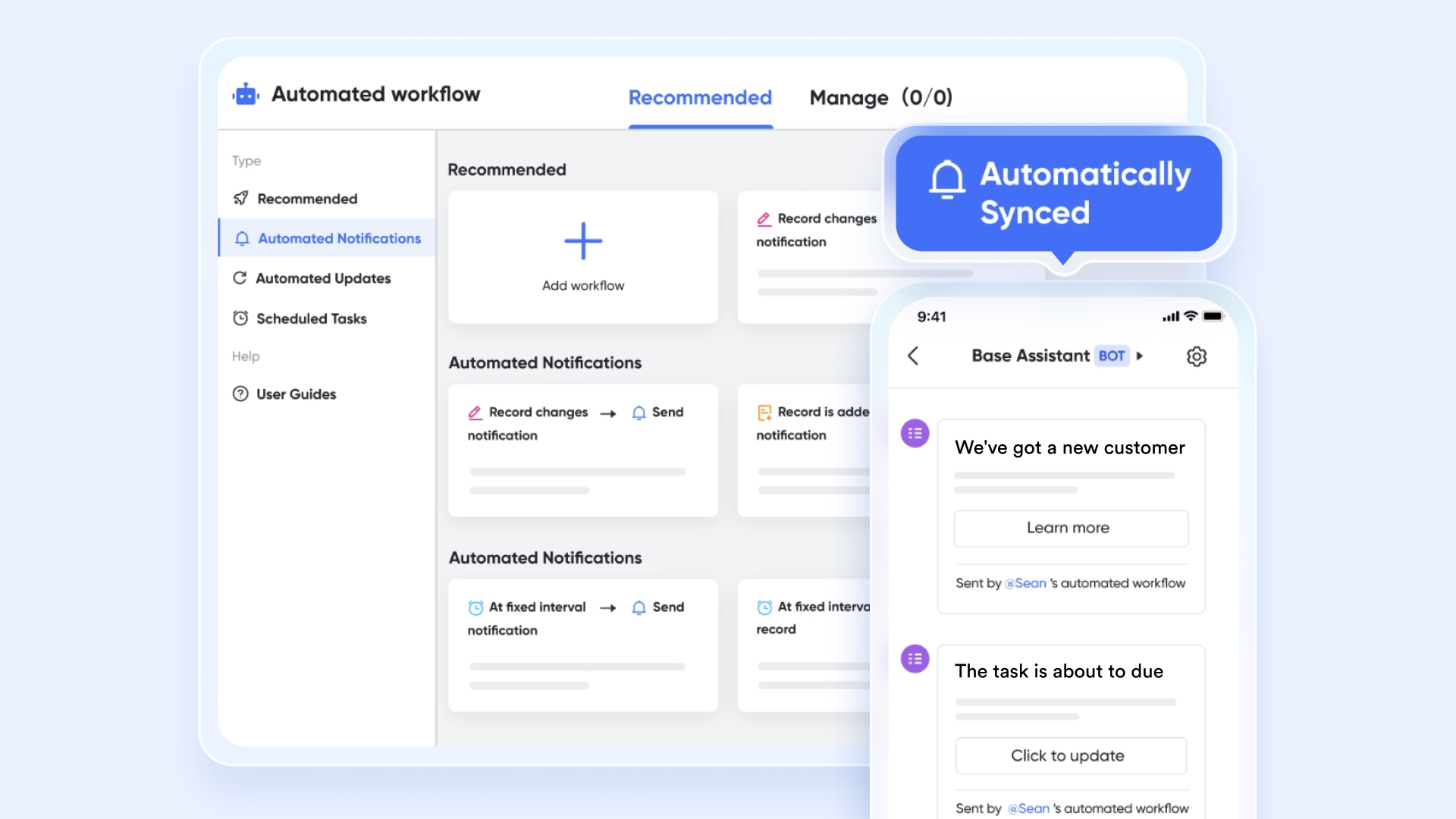
When spreadsheet changes must trigger actions—like creating tasks, sending reminders, or routing approvals—Sheets can be connected with Lark Base, which is built for rules and automations. A common pattern is to use a status or "next step" column in the sheet as the trigger: when that cell changes, Base can create a task, notify a channel in Messenger, or start an approval flow. This separates data capture (Sheets) from process enforcement (Base), keeping Sheets lightweight while enabling repeatable, auditable workflows. The combo means you don't need manual handoffs: updates in the sheet reliably kick off the right downstream work.
- Starter plan: Free forever plan that includes 11 powerful tools for up to 20 users. It also comes with 100GB of storage, 1000 automation runs, AI translations, and more.
- Pro plan: $12/user/month (billed annually) for up to 500 users. It includes everything in Starter plus a group calling for up to 500 attendees, 15TB of storage, 50,000 automation runs, and more.
- Enterprise plan: Contact sales for custom pricing. Supports unlimited users and includes even more automation runs and advanced security, compliance, and management features.
Best practices for sharing spreadsheets
To get the most value from a shared spreadsheet—whether it's a Google Sheet, a shareable Excel sheet, or Lark Sheets—it's important to set ground rules. These practices keep data accurate, teamwork smooth, and errors to a minimum.
- Define clear ownership: Assign responsibility for specific sections or data points. When everyone knows who updates what, duplication and conflicting edits are avoided, and accountability is easier to track.
- Use permissions wisely: Not all collaborators need full editing rights. Set some users as “view only” or “comment only” to reduce risks of accidental deletions, while giving editors full control where necessary.
- Keep formatting clean and consistent: Consistent formatting—like standardized column names, color codes, or number formats—helps collaborators quickly understand the sheet. It also reduces mistakes during reporting or data analysis.
- Automate repetitive tasks: Use formulas, conditional formatting, or—if you're in Lark—connect data to Base for reminders and task creation. Automating data entry and follow-ups reduces manual work and improves reliability.
- Regularly back up important files: Even with version history, keeping scheduled backups is smart. This ensures business-critical spreadsheets remain accessible if permissions change, data is overwritten, or files are deleted.
Conclusion
Shared spreadsheets have transformed the way teams collaborate, making it easier to track budgets, projects, and reports in real time. However, traditional tools like Excel and Google Sheets come with limitations—sync issues, version chaos, and restricted automation—that can slow work down. A shareable Excel sheet may solve basic needs, but it often falls short for fast-moving teams.
With Lark Sheets, collaboration goes further. Teams get instant sharing, real-time editing, and the ability to connect data with conversations and schedules in the same workspace. When combined with Base, automation takes spreadsheets beyond static files, turning updates into tasks, approvals, or reminders.
By bringing data, people, and workflows together, Lark Sheets makes shared spreadsheets smarter, more reliable, and more powerful—so teams can spend less time fixing files and more time moving projects forward.
FAQs
What is the safest way to share a spreadsheet?
The safest way is to use a cloud-based tool with permission controls instead of emailing files. Excel on OneDrive and Google Sheets allow basic access settings, but they still risk version duplication. Lark Sheets offers built-in permissions, ensuring teams always work on one secure file while admins control visibility.
How do I stop people from editing my shared sheet?
Both Excel and Google Sheets let you assign “view only” permissions, but these can get confusing with large teams. In Lark Sheets, you can easily restrict users to view, comment, or edit modes, and prevent exports when needed—keeping sensitive data protected while still shareable.
Can I automate tasks in shared spreadsheets?
Excel and Google Sheets require plug-ins or manual scripts for automation. Lark Sheets, when connected with Lark Base, can turn updates into tasks, reminders, or approvals. For example, a status change in a sheet can automatically notify a team or create a follow-up task.
Is Google Sheets better than Excel for sharing?
Google Sheets is simpler for quick online sharing, while Excel is stronger for advanced analysis but requires Office 365 for smooth collaboration. Lark Sheets combines the best of both—powerful editing plus real-time teamwork—without the sync issues or cost barriers.
What's the best alternative to shared Excel files?
The best alternative is Lark Sheets, which removes version chaos and brings sharing, commenting, and scheduling into one workspace. Unlike a standalone shareable Excel sheet, Lark ensures everyone edits the same live file, with chat and workflow tools built right in.
How does Lark Sheets handle real-time collaboration?
Edits in Lark Sheets sync instantly across all users, so there's only one version of truth. Teams can comment directly in the sheet, chat in Messenger, or schedule reviews in Calendar—keeping discussions and deadlines tied to the data. This makes collaboration faster and more reliable than Excel or Google Sheets alone.
Related reading
Table of contents
Start using Lark today

Manage all your work in one place
Boost team efficiency by 10x
Save up to 70% on software costs
Table of contents
Start using Lark today
Manage all your work in one place
Boost team efficiency by 10x
Save up to 70% on software costs
Keep reading


![What Is a 2-2-3 Work Schedule? Explanation and More [2026]](https://framerusercontent.com/images/uKHRfkp4v7y4azRNTYUmuteNQz8.png)



2026 Lark Technologies Pte. Ltd.
Headquartered in Singapore with offices worldwide.






Explore: