














Zoho Workflow Explained: CRM, Approvals & a Better Option

Ryan Tanner
Product Marketing Specialist
Sep 18, 2026
Ryan Tanner
Sep 18, 2026

22 min read


Zoho workflow helps teams manage structured tasks across CRM, approvals, and operational processes. Many businesses begin using these tools when they want predictable systems that reduce manual effort and keep information consistent. As companies scale, they often explore broader collaboration tools that combine workflows with teamwork features. This is where platforms like Lark appear gradually in comparison because they offer a connected environment that brings people, data, and communication closer together. This introduction sets the stage for understanding how Zoho workflow automation functions and how organizations can enhance operations with reliable and clear process paths.

What is Zoho workflow?
Zoho workflow tools help businesses standardize how data moves across modules such as CRM, approvals, finance, and custom applications. The system uses condition-based triggers to determine when actions should occur. When records change, workflows can update fields, notify users, assign tasks, or route documents for review. This makes operations more predictable and helps reduce delays caused by manual steps.
Zoho workflow automation supports simple and complex scenarios that scale with growing business needs. Teams use it to improve accuracy, strengthen governance, and maintain clean operational patterns. As businesses expand, many begin comparing these workflows with platforms that bring work collaboration and approval flows into one ecosystem, creating smoother experiences.
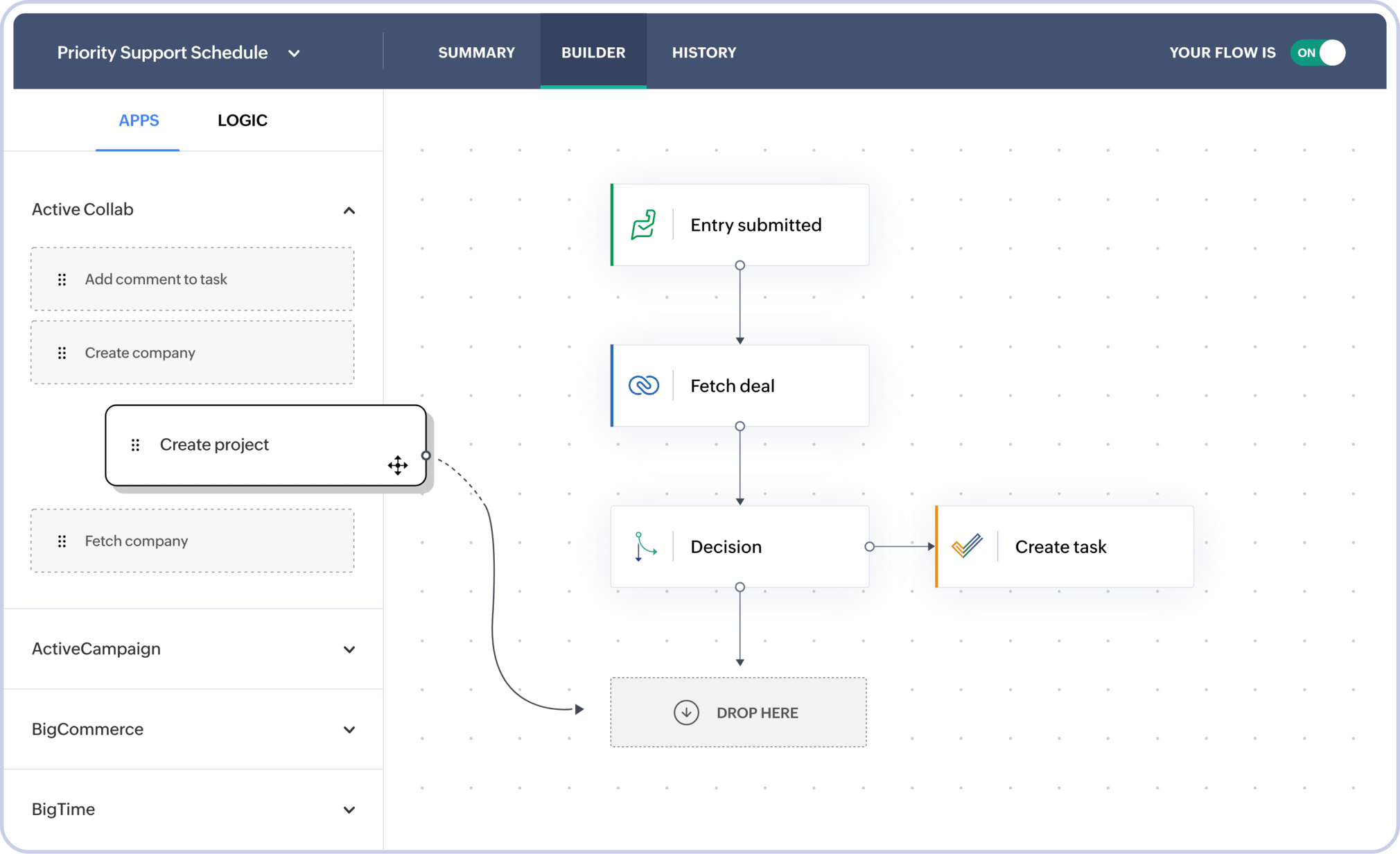
Image source: zoho.com
Types of Zoho workflows
This section introduces the main workflow categories found across Zoho Creator, Zoho Flow, Zoho CRM, and Zoho Expense. These workflows support different operational layers but share a common purpose. They help teams reduce manual tasks and maintain the structured movement of information. The following breakdown highlights how each type functions, along with real business scenarios that depend on consistent automation.
Zoho CRM workflow automation
Zoho CRM workflow automation helps sales teams manage predictable activity patterns. These workflows ensure that leads receive timely follow-ups, deals move in an organized manner, and key information updates correctly.
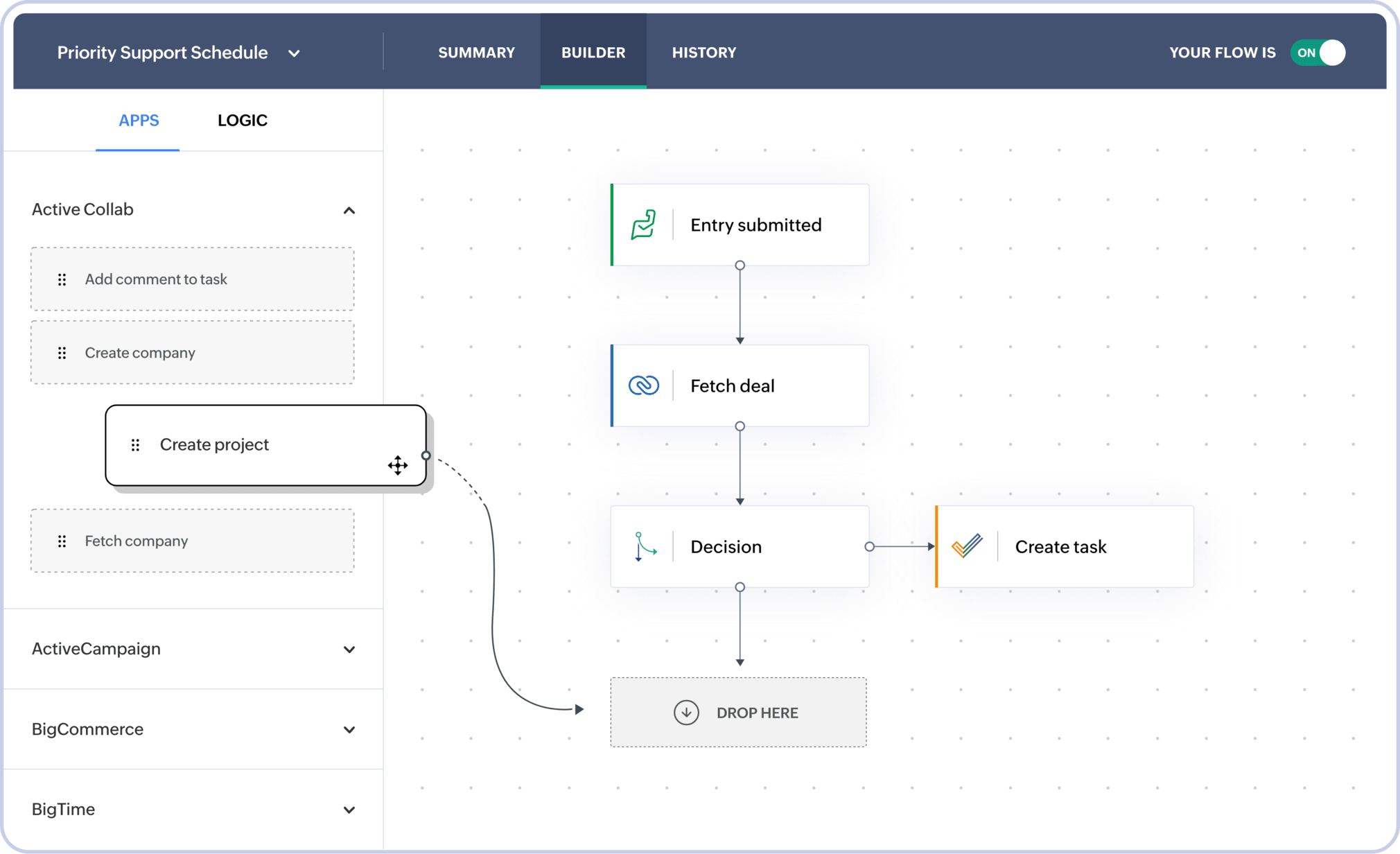
Image source: zoho.com
- Lead assignment: This workflow routes incoming leads to the right sales owners. It helps avoid delays that occur when new leads sit without attention. The assignment rules distribute records based on territory, availability, or segmentation. Companies rely on this to maintain fast response times and balanced workloads across sales teams.
- Deal stage updates: This workflow automatically adjusts fields or triggers alerts when deal stages change. It helps managers see how opportunities progress without waiting for manual updates. Teams use it to keep forecasting accurate and to maintain consistent reporting. This allows leadership to react quickly to shifts in pipeline movement.
- Follow-up reminders: This workflow creates tasks whenever an important action needs to occur. It helps salespeople avoid missed communication and ensures that prospects remain engaged. By automating reminders, teams maintain consistent outreach patterns. This improves customer experience and strengthens the likelihood of conversion.
- Data field updates: This workflow updates key CRM fields when specific conditions match. It helps prevent outdated information from accumulating across thousands of records. Teams use it to maintain clean data that supports analytics. Accurate fields improve segmentation, scoring, and reporting reliability.
Zoho automation workflow (platform-wide flows)
Zoho automation workflow options extend beyond CRM and support actions across multiple modules. These flows help unify different systems so that records move consistently and teams stay synchronized. Many companies rely on these workflows when they want centralized automation that supports large scale operations.
- Multi-step rule logic: This workflow chains multiple conditions together to create structured sequences. It helps teams manage layered processes that cannot be completed in one step. Organizations use it for scenarios like onboarding, procurement, or internal requests. The logic ensures every stage completes correctly before the next action begins.
- Notifications: This workflow sends alerts when important changes occur. It helps teams stay informed without needing to check dashboards constantly. Notifications activate when records update, approvals complete, or thresholds cross. This feature keeps teams responsive and informed in real time.
- Task creation: This workflow adds tasks automatically for the right users. It helps ensure that responsibilities do not fall through gaps. Teams rely on this when managing multi-department processes that require coordination. Automated tasks keep work progressing predictably across steps.
- Record updates: This workflow modifies data fields across modules. It helps maintain consistency between systems when one value changes. Companies use this for compliance rules, categorization, and operational governance. Record updates support clean reporting and simplified analysis.
Zoho approval workflow
Zoho approval workflow features support structured validation paths. These workflows help teams control spending, manage procurement, verify CRM updates, and route documents through responsible reviewers. Approvals are essential for governance and help businesses maintain accountability across operations.
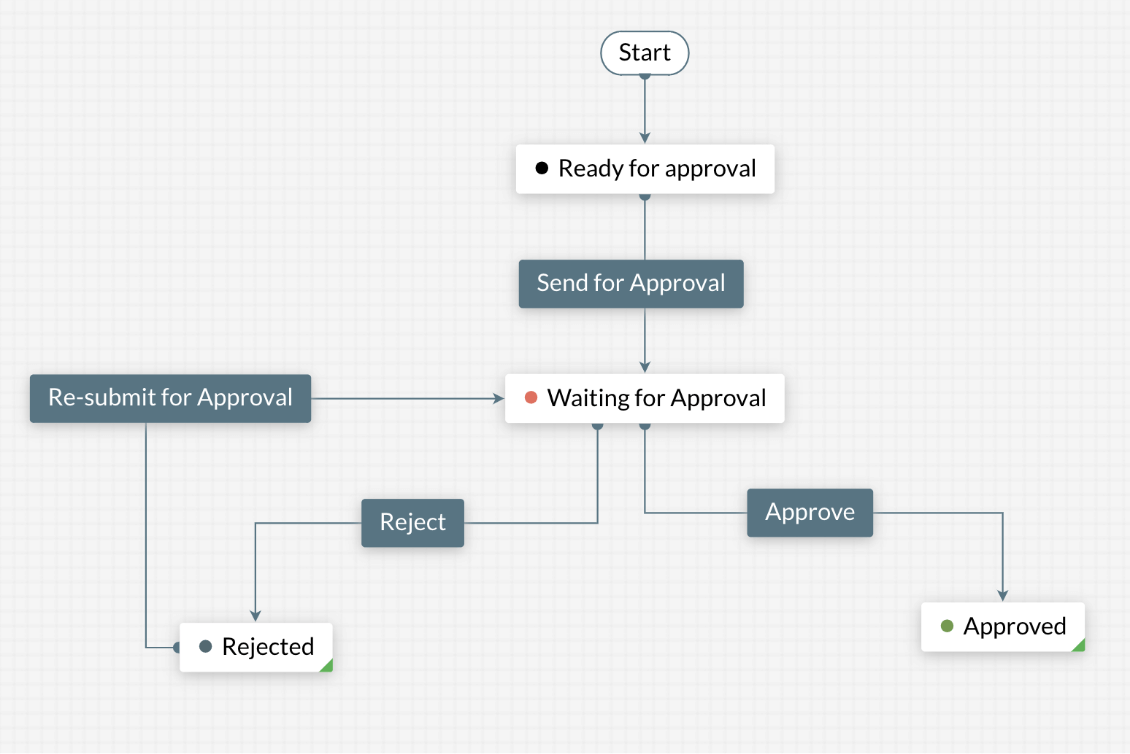
Image source: zoho.com
- Expense approvals: This workflow routes employee expenses to managers for verification. It helps prevent unauthorized claims and ensures proper documentation. Finance teams rely on this for clean audit trails. The workflow reduces delays by sending automatic reminders when pending actions remain open.
- Purchase approvals: This workflow handles purchase requests that require budget checks. It helps companies manage spending control and vendor policies. The approval path adapts to organization size and authority structures. This keeps procurement predictable and compliant.
- CRM field update approvals: This workflow asks reviewers to confirm major CRM changes. It helps maintain data accuracy for critical fields like value, status, and account ownership. Businesses use it to prevent accidental or unauthorized modifications. The system ensures that sensitive updates remain controlled.
- Document routing: This workflow sends documents to multiple reviewers for sequential confirmation. It helps organizations manage contracts, agreements, and internal forms. Each step remains tracked to maintain accountability. This reduces confusion and creates reliable processing sequences.
Zoho expense accounts payable workflow
Zoho expense accounts payable workflow features manage the financial processes tied to bills, receipts, and vendor payments. These workflows help eliminate bottlenecks and improve transparency across finance teams. They ensure that every payment goes through proper validation before processing.
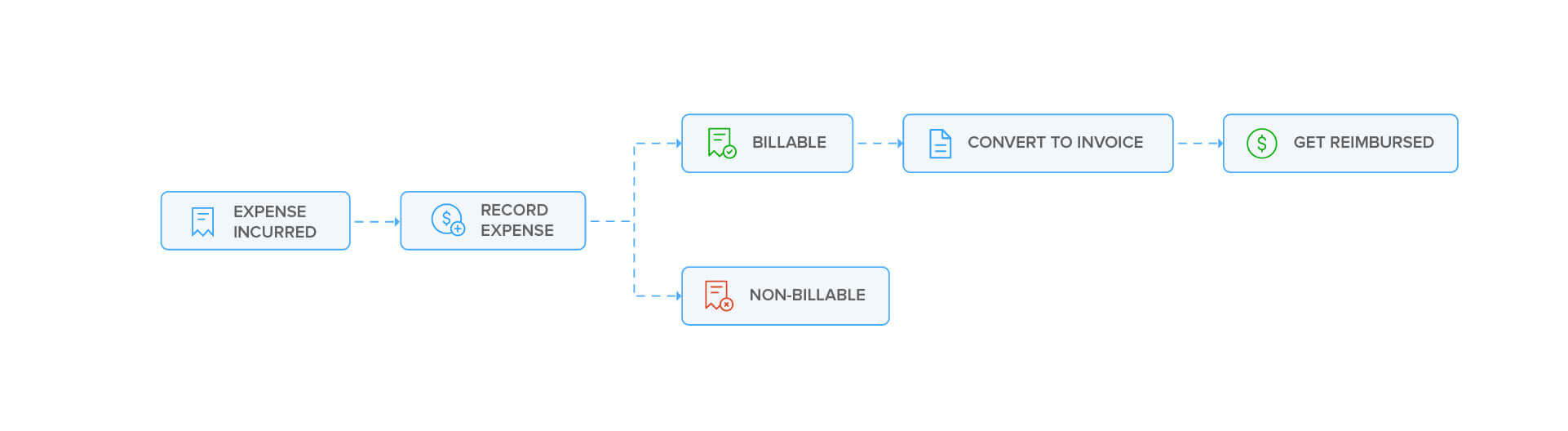
Image source: zoho.com
- AP processing flow: This workflow manages how vendor bills move through reviews. It helps teams verify data accuracy before approval. The flow typically includes submission, validation, adjustment, and final posting. This creates predictable financial movement across the organization.
- Receipt validation: This workflow checks supporting documents before reimbursement. It helps prevent missing proofs and ensures accurate expense records. Finance teams use it to maintain compliance across departments. The system reduces errors caused by manual checking.
- Vendor payment requests: This workflow routes payment requests for internal verification. It helps keep payment obligations organized and prevents missed deadlines. Teams rely on it to maintain clear visibility over pending vendor commitments. Workflow rules standardize approval paths to reduce confusion.
- Multi level approvals: This workflow adds sequential reviewers for high value items. It helps improve financial control and meets regulatory expectations. Managers use it to ensure that every major expense receives correct authorization. This strengthens financial governance across departments.
Zoho Creator workflow logic
Zoho Creator provides workflow tools for custom applications. These workflows support data routing, form actions, and conditional logic. Businesses use Creator when they need tailored applications that match unique operational needs. Workflow logic inside Creator ensures that each app behaves predictably based on internal processes.
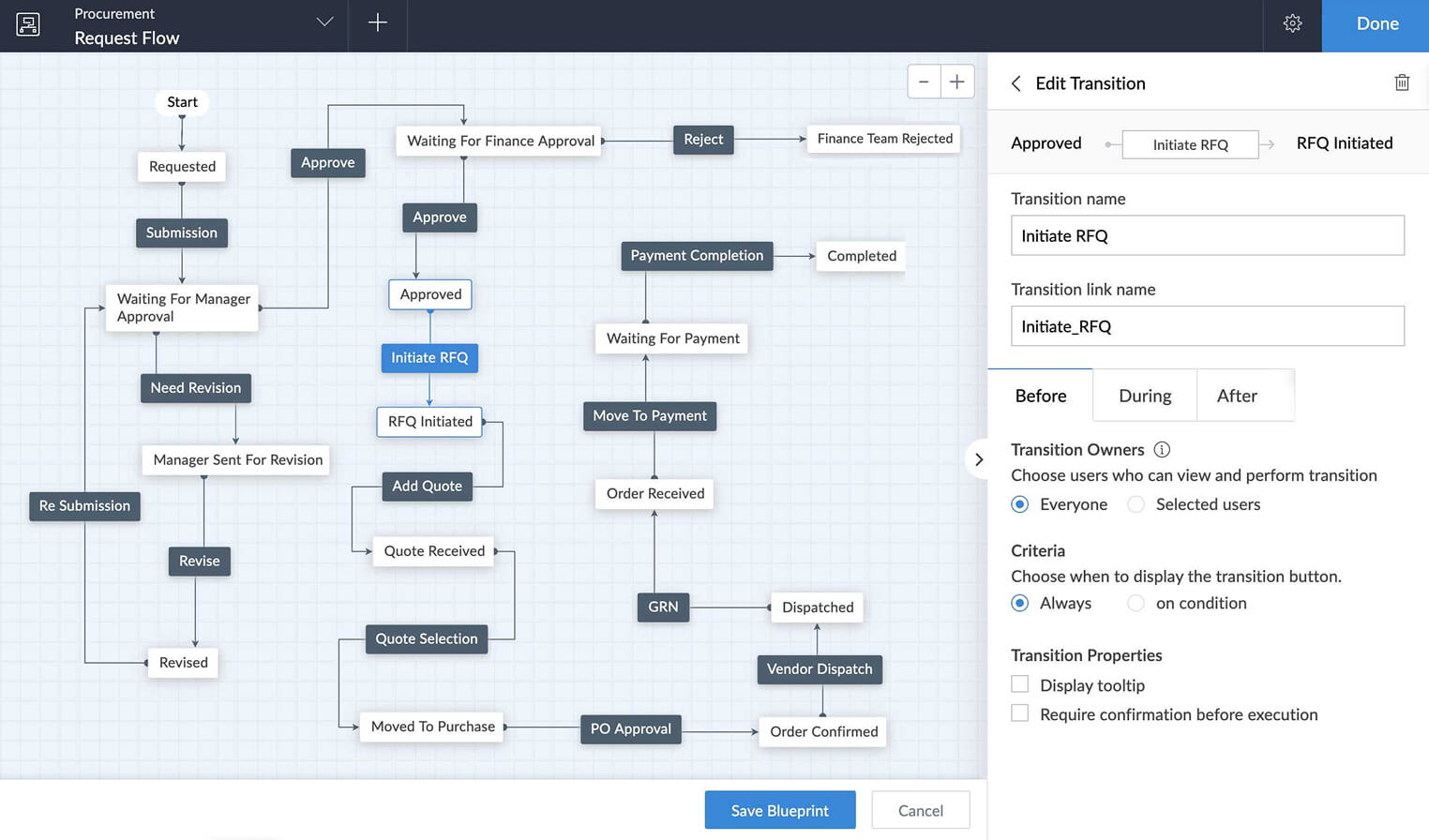
Image source: zoho.com
- Custom form actions: These workflows trigger when users submit or modify forms. They help automate data processing or assign tasks instantly. Teams rely on them to improve accuracy and eliminate repetitive actions. The result is faster completion time and consistent processing.
- Automated actions: These workflows perform system actions without manual intervention. They help organizations scale routine activities across custom applications. Automated actions maintain continuity across large volumes of data. Teams benefit from predictable, error-free operations.
- Condition-based flows: These workflows activate when particular conditions match. They help businesses customize behavior based on complex rules. Teams use them to build flexible applications that adapt to different use cases. This adds sophistication to automation logic.
- Application-specific rules: These workflows manage how data moves inside each Creator app. They help standardize application behavior and keep processes structured. Businesses rely on this to support tasks that require specialized handling. Application rules form the backbone of customized systems.
Essential features of Zoho workflow automation
Zoho workflow automation offers multiple features that help organizations strengthen their operational processes. These features support predictable data movement, clear ownership, and structured communication. Understanding these functions helps businesses decide how deeply they want to automate different areas.
- Rule-based triggers: These triggers activate actions when conditions match. They help teams automate repetitive tasks and maintain consistency. Companies rely on them to reduce manual work and prevent missed steps. This improves the speed and accuracy of operations.
- Field update actions: These actions modify data fields automatically. They help ensure that information remains correct across systems. Field updates support compliance, reporting, and categorization. Teams use them to maintain structured data habits.
- Time-based conditions: These conditions allow workflows to activate after set time intervals. They help teams manage reminders, escalations, and follow-up sequences. Time-based logic keeps workflows moving even when users forget steps. This supports healthier operational timelines.
- Email alerts: These alerts notify users of important changes. They help maintain awareness across departments. Email notifications ensure that critical information does not go unnoticed. Teams rely on them for timely updates.
- Task creation: These tasks assign responsibilities automatically. They help maintain clarity over who needs to act next. Task-based workflows help teams avoid stagnation. They keep activities organized and clearly defined.
- Blueprints: These process sequences guide users through structured paths. They help teams follow consistent steps in high-value processes. Blueprints maintain quality and reduce errors. Organizations use them for complex, multi-stage workflows.
- User notifications: These notifications keep individuals informed of changes. They help speed up reactions and prevent confusion. Teams rely on instant visibility for smooth collaboration. Notifications tie actions to clear awareness.
- Multi-step approval paths: These approvals add structured validation layers. They help ensure that requests receive proper authorization. Multi-step paths create strong governance patterns. Teams use them to maintain operational discipline.
How to set up workflow automation in Zoho CRM
Zoho CRM workflow automation helps teams streamline repetitive tasks and create consistent processes across sales and customer management activities. It allows users to define clear triggers, conditions, and actions so routine steps happen automatically without manual involvement. This improves accuracy, strengthens follow-up habits, and removes delays that often occur when responsibilities depend on memory. By setting up structured automation, teams can maintain predictable operations as lead volumes and workloads grow. The following guide outlines the practical steps for building effective workflows in Zoho CRM.
Step 1: Identify the process you want to automate
Start by choosing a repeatable business process such as lead assignment, opportunity follow-up, invoice creation, or contract renewal. The ideal process should follow predictable steps so that the criteria can trigger the next action reliably. Selecting a structured workflow helps ensure that automation runs smoothly and avoids unexpected outcomes.
Step 2: Define the trigger (when the workflow should start)
In Zoho CRM's "Workflow Rules" area, you choose the moment when the workflow should begin. Triggers can include situations such as:
- A record being created
- A record being edited
- A date field reaching a specific value
- A score change or other custom event
Triggers allow the system to start the workflow at exactly the right time without manual intervention.
Step 3: Set the conditions (which records qualify)
Conditions determine which records qualify for automation. You define the exact criteria that must be met. For example, you may specify something like "Lead Source = Trade Show AND Deal Amount greater than fifty thousand". Only records that match all of your listed conditions will activate the workflow. This maintains precision and prevents unnecessary actions.
Step 4: Specify the actions (what happens when the trigger + conditions are met)
Actions determine what happens when the trigger and conditions align. You can configure actions such as:
- Sending an email notification
- Creating a task for a specific user
- Updating a field value automatically
- Calling a webhook or custom function to connect with external apps
Actions can occur instantly or on a timed schedule. Scheduled actions allow follow ups to occur hours or days later without manual work.
Step 5: Build and test the rule
Inside Zoho CRM's Setup → Automation → Workflow Rules:
- Select New Rule and choose the module
- Add a name and description
- Choose the trigger
- Define the conditions
- Set instant and scheduled actions
After creating the rule, test it using sample records. This helps ensure the workflow behaves as expected and does not interact with records that should remain untouched.
Step 6: Monitor and optimize
After activating a workflow, use Zoho's analytics and logs to review how often the rule triggers and whether actions succeed. You can adjust conditions, delays, or responsibilities based on performance. This keeps workflows efficient and prevents conflicts with other rules.
Step 7: Scale and integrate
As processes grow more complex, you can extend automation by:
- Adding custom functions using Deluge for advanced behavior
- Using Zoho Flow to connect Zoho CRM with external systems such as accounting or ticketing platforms
For example, when a deal reaches a specific stage, Zoho Flow could create an invoice automatically in another application.
Limitations of Zoho Workflow to consider
Zoho workflows provide useful automation across CRM, approvals, and custom applications, but they also come with constraints that can affect scaling and cross-team coordination. Businesses quickly notice these limitations as processes expand and require more departments to stay aligned. When workflows grow larger, the gap between modules becomes more visible, often increasing maintenance needs. These limitations help explain why teams sometimes explore unified platforms that reduce fragmentation across apps.
- Complex setup for multi-team processes: This limitation becomes clear when workflows require input or approval from several departments. Each team may need its own module-specific configurations, which increases setup time. As the number of steps grows, maintaining parallel logic across modules becomes harder to manage. This results in more effort spent aligning and updating workflows whenever processes change.
- Separate workflow logic across different Zoho apps: This creates confusion because each Zoho product uses its own version of automation rules. Teams must learn different automation styles for CRM, Expense, Creator, and other modules. Managing unique logic for each product increases training needs and slows down adoption. It also makes cross-app consistency difficult because no single logic structure connects the whole system.
- Blueprint maintenance becomes heavy at scale: This happens when complex workflows require frequent updates or adjustments. As blueprints expand with more stages, transitions, and conditions, maintaining them becomes time-consuming. Teams need to check every rule to prevent conflicts or outdated paths. Large organizations often struggle to keep these blueprints aligned with evolving business processes.
- CRM workflows do not connect smoothly with workflows from other departments: This limitation arises because CRM automation does not directly sync with automation in Zoho Expense, Zoho People, or Zoho Creator. When different departments depend on each other, disconnected workflows force manual intervention. This slows down cross-functional processes and increases the risk of missed steps. Teams lose efficiency when each department uses isolated automation logic.
- Collaboration features remain separate from workflow execution: This becomes a challenge when users need to discuss records, share files, or coordinate decisions. Zoho workflows depend heavily on email or external apps like Zoho Cliq, which separates communication from the workflow itself. Teams must switch between tools to find context, leading to delays and misalignment. Over time, this affects collaboration quality because information does not stay attached to the workflow item.
While Zoho workflows offer useful automation, their limitations—complex multi-team setup, fragmented logic across apps, heavy blueprint maintenance, disconnected cross-department workflows, and separated collaboration—can slow scaling and hinder efficiency. For teams seeking a more unified approach, Lark provides an alternative platform that combines workflow automation with real-time collaboration features. Keep scrolling and discover how Lark makes a difference.
New alternative: Try Lark as a unified solution with automatic workflow
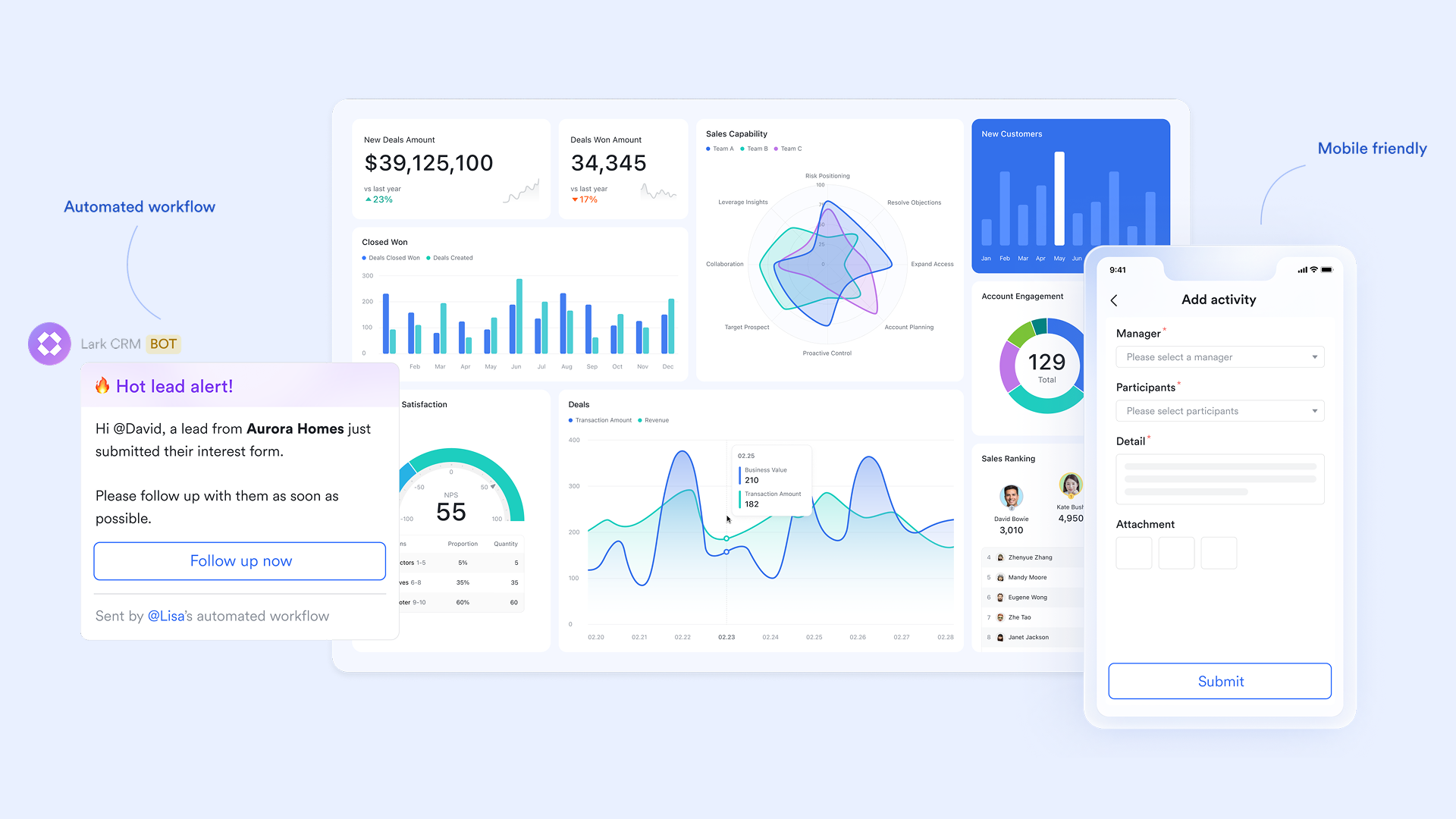
Lark offers a unified platform that brings together workflow automation, task management, messaging, calendar, and database tools in one place. Unlike Zoho, where workflows are often siloed across different apps, Lark lets teams design, trigger, and track automations seamlessly across all modules. This unified approach reduces manual handoffs, keeps cross-department processes aligned, and allows teams to collaborate in real time without switching between multiple tools.
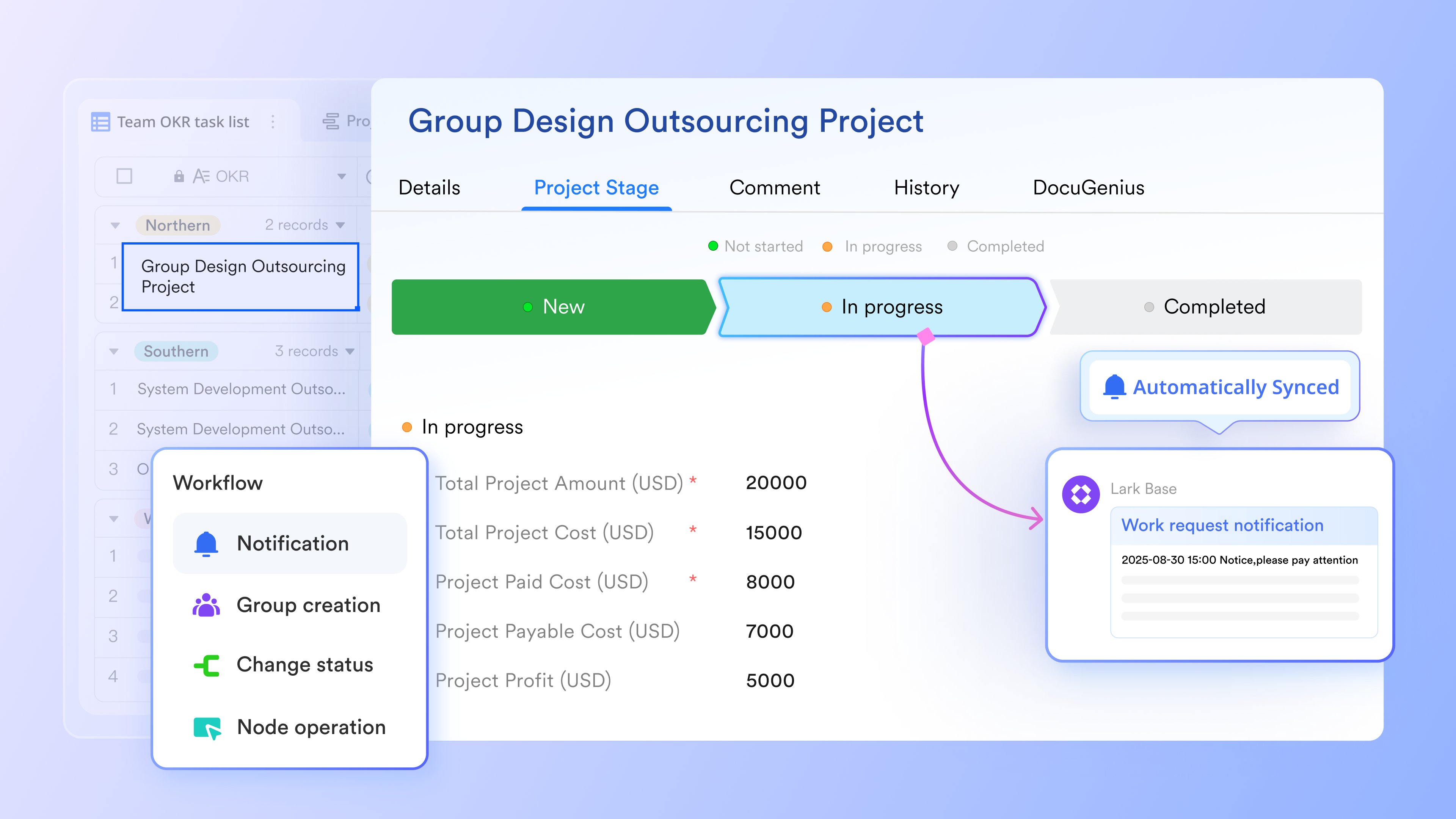
A single environment for work, data, and communication
Most teams struggle because their information is scattered across multiple apps. They plan in one tool, store documents in another, communicate on a separate platform, and track tasks elsewhere. With features like Base, Tasks, Docs, Messenger, and more, Lark removes this fragmentation by giving teams one space where structured records, task lists, docs, messenger chats, and meeting notes all stay together. When someone updates a project record or submits a request, the related conversations and files appear in the same place without having to switch tabs.
Compared to Zoho: Zoho spreads workflows across several products, including Zoho CRM, Zoho Creator, Zoho Expense, Zoho People, and Zoho Cliq. Each part of the process sits in a separate module, which slows teams down and creates back-and-forth checking. Lark keeps everything in one workspace, making the entire process simpler, faster, and more intuitive.
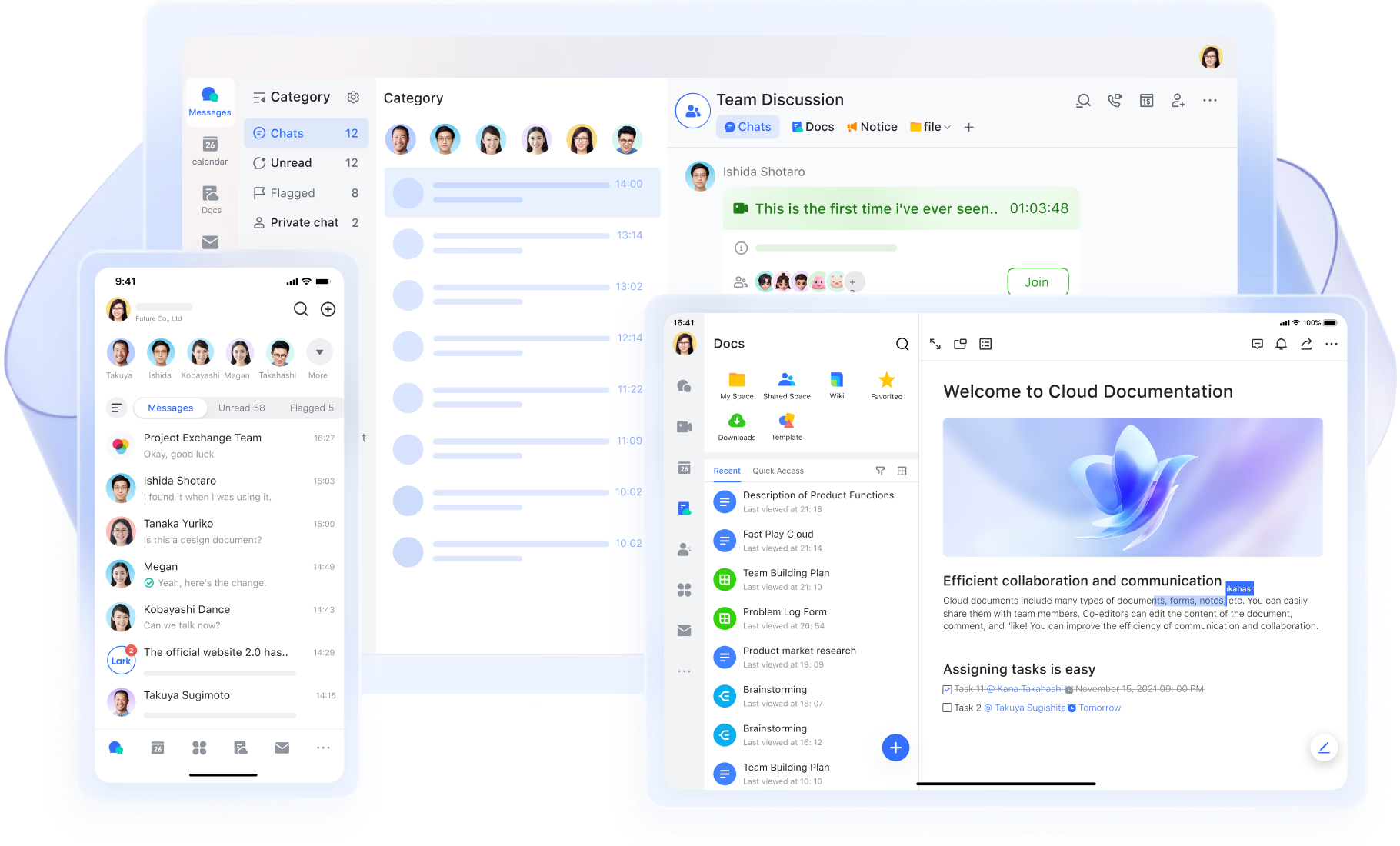
Flow logic that works smoothly across every team
The workflow feature in Lark Base automates sequences that span HR, finance, operations, and marketing using a single workflow format. Every team uses the same triggers, actions, and automation builder. There is no need to redesign workflow logic for each department, and updates made in Base remain visible alongside the record.
Compared to Zoho: Zoho workflows operate differently depending on the product Zoho CRM workflows don't behave like Zoho Expense workflows, and Zoho Creator introduces another style altogether. As a result, cross-team flows require more setup and more maintenance. Lark avoids this complexity by letting every department use the same automation builder, reducing work and improving consistency.
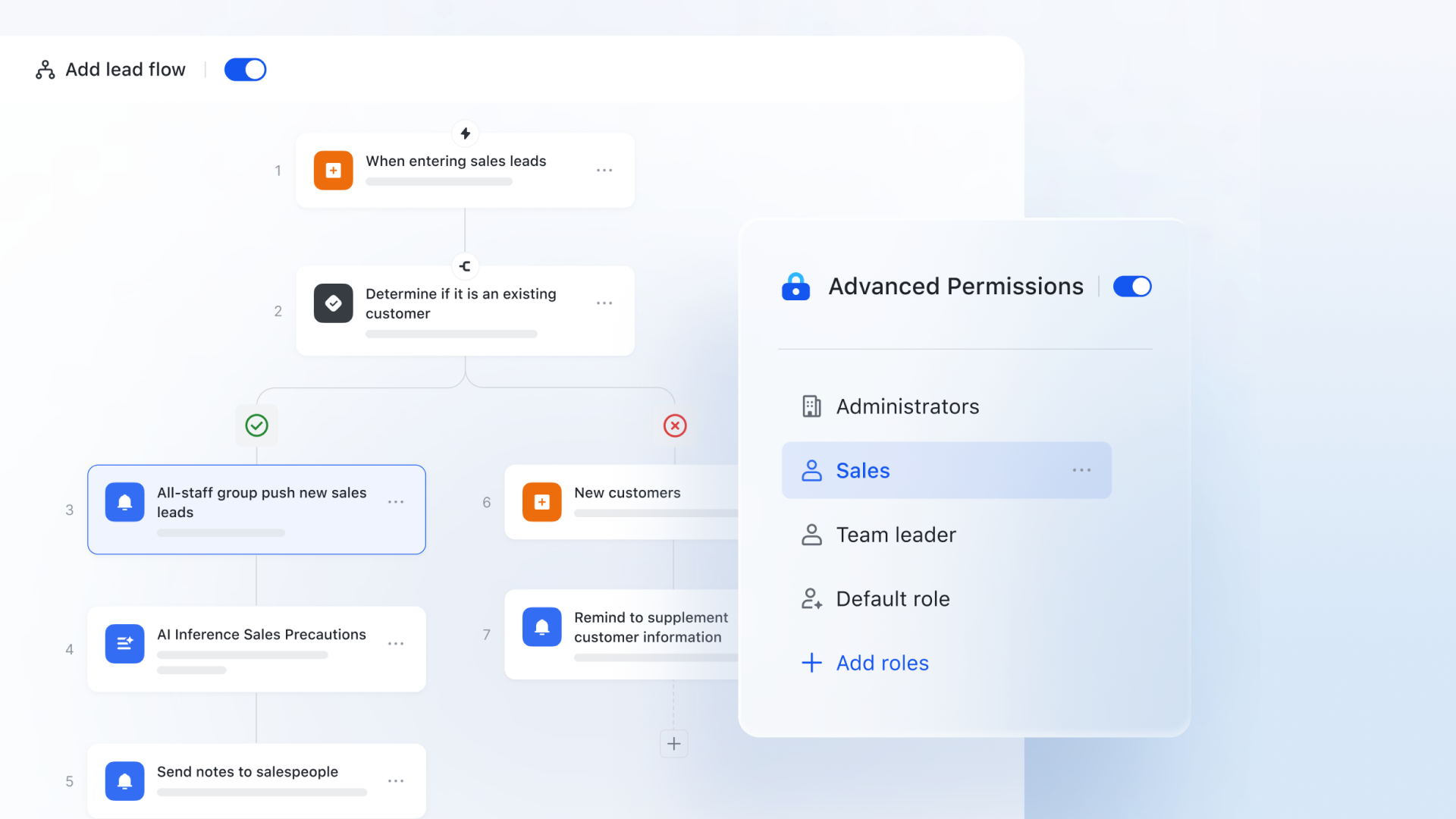
Every update reflects one consistent source of truth
With Lark, approvals, edits, notifications, and tasks all synced to the same Lark Base record. Approval data from Lark Approval can be synced directly to a Base record, with updates—like status changes—automatically refreshed every hour when automatic sync is enabled. Edits made in either the Doc or the standalone Base are synced in real time, such as content changes, filtering, grouping, sorting, and more. Any updates to base records, such as edits to field content, can also trigger notifications to keep your team informed instantly. Also, Lark Tasks can be synced to Lark Base by linking a task list to a Base table.
Compared to Zoho: In Zoho, updates depend heavily on the app you are using. Approvals in Zoho Expense don't mirror the workflow rules in Zoho CRM, and custom apps in Zoho Creator require separate logic. This can create data gaps or outdated fields. Lark ensures that every action stays tied to the one record that represents the process, producing cleaner and more reliable workflows.
Collaboration and communication follow the workflow naturally
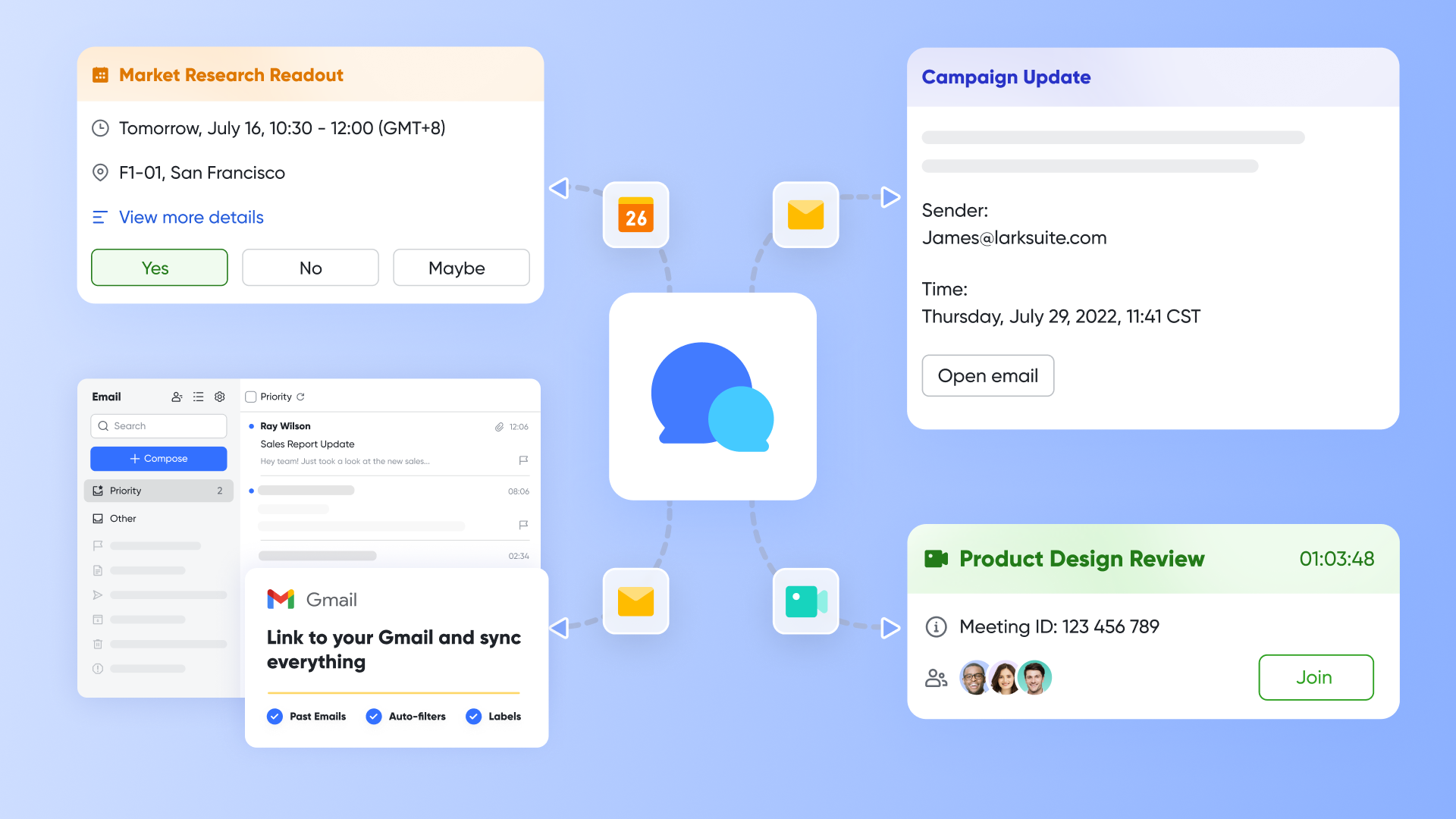
Lark blends workflow automation with real-time collaboration. Conversations, comments, reviews, and documents stay attached to each workflow stage. For example, Messenger lets you send with formatting, mentions, emojis, and images for clear, actionable communication. Meeting enables real-time collaboration, allowing participants to view and edit shared documents together. Docs support workflow coordination, feedback, and notifications within a single document, while Wiki organizes complex information for easy search and reference, making knowledge accessible to everyone.
Compared to Zoho: Zoho relies heavily on email and separate applications such as Zoho Writer and Zoho Meeting. When conversations and document collaboration happen outside the workflow tool, teams lose context and waste time switching screens. Lark keeps collaboration happening exactly where the work is, keeping the entire communication trail linked to the process.
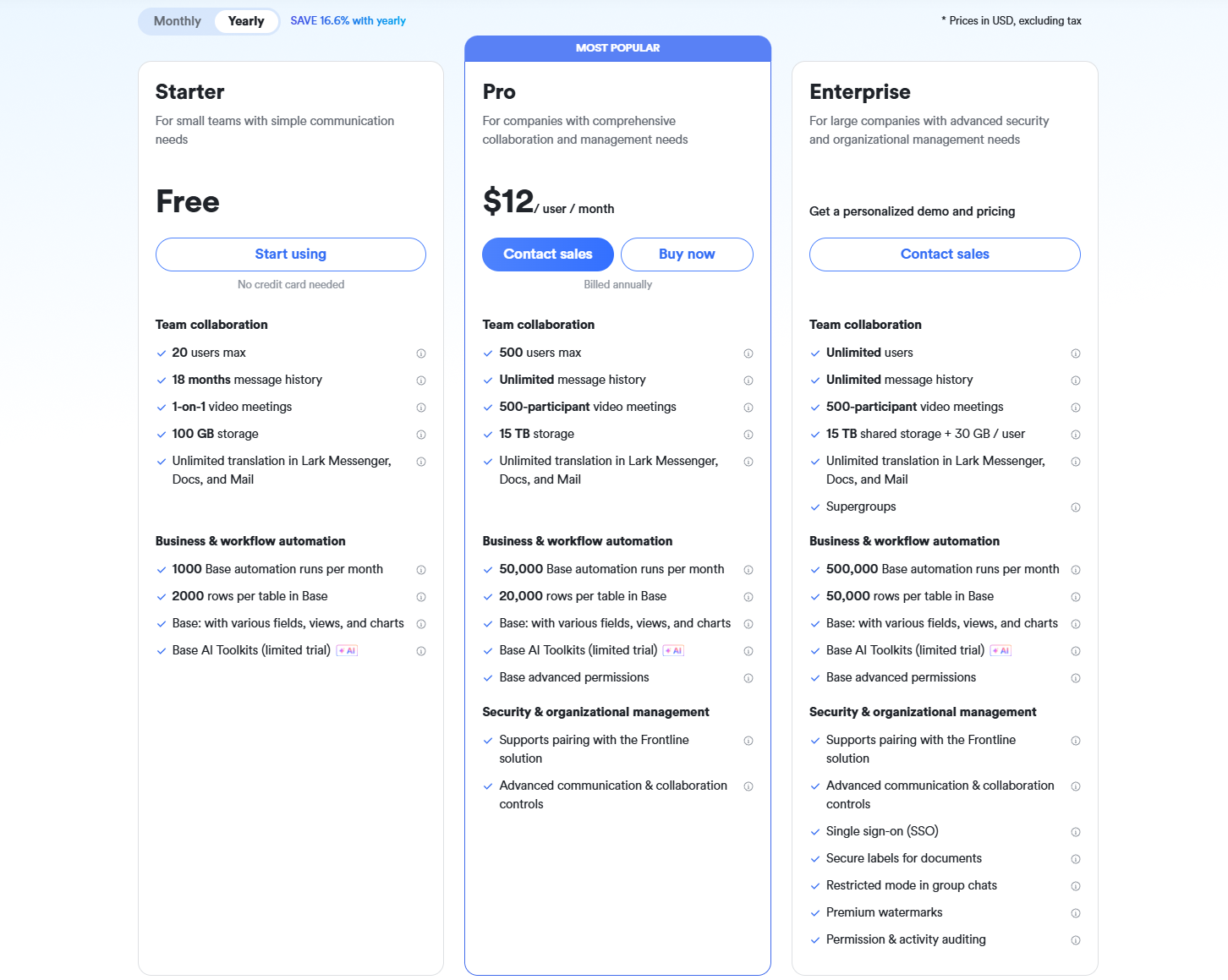
- Starter plan: Free forever plan that includes 11 powerful tools for up to 20 users. It also comes with 100GB of storage, 1000 automation runs, AI translations, and more.
- Pro plan: $12/user/month (billed annually) for up to 500 users. It includes everything in Starter plus group calling for up to 500 attendees, 15TB of storage, 50,000 automation runs, and more.
- Enterprise plan: Contact sales for custom pricing. Supports unlimited users and includes even more automation runs and advanced security, compliance, and management features.
Final verdict: Zoho Workflow vs Lark comparison table
Feature | Zoho workflow | Lark |
Workflow triggers | Strong | Strong |
Multi-step sequences | Good but app-specific | Unified and simple |
Approvals | Good | Strong with cross-team routing |
Real-time communication | External to workflows | Built into the workspace |
Cross-app processes | Requires Zoho Flow | Native |
Documentation | Separate via Zoho Writer | Connected in Docs |
Collaboration | Separate apps | Together in one workspace |
Ease of scaling | Medium | Strong |
Conclusion
Zoho workflow automation helps companies create structured processes that support CRM operations, financial approvals, and custom applications. By reducing manual effort and improving reliability, these workflows help teams maintain predictable and efficient daily operations. As organizations grow, many begin looking for platforms that combine automation, collaboration, and communication in one connected environment. This is where Lark gradually enters the picture, bringing approvals, documents, messaging, and workflow execution into a single workspace. By understanding the strengths of workflow automation, Zoho teams can make clearer decisions about future systems that improve coordination and reduce complexity.
FAQs
Can Zoho workflows run across multiple Zoho apps at the same time?
Most Zoho workflows run inside individual modules such as CRM, Expense, and Creator, which limits cross app coordination. Teams usually rely on Zoho Flow or additional configuration to connect processes. This matters for organizations working on broader workflow or business process automation across functions. When companies want workflows to operate smoothly across environments, unified platforms become more appealing. This is where tools like Lark gradually emerge as alternatives.
How do Zoho workflows handle exceptions or manual overrides?
Zoho lets administrators adjust steps using conditions or manual transitions, but the experience differs across modules. Complex exception handling may require Creator scripts or custom rules. When teams want simpler oversight without switching apps, they often evaluate connected systems. This leads some businesses to consider Lark for more centralized workflow control.
Does Zoho support versioning or change history for workflows?
Zoho provides limited visibility into workflow revisions, and version tracking depends on the module in use. Teams in regulated environments sometimes need clearer audit trails and more consistent change history. When they explore platforms that unify workflow logic and documentation, Lark enters the conversation naturally.
How do Zoho workflows perform for high-volume automation?
Zoho workflows can manage high volume activity, but performance varies based on the app and the number of active rules. CRM heavy setups may experience delays when many triggers fire simultaneously. Companies looking for smoother scaling often compare systems with unified automation engines, where Lark becomes one of the natural options.
What skills do I need to create advanced workflows in Zoho?
Basic Zoho workflows are easy to configure, but advanced logic may require Creator scripting or admin level setup. This can be challenging for teams without technical resources. When organizations explore platforms that keep complex automation simpler to manage, Lark appears gradually as a possible path forward.
Related reading
Table of contents
Start using Lark today

Manage all your work in one place
Boost team efficiency by 10x
Save up to 70% on software costs
Table of contents
Start using Lark today
Manage all your work in one place
Boost team efficiency by 10x
Save up to 70% on software costs
Keep reading



Lark recognized in 2023 Gartner® Collaborative Content Workspaces and Meeting Solutions reports
Lark, the global superapp for productivity, is delighted to announce it receives recognition in the Gartner's 2023 Innovation Insight for Collaborative Content Workspaces and Market Guide for Meeting Solutions.





2026 Lark Technologies Pte. Ltd.
Headquartered in Singapore with offices worldwide.






Explore: