The promise of artificial intelligence has arrived in our daily tools, and for many of us, that means our spreadsheets. Google Sheets, a cornerstone for countless operations, is now equipped with AI capabilities designed to streamline tasks and extract insights. There's a lot of excitement about what "Google Sheet AI" can do, from generating formulas to summarizing data. This article aims to cut through the noise. We'll explore the different types of AI available in Google Sheets, outline their practical applications, and crucially, discuss their real-world limitations. Our goal is to provide a clear framework, helping spreadsheet-heavy knowledge workers, team leads, and operations managers decide the right approach for generating, summarizing, classifying, extracting, or analyzing their data, ultimately helping your team avoid wasting time on features that sound impressive but fall short in practice.
Understanding AI in Google Sheets: Native capabilities vs. add-ons
When we talk about "AI in Google Sheets," it’s important to recognize that we’re often referring to two distinct categories: the AI features Google builds directly into Sheets (what we call "native AI") and the various third-party applications or add-ons that integrate their own AI models. Understanding this difference is key because it affects everything from how you access the AI to the scale of data it can handle and even the types of tasks it’s best suited for. Native AI tends to be broad and integrated, while add-ons often offer specialized functionality.
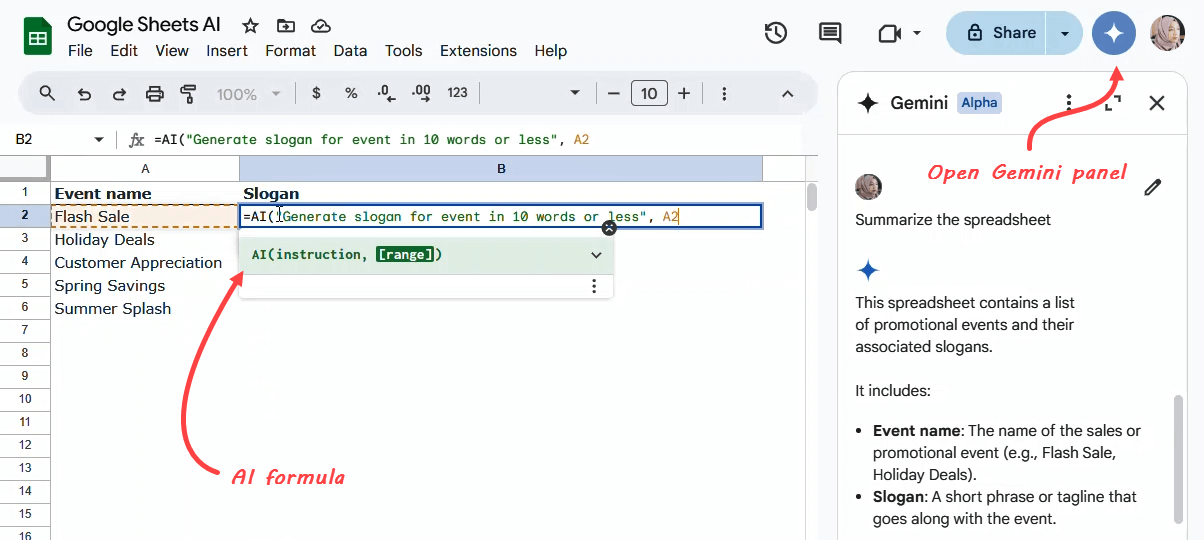
Image source: support.google.com
Gemini in Google Sheets: Your built-in AI assistant
Google's own AI, Gemini, is increasingly integrated directly into Google Sheets. Think of Gemini as your in-spreadsheet assistant that can help with a wide range of general tasks. It’s typically accessed through a sidebar or context menus, providing interactive assistance.For example, if you have a messy list of customer feedback and want to quickly organize it, you could ask Gemini to "create a table of common themes from this column of feedback." Gemini might then suggest a structured table and even help generate concise summaries for each theme. Similarly, if you're struggling to remember the exact syntax for a complex formula, you can ask Gemini for help. It can generate formulas, format your data, and even help build charts and graphs, making it particularly useful for quick, ad-hoc tasks or when you're exploring new ways to present your data. This broad capability makes it a versatile tool for looking for quick wins in data organization and visualization.
AI add-ons for Google Sheets: Extending functionality
While Google's native AI offerings are powerful, a vibrant ecosystem of third-party AI add-ons extends Google Sheets' capabilities even further and may even prompt teams to consider . These add-ons, often found in the Google Workspace Marketplace, typically bring specialized AI models or custom functions that might not be available directly through Gemini or the =AI() function. For example, add-ons like SheetAI or Numerous.ai provide custom formulas designed for very specific tasks like advanced data extraction from unstructured text, highly customized classification schemas, or even connecting to external AI services for more complex natural language processing. If your workflow involves regularly extracting specific entities from large blocks of text, performing sentiment analysis with nuanced categories, or needing pre-built AI templates for common business scenarios, an add-on might offer a more streamlined and powerful solution similar to . These tools often bridge the gap between simple in-sheet AI and more robust, dedicated AI platforms, providing greater flexibility and sometimes better performance for niche applications, especially when you’re also evaluating broader .
Where AI in Google Sheets shines: Practical use cases
Now that we understand the different types of AI available, let’s look at specific, practical ways you can apply these tools in your Google Sheets workflows. The goal is to identify areas where AI can genuinely reduce manual effort and accelerate insight, much like broader across your organization.
Rapid Asset Generation
Building spreadsheets from scratch can be a time-consuming process. AI acts as a rapid generator, instantly translating simple text instructions into ready-to-use structures.
Scenario: Creating advanced trackers and visualizations. Instead of manually setting up rows, columns, and charts, a user can simply type a prompt. Gemini will instantly generate custom trackers, tables, and to jumpstart projects.
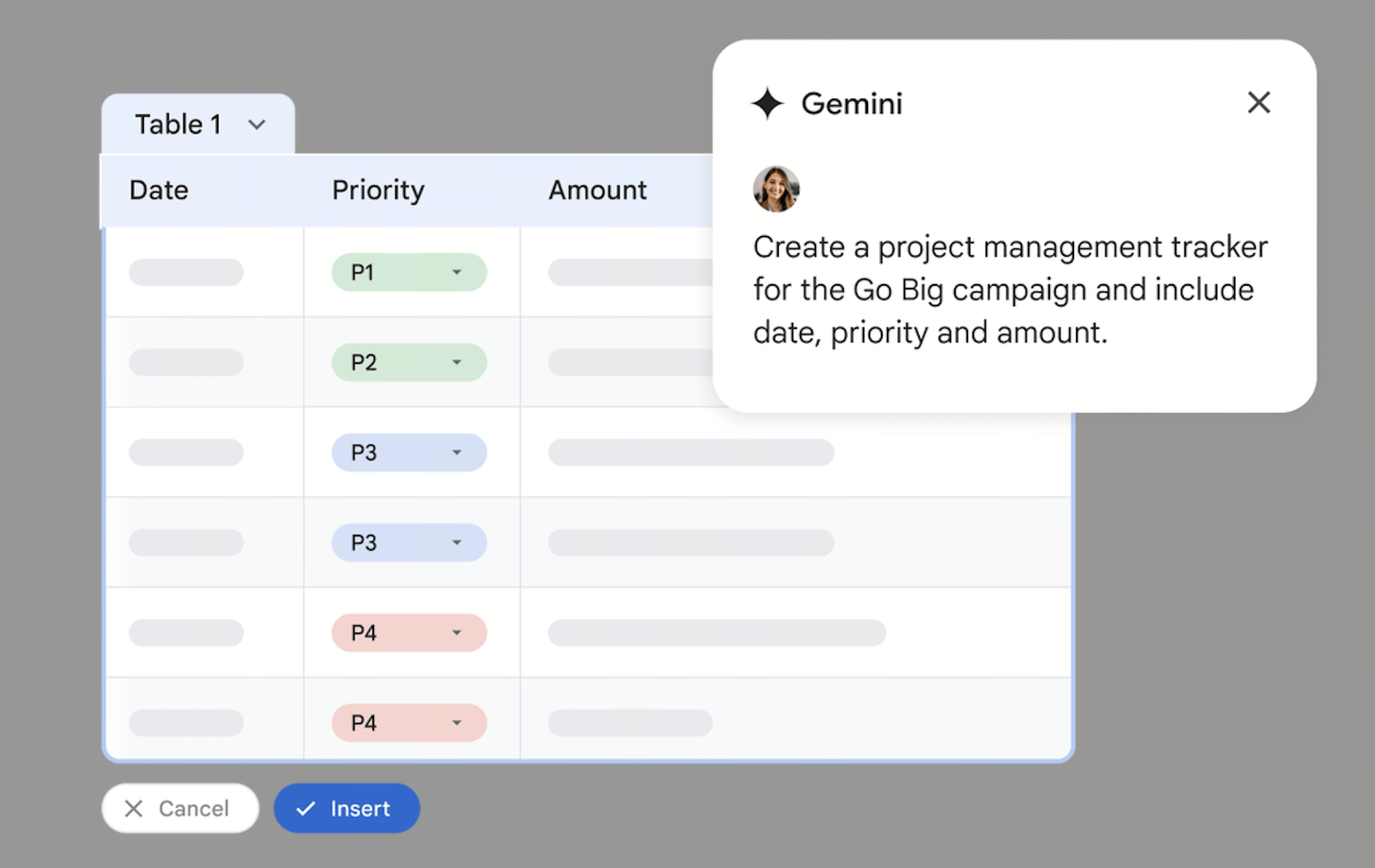 Image source: workspace.google.com
 Generating and enriching text
Imagine you're dealing with vast amounts of information where certain details are missing or need to be expanded. AI in Google Sheets can step in to fill those gaps and enrich your datasets, saving hours of manual data entry or research.
Scenario: Product listing optimization. A marketing team manages hundreds of products with basic titles and keywords. Instead of writing unique, compelling descriptions for each, AI can generate first drafts based on these initial inputs. This speeds up the process of creating engaging e-commerce listings, allowing the team to focus on refinement.
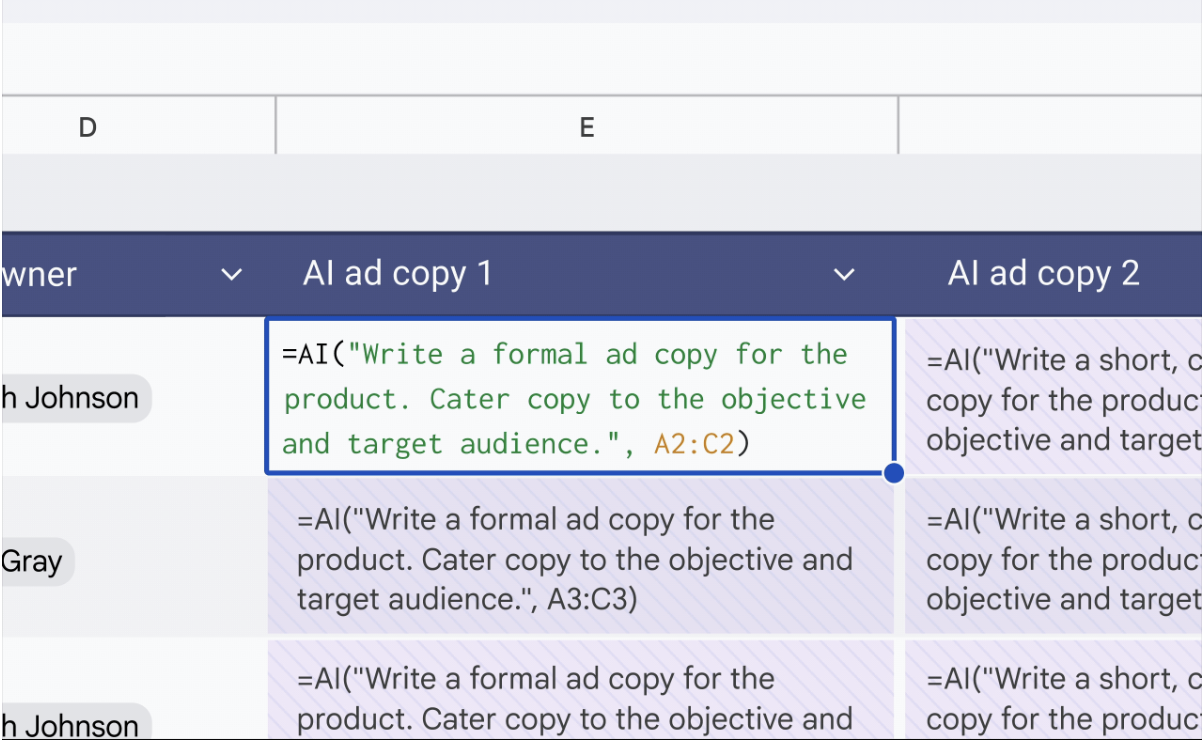
Image source: workspace.google.com
Summarizing and understanding information
Many roles involve sifting through extensive text—be it customer feedback, research notes, or meeting transcripts. AI offers a shortcut to understanding the core message without getting bogged down in every detail.
Scenario: Customer feedback analysis. After a product launch, your team collects thousands of customer comments. Manually reading each one to find common themes is impractical. AI can summarize these comments, identifying recurring issues or popular features at a glance. This helps product managers prioritize improvements based on genuine user sentiment.
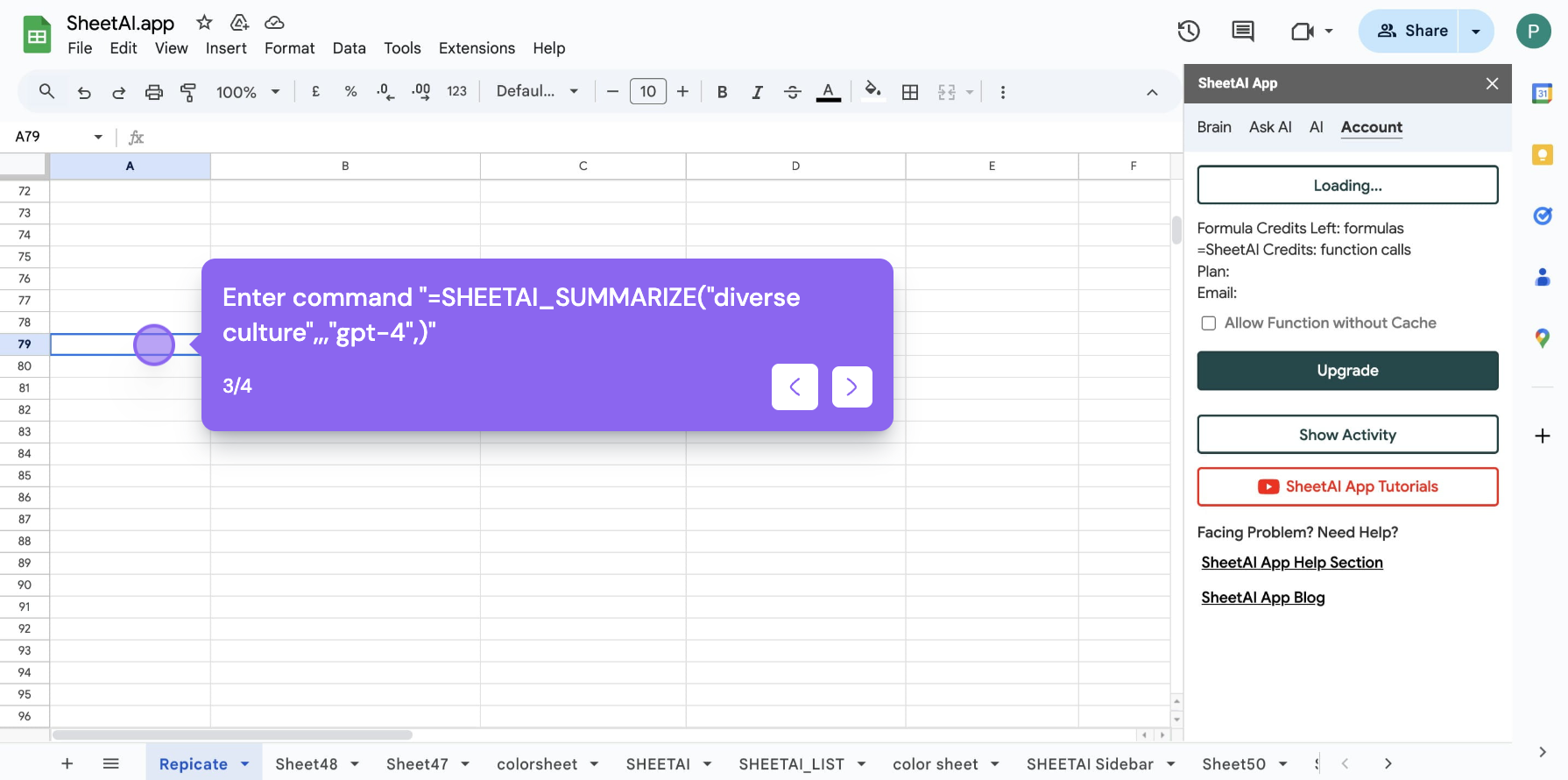
Image source: workspace.google.com
The reality check: Limitations, accuracy, and hallucinations
While the potential of AI in Google Sheets is undeniable, it's crucial to approach it with a clear understanding of its limitations and potential pitfalls. The "best" AI tool isn't always the one with the most features; it's the one that reduces rework and produces reliable outputs.
Understanding AI's limitations in Sheets
AI in Google Sheets, whether native or via add-ons, operates within certain boundaries. It's not a magic bullet that can solve every data problem.
- Data volume and context: While powerful, the =AI() function and even Gemini in the sidebar have limits on the amount of data they can process per query or in a single session. They often don't have access to your entire spreadsheet's context, only the specific cells or ranges you highlight. For instance, the =AI() function often has a practical limit to the size of the cell content it can effectively process. This means for very large, interconnected datasets, dedicated data analysis tools or might still be more appropriate.
- Speed and scale: Processing hundreds or thousands of AI functions can be slower than traditional spreadsheet formulas or a dedicated script. While convenient, it might not always be the most efficient solution for extremely large-scale, real-time data transformations.
- Complex reasoning: AI models are excellent at pattern recognition and text manipulation, but they still struggle with complex, multi-step logical reasoning or tasks requiring deep domain expertise and common sense. Asking for nuanced financial analysis directly from raw numbers might yield less reliable results than asking for a summary of a financial report.
The challenge of accuracy and hallucinations
Perhaps the most significant concern when using AI in data-driven contexts is reliability. AI models are not infallible; they can make mistakes, produce inaccurate information, or even "hallucinate."
- What are hallucinations? In AI, a "hallucination" refers to the model generating information that is plausible-sounding but factually incorrect or entirely made up. In a spreadsheet context, this could mean incorrect classifications, fabricated summaries, or extracted data that simply doesn't exist in the source text.
- The need for validation: As evidence from the Online Journalism Blog suggests, the quality of AI classification can vary significantly. Their testing of Google Sheets' AI function on classification tasks highlighted that "false positives outnumber false negatives," meaning the AI might often incorrectly categorize items as belonging to a group when they don't. This underscores a critical point: AI-generated outputs in Google Sheets should almost always be reviewed and validated by a human. Relying solely on AI without verification can lead to operational errors, misinformed decisions, and ultimately, more rework.
- Bias in data: AI models are trained on vast datasets, and if those datasets contain biases (e.g., gender, geographical, or cultural biases), the AI's outputs will reflect and even perpetuate those biases. When using AI for tasks like classifying people or locations, it's vital to be aware of this potential for skewed results.
Workflow-driven decision framework: When to use what
With a clearer picture of what Google Sheet AI offers and its inherent limits, the next question is practical: how do you choose the right tool for the job? It’s not just about features; it’s about fitting AI into your existing workflows to actually reduce effort, not add to it. Here’s a framework to guide your decisions.
Scenario 1: Quick, ad-hoc tasks and exploratory analysis
When you need immediate assistance with a new dataset, a complex formula, or just want to brainstorm how to structure information, the native Gemini sidebar is your best first stop. It's designed for interactive, conversational help that doesn't require complex setup.
- When to use it: You're exploring data, need a quick formula suggestion, want to reformat a table on the fly, or generate initial chart ideas. It's excellent for one-off tasks where you're actively engaging with the AI.
- Why it works: Its ease of use and immediate feedback loop make it perfect for rapid prototyping and quick problem-solving without leaving your sheet. It’s like having an expert sitting next to you for quick questions.
Scenario 2: Repeated, cell-level data processing
If your work involves consistent, specific transformations across many rows of data – like categorizing customer feedback weekly or extracting lead details from inbound requests daily – then the =AI() function or specialized AI add-ons are likely more efficient. These tools allow you to "set and forget" the AI logic.
- When to use the =AI() function: For standard text generation, summarization, or classification tasks that apply uniformly across many cells. It's ideal for automating routine data transformations.
- When to use specialized AI add-ons: When your needs go beyond the standard =AI() function – perhaps requiring more advanced data extraction, highly customized classification with specific industry terminology, or integrations with external AI models. Add-ons often provide more robust, tailored solutions for specific, repetitive AI operations.
- Guidance: Evaluate the regularity and complexity of the task. If it's a core, repeatable part of your data pipeline, invest time in setting up the appropriate function or add-on.
Scenario 3: When spreadsheet data needs to drive broader team action
Often, the output of your AI-enhanced spreadsheet is not the end goal, but rather a starting point. Insights from your data usually need to inform decisions, trigger next steps, and coordinate efforts across a team. If your spreadsheet analysis needs to feed into communication, documentation, approvals, or task management, then relying solely on Google Sheets – even with AI – can create fragmented workflows, making increasingly attractive.
- When to use it: Your AI-processed data leads to team discussions, requires official approvals, necessitates updating project plans, or informs cross-functional tasks. This is where the "Executive decision lens" comes into play: the core question isn't just "Can AI process this data?" but "Can this AI-processed data turn into decisions and actions without creating downstream coordination overhead?"
- Why it matters: Fragmented tool stacks (using Sheets for analysis, a separate chat for discussion, email for approvals, another tool for tasks) introduce friction, delays, and miscommunication. When insights derived from AI in Sheets need to translate into coordinated team efforts, a becomes essential to connect the dots.
Ready to revolutionize your team's collaboration?
Beyond the spreadsheet: Connecting insights to action with Lark
While Google Sheets AI is excellent for processing data within a spreadsheet, its insights are often just one piece of a larger organizational puzzle. Data analyzed in a spreadsheet usually needs to be discussed, decisions need to be made, tasks assigned, and progress tracked. This is where many teams struggle, as moving from spreadsheet insight to team action often involves switching between multiple disconnected apps. provides an all-in-one suite that can support this broader workflow, ensuring that the valuable intelligence derived from your Google Sheets AI doesn't get stuck in a silo. Imagine your team uses AI in Google Sheets to analyze customer feedback, categorize support tickets, or generate sales leads. What happens next?
Lark Sheet: From decisions to coordinated action
provides robust spreadsheet capabilities that rival many dedicated applications, offering a familiar environment for data processing, analysis, and visualization. Users can leverage a comprehensive set of formulas, enabling complex calculations and data manipulation.
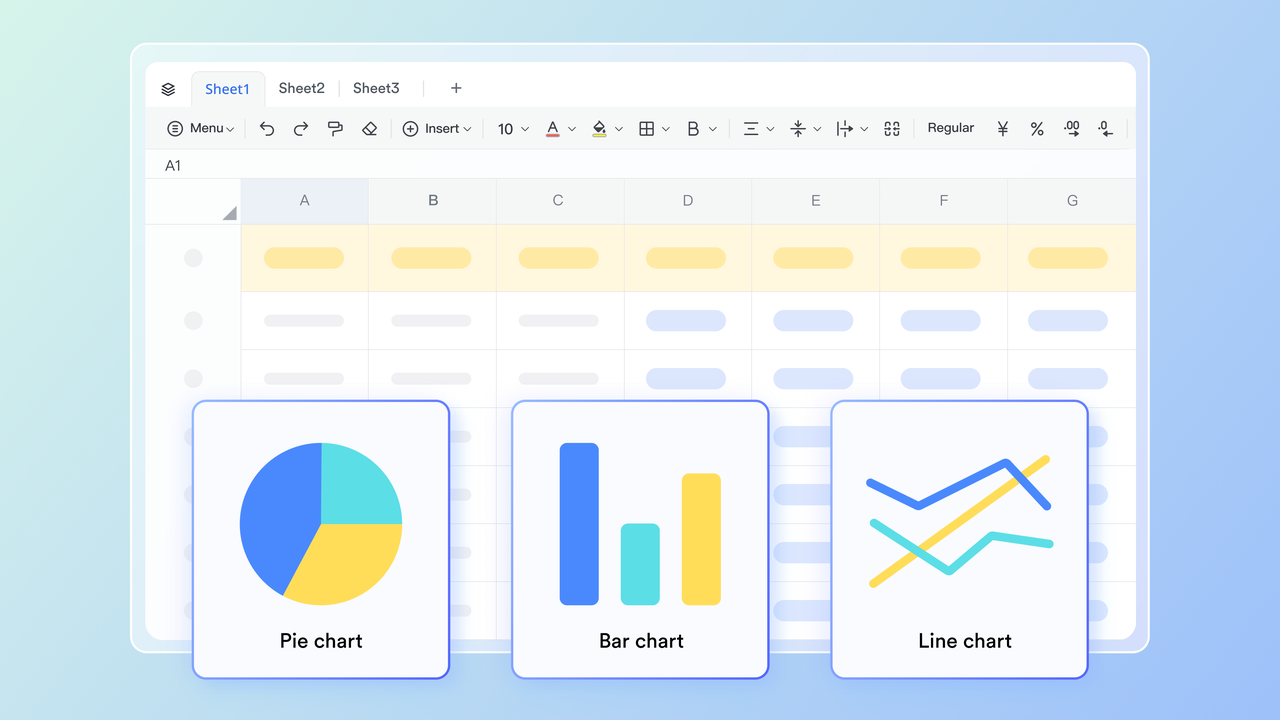
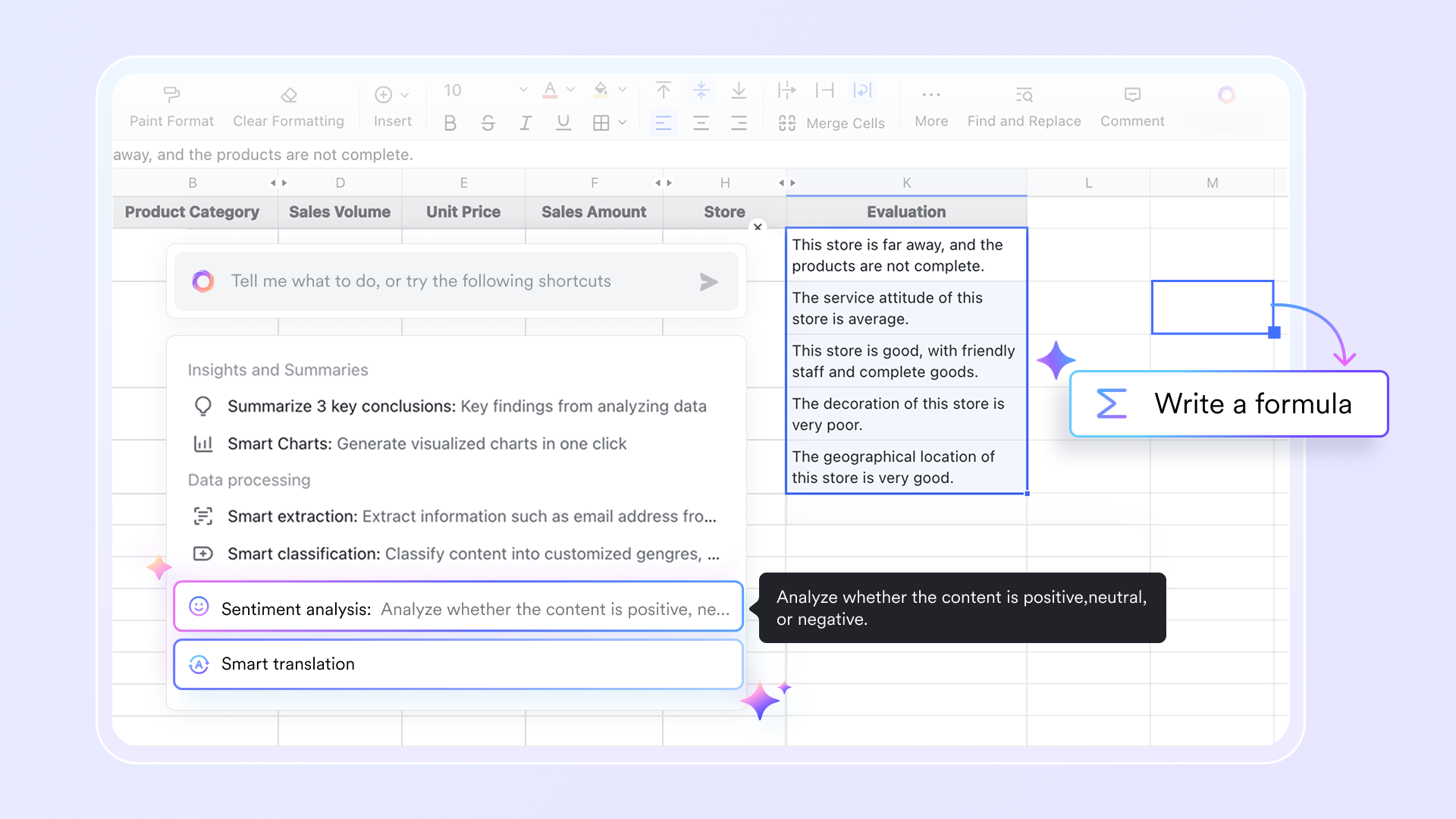
The platform also unifies AI-powered features, such as AI-generated formulas, to streamline data processing and pattern detection. For data visualization, Lark Sheets supports various chart types, including common options like column charts, line charts, area charts, and pie charts, allowing for clear and insightful representation of data.
Lark Base: An AI-enhanced smart table for data management
Lark Base transcends traditional spreadsheets, functioning as a highly versatile, no-code data management and business workflow platform. It acts as an "upgraded smart table" that allows teams to organize, visualize, and act on information without needing advanced coding or complex formula expertise.
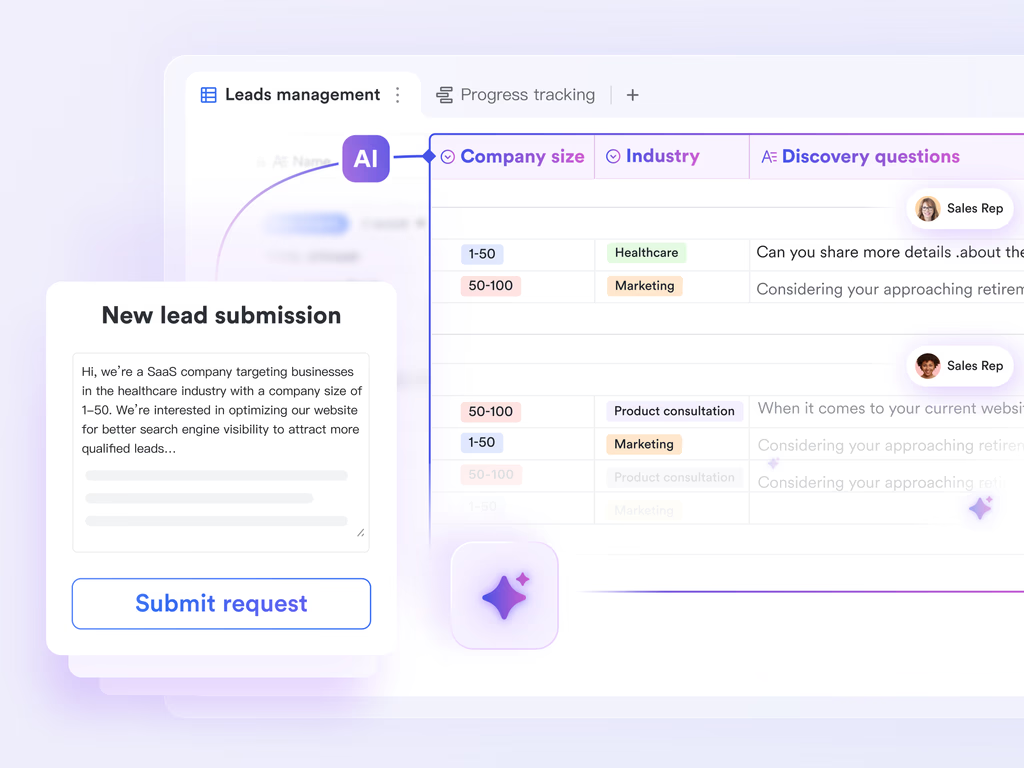
Base offers a variety of field types (text, numbers, dates, attachments) alongside intelligent "smart fields" that can automate data entry and calculations, drastically simplifying data collection.
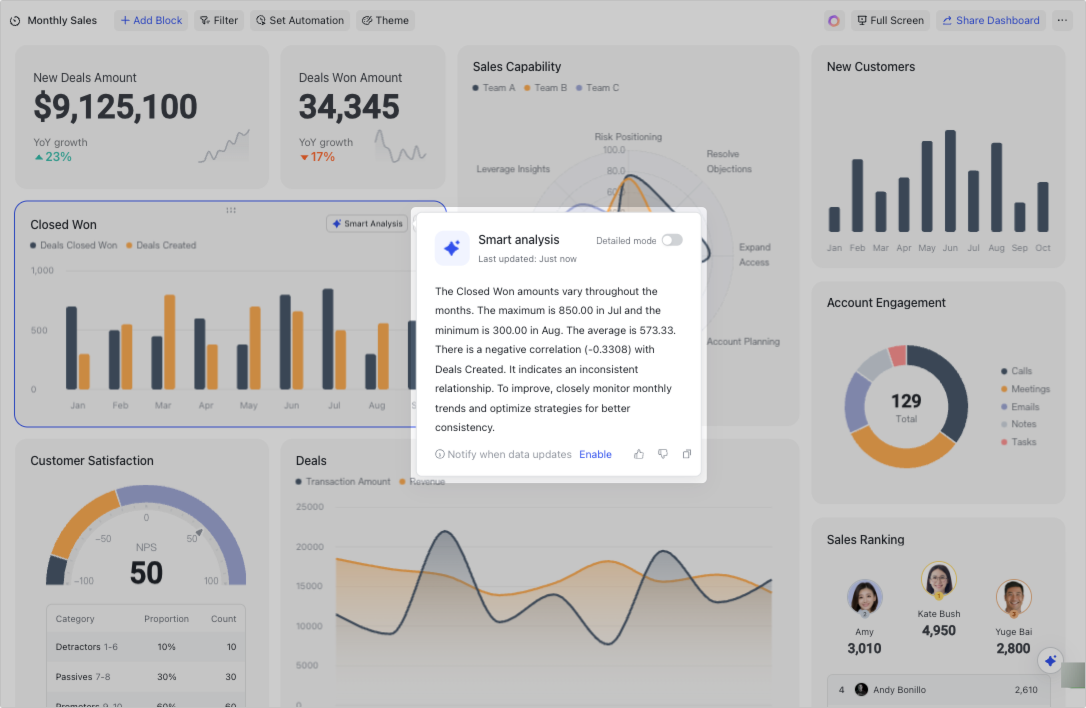
Lark Base: Visual dashboard
Furthermore, users can create highly interactive dashboards to visualize data from multiple dimensions. Lark Base also includes robust automation features, enabling teams to build custom automated workflows in minutes. This no-code automation capability, combined with smart data structuring, lowers the barrier to process optimization and directly cuts down on the manual effort usually required in traditional spreadsheets.
for Lark:
- Starter plan: that includes 11 powerful tools for up to 20 users. It also comes with 100GB of storage space, 1000 automation runs, AI translations, and more. No credit card needed.
- Pro plan: (billed annually) for up to 500 users. It includes everything in Starter plus group calling for up to 500 attendees, 15TB of storage space, 50,000 automation runs, and more.
- Enterprise plan: for custom pricing. Supports unlimited users and includes even more automation runs and advanced security, compliance, and management features.
For small teams with simple communication needs

18 months message history
1000 Base automation runs/month
2000 rows per table in Base
Most POPULAR
For companies with comprehensive collaboration and management needs
Unlimited message history
500-participant video meetings
50k Base automation runs/month
20k rows per table in Base
For large companies with advanced security and organizational management needs
Get a personalized demo and pricing
Unlimited message history
500-participant video meetings
15 TB storage + 30 GB storage/user
500k Base automation runs/month
50k Base automation runs/month
Most POPULAR
For companies with comprehensive collaboration and management needs
Unlimited message history
500-participant video meetings
50k Base automation runs/month
20k rows per table in Base
The role of prompt engineering
The quality of AI output is highly dependent on the quality of the input – specifically, your "prompt." Good prompt engineering is not just a technical skill; it's a critical part of ensuring reliable results when working with AI in Google Sheets.
- Clarity and specificity: Vague prompts lead to vague or incorrect answers. Instead of "summarize this," try "summarize this customer review into one concise sentence, highlighting the primary positive or negative aspect."
- Providing context and constraints: Tell the AI what roles to assume, what format to use, and what limitations to adhere to. For classification, specify the exact categories. For generation, set length limits or tone requirements.
- Iterative refinement: Prompt design is rarely a one-shot process. Expect to test and refine your prompts, especially for critical workflows. As the Online Journalism Blog noted, "don’t underestimate the time needed to design and refine the prompts." The effort spent here directly translates to improved accuracy and reduced verification burden.
Conclusion
Google Sheet AI is useful, but it is not one thing. It can mean built-in assistance, a cell-based AI function, or a third-party add-on layer, and each fits a different kind of work. The best choice depends on whether you need quick help, repeated row-level transformations, or a better system for turning spreadsheet output into team action. If you judge the options by workflow fit rather than feature lists, the decision becomes much clearer.
Optimize your productivity with an all-in-one alternative
FAQs
What is Google Sheet AI?
It is a broad term people use to describe AI features connected to Google Sheets. In practice, it may refer to Gemini in Google Sheets, the = AI() function, or third-party AI add-ons.
Does Google Sheets have an AI function?
Yes. Google has introduced an = AI() function for supported environments, allowing users to generate, summarize, categorize, and analyze text-based content inside spreadsheet cells.
What can AI in Google Sheets do?
Depending on the feature, it can help with formula creation, text summarization, categorization, sentiment labeling, chart ideas, and first-pass analysis, such as spotting patterns or outliers.
When should I use an add-on instead of native Google Sheets AI?
An add-on usually makes more sense when the same task repeats frequently, needs reusable prompt logic, or requires custom functions for extraction, classification, or transformation across many rows.
Is Google Sheets AI reliable enough for operational decisions?
It can be useful for draft work and first-pass triage, but it should be reviewed carefully when the output affects reporting, automation, approvals, or other higher-impact decisions.
What if spreadsheet work usually turns into team discussion and follow-up?
That is often a sign that improving the sheet alone will not remove all the friction. In those cases, a more unified workspace for communication, documentation, approvals, and coordination may matter just as much as the spreadsheet AI itself.
Related reading