














Microsoft Planner vs Asana: Full Comparison, Features, and Alternative

Akhil Nimmathota
Content Specialist
Nov 3, 2026
Akhil Nimmathota
Nov 3, 2026

19 min read
Add to preferred sources


Microsoft Planner vs Asana has become a common comparison for teams seeking the right project management solution in the remote-first work environment. With so many tools available, finding one that fits your workflow can be challenging. This guide provides a detailed analysis of both platforms — covering their key features, usability, integrations, pricing, and best-fit scenarios.
You'll also find insights into their strengths and limitations to help determine which tool aligns with your team's needs. Finally, we introduce Lark, a modern collaborative workspace that brings messaging, meetings, and project tracking together for a more connected and efficient way of working.

Understanding the tools: Microsoft Planner vs Asana
Choosing the right project management tool can make or break team productivity, especially in today's fast-paced digital work environment. Microsoft Planner and Asana are two leading platforms that help teams organize tasks, track progress, and collaborate effectively. While both aim to simplify project workflows, their approaches and capabilities differ significantly. This comparison of Microsoft Planner vs Asana explores their features, usability, and pricing to help you decide which suits your team best.
What is Microsoft Planner?
Microsoft Planner is a task and project management tool within the Microsoft 365 ecosystem, designed for teams seeking a simple and visual way to organize work. It uses a Kanban-style board layout that allows users to create plans, assign tasks, set priorities, and monitor progress in real time. Its seamless integration with Microsoft Teams, Outlook, and SharePoint makes it an excellent choice for organizations already using Microsoft's suite of productivity tools.
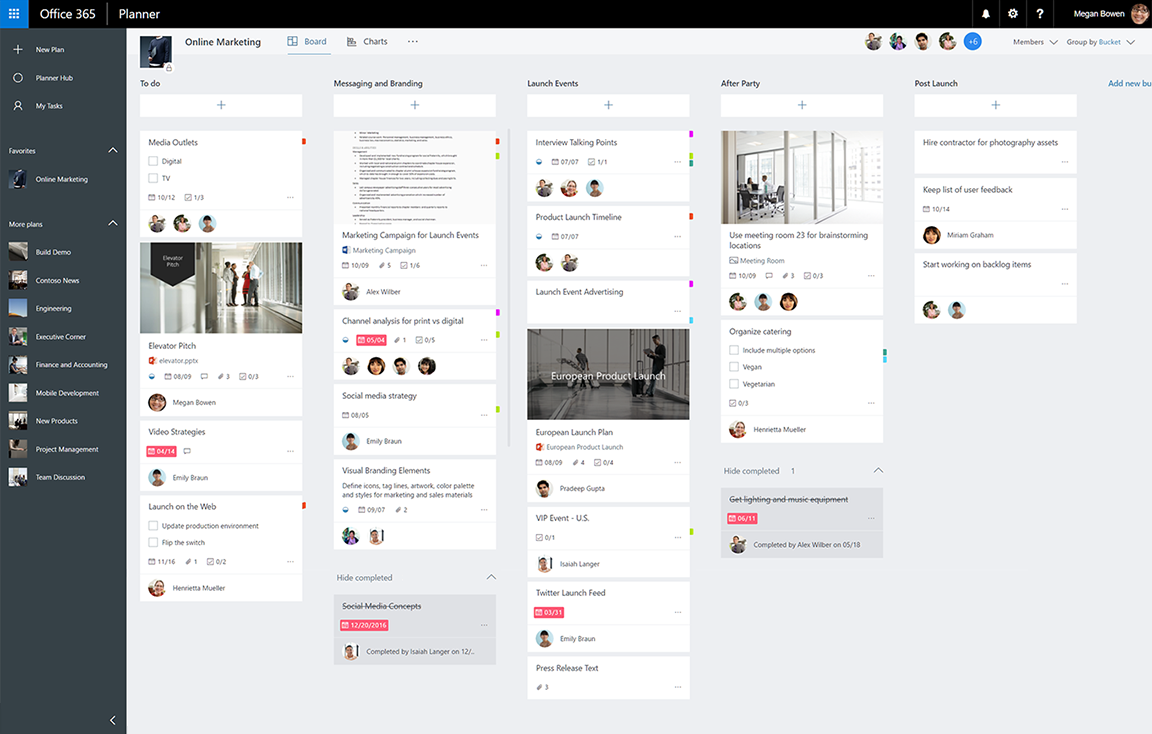
Image source: microsoft.com
Key features of Microsoft Planner
Microsoft Planner offers a simple yet effective way to manage projects, especially for teams already working within the Microsoft 365 ecosystem. Its intuitive interface and integration with familiar tools make it ideal for managing day-to-day tasks, tracking progress, and ensuring team alignment. Below are some of its most notable features that contribute to efficient collaboration and workflow management.
- Task organization with Kanban-style boards: Planner uses Kanban-style boards to help teams visualize work clearly and manage tasks across different stages. Each card can include deadlines, labels, attachments, and checklists for better clarity. This structure simplifies project tracking and keeps everyone aware of priorities.
- File sharing through OneDrive and SharePoint: Integration with OneDrive and SharePoint ensures all project files are stored securely and accessible from one place. Team members can collaborate on documents without switching apps. It enhances transparency while maintaining version control and data security.
- Built-in integration with Microsoft Teams: Microsoft Planner works seamlessly with Teams, enabling users to manage tasks directly within chats and channels. This integration keeps communication and task management in sync. Teams can discuss, assign, and update work without leaving their collaboration hub.
- Progress tracking with charts and filters: Planner includes built-in charts and filters to visualize task progress, workload distribution, and completion rates. Managers can easily identify bottlenecks and reallocate resources as needed. These insights make monitoring simpler and more data-driven.
- Mobile app for on-the-go updates: The Microsoft Planner mobile app ensures that team members can track tasks and make updates anytime, anywhere. Notifications and reminders keep everyone aligned, even when working remotely. It supports flexible, mobile-first collaboration for modern teams.
Pros and cons of Microsoft Planner
Pros:
- Microsoft Planner integrates seamlessly with Microsoft 365 applications such as Teams, Outlook, and SharePoint, allowing users to manage communication, files, and tasks in one connected workspace.
- The interface is clean and intuitive, making it easy for beginners to organize projects and track progress without a steep learning curve.
- It works well for small and medium-sized teams that need a simple, structured tool to manage everyday workflows without complex configurations.
- Real-time collaboration keeps everyone aligned, as updates made by any member are instantly visible across the shared workspace, ensuring transparency and accountability.
Cons:
- The tool lacks advanced project management capabilities like task dependencies, automation, or time tracking, which limits its use for larger or more complex projects.
- Reporting options are basic and do not provide deep insights or customizable analytics for performance evaluation.
- Its effectiveness depends heavily on the Microsoft ecosystem, making it less practical for teams that use diverse tools or platforms outside Microsoft 365.
What is Asana?
Asana is a more comprehensive project management platform built for complex workflows and cross-functional collaboration. It includes timeline and calendar views, automation, custom fields, and advanced reporting features. Asana also integrates with popular third-party apps like Slack, Google Drive, and Zoom, offering greater flexibility. Both Microsoft Planner and Asana focus on improving task management, team collaboration, and productivity, but differ in scalability, customization options, and overall project complexity support
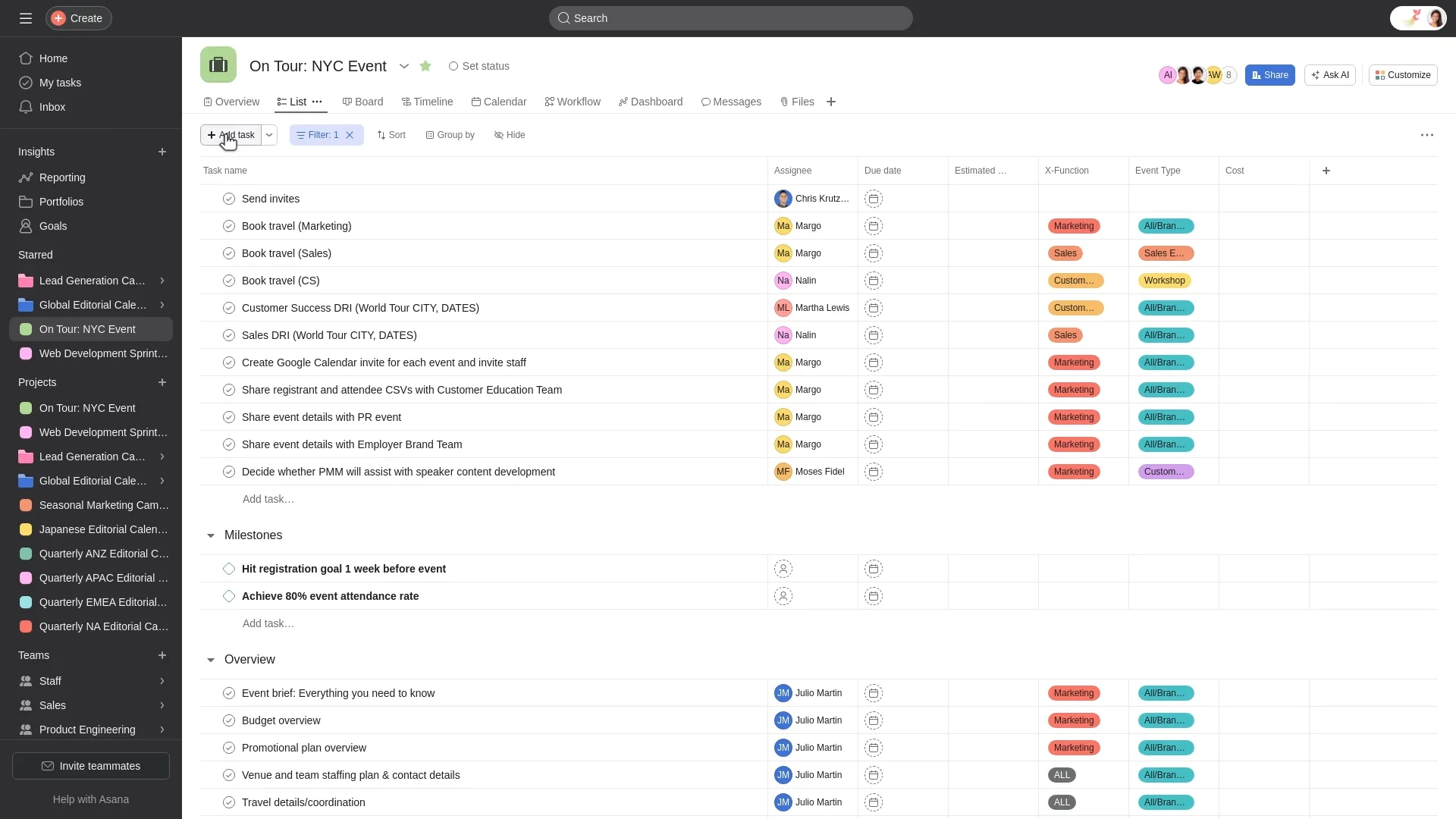
Image source: asana.com
Key features of Asana
Asana is a robust project management platform designed to help teams plan, organize, and track work across multiple projects. It provides flexibility through various views, automation features, and integration options, making it suitable for both simple and complex workflows. Teams can streamline communication, set goals, and measure performance — all within one workspace. Here are some of its most valuable features that make project management more efficient and collaborative.
- Multiple project views (List, Timeline, Calendar, Kanban): Asana offers multiple ways to visualize work, allowing teams to choose the layout that fits their workflow best. Whether through List, Timeline, Calendar, or Kanban views, users can easily track progress and manage deadlines. This versatility helps maintain clarity across different project types and team preferences.
- Task dependencies and milestone tracking: With task dependencies, teams can establish logical connections between tasks and visualize how one activity affects another. Milestone tracking highlights critical checkpoints within a project, ensuring alignment with key objectives. These tools make Asana ideal for managing structured, multi-step initiatives.
- Rule-based automation for repetitive actions: Asana's automation engine simplifies repetitive workflows by triggering actions based on predefined rules. Teams can automate task assignments, due dates, or notifications without manual intervention. This saves time and reduces the risk of oversight in recurring project processes.
- Goal setting and progress dashboards: Asana includes built-in dashboards that provide visual insights into progress toward team or organizational goals. Managers can track metrics such as task completion rates and deadlines in real time. These features make it easier to stay focused on objectives and evaluate performance effectively.
- Integrations with Google Workspace, Slack, and hundreds of third-party tools: Asana connects with over 200 third-party applications, including Google Workspace, Slack, Zoom, and Salesforce. These integrations help teams centralize workflows without constantly switching between platforms. It ensures seamless collaboration across different tools commonly used in modern workplaces.
Pros and cons of Asana
Pros:
- Asana offers powerful project visualization through multiple views such as List, Timeline, Calendar, and Kanban, giving teams flexibility in how they organize and track work.
- It supports complex workflows with features like task dependencies, milestones, and subtasks, making it ideal for structured and large-scale project management.
- The automation feature saves time by eliminating repetitive manual updates, ensuring smoother task transitions and timely follow-ups.
- Asana integrates with a wide range of third-party tools including Google Workspace, Slack, Zoom, and Salesforce, allowing teams to connect their existing apps to a unified workflow.
Cons:
- The platform can feel overwhelming for new users due to its wide range of features and configuration options.
- Advanced features such as detailed reporting, workflow automation, and portfolio management are only available in paid plans, which can be costly for small teams.
- Without integrated communication tools, teams often rely on external apps for discussions, which can lead to fragmented collaboration.
Microsoft Planner vs Asana comparison: Feature by feature
When evaluating Microsoft Planner vs Asana, it's important to go beyond surface features and dive into how each tool actually supports your workflow. Both platforms aim to streamline task and project management, but they approach this goal with different strengths, limitations and philosophies. In the following section, we'll examine their key features side‑by‑side so you can see where each tool excels and where one may fall short relative to the other. By understanding these differences, you'll be better positioned to choose the tool that fits your team's size, technology stack and working style.
Ease of use and setup
Microsoft Planner is very straightforward to get started with—especially for teams already using Microsoft 365—thanks to its familiar interface and minimal configuration. Asana offers more flexibility and richer features right out of the box, but that breadth can result in a steeper learning curve for newcomers.
Task and project management capabilities
Planner covers essential task tracking through Kanban‑style boards, labels and due dates—suitable for simpler workflows. Asana, by contrast, supports multiple views (lists, boards, timelines), task dependencies, milestones and robust project‑planning features.
Collaboration and communication tools
Planner benefits from deep integration with Microsoft Teams, Outlook and SharePoint, making it strong for organizations embedded in that ecosystem. Asana promotes collaboration via task comments, project discussions and broad third‑party connectivity, offering more flexibility across diverse tools.
Workflow automation and customization
Asana shines in this area with built‑in rule‑based automation and custom workflows tailored without requiring code. Planner offers more limited native automation and often relies on external services (such as Power Automate) for advanced workflows.
Reporting, dashboards, and analytics
Asana provides detailed dashboards, custom reports and advanced monitoring of project metrics. Planner includes basic status charts and progress views, which may suffice for simpler needs but fall short for in‑depth analytics.
Integrations and ecosystem compatibility
Planner's strength lies in seamless integration within the Microsoft ecosystem—Teams, Outlook, OneDrive—ideal for Microsoft‑centric teams. Asana offers a broader range of third‑party integrations (Google Workspace, Slack, CRM tools), making it better suited for teams using a mix of applications.
Asana vs Microsoft Planner comparison of pricing
Pricing source: Microsoft.com and Asana.com (Updated: November 2025)
Microsoft Planner
Included with Microsoft 365 plans
- Price: Included in eligible Microsoft 365 subscriptions
- Key features: Real-time collaboration, task creation with files/checklists/labels, Grid/Board/Schedule/Charts views, My Day/My Tasks, basic plan templates, task dependencies.
Planner Plan 1
- Price: $10/user/month (paid yearly)
- Key features: Everything included above, plus premium templates, backlogs and sprints, timeline (Gantt) view, project goals, people management, richer reports, task dependencies.
Planner and Project Plan 3
- Price: $30/user/month (paid yearly)
- Key features: Includes all features of Plan 1, plus Microsoft 365 Copilot in Planner (preview), advanced dependencies (lead/lag), resource requests, program management, task history, the Project Online desktop client.
Planner and Project Plan 5
- Price: $55/user/month (paid yearly)
- Key features: Includes everything from Plan 3, plus enterprise portfolio management, enterprise resource management & allocation, advanced roadmaps, full-scale portfolio tools.
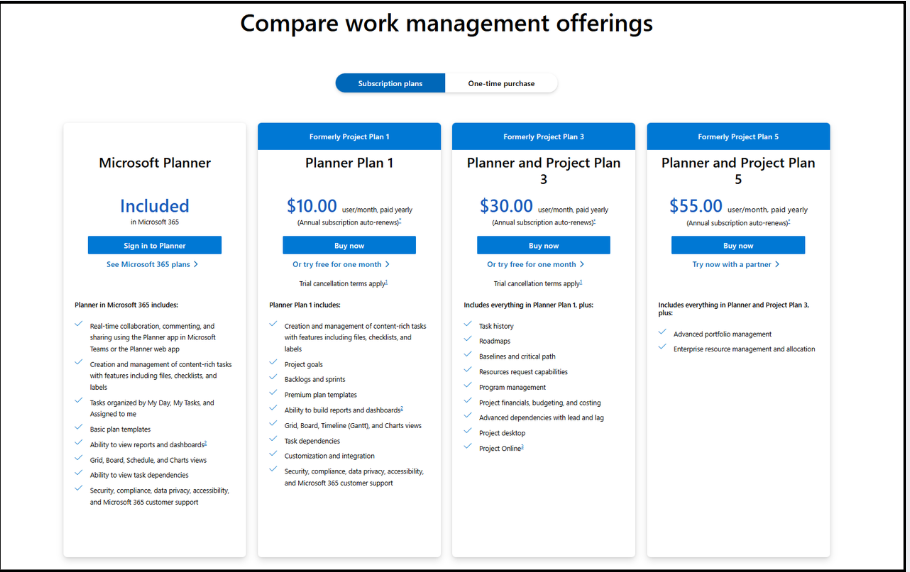
Image source: microsoft.com
Asana
Free (Personal)
- Price: $0/user/month
- Key features: Unlimited tasks, projects, messages, and activity logs; list, board, calendar, and basic My Tasks views; mobile access and basic search.
Starter (formerly Premium)
- Price: $10.99/user/month (billed annually) or $13.49/user/month (monthly)
- Key features: Timeline (Gantt) view, Workflow Builder, unlimited dashboards, Asana AI, start dates, custom fields, advanced search, and unlimited guests.
Advanced (Business)
- Price: $24.99/user/month (billed annually) or $30.49/user/month (monthly)
- Key features: Everything in Starter, plus portfolios, goals, workload management, branching forms, approvals, custom rules, advanced reporting, and time tracking.
Enterprise / Enterprise+
- Price: Custom (contact sales)
- Key features: SAML and SCIM provisioning, data export/deletion, custom branding, priority support, audit logs, data residency, and advanced compliance (e.g., HIPAA).
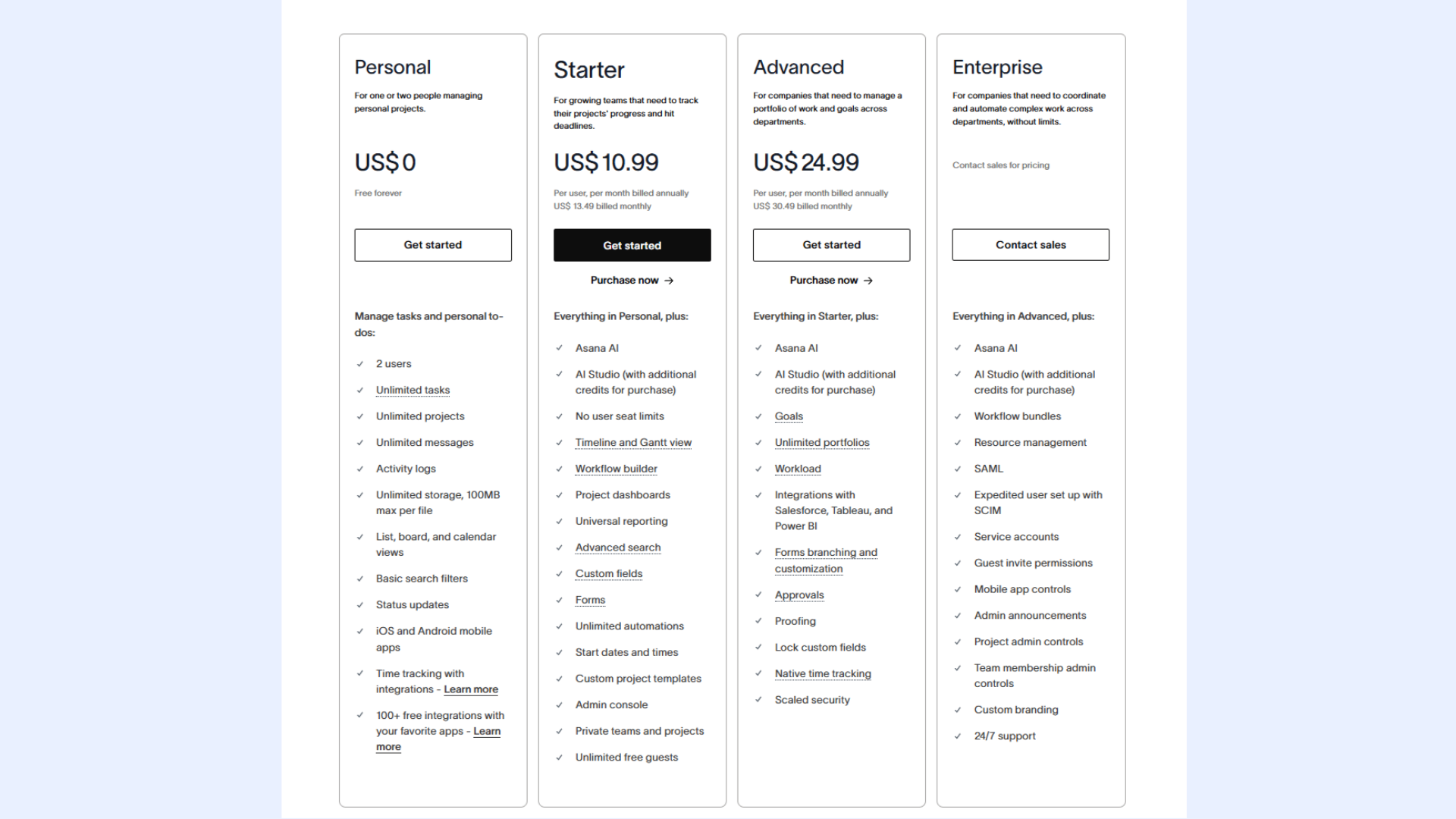
Image source: asana.com
Before selecting a productivity suite, it's worth reviewing the latest Google Workspace pricing and ClickUp pricing plans.
Which is better: Asana vs Microsoft Planner?
Choosing between Asana vs Planner (Microsoft Planner) largely depends on your team's structure, project complexity, and workflow needs. Each tool has its strengths, and the best choice varies based on how your team works and the features you prioritize.
- Choose Microsoft Planner if your team already uses Microsoft 365 extensively and wants a simple, lightweight task board. It integrates seamlessly with Teams, Outlook, and SharePoint, making it easy to manage tasks without switching between multiple apps. Planner is ideal for small to medium-sized teams that need straightforward task tracking and basic project organization.
- Choose Asana if your team requires advanced project management features, multiple project views, and detailed reporting. Asana supports task dependencies, milestones, automation, and custom dashboards, making it well-suited for complex workflows and larger teams. Its flexibility and integration with third-party apps allow teams to collaborate efficiently across various tools and platforms.
Both tools are effective, but they rely on separate apps for chat, documentation, and automation. This fragmentation slows down collaboration and increases cost. Teams seeking a connected, flexible solution require an all-in-one workspace designed for real-time coordination—that's where Lark comes in.
Meet Lark: The all-in-one workspace with smart features
Lark is a modern, all-in-one workspace designed to bring communication, collaboration, and project management into a single platform. Unlike traditional tools that require teams to switch between separate apps for chat, tasks, and document management, Lark centralizes all these functions. It allows teams to assign tasks, track progress, schedule meetings, and collaborate on documents seamlessly. With real-time updates and integrated automation, Lark helps teams stay aligned and productive. This unified approach reduces fragmentation, making project and workflow management more efficient.
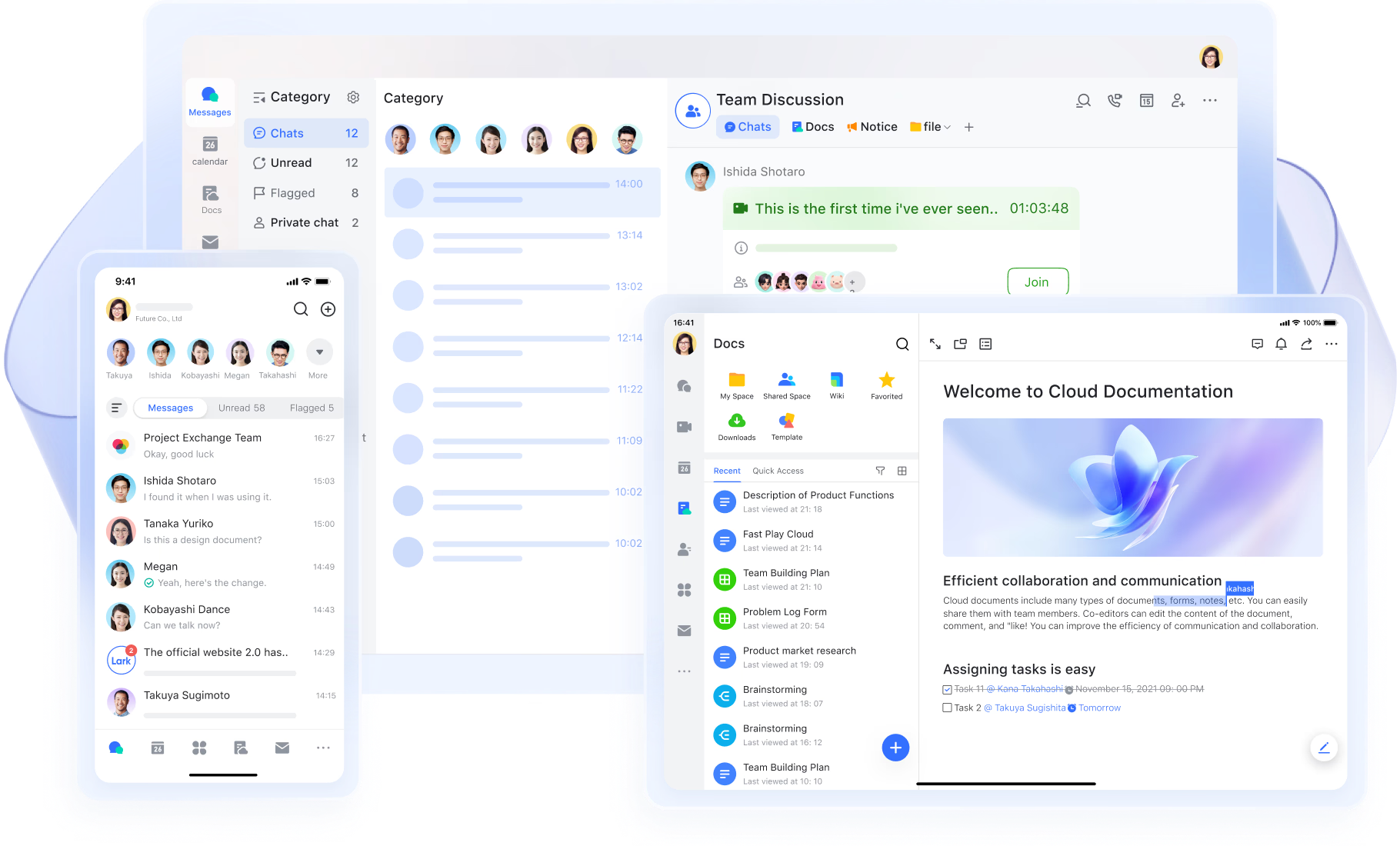
Lark Base: Centralized project tracking and reporting
Lark Base provides a structured workspace for managing projects from start to finish. Unlike Microsoft Planner's simple Kanban boards or Asana's standalone dashboards, Base combines task data, progress metrics, and custom views in one place. Teams can build interactive databases to track milestones, budgets, dependencies, or resources—without needing separate reporting tools. Dashboards update automatically, giving projects leads to instant visibility into bottlenecks and progress across teams.
You can customize views as Kanban, Grid, Gallery, or Gantt-style timelines to fit your project's needs. With built-in charts, ranking blocks, and live metrics, Lark Base transforms static reports into living performance insights—ideal for managers who need real-time clarity on every stage of execution.
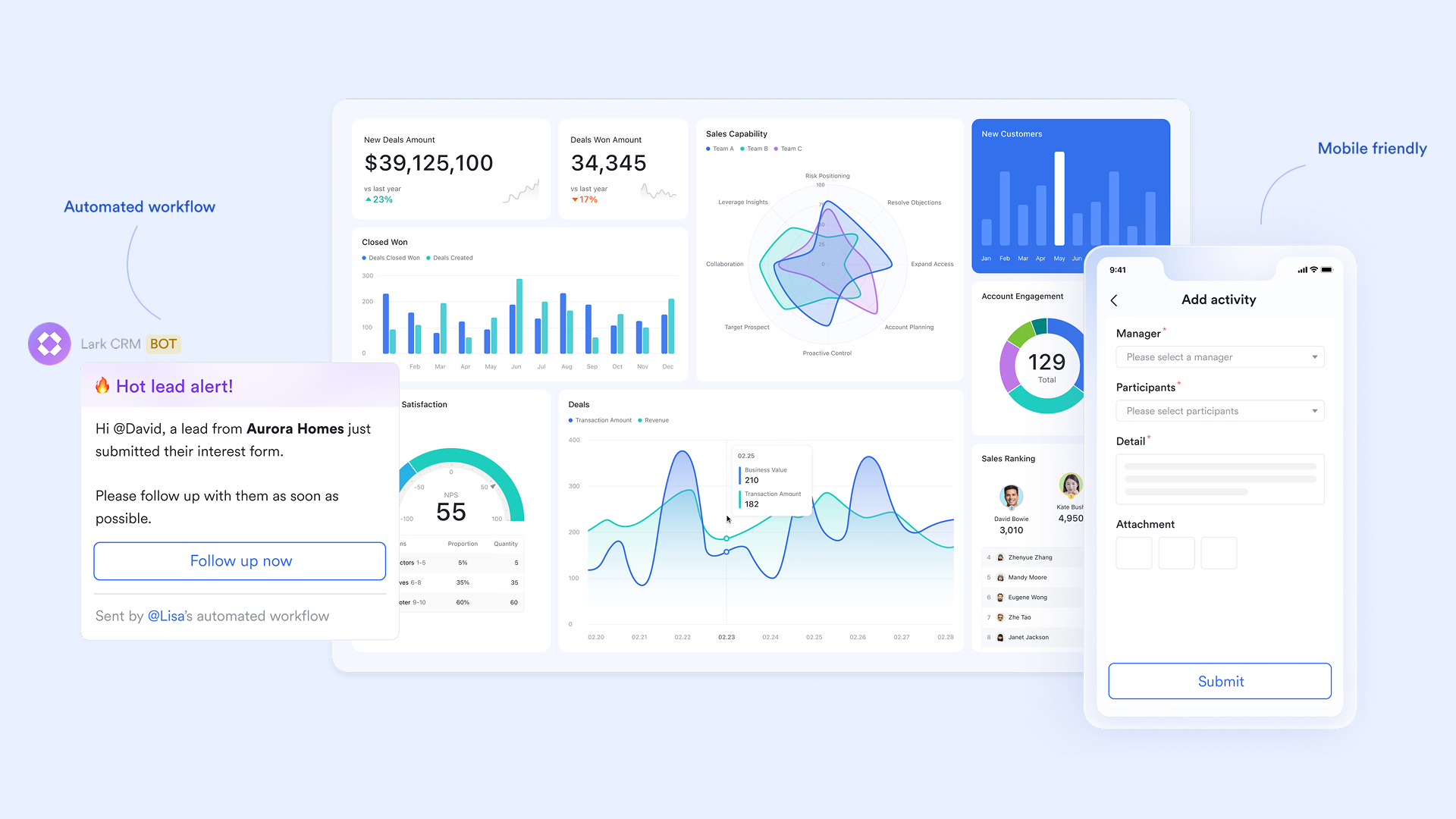
Lark Tasks: Assign, organize, and track progress easily
Lark Tasks brings structure and accountability to teamwork. Every task can be assigned to an owner, priority level, and deadline, while progress updates happen automatically as work moves forward. Unlike Planner's limited checklist-based setup or Asana's separate project hierarchy, Lark Tasks connects directly with discussions, documents, and meetings—ensuring that every action is backed by context.
Teams can visualize workloads using list or board views, receive automatic reminders for upcoming deadlines, and track completion through linked dashboards in Base. Whether managing daily operations or complex deliverables, Lark Tasks keeps projects transparent, on schedule, and aligned with broader goals.
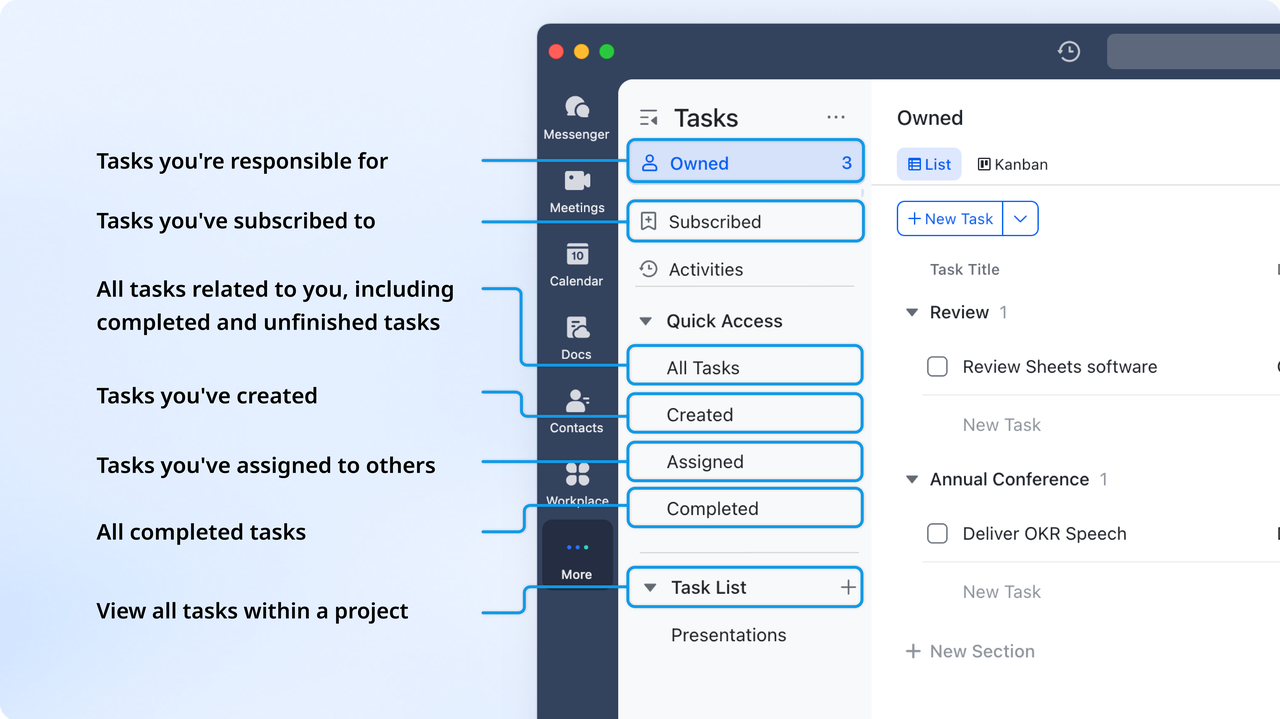
Lark Messenger: Communication where work happens
Lark Messenger eliminates the fragmentation that often slows down project management in tools like Asana or Microsoft Planner. Instead of switching between chat apps and project dashboards, teams communicate directly where the work lives. Each conversation can link to a task, document, or Base record, ensuring decisions and updates stay connected to their source.
Threaded discussions, @mentions, and intelligent notifications keep messages organized and focused. Teams can jump from a chat to a meeting or open a linked document in one click, creating a seamless flow from communication to execution. The result: faster alignment, fewer missed updates, and a shared understanding of every project's next step.
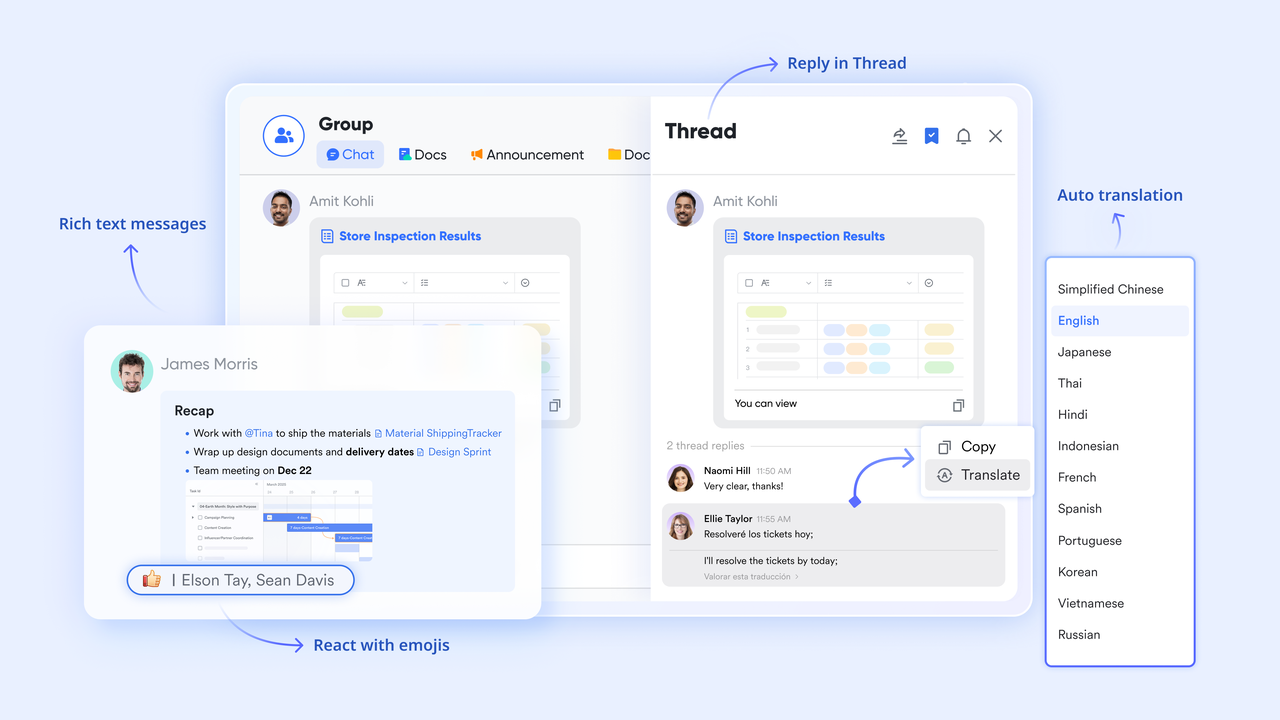
Lark Docs & Wiki: Collaborative documentation and shared knowledge
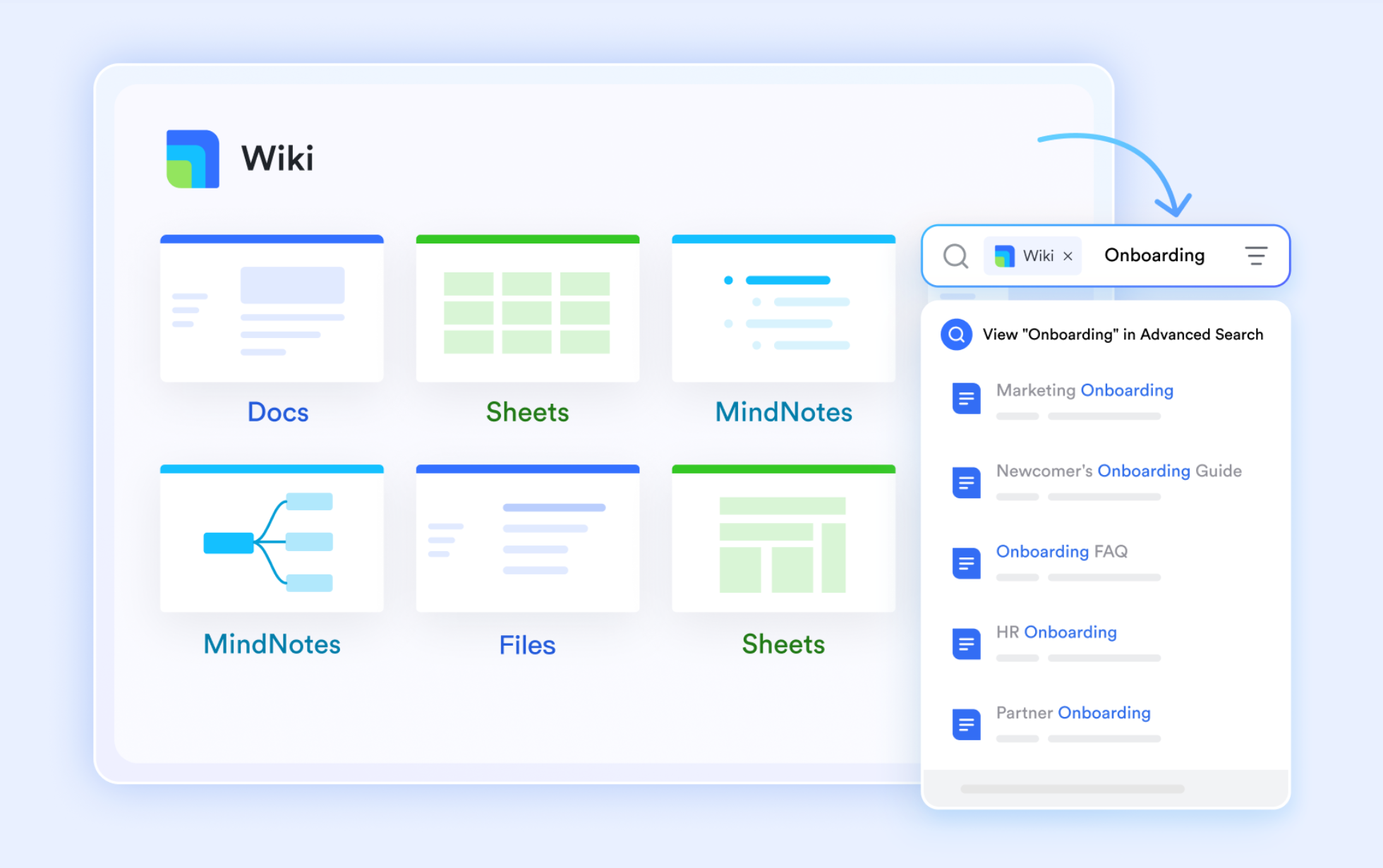
Lark Docs and Lark Wiki turn documentation into a collaborative experience. While Asana and Planner rely on external file-sharing or note-taking apps, Lark embeds documentation directly within the workspace. Teams can co-edit proposals, briefs, or reports in real time—complete with inline comments, task links, and version control.
Once finalized, key documents can be moved into Lark Wiki, creating a searchable knowledge hub for project references, guidelines, and SOPs. This ensures continuity and transparency—every stakeholder can access up-to-date information without leaving the workspace. Together, Docs and Wiki reduce friction between project execution and knowledge management.
Lark Calendar: Simplified scheduling and milestone alignment
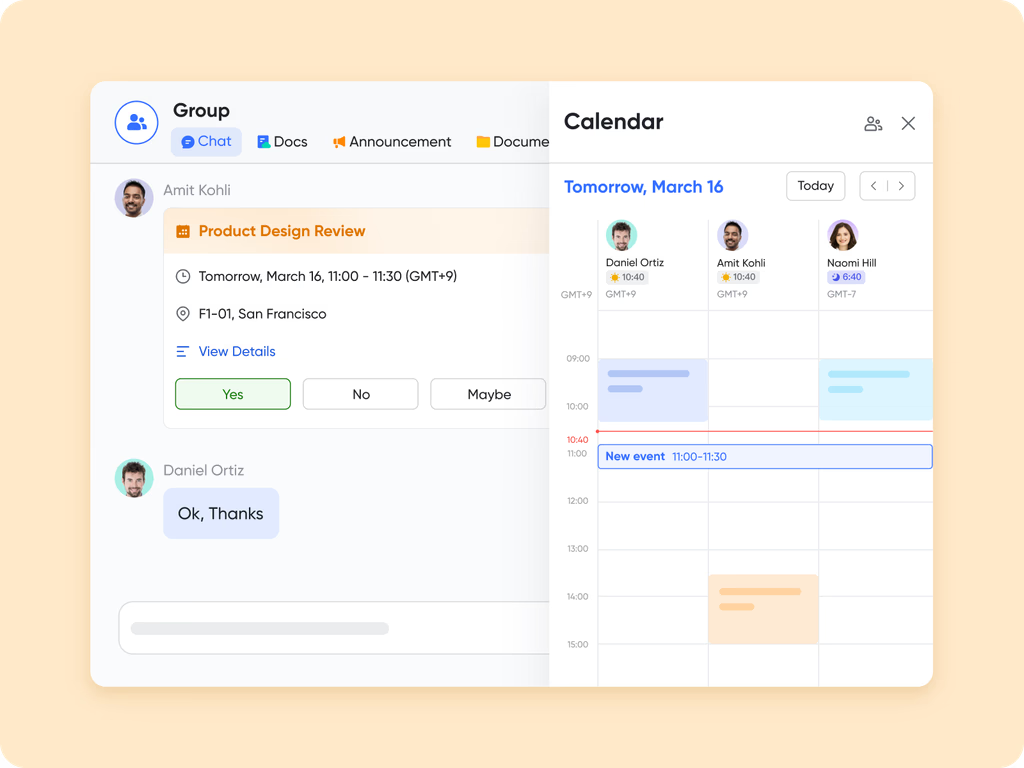
Lark Calendar connects timelines, meetings, and milestones in one unified view. Instead of maintaining separate calendars in Outlook or Google Workspace, Lark brings scheduling into the same environment where tasks and communication already live.
Project managers can link events to specific deliverables, set automated reminders, and view shared availability across teams. Calendar entries can be created directly from Messenger chats or Base records—turning planning discussions into actionable meetings instantly. This synchronization ensures teams never miss a review, deadline, or sprint planning session, keeping project execution smooth and coordinated.
Lark Approval: Streamlined workflows without coding
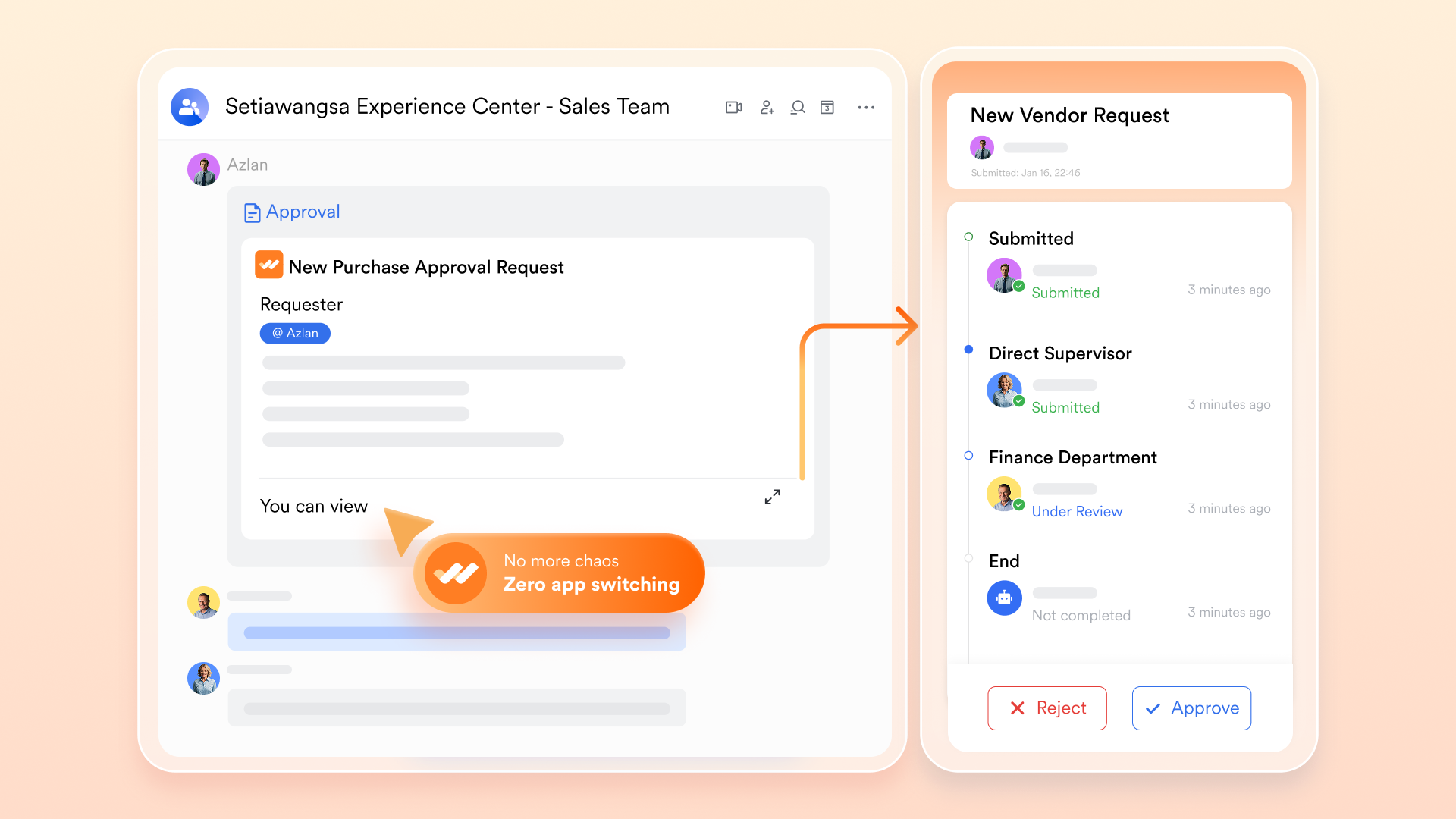
In Lark Approval, routine processes like budget validation, hiring requests, or contract sign-offs become seamless. Custom templates and conditional logic let managers create multi-step approval flows that move forward automatically once criteria are met. Unlike Asana's limited rule sets or Planner's dependency on Power Automate, Lark's automation is built directly into its ecosystem—helping teams reduce manual work and focus on execution.
- Starter plan: Free forever plan that includes 11 powerful tools for up to 20 users. It also comes with 100GB of storage, 1000 automation runs, AI translations, and more.
- Basic plan: $6/user/month (billed annually) for up to 500 users. It includes everything in Starter plus group calling for up to 500 attendees, 5TB of storage, 1000 automation runs, and more. For more information, contact sales.
- Pro plan: $12/user/month (billed annually) for up to 500 users. It includes everything in Starter plus group calling for up to 500 attendees, 15TB of storage, 50,000 automation runs, and more.
- Enterprise plan: Contact sales for custom pricing. Supports unlimited users and includes even more automation runs and advanced security, compliance, and management features.
Comparison snapshot: Microsoft Planner vs Asana vs Lark
To understand how these tools differ in documentation, team collaboration, and overall value, the comparison below highlights their strengths side by side. This table makes it easier to see which platform best aligns with your team's workflows, especially if you're deciding between task-focused tools and an all-in-one collaborative workspace.
Conclusion
Choosing between Microsoft Planner and Asana depends largely on your team's needs and workflow complexity. Microsoft Planner is ideal for teams already using Microsoft 365 and looking for a simple, visual task management tool, while Asana suits larger teams or projects that require advanced features like task dependencies, multiple project views, and detailed reporting. Both platforms improve organization and collaboration, but they often require additional apps for chat, document management, and automation, which can slow down workflows and create inefficiencies.
Lark addresses these challenges by offering an all-in-one workspace that combines messaging, task management, project tracking, document collaboration, and automation in a single platform. With Lark, teams can plan projects, assign tasks, track progress, and communicate seamlessly without switching between multiple tools. Its real-time updates, integrated dashboards, and workflow automation help teams stay aligned and focused. Explore Lark today to simplify your project management and create a more connected, productive workspace.
FAQs
Can Microsoft Planner replace Asana for team projects?
Microsoft Planner can handle basic task and project management, especially for teams using Microsoft 365. It works well for simple workflows and small to medium-sized teams. However, it lacks advanced features like task dependencies, multiple project views, and detailed reporting. For complex projects or larger teams, Asana is generally the more capable option.
Does Asana work with Microsoft Teams?
Yes, Asana integrates with Microsoft Teams, allowing users to create and manage tasks directly within Teams channels. This integration helps teams collaborate without constantly switching between apps. Notifications, task updates, and project discussions can all appear inside Teams. It provides a bridge between Asana's project management capabilities and Microsoft's communication tools.
What makes Lark different from Asana or Planner?
Lark is an all-in-one workspace that combines project management, task tracking, communication, document collaboration, and automation in one platform. Unlike Asana or Planner, it eliminates the need to switch between multiple tools for different workflows. Real-time updates and integrated dashboards keep teams aligned and informed. Lark's approach focuses on connected, seamless collaboration across all aspects of work.
Is Lark suitable for enterprise-level project management?
Yes, Lark is designed to support enterprise-level projects with scalable features for large teams. It offers advanced reporting, workflow automation, and customizable dashboards to track complex projects. Security, compliance, and user management tools make it suitable for organizational requirements. Enterprises can manage cross-functional teams and multiple projects efficiently in a single workspace.
Can Lark automate task assignments and approvals?
Lark includes built-in automation tools that allow teams to create workflows for task assignments and approval processes. Managers can set rules to trigger actions automatically based on specific criteria. This reduces manual work and ensures consistency across projects. It supports approvals for budgets, contracts, and other routine processes directly within the platform.
Related reading
Table of contents
Start using Lark today

Manage all your work in one place
Boost team efficiency by 10x
Save up to 70% on software costs
Table of contents
Start using Lark today
Manage all your work in one place
Boost team efficiency by 10x
Save up to 70% on software costs
Keep reading



Lark recognized in 2023 Gartner® Collaborative Content Workspaces and Meeting Solutions reports
Lark, the global superapp for productivity, is delighted to announce it receives recognition in the Gartner's 2023 Innovation Insight for Collaborative Content Workspaces and Market Guide for Meeting Solutions.






2026 Lark Technologies Pte. Ltd.
Headquartered in Singapore with offices worldwide.






Explore: