














Pipedrive Workflow Automation Guide: Features, Examples & Setup Steps

Ryan Tanner
Product Marketing Specialist
Sep 18, 2026
Ryan Tanner
Sep 18, 2026

25 min read


Workflow automation has become essential for sales teams aiming to eliminate repetitive tasks and move deals through the pipeline efficiently. Pipedrive workflow automation helps streamline follow-ups, assign leads, update fields, and send timely communication, all within a clean, deal-focused CRM. But how far can Pipedrive's native automation engine go, and when do growing teams need more advanced, cross-department workflows? That's where platforms like Lark offer broader, workspace-wide automation capabilities. In this guide, we break down Pipedrive's automation features, setup steps, examples, common issues, and when it makes sense to upgrade to a more unified automation system.

What is Pipedrive workflow automation?
Pipedrive workflow automation is a built-in system that helps sales teams eliminate manual work by automating repetitive CRM tasks. Using Pipedrive's visual builder, teams can trigger actions whenever a deal, contact, or activity changes, dramatically improving speed and consistency across the sales pipeline. With workflow automation, Pipedrive users can automatically create follow-up tasks, send emails, update deal stages, assign leads, and maintain clean data without relying on manual entry.
Pipedrive includes a growing list of automation capabilities, with Pipedrive workflow automation features 2025 offering smarter triggers, AI-driven suggestions, and webhook support for extending processes across tools. Common Pipedrive workflow automation examples include sending intro emails to new leads, routing deals by territory, and creating tasks when deals go idle.
For teams learning how to set up workflow automation in Pipedrive, the process is entirely no-code, and the Pipedrive workflow automation help center provides templates to get started quickly.
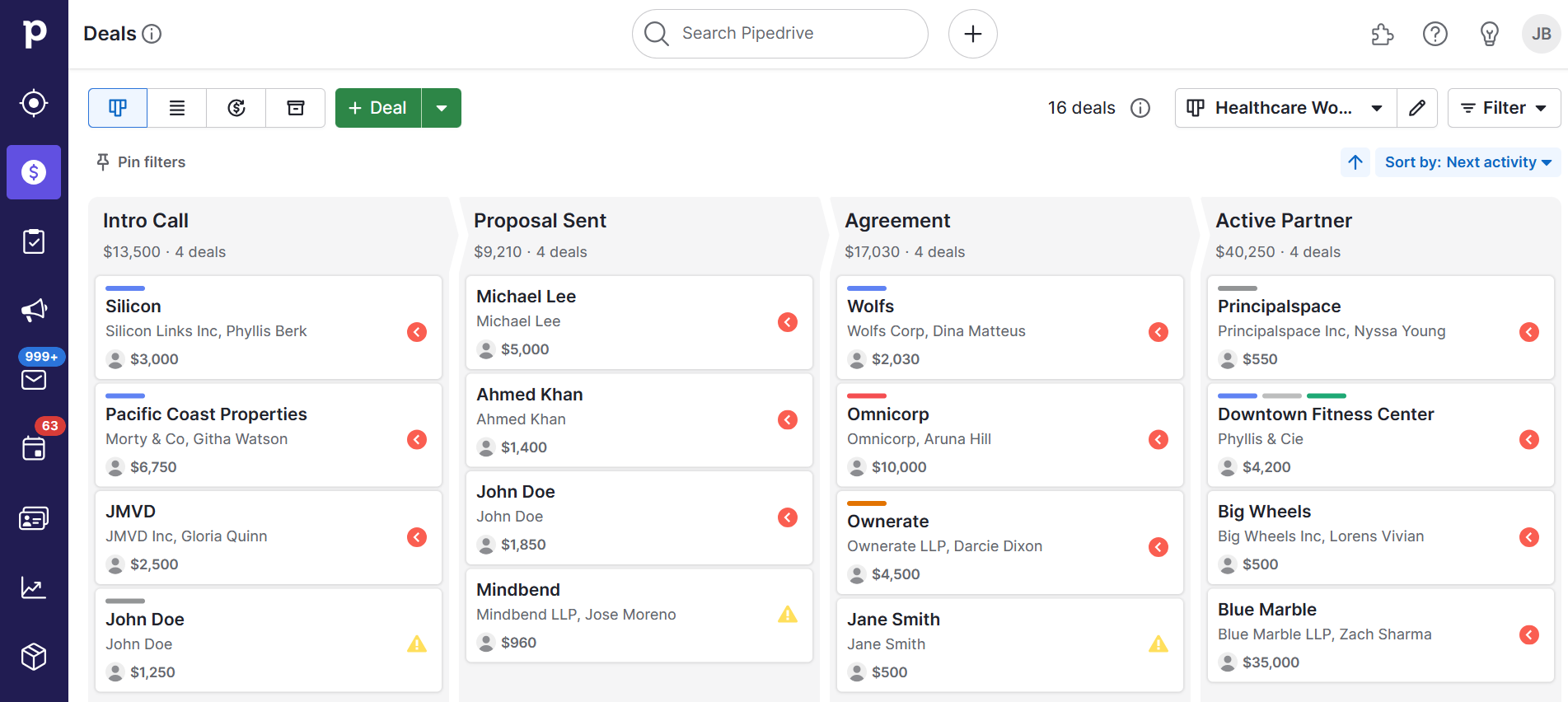
Image source: pipedrive.com
Core Pipedrive workflow automation features
Pipedrive workflow automation features are designed to help sales teams streamline pipeline management and reduce repetitive work. These tools make it easier to keep deals moving, maintain accurate data, and ensure every rep follows consistent steps throughout the sales cycle.
- Visual workflow builder: Pipedrive's visual workflow builder allows users to create automations through a simple, drag-and-drop interface. You can choose triggers, conditions, and actions without any technical experience. This makes it easy for teams to build reliable workflows that reflect real sales processes.
- Deal stage automation: When a deal enters a new stage, Pipedrive can automatically trigger tasks, emails, or field updates. This ensures each stage follows a structured checklist without relying on manual effort. As your pipeline evolves, these automations keep deal progression consistent.
- Automatic task creation: Pipedrive can generate tasks whenever leads arrive, deals move stages, or activities are completed. This feature ensures reps never miss a follow-up or next step. It's especially useful for handling new inbound leads or maintaining strict follow-up cadences.
- Email and communication triggers: Automated emails help teams engage leads instantly and consistently. You can send welcome messages, follow-ups, or check-ins based on deal activity or contact behavior. These communication triggers save time while improving response rates.
- Activity reminders: Pipedrive can remind reps when a deal becomes idle or when no activity has taken place for a set number of days. These reminders keep deals from slipping through the cracks. Sales managers also gain better visibility into inactive opportunities.
- Field updates and data consistency: With automated field updates, teams maintain cleaner data with less manual input. Pipedrive can update deal values, statuses, or custom fields based on actions or criteria. This improves reporting accuracy and reduces user errors.
- Lead assignment routing: Pipedrive supports automated lead routing based on territory, lead source, or custom rules. This helps distribute opportunities evenly or strategically among the team. Faster assignment also ensures quicker responses to new leads.
- Webhook support for extending automations: Webhooks connect Pipedrive to external systems, making more advanced workflows possible. When a trigger fires, Pipedrive can send data to automation tools like Zapier, Make, or internal systems. This is essential for teams whose workflows extend beyond the CRM.
- AI suggestions for next steps: Pipedrive's AI analyzes deal behavior and activity patterns to recommend next steps for reps. These suggestions help teams prioritize actions that increase the likelihood of closing deals. As AI evolves, recommendations become smarter and more contextual.
How to set up workflow automation in Pipedrive
Setting up Pipedrive workflow automation is simple once you understand how triggers, conditions, and actions connect. In this guide, you'll learn exactly how to build automations that reduce manual work and keep deals moving smoothly.
Step 1: Accessing the automation dashboard
To begin, open the Workflow Automations section under Tools in Pipedrive. This dashboard shows all active, paused, and draft workflows in one place. It also helps you quickly duplicate templates or start from scratch when building your automation.
Step 2: Choosing a trigger
Every workflow starts with a trigger, the event that tells Pipedrive when to run automation. You can pick triggers like deal creation, stage updates, activity completion, or contact changes. Choosing the right trigger ensures the automation aligns with your sales process.
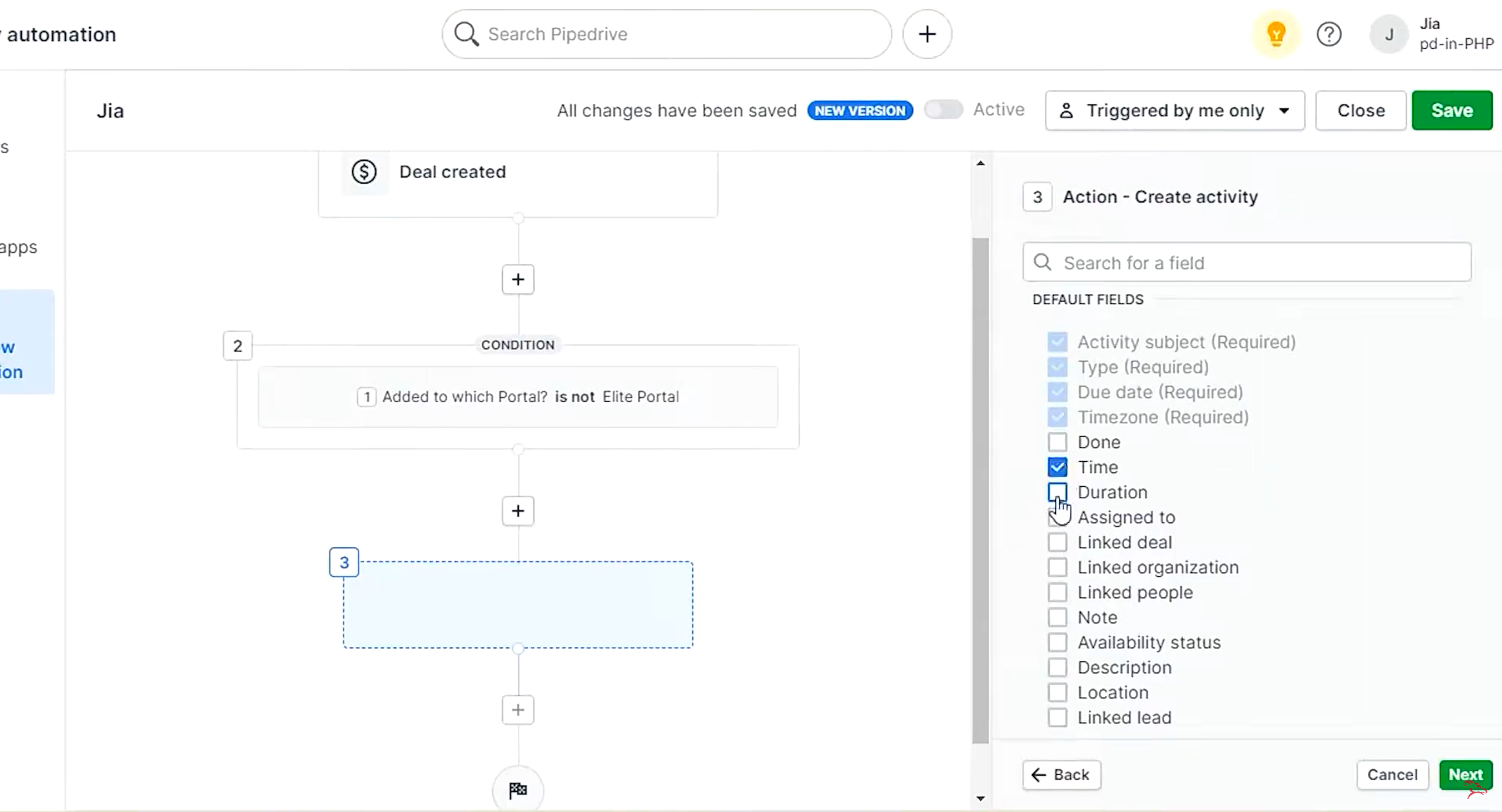
Image source: pipedrive.com
Step 3: Defining conditions
Conditions help narrow down exactly which deals or contacts should move through automation. You can filter by pipeline, deal value, owner, or custom fields to avoid unnecessary actions. This keeps your workflow accurate and prevents it from triggering at the wrong time.
Step 4: Adding actions (tasks, emails, stage updates, field changes)
After setting conditions, choose the actions that Pipedrive should perform automatically. These might include creating tasks, sending emails, updating deal stages, or modifying fields. Actions form the core of your automation and remove repetitive manual work from your team.
Step 5: Testing and validating
Testing ensures your workflow runs correctly before you activate it. Use sample deals or dummy records to confirm each step behaves as expected. This helps you catch logic errors, prevent loops, and ensure emails or tasks aren't being triggered incorrectly.
Step 6: Activating and monitoring automation
Once validated, activate your workflow and let it run in the background. Pipedrive provides logs that show successful runs or errors so you can monitor performance. Regular checks help fine-tune the automation and keep it aligned with evolving sales processes.
Pipedrive workflow automation examples
Pipedrive workflow automation helps sales teams eliminate repetitive actions and keep deals moving through the pipeline with zero manual effort. In this guide, here are the most useful real-world automations you can set up to save time and improve consistency.
- Auto-create follow-up tasks when a deal enters a new stage: Whenever a deal moves to a new stage, Pipedrive can instantly generate follow-up activities. This ensures your team never forgets the next steps or loses momentum. It's especially useful for structured sales cycles that depend on timely actions.
- Send intro email after a lead is added: The moment a new lead enters Pipedrive, an automated intro or welcome email can be triggered. This speeds up response time and creates a consistent first impression. It also helps nurture cold leads before a rep steps in.
- Assign deals to reps based on territory or lead source: Pipedrive can route new deals automatically to the correct salesperson. Whether your rules are based on geography, channel, or industry, the workflow ensures fair and accurate distribution. This eliminates manual assignment and speeds up response time.
- Notify managers when high-value deals are created: For deals above a certain value, Pipedrive can send instant alerts to managers. This keeps leadership aware of big opportunities without manually checking the pipeline. It also enables faster approvals, strategy input, or resource allocation.
- Auto-update deal value or fields based on form inputs: When a lead submits a form, Pipedrive can update deal values, custom fields, or status automatically. This ensures your CRM stays accurate and removes the need for manual data entry. It also helps standardize deal information across the team.
- Create activities when deals go idle: If a deal hasn't been touched for a set number of days, an activity can be auto-created for the owner. This prevents prospects from slipping through the cracks. It also helps managers maintain a healthier, more active pipeline.
- Move deals to "Won" or "Lost" based on criteria: Pipedrive workflows can automatically change the status of a deal when certain conditions are met. This might include form submissions, contract signatures, or inactivity patterns. It keeps your pipeline clean and reduces administrative clutter.
- Auto-tag contacts for segmentation: Based on deal behavior, lead source, or field changes, Pipedrive can tag contacts automatically. These tags help with segmentation for email campaigns, retargeting, or prioritization. It creates a cleaner, more organized database for marketing and sales.
Common issues with Pipedrive workflow automation
Even well-built Pipedrive workflow automation setups can run into errors that disrupt deal movement or communication. In this guide, here are the most common problems teams face, and how to troubleshoot them quickly.
- Workflow not triggering: This happens when the trigger event doesn't match the workflow logic. Check whether the deal or lead actually meets the trigger criteria. Also, ensure the workflow is active and not paused after edits.
- Conflicting rules: Multiple workflows can fire at the same time and override each other. Review conditions to ensure no overlap across pipelines or teams. Creating mutually exclusive rules helps maintain clean automation behavior.
- Repetitive triggers or loops: If a workflow updates a field or stage that triggers another workflow, loops can occur. Identify any "action → trigger" chains that repeat. Add conditions or exclusions to break the cycle.
- Deal stage mismatch: Sometimes automations fail because the deal isn't in the correct stage when the workflow runs. Revisit your stage-based conditions and make sure transitions are clearly defined. Cleaning up the pipeline structure also prevents misfires.
- Email not sending: Emails may fail due to missing sender details, disconnected inboxes, or incorrect template settings. Verify email sync and check for required fields like contact email. Testing the workflow helps catch missing variables.
- Duplicate activities: If multiple workflows create tasks for the same event, duplicates appear. Audit your automations to see where activities overlap. Adding filters like "activity does not exist" prevents repetition.
- Webhook errors: Webhooks may break due to expired endpoints, authentication issues, or payload mismatches. Review the webhook URL, check response codes, and validate the data being sent. Updating headers or tokens usually resolves the issue.
- Audit and troubleshooting tips: Regularly review your workflow logs to track failures and unexpected behavior. Document every automation so you can quickly identify conflicts or outdated logic. Auditing monthly keeps your Pipedrive automation clean and scalable.
Pipedrive automation vs. external automation platforms (Zapier, Bardeen, Make)
Pipedrive workflow automation is ideal for sales teams focused on pipeline tasks, deal stages, and follow-ups. Its native automations are easy to set up, fully aligned with CRM structure, and require no extra subscriptions. Teams can create tasks, send emails, update fields, and move deals without leaving Pipedrive, making it perfect for small to medium sales processes.
However, when workflows span multiple tools or departments, external platforms like Zapier, Bardeen, or Make offer much more flexibility. These platforms can handle complex logic, multi-step conditions, and cross-team automations that Pipedrive cannot. For example, you can connect CRM updates to spreadsheets, messaging apps, and project management tools simultaneously.
Choosing between Pipedrive and external platforms depends on your team's scope. Workflow automation Pipedrive works best for CRM-focused pipelines, while multi-system processes benefit from external automation solutions.
When to use Pipedrive's native automations
Pipedrive's built-in automation tools are designed for straightforward sales processes. They excel when the workflow stays inside the CRM, such as updating deal stages, assigning tasks to sales reps, reminding the team about follow-ups, or sending templated emails. These automations are quick to configure, require no technical skill, and help maintain a clean, consistent pipeline. For small to medium sales teams whose processes revolve around the deal cycle, native automations are often more than enough.
However, the scope is limited to sales-specific objects. Native automations cannot move work across departments, launch tasks in external project tools, update spreadsheets, send notifications in other apps, or coordinate actions across marketing, finance, or operations. They work best for sales-only processes and simple sequences.
When to extend Pipedrive with external services (Zapier, Bardeen, Make)
External automation platforms are useful when your workflow involves multiple systems or requires logic that goes beyond the CRM. If a lead submission needs to update a spreadsheet, notify a channel, enrich a contact using another tool, and schedule an onboarding call, external automation tools handle these situations far better. They connect Pipedrive with hundreds of tools and can follow multi-step flows with conditions, delays, branches, and loops.
These platforms are also ideal for teams that need automation across many verticals, marketing drip campaigns, financial reconciliation, HR requests, customer onboarding, or operational updates. When your automation tasks go beyond Pipedrive's boundaries, external tools give you the flexibility to build complete processes.
Pros and limitations of each approach
Choosing between native Pipedrive workflow automation and external automation platforms depends on how complex your processes are and how many teams they involve. Each approach offers clear benefits, but also meaningful limitations you should understand before scaling. In this guide, we compare both options to help you choose the right fit for your sales operations. Whether you're optimizing a simple pipeline or building multi-team systems, here's what to expect from each method.
Pipedrive pros
Pipedrive workflow automation delivers strong native advantages for sales teams that want simple, reliable, and CRM-aligned automations. In this guide, here are the key benefits that make it a practical choice for most growing teams.
- Easiest to set up: Pipedrive's visual builder makes automation creation simple, even for non-technical users. You can drag, drop, and configure triggers or actions without any coding. This helps teams launch useful workflows within minutes.
- Fully aligned with CRM structure: Because the automation engine is built into Pipedrive, it works seamlessly with deals, contacts, activities, and pipelines. All logic follows your existing CRM structure, reducing errors and confusion. This alignment ensures workflows behave predictably as your data changes.
- Great for improving sales productivity: Automations handle repetitive tasks like follow-ups, assignments, and updates, freeing reps to focus on closing deals. By reducing manual work, productivity increases naturally. Teams spend more time selling and less time administering the CRM.
- No extra subscription required: Pipedrive workflow automation is included in most plans, giving you powerful capabilities without additional cost. This makes it a budget-friendly option for smaller teams. You get automation benefits instantly without adding external tools.
Pipedrive limitations
While Pipedrive workflow automation is great for basic sales processes, it does have limitations that teams notice as they scale. In this guide, here are the common constraints that may require an external or more unified automation platform.
- Limited to sales objects: Pipedrive workflows only work with deals, contacts, activities, and leads. You can't automate projects, customer success tasks, or internal operations. This makes it less flexible for companies with cross-functional processes.
- No multi-department workflows: Since the automation engine is CRM-focused, it can't coordinate tasks between departments like support, finance, or onboarding. Each team would need separate tools, which leads to fragmentation. This becomes challenging as workflows expand beyond sales.
- No support for advanced conditional logic: Pipedrive lacks features like nested conditions, branches, or multi-layer rules. Complex decision trees can't be built natively. As a result, advanced automation scenarios still require manual work or external platforms.
- Cannot trigger actions across multiple apps: Pipedrive automations stay inside Pipedrive; they don't execute actions in other tools. You can't automatically message a customer, update a spreadsheet, or notify another system. This limits end-to-end workflow orchestration across your tech stack.
External platforms pros
As businesses scale, they often need automation that goes beyond what Pipedrive can handle. In this guide, here's why many teams choose Lark as their next-level workflow engine for cross-team, multi-tool operations.
- Capable of unifying workflows across dozens of tools: Lark connects data, actions, and processes across multiple platforms, not just CRM objects. This lets teams automate everything, from lead routing to onboarding to finance approvals, in one unified space. It removes the need for stitching together separate tools.
- Handles complex logic and branching: Lark supports advanced conditions, multi-branch logic, and layered decision flows that Pipedrive can't execute. You can build sophisticated automations based on multiple inputs or rules. This makes it ideal for teams managing nuanced, high-volume workflows.
- Best for multi-team or operational automations: With Lark, sales, support, HR, finance, and operations can run workflows from the same system. Tasks move between departments without switching tools. This enables true end-to-end process automation across the entire organization.
- Gives advanced debugging and monitoring options: Lark provides detailed logs, run histories, and error explanations to help teams troubleshoot instantly. You can see where a workflow broke, what data caused it, and how to fix it. This makes automation far more reliable at scale.
External platforms limitations
While extending Pipedrive workflow automation with external platforms can unlock more power, it also introduces a few trade-offs. In this guide, here are the key drawbacks teams should be aware of before scaling beyond native automation.
- Requires additional cost: External automation platforms come with extra subscription fees on top of Pipedrive. As workflows expand, costs can increase quickly. This makes it less ideal for small teams with strict budgets.
- More setup time and complexity: Connecting Pipedrive to third-party tools requires mapping fields, configuring APIs, and testing logic. This setup takes longer than using Pipedrive's native builder. Teams may need technical help to maintain and update these workflows.
- Can create dependency on multiple external tools: Using several tools to automate processes leads to fragmented workflows and higher maintenance. If one tool breaks, the entire chain can fail. This dependency increases operational risk and adds ongoing overhead for admins.
Based on the analysis of Pipedrive's strengths and limitations, it's clear that while Pipedrive offers simplicity and seamless integration for sales teams, its automation capabilities fall short when it comes to handling cross-departmental workflows or complex decision-making. For businesses that require greater flexibility, advanced logic, and end-to-end automation across multiple tools and teams, Lark offers a more robust solution. Let's dive in and see where it makes a difference.
Lark: A powerful alternative for workflow automation across teams
As sales teams grow, they often outgrow Pipedrive's workflow automation, especially when processes involve multiple departments. That's where Lark becomes a powerful alternative, offering a unified workspace built for cross-team coordination. In this guide, we highlight how Lark simplifies data management, communication, and automation in one environment. If you need end-to-end workflows that move beyond sales, Lark delivers the flexibility and scale modern teams require.
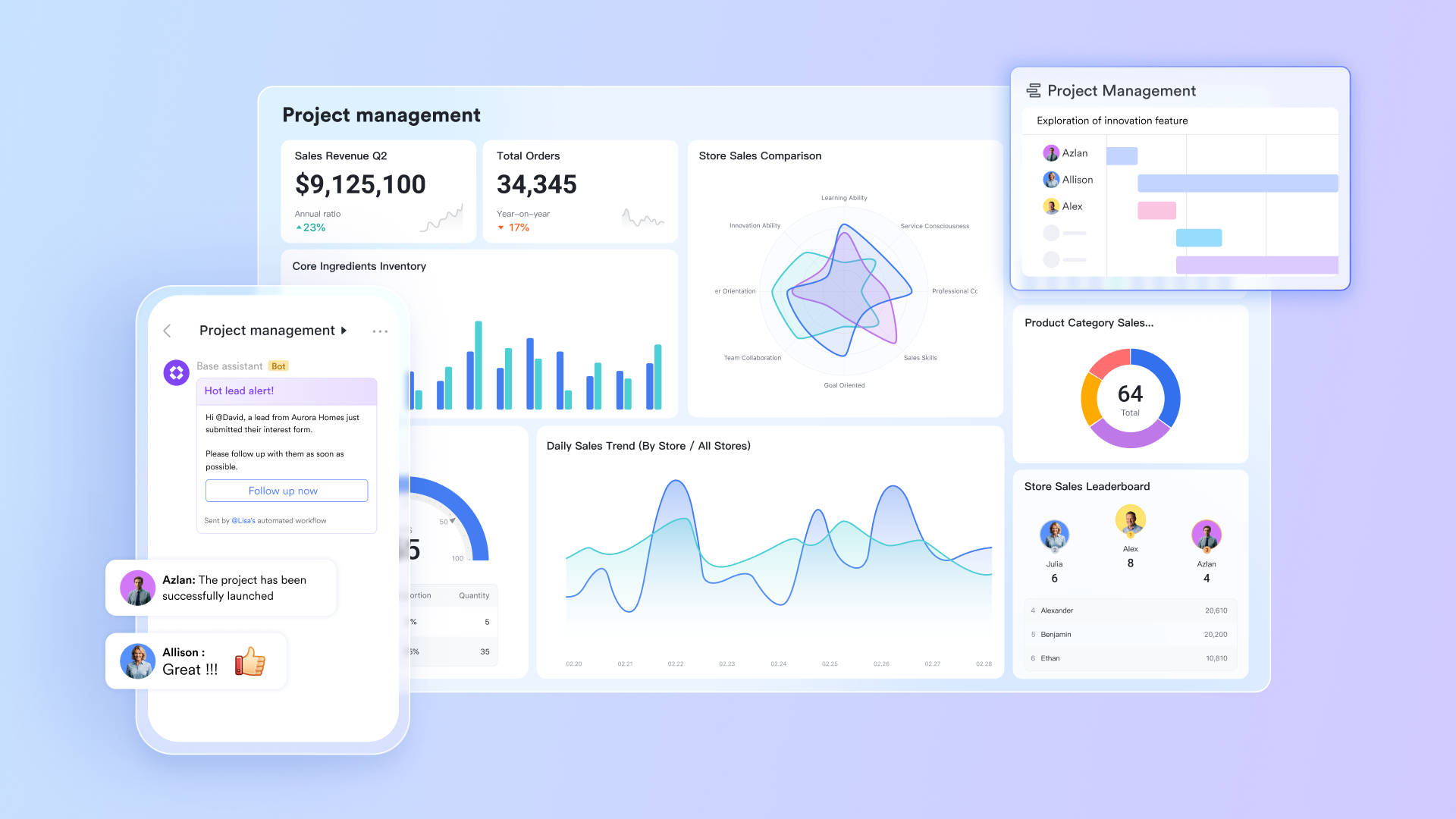
Flexible Base tables for process automation
Lark Base lets teams build structured tables for leads, deals, onboarding, client information, procurement, support requests, and more. Every table can use linked records, formulas, views, and granular permissions. For example, an onboarding Base can link clients to deliverables, training sessions, and contract details. When a client reaches the "Onboarding Completed" status, Base can trigger follow-up tasks for renewal reminders or satisfaction surveys automatically.
Pipedrive's structure is locked around CRM objects and pipeline stages. It cannot create a separate onboarding database, a hiring tracker, a procurement table, or a project milestone table. Users often resort to spreadsheets or external tools, splitting the workflow and forcing data to live in multiple places.
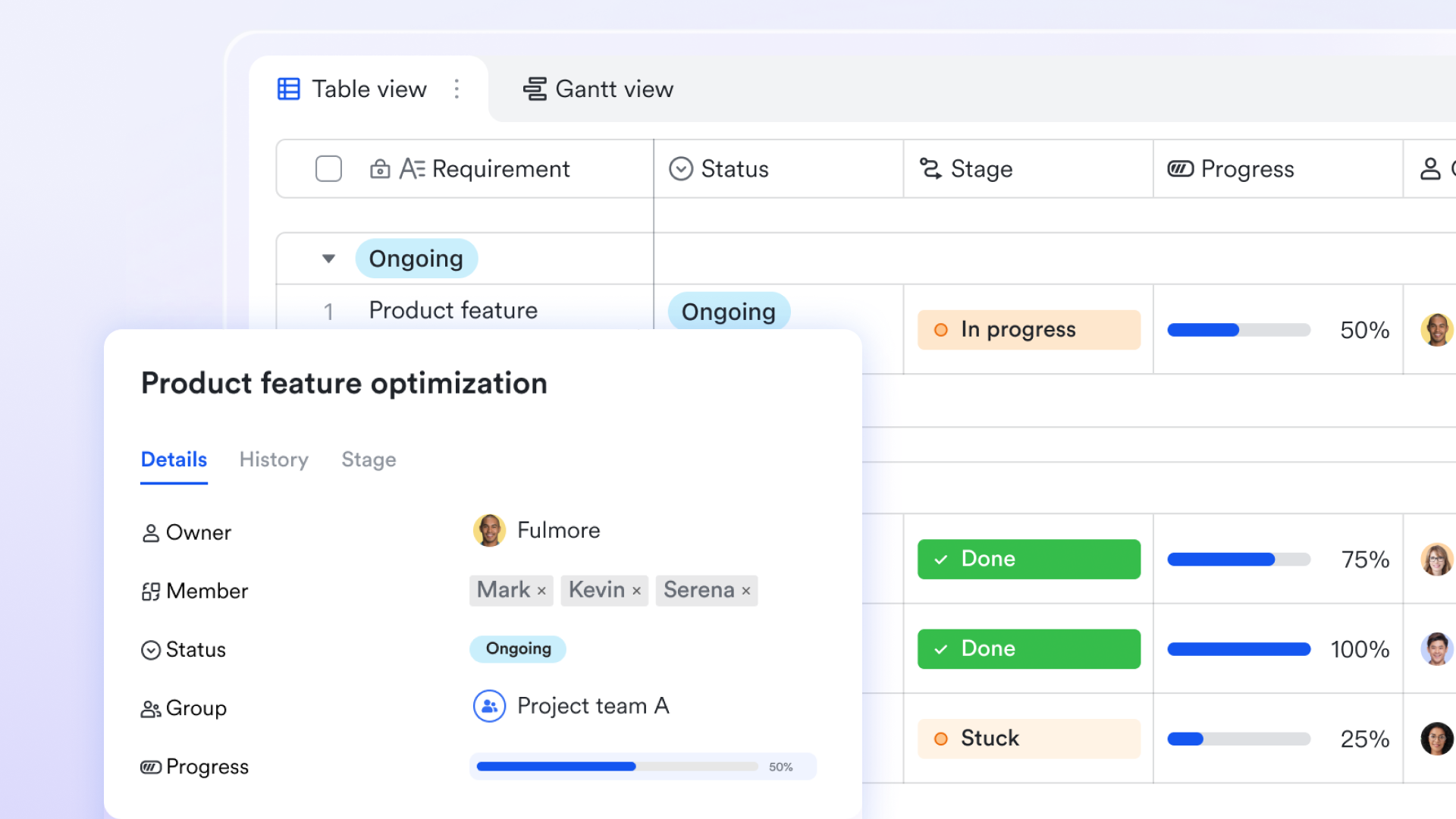
Automated workflow rules across the workspace
Lark's automation rules allow triggers from Base, Tasks, Calendar, Approval flows, and Messenger events. This enables teams to design multi-step processes that go far beyond sales. A single trigger, such as marking a deliverable as complete, can start a chain of actions: update a Base record, create downstream tasks, alert stakeholders in Messenger, and move the item into an approval flow. You can build sequences for lead routing, onboarding checkpoints, contract reviews, hiring processes, or customer escalations.
Pipedrive automations are limited to actions within the pipeline: create an activity, move a deal, send an email, update a field. It cannot launch a multi-step operational sequence, nor can it orchestrate workflows across HR, finance, project teams, or approval processes.
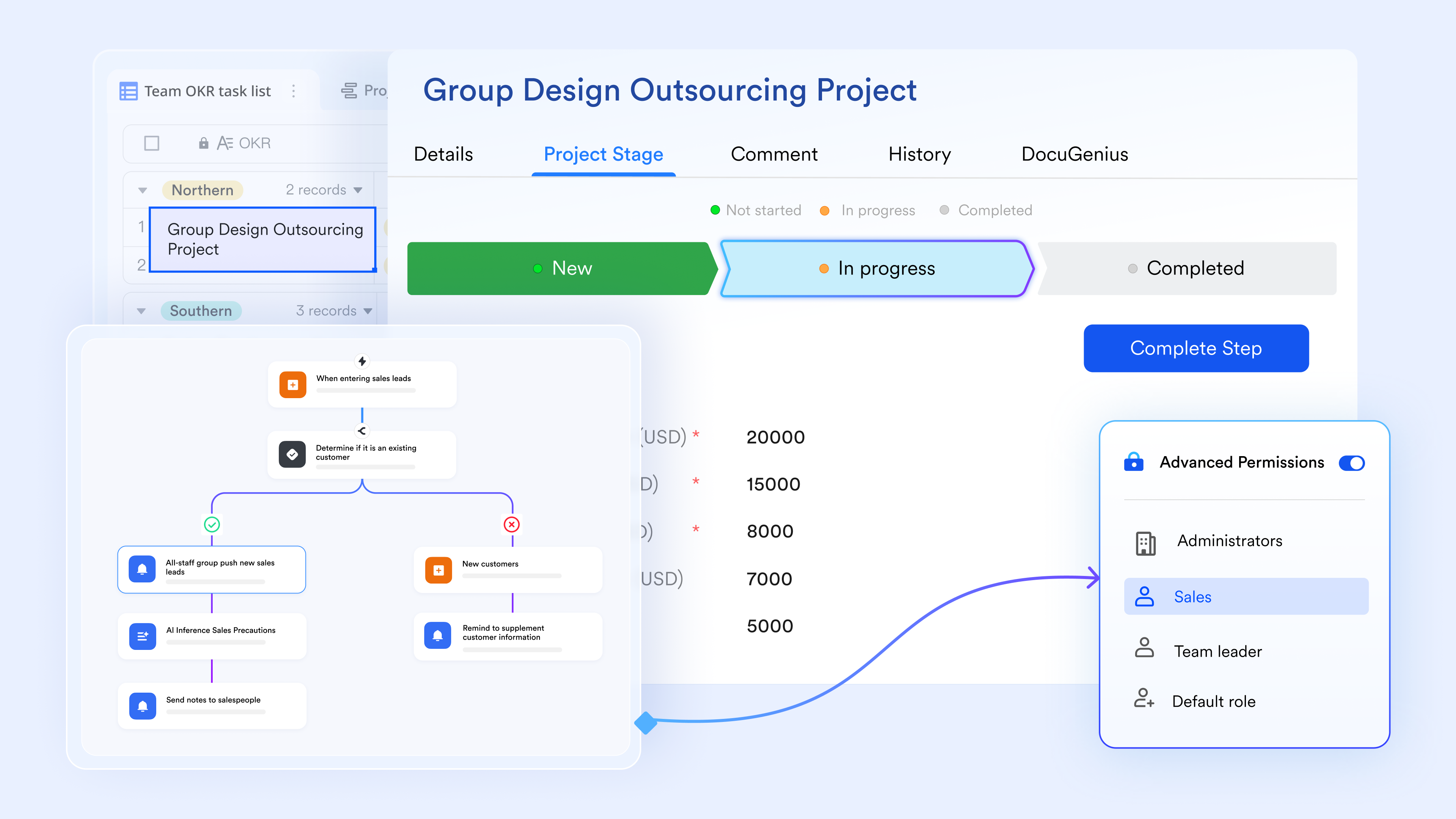
Messenger and Calendar for real-time action
Because Messenger and Calendar exist inside the same workspace, Lark automations can activate immediate team actions. For example, when a high-priority support ticket enters a "Critical" status in Base, Lark can post an alert on a dedicated Messenger channel, tag the on-call team, and automatically place a troubleshooting session into Calendar. All essential context stays linked to the original record.
Pipedrive cannot notify teams in a unified messaging environment, nor can it schedule meetings automatically based on workflow triggers. Any urgent collaboration requires switching to another communication tool, breaking continuity, and slowing response times.
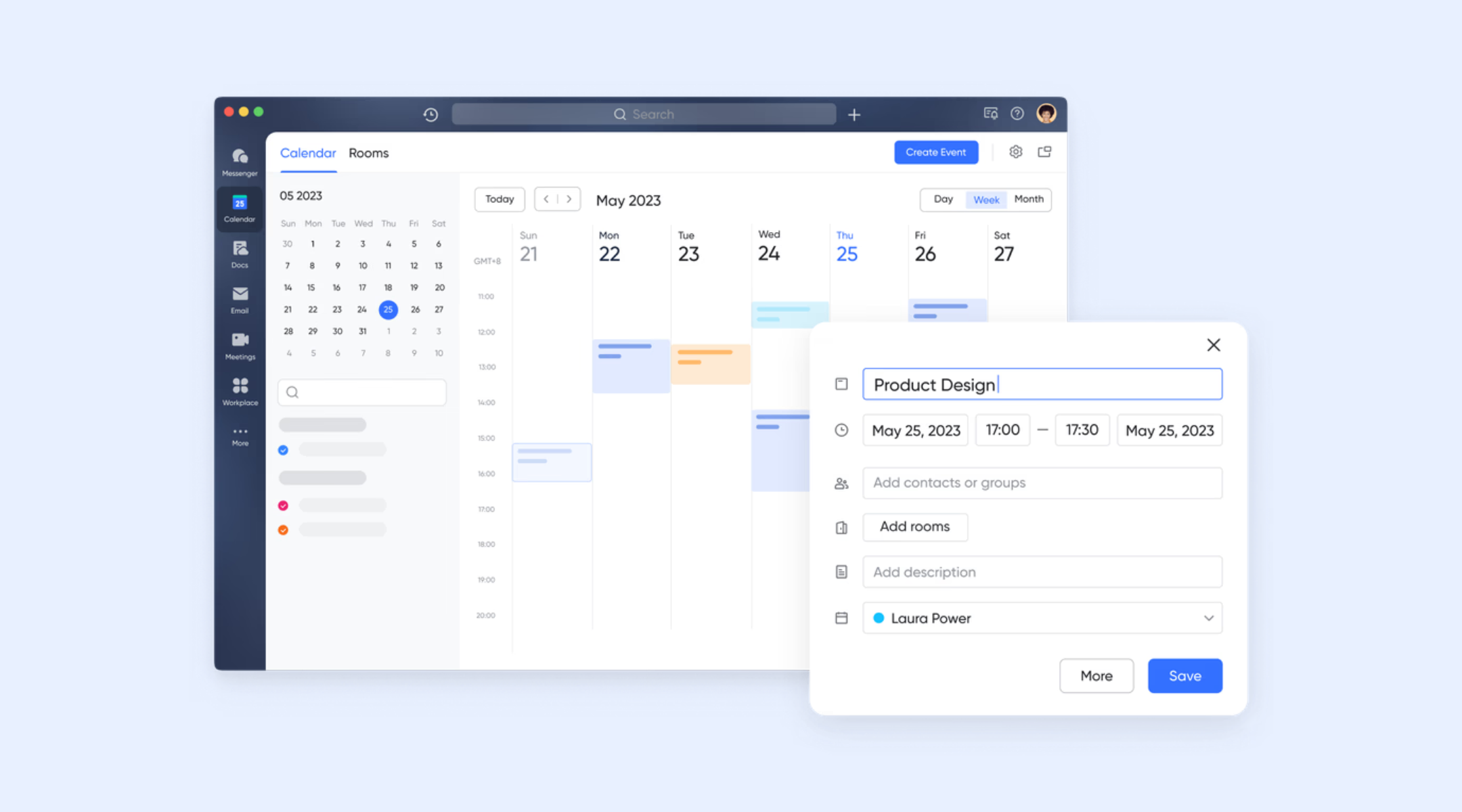
Approval and processes beyond sales
Lark Approval allows teams to run structured, repeatable approval flows for budgets, contracts, HR requests, vendor onboarding, reimbursements, and procurement. A request in Approval can automatically update Base records, notify reviewers, or generate new tasks once approved. For instance, when a new contractor request is approved, Lark can create onboarding tasks, notify IT to prepare access, and update a Base table that tracks vendor compliance.
Pipedrive does not offer approval flows. Any process requiring formal sign-off happens outside the CRM through email or external workflow tools. This makes it difficult to maintain a centralized audit trail or ensure that all steps follow the same review structure.
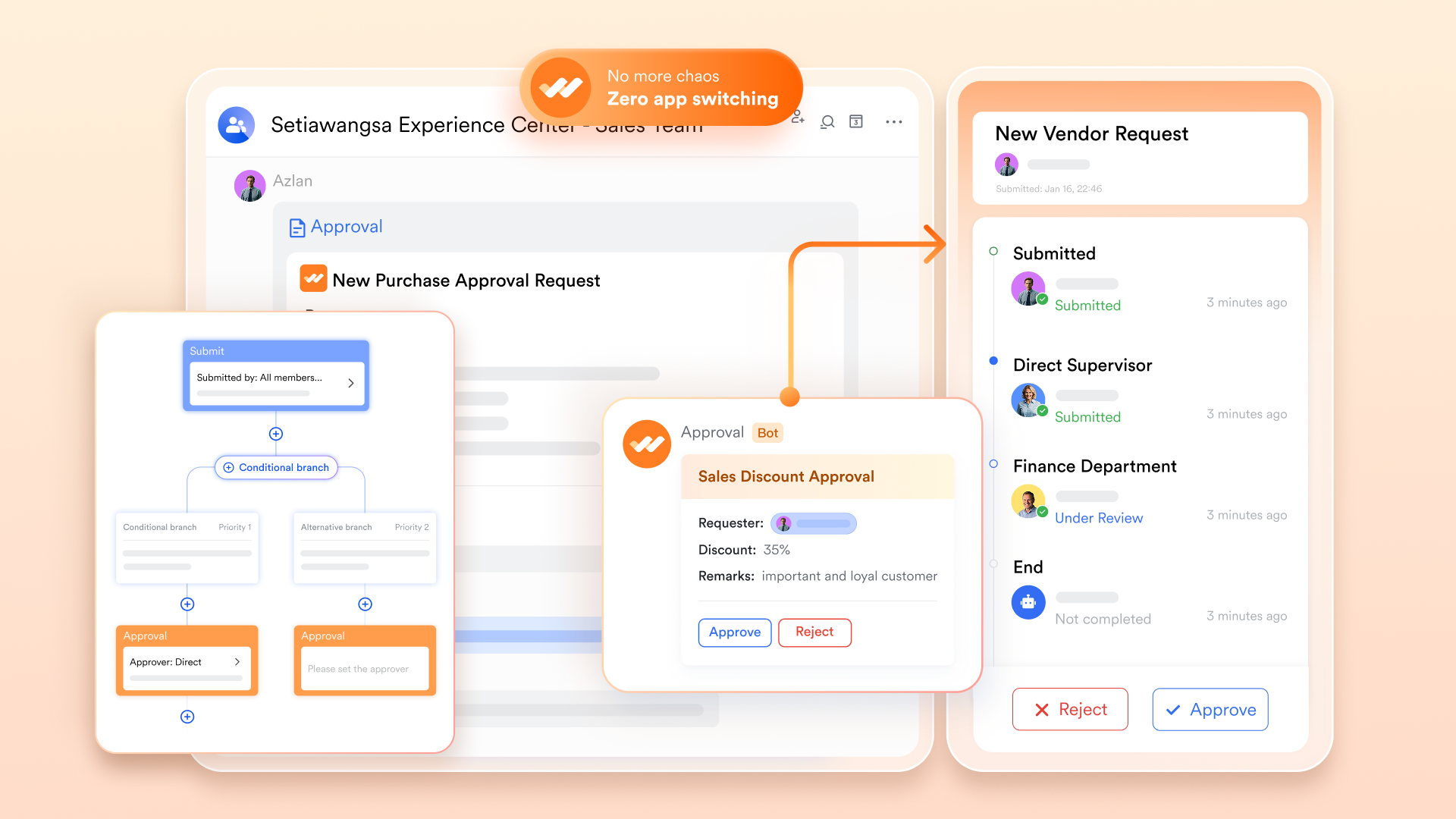
- Starter plan: Free forever plan that includes 11 powerful tools for up to 20 users. It also comes with 100GB of storage, 1000 automation runs, AI translations, and more.
- Pro plan: $12/user/month (billed annually) for up to 500 users. It includes everything in Starter plus group calling for up to 500 attendees, 15TB of storage, 50,000 automation runs, and more. Teams exploring collaboration tools may benefit from comparing features against Google Workspace pricing and ClickUp pricing.
- Enterprise plan: Contact sales for custom pricing. Supports unlimited users and includes even more automation runs and advanced security, compliance, and management features.
Lark vs. Pipedrive: Workflow automation comparison
Choosing between Lark and Pipedrive comes down to how far your workflows need to go, from simple pipeline tasks to organization-wide processes. Both platforms offer automation, but they serve very different purposes and teams. In this table, we break down their core differences across triggers, actions, data structures, and collaboration layers. Use this comparison to understand which tool aligns better with your current needs and long-term automation strategy.
Which one should you choose?
When deciding between Lark and Pipedrive for workflow automation, assess your team's scope, processes, and long-term needs:
If your primary objective is optimizing sales pipeline work, deal stages, lead follow-ups, activities, and email sequences, then Pipedrive is a strong fit. It provides sales-specific automation tools, pipeline views, and CRM-focused workflows that allow sales reps to move faster and stay focused on closing.
However, if your organization spans multiple functions such as marketing, operations, HR, finance, customer success, or projects, and requires a unified workspace where approvals, communication, data tracking, document collaboration, and automated flows all live side by side, then Lark is the better choice. Lark supports broad workflows beyond just sales. With Base tables, task management, approvals, messaging, calendars, and collaborative documents all in one place, Lark empowers teams to build end-to-end processes across departments without bolts or bridges.
If you expect rapid growth, cross-team collaboration, or a need to scale processes across business units, then choosing Lark early gives you room to expand automation from pipelines into full-scale operational workflows. On the other hand, if you're focused on tightening sales execution today and have less need for broader workflow beyond the deal, then Pipedrive will serve you well with minimal overhead and a strong track record in sales automation.
In summary: Choose Pipedrive if your focus is exclusively on sales and you need easy automation for deals and tasks. Choose Lark if you're looking for a unified platform where automation travels across teams, data, documents, approvals, and collaboration, giving you one system to orchestrate more than just sales.
Conclusion
We explored how Pipedrive workflow automation helps sales teams streamline follow-ups, update fields, assign leads, and keep deals moving with less manual effort. Its visual builder and native triggers make it ideal for straightforward, sales-centric processes.
However, as workflows expand across departments, marketing, finance, HR, and operations, their limitations become clear. External automation tools can help, but they add complexity and cost. For organizations that need a unified workspace where data, collaboration, and automation flow seamlessly end-to-end, a broader solution delivers more value. For scalable, cross-team automation in one platform, the strongest alternative is Lark.
FAQs
What types of tasks should you avoid automating in Pipedrive?
Certain activities, such as highly personalized outreach or complex multi-team actions, are better handled manually or through a broader workspace, since Pipedrive focuses mainly on sales tasks.
Does Pipedrive workflow automation work for teams outside of sales?
Pipedrive automations are designed around deals, contacts, and pipeline steps, so non-sales teams like HR, finance, or operations typically need other tools for their workflows.
How many automations can you run simultaneously in Pipedrive?
The number depends on the plan tier. Limits apply when workflows become large or highly complex, which may require using external tools or a workspace that supports automation across multiple functions.
Can Pipedrive automations help with contract or document approvals?
Pipedrive doesn't offer approval flows. Any contract or document sign-off requires a separate tool or manual communication outside the CRM.
How can you troubleshoot an automation that stops triggering in Pipedrive?
Check for modified field values, deleted conditions, overlapping rules, or changes made during your setup. When using workflow automation Pipedrive, even a small adjustment to a trigger or condition can break an entire sequence. If you're unsure how to set up workflow automation in Pipedrive, revisit each step to confirm that triggers, actions, and conditions still match your intended logic. Conflicting workflows are one of the most common issues and should be reviewed regularly.
Related reading
Table of contents
Start using Lark today

Manage all your work in one place
Boost team efficiency by 10x
Save up to 70% on software costs
Table of contents
Start using Lark today
Manage all your work in one place
Boost team efficiency by 10x
Save up to 70% on software costs
Keep reading



Lark recognized in 2023 Gartner® Collaborative Content Workspaces and Meeting Solutions reports
Lark, the global superapp for productivity, is delighted to announce it receives recognition in the Gartner's 2023 Innovation Insight for Collaborative Content Workspaces and Market Guide for Meeting Solutions.





2026 Lark Technologies Pte. Ltd.
Headquartered in Singapore with offices worldwide.






Explore: