Salesforce workflows help teams automate routine tasks so they can focus on activities that move deals forward. They're useful for building rules that update fields, send alerts, or trigger actions without manual work. This guide breaks down how workflows function, when to use them, and what has changed with Salesforce's shift toward Flow Builder. You'll also get a look at modern alternatives that offer a broader approach to automation for growing teams. Tools are often compared in this space, so it's helpful to understand how Salesforce fits into the bigger workflow landscape before deciding what works best for your setup.
Explore how your workflows can be streamlined
What are Salesforce workflows?
Workflows in Salesforce are a set of rules that watch for specific changes in your data and then trigger actions. They streamline repetitive tasks, reduce errors, and help teams stay aligned. As companies scale, many also start relying on Salesforce digital workflows to manage approval flows, handoffs, and notifications across departments.
Integration Modern Salesforce automation leans heavily on Flow Builder, but classic still remains in many older setups. Knowing how both operate helps you decide when to update and when to keep existing rules in place.
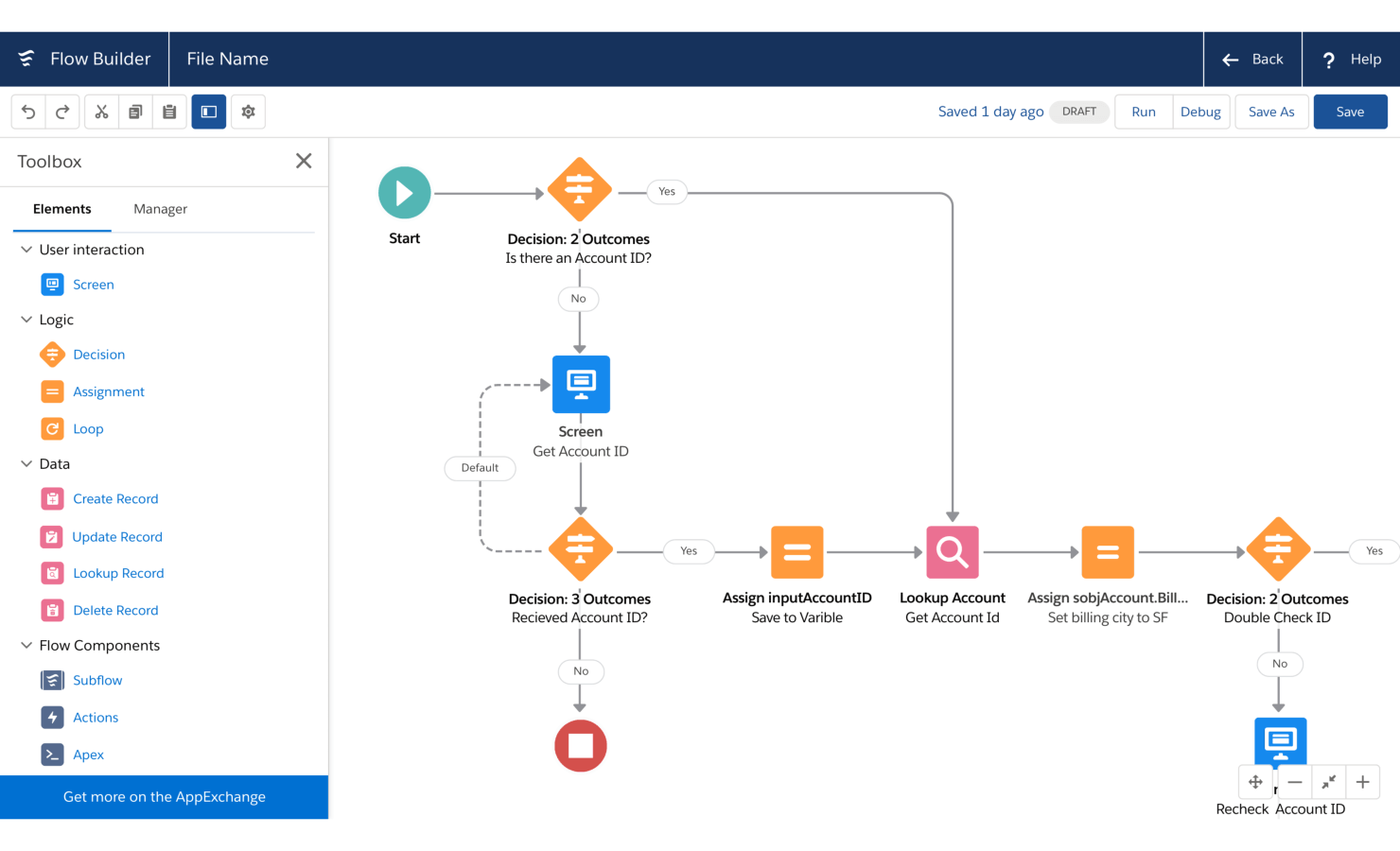
Image source: saleforce.com
Types of workflows in Salesforce
Types of workflows in Salesforce cover everything from simple rule-based actions to advanced built with Flow and AI. Understanding each option helps you choose the right approach for your process and long-term automation strategy.
1. Workflow rules (Legacy)
Workflow rules were the original automation feature in Salesforce. They handle simple, single-path logic such as updating fields, sending alerts, or assigning tasks. Many older orgs still depend on them, but Salesforce is no longer enhancing this feature. If your process needs branching logic or multiple outcomes, you'll need a more modern option.
2. Process builder
Process builder expanded what workflow rules could do by allowing multi-step logic and more complex conditions. It became popular because of its visual interface, but Salesforce is gradually retiring it in favor of Salesforce Flow. Most teams are now planning migrations to avoid long-term maintenance issues.
3. Salesforce flow (Primary automation engine today)
Salesforce Flow is now the main automation engine. It supports record-triggered actions, screen flows, and background processes. Flow can handle advanced routing, decision trees, integrations, and guided user interactions. It's also the recommended choice when creating workflows in Salesforce for new or growing teams.
4. Approval workflows
help manage requests that need reviews or sign-offs. They're often used for discounts, expenses, contracts, or internal approvals. This feature ensures every request follows a consistent path, so the right person receives each item. Many companies set these up alongside workflows and approvals in Salesforce to keep processes fully aligned.
5. Digital workflows
Digital workflows cover actions inside customer service, support, and operations. These include service flows, support flows, and case routing. Teams use Salesforce digital workflows to streamline escalations, ensure timely responses, and keep customers updated. They're especially useful when automation needs to reach multiple departments.
6. AI-powered workflows (Einstein AI)
Einstein AI can analyze patterns, recommend next actions, or help automate decisions. Many teams now rely on Salesforce AI for complex support workflows because it can identify intent, classify cases, or assist agents in real time. These AI-driven automations reduce handling time and free agents to focus on higher-value interactions.
How Salesforce flow powers modern workflow automation
Salesforce Flow has become the central tool for building smart, scalable automation across the platform. It's designed to handle everything from simple field updates to complex, multi-step processes that involve multiple systems and user decisions. Because flow supports powerful logic, branching, and data operations, it can adapt to almost any business scenario without requiring code.
One of its biggest advantages is flexibility. Flow can run quietly in the background to automate routine tasks, or it can guide users on-screen with clear prompts, decision points, and step-by-step instructions. This helps teams work faster and reduces mistakes, especially in tasks that require consistent data entry or approvals.
Flow also connects smoothly with other , so you can build automations that trigger record changes, scheduled times, or user actions. This unified approach makes it easier to maintain your setup and ensures everything works as part of a single automation framework. Overall, Salesforce flow gives teams a modern way to streamline operations, improve accuracy, and create more intuitive user experiences.
Steps to creating workflows in Salesforce via Flow
Step 1: Start a new Flow
Log into Salesforce, click the gear icon for Setup, type "Flows" in the Quick Find box, and select Flows under Process Automation. Then simply click the blue New Flow button to get started.
Step 2: Pick the right Flow type for your goal
You'll see several options—choose Record-Triggered Flow for automatic actions when a record is created or updated (the most common choice for pure automation), Screen Flow if you need a user-facing wizard with input screens, Schedule-Triggered Flow for daily or weekly batch jobs, or one of the advanced types like Platform Event-Triggered or Autolaunched if you're integrating with Apex or external systems. Once you've made your choice, click Create.
Step 3: Set up the trigger (for Record-Triggered Flows)
Select the object you want to work with (e.g., Opportunity, Lead, Account), decide whether the flow should run before or after the record is saved, and add any entry conditions so it only fires when needed (for example, only when Lead Status changes to "Working"). Choose the "Actions and Related Records" optimization option, then click Done.
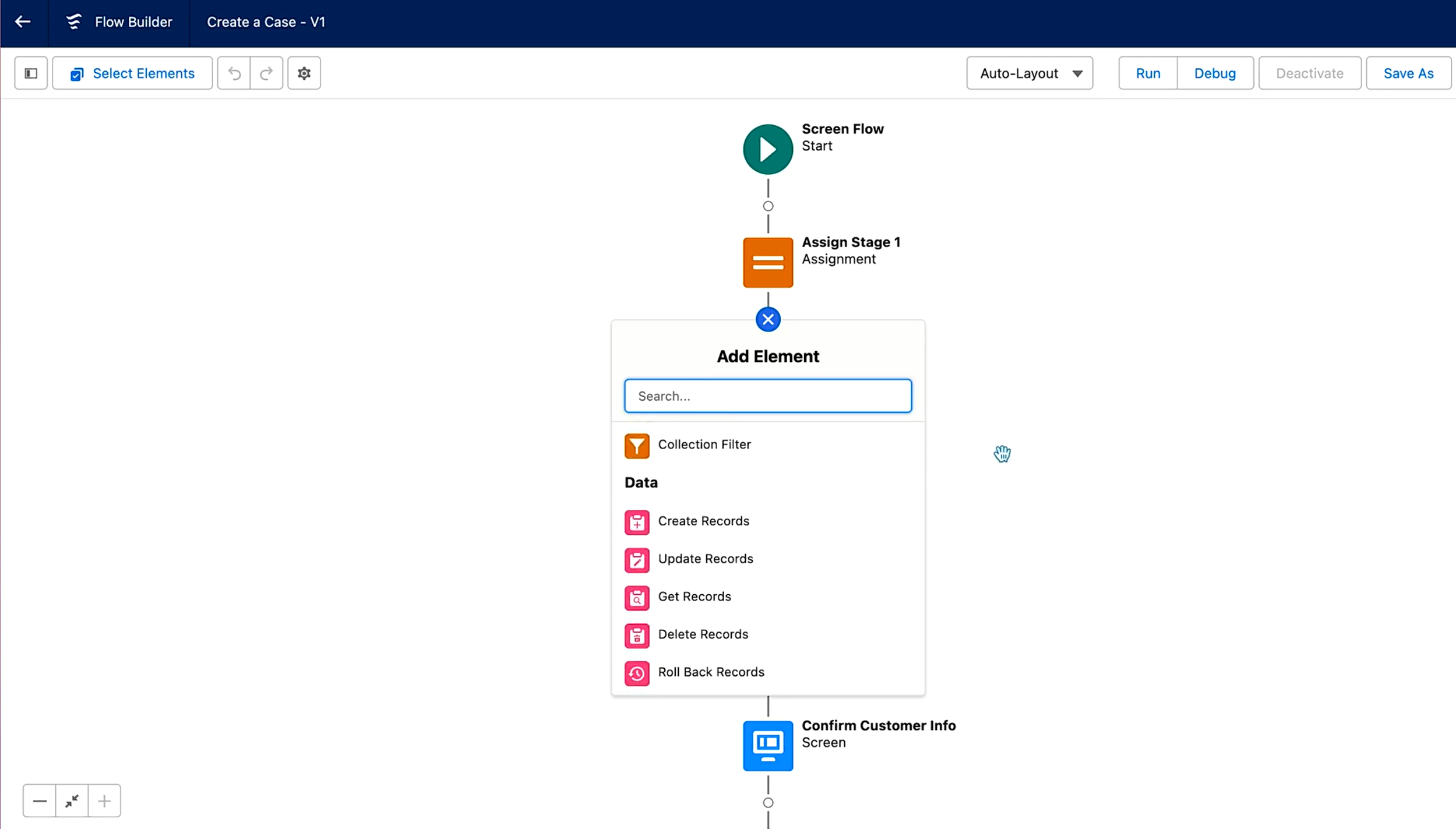
Image source: saleforce.com
Step 4: Create the Resources you'll need
Open the Manager tab on the left and click New Resource as many times as necessary. Create variables for single values (text, number, date, record, etc.), collection variables when you need to handle multiple records at once, constants for values that never change, and formulas for any dynamic calculations. Give everything a clear, descriptive API name so it's easy to reuse throughout the flow.
Step 5: Build the logic by dragging Elements onto the canvas
From the Toolbox, drag the elements you need: Get Records to pull data, Assignment to set or change variable values, Decision for if/then branching, Update/Create/Delete Records to save changes back to Salesforce, Loop when working with collections, Action to send emails or call Apex, and Screen elements (only in Screen Flows) to collect user input. Auto-layout automatically draws the connectors between each element as you add them.
Step 6: Test, save, and activate
Click Debug at the top to run a test with real or sample data and step through every path, fix any issues that appear, then click Save and give the flow a clear name and description. When everything looks good, hit Activate. For Screen Flows, one extra step—drop the activated flow onto a Lightning page, button, or utility bar so users can launch it. That's all there is to it—your automation is now live and running completely with clicks, no code required.
Common use: Salesforce workflows for sales, service & operations
Salesforce digital workflows help teams move faster by automating routine tasks across the entire customer lifecycle. They keep information flowing between departments so work progresses without delays or manual follow-ups.
- Lead assignment: Automated lead routing ensures every new inquiry reaches the right salesperson immediately. Assignment rules can consider territory, industry, product interest, or team availability. This helps reduce response time and increases the chances of converting new leads while keeping workloads evenly distributed.
- Pipeline updates: Automation keeps pipeline data accurate by updating stages, setting reminders, or triggering tasks based on record changes. Managers get a clearer , and reps spend less time fixing fields or checking what needs attention. These updates help keep deals on track without extra administrative work.
- Customer onboarding steps: Workflows guide customers through the onboarding process with scheduled tasks, welcome sequences, training milestones, and follow-up checks. This builds a consistent experience across every account and makes it easier for teams to manage multiple onboarding journeys at once.
- Support ticket escalation: Automated escalation rules help service teams respond quickly when issues become urgent. Tickets can escalate based on priority, time in queue, or customer segment. This ensures high-impact cases rise to the top, so agents can act before delays affect customer satisfaction.
- Cross-team handoff workflows: Smooth handoffs between sales, service, finance, or operations reduce bottlenecks. Workflows can notify the next team, assign tasks, update ownership, or prepare required documents automatically. This keeps work moving and prevents gaps when multiple departments share responsibility.
- Using AI and bots for escalation and routing: AI and bots can analyze incoming requests, detect urgency, classify intent, and send items to the right person or queue. They help teams handle volume spikes, reduce manual triage, and ensure each issue reaches the right owner with minimal delay. This support is especially useful for fast-moving service environments.
- Salesforce AI for complex support workflows: AI gives support teams a way to manage heavy case volumes without slowing down. It analyzes patterns, predicts needs, and automates tasks that would normally take agents several minutes per ticket.
- Einstein prediction: Einstein prediction reviews historical case data to forecast likely outcomes. It can flag accounts with a higher chance of escalation or identify customers who may need extra attention. These insights help managers allocate resources and let agents focus on cases that truly matter.
- AI recommendations: Recommendation engines surface best-practice actions based on thousands of past resolutions. Agents get quick suggestions on replies, troubleshooting steps, or next actions. This boosts consistency across the team and helps newer agents ramp up faster without relying heavily on supervisors.
- Automated case summaries: Long case histories can typically go down. Automated case summaries condense key details, customer messages, and past actions into a simple overview. This is especially useful when cases change hands or when an agent needs to revisit an older issue.
- Intelligent routing: Intelligent routing goes beyond simple rules. AI looks at urgency, sentiment, keywords, and workload to route cases to the most suitable agent. It helps reduce backlogs, improves service quality, and ensures priority issues reach the right person quickly.
- AI reduces agent workload: AI handles tasks like classification, sentiment analysis, and summarization. It also helps automate responses to straightforward requests so agents spend more time on meaningful customer interactions. The result is a lighter workload, faster resolution times, and a more efficient support operation.
Bouns tips: Tools that automate workflows within Salesforce
Sales teams, service teams, and operations rely on different automation tools depending on how complex their processes are. Understanding the options helps you choose the right setup for long-term scalability.
- Native tools: Flow, Process builder, Approvals: Salesforce offers several built-in automation features. Flow is the primary engine for new automation and supports advanced logic, guided screens, and background actions. Process builder still appears in many older orgs and is mainly maintained for legacy workflows. Approval processes help route requests for discounts, , and internal reviews without manual follow-ups.
- Connected tools (MuleSoft, Slack automations, Tableau triggers): Connected platforms extend automation beyond Salesforce. MuleSoft handles integrations and can trigger workflows based on external system events. Slack automations allow teams to act on Salesforce updates directly from their conversations. Tableau triggers can launch actions based on data insights, helping teams respond quickly to trends or anomalies.
- AppExchange tools for advanced workflow automation: Many companies use AppExchange tools to support more specialized or complex . These apps help manage compliance-heavy processes, multi-step routing, document workflows, or cross-system tasks that need more flexibility than native features can provide. They're among the most common tools that automate workflows in Salesforce when teams need functionality that goes beyond standard automation.
Challenges teams face when building Salesforce workflows
Even though Salesforce offers powerful automation tools, teams often run into obstacles while trying to build, scale, or maintain their workflows. Most of these challenges appear as businesses grow and processes become more complex.
- Complexity for non-technical users: Many users find it hard to understand how triggers, conditions, and actions fit together. As flows become more advanced, non-technical teams often struggle to manage them without guidance.
- Workflow rule migration: With Salesforce retiring older , teams must migrate to Flow. Moving legacy rules can be time-consuming, especially when documentation is incomplete or when multiple automations overlap.
- Cost of admin time: Admins spend a significant amount of time building, testing, and troubleshooting flows. This often becomes a hidden cost for teams that rely heavily on automation.
- Need for developer support for advanced flows: While simple flows are accessible to most admins, advanced logic often requires Apex, integrations, or custom components. This increases dependency on developers and slows down automation rollout.
- Maintenance overhead: As more automation is added, maintenance becomes more demanding. Teams must monitor changes, update logic, and ensure older workflows still behave correctly after system updates.
- Risk of automation conflicts: Conflicts occur when multiple flows trigger and actions at the same time or when actions affect the same fields. These issues can cause unexpected behavior, data inconsistencies, or performance problems if not properly managed.
With all these challenges piling up, many teams start to feel that building and maintaining Salesforce workflows takes more effort than it should. As processes grow, it becomes harder for non-technical departments to make quick changes, and admins end up spending a lot of time troubleshooting or rewriting old logic. This slows down everyday work and creates bottlenecks whenever a team needs a simple update or a new approval path. That's why a lot of organizations begin looking for something easier to manage—something more collaborative and less technical. This is where Lark becomes a practical, refreshing alternative. Let's take a closer look at the modern tool
Discover a new experience of automatic workflow
Another option: Why Lark is a simpler, more unified workflow builder
offers a more streamlined way to manage workflows by bringing communication, tasks, and into one place. Instead of switching between multiple Salesforce tools, users can build end-to-end processes that connect messages, , documents, and data updates. This unified setup makes it easier for teams to follow a single workflow without relying on multiple systems.
Another advantage is that non-technical users can create automations with fewer steps. Because everything lives in a single workspace, teams can collaborate, respond to updates, and complete actions without jumping between platforms. This helps reduce complexity and keeps workflows easier to maintain as the organization grows.
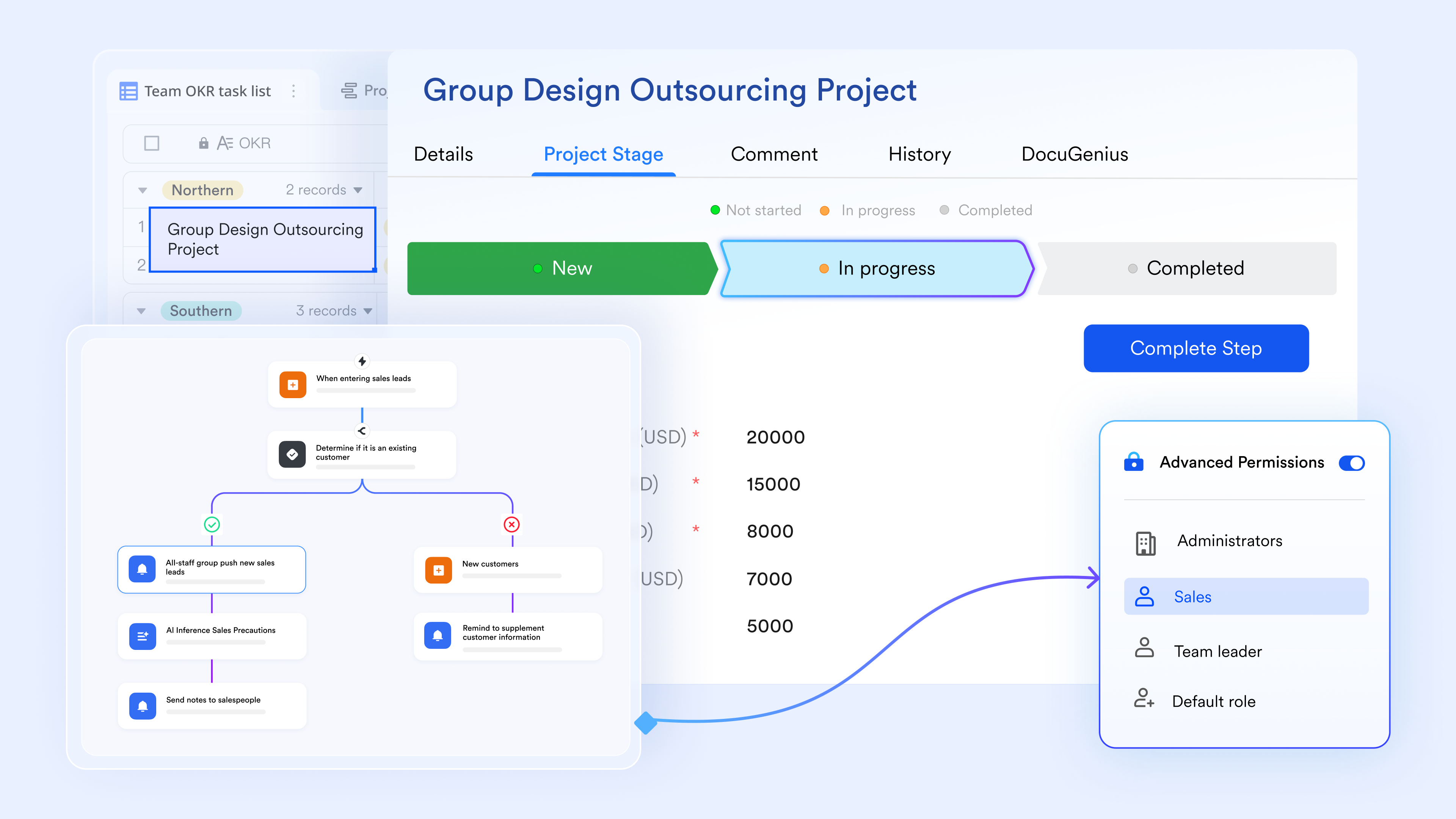
Structured workflows without complexity
Salesforce Flow can be powerful but often requires technical knowledge, multiple steps, and constant maintenance. offers an easier structure with its workflow feature; teams can build workflow logic on top of clean, organized data tables with status fields, triggers, and conditional logic, such as If/Else or Switch node, that anyone on the team can understand. This makes Lark much more approachable for teams who want project or operational workflows without needing Flow builders or admin support. 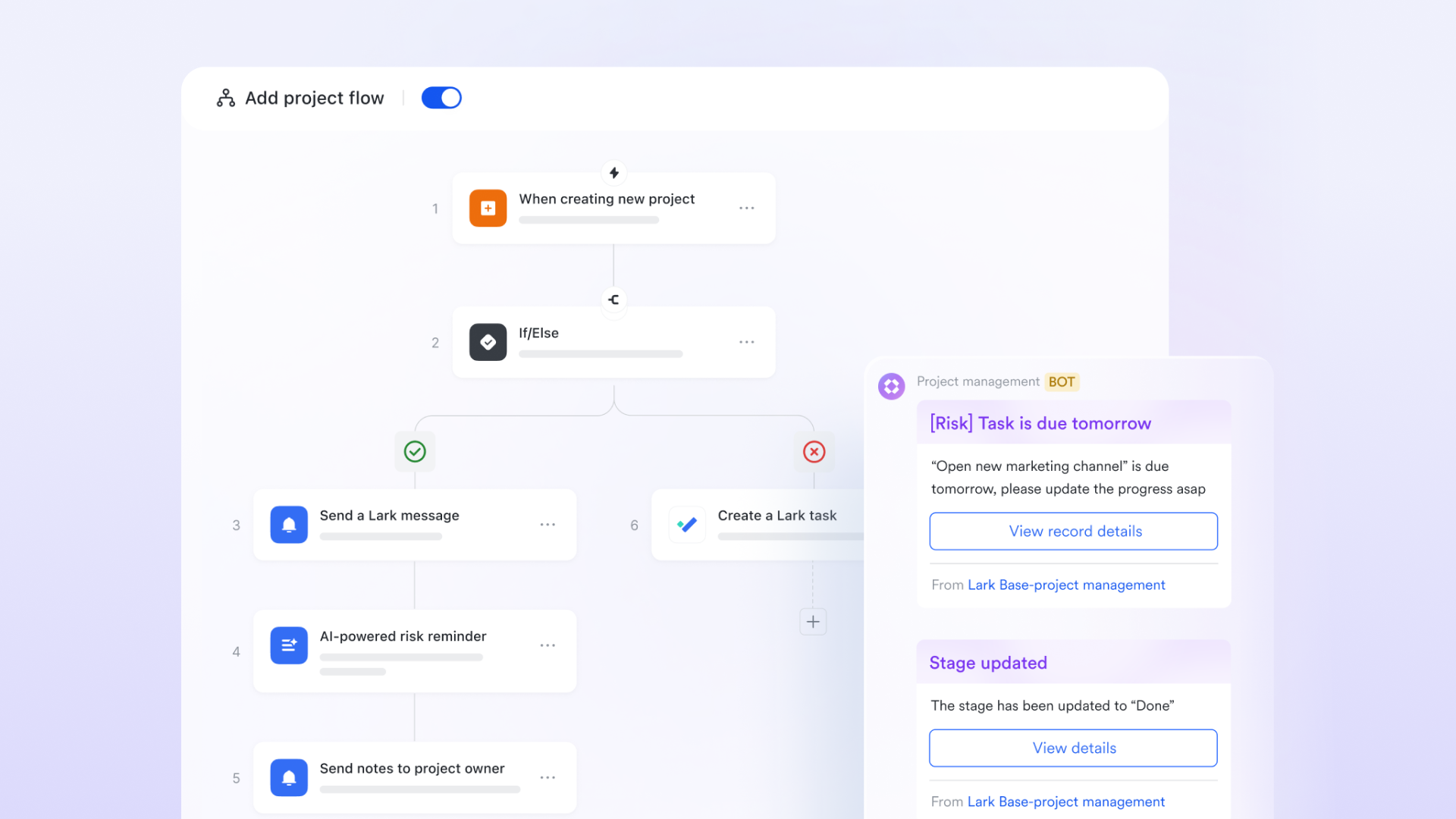
Simplifies approval & quests routing without technical setup
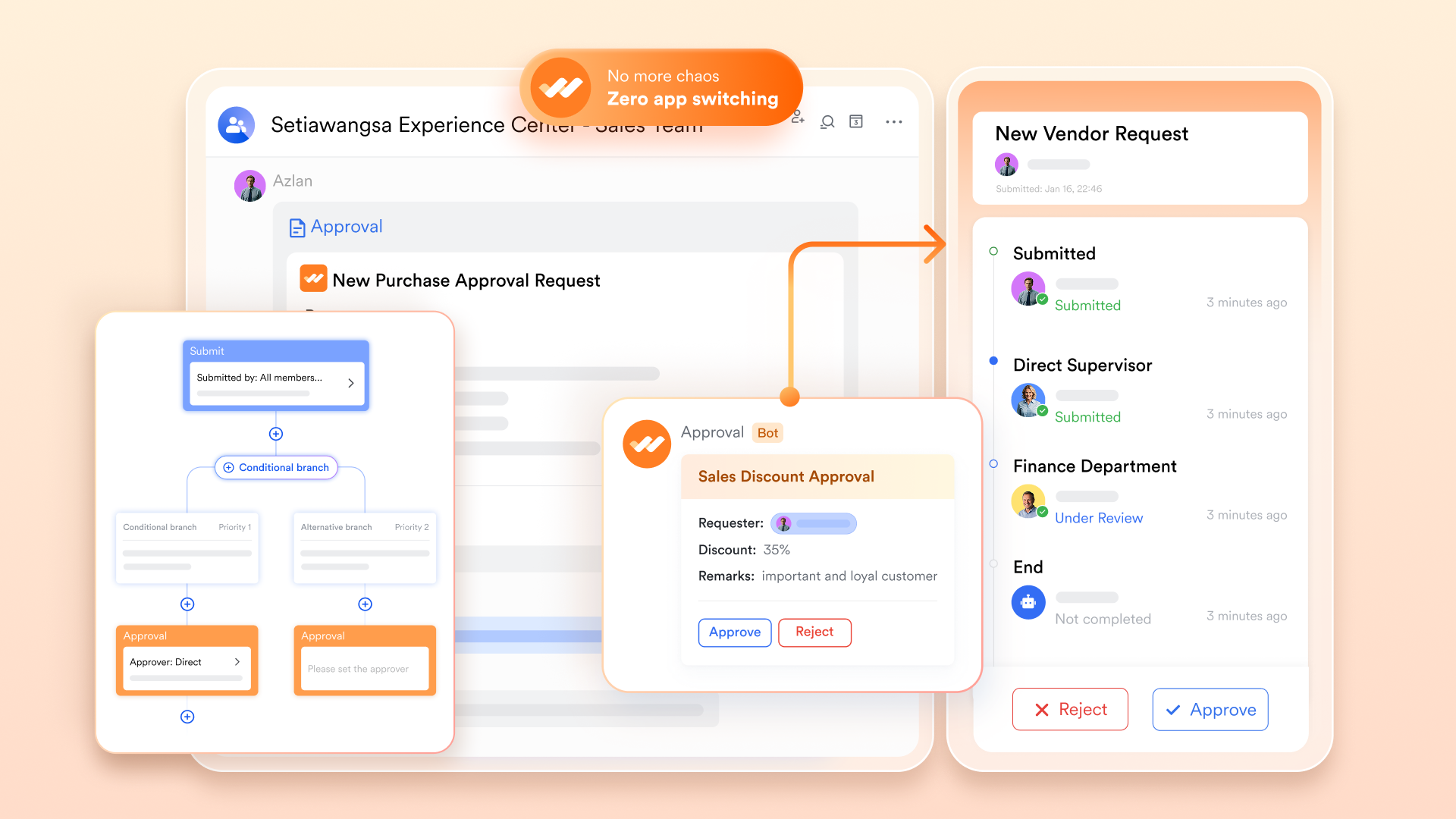
Salesforce's approval processes can require configuration in Flow or multiple rule layers. offers a straightforward way to route requests, submissions, and decisions across the team. You can define who approves what, add conditions, and track progress—all with just a few clicks. It's easier to maintain, easier to scale, and perfect for teams that want structured approvals without dealing with Salesforce's multi-step builder.
Collaboration happens where the workflow lives—not in separate apps
In Salesforce, users often switch between the CRM, Slack, email, documents, and external meeting tools to complete a workflow, or try to use external connectors for an integral flow. Lark eliminates this fragmentation by keeping , , Lark Sheets, , and Base together in one workspace. Whether a record needs to be updated, a task needs to be assigned, or a notification must be sent, everything runs naturally within Lark's unified ecosystem. Discussions, documentation, updates, and workflow actions all occur in the same system. 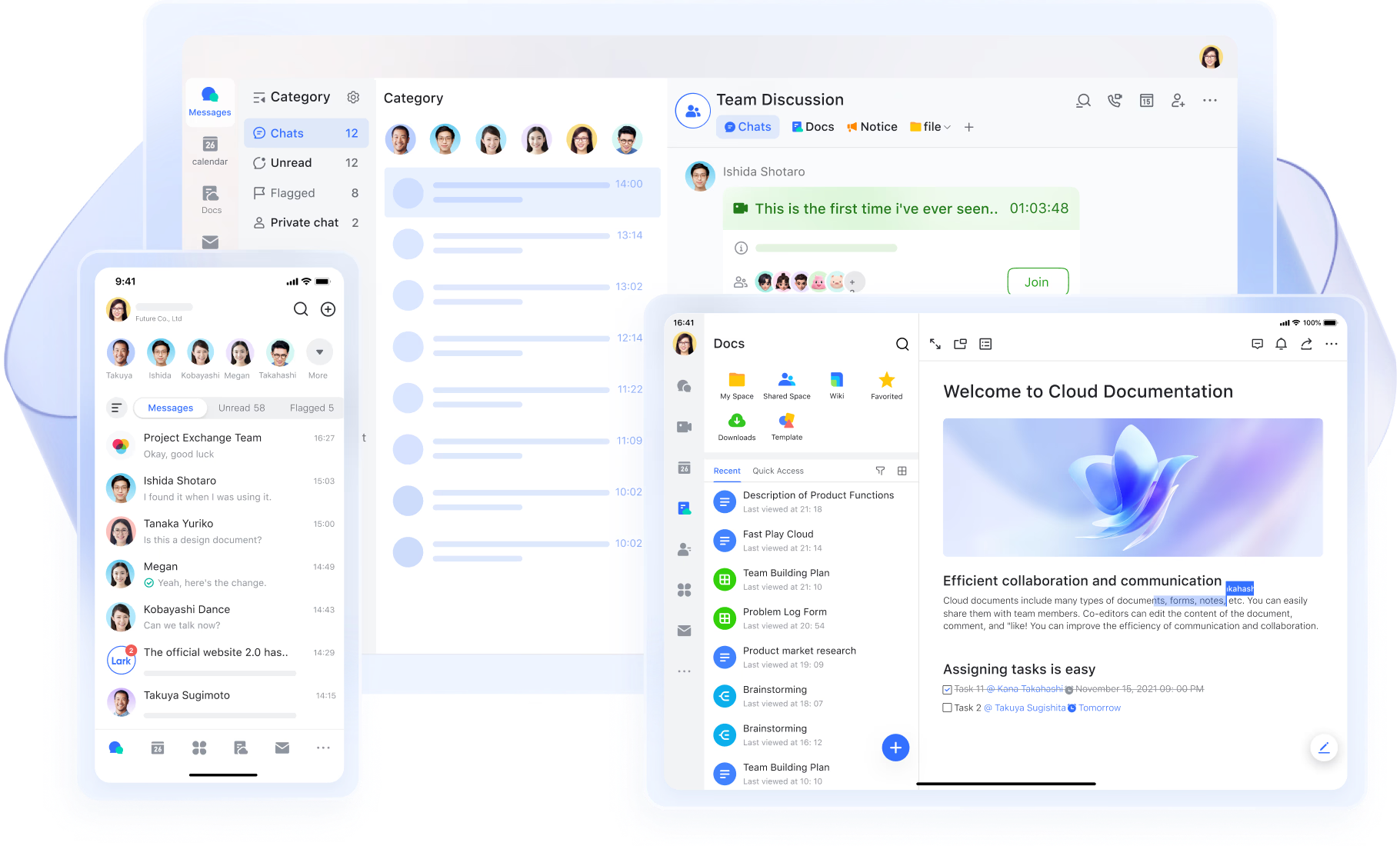
Smart AI assistance makes workflows easier to follow
Salesforce offers strong AI tools for analytics and CRM insights, but teams still rely on manual note-taking for meetings and textual information. Lark's AI Meeting Notes automatically capture decisions, next steps, and key points from discussions. Lark's AI-generated text helps streamline workflows by automatically optimizing, summarizing, or creating content based on data from your base records or earlier automation steps. The generated text can then feed directly into the next action in your workflow, reducing manual work and boosting efficiency. 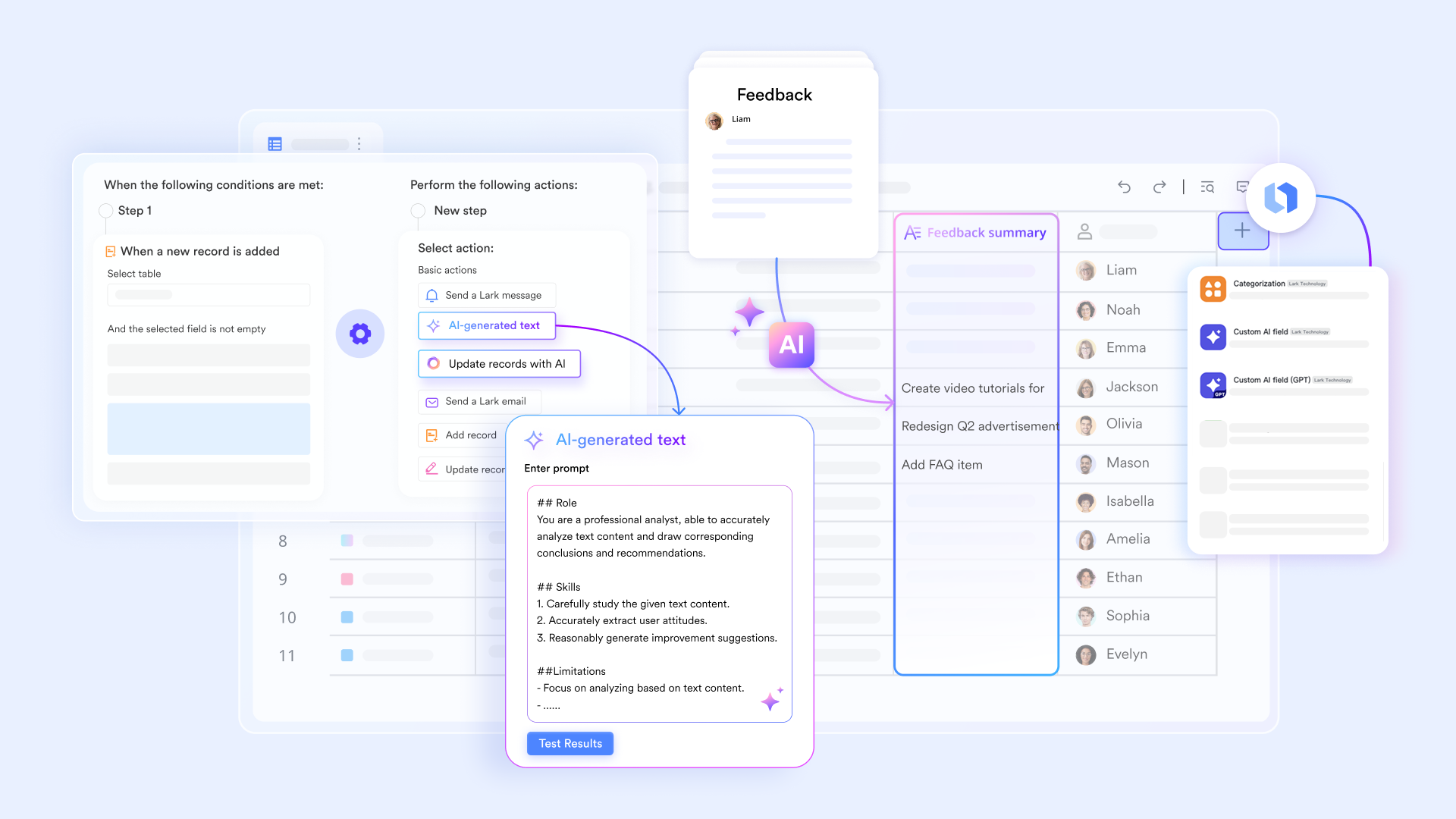
:
- Starter plan: Free forever plan that includes 11 powerful tools for up to 20 users. It also comes with 100GB of storage, 1000 automation runs, AI translations, and more.
- Basic plan: $6/user/month (billed annually) for up to 500 users. It includes everything in Starter plus group calling for up to 500 attendees, 5TB of storage, 1000 automation runs, and more. For more details, please .
- Pro plan: $12/user/month (billed annually) for up to 500 users. It includes everything in Basic plus group calling for up to 500 attendees, 15TB of storage, 50,000 automation runs, and more.
- Enterprise plan: for custom pricing. Supports unlimited users and includes even more automation runs and advanced security, compliance, and management features.
For small teams with simple communication needs

18 months message history
1000 Base automation runs/month
2000 rows per table in Base
Most POPULAR
For companies with comprehensive collaboration and management needs
Unlimited message history
500-participant video meetings
50k Base automation runs/month
20k rows per table in Base
For large companies with advanced security and organizational management needs
Get a personalized demo and pricing
Unlimited message history
500-participant video meetings
15 TB storage + 30 GB storage/user
500k Base automation runs/month
50k Base automation runs/month
Most POPULAR
For companies with comprehensive collaboration and management needs
Unlimited message history
500-participant video meetings
50k Base automation runs/month
20k rows per table in Base
Salesforce Workflows vs Lark: Final quick comparison
A quick comparison helps highlight where each platform fits and how its automation styles differ. This makes it easier to decide which option aligns better with your team's workflow needs.
Conclusion
Salesforce offers powerful tools for building structured, scalable workflows across sales, service, and operations. With flow now at the center of its automation strategy, teams can create more flexible processes than ever before. Still, maintaining complex workflows or connecting them across multiple systems can be challenging as organizations grow. That's where unified platforms like can complement or simplify broader automation needs. Ultimately, the best setup depends on how your teams work, how much technical support is available, and how far your processes extend beyond Salesforce. A thoughtful approach ensures your workflows stay efficient, reliable, and ready to scale.
Easily set up your workflows and boost efficiency.
FAQs
Is Salesforce Flow replacing Workflow rules and Process builder?
Yes. Salesforce Flow is taking over as the primary automation tool, and older features are being phased out. Many teams still maintain existing setups, especially where were built years ago, but new automation should be created in Flow.
Do you need coding skills to build workflows in Salesforce?
Not always. Most automations can be built with clicks, though complex logic may require Apex or integrations. This becomes more important when creating workflows in Salesforce that involve multiple systems or advanced branching.
How do Salesforce workflow limits work for large teams?
Salesforce sets limits on actions, flow executions, and system resources to protect performance. These limits matter most when working with workflows and approvals in Salesforce that trigger frequently across large datasets.
What's the difference between Salesforce flow and MuleSoft automation?
Flow handles in-org automation, while manages cross-system processes. Many teams evaluate both when deciding which tools automate workflows within Salesforce, especially for integrations that depend on external triggers.
Can Salesforce workflows run across multiple Salesforce clouds?
Yes. Flows can move data and trigger actions across sales, service, and experience cloud. Some teams also rely on tools that automate workflows in Salesforce to extend these processes into connected applications.
Related reading