














10 Best iOS Project Management Apps for On-the-Go Teams

Ryan Tanner
Product Marketing Specialist
Sep 18, 2026
Ryan Tanner
Sep 18, 2026

21 min read


Managing projects on the move is no longer optional, but it's essential. Modern teams need the ability to plan, collaborate, and track work wherever they are, and iOS project management apps make that possible. Whether you're traveling for client meetings, working remotely, or managing a global team, the right mobile tools ensure work never slows down. iOS apps such as Lark offer powerful features like offline access, instant notifications, and real-time collaboration—bridging the gap between mobile and desktop productivity.
We've curated a list of the best iOS project management apps to help your team stay productive and connected wherever work takes you. Here's the list:
1. Lark: Everything your team needs, perfectly optimized for iOS.
2. Asana: Solid feature set, good offline support
3. Trello: Visual boards & simple UI
4. ClickUp: Many views, highly customizable
5. Monday.com: Strong mobile interface + templates
6. Wrike: Spreadsheet-like views and strong mobile task handling
7. Teamwork: Good iOS support, often used by service / agency teams
8. Smartsheet: Strong data / Gantt approach on iOS
9. Bonsai: All-in-one solution with mobile support
10. QuickPlan: Planning / Gantt / hierarchy focus for iOS

What makes a great iOS project management app
A strong iOS project management app does more than replicate its desktop version—it must empower teams to lead, decide, and collaborate efficiently from anywhere. Here's what separates the best from the rest:
- Full task creation and editing: The ability to create, assign, and update tasks directly from your iPhone or iPad without switching devices.
- Offline mode and sync: Access and edit information even when you are offline; automatic sync ensures no data loss once online.
- Notifications and push alerts: Real-time updates for comments, deadlines, and project milestones keep everyone informed.
- Mobile-friendly interface: Easy navigation, optimized touch controls, and clean layouts ensure seamless usability.
- Integration with web and desktop: Work transitions smoothly between devices, maintaining consistency across platforms.
Apps like Lark stand out because they offer full parity between mobile and desktop, ensuring communication, task management, and scheduling all stay connected no matter where you're working.
Take a glance at the best 10 iOS project management apps
Project management on iOS has evolved to match the flexibility of modern work. These ten apps are among the best for managing projects efficiently from your phone or tablet.
Top 10 iOS project management apps to know
1. Lark: Everything your team needs, perfectly optimized for iOS
Lark offers a seamless project management experience on iOS, giving teams full control of their work wherever they are. The platform ensures smooth continuity between mobile and desktop—so updates made on your iPhone instantly appear on your Mac, keeping everyone aligned in real time.
With Lark Tasks, users can create, assign, and track project work directly from their phones, while Lark Messenger and Lark Docs enable quick collaboration and real-time editing without switching apps. The Calendar feature helps users check availability, plan meetings, and join calls with one tap. Lark's mobile workspace keeps communication, scheduling, and task execution in sync—helping teams stay productive, connected, and focused even on the move.
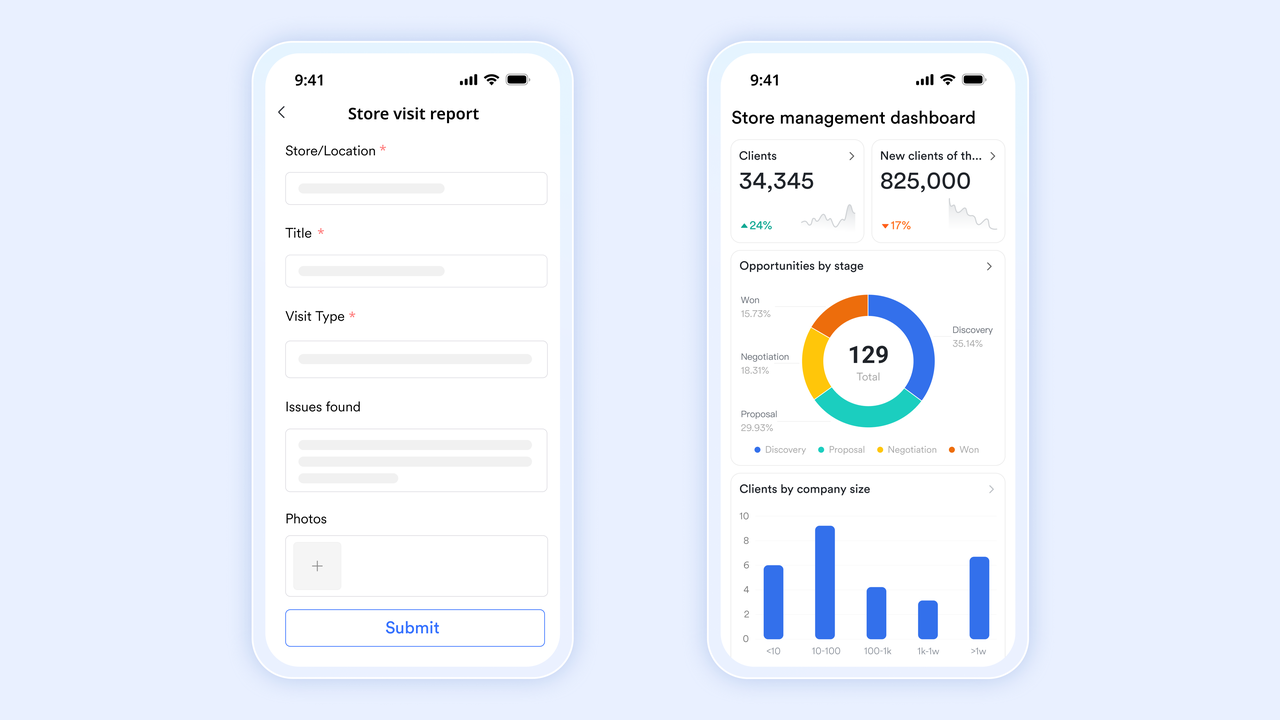
- Lark Base Views and Dashboard optimized for mobile
What it does: Mobile-friendly Base's Views and Dashboard let users sort, filter, and move records with touch gestures.
Why it matters: Visual project tracking should be usable on a small screen.
Example: A PM drags a card from "In Review" to "Approved" on iPhone, triggering an automated status update and notification to stakeholders.
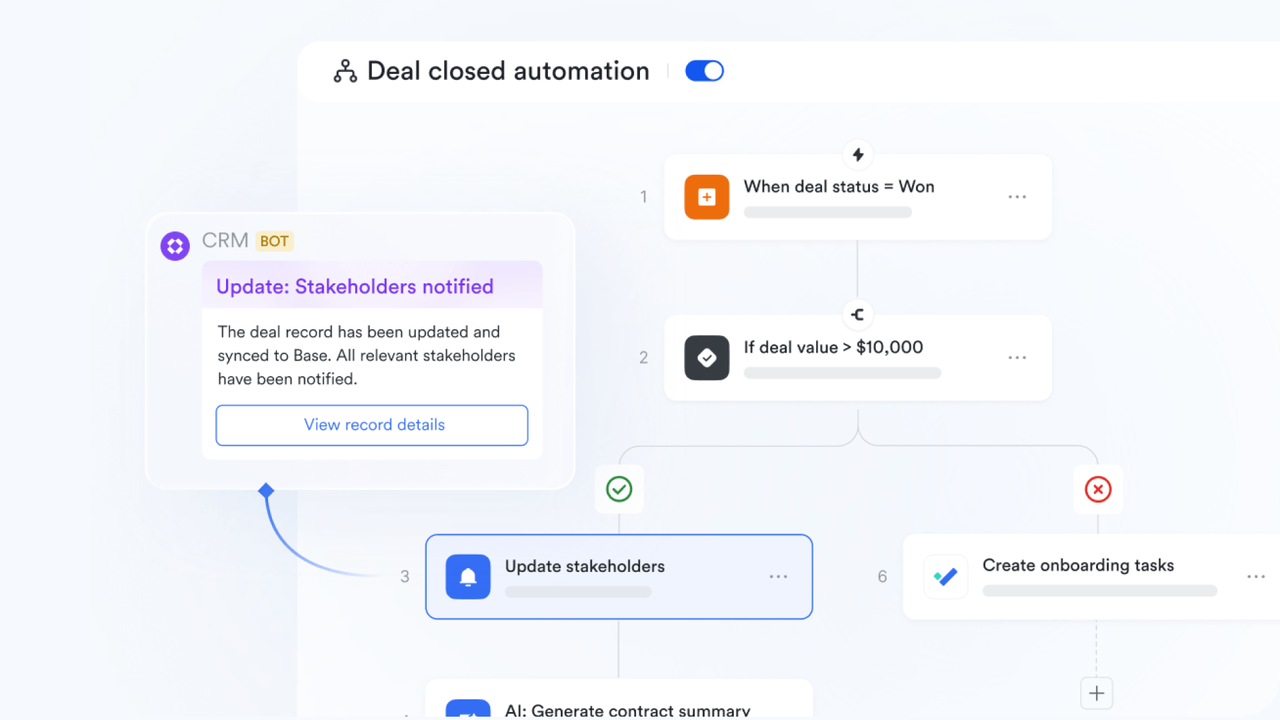
- Lark Base automation streamlines repetitive processes
What it does: Automations let you configure "Trigger conditions + Actions" such as "When a new record is created"→ "Assign owner + send message + change status."
Why it matters: Workflows often follow predictable patterns; automating them removes the bottlenecks of manual routing and ensures every step happens reliably, even when team members are remote or mobile.
Example: On an iPad, a sales lead is logged. As soon as the record is created, a task is auto-assigned to sales, a chat message is sent to the sales channel, and the record status is set to "Under review"—all without the user lifting a finger after logging the lead.
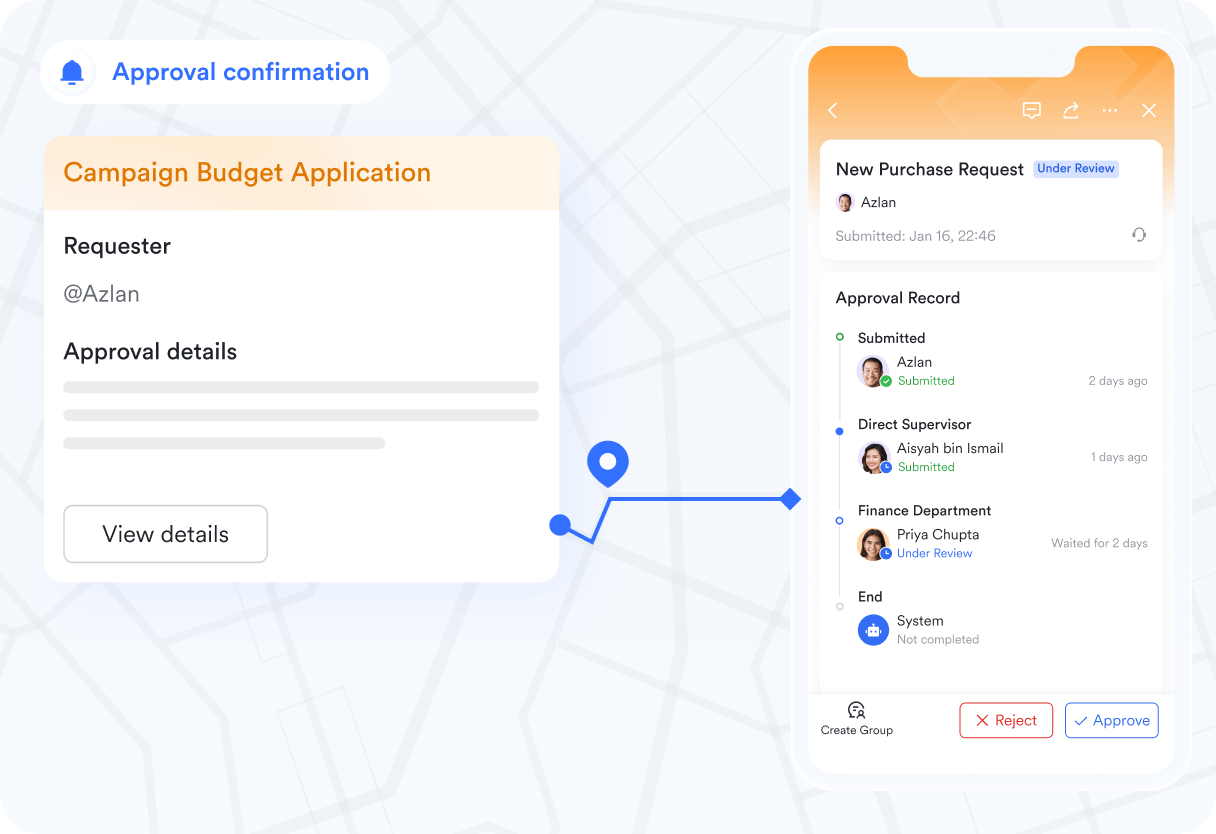
- Approval & lightweight workflows (Lark Approval)
What it does: Lark Approval allows you to start, review, and sign off on approval requests from mobile; status and comments are tracked in the related Base record.
Why it matters: Fast decisions reduce delays in client work and billing.
Example: A junior advisor submits a proposal for approval; the senior approves on iPad during a commute and the billing team receives the notification immediately.
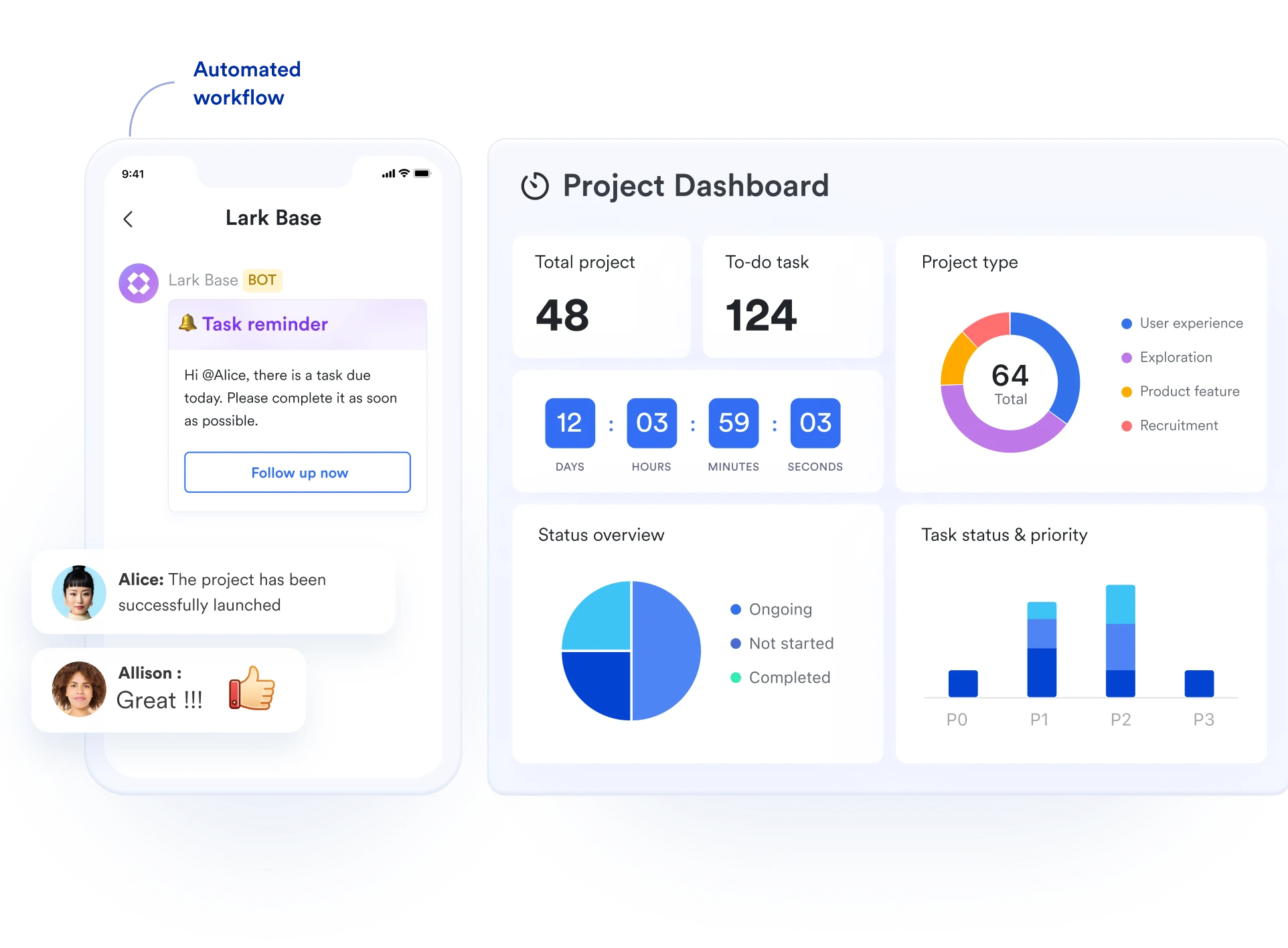
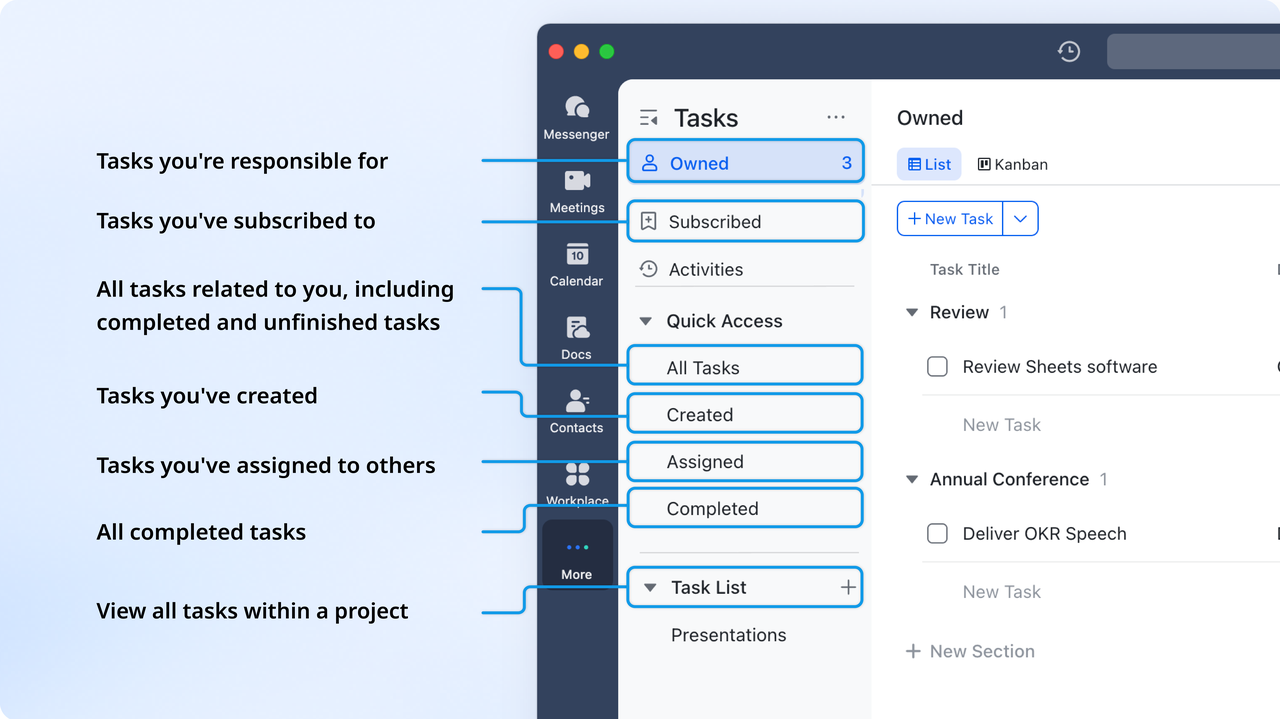
- Tasks on the go (Lark Tasks)
What it does: Lark Tasks allows you to create, assign, update, and comment on tasks from the mobile app with List or Kanban views.
Why it matters: Fieldwork, client visits, and commuting require quick task handling.
Example: After a client call, an account lead converts a voice note into a task, assigns it to design, and sets a due date — all on iPhone.
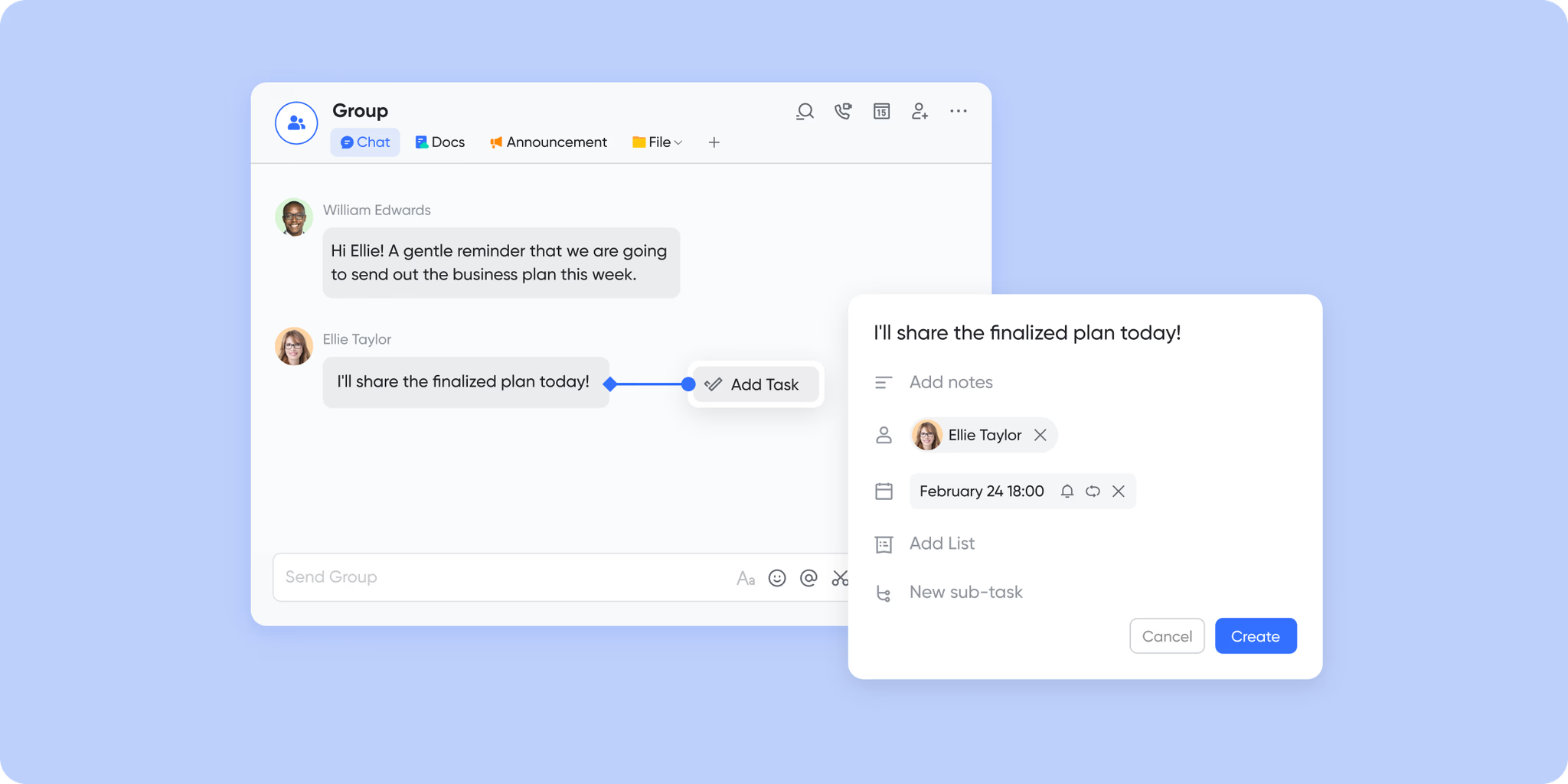
- Message → task conversion (from Lark Messenger)
What it does: Lark Messenger allows you to turn any chat message into a tracked task without leaving the conversation.
Why it matters: Keeps action items linked to the original context and speeds follow-up.
Example: A teammate types "Send revised deck tomorrow" in chat; the project manager taps it and creates a task assigned to the designer with the chat linked for reference.
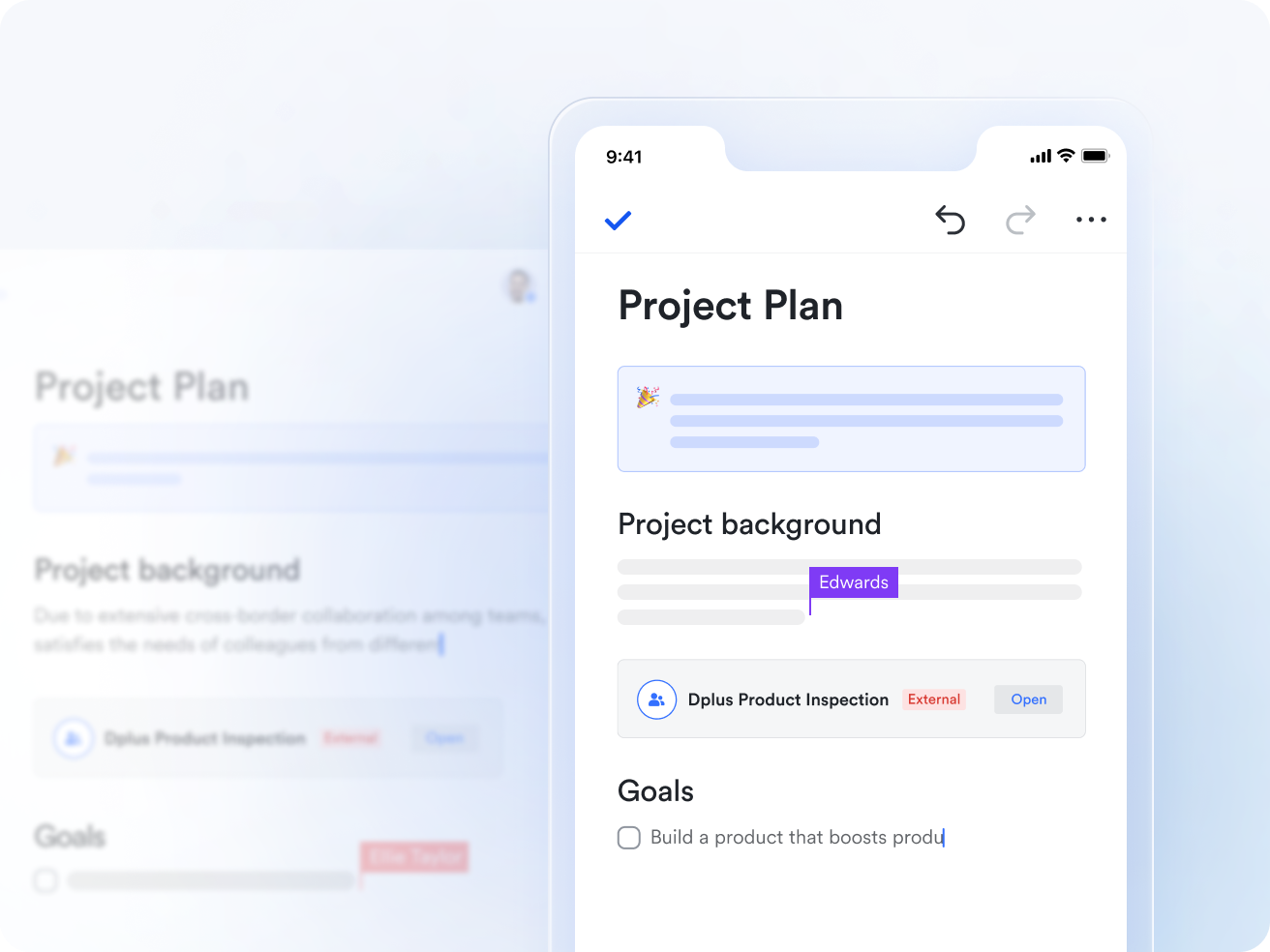
- Docs co-editing and comments on mobile (Lark Docs)
What it does: Lark Docs allows real-time co-authoring, inline comments, and mentions work smoothly on iOS so teams edit and review documents anywhere.
Why it matters: Drafts and proposals get faster feedback even when people aren't at their desks.
Example: A consultant opens the pitch doc on iPad, adds a section, and the analyst replies with a comment on iPhone — both see updates in real time.
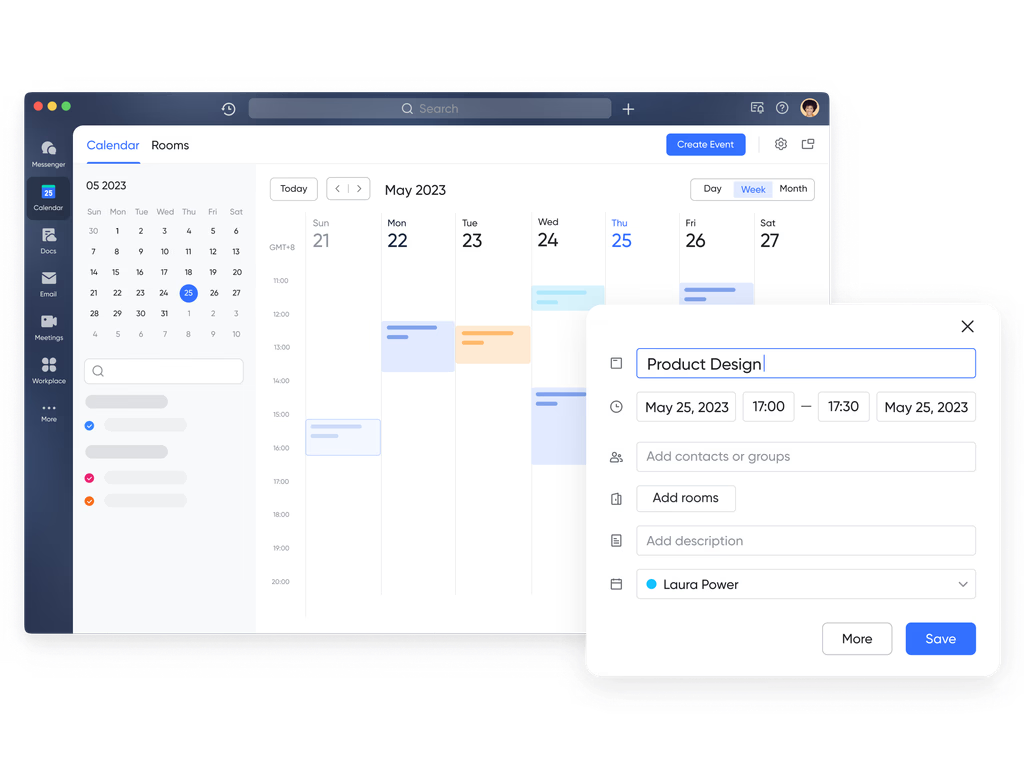
- Calendar, one-tap join, and availability checks (Lark Calendar)
What it does: Lark Calendar allows you to view teammates' public availability, schedule meetings, and join video calls from a single tap.
Why it matters: Reduces back-and-forth when finding times and joining client calls on the move.
Example: Before boarding a flight, a project lead finds a 15-minute window when the client and senior consultant are free, schedules the call, and joins directly from the calendar alert.
- Offline mode with automatic sync
What it does: Allow reading and editing when offline; changes sync when connectivity returns.
Why it matters: Consultants traveling or working in low-coverage areas still progress work.
Example: During a flight, an advisor updates client notes and schedules. When the plane lands and the phone reconnects, updates push to the team feed and Base.
- Mobile ↔ desktop continuity
What it does: Keeps app state, edits, and notifications synced across iPhone, iPad, and desktop so users pick up exactly where they left off.
Why it matters: Team members switch devices during a day. Consistency removes friction and lost context.
Example: A PM edits a task on Mac, steps outdoors, and sees the updated checklist and comments instantly on iPhone — no manual refresh needed.
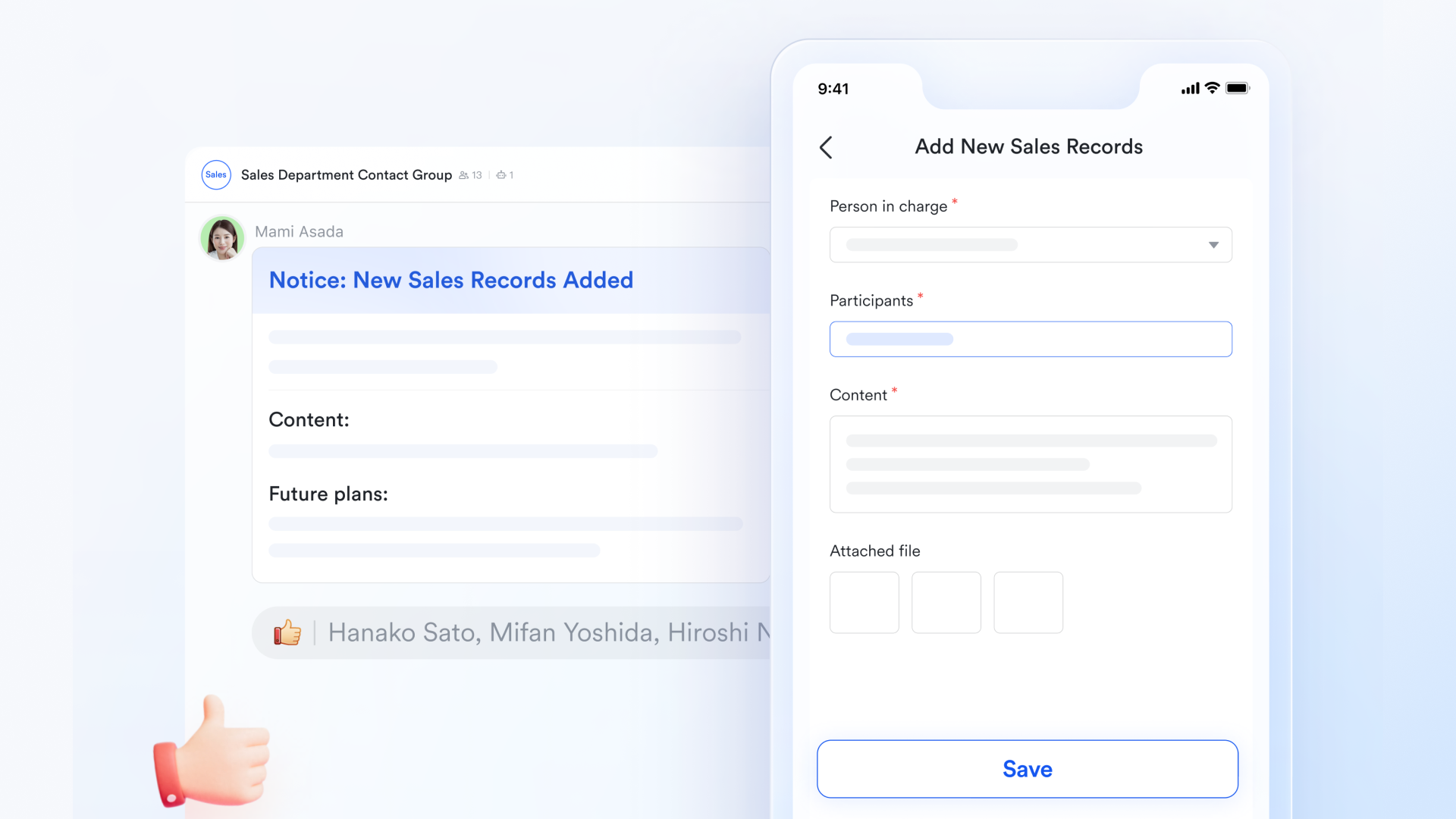
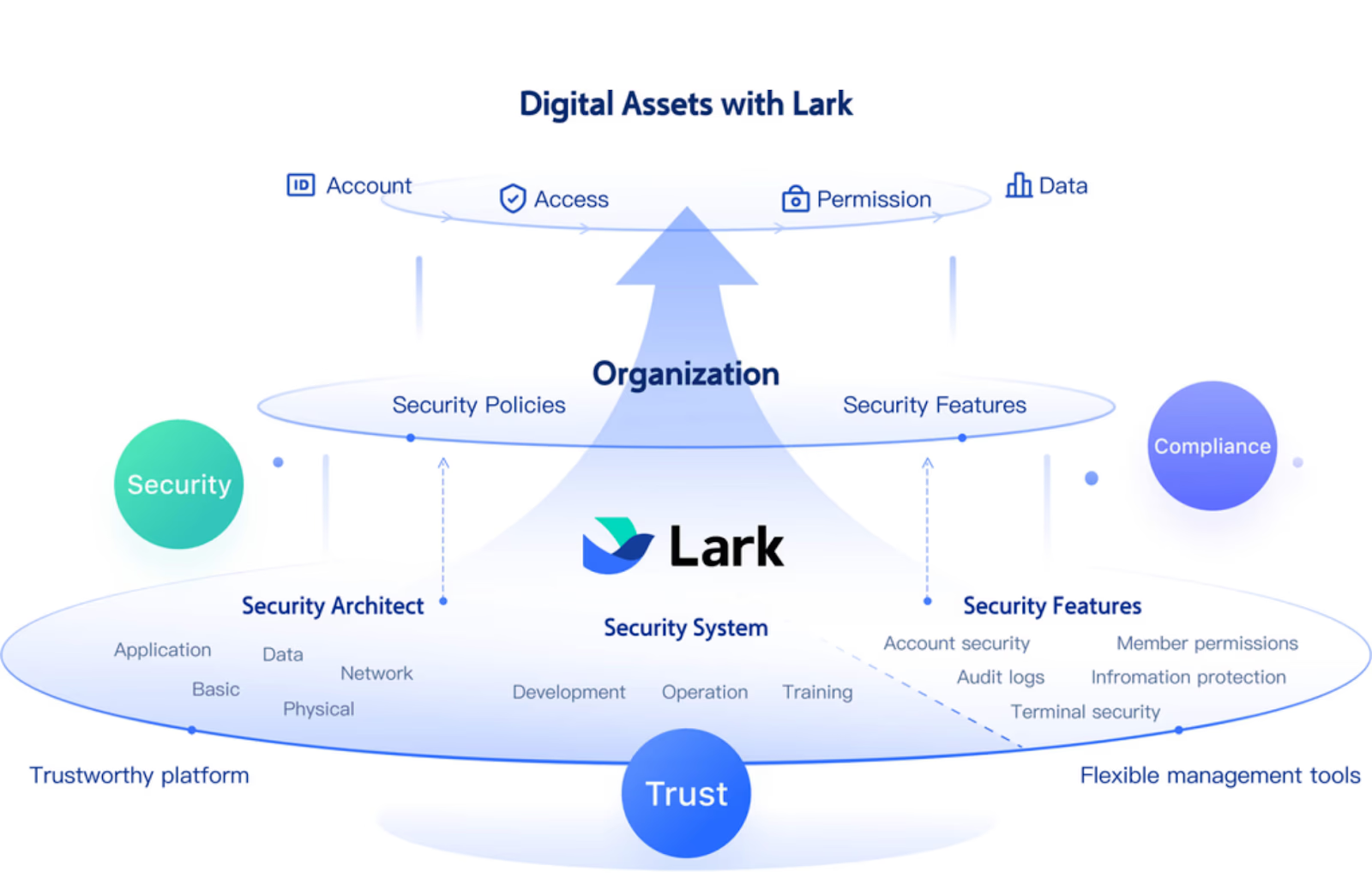
- Security and granular permissions on mobile
Why it matters: Financial or client data must stay protected even on personal devices.
Example: A consultant's phone is lost; IT remotely revokes access and requires re-authentication before any Base records are visible again.
- Starter plan: Free forever plan that includes 11 powerful tools for up to 20 users. It also comes with 100GB of storage, 1000 automation runs, AI translations, and more.
- Pro plan: $12/user/month (billed annually) for up to 500 users. It includes everything in Starter plus group calling for up to 500 attendees, 15TB of storage, 50,000 automation runs, and more.
- Enterprise plan: Contact sales for custom pricing. Supports unlimited users and includes even more automation runs and advanced security, compliance, and management features.
2. Asana: Solid feature set, good offline support
Asana's iOS app offers a complete project management experience for teams that value structure, collaboration, and real-time visibility. The mobile interface mirrors its desktop counterpart closely, making transitions between devices effortless. Users can create new projects, assign tasks, and comment directly within the app—keeping discussions tied to actionable items. Its timeline and board views provide flexibility in how teams visualize progress.
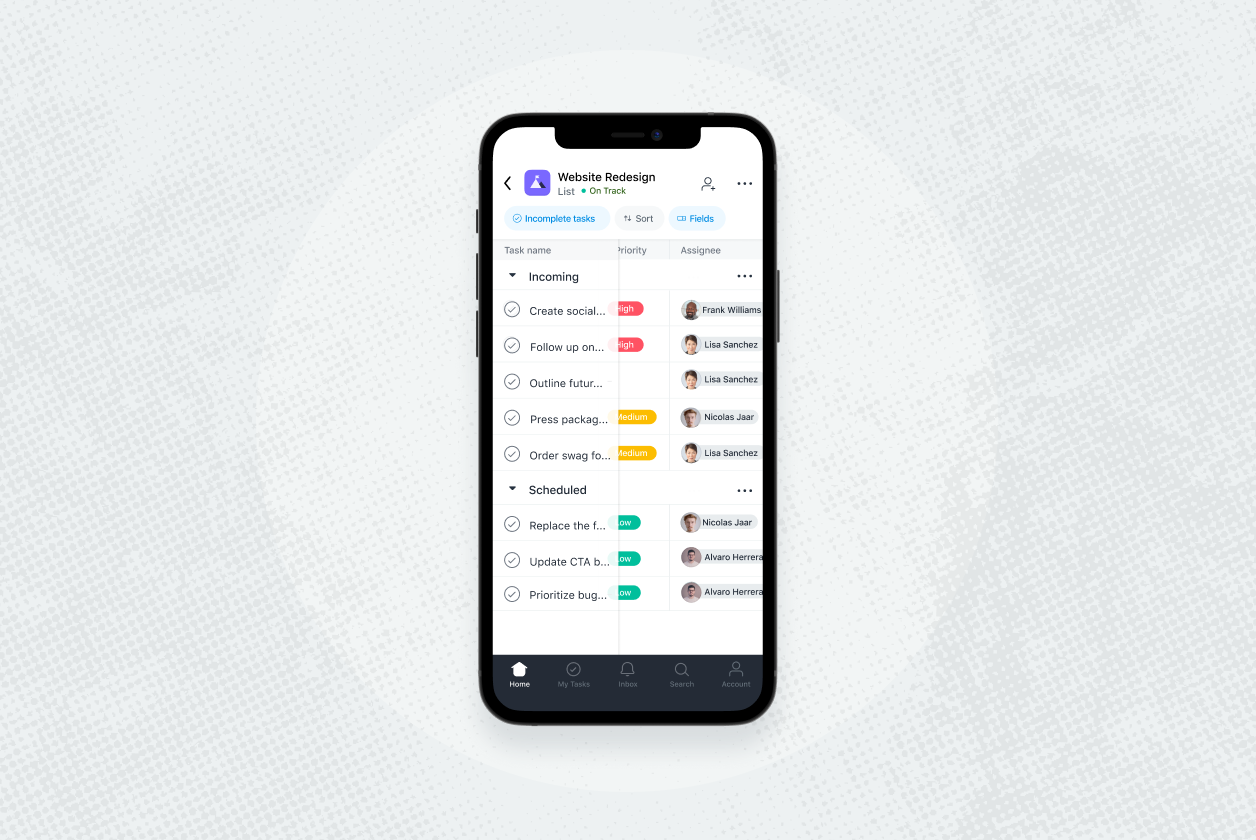
Image source: asana.com
Pros:
- Comprehensive mobile task management
- Multiple project views including timeline and board
- Good offline functionality
- Integrates with major tools like Slack and Google Drive
Cons:
- Limited automation options on mobile
- Notifications can be overwhelming for large projects
Ideal team size:
- Mid-sized teams and structured workflows
Use cases:
- Managing marketing campaigns remotely
- Coordinating design sprints
3. Trello: Visual boards & simple UI
Trello's iOS app extends its desktop simplicity into a perfectly optimized mobile experience. The app retains Trello's signature visual approach, allowing users to organize projects into cards and boards with drag-and-drop ease. Team members can add checklists, attachments, and labels with a few taps, making project updates fast and intuitive. Offline mode keeps work accessible during travel, automatically syncing once connected again.
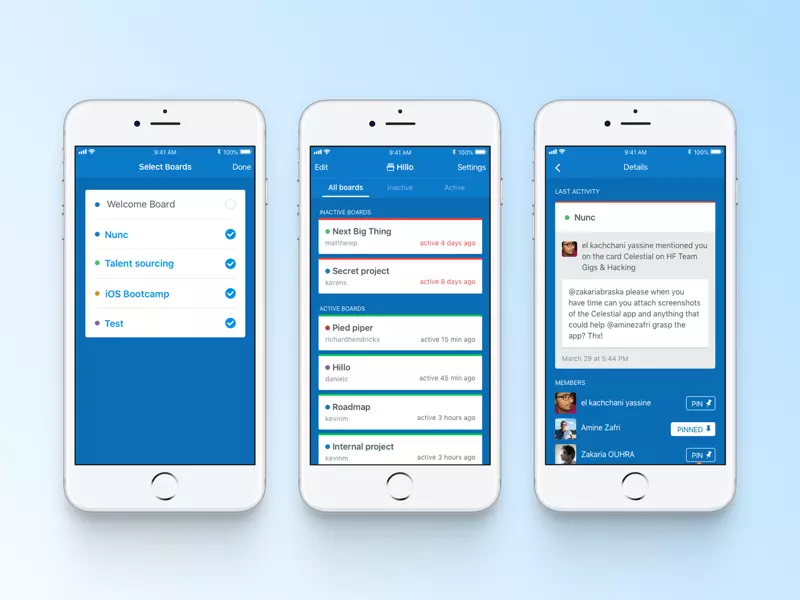
Image source: trello.com
Pros:
- Extremely intuitive interface
- Works well offline
- Easy card and board management
- Supports quick collaboration
Cons:
- Basic reporting capabilities
- Limited customization for complex workflows
Ideal team size:
- Small to medium-sized teams
Use cases:
- Managing editorial calendars
- Tracking content approvals
4. ClickUp: Many views, highly customizable
ClickUp's iOS app brings an impressive level of depth to mobile project management, offering multiple views, dashboards, and customization options. Teams can switch seamlessly between list, board, and calendar modes, ensuring flexibility across different workflows. The app's quick actions allow users to set priorities, track time, and leave comments without leaving the main task screen. Custom fields, filters, and integrations give mobile users the same control they'd expect on desktop.
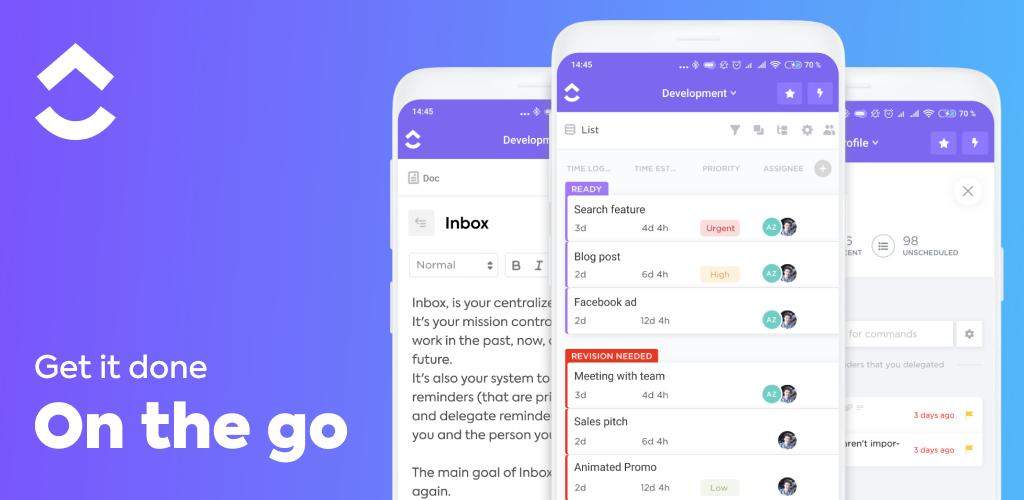
Image source: clickup.com
Pros:
- Extensive customization options
- Multiple project views
- Real-time notifications
- Integration with over 100 apps
Cons:
- Slight learning curve
- Some complex views not fully optimized for mobile
Ideal team size:
- Startups and fast-scaling teams
Use cases:
- Product development coordination
- Sprint and backlog management
5. Monday.com: Strong mobile interface + templates
Monday.com's iOS app combines intuitive design with powerful functionality, helping teams manage projects, tasks, and goals on the go. The colorful and modern interface makes it easy to visualize workloads and monitor progress at a glance. Its extensive library of pre-built templates helps teams get started instantly, whether for marketing, HR, or product development. Users can create custom dashboards, assign ownership, and automate simple processes—all from their mobile devices.
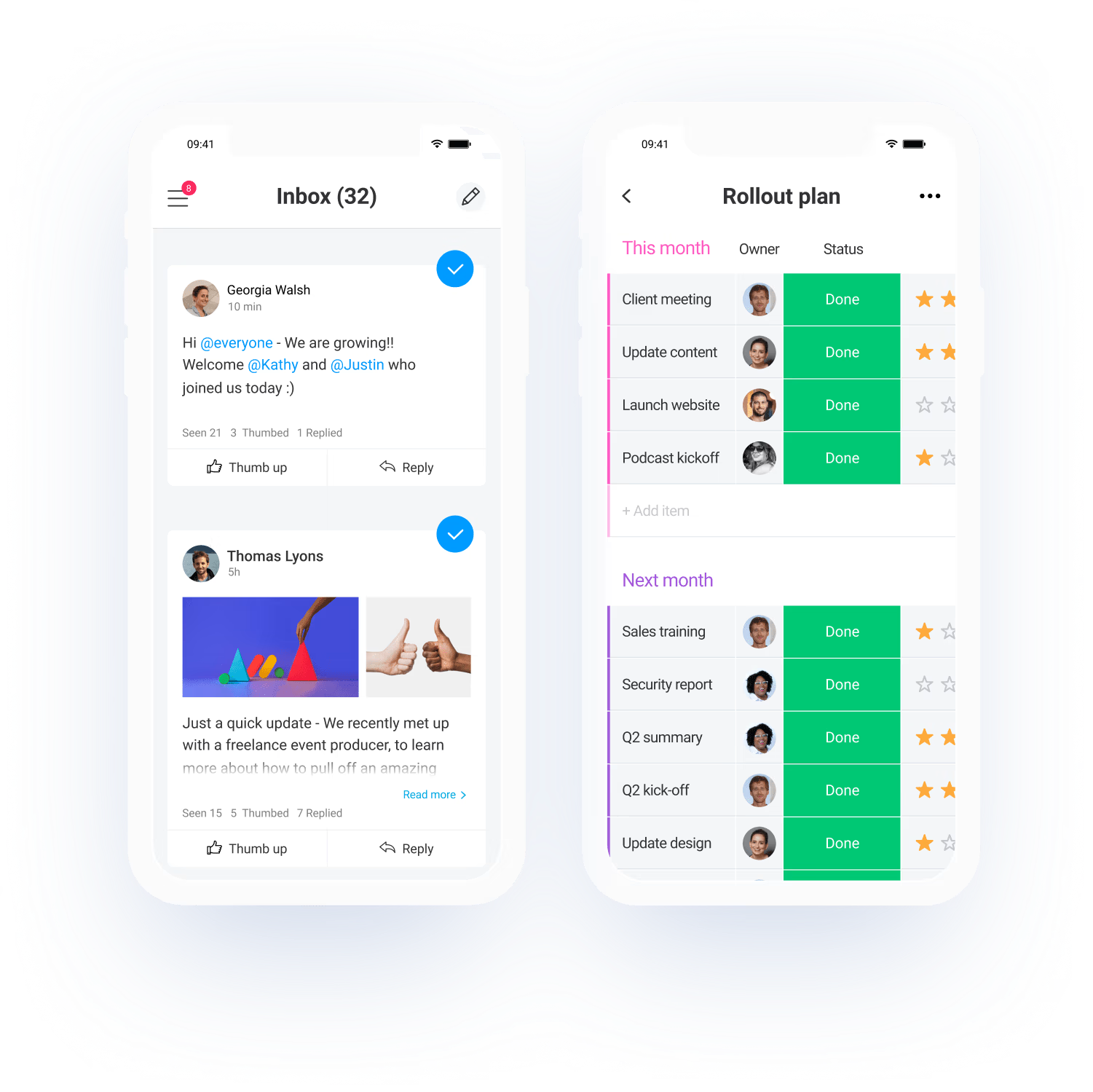
Image source: Monday.com
Pros:
- Clean mobile interface
- Hundreds of ready-made templates
- Visual workflow tracking
- Great collaboration features
Cons:
- Limited offline editing
- Push notifications can lag on large projects
Ideal team size:
- Mid to large collaborative teams
Use cases:
- Marketing or operations management
- Remote team coordination
6. Wrike: Spreadsheet-like views and strong mobile task handling
Wrike's iOS app provides enterprise-grade control for teams managing complex, multi-layered projects. The layout resembles a dynamic spreadsheet, giving users a detailed overview of tasks, subtasks, and dependencies. It supports real-time editing, attachment uploads, and commenting, ensuring full collaboration even away from the desk. The mobile app also includes advanced filtering options and report snapshots, keeping project leads informed on the go.
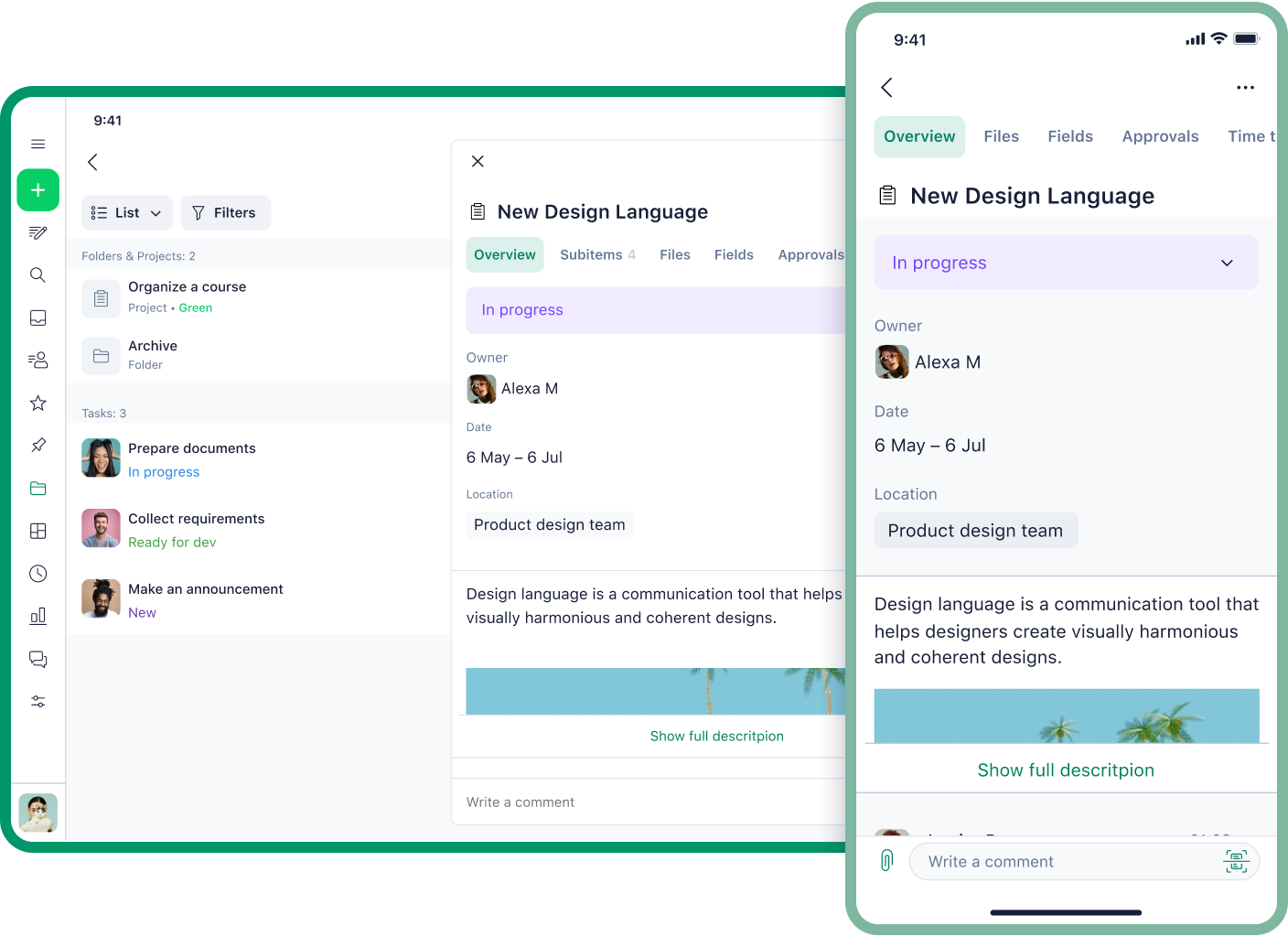
Image source: wrike.com
Pros:
- Detailed project tracking
- Strong task organization
- Integration with storage tools
- Supports dynamic Gantt charts
Cons:
- Slightly dense interface for smaller screens
- Can feel heavy for simpler projects
Ideal team size:
- Large agencies or enterprise teams
Use cases:
- Client service delivery tracking
- Complex campaign management
7. Teamwork: Good iOS support, often used by service/agency teams
Teamwork's iOS app brings the essentials of task management, time tracking, and client collaboration to mobile devices in a clean, efficient format. It's especially popular among agencies that handle multiple clients and projects simultaneously. The app allows users to assign tasks, log billable hours, and monitor project milestones even while traveling. Integrated communication tools reduce dependency on emails, keeping project conversations centralized.
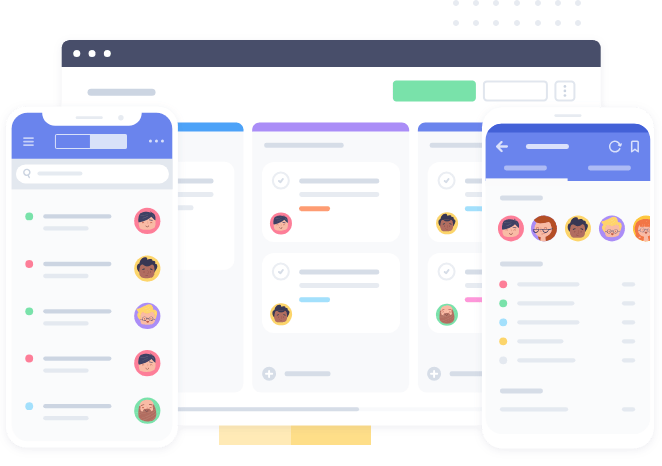
Image source: teamwork.com
Pros:
- Time tracking built-in
- Excellent for client-based work
- Clear milestone tracking
- Offline access supported
Cons:
- Limited automation features
- Interface less modern than competitors
Ideal team size:
- Mid to large agency teams
Use cases:
- Managing client retainers
- Tracking billable project hours
8. Smartsheet: Strong data / Gantt approach on iOS
Smartsheet's iOS app combines data-driven functionality with project management flexibility, offering a familiar spreadsheet-style interface optimized for touch devices. Users can update rows, assign owners, and visualize progress through Gantt and calendar views. Real-time collaboration ensures all stakeholders stay aligned, even when working across time zones. The app's integration with tools like Google Workspace and OneDrive enhances its practicality for enterprise users.
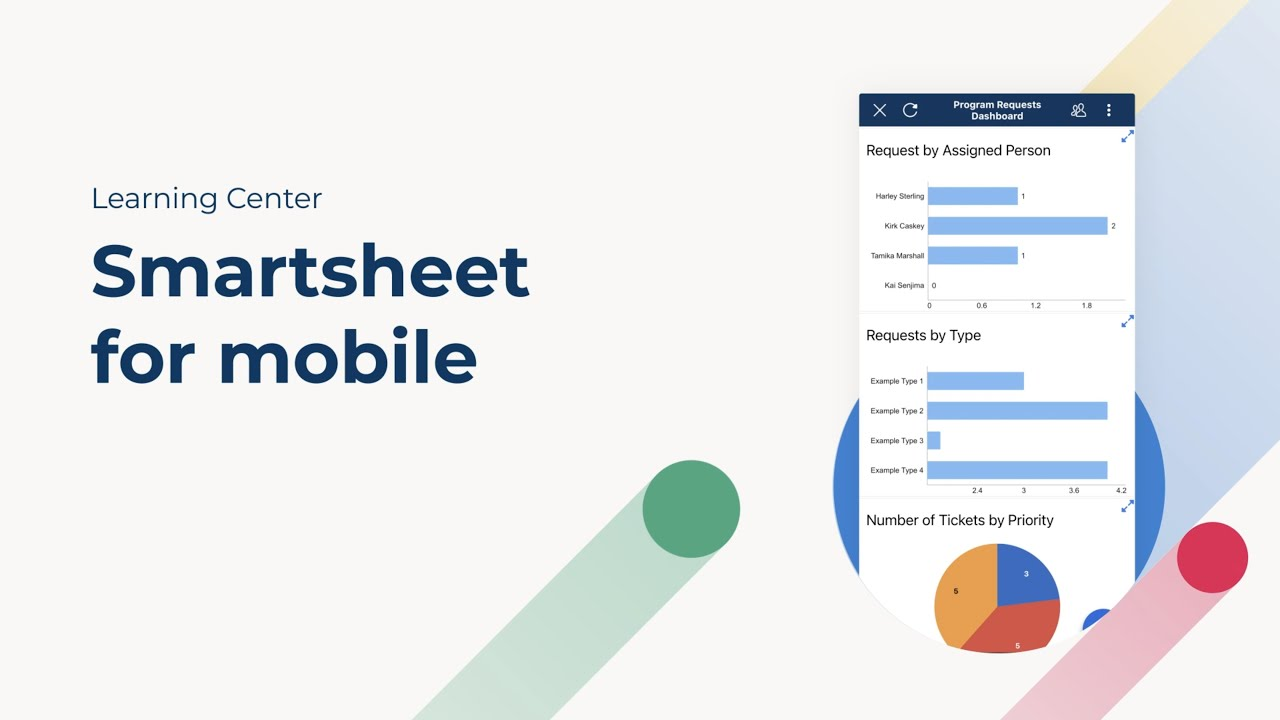
Image source: smartsheet.com
Pros:
- Familiar spreadsheet layout
- Gantt and calendar integration
- Real-time updates
- Great for reporting and dashboards
Cons:
- Learning curve for new users
- Interface can feel dense on mobile
Ideal team size:
- Enterprise and data-heavy teams
Use cases:
- Financial project tracking
- Resource management
9. HelloBonsai: All-in-one solution with mobile support
Bonsai's iOS app gives freelancers and small business owners an all-in-one workspace for managing clients, projects, and finances. Beyond simple task management, it lets users create contracts, proposals, and invoices directly from their mobile device. The interface is sleek, focused, and purpose-built for independent professionals who value time-saving automation. Notifications ensure that project updates and payment reminders never go unnoticed. The experience is lightweight yet powerful, offering both organization and peace of mind on the go.
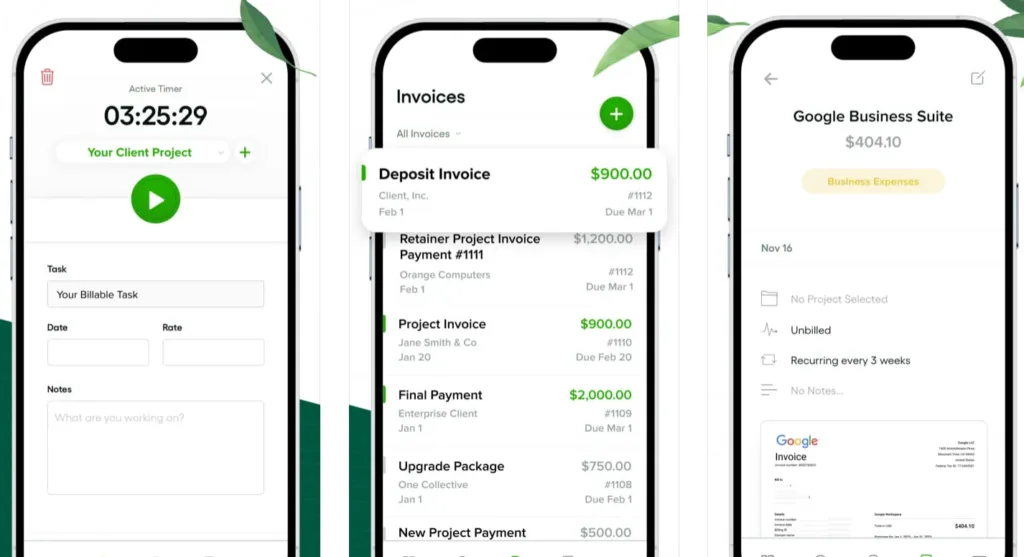
Image source: hellobonsai.com
Pros:
- Comprehensive suite for freelancers
- Contract and billing features included
- Clean and minimal interface
- Supports mobile notifications
Cons:
- Limited team collaboration tools
- Fewer integrations compared to larger apps
Ideal team size:
- Freelancers and consultants
Use cases:
- Managing client projects end-to-end
- Handling billing and contracts on mobile
10. QuickPlan: Planning / Gantt / hierarchy focus for iOS
QuickPlan is a powerful, native iOS app built specifically for project planning and scheduling. It brings the precision of desktop project management tools into a smooth mobile experience, using touch-based controls to manage Gantt charts and task hierarchies. Users can visualize dependencies, adjust timelines, and review milestones in seconds. The interface is responsive and well-designed for iPhone and iPad users who prefer on-device planning without cloud reliance.
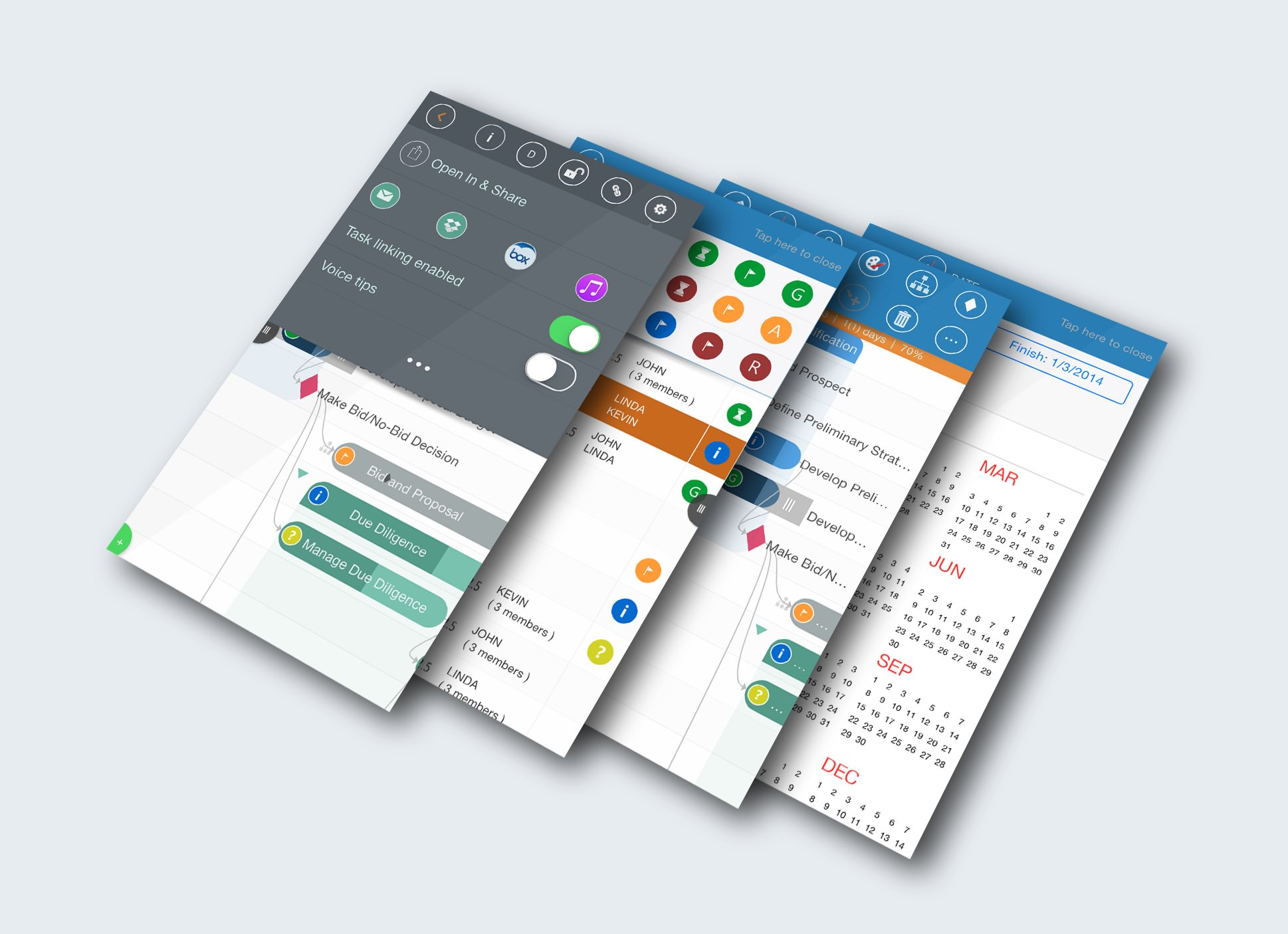
Image source: quickplan.app
Pros:
- Excellent native iOS design
- Smooth drag-and-drop planning
- Gantt and hierarchy features
- Offline usability
Cons:
- Limited collaboration options
- No web or desktop sync
Ideal team size:
- Individual project planners
Use cases:
- On-device project scheduling
- Personal task visualization
How to choose the right iOS project app for your team
Choosing the right iOS project management app can make or break your team's productivity. With so many options available, the goal isn't to pick the most feature-rich tool, but the one that fits how your team actually works. Factors like mobility, offline reliability, and interface simplicity can make a big difference in daily performance. Here's how to evaluate your options intelligently before committing to one.
- Match mobile usage ratio: Start by assessing how often your team works on mobile versus desktop. If your members frequently travel or operate remotely, a mobile-first platform should be your top priority. Apps like Lark are designed for seamless transitions between iPhone, Anroid, and desktop—so workflows remain consistent wherever work happens.
- Consider offline / sync reliability: A strong offline mode ensures that productivity doesn't stop when the internet does. Reliable sync functions mean updates made offline appear instantly once reconnected, avoiding version conflicts. This is essential for consultants, field teams, or remote workers who rely on mobile connectivity.
- Evaluate UI simplicity vs feature depth: An app packed with features can sometimes overwhelm users. Choose one that balances usability with functionality—something intuitive enough for quick onboarding yet powerful enough to manage complex workflows. Smooth, minimal interfaces like Lark's make everyday collaboration easier without sacrificing control.
- Look for ecosystem compatibility (with your web tools): Your mobile app should integrate well with the other systems your business relies on. Whether that's cloud storage, CRM, or internal communication tools, compatibility ensures a frictionless experience. Lark excels here by combining messaging, tasks, and documentation under one unified platform.
- Trial them side by side: Don't rely solely on product descriptions or reviews. Testing two or three shortlisted apps simultaneously reveals real-world usability differences. During trials, focus on responsiveness, sync speed, and team comfort—these practical factors often determine long-term success.
Tips to onboard your team on a new iOS PM app
Switching to a new project management tool is as much about people as it is about technology. A structured onboarding process ensures that your team quickly adapts and uses the app to its full potential. The key lies in making adoption simple, guided, and measurable. Here's how to roll out a new iOS project management app effectively.
- Train on mobile workflows: Most teams learn new software on their computers first—but if the goal is mobile-first collaboration, training should happen on mobile devices too. Walk teams through app navigation, quick actions, and push notifications during onboarding. This ensures confidence and consistency across devices.
- Create mobile-optimized templates: Pre-built templates make adoption smoother by showing employees exactly how to organize and manage their work. Mobile-optimized templates help users visualize workflows clearly on smaller screens and encourage standardization. Lark's ready-to-use templates, for instance, save setup time while reinforcing best practices.
- Encourage push notification setup: Notifications keep team members informed and engaged, but only if they're enabled correctly. Guide everyone to customize their notification preferences to match their workflow. This ensures timely updates without alert fatigue—especially important for fast-paced projects.
- Start small (1 project) before full rollout: Instead of launching the tool across the entire organization, begin with one department or a single project. This phased approach minimizes confusion and allows you to refine processes before scaling. Early successes will also encourage wider adoption across teams.
- Monitor adoption & feedback: Track how actively your team is using the app and where they face challenges. Gather feedback regularly to identify gaps in understanding or missing workflows. Continuous iteration helps shape the tool around real needs—Lark makes this easy through usage analytics and feedback-friendly channels built into the platform.
Conclusion
Mobile project management has become central to modern teamwork. As organizations embrace hybrid and remote work models, iOS apps allow projects to move forward seamlessly from anywhere. Whether it's structured workflows, quick approvals, or real-time collaboration, the right app keeps every process efficient and transparent. Lark stands out for providing a unified workspace that bridges communication, scheduling, and project tracking—making mobile management simpler and more connected than ever.
FAQs
Are iOS project management apps suitable for large teams?
Yes, many iOS project management apps scale well for larger teams by supporting multiple projects, advanced permissions, and integrations. They enable managers to monitor progress while team members collaborate in real time. The best options sync seamlessly with desktop versions to maintain data accuracy. Lark, in particular, handles scaling effortlessly with its unified mobile and desktop platform that keeps every department connected.
Can I manage projects offline on iOS?
Most leading apps offer offline capabilities, allowing users to update tasks, comments, and files without an internet connection. These changes automatically sync once the device reconnects. Offline functionality is essential for field workers and traveling professionals. Lark supports full offline editing and automatic synchronization, ensuring productivity continues uninterrupted.
Do iOS apps work with web or desktop versions?
Yes, iOS project management apps are designed to work in tandem with web and desktop versions. This ensures continuity and prevents data loss between devices. Cross-platform compatibility allows users to start a task on one device and finish it on another seamlessly. Lark provides real-time sync across mobile, tablet, and desktop, maintaining perfect consistency.
How do iOS project management apps improve productivity?
By reducing dependency on desktop setups, these apps enable teams to make decisions and updates in real time. Features like push notifications, task automation, and mobile dashboards improve visibility and speed. They also enhance flexibility, allowing quick responses during travel or client meetings. Lark boosts productivity further with AI summaries, mobile approvals, and deep workflow integrations—all accessible from your phone.
What security features should I look for in iOS project management apps?
Security should always be a priority when managing sensitive project data. Look for features like encryption, single sign-on (SSO), and role-based access control to protect information. Remote wipe capabilities and device authentication also help safeguard against data breaches. Lark incorporates enterprise-grade security and granular permission settings, ensuring data remains protected even on personal devices.
Related reading
Table of contents
Start using Lark today

Manage all your work in one place
Boost team efficiency by 10x
Save up to 70% on software costs
Table of contents
Start using Lark today
Manage all your work in one place
Boost team efficiency by 10x
Save up to 70% on software costs
Keep reading







2026 Lark Technologies Pte. Ltd.
Headquartered in Singapore with offices worldwide.






Explore: