Time tracking is essential for teams that need visibility into productivity, client billing, attendance, and project delivery timelines. While Notion is popular for its flexibility and customization, many users still wonder how effectively they can use Notion for time tracking. The short answer: Notion provides several manual workarounds and template-based methods, but it lacks built-in automation, real-time monitoring, and scalable controls that growing teams rely on.
This guide breaks down how to use Notion time tracking templates, manual logging techniques, key limitations, and the best scalable alternative for teams that need accurate, automated workflows: Lark.
Track and manage time smartly today
What is Notion time tracking?
Notion refers to the different ways users record and measure work hours inside Notion using databases, formulas, and templates. Since the platform doesn't offer a built-in timer or automatic background tracking, teams rely on manual methods or a Notion time tracking template to log hours for tasks, clients, or projects. Users typically enter time through start–stop fields, number fields, or notes, or they use external tools to sync time tracking with Notion. Although flexible, time tracking in Notion is not automated, which makes it difficult to maintain accuracy, billable hours, or structured reporting at scale.
Because of these limitations, Notion works best for simple personal logs rather than advanced . Growing teams often explore alternatives or integrations to achieve more reliable tracking, streamlined approvals, and real-time analytics.
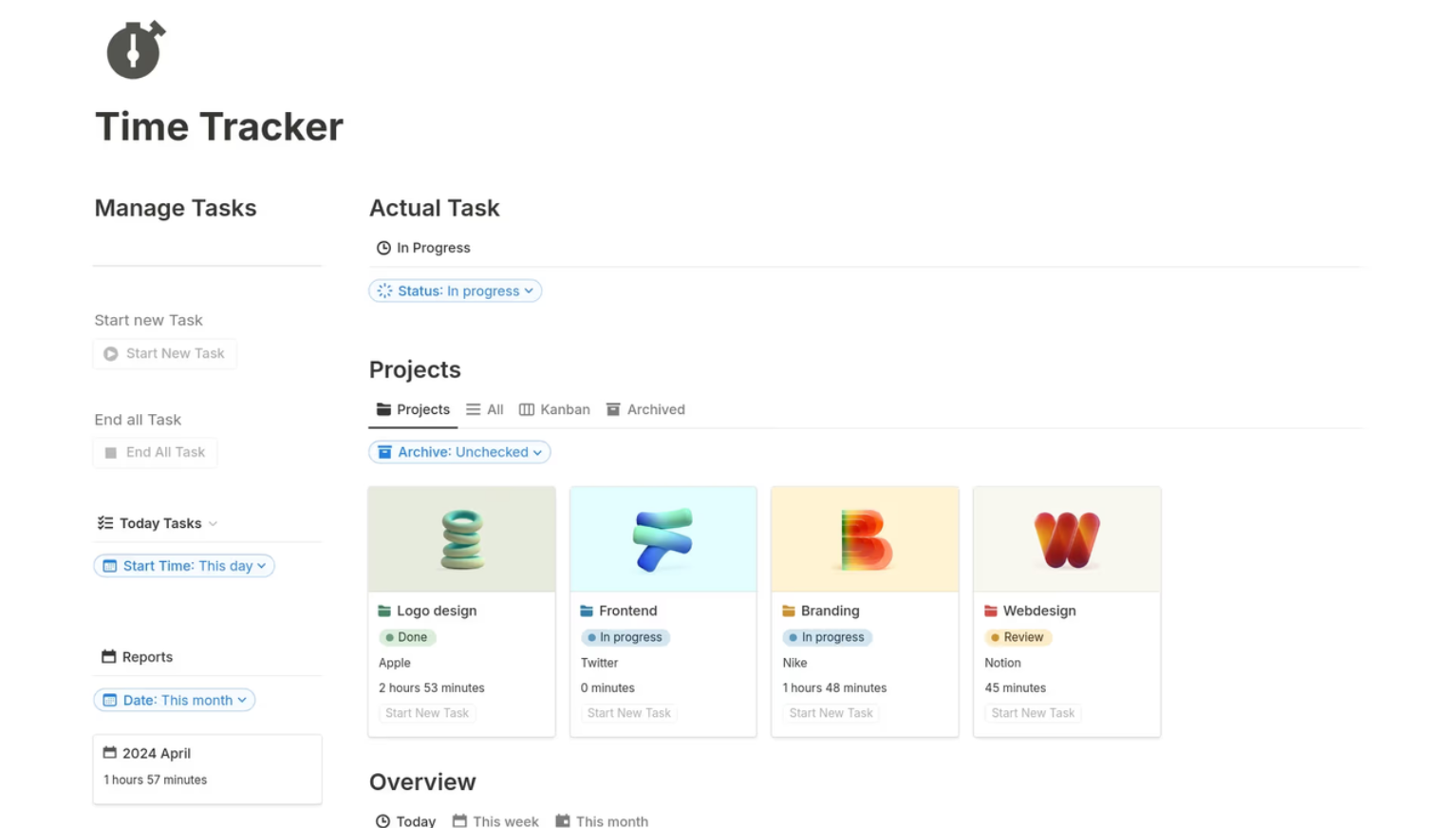
Image source: notion.com
Step guides: 3 ways to track time in Notion
There are several different approaches to time tracking in Notion, depending on how structured or automated you want your workflow to be. While these methods help individuals stay organized, they rely heavily on manual input and don't offer true automation.
Manual methods for time tracking in Notion
Because Notion doesn't include a built-in timer or , most users rely on manual workarounds to record work hours. These approaches can work for simple use cases, but they require constant user input and offer limited reporting accuracy.
Step 1: Start & stop time fields
Users manually enter start and end timestamps into , then apply formulas to calculate total time spent. While this method provides basic duration tracking, it depends entirely on consistent manual entry and is prone to errors when entries are forgotten or mistyped.
Step 2: Checklist or label-based tracking
Some teams use checklist items or label tags on task cards to indicate the number of hours worked. For example, labels like "2h" or "4h" or checklist notes are added after work is completed. This method is fast but highly unstructured, making aggregation, reporting, and difficult.
Step 3: Comment or note-based tracking
Daily totals are entered in comments or notes on task pages. Team members might write summaries like "5 hours today on client design." While simple, this approach creates scattered records that can't be systematically analyzed without manual consolidation.
Step 4: Custom number fields
Users enter raw numeric values for time (e.g., total hours worked) into dedicated number fields, which are summed per day, project, or week. Although more structured than notes or labels, this still relies on manual updates and lacks automatic validation against real activity or schedules.
Use pre-built Notion time tracking templates
Step 1: Select a suitable time-tracking template
Go to the Notion Template Gallery and search for "time tracking." Review the available options and choose a template that fits your workflow style, ideally one that makes it easy to add tasks and log hours without causing extra friction or distractions. 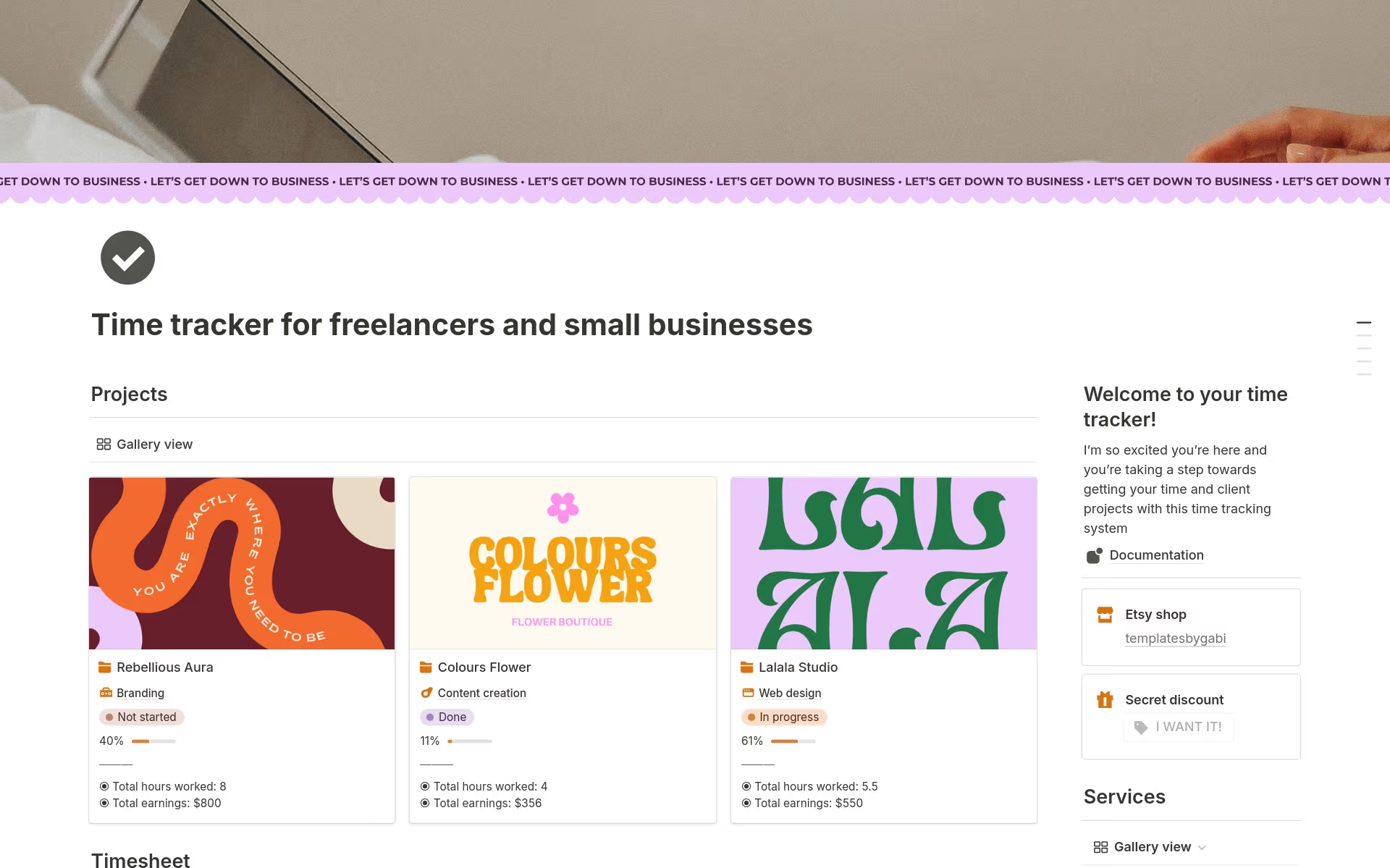
Image source: notion.com
Step 2: Add the template to your workspace
Once you've chosen a template, click Duplicate, pick the workspace where you want it installed, and begin editing the pages to align with your projects, teams, or client categories.
Step 3: Understand how the template works
Before real use, review the built-in documentation or instructions, experiment with sample entries, and become familiar with any formulas, relationships, or rollups that calculate totals or link tasks to time records.
Step 4: Customize for your processes
Remove placeholder data, rename fields, adjust views, and refine properties to suit your tracking needs. Add your own branding, , and filters so the template feels purpose-built for your day-to-day workflow.
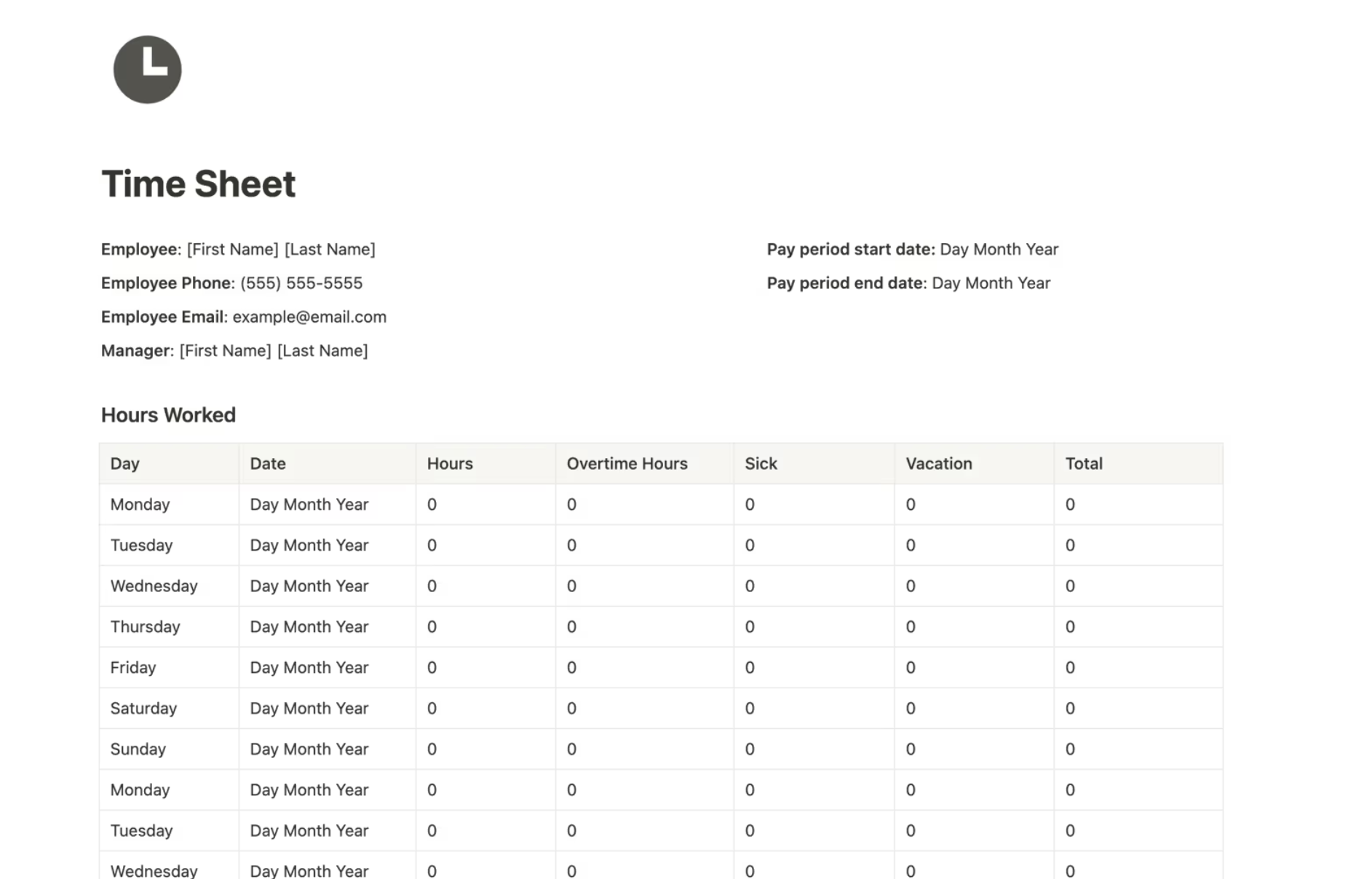
Image source: notion.com
Use third-party apps through external connections
Because Notion doesn't provide built-in time tracking, many teams rely on external time-tracking apps to capture work hours. These tools connect to Notion via syncing services or browser extensions, allowing users to start timers from separate dashboards while pushing time data back into Notion databases. This approach can work for freelancers or small teams, but it requires switching between tools, managing sync rules, and troubleshooting data mismatches. becomes more complex because accurate totals depend on how reliably information is transferred between systems and how consistently team members follow the process.
Limitations of time tracking with Notion
Although many users rely on Notion for time tracking, the platform wasn't designed as a dedicated time management system. This creates several limitations that become more noticeable as teams grow and require accuracy, automation, and compliance.
- No built-in timer: Notion doesn't offer a native timer for tracking activity in real time. Users must manually enter time values or rely on templates to calculate durations. This reduces accuracy and adds unnecessary effort to daily workflows.
- No automatic background tracking: Notion can't automatically capture time spent on tasks. Everything depends on user discipline, which often leads to incomplete logs. This makes the notion unsuitable for teams needing continuous activity tracking.
- Manual error risk: Because all inputs are manual, errors such as forgetting start times, entering the wrong duration, or missing updates are common. These inaccuracies accumulate quickly and can distort productivity reports or billing totals.
- No approvals or audit trail: Notion doesn't include built-in for reviewing timesheets. Managers can't formally verify entries or maintain an audit trail. This creates compliance issues for payroll and client billing.
- Limited billable rate calculations: Time tracking in Notion doesn't automatically calculate billable totals or apply hourly rates. Users must build complex formulas or export data to external tools. This adds friction and increases the chances of miscalculations.
- No attendance or payroll compliance tools: Notion isn't equipped for attendance tracking, shift rules, overtime validation, or payroll compliance. Teams must manage these workflows manually across separate tools, which are inefficient and unreliable.
- Reporting requires heavy formulas or external exports: To generate dashboards or summaries, users must build advanced formulas or export data to spreadsheets. This limits visibility for managers and requires ongoing maintenance.
- Scaling difficulties for teams: As teams grow, manual time tracking becomes unsustainable. Notion struggles to support multi-client billing, workload forecasting, , and centralized reporting, which pushes teams to seek more automated alternatives.
Why growing teams outgrow Notion time tracking
As teams scale, the limitations of relying on Notion for time tracking become more apparent. Manual entries, static databases, and the lack of built-in automation make it challenging to support complex workflows across clients, projects, and distributed teams.
- Multi-client billing complexity: Notion doesn't automatically link tracked hours to different clients or billing rules. Teams must manually separate entries, apply rates, and calculate totals. This becomes increasingly time-consuming and error-prone for agencies or service teams.
- Payroll matching errors: Because Notion lacks automatic attendance logs or , payroll reconciliation is manual. Managers must cross-check hours against schedules or separate tools. This increases the administrative workload and leads to frequent mismatches.
- Team approvals: Notion doesn't provide structured approval workflows for timesheets. Supervisors can't formally review or sign off on entries, which affects accountability. Teams needing verified data or audit trails quickly run into process gaps.
- Shift tracking: Shift-based teams require rules for overtime, late arrivals, breaks, and scheduling. Notion lacks these native features, forcing managers to track everything manually. This makes compliance difficult and creates inconsistent records.
- Real-time collaboration needs: Time tracking in Notion is static; there's no real-time visibility into who is working, what's in progress, or how hours are accumulating. Teams working on live projects or with daily updates can't rely on manual entries that are delayed.
- Project scheduling dependency gaps: Notion doesn't automatically map logged hours back to timelines or dependencies. Managers must manually compare planned vs. actual time, which slows decision-making. This limits forecasting accuracy and impacts project delivery predictability.
While Notion is excellent for flexible documentation and databases, its rely heavily on manual templates, third-party timers, or constant status updates. Lark goes beyond note-based tracking by providing native time capture, task execution layers, approvals, reporting, and scheduling within a single connected workspace. Here's how Lark improves on the most common Notion time-tracking use cases.
Upgrade your project time management now
New option: Try Lark as a unified time tracking & management hub
Notion helps teams stay organized, but its manual time-tracking limits accuracy, visibility, and scalability. Work teams that need automated logs, approvals, and real-time dashboards quickly outgrow Notion's basic setup.
fills these gaps with built-in workflows that track time effortlessly across tasks, teams, and projects. It provides managers with reliable while relieving employees of the burden of manual entry. Its timers, automated logs, and smart reminders capture work hours effortlessly across tasks, teams, and projects, reducing the risk of missed or inaccurate entries. Approval flows ensure compliance, while visual dashboards give leaders real-time insight into productivity, capacity, and project health.
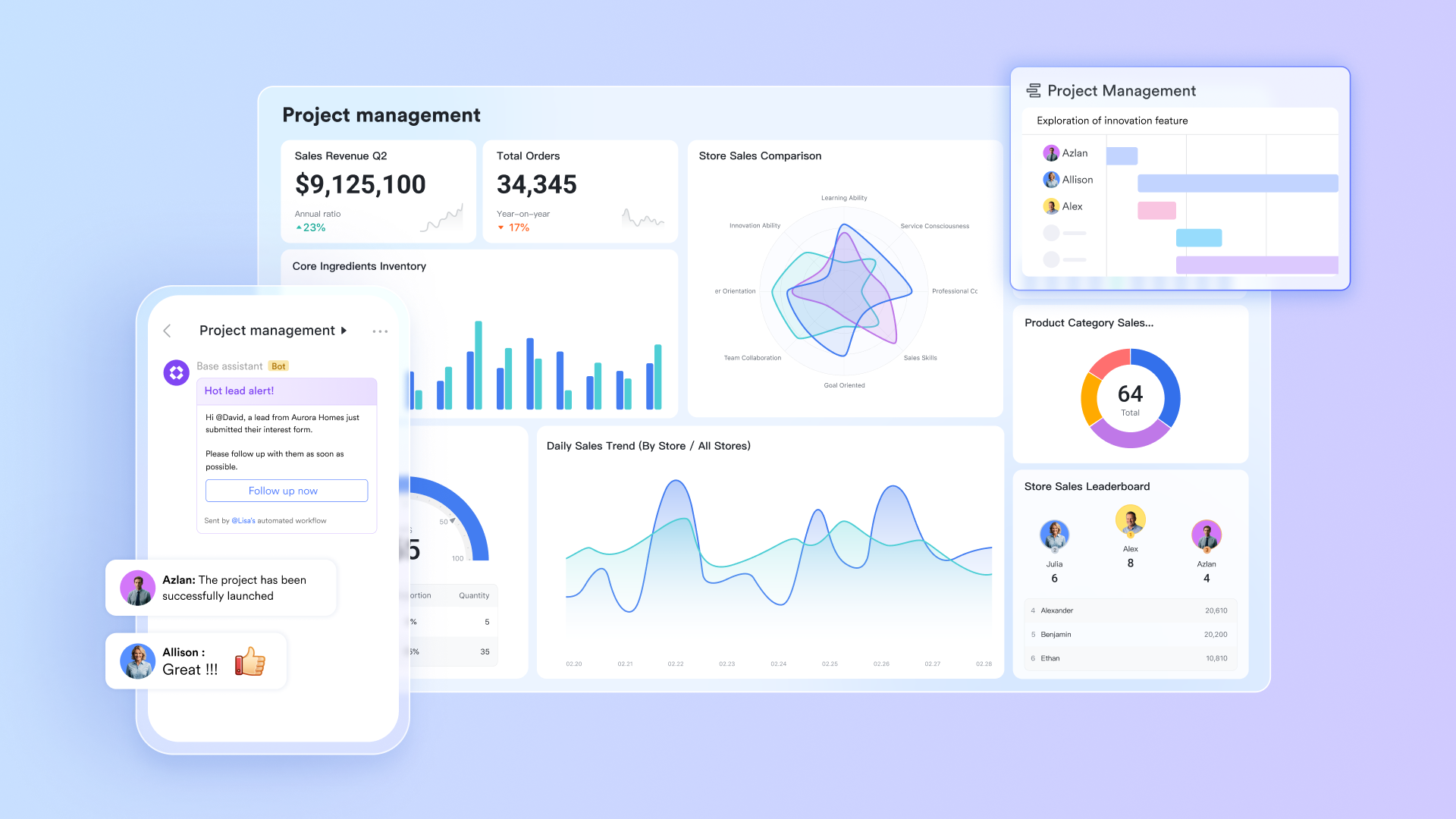
Centralised project hub with multiple ways for time monitoring
serves as the central hub for managing large-scale projects, utilizing customizable tables for all individual and team tasks. It enhances efficiency with flexible visualization options like Kanban, Grid, and Gantt views. Complementing this, Dashboards provide essential monitoring of overall project progress and resource allocation. Critically, these dashboards feature personalized views, ensuring project managers see the full picture while team members only focus on their relevant tasks and milestones. 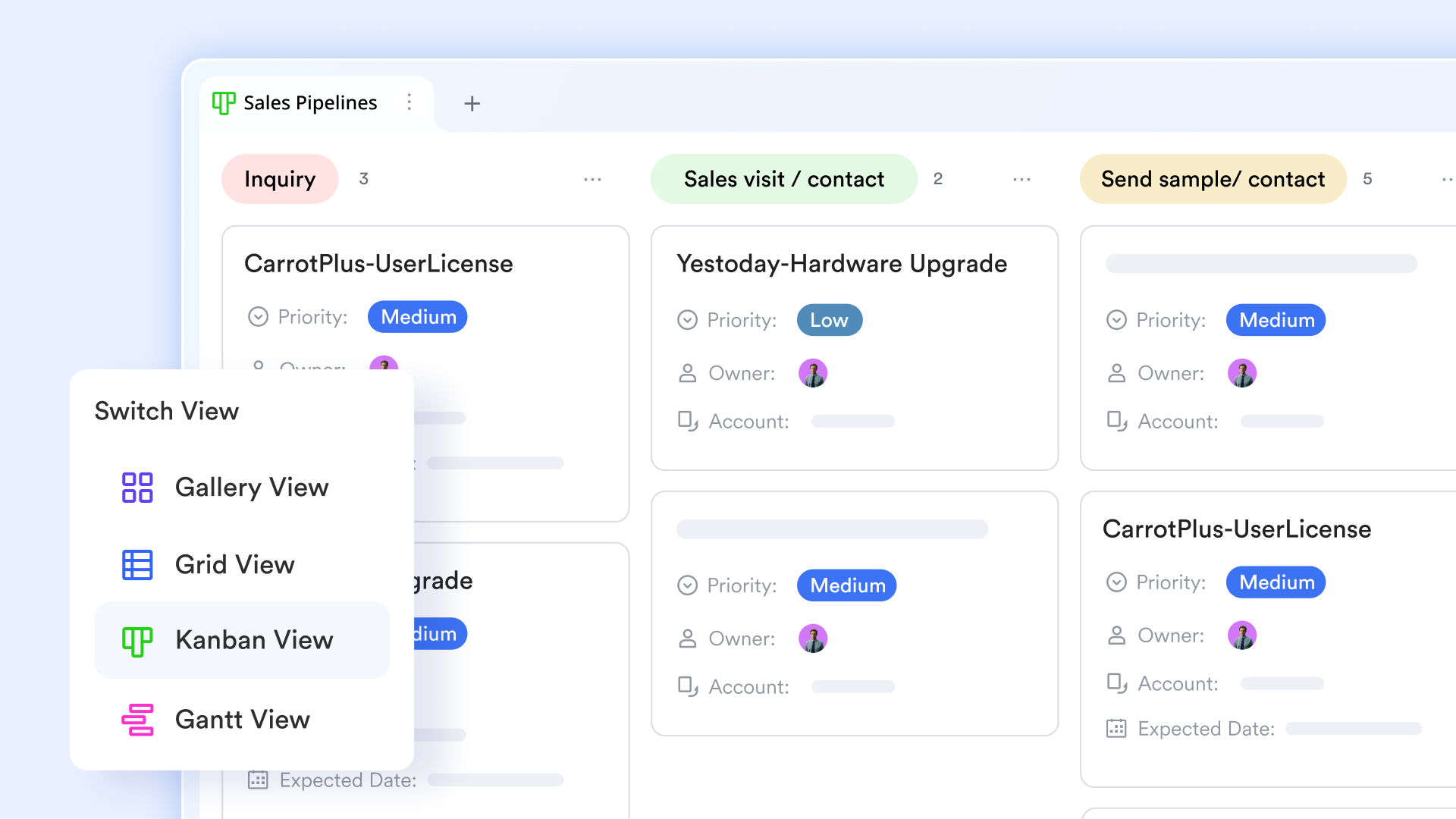
Automation rules for smart reminders of status changes
Lark Base lets you easily create to send targeted notifications and reminders, ideal for critical tasks like submitting timesheets. You simply access the "Automations" feature and define a new workflow. This workflow can be triggered either "At a scheduled time" or "When a record updates", ensuring flexibility. By precisely configuring the trigger and action, you can automate sending reminders exactly when and to whom they are needed, eliminating manual follow-up and streamlining accountability. 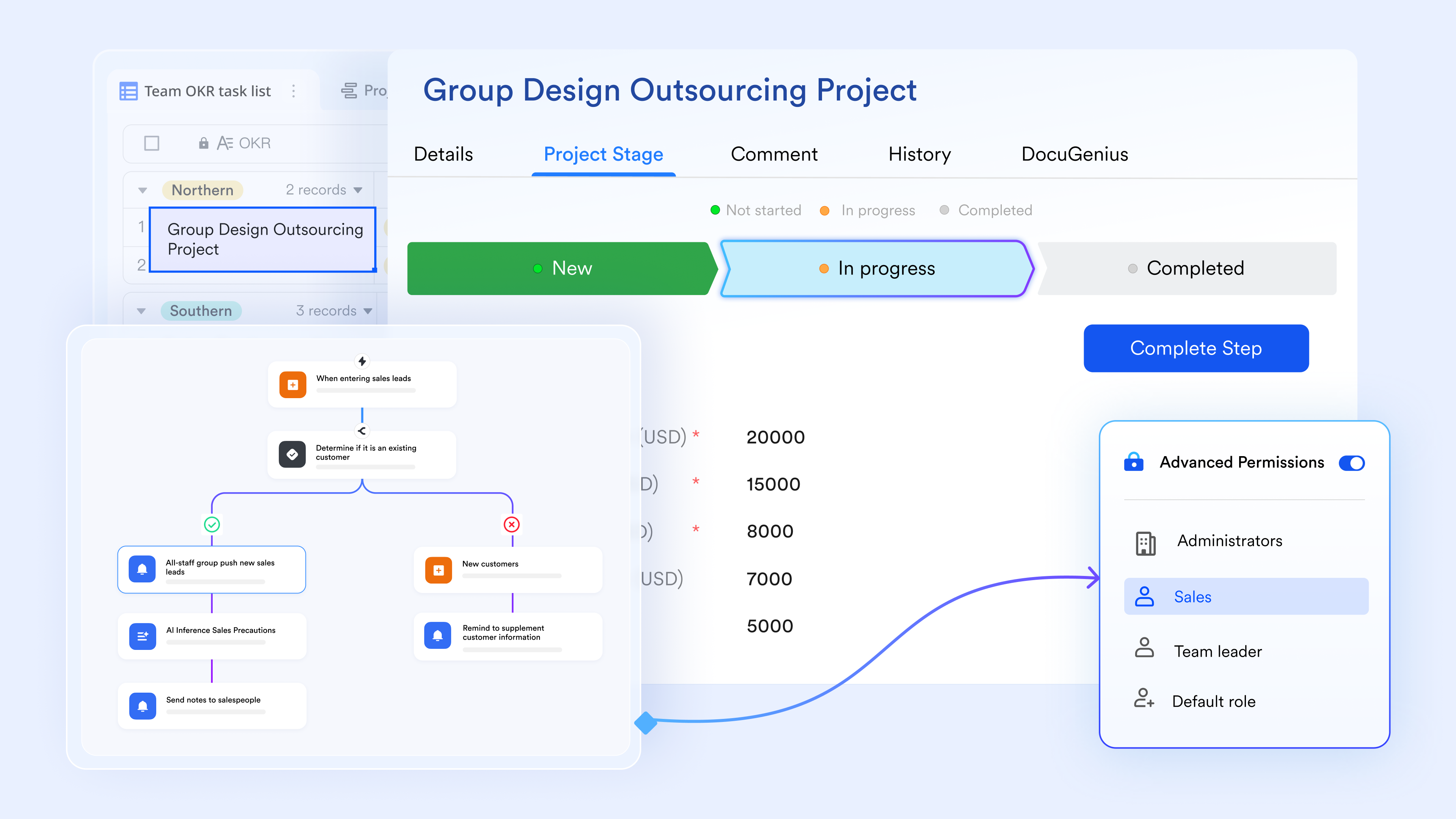
Live spreadsheets support proactive time tracking
Lark Sheets offers a time-efficient and simple way to manage team timesheets by allowing members to proactively enter their own working hours and data into shared sheets. All changes are saved in real-time, ensuring data accuracy and consistency. To streamline the process, you can easily mention team members in the sheet to send instant reminders, eliminating the need for manual data collection or sending individual messages to multiple recipients. This makes Lark Sheets an effective and efficient way to collect, manage, and update timesheet information across your entire team. 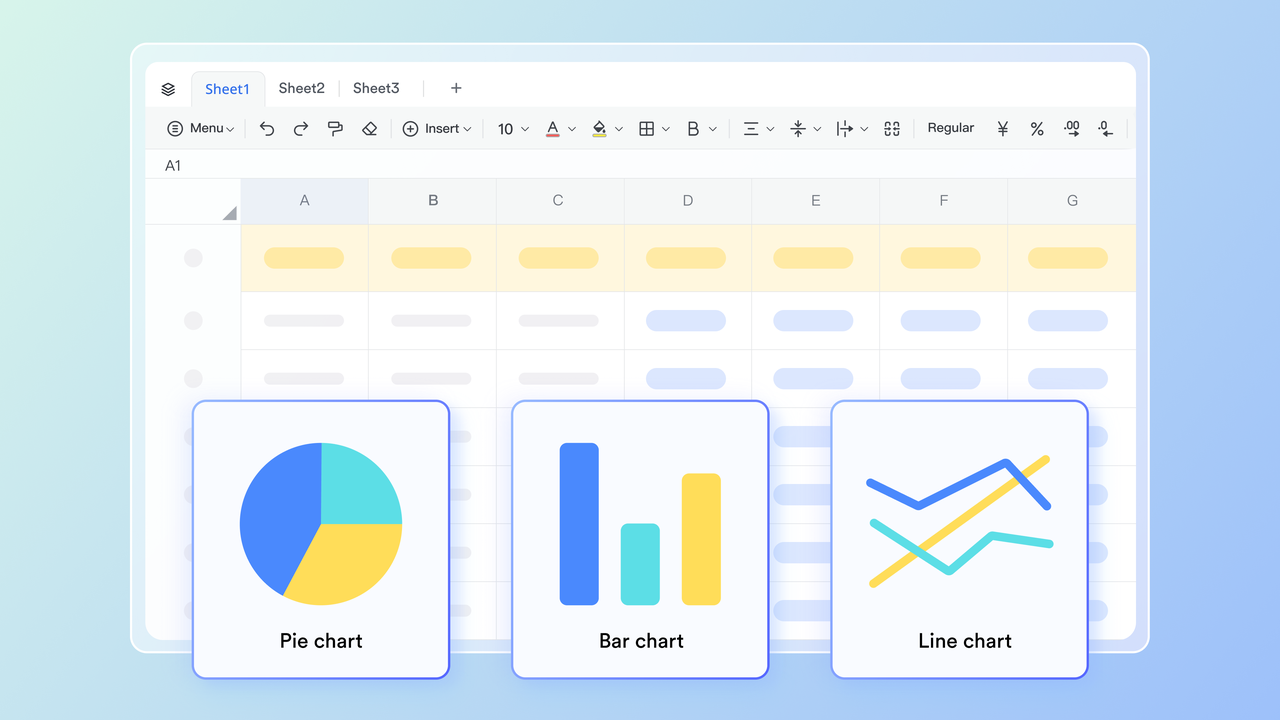
Task-based hours linking and execution
Instead of vague time notes or disconnected spreadsheets, Lark lets teams design timesheet tables in Base that stay closely aligned with work in Lark Tasks. You can add fields for task names, task IDs, project names, or client codes, and use Base automations to create related tasks or calendar events from those records. Task list updates can also be synced back to Base on a regular schedule, helping keep work items and logged hours in step. This creates a clearer audit trail that shows not just how many hours were worked, but which tasks or projects they relate to—supporting more accurate internal reporting and client billing. 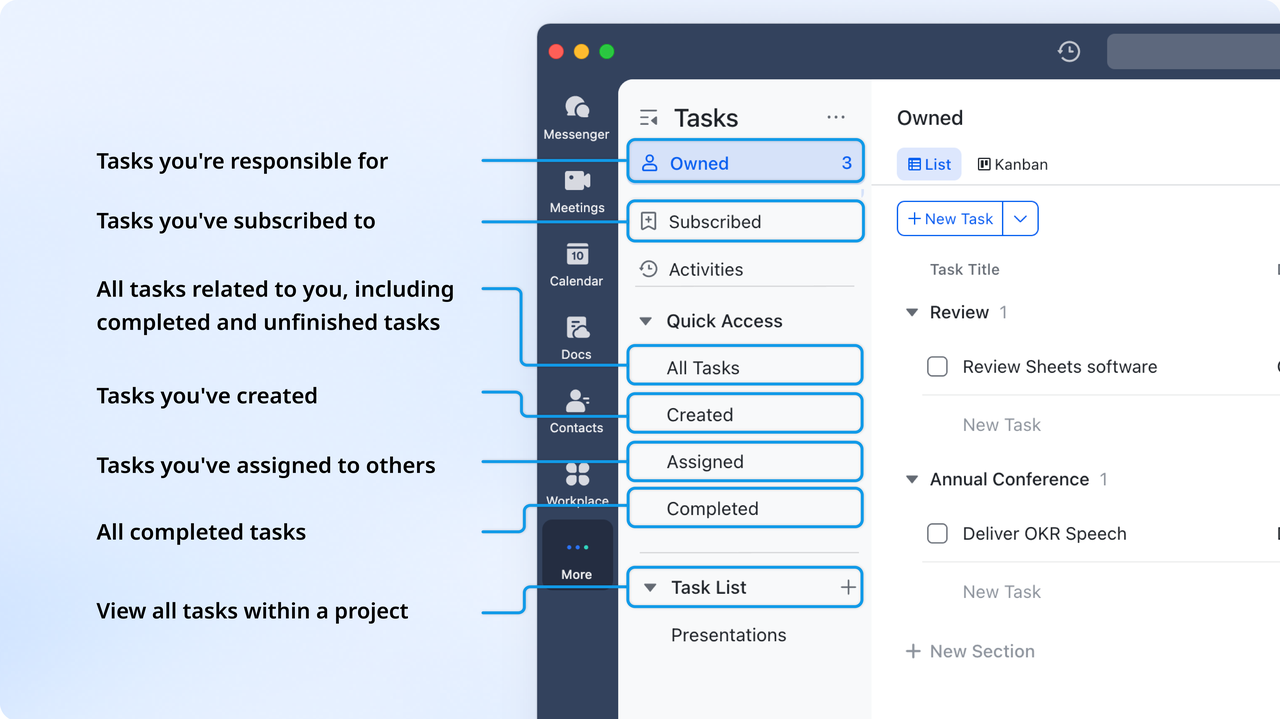
Calendar mapping for planned & actual time tracking
Lark Calendar supports schedule management through the attendance calendar, where administrators define work schedules and shifts for attendance groups. Team members can view their assigned working days and hours directly in the attendance calendar within the Lark app, while managers use this same view to oversee shift coverage, flexible schedules, and cross-day attendance rules. This side-by-side visibility helps managers adjust staffing plans, identify scheduling gaps, and improve future capacity planning. 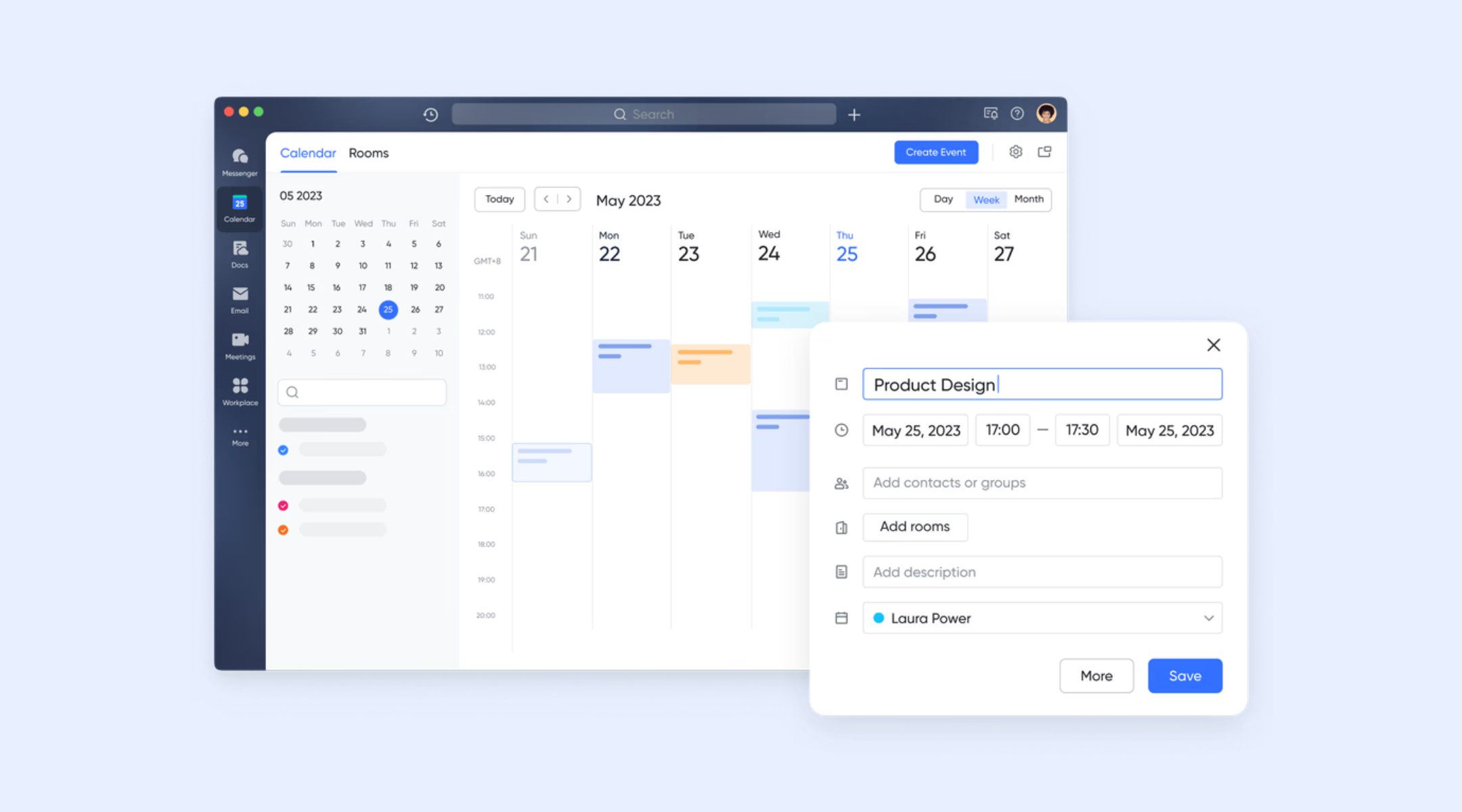
:
- Starter plan: Free forever plan that includes 11 powerful tools for up to 20 users. It also comes with 100GB of storage, 1000 automation runs, AI translations, and more.
- Basic plan: $6/user/month (billed annually) for up to 500 users. It includes everything in Starter plus group calling for up to 500 attendees, 5TB of storage, 1000 automation runs, and more. For more details, please .
- Pro plan: $12/user/month (billed annually) for up to 500 users. It includes everything in Basic plus group calling for up to 500 attendees, 15TB of storage, 50,000 automation runs, and more.
- Enterprise plan: for custom pricing. Supports unlimited users and includes even more automation runs and advanced security, compliance, and management features.
For small teams with simple communication needs

18 months message history
1000 Base automation runs/month
2000 rows per table in Base
Most POPULAR
For companies with comprehensive collaboration and management needs
Unlimited message history
500-participant video meetings
50k Base automation runs/month
20k rows per table in Base
For large companies with advanced security and organizational management needs
Get a personalized demo and pricing
Unlimited message history
500-participant video meetings
15 TB storage + 30 GB storage/user
500k Base automation runs/month
50k Base automation runs/month
Most POPULAR
For companies with comprehensive collaboration and management needs
Unlimited message history
500-participant video meetings
50k Base automation runs/month
20k rows per table in Base
Final checklist: Notion vs Lark for time tracking
Bottom line: Notion excels as a knowledge and documentation tool, but when it comes to structured, auditable, and scalable time tracking tied to real execution, Lark provides a purpose-built alternative. Teams gain automatic logging, task-based accountability, approvals, and , all in a single workspace without third-party plug-ins or complex custom builds.
Conclusion
Notion offers flexible databases and templates for basic time tracking, but its manual processes, limited automation, and limited reporting make it difficult for growing teams to manage hours accurately. As workforces scale, teams need real-time tracking, approvals, structured attendance, billable workflows, and visual planning tools that Notion can't natively provide. While Notion is excellent for documentation and personal productivity, it isn't built for scalable, auditable time tracking across clients or projects. For teams that need accurate logs, automated workflows, and integrated scheduling, delivers a complete, purpose-built alternative.
Switch to automated time logging and tracking
FAQs
Can Notion automatically track time without user input?
No, Notion cannot automatically track time without user input. All Notion time tracking relies on manual start–stop fields, notes, or templates. Since there's no built-in timer or background logging, users must remember to enter hours themselves. This makes Notion suitable for simple personal logs but unreliable for teams needing consistent, automated tracking.
Are Notion templates suitable for invoicing clients?
A Notion template can record hours, but it's not ideal for invoicing clients. Notion lacks automatic billable rate calculations, audit trails, and error-proof reporting. Users must manually export data or build formulas, which increases risk for agencies or freelancers. For structured client billing, dedicated time-tracking tools offer greater accuracy and reliability.
Does Notion support GPS-based or attendance time tracking?
No, Notion doesn't support GPS-based or attendance time tracking. All time tracking in Notion is manual, with no location validation, shift rules, or compliance features. Teams needing clock-in/out logs, overtime tracking, or field-team verification must use external tools, since Notion wasn't built for workforce attendance management.
Is Notion compliant with employee payroll records?
Notion is not compliant for storing payroll-ready time data. Because time tracking with Notion depends on manual inputs and has no audit trail, approvals, or shift logic, it can't meet payroll accuracy or legal standards. HR and finance teams typically prefer over editable Notion databases.
Can you replace Notion formulas with dashboards in time tracking tools?
Yes, the specialized tools replace complex time tracking notion formulas with automated dashboards. Instead of building custom rollups or exports, these platforms generate real-time insights into billable hours, productivity, utilization, and project burn. This makes reporting faster, more accurate, and easier to scale across teams without manual database maintenance.
Related reading