














Smartsheet Project Management Guide: Key Features, Use Cases, Reviews

Ryan Tanner
Product Marketing Specialist
Sep 18, 2026
Ryan Tanner
Sep 18, 2026

19 min read


Smartsheet project management is widely used by teams that prefer familiar spreadsheet structures to organize work. It helps teams manage tasks, timelines, and resources inside a flexible grid layout. Many organizations start with Smartsheet because its interface feels similar to traditional spreadsheets, which reduces onboarding time. As teams scale, some look for unified tools that bring communication and project management into one workspace. Lark enters the picture later in this guide as an option that supports connected workflows and collaboration.

What is Smartsheet?
Smartsheet is a popular work management platform that uses a spreadsheet style to help teams manage projects. It provides grid-based sheets, task lists, and flexible data structures to support many types of workflows. Smartsheet project management tools allow users to track tasks, visualize project timelines, manage resources, and automate repetitive actions. The platform is designed for teams that prefer adaptable spreadsheets instead of rigid project templates.
Smartsheet project management software fits well for teams handling structured data because users can create sheet-level formulas, add conditional logic, and customize layouts to suit internal processes. Although it is not a traditional project management tool, many teams rely on Smartsheet for planning, tracking, and reporting. It also connects with multiple external applications such as Google Workspace, Microsoft 365, and Slack, which helps teams extend capabilities as needed.
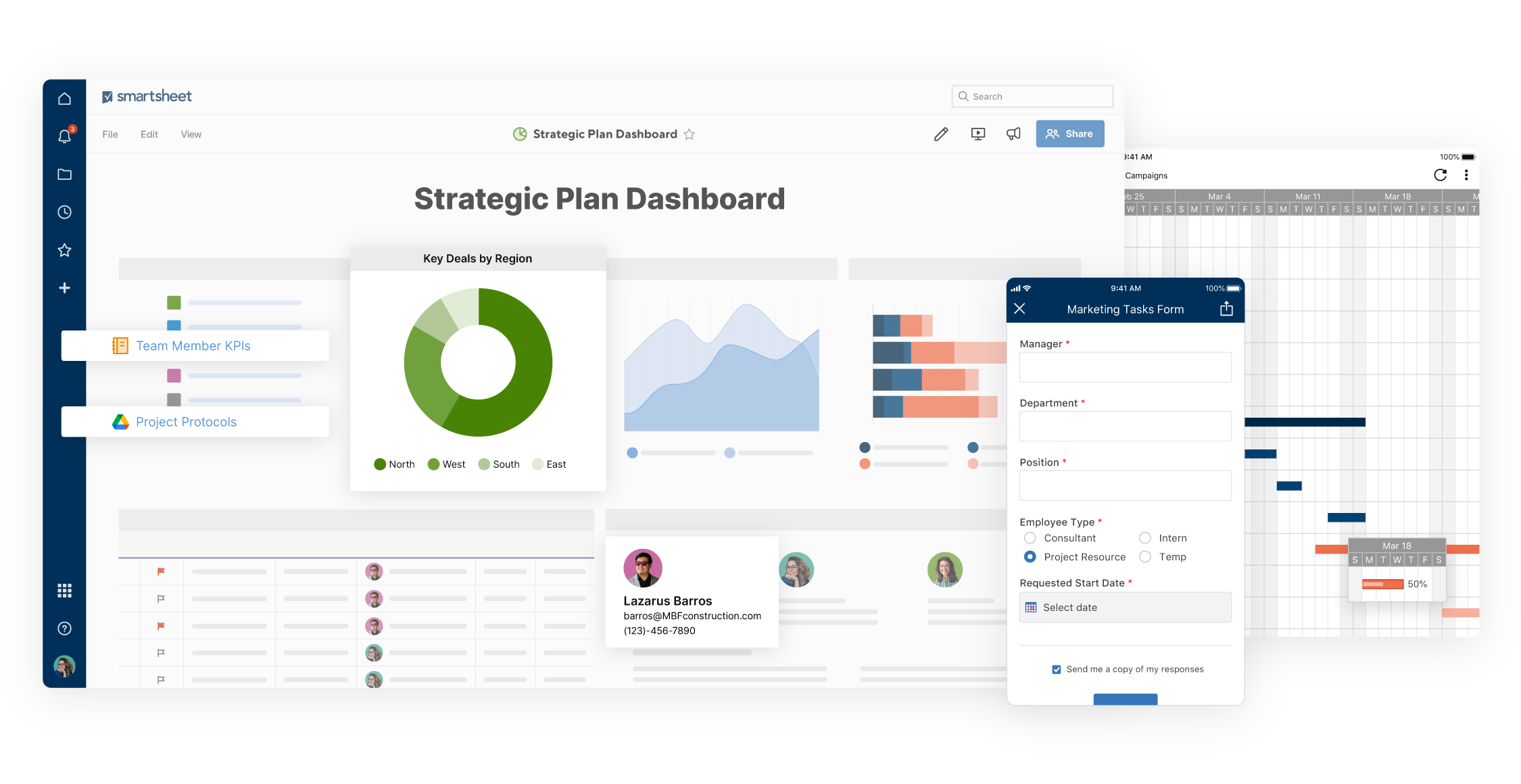
Image source: smartsheet.com
Is Smartsheet a project management tool?
Smartsheet functions as a project management tool because it allows teams to plan tasks, track schedules, visualize progress, and manage dependencies. Its grid-based structure makes it flexible enough to mirror traditional project workflows. Users can also view tasks in Gantt charts, Kanban boards, and dashboards, which support different project styles. Although Smartsheet relies heavily on a spreadsheet foundation, it offers project planning features that help project managers handle simple and complex initiatives.
Key Smartsheet project management features
Smartsheet project management features help users plan, track, and deliver projects of different sizes. Each feature supports specific workflows such as planning timelines, assigning tasks, or managing resources. These tools help teams create structured processes without switching platforms. Below are the main components used in Smartsheet project management software.
Grid view
Grid view is the main interface for Smartsheet project management. It works like a traditional spreadsheet with rows and columns that store task details, dates, and owners. Grid view helps teams organize project information in a structured layout that is easy to customize. Users can adjust columns, apply formulas, and sort data to support project reporting. Grid view is also useful for teams that rely on heavy data project tracking processes.
Gantt charts
Gantt charts help teams visualize project schedules through timeline-based task bars. This feature is helpful for tracking milestones, dependencies, and critical paths. Project managers often use Gantt views to understand sequencing and duration. Smartsheet Gantt charts support drag and drop adjustments, which makes updating timelines easier. They are especially useful for waterfall projects or scheduling tasks with fixed start and end dates.
Card view (Kanban)
Card view supports Kanban style project management by grouping work into columns. Users can move cards across stages such as To Do, In Progress, and Done. This view is suitable for teams using agile project management practices. It gives clear visibility into work status and makes it easy to prioritize tasks. Smartsheet card view can also display custom fields, images, and labels.
Dashboards and reporting
Dashboards help teams monitor project performance through charts, metrics, and visual summaries. They provide a real-time view of project health, deadlines, and progress. Dashboards are useful for leadership reporting and portfolio-level monitoring. Smartsheet project management software includes widgets that support charts, text, links, and reports. These elements give teams a quick snapshot of key project indicators.
Forms
Forms help teams collect project information from internal and external users. They are useful for intake processes such as project requests, task submissions, and feedback. When a form is filled out, responses automatically appear on the linked sheet. This helps teams create structured data without manual entry. Forms are commonly used for operational workflows and project submission processes.
Automated workflows
Automated workflows allow users to create rule-based automations that trigger notifications, approvals, or status changes. These workflows help reduce repetitive actions and maintain consistency in project tracking. Smartsheet project management features include conditional triggers that monitor data changes and run actions automatically. This is helpful for teams managing frequent updates.
Resource management
Resource management helps teams understand workload distribution and team member availability. It provides visibility into who is assigned to which tasks and whether workloads are balanced. Resource tracking is essential for agencies and enterprise teams managing multiple projects. Smartsheet resource management tools help reduce overallocation and support realistic planning.
Templates and solutions
Smartsheet templates help users start projects quickly with pre-built layouts. They cover many use cases such as marketing planning, IT project tracking, agile boards, and event management. Templates save setup time and help teams follow structured workflows. They are helpful for teams that prefer starting with proven project formats.
How to use Smartsheet for project management
Smartsheet project management works best when teams follow clear setup steps. These steps help users build a structured workspace, organize data, and visualize project progress. Below is a simple guide for how to use Smartsheet for project management from planning to collaboration.
Step 1: Set up your project workspace
Create a new sheet or use a template that fits your workflow. Add columns for task names, owners, start dates, end dates, and status. Setting up the structure early helps ensure accurate reporting later. Project workspaces can also include dashboards and automation rules that support team coordination.
Step 2: Build your project plan
Add tasks, define milestones, and assign ownership. Use dependency settings to build logical sequencing. Teams can also apply formulas to calculate durations or progress scores. Building a detailed plan ensures full visibility into project timelines.
Step 3: Visualize tasks in Gantt or Card views
Switch to Gantt charts to see timeline based task relationships or choose Card view for Kanban style tracking. Different views help teams adapt to changing priorities without restructuring data. Visualization makes it easier to understand which tasks move next.
Step 4: Monitor progress through dashboards
Dashboards bring performance data into one page. Add charts, metrics, and key indicators that show progress or blockers. Dashboards help leadership monitor status without reading the full sheet. Consistent dashboard updates keep stakeholders aligned.
Step 5: Use forms to capture project requests
Create forms that collect information from clients or stakeholders. This reduces manual data entry and ensures structured submissions. Form data flows directly into sheets, which improves project intake quality.
Step 6: Collaborate with teams
Share sheets with team members and define permission levels. Use comments and file attachments to centralize communication. Collaboration tools help reduce email threads and keep all project discussions inside the workspace.
Smartsheet project management template
Smartsheet provides many ready to use templates that support different workflows. These templates help teams quickly start new projects without building structures manually. Below are some commonly used templates and how they support Smartsheet project management.
Project task list template
This template helps teams track tasks, priorities, owners, and due dates in a simple grid layout. It is ideal for small to mid-sized projects that need structured tracking. The template supports customization so teams can add columns for progress, notes, or risk levels. It is often used by marketing teams, operations teams, and product teams.
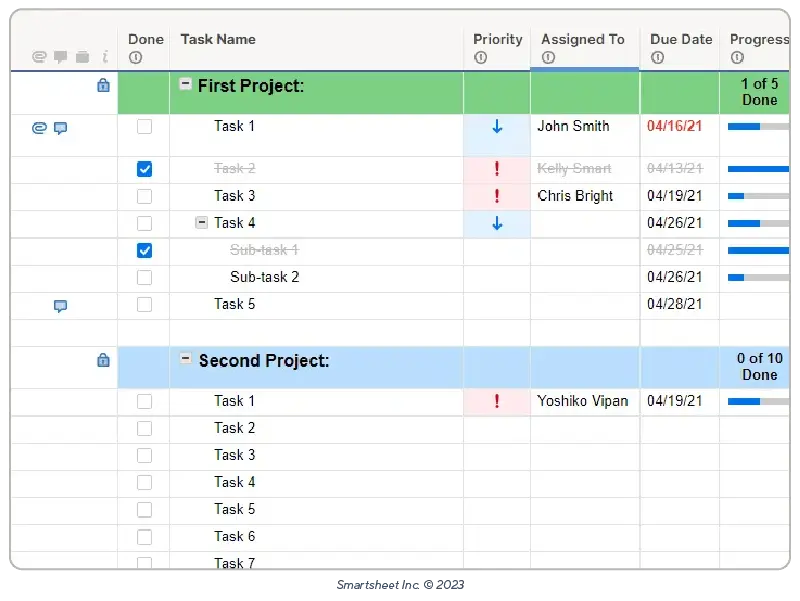
Image source: smartsheet.com
Team project task board template
This Kanban style template helps teams visualize work stages. It is suitable for agile workflows and supports drag and drop card management. Users can track progress through columns such as backlog, active tasks, and completed tasks. This template is useful for teams that need real time task visibility.
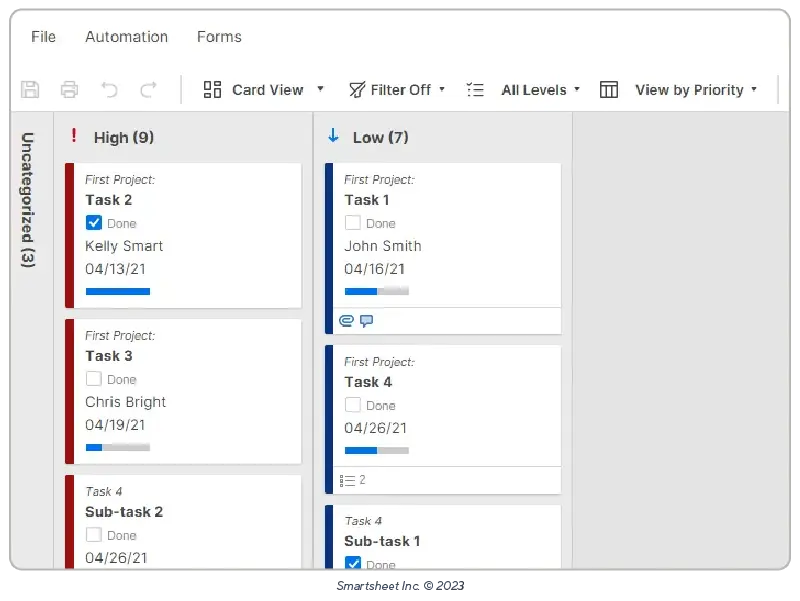
Image source: smartsheet.com
Project with resource management template
This template includes workload tracking and resource allocation tools. It is helpful for teams managing multiple contributors across projects. Users can monitor availability, avoid overbooking, and plan workload distribution more accurately. Agencies and enterprise teams rely on this template for balanced scheduling.
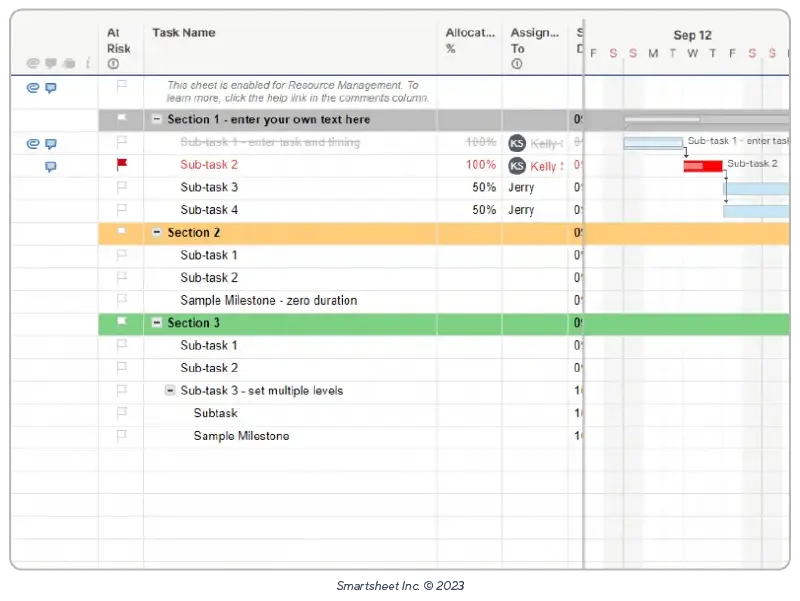
Image source: smartsheet.com
Project with gantt timeline template
This template provides a ready to use Gantt structure that visualizes timelines and dependencies. It is ideal for waterfall style project planning. Users can adjust dates, add milestones, and update timelines easily. Teams managing long term projects often choose this for clear roadmap visibility.
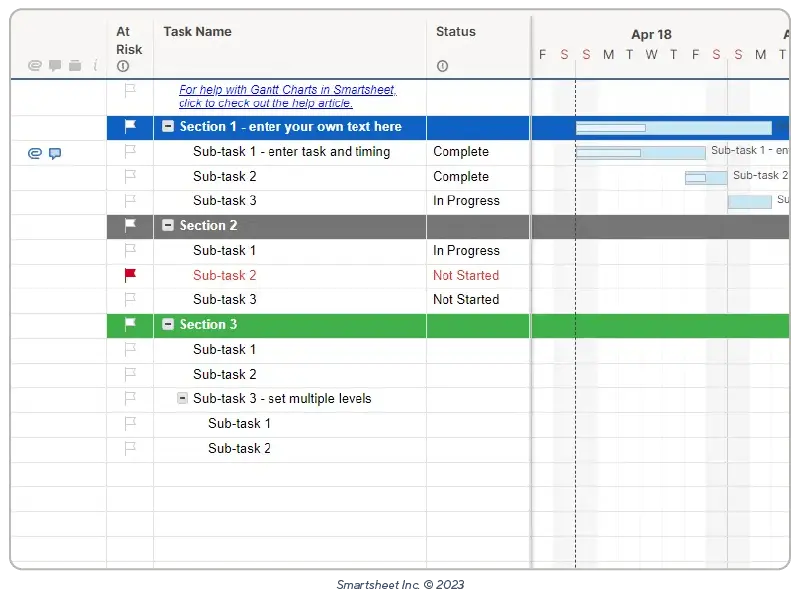
Image source: smartsheet.com
Who is Smartsheet best for?
Smartsheet project management works well for teams that prefer flexible spreadsheet style tracking. It is especially suitable for users who want deep customization and formula driven workflows. The platform fits teams that already manage operations through spreadsheets and want a more advanced system.
- Mid size and enterprise teams: These teams benefit from Smartsheet because its features support complex workflows and structured reporting. Larger teams can organize multiple project sheets and dashboards across departments.
- Agencies managing multiple client workflows: Agencies use Smartsheet to handle resource planning, client projects, and recurring workflows. The platform supports structured templates that help streamline client operations.
- Project managers who prefer spreadsheet like flexibility: Users familiar with spreadsheets feel comfortable with Smartsheet's grid layout. It allows formula-based planning and detailed customization.
- Teams comfortable layering tools around it: Many teams use Smartsheet along with Slack, Google Workspace, and other external tools to complete workflows. This works well for teams that manage processes across multiple platforms.
Smartsheet for project management pros and cons
Smartsheet project management software has advantages and limitations depending on team structure and workflow style. Understanding these pros and cons helps teams decide how well the platform fits their needs.
Pros
- Familiar spreadsheet-like interface: Users can start quickly because the layout resembles traditional spreadsheets. This reduces training time and supports flexible planning.
- Highly customizable: Teams can create formulas, custom fields, and layouts that reflect internal processes. This level of flexibility helps manage unique workflows.
- Strong views and dashboards: Visualization tools help teams track performance across different layers of a project. Dashboards give leadership clear snapshots.
- Powerful templates: Ready-to-use templates help teams start projects faster. They reduce setup time and support best practices.
Cons
- Can feel complex for non-technical users: The spreadsheet structure requires some learning for users unfamiliar with formulas or data-heavy layouts.
- Spreadsheets can get messy over time: Sheets with too many columns or formulas become difficult to manage. This affects data clarity.
- Limited communication tools: Smartsheet requires external apps for chat and messaging. This leads to fragmented collaboration.
- Higher enterprise pricing: Larger teams may find the pricing high compared to unified platforms.
- Limited real-time collaboration: Users may face delays when multiple people update complex sheets simultaneously.
As you can see, Smartsheet delivers solid structure and flexibility—but its reliance on spreadsheets, limited communication features, and higher pricing can create friction as teams scale. That's where modern all-in-one platforms start to stand out. If you're looking for a tool that combines project tracking, communication, automation, and real-time collaboration in one place, Lark offers a very different, more connected approach.
Meet Lark: A better unified alternative to Smartsheet
Some teams eventually outgrow spreadsheet-based project management, especially as collaboration demands increase and workflows become more interconnected. That's where Lark steps in. It offers an all-in-one workspace that brings tasks, docs, CRM databases, chat, meetings, and automation together in a single, unified platform. Instead of juggling separate tools, teams can plan, communicate, and execute in the same place—making coordination faster, context clearer, and projects easier to keep on track.
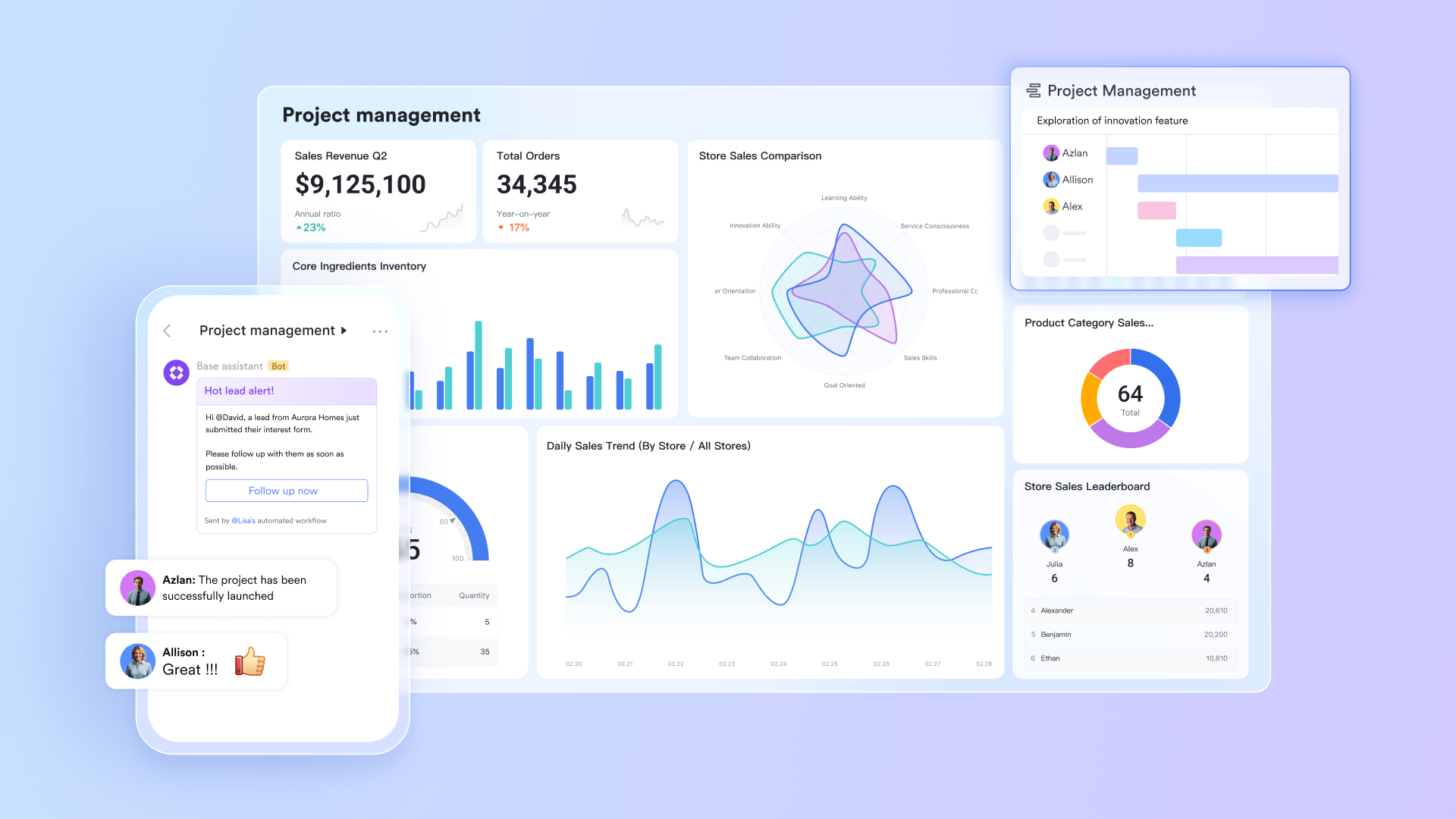
Lark Base: Structured project databases
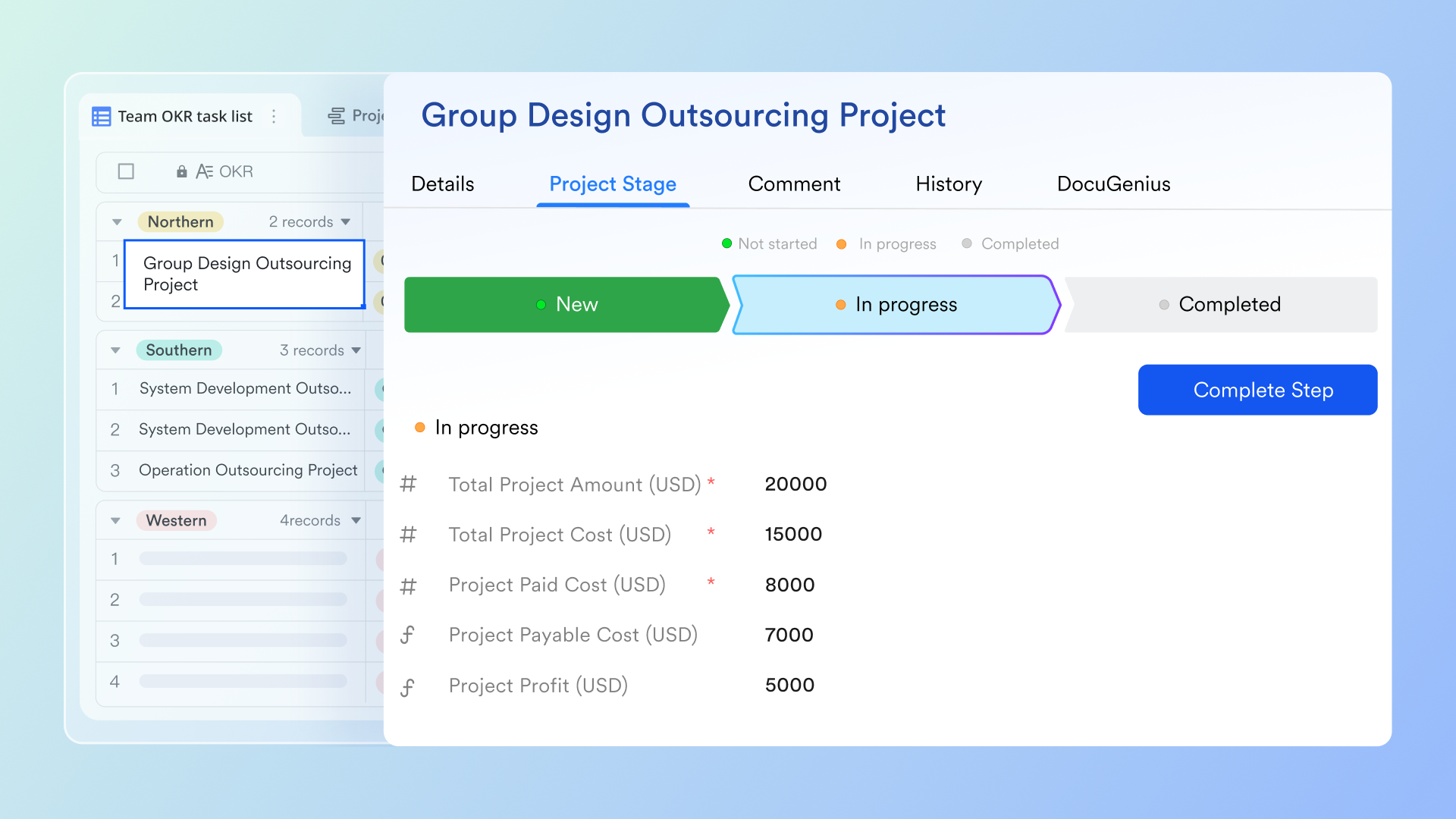
Lark Base helps teams manage structured information through customizable records, views, and links. It supports project tracking, asset organization, and reporting through flexible layouts. Also, it offers multiple views—like Gantt charts—to track progress from different angles, along with automatic notifications that keep everyone aligned. You can easily group or filter tasks to focus on specific priorities, and every edit is synced in real-time across all views for smooth, seamless collaboration. Teams can design workflows that match their processes without technical skills. This helps maintain clarity across multiple projects.
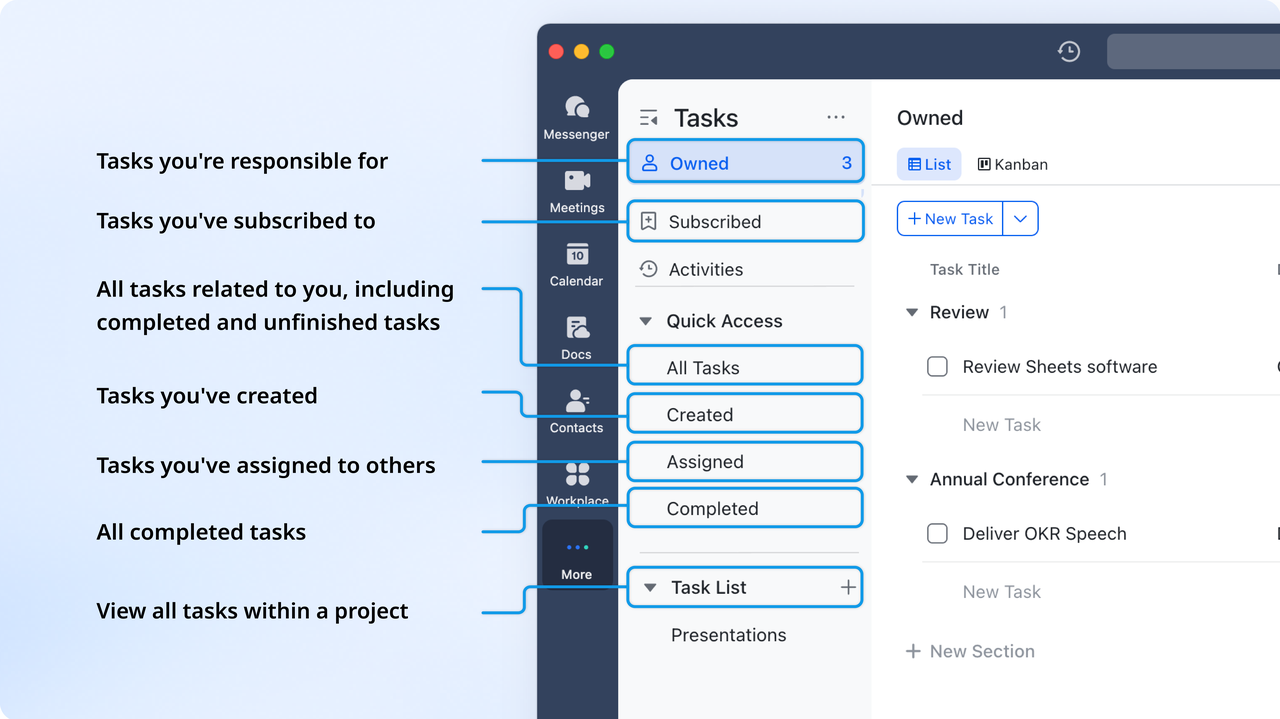
Lark Tasks: Organized task execution & tracking
Lark Tasks helps teams organize assignments, deadlines, and priorities in a structured workspace. It lets you break large projects into clear, actionable steps and assign responsibilities to the right people. Teams can create and share task lists to clarify roles and track progress, while grouping, sorting, and filtering options—including custom fields like priority or risk—make organization effortless. You can also view task updates and activity logs to stay on top of every change as it happens. This helps teams reduce confusion and maintain steady project execution.
Lark Docs: Real-time coediting
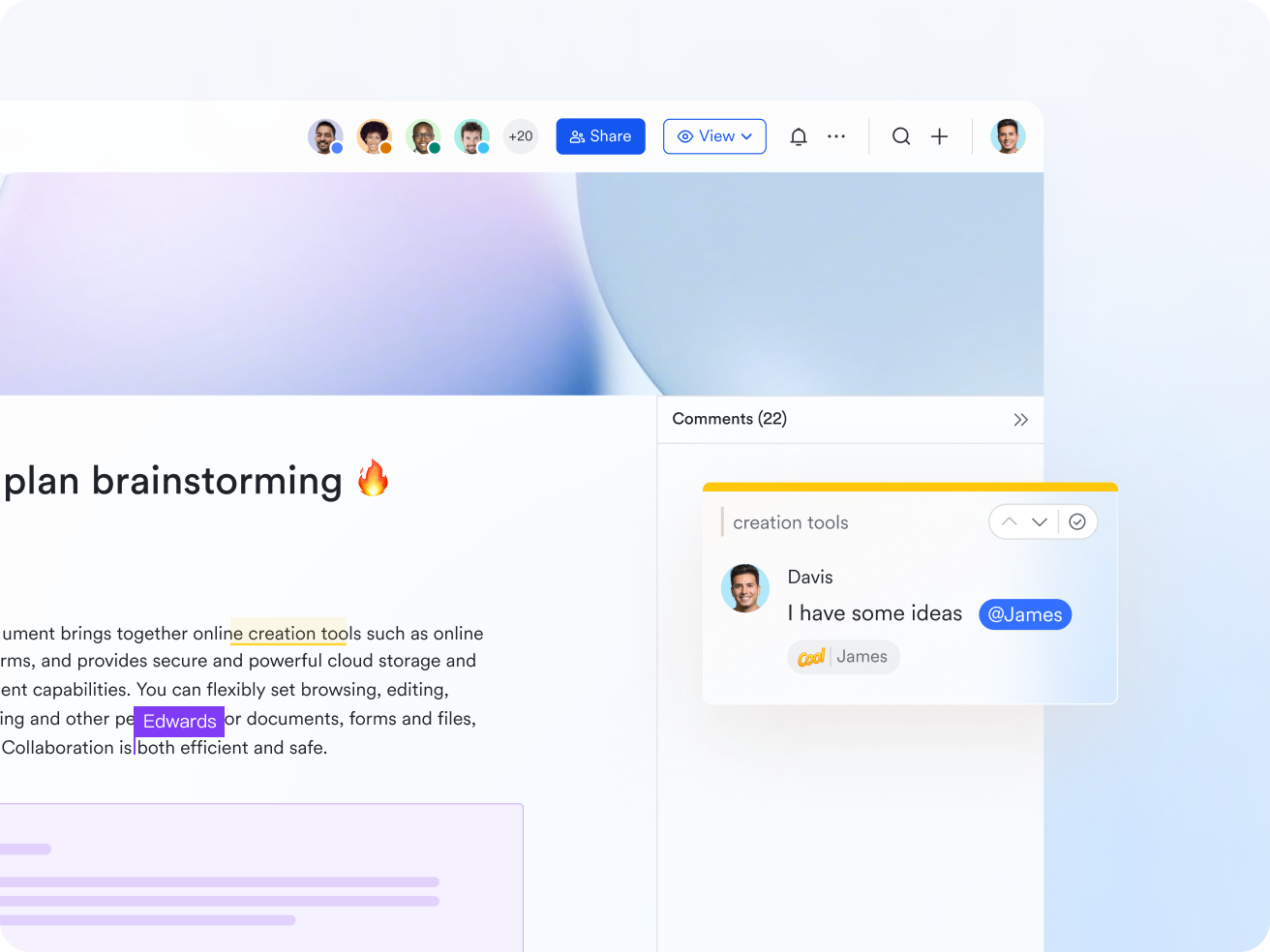
Lark Docs supports live collaboration so teams can update content together without sending files back and forth. Documents can include tables, embeds, and links that stay connected to project data. It lets you create rich documents that include text, images, videos, Sheets, Bases, and MindNotes—all with real-time comments and updates from your team. You can also jump-start planning with templates like Project Plan, Project Timeline, and Gantt Chart. And since tasks can be created and managed directly inside Docs, everything stays connected, with statuses synced seamlessly to Lark Tasks.
Lark Messenger: Connected team communication
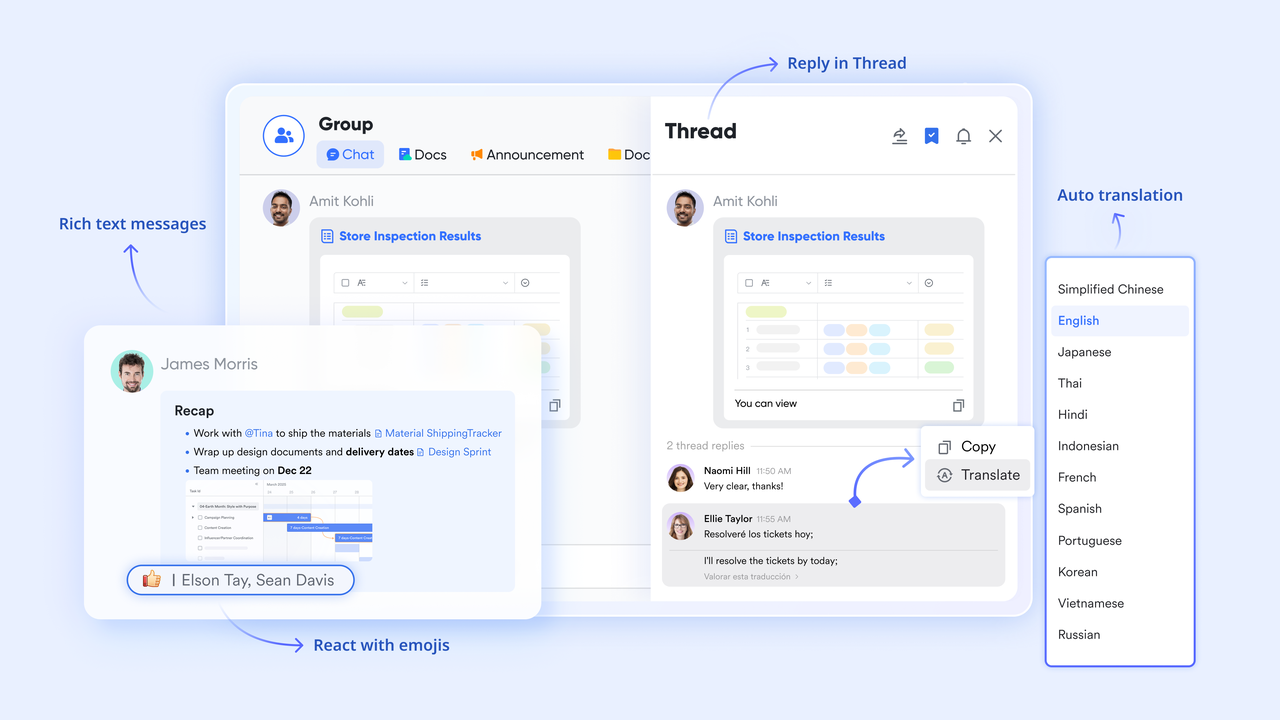
Lark Messenger offers real-time chat that integrates directly with tasks, documents, and meetings. You can create groups for specific projects or debugging, ensuring all relevant members have access to the full chat history for context. Teams can convert messages into tasks with a single click. Collaborating with other Lark tools like Docs, Calendar, and Base, Messenger enables seamless collaboration and tracking of project requirements, deadlines, and progress. This keeps communication aligned with ongoing project activity.
Lark Calendar: Smart team scheduling
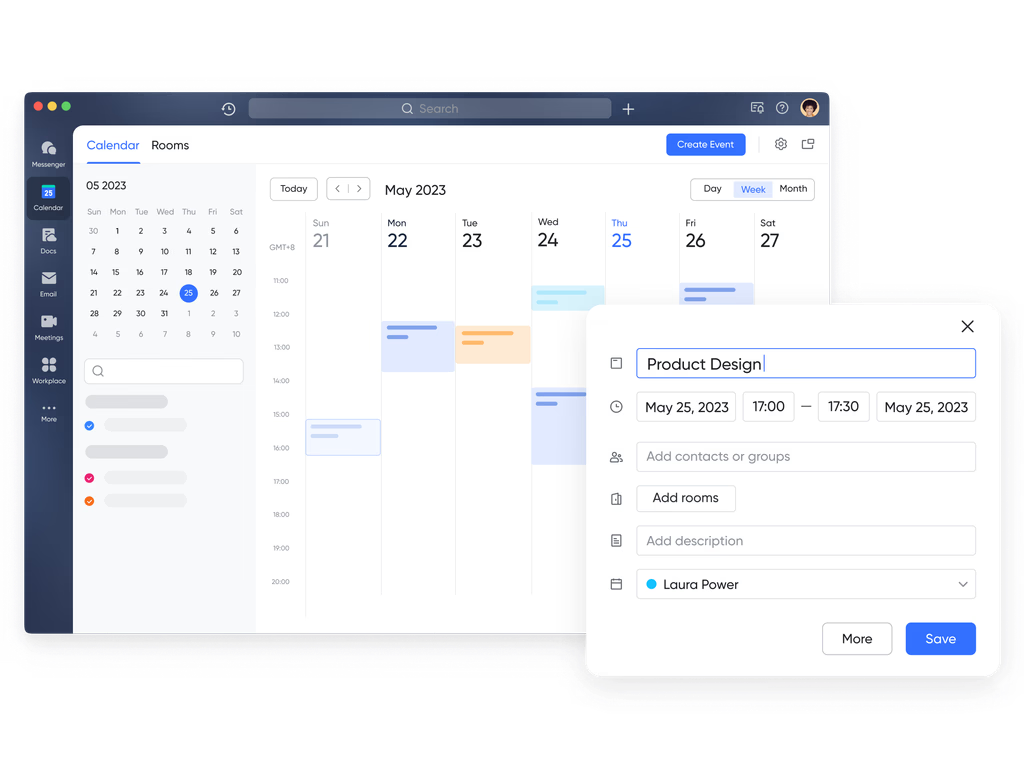
Lark Calendar helps teams coordinate schedules, plan events, and avoid conflicts. Users can view availability, set reminders, and manage recurring project checkpoints. You can set up public project calendars to highlight key dates and milestones, making each stage easy for the whole team to follow. Events, meetings, and deadlines can be scheduled and managed in one place, ensuring everyone stays aligned. Different departments can subscribe to these calendars to stay informed, and switching between day, week, or month views makes it simple to see the full schedule at a glance.
- Starter plan: Free forever plan that includes 11 powerful tools for up to 20 users. It also comes with 100GB of storage, 1000 automation runs, AI translations, and more.
- Basic plan: $6/user/month (billed annually) for up to 500 users. It includes everything in Starter plus group calling for up to 500 attendees, 5TB of storage, 1000 automation runs, and more. Some users may need to contact sales to purchase.
- Pro plan: $12/user/month (billed annually) for up to 500 users. It includes everything in Basic plus group calling for up to 500 attendees, 15TB of storage, 50,000 automation runs, and more.
- Enterprise plan: Contact sales for custom pricing. Supports unlimited users and includes even more automation runs and advanced security, compliance, and management features.
Ready-to-use Lark project management templates
Each template below includes a short introduction that explains the use case and benefits for teams exploring Lark as a modern alternative to Smartsheet project management.
Project management template
This template helps teams plan and track projects in a structured workspace that keeps tasks, timelines, and responsibilities organized. It supports cross functional work by centralizing updates and progress in one place. Teams can monitor deliverables, assign owners, and maintain clarity across different project stages. It is suitable for any team needing a simple and dependable project management structure.
Project management Gantt chart template
This template provides a clear timeline view that helps teams understand dependencies, durations, and milestones. It supports visual planning, so teams can adjust schedules as priorities shift. Users can track progress in a single view that highlights how tasks connect. It is helpful for teams managing long term or timeline heavy projects.
Task management template
This template gives individuals and teams an easy way to track daily tasks and responsibilities. It helps maintain clarity around ownership and deadlines, which keeps work moving steadily. Users can view completed and pending tasks to stay aligned with priorities. It works well for personal planning or teamwide execution.
Product development progress management
This template supports product management throughout each phase of development. It helps track feature progress, testing activities, and release milestones in one place. The structure brings visibility into what is ready, what is delayed, and what needs attention. Teams can maintain alignment from concept to launch.
Kanban board template
Kanban board template helps teams organize work using a stage based board that supports agile practices. Cards can move across columns such as backlog, active, and completed. Teams gain visibility into bottlenecks and task status in real time. It works well for fast moving teams that rely on flexible workflows.
Projects information management template
This template helps teams capture project details, key documents, and reference information in a centralized workspace. It improves transparency for stakeholders who need quick access to project history and updates. Teams can store resources, notes, and critical data without switching tools. It supports smoother communication across complex projects.
Project problem tracker
This template helps teams log issues, assign owners, and track progress toward resolution. It provides a structured way to prevent problems from getting lost during busy project cycles. Teams can categorize issues, add details, and monitor risk levels. It strengthens decision making and keeps projects on track.
Base project management template
This template offers a flexible workspace that adapts to simple and advanced project structures. It helps teams track milestones, tasks, and deliverables in a coordinated way. Because it is customizable, teams can shape it to match their processes. It supports consistent project visibility from start to finish.
Smartsheet vs Lark: Quick comparison table
Here is a direct comparison of Smartsheet project management and Lark. This table highlights differences in workflows, collaboration, automation, and cost, so teams can choose the right platform for current and future needs.
Conclusion
Smartsheet project management helps teams organize work through a flexible grid layout that mirrors spreadsheet workflows. It offers strong customization, templates, and reporting features that support enterprise operations. Teams that rely on structured data find Smartsheet useful for planning and tracking.
As collaboration needs expand, some teams look for platforms that combine chat, tasks, automation, and documentation into one space. Lark provides a unified experience that connects communication with project execution. It supports faster alignment, real time updates, and efficient workflows for cross functional teams. Choosing between Smartsheet and Lark depends on whether teams prefer spreadsheet flexibility or an all-in-one collaborative workspace.
FAQs
Is Smartsheet good for agile project management?
Smartsheet supports agile workflows through card view and custom fields. Teams can create Kanban boards, prioritize tasks, and manage sprints. It works well for basic agile needs but may require add ons for advanced agile processes. Lark also supports agile workflows through Kanban boards and connected communication features.
Does Smartsheet offer offline access?
Smartsheet does not provide full offline functionality. Users need an internet connection to update sheets, dashboards, and forms. Some information may be viewable offline through certain apps, but editing is limited. Teams needing real time collaboration may prefer platforms with broader connectivity options such as Lark.
What industries use Smartsheet the most?
Smartsheet is popular in marketing, operations, construction, IT, and consulting. These industries rely on scalable spreadsheets and structured data. Smartsheet project management software is also used by enterprise teams handling multi-level reporting. Some organizations later explore unified platforms like Lark for integrated communication.
Can Smartsheet manage multiple projects at once?
Yes, Smartsheet can support multiple projects through separate sheets, dashboards, and reports. Users can combine data into portfolio dashboards for high level visibility. Large teams often use templates to create consistent structures across projects. Platforms like Lark help expand visibility by connecting tasks, docs, and chat.
Does Smartsheet integrate with other tools?
Smartsheet connects with many external tools including Slack, Google Workspace, Microsoft 365, and Jira. These integrations help teams build connected workflows across systems. However, they may increase tool switching. Unified platforms like Lark reduce switching by bringing communication and project management together.
Related reading
Table of contents
Start using Lark today

Manage all your work in one place
Boost team efficiency by 10x
Save up to 70% on software costs
Table of contents
Start using Lark today
Manage all your work in one place
Boost team efficiency by 10x
Save up to 70% on software costs
Keep reading







2026 Lark Technologies Pte. Ltd.
Headquartered in Singapore with offices worldwide.






Explore: