


Mastering Stock Management in Excel Sheets: From Basics to Advanced Strategies

Fecilia Clarke
Solutions Marketing Specialist
Aug 5, 2026
Fecilia Clarke
Aug 5, 2026


What is a stock management in Excel sheet and why is it still popular?
Setting up an inventory template in Excel
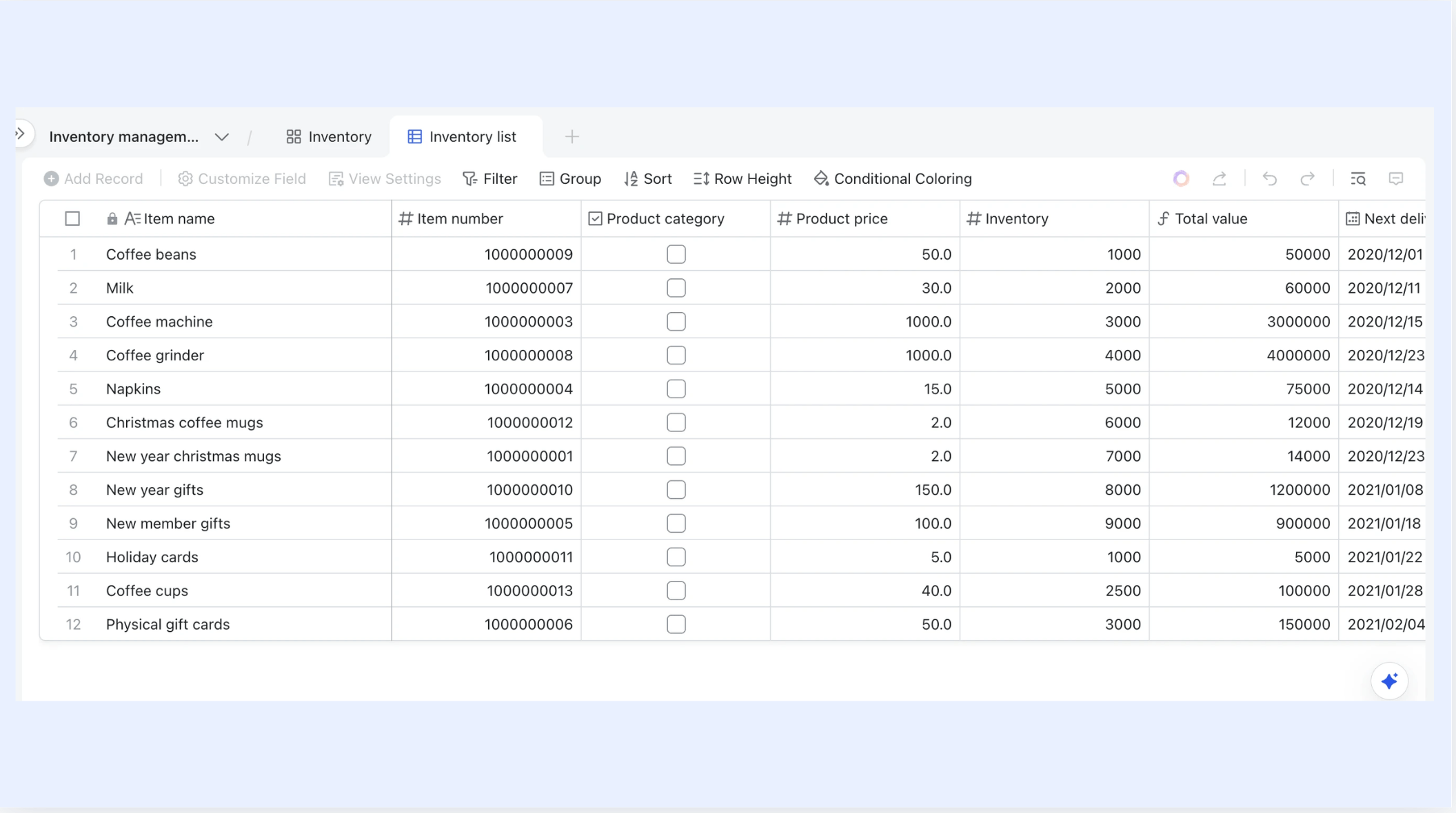
Selecting or creating the right template:
- Find or create an inventory template that truly aligns with your unique business needs.
- Many business owners discover that a dedicated stock inventory control template becomes an invaluable asset.
- Focus on a clean, intuitive layout for all essential information, making stock management in an Excel sheet feel effortless rather than overwhelming.
Key information for your template:
- Item details: item name, SKU, or serial number.
- Supplier information: for streamlined reordering and fostering positive relationships.
- Unit cost: your trusted companion for calculating inventory value and making smart purchasing decisions.
- Current stock levels: enabling you to instantly identify each stock item, understand its origins, and appreciate its contribution to your overall inventory value.
- These thoughtful fields are fundamental to maintaining stock in an Excel sheet format.
Maintaining accurate records and gaining insights:
- Consistently tracking stock levels and documenting every inventory movement—whether welcoming new stock arrivals, recording items being sold, or utilizing raw materials productively—will maintain precise records.
- This process also helps you discover valuable insights into stock usage patterns and sales trends, enhancing your overall stock management in an Excel sheet.
Enhancing inventory control:
- A thoughtfully designed inventory management template becomes your ally in inventory control.
- It makes it surprisingly easy to identify discrepancies, minimize excess inventory, and confidently prevent stockouts.
- This is a core aspect of effective stock management in an Excel sheet.
Scalability and future growth:
- As your business flourishes and evolves, you'll appreciate how your Excel inventory template can be enhanced with additional fields, such as reorder points, stock location details, or comprehensive asset tracking features.
- This ensures your system adapts beautifully to your growing needs, making it a flexible solution for how to maintain stock in an Excel sheet.

Essential Excel formulas and features for effective stock management
- Structure your stock sheet: Begin with an organized stock sheet, including columns for opening stock, stock in, stock out, and closing stock. A Transaction Log is crucial for recording every "Stock In" and "Stock Out" event with dates and quantities, maintaining accurate inventory records. This setup is key for stock management in Excel.
- Calculate current stock with SUMIFS: In your "Stock Summary" sheet, use dynamic formulas like SUMIFS to automatically calculate current stock. It adds "Stock In" and subtracts "Stock Out" from your transaction log, providing up-to-date inventory levels and helping maintain stock in Excel sheet format.
- Retrieve data with VLOOKUP/XLOOKUP: Use VLOOKUP (or XLOOKUP for newer Excel versions) to pull details like supplier names, purchase prices, or product descriptions from separate master lists (e.g., "Suppliers" or "Products" sheets). This populates your stock sheet in Excel automatically, based on item IDs.
- Employ Excel stables for scalability: Excel Tables ensure that formulas and formatting automatically adjust as you add new rows, simplifying stock management in Excel sheets for growing inventories. You can also use multiple spreadsheets for various inventory aspects.
- Analyze with pivot tables: Summarize inventory by category, location, or supplier without manual sorting using Pivot Tables. They help analyze total stock and total stock value, supporting budgeting and profitability in your stock sheet in Excel.
- Visual alerts with conditional formatting: Set rules to automatically highlight cells. For example, color current stock red when it falls below a reorder level. This provides immediate visual alerts on your stock sheet in Excel, showing which items need attention.
- Prevent errors with data validation: Use Data Validation to restrict cell entries, ensuring data consistency. Create dropdowns for transaction types ("In" or "Out") or enforce whole numbers greater than zero for quantities. This reduces typos and ensures accurate stock management in Excel.
The growing pains: When Excel stock sheets fall short for your business
- Limited real-time collaboration: Excel files often lead to "locked" files or conflicting versions when multiple team members (sales, procurement, warehouse) need to access and update inventory simultaneously. This hinders efficient stock management in Excel, especially for fast-paced businesses.
- Challenges with complex data and large datasets: As product catalogs expand, managing intricate data relationships (e.g., size, color variations) becomes cumbersome. Formulas grow complex, and the stock sheet in Excel can slow down significantly with many rows and calculations.
- Manual updates lead to errors and consume time: Much of the process in an Excel stock sheet, including data input for every stock movement or order, remains manual. This repetitive entry is a common source of human error and diverts time from strategic tasks, impacting how to maintain stock in Excel.
- Lack of advanced automation capabilities: While macros exist, they can be fragile and require specialized knowledge. Automated alerts for low stock, reorder requests, or integration with other business applications are either difficult or impossible to implement robustly in an Excel stock sheet.
- Security and access control concerns: Excel files can be easily copied, deleted, or shared, posing security risks. Granular permissions (e.g., view-only access for some users) are hard to maintain, and a lack of integration with CRM or ERP systems fragments data, making comprehensive stock management in Excel challenging.
Beyond the spreadsheet: Understanding the benefits of integrated inventory management solutions
- Real-time data: Integrated solutions offer an up-to-the-minute view of your inventory, unlike an Excel stock sheet where updates can be delayed. When stock changes, the system instantly reflects it across all dashboards and reports, aiding in quick, informed decisions for better stock management in Excel.
- Robust automation capabilities: These solutions automate tasks like generating purchase orders at reorder points, sending low-stock alerts, and updating e-commerce platforms. This reduces manual effort and human error, freeing your team for higher-value activities beyond just how to maintain stock in an Excel sheet.
- Centralized systems: All inventory data resides in a single, accessible database, eliminating disparate Excel files. This improves data consistency and simplifies access for authorized users, regardless of location, a significant upgrade from a basic stock sheet in Excel.
- Enhanced collaboration and data integrity: Multiple team members can work simultaneously on inventory tasks with built-in version control and permission settings. Procurement, warehouse, and sales teams can view and update relevant information without conflicts, improving overall stock management in Excel sheets.
- Advanced reporting and scalability: Integrated platforms generate comprehensive reports on stock turnover, sales trends, and supplier performance, often with customizable dashboards. They are also built to scale, handling growing data and complexity as your business expands, unlike a static stock sheet in Excel.
Lark: How an all-in-one platform redefines your stock management
- Lark Base functions as a flexible, database-like solution directly within the Lark ecosystem.
- It acts as a "super-powered spreadsheet" where multiple team members can update inventory records simultaneously, eliminating version conflicts.
- Consolidate all inventory data: item details, current stock, reorder levels, supplier contacts, purchase orders, and historical sales data.
- Provides a single source of truth for procurement, warehouse staff, and other relevant teams.
- Moves inventory management from reactive to proactive.
- Set up intelligent rules to trigger notifications for low stock levels, ensuring you never miss a reorder point.
- Example: When stock falls below a predefined threshold in Lark Base, an automated message can be sent to your procurement channel in Lark Messenger.
- Configure approval workflows for large purchase requests, integrating inventory processes directly with team communication and decision-making.
- Eliminates the need for manually compiling data from various Excel sheets.
- Pull inventory data into customizable dashboards for dynamic overviews.
- Gain insights into stock turnover, popular items, supplier performance, and demand trends.
- Facilitates data-driven decisions for purchasing, forecasting, and overall inventory optimization.
- A marketing manager can quickly access Lark Base' dashboard showing stock levels of promotional items to ensure campaigns are launched with sufficient inventory.
- Starter plan: Free forever plan that includes 11 powerful tools for up to 20 users. It also comes with 100GB of storage space, 1000 automation runs, AI translations, and more. No credit card needed.
- Pro plan: $12/user/month (billed annually) for up to 500 users. It includes everything in Starter plus group calling for up to 500 attendees, 15TB of storage space, 50,000 automation runs, and more.
- Enterprise plan: Contact sales for custom pricing. Supports unlimited users and includes even more automation runs and advanced security, compliance, and management features.
Starter
For small teams with simple communication needs
$0
/ user / month

Pro
For companies with comprehensive collaboration and management needs
$12
/ user / month
Enterprise
For large companies with advanced security and organizational management needs
Get a personalized demo and pricing
Pro
For companies with comprehensive collaboration and management needs
$12
/ user / month
Migrating your Excel stock sheet to Lark Base: A seamless transition
- Understanding the transition: Moving your Excel stock sheet to Lark Base is about enhancing your data, not abandoning it. While Excel is common for stock management, especially for maintaining stock in Excel sheet format, Lark Base offers a more robust and collaborative environment for your inventory.
- Mapping your Excel data structure: The migration involves mapping your current Excel columns (like Item ID, Item Name, Quantity) to custom fields within Lark Base. Lark Base's flexibility allows fields to perfectly match your existing stock sheet in Excel setup.
- Preparing and importing data: Ensure your Excel sheet is clean, with each row representing a single item or transaction and clear column headers. Lark Base supports direct import from CSV or Excel files. You'll map your Excel columns to Lark Base fields during import, bringing over historical data without manual re-entry.
- Benefits of an integrated workflow: Lark Base transforms existing Excel habits into a powerful, integrated workflow. Tracking stock and managing inventory become part of your team's unified workspace, offering advanced features that traditional stock sheet in Excel solutions cannot.
Conclusion
FAQs
How to create a stock sheet in Excel?
Is there a free inventory sheet template?
How do I add a stock tab in Excel?
How do I make an inventory list?
Related reading

Start using Lark today

Manage all your work in one place
Boost team efficiency by 10x
Save up to 70% on software costs
Start using Lark today
Manage all your work in one place
Boost team efficiency by 10x
Save up to 70% on software costs



2026 Lark Technologies Pte. Ltd.
Headquartered in Singapore with offices worldwide.





