














Top 25 Workflow Software Tools to Boost Your Team's Productivity in 2026

Benjamin Grant
Lark Content Manager
Sep 18, 2026
Benjamin Grant
Sep 18, 2026


20 min read


Ever feel like your workday is a frantic game of switching between apps? You’re tracking tasks in one place, chatting with your team in another, searching for documents in a third, and trying to manage approvals through a tangled mess of email threads. If that sounds familiar, you’re not alone. As more and more tools are introduced into the workplace, what are supposed to be assets have become liabilities.
Workflow software is designed to help you tackle this issue. It’s more than just a digital to-do list; it’s the engine that connects your teams as well as your processes. A great workflow management software can automate repetitive tasks, streamline complex projects, and bring all your team collaboration into one central hub, ensuring everyone is on the same page.
You have to find the right software, however, otherwise you'll just be adding yet another tool to your tech stack. In this guide, we’ll break down the top 25 tools, exploring their top features, pricing, and weighing their pros and cons.

What is workflow software?
Before we jump into the list, let's quickly align on what we mean by "workflow software." At its core, a workflow management platform is a tool designed to help you model, automate, and optimize your business processes from start to finish. Think of it as creating a digital, repeatable, and efficient path for any piece of work to travel through your organization. This could be anything from a new sales lead moving through your sales process to a new hire getting onboarded for their role.
Benefits of workflow software
Implementing the right workflow management solution delivers tangible benefits that go straight to your bottom line:
- Boosted productivity and efficiency: By putting repetitive tasks on autopilot, your team is freed up to focus on the strategic, high-value work that truly drives growth.
- Fewer mistakes: Automated workflows run on rule-based logic (For example: "if this happens, then do that"), which drastically reduces the potential for human error that comes with manual data entry or forgotten steps.
- Better team collaboration: A centralized platform breaks down the walls between departments. Everyone can see the status of a project, share real-time updates, and understand how their individual tasks contribute to the bigger picture, keeping the entire team on the same page.
- Clearer accountability: With defined task owners, deadlines, and transparent approval trails, nothing gets lost or forgotten. It’s always clear who is responsible for what, and when it’s due.
- Continuous improvement: Reports and analytics can help you spot bottlenecks in your processes. This data empowers you to make informed decisions and continuously refine your workflows for greater operational efficiency.
How we evaluated these workflow management tools
To give you the most reliable recommendations, we conducted a deep-dive analysis based on a clear set of criteria. Our goal is to give you all the necessary information to help you decide which is the best workflow tool for your specific needs. We looked at a diverse range of categories, from all-in-one tools and traditional workflow system software to more unconventional programs that can be used to manage workflows.
Here’s what we looked at for each platform:
- Core functionality: Does the software deliver on the fundamental promises of workflow management? We assessed its capabilities in task management, process automation, and team collaboration.
- Ease of use and onboarding: How steep is the learning curve? We prioritized tools that teams can adopt quickly without needing weeks of training. An intuitive interface is key to successful implementation.
- Standout features and innovation: What makes this tool special? We looked for unique features, particularly in areas like AI, no-code/low-code customization, and extensive integrations, that set it apart from the competition.
- Pricing and value for money: Is the pricing model transparent, fair, and free of hidden costs? We analyzed whether the tool provides a strong return on investment, paying close attention to confusing pricing tiers or expensive add-ons that can inflate the final bill.
- Customer support and security: When you run into an issue, how easy is it to get help? We also examined the security measures each platform has in place to protect your company data.
The best workflow software at a glance
Here is a quick overview of our top picks for the best workflow management systems for this year.
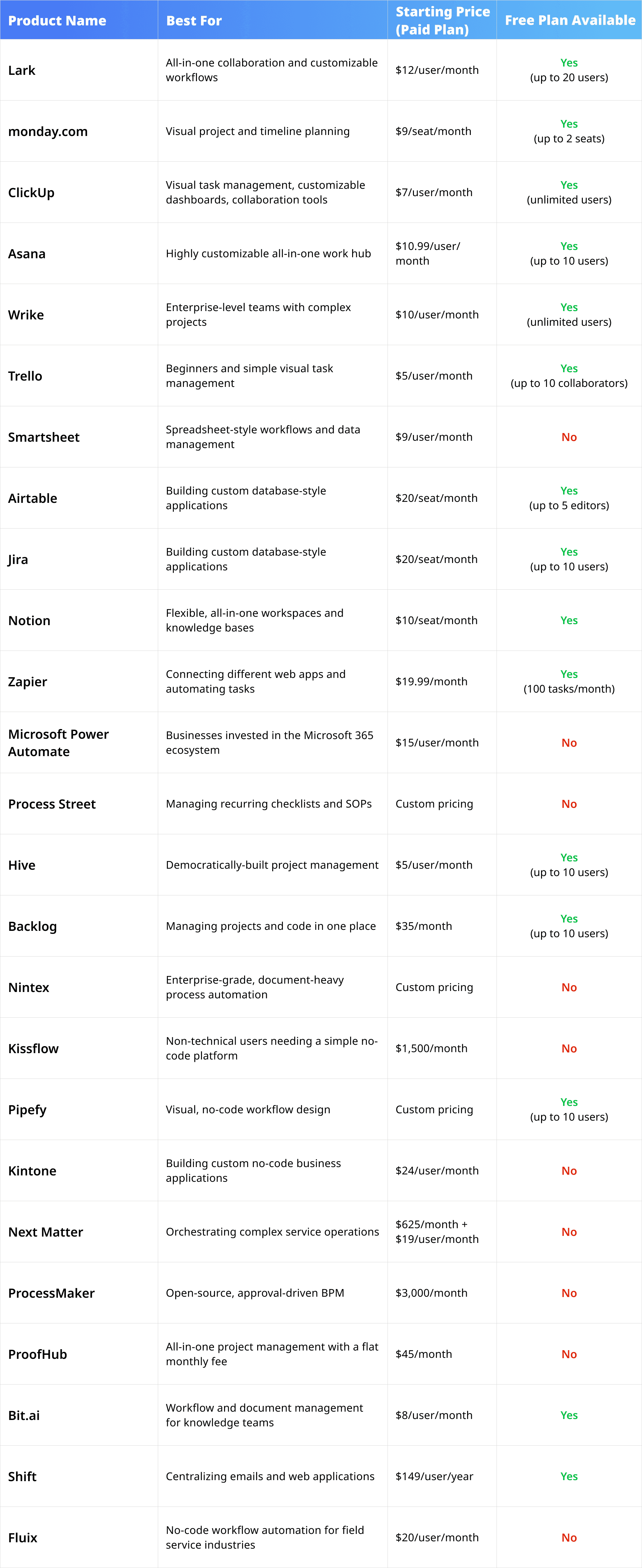
The 25 best workflow management software solutions of 2026
Lark
Best for: All-in-one collaboration and customizable workflows
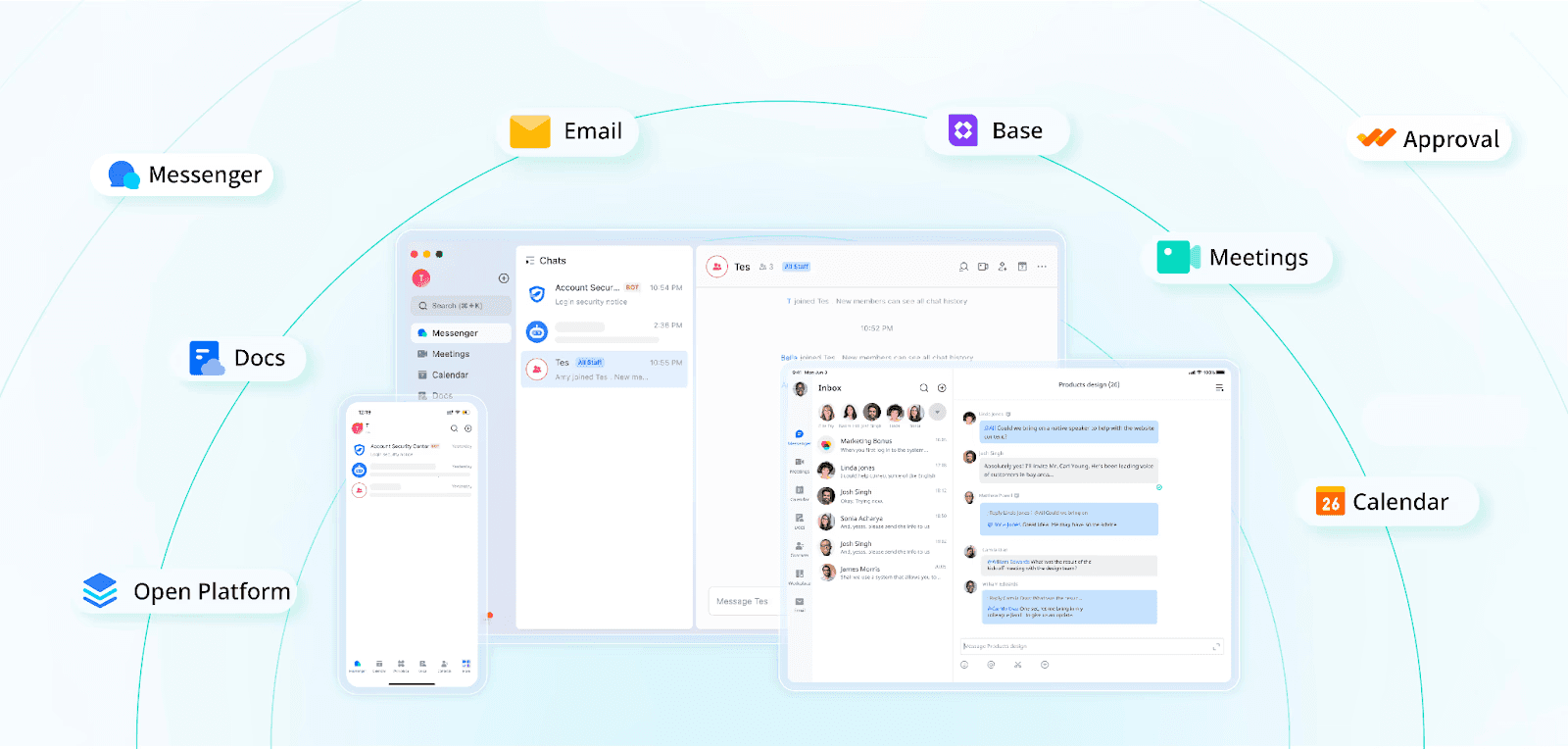 Lark is a productivity app that is designed to tackle the problem of sprawl of digital tools in the workplace. It consolidates all the essential apps that teams use every day, such as chat, video calls, documents, project management, and more onto one seamless, unified platform. This integrated approach is built to eliminate the friction of context switching, reduce software costs, and create a single source of truth that boosts operational efficiency and keeps everyone in sync.
Lark is a productivity app that is designed to tackle the problem of sprawl of digital tools in the workplace. It consolidates all the essential apps that teams use every day, such as chat, video calls, documents, project management, and more onto one seamless, unified platform. This integrated approach is built to eliminate the friction of context switching, reduce software costs, and create a single source of truth that boosts operational efficiency and keeps everyone in sync. Key features:
- Lark Base is a versatile tool that can be used to automate a wide variety of workflows. It's a powerful and intuitive no-code database tool that lets anyone, regardless of technical skill, build custom workflows, project trackers, approval systems, and interactive dashboards. You can easily connect data across tables, set up automated notifications, and visualize your work with views like Kanban, Gantt, calendar, grid, and more.
- Integrated messenger and meetings: Communication is at the heart of Lark. You can easily start a video call from a chat, co-edit documents during the meeting, and get an AI-powered transcript and summary afterward. Importantly, notifications from all the collaboration apps will be sent to the messenger, ensuring updates are not missed. It also includes unlimited, real-time translation for messages and documents in over 100 languages, making it easy to collaborate with global teams.
- Lark docs and wiki: More than just a word processor, Lark Docs are dynamic, collaborative documents. You can embed rich media, from polls to timers and tasks to spreadsheets directly into a document. The Wiki feature allows you to build a powerful, centralized knowledge base for your entire company, so important information is always easy to find.
- Built-in approval and OKR management: Streamline key business processes like purchase requests, leave applications, and budgets with customizable approval workflows that happen right within chat. The dedicated OKR tool helps you set, track, and align team goals with company-wide objectives, providing clarity and focus.
- All-in-one platform with open capabilities: While Lark provides everything most teams need out of the box, it’s still an open platform. You can connect Lark with other business tools you're already using so you won't have to completely reinvent your entire workflow.
- Starter: Free forever for up to 20 users. This plan comes with 11 apps that works seamlessly together, and includes 100GB of storage, 1,000 automated Base workflow executions per month, unlimited AI translation, and enterprise search.
- Pro: $12 per user/month (billed annually). This plan is for growing teams of up to 500 users and includes 15 TB of storage, 50,000 workflow executions, unlimited AI meeting transcription, and group video calls.
- Enterprise: Custom pricing for large organizations needing unlimited users, advanced security controls like SSO, and supergroups for up to 50,000 members.
Pros:
- A true all-in-one platform that significantly reduces software costs and eliminates the productivity drain of app-switching.
- A generous free plan that is a great value that is perfect for small to midsized teams to get started.
- The user interface is clean, modern, incredibly fast, and intuitive that is easy to navigate and customize.
- Lark Base is a powerful yet accessible no-code workflow builder that empowers any team member to create custom solutions.
- Advanced AI features, such as real-time translation and AI meeting summaries, are included in all plans, even the free one.
Cons:
- Teams may need some time to learn how to use all the tools in the suite, though customer support and comprehensive help center documentation are available.
Monday.com
Best for: Visual project and timeline planning for mid-to-large teams.
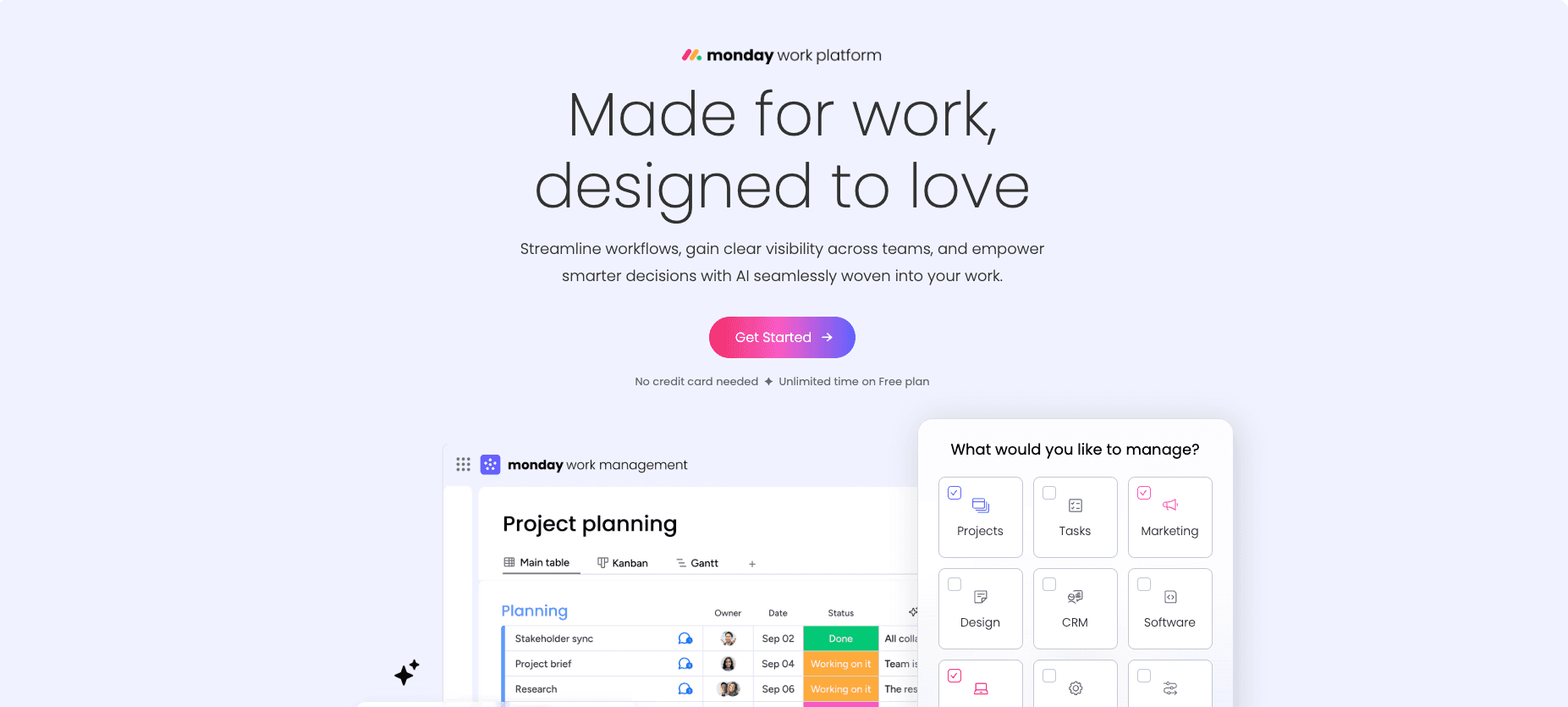 Image source: monday.com
Image source: monday.comMonday.com is a highly visual and colorful platform that aims to help teams manage projects, deadlines, and complex workflows. It’s particularly strong for standardizing processes and providing clear, at-a-glance visibility through its customizable dashboards and timeline views, making it a favorite among teams that need to juggle multiple deadlines.
Key features:
- Visual boards and views: Monday.com's flexible boards can be viewed as Kanban, Gantt charts, calendars, and timelines to suit different needs.
- Customizable dashboards: Create real-time dashboards that pull data from multiple boards to track progress, monitor budgets, and gain high-level insights.
- Workflow automation recipes: Use pre-built automation "recipes" or create your own to handle repetitive tasks like sending notifications or moving tasks between stages.
- Extensive integrations: Connects with a wide range of popular business tools, including Slack, Dropbox, Adobe Creative Cloud, and Salesforce.
Pricing:
- Free: $0 for up to 2 seats, with a limit of 3 boards and 200+ templates.
- Basic: Starts at $9 per seat/month (billed annually) with a 3-seat minimum. Includes unlimited items and 5 GB of storage.
- Standard: Starts at $12 per seat/month (billed annually).
- Pro: Starts at $19 per seat/month (billed annually).
- Enterprise: Custom pricing for advanced security and governance features.
Pros:
- The highly visual and intuitive interface makes it easy to track project progress at a glance.
- Excellent for standardizing processes and creating powerful custom dashboards.
- Strong automation and integration capabilities allow it to connect with many other tools in your stack.
Cons:
- The pricing model can be confusing and expensive, with separate products for Work Management, Sales CRM, and Dev that can quickly increase costs.
- The free plan is very restrictive and not practical for most teams.
- Every team member who needs to do more than just view boards requires a paid license, which can make it costly for larger teams.
ClickUp
Best for: Highly customizable all-in-one work hub for tech-savvy teams.
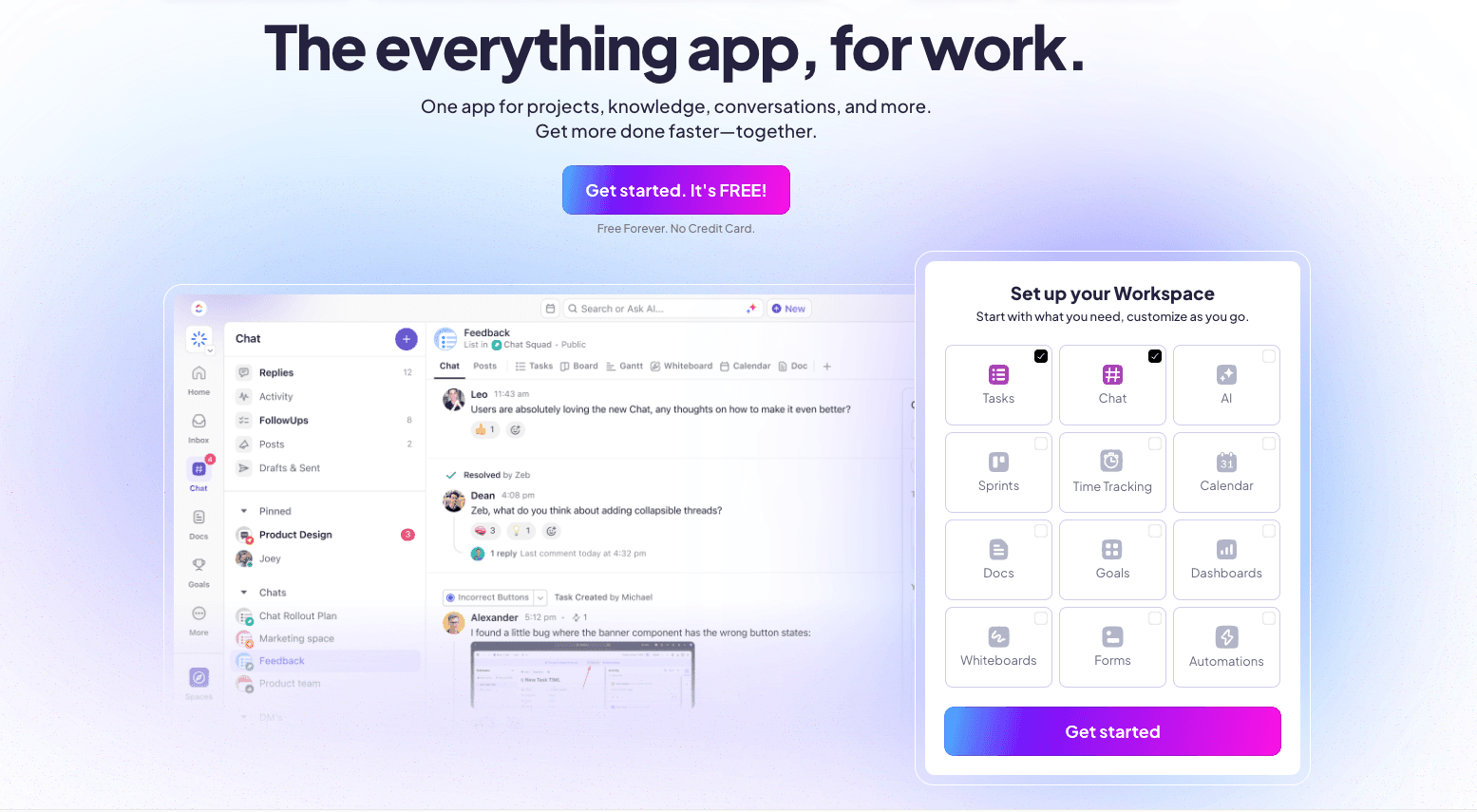 Image source: Clickup
Image source: ClickupClickUp positions itself as the "everything app for work," aiming to consolidate all your productivity tools into a single platform. With a wide range of customizable features, it's designed for teams that want granular control and tailor every aspect of their workflow, from custom task statuses to unique project views.
Key features:
- 15+ customizable views: Offers an extensive range of views, including List, Board, Calendar, Gantt, and Box view, allowing teams to visualize work in whatever way suits them best.
- Advanced task management: Features include custom fields, custom statuses, task dependencies, priorities, and multiple assignees for granular control over tasks.
- Integrated docs, whiteboards, and chat: Provides built-in tools for knowledge management, visual collaboration, and real-time team communication, reducing the need for external apps.
- Powerful automation builder: Create custom automation rules to streamline workflows, assign tasks, post comments, and move statuses automatically.
Pricing:
- Free Forever: $0 for unlimited tasks and members, but with only 60 MB of storage.
- Unlimited: $7 per user/month (billed annually).
- Business: $12 per user/month (billed annually).
- Enterprise: Custom pricing.
Pros:
- Feature-rich and customizable, offering a solution for a wide variety of workflows or processes.
- The free plan has a generous user limit, making it accessible for teams to try out.
- Powerful collaboration tools, including real-time editing in Docs and an integrated chat view.
Cons:
- The vast number of features and customization options can be overwhelming for new users, leading to a steep learning curve.
- The interface can feel cluttered and has been reported to be slow or laggy at times, especially with large projects.
- The mobile app is often considered less intuitive and more challenging to navigate than the desktop version.
Asana
Best for: Cross-functional project management for marketing and business teams.
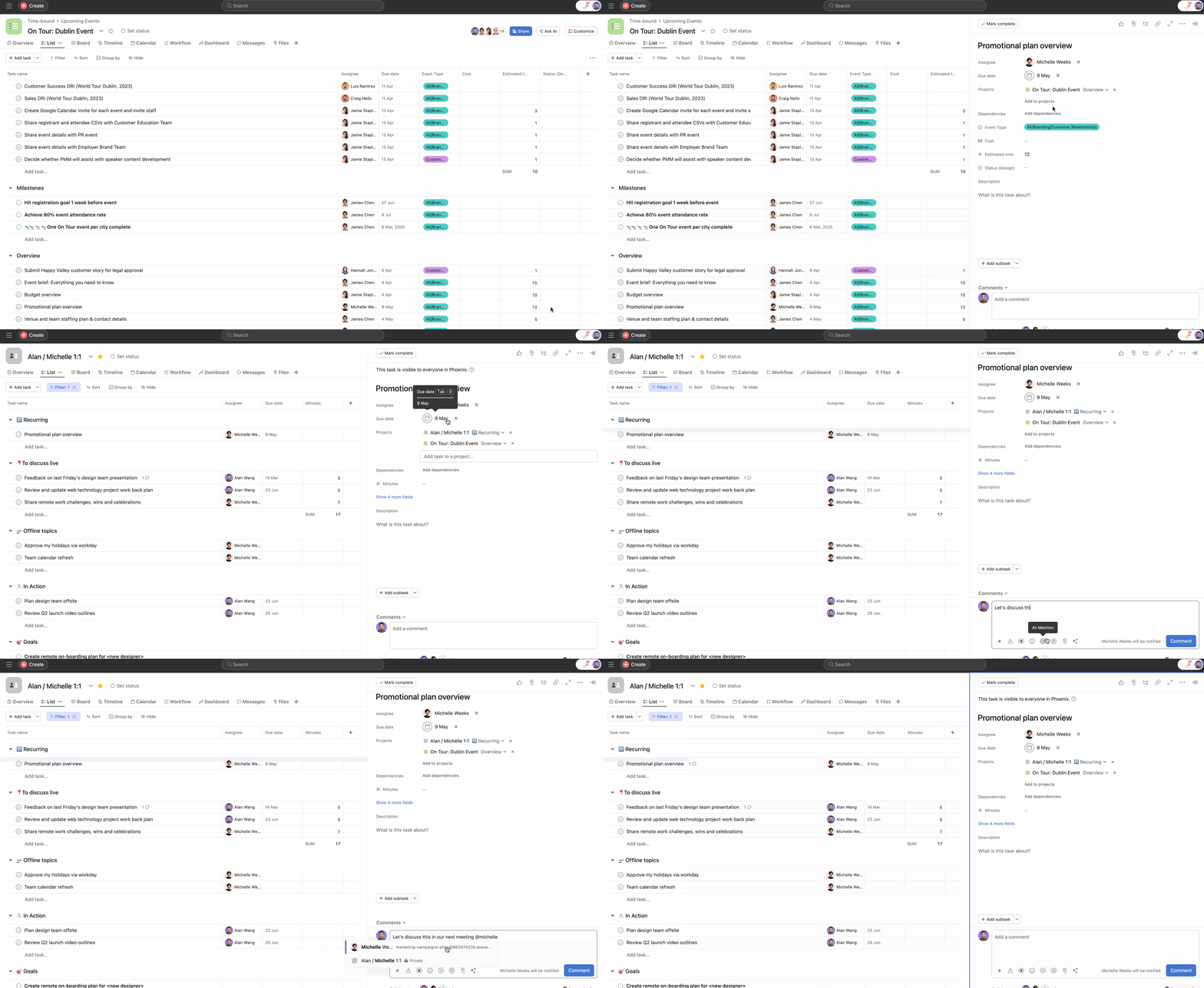 Image source: Asana.com
Asana is a popular and well-established project management tool that helps teams organize, track, and manage their work. It's particularly effective for managing projects with many interconnected tasks across different departments, such as marketing campaigns, product launches, and operational workflows.
Key features:
- Multiple project views: View work in various formats, including List, Board, Calendar, and Timeline, to suit different project management styles.
- Goals and portfolios: Connect strategic company objectives to the projects and portfolios that support them, providing a clear line of sight from daily tasks to business goals.
- Workflow builder and rules: Create workflows to automate routine tasks and create standardized processes using a visual workflow builder and custom rules.
- Reporting and dashboards: Generate real-time reports and dashboards to monitor project progress, track key metrics, and identify risks.
- App integrations: Integrates with hundreds of business tools like Slack, Microsoft Teams, Salesforce, and Adobe Creative Cloud to keep work connected.
Pricing:
- Personal: Free forever for individuals and teams of up to 10 people. Includes unlimited tasks, projects, and storage.
- Starter: $10.99 per user/month (billed annually). Adds the workflow builder, timeline view, and unlimited dashboards.
- Advanced: $24.99 per user/month (billed annually). Includes portfolios, goals, workload management, and time tracking.
- Enterprise: Custom pricing for advanced security, control, and support.
Pros:
- The user-friendly interface is easy to navigate for core tasks.
- The Goals feature is excellent for connecting daily work to strategic company objectives.
- Robust free plan offers a lot of functionality for small teams.
Cons:
- Can be more expensive than many competitors, especially at the Advanced tier.
- Customer service and support are often cited as being subpar or non-existent, particularly for enterprise issues.
- The mobile applications are considered weaker and less functional than the desktop version.
Wrike
Best for: Enterprise-level teams with complex project needs.
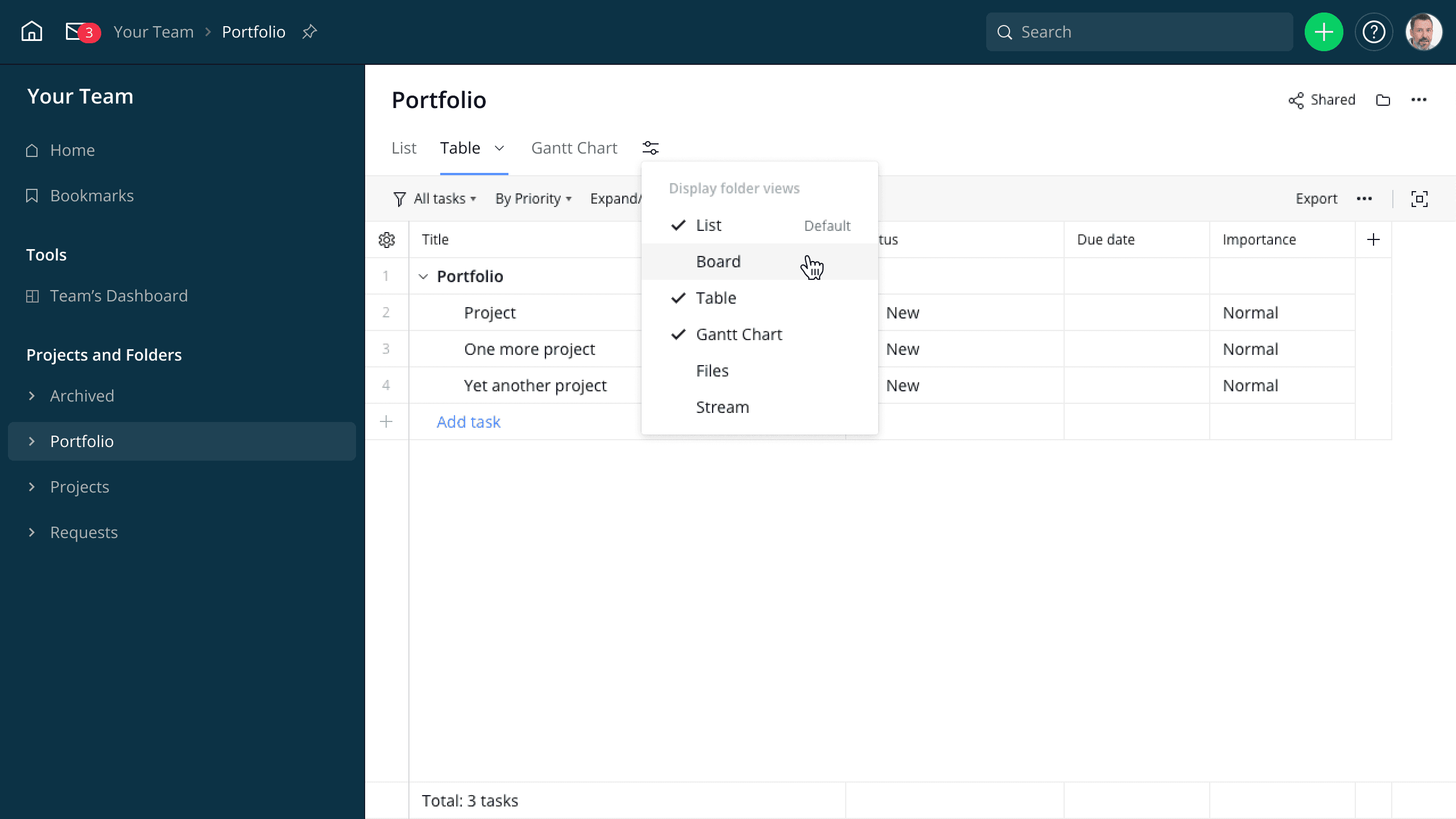 Image source: Wrike.com
Image source: Wrike.comWrike is a powerful and versatile enterprise workflow management software designed to give large teams detailed control over complex projects and cross-functional workflows. It's built for scalability and offers robust features for resource management, advanced reporting, and enterprise-grade security.
Key features:
- Customizable dashboards and reports: Create shareable, real-time dashboards and reports to get 360-degree visibility across all projects and teams.
- Dynamic request forms: Use conditional logic to build smart request forms that automatically assign tasks and route work to the correct team for more efficient workflows.
- Interactive Gantt charts and workload views: Plan projects, manage dependencies, and visualize team capacity with interactive timelines and workload management tools.
- Proofing and approvals: A built-in tool for collaborating on creative assets, allowing for direct feedback, version comparison, and streamlined approval cycles.
- Enterprise-grade security: Offers advanced security features like custom access roles, user audit reports, and add-ons like Wrike Lock for managing encryption keys.
Pricing:
- Free: $0 for unlimited users, but features are very limited and 2 GB of storage.
- Team: $10 per user/month (2-25 users). Adds shareable dashboards and interactive Gantt charts.
- Business: $24.80 per user/month (5-200 users). Includes custom fields, automation, time tracking, and proofing.
- Enterprise & Pinnacle: Custom pricing for large teams needing advanced security, analytics, and resource management.
Pros:
- A powerful and versatile platform capable of managing complex projects and portfolios.
- Excellent security and administrative controls make it a strong choice for enterprises.
- Offers a wide range of integrations with over 400 applications.
Cons:
- Has a steep learning curve, and the interface can be overwhelming for new users.
- Many essential features, like time tracking or advanced integrations, are locked behind the more expensive Business and Enterprise plans.
- The pricing structure can be confusing, with pricey add-ons and a significant price jump between tiers.
Trello
Best for: Beginners and simple, visual task management.
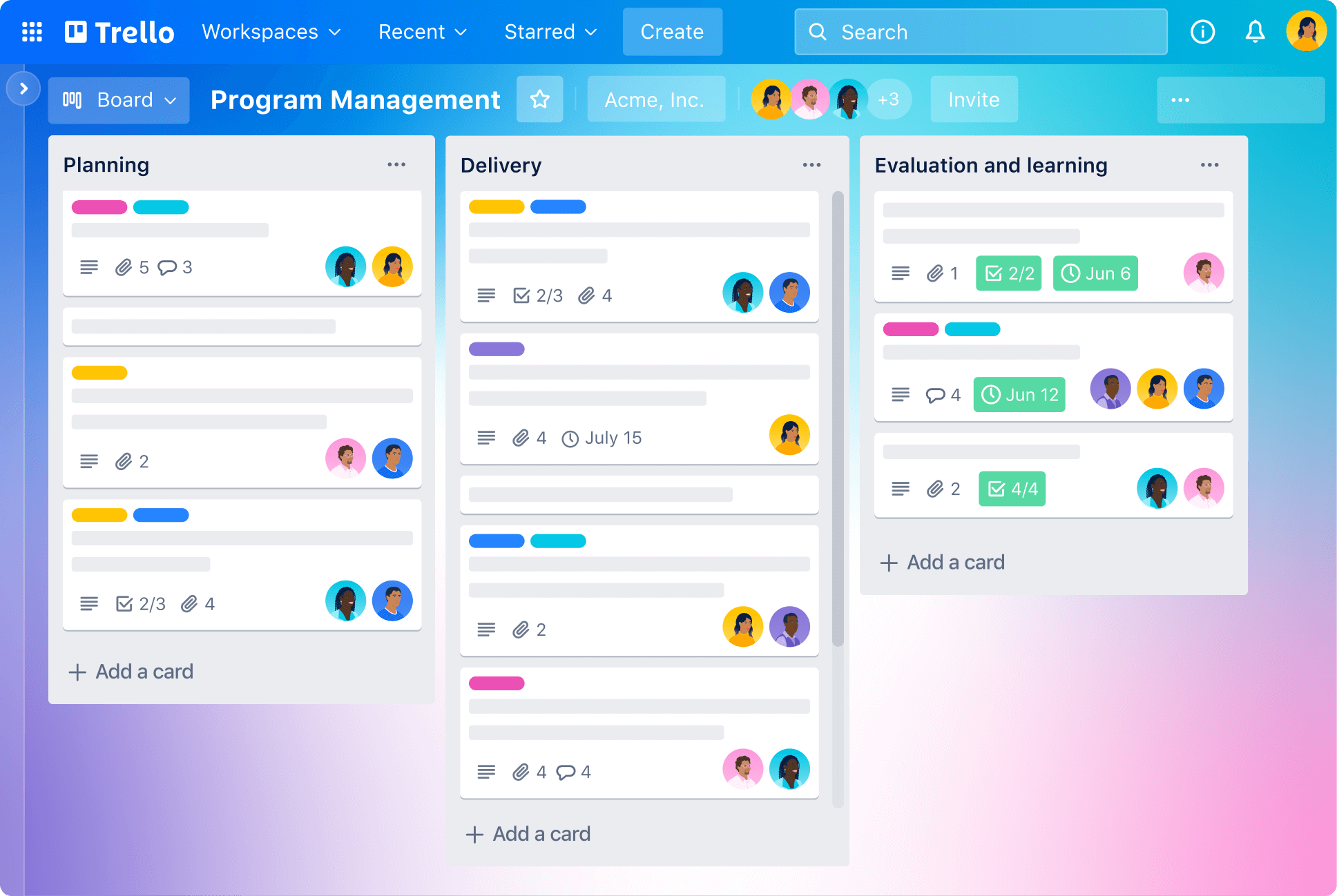 Image source: Trello.com
Image source: Trello.comTrello is the classic Kanban-style workflow tool, famous for its simplicity and ease of use. It uses a visual system of boards, lists, and cards that you can drag and drop to track the progress of tasks. It's an excellent choice for individuals, students, and small teams managing straightforward projects or personal to-do lists. In fact, a lot of its customers cite ease of use as the reason for choosing Trello.
Key features:
- Kanban boards: The core of Trello, allowing you to visualize your workflow in columns (e.g., To Do, Doing, Done) and move tasks (cards) between them.
- Cards with checklists and due dates: Each card can contain detailed information, including descriptions, file attachments, checklists, labels, and due dates.
- Automation: A no-code automation tool built into every board that can create rules, buttons, and commands to automate repetitive actions.
- Power-ups and integrations: Extend Trello's functionality by integrating with over 200 apps like Slack, Google Drive, and Jira, or by adding "Power-Ups" for features like calendars and custom fields.
Pricing:
- Free: $0 for up to 10 collaborators per Workspace. Includes unlimited cards, but is limited to 10 boards.
- Standard: $5 per user/month (billed annually). Adds unlimited boards, advanced checklists, and custom fields.
- Premium: $10 per user/month (billed annually). Includes all views (Timeline, Calendar, etc.), advanced automation, and admin controls.
- Enterprise: Starts at $17.50 per user/month (billed annually) for organization-wide permissions and security.
Pros:
- Extremely intuitive and easy to use, with virtually no learning curve, making it perfect for beginners.
- The visual Kanban board approach is great for simplifying complex processes into manageable steps.
- Affordable pricing with a generous free plan that is great for personal use or small teams.
Cons:
- Lacks advanced project management features like native Gantt charts, time tracking, and detailed reporting, making it unsuitable for complex projects.
- Not easily scalable for large teams or organizations with complex, multi-stage workflows.
- The free plan's limit of 10 collaborators and 10 boards can be restrictive for growing teams.
Smartsheet
Best for: Teams that love spreadsheets and need powerful data management.
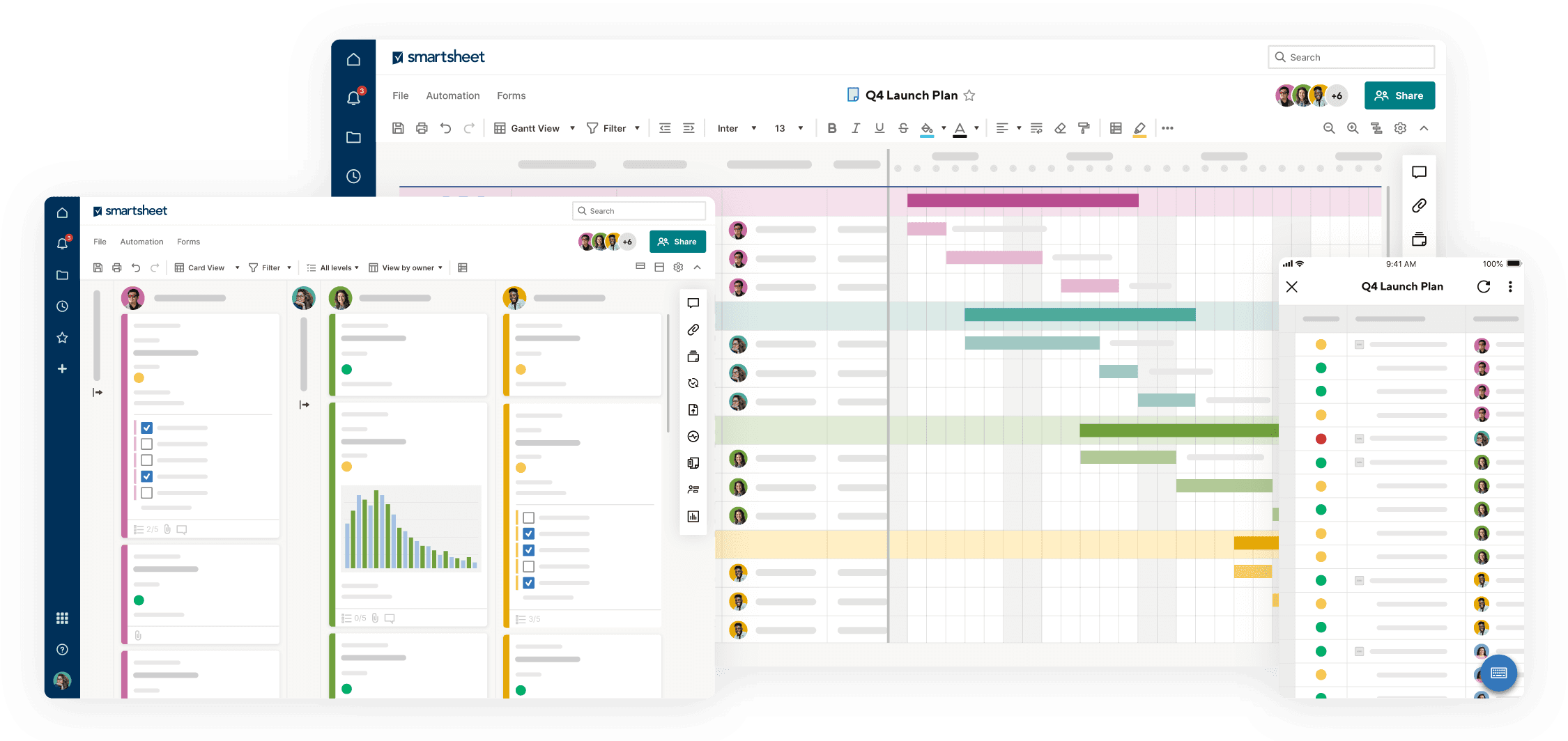 Image source: smartsheet.com
Image source: smartsheet.comSmartsheet is a workflow management platform that combines grid-like interface of a spreadsheet with powerful project management capabilities. It's designed for teams that are comfortable working in spreadsheets but need more robust features for automation, collaboration, and reporting to manage their projects and processes.
Key features:
- Grid, Gantt, card, and calendar views: While the core is a grid, you can easily switch to other views to visualize your data as a project plan, Kanban board, or calendar.
- Workflow automation: Build automated workflows to send alerts, request approvals, and update rows based on specific triggers and conditions.
- Dashboards and reports: Create customizable, widget-based dashboards that provide real-time visibility into project status, key metrics, and trends by pulling data from multiple sheets.
- Forms: Build forms with conditional logic to collect consistent data from internal or external stakeholders, which automatically populates your sheets.
- Extensive integrations: Connects with a wide array of business tools, including Microsoft 365, Google Workspace, Salesforce, and Jira, to keep data in sync across your tech stack.
Pricing:
- Free: $0 for one user and up to two editors. Includes basic features for a single project.
- Pro: $7 per user/month (billed annually). For teams of up to 10 users, with unlimited sheets and 250 automations per month.
- Business: $25 per user/month (billed annually). For teams of 3+, adding unlimited automations, workload tracking, and proofing.
- Enterprise: Custom pricing for advanced features like AI, enterprise-grade security, and premium integrations.
Pros:
- The spreadsheet-like interface is familiar and easy to adopt for teams accustomed to Excel or Google Sheets.
- Wide array of features for data management, with robust formulas, cross-sheet linking, and reporting capabilities.
- Strong automation and workflow features help streamline repetitive processes effectively.
Cons:
- Can feel less intuitive and more rigid for teams that prefer more visual, drag-and-drop interfaces.
- Some users report that pages and sheets can be slow to load, especially with large amounts of data.
- Pricing for advanced features and premium apps (like Dynamic View or Control Center) can become quite high.
Airtable
Best for: Building custom database-style applications and workflows.
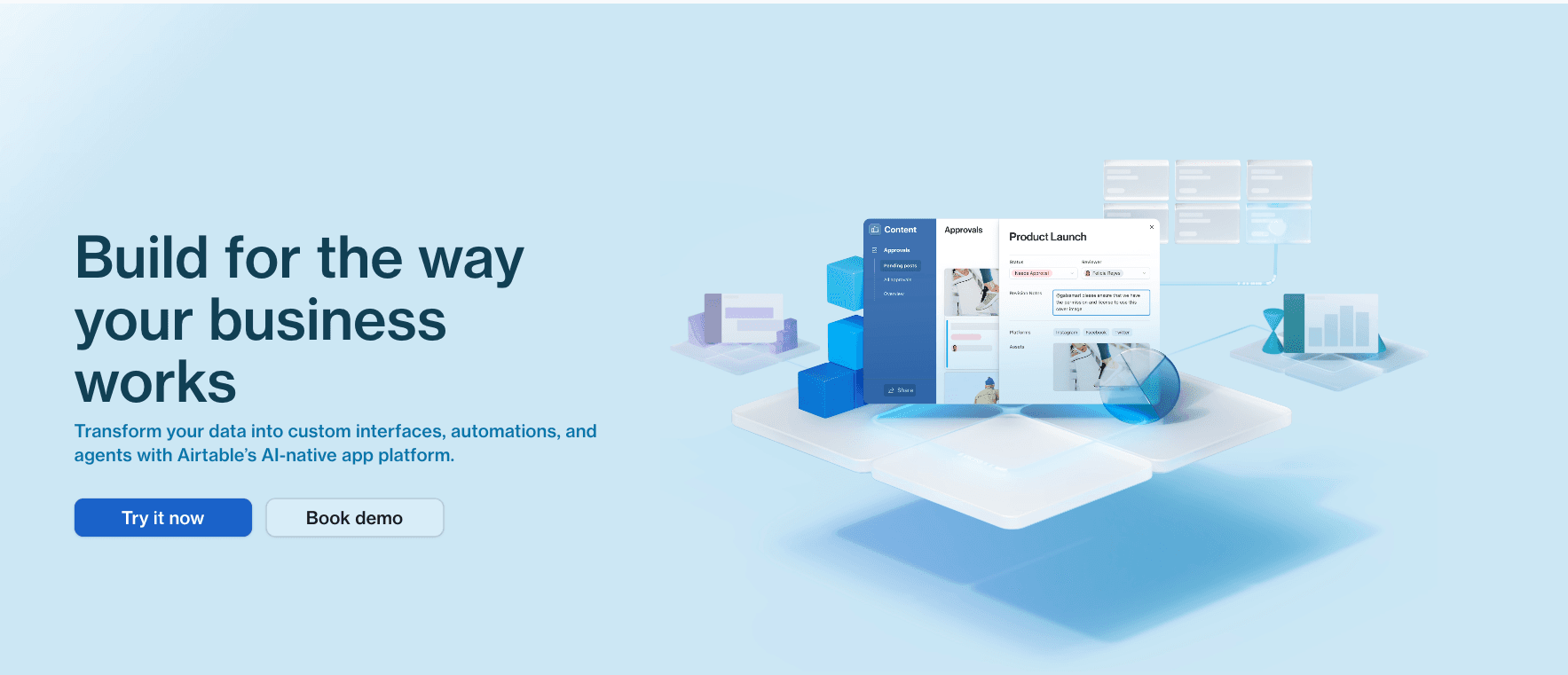 Image source: Airtable.com
Image source: Airtable.comAirtable is a highly flexible platform that blends the simplicity of a spreadsheet with the power of a relational database. It's a no-code/low-code tool that empowers teams to build their own custom applications for managing anything from a content calendar and product roadmap to a lightweight CRM or inventory tracker.
Key features:
- Flexible databases: Create powerful databases with rich field types like attachments, checkboxes, dropdowns, and links to records in other tables.
- Customizable views: Visualize your data in multiple ways, including Grid, Calendar, Kanban, Gallery, Gantt, and Form views, to suit any workflow.
- Interface designer: Build custom, interactive interfaces on top of your data, allowing collaborators to view and interact with information without being overwhelmed by the entire database.
- Automations: Set up automations that trigger actions within Airtable or in external apps like Slack and Gmail when records are created or updated.
- Airtable AI: An integrated AI feature that can help summarize data, generate content, categorize records, and assist in building apps with natural language prompts.
Pricing:
- Free: $0 for up to 5 editors. Includes unlimited bases but is limited to 1,000 records and 1 GB of attachments per base.
- Team: $20 per seat/month (billed annually). Increases limits to 50,000 records per base, 20 GB of attachments, and 25,000 automation runs.
- Business: $45 per seat/month (billed annually). For growing teams, with 125,000 records per base, advanced admin controls, and two-way sync.
- Enterprise Scale: Custom pricing for large organizations needing advanced security, scalability, and support.
Pros:
- Versatile and flexible, allowing you to build almost any custom workflow or application you can imagine.
- The user-friendly, colorful interface makes database concepts accessible to non-technical users.
- Excellent for organizing and managing structured data in a collaborative environment.
Cons:
- Has a steep learning curve to master its more advanced features, like formulas and relational database design.
- The per-seat pricing model can become very expensive as your team and data grow, with strict limits on records and automations forcing upgrades.
- Lacks some of the built-in, dedicated collaboration and communication tools found in all-in-one platforms.
Jira
Best for: Agile software development teams.
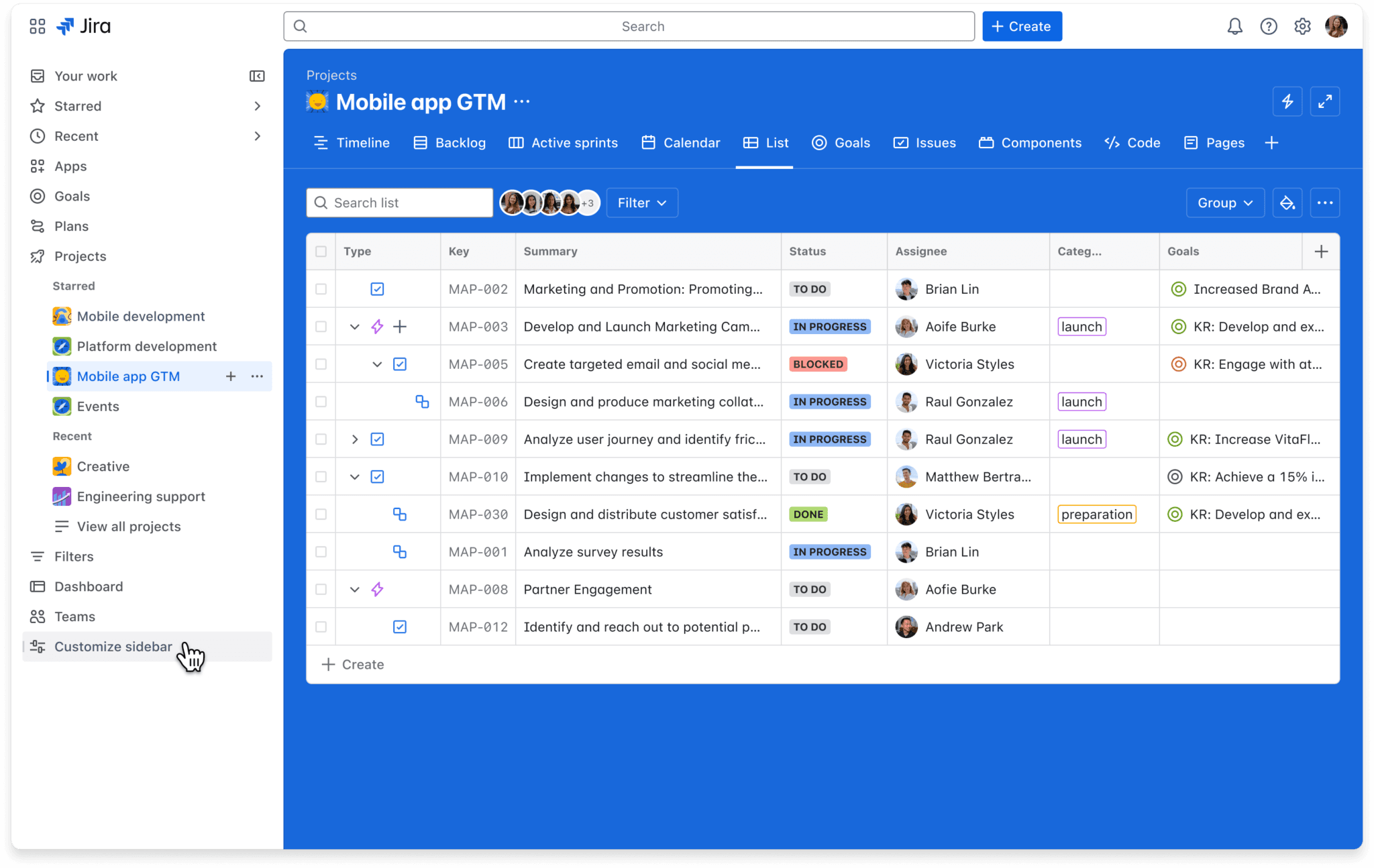 Image source: atlassian.com
Image source: atlassian.comJira, from Atlassian, is a well-known agile project management software. It is purpose-built for planning, tracking, and releasing software, with deep features for managing sprints, backlogs, user stories, and bug tracking. While it can be adapted for other business projects, its DNA is rooted in software development.
Key features:
- Scrum and Kanban boards: Highly customizable boards designed specifically for agile methodologies, allowing teams to manage sprints and visualize their workflow.
- Advanced roadmaps: Plan and track work across multiple teams and projects on a timeline to manage dependencies and communicate plans to stakeholders.
- Customizable workflows and issue types: Tailor Jira to match your team's exact process by creating custom issue types (e.g., Story, Bug, Task) and workflows to move them from "To Do" to "Done".
- Powerful reporting: Generate detailed agile reports like burndown charts, velocity charts, and cumulative flow diagrams to monitor progress and improve team performance.
Pricing:
- Free: $0 for up to 10 users. Includes Scrum and Kanban boards, backlog, and 2 GB of storage.
- Standard: Starts at $8.15 per user/month (average). Adds user roles and permissions and increases storage to 250 GB. Note: Atlassian uses a progressive pricing model where the per-user cost decreases as you add more users.
- Premium: Starts at $16 per user/month (average). Includes advanced roadmaps, unlimited storage, and more automation rules.
- Enterprise: Custom pricing for enterprise-grade security, scalability, and support.
Pros:
- A powerful and feature-rich tool for agile software development teams.
- Highly customizable workflows allow it to adapt to any development process.
- Seamless integration with a massive ecosystem of developer tools and Atlassian products.
Cons:
- The interface is complex, cluttered, and filled with technical jargon, making it overwhelming and non-intuitive for non-technical teams.
- Has a very steep learning curve, even for project managers.
- While powerful for its niche, it can be overkill and poorly suited for general business project management.
Notion
Best for: Flexible, all-in-one workspaces combining docs, wikis, and tasks.
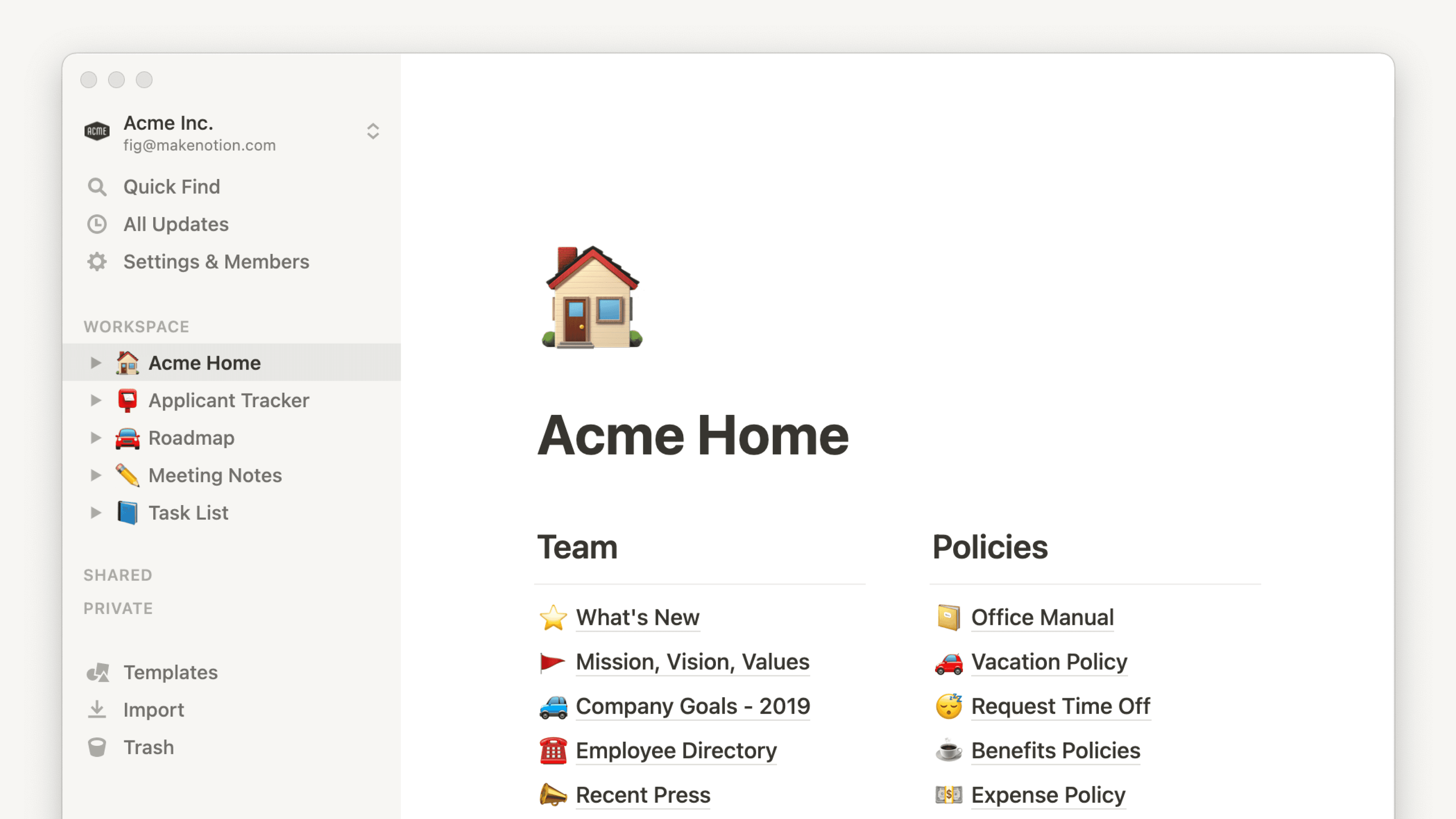 Image source: notion.com
Image source: notion.comNotion is like a digital set of building blocks for your work. It started as a note-taking app and has evolved into a highly flexible workspace where you can create interconnected docs, wikis, databases, and project trackers. It's beloved by individuals and teams who want to build their own custom solution for knowledge management and light project management.
Key features:
- Connected docs and pages: Create pages for anything and easily nest them or link them together to build a powerful internal wiki or knowledge base.
- Databases with multiple views: Create simple but powerful databases to track projects, tasks, or anything else, and visualize them as tables, boards, lists, calendars, and galleries.
- Notion AI: An AI assistant that can help you write, summarize, brainstorm ideas, and translate content directly within your pages.
- Real-time collaboration: Work on pages and databases with your team simultaneously, with comments and mentions to keep communication in context.
Pricing:
- Free: $0 for individuals, with unlimited pages and blocks. You can invite up to 10 guests.
- Plus: $8 per seat/month (billed annually). For small teams, offering unlimited blocks for teams and unlimited file uploads.
- Business: $15 per user/month (billed annually). Adds SAML SSO, private teamspaces, and advanced page analytics.
- Enterprise: Custom pricing for advanced controls, security, and a dedicated success manager.
Pros:
- Flexible and versatile, allowing you to build a custom workspace tailored to your exact needs.
- Excellent for creating beautiful and functional internal wikis and knowledge bases.
- The free plan is great for personal use and small-scale collaboration.
Cons:
- Lacks some of the robust, dedicated project management features of competitors, such as advanced reporting, native Gantt charts, or complex dependency management.
- The sheer flexibility can be a double-edged sword; without a clear structure, it can quickly become disorganized and messy.
- Automation capabilities are more limited compared to dedicated workflow automation tools.
Zapier
Best for: Connecting different web apps and automating simple tasks.
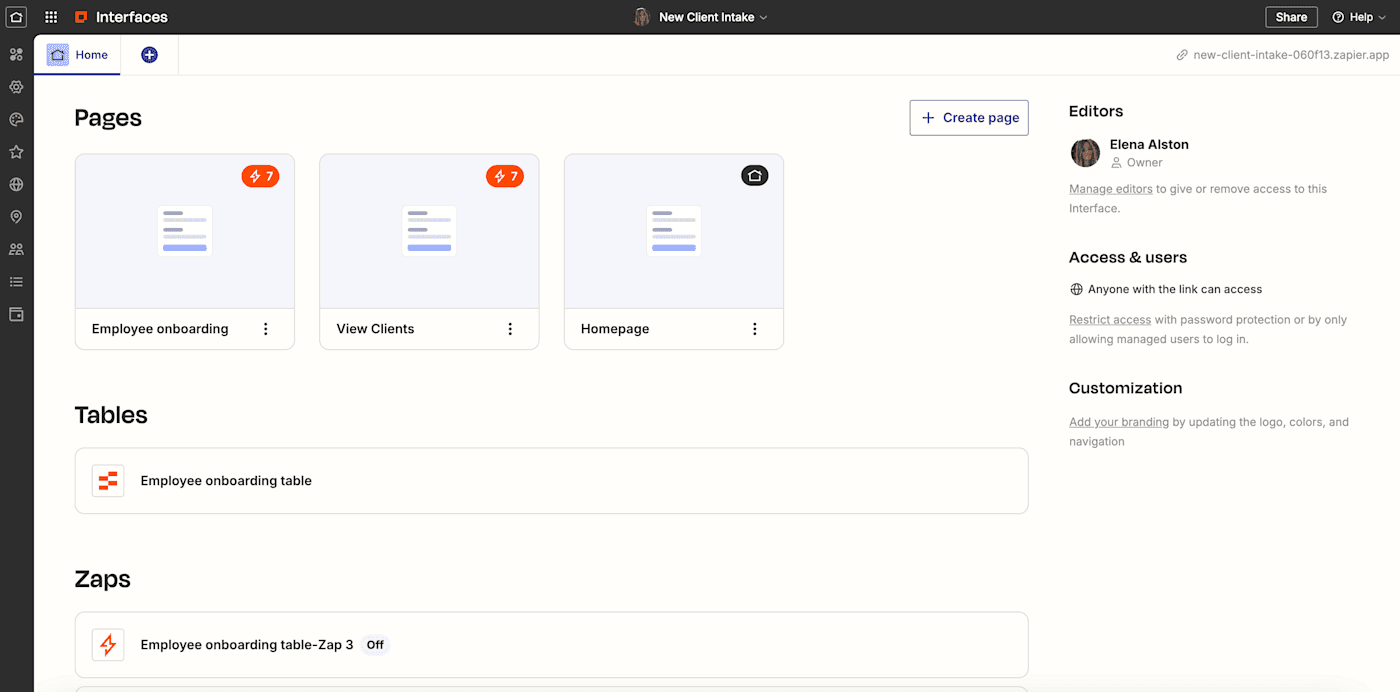 Image source: Zapier.com
Image source: Zapier.comZapier is the go-to app for integration. It's an automation tool that acts as a bridge between thousands of different web applications, allowing you to create automated workflows (called "Zaps") without writing a single line of code. If you need to make two or more apps talk to each other, Zapier is almost always the answer.
Key features:
- 7,000+ app integrations: Connects with a massive library of apps, including everything from Gmail and Slack to Salesforce and Shopify.
- Simple workflow editor: The visual editor makes it easy to set up a trigger (the "if this") and one or more actions (the "then that") to build your workflow.
- Multi-step Zaps: Paid plans allow you to create complex workflows with multiple steps and actions that run in sequence.
- Filters and paths: Add conditional logic to your Zaps, so they only run when certain conditions are met, allowing for more sophisticated automation.
- Built-in AI tools: Use AI to help generate code steps, map data fields between apps, and troubleshoot errors in your Zaps.
Pricing:
- Free: $0 for up to 100 tasks per month. Zaps can only have two steps and run every 15 minutes.
- Starter: Starts at $19.99/month (billed annually) for 750 tasks/month and multi-step Zaps.
- Professional: Starts at $49/month (billed annually) for 2,000 tasks/month and faster update times.
- Team: Starts at $69/month (billed annually) for 2,000 tasks/month and team collaboration features.
- Company: Custom pricing for large-scale automation needs.
Pros:
- An unparalleled number of integrations makes it possible to connect almost any tool in your tech stack.
- The user-friendly interface makes it easy for non-technical users to build simple automations quickly.
- A massive library of pre-built Zap templates helps you get started in minutes.
Cons:
- The task-based pricing model can become extremely expensive very quickly, especially for businesses with high-volume workflows.
- The free plan is very limited, with only 100 tasks per month and a 15-minute delay on Zaps, making it unsuitable for most business use cases.
- It lacks a dedicated mobile app for creating or managing Zaps on the go.
Microsoft Power Automate
Best for: Businesses heavily invested in the Microsoft 365 ecosystem.
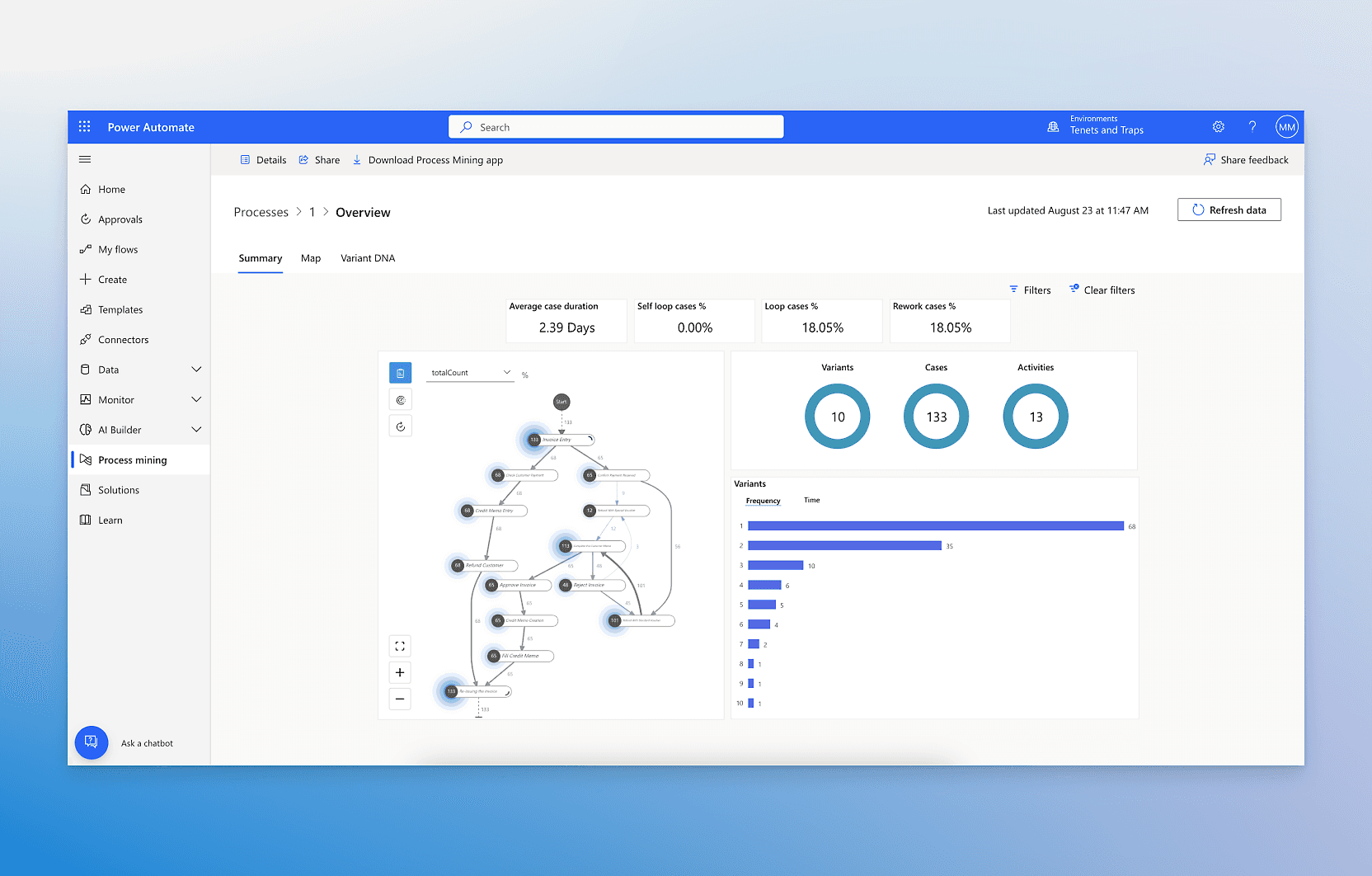 Image source: Microsoft.com
Image source: Microsoft.comPart of the Microsoft Power Platform, Power Automate is an enterprise-grade workflow automation tool designed to streamline processes across the entire Microsoft ecosystem and beyond. It offers both cloud-based automation (DPA) for connecting apps and services, and powerful desktop-based automation (RPA) for interacting with legacy systems.
Key features:
- Deep Microsoft 365 integration: Native experiences within Microsoft Teams, SharePoint, Excel, and Outlook allow you to build and trigger flows without leaving your favorite apps.
- Robotic Process Automation (RPA): Use desktop flows to automate tasks on legacy systems, websites, and desktop applications that don't have APIs.
- AI Builder and Copilot: Leverage built-in AI models to process documents, analyze text, and predict outcomes. Copilot allows you to build and edit automations using natural language.
- 1,000+ connectors: Connect to a wide range of Microsoft and third-party services, including Salesforce, Dropbox, and Google Drive.
- Process mining: Analyze your business processes to identify bottlenecks and discover new opportunities for automation.
Pricing:
- Power Automate Premium: $15 per user/month. Licenses individual users to build and run unlimited cloud and attended desktop flows.
- Power Automate Process: $150 per bot/month. Licenses a single automation "bot" that can run unattended desktop flows or be used by unlimited users in the organization.
Pros:
- Unmatched integration with the Microsoft 365 and Dynamics 365 ecosystem, making it a natural choice for organizations using those tools.
- Powerful RPA capabilities allow you to automate tasks on older, non-API systems, which many competitors can't do.
- Strong AI and process mining features provide deep insights and advanced automation possibilities.
Cons:
- Can be complex to configure, especially for users who are not already familiar with the Power Platform environment.
- Some specific connectors or advanced functions may require additional licenses or payments, which can complicate the cost structure.
- The user interface is less intuitive than some more modern, user-focused process workflow tools.
Process Street
Best for: Managing recurring checklists and standard operating procedures (SOPs).
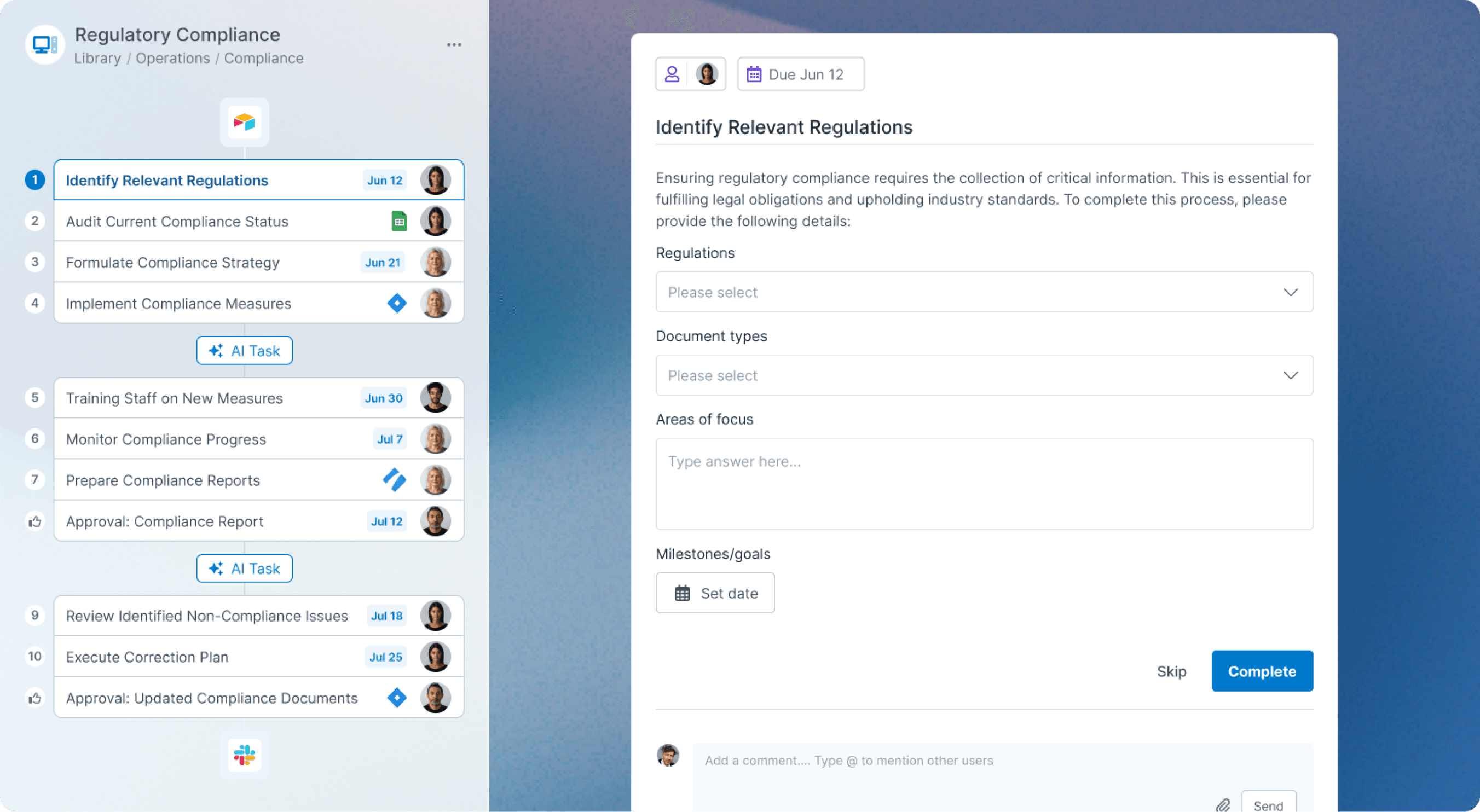 Image source: process.st
Image source: process.stProcess Street is a powerful workflow management platform focused on helping teams manage recurring checklists, procedures, and SOPs. It's designed to ensure consistency, reduce errors, and maintain compliance by turning your static process documents into interactive, automated workflows that guide your team through every step.
Key features:
- AI-powered workflow generator: Create a detailed workflow template in seconds from a simple text prompt or by importing a document.
- Dynamic checklists with conditional logic: Build smart checklists where steps can appear or disappear based on the inputs from previous tasks.
- Approvals: Add single or multi-level approval tasks into any workflow to ensure work is reviewed and signed off by the right people before moving forward.
- Task assignments and scheduling: Assign tasks to specific team members or roles, set dynamic due dates, and schedule workflows to run automatically.
Integrations and automation: Connect to over 1,000 other apps via Zapier, webhooks, or native integrations to automate actions like sending Slack messages or updating your CRM.
Pricing:
- Startup: Custom. Includes unlimited workflows and tasks for a set number of members.
- Pro: Custom. Adds more advanced features and support for larger teams.
- Enterprise: Custom pricing for advanced security, compliance (HIPAA), and dedicated support.
Pros:
- Excellent for creating and enforcing standardized processes, which is crucial for compliance, quality control, and training.
- The no-code workflow builder with conditional logic and approvals is powerful yet accessible to non-technical users.
- Strong automation and integration capabilities allow it to fit into a broader tech stack.
Cons:
- Can be overly structured and complex for teams needing a more flexible, creative project management tool.
- Some users have reported that the user interface can be clunky and that the reporting features are limited.
Hive
Best for: Democratically-built project management with flexible add-ons.
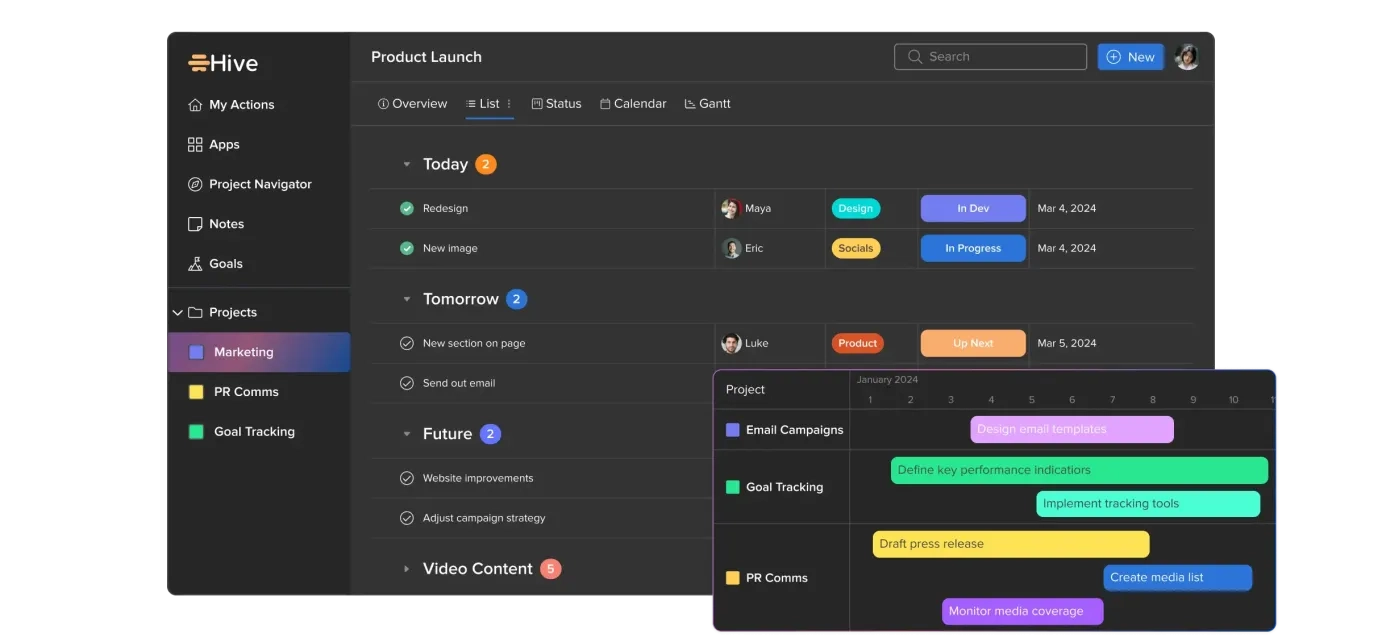 Image source: hive.com
Hive is an all-in-one collaboration and project management software that proudly calls itself "the world's only democratically-built platform". This means its features and development roadmap are heavily influenced by user feedback. It offers a solid set of core project management tools, with the ability to add more advanced functionality through add-ons.
Key features:
- Multiple project views: Manage and visualize your work with various views, including Kanban, Gantt, Calendar, and Table views.
- Native chat and email integration: Communicate with your team via direct messages and group chats, and bring your email inbox directly into Hive to manage communication without switching apps.
- Automation: Build easy-to-use workflows to automate task creation, status changes, and assignments to cut down on manual work.
- Forms and request intake: Use Hive Forms to streamline creative requests, client intake, or internal requests, and automatically create and assign tasks based on form submissions.
Pricing:
- Free: $0 forever for individuals and teams up to 10. Includes unlimited tasks and collaborative notes but has limited storage of 200MB.
- Starter: $5 per user/month (billed annually). For teams up to 10, adding Gantt view and integrations, but limited to 10 projects.
- Teams: $12 per user/month (billed annually). Unlocks unlimited users and projects, and serves as the base for adding premium features.
- Enterprise: Custom pricing for enhanced security, support, and all add-ons included.
Pros:
- Strong project management and collaboration features, including native chat and email.
- The democratic development process means the platform evolves based on what users actually want.
- The add-on model provides flexibility to only pay for the advanced features you need.
Cons:
- Many features that are standard in other platforms (like timesheets, resourcing, and approvals) are paid add-ons, which can significantly increase the total cost of the software.
- The Starter plan is quite limited, with a cap of only 10 projects.
- The need to purchase multiple add-ons can make the final price less transparent than a simple tiered plan.
Backlog
Best for: Teams that need to manage projects and code in one place.
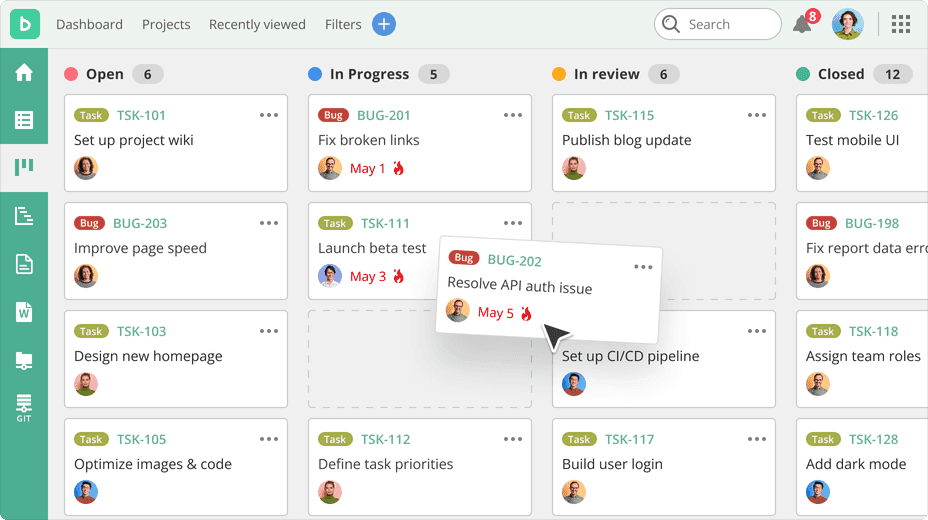 Image source: Nulab.com
Image source: Nulab.comBacklog, by Nulab, is an all-in-one project and code management tool designed for development teams. It uniquely combines traditional project management features like task tracking and Gantt charts with developer-centric tools like Git and Subversion repositories, bug tracking, and pull requests, allowing teams to manage their entire development lifecycle in a single platform.
Key features:
- Integrated version control: Host and manage Git and Subversion repositories directly within Backlog, linking code commits and pull requests to specific tasks and issues.
- Bug and issue tracking: A powerful system for tracking bugs, tasks, and requests, with customizable categories, priorities, and statuses.
- Project and task management: Organize work with parent tasks and subtasks, visualize timelines with Gantt and burndown charts, and track progress with Kanban-style boards.
- Wikis: Create a central knowledge base for each project to store documentation, meeting notes, and team resources.
- Code collaboration tools: Review code with inline comments, manage pull requests, and use a difference viewer to compare code changes, all within the context of your project tasks.
Pricing:
- Free: $0 for up to 10 users and 1 project, with 100 MB of storage.
- Starter: $35/month (flat fee) for up to 30 users and 5 projects. Adds subtasking and 1 GB of storage.
- Standard: $100/month (flat fee) for unlimited users and 100 projects. Adds Gantt charts and 30 GB of storage.
- Premium: $175/month (flat fee) for unlimited users and projects. Adds custom fields and 100 GB of storage.
Pros:
- Excellent for development teams, as it seamlessly combines project management with code management and bug tracking.
- The flat-rate monthly pricing for Standard and Premium plans is very affordable and predictable for larger teams.
- The visual tools like Gantt charts and Kanban boards make it easy for both technical and non-technical team members to collaborate.
Cons:
- The user interface can be confusing and not as intuitive for new users, especially those unfamiliar with developer-focused tools.
- It lacks some of the advanced project management features found in more general-purpose tools, such as robust reporting or time tracking widgets.
- The mobile app experience is often reported as being less functional than the desktop version.
Nintex
Best for: Enterprise-grade, document-heavy process automation.
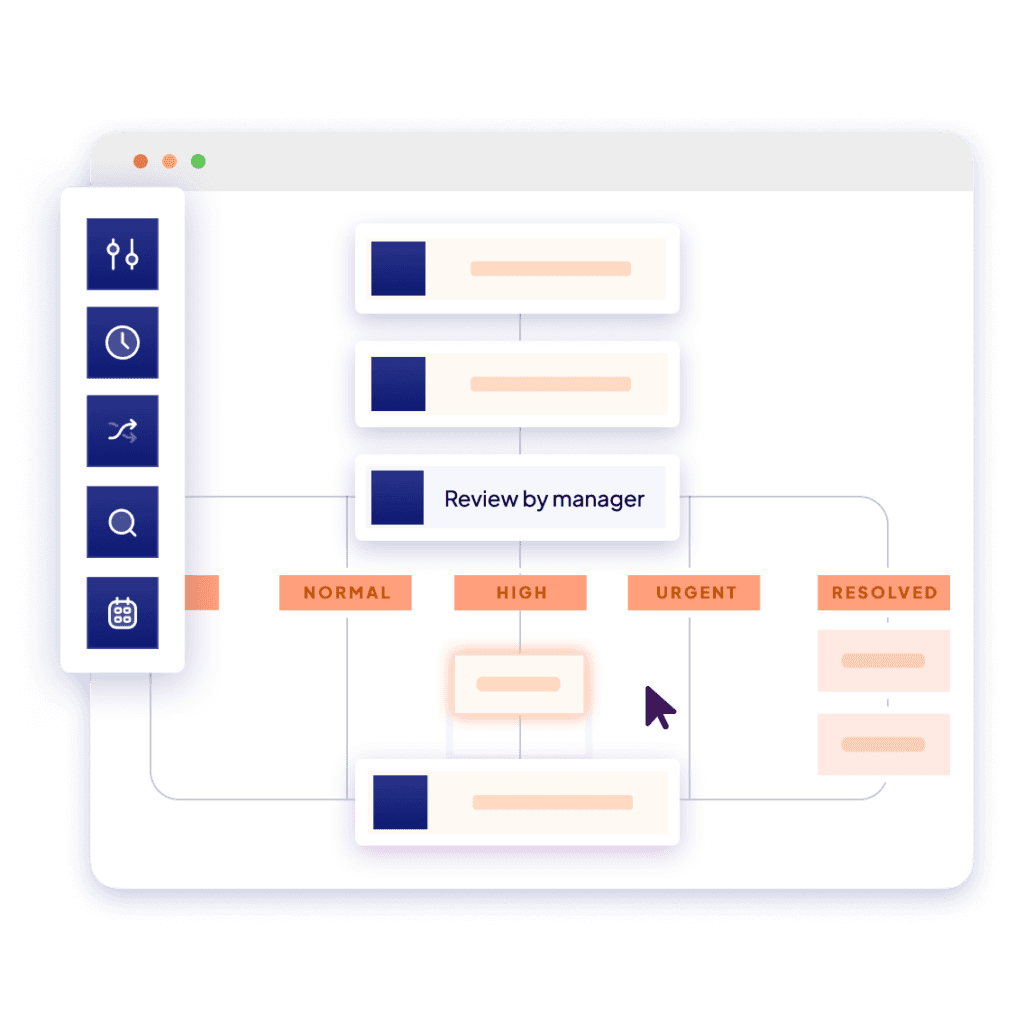 Image source: nintex.com
Image source: nintex.comNintex is a powerful and sophisticated enterprise workflow management software designed for automating complex, large-scale business processes, particularly those that are document-heavy. It offers a comprehensive suite of tools for process mapping, workflow automation, robotic process automation (RPA), and document generation, making it a go-to solution for large organizations looking to drive digital transformation.
Key features:
- Advanced workflow automation: Design and manage sophisticated workflows with drag-and-drop tools and agentic AI that connects people, systems, and data across the enterprise.
- Process management and mapping: Discover, document, and manage core business processes to ensure visibility, control, and compliance with standards like ISO.
- Document automation and eSign: Automatically generate and route documents like contracts and invoices, pulling data from multiple systems, and manage the entire e-signature process.
- Robotic Process Automation (RPA): Deploy software bots to handle repetitive, manual tasks on legacy systems and applications, freeing up human employees for higher-value work.
- Deep integration with Microsoft and Salesforce: Extends the capabilities of key enterprise platforms like SharePoint, Office 365, and Salesforce with powerful automation.
Pricing:
- Pro Plan: Custom pricing.
- Premium Plan: Custom pricing.
Pros:
- An extremely powerful and flexible platform for automating complex, mission-critical workflows across a large enterprise.
- Excellent for document-centric processes, with strong document generation and e-signature capabilities.
- Strong integration with core enterprise systems like Salesforce and the entire Microsoft stack.
Cons:
- The price point is very high, making it inaccessible for small and medium-sized businesses.
- Some users report that the RPA functionality is still maturing and needs improvement in areas like exception handling and integrations.
- Can have a significant learning curve, especially when implementing new or advanced features.
Kissflow
Best for: Non-technical users who need a simple, no-code platform for process building.
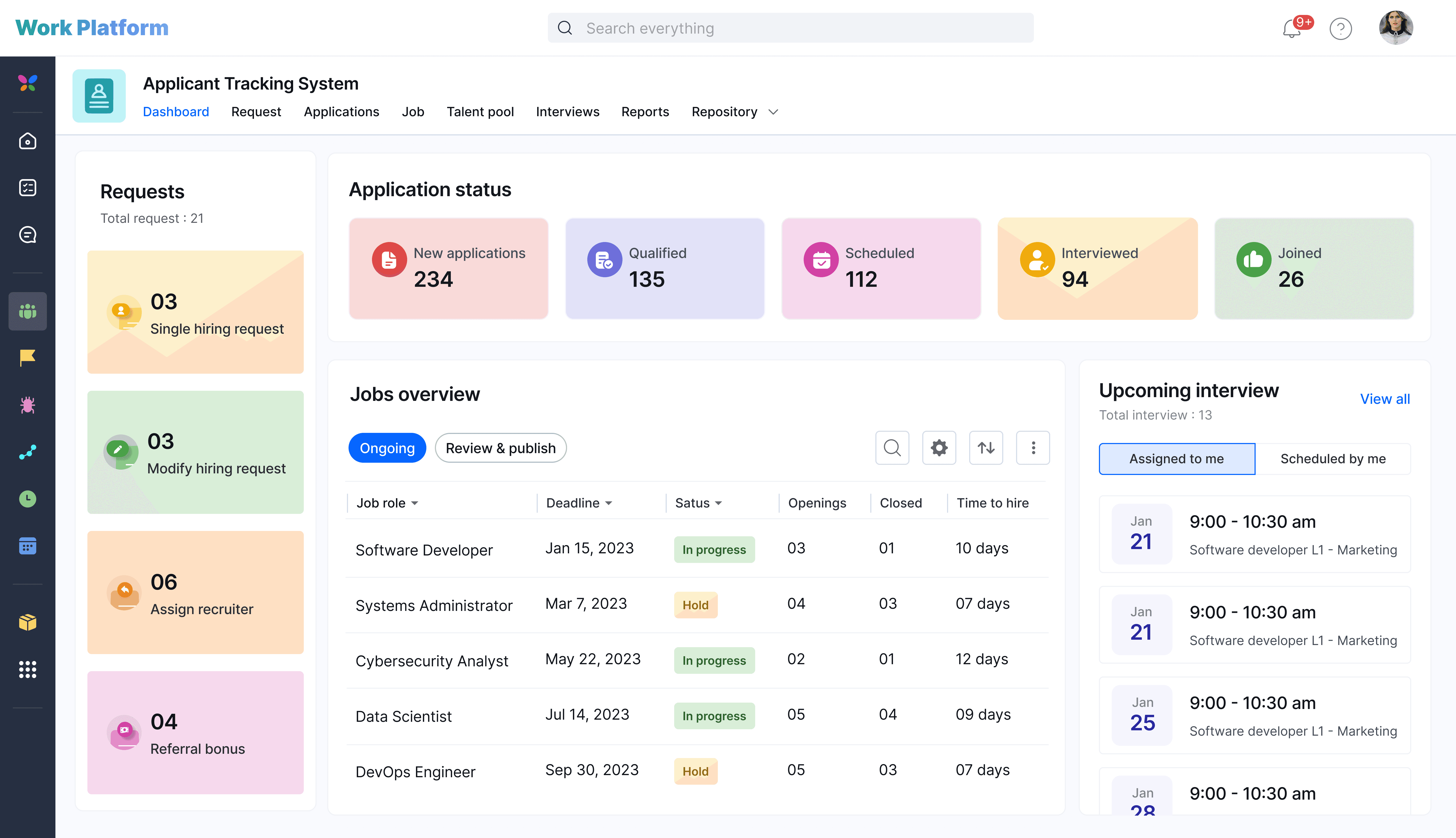 Image source: kissflow.com
Image source: kissflow.comKissflow is a low-code/no-code workflow management platform that emphasizes simplicity and ease of use. It's designed to empower non-technical business users (often called "citizen developers") to build their own forms, automate workflows, and manage processes without needing to write code. It's a great choice for departments like HR, finance, and procurement that want to digitize their internal processes.
Key features:
- Visual workflow builder: A simple, drag-and-drop interface for designing and visualizing workflows, defining roles, and setting up rules.
- Customizable forms: Build custom forms to capture data for any process, from purchase requests to employee onboarding, and integrate them into your workflows.
- No-code integrations: Easily connect Kissflow to other business applications using pre-built connectors, without needing API expertise.
- Process analytics and reports: Get detailed reports and analytics on your workflows to track performance, identify bottlenecks, and make data-driven decisions.
- Case management boards: Use customizable boards to handle ticketing, support requests, and other case-based work in a visual, collaborative way.
Pricing:
Kissflow's pricing is user-based but is typically sold in packages for teams and enterprises, rather than low-cost individual plans.
- Basic Plan: Starts at $1,500 per month.
- Standard Plan: $10 per user/month (with minimum user counts).
- Professional Plan: $20 per user/month (with minimum user counts).
- Enterprise: Custom pricing is available upon request.
Pros:
- The simple, easy-to-navigate user interface makes it accessible for non-technical users to build their own solutions.
- A good choice for beginners looking to get started with workflow automation without a steep learning curve.
- The platform is versatile and can be used to automate a wide range of departmental processes.
Cons:
- The pricing structure, with a high entry point for its basic plan, can be expensive and prohibitive for small businesses.
- Some users find that the user interface, while simple, can take time to get used to, and that certain ease-of-use features are limited.
- Customer service has been criticized by some users for being unresponsive or making cancellations difficult.
Pipefy
Best for: Visual, no-code workflow design and automation.
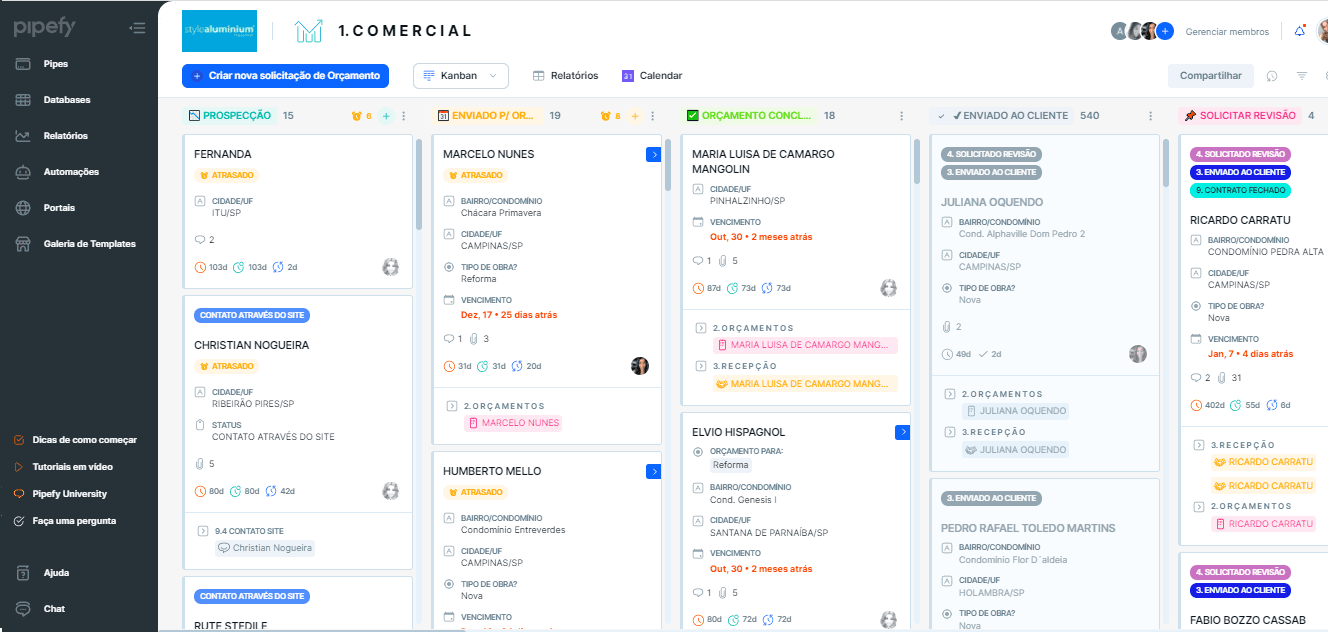 Image source: pipefy.com
Image source: pipefy.comPipefy is a cloud-based, no-code workflow management platform that allows teams to visually design, automate, and optimize processes. It uses a Kanban-style interface where each "card" represents a process instance (like a new hire or a customer ticket) that moves through customizable phases. It's particularly strong for standardizing request-based workflows like IT support, HR requests, and procurement.
Key features:
- Visual workflow builder: Design and customize your processes with a drag-and-drop interface, defining phases, rules, and automations.
- Public forms: Create shareable forms to collect requests and data from external users (like customers or vendors), which automatically create new cards in your workflow.
- Plug-and-play templates: Get started quickly with a wide range of pre-built templates for common business processes like employee onboarding, purchase approvals, and help desk tickets.
- AI agents and automation: Use AI to automate interactions, route tasks, and keep workflows running 24/7. Set up rules to automatically assign tasks, send emails, and move cards.
- Integrations: Connect Pipefy to your other business tools like Slack, Microsoft Teams, and various CRMs to create an integrated workflow ecosystem.
Pricing:
- Starter: Free for up to 10 users, but with limited features.
- Business: $20 per user/month (billed annually). Adds more advanced features and automation capabilities.
- Enterprise: $34 per user/month (billed annually). Includes enhanced security and support.
- Unlimited: Custom pricing for large-scale, mission-critical operations.
Pros:
- The intuitive, visual interface is easy to use and makes it simple to understand the status of any process.
- Affordable pricing with a functional free plan makes it accessible for small to medium-sized businesses.
- Comes with a great library of pre-built templates that help teams implement standard workflows quickly.
Cons:
- The dashboard and reporting features could be better organized and more customizable.
- Some users have reported issues with automated emails from Pipefy being flagged as spam.
- An unexpected platform upgrade caused disruption for some users, indicating potential communication issues around product changes.
Kintone
Best for: Building custom no-code business applications and databases.
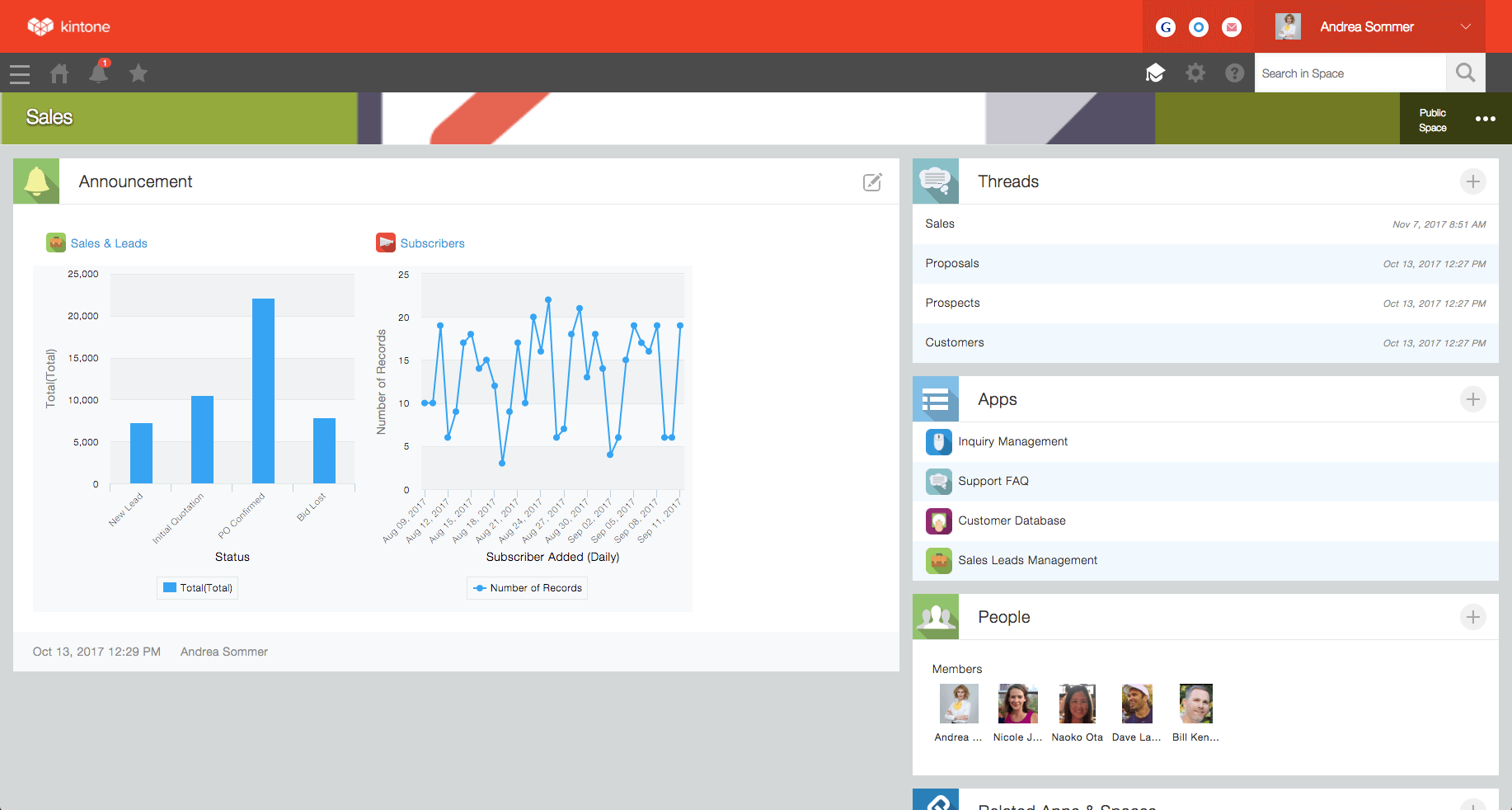 Image source: kintone.com
Image source: kintone.comKintone is an all-in-one, highly customizable workplace platform that empowers teams to build their own business applications, databases, and workflows without writing any code. It's designed to centralize scattered data from spreadsheets and emails into dynamic, collaborative apps that can manage everything from CRM and project management to expense reporting and HR processes.
Key features:
- No-code app builder: Use a drag-and-drop interface to build custom database apps to track whatever data is critical for your team.
- Process management and workflows: Design and automate step-by-step workflows with custom reminders, notifications, and approval steps to keep work moving.
- Centralized data and communication: Communicate directly on data records, ensuring that conversations and context are never separated from the work itself.
- Granular permissions: Control exactly who can see and edit what, down to the field level, ensuring data security and proper access for all collaborators.
- Spaces for team collaboration: Create dedicated workspaces for different teams, departments, or projects to organize all relevant apps, data, and discussions in one place.
Pricing:
Kintone offers a single, all-inclusive plan with a 5-user minimum.
- Professional Plan: $24 per user/month. This requires a minimum commitment of $120/month.
- Discounts: Special pricing of $15 per user/month is available for non-profits, educational institutions, and government agencies.
- Free Trial: A 30-day free trial is available.
Pros:
- Highly customizable platform that allows teams to build solutions perfectly tailored to their unique processes.
- The no-code app builder is powerful yet accessible, empowering business users to create their own tools.
- Excellent customer support is frequently praised by users, with a dedicated team helping with implementation and setup.
Cons:
- The 5-user minimum makes the platform inaccessible and too expensive for very small teams or individual users.
- Some users find the user interface to be less modern and more clunky compared to newer competitors.
- While powerful, the sheer number of features and customization options can lead to a steep learning curve for new users.
Next Matter
Best for: Orchestrating complex, cross-functional service operations.
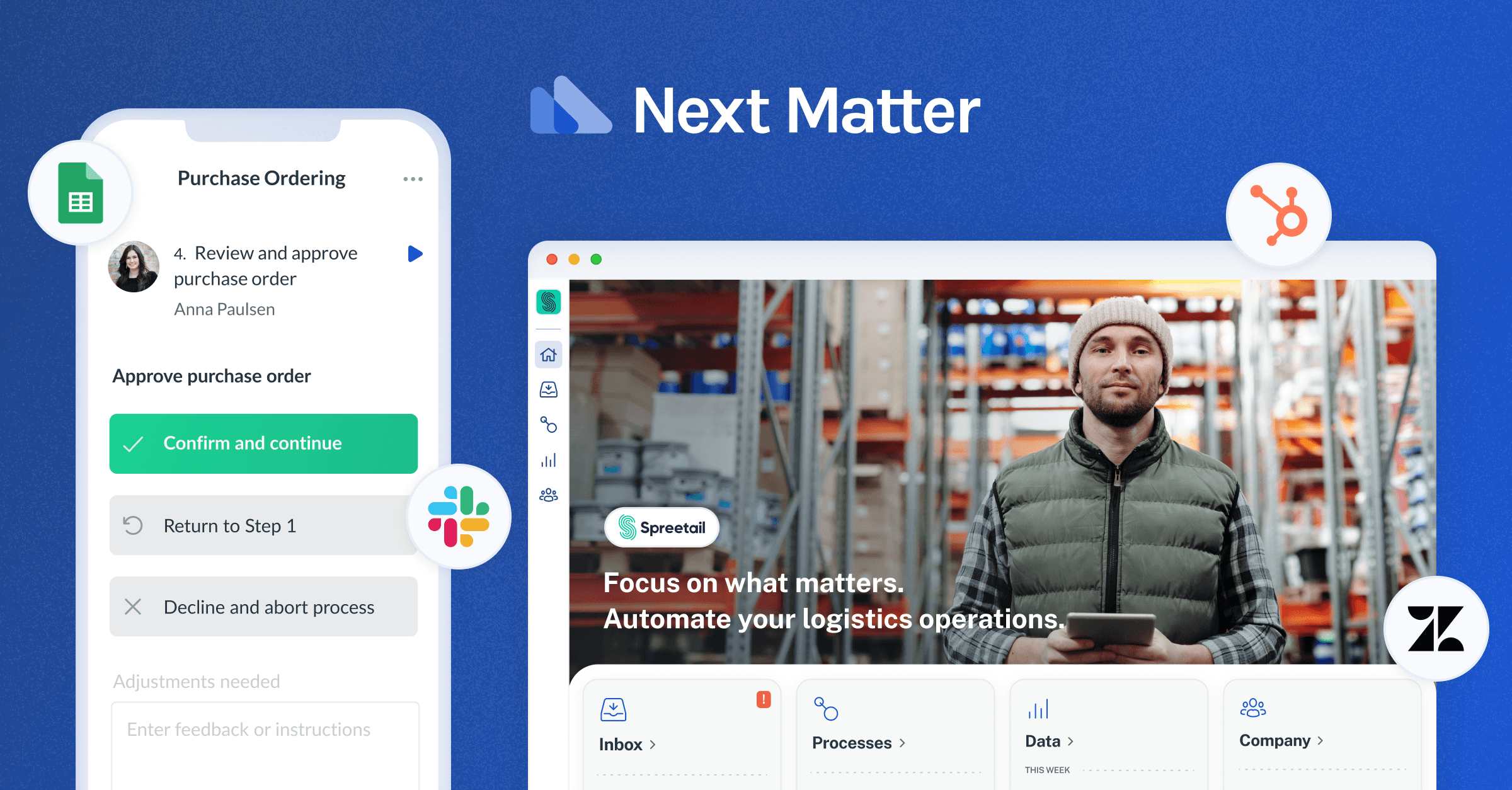 Image source: nextmatter.com
Image source: nextmatter.comNext Matter is an enterprise-grade workflow automation platform designed for high-stakes service teams in areas like customer onboarding, compliance, and claims processing. It focuses on ensuring 100% service reliability by automating and orchestrating complex, multi-step processes that involve collaboration across multiple teams, systems, and even external users.
Key features:
- Visual workflow builder: Design complex workflows with a no-code, drag-and-drop interface that supports conditional logic, parallel tasks, and integrations.
- Enterprise-grade integrations: Connect with critical business systems like CRMs (Zendesk), databases, and custom APIs to create end-to-end automated processes.
- External portals and guest access: Engage external users like customers or partners in your workflows through secure public forms, portals, and guest tasks.
- Manager dashboards and analytics: Get real-time visibility into all running processes, track deadlines and SLAs, and use data exports to analyze team performance and identify bottlenecks.
- Governance and compliance: Built for high-stakes environments with features like audit logs, versioning, and enterprise-grade security (SOC 2, GDPR) to meet compliance requirements.
Pricing:
Next Matter's pricing is designed for enterprises and includes a platform fee plus a per-user fee.
- Starter: $625/month platform fee + $19/user/month. Limited to 3 workflows.
- Growth: $2,950/month platform fee + $29/user/month. Includes unlimited workflows.
- Professional: $7,500/month platform fee + $49/user/month. Adds enterprise integrations and white labeling.
- Enterprise: Custom pricing for custom deployments and support.
Pros:
- Excellent for automating and standardizing complex, mission-critical service operations where reliability and compliance are key.
- Provides true end-to-end process orchestration, connecting internal teams, external users, and various systems in a single flow.
- Highly scalable and secure, with options for custom deployments on private clouds (AWS, Azure, Google).
Cons:
- The high platform fee makes it an enterprise-focused tool and inaccessible for small or even most medium-sized businesses.
- Has a more limited number of native, pre-built integrations compared to platforms like Zapier, relying more on custom API connections for extensibility.
- Its focus on structured, repeatable processes makes it less suitable for more dynamic, creative project management.
ProcessMaker
Best for: Open-source, approval-driven business process management (BPM).
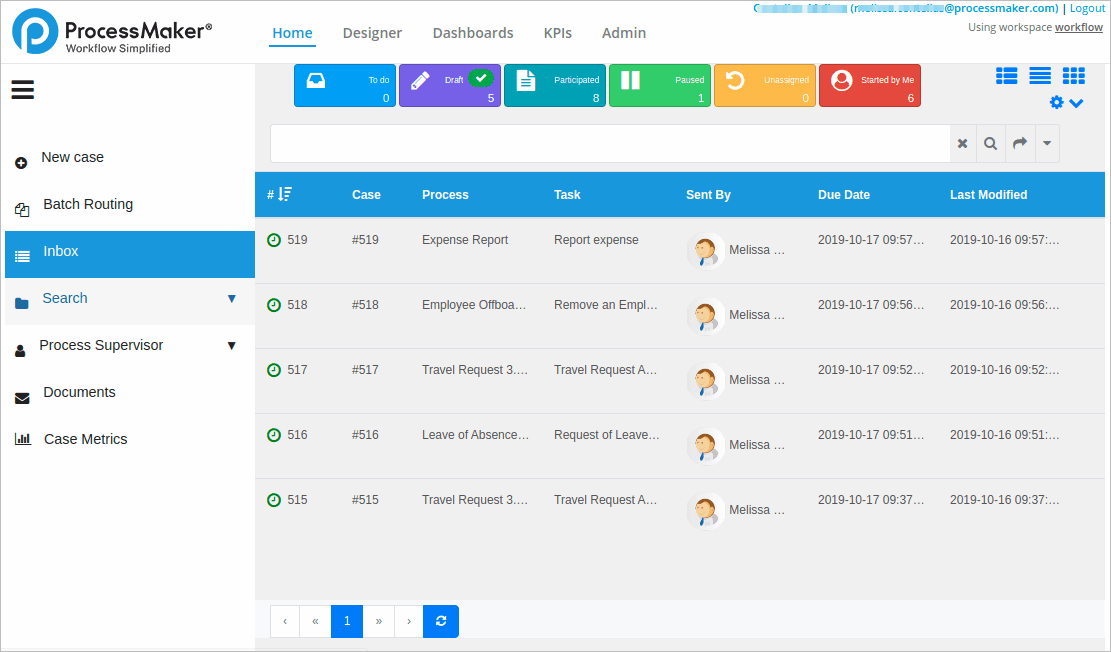 Image source: processmaker.net
Image source: processmaker.netProcessMaker is a low-code business process automation platform that excels at automating form-based, approval-driven workflows. It's designed to help organizations digitize and streamline information flow between data, systems, and people. With its open-source roots, it offers a high degree of flexibility for developers, while its visual designer makes it accessible for business users to map out processes.
Key features:
- BPMN 2.0 process modeler: A visual, drag-and-drop tool for designing complex workflows that adhere to the Business Process Model and Notation standard.
- Form builder (Dynaform): Create responsive, dynamic forms to capture data for your processes, with the ability to add custom fields and logic.
- Automation and AI: Automate repetitive tasks, orchestrate workflows, and use AI tools to build autonomous processes and gain insights from your data.
- Integrations and API: Seamlessly integrate with third-party systems like ERPs and CRMs via a robust REST API, and use scripting (PHP, JavaScript) for advanced customization.
- Dashboards and reporting: Monitor process performance in real-time with intuitive dashboards and detailed reports to improve visibility and decision-making.
Pricing:
ProcessMaker's pricing is geared towards mid-market and enterprise customers.
- Standard: $1,495 per month.
- Enterprise: $2,479 per month.
- Custom: Custom pricing is also available for specific needs.
Pros:
- A powerful and highly flexible platform for automating complex, approval-heavy business processes.
- The drag-and-drop process modeler and form builder are intuitive for designing basic to intermediate workflows.
- Offers strong capabilities for integration and customization through its API and scripting support.
Cons:
- Requires some coding knowledge (PHP, JavaScript) to unlock its more advanced features, which can be a barrier for non-technical teams.
- The pricing is high, making it unsuitable for small businesses.
- Some users have reported performance issues with very large processes and occasional "hidden bugs" that can disrupt workflows.
ProofHub
Best for: All-in-one project management with a flat monthly fee.
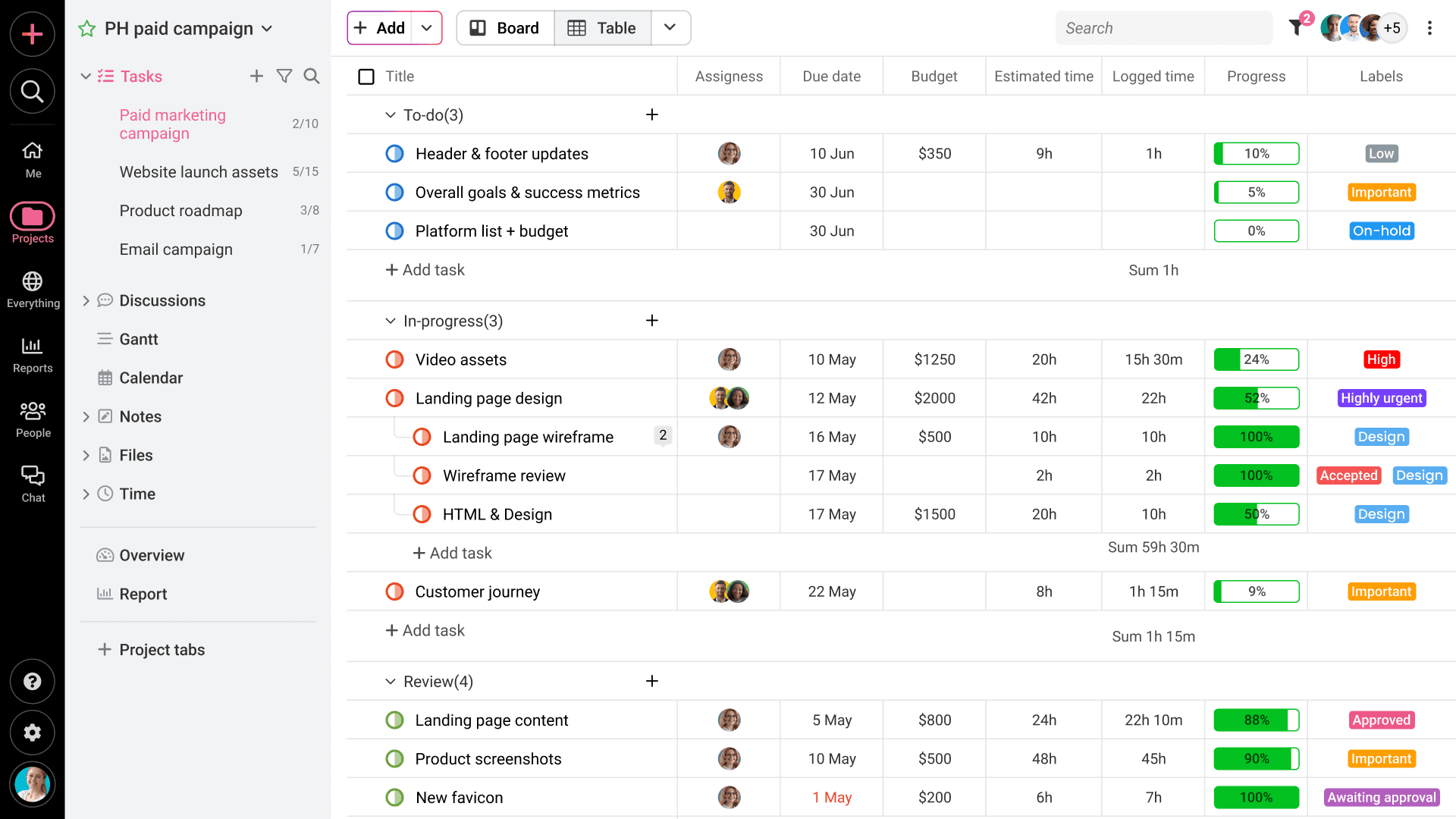 Image source: proofhub.com
Image source: proofhub.comProofHub is a project management and team collaboration software that provides a wide range of tools under one roof, aiming to give teams ultimate control over their projects and communication. Its standout feature is its simple, flat-rate pricing model, which does not charge per user, making it a potentially cost-effective solution for large or growing teams.
Key features:
- Task and project management: Organize work with tasks and subtasks, assign them to team members, and track progress through various stages.
- Multiple views: Visualize projects using Gantt charts, Kanban boards, Table view, and Calendar view to suit different planning needs.
- Online proofing: A collaborative tool for reviewing and providing feedback on creative assets and documents, with markup tools and threaded comments.
- Team communication: Centralize communication with built-in group chat, direct messaging, and discussion boards to keep conversations organized by topic.
- Custom roles and workflows: Define custom roles to control access and create custom workflows with unlimited stages to match your team's specific processes.
Pricing:
ProofHub offers flat monthly pricing, not per-user.
- Essential: $45/month (billed annually). Includes core features and up to 40 projects.
- Ultimate Control: $89/month (billed annually). Adds unlimited projects, custom roles, workflows, and white labeling.
Pros:
- The flat monthly fee with no per-user charge can be extremely cost-effective for large teams.
- Provides a comprehensive set of tools, including project management, proofing, and chat, in one centralized platform.
- The online proofing tool is excellent for creative teams that need to collaborate on visual assets.
Cons:
- The flat fee, while good for large teams, can be too expensive for small teams or startups that would pay less with a per-user model.
- Some users find the user interface to be cluttered and not as intuitive as some competitors.
- Lacks some advanced features like dedicated resource management and budgeting tools.
Bit.ai
Best for: Workflow and document management for knowledge-centric teams.
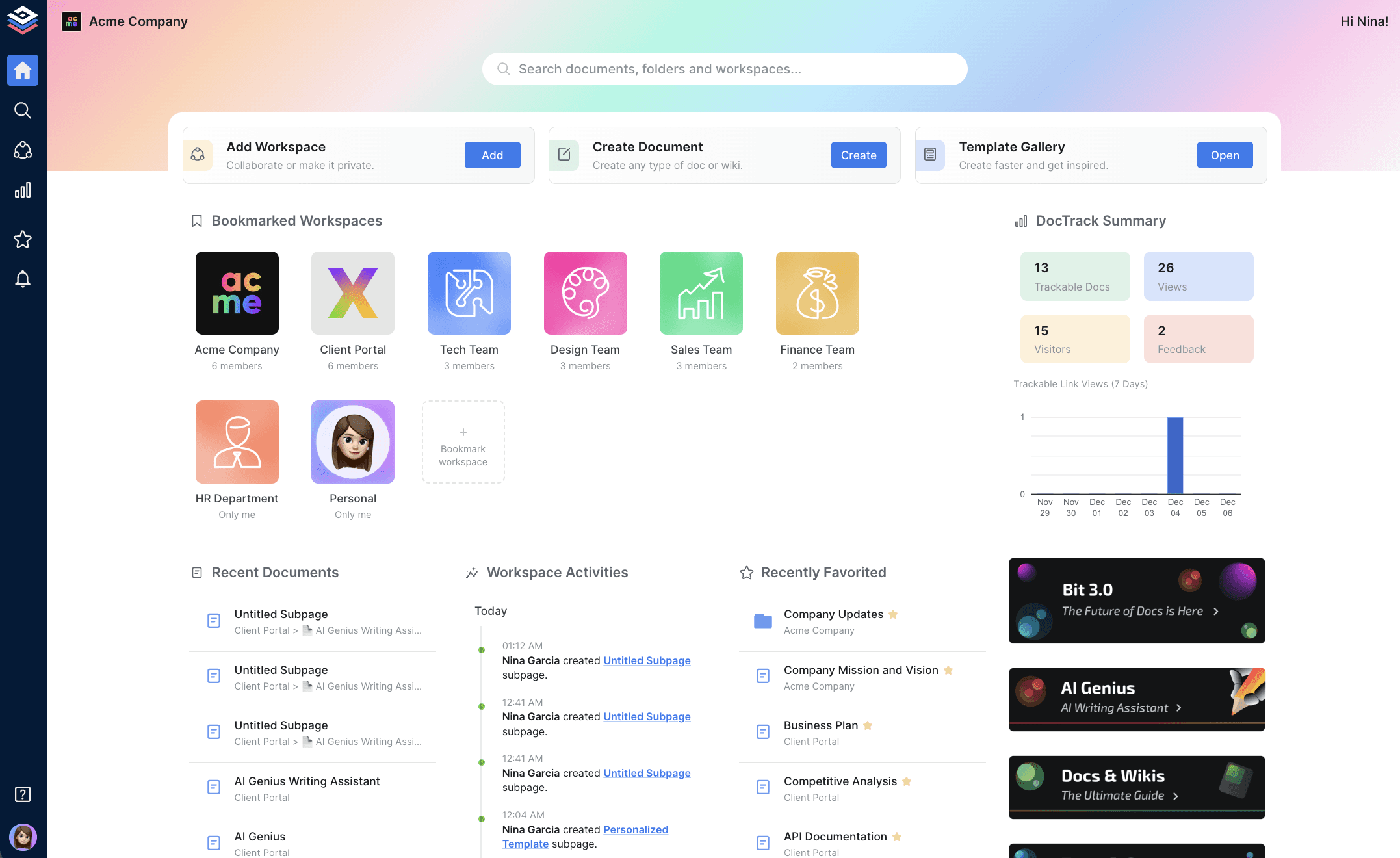 Image source: bit.ai
Image source: bit.aiBit.ai is an AI-powered platform that focuses on creating smart, interactive, and collaborative documents and wikis. It's designed for teams that need to create, manage, and share knowledge effectively. Bit.ai allows you to weave together text, rich media, and content from over 100 other applications to create living documents that serve as a central hub for any project or process.
Key features:
- Smart docs and wikis: A powerful editor for creating dynamic documents that can include everything from text and tables to embedded files, videos, and code blocks.
- AI Genius writer: An AI assistant that helps with content creation, brainstorming, research, and generating customized templates.
- Real-time collaboration: Multiple users can co-edit documents, leave inline comments, and use @mentions to collaborate seamlessly in real-time.
- 100+ rich media integrations: Embed living content from tools like Google Sheets, Airtable, YouTube, and Figma directly into your documents, with updates reflecting automatically.
For more Google Workspace's information, you can refer to Google Workspace Pricing and Google Workspace alternatives.
- Workspace and content management: Organize your documents and wikis into scalable workspaces and folders, with a powerful universal search to find information instantly.
Pricing:
- Free: $0 for up to 5 members. Includes core features but has limits on the number of documents and storage.
- Pro Plan: $8 per member/month (billed annually). Adds unlimited documents and advanced features.
- Business Plan: $15 per member/month (billed annually). Includes trackable documents, guest access, and brand customization.
- AI Genius Add-on: $10 per 100K words/month.
Pros:
- Excellent for creating rich, interactive, and highly collaborative documents and internal wikis.
- The extensive library of integrations allows you to centralize a wide variety of digital content in one place.
- Robust security features and multiple sharing options (including password protection and trackable links) provide control over your content.
Cons:
- The per-user pricing can become expensive for larger teams, especially when adding the AI feature.
- Some users have reported issues with access control and have requested more advanced features that are currently missing.
- It is more of a document and knowledge management tool than a full-fledged project management or workflow automation platform.
Shift
Best for: Streamlining communication by centralizing email and apps.
 Image source: shift.com
Image source: shift.comShift is not a traditional workflow management tool, but rather a desktop browser designed to solve the problem of "toggling tax"—the productivity lost from constantly switching between tabs, apps, and accounts. It allows you to manage all your email inboxes, calendars, and web apps in one focused and organized window, streamlining communication and reducing digital clutter.
Key features:
- Unified inbox: Manage multiple Gmail, Outlook, and Office 365 accounts side-by-side in a single, centralized window without logging in and out.
- App integration: Add all your favorite web apps (like Slack, Asana, Trello, etc.) directly into the Shift browser, keeping everything in one place.
- Workspaces: Create dedicated, customizable workspaces to organize tabs, bookmarks, and apps for different projects or parts of your life (e.g., "Work" vs. "Personal").
- Unified search: Search across all your connected email accounts, calendars, and drives from a single search bar.
- Extension support: Works with popular Chrome extensions like Grammarly, LastPass, and HubSpot to enhance your workflow.
Pricing:
- Basic: Free. Allows you to connect up to 2 email accounts and 1 app.
- Advanced: $129 per user/year. Unlocks unlimited accounts, apps, and workspaces, plus advanced features like unified search.
Pros:
- Excellent for individuals and teams who are overwhelmed by tab chaos and need to manage multiple email and web app accounts efficiently.
- Significantly reduces context switching and helps maintain focus by keeping all communication and work tools in one organized window.
- The Workspaces feature is great for separating different projects or aspects of your digital life.
Cons:
- It is primarily a productivity browser and communication hub, not a dedicated workflow management system. It doesn't have its own task management or automation features.
- Its value depends entirely on the web apps you already use; it centralizes them but doesn't replace them.
- The free plan is very limited and serves more as a trial than a long-term solution.
Fluix
Best for: No-code workflow automation in field service industries (construction, energy).
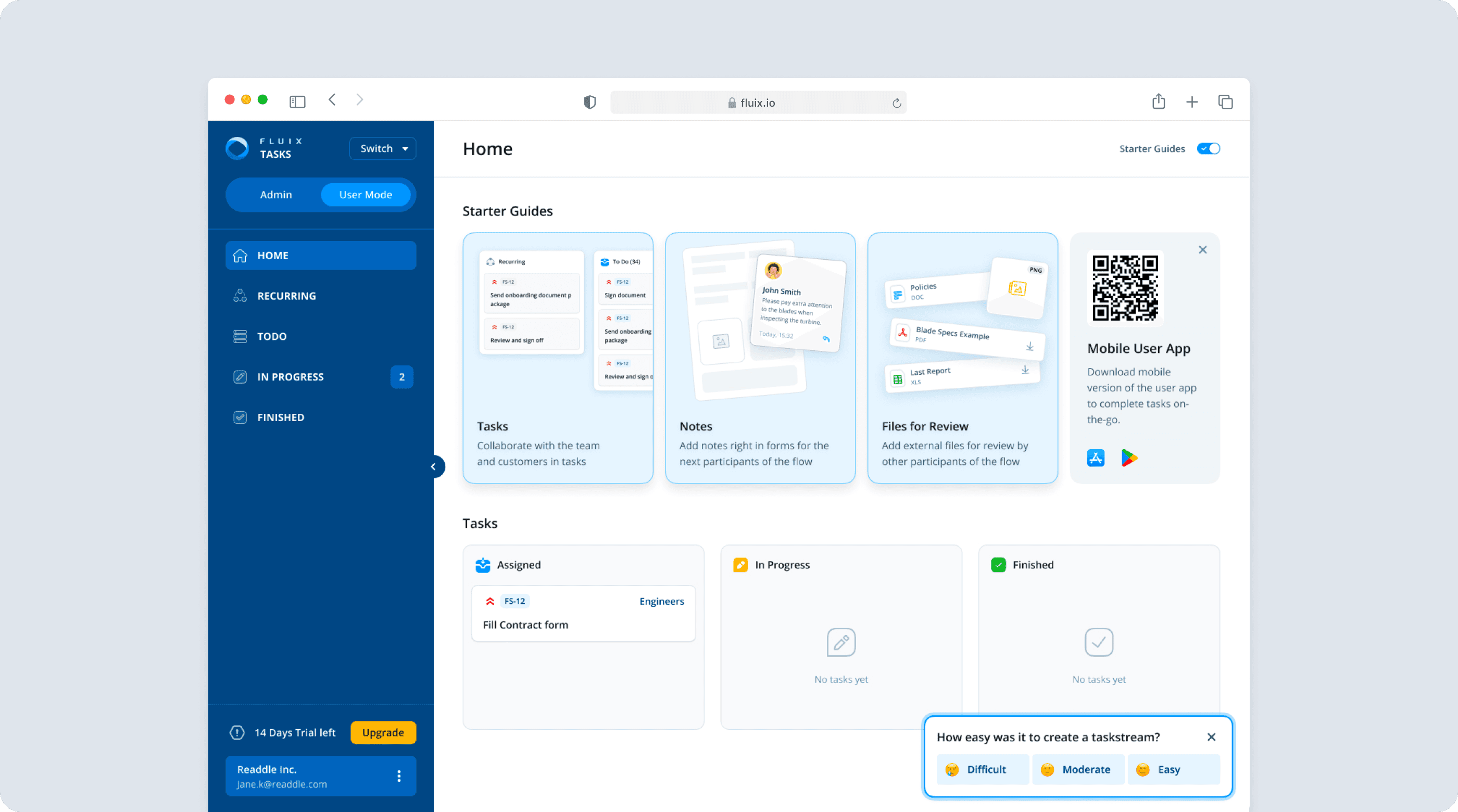 Image source: fluix.io
Image source: fluix.ioFluix is a no-code workflow automation software designed specifically for businesses with mobile and field service teams, such as those in construction, energy, aviation, and remodeling. It excels at digitizing paper-based processes like field inspections, safety checklists, work orders, and compliance forms, allowing teams to capture data in the field and automate the subsequent workflow.
Key features:
- Digital forms and data collection: Convert any PDF into a fillable mobile form or build custom forms from scratch with a no-code builder. Teams can fill out forms on iOS devices, even offline.
- Workflow automation: Build multi-step workflows to automate the routing, review, and approval of documents and forms submitted from the field.
- Task management for field teams: Assign tasks, schedule jobs, and track the progress of field operations to ensure everything is completed on time and to standard.
- Document management: Provides a secure, centralized cloud repository for all operational documents, ensuring field teams always have access to the latest versions.
- Reporting and analytics: Collect accurate data from the field and use it to generate reports and gain actionable insights into your operations.
Pricing:
- Core: Starts at $30 per user/month. Includes workflow automation and document management.
- Advanced: Custom pricing for more complex needs.
- Add-ons: Additional costs for features like conditional logic ($10/user/mo), form builder ($10/user/mo), and advanced integrations ($20/user/mo) can increase the price.
Pros:
- Perfectly tailored for industries with mobile workforces, addressing the specific challenges of field operations.
- The ability to work offline is a critical feature for teams in remote locations without reliable internet access.
- Strong focus on digitizing paper forms and automating document-heavy processes, which can lead to significant time and cost savings.
Cons:
- The pricing can become high, especially when you start adding on the various premium features and services that are necessary for more complex workflows.
- It is a niche tool focused on field service automation and is not a general-purpose project management platform for office-based teams.
- Its feature set is more limited compared to broader workflow management platforms.
The 25 best workflow management software solutions of 2026
Picking the right workflow software can seem tough, but it's simpler than you think. There's no single "best" tool for everyone. The right choice for you will depend on your team's specific needs, size, and budget. The most successful teams I've worked with don't just pick workflow software based on features, they choose tools that actually fit how their team works," explains Paul McKee, Founder of 15 Worksheets. "In my experience building productivity solutions, the biggest mistake companies make is selecting overly complex platforms that end up creating more friction than they solve. Start with your team's simplest, most repetitive processes and find software that makes those effortless first.
You'll face a few key choices. You might have to decide between the convenience of an all-in-one platform and the powerful features of a specialized tool. Another consideration is whether to choose a highly complex system with a lot of power or a simpler, more intuitive one. Finally, you'll need to weigh a clear, upfront price against pricing models that can have hidden costs for add-ons.
To figure this out, start by asking your team a few key questions:
- What is our team size and budget? Are you a small team that can thrive on a generous free plan, or a large enterprise needing advanced security and scalability?
- What are our biggest pain points? Are you drowning in repetitive manual tasks, struggling with cross-departmental communication, or lacking visibility into project progress?
- What are your business needs? Do we need a simple task tracker or a platform to build complex, custom applications? Your need for customization will heavily influence your choice.
- How important is it to have all our tools—chat, docs, meetings, and tasks—in one place? The cost of app-switching, both in subscription fees and lost productivity, is a real factor to consider.
Conclusion
The best workflow programs for your team needs to strike a delicate balance. It should be powerful enough to handle complex business processes but intuitive enough for everyone on the team to use. It should consolidate your essential tools to reduce costs and friction, but still needs to offer sufficiently advanced functions.
A platform like Lark is a great example. It was designed from the ground up to solve the core problem of a fragmented digital workplace. It combines the power of a relational database, the seamless communication of integrated chat and meetings, and the collaborative strength of interconnected docs into a single app. Automation is easy to set up, so it is accessible to not only technical users, but everyone in the team. It also delivers enterprise-grade power without the enterprise-level complexity or price tag, directly addressing the most common pain points we've seen across the market.
Stop juggling apps and start streamlining your work. Experience the power of having everything in one place by trying Lark's feature-rich Starter plan today—it's free forever for up to 20 team members.
Workflow software FAQs
What is workflow management software?
Workflow management software helps a business organize its work from start to finish. It is used to improve workflow processes by making them clearer and more efficient for everyone involved. This kind of tool helps tasks move smoothly from one person to the next, leading to steady process improvements over time.
What is workflow automation software?
Workflow automation software is designed to simplify processes by letting technology handle repetitive, manual work. For example, it can automatically send email reminders, route documents for signatures, or update project statuses, which saves time and reduces errors. With customizable features, you can set up these automations to fit your exact needs and make significant process improvements.
What is the best small business workflow software?
There is no single "best" option, as the best small business workflow management software depends entirely on your company's specific needs. The right choice will match your team's unique workflow processes and what you hope to accomplish. You should look for a tool with customizable features that can simplify processes and is easy for your team to adopt, as this will lead to the most effective process improvements for your business.
Are there any free workflow software available?
There is a variety of free workflow management software that we have mentioned in this blog. For all-in-one platforms, Lark, ClickUp, and monday.com are available. More traditional tools like Asana and Wrike also offer free plan options.
Related reading
Table of contents
Start using Lark today

Manage all your work in one place
Boost team efficiency by 10x
Save up to 70% on software costs
Table of contents
Start using Lark today
Manage all your work in one place
Boost team efficiency by 10x
Save up to 70% on software costs
Keep reading







2026 Lark Technologies Pte. Ltd.
Headquartered in Singapore with offices worldwide.






Explore: