Google Slides is a popular choice, but it doesn't always meet everyone's needs. Are you looking for more? Many users seek Google Slides alternatives because of:
- Limited design: Lacking customization for branded visuals.
- Collaboration hurdles: Difficult version control and feedback management.
- Lack of interactivity: Limited tools for engaging audiences.
- Integration gaps: Inefficient workflows with other essential tools.
- Specific feature deficiencies: Missing advanced charting or assessment capabilities.
If these limitations sound familiar, you're in the right place. Creating engaging, impactful presentations shouldn't be a struggle. This guide explores the best Google Slides alternatives in 2026, providing detailed comparisons to help you find the perfect fit. We'll examine features, pricing, and use cases to empower you to make an informed decision. Now, let's explore the top Google Slides alternatives that can elevate your presentations.
Elevate your presentations with a unified platform
A quick glance at the best alternatives to Google Slides
Before diving into the in-depth reviews, here's a quick overview of the top Google Slides alternatives we'll be exploring. This table provides a high-level comparison to help you quickly identify options that align with your key priorities. Consider this your cheat sheet to navigate the world of presentation software!
Exploring the best Google Slides alternatives in 2026
This section provides a detailed overview of some of the most popular and compelling Google Slides alternatives available in 2026. Each alternative is examined based on its key features, strengths, weaknesses, pricing, and suitability for different use cases.
1. Lark: Seamless presentations within a unified workspace
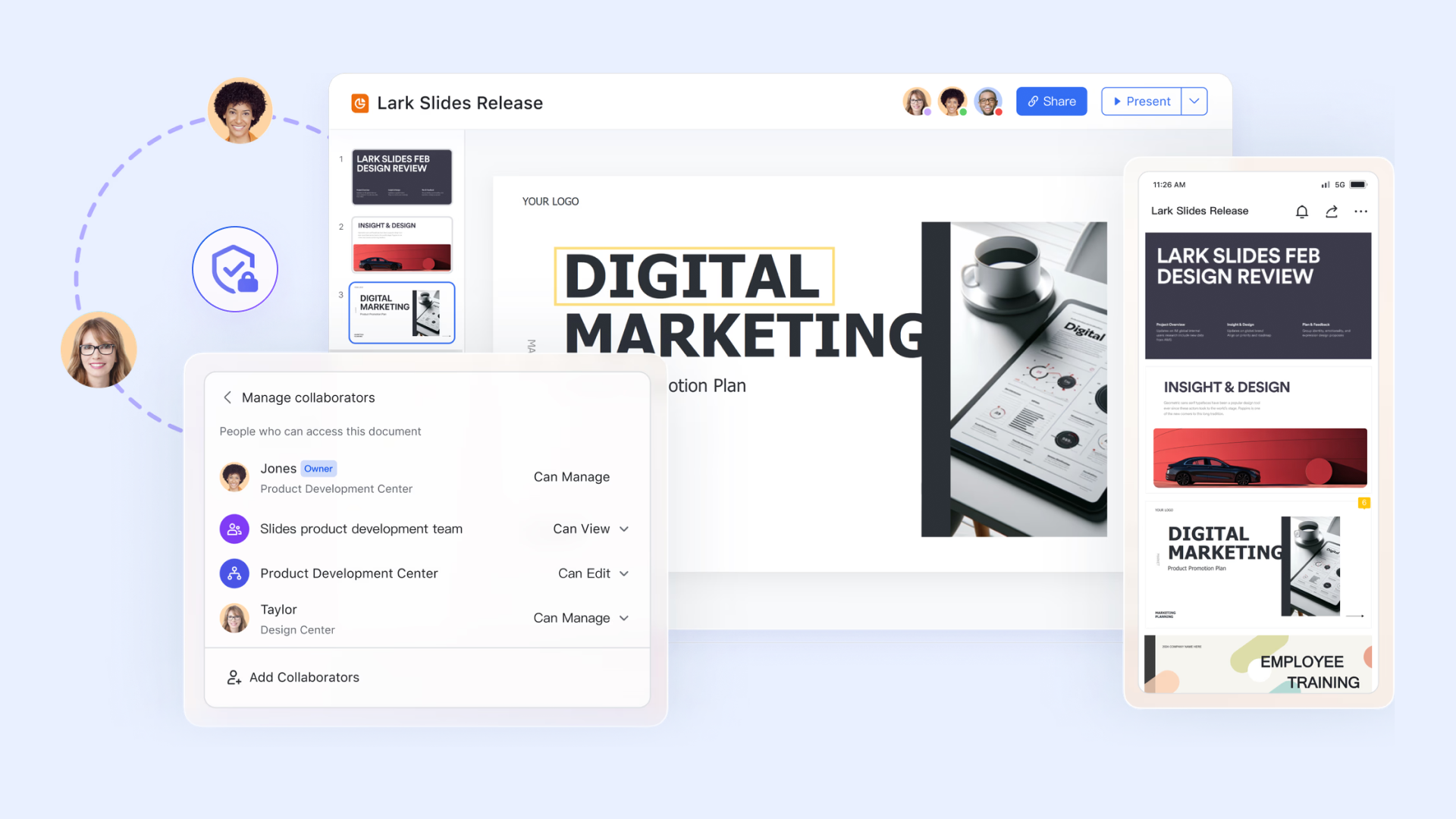
offers a streamlined approach to creating, collaborating on, and delivering presentations as a deeply involved component of . Unlike standalone presentation software, Lark Slides eliminates the traditional friction between communication, project management, and presentation creation, offering a truly unified and seamless workflow. becomes a natural extension of , while granular permission controls ensure data security and maintain version control. Moreover, Lark's AI powered features can significantly enhance productivity by automating content generation, suggesting design layouts, and summarizing key information. With Lark Slides, presentations become a dynamic and unified part of the overall workflow, not a separate and isolated task.
Key features:
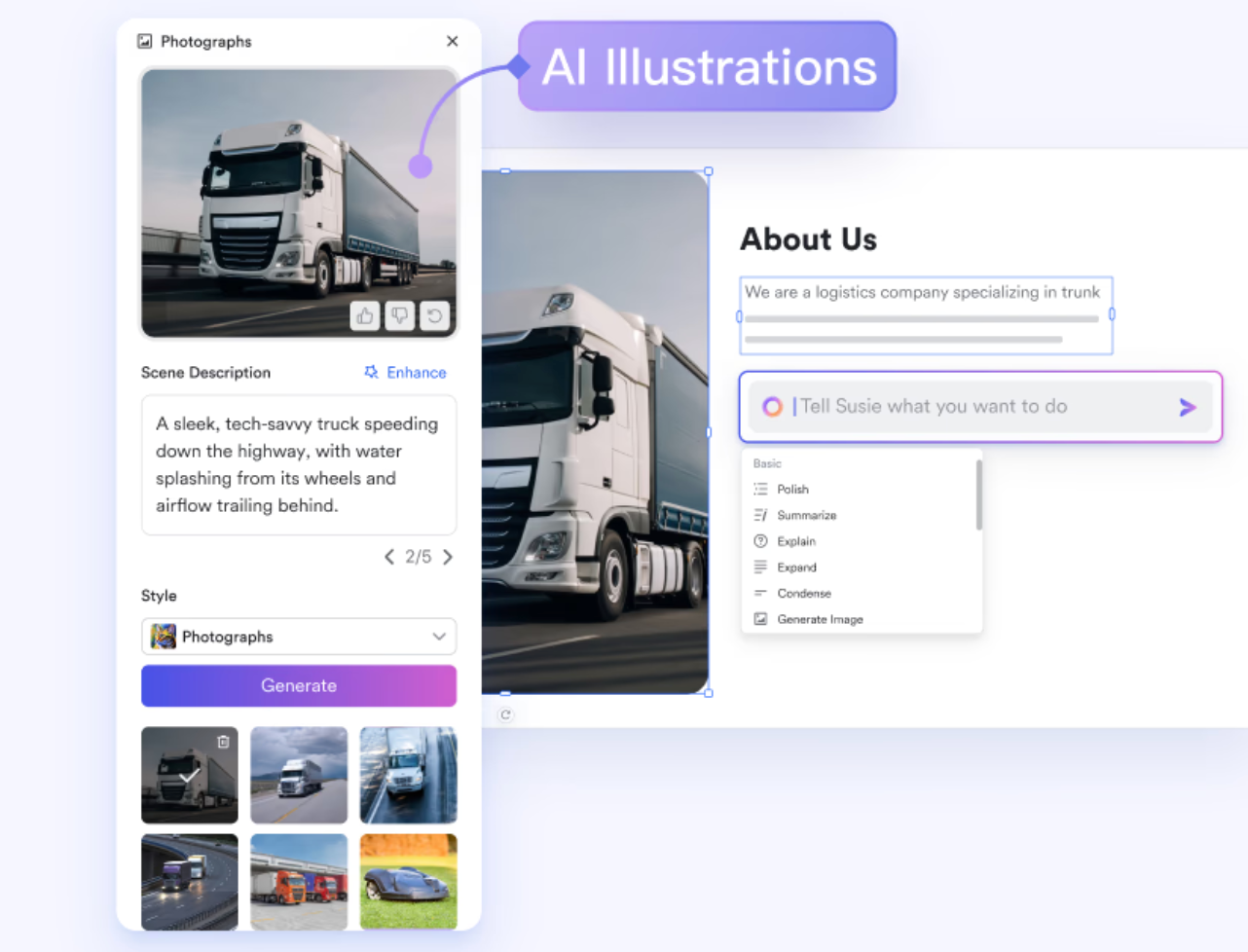
AI-powered content creation and design assistance
leverages AI to assist with content creation and design, saving you time and effort. The AI can help generate initial content outlines, suggest layouts, and refine visual elements, enabling you to create professional-looking presentations more quickly. While Google Slides offers some basic design suggestions, Lark's AI capabilities provide a more comprehensive and intelligent level of assistance, allowing you to focus on delivering your message rather than struggling with design details.
Rich features for you to create a slide
You can pick your favorite ready-to-use slide template from the Template Center to reduce energy and time, which means that you can easily start your presentation creation without building from scratch. Lark Slides also supports seamless two-way connection with Lark Sheets. This connection ensures real-time display of data changes in charts, so presentation data automatically updates as the linked spreadsheet data changes. To fit varied needs, Lark Slides also provides multiple preset components (like layout blocks, diagrams, etc.). Users can also use Lark Board within Slides for greater creative freedom, tailoring presentation elements as required. 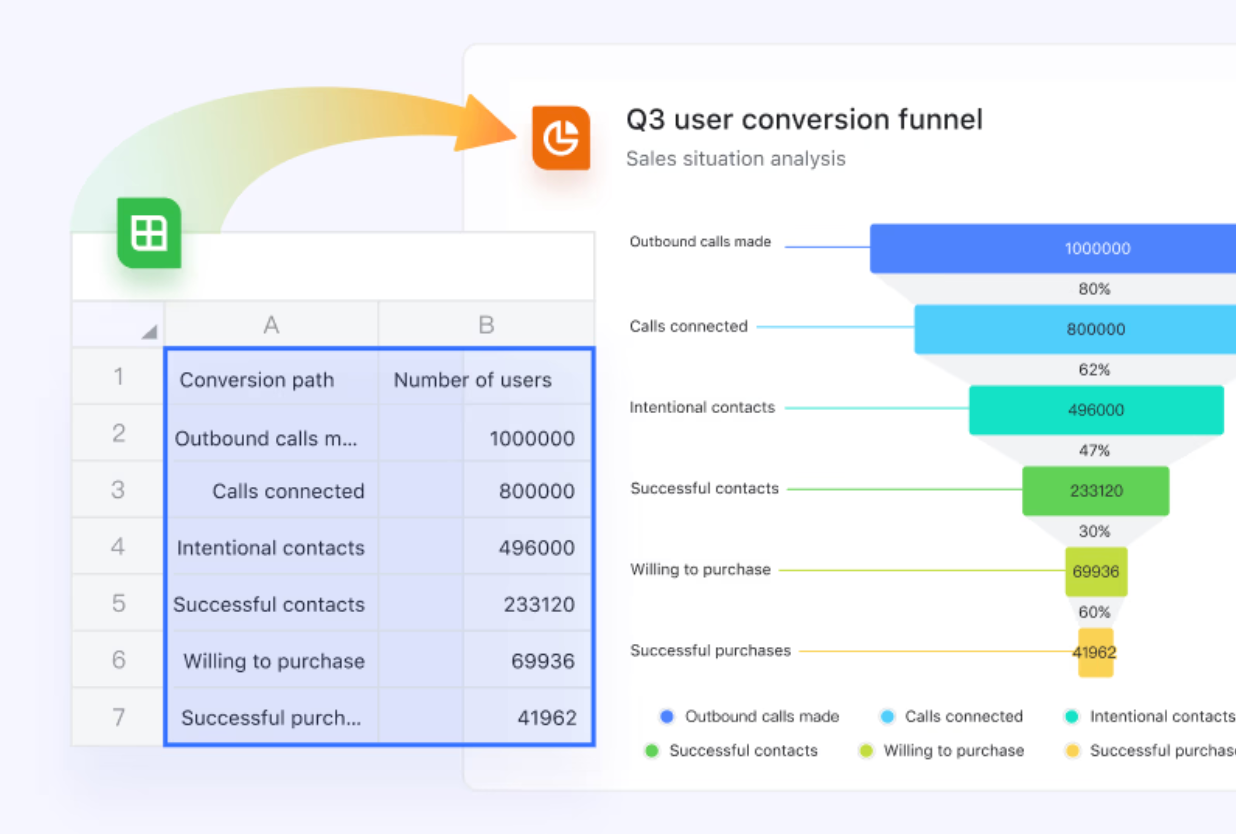
Unified communication and collaboration hub
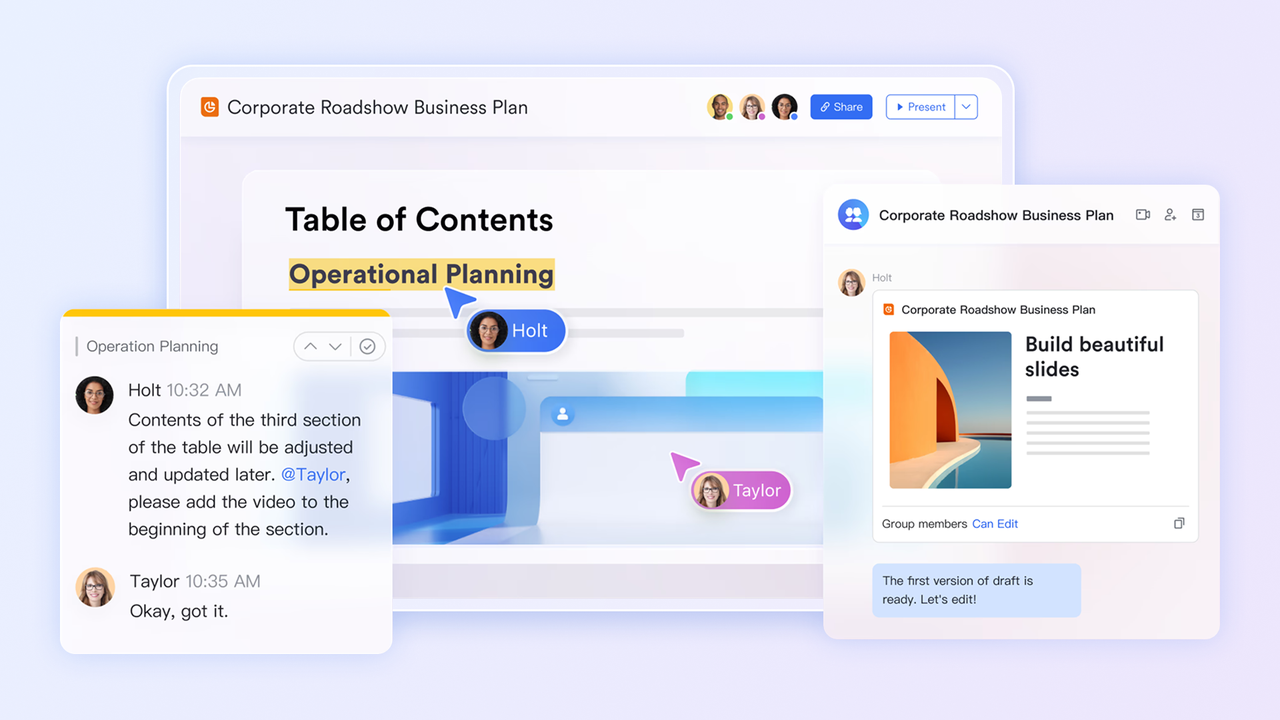
Lark is a unified platform that combines communication, collaboration, and —unlike Google's separate apps (Gmail, Chat, Meet, etc.). This cuts down on app switching, streamlines workflows, and boosts efficiency: you can seamlessly move from chat to documents, meetings, or tasks without leaving the platform. For Lark Slides, collaboration is even smoother: no need to share links or manage scattered files like in Google Slides. Teams can create, discuss, and present in one place—edit slides together during meetings and add comments anywhere to speed up work.
Enhanced internal knowledge base and documentation
Lark Slides is involved seamlessly with Lark's internal knowledge base: it turns static text docs (like training guides or process outlines) into intuitive Slides decks, which embed directly into the centralized library. Updates to Slides auto-sync to , and permissions align with library settings—turning Slides into reusable, clear visual knowledge assets. 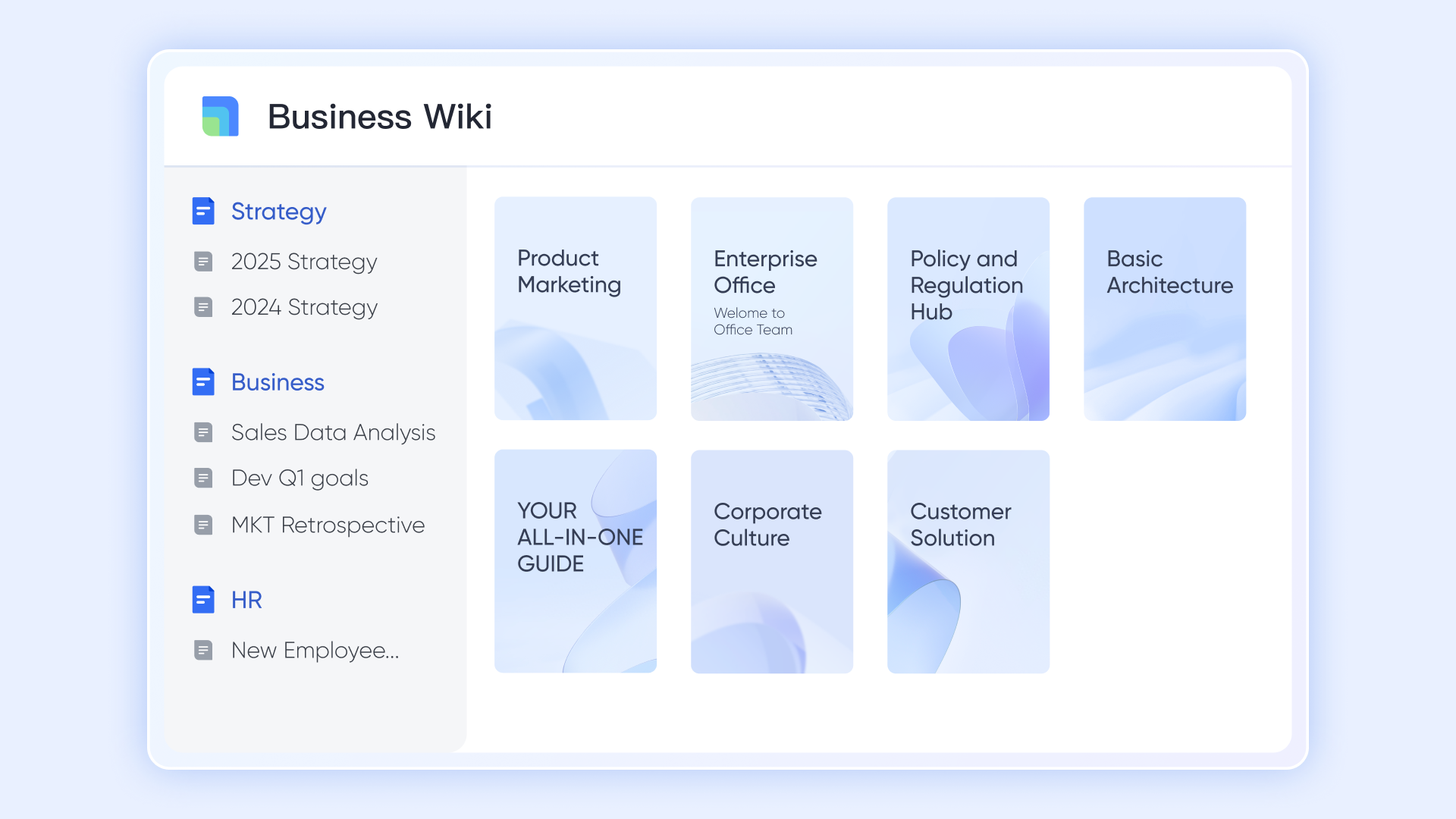
Version history and change tracking for improved collaboration
Lark Slides automatically tracks changes and maintains a version history, allowing you to easily revert to previous versions of your presentation if needed. This ensures that no work is lost and that you can always access earlier iterations of your content. While Google Slides offers version history, Lark's implementation provides more detailed change tracking and a more intuitive interface for managing revisions. You can easily compare different versions of your slides, identify specific changes, and restore previous versions with a single click. Pros:
- Unparalleled combination: Deep combination with Lark provides a unified workflow, eliminating app switching and . This is a significant advantage over standalone presentation tools.
- Enhanced security and control: Granular permission controls and version history provide enhanced security and control over presentation content, making it ideal for sensitive business information.
- AI-powered efficiency: AI-powered features save time and effort by automating content generation and design tasks.
- Collaboration focused: Designed with team collaboration at its core, Lark Slides fosters seamless teamwork and feedback combination.
Cons:
- Some users may take a short time to adapt to Lark. But can assist users with potential problems.
Who is it for?
Lark is a great choice for any team or individual looking for a modern, collaborative presentation tool. Its user-friendly interface and powerful features make it a compelling option for those seeking a more efficient and collaborative presentation experience, regardless of their current toolset. If you value streamlined workflows, AI-powered assistance, and secure collaboration, Lark is worth exploring.
:
- Starter plan: Free forever plan that includes 11 powerful tools for up to 20 users. It also comes with 100GB of storage, 1000 automation runs, AI translations, and more.
- Basic plan: $6/user/month (billed annually) for up to 500 users. It includes everything in Starter plus group calling for up to 500 attendees, 5TB of storage, 1000 automation runs, and more. For more details, please .
- Pro plan: $12/user/month (billed annually) for up to 500 users. It includes everything in Basic plus group calling for up to 500 attendees, 15TB of storage, 50,000 automation runs, and more.
- Enterprise plan: for custom pricing. Supports unlimited users and includes even more automation runs and advanced security, compliance, and management features. Businesses comparing collaboration platforms often review and before making a final decision.
For small teams with simple communication needs

18 months message history
1000 Base automation runs/month
2000 rows per table in Base
Most POPULAR
For companies with comprehensive collaboration and management needs
Unlimited message history
500-participant video meetings
50k Base automation runs/month
20k rows per table in Base
For large companies with advanced security and organizational management needs
Get a personalized demo and pricing
Unlimited message history
500-participant video meetings
15 TB storage + 30 GB storage/user
500k Base automation runs/month
50k Base automation runs/month
Most POPULAR
For companies with comprehensive collaboration and management needs
Unlimited message history
500-participant video meetings
50k Base automation runs/month
20k rows per table in Base
2. Canva: User-friendly design for visually stunning presentations
Canva simplifies the creation of visually compelling presentations, empowering users to craft professional looking content without requiring extensive design skills. Its intuitive drag and drop interface, combined with an extensive library of templates and design elements, makes it easy to get started quickly. Canva's accessibility, offering a vast array of free templates and design resources, makes it an attractive option for budget conscious users. The platform's focus on visual appeal and ease of use has made it a favorite among marketers, social media managers, and educators. It offers a wide array of fonts and graphics to customize your presentations, as well as basic animation features.
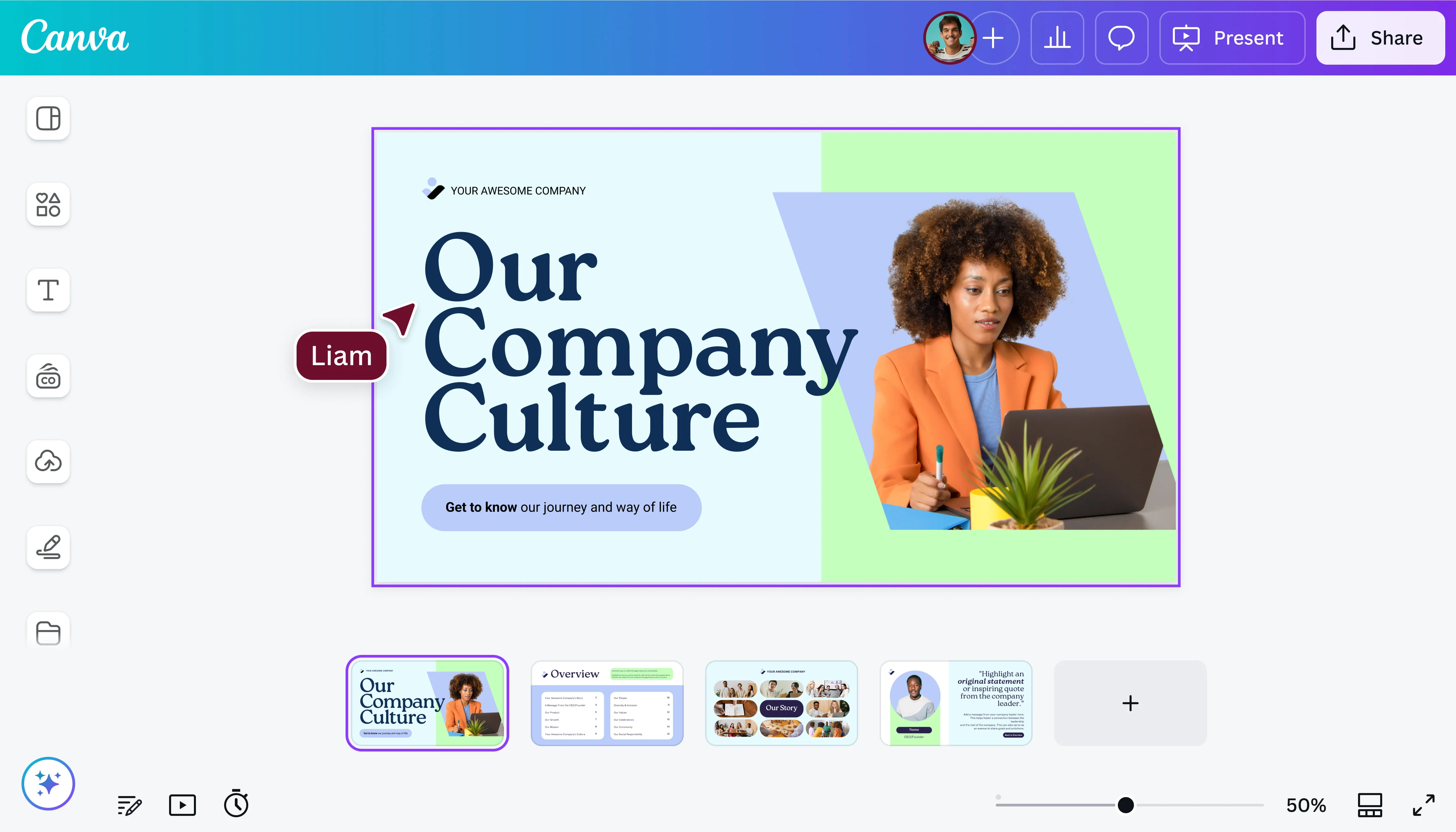
Image source: canva.com
Key features:
- Drag and drop interface.
- Extensive library of templates and design elements.
- Collaboration features for team projects.
- Animation and video capabilities.
- Social media integration.
Pros:
- User friendly interface makes it easy for anyone to create professional looking presentations.
- Extensive library of templates provides a wide range of design options.
- Affordable pricing plans.
Cons:
- Limited advanced features for data visualization and interactivity.
- Can be overwhelming for users with limited design experience due to the sheer volume of options.
Who is it for?
Canva is a great option for individuals and small businesses seeking a user friendly and affordable presentation tool with a strong emphasis on visual design. It is particularly well-suited for creating presentations for social media and marketing purposes.
Pricing:
- Free: Basic design tools, 1.6M+ templates, 5GB storage, watermarked exports.
- Pro: $18/user/month (monthly) or $165/user/year (yearly), premium templates, AI features.
- Business: $24/user/month (monthly) or $240/user/year (yearly), team collaboration, brand kits, admin controls.
- Enterprise: Custom pricing, advanced governance, SSO, priority support.
3. Microsoft PowerPoint: The industry standard for comprehensive presentations
PowerPoint remains a dominant force due to its comprehensive features, robust design capabilities, and integration with the Microsoft Office ecosystem. It's a reliable and feature-rich tool capable of handling complex presentations with sophisticated elements. Most people are familiar with its interface, minimizing the learning curve. PowerPoint offers advanced animation and transition effects, speaker notes and presentation views. Users can collaborate on team projects and it integrates seamlessly with other Microsoft Office applications. Organizations requiring a professional presentation tool often rely on PowerPoint.
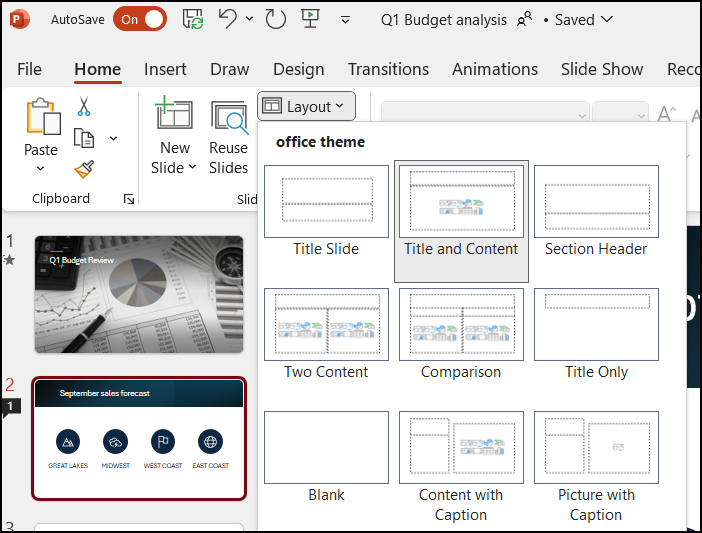
Image source: support.microsoft.com
Key features:
- Wide range of templates and design options.
- Advanced animation and transition effects.
- Speaker notes and presentation views.
- Collaboration features for team projects.
- Integration with other Microsoft Office applications.
Pros:
- Comprehensive set of features for creating and delivering presentations.
- Integration with other Microsoft Office applications provides a seamless workflow for existing Microsoft users.
- Extensive support and training resources available.
Cons:
- Can be expensive, especially for organizations that do not already subscribe to Microsoft Office.
- Interface can be overwhelming for new users due to the sheer number of features and options.
Who is it for?
PowerPoint is a good option for businesses and organizations that already use Microsoft Office and require a comprehensive presentation tool with advanced features. It is particularly well-suited for creating complex and data-rich presentations.
Pricing:
- Free (Web/Mobile): Basic editing in browsers and apps.
- Standalone: $179.99 one-time purchase for desktop app.
- Microsoft 365 Personal: $99.99/year, includes PowerPoint + Office apps + 1TB OneDrive.
- Microsoft 365 Family: $129.99/user/year, desktop + web + mobile apps.
4. Pitch: Collaborative presentation creation for modern teams
Pitch aims to make presentation creation efficient and engaging, particularly for remote teams, offering a collaborative presentation platform designed for modern teams. It distinguishes itself with a template library designed for specific use cases, real time collaboration features. Integrated video recording and presentation analytics allow users to gain insights into audience engagement. Pitch also offers integrations with other popular tools, such as Slack and Google Analytics. Its streamlined workflow and intuitive design enable the quick creation of professional-looking presentations.
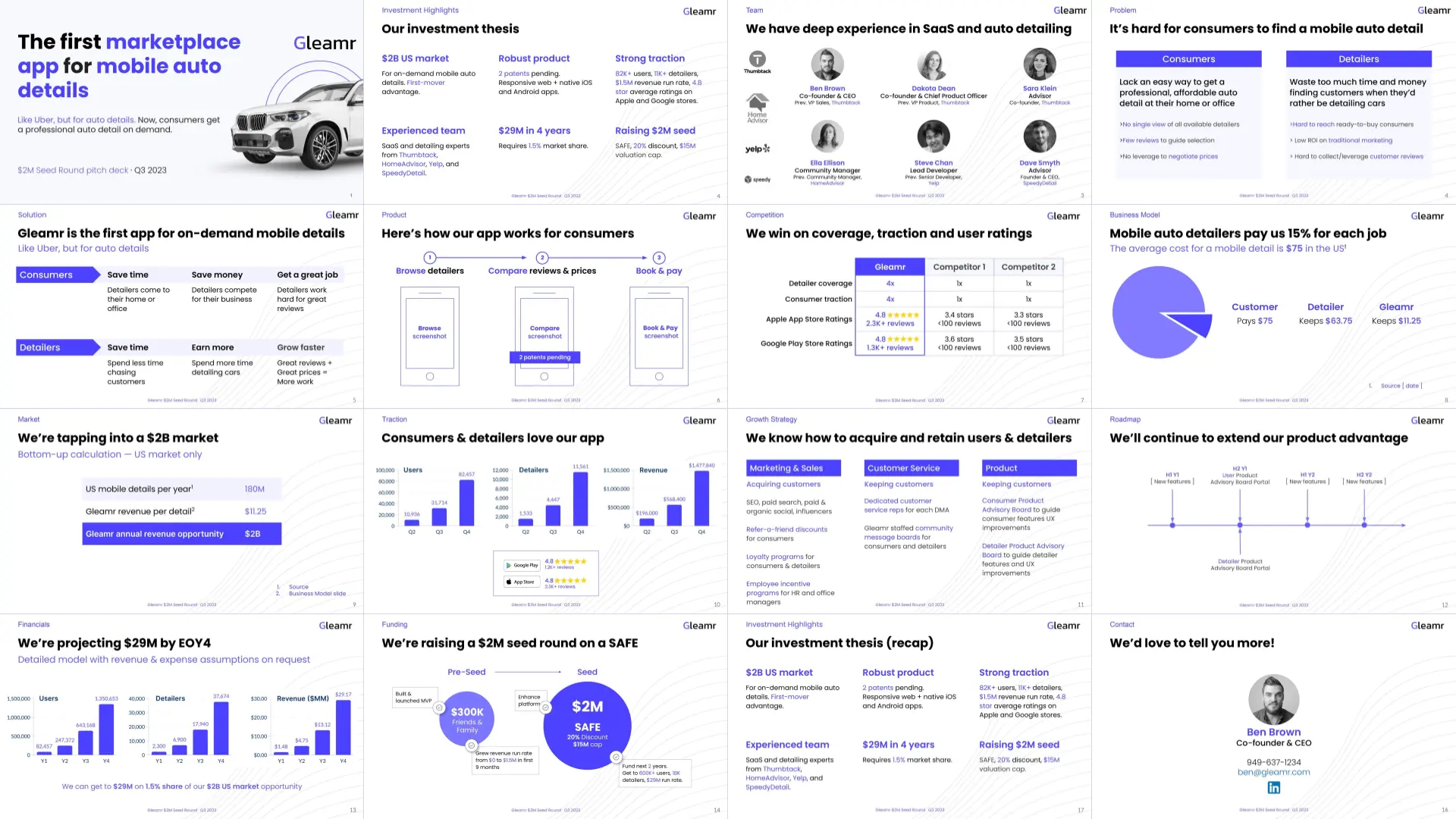
Image source: pitchdeckcoach.com
Key features:
- Template library designed for specific use cases.
- Real time collaboration features.
- Integrated video recording.
- Integration with other popular tools, such as Slack and Google Analytics.
Pros:
- Streamlined workflow and intuitive design make it easy to create professional looking presentations quickly.
- Collaboration features facilitate team work and feedback.
- Presentation analytics provide insights into audience engagement.
Cons:
- Limited advanced features for data visualization.
- Pricing can be expensive for small teams.
Who is it for?
Pitch is well suited for modern teams that prioritize collaboration, efficiency, and data driven insights. It's an excellent choice for remote teams seeking a seamless and engaging presentation experience.
Pricing:
- Free: Unlimited presentations, AI generation, basic collaboration, up to 5 persons.
- Pro: About $23.18/user/month (annual), includes 2 seats, advanced analytics.
- Business: About $92.73/user/month (annual), unlimited external guests, SSO, priority support.
5. Prezi: Dynamic storytelling through a zooming interface
Prezi utilizes a zooming interface instead of traditional slides to create dynamic and engaging presentations. Instead of traditional slides, Prezi uses a single canvas with interconnected topics, allowing presenters to create presentations that feel like a visual journey. The zooming interface can be more engaging than traditional slides for certain audiences and offers templates designed for specific use cases. Prezi also provides collaboration features for team work and presentation analytics. The platform also offers integration with other tools, such as Zoom and Microsoft Teams.
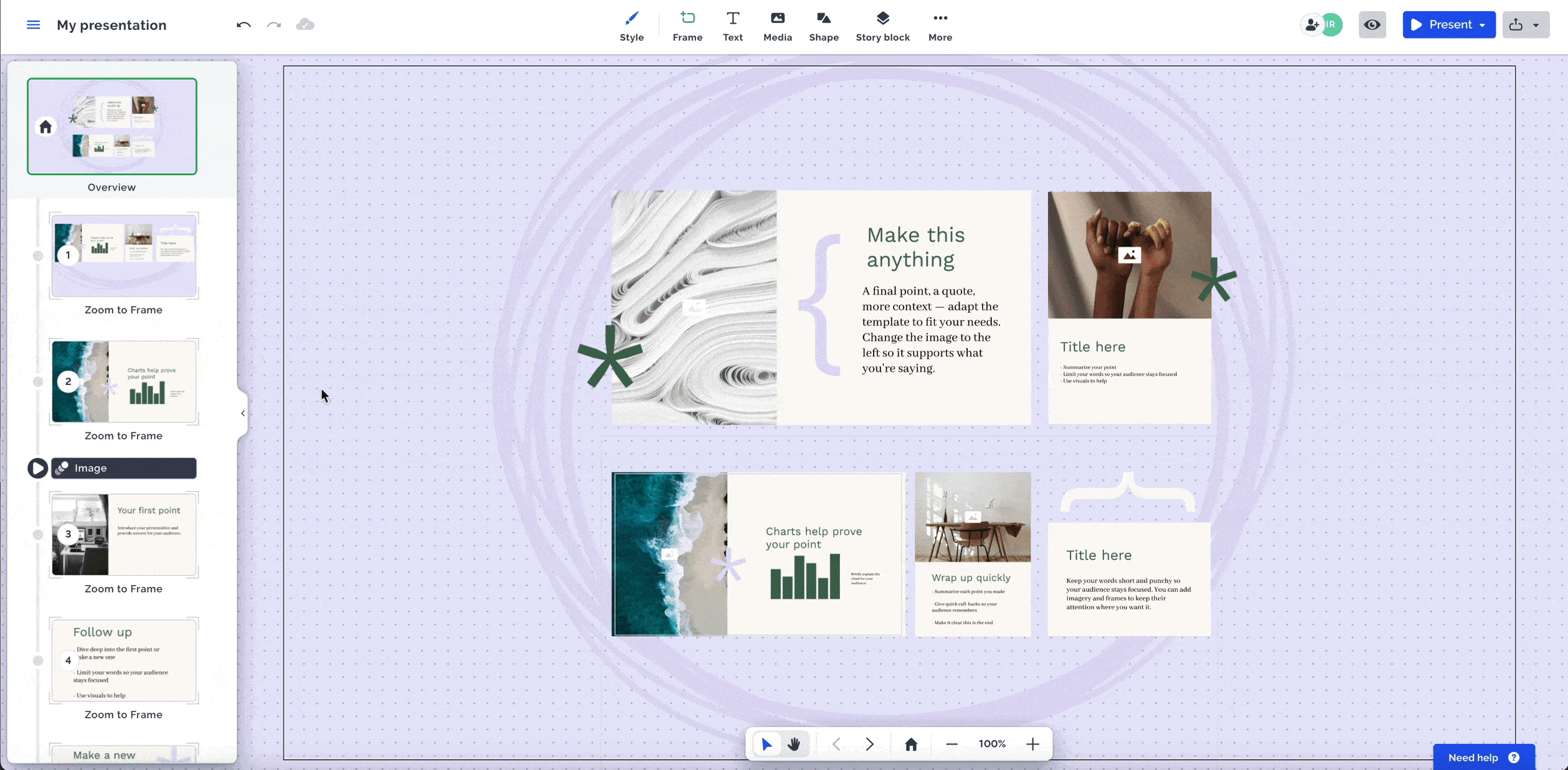
Image source: support.prezi.com
Key features:
- Library of customizable templates.
- Collaboration features for team projects.
- Integration with other tools, such as Zoom and Microsoft Teams.
Pros:
- Unique zooming interface can be more engaging than traditional slides for certain audiences.
- Templates designed for specific use cases.
- Collaboration features facilitate team work.
Cons:
- Zooming interface can be disorienting for some viewers.
- Limited advanced features for data visualization compared to more traditional presentation software.
Who is it for?
Prezi is a good option for presenters seeking a more dynamic and visually stimulating presentation style. It is also well suited for presentations that require a visual overview of interconnected topics, such as brainstorming sessions or concept explanations.
Pricing:
- Basic: Free; allows creating/sharing up to 5 visual projects.
- Standard: $7/month (billed annually); for personal use, with unlimited projects, dynamic content creation, and advanced privacy options.
- Plus: $19/month (billed annually); for expert communicators, including unlimited Prezi AI, PPT import, premium images, desktop app, and offline access.
- Premium: $29/month (billed annually); for business professionals, covering all Plus features plus analytics and advanced online training.
6. Mentimeter: Interactive presentations for real-time audience engagement
Mentimeter allows users to create interactive presentations with polls, quizzes, word clouds, and other interactive elements. The platform aims to engage audiences and gather real time feedback, making presentations more dynamic and participatory. It offers a variety of interactive question types and displays results in real time. Users can also customize branding to maintain a consistent look. Mentimeter integrates with other presentation tools, such as PowerPoint and Google Slides.
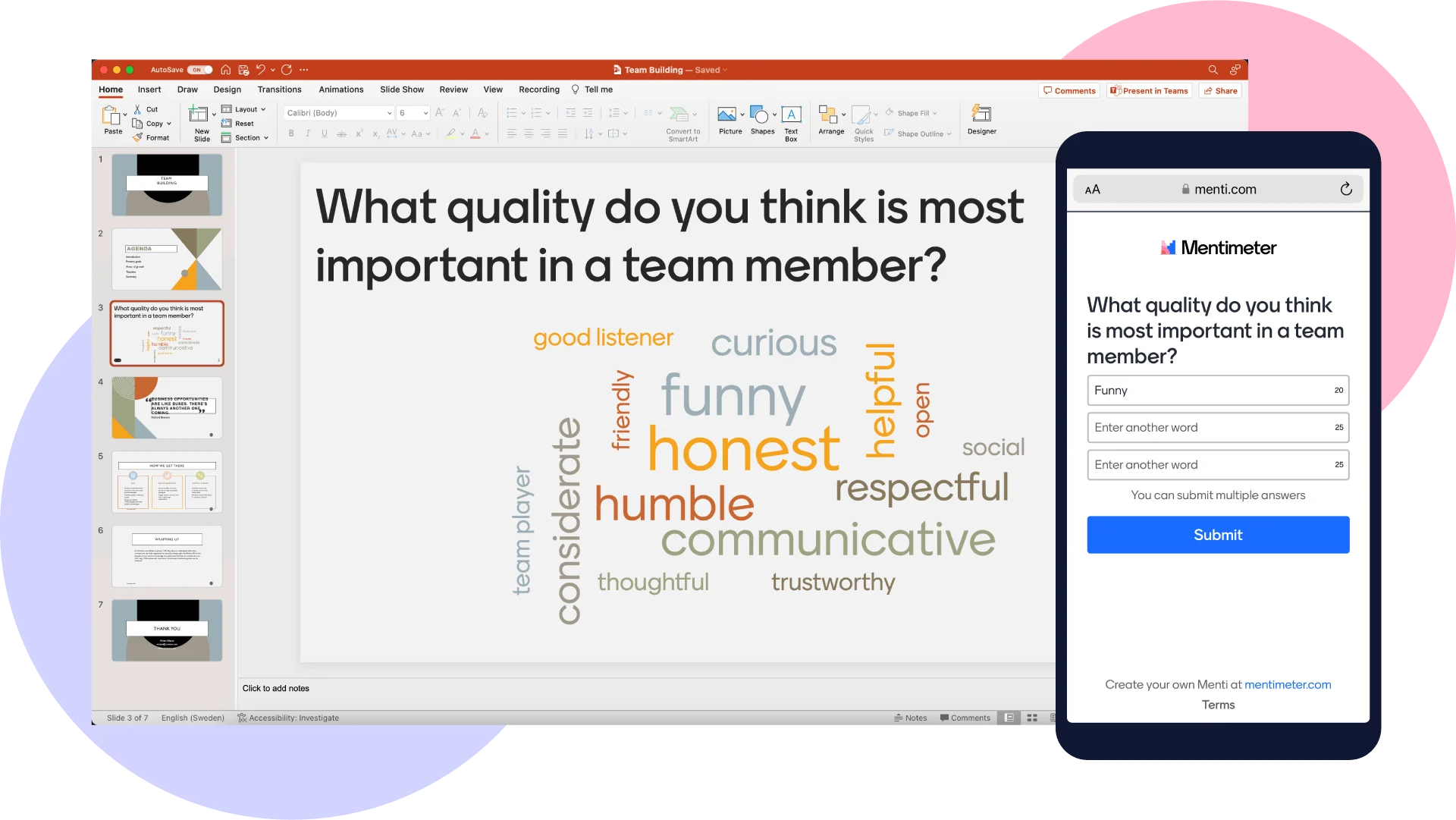
Image source: mentimeter.com
Key features:
- Variety of interactive question types.
- Real time results display.
- Integration with other presentation tools, such as PowerPoint and Google Slides.
Pros:
- Engaging interactive elements enhance audience participation and knowledge retention.
- Real time results provide valuable feedback and insights.
- Easy to use interface makes it accessible to presenters of all skill levels.
Cons:
- Limited features for creating traditional slides; it's primarily focused on augmenting existing presentations with interactive elements.
- May not be suitable for presentations that require a strong emphasis on visual design or data visualization.
Who is it for?
Mentimeter is ideal for presenters seeking to create highly interactive presentations and gather real time feedback from their audience. It is often used in educational settings, workshops, training sessions, and conferences.
Pricing:
- Free: Up to 5 Quiz Slides and 2 Question Slides.
- Basic: $17.99/presenter/month (annual), advanced design, unlimited participants.
- Pro: $24.99/presenter/month (annual), add your own brand.
- Enterprise: Contact sales.
7. Visme: All-in-one visual content creation for presentations and beyond
Visme provides presentation capabilities alongside tools for creating infographics, social media graphics, and other visual assets. The platform offers a versatile tool for creating a variety of visual content, making it suitable for marketing and communication teams. It provides an extensive library of templates and design elements, data visualization tools for creating charts and graphs, animation and interactivity features. Users can also collaborate on team projects. Visme is a comprehensive solution for diverse visual content needs.

Image source: visme.co
Key features:
- Extensive library of templates and design elements.
- Data visualization tools for creating charts and graphs.
- Animation and interactivity features.
- Collaboration features for team projects.
Pros:
- All in one platform for creating a variety of visual content, streamlining the content creation process.
- Extensive library of templates and design elements provides a wide range of design options.
- Data visualization tools for creating compelling charts and graphs.
Cons:
- Can be overwhelming for users seeking a dedicated presentation tool due to the breadth of features.
- Pricing can be expensive for individuals and small businesses.
Who is it for?
Visme is well suited for businesses and organizations that require a versatile platform for creating a variety of visual content, including presentations, infographics, and social media graphics. It's a good option for marketing and communication teams that need to create a wide range of visual assets.
Pricing:
- Free: 500MB storage, basic templates, watermarked exports.
- Starter: $12.25/month (annual), 1GB storage, standard features.
- Pro: $24.50/month (annual), 5GB storage, premium templates, AI design.
- Enterprise: Custom pricing, brand controls, SSO, priority support.
8. Keynote: Elegant presentations designed for the Apple ecosystem
Keynote provides user friendly interface and seamless integration with other Apple devices and services. The platform is a popular choice for Mac users seeking a visually appealing and intuitive presentation tool. It offers a wide range of templates and design options and allows users to add advanced animation and transition effects. Keynote's collaboration features enable team projects and integrates with iCloud for seamless syncing across devices. Keynote provides Mac users with a robust tool for creating compelling presentations.
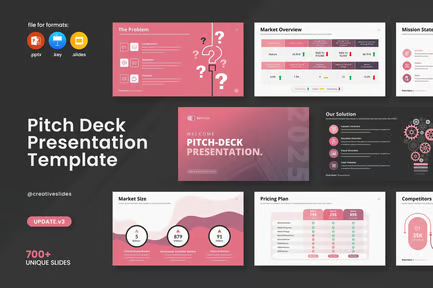
Image source: elements.envato.com
Key features:
- Elegant design and user friendly interface.
- Wide range of templates and design options.
- Advanced animation and transition effects.
- Collaboration features for team projects.
- Integration with iCloud for seamless syncing across devices.
Pros:
- User friendly interface makes it easy to create professional looking presentations.
- Elegant design and visually appealing templates contribute to a polished final product.
- Integration with iCloud provides seamless syncing across devices, allowing you to work on your presentations anywhere.
Cons:
- Only available on Mac and iOS devices, limiting its accessibility for users on other platforms.
- Limited compatibility with PowerPoint files, which can be a challenge when collaborating with users on Windows.
Who is it for?
- Keynote is ideal for Mac and iOS users seeking a visually appealing and user friendly presentation tool that seamlessly integrates with their Apple devices and services.
Pricing:
- Free: Available on all Apple devices (Mac, iPad, iPhone), full feature set
9. Zoho Show: Collaborative presentations within the Zoho ecosystem
Zoho Show, part of the Zoho Workplace suite, facilitates creating, collaborating on, and delivering presentations. Zoho Show's collaborative features are strong, allowing multiple users to work on a presentation simultaneously. It's included in the Zoho Workplace suite, providing value for existing Zoho users and has an interface that is straightforward and easy to navigate. Users can utilize templates and themes to get started quickly and access mobile apps for presenting on the go. Zoho Show is a practical choice for those integrated within the Zoho environment.
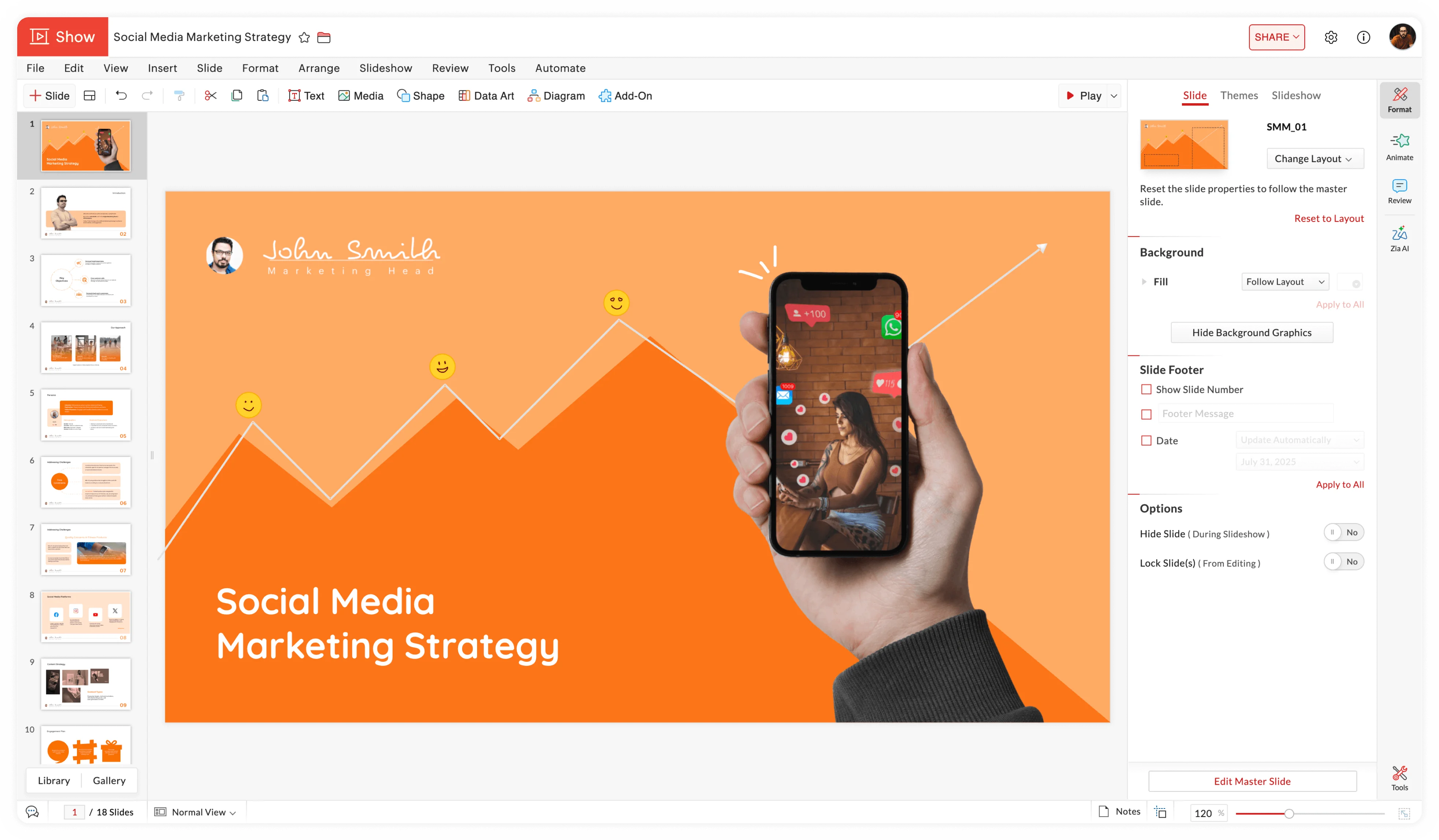
Image source: zoho.com
Key features:
- Collaborative presentation creation
- A clean and simple interface
- Integration with other Zoho apps
- Templates and themes to get started quickly
- Mobile apps for presenting on the go
Pros:
- Zoho Show's collaborative features are strong, allowing multiple users to work on a presentation simultaneously.
- It's included in the Zoho Workplace suite, providing value for existing Zoho users.
- The interface is straightforward and easy to navigate.
Cons:
- It may lack some of the advanced design features found in more dedicated presentation software.
- The template selection might be more limited compared to options like Canva or PowerPoint.
Who is it for?
It's a good fit for businesses already using the Zoho ecosystem, seeking a collaborative presentation tool without needing advanced design capabilities.
Pricing:
- Free: Basic presentations, 500MB storage, limited features.
- Professional: Starts at $3/user/month (annual), 1GB storage, advanced features.
10. Beautiful.ai: AI-powered design for stunning presentations, effortlessly
Beautiful.ai utilizes smart templates and AI-powered design to streamline the creation of visually appealing presentations. The platform helps users create professional looking presentations quickly and easily, eliminating the design headaches and ensuring a consistent look. The AI driven approach simplifies the design process, offering a library of smart templates and customizable themes. Integration with tools like Unsplash and Giphy adds visual flair. Real time collaboration enhances teamwork. Beautiful.ai helps users generate polished presentations efficiently.
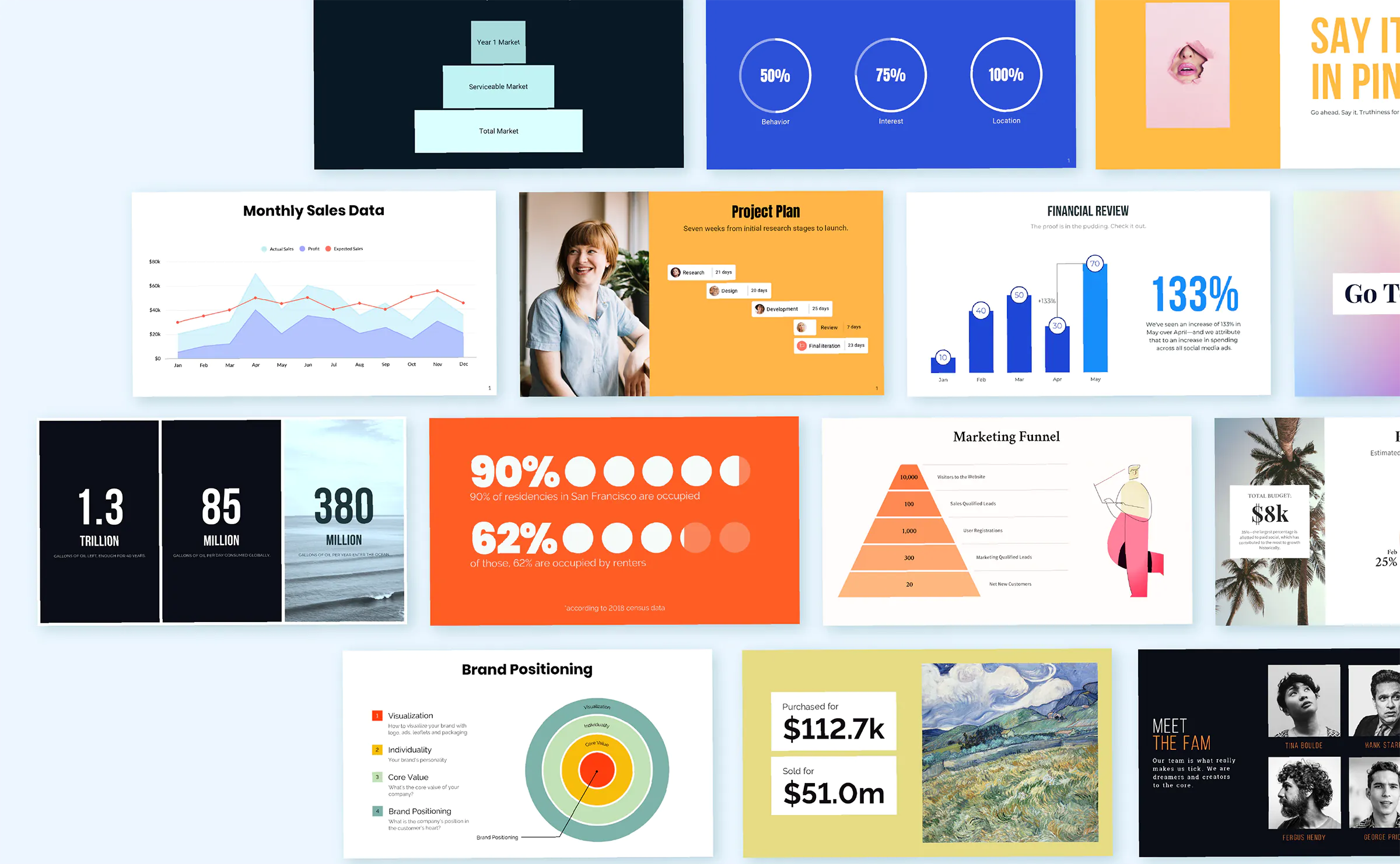
Image source: beautiful.ai
Key features:
- AI-powered design assistance
- A library of smart templates
- Integration with tools like Unsplash and Giphy
Pros:
- Beautiful.ai simplifies the design process with its smart templates and AI assistance, making it accessible to users with limited design skills.
- Presentations maintain a consistent and professional look, ensuring a polished final product.
- Collaboration is streamlined, allowing teams to work together efficiently.
Cons:
- The AI-driven approach might limit creative control for advanced designers who prefer more hands-on customization.
- It relies heavily on its template library, which could be restrictive for some users seeking highly unique designs.
Who is it for?
This option is well-suited for users seeking to quickly create visually impressive presentations without extensive design skills. It's helpful for professionals who want a polished look with minimal effort and who value efficiency in the presentation creation process.
Pricing:
- Pro: $12/user/month (annual), unlimited slides, version history.
- Teams: $40/user/month (annual), viewer and slides analytics, create presentations in 100+ languages.
- Enterprise: Custom pricing, brand kits, SSO, dedicated support.
What makes an exceptional presentation tool?
Beyond simply displaying information, an exceptional presentation tool empowers you to connect with your audience, convey your message effectively, and leave a lasting impression. While specific needs vary, several key characteristics distinguish a truly outstanding presentation platform:
- Intuitive user interface: A clean, easy-to-navigate interface minimizes the learning curve and allows you to focus on content, not wrestling with the software. Drag-and-drop functionality, clear menu structures, and helpful tooltips contribute to a seamless user experience.
- Compelling visual design: Visually appealing templates, customizable themes, and a wide range of design elements are crucial for creating engaging presentations. Enhancing visuals with high-quality images, videos, animations, and AI-powered tools can significantly improve audience engagement.
- Seamless collaboration features: In today's collaborative work environment, , version control, and integrated feedback mechanisms are essential. The ability to securely share presentations and manage access permissions streamlines teamwork and ensures everyone is on the same page.
- Engaging interactivity: Interactive elements like polls, quizzes, and Q&A sessions transform passive viewers into active participants. These features enhance audience engagement, promote knowledge retention, and provide valuable feedback.
- Robust data visualization: The ability to present data clearly and effectively is crucial for many presentations. Advanced charting tools, customizable graphs, and seamless integration with data sources enable you to transform raw data into compelling visual stories.
- Platform compatibility & accessibility: An exceptional presentation tool should be accessible across multiple devices (desktops, laptops, tablets, and smartphones) and operating systems (Windows, macOS, iOS, and Android). Cloud-based platforms ensure that your presentations are always available, regardless of your location.
- AI-powered assistance: Increasingly, AI-powered features are enhancing presentation tools. These features can automate content generation, suggest design layouts, refine visual elements, and provide real-time feedback, saving time and effort. To further streamline presentation creation, tools that can quickly transform written documents into structured slides, helping users save time while maintaining clear and organized content.
Ultimately, the best presentation tool is the one that best aligns with your specific needs and goals. By considering these key characteristics, you can narrow down your options and choose a platform that empowers you to create truly exceptional presentations.
Try these exceptional features in action
How to choose the best alternative to Google Slides?
With a plethora of Google Slides alternatives available, selecting the right one can feel overwhelming. To make an informed decision, consider these key factors:
Step 1: Identify your specific needs
Begin by clearly defining your presentation requirements. Ask yourself:
- What types of presentations will you be creating (e.g., sales pitches, training materials, webinars)?
- What is your level of design expertise?
- How important is collaboration to your workflow?
- What integrations do you need with other tools?
Step 2: Evaluate key features
Based on your needs, prioritize the features that matter most to you:
- Design capabilities: If visual appeal is paramount, look for tools with extensive template libraries, customizable themes, and advanced design elements.
- Collaboration features: If teamwork is essential, prioritize platforms with real-time co-editing, version control, and integrated feedback mechanisms.
- Interactivity: If you want to engage your audience, choose tools with polls, quizzes, and Q&A features.
- Ease of use: Consider the learning curve and choose a platform with an intuitive interface that aligns with your technical skills.
Step 3: Consider your budget
Google Slides is free for personal use, so switching to a paid alternative requires careful consideration of your budget. Evaluate the pricing plans of different platforms and choose one that offers the features you need at a price you can afford.
Step 4: Read reviews and testimonials
Research what other users are saying about different presentation tools. Look for reviews that address your specific needs and concerns.
Step 5: Take advantage of free trials
Most presentation platforms offer free trials, allowing you to test the software before committing to a paid subscription. Use this opportunity to explore the features, evaluate the user interface, and determine if the platform meets your needs.
Step 6: Consider your existing ecosystem
If you already use other (e.g., Lark, Microsoft Office), consider choosing a presentation platform that integrates seamlessly with your existing ecosystem. This will streamline your workflow and eliminate the need to switch between applications.
By carefully considering these factors, you can confidently choose the best Google Slides alternative for your specific needs and create presentations that inform, engage, and inspire.
Conclusion
The world of presentation software offers a diverse range of tools beyond Google Slides, each with unique strengths. By carefully considering your needs and exploring the options discussed, you can find the perfect platform to elevate your presentations. Don't be afraid to experiment with free trials and discover what works best for you.
For teams seeking seamless collaboration and AI-powered efficiency, we encourage you to explore . Discover how its unified workspace can transform your presentation workflow. Take the time to explore the options, and you'll be well on your way to creating presentations that captivate your audience and leave a lasting impact.
Upgrade your presentation experience today
FAQs
What program is Google Slides most similar to?
Google Slides is most similar to Microsoft PowerPoint. Both are presentation software programs that allow users to create visual slideshows with text, images, charts, and animations for delivering information to an audience. They share many core features and functionalities.
Why is Canva better than Google Slides?
Canva excels over Google Slides primarily in its ease of use and visual design capabilities. Canva offers a more intuitive drag-and-drop interface and a vast library of pre-designed templates and graphics, making it easier for users with limited design experience to create visually stunning presentations.
What is the 5/5/5 rule for slides?
The 5/5/5 rule is a guideline for creating concise and easily digestible slides. It suggests using no more than 5 words per line, 5 lines of text per slide, or 5 text-heavy slides in a row to maintain audience engagement and prevent information overload.
Can ChatGPT generate slides?
While ChatGPT cannot directly generate a slideshow file, it can assist in creating the content for your slides. You can use ChatGPT to brainstorm ideas, write outlines, generate text for each slide, and even suggest relevant images or visuals. You'll then need to copy and paste this content into a presentation program like Google Slides or PowerPoint.
Related reading