Workflows are among HubSpot's most powerful features, yet many teams tap into only a fraction of their automation potential. From nurturing leads to routing sales tasks and cleaning CRM data, HubSpot workflows help teams reduce manual work and operate more efficiently across marketing, sales, and service. But as processes scale, limitations such as workflow caps, enrollment rules, and the need for external automation tools often appear. That's why many businesses compare HubSpot workflows with alternatives like Make, Zapier, n8n, and Lark to find the right fit. In this guide, you'll learn how workflows work, key examples, best practices, and how you should value HubSpot.
Streamline your workflow from today
What are HubSpot workflows?
HubSpot workflows are automated sequences of actions that run when specific conditions are met in your CRM. They help marketing, sales, and service teams reduce manual work by automatically sending emails, updating records, assigning tasks, and routing internal notifications. Workflows in HubSpot are highly flexible. You can build simple trigger-based automations or complex multi-branch flows that personalize actions based on contact behavior, deal stages, or ticket updates. These HubSpot automation workflows span multiple CRM objects, including contacts, companies, deals, and tickets, enabling teams to streamline everything from to sales handoffs and customer support processes. Because workflows in HubSpot are data-driven, they adapt dynamically as records change, ensuring consistent follow-ups and cleaner CRM data.
However, as businesses scale, many teams combine HubSpot CRM workflows with external tools like Make, Zapier, or Lark to handle more advanced logic, cross-app integrations, and multi-system automation.
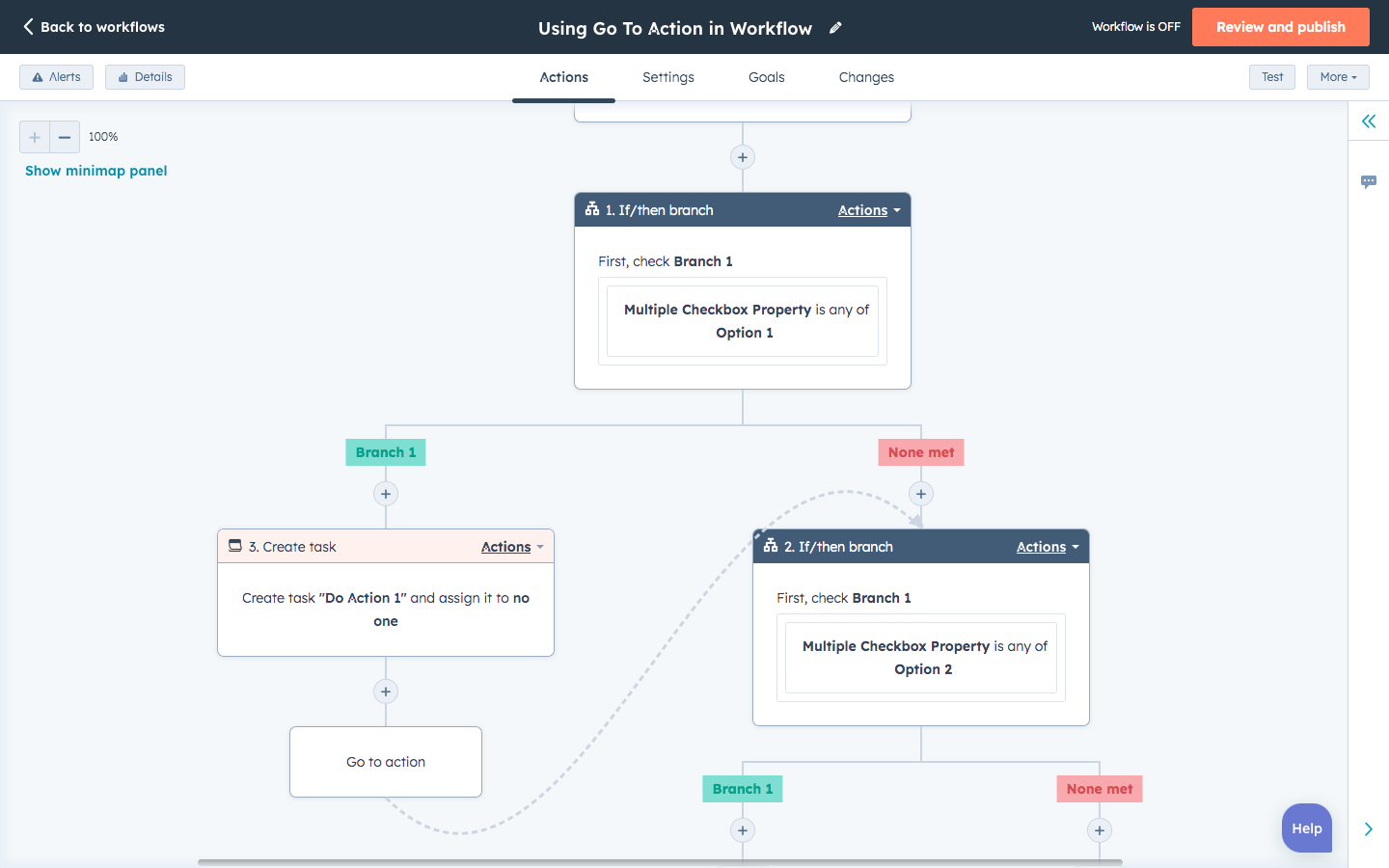
Image source: hubspot.com
How HubSpot automation workflows function
To understand the value of HubSpot workflows, it helps to break down the core components that power automation. These building blocks determine how a workflow starts, what actions it takes, and how personalised each path becomes.
Enrollment triggers
Enrollment triggers define when a workflow begins. In workflows, HubSpot, this could be a form submission, a deal stage update, a page view, or any property change. By setting clear triggers, teams ensure automations fire at precisely the right moment for marketing, sales, or service actions.
Actions (email, tasks, notifications, CRM updates)
Actions are the steps a workflow performs once a record is enrolled. HubSpot workflows can send marketing emails, assign tasks to reps, update CRM fields, or trigger internal notifications. These automated actions help reduce repetitive work and maintain consistent follow-up across teams.
Branching logic
Branching logic determines how different contacts or deals move through different workflow paths. By using if/then splits or multi-branch conditions, HubSpot automation workflows adjust actions based on behavior, properties, or engagement. This allows teams to deliver tailored experiences without manually segmenting every scenario. Data-driven personalisation
HubSpot uses CRM data to personalise automation at scale, ensuring emails, tasks, and routing rules match each user's context. Personalisation can be based on lifecycle stage, region, activity, or custom properties. With data-driven workflows in HubSpot, teams create more targeted, relevant, and effective automated journeys.
HubSpot sequences vs workflows: What's the difference?
Understanding the difference between HubSpot sequences and workflows is essential for choosing the right automation tool for your sales and marketing processes. While both help reduce manual work, they serve different purposes and operate at various levels inside HubSpot. Here's how each one works and when to use them.
Sequences for sales follow-ups
Sequences are designed for reps who need structured, personalized follow-up. They automate 1:1 sales , mainly emails and task reminders, helping reps stay consistent without losing human touch. In HubSpot, sequences vs. workflows: sequences are the hands-on, sales-driven option.
Workflows for automated processes
Workflows are fully automated, multi-step processes that support marketing, sales, and service. They can update CRM properties, assign tasks, send marketing emails, route tickets, and manage complex logic. Unlike sequences, HubSpot workflows run automatically and handle large-scale operations.
When to use each
Use sequences when your sales team needs manual follow-ups, personalized touches, or step-by-step outreach. Use workflows for automated background tasks: lead nurturing, data cleanup, deal routing, onboarding, or in sequence vs. workflows. The difference lies in the depth of automation and the size of the audience.
Example scenarios
A sales rep might use a sequence to follow up on a demo request or re-engage a prospect who hasn't replied. A workflow, on the other hand, could assign a new lead to the right owner, trigger an email series, or escalate a stalled ticket. Each tool supports different stages of the customer lifecycle.
HubSpot workflow examples you can create
HubSpot workflows let teams automate marketing, sales, and service operations with clear, repeatable logic. Below are practical HubSpot workflow examples showing how each workflow type works in real business scenarios.
Contact-based workflow example: drip series
A new lead downloads an ebook → they enter a nurturing workflow → HubSpot automatically sends a 5-email sequence based on behavior (opens, clicks, pages viewed). As engagement increases, the workflow updates the lifecycle stage, adds lead scoring points, and alerts sales when the contact becomes "Sales Qualified." This is ideal for scalable, behavior-triggered marketing automation.
Deal workflow example: Automated pipeline progression
When a rep moves a deal to "Demo Completed," a deal workflow triggers the following steps: create a follow-up task, send a recap email template, update deal properties, and notify the sales manager if the deal is stuck for more than 7 days. This keeps pipelines clean and prevents opportunities from slipping through cracks.
Ticket workflow example: SLA escalation workflow
A new ticket is created → HubSpot automatically assigns it to the correct support rep based on category or priority. If the ticket remains open beyond the SLA threshold, the workflow sends reminders, escalates to a senior agent, and notifies the customer with a status update. Perfect for fast-moving customer support teams.
Company workflow example: Account enrichment + matching
When a new company is added, a fills missing fields using integration data, associates existing contacts with the company, applies an account tier, and routes the account to an owner. This example supports account-based motions where accuracy and alignment matter.
Internal/team workflow example: Cross-department handoff automation
When a contact becomes SQL, an internal workflow triggers tasks for sales, posts a notification in Slack/Teams, assigns an onboarding checklist, and updates internal fields, such as "handoff owner." This reduces manual coordination and ensures every team member knows exactly when to act.
How to create workflows in HubSpot
Step 1: Get into Workflows and start fresh
Head to Automation → Workflows in HubSpot, then click the orange "Create workflow" button in the top-right corner. Choose "From scratch" and select the object you want to automate. Most people pick "Contact-based" to begin with.
Step 2: Give it a name and set the trigger
Click the pencil at the top to add a clear name (like "Ebook Nurture") and a short description, so your team instantly knows what it does. Next, set the enrollment trigger—usually "Form submission" on a specific landing page—and add any extra filters you need. For one-time nurture sequences, leave re-enrollment turned off.
Step 3: Build the sequence with emails, delays, and intelligent branching
Click the plus sign after the trigger to add actions: send the first automated email right away, insert delays (a day, three days, etc.), add an if/then branch (for example, stop if the contact is already a customer), and drop in additional nurture emails. Whenever both branches follow the same later steps, just use "Go to another action" instead of duplicating everything.
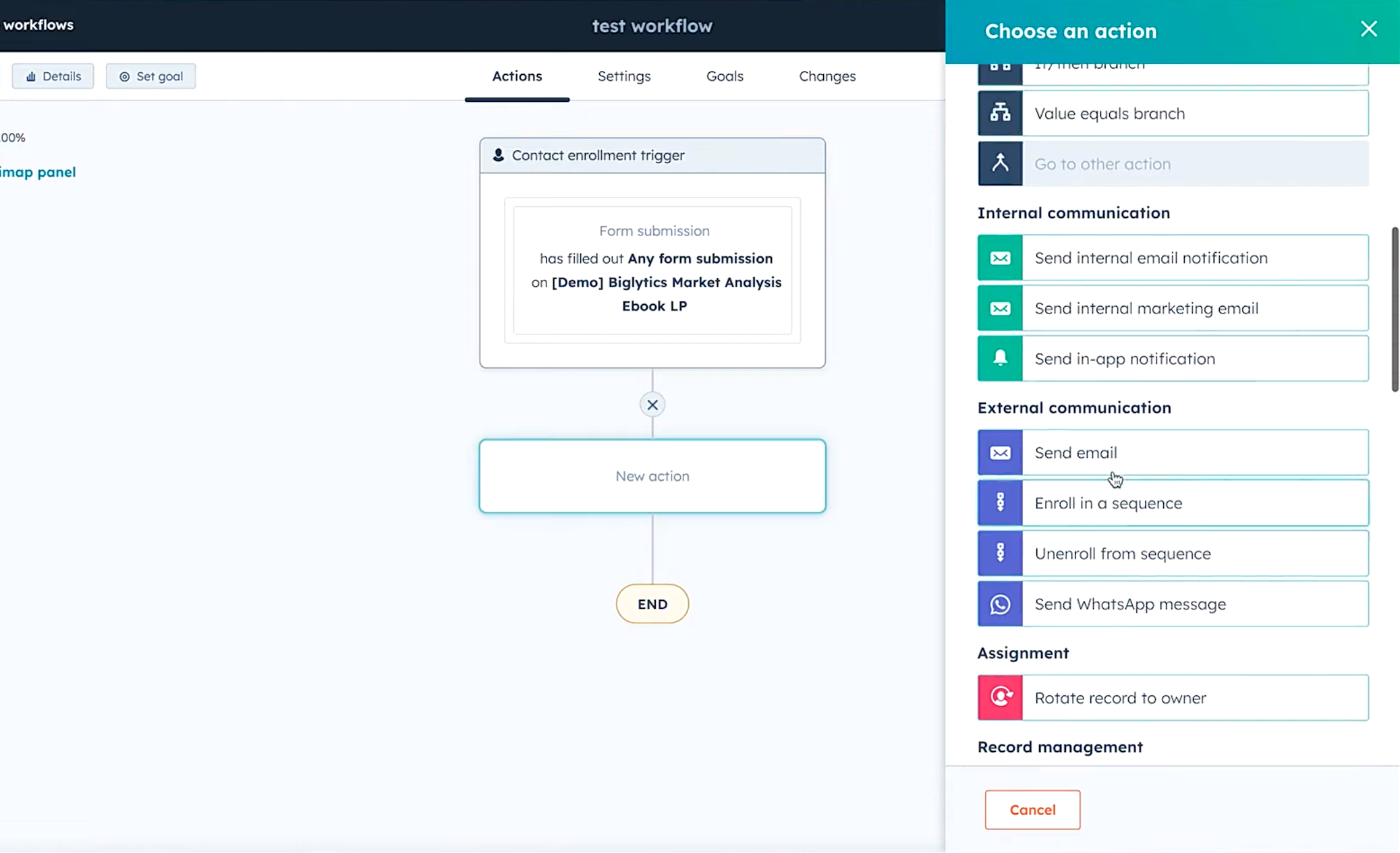
Image source: hubspot.com
Step 4: Add a goal and fine-tune the settings
Set a goal (e.g., "Submits the Free Consultation form") so that anyone who completes it exits the workflow automatically and doesn't receive extra emails. Then jump to the "Settings" tab to limit it to business hours, pause on holidays, add suppression lists, and turn on alerts if enrollments suddenly spike or drop.
Step 5: Test, review, and go live
Hit Test, pick real contact, and let HubSpot rush all the preview emails to your inbox at once. When everything looks good, click "Review and publish," choose to enroll only future contacts who meet the trigger, double-check the summary, and click "Turn on." After that, check the "Details" tab anytime to see how many people are flowing through and how many have hit the goal. Done, your automation now runs itself.
Limitations of HubSpot workflows you should know
While HubSpot workflows are powerful, teams often discover specific limitations as they scale their automation. These constraints can impact how many workflows you run, how deeply you customize them, and whether you need external tools for more advanced operations. Here are the key limitations to keep in mind.
- Workflow caps: HubSpot limits the number of active workflows per plan. As teams expand and add more automated processes, hitting these caps can restrict experimentation and growth. Businesses with complex operations may need to upgrade to unlock more workflow slots.
- Enrollment restrictions: Not all CRM objects or activities can trigger enrollment in workflows in HubSpot. Some advanced triggers, especially for website behavior, custom events, or product usage, require higher-tier plans. These restrictions can limit how precise or behavior-driven your automation can be.
- Required plan tier: Many advanced HubSpot automation workflow features, such as custom actions, branching logic, and advanced , are locked behind the Professional or Enterprise plan. This means that smaller teams on lower tiers may not have access to the complete automation capabilities they expect.
- Email volume limitations: HubSpot's email-sending limits depend on your subscription and contact tier. High-volume workflows, especially for nurturing sequences or onboarding journeys, can quickly consume these limits. This poses a challenge for teams that need frequent automated outreach.
- Complex workflows may need external automation tools: For multistep logic, API-heavy operations, or cross-app integrations, HubSpot alone may not be enough. Many teams connect HubSpot with tools such as Make, Zapier, n8n, Pabbly, or Lark to enable advanced automation. These external tools fill gaps in logic, data syncing, and multi-system workflows that HubSpot cannot fully support on its own.
As teams scale, HubSpot's workflow limits, caps, restricted triggers, and plan-locked features start to slow automation growth. Many organizations realize they need a system that supports deeper customization and cross-department workflows without extra tools. This is where Lark becomes a stronger alternative, offering unified automation, collaboration, and data in one seamless platform.
Discover smarter automations
Meet Lark: All-in-one platform with built-in workflow automation
brings workflows, , documents, tasks, and data into a single unified system, eliminating the fragmentation found in tools like HubSpot and Microsoft. With built-in automation, , and real-time updates, teams can run entire processes without switching apps. It's designed for fast-growing businesses that want seamless collaboration and powerful automation within a single workspace.
Workflow-powered workspace for everyday operations
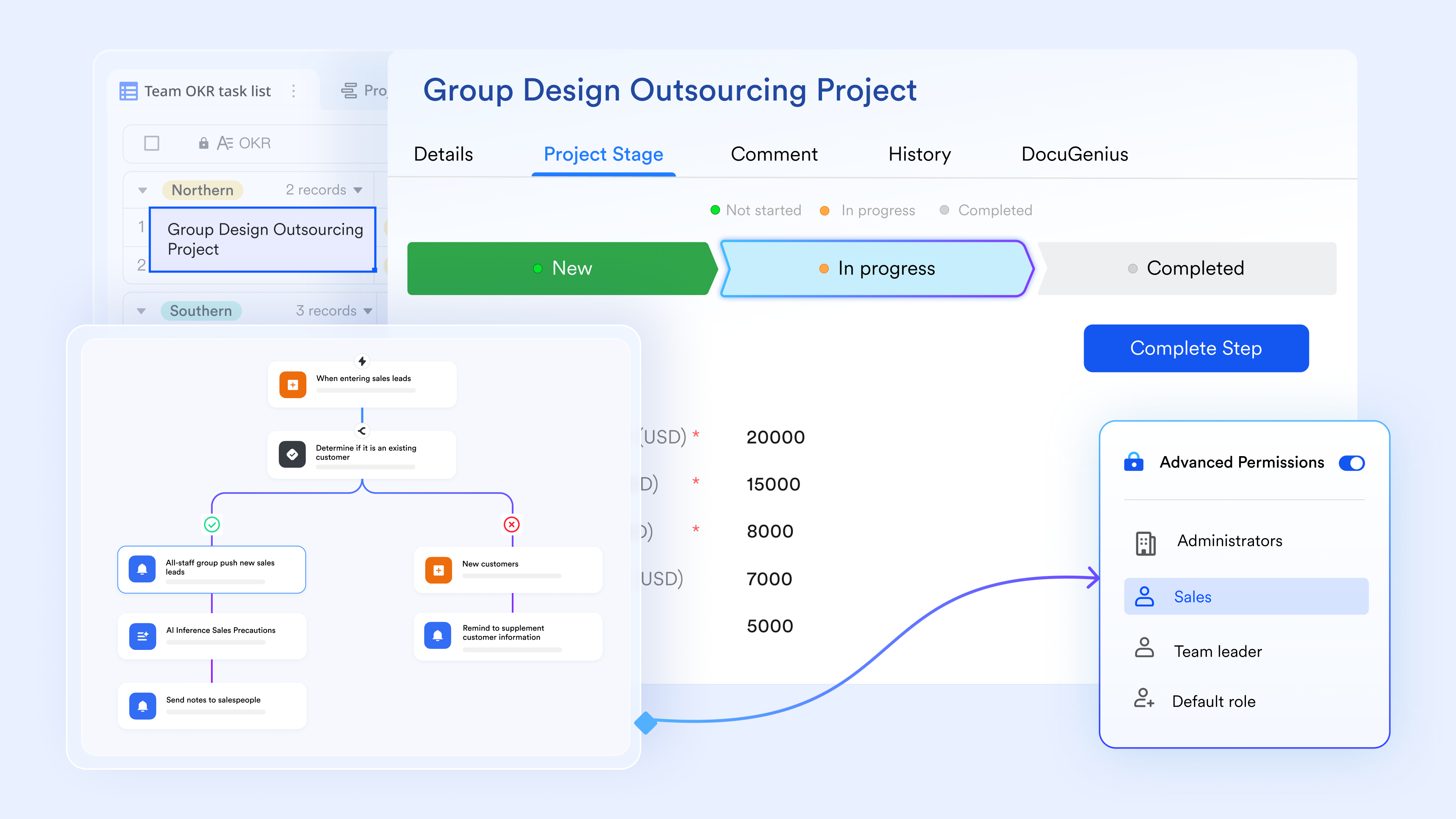
serves as the foundation for everyday workflow execution, enabling teams to build databases, automate actions, and visualize processes in a single space. A support team can log requests in Base, trigger follow-up tasks via automations, and monitor progress through dashboards, all without leaving the platform. With collaboration tools like Messenger and Tasks woven naturally around Base, teams can move from data to discussion to action seamlessly. 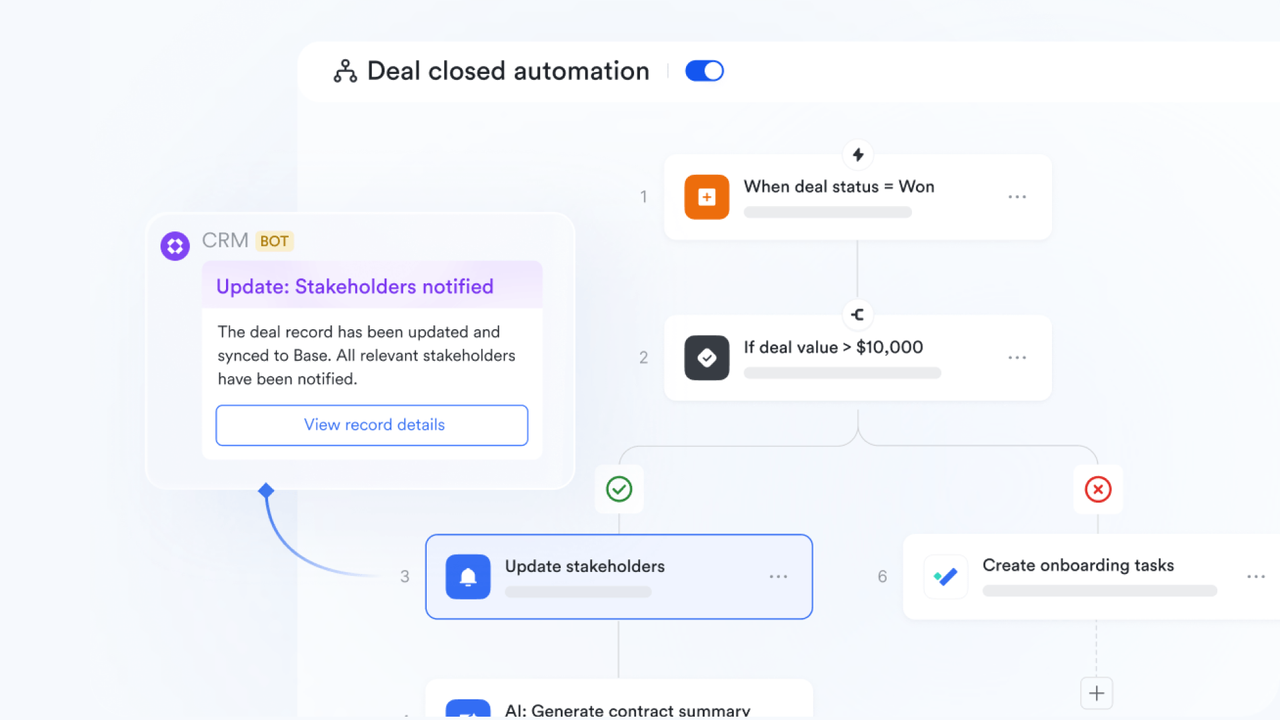
Smart approval routes and auto-actions in a single environment
With Lark Approval, teams can design intelligent routing paths that ensure every request reaches the correct approver at the right time, no manual chasing, no ambiguity. As a core function of any workflow system, Lark's customizable workflows help provide contexts for approval with attached material, standardize decisions, reduce delays, and enforce compliance across operations. In Lark, approvals can include multi-level routing, conditional logic, SLA timers, and automated reminders to keep cycles moving. 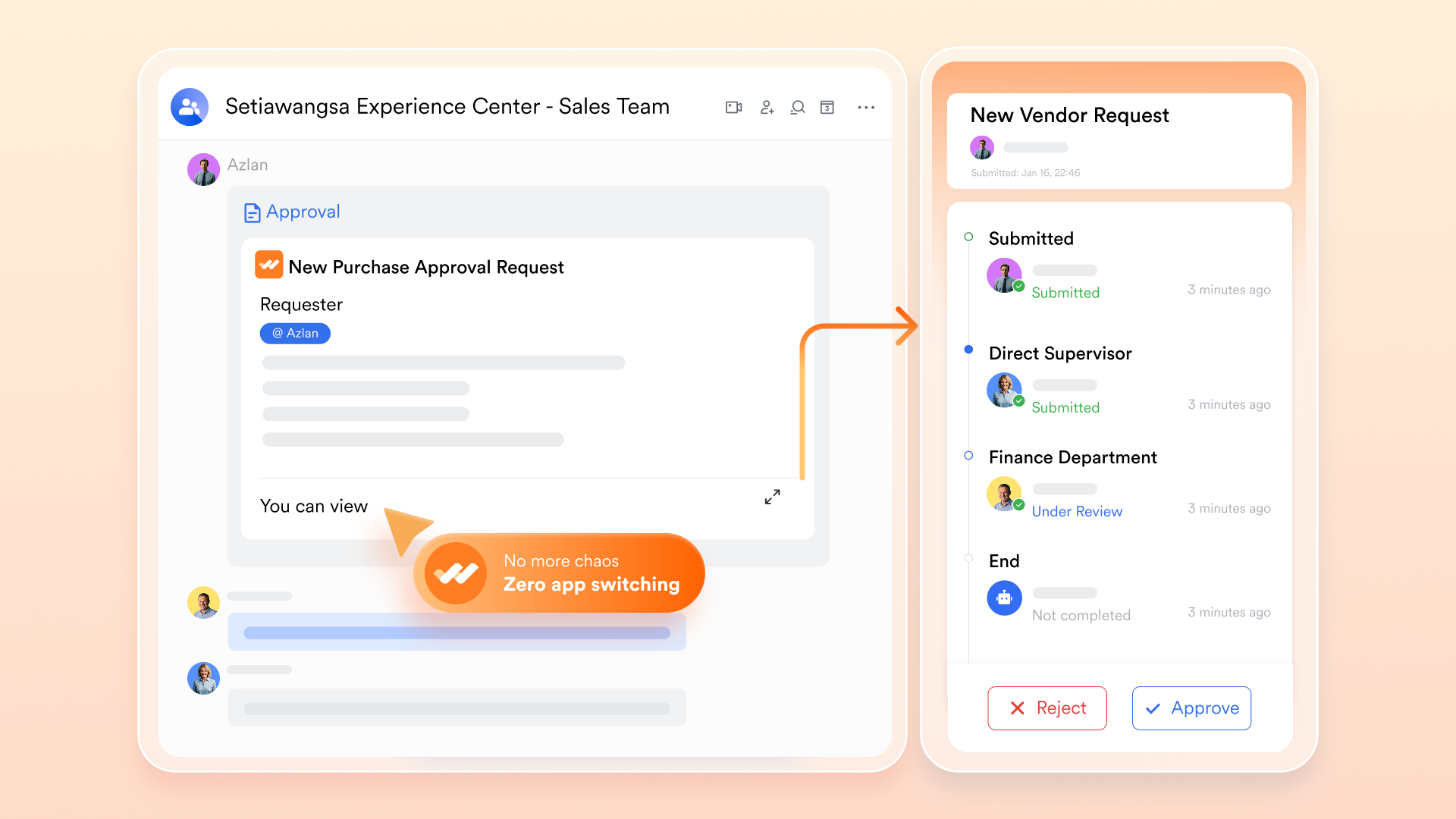
Sync, store, and manage data without extra steps
Lark Approval keeps your approval data organized by syncing data into Lark Base. With automatic hourly syncs, all approval outcomes and date fields stay up to date without manual effort. You can also trigger a manual sync anytime or choose a specific date range to pull in exactly the records you need. By sending structured approval data into Base, Lark Approval makes it easier to track requests, filter records, generate reports, and maintain a clean, reliable audit trail across your workflows. 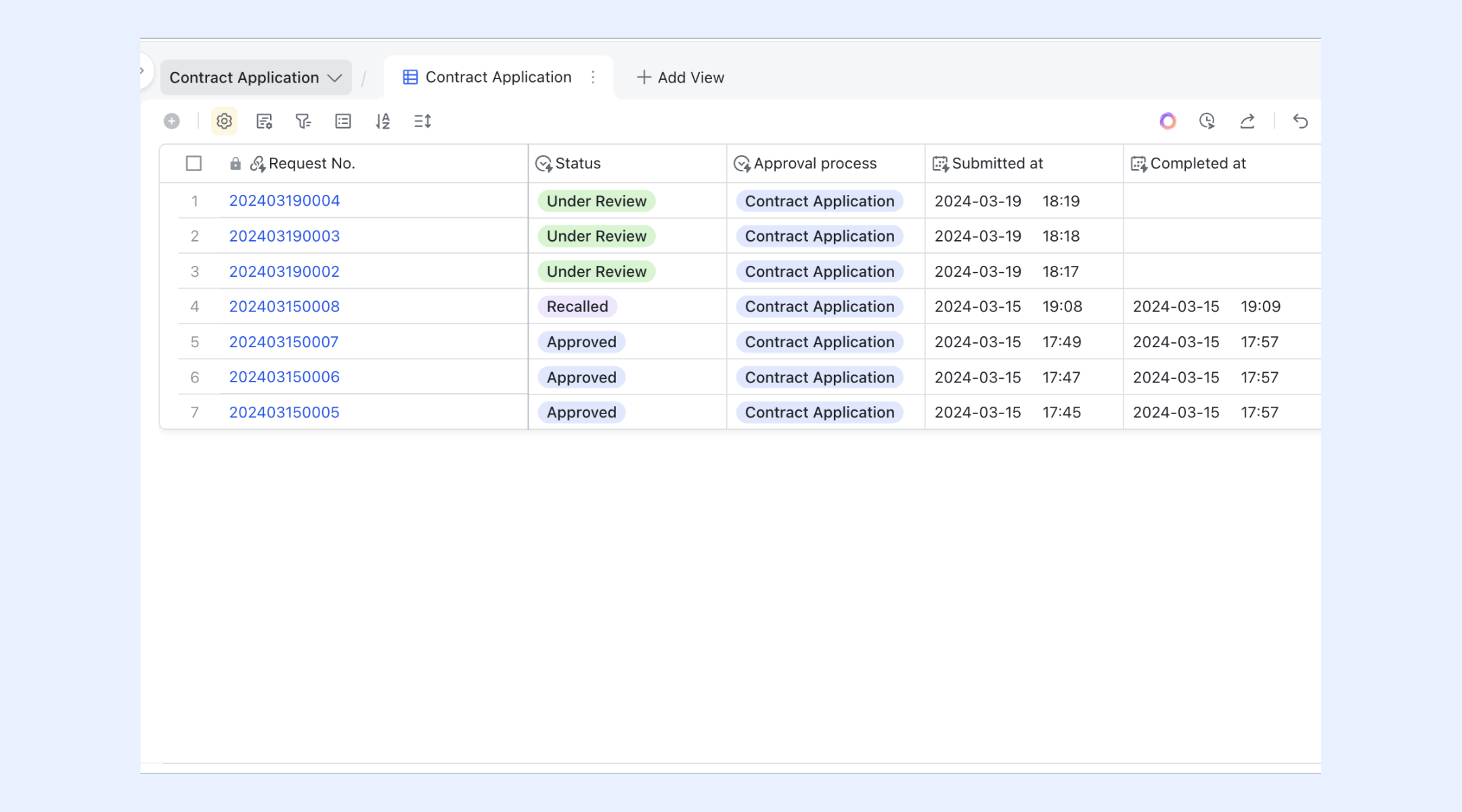
Real-time coordination with Messenger, Tasks, and Meetings
Lark connects , Lark Tasks, and into one continuous, real-time workflow. A teammate can discuss an issue in chat, instantly convert a message into a task, and escalate it to a quick meeting, all inside the same workspace. Tasks stay synced across the system: Messenger sends automatic reminders, updates task owners on progress, and alerts stakeholders when a step is completed or delayed. This ensures every conversation leads to action, every task stays visible, and every blocker gets resolved without breaking momentum. 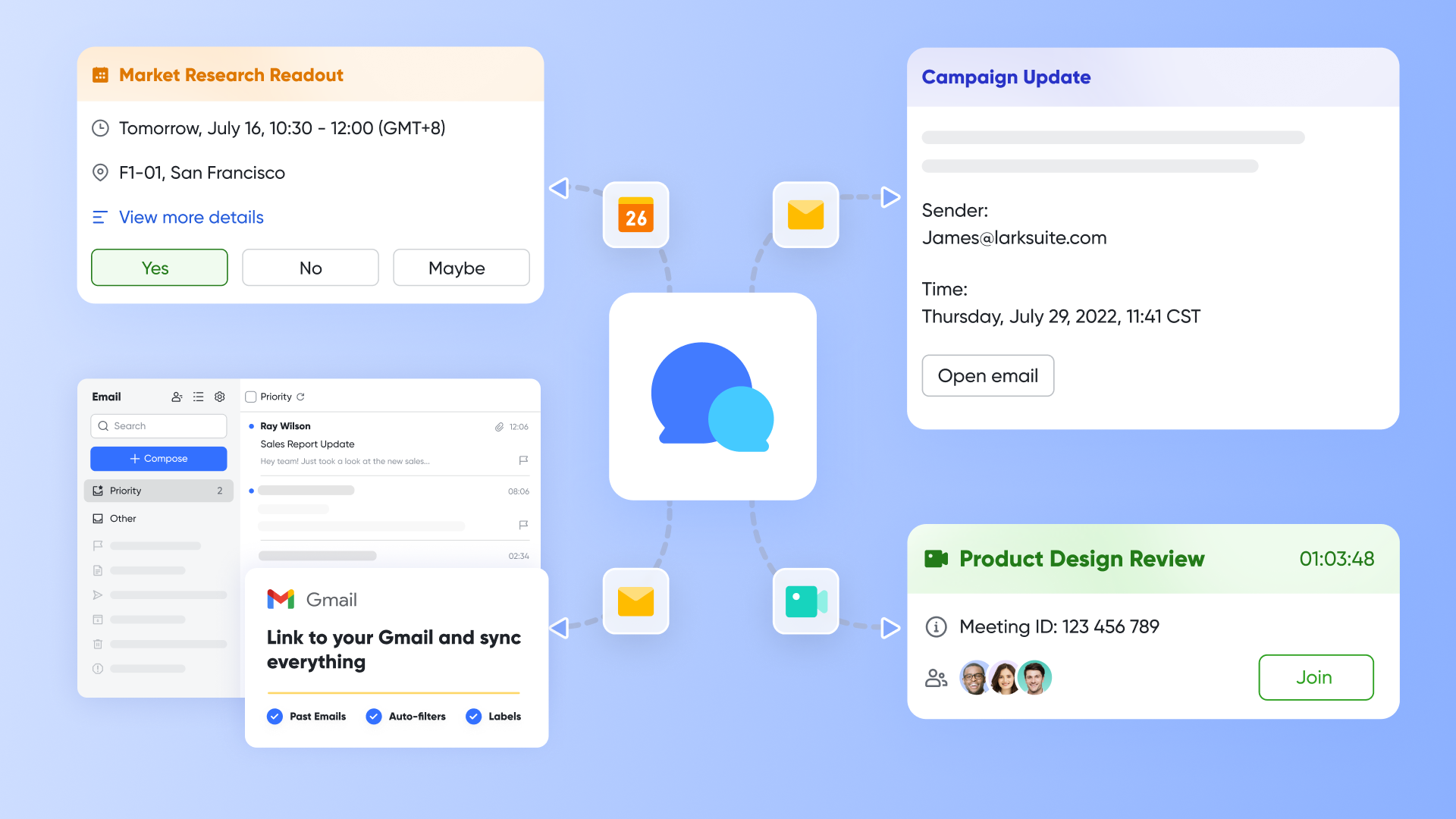
Smooth automation via support of built-in features and third-party tools
Lark Base workflow engine integrates seamlessly with built-in tools and third-party integration, giving users a wide freedom for workflow construction. For example, it can send a Lark Message, send a Lark Mail, update data in Lark Base records, or create an event that shows in Calendar. Also, Lark Base workflows integrate seamlessly with third-party tools to streamline cross-platform collaboration. You can set the action like "send a channel message to Slack," or set the trigger "When a Teams chat message is received." Take advantages of the routes and make your workflow smoother than ever. 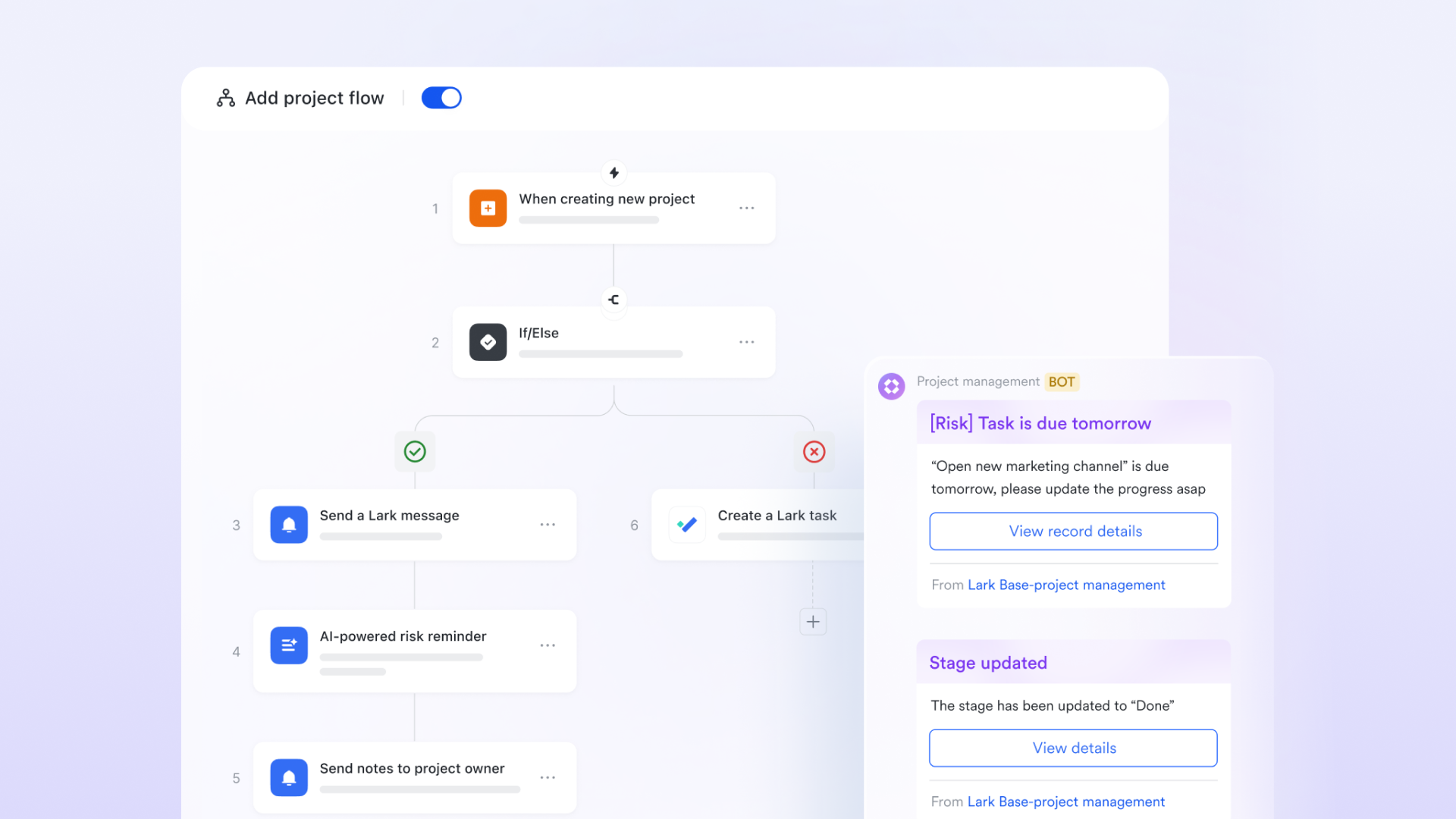
:
- Starter plan: Free forever plan that includes 11 powerful tools for up to 20 users. It also comes with 100GB of storage, 1000 automation runs, AI translations, and more.
- Pro plan: $12/user/month (billed annually) for up to 500 users. It includes everything in Starter plus group calling for up to 500 attendees, 15TB of storage, 50,000 automation runs, and more.
- Enterprise plan: for custom pricing. Supports unlimited users and includes even more automation runs and advanced security, compliance, and management features.
For small teams with simple communication needs

18 months message history
1000 Base automation runs/month
2000 rows per table in Base
Most POPULAR
For companies with comprehensive collaboration and management needs
Unlimited message history
500-participant video meetings
50k Base automation runs/month
20k rows per table in Base
For large companies with advanced security and organizational management needs
Get a personalized demo and pricing
Unlimited message history
500-participant video meetings
15 TB storage + 30 GB storage/user
500k Base automation runs/month
50k Base automation runs/month
Most POPULAR
For companies with comprehensive collaboration and management needs
Unlimited message history
500-participant video meetings
50k Base automation runs/month
20k rows per table in Base
HubSpot vs. Lark: Workflow best practices compared
To build reliable automation at scale, teams need more than triggers and actions; they need a platform that keeps workflows clean, predictable, and easy to maintain. Here's how HubSpot and Lark differ across key workflow best-practice areas.
Clear enrollment logic
- HubSpot: Enrollment depends heavily on CRM properties, lifecycle stages, and , but restrictions vary by plan. Misconfigured filters can lead to accidental enrollments.
- Lark: Enrollment is simpler because workflows are housed in a unified workspace with shared data. Forms, tasks, Base records, and approvals trigger automations consistently without complex CRM-based filters.
Avoiding workflow overlap
- HubSpot: Overlapping workflows can update the same properties, leading to conflicts and requiring regular audits to avoid duplicate emails or overwritten fields.
- Lark: Overlap issues are rare because workflows, records, and communication live in one system. Automations reference a single source of truth, making conflict detection easier and setup safer.
Using branching correctly
- HubSpot: Branching relies on if/then logic, which becomes more complicated to manage as workflows grow. Advanced branches often require Professional or Enterprise plans.
- Lark: Branching is visual, intuitive, and available to all users. Conditions can reference form fields, record values, approval status, and more, without plan restrictions or complicated CRM rules.
Testing before publishing
- HubSpot: Testing tools exist but require sample contacts, and misconfigured email or trigger logic can still slip through in live runs.
- Lark: Testing is built into every automation step, and flows execute in a predictable, isolated environment before publishing, reducing risk for cross-department workflows.
Monitoring workflow performance
- HubSpot: Reporting depends on the plan tier, and insights may require an upgrade.
- Lark: Every workflow has a real-time audit trail, run history, success/failure logs, and per-step insights, available to all users without tier limitations.
Conclusion
HubSpot workflows provide a strong foundation for automating marketing, sales, and service operations, but choosing the correct setup depends on your workflow volume, complexity, and long-term automation goals. Understanding triggers, actions, branching logic, and tool limitations helps you build cleaner, more innovative processes that require less manual work. As your needs grow, exploring alternatives or complementary platforms ensures you always have the flexibility and scale you need. In this guide, you've seen how to evaluate options, optimise workflows, and avoid common automation challenges. For teams seeking more unified, cross-department automation, many also explore modern workflow platforms like .
Streamline your workflow differently with lark
FAQs
Do HubSpot workflows work on the free plan?
HubSpot workflows are not available on the free plan, so users can't build automated sequences or multi-step HubSpot automation workflows without upgrading. Free users can use simple tools like forms and emails, but full workflows in HubSpot require a paid tier, usually Starter or Professional, depending on the workflow type.
Can website events trigger HubSpot workflows?
Yes, website events can trigger workflows HubSpot offers, but only if you're on Marketing Hub Professional or above. These triggers allow you to build behaviour-based HubSpot marketing workflows, such as automations that fire when a visitor views key pages or fills out forms. They're essential for advanced nurturing beyond basic HubSpot sequences vs workflows functionality.
Are HubSpot workflows available for HubSpot CMS users?
CMS Hub alone does not provide complete HubSpot CRM workflows, but when paired with Marketing Hub or Sales Hub, users can build powerful automations. CMS data, like page views, memberships, or form submissions, can feed into workflows in HubSpot. To run complete processes, you need at least Marketing Hub Starter or Professional, depending on the action type.
How many workflows can I create in HubSpot Marketing Hub?
The number of HubSpot marketing workflows you can create depends on your plan. Starter offers limited automation, while Professional and Enterprise allow hundreds to thousands of workflows. Teams using many nurturing paths often compare HubSpot workflows vs sequences to decide which actions belong in each system. Higher tiers remove most operational caps.
What happens when a HubSpot workflow is paused or turned off?
When you pause or turn off a workflow, active enrollments stop immediately, and no new contacts are added. It's a safe way to review logic, update steps, or fix issues in HubSpot automation workflows. Once reactivated, contacts can re-enter depending on your re-enrollment settings, standard in HubSpot workflows, such as lead nurturing or task routing.
Related reading