Spreadsheets remain the first place most teams turn when they need to track work. Even with dedicated project management platforms available, many teams still reach for microsoft Excel first because almost everyone already has it, it requires zero onboarding, and a structured spreadsheet can be customized to fit any workflow within minutes. A well-built progress tracker Excel sheet is familiar, flexible, and already available on most office computers, which makes it an easy starting point for projects of any size. Teams can quickly list tasks, assign owners, and calculate completion percentages without learning a new tool. However, as projects grow more complex, basic sheets often become harder to maintain, share, and update consistently.
This guide explains how to build a reliable progress tracker in Excel, what components it must include, which templates work best, and when it may make sense to consider connected tools like Lark for better visibility.
What an Excel progress tracker actually helps
A well-structured progress tracker in Excel provides teams with a clear, real-time view of how work , tasks, and deadlines. Think of it as a mini-database where every row represents one task and every column captures a dimension of that task's lifecycle. Instead of relying on scattered updates or long status meetings, teams can open a single sheet and instantly understand what's complete, what's delayed, and what needs attention. For instance, when managing a website redesign, a well-designed progress tracker excel template provides real-time project visibility into which tasks are on track and helps identify bottlenecks, overdue tasks, and workload imbalances before they cascade into delays.
Using a standardized progress-tracking Excel template also makes reporting easier, since percentages, timelines, and via formulas. Managers can quickly see overall project health, while team members know exactly what they're responsible for. Over time, this visibility improves accountability, reduces confusion, and helps teams make faster decisions when priorities change. When an individual progress tracker handles one project well, standardizing an excel project progress tracker across all teams transforms reporting, allowing project managers to forecast resource availability and escalate workstreams that are slipping.
3 core elements of a good progress tracker Excel file
A reliable progress tracker is more than a simple checklist. It needs structure, logic, and ownership details to give meaningful visibility into work. Whether you're building a project progress tracker Excel file or managing smaller tasks, these core elements ensure the tracker stays useful over time.
- Task hierarchy vs flat task lists: A spreadsheet should group tasks under phases, milestones, or deliverables rather than listing everything in a single column. This hierarchy helps teams understand how individual tasks contribute to the overall project. It also makes summary reporting easier and provides a clearer picture of progress at different levels.
- Status logic (not just "Done/In progress"): An effective task progress tracker Excel file uses multiple status options such as Not Started, In Progress, Blocked, Under Review, and Completed. This provides a more accurate view of real conditions rather than oversimplified updates. Clear status logic helps managers identify risks early and respond before delays spread.
- Owners, dependencies, and update cadence: A practical Excel to-do list with a progress tracker should always include a task owner, any dependencies, and a defined update cadence. improves accountability, while dependencies reveal potential bottlenecks. Regular updates—daily or weekly—ensure the tracker reflects reality rather than outdated assumptions.
To ensure these elements are captured, every high-impact template should include essential columns like Task ID, Task Name, Owner, Start Date, Due Date, Status, Priority, % Complete, Dependencies, and Phase/Workstream.
How to build an Excel project progress tracker on your own
Creating a reliable tracker from the ground up helps you avoid messy sheets and broken formulas later. A well-designed work progress tracker Excel file should balance simplicity with structure to enable teams to update it consistently. The following steps outline how to build a practical and scalable tracker.
Step 1: Task list, summary, and reference sheets
Start your Excel project progress tracker with three core sheets: a task list, a , and a reference sheet for dropdown values. The task list holds all assignments and dates, the summary aggregates progress, and the reference sheet standardizes statuses and owners. Select the range of your task list and press Ctrl+T to convert it into an Excel Table, which provides structured references and dynamic ranges. This structure prevents clutter and keeps formulas easier to manage.
Step 2: Fix formula logic for progress tracking
A good progress-tracking Excel file uses formulas to automatically calculate completion percentages. Unweighted progress treats all tasks equally, whereas weighted progress assigns different weights to critical tasks. Choosing the right method ensures that the overall percentage reflects the actual project effort. For overall project progress, use a weighted average: =SUMPRODUCT([% Complete],[Weight])/SUM([Weight]). You can also add a calculated "Days Left" column (=[Due Date]-TODAY()) to flag urgency automatically.
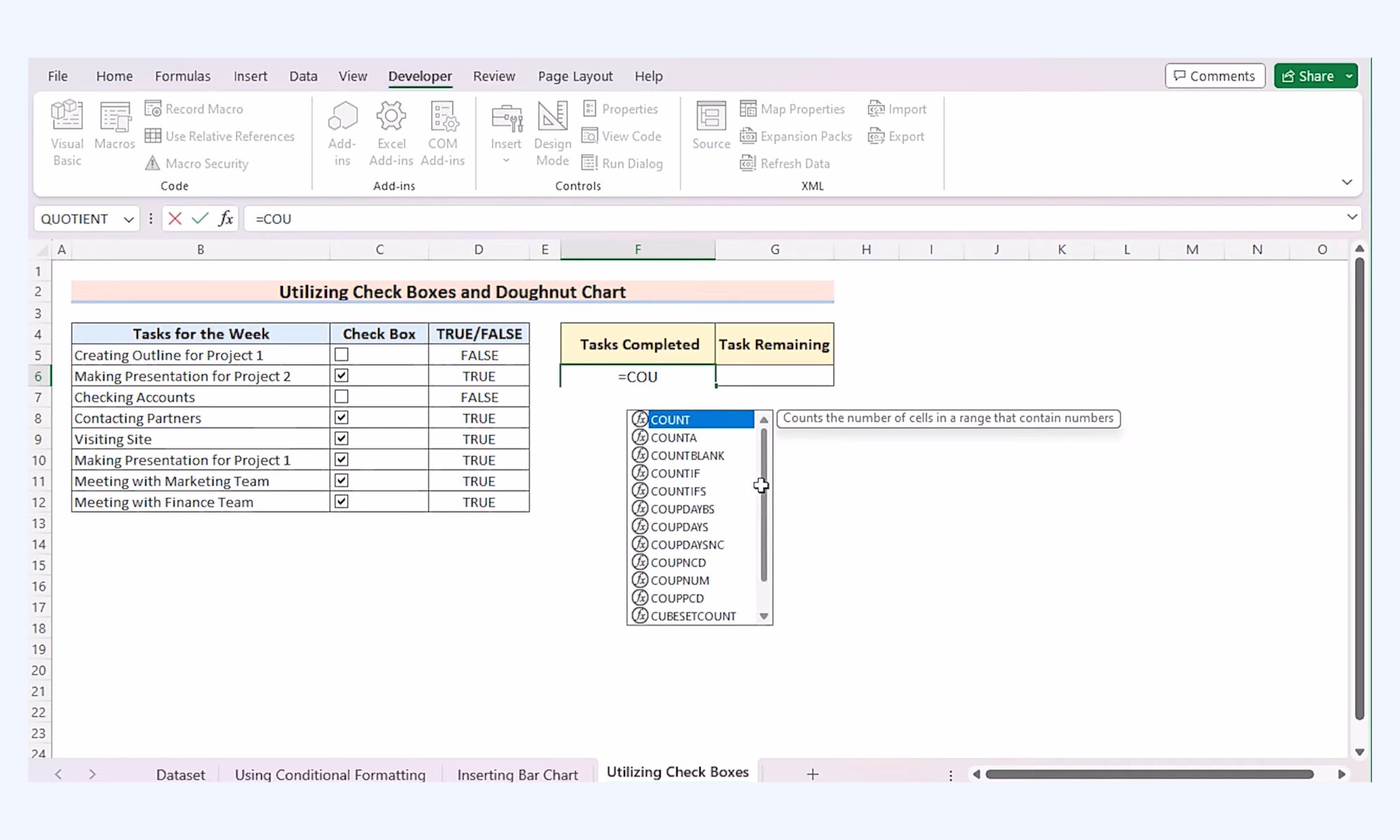
Image source: microsoft.com
Step 3: Avoiding overuse of conditional formatting
Without visual cues, scanning a 100-row task list is slow and error-prone. Conditional formatting can make a tracker easier to read, but too many rules slow down the sheet and create visual noise. Limit formatting to key signals like overdue tasks, blocked statuses, or high-priority items. This keeps the tracker fast, clean, and easier for teams to interpret at a glance. Using color-coded indicators to surface project risks is arguably the best way to track progress in Excel when your team reviews status in standups.
Step 4: Keeping the file usable after week three
Many trackers work well in week one but become cluttered after a few updates. To keep the file usable, standardize data entry, lock formula cells, and archive . Establish concrete habits like a defined update cadence and assigning a single owner for data quality. This prevents broken formulas and ensures the tracker remains accurate throughout the project lifecycle.
Quick starts: Progress tracker Excel templates
Progress tracker Excel templates offer a fast starting point for teams that need structure without building a sheet from scratch. They come with predefined columns, formulas, and layouts suited for different types of work. Choosing the depends on project size, task complexity, and update frequency.
Project tracker template
A project tracker template provides a simple, structured way to , owners, deadlines, and completion percentages in one place. It usually includes a summary section that automatically calculates the overall project progress. This template works best for small to mid-sized projects that need clear visibility without complex setup.
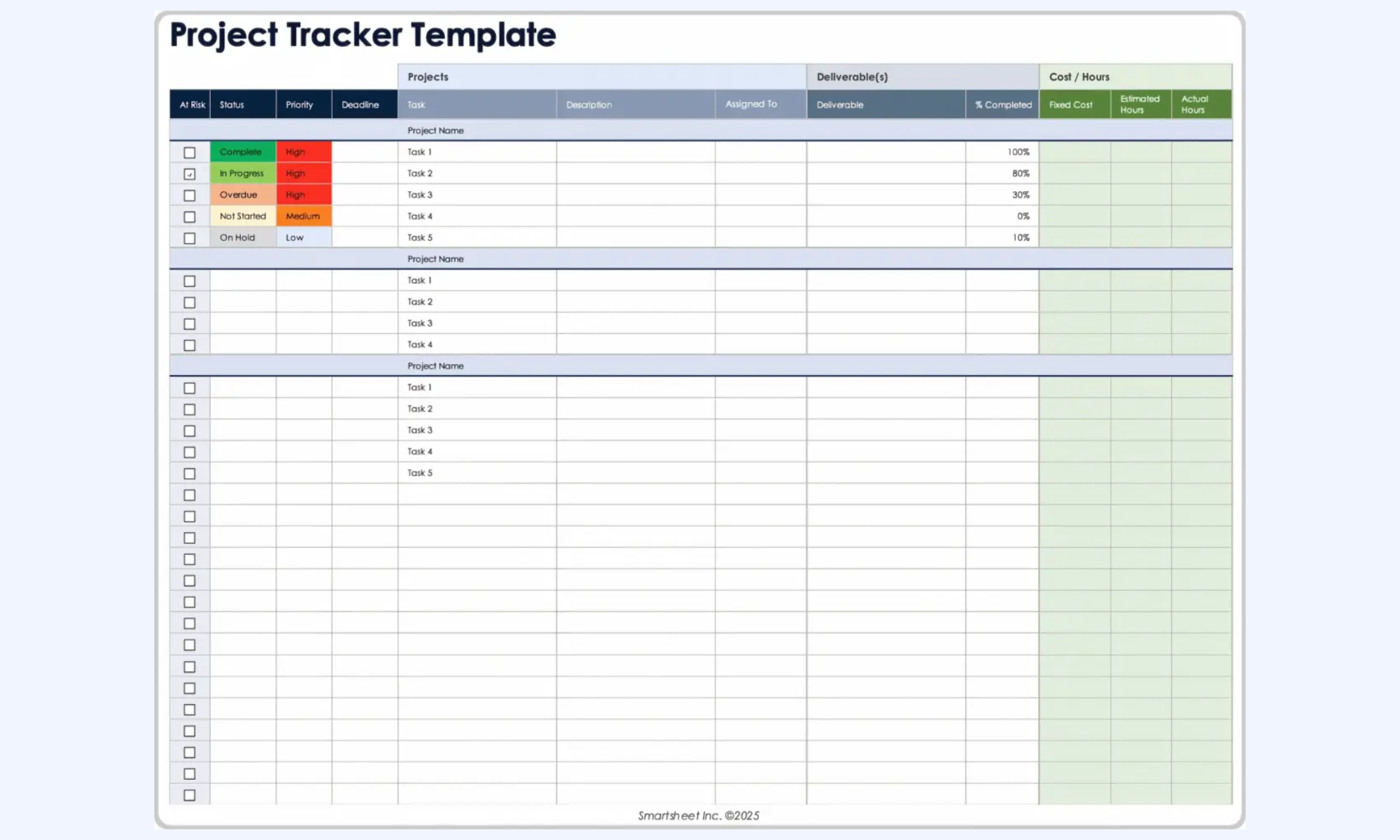
Image source: smartsheet.com
Project task list template
A project task list template focuses on tracking tasks, owners, priorities, due dates, and statuses in a single sheet. It helps teams manage tasks and day-to-day responsibilities without complex formulas or dashboards. This template works best for short projects or operational work where simplicity and quick updates matter most.
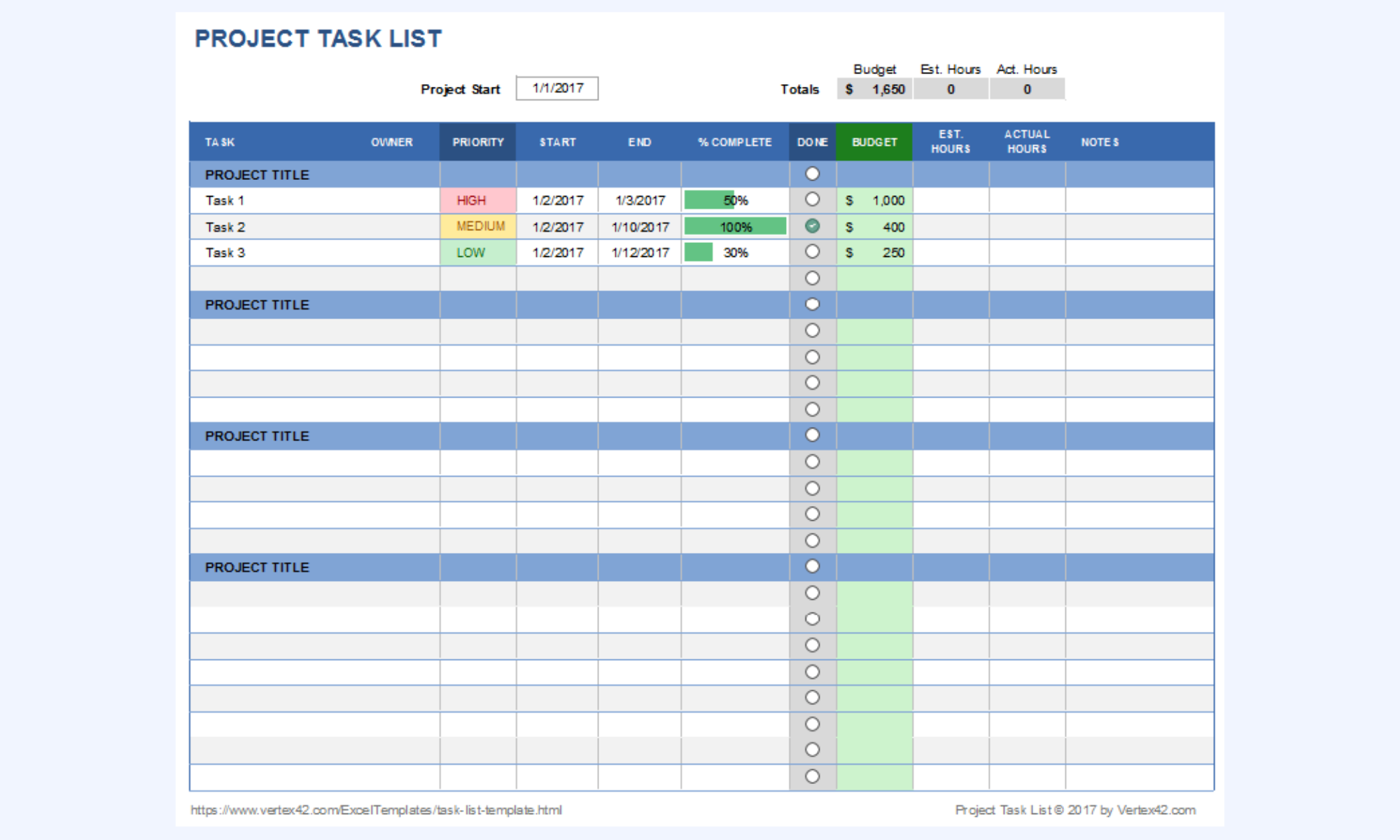
Image source: vertex42.com
Gantt chart template
A template visualizes tasks along a timeline, showing start dates, end dates, and dependencies between activities. It helps teams understand sequencing, critical paths, and how delays in one task affect others. Gantt charts visualize tasks along a timeline in Excel, and Excel Gantt charts show task dependencies and progress over time when you layer milestone markers onto the bars. This template works best for projects with strict timelines, multiple phases, and interdependent tasks.
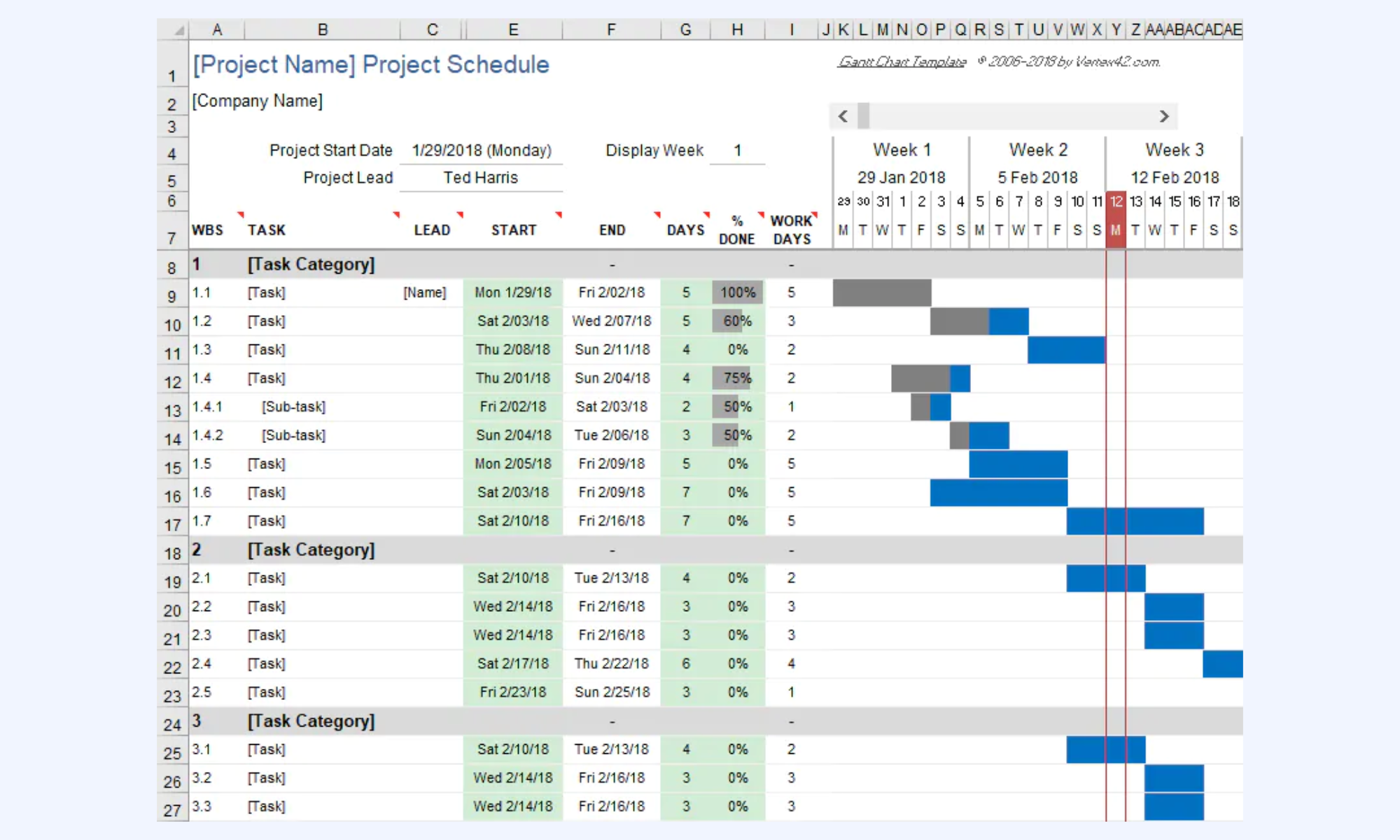
Image source: microsoft.com
Personal budget template
A personal budget template tracks income, expenses, and savings goals in a structured spreadsheet. It helps individuals monitor spending patterns and stay aligned with financial targets. This template is best suited for personal planning or for small teams managing simple cost allocations.
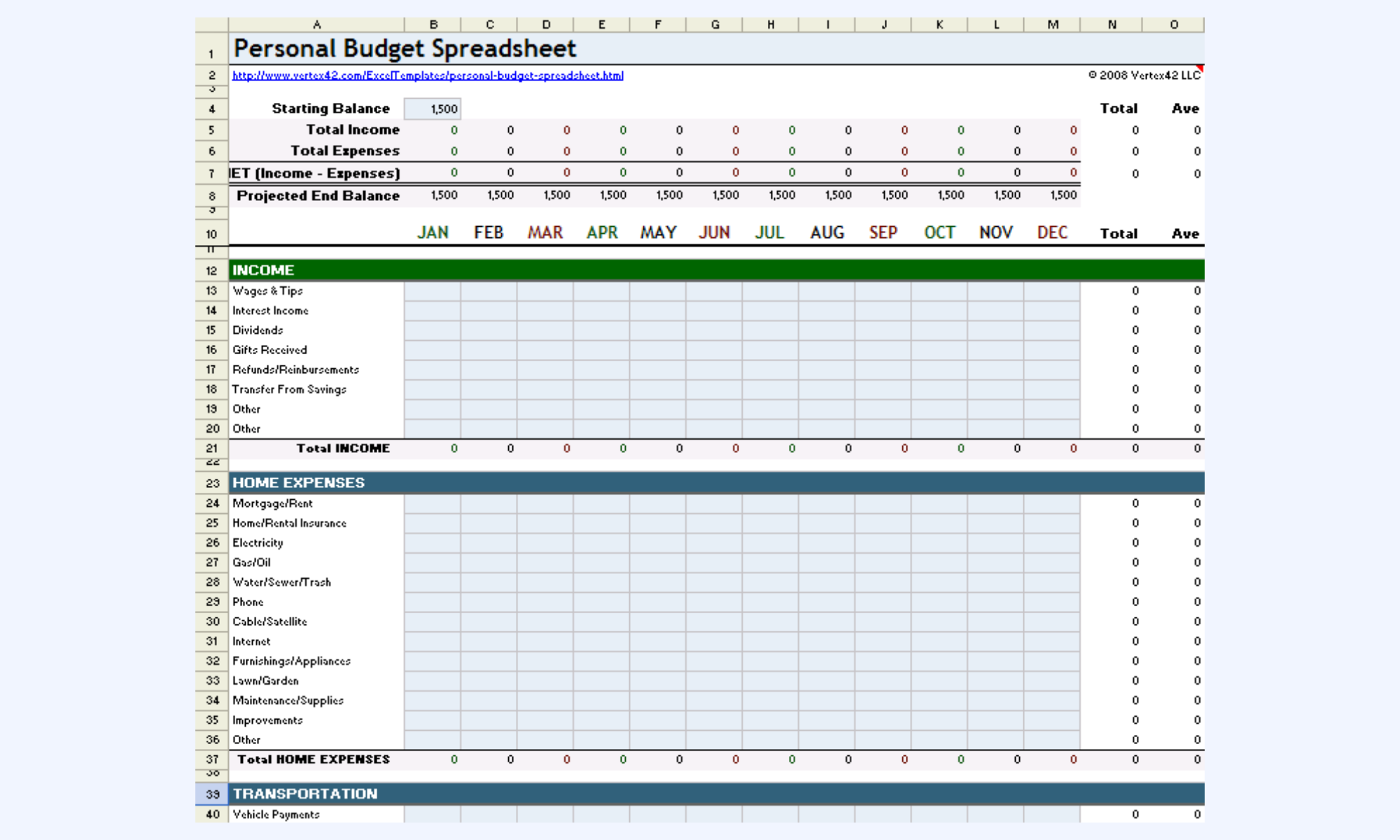
Image source: vertex42.com
Portfolio management template
A template tracks multiple projects, investments, or initiatives in one consolidated view. When you manage more than one project, use separate tabs for individual projects plus a "Portfolio_Summary" tab with roll-up formulas. It helps decision-makers compare performance, priorities, budgets, and timelines across different items. This template works best for executives or managers overseeing several projects and needs a high-level progress overview.
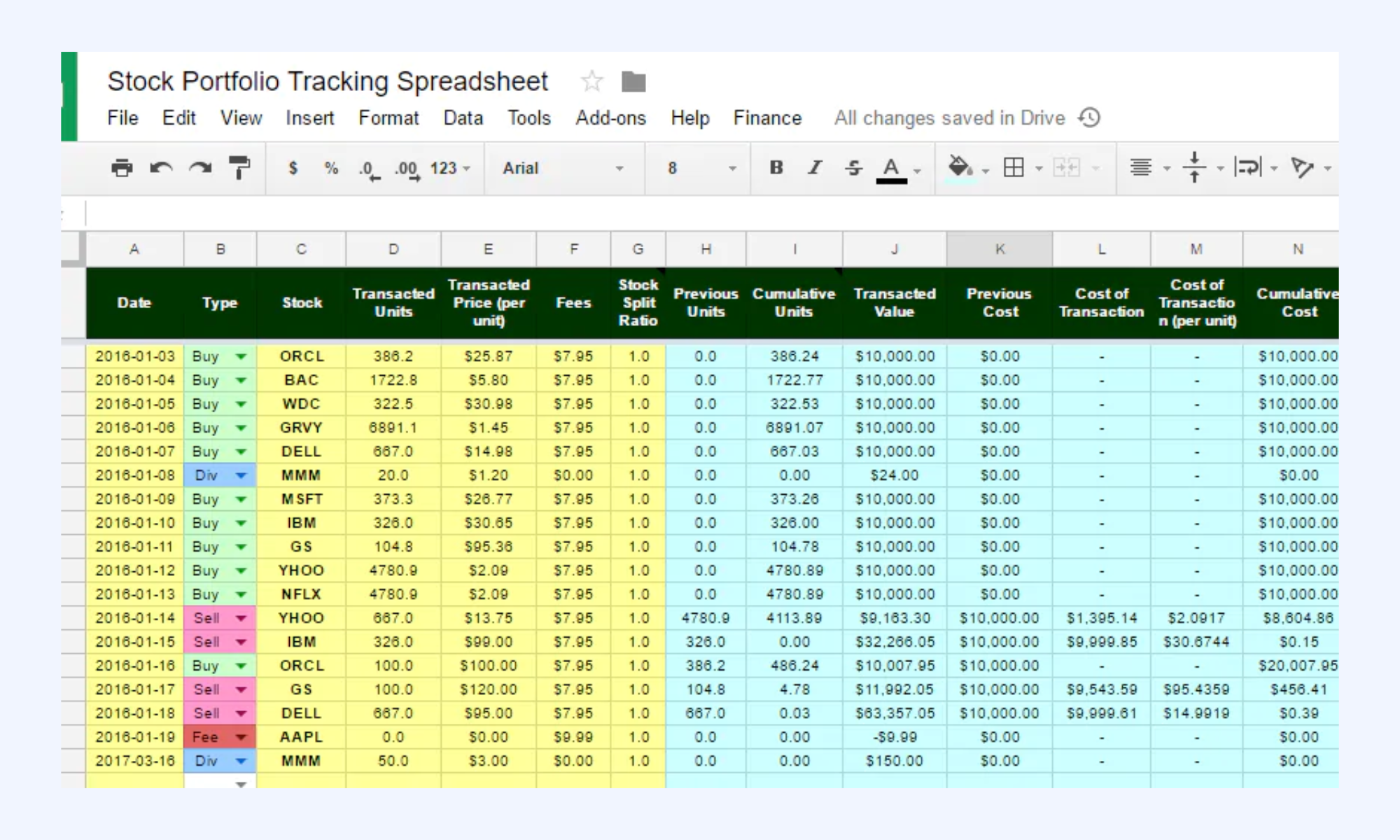
Image source: vertex42.com
Advanced techniques: Dashboards and KPI views in your progress tracking Excel file
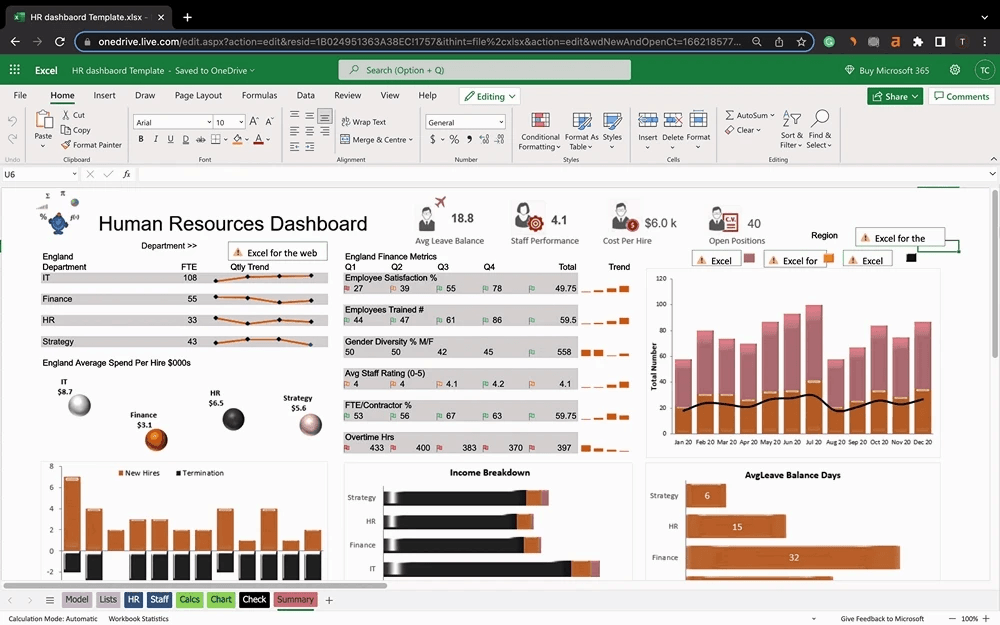
A one-page summary dashboard transforms raw tracker data into a visual representation that stakeholders can absorb in seconds. Creating a summary page can include overall completion percentage and charts showing project progress—pulling directly from your main task progress tracker Excel sheet. Use PivotTables and PivotCharts to break down tasks by status, owner, and phase. Automated status reporting in Excel saves time and ensures consistency—formulas like COUNTIF and SUMPRODUCT keep dashboard numbers current without manual recalculation.
Better solution: Use Lark to track progress visually and systematically
Static spreadsheets leave your data stranded, but weaves every figure directly into your communication ecosystem. For instance, shifting a project deadline in your instantly updates the assignee's calendar and alerts them via a dedicated chat thread. This creates a closed-loop system where project oversight and daily execution coexist, drastically cutting the administrative overhead required to keep your team on schedule.
Transitioning away from static spreadsheets to an integrated platform eliminates the friction of hunting down scattered files. When project data is centralized, teams can act faster, streamline their operations, and solve problems before they escalate.

"With Lark, information is no longer scattered. We can make fast decisions with information readily available. The customizability of Base and the power of automated notifications have transformed how we operate."

Ivan Nugraha
Technology Advisor, Digital Maritime Development Center
This level of interconnectedness ensures that your team's workflow adapts to real-world changes instantly. Instead of waiting for the next weekly status meeting, stakeholders stay aligned in real time with dynamic, highly customizable tools.
Multi-dimensional views
liberates your data from the rigid rows and columns of traditional spreadsheets. While project managers might prefer a Gantt view to track dependencies and critical paths, field teams can switch to a for task execution or a Gallery view for visual asset inspections. This flexibility ensures every stakeholder sees the data in the format most relevant to their specific role. 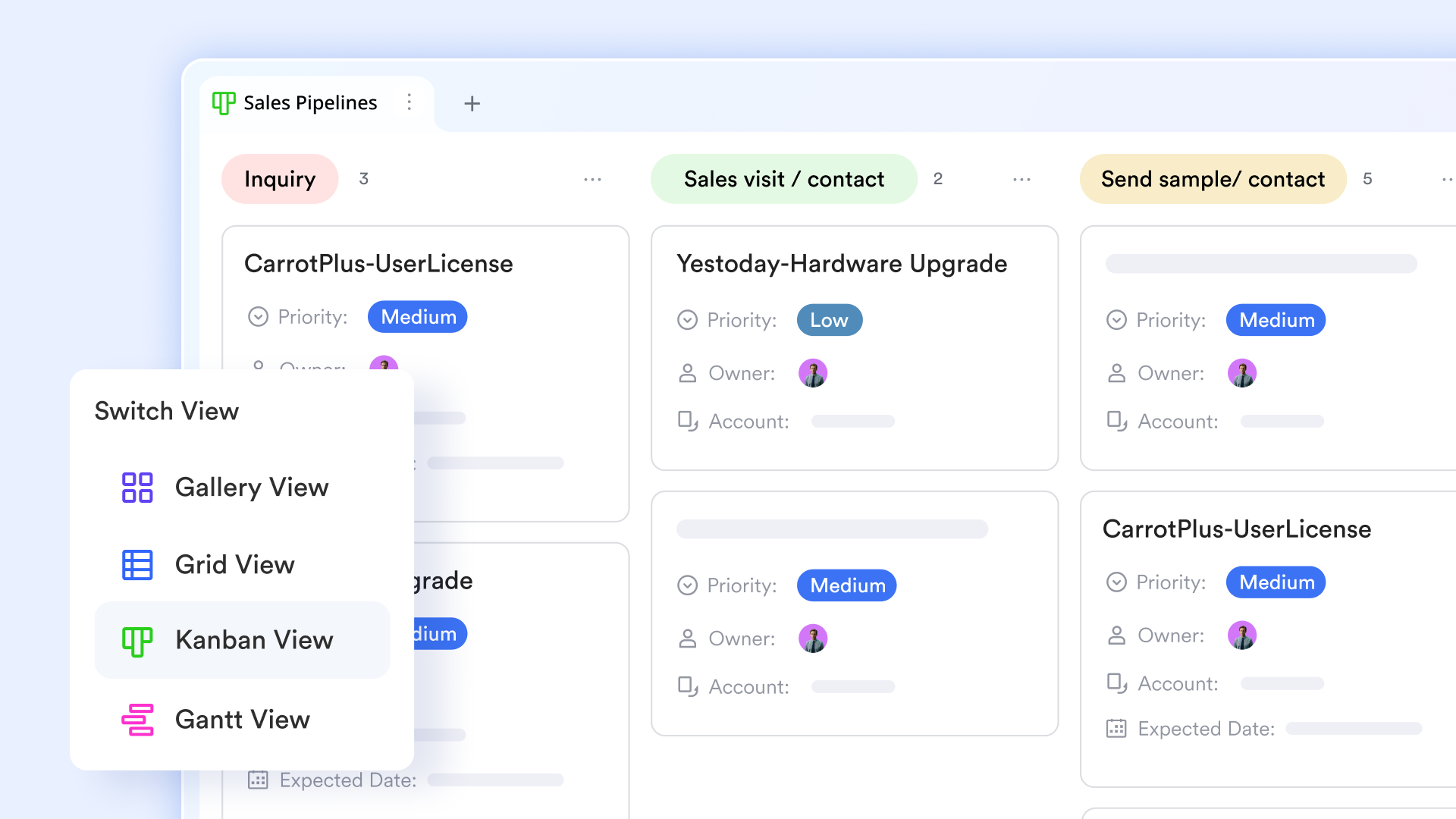
Dashboards with smart blocks
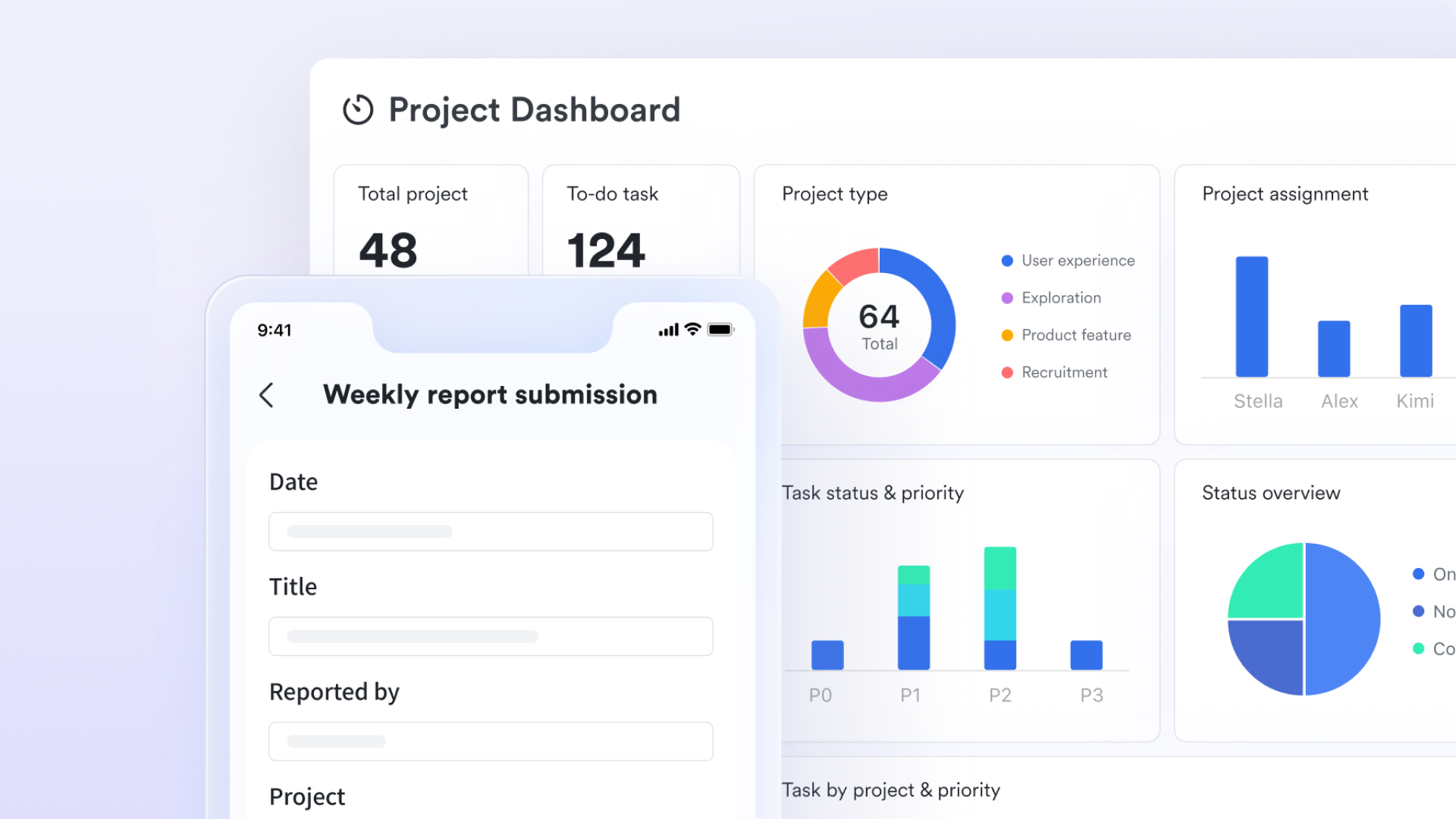
The Lark Base dashboard facilitates tracking progress with its various blocks. For instance, the "Progress Charts" offer both numerical and date-based visualizations; "Numerical progress" allows users to compare current values against specific targets; "Date Progress" tracks time elapsed within a defined period, such as a month or quarter.
Automated workflows
The automated workflow engine acts as a 24/7 project assistant, eliminating the need for manual follow-ups. You can so that a status change—like marking a site inspection as "Failed"—instantly sends a notification to the supervisor's chat. This bridge between data and communication ensures urgent issues are addressed as soon as they are logged. 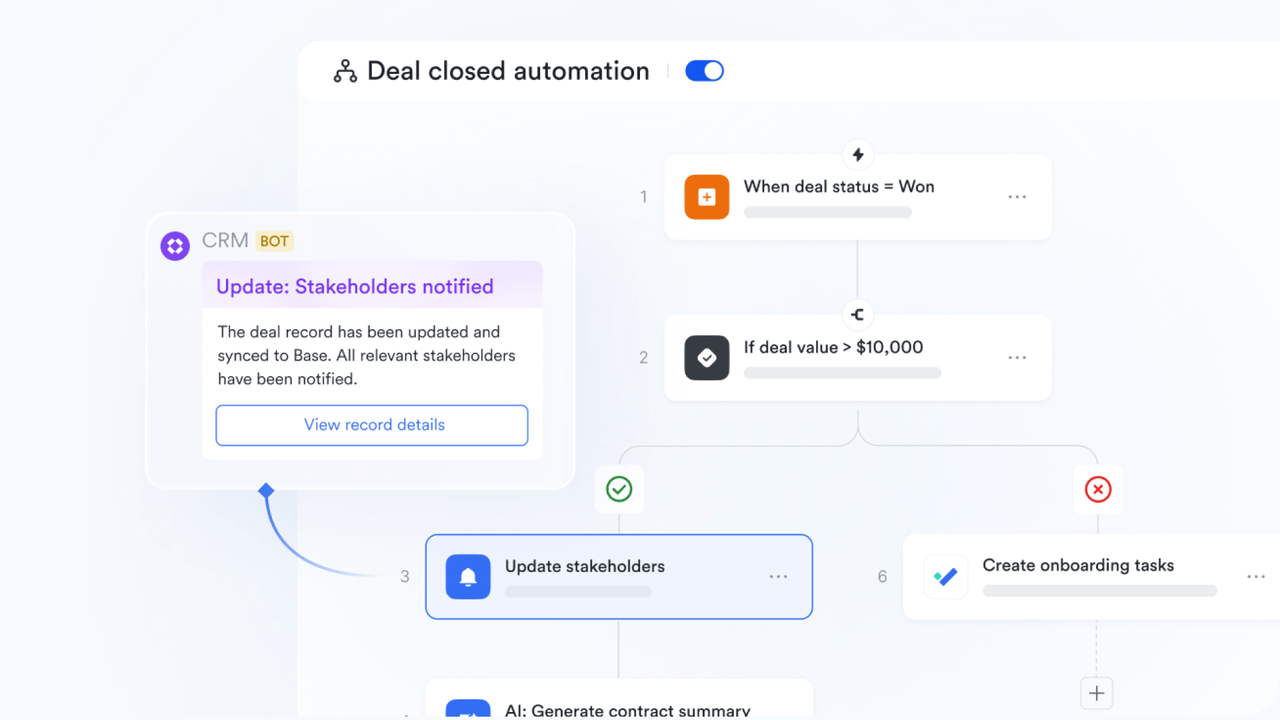
Advanced formula fields
Formula fields in Lark Base handle complex calculations that would typically break a standard spreadsheet. By utilizing cross-table lookups and roll-ups, you can automatically aggregate the "Percent Complete" from hundreds of sub-tasks into a high-level executive dashboard. These formulas remain robust even as you add new rows, ensuring your overall are always mathematically sound and up-to-date. 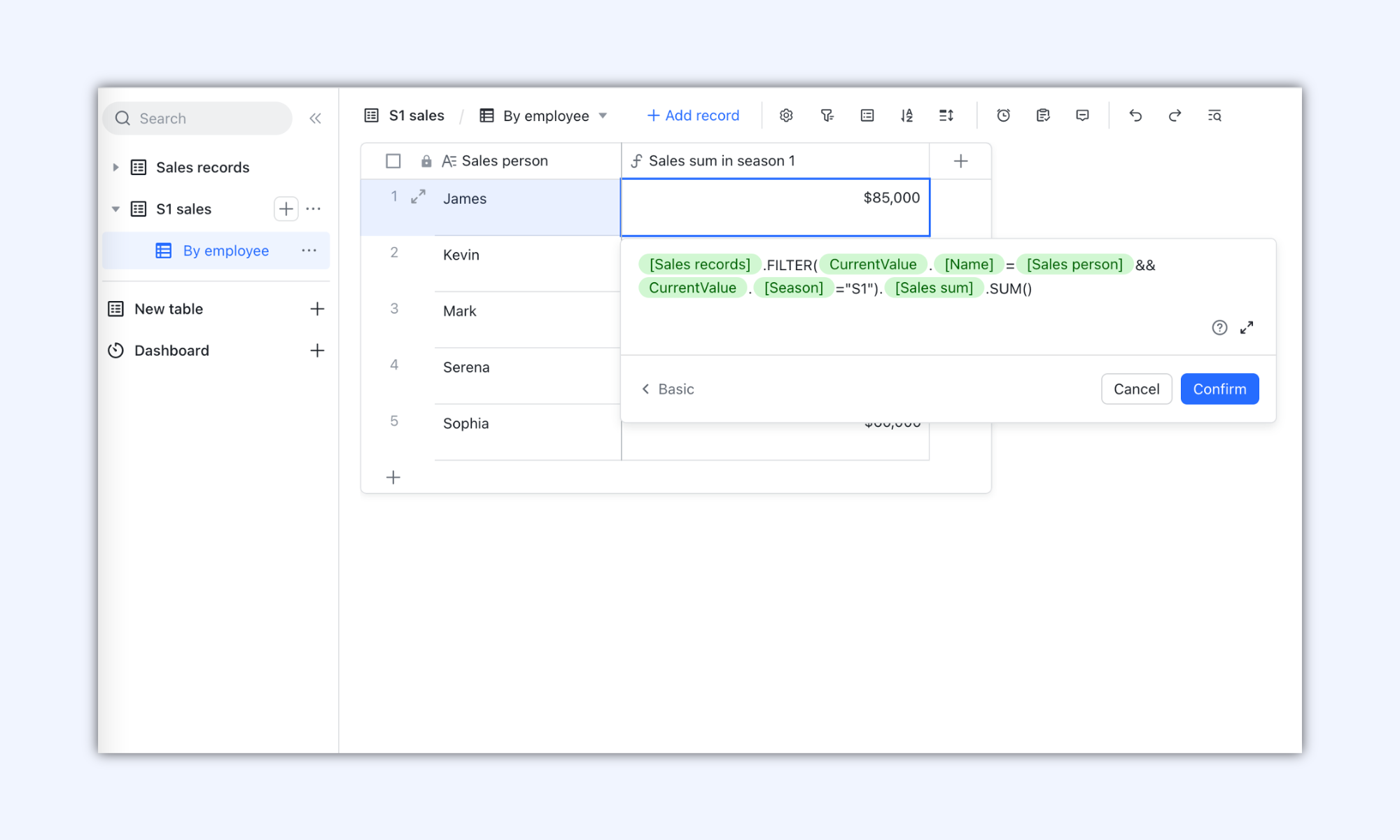
Field-level permissions
Protecting data integrity is seamless with granular permissions that go far beyond Excel's basic sheet protection. You can hide specific columns, such as profit margins or internal costs, from subcontractors while still allowing them to update their specific progress rows. This ensures a "need-to-know" environment where your master data remains secure while remaining collaborative for the entire crew. 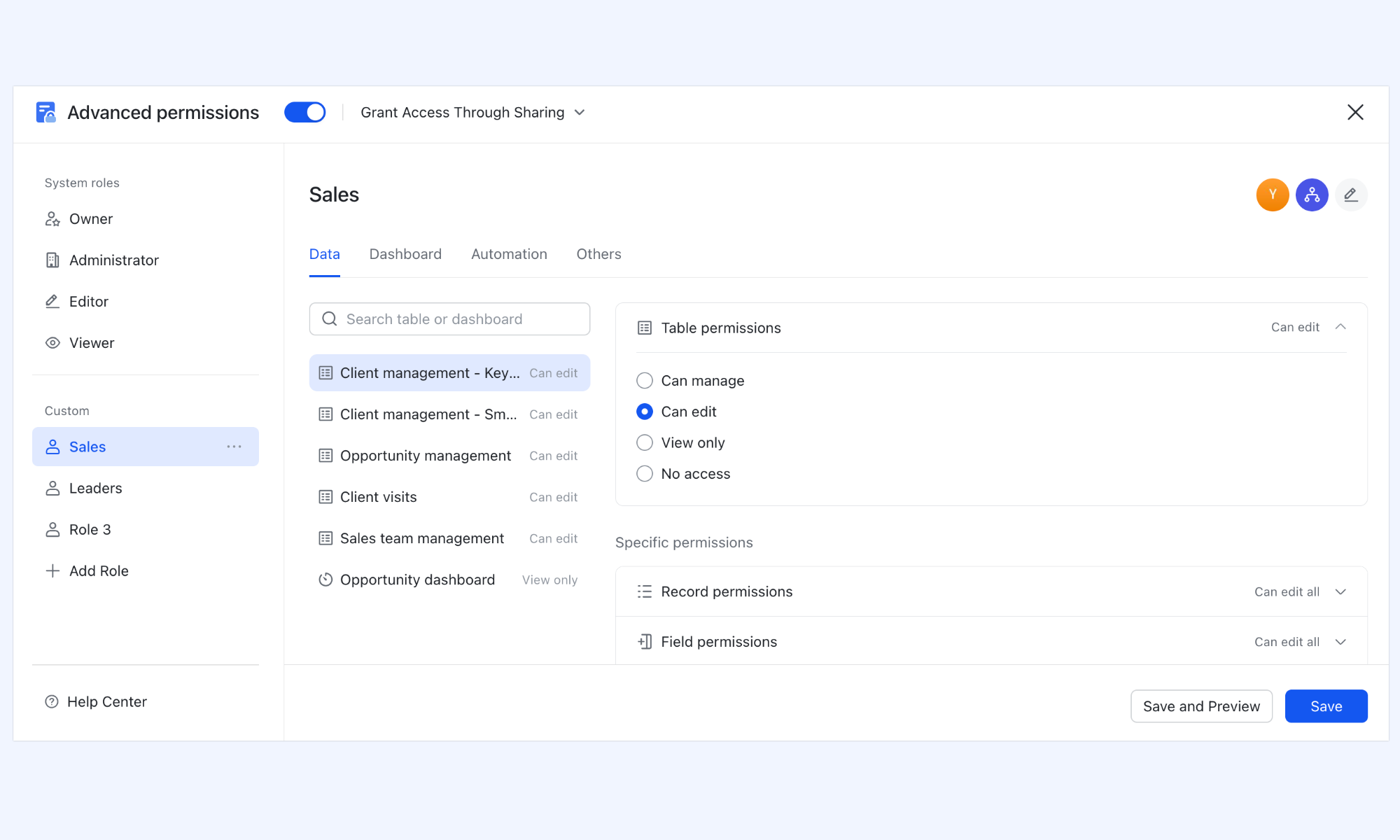
- Starter plan: Free forever plan that includes 11 powerful tools for up to 20 users. It also includes 100GB of storage, 1000 automation runs, AI translation, and more.
- Pro plan: $12/user/month (billed annually) for up to 500 users. It includes everything in Starter plus group calling for up to 500 attendees, 15TB of storage, 50,000 automation runs, and more.
- Enterprise plan: for custom pricing. Supports unlimited users and includes even more automation runs and advanced security, compliance, and management features.
For small teams with simple communication needs

18 months message history
1000 Base automation runs/month
2000 rows per table in Base
Most POPULAR
For companies with comprehensive collaboration and management needs
Unlimited message history
500-participant video meetings
50k Base automation runs/month
20k rows per table in Base
For large companies with advanced security and organizational management needs
Get a personalized demo and pricing
Unlimited message history
500-participant video meetings
15 TB storage + 30 GB storage/user
500k Base automation runs/month
50k Base automation runs/month
Most POPULAR
For companies with comprehensive collaboration and management needs
Unlimited message history
500-participant video meetings
50k Base automation runs/month
20k rows per table in Base
Ready-to-use Lark templates for structured progress tracking
Ready-to-use Lark templates provide structured progress tracking without building spreadsheets from scratch. They come with predefined fields, views, and automation options that help teams track tasks, timelines, and responsibilities more consistently. These project management templates are especially useful for teams that want faster setup, real-time updates, and shared visibility across projects.
Project tracking
A project tracking template helps teams monitor tasks, deadlines, owners, and overall progress in one shared workspace. It provides a clear structure for updating statuses, tracking milestones, and identifying delays early. This template works best for teams that need consistent, real-time visibility across ongoing projects.
Task management
A template helps teams organize assignments, priorities, deadlines, and owners in a structured workspace. It makes it easier to track day-to-day work, update statuses, and ensure nothing falls through the cracks. This template works best for teams handling ongoing tasks that require clear ownership and regular progress updates.
Employee task tracker
An employee task tracker template helps managers assign work, , and balance workloads across team members. It provides clear visibility into who is responsible for each task and how much has been completed. This template is best suited for teams that require structured accountability and regular performance tracking.
Multi-project tracker
A multi-project tracker template helps teams manage multiple projects in a single centralized view. It allows managers to compare timelines, priorities, resources, and progress across different initiatives. This template is best suited for organizations managing multiple active projects that require high-level visibility and coordination.
Project problem tracker
A project problem tracker template helps teams log issues, risks, and blockers as they arise during a project. It provides a structured way to assign owners, set priorities, and track resolution status. This template is best suited to projects that require and prompt problem resolution.
Design project management
A design project management template helps creative teams organize briefs, tasks, deadlines, and approvals in one structured workspace. It keeps designers, managers, and stakeholders aligned with progress and feedback. This template is best suited for design teams managing multiple assets, revisions, and collaborative workflows.
Choosing between Excel templates and modern tracking tools
Many teams start with spreadsheets because they're familiar and easy to set up. An daily progress tracker Excel can work well in the early stages of a project or for small teams with simple workflows. However, as projects grow, it becomes important to evaluate whether spreadsheets still meet your accuracy, speed, and collaboration needs.
- Cost vs time trade-offs: An Excel-based progress tracker typically incurs no additional software costs, making it or short projects. But over time, the manual effort required to update, check, and share the file can increase significantly. Teams often spend more time maintaining the sheet than actually progressing the work.
- Accuracy vs familiarity: A progress-tracking Excel template is familiar to most employees, so adoption is quick. However, manual updates increase the risk of outdated data, broken formulas, or inconsistent status reporting. Modern tools may require a learning curve, but often provide more accurate, real-time updates.
- Short-term convenience vs long-term clarity: For short projects, the best way to track progress in Excel is often a simple template with basic formulas and status columns. But as task volumes grow, spreadsheets can become cluttered and hard to interpret. Dedicated tracking tools offer , automation, and structured workflows for long-term projects.
- How to decide based on team size and work complexity: Small teams with straightforward tasks can rely on spreadsheets without major issues. As the number of stakeholders, dependencies, and updates increases, spreadsheets become harder to manage. At that stage, switching to a more connected tracking system usually improves clarity, speed, and accountability.
Conclusion
Excel remains a practical starting point for teams that need a simple, flexible way to and project progress. With the right structure, formulas, and templates, a progress tracker can provide clear visibility into deadlines, responsibilities, and completion percentages. However, as projects grow more complex, spreadsheets often become harder to maintain, share, and keep accurate across teams. Manual updates, version conflicts, and limited automation can slow down decision-making and reduce clarity.
This is where connected tools like offer an advantage by combining tracking, communication, and automation in one workspace. Instead of managing multiple files and status updates, teams can keep progress, discussions, and timelines aligned in real time. Project success depends on choosing the right tool for the right stage. If your current tracker is becoming difficult to manage, it may be time to explore a more integrated approach. Try Lark to simplify progress tracking and give your team clearer, faster visibility into their work.
Build a custom and powerful project tracker with Lark
FAQs
Can Excel progress trackers handle dependencies reliably?
Excel can track basic dependencies using formulas or manual links between tasks, but maintaining them becomes difficult as projects grow. When Task B cannot start until Task A finishes and priorities shift mid-sprint, maintaining those relationships in a progress tracker in Excel demands constant vigilance. Changes in one task often require manual updates across the sheet, which increases the risk of errors. Tools like Lark automatically manage dependencies, ensuring updates are reflected across tasks in real time.
How do you prevent teams from overstating progress percentages?
Clear definitions for each status and weighted task logic can reduce inflated progress numbers in Excel. Managers should base completion percentages on deliverables rather than rough estimates. In Lark, structured fields and automated workflows help standardize updates and improve the accuracy of progress reporting.
What's the best way to track progress for recurring tasks?
In Excel, recurring tasks are usually duplicated manually or reset each cycle, which can lead to cluttered sheets over time. This works well for small workloads, but becomes more difficult to manage as tasks repeat frequently. Lark allows teams to automate recurring tasks and track progress without rebuilding the tracker each time.
How often should progress trackers be updated to stay accurate?
Most teams update trackers daily or weekly, depending on project pace and task duration. Regular updates keep the data reliable and help managers spot delays early. With Lark, updates can trigger automatic notifications, making it easier for teams to stay on track without constant reminders.
Related reading





























