Approval processes are essential for maintaining organizational documents, content, and everyday requests in a structured, compliant manner. For teams working within Microsoft 365, a SharePoint approval workflow helps ensure every file, whether a policy, invoice, contract, or internal update, passes through the right reviewers before it's finalized or published. These workflows reduce manual effort by automating multi-step reviews across departments and document types.
In this guide, you'll learn how SharePoint approval workflows operate, how to build them using classic settings and Power Automate, common use cases, and limitations to watch out for. Come and check your personal guide here.
Streamline your approval workflows today
What is a SharePoint approval workflow?
A SharePoint approval workflow is an that routes documents, list items, or SharePoint Online pages to designated reviewers for validation before they are published, shared, or processed. It helps organizations maintain control, ensure compliance, and across different types of content. A typical SharePoint document approval workflow includes steps such as submitting a file, notifying approvers, capturing comments, updating approval status, and publishing a final version once approved.
In SharePoint Online, most modern approval processes are powered by Power Automate document approval workflows for SharePoint, allowing teams to build multi-level, parallel, or conditional routing based on metadata. Whether used for contracts, invoices, SOPs, onboarding documents, or internal content, a SharePoint workflow for document approval helps eliminate manual follow-ups. It ensures every request moves through a structured, trackable process. This makes approval workflows a core part of efficient document governance in Microsoft 365 environments.
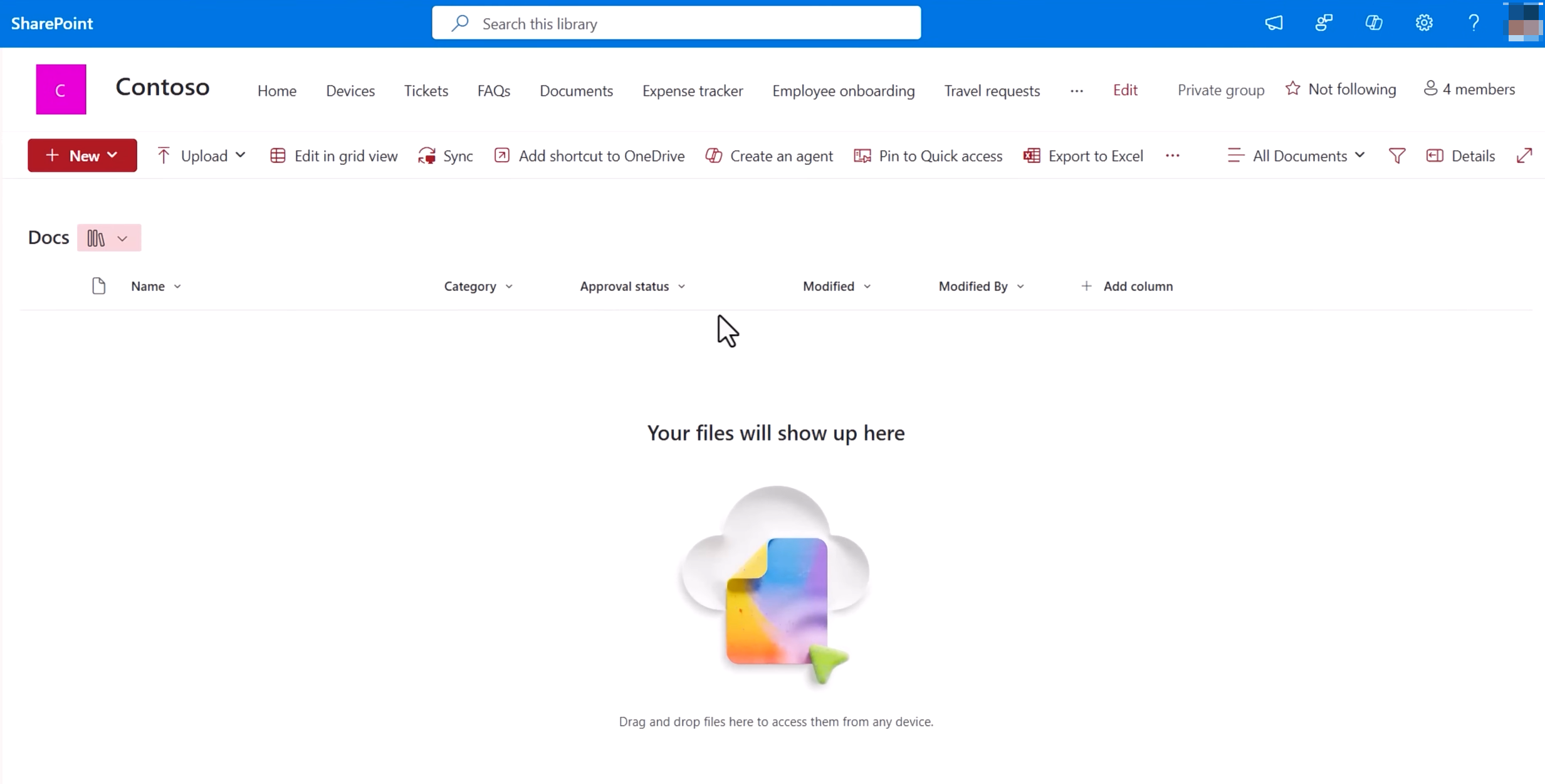
Image source: microsoft.com
How the SharePoint approval workflow process works (step-by-step)
A SharePoint approval workflow follows a structured sequence that moves a document or list item from creation to final publishing. Whether built through native settings or a Power Automate document approval workflow for SharePoint, each step ensures clarity, accountability, and whole process visibility.
Step 1: Upload or create a document/list item
The workflow begins when a user uploads a document, adds a new file, or creates a SharePoint list item. This item enters the library where approval rules apply. Metadata such as department, document type, or owner often determines routing logic.
Step 2: Trigger starts automatically or manually
Depending on the configuration, the approval process may launch automatically when the file is created or edited. Users can also manually trigger approval from the item menu. Conditional logic in Power Automate can ensure that only specific files require review. Step 3: Approver receives request
Once triggered, the assigned approver receives a request via email, Teams, or Power Automate notifications. This message includes item details, instructions, and a direct approval link. The reviewer can open the file immediately to begin evaluation.
Step 4: Approver approves/rejects/comments
Approvers review the document and choose to approve, reject, or leave comments requesting changes. Their decision is logged into SharePoint for recordkeeping. Parallel or multi-level approval chains can also be enabled when needed. 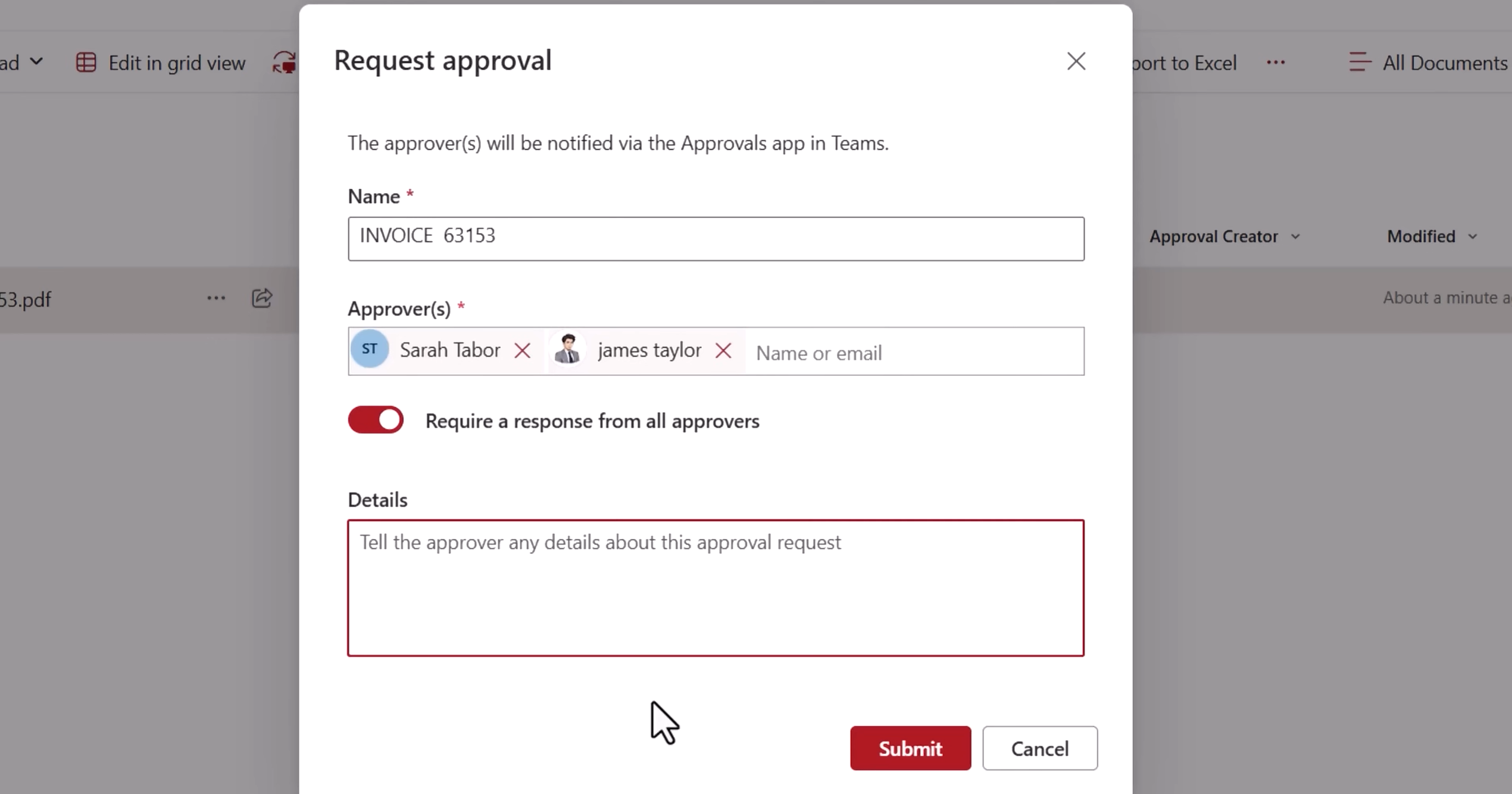
Image source: microsoft.com
Step 5: Document status updates (Approved/Rejected/Pending)
After an action is taken, SharePoint automatically updates the item's approval status. The status, such as Approved, Rejected, or Pending, appears in the document properties. This helps teams instantly understand progress without having to search through emails.
Step 6: Version publishes or remains a draft
If approved, the document will be published as a major version visible to a wider audience. If rejected, it stays in draft mode until revisions are completed. SharePoint version history ensures transparency across updates and edits.
Step 7: Stakeholders notified
Once the workflow completes, stakeholders receive . This keeps everyone aligned and reduces the need for manual follow-ups. Notifications include comments, final status, and, if required, next steps.
Common SharePoint approval workflow examples
Organizations use SharePoint approval workflows to streamline review cycles across departments and document types. Below are the most common real-world scenarios where a SharePoint document or list approval workflow ensures consistency and compliance.
- Document publishing approvals: Teams often use SharePoint libraries to store policies, SOPs, technical documents, and internal guidelines. Approval ensures that only verified, reviewed content is published. This keeps documentation accurate and prevents unauthorized changes from going live.
- Content approvals for SharePoint Online pages: Modern SharePoint sites allow page creation for news, updates, and intranet content. A SharePoint Online ensures every page is reviewed before publishing. This maintains communication quality and prevents accidental or incorrect information from reaching employees.
- Vacation request approvals: Many organizations manage leave through a SharePoint list approval workflow. Employees submit vacation requests, and managers automatically receive an approval task. Automating this process reduces HR overhead and provides clear records for attendance and scheduling.
- Invoice and purchase request approvals: Finance teams rely on to validate vendor invoices, expense claims, and purchase orders. Using a SharePoint workflow for document approval, items are routed based on metadata such as amount or department. This improves compliance, reduces risk, and speeds up financial processing.
- or contract routing: Project teams often store deliverables, proposals, and contracts in SharePoint libraries. Approval workflows allow legal, management, or client-facing teams to review documents before they are shared externally. This minimizes errors, strengthens accountability, and keeps every version tracked in a centralized system.
Best practices for creating a SharePoint Online document approval workflow
Building an efficient SharePoint approval workflow requires thoughtful planning and consistent structure. These best practices help ensure accuracy, faster approvals, and fewer workflow failures, especially in complex document libraries.
- Use clear metadata fields: Metadata fields like Department, Document Type, or Amount drive routing in a SharePoint document approval workflow. Clear, standardized fields make it easier for Power Automate to determine the correct approvers. They also improve filtering, reporting, and workflow reliability.
- Add role-based permission levels: Assign permissions based on user roles, such as contributor, reviewer, or approver. This ensures only authorized users can submit, modify, or approve items. Role-based controls help maintain data integrity and reduce accidental changes.
- Enable versioning: Turn on version history to track edits during the approval process. This prevents confusion if multiple reviewers provide feedback or changes. Versioning also supports rollback, ensuring compliance and auditability.
- Set fallback approvers: When primary reviewers are unavailable, fallback approvers prevent workflow delays. Adding backup approvers ensures that important requests, such as invoices or contracts, don't get stuck. This is especially useful for multi-level or SLA-driven approvals.
- Use reminders for SLAs: Add reminders in Power Automate to meet service-level agreements. Automated notifications help keep approvers accountable and prevent stalled items. This is critical for time-sensitive workflows, such as financial validations or client deliverables.
- Standardize naming conventions: Consistent naming makes documents easier to identify, filter, and route. Use formats like "Dept_DocType_Date" to ensure clarity for both humans and automated workflows. This reduces errors and speeds up approval decision-making.
Limitations and challenges with SharePoint approval workflows
While SharePoint approval workflows are powerful, they come with operational and usability challenges, especially for teams without technical expertise. These limitations often become more noticeable as processes scale or involve multiple departments.
- Heavy reliance on Power Automate: Most modern SharePoint Online document approval workflows depend on Power Automate. This adds dependency on connectors, triggers, and flow reliability. If a flow breaks, approval processes halt until someone manually fixes it.
- Complex branching requires advanced configuration: Conditional routing, such as sending an invoice above $10,000 to a second approver, requires it. Building these decision trees in Power Automate often demands . Non-experts may struggle to maintain or modify these flows over time.
- Limited collaboration within the approval lifecycle: SharePoint approvals are mostly handled via email and backend logs. are limited within the workflow experience. Users often need separate channels to discuss context, which slows down decision-making.
- Document context is scattered across Teams, Outlook, and SharePoint: Approvers frequently switch between multiple apps to gather context, Teams for chat, Outlook for notifications, and SharePoint for the file. This fragmentation increases friction and delays, especially in multi-level approval workflows.
- Non-technical users may struggle with setup: Even basic SharePoint workflow setup steps, such as mapping dynamic content, adding conditions, or configuring notifications, can confuse them. This creates reliance on IT or power users for routine adjustments.
- Versioning issues if multiple editors work simultaneously: When several people edit a document before approval, version conflicts can occur. SharePoint may create unnecessary drafts or overwrite changes, disrupting the approval flow. This complicates governance and increases the risk of publishing outdated content.
Because of these challenges, many teams find that managing approvals in SharePoint becomes increasingly cumbersome—especially when workflows span multiple departments or require real-time collaboration. The reliance on Power Automate, the scattered context across Teams and Outlook, and the technical overhead of maintaining branching logic often slow down everyday work. Many teams evaluating diagramming software also research broader Microsoft 365 and to streamline collaboration and document management. As organizations look for a smoother, more collaborative experience that's easier for non-technical users to manage, many begin exploring alternatives that simplify the entire approval lifecycle. This is where Lark emerges as a strong, more cohesive option for modern teams. Come and check this new option you haven't checked before.
Optimize your document routing
Meet Lark: Flexible, unified workspace for enterprise approval workflows
offers a modern approach to approval workflows designed for fast-moving teams and complex organizational structures. Instead of relying on scattered tools or complex configurations, approvals happen in a . Every document, request, and decision stays connected. This creates a smoother, more transparent process compared to traditional SharePoint approvals.
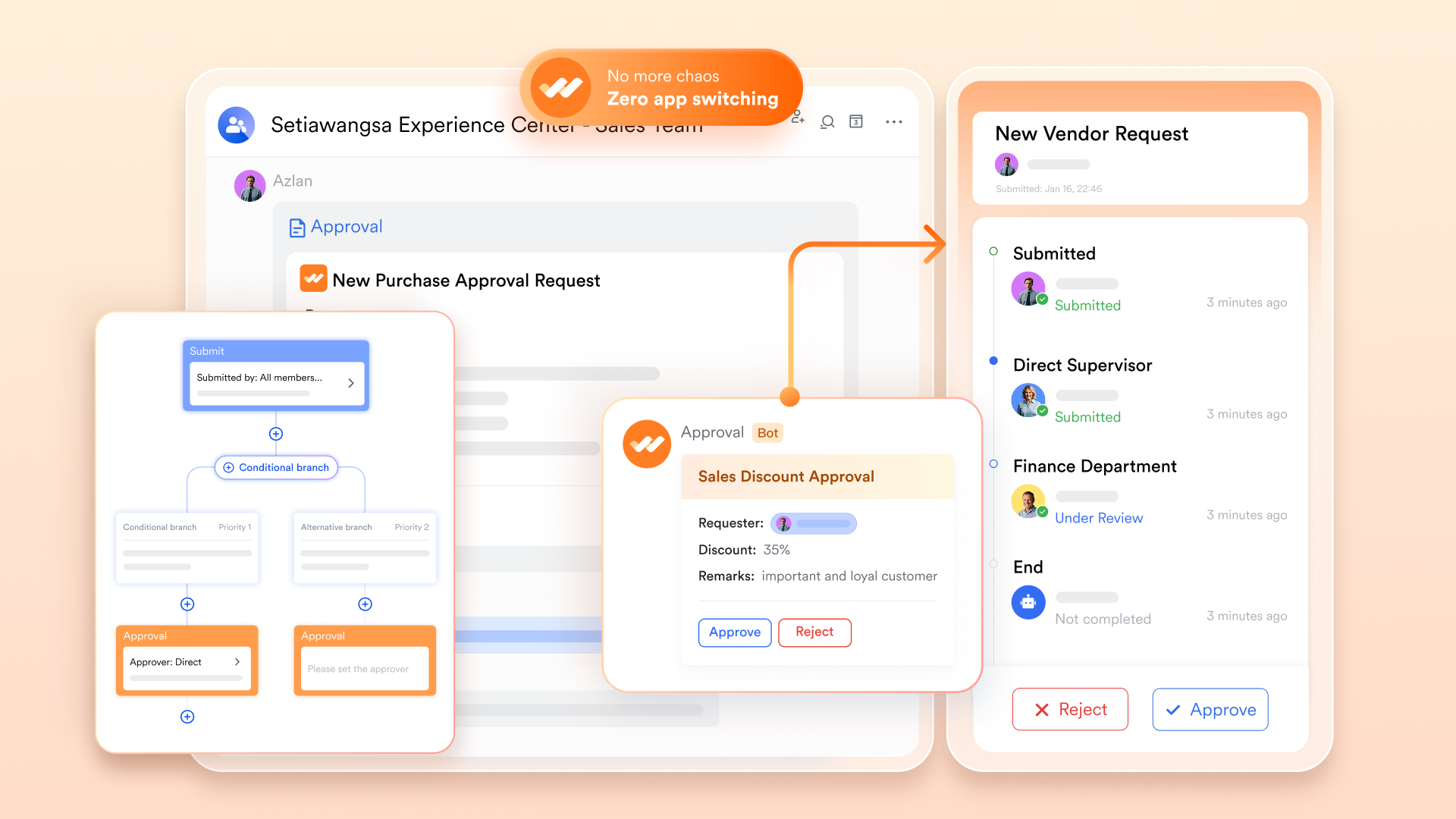
Automated document routing that keeps every request moving
Lark Approval transforms documents, forms, and requests into structured approval items that move through a clean, centralized workflow. Whether a team is submitting a budget request, a , or an internal policy update, Lark automatically routes the item to the right reviewers based on preset conditions, with no extra configuration in external tools. Teams can even pull in files or data from third-party systems and convert them into Lark forms or Base records, ensuring that every approval request follows a uniform format and sits in one consistent location.
Why is this better than SharePoint?
SharePoint relies heavily on Power Automate to route documents, requiring multiple connectors, triggers, and setup steps. Every process must be designed separately, and users often end up maintaining a web of disconnected flows. Lark keeps routing logic within the same workspace as approval, making setup more straightforward and reducing the risk of broken workflows.
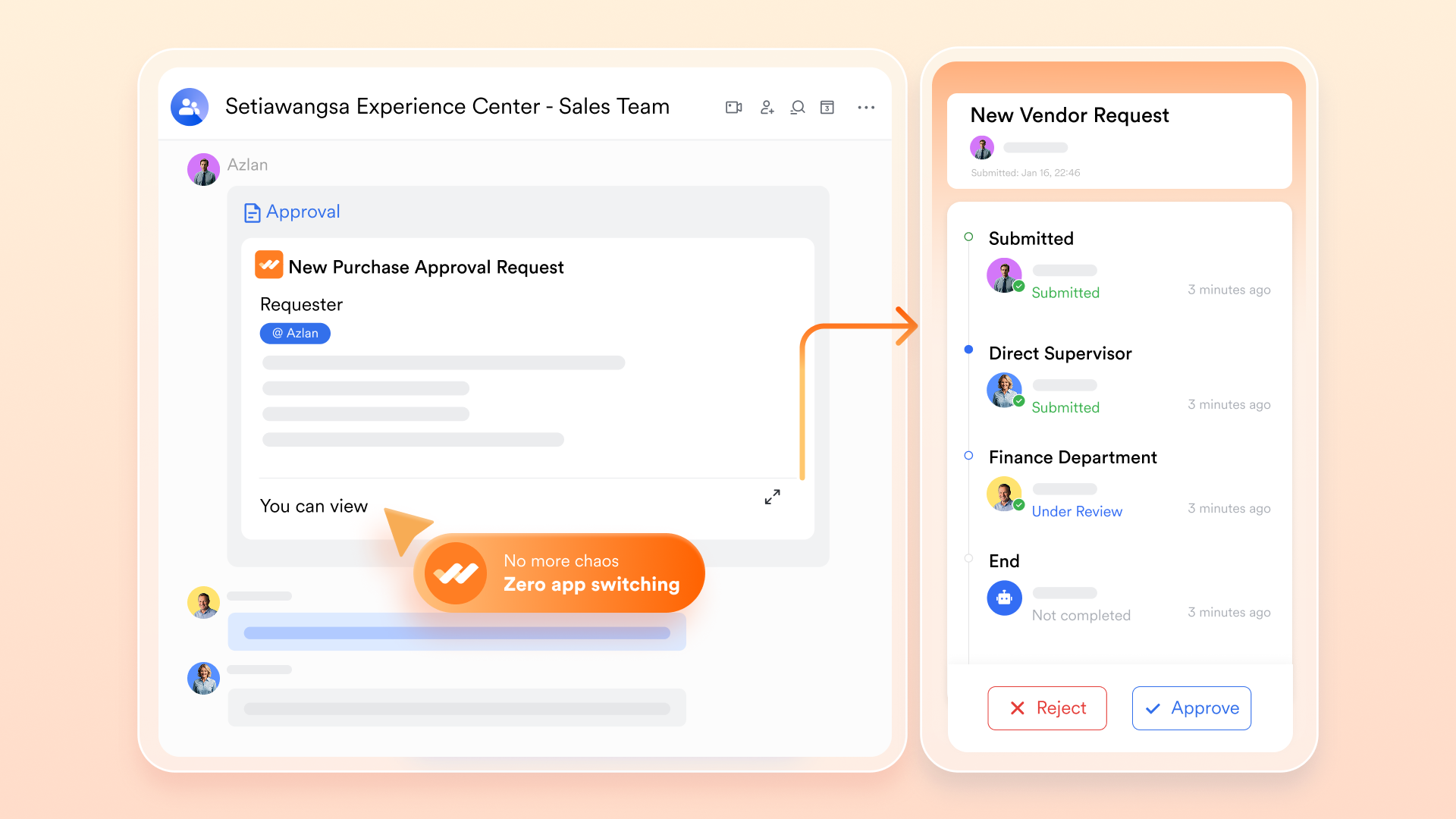
Multi-step approvals that adapt to complex organizational structures
With Lark, approval flows can follow a single-step review, a multi-level review, or parallel reviewers, whichever best matches your internal policies. Approvers see all context in real time: prior comments, uploaded files, attached docs, or tasks linked to the record. Each step is clearly visible, and teams can see where an item is stuck or which reviewer still needs to respond. Why is this better than SharePoint?
SharePoint supports multi-step approvals, but managing them across lists, libraries, and Power Automate templates often becomes fragmented. Users must switch between Outlook notifications, Power Automate history logs, and SharePoint item properties to understand progress. Lark provides a single continuous view where every step, comment, and update remains attached to the same approval item, making the process easier to understand and faster to complete.

Configurable notifications that reduce delays and follow-up work
Lark offers that help teams maintain momentum. With one click, a requester or admin can send a gentle nudge to an approver, share the approval link in Messenger for quick action, or drop it into a document for team visibility. Reviewers receive notifications across desktop and mobile devices, ensuring prompt responses. Your teams can also based on deadlines, status changes, or inactivity, so nothing sits idle.
Why is this better than SharePoint?
SharePoint and Power Automate notifications often rely solely on email, leading to cluttered inboxes and missed approvals. If a reminder is needed, it usually requires updating the Power Automate flow itself. Lark turns reminders into everyday, natural actions, right inside Messenger, without requiring changes to workflow logic. This dramatically increases response speed and reduces operational friction.

Seamless team communication with full context, logs, and files
plays a key role in keeping approval workflows clear and collaborative. Approvers and requesters can add comments directly to approval requests, making it easy to clarify details without leaving the workflow. When a deeper discussion is needed, a group chat can be created instantly with all relevant team members. Approval requests can also be shared or CC'd to others through Messenger, ensuring the right people stay informed and decisions move forward smoothly.
Why is this better than SharePoint?
Instead of relying on separate tools like Power Automate, Outlook, and Teams, Lark keeps communication, approvals, and documents all in one place. Comments, group discussions, and file updates happen directly within the approval record, so users never have to jump between apps to find context. Lark's workflows are easier for non-technical users to build and adjust, removing the heavy configuration and branching complexity required in SharePoint.

Centralised data management hub for accuracy and consistency
serves as a powerful data backbone for approval workflows. Approval data from Lark Approval can sync directly into Base, giving teams a centralized, organized view of records such as reimbursements and project approvals. Administrators can build approval forms that automatically reference base data, ensuring fields are pre-filled accurately and consistently. Team members can track application progress through query pages that filter by submitter or department. And when multiple approval types are in use, each can sync to its own table within the same Base, creating a clean, comprehensive data structure for the entire organization. Why is this better than SharePoint?
Unlike SharePoint, where approval data is often scattered across lists, libraries, and Power Automate flows, Lark Base provides a single, centralized platform to manage all approval records. Data from Lark Approval syncs automatically into Base, making it easy to track, filter, and analyze requests without relying on multiple apps or connectors. Forms in Lark can pull directly from Base to auto-fill fields, reducing manual errors, whereas SharePoint workflows often require complex configurations and IT support for similar automation.
:
- Starter plan: Free forever plan that includes 11 powerful tools for up to 20 users. It also comes with 100GB of storage, 1000 automation runs, AI translations, and more.
- Pro plan: $12/user/month (billed annually) for up to 500 users. It includes everything in Starter plus group calling for up to 500 attendees, 15TB of storage, 50,000 automation runs, and more. Businesses comparing collaboration platforms often review before making a final decision.
- Enterprise plan: for custom pricing. Supports unlimited users and includes even more automation runs and advanced security, compliance, and management features. Teams evaluating project management software may also want to review for comparison.
For small teams with simple communication needs

18 months message history
1000 Base automation runs/month
2000 rows per table in Base
Most POPULAR
For companies with comprehensive collaboration and management needs
Unlimited message history
500-participant video meetings
50k Base automation runs/month
20k rows per table in Base
For large companies with advanced security and organizational management needs
Get a personalized demo and pricing
Unlimited message history
500-participant video meetings
15 TB storage + 30 GB storage/user
500k Base automation runs/month
50k Base automation runs/month
Most POPULAR
For companies with comprehensive collaboration and management needs
Unlimited message history
500-participant video meetings
50k Base automation runs/month
20k rows per table in Base
Conclusion
A well-designed SharePoint approval workflow helps teams streamline document reviews, maintain compliance, and ensure consistent publishing across the organization. From document libraries and SharePoint Online pages to invoices and list-based requests, automated approvals reduce manual coordination and provide clear visibility into every step of the process.
However, SharePoint's reliance on Power Automate, fragmented collaboration, and setup complexity can create bottlenecks, especially for non-technical users. For teams that need flexible, multi-level approval flows with built-in communication and seamless task management, offers a more integrated and intuitive alternative that keeps every request moving efficiently from start to finish.
Simplify multi-level approvals
FAQs
How do you enable versioning to support document approval in SharePoint?
To enable versioning for a SharePoint , go to Library Settings → Versioning Settings and activate major or major/minor versions. Versioning is essential for any document approval workflow in SharePoint, ensuring teams can track edits, maintain compliance, and restore previous drafts throughout the review cycle of a SharePoint online document approval workflow.
What permissions do users need to participate in a SharePoint approval workflow?
Participants in a SharePoint workflow for document approval typically need Contribute or Edit permissions to submit items, while approvers require Approve or Full Control. Correct permission mapping ensures a smooth SharePoint document workflow approval process and prevents access errors during routing, especially when managing requests through a Power Automate document approval workflow for SharePoint.
Can SharePoint approvals support parallel or multi-level review chains?
Yes. A SharePoint online approval workflow can support when built through Power Automate. Using conditions and branching, teams can create complex routing logic similar to enterprise-grade processes. This makes the SharePoint workflow for document approval suitable for legal, financial, and compliance-focused organizations that require layered review chains.
How do you troubleshoot approval flows that fail in Power Automate?
To troubleshoot a failing Power Automate document approval workflow for SharePoint, check flow run history, connection permissions, and dynamic content mappings. Errors often occur when documents move locations or when user accounts change. Reviewing trigger conditions ensures stability in any SharePoint document approval workflow, particularly those using metadata-based or conditional logic.
Can SharePoint approval workflows notify external users or guests?
SharePoint can notify external users in a SharePoint list approval workflow or document library flow, but guests must have access permissions to view items. In many cases, restrictions apply, especially in a SharePoint Online document approval workflow involving sensitive data. External notifications work best when supported by Power Automate email connectors and when sharing settings are appropriately configured.
Related reading