














Slack Workflow Builder: Features, Steps & Reviews

Ryan Tanner
Product Marketing Specialist
Sep 18, 2026
Ryan Tanner
Sep 18, 2026

15 min read


The Slack workflow builder is a powerful tool that lets teams automate routine tasks directly inside Slack—without needing coding skills. It helps simplify approvals, collect information, trigger notifications, and streamline repetitive processes. By creating custom workflows, teams can reduce manual work and stay organized within their existing chat environment.
When teams rely on Slack to manage daily tasks, it helps to have simple workflows that reduce manual effort. If you're looking to streamline routine actions or automate repetitive steps inside Slack, the platform has built-in tools that make it easy to get started. In this article, you'll learn how to use Slack to build a workflow that saves time, improves consistency, and keeps work moving smoothly.

What is Slack workflow builder?
Slack workflow builder is a built-in automation tool that allows users to create automated workflows inside Slack without writing code. With workflow builder, teams can automate routine tasks like sending reminders, collecting form responses, routing requests, and sharing updates across channels. It streamlines communication and reduces repetitive manual work by triggering actions based on messages, channel activity, or user inputs.
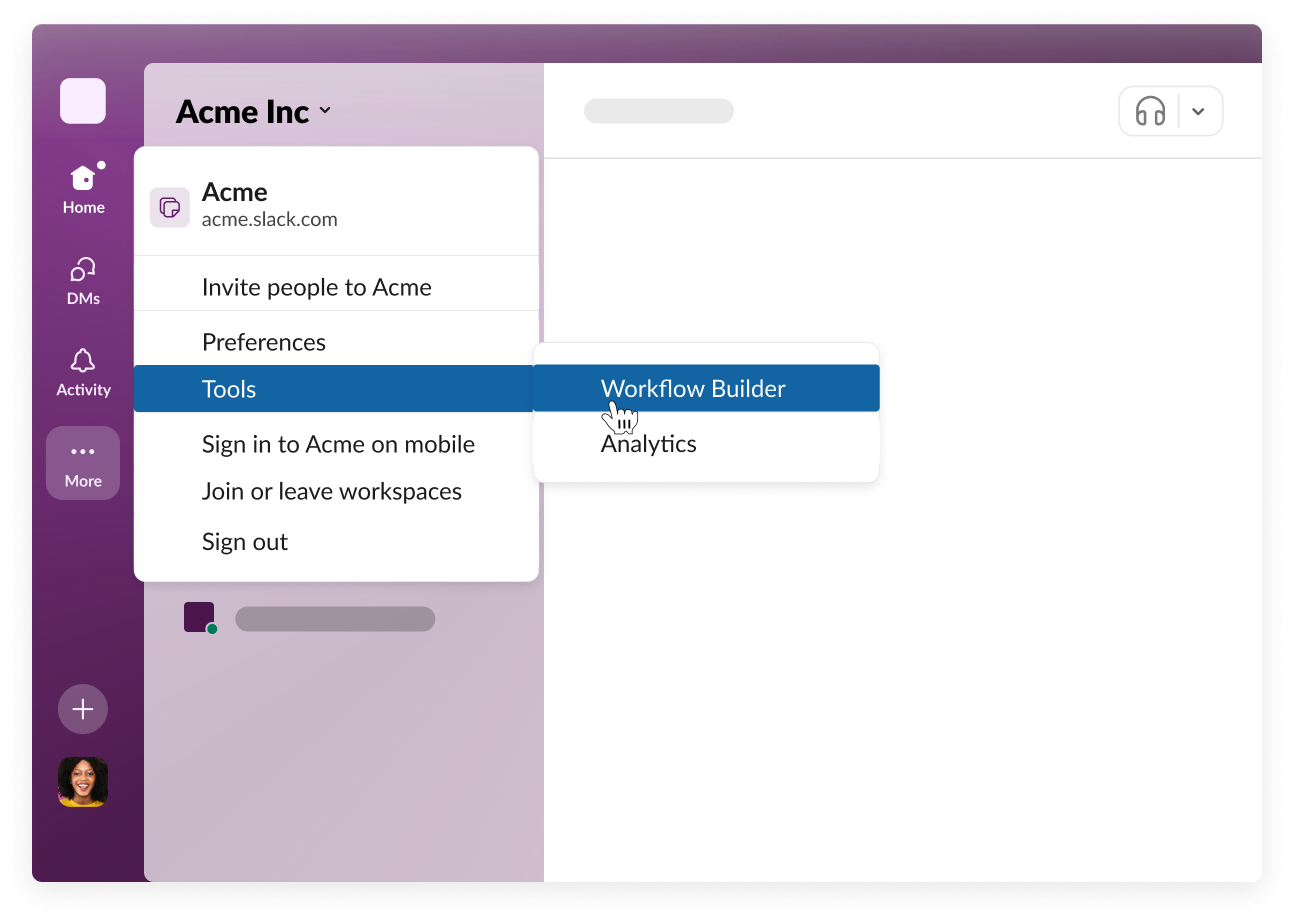
Image source: slack.com
Key features of Slack workflow builder
Slack's built-in automation tool provides simple, no-code workflows that help teams cut down routine work and stay organized without switching between multiple apps. These features make everyday tasks easier to manage and keep information flowing smoothly across channels.
- Form submissions: Collect information from team members and route it to the right channel or person. You can collect structured information from team members through custom forms and automatically send the responses to a specific channel, person or app. This is helpful for requests, incident reporting, feedback collection, and internal handoffs.
- Scheduled actions: Automate task reminders, status updates, or recurring tasks on a set schedule. Slack workflow builder lets you automate recurring tasks on a set schedule. Whether it's daily reminders, weekly check-ins or project updates, these scheduled actions help teams stay consistent without manually tracking deadlines.
- Channel messages and notifications: Trigger automatic messages or alerts based on workflow rules. Workflows can trigger automatic messages or alerts based on predefined rules. This keeps everyone informed when something important happens, such as a new request, a completed task or the start of a new project phase.
- Emoji reaction triggers: Use emoji reactions to kick off actions like approval workflows or task creation. A simple emoji reaction can act as a workflow trigger. Teams often use this for quick approvals, status changes or creating new tasks in project tools. It speeds up actions that don't need long conversations or formal requests.
- Hand-off automations: Streamline transitions between team members by automating next steps in a process. These workflows help teams pass work from one person to the next without delays. When a step is completed, Slack can automatically assign the next task, notify the right person or share the required information. This keeps transitions smooth and prevents tasks from getting stuck.
Popular Slack workflow builder steps & how they work
Slack workflow builder includes a set of easy-to-use steps that let teams automate repetitive actions without any coding. These steps help streamline updates, gather information and keep tasks moving smoothly. Here's a closer look at the most common steps and what they do:
Step 1: Send a message
Automatically post a predefined message in a channel or DM to share updates, reminders, or instructions. This step lets you automatically send a preset message to a channel or a direct message. It's useful for reminders, status updates, task notifications or quick instructions that need to reach the right people at the right time.
Step 2: Create a form
Build a custom form to collect information such as requests, feedback, or daily updates. You can design a custom form to collect structured information from team members. This works well for everyday needs such as submitting requests, sharing feedback, reporting incidents or gathering daily check-ins.
Step 3: Ask for information
Prompt users to provide specific details that the automated approval will use in later steps. This step prompts a user to provide extra details during the workflow. The information they enter can be used in later steps, which makes it ideal for approval workflows, data collection or any process that requires user input at a specific moment.
Step 4: Branching logic (limited)
Add simple conditional paths to route users based on their form responses or inputs. Slack provides simple branching options that allow workflows to move in different directions based on user responses. This helps personalize each workflow path, though the logic is basic compared to advanced automation platforms.
Step 5: Add a channel post
Publish formatted updates to a specific channel, helping teams stay aligned with automated announcements. This step publishes a clean, formatted message into a specific channel. It's helpful for sharing automated announcements, progress updates, daily summaries or any recurring information that keeps teams aligned.
Slack workflow builder examples
Here are some practical ways teams use Slack workflow builders to automate everyday tasks. These slack workflows examples show how different departments can simplify communication, reduce manual work and keep important information organized.
- Employee onboarding message flow: Automatically welcome new hires, share onboarding resources, and notify managers when a new member joins a channel. When a new hire joins a Slack channel, the workflow can automatically send a welcome message, share onboarding documents and notify the hiring manager. This ensures every new employee gets the same helpful introduction without HR having to repeat the process manually.
- Daily standup check-in: Send a scheduled form each morning asking team members about their progress, blockers, and priorities. Teams can automate their daily standup by sending a scheduled form each morning. The form asks members about progress, blockers and priorities. Responses are then posted to a channel, giving everyone a quick overview without needing a live meeting.
- Ticket triage: Collect issues through a form, tag them based on priority, and route them to the right channel or team. A simple form can collect issues or support requests from employees. The workflow tags each submission by priority or category and routes it to the right channel or team. This reduces time spent sorting requests and improves response times.
- Channel request forms: Allow employees to submit access or support requests directly through Slack, triggering automated follow-up steps. Employees can use a workflow form to submit access, support or resource requests directly in Slack. Once submitted, the workflow can notify the right person, create a task or update a tracking channel. This keeps requests organized and ensures transparent communication.
- Engineering handover flow: Gather daily or work handover notes and publish them to an engineering channel for smooth transitions. Engineering teams can use a workflow to collect end-of-day updates or handover notes. These notes are then automatically published to a dedicated engineering channel, making it easier for on-call or next-shift engineers to understand what's been done and what needs attention.
Limitations of Slack workflow builder
Slack workflow builder is helpful for simple, everyday automations, but it falls short when teams need more advanced, limited software scalability workflows. These limitations become more noticeable as processes grow or when multiple systems need to work together.
- Only works inside slack: Workflows can't automate processes across external apps unless paired with third-party integrations. Workflows are restricted to actions within Slack. If you need to update a CRM, move files, trigger tasks in another tool or sync data across apps, you'll need third-party integrations or external automation platforms.
- Limited conditional logic: Only basic if/then conditions are available, restricting flexibility. Slack supports only basic if/then conditions. This makes it hard to build workflows that adapt to multiple scenarios or handle different user responses in a flexible way.
- No advanced branching trees: Complex decision paths or multi-level logic cannot be built. You can't create multi-level logic or complex decision paths. For example, if a workflow needs several conditional steps or different outcomes based on multiple criteria, Slack's builder can't support it.
- Difficult to maintain complex multi-step flows: Large workflows become hard to manage or troubleshoot. As workflows get bigger, they become harder to manage, update or troubleshoot. Slack doesn't offer features like version history, debugging tools, or visual mapping, which makes maintaining long workflows challenging.
- Limited analytics: No deep reporting on workflow performance or user activity. There's no in-depth reporting on how workflows perform. You can't see usage trends, completion rates or bottlenecks, which makes it difficult to measure impact or improve processes over time.
- No database-like data handling: You can't store, filter, or reuse structured data across workflows. Slack can collect information, but it can't store, filter or reuse structured data across workflows. This limits your ability to build dynamic processes or reference past entries the way more advanced automation platforms allow.
Lark: A better option for workflow automation & process optimization
Lark offers a more flexible and scalable approach to workflow automation, enabling teams to streamline processes across chat, documents, approvals, and business tools in a single, unified platform. Unlike basic, chat-only automation, Lark supports richer logic, cross-app workflows, and deeper customization—making it easier for teams to automate complex processes, reduce manual work, and optimize operations as they grow.
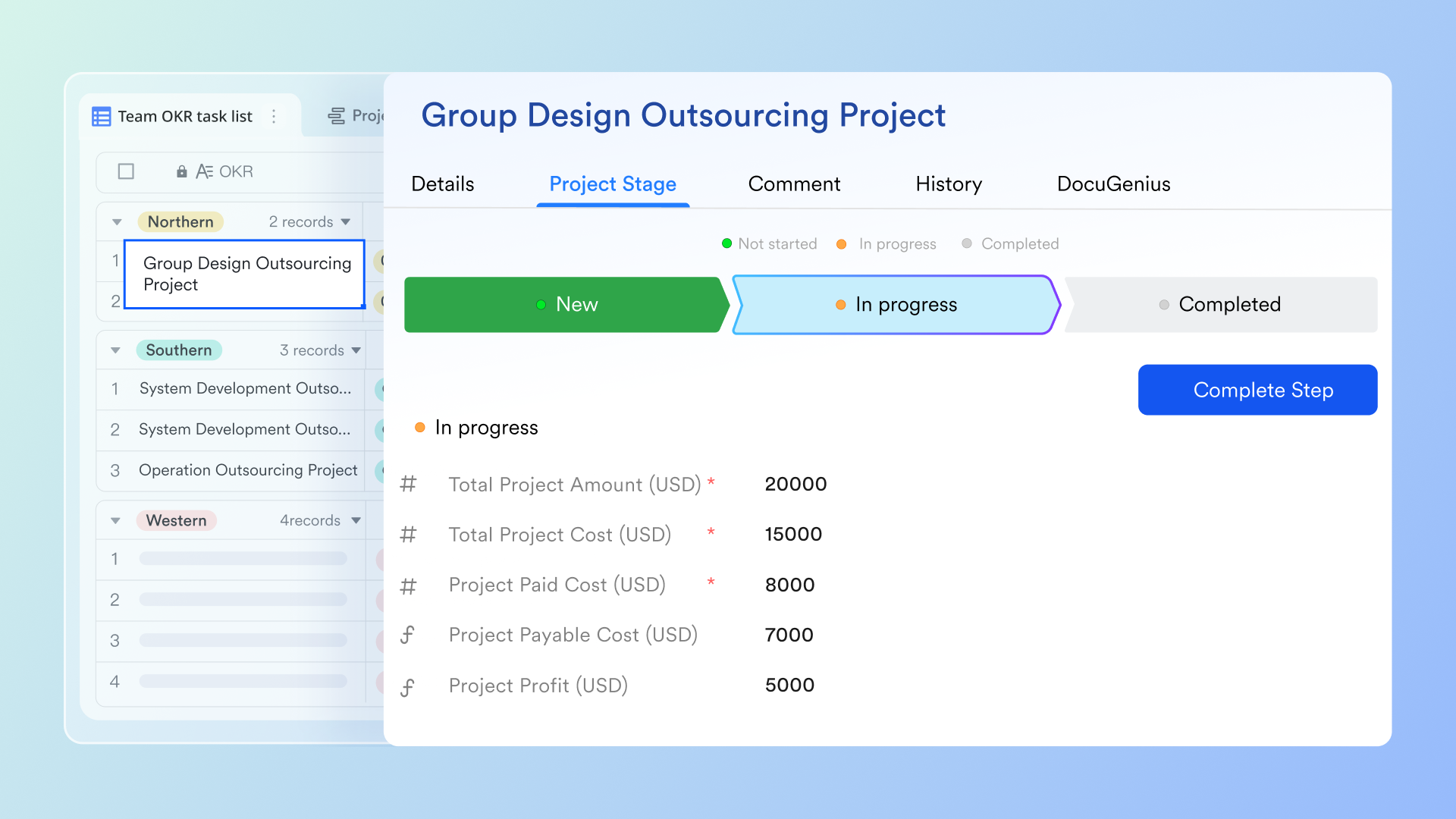
Lark Calendar: Smarter scheduling with shared availability
Lark Calendar gives teams a clear, real-time view of everyone's availability. You can check free time slots inside group chats, propose meeting times instantly, or let the system suggest the best slot for all participants. With support for multiple time zones, global teams can schedule effortlessly. With one click, you can follow other people's calendars and set up public calendars for organization-wide visibility.
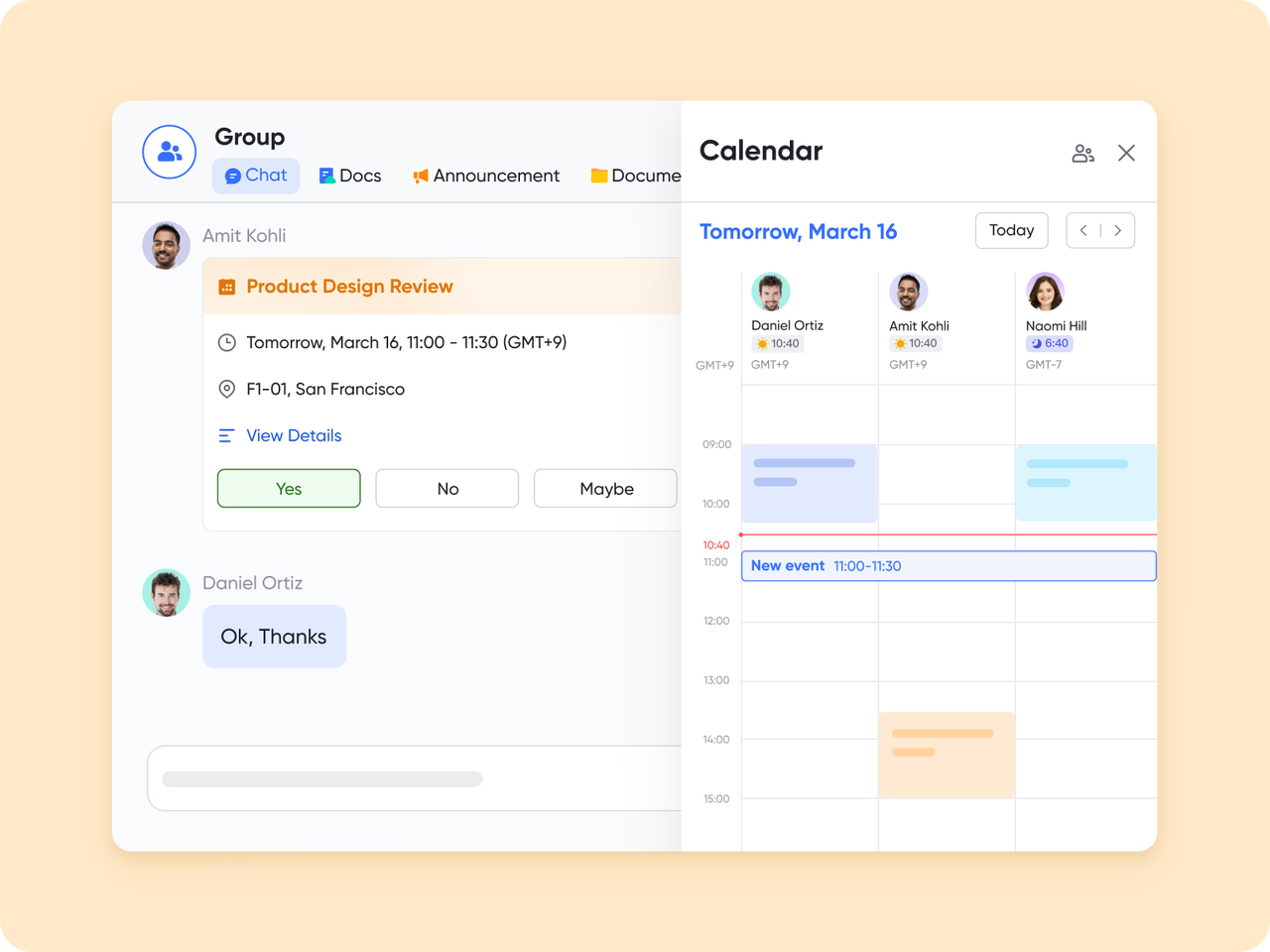
Lark Meetings: Seamless online video communication
Lark Meetings is a comprehensive video conferencing tool built into Lark. It lets you schedule, start, and join meetings directly from the Meetings tab, Calendar, or chats. You can manage hosts and co-hosts, set agendas, reserve rooms, and optimize performance with a low-bandwidth mode. Via Magic Share, participants can share documents during meetings, ensuring everyone views the same content in real time. By syncing with Lark Calendar, Lark Meetings ensures that participants' availability is visible, while built-in reminders and settings streamline the scheduling process.
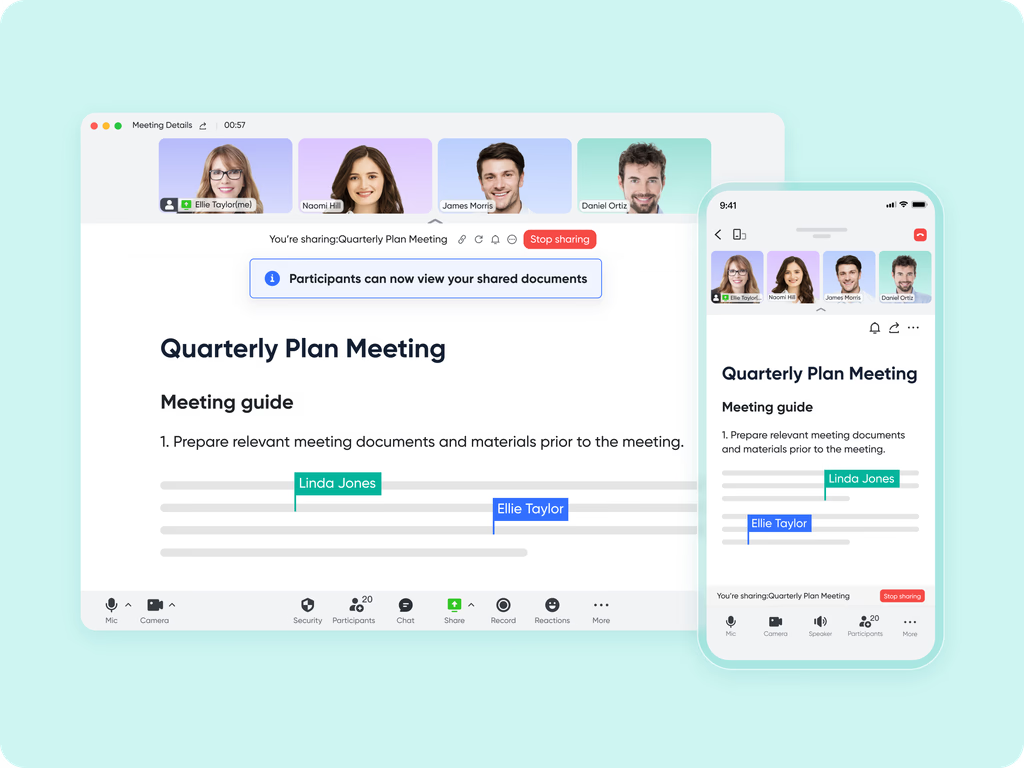
Lark Minutes: Intelligent meeting transcription & searchable history
As an AI tool, Lark Minutes automatically transcribes audio and video recordings from meetings into searchable, interactive text—making notes easy to review, highlight, and share. Because the meeting owner (organizer for scheduled meetings, initiator for impromptu ones) retains control over the minutes, it's simple to manage ownership and follow-up. You can even upload recordings after the fact to generate transcripts, so nothing gets lost. Smart notes help distill key points, decisions, and action items, keeping everyone aligned and accountable.

Lark Messenger: Schedule meetings directly from conversations
Inside Lark Messenger, teams can open a chat member's free/busy view and schedule meetings directly from the conversation. In Messenger, you can schedule meetings directly from a chat by clicking the Calendar icon to view members' available time slots and send invitations. Also, you can share meeting invitations in Messenger with just a few clicks, making it easy for participants to confirm attendance.

Lark Docs & Wiki: Collaborative content connected to meetings
Lark Docs and Lark Wiki enhance collaboration by making it easy to share agendas, briefs, and follow-up materials. Teams can co-edit documents in real time, add comments, adjust sharing permissions, or attach Docs directly to Calendar events. Notifications keep everyone aware of key changes or updates.
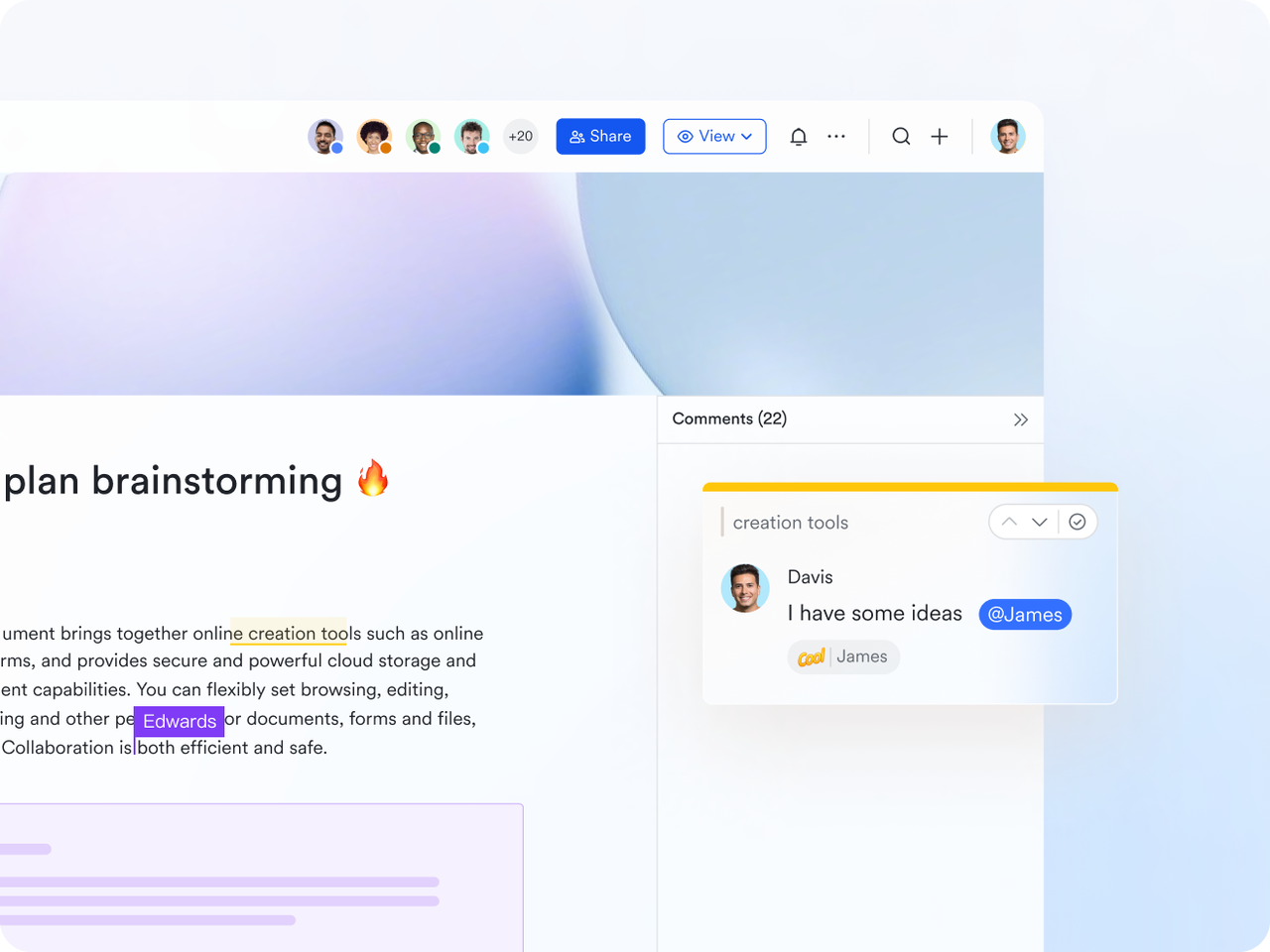
Visual canvas for configuration (zoom, move, and view full flow)
Lark Base's Workflow feature provides a clear, graphical representation of your workflow with workflow visualization tools. You can zoom in to focus on a specific decision path or zoom out to see the entire structure at once. Nodes can be repositioned freely so the layout reflects how the process logically unfolds. This makes it easy to understand branching paths, identify bottlenecks, present workflows to stakeholders, and refine flows without confusion. The visual layout ensures even non-technical users can grasp how the workflow functions.
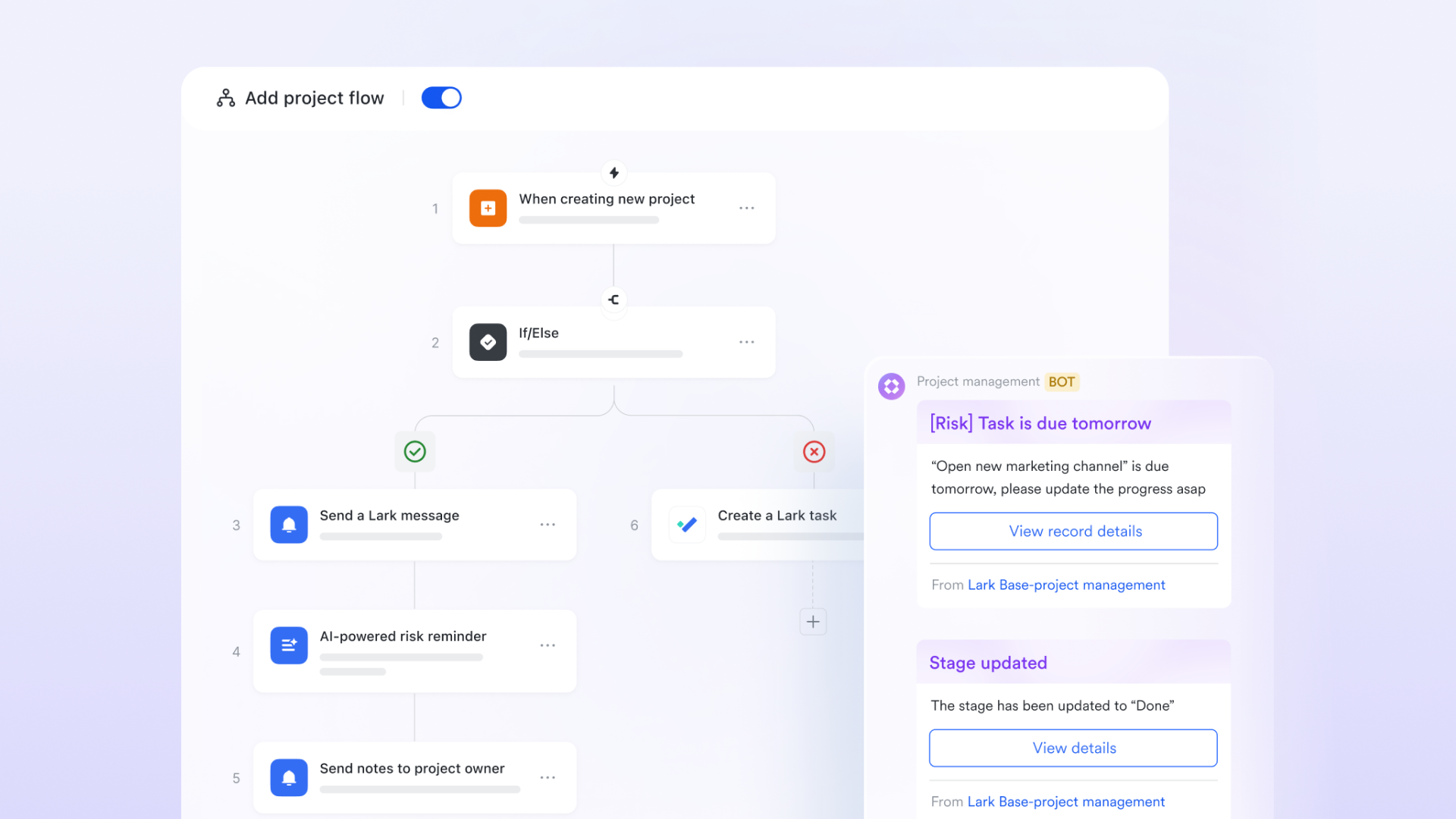
Supports logic-based actions like If/Else and Switch
Complex workflows often require decisions based on data, permissions, status, or conditions. Lark Base includes branching logic such as If/Else and Switch, allowing workflows to route items differently based on the situation. For example, you can send high-priority tasks to a special review group, or route requests differently depending on department, budget, or category. This conditional logic mirrors real-world decision-making and ensures each item follows the correct path automatically.
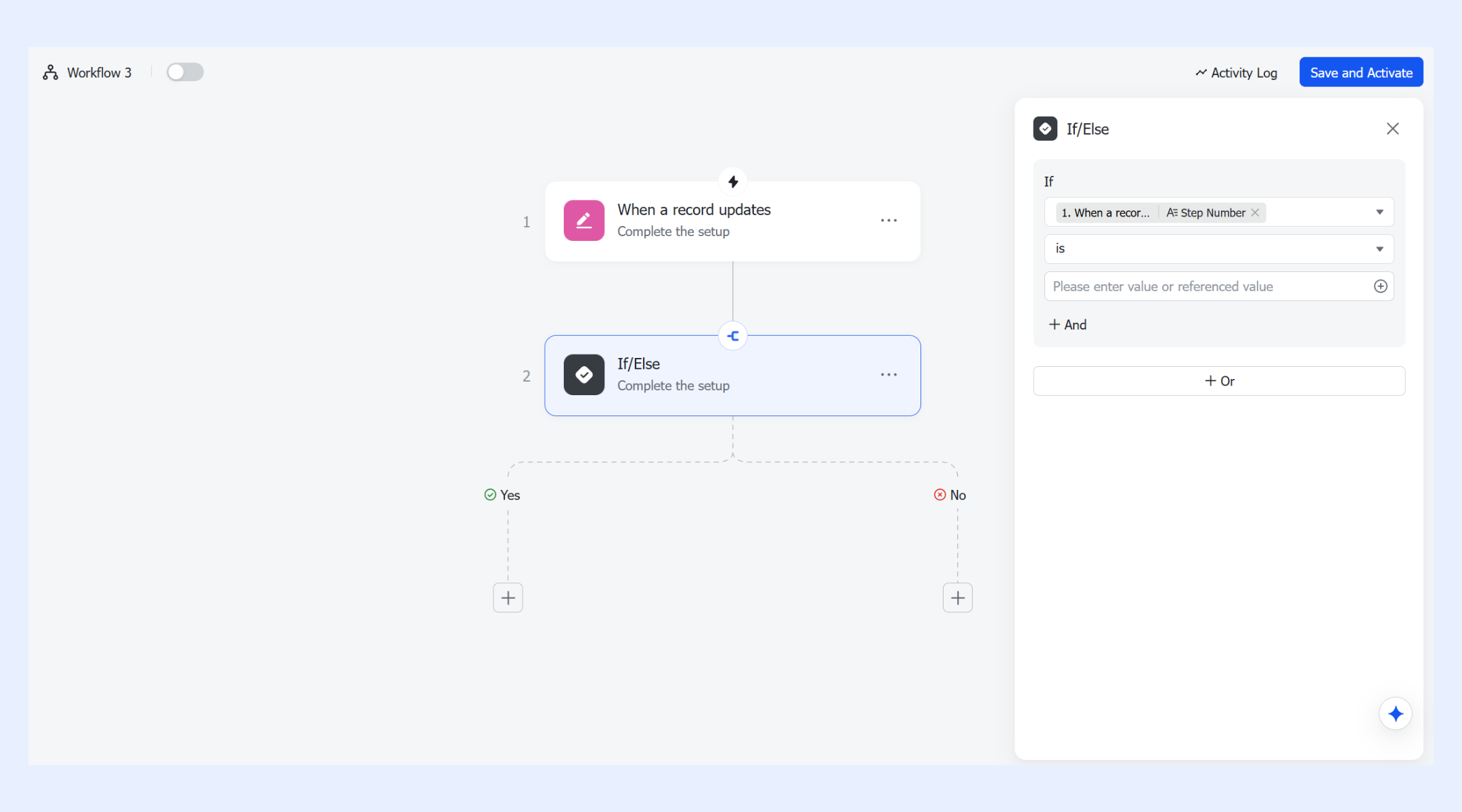
Loop nodes for automating recurring, repetitive tasks
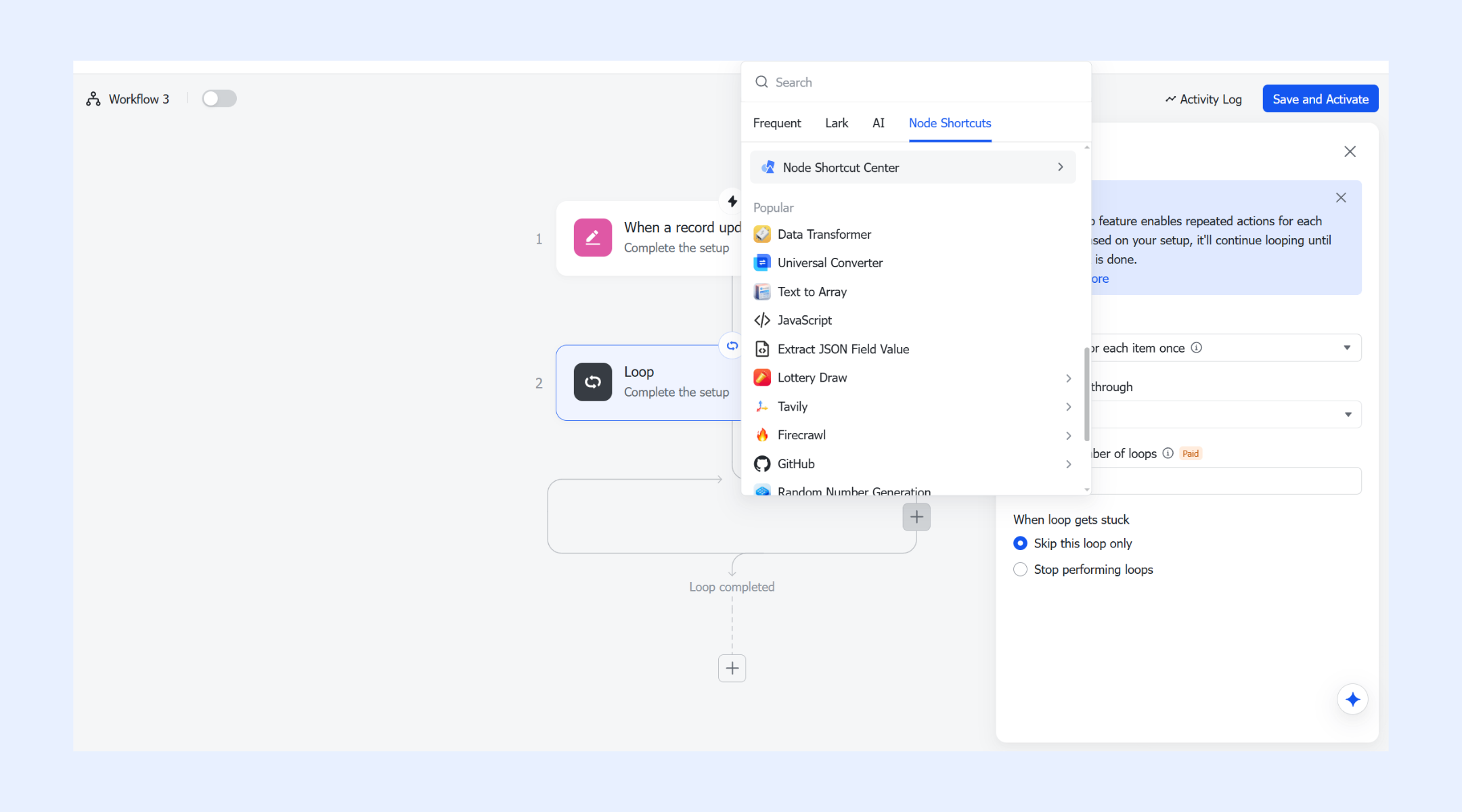
Loop nodes in Lark Base workflows help automate repetitive tasks by performing the same action on each item in a data set, such as sending reminders or updating records. You can select "Run action for each item once," which processes each item sequentially. The group to loop through must come from data generated in previous steps, like arrays from HTTP requests or webhook triggers. To add actions inside the loop, click the + icon; you can nest loops up to three levels, though If/Else actions cannot be included within a loop. Any data output from the loop, such as "Item in loop," can be referenced in subsequent workflow steps.
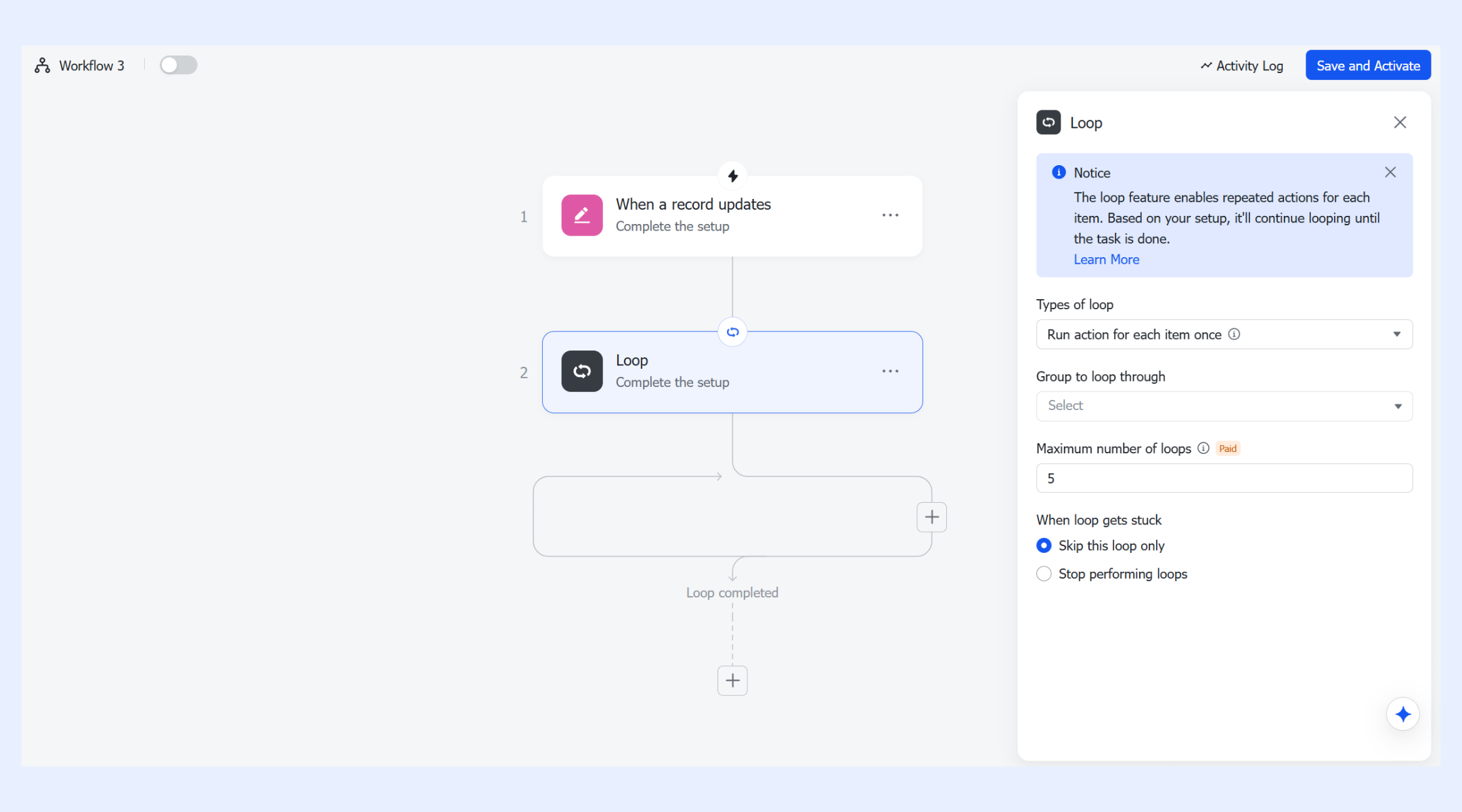
Includes multiple node shortcuts for the custom workflow
Node shortcuts in Lark Base allow workflows to perform task management such as summarizing text, extracting key information, generating suggested responses, or classifying content automatically. These nodes help reduce manual review time and speed up steps that involve analysis or content handling. Teams can also create custom node shortcuts that bundle commonly used AI behaviors or repeated action patterns into reusable components. This makes it simple to add sophisticated functionality anywhere in the workflow.
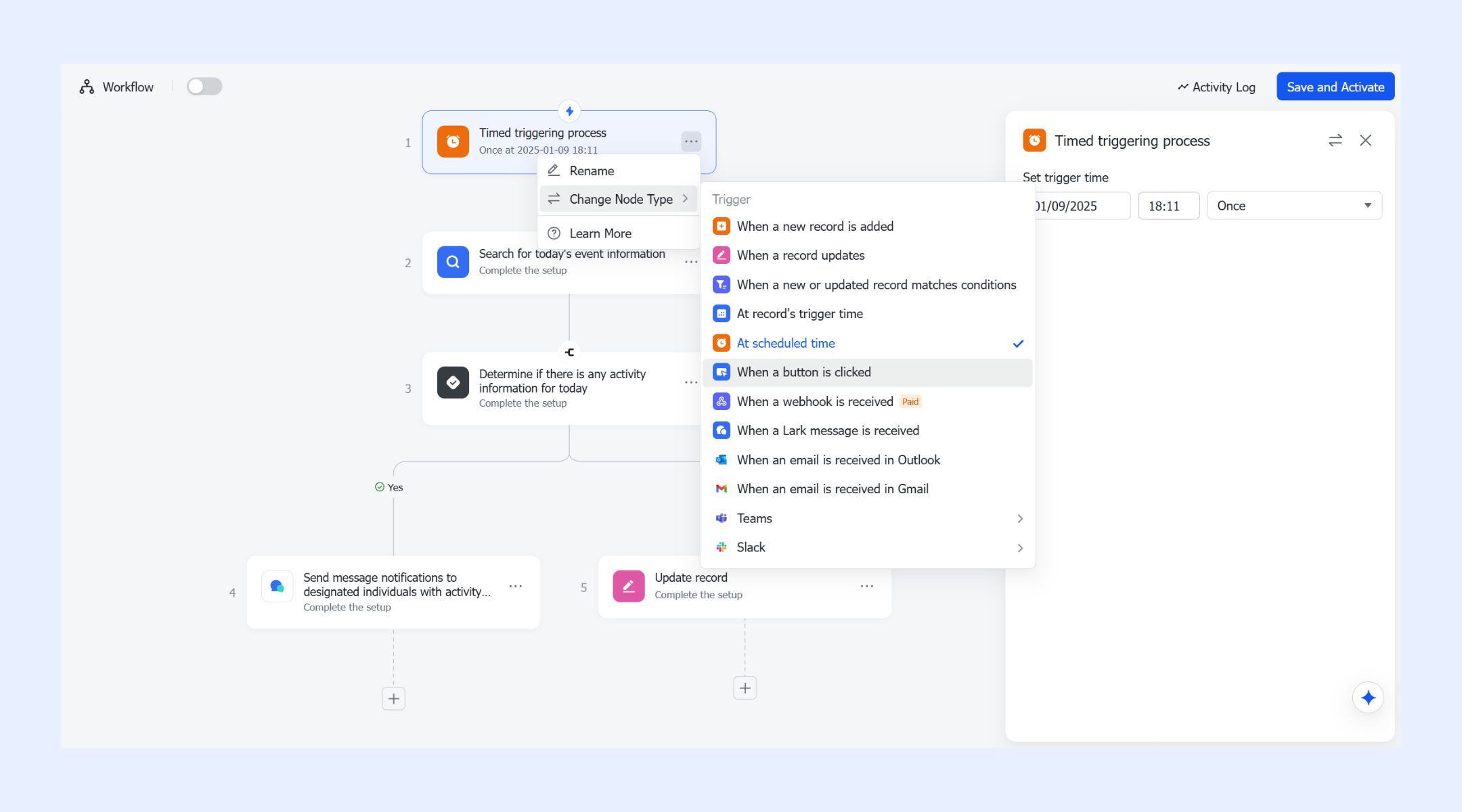
Button click as a trigger (based on permissions)
You can configure workflows to start when a user clicks a button as a trigger inside Base, giving teams more control over when a process begins or moves forward. This is useful for workflows that depend on human confirmation, such as "Submit for Review", "Escalate", or "Request Changes." Permissions ensure that only authorized users see or can trigger the button, preventing accidental starts. This adds a layer of precision and accountability to workflow initiation.
- Starter plan: Free forever plan that includes 11 powerful tools for up to 20 users. It also comes with 100GB of storage, 1000 automation runs, AI translations, and more.
- Pro plan: $12/user/month (billed annually) for up to 500 users. It includes everything in Starter plus group calling for up to 500 attendees, 15TB of storage, 50,000 automation runs, and more.
- Enterprise plan: Contact sales for custom pricing. Supports unlimited users and includes even more automation runs and advanced security, compliance, and management features.
Slack workflow builder vs. Lark: Feature comparison table
While Slack workflow builder is a useful and accessible tool for lightweight automation inside Slack, Lark Base Workflow clearly offers a more powerful, scale-ready, enterprise-capable solution that handles complex, multi-step workflows, deeper logic, AI-enabled nodes, and built-in cross-tool functionality—making Lark the stronger choice when your workflow needs go beyond the basics. Here are the features difference in Lark vs Slack.
Conclusion
The Slack workflow builder is helpful for simple, in-channel automation. However, as workflows become more complex, teams often require greater flexibility, cross-app automation, and deeper process management than Slack alone can provide. That's where Lark becomes a stronger alternative—providing scalable automated workflow, richer logic, and end-to-end optimization that supports evolving organizational needs more effectively. Let's dive into Lark today and realise a more robust workflow.
FAQs
What is the Slack workflow builder send web request step?
The Slack workflow builder send web request step is a workflow action that allows Slack to send HTTP requests (GET, POST, PUT, DELETE) to external APIs or web services. It enables workflows to interact with other tools by sending data, triggering actions, or retrieving information automatically. The responses from these requests can then be used in later workflow steps, allowing you to automate multi-tool processes without writing code.
What is the Slack workflow builder emoji reaction trigger used for?
The Slack workflow builder emoji reaction trigger is a workflow trigger that starts a workflow when someone reacts to a message with a specific emoji. It allows you to automate actions based on emoji reactions, such as marking a task complete, flagging a message for follow-up, or triggering a form or notification. This makes it easy to turn simple emoji interactions into automated workflow processes within Slack.
Can you share Slack workflows across different workspaces?
Slack workflows cannot be shared directly between separate workspaces. Each workflow must be recreated or manually exported/imported using JSON, and some steps may require workspace-specific permissions.
Does Slack workflow builder support multi-branch workflows?
Slack supports limited branching, such as sending different messages based on user inputs, but it does not support complex multi-branch or multi-stage flows. Tools like Lark offer deeper capabilities for multi-step logic.
Are Slack workflows available in free plans?
Slack workflow builder is available on paid Slack plans only. Free plan users can run workflows that have been shared with them but cannot build new ones.
Can Slack workflow builder send data to external systems?
Yes, but only through the "Send a Web Request" step. This step allows HTTP requests, but it has restrictions such as rate limits, single-endpoint dependency, and required technical setup, making it challenging for non-technical users.
Related reading
Table of contents
Start using Lark today

Manage all your work in one place
Boost team efficiency by 10x
Save up to 70% on software costs
Table of contents
Start using Lark today
Manage all your work in one place
Boost team efficiency by 10x
Save up to 70% on software costs
Keep reading








2026 Lark Technologies Pte. Ltd.
Headquartered in Singapore with offices worldwide.






Explore: