














What is ClickUp Project Management? A Simple Guide

Benjamin Grant
Lark Content Manager
Sep 18, 2026
Benjamin Grant
Sep 18, 2026

7 min read


If you have ever searched for a project management tool, you have probably heard of ClickUp. Or, at the very least, you will probably start seeing their ads everywhere soon! It has a bold mission to be the one app to replace your entire tech stack and bring all your tasks and chats into a single workspace.
But can they actually deliver? In this guide, we will dive deep into ClickUp project management to see if it lives up to its promise by exploring its features, trade-offs, and top competitors.
What is ClickUp?
ClickUp markets itself as an all-in-one platform for all types of work. You probably know the hassle of juggling a million open tabs, using Trello for your tasks, Google Docs for notes, and Slack for chatting. ClickUp tries to solve this by packing all of those tools onto one single screen.
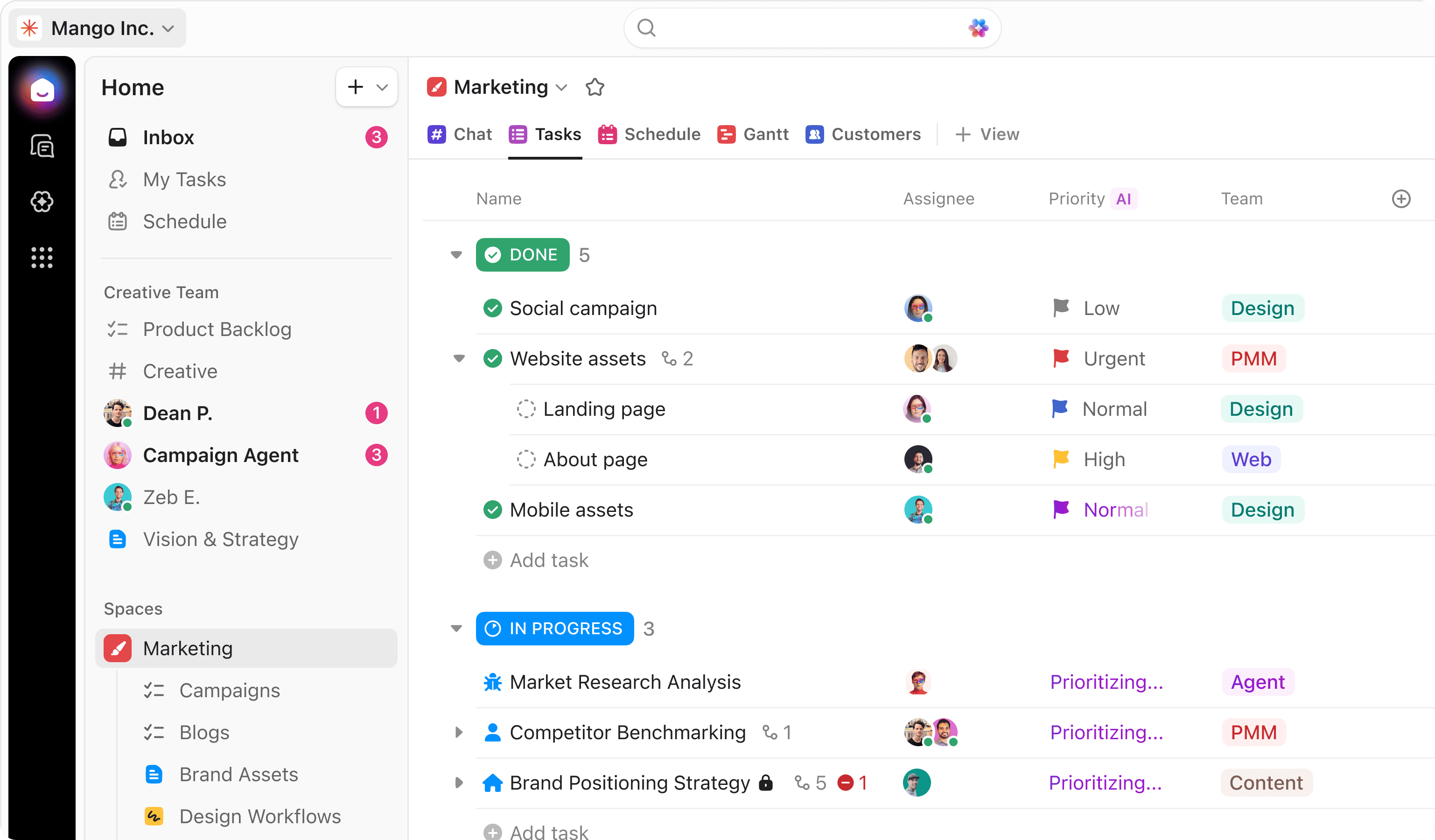
Image source: clickup.com
You'll be able to find features like task lists, documents, time tracking, chat, and automation. Let's say you are writing a project brief in a shared document. You can easily tag a coworker in a comment and instantly turn that comment into a task with a real due date. This also means you have multiple ways to set up workflows that are best suited to you. If you prefer dragging cards around on a simple Kanban board, for example, or mapping out long-term plans on a timeline, it's all possible with ClickUp.
How to use ClickUp for project management
Getting started with ClickUp is not that complicated. Just follow these steps:
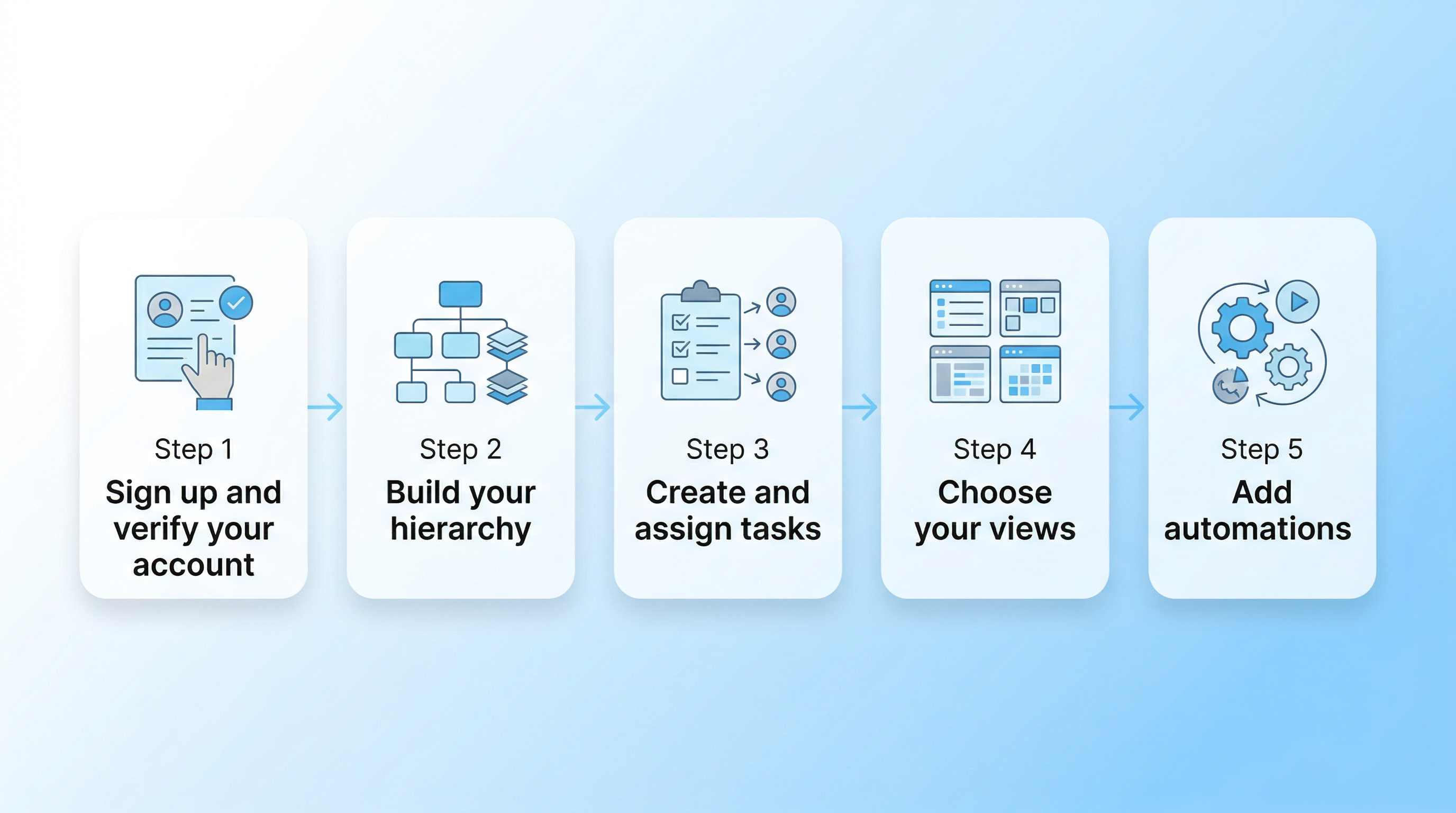
Step 1: Sign up and verify your account
Head to their website and sign up for a free plan. You will enter your details and receive a four-digit verification code via email. Once verified, you will be dropped right into your new individual workspace.
Step 2: Build your hierarchy
Create a "Workspace" for your entire company or brand. Inside that, add "Spaces" for different departments, like Marketing or Engineering. Next, use "Folders" to group related projects or clients together. Finally, create "Lists" inside those folders, which is where your actual work will live.
Step 3: Create and assign tasks
Inside your lists, start creating individual tasks for the work that needs to be done. You can assign these tasks to specific team members, set clear due dates, and even add watchers to keep other people in the loop.
Step 4: Choose your views
Now that your work is organized, decide how you want to look at it. You can use a simple list format, switch to a Kanban board to drag and drop tasks through different workflow stages, or use a Gantt chart to map out a project timeline.
Step 5: Add automations
Once you have the basics down, you can start saving time by setting up simple automation rules. For example, you can tell the system to automatically move a task to the next list or notify a manager as soon as its status changes to "Done."
What are the key features of ClickUp?
ClickUp offers a lot of features, and it would take way too long to go over each one individually. Since it organizes its tools into four main categories on its website, we'll do the same here and highlight a few of the best ones from each group.
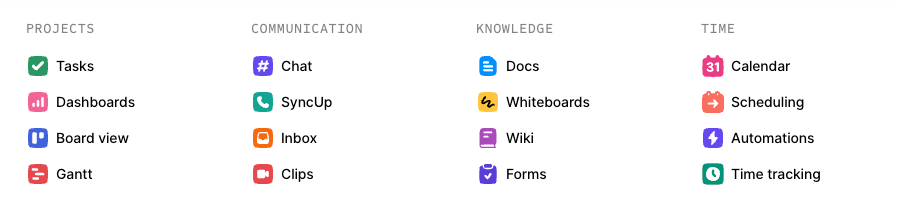
Image source: clickup.com
Projects features
Tasks are the foundation of everything you do in the platform, allowing you to break massive assignments down into smaller subtasks so everyone knows what to tackle first. If you prefer visual planning, you can easily switch your work into a Kanban board view to drag and drop task cards across different columns. This gives you an instant snapshot of where every piece of work stands as it moves through your workflow stages.
Communication features
You do not need to keep a separate messaging app open all day because the native chat view lets you talk with your team in real time right next to your active projects. Sometimes it is easier to show your team what you mean rather than typing it out, which is where the screen and voice recording feature comes in handy. This helps you explain complex ideas clearly without having to schedule another long meeting.
Knowledge features
You can write, edit, and share documents directly inside your workspace and even highlight text to instantly turn it into an assigned task. This ensures small requests and action items are always tracked properly. When you need to brainstorm, you can use a virtual whiteboard canvas to map out your ideas visually and connect your thoughts directly back to your actual task lists.
Time management features
Keeping an eye on your team's capacity is crucial, so the built-in timer lets you record billable hours directly on the specific tasks you are working on. You can then review timesheets to easily see who is overworked and who has room for more. You can also set up custom automations to handle the busywork for you, like telling the system to automatically assign a new task or shift a deadline as soon as a project status changes.
Pros and cons of ClickUp
Based on our own team's testing and user reviews from G2, Capterra, and Reddit, ClickUp's greatest strength is simultaneously one of its biggest weaknesses. The platform can indeed be quite powerful, but the sheer volume of features makes it hard to learn.
Pros | Cons |
Diverse tools Consolidates tasks, documents, team chat, and time tracking, eliminating the need to constantly switch between different apps. | Steep learning curve The interface features so many options that it can feel incredibly overwhelming for beginners or non-technical team members. |
Deep customization Highly flexible workflows, custom fields, and unique statuses let you mold the software to fit your specific business processes. | Performance lags Users frequently report sluggish loading times and bugs when navigating massive workspaces with thousands of tasks. |
Advanced task management Handles complex projects beautifully with nested subtasks, detailed dependencies, and over 15 different visual layouts. | Requires heavy setup Giving teams complete freedom can cause analysis paralysis; if not set up intentionally, folders and lists get messy fast. |
Strong reporting tools Managers appreciate the real-time visibility into project progress, budgets, and team workload capacity through custom dashboards. | Clunky mobile app Cramming so many desktop features onto a phone screen makes the mobile app feel cluttered and limits some advanced administrative actions. |
Good value Free tier available and affordable paid plans starting at just $7 per user per month. | Notification noise Default settings can fire off constant alerts for every minor change, requiring manual adjustment to prevent team distractions. |
| Extra cost for AI Brain AI features require an additional $7 monthly fee per user on any paid plan. |
How much does ClickUp cost?
ClickUp offers four plans to suit different team sizes and needs. There is a "Free Forever" plan that comes with 60MB of storage and unlimited tasks, which may work well for personal use or very small groups. The next tier up is the Unlimited plan, which costs $7 per user per month when billed annually, and includes unlimited storage, Gantt charts, custom fields, and more.
Larger teams typically need at least the Business plan, which is $12 per user per month on an annual cycle and adds advanced features like better automations, Google SSO, and unlimited dashboards. For massive organizations needing enterprise-grade security and dedicated support, the Enterprise plan is a must, but pricing is custom and only available upon request. More advanced AI features, like Brain AI, costs an additional $9 per user/month.
Who are ClickUp's competitors?
There are just as many competitors and alternatives as there are features on ClickUp. Depending on how your team works, you might find that one of these is a better fit.. Just as companies often explore Google Workspace alternatives when Google Workspace pricing no longer fits their budget, assessing other project management platforms can be highly beneficial. Depending on how your team works, you might find that one of these is a better fit.
Lark
Lark takes a slightly different approach by focusing heavily on unified communication. While ClickUp centers around tasks and projects, Lark starts with team chat, video conferencing, and collaborative documents, and builds project management on top of that foundation, with a vast array of embedded AI features. It also boasts an incredibly robust mobile app that doesn't strip away essential features like custom fields, which is a common complaint with ClickUp's mobile version.
Want to get started right away? Try this project management template that comes with kanban, Gantt charts, timelines, dashboards, and more!
Monday.com
Monday.com is widely considered a more user-friendly alternative. While ClickUp focuses on deep task hierarchies, monday.com shines with highly visual, color-coded, spreadsheet-style dashboards. It is incredibly easy to set up, making it a favorite for sales pipelines or marketing campaigns. However, it lacks deep agile development features, and its customization options are slightly more rigid.
Jira
If your team writes code, Jira is the industry standard for agile software development and complex issue management. It offers incredibly deep reporting metrics that development teams rely on. Where Jira falls short is ease of use. It requires serious administrative expertise to set up, and its interface can intimidate non-technical marketing or HR departments.
Trello
Trello takes the opposite approach by focusing on absolute simplicity. It is a strictly visual tool based around Kanban boards, allowing you to drag and drop task cards. It is fantastic for beginners or small teams with linear workflows because there is no learning curve. However, it lacks native time-tracking and complex automations, meaning growing teams often outgrow it quickly.
Final thoughts
ClickUp is a versatile toolkit for projects, communication, knowledge, and time management. Although powerful, its complexity often results in a steep learning curve and a cluttered screen. As such, teams often find they still need separate video or email apps to bridge functionality gaps.
Lark offers a unified path by blending meetings, calendars, and docs into one app, with chat at its center. You can manage workflows, schedules, approvals, tasks, and much more right in your chats, keeping project context clear. A seamless mobile experience and lower costs help your team focus on work rather than managing software. This is why leading global organizations like Xiaomi, GoTo, and 7-Eleven trust Lark to bring their teams together for projects, meetings, and everything in between.

FAQs
How much do I have to pay for ClickUp?
You won't have to pay anything on ClickUp's Free Forever plan, but storage is limited to only 60MB. Paid options start at $7 per user per month when billed annually or $10 when billed monthly. Enterprise pricing is also available for large organizations that need custom security and advanced support.
Does ClickUp have a mobile app?
Yes, ClickUp offers mobile apps for both iOS and Android devices, but some ClickUp project management features are only available on the desktop version.
Does ClickUp integrate with other tools?
Yes, the software offers over 50 native integrations to connect with your team's existing tech stack. You can also use its Zapier integration to link your workspace with over a thousand other external applications.
Related reading
Table of contents
Start using Lark today

Manage all your work in one place
Boost team efficiency by 10x
Save up to 70% on software costs
Table of contents
Start using Lark today
Manage all your work in one place
Boost team efficiency by 10x
Save up to 70% on software costs
Keep reading



Lark recognized in 2023 Gartner® Collaborative Content Workspaces and Meeting Solutions reports
Lark, the global superapp for productivity, is delighted to announce it receives recognition in the Gartner's 2023 Innovation Insight for Collaborative Content Workspaces and Market Guide for Meeting Solutions.





2026 Lark Technologies Pte. Ltd.
Headquartered in Singapore with offices worldwide.






Explore: