Time tracking has become essential for modern teams—whether you're measuring productivity, estimating workloads, or billing clients accurately. ClickUp time tracking offers built-in tools to record task hours, compare estimated vs actual timelines, and review individual or team timesheets. But how well does it perform in real workflows, and where does it fall short as teams grow?
This guide covers how ClickUp time tracking works, its key features, setup steps, reporting options, and plan-based limitations. You'll also see where teams may supplement their workflow with broader collaboration platforms like Lark, which provide more unified visibility without replacing ClickUp's core tracking functions.
Take the next step toward better project control
What is time tracking in ClickUp?
Time tracking in ClickUp is a built-in feature that allows teams to record, manage, and analyze the time spent on tasks directly within their project workflows. Instead of relying on external apps, time-tracking ClickUp tools let users start and stop timers, add manual entries, and review total hours in task views or . This helps teams understand how work progresses, compare estimated versus actual effort, and maintain accountability across projects.
With time tracking in ClickUp, users can categorize entries as billable or non-billable, add notes for context, and filter logs by assignee, task, date, or project. Managers gain visibility into workloads, productivity patterns, and potential bottlenecks, especially when coordinating distributed teams. The feature also supports reporting, allowing exports and summaries for client billing, cost analysis, or . Overall, ClickUp's time tracking enables teams to plan resources better, manage capacity, and make data-driven decisions within their existing workspace.
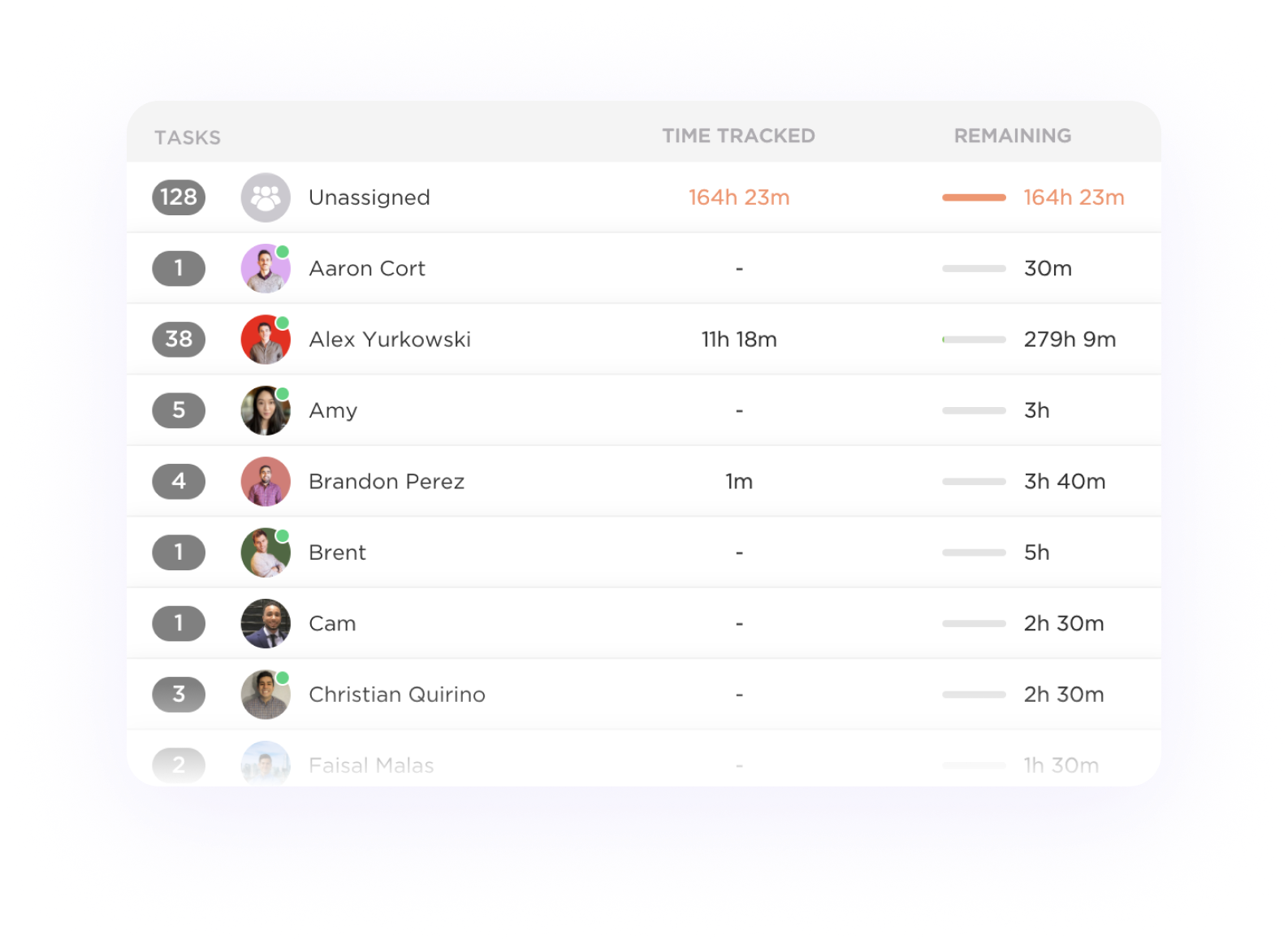
Image source: clickup.com
ClickUp time tracking features
ClickUp offers a versatile set of tools to track work hours, manage productivity, and support project oversight. These ClickUp time tracking features help teams capture accurate work data, streamline reporting, and understand how time is distributed across tasks.
Task-based timers
- Start/stop timers on any task: This ClickUp time tracking feature lets users launch a live timer directly from a task, ensuring accurate session logs. It supports seamless , often needed for ClickUp time-tracking reports.
- Background tracking: Timers continue running even when tasks or tabs change, giving users a smooth experience without interruptions. This helps improve the reliability of any ClickUp time tracking report.
- Offline capture: ClickUp stores time data locally when offline and syncs once reconnected. This is useful where internet drops could otherwise limit ClickUp time tracking and reporting.
Manual time entry
- Add time retroactively: Users can manually input hours they forgot to track, offering flexibility missing in many tools. This manual entry option is especially valuable in the ClickUp free plan time tracking, where automations are limited.
- Edit tracked sessions: Teams can adjust previously logged sessions to correct errors or refine details. Clean logs contribute to better ClickUp time tracking reports and more accurate project insights.
- Bulk time input: Users can add or edit multiple entries at once, speeding up weekly or monthly reporting tasks. This supports higher-volume clickup time tracking .
Timesheets
- Individual + team views: Timesheets provide a consolidated overview of hours per user or team, improving oversight. Managers rely on these summaries for structured ClickUp time tracking reports.
- Daily and weekly summaries: Clickable summaries help teams analyze productivity trends over short or long intervals. These insights often serve as the basis for ClickUp time-tracking reports.
- Filtering by assignee, tags, task status: Filters make it easy to isolate specific time logs and identify patterns. This filtering capability elevates clickup time tracking, reporting, and speeds up audits.
Time estimates
- Expected vs actual comparisons: Teams can compare estimated hours to actual tracked time, . This gap analysis often appears in internal ClickUp time tracking reports.
- Burn-rate calculations: ClickUp calculates how fast teams consume estimated hours, revealing project pacing. This is especially helpful when ClickUp Free Plan users need lightweight planning insights.
Billable time tracking
- Client billing alignment: Billable flags help separate client-billable tasks from internal work for clarity. This improves the accuracy of any ClickUp time tracking report used for invoicing.
- Cost analysis: Recording billable and non-billable hours allows teams to study cost efficiency. This feature strengthens clickup time tracking reporting for finance teams.
- Rate management: Teams can assign hourly rates to users or roles to improve billing clarity. Higher plans unlock greater richness beyond the ClickUp free plan's time-tracking limitations.
Mobile tracking
- iOS & Android timers: Mobile timers let users log hours from anywhere, ensuring continuity. This adds flexibility to ClickUp's time-tracking features for hybrid teams.
- Real-time mobile logging: Live tracking on mobile ensures accurate session recording during field or remote work. These sessions sync automatically with ClickUp time-tracking reports.
Browser extension
- Track during web-based work: The ClickUp Chrome extension lets people track time while working in other apps. This supports smoother clickup time tracking and reporting.
- Syncs sessions automatically: Time logged through the extension updates instantly across the workspace. This creates cleaner, more unified data for every ClickUp time-tracking report.
Team permissions
- Admin tracking oversight: Admins can view or manage team time logs to ensure compliance and accuracy. Oversight matters when building reliable ClickUp time tracking reports.
- Edit or approve team time entries: Higher-tier plans allow approvals and edits for team-wide entries, enabling governance. These workflows strengthen structured ClickUp time tracking and reporting for organizations.
Reporting tools inside ClickUp time tracking
ClickUp provides a wide range of reporting tools that help teams interpret tracked hours, measure productivity, and monitor project progress. These ClickUp time tracking reports enhance visibility and support better decision-making across workloads, billing, and timelines.
Timesheet reports
- Per-user or per-project totals: These summaries show how much time each person or project consumes, improving analysis accuracy. They form the foundation of most ClickUp time tracking reports used by managers.
- Weekly & monthly dashboards: let teams monitor trends over time and spot fluctuations early. They enhance the clarity of ClickUp's time-tracking reporting for ongoing projects.
Time estimated vs actual
- Identify overruns: Reports highlight tasks where actual hours exceed estimates, helping teams address bottlenecks. This comparison is a key element of ClickUp's time-tracking reporting for planning.
- Forecast delivery delays: By comparing estimates with real progress, ClickUp can signal timeline risks. These insights feed directly into any strategic ClickUp time tracking report.
Billable vs non-billable breakdown
- Revenue tracking: Billable hour summaries help finance or operations teams evaluate profitability. This breakdown is essential for client billing in ClickUp time tracking reports.
- Client utilisation insights: Teams can see how much effort is spent per client, improving resource allocation. These utilisation views strengthen clickup at the portfolio level.
Export options
- CSV downloads: Exports allow teams to analyze time data in spreadsheets or external tools. CSVs support teams that need flexible ClickUp time-tracking and reporting formats.
- Dashboard snapshots: Snapshots states for sharing or auditing. This helps distribute ClickUp time-tracking reports to stakeholders.
- API data pulls: APIs let teams integrate time data into BI systems or custom dashboards. This capability goes beyond ClickUp's free plan time tracking, offering deeper analytical control.
Common report filters:
- Team member: Filter time logs by individual contributors to evaluate workload distribution. This improves precision across every ClickUp time-tracking report.
- Task group: Grouping by task types or categories helps teams analyze specific work streams. These groupings enhance the granularity of clickup time tracking and reporting.
- Project folder: Filtering at the folder level supports broader project-wide time analysis. This ensures scalable, structured ClickUp time-tracking reports.
- Date ranges: Selecting custom periods allows teams to compare historical or recent performance. These ranges strengthen long-term clickup time tracking and reporting.
- Custom tags: Tags enable segmentation by activity type, client, or internal category, increasing flexibility. Tag-based filtering makes each ClickUp time tracking report more actionable.
How to set up ClickUp time tracking
Setting up time tracking in ClickUp is straightforward and helps teams begin capturing work hours immediately. Following the steps below ensures , clean logs, and smoother reporting across projects.
Step 1: Enable time tracking
Enable the feature by navigating to Workspace → Settings → ClickApps → Time Tracking. Turning it on ensures that timers, manual entries, and are available for all relevant users.
Step 2: Start tracking tasks
Open any task, click the timer icon, and start recording work instantly. This embeds time logs directly into the task record for seamless visibility.
Step 3: Add manual entries
Go to Timesheets and use + Add time to log missed or retroactive hours. This ensures accurate totals even when you forget to run a timer.
Step 4: Use mobile or browser tracking
Install the ClickUp Chrome extension or use the to track work across devices. Both options sync automatically, making time capture flexible and consistent.
Step 5: Review team timesheets
Use filters for members, tasks, or date ranges to analyze logged hours across the team. This step helps managers monitor workloads, validate entries, and maintain data quality.
ClickUp free plan time tracking
ClickUp free plan time tracking offers basic tools for recording work hours, but comes with notable limitations compared to paid tiers. Users can create, edit, and delete time entries, though advanced features like timesheets, billable tracking, and metadata controls are restricted. For small teams or simple workflows, it provides a functional starting point, but growing teams may quickly outgrow their capabilities.
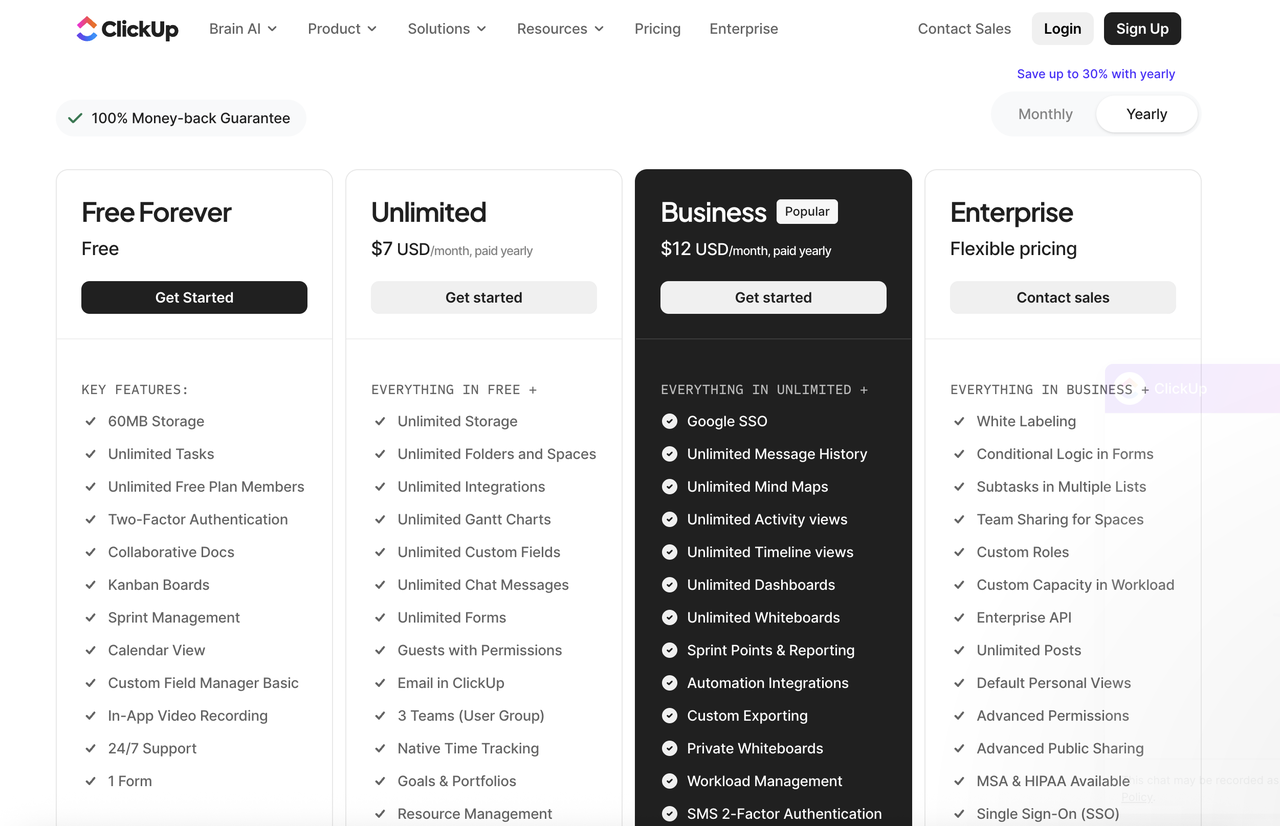
Image source: clickup.com
- The Free plan includes essentials like unlimited tasks, unlimited free plan members, and 60MB of storage. You also get features such as collaborative docs, Kanban boards, , calendar view, and basic custom field management. It's ideal for individuals or small teams that need foundational productivity tools without advanced automation or reporting.
- Unlimited plan: $7/user/month (yearly)
- The Unlimited plan unlocks unlimited storage, spaces, folders, integrations, and , making it suitable for growing teams. It adds custom fields, unlimited chat messages, forms, and email in ClickUp, plus native time tracking and goals. With the ability to create user groups and manage portfolios, it significantly expands the flexibility for collaboration and project management.
- Business plan: $12/user/month (yearly)
- The Business plan includes everything in Unlimited plus advanced tools like Google SSO, unlimited dashboards, unlimited activity views, whiteboards, and . It also introduces automation integrations, sprint points, workload management, and custom exporting. This tier is built for teams that require deeper visibility, structured processes, and higher security and compliance features.
- Enterprise plan: Custom Pricing
- The Enterprise plan offers all Business features, plus advanced controls such as white labeling, conditional logic in forms, subtasks across multiple lists, and organization-wide team sharing. Additional capabilities include custom roles, enterprise API access, advanced permissions, SSO options, and HIPAA availability. It is designed for large organizations that need maximum configurability, security, and scalability.
Time tracking features by plan
Time tracking access by user role
Best practices for tracking time in ClickUp
in ClickUp relies not just on using timers but on adopting workflows that keep data organized and accurate. Following these best practices helps teams improve reporting quality, reduce errors, and make time logs more meaningful.
- Track directly from task views: Launching timers from within the task ensures entries stay tied to the correct deliverable. This reduces mismatches and strengthens the accuracy of time-related reports.
- Apply naming conventions for logs: Consistent naming makes it easier to categorize and search time entries. Clear labels help teams maintain cleaner histories and improve auditability.
- Standard billing categories: Using predefined billing categories helps differentiate client work from internal tasks. This makes billable summaries and revenue reports more reliable.
- Weekly time audits: Reviewing weekly logs prevents discrepancies from piling up and keeps data fresh. Teams can quickly correct errors before they affect reports or billing.
- Use estimates to prevent overruns: Setting estimates helps teams compare expected vs actual time and flag inefficiencies early. This reduces delivery risks and .
- Separate client vs internal project tracking: Keeping client-focused work distinct from internal tasks improves clarity in utilization and profitability reports. It also simplifies billing and time allocation reviews.
Limitations of ClickUp time tracking
While ClickUp offers useful time-tracking tools, it has notable constraints that teams should understand before relying on it for large-scale or complex workflows. These limitations can affect accuracy, , and long-term visibility into reporting.
- No native, accurate, automatic time capture: ClickUp requires users to manually start or stop timers, which increases the risk of missed or inaccurate logs. Teams needing passive tracking may find this workflow restrictive.
- No idle detection: The system cannot detect inactivity, so timers continue even when users step away. This can inflate tracked hours and reduce report precision.
- No desktop background tracking: Without , ClickUp cannot log activity across desktop applications. This limits its usefulness for teams needing continuous, app-agnostic work tracking.
- Limited offline sync capabilities: Offline entries may not sync reliably during extended disconnections, leading to gaps or inconsistencies. This impacts users who frequently work in low-connectivity environments.
- Reporting needs upgrades for scale: Advanced reporting features require higher-tier plans, and large teams may find built-in reports limiting. More complex organizations often need deeper analytics than what the standard toolkit provides.
While ClickUp offers built-in time tracking for tasks, many growing teams reach a point where tracking hours alone is not enough. They need stronger visibility across projects, smoother handoffs between communication and work records, and from tracking into reporting—areas where Lark offers a more scalable approach to team time tracking and productivity management.
Optimize your team's productivity in smart ways
New alternative: Use Lark's unified solution for time tracking
While ClickUp offers solid time-tracking tools, many growing teams eventually need deeper automation, richer context, and more unified workflows than ClickUp's built-in features provide. stands out because it treats time tracking as part of a larger connected system—combining tasks, databases, approvals, and communication in one place. This reduces fragmentation and ensures that every time a log is tied to meaningful project data. Teams gain clearer visibility, more reliable reporting, and without juggling multiple tools. As workloads scale, Lark's flexibility and automation give organizations a stronger foundation for accurate, end-to-end time management.
Time entry creation, editing & deletion
In standard time trackers: You create a timer or manual entry when you start or finish a task, then edit or delete it if needed. This works well for ad hoc tracking—but entries remain isolated and often disconnected from the broader project context.
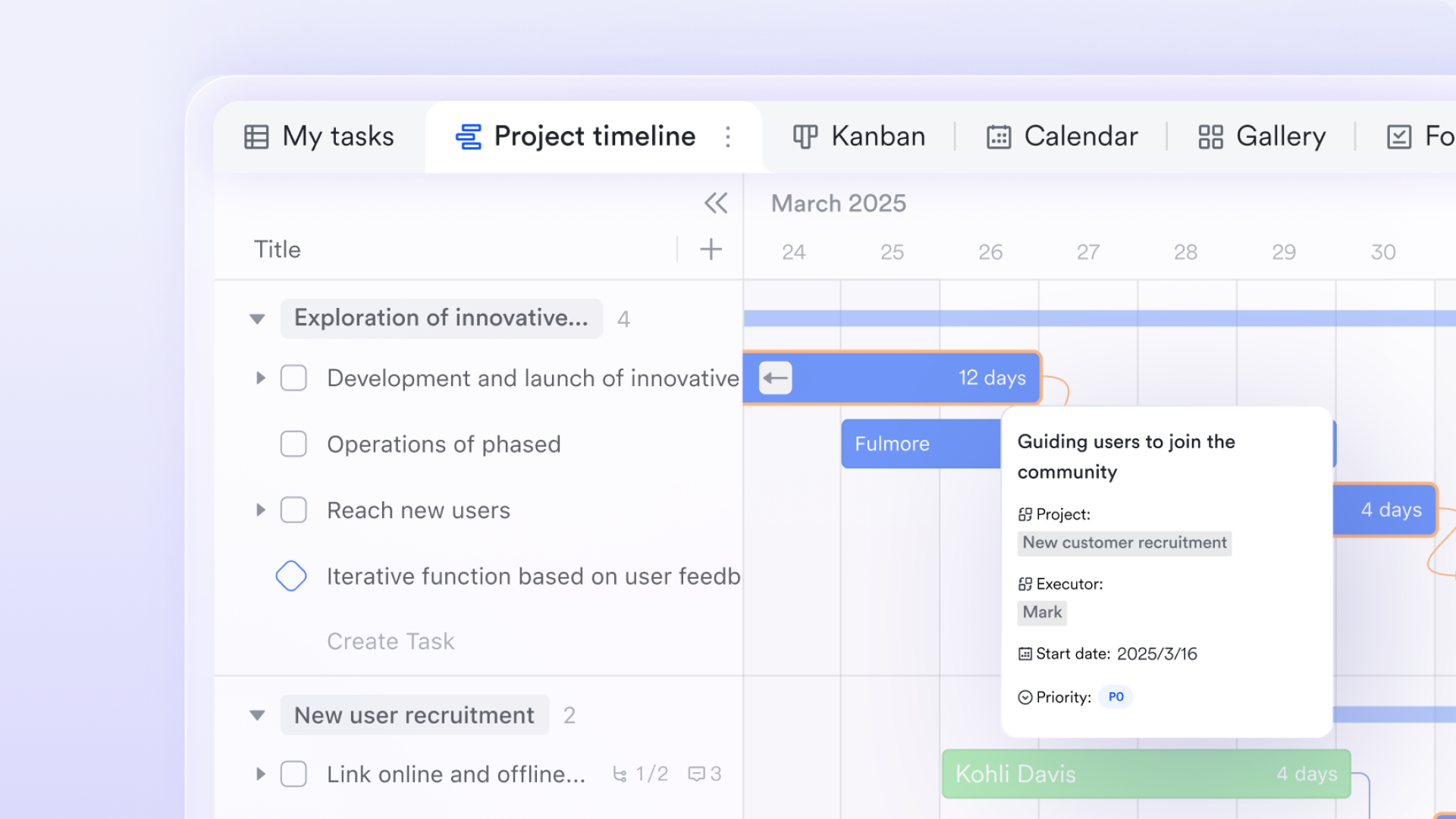
In Lark: Using , time entries (or "work logs") become part of a structured record tied to a task, project milestone, or workflow stage. Because tasks live within a shared, visual workflow (board, list, or database), you automatically inherit context—who did what, when, and under which project deliverable—making tracking more straightforward, editing safer, and deletions less error-prone.
Why Lark outperforms: Time logging isn't just an afterthought; it becomes part of the project's living data model. This helps avoid "orphaned" time entries that are hard to reconcile or audit later.
Rich metadata on filtering entries
In typical time tracking: You may get basic metadata (notes, billable flag), but advanced labeling, linking to deliverables, or capturing non-task time often remains manual or limited.
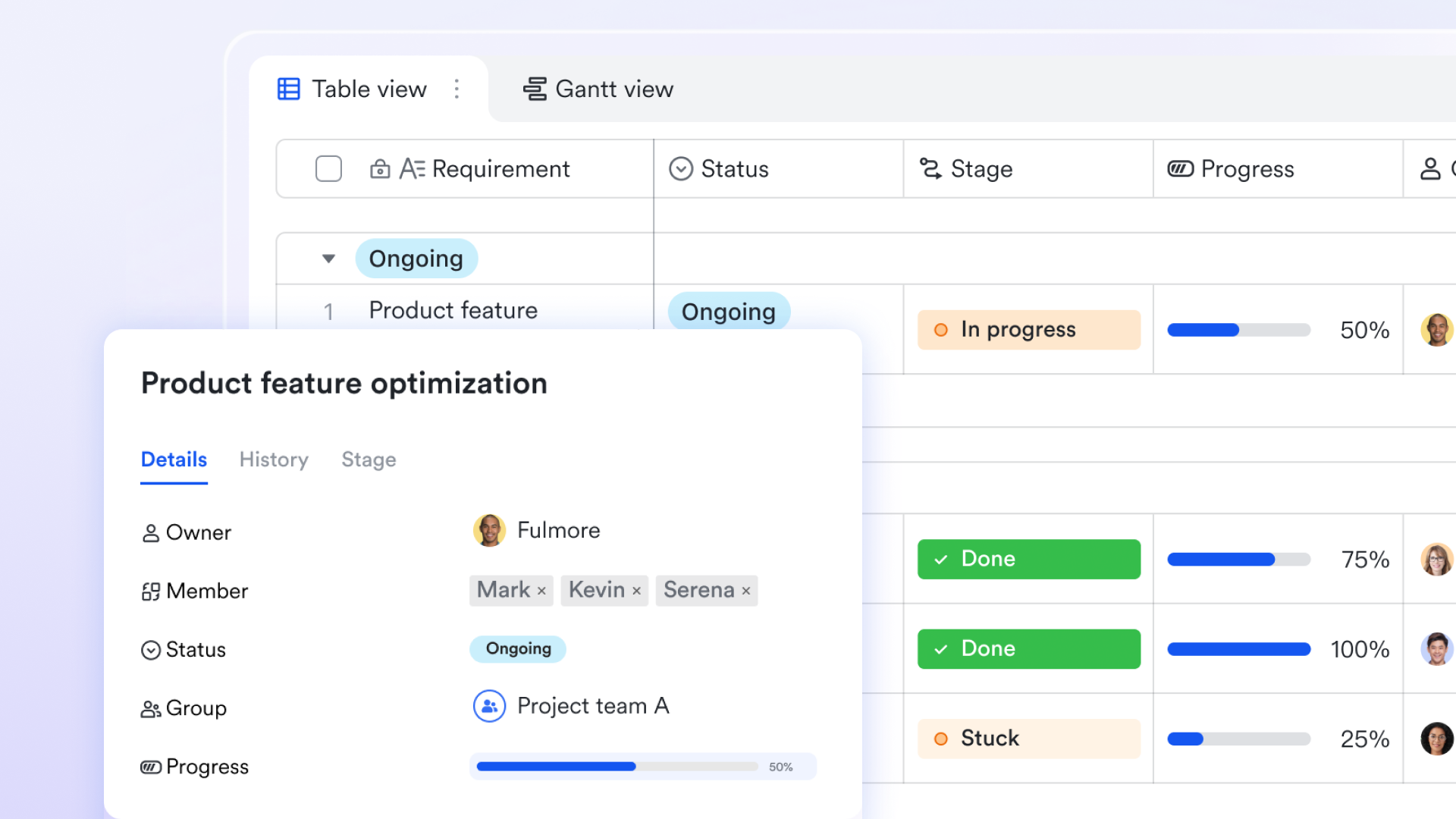
In Lark: Lark Base offers flexible tools for managing priorities and tracking task progress efficiently. You can set and manage priority levels using various field types, such as single option fields for labeling and person fields for targeted notifications. Furthermore, using two-way links, you can establish crucial relationships between tables, connecting tasks to deliverables or objectives to key results. This system even supports advanced labeling by linking records to a dedicated label table, allowing for sophisticated categorization and analysis of time entries. Why Lark outperforms: Its flexible data structure turns time logs into full-fledged records—that are searchable, filterable, and reportable—rather than simple line-items. This makes billing accuracy, project costing, and time audits much more manageable.
Transparent approvals process & logs
In many time-tracking tools: Basic timesheets or approval logs exist, but full-fledged approval workflows, role-based permissions, and oversight often require paid tiers.
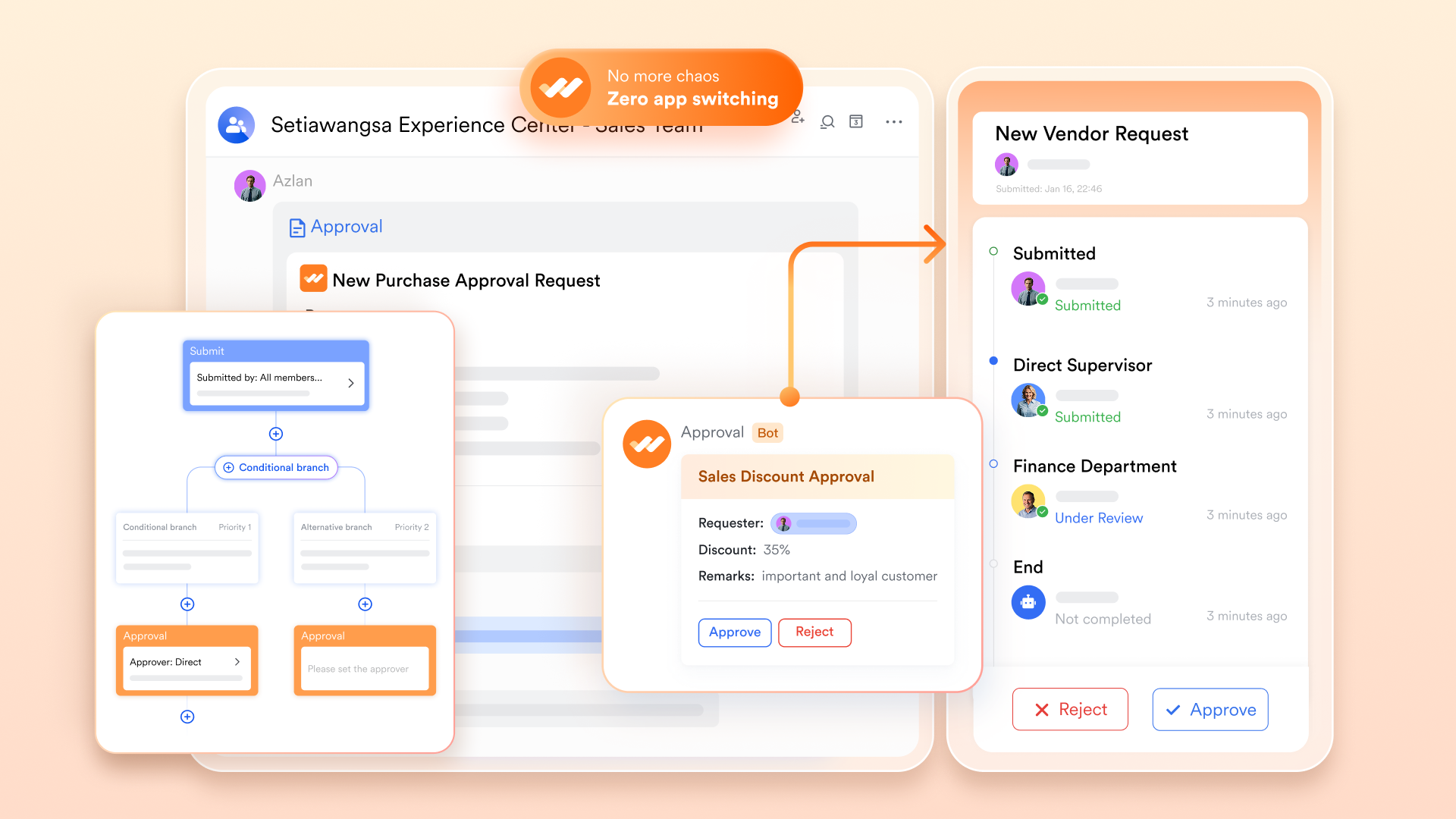
In Lark: provides a comprehensive Approval Log that automatically records the time spent on every step of your approval tasks. It meticulously tracks the duration from the moment a task is assigned to a member until it is completed, giving you clear visibility into the entire workflow. This feature is vital for monitoring efficiency and quickly identifying bottlenecks or delays in the process. Why Lark outperforms: Rather than separate modules for and approvals, Lark treats time logs as part of the broader project data ecosystem—making oversight, transparency, and team accountability inherent rather than optional.
Automatic and workflow-triggered time capture
In standalone time trackers: Logging time is almost always manual—you start a timer when you begin work, stop when you finish. This leaves room for human error, forgotten entries, or inconsistent tracking.
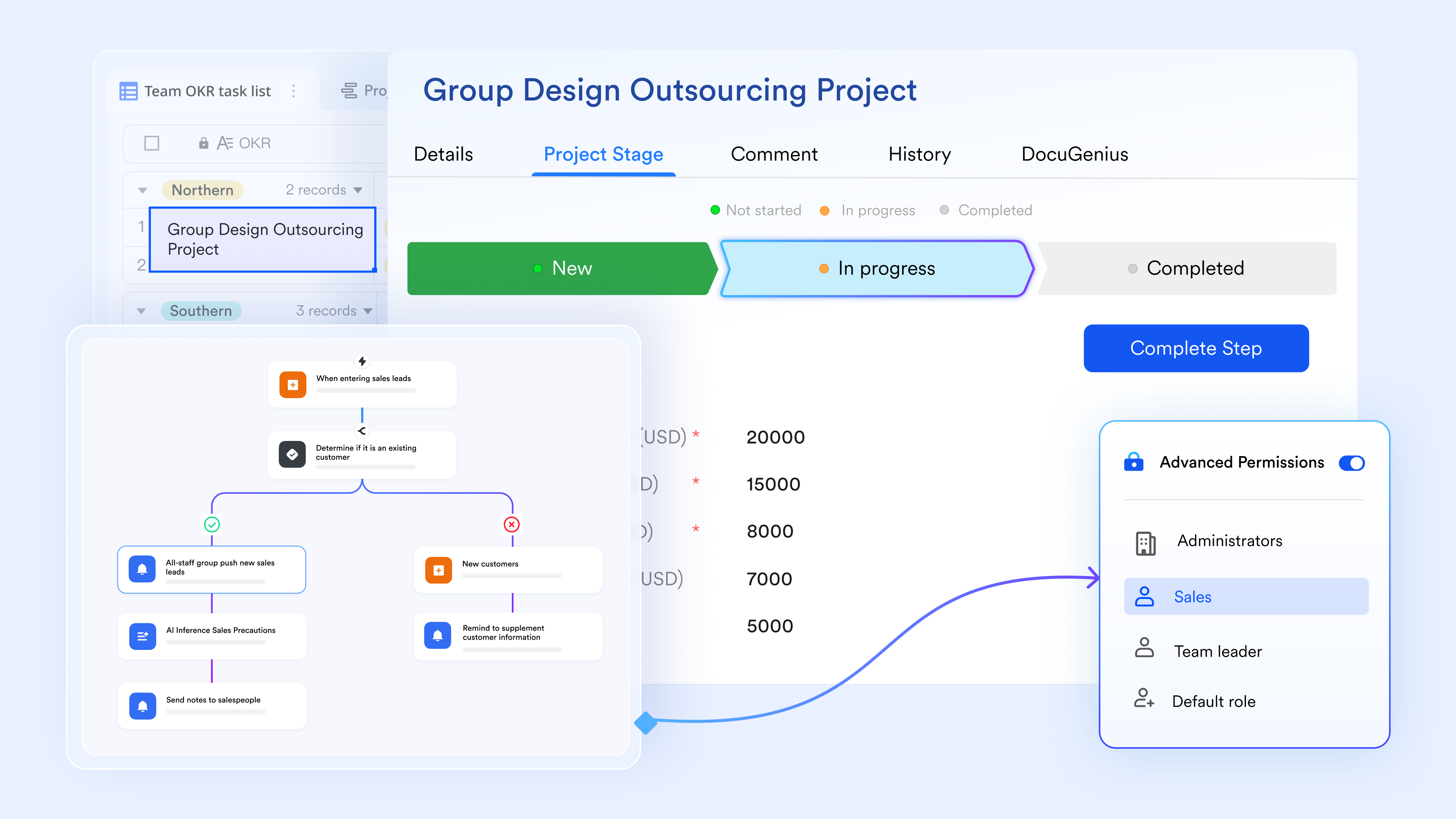
In Lark: Lark Base effectively tracks project duration using a combination of flow fields and automations. You start by creating flow fields to clearly represent each project stage and add dedicated date fields to record stage completion times. The crucial step is to set up an automation that is triggered when a record updates (i.e., when the stage changes). This instantly captures the action time and records the precise completion time, allowing you to analyze these timestamps later to compare duration and easily identify bottlenecks within the workflow. Why Lark wins here: Less manual overhead, fewer forgotten logs—time tracking becomes a passive, reliable byproduct of actual workflow rather than a discrete, user-driven task.
Reporting, dashboards, and project-wide analytics
Standard trackers often provide: Timesheet exports (CSV), basic reports (time per user, per project), and sometimes billable vs non-billable totals—but advanced insights (resource allocation, client profitability, workload balancing) can be limited or locked behind expensive plan tiers.
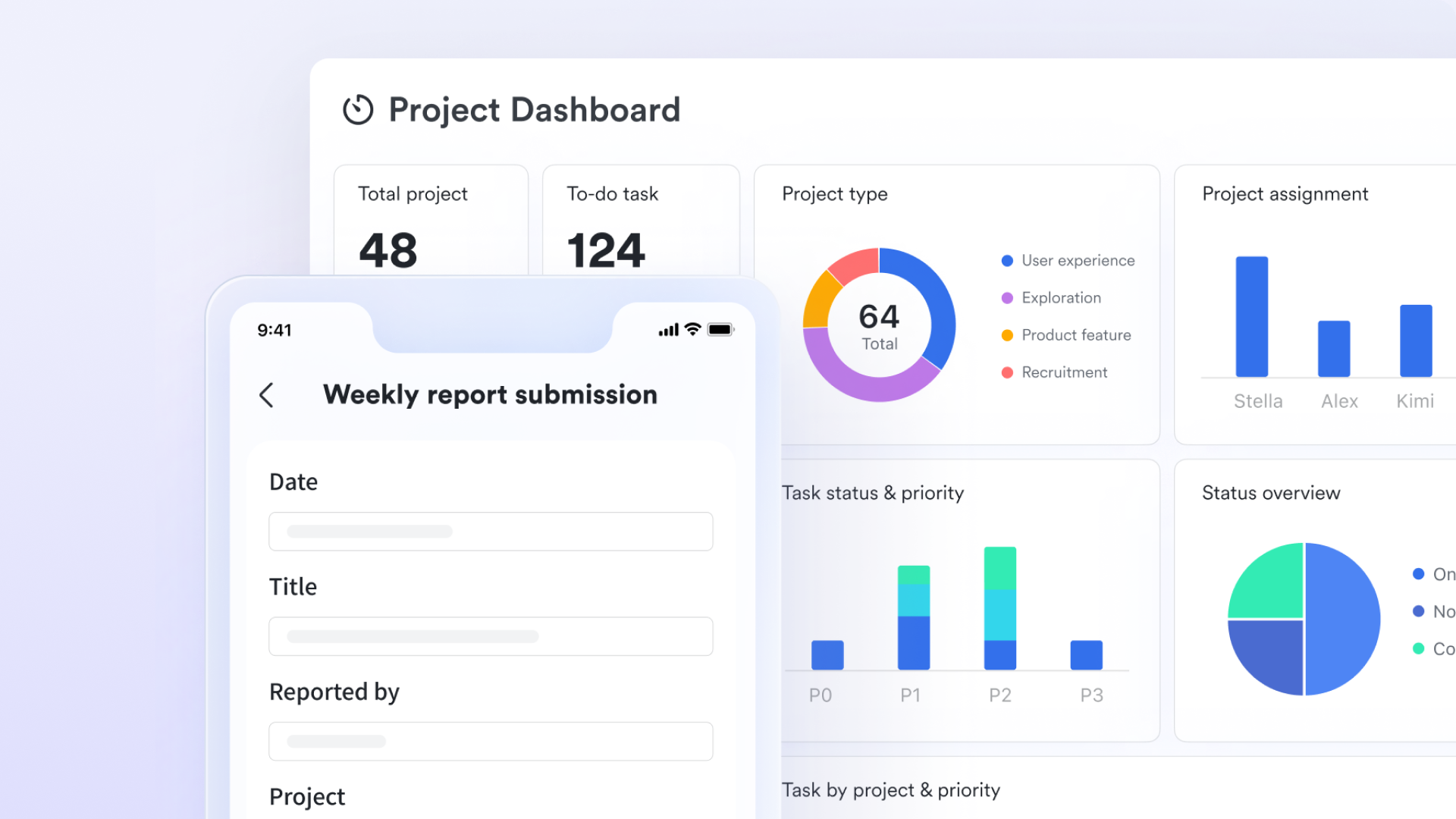
In Lark: Lark Base leverages its centralized, structured data to enable teams to build highly effective . These provide real-time insights into metrics like team utilization and billable hours versus cost estimates. To track progress over time, Metrics blocks can be configured to display changes across specific time ranges, such as "This week" or "Last 30 days." Furthermore, Countdown blocks allow you to dynamically display the remaining time until key project deadlines or events, ensuring users remain acutely aware of all time-sensitive tasks and milestones.
Why Lark is more powerful: Time data doesn't stay siloed; it becomes actionable insights. You transform raw hours into strategic, valuable intelligence for resource planning, billing transparency, and long-term project optimization.
Collaboration, transparency, and auditability
In separate time-tracking tools: Time logs exist in a parallel system that often lives apart from actual project tasks, documents, and communication. This can lead to fragmented data, miscommunication about who logged what, and difficulty linking hours to deliverables or decisions.
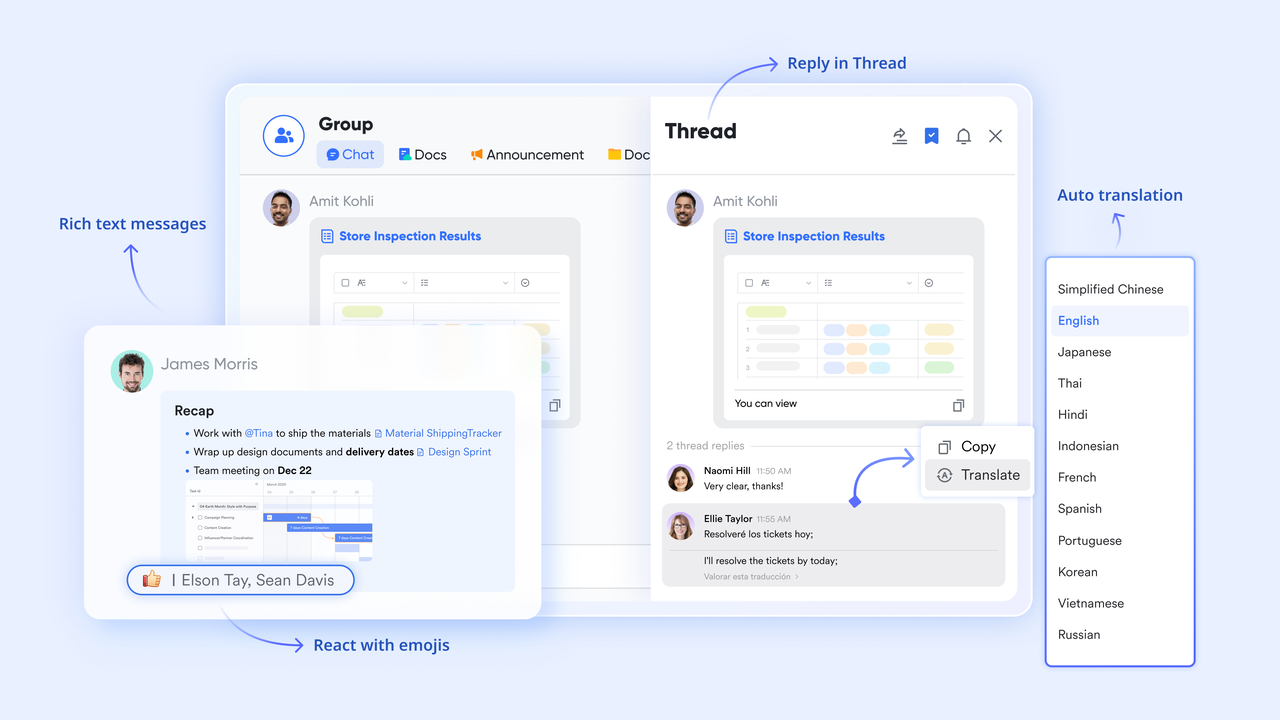
In Lark: Lark's unified workspace ensures that all critical information remains transparent and easily auditable. keeps all task-related conversations, feedback, and change requests directly linked to the work record and time log, preserving context. Essential documentation, such as billing policies and client agreements, is held securely in , ensuring everyone has immediate access and eliminating ambiguity. Because tasks, time logs, communication, and documentation all reside in the same integrated platform, the entire workflow—including who worked when and why—remains fully traceable.
Why this matters: For teams working remotely, across time zones, or billing clients—accountability and clarity are critical. Lark's unified environment reduces misalignment and supports traceability.
:
- Starter plan: Free forever plan that includes 11 powerful tools for up to 20 users. It also comes with 100GB of storage, 1000 automation runs, AI translations, and more.
- Basic plan: $6/user/month (billed annually) for up to 500 users. It includes everything in Starter plus group calling for up to 500 attendees, 5TB of storage, 1000 automation runs, and more. For more details, please .
- Pro plan: $12/user/month (billed annually) for up to 500 users. It includes everything in Basic plus group calling for up to 500 attendees, 15TB of storage, 50,000 automation runs, and more.
- Enterprise plan: for custom pricing. Supports unlimited users and includes even more automation runs and advanced security, compliance, and management features.
For small teams with simple communication needs

18 months message history
1000 Base automation runs/month
2000 rows per table in Base
Most POPULAR
For companies with comprehensive collaboration and management needs
Unlimited message history
500-participant video meetings
50k Base automation runs/month
20k rows per table in Base
For large companies with advanced security and organizational management needs
Get a personalized demo and pricing
Unlimited message history
500-participant video meetings
15 TB storage + 30 GB storage/user
500k Base automation runs/month
50k Base automation runs/month
Most POPULAR
For companies with comprehensive collaboration and management needs
Unlimited message history
500-participant video meetings
50k Base automation runs/month
20k rows per table in Base
Ideal use cases where Lark outperforms simple time trackers
Lark excels in scenarios where traditional time trackers fall short, especially when teams need more than just timers. Its workflow-driven structure and make time data more contextual, accurate, and actionable.
✔ Workflow-based tracking rather than standalone timers: Lark captures work activity within a structured workflow rather than relying solely on manual timers. This ensures time logs always stay connected to the right task stage or project context. ✔ Automated time capture through process transitions: Automation allows Lark to record time when tasks move through stages, reducing manual input. This minimizes human error and delivers consistent, reliable data for analysis.
✔ Direct collaboration tied to tracked activities: Comments, files, and messages live alongside tasks and logs, creating a unified source of truth. Teams gain transparency not just into how long something took, but also why.
✔ Custom reporting without high-tier restrictions: Lark lets teams build using all time, task, and workflow data without paywall limitations. This supports deeper insights and more adaptable reporting structures.
✔ Full visibility from project initiation to billing: Every phase—from planning to execution to invoicing—remains connected through shared records. This continuity helps teams understand effort, cost, and output across the entire project lifecycle.
Conclusion
ClickUp's time tracking tools offer a solid starting point for teams that need basic timers, manual logs, estimates, and reporting. They work well for straightforward workflows, especially when tasks stay simple, and teams don't require or complex visibility across projects. However, as organizations scale, the limitations in automation, offline reliability, and deeper reporting often become more noticeable.
That's where a platform like can complement growing operational needs. With workflow-driven tracking, built-in collaboration, customizable reporting, and automated data capture, Lark helps teams maintain accuracy and clarity without adding extra tools to the stack. If your team is ready to streamline processes, reduce tracking friction, and bring time, communication, and project context together in one place, now is the perfect time to explore how Lark can support your next stage of growth.
Get ready to streamline your daily work processes
FAQs
Does ClickUp automatically track time?
ClickUp does not offer true automatic time tracking—you must start or stop timers manually or add entries later. This can lead to missed logs if users forget to track activity. Teams needing more automated, workflow-driven tracking often pair ClickUp with platforms like Lark to capture time more smoothly and less manually.
Is time tracking free in ClickUp?
ClickUp's free plan includes basic time entry tools, but many advanced features—like timesheets, labels, approvals, and detailed reporting—require paid upgrades. Smaller teams may find the free tier sufficient for simple tracking. For more scalable, customizable , some teams explore options like Lark alongside ClickUp.
Can I export ClickUp time tracking reports?
Yes, ClickUp allows exporting time data through CSV downloads or dashboard snapshots. This is useful for billing, analysis, or importing data into external tools. Teams wanting deeper, database-style reporting often supplement their workflow with solutions like Lark for more flexible analytics.
Can ClickUp monitor apps or websites?
No, ClickUp cannot track which apps or websites users are actively using, as it isn't a full activity monitoring tool. It focuses solely on task-level time logging. Teams that prefer contextual tracking tied to and workflows sometimes combine ClickUp with platforms like Lark for richer visibility.
Related reading