Secure collaboration is essential in modern teams where remote work, cross-functional projects, and external partnerships are increasingly common. While document sharing with Google makes collaboration fast, flexible, and accessible from anywhere, improper permission settings can unintentionally expose sensitive data. Many users unknowingly create public links, grant excessive editor access, enable external user downloads, or fail to regularly monitor activity logs — all of which significantly increase security risks and compliance vulnerabilities.
In this guide, we'll explore how to configure Google Docs document sharing permissions safely, avoid common mistakes, and leverage advanced sharing controls. We'll also examine why organizations are adopting more secure platforms like Lark for stronger access governance and regulatory compliance.
What is a Google Doc?
A Google Doc is a created in Google Docs, part of Google Workspace. It allows users to create, edit, and format text documents directly in a web browser without installing software. Because files are stored in Google Drive, users can access them from any device with an internet connection.
One of the main advantages of a Google Doc is . Multiple users can work on the same document simultaneously, leave comments, suggest edits, and view revision history. Changes are automatically saved, reducing the risk of data loss.
Google Docs also supports sharing through customizable permissions, allowing document owners to assign Viewer, Commenter, or Editor roles. This flexibility makes it widely used in businesses, schools, and remote teams. However, properly configuring sharing settings is important for maintaining privacy and protecting sensitive information when collaborating across departments or with external stakeholders.
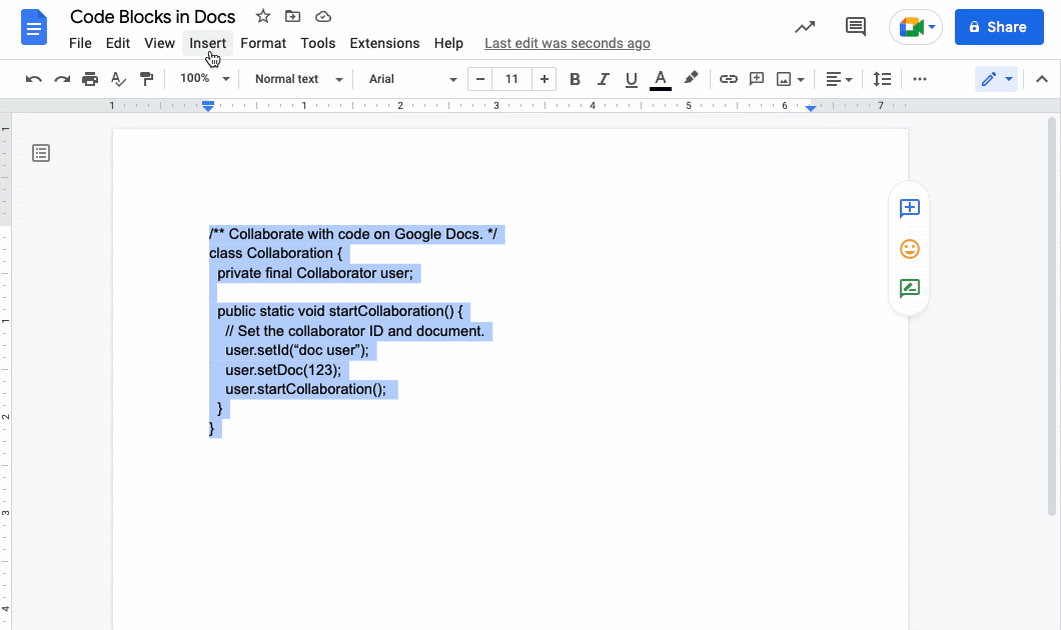
Image source: google.com
How to share Google Docs securely
Sharing documents online requires more than simply clicking the "Share" button. Without proper configuration, sensitive information can easily be accessed, copied, or forwarded beyond your intended audience. To ensure , it's important to apply structured permission controls and restrict unnecessary access.
Below is a step-by-step guide to securely share Google Docs while minimizing common security risks.
Step 1. Open your Google Doc and download it as a PDF
Open your document in Google Docs and navigate to "File" → "Download" → "PDF" (.pdf). Converting the file to PDF prevents real-time editing and reduces the risk of accidental modifications.
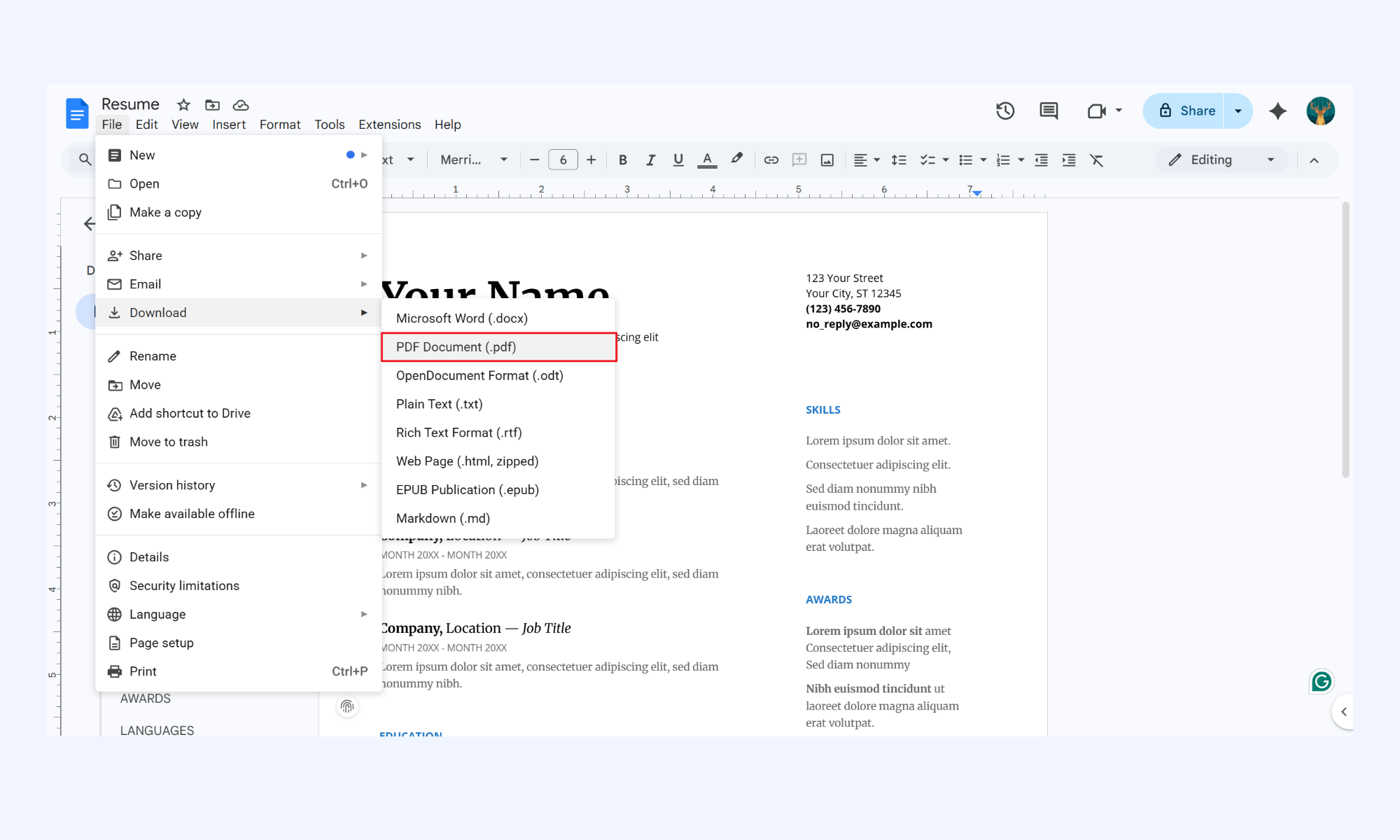
Image source: google.com
Step 2. Secure the PDF file on your computer
Before sharing, apply encryption or using trusted security tools. You can restrict printing, copying, or editing permissions within the file settings. Adding an extra security layer ensures the content remains protected even if the file is forwarded.
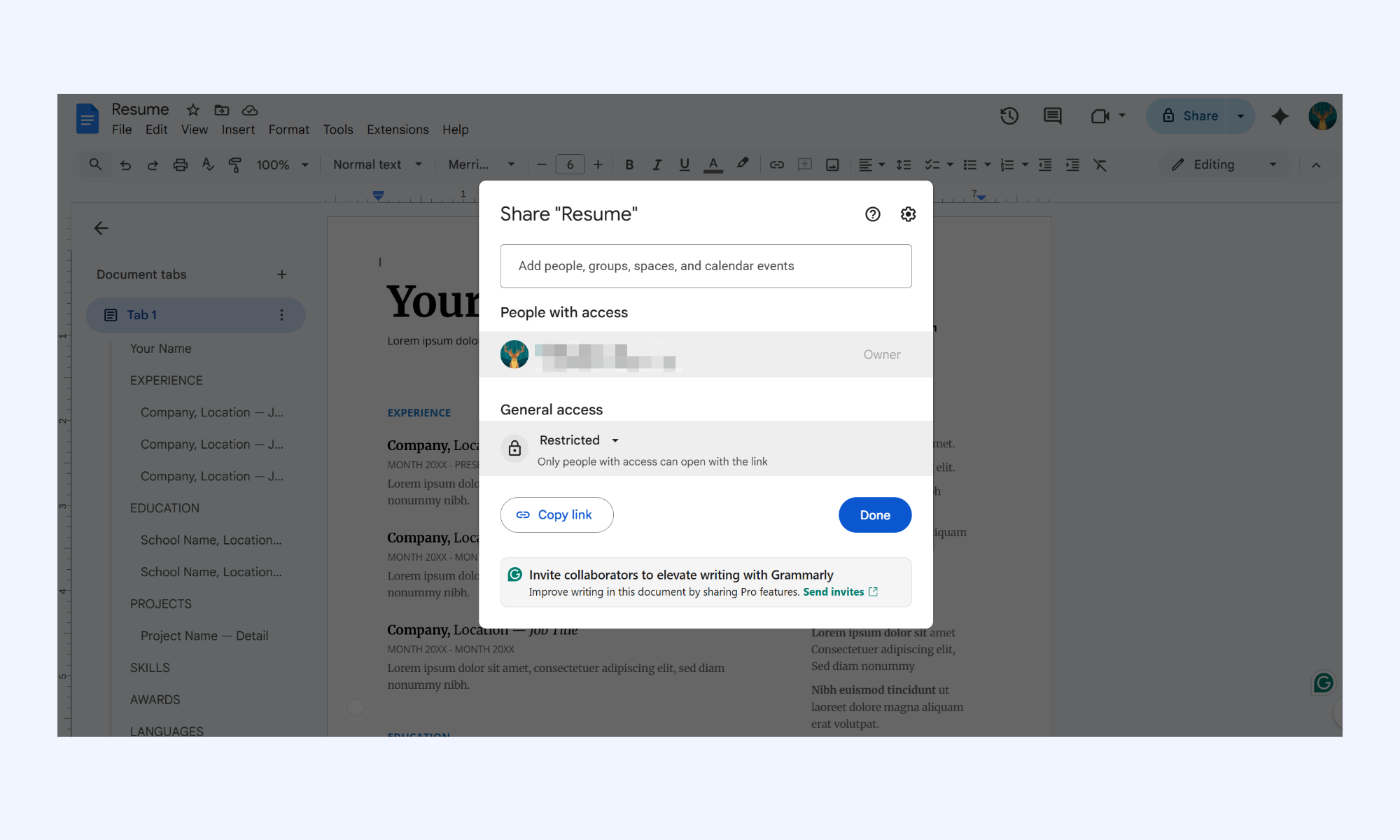
Image source: google.com
Step 3. Publish the secured document
Upload the protected PDF to a secure cloud location or internal document management system. Avoid generating unrestricted public links when publishing. Instead, configure access controls to limit visibility only to intended recipients.
Step 4. Create user accounts for authorized viewers
Ensure that only verified users with registered accounts can access the document. It will reduce the risk of anonymous access and helps track user activity. For organizations, using managed accounts strengthens identity verification and oversight.
Step 5. Grant document access to specific users
Share the document directly with selected email addresses instead of enabling "Anyone with the link." Assign appropriate roles, such as view-only access unless editing is required. Regularly review and update permissions to maintain ongoing security.
Protect ideas and files with an enterprise-grade tool
Google Docs document sharing permission
Understanding permission roles is critical for . Google Docs allows document owners to assign different access levels depending on user responsibilities. Configuring these roles properly reduces the risk of accidental edits, data leaks, or unauthorized control over sensitive files.
- Viewer access: Viewer access allows users to read the document without making changes. They cannot edit, comment, or alter formatting unless additional rights are granted. This is ideal for sharing finalized reports or reference materials.
- Commenter access: Commenters can view the document and leave feedback through comments or suggestions. They cannot directly edit the core content without approval. This role works well for review cycles and .
- Editor permissions: Editors have full authority to modify content, formatting, and structure. They can also share the document with others if the sharing settings permit it. This role should be assigned carefully to avoid unintended changes.
- Ownership transfer: The document owner has ultimate control, including the ability to delete the file or change permissions. Ownership can be transferred to another user when responsibility shifts. This action should be done cautiously, especially within organizations.
- Temporary access settings: Grant permissions for a limited time. After the expiration date, the user automatically loses access. This feature is useful for contractors, auditors, or short-term collaborations.
Google Docs document sharing settings
Beyond basic roles, Google Docs offers advanced sharing controls to . These settings help limit long-term exposure, prevent data misuse, and maintain oversight of who accesses your files. Proper configuration of these options significantly reduces risks in collaborative environments.
- Expiration dates: You can assign expiration dates for Viewer or Commenter access when sharing with specific users. Once the deadline passes, their access is automatically revoked. This is especially useful for temporary projects, audits, or external collaborations.
- Download restrictions: Owners can disable options to download, print, or copy the document for Viewers and Commenters. This reduces the risk of sensitive content being stored offline or redistributed. While not foolproof, it adds an important protective layer.
- Link expiration: When using link-based sharing, you can restrict access to links or disable them after a specified period. Turning off "Anyone with the link" prevents unintended public exposure. Managing link visibility carefully minimizes accidental data leaks.
- Activity tracking: Google Docs provides version history and to track changes and collaboration. Owners can see who edited the document and when modifications occurred. Regularly reviewing activity logs helps detect unusual behavior or unauthorized access.
Master your file with granular file permissions
Tips you may need: How to revoke access to a shared Google Docs
Revoking access is just as important as granting it. Over time, collaborators change roles, projects end, and external partnerships conclude — yet permissions often remain active. and removing unnecessary access helps maintain document security and prevent unintended data exposure.
- Open the Share settings panel: Click the "Share" button in the top-right corner of your Google Doc. This opens a list of users and groups with current access. Reviewing this panel gives you a clear view of existing permissions.
- Remove specific users manually: Next to a user's name, click the dropdown menu and select "Remove access." This immediately revokes their ability to view, comment, or edit the document. It's ideal when a team member leaves a project or organization.
- Change role to "Viewer" instead of "Editor": If full removal isn't necessary, downgrade permissions from Editor to Viewer. This limits modification rights while maintaining visibility. It's useful when responsibilities shift, but access is still required.
- Disable link sharing: If the document was shared using "Anyone with the link," change the setting to "Restricted." This prevents anyone with the link from accessing the file. It is one of the most important steps in reducing the risk of link exposure.
- Review and confirm changes: After adjusting permissions, double-check the updated access list. Ensure no unintended users retain editing or viewing rights. of sharing settings help maintain long-term document security.
Risks in document sharing via Google
While Google Docs makes collaboration fast and accessible, improper sharing configurations can create security gaps. Many risks arise not from the platform itself, but from how permissions and links are managed. Understanding these vulnerabilities helps organizations and prevent data exposure.
- Link exposure: When documents are shared using "Anyone with the link," the URL can be forwarded beyond intended recipients. Once distributed, it becomes difficult to control who accesses the file. This increases the risk that confidential information will reach unauthorized parties.
- Unauthorized downloads: Even with view-only access, users may download or screenshot sensitive content if restrictions are not enabled. Once downloaded, the file can be redistributed outside the controlled environment. This makes data leakage harder to trace and contain.
- Version conflicts: Multiple editors working simultaneously can unintentionally overwrite critical information. Without strict role control, tracking accountability becomes complex. Version confusion may lead to errors in contracts, reports, or operational documents.
- External sharing vulnerabilities: Sharing files with external email accounts increases exposure risk. External users may not follow the same security standards as internal teams. This can create compliance concerns, especially in regulated industries.
- Lack of audit tracking: Although activity history exists, it may not always provide detailed administrative oversight across large teams. Limited visibility into downloads or external link access can weaken . Organizations requiring strict audit trails may find this insufficient.
As collaboration grows more complex, organizations need stronger control than basic link-based sharing can provide. Managing permissions manually across multiple documents increases the risk of oversight and data exposure. Teams are now prioritizing platforms that combine collaboration with built-in governance and visibility. This is where Lark offers a more structured, secure, and enterprise-ready approach to document management.
Manage your file and share it with Lark
Meet Lark: A more secure alternative for document collaboration
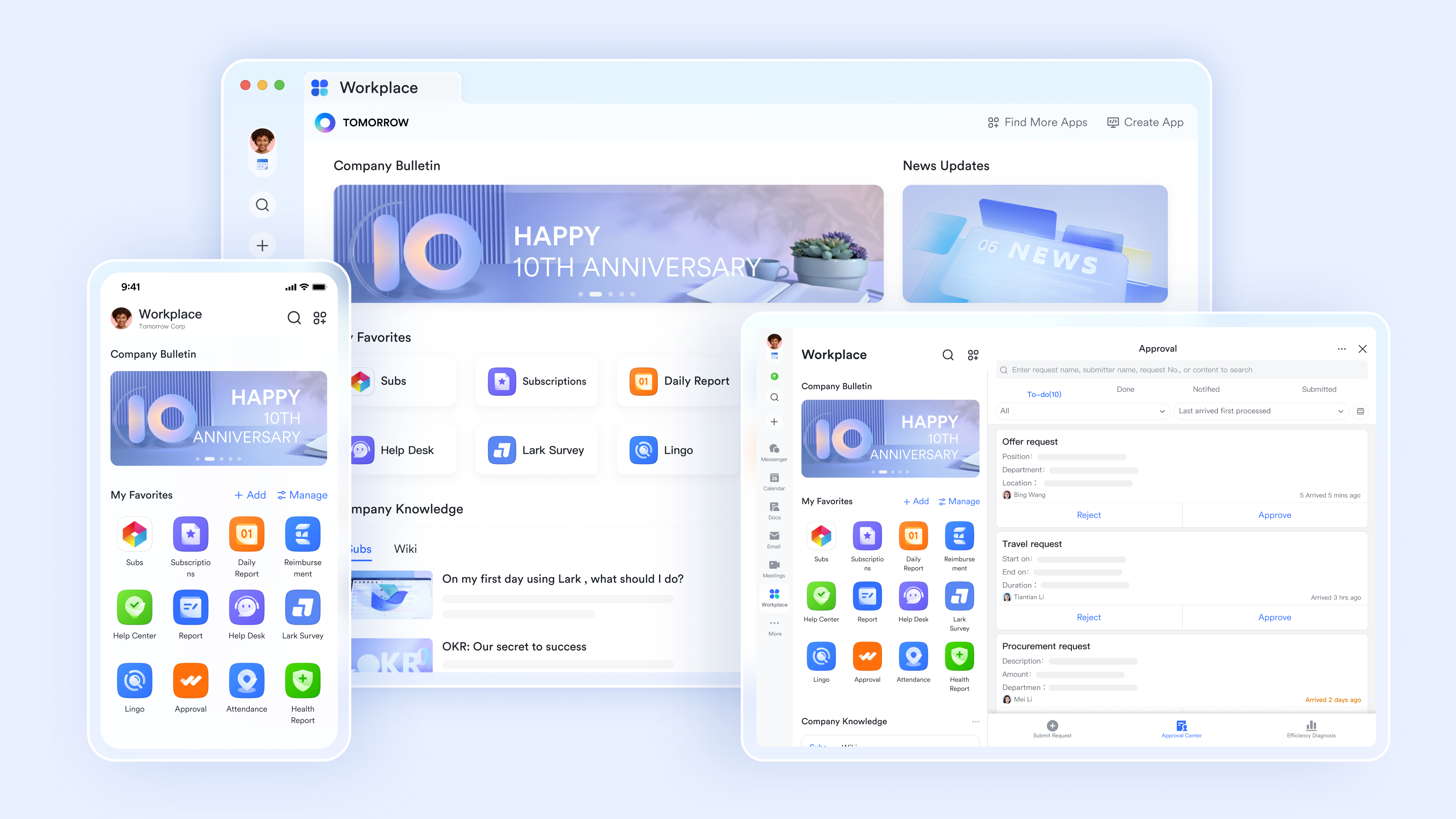
As organizations scale, secure collaboration requires more than simple file sharing and basic permissions. Teams need centralized control, visibility into user activity, and structured access management across departments. is designed as a that combines messaging, meetings, and document management within a secure ecosystem. Instead of relying on public links, it emphasizes identity-based access and administrative oversight. This makes Lark a strong alternative for businesses seeking controlled, compliant, and enterprise-ready team collaboration.
Permission-based, real-time collaboration
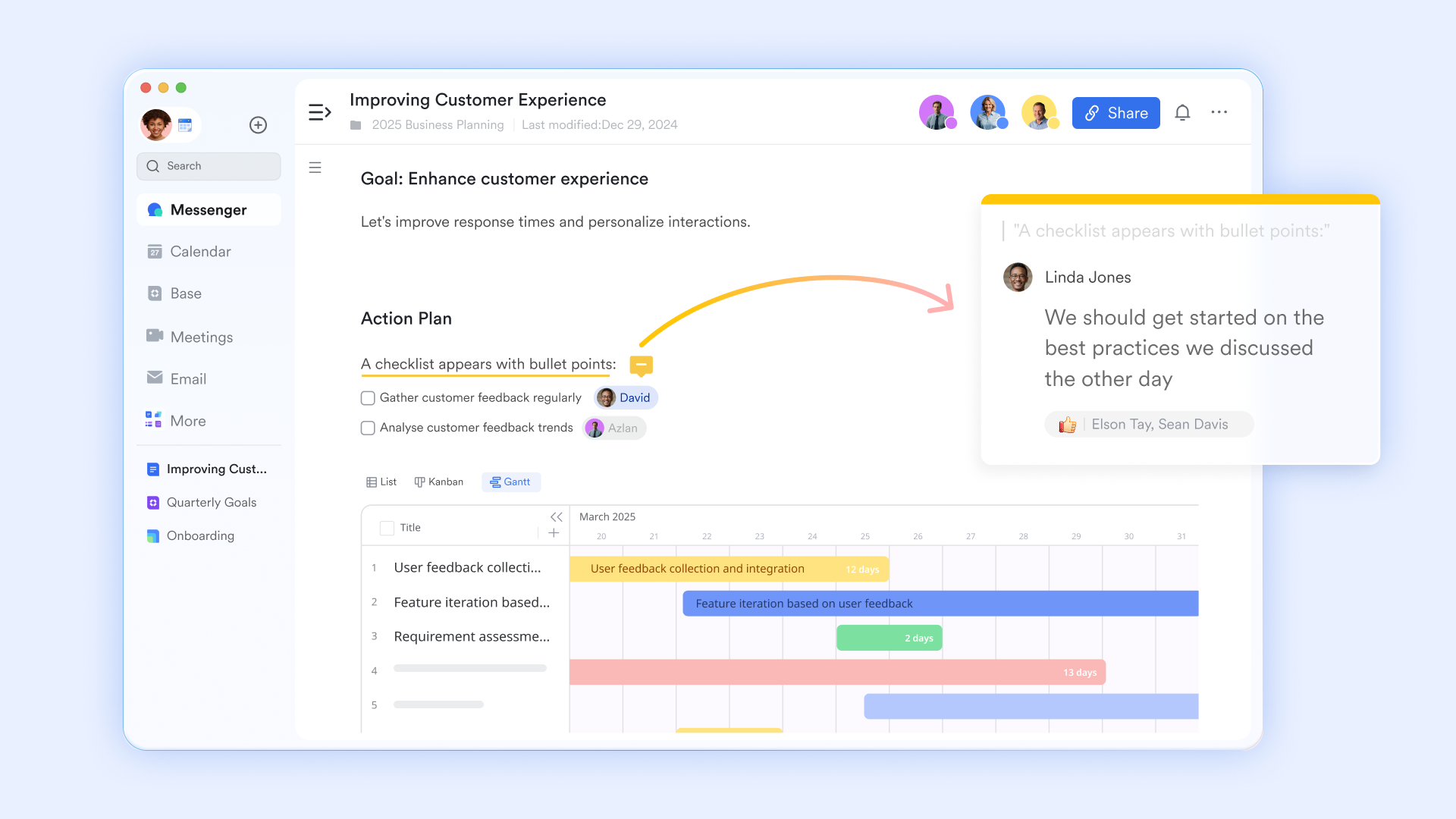
provides a controlled environment where document owners can assign granular permissions—View, Edit, or Manage—to specific individuals, departments, or user groups. This prevents unauthorized access by ensuring only verified collaborators can interact with sensitive files, moving away from the "all-or-nothing" approach of traditional .
Share knowledge base
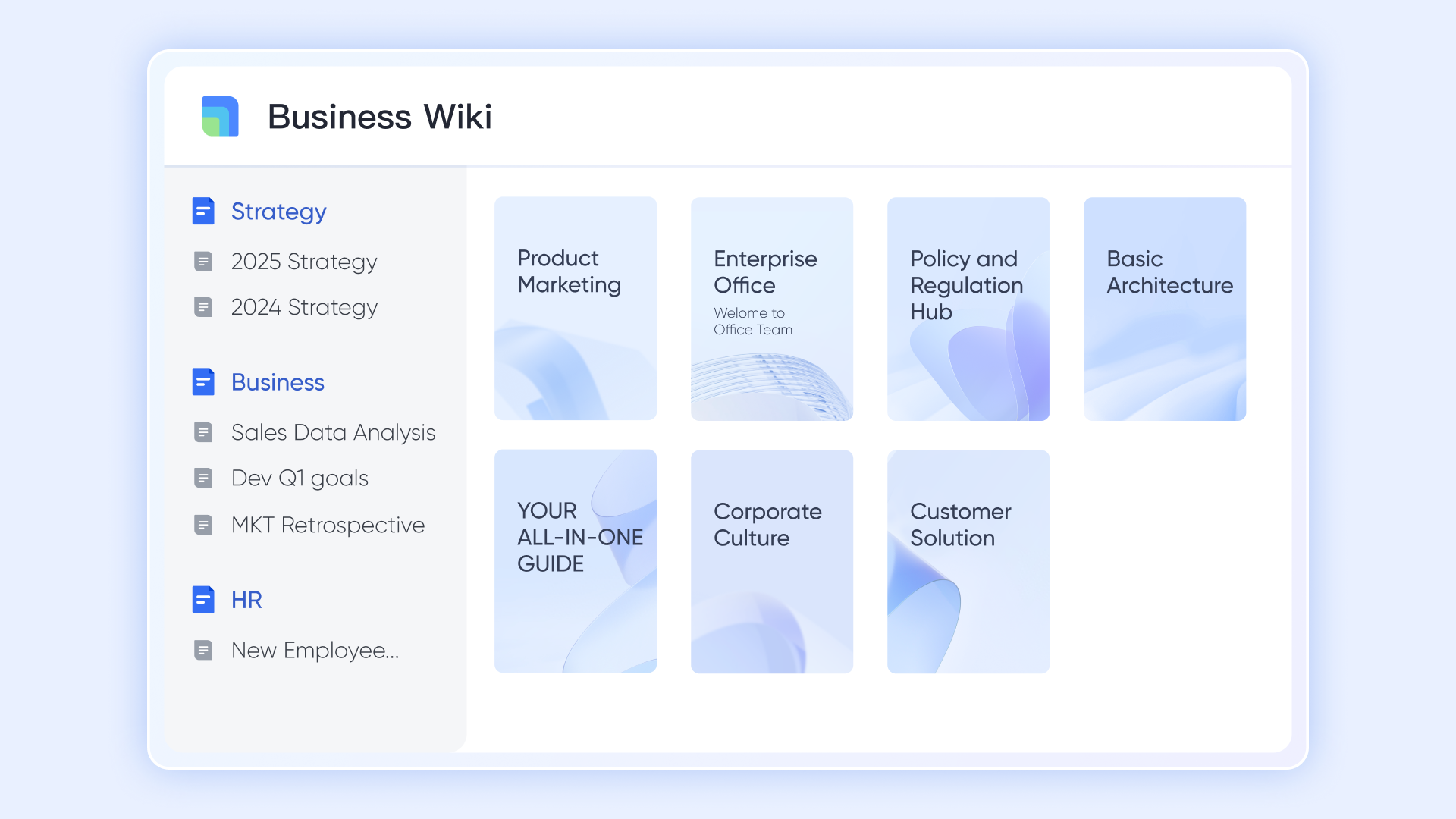
Lark Wiki acts as a centralized knowledge management system that streamlines document sharing by organizing information into structured "Wiki Spaces." It simplifies collaboration through multi-level permission controls—at the organization, space, and page levels—ensuring that the right documents reach the right people securely. Additionally, it supports seamless information flow with features like public link sharing and the ability to invite external collaborators, making it easy to distribute knowledge both within and outside your team.
Role-based access control
Lark utilizes role-based access control to manage organizational permissions at scale, allowing admins to assign users to roles like admin or member with predefined privileges. However, for everyday document sharing, RBAC is not required; document owners and managers can directly set individual permissions, such as view, edit, or manage—for each collaborator. This hybrid approach allows for precise, per-person control over who can share, add, or delete collaborators, while reserving RBAC for broader, . 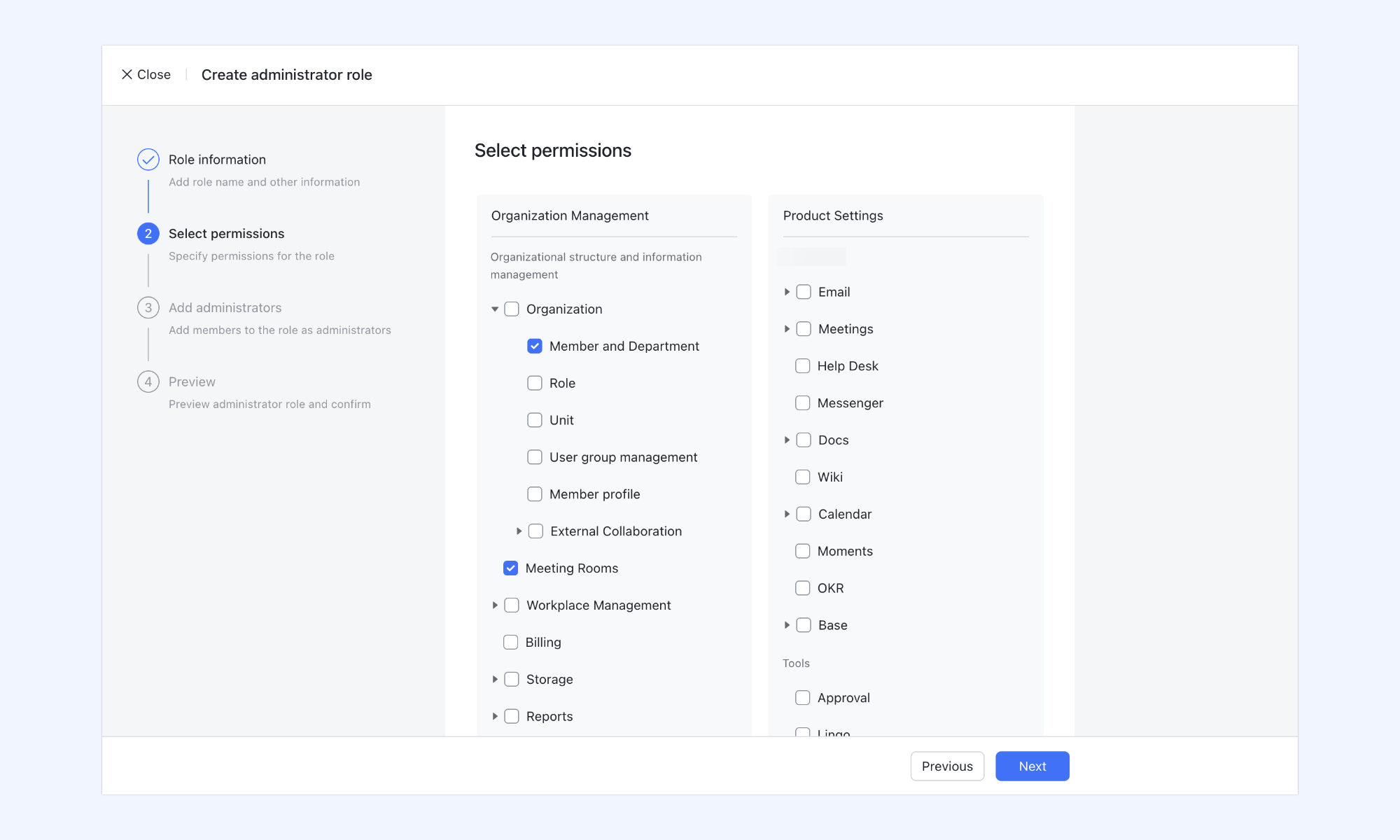
Real-time editing without public link sharing
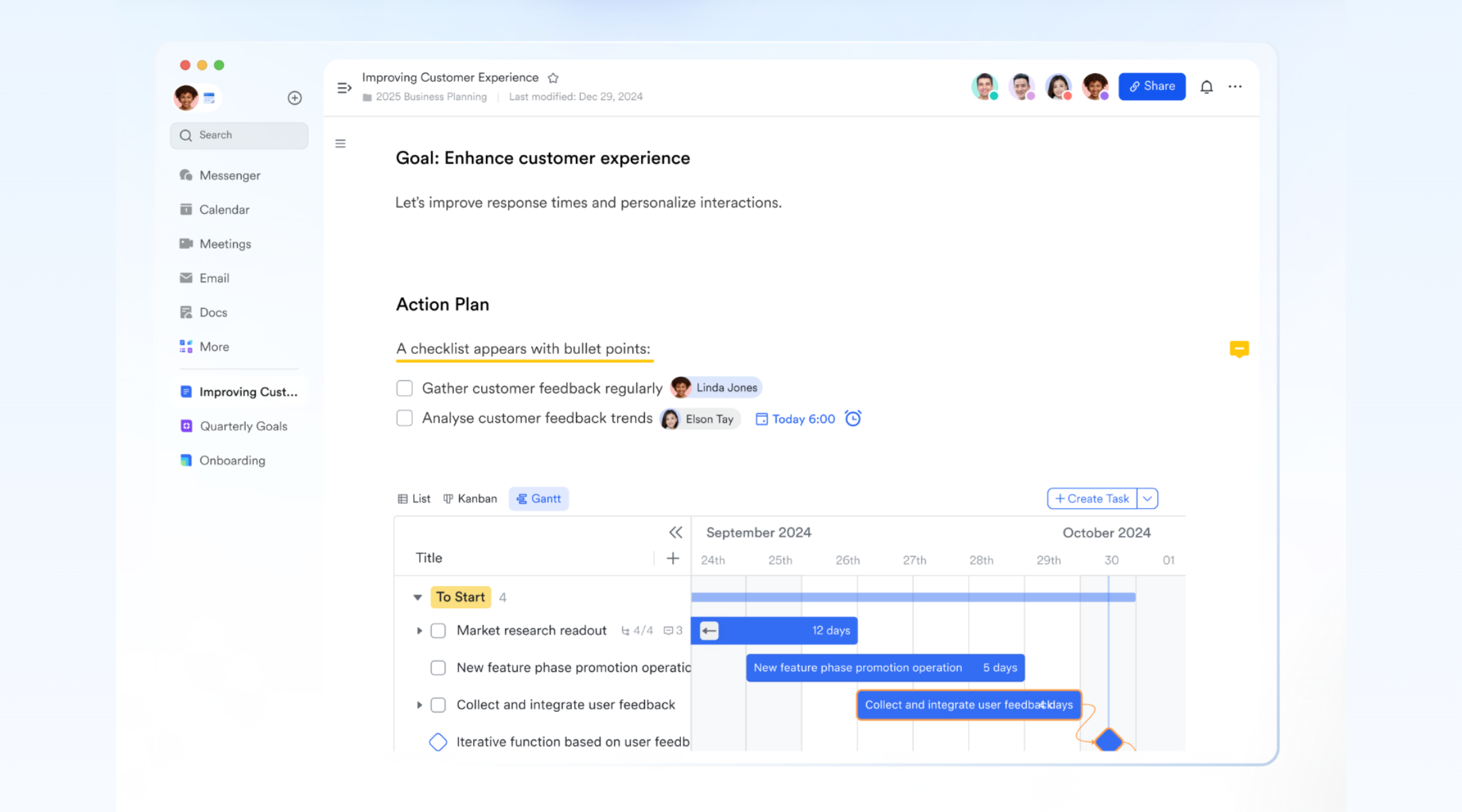
Unlike platforms that rely on risky public links, Lark facilitates within a secure ecosystem. Collaboration is restricted to logged-in organization members or verified external partners. By disabling "Public Link Sharing," and edit simultaneously while keeping the document hidden from the open web and search engines.
:
- Starter plan: Free forever plan that includes 11 powerful tools for up to 20 users. It also includes 100GB of storage, 1,000 automation runs, AI translations, and more.
- Pro plan: $12/user/month (billed annually) for up to 500 users. It includes everything in Starter, plus group calling for up to 500 attendees, 15 TB of storage, 50,000 automation runs, and more.
- Enterprise plan: for custom pricing. Supports unlimited users and includes even more automation runs and advanced security, compliance, and management features.
For small teams with simple communication needs

18 months message history
1000 Base automation runs/month
2000 rows per table in Base
Most POPULAR
For companies with comprehensive collaboration and management needs
Unlimited message history
500-participant video meetings
50k Base automation runs/month
20k rows per table in Base
For large companies with advanced security and organizational management needs
Get a personalized demo and pricing
Unlimited message history
500-participant video meetings
15 TB storage + 30 GB storage/user
500k Base automation runs/month
50k Base automation runs/month
Most POPULAR
For companies with comprehensive collaboration and management needs
Unlimited message history
500-participant video meetings
50k Base automation runs/month
20k rows per table in Base
Before selecting a productivity suite, it's worth reviewing the latest and plans.
Future trends driven secure collaboration document sharing
As digital collaboration expands across remote and hybrid environments, security expectations are evolving. Organizations are moving beyond reactive controls toward proactive, intelligence-driven protection models. The future of will focus on minimizing assumptions about trust, automating oversight, and strengthening data encryption standards.
- Zero-trust sharing: Zero-trust models assume no user or device should be automatically trusted, even within the organization. Every access request is verified based on identity, context, and risk level. This approach reduces internal threats and prevents unauthorized lateral access.
- AI access monitoring: Artificial intelligence is increasingly used to detect unusual behavior patterns in document access. AI can flag suspicious downloads, abnormal login locations, or excessive sharing activity. This enables faster response to potential security breaches.
- Automated permission management: Future systems will automatically adjust permissions in response to role changes or project status. When employees shift teams or leave the organization, access rights are updated automatically. This reduces human error and strengthens governance.
- Encrypted document hubs: adopt end-to-end encryption and centralized document repositories. Encrypted hubs ensure that files remain protected both in transit and at rest. This strengthens compliance readiness for industries with strict data protection regulations.
Conclusion
Secure document sharing is no longer just about convenience — it is about control, visibility, and risk management. While Google Docs offers flexible collaboration features, improper configuration of permissions, public links, and download settings can expose sensitive data. Understanding roles, advanced sharing settings, and revocation processes is essential to maintaining document security. As organizations grow, manual permission management becomes increasingly complex and prone to oversight.
Modern teams require structured governance, detailed audit tracking, and role-based access controls built directly into their collaboration environment. This is where Lark provides a more secure and scalable solution. By combining granular permissions, , and enterprise-level activity auditing, helps teams collaborate confidently without sacrificing compliance. If your organization is ready to move beyond basic sharing and strengthen its collaboration security, now is the time to act.
Explore how Lark helps you share and collaborate
FAQs
How do I share documents via Google?
To share a file, open it in Google Docs or Drive and click the "Share" button. Enter email addresses or adjust link settings to control access levels. While document sharing is convenient, platforms like Lark offer stronger permission controls and centralized admin oversight for secure collaboration.
How do I share a Google Docs document so everyone can edit it?
Click "Share," change access to "Anyone with the link," and select "Editor." This allows anyone with the link to modify the file, but it increases security risks. For safer Google document sharing, Lark enables real-time editing within a controlled, identity-based environment.
Is Google file sharing free?
Basic sharing features are available with a free Google account, including link-based access and role assignments. However, advanced administrative and compliance tools are available only with paid Workspace plans. Lark provides a free starter plan with collaboration and stronger governance features.
How to make a document shareable?
Open the document, click "Share," and adjust visibility to either restricted users or link access. You can assign Viewer, Commenter, or Editor permissions based on your needs. For more structured and secure collaboration workflows, Lark offers role-based controls and approval systems.
Related reading



















![What Is a 2-2-3 Work Schedule? Explanation and More [2026]](https://framerusercontent.com/images/uKHRfkp4v7y4azRNTYUmuteNQz8.png)








