We have all experienced the "toggle tax" at some point in our careers. You are drafting a document, but you need to check a message in a separate chat app, verify a date on a calendar tab, and then find a file buried in an email thread. This fragmented workflow is the silent killer of productivity. When we use collaboration tools without a cohesive strategy, we often end up creating more noise rather than clarity.
It is believed that the future of work isn't about having more apps; it is about having better connections between them. A robust team collaboration tool should serve as your digital headquarters, bringing people, information, and workflows into a single, unified context. Whether you are a startup scaling up or a global enterprise, the right software stack is essential for keeping your team aligned. In this guide, we will explore six categories of collaboration tools at work, defining what they are and how they can transform the way your organization functions.
Key takeaways: Best collaboration tools by each category
To help you navigate the crowded market, we have selected the single best tool from each of our six categories, ensuring you have a top-tier option for every collaboration style.
- Best all-in-one superapp: Lark – The ultimate unified workspace that combines chat, video, docs, and apps into one seamless platform to eliminate context switching and boost team efficiency.
- Best project management: Asana – A visually stunning and intuitive tool that excels at tracking complex workflows, dependencies, and team workloads without overwhelming users.
- Best visual design: Figma – The revolutionary browser-based design tool that enables real-time multiplayer editing, making it the standard for modern interface and product design teams.
- Best communication tool: Slack – The industry leader for channel-based messaging, offering a polished user experience and a massive ecosystem of integrations for tech-savvy teams.
- Best documentation: Notion – A flexible "lego-block" workspace that allows you to build everything from simple notes to complex company wikis and databases in one beautiful interface.
- Best budget option: ClickUp – An incredibly feature-rich platform that offers project management, docs, and goals in a "free forever" plan that is perfect for cost-conscious startups.
Go straight to a superapp to save your time
What are collaboration tools?
At its core, a is any software designed to help teams work together toward a common goal. While we once relied on disjointed email chains and static files, the landscape has shifted entirely to the cloud collaboration tool. This evolution means the "source of truth" is no longer trapped on a hard drive; it lives in a shared digital space, allowing for real-time, simultaneous updates without version control nightmares.
Effective collaboration tooling functions as an ecosystem rather than isolated apps. This stack balances synchronous tools (like for live interaction) with asynchronous tools (like shared docs for deep work). Ultimately, your software stack is the infrastructure of your culture: Integrated, intuitive tools foster agility, while disconnected systems inevitably create silos.
Benefits of using collaboration tools for different teams
Investing in the right software is not just about convenience; it is a strategic move that impacts the bottom line. The benefits of deploying a strong collaboration tool ripple across every department, from engineering to . By centralizing communication and data, companies can solve some of the most persistent operational headaches.
Breaking down organizational silos
One of the primary advantages of an is its ability to dissolve barriers between departments. In traditional setups, the sales team might not know what the product team is building until it is released. With the right platform, cross-functional teams can share visibility into roadmaps and loops. A secure collaboration tool ensures that sensitive data is protected while still allowing open access to necessary information across the company. This transparency prevents the "left hand not knowing what the right hand is doing" scenario, fostering a sense of shared purpose and alignment.
Creating a virtual office for remote work
For distributed teams, the software is the office. An bridges the geographical gap, allowing a developer in London to pair-program with a designer in Singapore as if they were sitting side-by-side. This goes beyond just video calls; it includes digital whiteboards for brainstorming and shared channels for water-cooler chat. This alignment is critical for maintaining company culture in a hybrid world, ensuring that remote employees do not feel like second-class citizens compared to their in-office counterparts.
Enhancing project visibility and accountability
Managers often struggle to keep track of who is doing what without micromanaging. A dedicated project management collaboration tool solves this by providing a visual overview of workflows. Whether through Kanban boards or , these tools make responsibilities clear. When a project collaboration tool is utilized effectively, deadlines are transparent, and dependencies are obvious. This reduces the need for constant "status update" meetings, freeing up time for deep, focused work.
Streamlining content and
Information hoarding is a major efficiency killer. A content collaboration tool, such as a shared wiki or cloud document platform, democratizes knowledge. Instead of information being trapped in private inboxes, it becomes a searchable corporate asset. This allows new employees to onboard faster and senior employees to spend less time answering repetitive questions. Even a often offers basic documentation features that can significantly improve how a small team organizes its standard operating procedures.
Ultimately, the goal is to create a workflow where the technology recedes into the background, allowing the human connection and creativity to take center stage. By choosing the right tools, we empower our teams to do their best work, together.
See how collaboration tools play in different teams
Category 1: Best 3 all-in-one superapps
The modern trend is shifting away from fragmented apps toward unified platforms. These "superapps" attempt to bring chat, docs, and meetings into one interface to reduce context switching.
1. Lark: Ultimate all-in-one superapp for team efficiency
Overview
defines the next generation of work platforms by functioning as a true superapp. Instead of stitching together separate applications for chat, document creation, and video conferencing, Lark houses them all in a single, fluid interface. This design philosophy addresses the core issue of "context switching" that plagues modern workers. For teams asking what are capable of achieving when built as a single, unified superapp rather than a patchwork of integrations, Lark provides the answer. It is particularly strong for global teams due to its emphasis on breaking down language barriers and simplifying the tech stack.
Key features
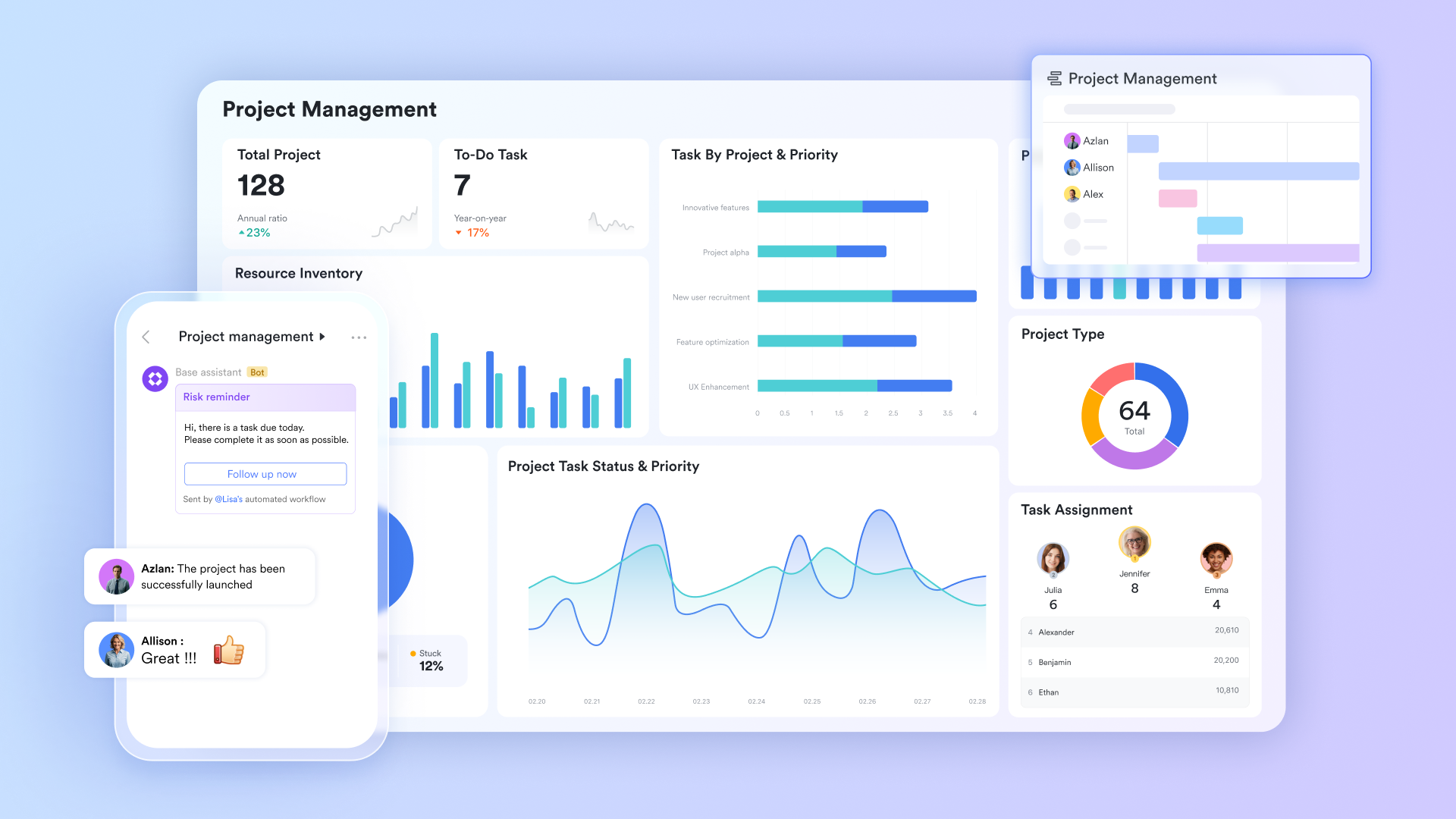
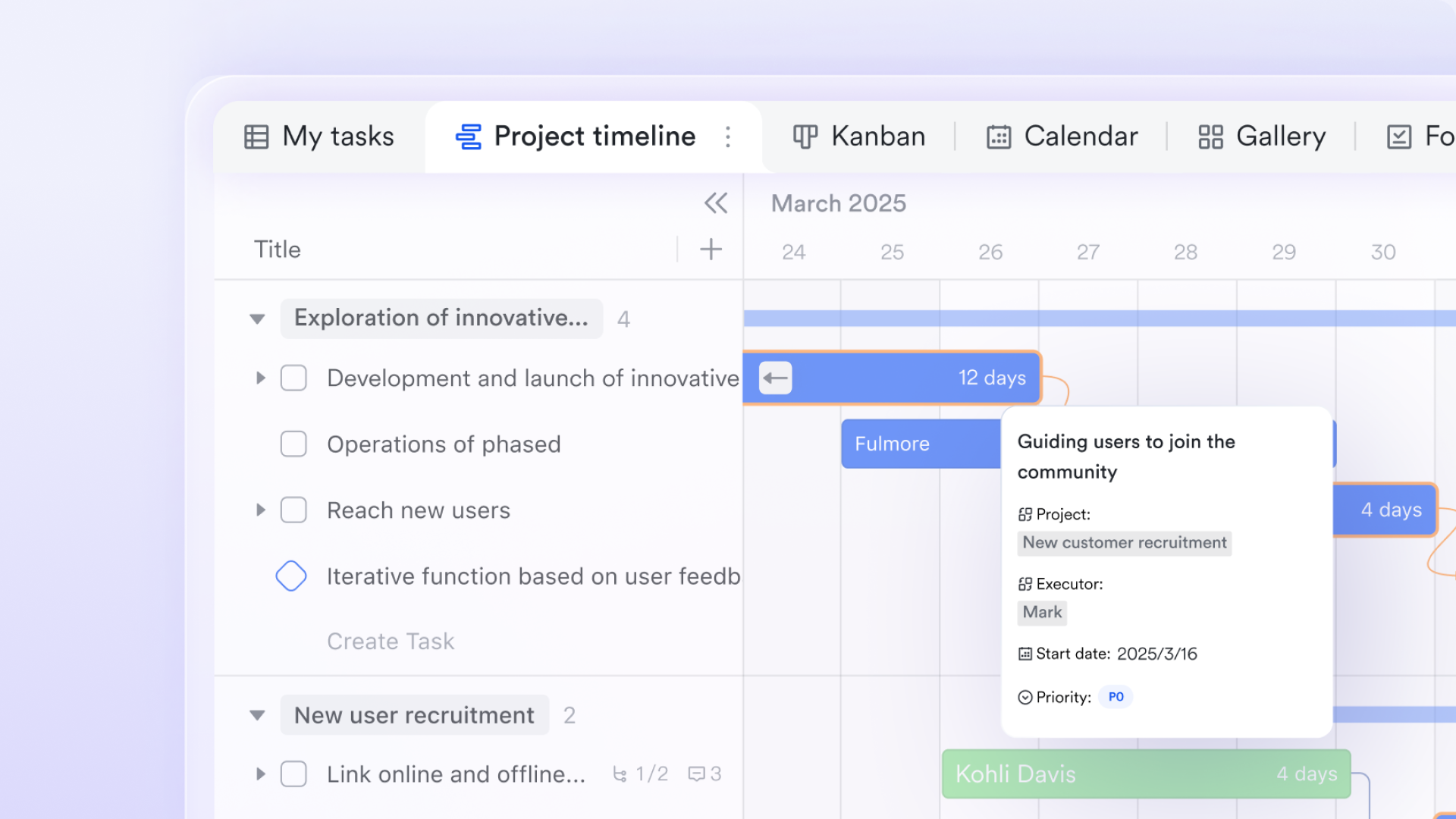
Multiple views with Lark Base: Managing complex projects requires seeing data your way. is a powerful database that acts as a single source of truth while offering multiple views to suit different working styles. A project manager can utilize the Gantt view to and dependencies, while creative teams can switch to the Kanban view to visualize workflow stages, and analysts can use the Grid view for detailed data entry. This flexibility ensures that everyone collaborates on the same live data without needing separate tools.
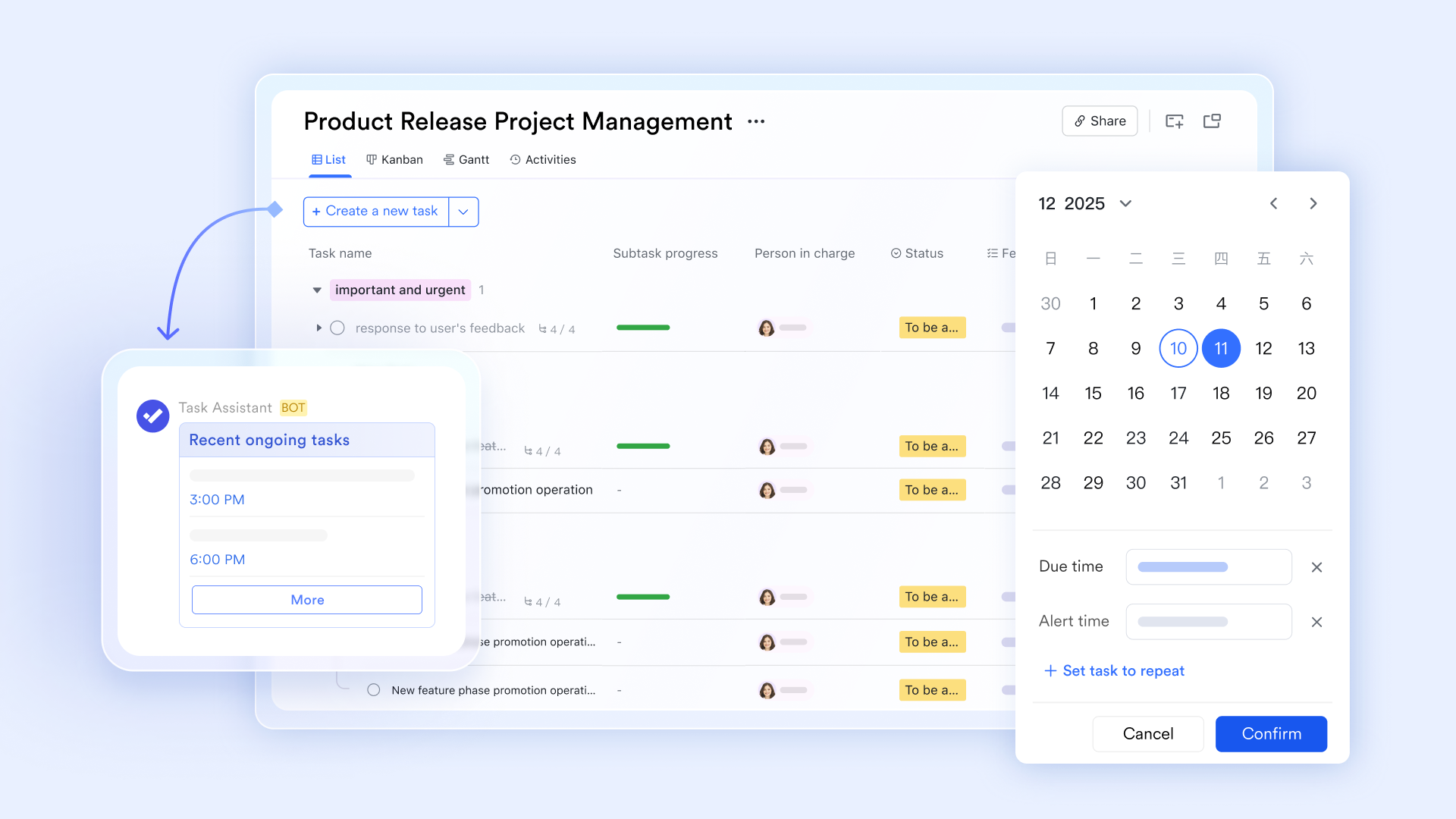
via chat-to-task: A common pain point in collaboration is that important action items get buried in chat streams. solves this with its seamless chat-to-task feature. With a single click, any message can be converted into a trackable task card complete with deadlines and assignees. This ensures that casual brainstorming in the chat immediately transforms into accountable execution without ever leaving the conversation interface.
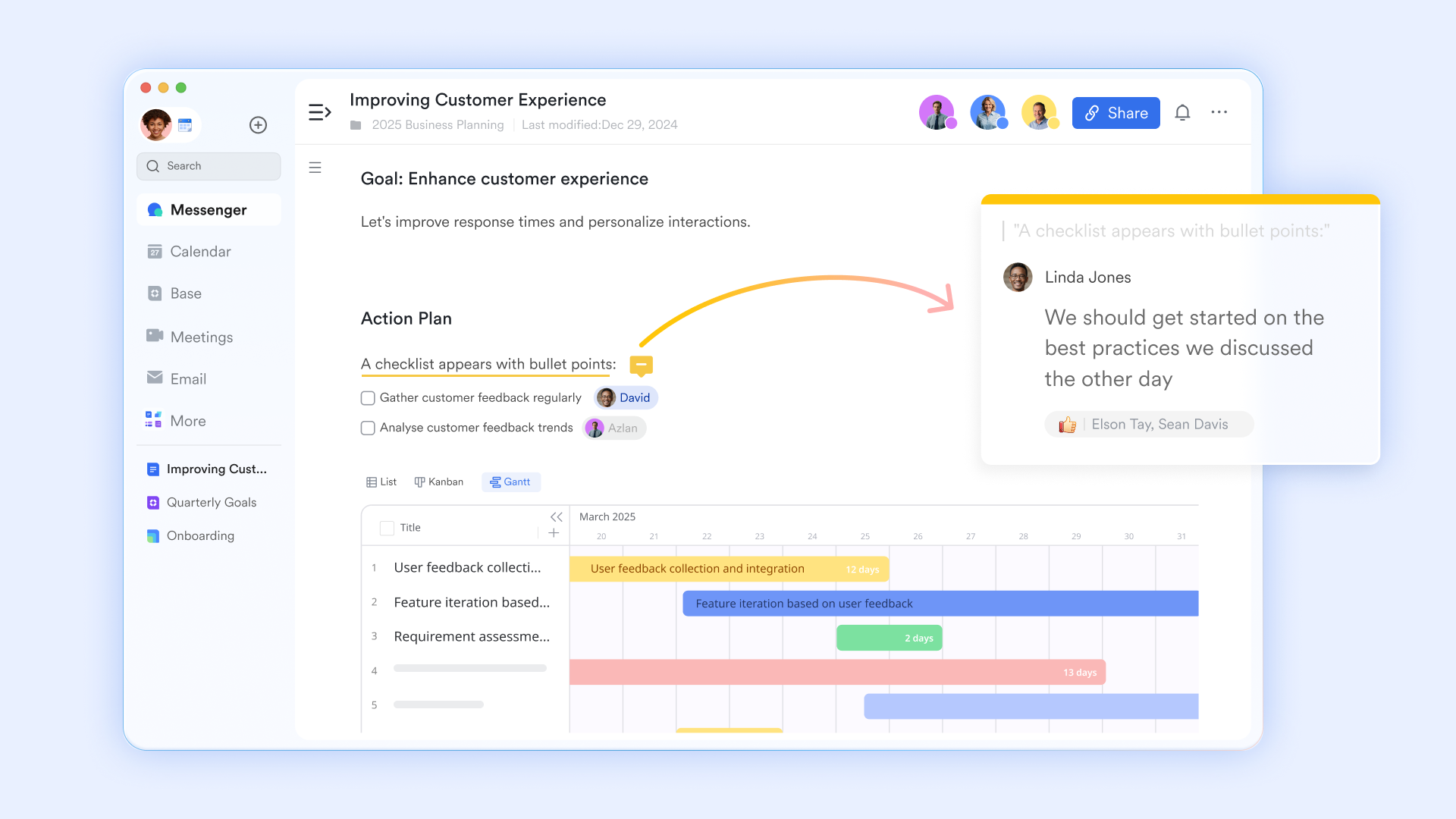
Interactive knowledge sharing with : Lark Docs redefines the document as a dynamic multimedia canvas. Beyond standard, it allows teams to embed live elements — such as polls, diagrams, and even Lark Base records—directly into the page. Because docs are deeply connected with the ecosystem, you can tag colleagues in a comment, and they can reply directly from Lark Messenger, keeping the feedback loop tight and efficient.
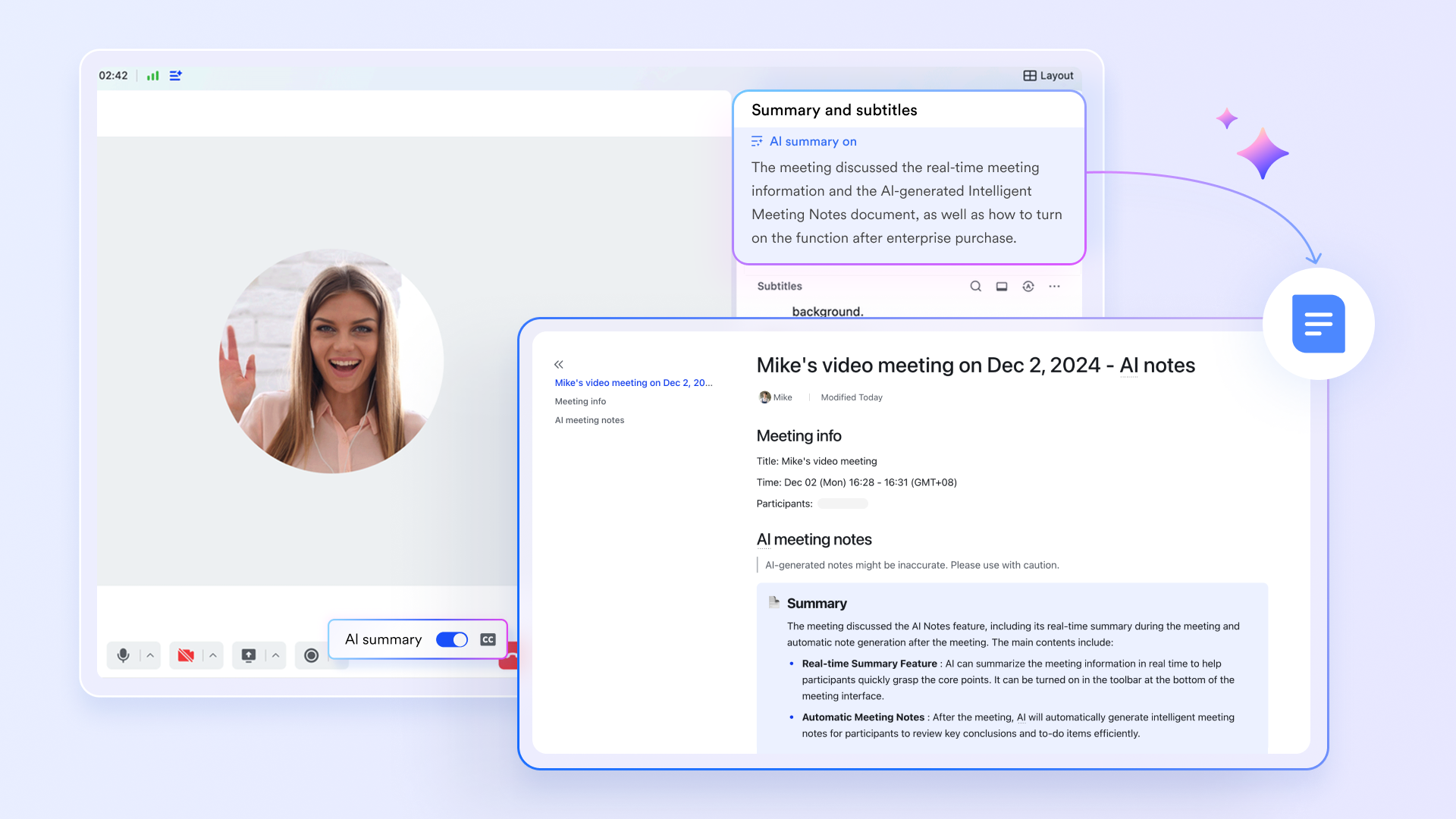
Automated efficiency with : Effective collaboration relies on clear records, but manual note-taking distracts from the discussion. Lark's AI Meeting Notes acts as an intelligent assistant, automatically generating accurate transcripts, concise summaries, and key action items minutes after a call ends. This feature ensures that even team members who missed the meeting remain perfectly aligned with the .
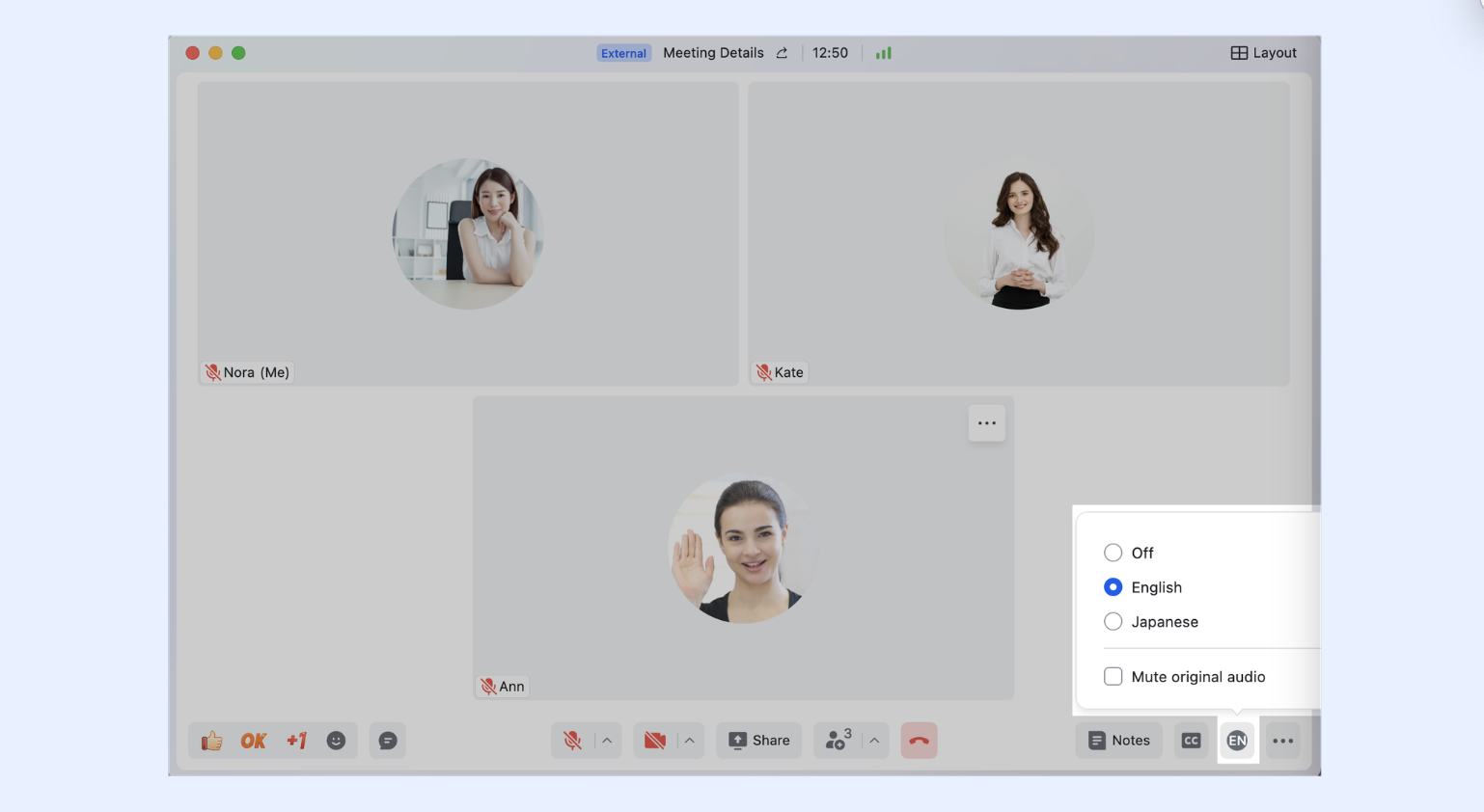
Borderless communication with simultaneous interpretation: For global teams, bridges the language gap through a dedicated simultaneous interpretation feature. Hosts can assign specific participants as interpreters to provide real-time audio translation in languages like Chinese, English, and Japanese. Attendees simply select their preferred audio channel to listen to the interpretation, creating a seamless multi-lingual environment. Combined with Magic Share, which allows direct co-editing inside the meeting window, Lark transforms multi-lingual presentations into active, barrier-free working sessions.
Best for
- Fast-growing startups and agile teams looking to consolidate their subscription costs.
- Cross-border organizations requiring seamless translation.
- Operations-heavy teams that need to automate workflows without coding.
What you may like
- The "all-in-one" pricing model means you don't need separate bills for Zoom, Slack, and Asana.
- The mobile experience is fully featured, mirroring the desktop capabilities perfectly.
- Universal search finds information across chats, docs, and calendar events instantly.
What you may dislike
- A little learning curve. Although user-friendly, new users may require time to adapt to its functionalities. But can assist users with potential problems.
:
- Starter plan: Free forever plan with 11 powerful tools for up to 20 users, 100GB storage, 1,000 automation runs, AI translations, and more. No credit card needed.
- Basic plan: $6/user/month (billed annually) for up to 500 users. Includes everything in Starter plus unlimited message history, 5TB storage, 1,000 automation runs, and more. Some users may need to to purchase.
- Pro plan: $12/user/month (billed annually) for up to 500 users. Includes everything in Basic plus group calling for up to 500 attendees, 15TB storage, 50,000 automation runs, and more.
- Enterprise plan: for custom pricing. Supports unlimited users and includes advanced automation, security, compliance, and management features.
For small teams with simple communication needs

18 months message history
1000 Base automation runs/month
2000 rows per table in Base
Most POPULAR
For companies with comprehensive collaboration and management needs
Unlimited message history
500-participant video meetings
50k Base automation runs/month
20k rows per table in Base
For large companies with advanced security and organizational management needs
Get a personalized demo and pricing
Unlimited message history
500-participant video meetings
15 TB storage + 30 GB storage/user
500k Base automation runs/month
50k Base automation runs/month
Most POPULAR
For companies with comprehensive collaboration and management needs
Unlimited message history
500-participant video meetings
50k Base automation runs/month
20k rows per table in Base
2. Microsoft Teams: Secure hub for Microsoft-centric enterprise communication
Overview
Microsoft Teams is the quintessential secure collaboration tool for large organizations already embedded in the Microsoft ecosystem. It acts as the hub for teamwork in Microsoft 365, combining persistent workplace chat, video meetings, file storage, and application integration. Because it is deeply woven into the fabric of Outlook, Word, and Excel, it offers a seamless experience for corporate environments that rely heavily on traditional document formats.
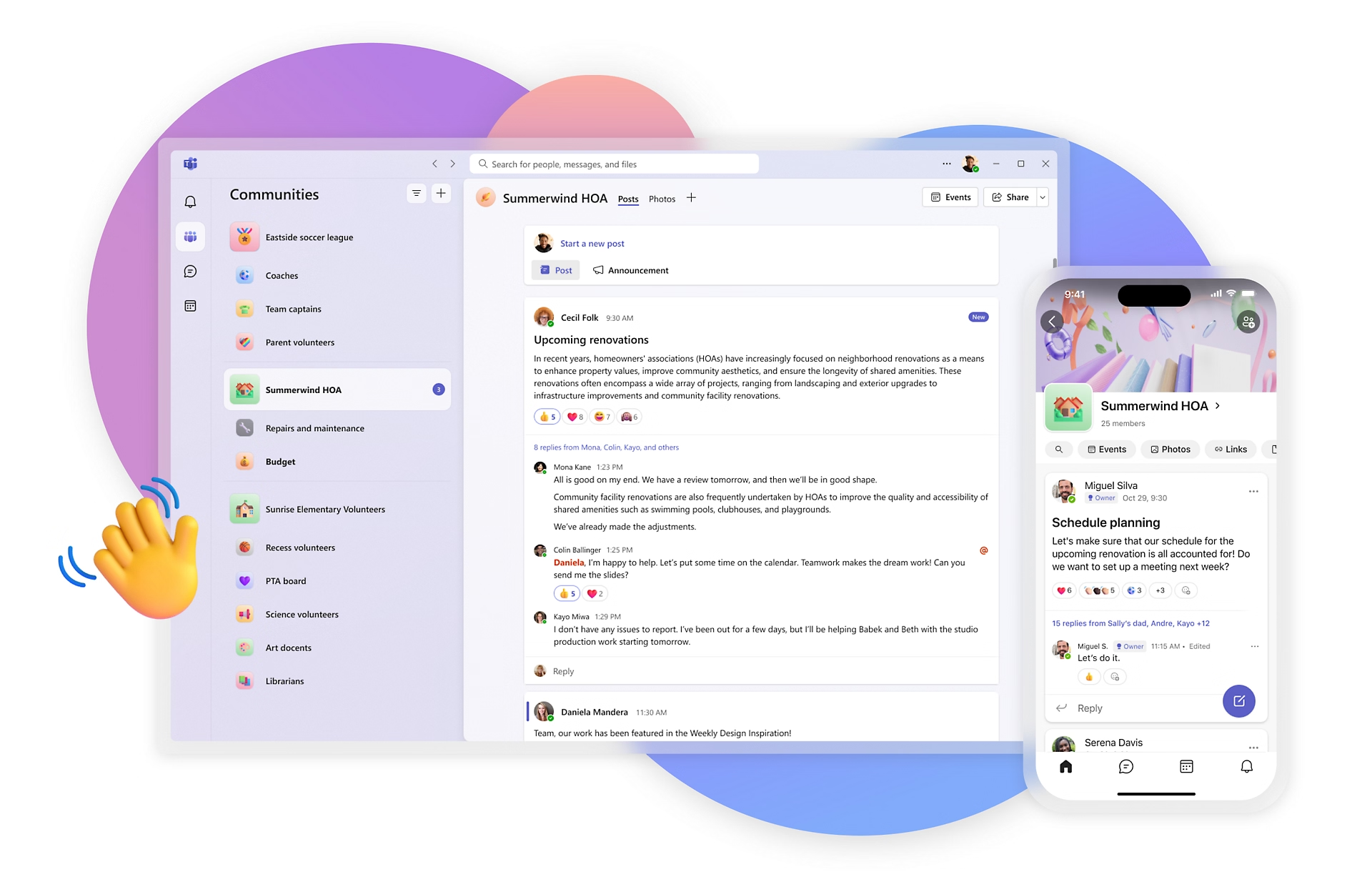
Image source: microsoft.com
Key features
- Deep Office 365 integration: Edit Word, PowerPoint, and Excel files directly within the Teams interface.
- Together mode: A video meeting feature that places participants in a shared virtual background to reduce meeting fatigue.
- Channels and teams: Structured organization of conversations around specific projects or departments.
- Enterprise-grade security: robust compliance features including data loss prevention and retention policies.
Best for
- Large enterprises that require strict security compliance and governance.
- Organizations already committed to the Microsoft 365 ecosystem.
- Teams that rely heavily on structured file management via SharePoint.
What you may like
- It comes included with most business licenses, making it a cost-effective choice for existing Microsoft customers.
- The integration with Outlook calendar is seamless for scheduling.
- High reliability and uptime for video calls.
What you may dislike
- The interface is often criticized for being cluttered and non-intuitive, making adoption difficult for non-technical users compared to cleaner alternatives.
- Because Teams relies on SharePoint for backend storage, finding files can be frustrating; users often struggle to locate documents that are buried in complex folder structures rather than being easily accessible within the chat context.
- Unlike a native superapp, Teams often feels like multiple separate applications (Chat, Teams, Calendar, Calls) stitched together, which can still cause friction and internal context switching.
- The default notification settings are often aggressive and scattered across Activity feeds, Chats, and Channels, leading to "alert fatigue" if not meticulously customized.
Pricing
- Paid plan: $4/month per user
3. Google Workspace: Unmatched real-time co-editing for cloud teams
Overview
Google Workspace (formerly G Suite) pioneered the concept of the online collaboration tool. Its core philosophy is "cloud-first," meaning everything lives in the browser. While it is primarily a suite of separate apps (Docs, Sheets, Slides, Meet, Chat), the interoperability between them is fluid. It is the gold standard for real-time co-editing, allowing multiple users to type in the same document simultaneously without latency.
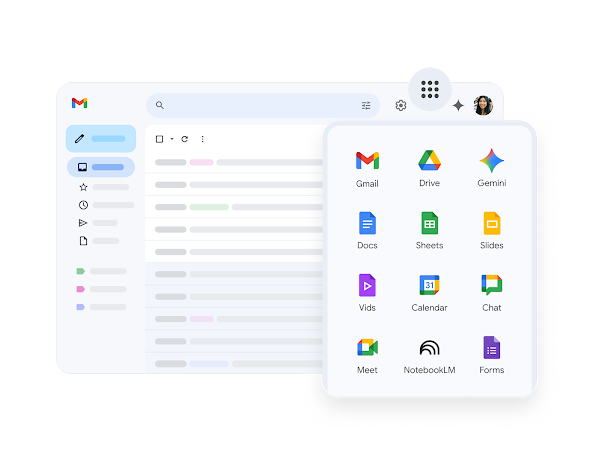
Image source: googleusercontent.com
Key features
- Real-time co-editing: See collaborator cursors in real-time across Docs, Sheets, and Slides.
- Smart canvas: Embed "smart chips" (linking to people, files, or dates) directly into documents to create interactive workflows.
- Google Meet integration: Start video calls directly from a Doc or Gmail window.
- Comment history: robust threading and assignment features within documents.
Best for
- Creative and marketing teams that need to draft and edit content together rapidly.
- Educational institutions and non-profits.
- Teams that prefer a browser-based workflow over desktop applications.
What you may like
- The learning curve is non-existent; almost everyone knows how to use a Google Doc.
- Search capabilities are powered by Google's engine, making file retrieval very fast.
- Excellent version history allows you to revert changes easily.
What you may dislike
- The chat application (Google Chat) is often considered less robust than competitors like Slack.
- Project management features are light; you often need a separate tool for task tracking.
Pricing
- Paid plan: $7/month per user
Category 2: Top 3 project & task management
When you need to answer "who is doing what and when," although a super all-in-one app isn't enough, you still need a dedicated project management collaboration tool.
1. Asana: Visual project tracking with powerful dependency management
Overview
Asana is designed to bring clarity to complex projects. It moves work out of email inboxes and into a visual structure where every task has an owner and a deadline. As a collaboration tool, it excels at mapping out dependencies—showing how one person's delay might affect the entire project timeline. It is widely loved for its playful user interface (including the famous flying unicorns upon task completion).
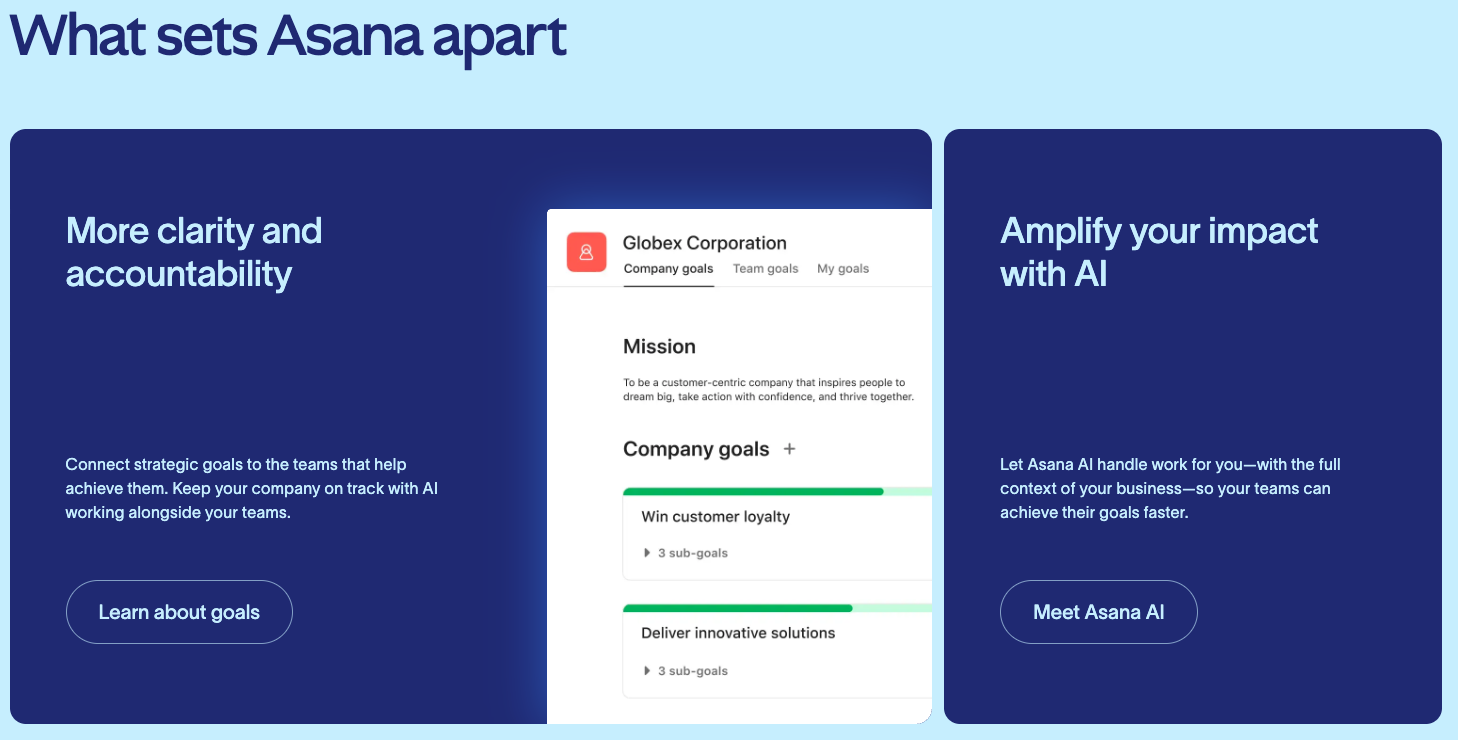
Image source: asana.com
Key features
- Timeline view (Gantt): visualizes project schedules and dependencies.
- Workload management: Allows managers to see if team members are over or under-capacity.
- Automation rules: "If this, then that" logic to auto-assign tasks or move them between stages.
- Portfolios: A high-level view for executives to track the status of multiple initiatives.
Best for
- Marketing agencies managing multiple client campaigns.
- Product teams planning feature launches.
- Managers who need visibility into team bandwidth.
What you may like
- The interface is beautiful, intuitive, and encourages user adoption.
- It offers multiple views (List, Board, Calendar, Timeline) for the same data set.
- Excellent mobile app for tracking tasks on the go.
What you may dislike
- Advanced features like Portfolios and Timeline are locked behind expensive tiers.
- Can become "noisy" with email notifications if not configured correctly.
Pricing
- Paid plan: $10.99/month per user
2. Trello: Simple, intuitive Kanban boards for quick organization
Overview
Trello is the ultimate cloud collaboration tool for visual thinkers. Based on the Kanban methodology, it uses boards, lists, and cards to organize work. Its simplicity is its superpower; you can set up a board in seconds and understand the workflow immediately. While it started simple, it has grown to include powerful automations, making it suitable for more than just simple to-do lists.
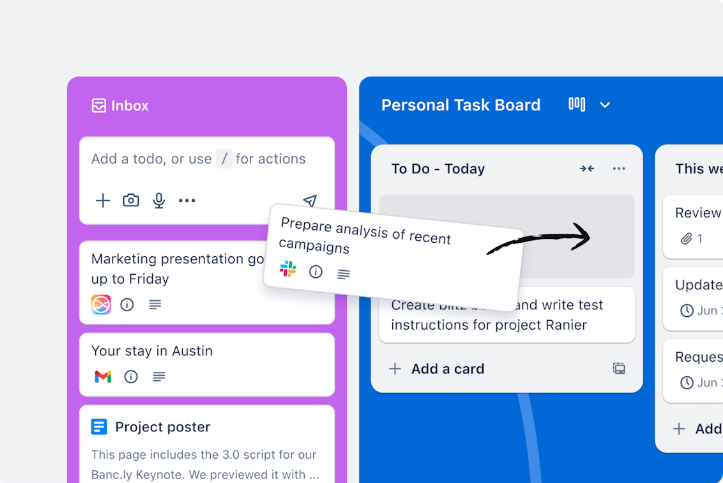
Image source: trello.com
Key features
- Kanban boards: The classic drag-and-drop interface for moving tasks through stages.
- Butler automation: A no-code automation bot that handles repetitive actions.
- Power-ups: A marketplace of integrations that add functionality (like calendars or voting) to boards.
- Card covers: Visual customization to make boards easy to scan.
Best for
- Small teams or individuals managing simple workflows.
- Content calendars and editorial pipelines.
- Software development teams using Scrum or Agile.
What you may like
- Extremely low barrier to entry; requires almost no training.
- Flexible enough to be used for anything from software dev to planning a company retreat.
- The free version is very generous for small teams.
What you may dislike
- Struggles with complexity; large projects can result in "infinite scroll" boards that are hard to manage.
- Lacks native reporting and analytics features found in heavy-duty PM tools.
Pricing
- Paid plan: $5/month per user
3. Monday.com: Flexible Work OS for building custom workflows
Overview
Monday.com positions itself not just as a tool, but as a "Work OS." It is a highly versatile project collaboration tool that allows teams to build their own custom workflows. Unlike rigid project management software, Monday.com operates more like a colorful, interactive spreadsheet that can be molded into a CRM, a marketing tracker, or an IT ticketing system.
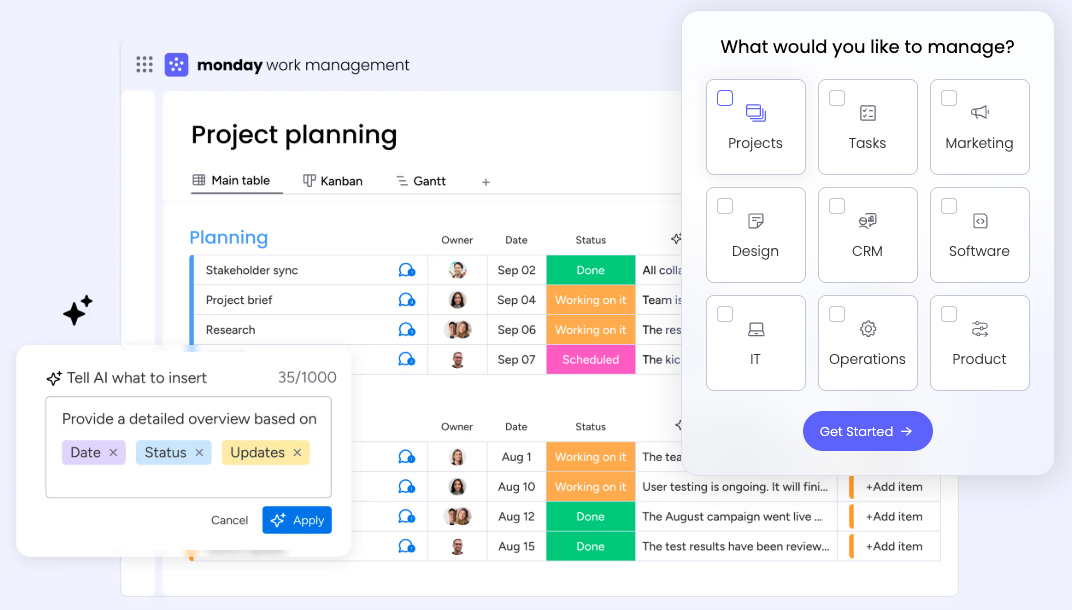
Image source: monday.com
Key features
- Customizable columns: Add status buttons, star ratings, timelines, or numbers to any board.
- Dashboards: Build high-level reporting views with widgets (charts, battery meters).
- Automations: Extensive library of pre-built recipes to streamline processes.
- Templates: A massive library of pre-set boards for every industry.
Best for
- Teams that don't fit into standard project management boxes and need custom workflows.
- Operations teams managing inventory or orders.
- HR and recruitment pipelines.
What you may like
- Visually appealing color-coded status updates provide instant clarity.
- Extremely flexible; you can build almost any logic you need.
- Transparency features ensure everyone knows the status of a project.
What you may dislike
- The pricing model can be tricky (often sold in "seats" rather than per user).
- The sheer number of options can be overwhelming for new users.
Pricing
- Free plan: Available for up to 2 users
- Paid plan: $12/month per user (free trial available)
Category 3: Best 3 specialized design & whiteboarding
Sometimes you need to show, not tell. A visual collaboration tool allows teams to brainstorm as if they were standing on a whiteboard.
1. Figma: The industry standard for collaborative interface design
Overview
Figma changed the design world by being the first professional interface design tool built entirely in the browser. Before Figma, design files were locked on individual computers. Now, Figma serves as a real-time online collaboration tool where designers, developers, and copywriters can work on the same file simultaneously.
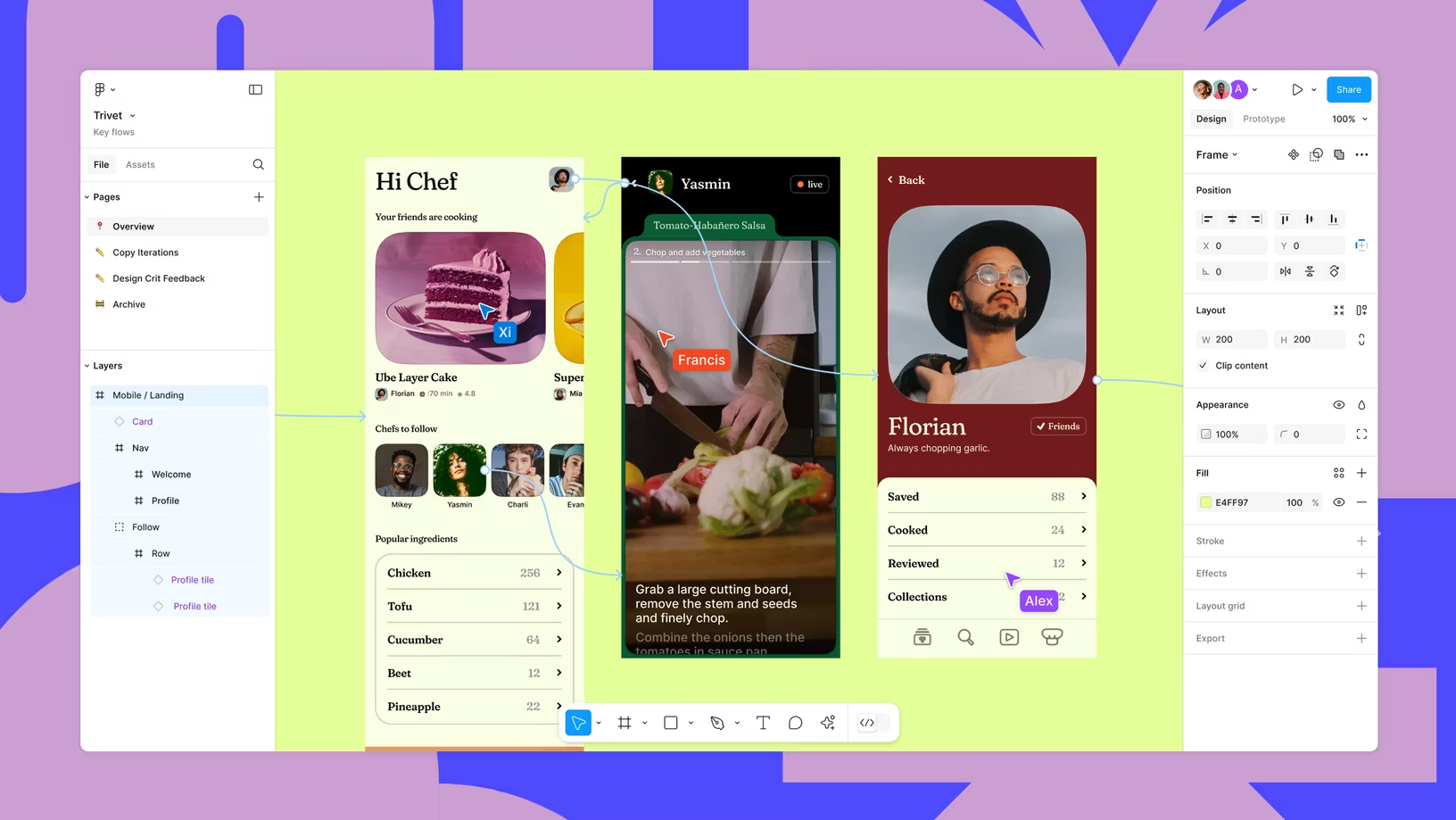
Image source: figma.com
Key features
- Multiplayer editing: See everyone's cursor in the design file.
- FigJam: A built-in whiteboarding tool for brainstorming alongside high-fidelity designs.
- Dev mode: A dedicated view for developers to inspect code and assets.
- Prototyping: Create interactive flows to test user experience.
Best for
- Product managers who need to wireframe ideas.
- Developers needing to inspect design specs.
What you may like
- It eliminates the need to upload/download "Version 5" files.
- The community library offers thousands of free plugins and templates.
- It runs smoothly in a browser on any operating system.
What you may dislike
- It has a steep learning curve if you are not a designer.
- Managing file organization can get messy in large teams.
Pricing
- Paid plan: $3/month per user
2. Miro: Infinite digital canvas for visual brainstorming
Overview
Miro is an infinite canvas for visual collaboration. It replicates the experience of a meeting room whiteboard but adds digital superpowers. It is a vital collaboration tool for brainstorming sessions, user journey mapping, and retrospective meetings. It helps teams visualize complex relationships that text cannot capture.
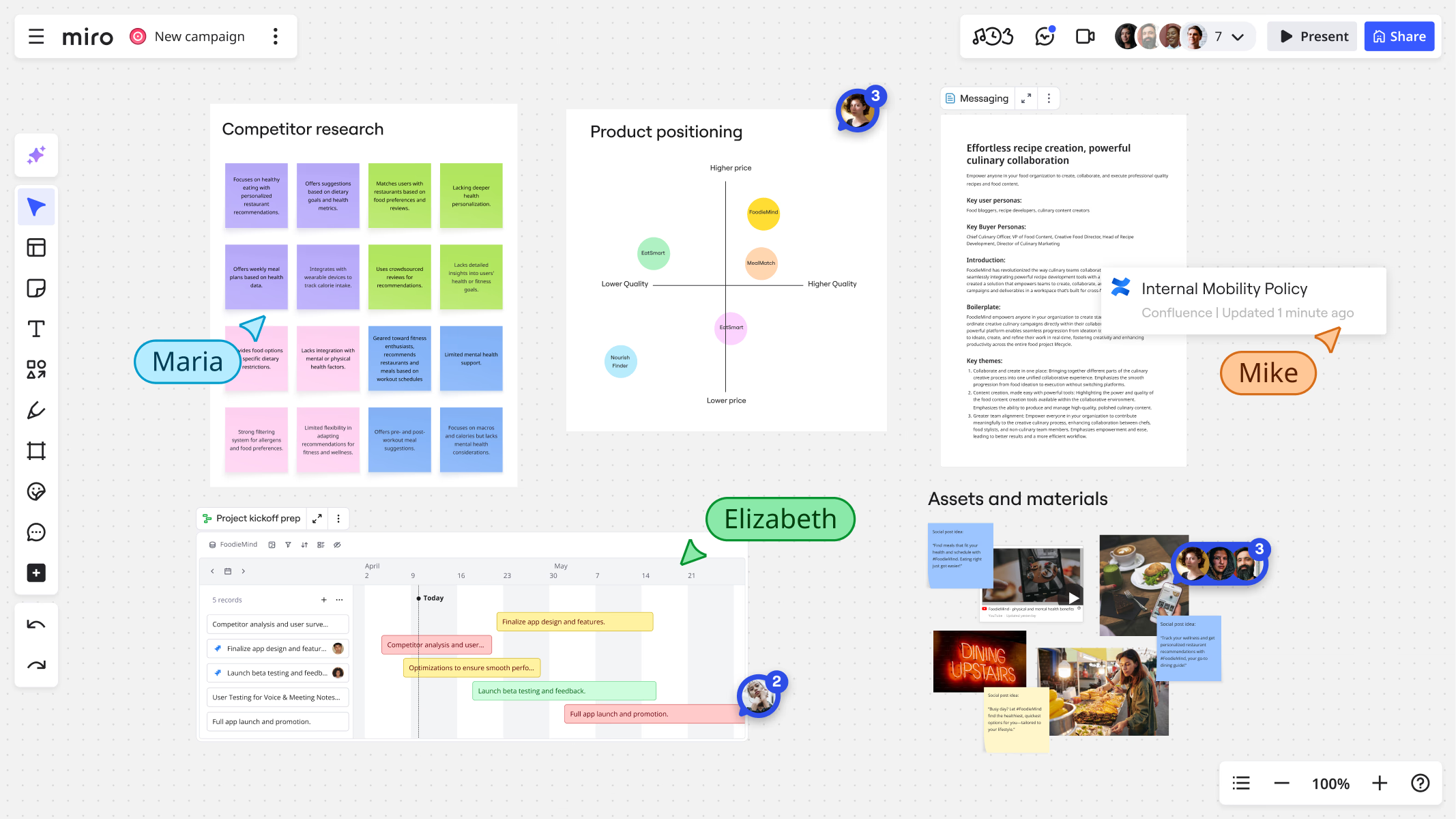
Image source: miro.com
Key features
- Infinite canvas: No boundaries, allowing for sprawling mind maps.
- Stickies capture: Take a photo of physical sticky notes and convert them to digital ones.
- Voting: Built-in voting tools for decision-making sessions.
- Timer: Keep meetings on track with a visible countdown.
Best for
- Agile teams running retrospectives and planning poker.
- Strategy workshops and brainstorming.
- Service design and flowcharting.
What you may like
- The template library is vast (SWOT analysis, Fishbone diagrams, etc.).
- It integrates well with Zoom and Slack.
- It is fun and engaging to use during meetings.
What you may dislike
- Performance can lag on older computers if the board gets too huge.
- Guest access management can be tricky on lower-tier plans.
Pricing
- Paid plan: $8/month per user
3. Canva: Collaborative graphic design made easy for everyone
Overview
Canva democratized design, making it accessible to non-designers. As a collaboration tool, it allows marketing teams, social media managers, and sales reps to co-create graphics and presentations. It ensures brand consistency without requiring everyone to know how to use Adobe Photoshop.
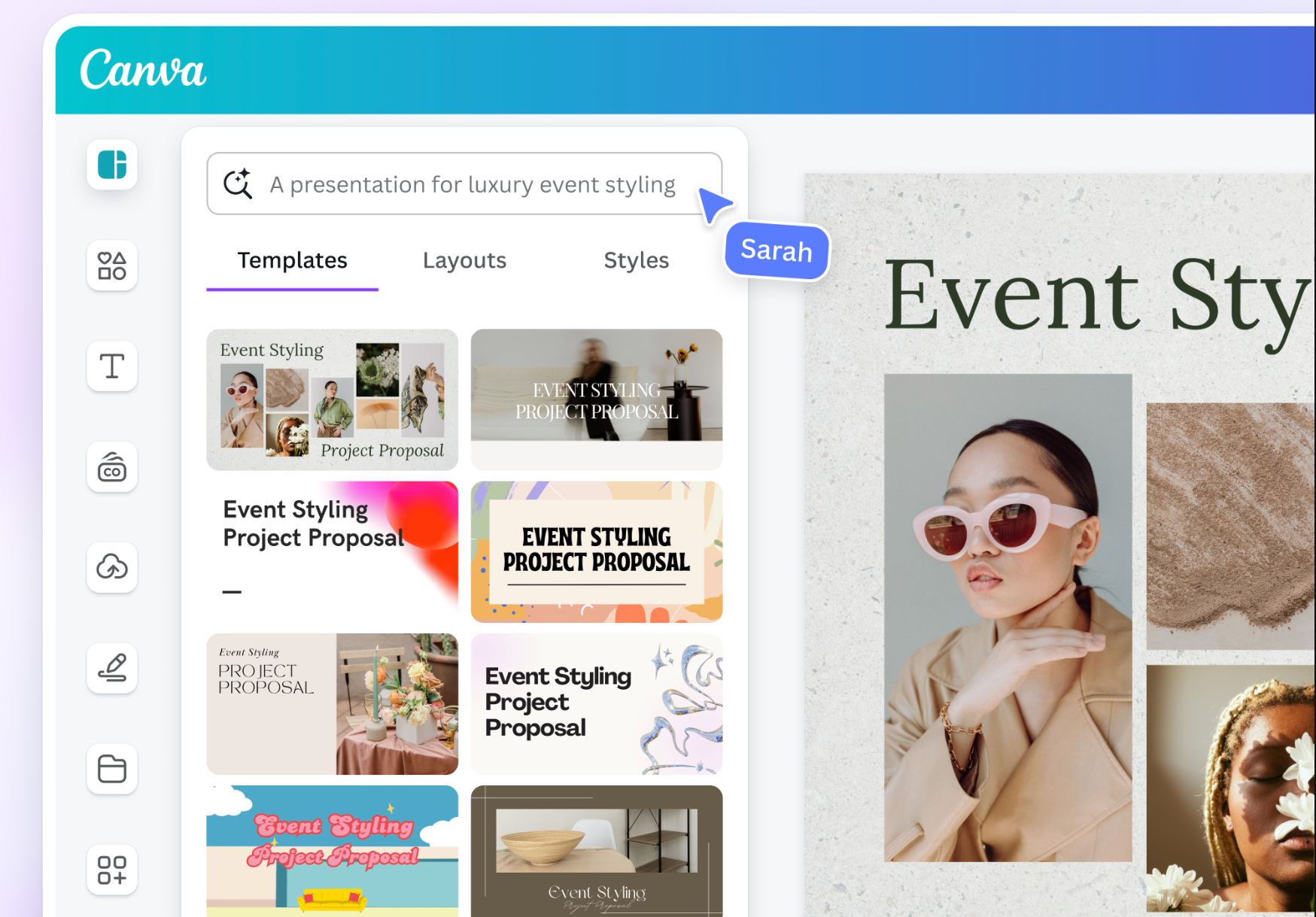
Image source: canva.com
Key features
- Brand kit: Store logos, fonts, and colors for the whole team to use.
- Real-time comments: Discuss changes directly on the design.
- Social scheduling: Plan and publish posts directly from the app.
- Magic studio: AI-powered tools to resize images or generate text.
Best for
- Social media and content marketing teams.
- Sales teams creating pitch decks.
- Small businesses without a dedicated design department.
What you may like
- Extremely easy to use; drag-and-drop interface.
- Massive library of stock photos and elements included.
- Collaborative editing prevents "design bottlenecks."
What you may dislike
- Limited vector editing capabilities compared to professional tools.
- Export options are sometimes limited for print production.
Pricing
- Paid plan: $13.75/month per user
Category 4: Top 2 communication & video conferencing
When we discuss collaboration tools at work, we often think of communication first. These tools bridge the gap between synchronous (live) and asynchronous interaction.
1. Slack: The gold standard for channel-based team chat
Overview
Slack revolutionized the team collaboration tool market by making business chat fun, fast, and informal. It organizes communication into channels (public or private), replacing the dreaded "Reply All" email chains. Its strength lies in its ecosystem; it integrates with virtually every other software on the market, acting as a command center for notifications.
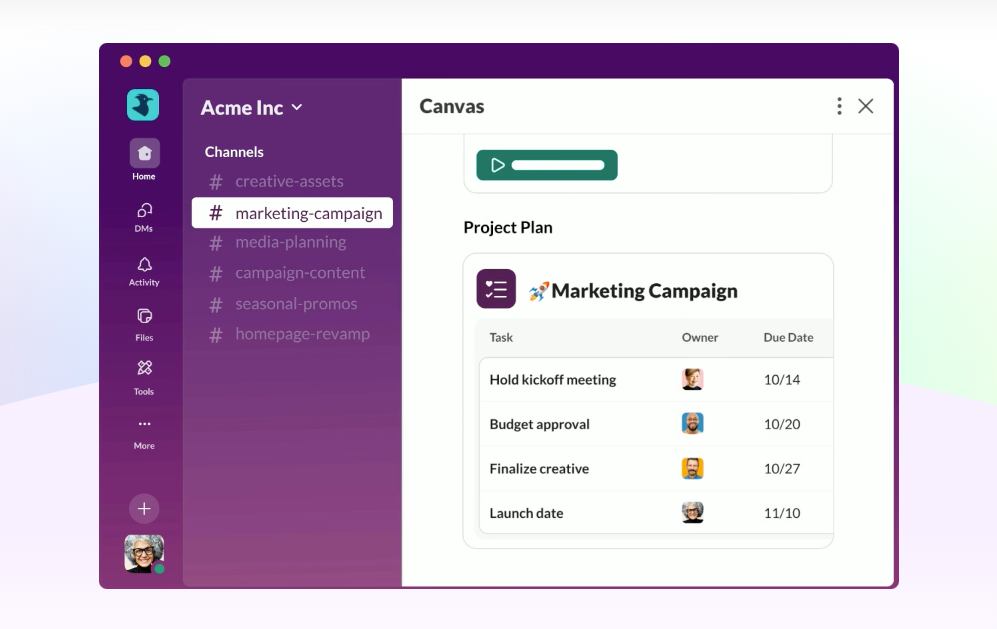
Image source: slack.com
Key features
- Channels: Organized spaces for topics, projects, or teams.
- Huddles: Quick, audio-first (or video) chats designed to simulate walking over to a colleague's desk.
- Slack connect: Allows you to share channels securely with external partners or clients.
- Workflow builder: Automate routine actions like daily stand-ups or help desk requests.
Best for
- Tech-savvy teams that want a central hub for all alerts and chatter.
- Companies with a strong remote culture that value informal bonding.
- DevOps teams (due to heavy integration with coding tools).
What you may like
- The user experience is polished and enjoyable (emoji reactions, gifs).
- Search functionality is powerful, allowing you to find old context easily.
- The "Huddle" feature is excellent for quick, ad-hoc syncing.
What you may dislike
- Can become expensive quickly as your team grows and you need message history.
- "Notification fatigue" is a real issue; it requires discipline to configure properly.
Pricing
- Paid plan: $4.38/month per user
2. Zoom: Reliable, high-quality video conferencing for large groups
Overview
When the world went remote, Zoom became the default verb for "video meeting." It is a specialized collaboration tool focused entirely on high-quality video and audio conferencing. While other suites include video, Zoom is often chosen for its reliability, stability, and ability to handle large groups without crashing.
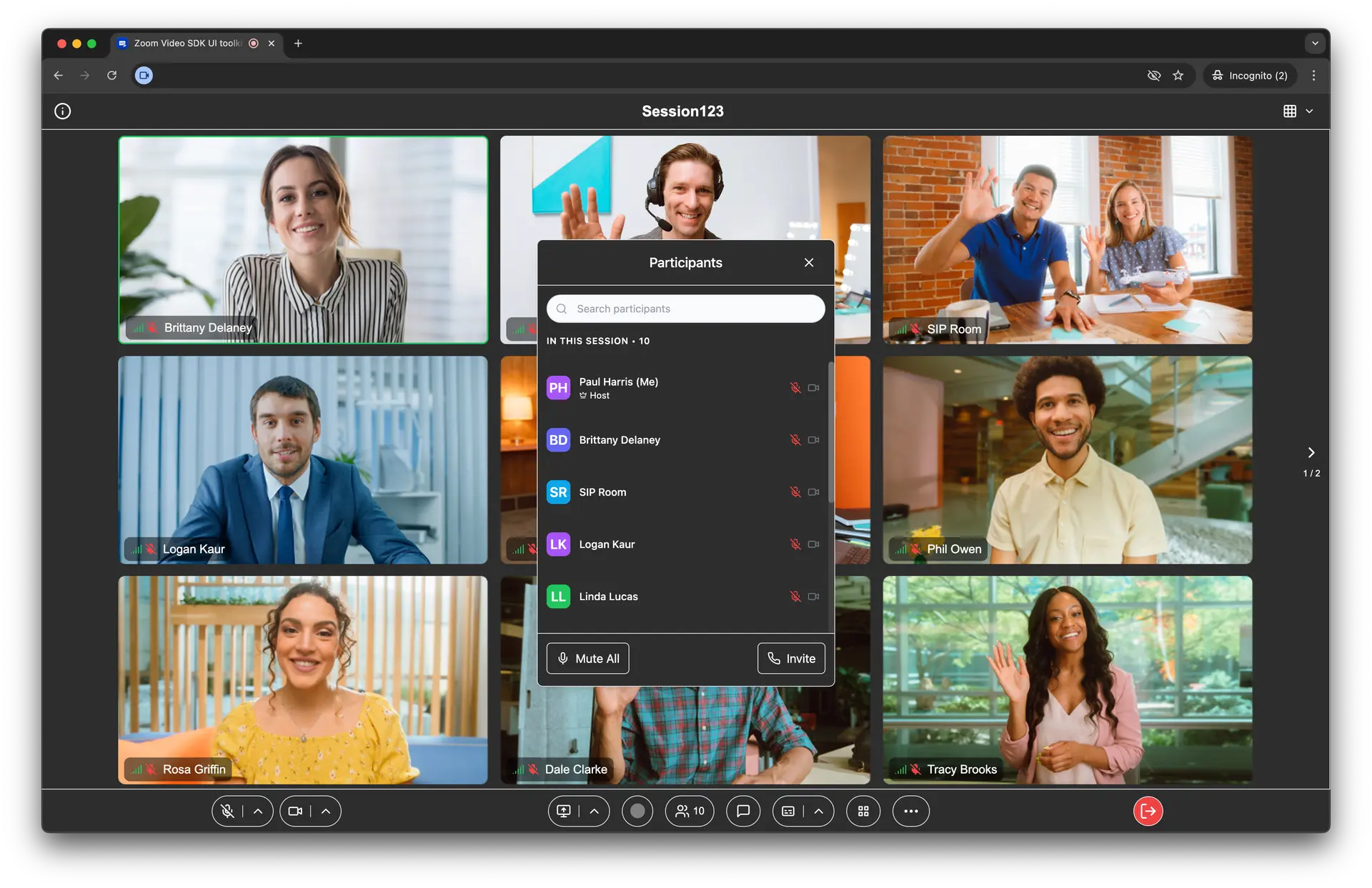
Image source: developers.zoom.us
Key features
- Breakout rooms: Split a large meeting into smaller groups for discussion.
- Virtual backgrounds: The industry leader in background replacement technology.
- Recording & transcripts: Cloud recording with auto-generated searchable transcripts.
- Zoom apps: Integration of apps (like Miro or Asana) directly into the meeting window.
Best for
- External client meetings and webinars.
- Large all-hands company meetings.
- Teams that prioritize video quality over all else.
What you may like
- It "just works"—clients rarely have trouble joining a Zoom link.
- Scalability is unmatched for large events (webinars with 1000+ attendees).
- Audio suppression filters out background noise effectively.
What you may dislike
- The 40-minute limit on the free plan is a major restriction for businesses.
- Security concerns in the past (though largely resolved) have made some enterprises wary.
Pricing
- Paid plan: $13.33/month per user
Category 5: Top 2 content & documentation tools
A content collaboration tool is essential for building a "company brain." These platforms ensure that knowledge is documented and accessible.
1. Notion: Flexible, all-in-one workspace for knowledge management
Overview
Notion is a workspace that blends notes, docs, wikis, and project management. It is built on a "block" system, where every piece of content (text, image, code) is a movable block. This allows for unprecedented flexibility. Collaboration tools are often rigid, but Notion is like digital Lego—you can build whatever structure your team needs.
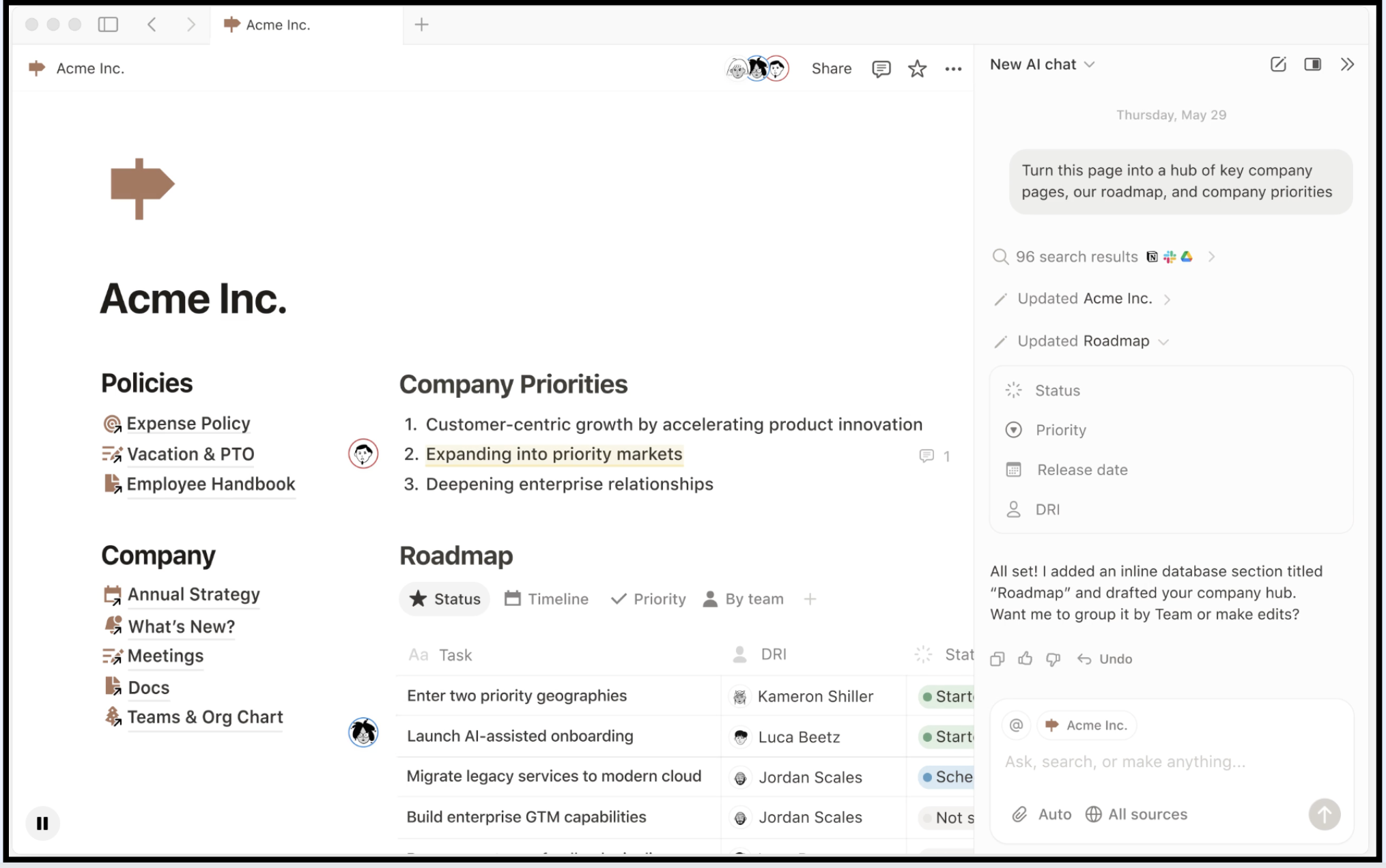
Image source: notion.com
Key features
- Wikis: Nested pages that create a structured knowledge base.
- Databases: Tables, boards, and calendars that live inside documents.
- Templates: A vast community library of page structures.
- Embeds: Embed over 500+ other apps (maps, designs, videos) directly into pages.
Best for
- Building internal company handbooks and wikis.
- Startups that want one tool for docs and lightweight project management.
- Design and product teams for maintaining specs.
What you may like
- The aesthetic is clean, minimalist, and highly pleasing.
- It is incredibly flexible; you can build a CRM or a blog inside it.
- Real-time collaboration works well for co-writing.
What you may dislike
- The mobile app can be slower than the desktop version.
- Flexibility can lead to messiness if you don't have a designated "librarian."
Pricing
- Paid plan: $4/month per user(1 member); $8/month per user for teams
2. Confluence: Structured technical documentation for engineering teams
Overview
Owned by Atlassian, Confluence is the heavy hitter of documentation. It is often paired with Jira. As a collaboration tool, it is designed for technical teams to create, organize, and discuss work. It is less about "notes" and more about structured, long-term documentation and requirements gathering.
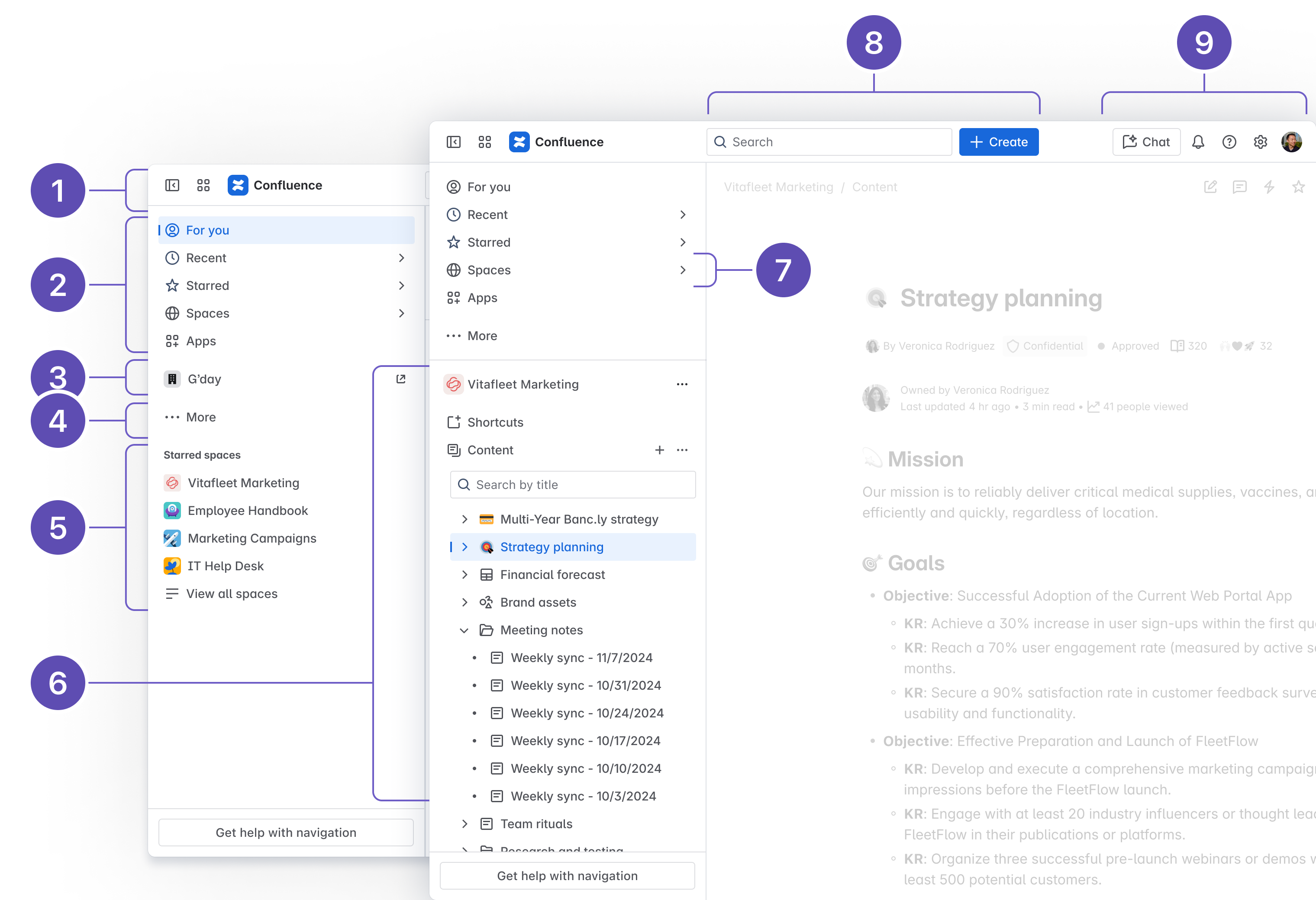
Image source: atlassian.com
Key features
- Page trees: Hierarchical organization of content spaces.
- Jira integration: Link Jira tickets directly to requirement pages.
- Macros: Dynamic widgets that pull in data or format content automatically.
- Advanced permissions: Granular control over who can view or edit spaces.
Best for
- Engineering and product teams using Jira.
- Large enterprises with complex knowledge management needs.
- Technical writing and software documentation.
What you may like
- The integration with the Atlassian suite is powerful for developers.
- It handles massive amounts of content without slowing down.
- Version control is excellent for tracking changes over time.
What you may dislike
- The editor can feel stiff and dated compared to Notion or Google Docs.
- Search can sometimes be cluttered if the workspace isn't well-maintained.
Pricing
- Paid plan: $5.42/month per user
Category 6: Budget-friendly Options
Not every team has a massive budget. Fortunately, you can find a free collaboration tool that punches above its weight.
1. ClickUp: Feature-rich productivity platform for budget-conscious teams
Overview
ClickUp markets itself as "One app to replace them all." It is an aggressive project collaboration tool that packs features from Asana, Jira, and Monday.com into a highly affordable package. It is particularly attractive for startups that need granular control without the enterprise price tag. It allows you to use collaboration tools for docs, goals, chat, and tasks in one place.
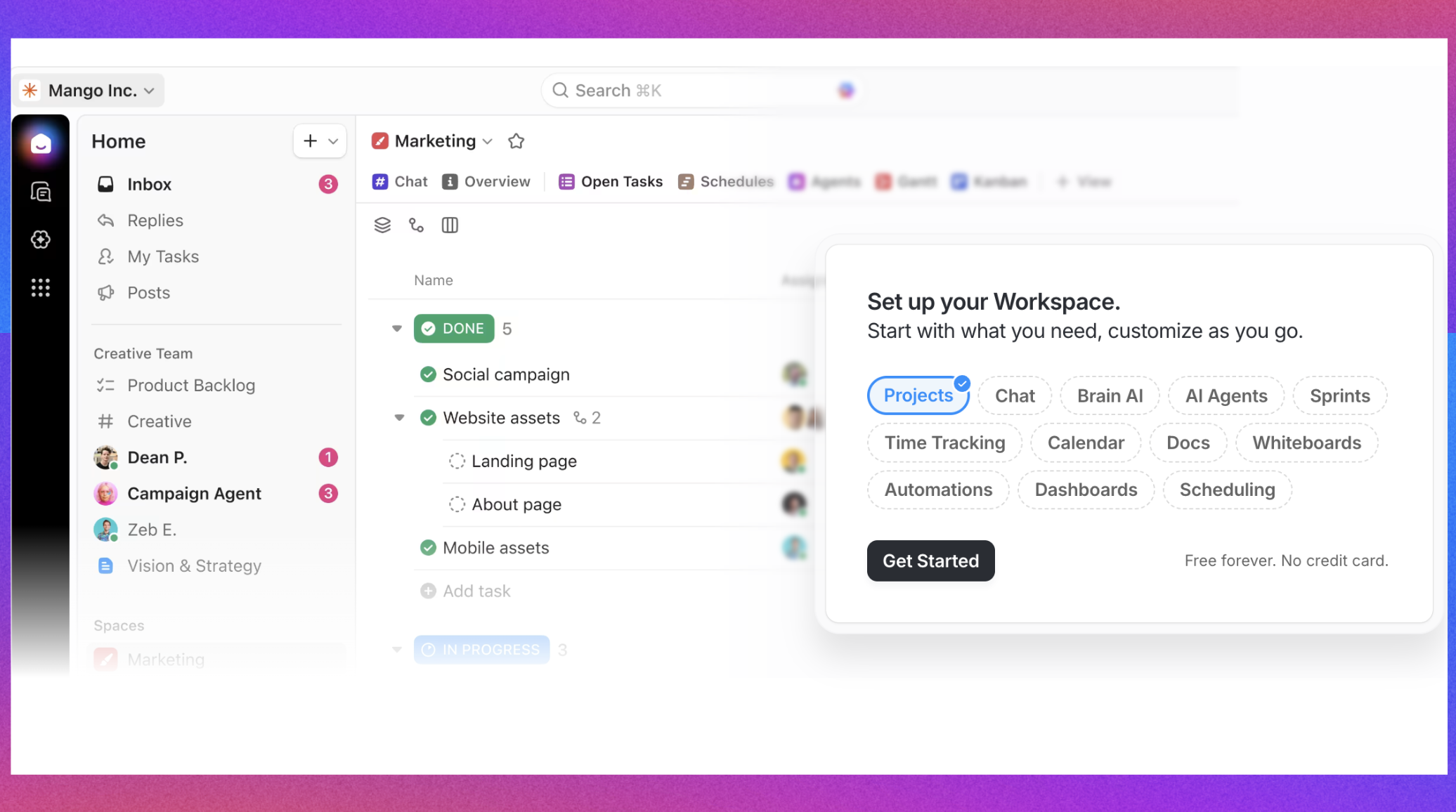
Image source: clickup.com
Key features
- Everything view: See tasks across all teams in one list.
- Docs: Integrated document editing linked to tasks.
- Goals: Track high-level objectives and key results (OKRs).
- Screen recording: Built-in tool to record simple video clips for context.
Best for
- Budget-conscious startups.
- Teams that want extreme customizability.
- Agencies needing to track time and tasks together.
What you may like
- The free forever plan is incredibly generous with unlimited members.
- Features are added at a rapid pace.
- Highly customizable views.
What you may dislike
- The interface can feel cluttered and slow due to feature density.
- The learning curve is steep because there are so many settings.
Pricing
- Paid plan: $7/month per user
2. Otter.ai: AI-powered meeting transcription and note-taking
Overview
Otter.ai is a niche but powerful collaboration tool focused on meetings. It is an automated transcription service that joins your Zoom, Teams, or Google Meet calls and writes down what is said in real-time. It transforms spoken conversations into searchable, shareable notes, ensuring that no idea is lost.
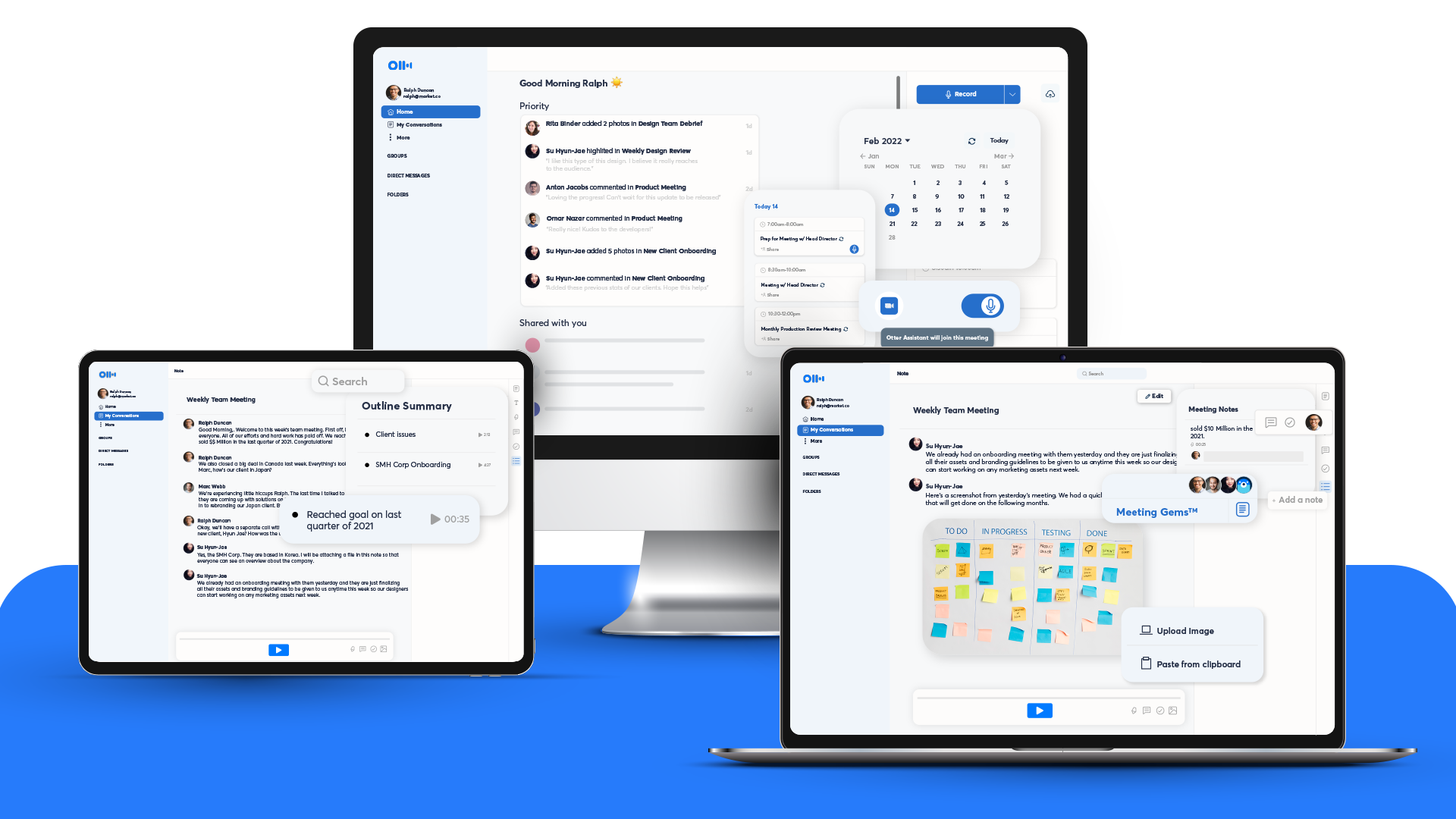
Image source: help.otter.ai
Key features
- Live transcription: Watch text appear as people speak.
- Speaker identification: Automatically tags who said what.
- Meeting gems: Highlights key takeaways and action items automatically.
- Slide capture: Inserts slides from the presentation into the transcript notes.
Best for
- Teams that hate taking meeting minutes.
- Journalists and researchers.
- Accessibility for team members who prefer reading over listening.
What you may like
- It serves as a "backup brain" if you miss a meeting.
- Search functionality allows you to find specific keywords spoken months ago.
- Generous free usage limits.
What you may dislike
- Transcription accuracy can struggle with heavy accents or bad audio.
- It is a single-purpose tool, not a full collaboration suite.
Pricing
- Paid plan: $8.33/month per user
Eager to get a bargain with more features?
How to choose the right tool for your business
Selecting the right software is about matching the tool's strengths to your team's specific "DNA." Whether you are looking for a free collaboration tool to bootstrap a startup or a comprehensive suite for a multinational corporation, the decision framework remains similar.
Assess the "toggle tax" and consolidation
First, audit your current stack. How many apps does your team open to complete a single task? If your employees are constantly switching between a chat app, a video app, and a separate , they are paying a high "toggle tax" — the mental energy lost during context switching. If this is your primary pain point, look towards "All-in-one superapps" (Category 1) like Lark or Microsoft Teams. These platforms consolidate workflows, drastically reducing the friction between tasks.
Calculate the total cost of ownership
Pricing is often more complex than the monthly per-user fee. You must calculate the "Total Cost of Ownership" (TCO). A "best-of-breed" strategy—buying the top standalone tool for every category—can become incredibly expensive. You might pay for Slack, Zoom, Asana, and Notion separately. In contrast, an that bundles these features often provides significant cost savings. However, ensure that the bundled features are robust enough for your needs; saving money is useless if the tools are too basic to be effective.
Evaluate adoption and user experience
The most advanced software in the world is useless if no one logs in. When you use collaboration tools, user interface (UI) and user experience (UX) are paramount. Ask yourself: Is the interface intuitive? Does it require weeks of training? Adoption rates are often higher with tools that mimic consumer apps in their simplicity. Ultimately, the best collaboration tool is the one your team actually enjoys using. If the software feels clunky or bureaucratic, users will revert to "shadow IT"—using unauthorized apps just to get their work done.
Conclusion
The landscape of work has changed permanently. We have moved from physical boardrooms to digital workspaces, and the software we choose defines the architecture of our daily lives. Whether you are looking to define what collaboration tools are for your new startup or overhauling the infrastructure of a legacy corporation, the goal remains the same: Unity.
Collaboration tools are not just about technology; they are about people. They are the bridges that connect ideas to execution. By carefully selecting a stack that minimizes friction and maximizes context—whether that is through a specialized project collaboration tool or a unified superapp—you empower your team to focus on what really matters: Innovation and growth.
If your team is tired of juggling multiple subscriptions and losing context between apps, it might be time to rethink your strategy. Consider a platform like that consolidates these essential functions into one fluid experience. By simplifying your digital workspace, you do not just save money; you give your team back the time they need to do their best work.
Embark on your smooth journey for collaboration in Lark
FAQs
What is a collaboration tool?
A collaboration tool is software that helps teams work together to achieve common goals, regardless of location. It streamlines communication, project management, and file sharing into a digital workspace. Modern tools, like Lark, integrate these functions to reduce context switching and improve efficiency.
What are the four types of collaboration tools?
The four main types are:
- Communication: Chat and video (e.g., Slack, Zoom).
- Project management: Task tracking (e.g., Asana).
- Documentation: File sharing and wikis (e.g., Google Docs).
- Visual collaboration: Whiteboards (e.g., Miro).
Lark combines all these types into a single "superapp."
What are the 5 P's of collaboration?
The 5 P's are generally considered: "Purpose", "People", "Process", "Platform", and "Performance". They define the strategy for effective teamwork. A strong platform is crucial; fragmented tools can hurt Process and Performance, which is why unified platforms like Lark are often preferred over disconnected stacks.
Which is the best collaboration tool?
The "best" tool depends on your needs. Microsoft Teams is strong for corporate enterprises, while Notion excels at documentation. However, for teams wanting to consolidate chat, docs, and meetings into one app to save costs and reduce toggling, Lark is a top-tier all-in-one choice.
Why is my team overwhelmed by too many notifications?
Notification fatigue often happens when teams use separate apps for chat, tasks, and email (e.g., Slack + Asana + Gmail). This fragmentation creates noise. Switching to a unified platform like Lark centralizes alerts and allows you to convert chat messages directly into tasks, keeping focus high and noise low.
Related reading




















![What Is a 2-2-3 Work Schedule? Explanation and More [2026]](https://framerusercontent.com/images/uKHRfkp4v7y4azRNTYUmuteNQz8.png)








