Excel automation has become an essential part of how teams manage calculations, reporting, and structured data at scale. From formulas and macros to connectors and AI tools for Excel automation, spreadsheets now support far more than basic number work. Many organizations rely on automation in Excel to streamline recurring tasks, reduce errors, and improve consistency across everyday operations.
As these spreadsheets evolve into shared workflow tools, new challenges begin to surface. File ownership, approvals, and coordination often extend beyond what Excel was designed to handle. To address this, some teams gradually complement Excel workflow automation with connected work platforms. Tools like Lark support this transition by preserving spreadsheet-style data while adding structure, visibility, and collaboration around growing workflows.
Move beyond spreadsheets with structured automation
What Excel automation really means today
Excel automation today refers to any method that reduces manual spreadsheet work while improving consistency, accuracy, and speed. This includes formulas that calculate automatically, macros that repeat actions, scripts that refresh data, and connectors that move information between tools. In many businesses, automation in Excel still powers daily reporting, financial modeling, and operational tracking.
However, Excel increasingly extends beyond the spreadsheet itself. Teams automate approvals, notifications, , and dashboard updates based on spreadsheet changes. This shift introduces new complexity around version control, ownership, and reliability. As automation expands, spreadsheets start acting like systems, even though they were never designed to be shared execution engines.
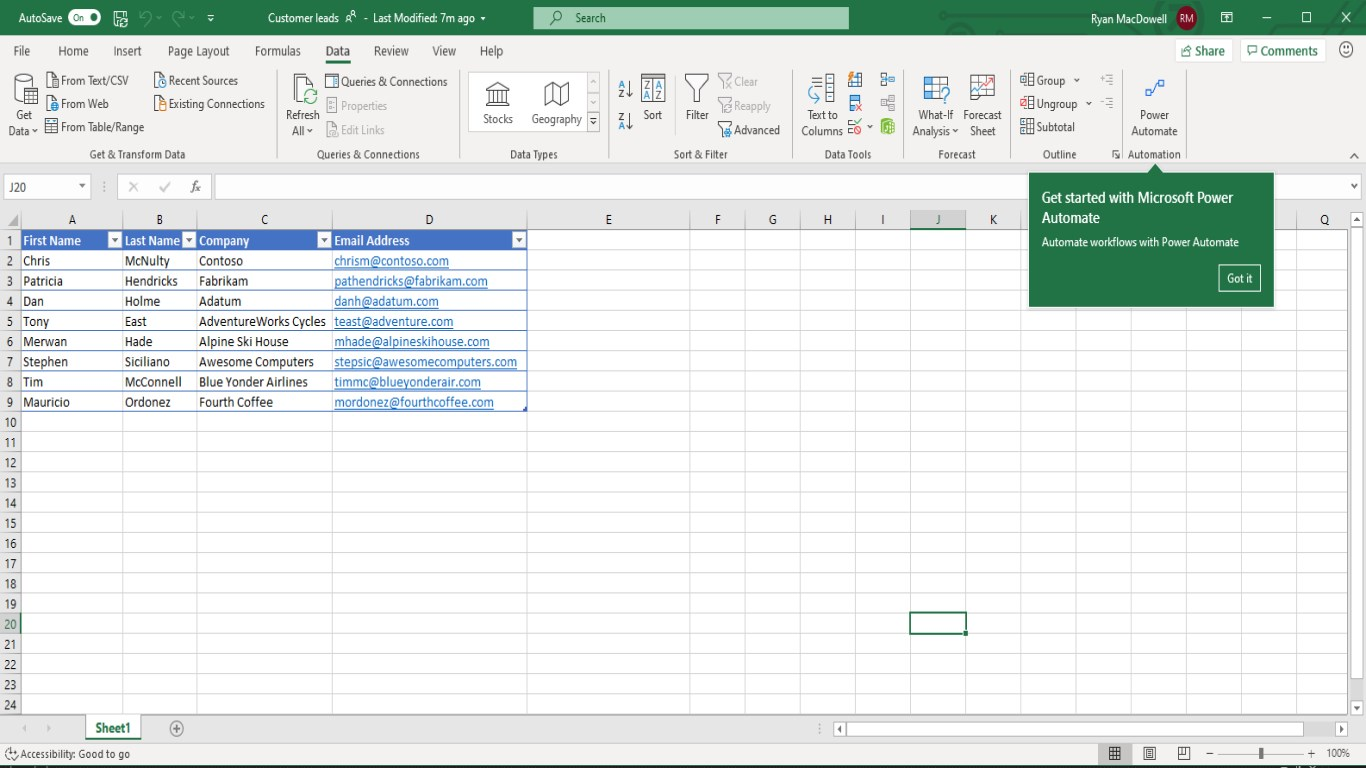
Image source: microsoft.com
Native Excel automation methods you should know
Native features are usually the first step when teams explore automation in Excel. These tools are powerful in isolation but face limitations in collaborative environments.
- Formulas, functions, and dynamic arrays: Formulas automate calculations across cells and sheets, reducing manual data entry. Dynamic arrays allow results to expand automatically, improving flexibility for reports and models. These features make Excel automation tools effective for analysis and recurring calculations. However, formulas depend heavily on correct structure and can break easily when files are shared or edited by multiple users.
- Macros and VBA for repetitive actions: Macros and automate repetitive actions such as formatting reports or importing data. They allow advanced logic that goes beyond formulas, supporting complex automation in Excel. Many long-running spreadsheet systems rely on macros built by a few experts. Over time, these scripts become difficult to maintain, audit, or transfer as teams change.
- Power Query and data refresh workflows: Power Query allows users to pull, clean, and transform data automatically from databases, files, and APIs. This reduces manual copy-paste work and improves consistency across reports. For data-heavy teams, Power Query is one of the most valuable Excel automation tools available. Despite its strengths, Power Query focuses on data preparation rather than process automation. It does not handle approvals, notifications, or task routing. When combined with manual steps, the overall Excel workflow automation remains partially automated at best.
- Where native automation starts to break down: Native Excel automation works best for and controlled reporting. As spreadsheets become shared systems, version conflicts and hidden logic emerge. Automation rules live inside files rather than workflows. This often leads teams to consider complementary tools that provide visibility without abandoning spreadsheets entirely.
Excel workflow automation for everyday business tasks
Many teams push Excel workflow automation beyond calculations into operational use cases. These scenarios highlight both benefits and limits.
- Automating reports and recurring calculations: Automated reports refresh data and update metrics on a schedule, saving significant time. This form of automation in Excel is widely adopted across finance and operations teams. However, outputs are usually static files that require separate coordination. Execution and follow-up still happen elsewhere.
- Excel-to-Word document automation for contracts and invoices: Excel-to-Word document automation generates standardized documents from spreadsheet data. This improves speed and consistency for invoices and agreements. As document volume grows, approval tracking and version control become harder. This limits scalability for .
- Excel-to-PowerPoint automation for recurring presentations: updates charts and tables automatically for recurring decks. This reduces manual preparation and ensures consistent visuals. Collaboration and feedback still happen outside the spreadsheet. Context often gets lost once slides are exported.
- Approval-heavy workflows that struggle inside spreadsheets: Approvals are difficult to manage within Excel workflow automation. Tracking ownership, timing, and decisions requires manual coordination. As requirements increase, teams often introduce workflow layers that connect spreadsheets to and task systems.
Turn spreadsheet automation into real workflows
6 Best Excel automation tools for modern workflows
Modern Excel automation tools go beyond formulas and macros to support connected, . These tools help teams automate data movement, approvals, notifications, and reporting across systems. As automation in Excel becomes more operational, teams increasingly rely on platforms that reduce manual coordination. The right tool depends on how closely spreadsheets are tied to execution and collaboration. Alongside workflow platforms, a growing category of tools now automates formula writing, data cleanup, and analysis directly inside spreadsheets.
1. Lark: Unified automation and collaboration beyond Excel
While not an Excel plugin, supports teams that use spreadsheets as part of larger, ongoing workflows. It allows spreadsheet-style data to live inside structured work databases using Lark Base, where each row functions as a live record rather than a static cell range. Teams can automate task creation, reminders, follow-ups, and based on data changes. through Messenger, Docs, and dashboards keeps conversations and execution connected to data. This reduces reliance on email and manual handoffs. Lark works especially well when Excel workflow automation needs to extend into daily operations.
Key functions:
Spreadsheet-style data that stays live and structured
lets teams work with spreadsheet-like tables while treating every row as a live record rather than a static cell range. Unlike Excel files that quickly become outdated once shared, Base records update in real-time for everyone with access. Field types such as person, date, progress, and linked records add structure that Excel formulas alone can't enforce. Also, it supports instant Excel data import, saving your valuable time and reducing human errors. This reduces broken formulas, copy-paste errors, and version conflicts, making Base better suited for collaborative, always-on data workflows than traditional Excel sheets. 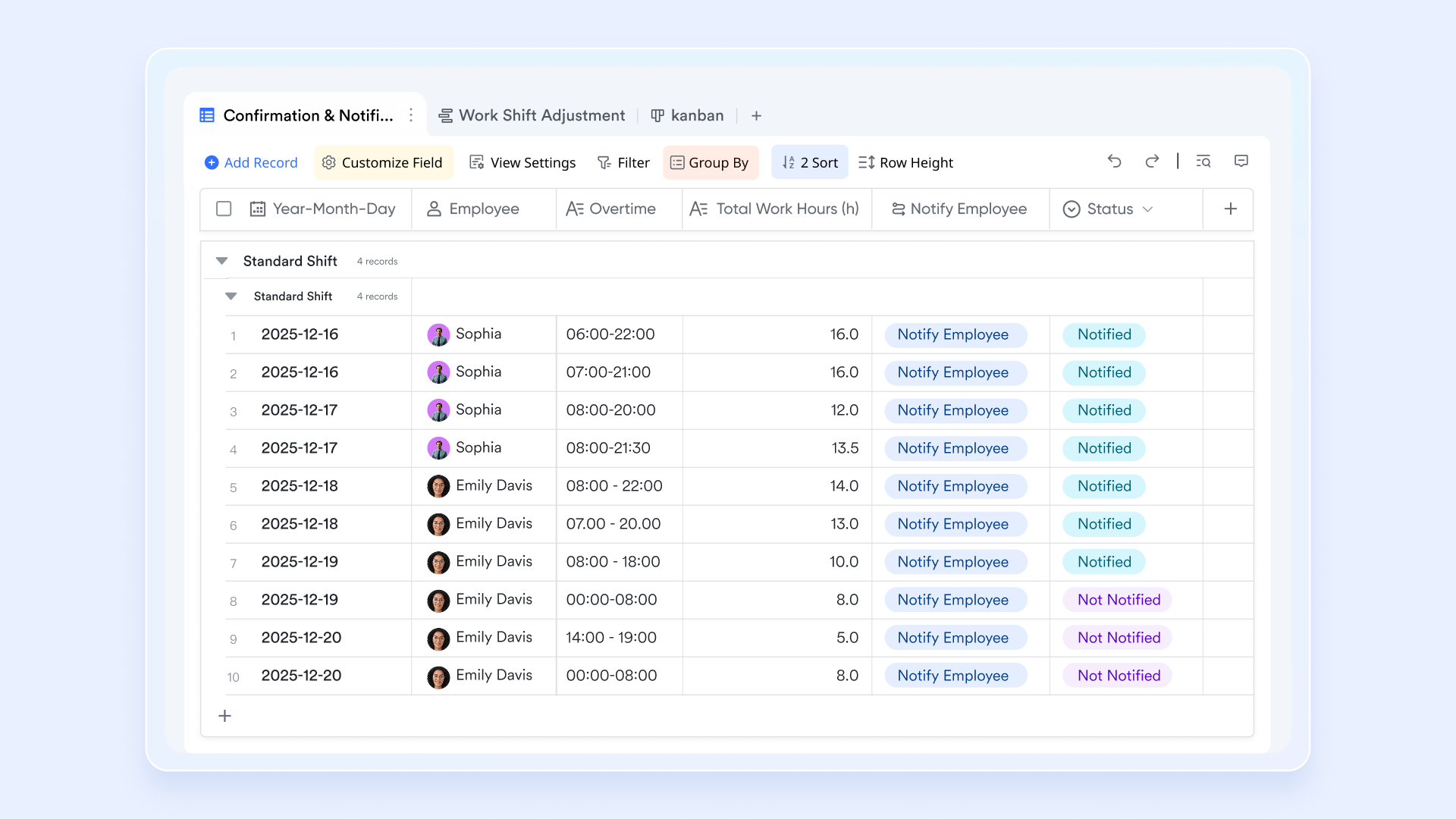
Automated workflows for events, updates, and alerts
In Excel, automation usually relies on macros, scripts, , or external RPA tools that require ongoing setup and maintenance. Lark Base includes built-in workflow automation, allowing actions to trigger automatically when data changes. Events, status updates, and notifications are routed through structured flows and Messenger in real time. These workflows run without manual scripting and adapt as processes evolve. As teams grow, work continues to move forward with clear ownership and reduced dependence on power users. 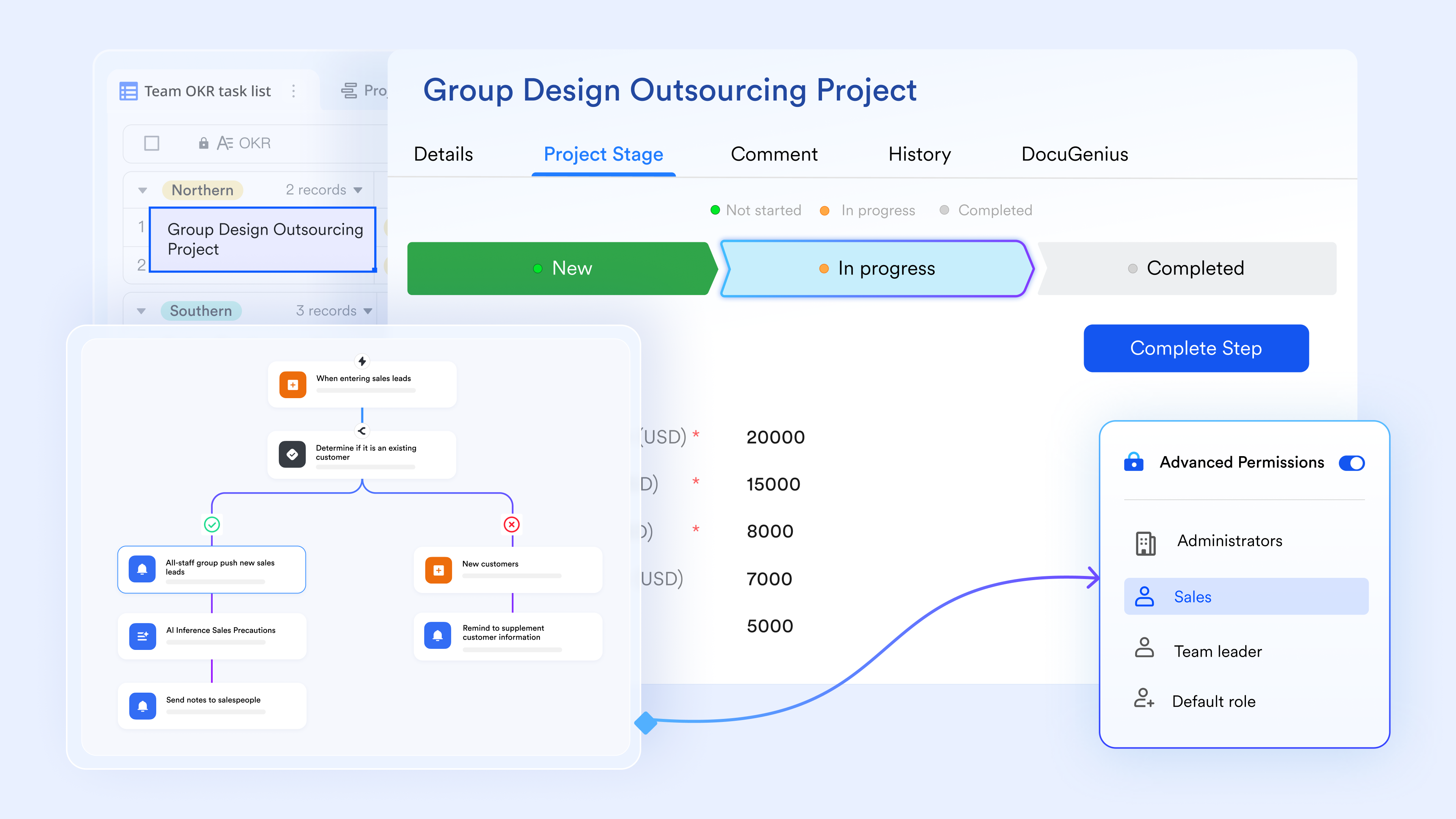
Real-time dashboards for actionable data insights
Excel reports are often snapshots that must be refreshed, re-exported, or re-shared. Lark Base dashboards pull directly from live data, updating instantly as records change. Teams can visualize progress, workloads, deadlines, and using charts, metrics, and timelines without rebuilding reports each week. This makes decision-making faster and more accurate, as leaders always see the current state of work rather than yesterday's numbers in a downloaded spreadsheet. 
Documents, chats, and tasks connected to live data
Excel operates in isolation, discussion happens in email or chat, and tasks live somewhere else. In , , and Lark Tasks work directly with Base data. Teams can embed live tables in Docs, discuss specific records in chat threads, and turn rows into assigned tasks with deadlines and owners. This keeps context intact and ensures data, conversations, and execution stay connected. Compared to Excel, Lark transforms spreadsheets from passive files into active systems that drive collaboration and outcomes. 
Why it's great: It's built around the idea of reducing the "toggle tax" by embedding automation directly into your communication tools.
Ideal for: Small to large enterprise teams searching for a comprehensive solution for workflow and office workspace
:
- Starter plan: Free forever plan that includes 11 powerful tools for up to 20 users. It also comes with 100GB of storage, 1000 automation runs, AI translations, and more.
- Basic plan: $6/user/month (billed annually) for up to 500 users. It includes everything in Starter plus group calling for up to 500 attendees, 5TB of storage, 1000 automation runs, and more. For more details, please .
- Pro plan: $12/user/month (billed annually) for up to 500 users. It includes everything in Basic plus group calling for up to 500 attendees, 15TB of storage, 50,000 automation runs, and more.
- Enterprise plan: for custom pricing. Supports unlimited users and includes even more automation runs and advanced security, compliance, and management features.
For small teams with simple communication needs

18 months message history
1000 Base automation runs/month
2000 rows per table in Base
Most POPULAR
For companies with comprehensive collaboration and management needs
Unlimited message history
500-participant video meetings
50k Base automation runs/month
20k rows per table in Base
For large companies with advanced security and organizational management needs
Get a personalized demo and pricing
Unlimited message history
500-participant video meetings
15 TB storage + 30 GB storage/user
500k Base automation runs/month
50k Base automation runs/month
Most POPULAR
For companies with comprehensive collaboration and management needs
Unlimited message history
500-participant video meetings
50k Base automation runs/month
20k rows per table in Base
2. Microsoft Power Automate: Excel connector for enterprise workflows
Microsoft Power Automate extends Excel automation by connecting spreadsheets with the broader Microsoft ecosystem. It allows teams to build automated workflows that respond to changes in Excel files. As automation in Excel expands across departments, Power Automate helps reduce manual coordination. It is especially effective for organizations already standardized on Microsoft tools. Enterprise teams often use it to formalize recurring processes.
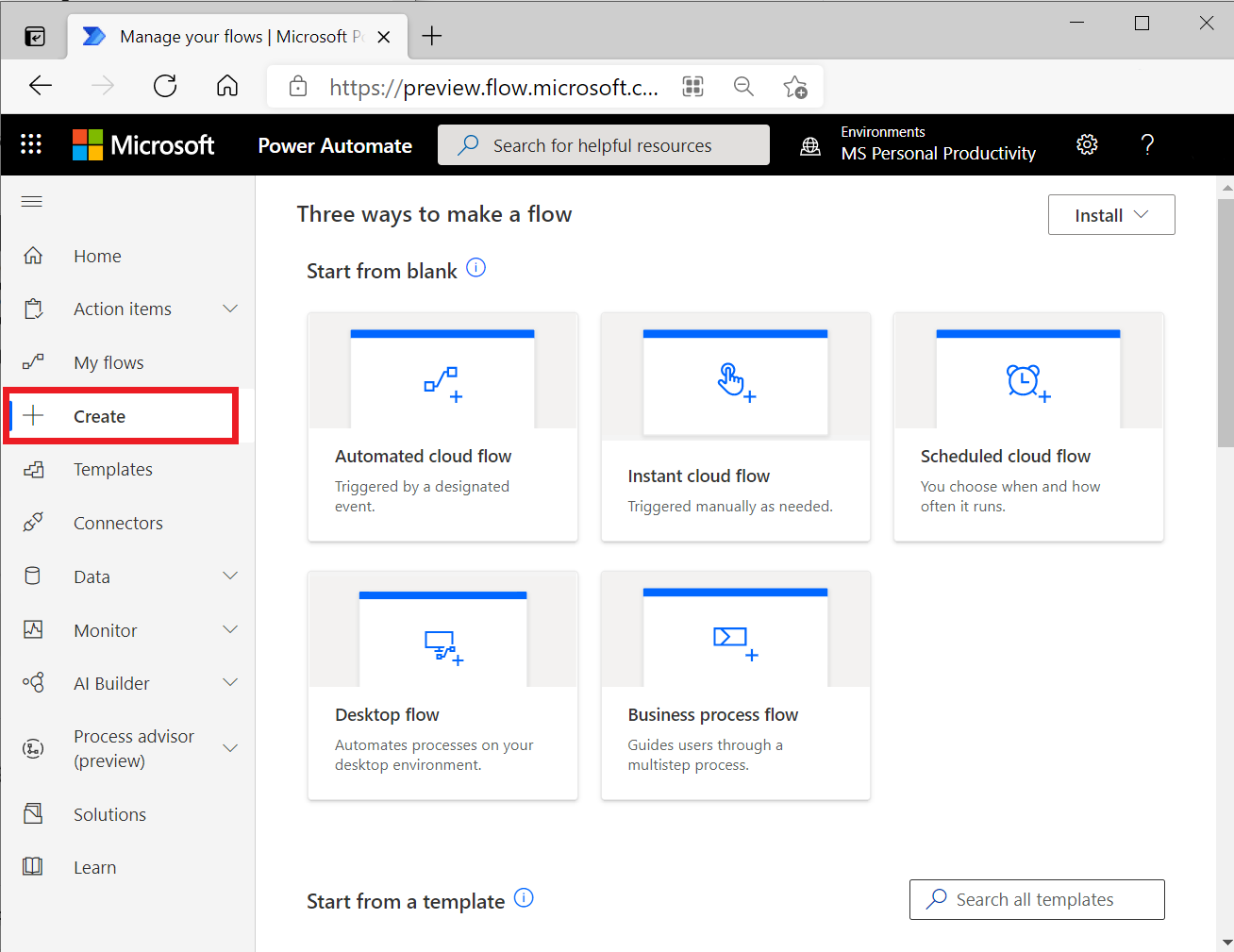
Image source: microsoft.com
What it does: Power Automate creates workflows that trigger actions when Excel rows are added, updated, or deleted. These workflows can move data, send notifications, or update connected systems automatically.
Key functions:
- Automates data transfers between Excel and Outlook, SharePoint, Teams, databases, and other services.
- Supports scheduled flows such as auto refreshes or report distribution.
- Enables conditional logic without writing code.
Why it's great: Its deep integration with Excel Online and desktop Excel makes it reliable in hybrid Office environments. Security and governance align well with enterprise standards.
Ideal for: Automating multi-step business processes, report distribution, and cross-tool workflows inside Microsoft-based organizations.
Pricing:
- Power Automate Premium: $15.00 per user/month
- Power Automate Process: $150.00 per bot/month
- Power Automate Hosted Process: $215.00 per bot/month
- Process Mining Add-on: $5,000.00 per tenant/month
3. Zapier: Cross-platform automation for Excel workflows
Zapier focuses on connecting Excel with thousands of external cloud applications. It helps teams automate actions across systems without writing scripts. For organizations using multiple SaaS tools, Zapier expands Excel workflow automation beyond internal files. It is popular among non-technical teams. Automation setup remains fast and accessible.
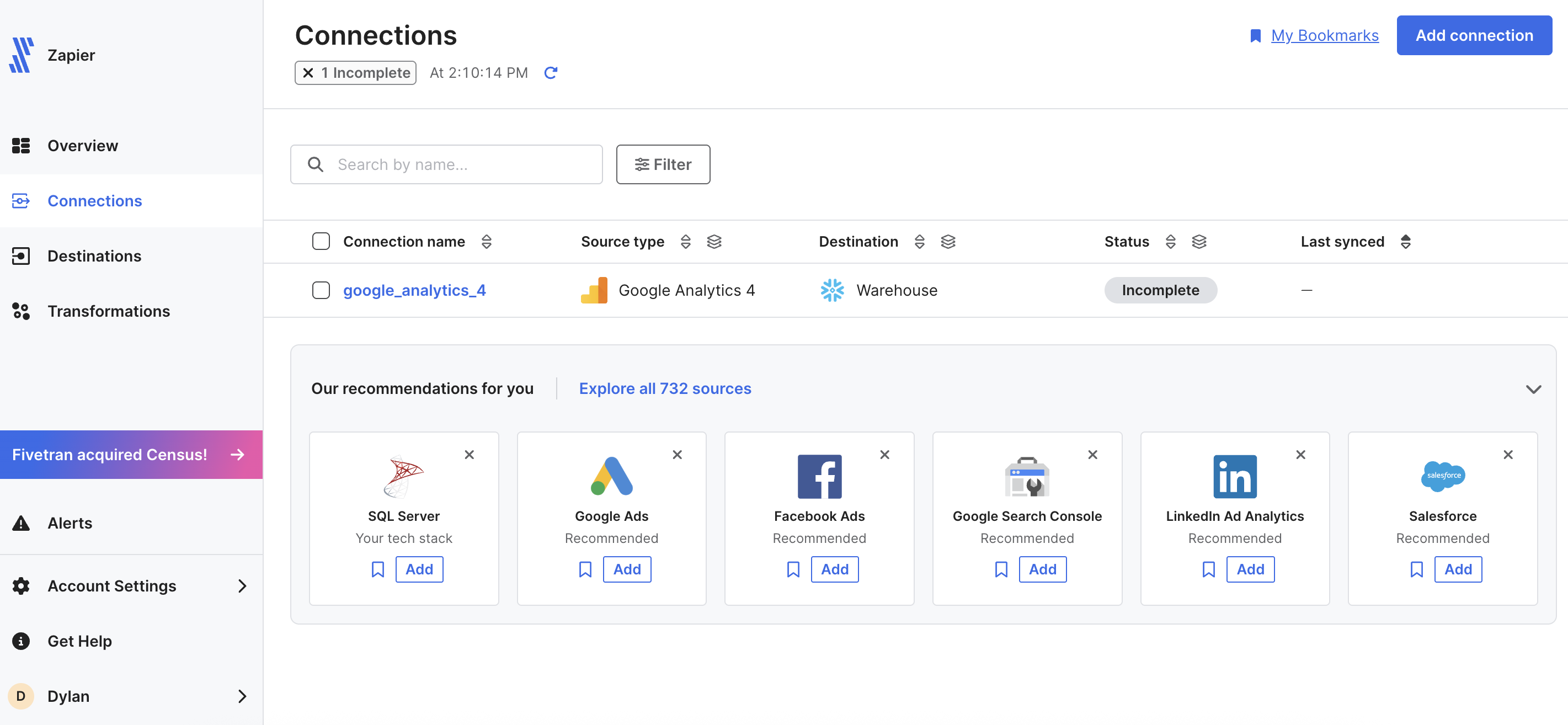
Image source: zapier.com
What it does: Zapier links Excel, especially Excel Online, with external apps using trigger and action logic. A new row in a spreadsheet can automatically create records or send messages.
Key functions:
- Connects Excel to tools like Mailchimp, Salesforce, Google Sheets, and .
- Provides a simple automation builder with conditional logic.
- Supports multi-step workflows through chained actions.
Why it's great: Zapier enables cross-platform automation without code. It works well for teams that rely on many cloud services alongside Excel.
Ideal for: Marketing teams, sales operations, customer support, and cross-platform task automation.
Pricing:
- Professional: $19.99 per month
- Enterprise: Custom Pricing
4. UiPath: Robotic process automation for Excel tasks
UiPath applies robotic process automation to Excel-based tasks that involve repetitive interactions. It is designed for scenarios where automation in Excel cannot rely on APIs. UiPath is often used in regulated or legacy environments. It handles complex workflows that require desktop-level automation.
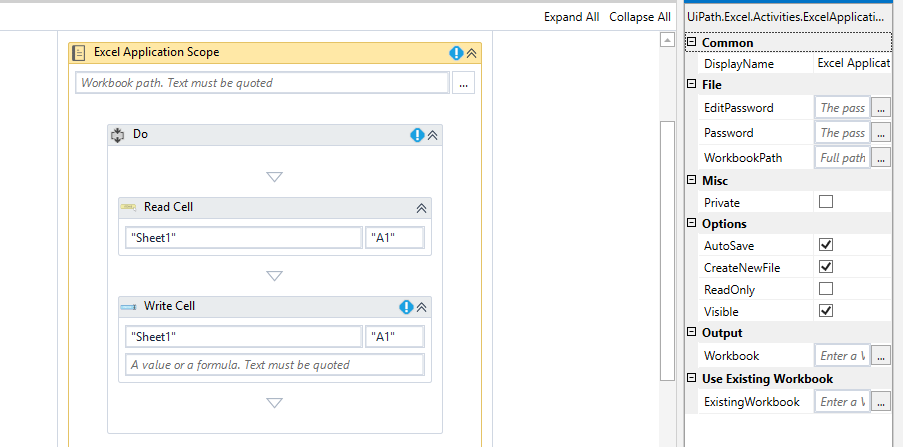
Image source: uipath.com
What it does: UiPath automates Excel tasks by simulating human actions such as opening files, reading cells, running macros, and exporting data.
Key functions:
- Automates Excel operations that are not API accessible.
- Integrates Excel workflows with desktop and web applications.
- Builds bots that follow scripted business logic.
Why it's great: RPA tools like UiPath handle processes traditional Excel automation tools cannot. They work well with legacy systems and complex interfaces.
Ideal for: Finance teams, accounting workflows, and operations with heavy manual Excel usage.
Pricing:
- Pro: Starting at $420 per month
- Enterprise: Custom Pricing
5. Alteryx Designer: Advanced data automation beyond Excel
Alteryx Designer focuses on advanced data workflows where Excel is one of many sources. It provides a visual interface for building repeatable data pipelines. This shifts Excel automation toward analytics and transformation. It is widely adopted in data-driven organizations. Automation emphasizes data quality and scale.
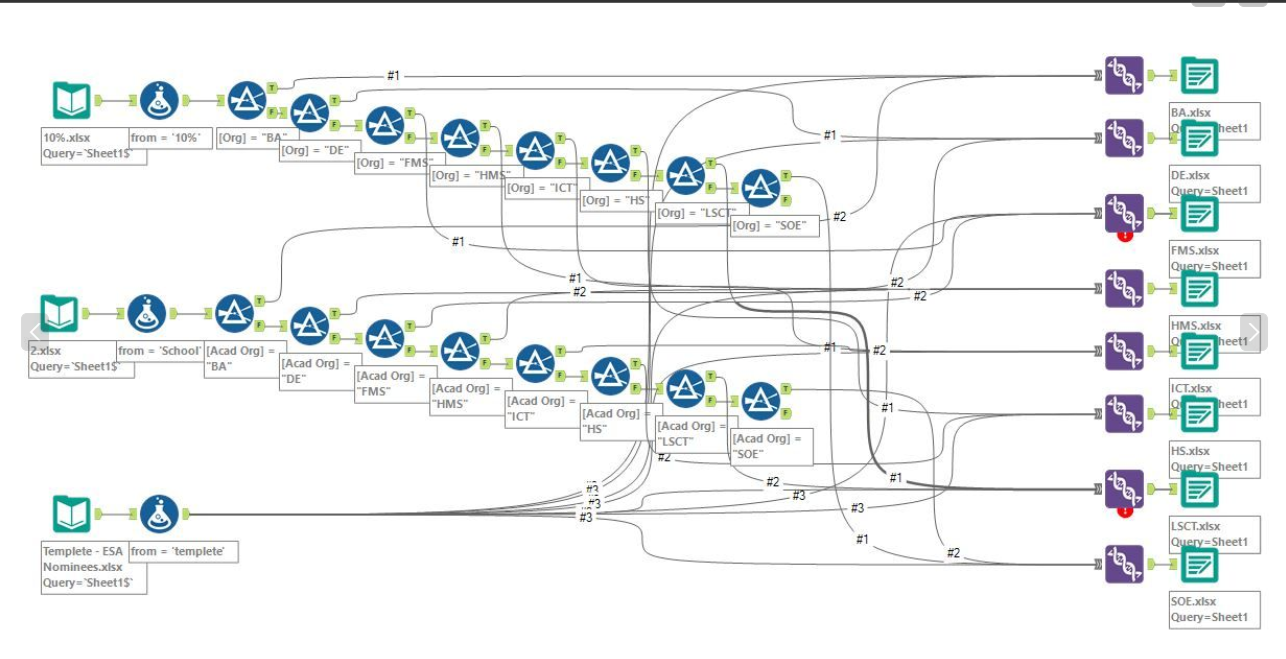
Image source: alteryx.com
What it does: Alteryx allows users to pull, clean, analyze, and output Excel data alongside databases and cloud sources using visual workflows.
Key functions:
- Supports ETL processing for large datasets.
- Includes analytics, predictive modeling, and visualization tools.
- Enables automation scheduling through Alteryx Server.
Why it's great: It Excels at complex data preparation where Excel alone is insufficient. Teams gain consistency and repeatability in analytics workflows.
Ideal for: Data analysts, business intelligence teams, and complex data transformation automation.
Pricing:
- Starter Edition: $250.00 per user/month
- Professional Edition: Contact Sales
- Enterprise Edition: Contact Sales
6. XLTools Automate: Excel-native automation add-in
XLTools Automate enhances automation capabilities directly inside Excel. It is designed for users who want to stay within the spreadsheet interface. The tool simplifies task scheduling and macro management. This keeps automation in Excel familiar and accessible. It works best for smaller-scale automation needs.
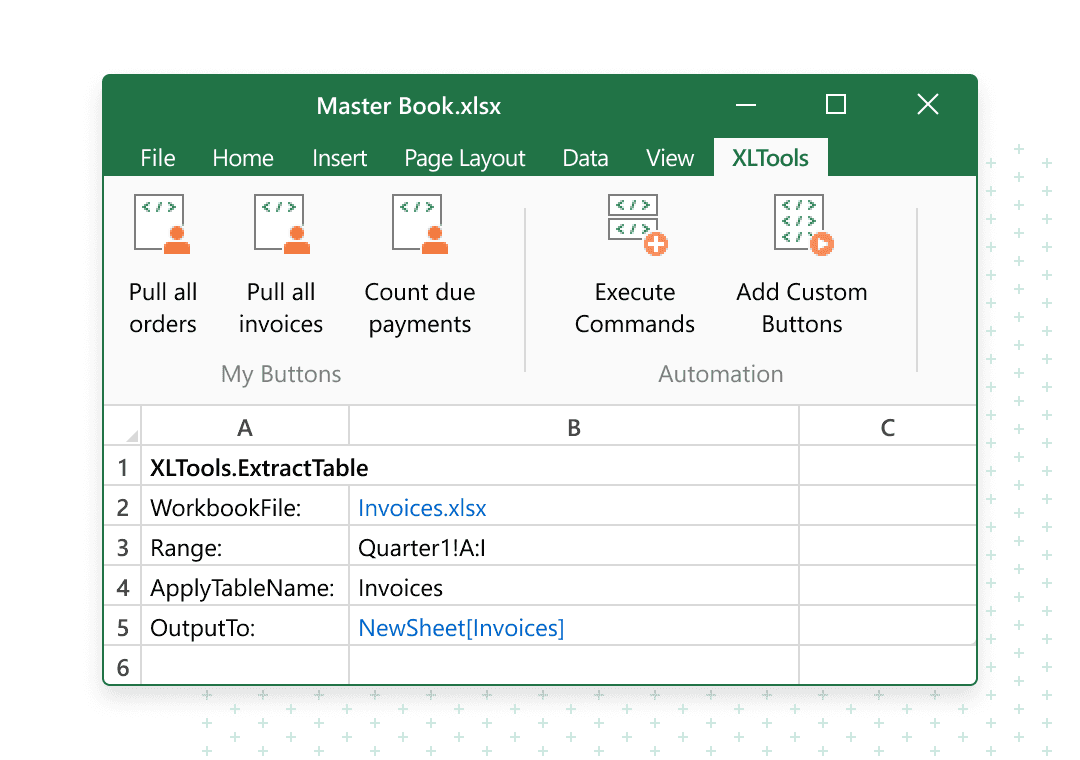
Image source: xltools.net
What it does: XLTools provides an Excel add-in that records actions, schedules tasks, and manages automation without external platforms.
Key functions:
- Records and replays repetitive Excel actions.
- Schedules tasks to run at specific times.
- Supports basic version control and collaboration features.
Why it's great: It keeps automation fully inside Excel. Users avoid switching tools while improving efficiency.
Ideal for: Individuals and small teams that prefer Excel-centric automation.
Pricing:
- Automation Toolkit License: $399.95 per user
Why Excel automation struggles as teams grow
As Excel automation expands from individual use to shared team workflows, spreadsheets begin to absorb responsibilities they were never designed to handle. Automation in Excel starts intersecting with approvals, coordination, and accountability. This shift exposes structural limitations that become more visible as team size and workflow complexity increase.
- Version conflicts and file ownership issues: Version conflicts and file ownership issues appear as soon as multiple people work on the same spreadsheet. Copies are shared across email, drives, and chat, creating confusion about which file is current. Ownership of automation logic becomes unclear when formulas and macros live in different versions. Errors increase as updates are applied inconsistently. Over time, trust in Excel workflow automation starts to decline.
- Manual handoffs between spreadsheets, emails, and chat: Manual handoffs between spreadsheets, emails, and chat slow down processes as information moves across disconnected tools. Data updates happen in Excel, while discussions and approvals take place elsewhere. This separation weakens accountability and increases follow-up effort. Important context is often lost during transitions. Execution becomes harder to track as automation in Excel extends beyond the file.
- Lack of real-time visibility and accountability: Lack of real-time visibility and accountability limits how teams manage shared workflows inside spreadsheets. Excel shows values and calculations, but does not clearly represent ownership or status. Updates rely on manual refreshes or check-ins rather than live tracking. Managers lack immediate insight into progress. As a result, Excel workflow automation struggles to support coordinated execution.
- Automation logic hidden inside individual files: Automation logic hidden inside individual files makes workflows difficult to understand, audit, and scale. Rules live inside formulas, macros, or scripts that are invisible to most collaborators. New team members struggle to interpret how automation in Excel works. Maintenance becomes risky as dependencies grow. Scaling these workflows introduces operational uncertainty.
Choosing the right approach for your automation needs
Choosing the right automation approach depends on how Excel is used within your team and how critical the workflows have become. Excel automation works best when responsibilities are clearly defined, and collaboration is limited. As workflows expand across teams, hybrid and platform-based approaches often provide better stability. Understanding these scenarios helps teams scale automation without unnecessary disruption.
- When Excel automation is still the best choice: When Excel automation is still the best choice, it usually supports individual analysis, modeling, and recurring calculations. Power users benefit from formulas, macros, and automation in Excel that improve speed and accuracy. Reporting tasks remain flexible and easy to adjust. Ownership stays clear because files are controlled by a small group. This approach works well when collaboration needs are limited.
- When hybrid approaches make sense: When hybrid approaches make sense, teams keep Excel for calculations while connecting it to for execution. Excel automation tools handle data logic, while approvals, notifications, and tracking happen elsewhere. This balances flexibility with structure. Teams reduce manual handoffs without abandoning familiar spreadsheets. Excel workflow automation becomes more resilient as processes grow.
- When teams should move beyond spreadsheets entirely: When teams should move beyond spreadsheets entirely, workflows usually involve approvals, , and strict accountability. Automation in Excel becomes difficult to audit and scale. Systems designed for execution provide clearer ownership and real-time visibility. At this stage, platforms like Lark support structured workflows while still accommodating spreadsheet-style data.
Conclusion
Excel automation continues to be a powerful foundation for modern work. From formulas to Excel automation with rpa and for Excel automation, spreadsheets support countless business processes. However, as responsibilities expand, spreadsheets begin to show structural limits around collaboration, approvals, and visibility.
Many teams gradually introduce connected platforms that work alongside Excel rather than replacing it outright. Tools like allow spreadsheet-style data to live within structured workflows, reducing risk while preserving familiarity. The most effective automation strategies recognize Excel's strengths while supporting growth with systems designed for execution and collaboration.
Build automation that grows with teams using Lark
FAQs
How to learn automation in Excel?
Start with Power Query (found in the Data tab) to automate data cleaning without writing code. Next, use the Macro Recorder to see how Excel scripts your actions, then progress to Office Scripts or Python in Excel for modern, cloud-compatible automation. Structured online courses or YouTube tutorials focused on "Microsoft 365 Automation" are the most effective way to build these skills.
What are the limitations of Excel automation?
Traditional VBA macros are restricted to the Windows desktop version and won't run on Excel for Web or mobile. Additionally, Excel struggles with scalability and security; it isn't designed to handle massive datasets or multi-user real-time processing as reliably as a dedicated database. Complex automations can also become "brittle," breaking easily if the spreadsheet's structure or file path is changed.
What automation can be done in Excel?
You can automate repetitive data entry, complex financial modeling, and the generation of weekly reports with a single click. Beyond the spreadsheet, you can use Power Automate to connect Excel with other apps, automatically emailing PDFs or updating CRM records when specific cells change. It also enables sophisticated data merging from multiple external sources, such as SQL databases or web APIs.
Can Excel automation handle compliance-heavy approval workflows?
can support basic approval steps using formulas, macros, or connectors, but it struggles as compliance requirements increase—tracking who approved what and when often relies on manual updates or external communication. Audit trails become difficult to maintain inside shared files. As workflows grow more regulated, teams often pair Excel with workflow platforms to add structure. Tools like Lark help manage approvals while allowing spreadsheet data to remain accessible.
Can AI fully replace VBA in complex Excel workflows?
AI tools for Excel automation can generate formulas, scripts, and recommendations quickly. However, complex VBA logic still requires human review and maintenance. must be validated to avoid errors in critical workflows. Most teams treat AI as an assistant rather than a replacement. Platforms such as Lark help externalize automation logic, so it is not locked inside individual Excel files.
Related reading