














Your Complete Guide to Excel Project Management

Fecilia Clarke
Solutions Marketing Specialist
Sep 18, 2026
Fecilia Clarke
Sep 18, 2026

15 min read


For many of us, project management begins in a spreadsheet. It’s the tool we turn to when an idea needs structure, a plan needs a timeline, and a budget needs a home. It's familiar, accessible, and often feels like the quickest way to get from chaos to control. Let's be clear: this is a great place to start. A well-built spreadsheet is a powerful asset, and mastering excel project management is a skill that will always serve you well.
We'll walk you through building first-class project management tools right within Excel, turning blank sheets into a robust control center. This guide provides practical steps and the free project management templates you need to start immediately. Then, we’ll explore the critical turning point—the moment your ambition outgrows your spreadsheets, and it's time to consider more specialized project management software for truly effective project management.
How to build your own powerful project management toolkit in excel
A truly effective Excel project management system isn’t just one file; it's a small, interconnected ecosystem of sheets that talk to each other. This setup provides clarity, consistency, and a central place for your most important project data. Below, we'll build the four essential components of this toolkit, complete with step-by-step guidance to get you started immediately.
Step 1: Create a dynamic project plan with a gantt chart
The gantt chart is the heart of any serious project plan. It provides a visual, top-down view of your entire project timeline, showing tasks, their durations, dependencies, and key milestones. It transforms a simple task list into a strategic map, allowing you to see how every piece of the puzzle fits together. Without it, you’re flying blind, unable to anticipate bottlenecks or understand the true impact of a single delay. It’s the single most effective tool for communicating the project schedule to stakeholders.
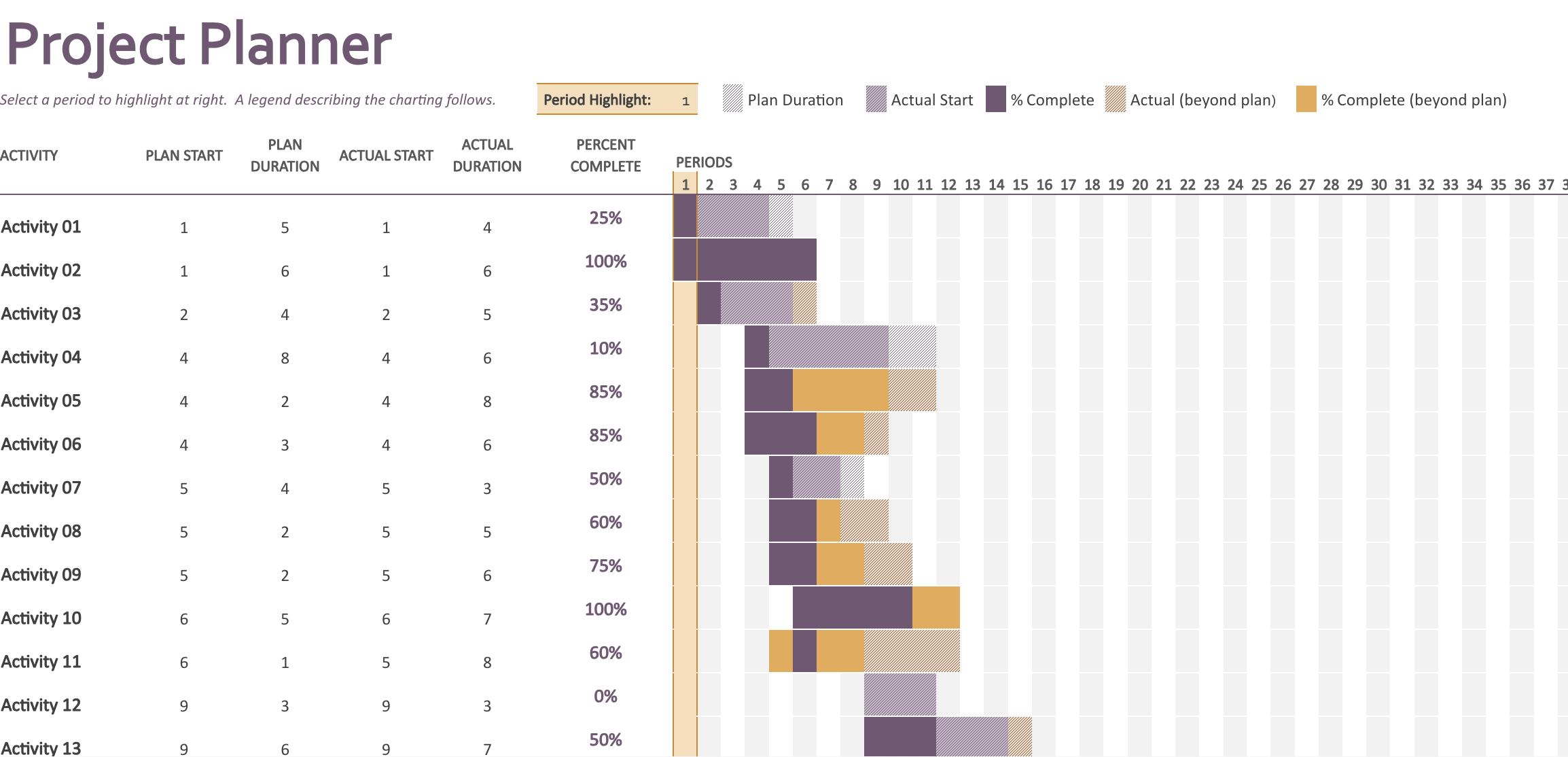
Image source: microsoft.com
Step 2: Track every task with a powerful project tracker
While a gantt chart shows the big picture, a project tracker manages the day-to-day details. This is your team’s single source of truth for what needs to be done, who is doing it, and when it’s due. A well-structured task tracker prevents things from falling through the cracks, clarifies responsibilities, and makes status update meetings infinitely more efficient. The key is consistency; every task should be captured in the same format to allow for easy sorting, filtering, and reporting.
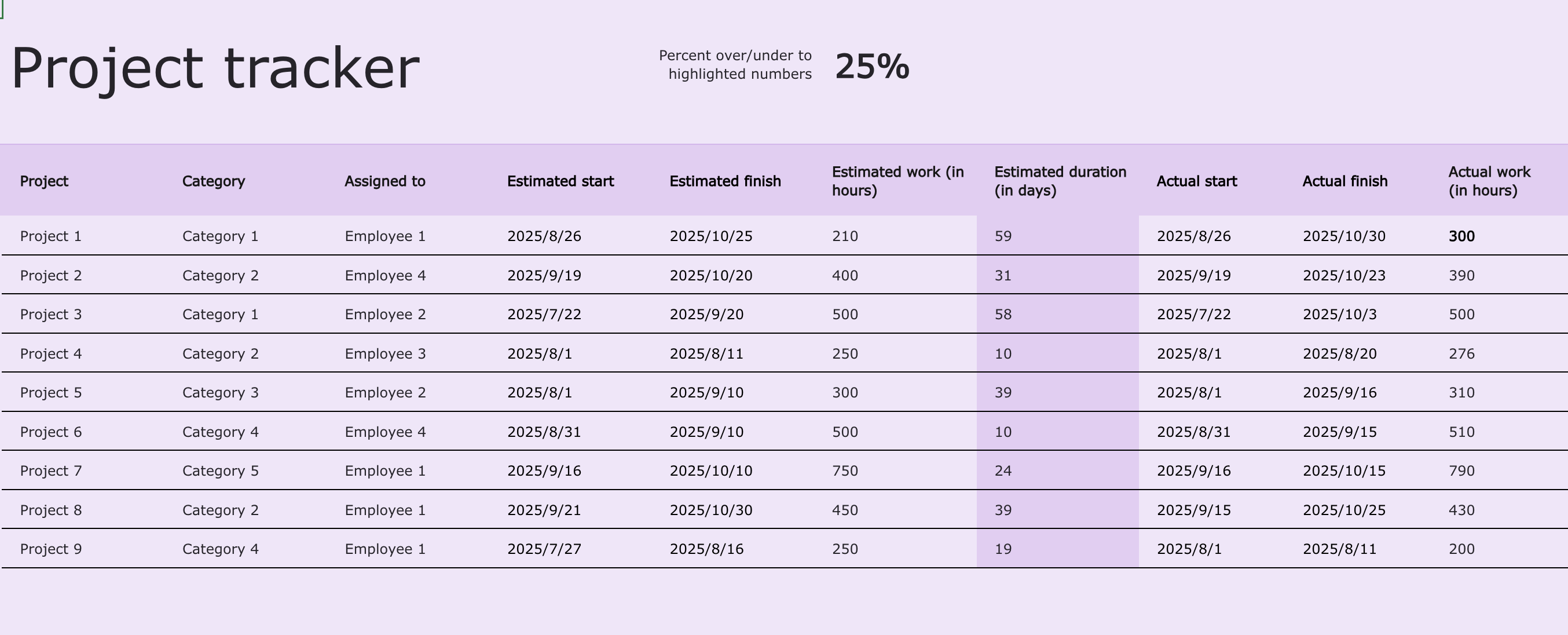
Image source: microsoft.com
Step 3: Keep your project finances in check with a budget template
A project can be on time and deliver on every goal, but if it goes significantly over budget, it can still be considered a failure. Careful financial project tracking isn’t just for the finance department; it’s a core discipline for every project manager. A good project budget template allows you to compare projected costs against actual costs in real-time. This early warning system helps you identify potential overruns long before they become a problem, enabling you to make informed decisions about resource allocation and scope adjustments. It's critical for tracking all project expenses.
Step 4: Visualize your project's health with a real-time dashboard
Your toolkit is almost complete. You have sheets for your timeline, tasks, and budget. The final, and most powerful, step is to bring them all together into a single project dashboard. This is your command center—a one-page overview that provides an at-a-glance summary of project health for you and your stakeholders. Instead of having to click through multiple tabs, you can see your budget status, task progress, and upcoming milestones all in one place. This is what separates amateur spreadsheets from professional-grade project management in Excel.
The hidden challenges that slow down your excel project management
You’ve built an impressive system with Excel. Your Gantt chart is color-coded, your formulas are working, and your dashboard is updating. For a while, this system for managing projects works beautifully. As the project grows, you start to notice small cracks appearing. These aren't failures of your design; they are inherent limitations of using a project tool designed for crunching numbers, not for coordinating people. These hidden challenges start as minor annoyances but can quickly grow into major roadblocks that put your entire project at risk.
Challenge 1: The chaos of version control
The most common and frustrating issue is the nightmare of version control. It begins with an email: "Here’s my feedback on the project plan." Soon, your inbox is filled with attachments like Project_Plan_v2.xlsx and the dreaded Project_Plan_v4_final_Johns-edits.xlsx. Which one is the real source of truth? Team members start working from outdated information, leading to wasted effort and misaligned priorities. You spend more time being a file detective than a project manager, and no one is on the same page. This problem is compounded when other documents, like briefs in Microsoft Word, also have their own versioning issues.
Challenge 2: The loneliness of siloed data
Next is the loneliness of siloed data. Your meticulously crafted Excel project file is an island. The project's critical conversations are happening in email threads and chat channels. The related documents are stored in a separate cloud drive. To get a complete picture, you and your team are constantly switching between four or five different applications. This context switching is a major drain on focus and productivity. It makes it nearly impossible for everyone to align teams and have a holistic view of the project, hindering effective project management and collaboration.
Challenge 3: The silent danger of manual updates
Finally, there is the silent danger of manual updates. Every status change, every new task, and every logged expense requires repetitive data entry. This isn't just tedious; it's a huge source of potential error. A single typo in a date formula can throw off your entire project timeline. A forgotten update means your dashboard is showing a false picture of project progress. The time your team spends on this administrative busywork is time they aren't spending on creative problem-solving and delivering actual value. It makes it incredibly difficult to accurately track progress.

Have you hit the excel ceiling? 5 signs it's time for a change
The system you built is a testament to your resourcefulness. It’s carried you far. But every tool has its limits. Pushing past those limits doesn't make you more productive; it just creates more work. Recognizing when you’ve hit the "Excel ceiling" is a critical step in maturing your project management process. It's not about abandoning a tool you know and love, but about recognizing that your project's complexity now demands a more specialized solution. Here are five clear signs that you've outgrown your spreadsheets.
1. You spend more time updating the sheet than doing the work.
This is the most telling sign. Your project management tools should save you time, not consume it. If your weekly routine involves chasing down status updates, manually copy-pasting data between sheets, and reformatting charts for your status report, you’re paying a heavy "administrative tax." Your role has shifted from managing the project to managing the spreadsheet. This is a clear indicator that the tool is no longer serving you.
2. Your team has more than a few people who need to contribute.
Excel is fundamentally a single-player game. While co-authoring features have improved, they can be clunky and unreliable in complex files. The moment you have multiple people needing to update task statuses, log expenses, or adjust timelines simultaneously, you create a collaboration bottleneck. People resort to working on offline copies or waiting for their turn to edit, which slows down the entire project and makes real-time teamwork impossible.
3. You need an accurate, real-time view of project progress.
An Excel dashboard is only as current as its last manual update. It’s a snapshot in time, not a live view. In a fast-moving project, a report that is even a day old can be dangerously misleading. When stakeholders ask for the current status, you can't confidently point to the dashboard. Instead, you have to say, "Let me just check with the team and get back to you." If you can't trust your data to be live and accurate, you can't make agile, informed decisions.
4. Your project involves multiple teams or departments.
When your project extends beyond your core team to include marketing, legal, or product departments, the siloed nature of Excel becomes a critical weakness. Each department has its own way of working and its own preferred tools. Trying to force everyone into a single, shared spreadsheet is often impractical and leads to low adoption. The project data remains fragmented across different systems, and there is no single source of truth that everyone can rely on.
5. You are constantly emailing files back and forth for updates.
This symptom is directly related to the version control nightmare. If your primary method of sharing project information is through email attachments, you have definitively hit the Excel ceiling. This workflow is not only inefficient but also a major security risk. It creates endless confusion, ensures that team members are always working with slightly different information, and makes it impossible to maintain a clear and auditable record of changes and decisions.
The next evolution of excel project management: A unified hub
If those signs feel familiar, don't be discouraged. It’s a natural part of a project’s lifecycle. Recognizing these limitations is the first step toward finding a better way to work. The goal isn't just to find a "better Excel," but to fundamentally solve the problems of disconnected data, manual work, and siloed communication. The next evolution is moving from isolated spreadsheets to a unified, connected hub where your data, conversations, and workflows live together. This is where a platform like Lark comes in.
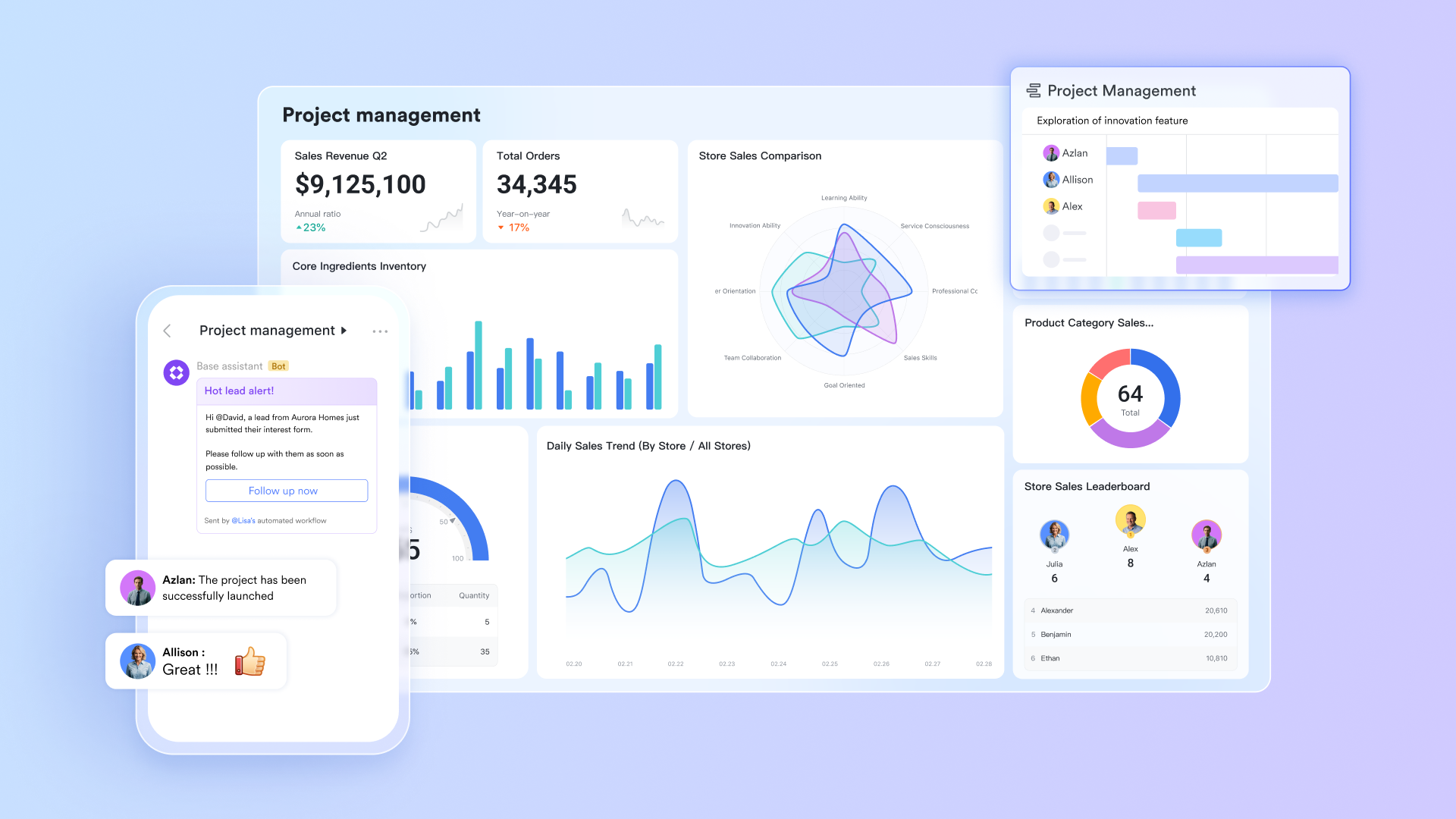
From static files to a dynamic database
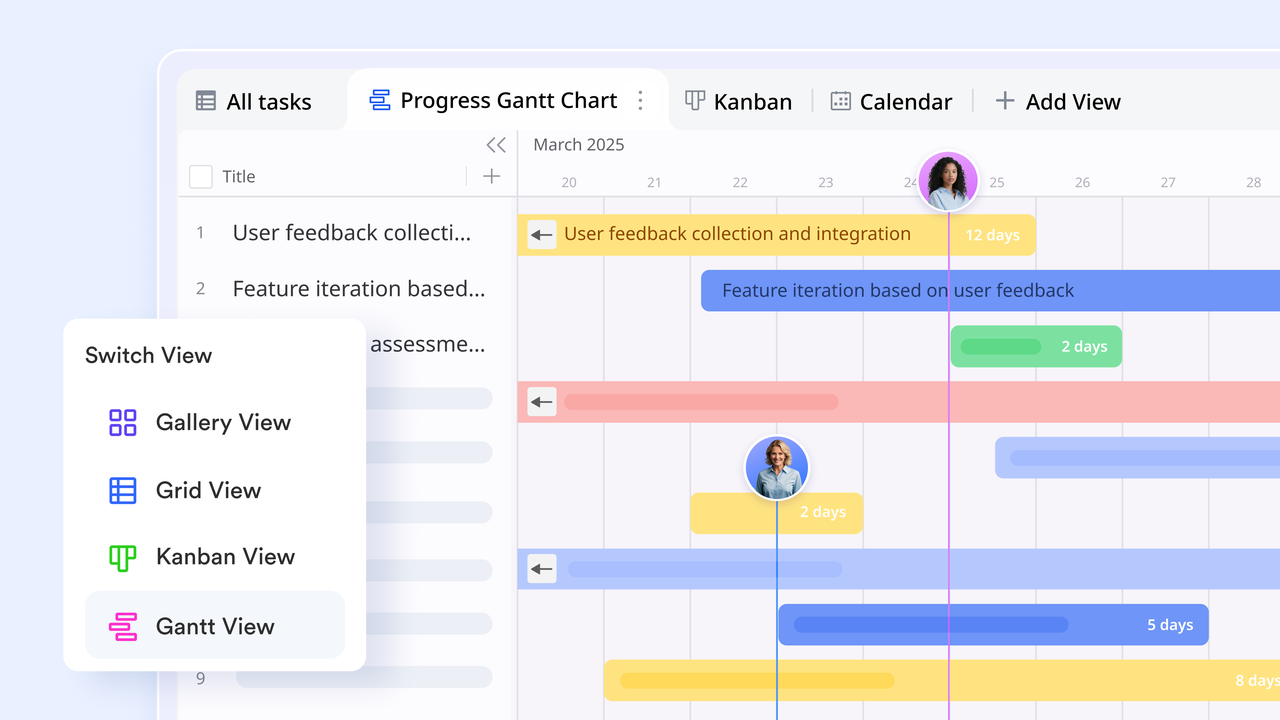
The core problem with Excel is that your timeline, tasks, and budget are all separate, static files. Lark Base transforms this model by bringing them all into a single, connected database. Think of it as a supercharged spreadsheet that acts as your project's single source of truth. But the real magic is in the Views. With a single click, you can instantly transform your task list from a familiar Grid View (like Excel) into a Kanban board for agile sprints, a Gantt chart for timeline planning, or a Calendar View for scheduling. It's the same data, just visualized in different, powerful ways to suit any task or role.
From manual updates to intelligent, no-code automation
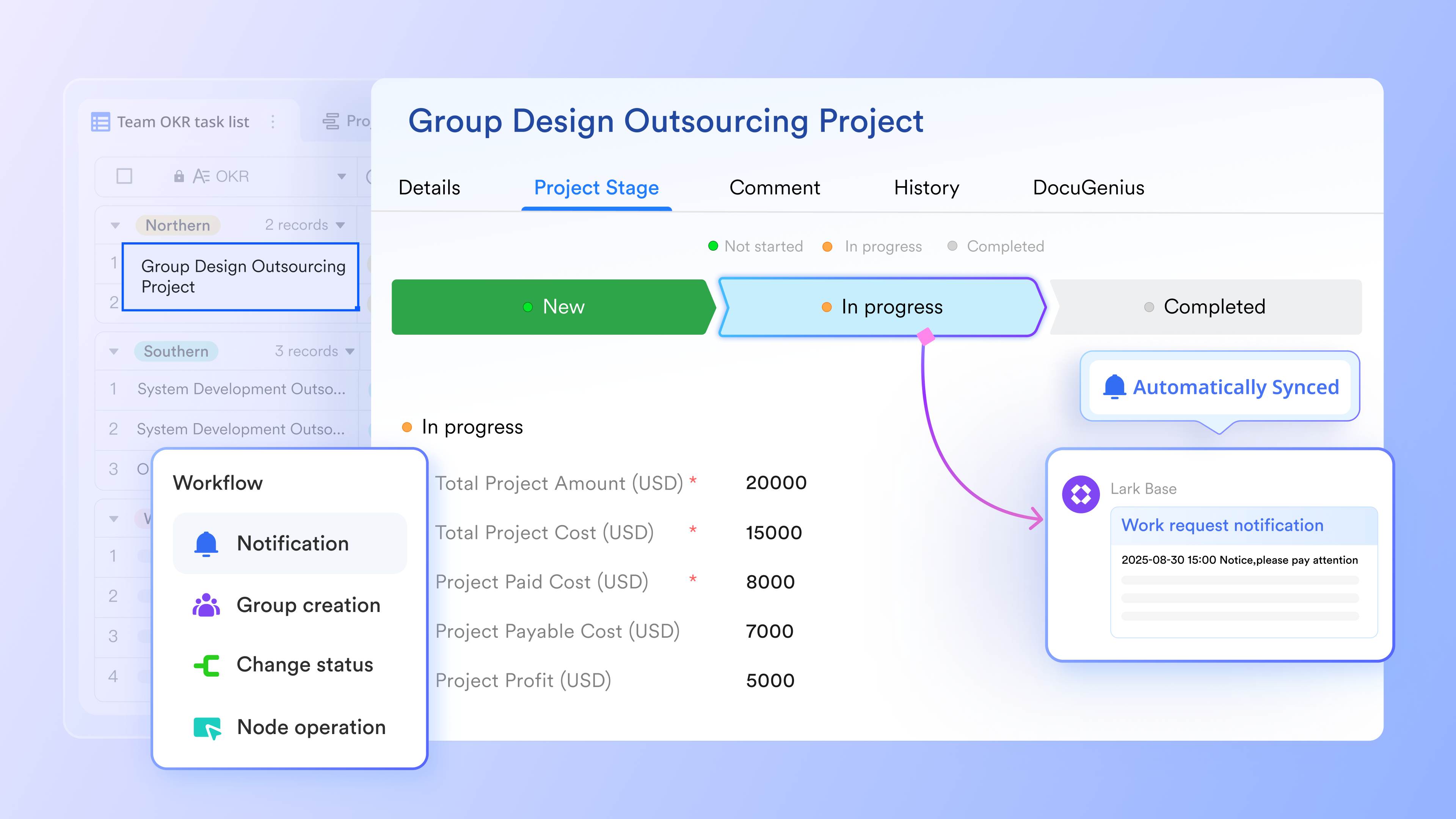
Imagine a world where you no longer have to manually send reminder emails or update a "Date Completed" field. Lark Base has simple yet powerful automation rules that anyone can set up without writing a single line of code. For example, you can create a rule that says: "When a task's Status field is changed to 'Completed', then automatically notify the project chat group in Lark Messenger." This eliminates manual drudgery, reduces human error, and allows your team to focus on their actual work.
From tedious meeting notes to AI-powered action items
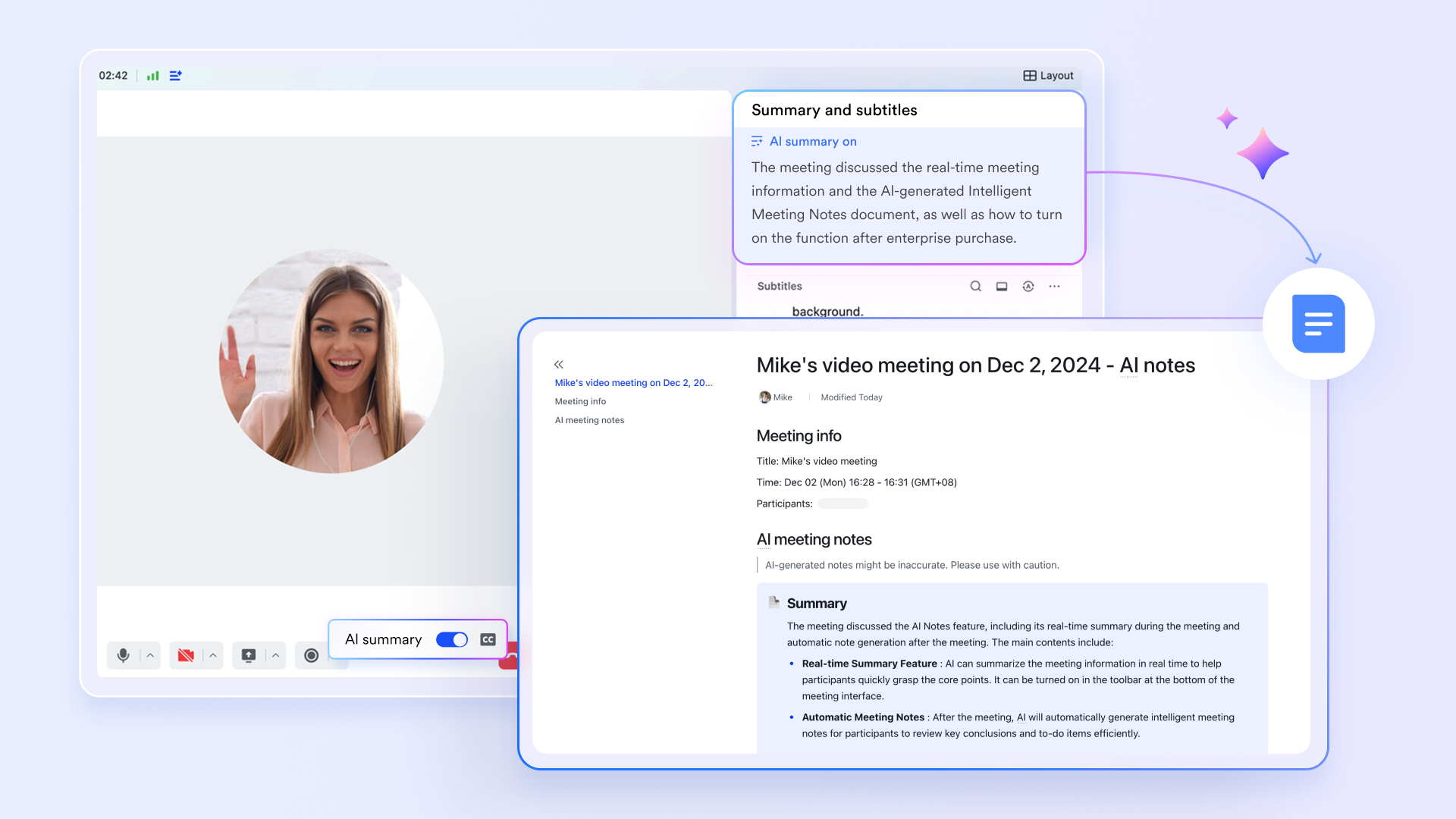
Project update meetings can be a huge time sink, especially when followed by the chore of typing up and distributing notes. Lark completely transforms this experience. During Lark Meetings, you can activate Lark Minutes, an AI assistant that automatically transcribes the entire conversation in real-time. Besides, you can use AI Meeting Notes to generate a clean summary and, most importantly, identify action items based on the conversation.
From siloed chats to contextual, actionable collaboration
How often have you been in a chat and had to say, "Let me find that task in the spreadsheet and get back to you"? Lark closes this gap between communication and data. Because Lark Base and Lark Messenger are part of the same platform, you can bring your work directly into the conversation. Simply type @ and mention a specific task from your project base. A rich, interactive card appears directly in the chat, showing the task's status, owner, and deadline. Your team can discuss, update, and resolve issues right there, without ever leaving the conversation.
Top project management templates for your need
To help you get started on your project management journey immediately, we’ve bundled a set of powerful, ready-to-use templates. These go beyond the basics we've discussed, providing robust tools for everything from a single project timeline to the complex task of managing multiple projects at once.
1. Multi-project tracker template
This template allows you to track and manage your different projects in an organized manner. It provides a task priority view for identifying critical tasks, and customizable fields for tailoring the template to your specific needs, making it easier to handle multiple projects from a single dashboard.
2. Project road map gantt chart template
This template allows you to display the project timeline, the tasks involved, and who is responsible for each task. It also provides a clear view of the project's progress, with tasks displayed against time.
3. Kanban board template
The Kanban board template with AI is a visual tool that allows you to organize and manage your work more effectively. The AI feature enhances the functionality of the traditional Kanban board by providing intelligent suggestions and automating repetitive tasks, thus saving time and improving efficiency.
4. Project information management template
This template is a powerful project management tool. It allows you to track and manage your all your project information, from project name, task owner, deadline, status, priority, to budget.
5. Task management template
This template is designed to help you keep track of all your tasks in one place. It includes fields for task name, owner, description, and creation date, allowing you to have a clear overview of all your tasks.
6. Project problem tracker template
This template helps you identify, track, and resolve project issues. Assign handlers, set deadlines, and secure approvals for every problem, ensuring accountability and timely resolution from start to finish.
7. Project plan template
This template includes sections for project background, project goals, team members, tasks, Gantt charts, and related documents. It is a powerful tool for effective project planning.
8. OKR management template
This template helps you effectively manage company Objectives and Key Results. Break down goals into key results and track their progress with dynamic Gantt and Kanban views. It is fully customizable, allowing you to adjust fields and settings to perfectly align with your team’s unique workflow and goals.
Conclusion
As we've seen, with the right techniques and excel project management templates, you can build a surprisingly powerful system for managing projects. It's the perfect way to bring structure to a new idea and get a small project off the ground. Mastering these skills will always give you a solid foundation for organizing work and is a great first step in project management.
But as your ambitions grow, so does the complexity of your projects. The very things that make Excel great for individual work—its simplicity and flexibility—create the bottlenecks that hold back collaborative teams. The time spent on manual updates, the confusion from version control, and the disconnect between data and conversation are real costs that limit your project's potential.
Recognizing this ceiling isn't a failure; it's a sign of success. It means your work is growing in scale and importance. When you're ready to break through that ceiling, you need specialized project management software built for the speed and connectivity of modern work. You need a unified hub like Lark : a project management software solution that connects your data, automates your workflows, and keeps your team in sync.
FAQs
Can Excel handle large or complex projects?
For small, simple projects, Excel can be effective. However, it struggles with large projects involving multiple team members. Its lack of real-time collaboration, version control, and automation creates bottlenecks and increases risks as project complexity grows. It's best suited for projects where one person is managing a straightforward plan.
Is a Gantt chart really necessary for project management?
While not essential for a simple to-do list, a Gantt chart is invaluable for any project with deadlines and dependent tasks. It provides the clearest visual map of your project's timeline, helping you manage dependencies and communicate the schedule to your team and stakeholders. It’s the best way to see the big picture.
What’s the main difference between using Excel and a dedicated tool like Lark?
The key difference is connection. Excel is a siloed spreadsheet, isolated from your conversations and other tools. Lark is a connected workspace where your project tracker (Lark Base) lives alongside your team chat, calendar, and documents. This eliminates manual updates and allows for real-time collaboration and automation that spreadsheets simply cannot offer.
Related reading
Table of contents
Start using Lark today

Manage all your work in one place
Boost team efficiency by 10x
Save up to 70% on software costs
Table of contents
Start using Lark today
Manage all your work in one place
Boost team efficiency by 10x
Save up to 70% on software costs
Keep reading








2026 Lark Technologies Pte. Ltd.
Headquartered in Singapore with offices worldwide.






Explore: