Locating a critical document should not feel like an archaeological dig. Yet, many teams spend hours drilling through nested folders, digging up dead draft versions, or chasing files across disjointed chat apps and local drives. When your file management application is disconnected from your daily communication, work slows down. Whether you need to tidy up local device clutter or establish an enterprise document management system software, this guide will help you move past storage silos and build a single, automated source of truth for your business.
Key takeaways: Best secure file sharing for business
1. : An all-in-one collaborative workspace for secure file sharing and workflow automation
2. Google Drive: A cloud-first file repository with intelligent search and rapid document sharing
3. Microsoft OneDrive: A desktop-integrated storage solution for Microsoft-centric environments
4. Dropbox: A fast, familiar synchronization service optimized for large creative assets
5. Box: An enterprise-grade data management platform built for highly regulated compliance
Why traditional folders are breaking your daily workflow
For decades, we relied on virtual filing cabinets. We created nested folders and dropped files inside. While orderly in theory, this rigid structure breaks under the weight of real-time hybrid collaboration.
Consider this common bottleneck: A marketing manager saves a new campaign presentation deep within the Marketing folder, buried under the 2026 Product Launch drafts. A designer needs the asset but cannot remember where it’s stored. Rather than searching, they ask the manager on a messaging app. The manager downloads the draft, sends it via chat, and the designer edits it locally.
Now, two conflicting versions exist: one hidden in the cloud and one on a local hard drive. Deep folder hierarchies bury work rather than organizing it. If a single folder is named inconsistently, the entire path becomes a dead end.
As a result, teams pay a heavy "Toggle Tax". Constantly switching between chat windows and cloud drives breaks focus. True organization is not about finding a passive storage spot; it is about active context management—keeping documents, chats, and tasks grouped together so you always understand why a file exists without hunting for the original conversation.
Ready to eliminate nested folder clutter?
File manager apps vs. document management system software: What is the difference?
Before selecting a tool, it is important to distinguish between local utility apps and enterprise-level systems. They serve different purposes, and confusing them often leads to operational bottlenecks.
To choose the right tool, consider these two primary paths:
Local file explorers and utility applications
Local file managers—like the default Files app on macOS or Windows Explorer—are primarily designed for organizing and cleaning up files on individual devices. They make it easy to sort documents by type, date, or folder structure, and are ideal for personal desktop maintenance. However, their functionality stops at the individual level; they don’t handle collaboration, version control, or enterprise-level compliance.
Document management system software (DMS)
Enterprise DMS platforms go far beyond local organization. They manage company-wide compliance, track and preserve version histories, and integrate files directly into business workflows. With features like granular permission controls, audit trails, and centralized storage, DMS solutions are built for teams that need structure, accountability, and seamless collaboration.
For growing teams, relying solely on a basic desktop file explorer or a static archive database isn’t enough. Modern work demands a hybrid approach: the simplicity and intuitive sharing of a modern file app, combined with the security, control, and workflow integration of an enterprise-grade .
Choosing the right solution ensures that files don’t get lost in messy folders, collaboration remains efficient, and your team can focus on the work that really matters.
Book an organizational file management application
The 10 best file management applications to keep your business organized
Selecting the right platform depends on your operational scale, your security requirements, and how your team communicates. Here is an analysis of the ten best file management applications and , ranging from comprehensive collaboration suites to dedicated local utilities.
1. Lark: for a collaborative and automated file management application

is an all-in-one that fundamentally reimagines file management, integrating it as an active, organic part of your daily workflow rather than a static storage solution. By unifying team messaging, cloud-native documents, project wikis, , and business automation into a single secure workspace, Lark empowers teams to create, share, and manage files contextually, directly within the flow of communication and project execution. This integrated approach aims to eliminate the inefficiencies of fragmented software stacks, providing a seamless and highly productive environment for modern work. It's best for growing SMEs and enterprises seeking to eliminate fragmented software stacks, secure corporate data, and automate manual approval workflows. Key features:
Built-in docs & drive: and Lark Drive offer a unified cloud hub for storing and managing all file types. You can create dynamic documents that go beyond text, embedding videos, maps, or live Lark Base dashboard charts. This centralizes your in a fast, searchable ecosystem, removing the need for external storage solutions. 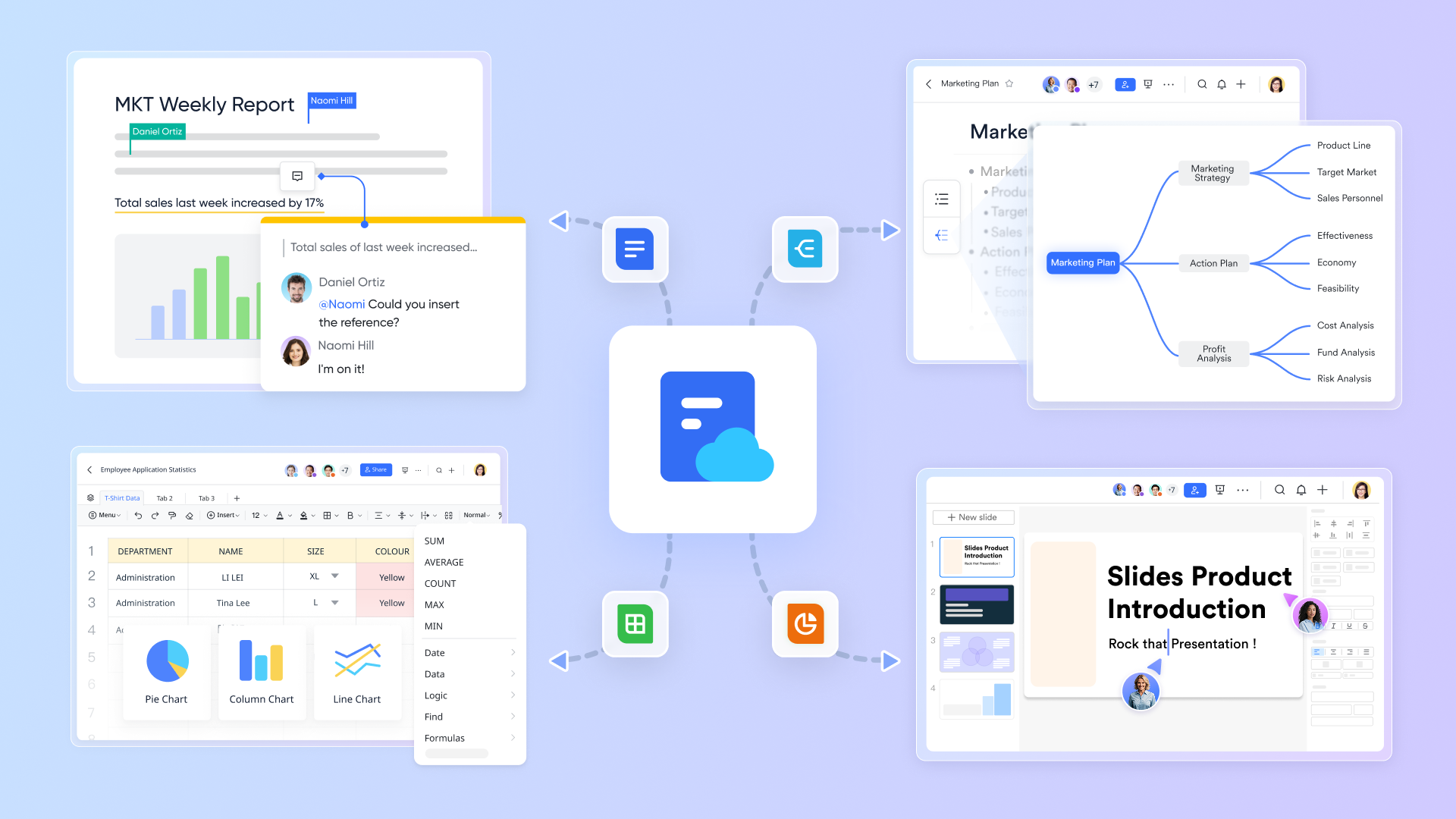
Data and collaboration in one place: Lark Sheets combines powerful spreadsheet functionality with seamless collaboration. Teams can manage inventories, track campaign performance, or monitor budgets without leaving their workspace. Real-time editing, cell-level comments, filters, and formulas make it easy to analyze and act on data together. 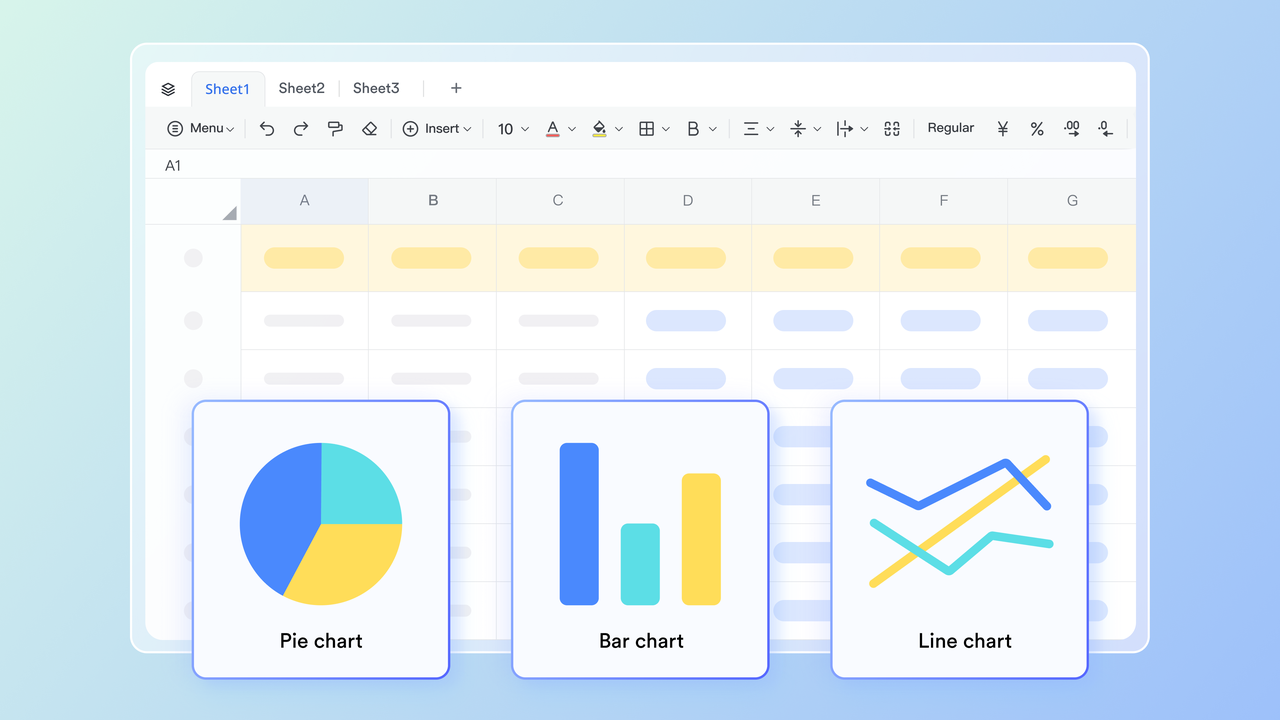
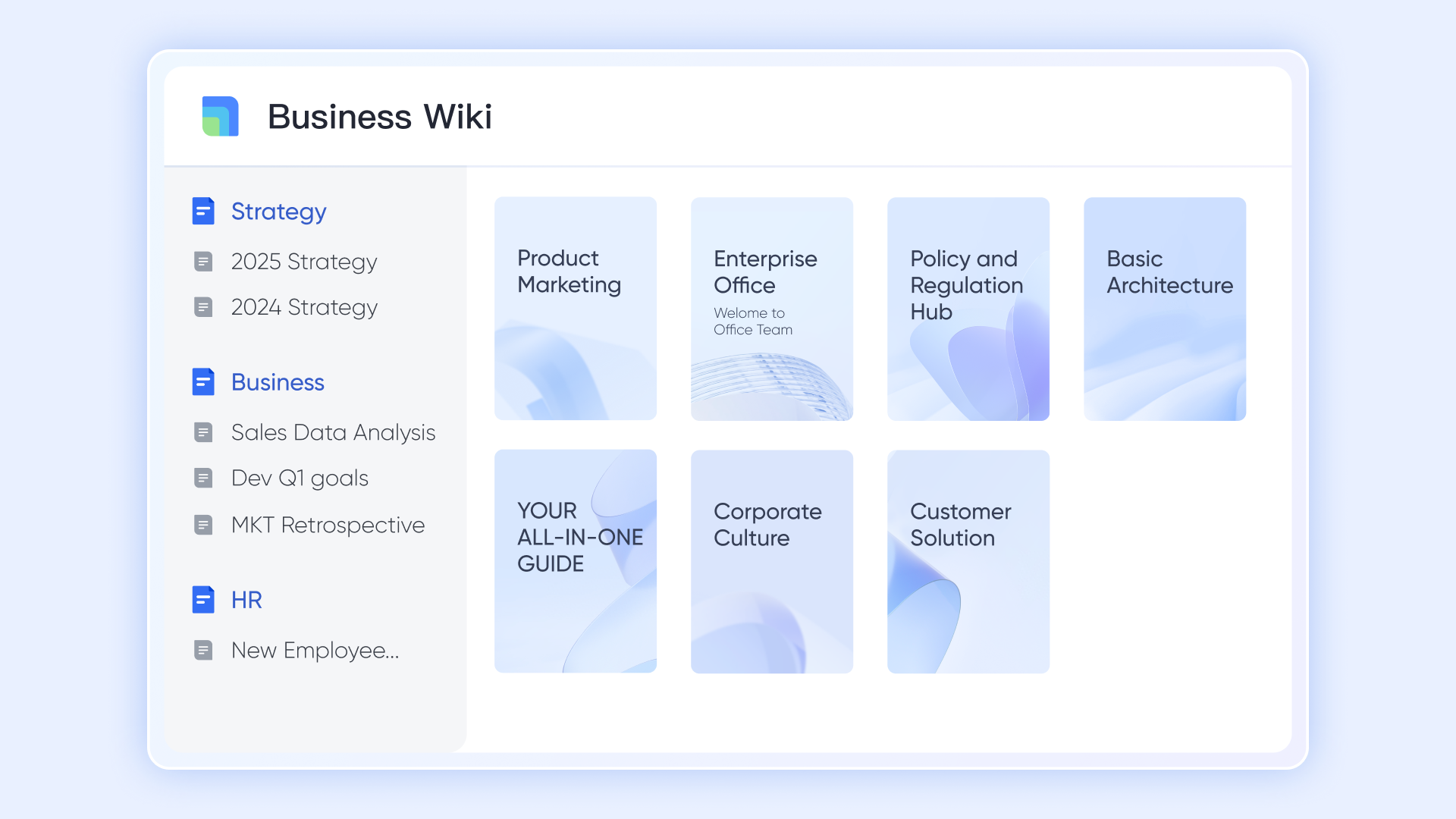
A centralized knowledge hub: helps teams organize and share knowledge in a structured, searchable space. Docs can be published into Wiki pages for , SOPs, playbooks, and company resources. With continuous updates and access across desktop and mobile, teams always have the latest information at their fingertips.
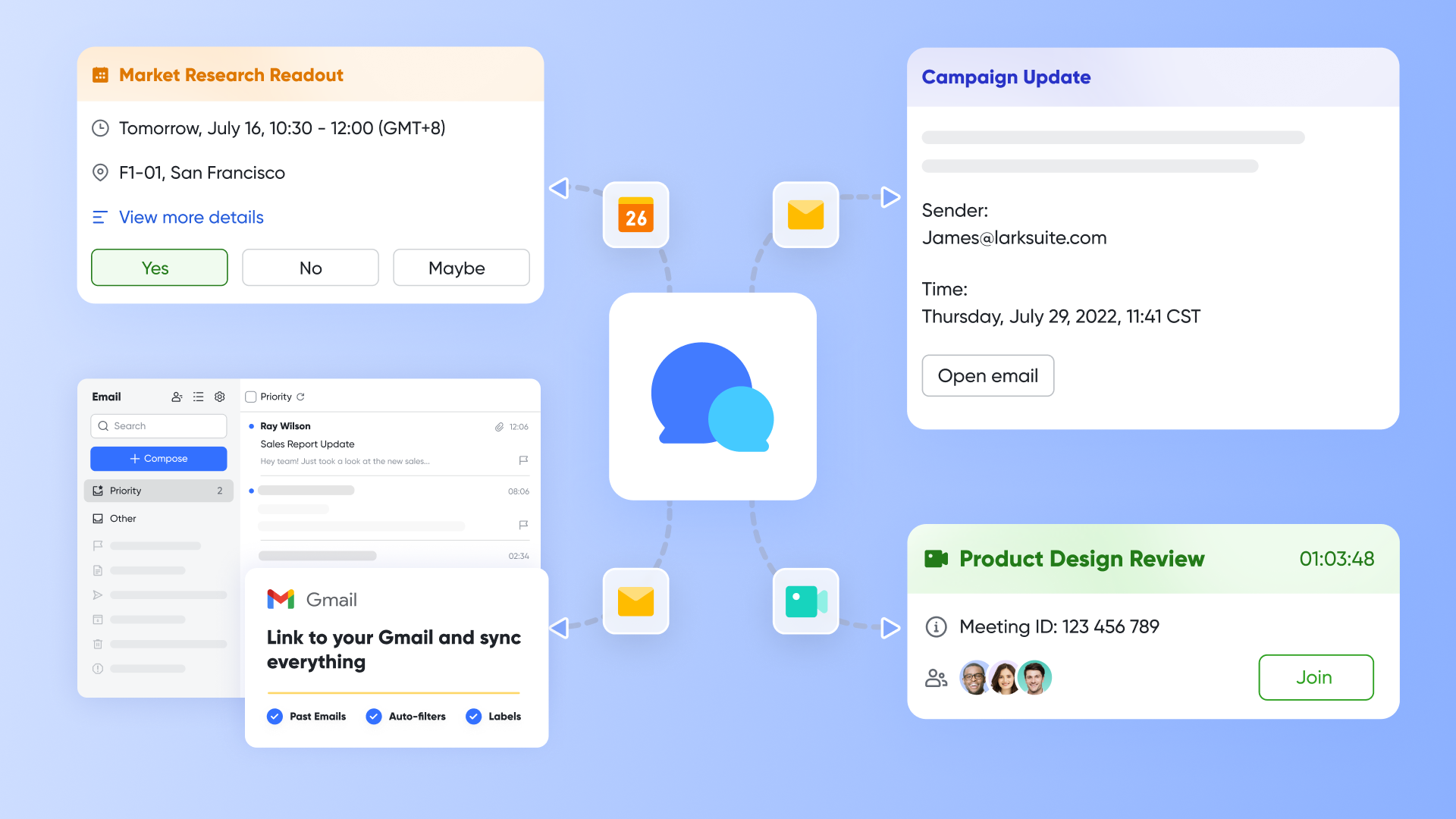
Chat-linked Documents: Integrated with , documents can be shared and managed directly within chat threads. You can track where a file has been shared and update permissions on the fly, keeping conversations and feedback tied to the relevant document without switching apps.
: Multiple team members can simultaneously edit, format, and comment on a document or sheet with zero version conflicts. Presence indicators show who is active and where. During video meeting via , Magic Share lets participants co-edit live within the call, turning presentations into interactive, high-productivity sessions. 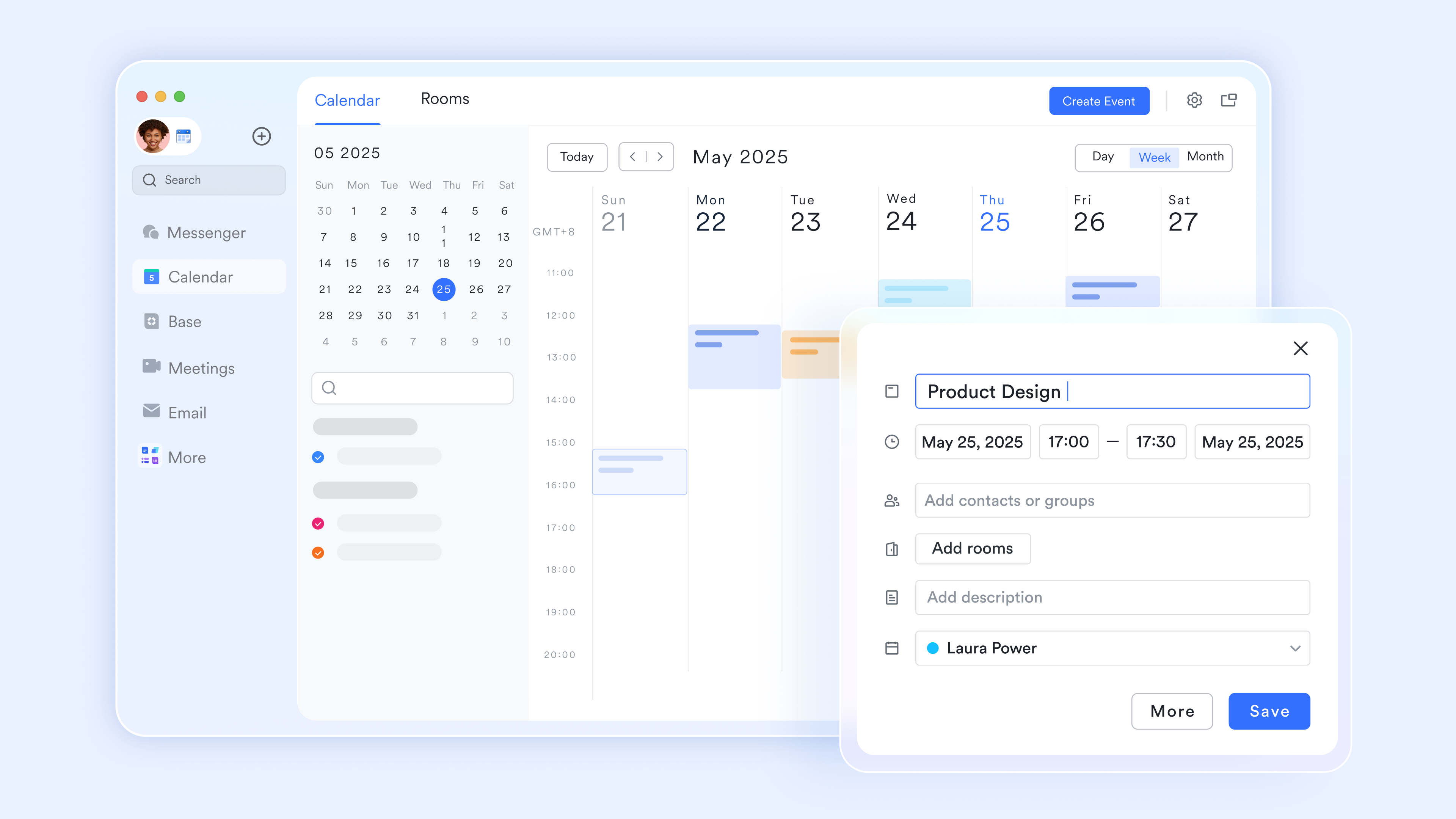
Enterprise security: Built on a Secure Development Lifecycle (SDLC), Lark offers enterprise-grade protections including (BYOK) encryption, screen watermarking, two-step verification, and detailed audit logs. These features safeguard organizational data and help meet global security and compliance standards.
Pros:
- Unified platform for communication, collaboration, and work management
- Real-time co-editing and commenting improve team productivity
- Robust security with encryption and granular access controls
- Built-in automation reduces repetitive tasks and manual work
- Mobile-friendly experience for remote and hybrid teams
- Helps reduce software costs by consolidating multiple tools: .
Cons:
- The wide range of features may require a learning curve for new users. Visit Lark's and for helpful guides and tips.
:
- Starter plan: that includes 11 powerful tools for up to 20 users. It also comes with 100GB of storage space, 1000 automation runs, AI translations, and more. No credit card needed.
- Pro plan: (billed annually) for up to 500 users. It includes everything in Starter plus group calling for up to 500 attendees, 15TB of storage space, 50,000 automation runs, and more.
- Enterprise plan: for custom pricing. Supports unlimited users and includes even more automation runs and advanced security, compliance, and management features.
For small teams with simple communication needs

18 months message history
1000 Base automation runs/month
2000 rows per table in Base
Most POPULAR
For companies with comprehensive collaboration and management needs
Unlimited message history
500-participant video meetings
50k Base automation runs/month
20k rows per table in Base
For large companies with advanced security and organizational management needs
Get a personalized demo and pricing
Unlimited message history
500-participant video meetings
15 TB storage + 30 GB storage/user
500k Base automation runs/month
50k Base automation runs/month
Most POPULAR
For companies with comprehensive collaboration and management needs
Unlimited message history
500-participant video meetings
50k Base automation runs/month
20k rows per table in Base
2. Google Workspace (Google Drive): for cloud-native document storage and rapid search
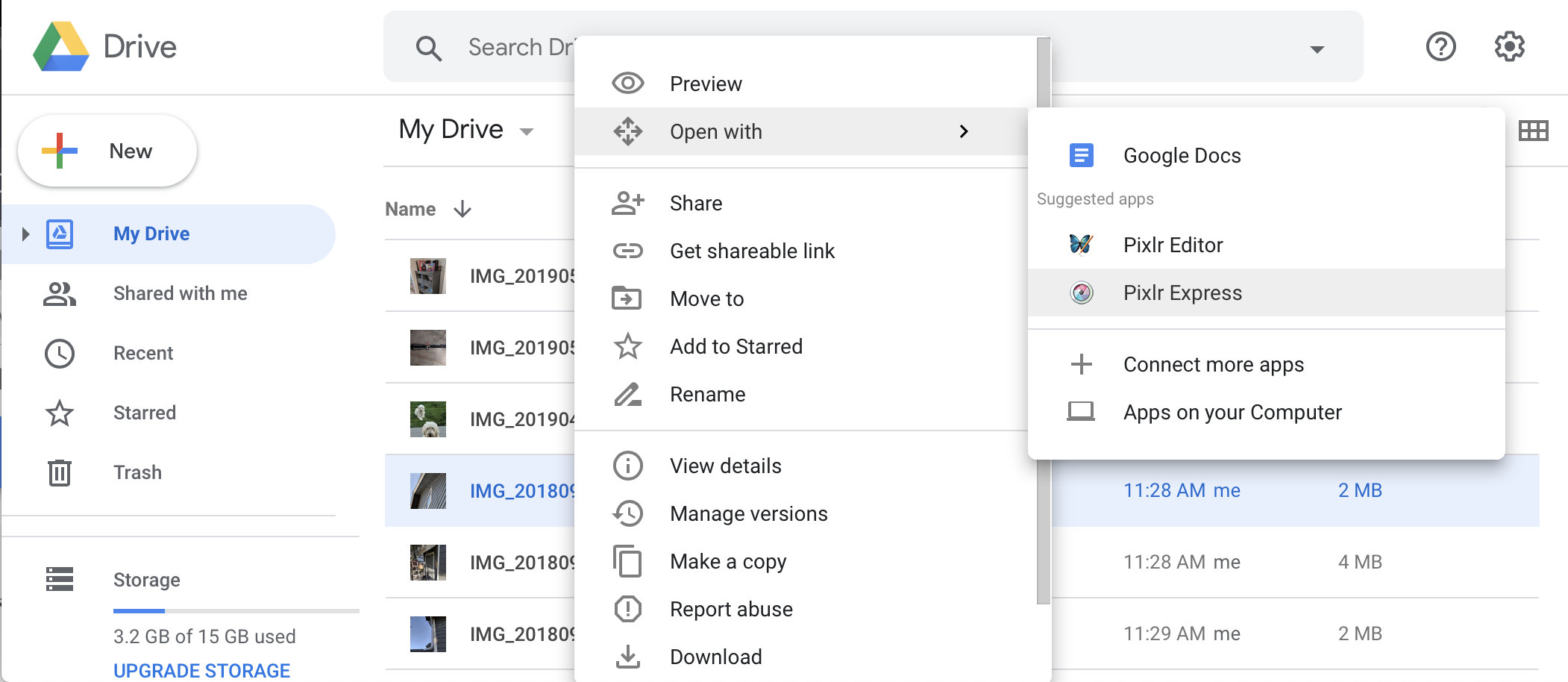
Image source: googledrive.com
Google Drive is ideal for teams looking for cloud-native document storage with powerful search capabilities. Its integration with Google Workspace apps makes file discovery and collaboration fast and intuitive.
Google Drive provides a clean, browser-based interface that allows teams to create, edit, and organize documents without leaving the cloud. Sharing is simple via links, and collaboration happens in real time across docs, sheets, and slides. Its standout feature is search: files can be located by content, type, or owner, reducing time spent navigating folders. This makes it a strong choice for teams managing large volumes of cloud-native documents and needing quick retrieval.
Pros:
- Fast, content-based file search
- Seamless integration with Google Docs, Sheets, and Slides
- Easy external sharing via links
Cons:
- Offline functionality is limited
- Enterprise-level administrative controls require higher-tier plans
Pricing:
- Business starter: $8.40 USD per user/month (monthly billing).
- Business standard: $16.80 USD per user/month (monthly billing).
- Business plus: $26.40 USD per user/month (monthly billing).
- Enterprise: Custom pricing — contact sales for details.
3. Microsoft 365 (OneDrive): for a desktop-integrated file management application
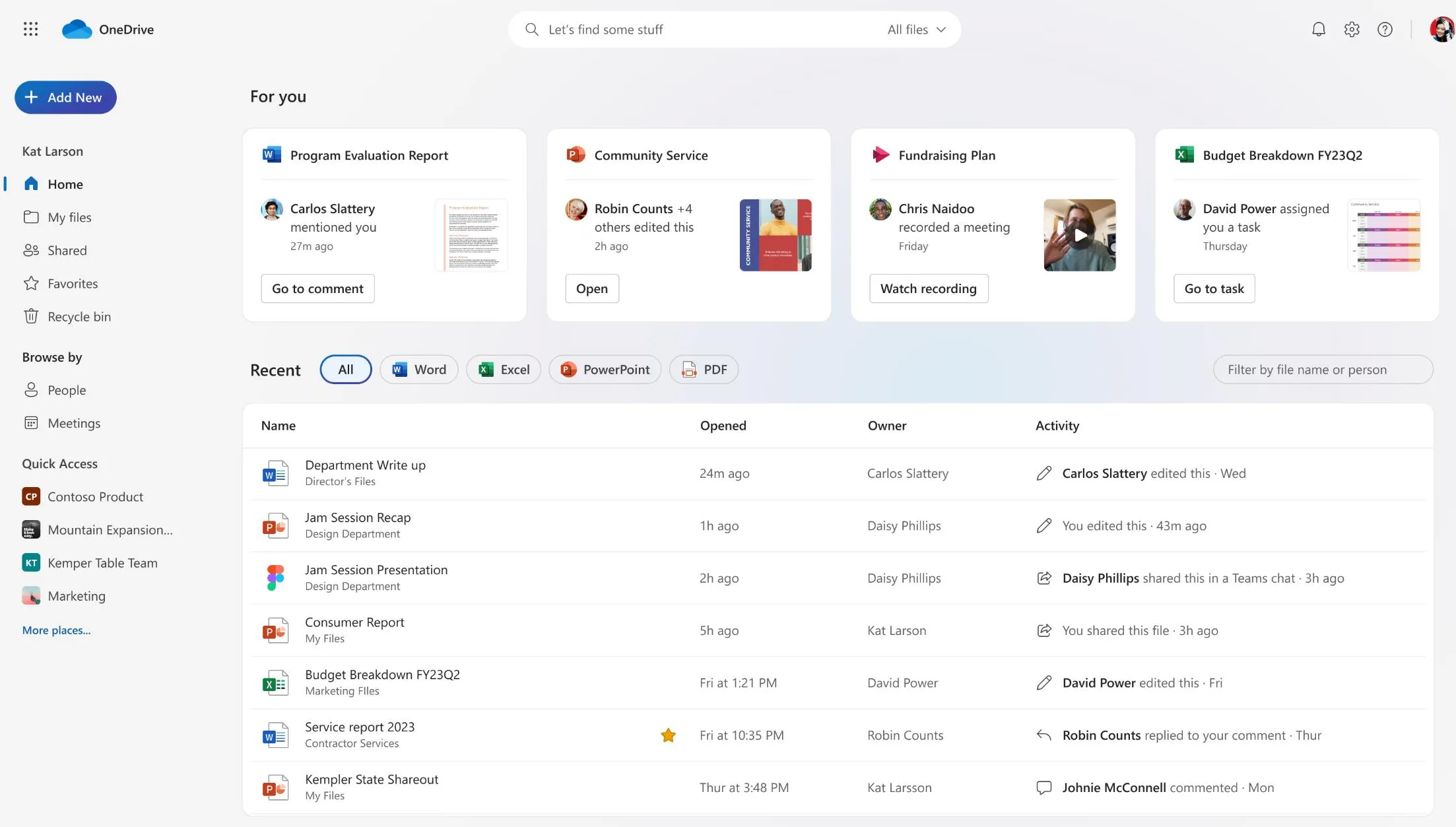
Image source: onedrive.com
OneDrive is perfect for organizations relying on desktop Microsoft Office apps. It bridges local file management with cloud storage, enabling seamless desktop integration.
OneDrive integrates directly with Windows File Explorer and Mac Finder, letting users organize, lock, and sync cloud files without opening a browser. Offline access ensures productivity even without an internet connection. Its core advantage is desktop familiarity and file synchronization. Teams can manage files locally while automatically keeping cloud versions updated, simplifying collaboration for organizations using Microsoft Office tools extensively.
Pros:
- Native Windows and Mac integration
- Offline synchronization and desktop-based file management
Cons:
- Browser-based collaboration is less seamless than Google Drive
- Full Microsoft 365 desktop apps require higher-tier plans
Pricing:
- OneDrive for business (Plan 1): $5/user/month, includes 1 TB of cloud storage and secure file sharing.
- Microsoft 365 business basic: $6/user/month, adds Teams and web-based Office apps.
- Microsoft 365 business standard: $12.50/user/month, includes desktop Office apps and advanced collaboration features.
4. Dropbox: for simple, familiar sharing and creative assets
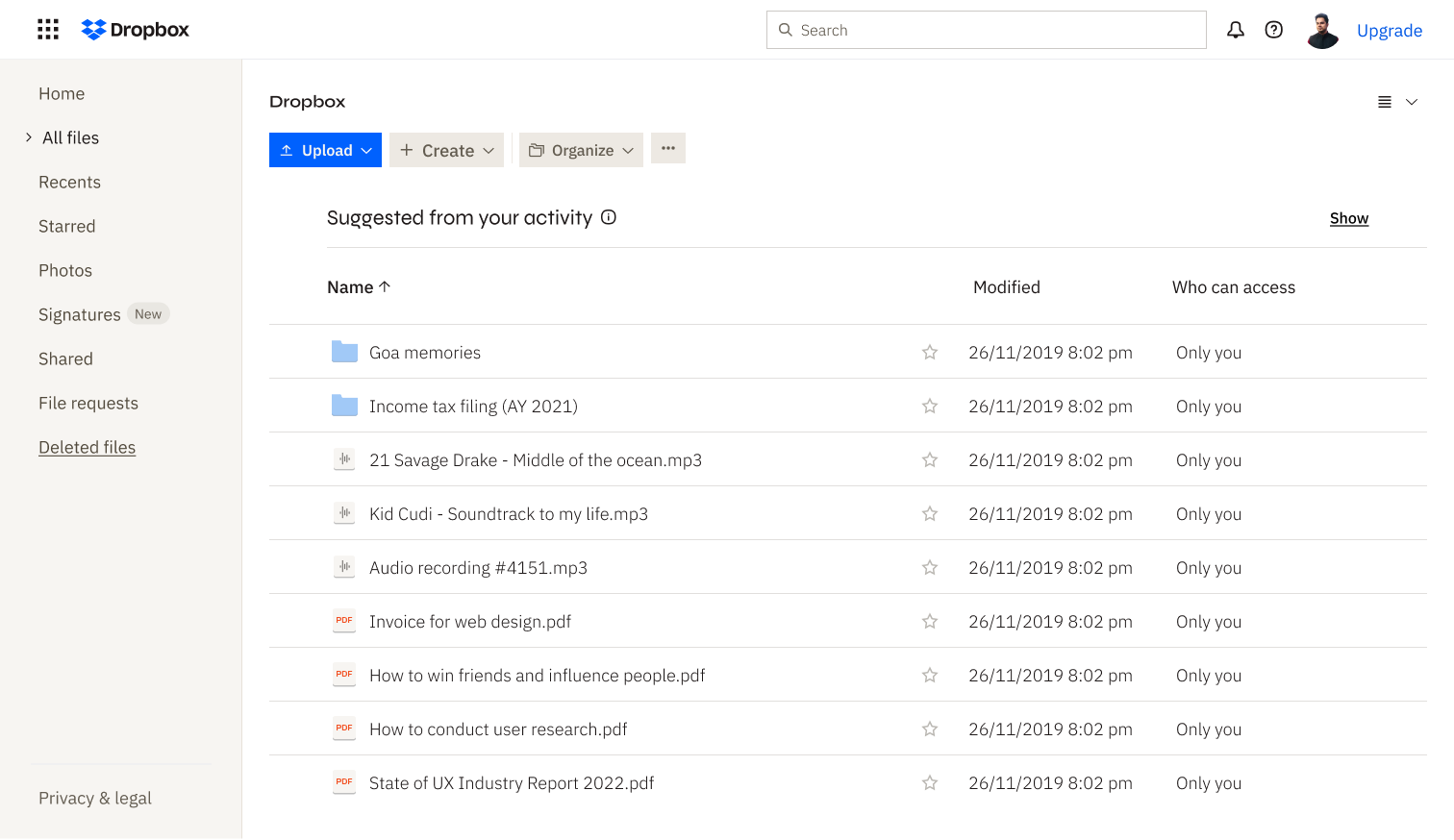
Image source: dropbox.com
Dropbox is best for creative professionals and agencies sharing large media files. It combines familiar folder sync with secure cloud backup. Dropbox provides fast syncing and easy file sharing, making collaborative work straightforward. It supports digital signatures and client presentation tools for creative workflows. Its simplicity and speed help teams manage media-heavy projects efficiently, while built-in file recovery protects against accidental loss.
Pros:
- Quick and reliable file syncing
- Secure sharing for external collaborators
- Built-in recovery for lost files
Cons:
- Limited advanced document management features
- Cost can rise for team plans
Pricing:
- Standard plan: $15 per user/month (monthly billing).
- Advanced plan: $24 per user/month (monthly billing).
- Enterprise plan: Custom pricing based on organization size, security needs, and storage requirements.
5. Box: for secure external collaboration and data control
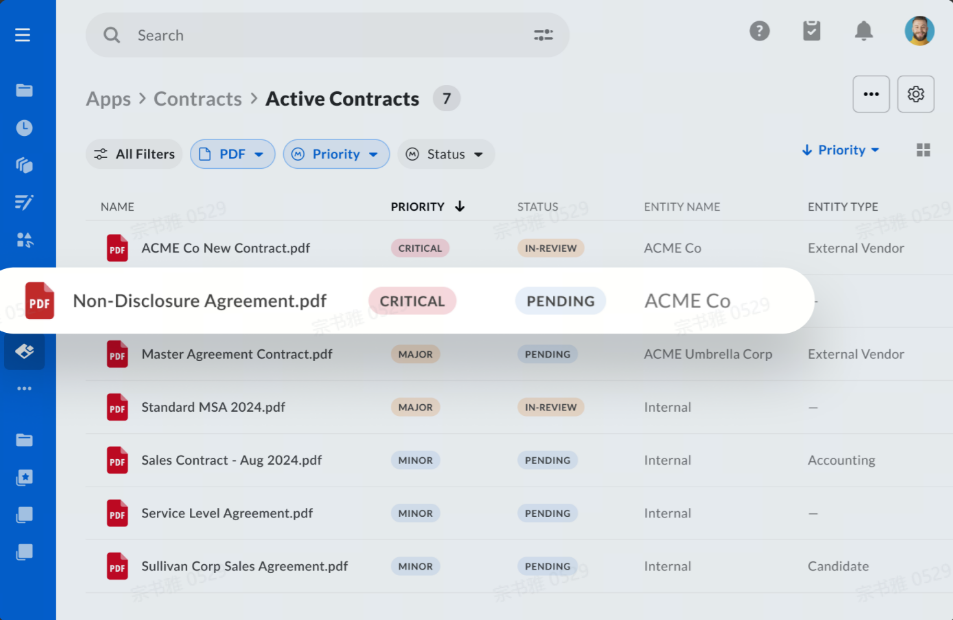
Image source: box.com
Box excels in secure external collaboration and compliance-heavy industries. It is designed for organizations needing granular access controls and strong data protection. Box offers enterprise-grade security, including detailed permission levels, data loss prevention, and custom metadata. Teams can securely collaborate with external partners while maintaining compliance standards. Its structure makes it ideal for finance, healthcare, and legal teams, ensuring sensitive data is protected while streamlining document workflows.
Pros:
- Granular permission and DLP controls
- Enterprise-grade security and compliance
- Supports secure external collaboration
Cons:
- Less intuitive for casual or small team users
- Advanced features require higher-tier plans
Pricing:
- Personal pro plan: $10/user/month (billed annually).
- Starter plan: $5/user/month (billed annually).
- Business plan: $15/user/month (billed annually).
- Business plus plan: $25/user/month (billed annually).
- Enterprise plan: $35/user/month (billed annually).
- Enterprise plus plan: $50/user/month (billed annually).
- Enterprise advanced plan: Custom pricing.
6. DocuWare Cloud: for advanced workflow automation and paperless archival
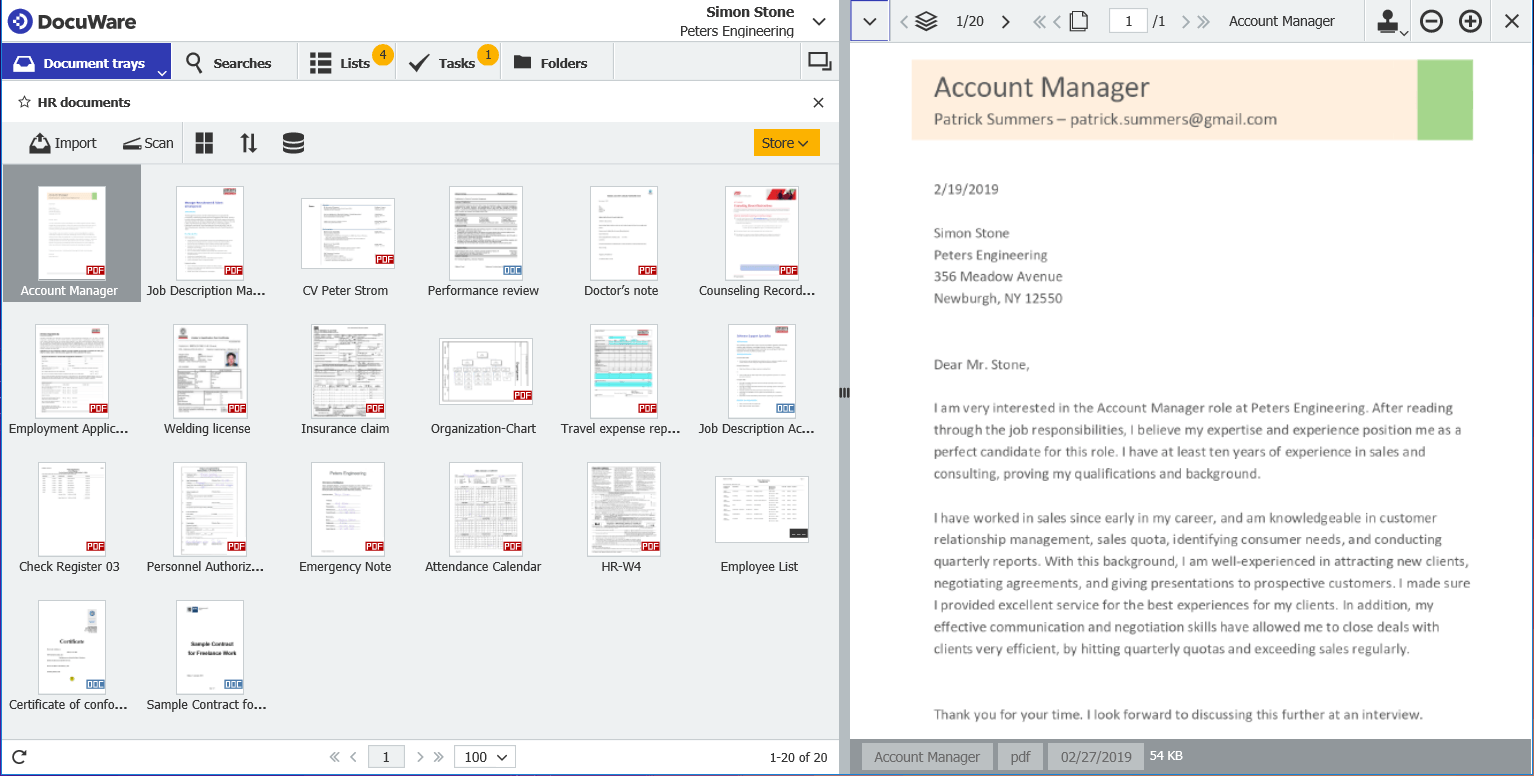
Image source: softwareadvice.ie
DocuWare Cloud is tailored for administrative teams needing paperless workflows and document automation. It excels in invoice processing, contract management, and digital archives.
DocuWare converts physical records into structured digital databases with OCR scanning and automated indexing. Teams can automate workflows like invoice approval or contract review, reducing manual tasks and errors. Its focus on compliance and archival makes it essential for offices that need organized, searchable, and secure document repositories, fully replacing paper-based systems.
Pros:
- Advanced OCR and automated indexing
- Workflow automation for invoices and contracts
- Structured, searchable digital archives
Cons:
- Complexity may require training
- Pricing requires custom corporate quotes
Pricing:
- Cloud plan: Starts at around $300 per month (monthly billing).
- On-premises plan: Custom pricing based on licenses, storage, and user count.
- Enterprise options: Tailored for large-scale deployments with advanced integrations, audit controls, and workflow customization.
7. DocHub: for web-based PDF editing and electronic signatures
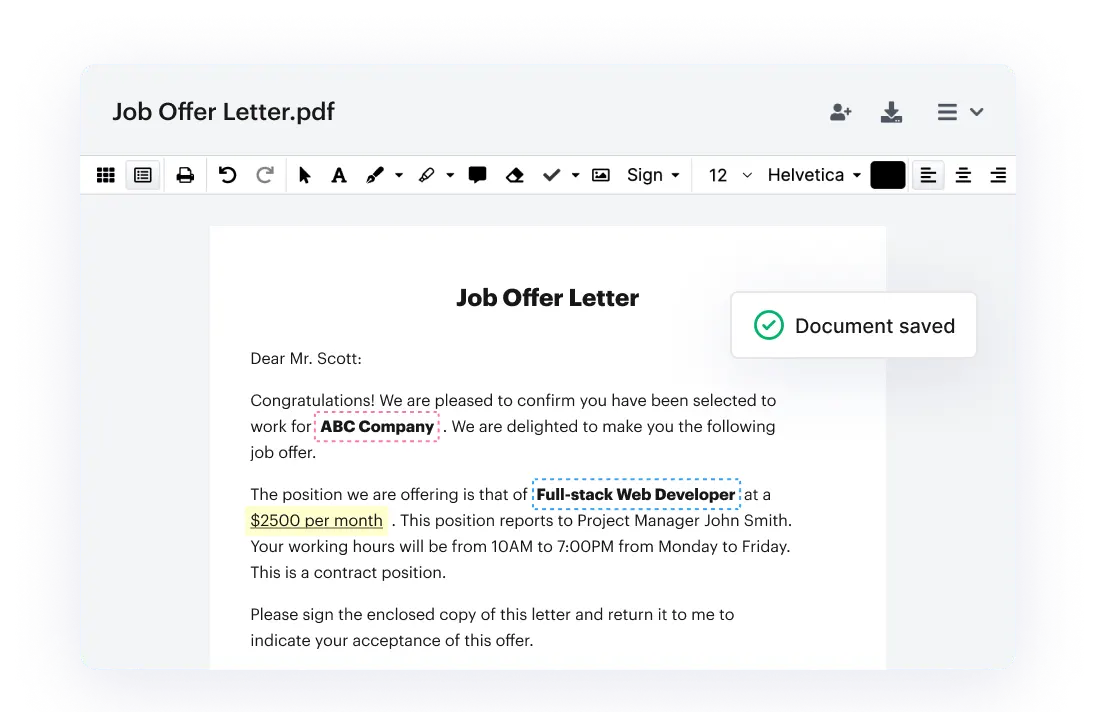
Image source: dochub.com
DocHub is ideal for small businesses needing lightweight PDF editing and e-signature capabilities. It streamlines transactional document handling without complex setup. DocHub allows users to edit PDFs, fill forms, and add secure digital signatures directly in a web browser. Its workflow tracking ensures transactional files are managed efficiently, making it simple for small teams to handle contracts and forms online.
The platform’s lightweight design and affordability make it accessible, though it lacks the broader document management features of larger suites.
Pros:
- Web-based PDF editing and signing
- Simple workflow tracking for transactional files
- Free basic tier available
Cons:
- Limited collaboration features
- Not suitable for large-scale document management
Pricing:
- Free plan: $0/month, includes basic PDF editing, 5 eSignatures per month, and limited AI assistance.
- Basic plan: $8/user/month (billed annually), adds advanced PDF tools, fillable forms, reusable templates, and small-team collaboration features.
- Pro plan: $12/user/month (billed annually), includes unlimited PDF editing, eSignatures, sign requests, bulk sending, and secure document storage.
- Site license plan: Custom pricing, provides unlimited users, SSO, priority support, volume discounts, and enterprise-level administration.
8. HubSpot Sales Hub (Documents Tool): for sales collateral and prospect tracking
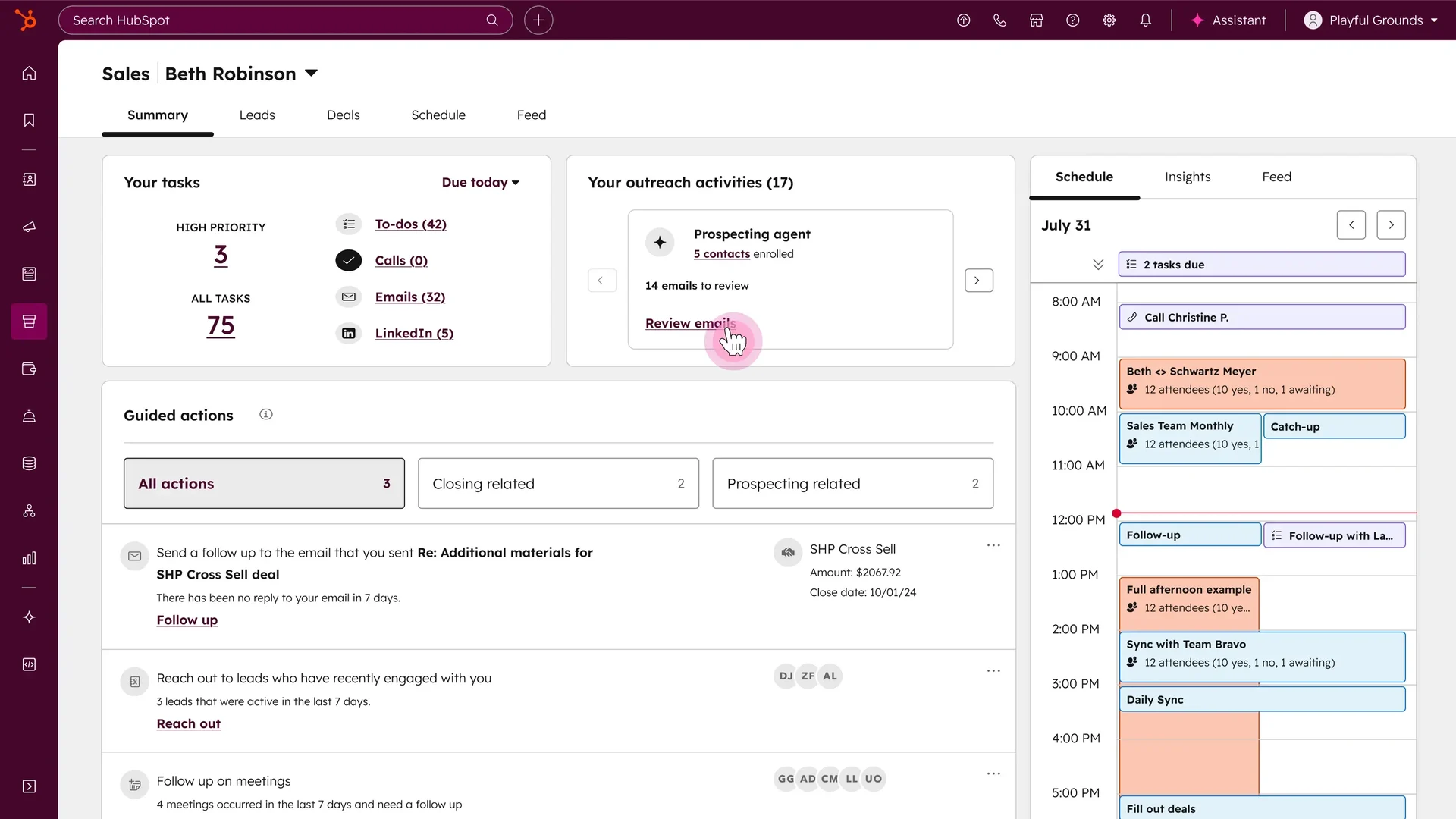
Image source: hubspot.com
HubSpot Documents is perfect for sales teams needing pitch tracking and centralized collateral management. Integration with CRM enhances customer engagement visibility. The tool allows sales teams to build libraries of templates, track client interaction with documents in real time, and integrate seamlessly with HubSpot CRM. Teams gain insights into engagement, helping refine sales strategies. It’s particularly useful for organizations seeking detailed analytics on document use and prospects’ attention during outreach.
Pros:
- Real-time engagement tracking for sales documents
- CRM integration streamlines workflow
- Ready-to-use templates and calendar integration
Cons:
- Pricing scales quickly for professional tiers
- Not intended for general document management
Pricing:
- Free plan: $0/month, includes deal tracking, live chat, meeting scheduling, and basic CRM tools.
- Starter plan: Starts at $7/user/month, adding sales automation, payment collection, personalized content, and advanced outreach tools.
- Professional plan: Starts at $90/user/month, including AI forecasting, sales automation workflows, sequences, and advanced reporting.
- Enterprise plan: Starts at $150/user/month, providing custom objects, AI lead scoring, conversation intelligence, and advanced governance controls.
9. OneCommander: for advanced Windows file navigation
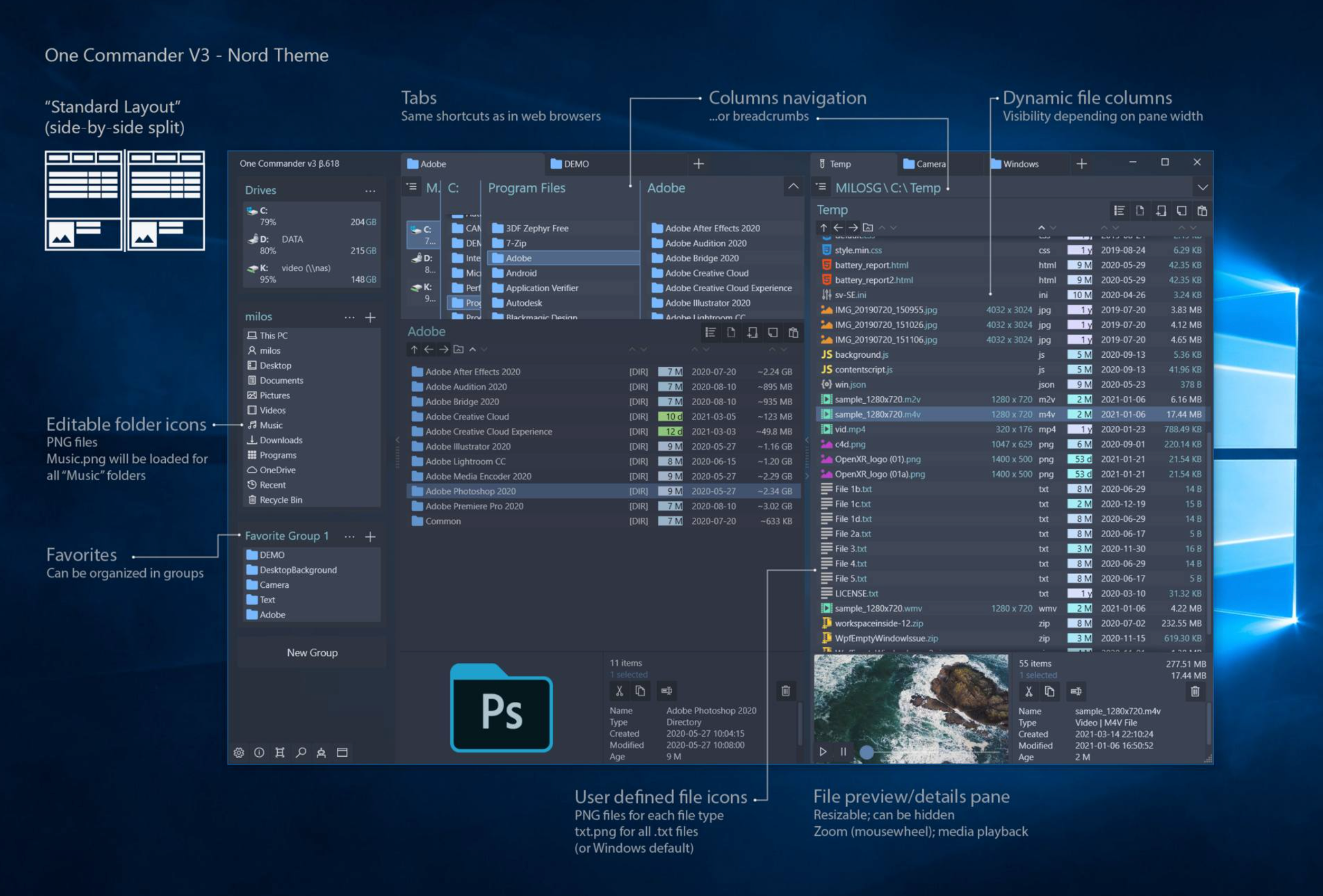
Image source: onecommander.com
OneCommander is a modern file manager built specifically for Windows 10 and Windows 11, designed to make navigating deep directory structures faster and more intuitive than with the native Explorer. Its DirectX‑accelerated interface supports dual‑pane and tabbed browsing, Miller Columns, built‑in previews, and adaptive views so users can visualize and interact with files more efficiently.
Features like quick filtering, favorites grouping, and customizable themes reduce repetitive tasks, while long Unicode path support and project view layouts help with deep folder trees and complex workflows. However, it’s limited to Windows and lacks built‑in archive management like some other file managers.
Pros:
- Modern, fast dual‑pane and tabbed interface for efficient file navigation.
- Highly customizable views, themes, and navigation options.
- Free for personal use with no ads and core file‑managing features.
Cons:
- Commercial use requires a paid Pro license even for standard features.
- Windows‑only support (no macOS/Linux versions).
Pricing & Free Plan:
- Free Home Use – Free for personal, non‑commercial use with core features.
- Pro License – One‑time purchase (~$30) for commercial use and advanced settings.
- Company License – Custom pricing for teams and volume deployment.
10. Zapier: for automated file workflows across apps
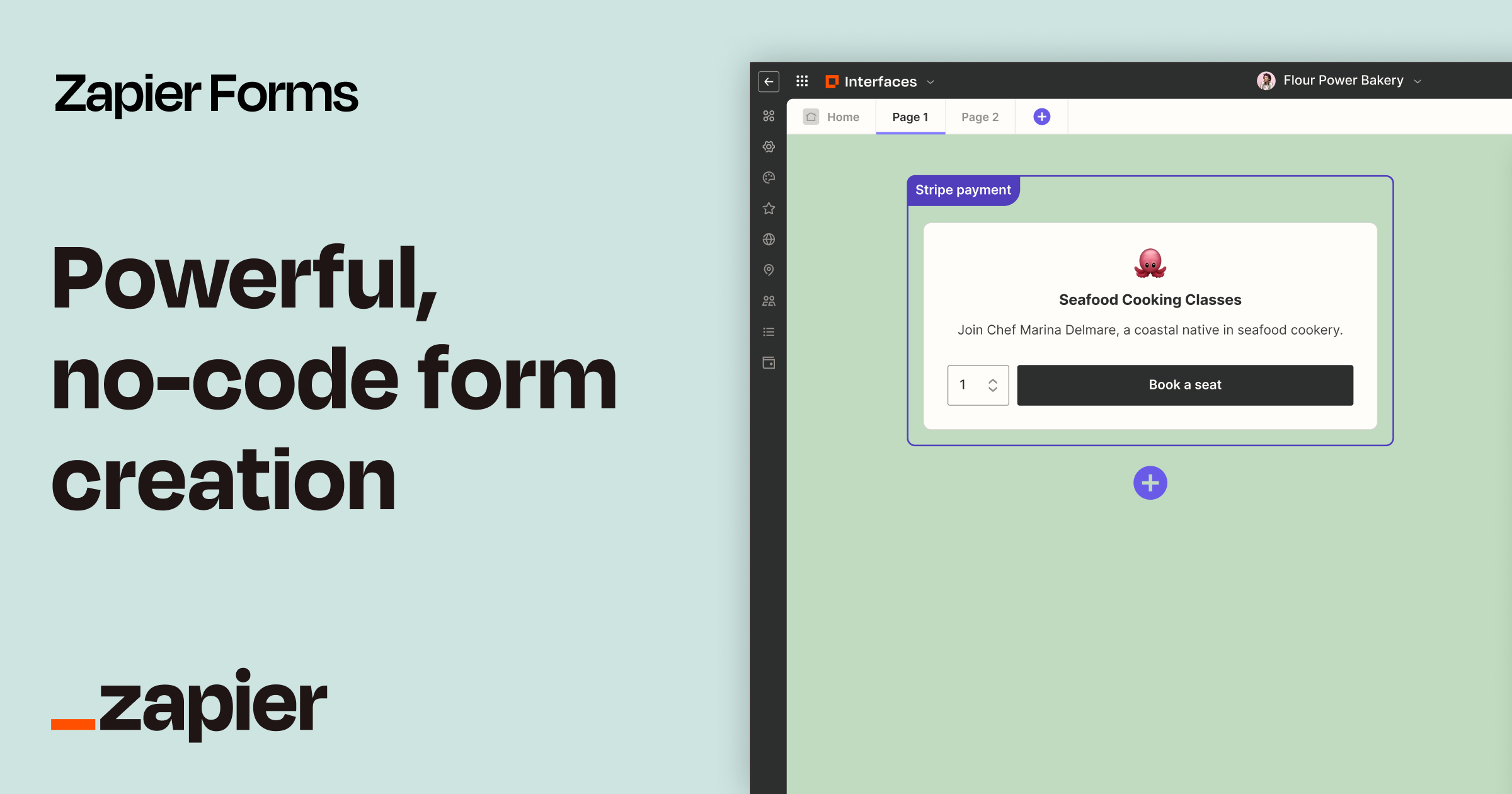
Image source: zapier.com
Zapier is best suited for teams and individuals who want to automate repetitive file workflows across multiple apps. It stands out as a no‑code automation platform that connects thousands of apps to eliminate manual file tasks. Zapier isn’t a traditional file manager — instead, it acts as a powerful workflow automation tool that links your file services (like Dropbox, Box, Google Drive) with other apps. Users create automated “Zaps” that trigger actions (e.g., upload, copy, sort) when file events occur, which streamlines repetitive operational tasks and reduces manual work.
The platform supports unlimited automations and increasingly includes AI‑enhanced tools like Tables and Interfaces at various tiers. Its strength lies in simplifying integrations: non‑developers can automate cross‑app logic without writing code, helping teams manage file flows, notifications, and sync tasks across their ecosystem. However, high usage can become costly at scale due to task‑based pricing and advanced team requirements.
Pros:
- Connects over 7,000 apps for automating file and workflow tasks.
- Unlimited automations (Zaps) even on the free tier.
- Supports multi‑step workflows and AI‑enhanced tools at paid levels.
Cons:
- Pricing scales with task volume and can be expensive for high automation use.
- Not a file manager itself — requires connected apps for file operations.
Pricing:
- Free Plan: $0/month with 100 tasks per month, unlimited Zaps, two‑step workflows.
- Professional: ~$19.99/month (billed annually) for multi‑step Zaps and premium apps.
- Team: ~$69/month (billed annually) with shared workspaces and collaboration features.
- Enterprise: Custom pricing with advanced security and admin controls.
Key features to look for in apps for file management
When evaluating professional apps for file management, it is easy to get distracted by storage limits. In reality, storage space is a basic utility. True efficiency comes from how well a file management application integrates with your daily communication and operational workflows.
Look for these essential features to ensure your team stays organized:
Real-time cloud co-authoring without local downloads
The easiest way to prevent version control chaos is to eliminate the need for local file downloads. Your chosen platform should allow multiple team members to , spreadsheets, and presentation slides simultaneously inside their workspace. Every edit should auto-save to a single live version, keeping the entire file history clean and transparent.
Context-driven structure (Wikis over deep folders)
Instead of forcing teams to dig through multiple nested folder levels, look for applications that organize information using . A wiki acts as an interactive homepage for a project, department, or team. It allows you to pin relevant documents, sheets, and tasks on a single page, giving team members immediate operational context without requiring them to search through a maze of directories.
Native workflow automation
A modern file management application should do more than just hold your data; it should actively move your work forward. Look for platforms with . For example, when a contract draft is updated to "Ready for Review," the system should automatically alert the legal manager, record their , and move the finalized file to a secure directory without requiring manual emails.
Comprehensive search capabilities
As your business grows, finding files by title alone becomes impossible. An effective platform needs a deep search index that reads not only file names but also the text content inside documents, PDF files, and images (using OCR technology), alongside metadata tags. This ensures that a single search query retrieves the exact document you need, regardless of where it is stored.
Discover why Lark leads in file management application
Conclusion
After reviewing the limitations of legacy systems like SharePoint—including setup complexity, collaboration bottlenecks, and suboptimal mobile performance—it becomes clear that modern document management solutions must address these pain points. Key features to look for include real-time cloud co-authoring, context-driven structures such as Wikis, native workflow automation, and comprehensive search capabilities. By keeping these elements in mind, organizations can evaluate platforms not just on storage, but on overall productivity, collaboration efficiency, and accessibility.
If you are ready to move past disconnected cloud drives and rigid nested folders, transitioning to an integrated workspace like offers the ultimate shortcut. By seamlessly uniting group chats, project wikis, real-time , and automated approval workflows in one secure place, Lark protects your operational speed and builds a reliable, accessible single source of truth for your entire company.
Achieve better project outcomes consistently
FAQs
What is a file management app?
A file management app is software designed to help users organize, store, and access digital files efficiently. It typically offers features such as folder structures, tags, cloud synchronization, search functionality, permission settings, and backup options, helping both individuals and teams keep files organized and secure.
What is the application of a file management system?
A file management system is used to efficiently handle documents, images, spreadsheets, and other digital content in personal or enterprise environments. It supports collaboration, secure storage, version control, easy retrieval, and workflow automation, helping organizations maintain productivity and reduce data loss.
What is the best app for file management?
The best file management app depends on your workflow and collaboration needs. Popular choices like , Google Drive, OneDrive, and Dropbox provide cloud storage, real-time collaboration, easy file sharing, robust search, and organization features, making file management seamless for teams and individuals.
What is the best file management application for mixed remote teams?
The best file management application for mixed remote teams is one that unifies storage with real-time communication. While standalone storage tools like Google Drive or Dropbox keep files synchronized, they do not resolve the context gap. Platforms like provide a complete solution by embedding cloud-native documents, project wikis, and structured file permissions directly inside your team's chat windows and video conferencing system, keeping everyone aligned without constant app-switching.
Is SharePoint a complete document management system software?
Yes, SharePoint is a highly secure, enterprise-grade document management system software. It excels at digital archival, complex file compliance, and deep database administration. However, because of its steep learning curve, complex setup, and high administrative overhead, fast-growing businesses and hybrid teams often find it too slow and rigid for their everyday collaborative workflows.
Can we run automated workflows based on document updates?
Yes, modern collaborative suites allow you to trigger automated workflows directly from your documents. In , for example, you can set up automation rules so that when a document's status changes or a new contract is uploaded to a shared wiki, the system automatically alerts specific team members in a group chat, requests necessary manager approvals, and updates project tasks without requiring manual follow-up.
Where is my file management app?
Your file management app may be installed on your computer, mobile device, or accessible via a web browser. For cloud-based tools like Google Drive or OneDrive, you can access them online, while local apps can be found in your system’s application list, desktop shortcuts, or app store.
Related reading