Google Sheets automation has become a practical way for teams to reduce repetitive work inside familiar spreadsheets. Many workflows begin with simple formulas, notifications, or scripts that save time and improve consistency. Because spreadsheets are already part of daily operations, automation in Google Sheets feels easy to adopt and quick to expand.
As automation supports more critical processes, teams start paying closer attention to reliability, visibility, and ownership. This often leads to conversations about how well spreadsheet-based automation can scale. In this guide, we will help you understand how Google Sheets automation works, the methods to achieve it, and why teams move to another robust tool.
Turn spreadsheet automation into real workflows
What do people mean by Google Sheets automation?
When people talk about Google Sheets automation, they usually mean reducing repetitive actions inside spreadsheets using built-in logic and external connections. Many teams first learn these concepts through a Google Sheets automation tutorial, starting with auto-updating data, notifications, or simple cleanup tasks. Recent Google Sheets automation news frequently highlights new add-ons, script improvements, and integrations that expand spreadsheet capabilities. Automation in Google Sheets can be created using formulas, scripts, add-ons, or external services such as Google Sheets API automation, making it accessible to both non-technical and technical users.
Google Sheets automation works best when tasks are predictable and linear. It is widely adopted because it requires little upfront investment and can be implemented gradually. However, as automation logic becomes more complex, maintaining scripts, APIs, and dependencies becomes harder. At this stage, teams often reassess whether spreadsheets are still the right foundation for .
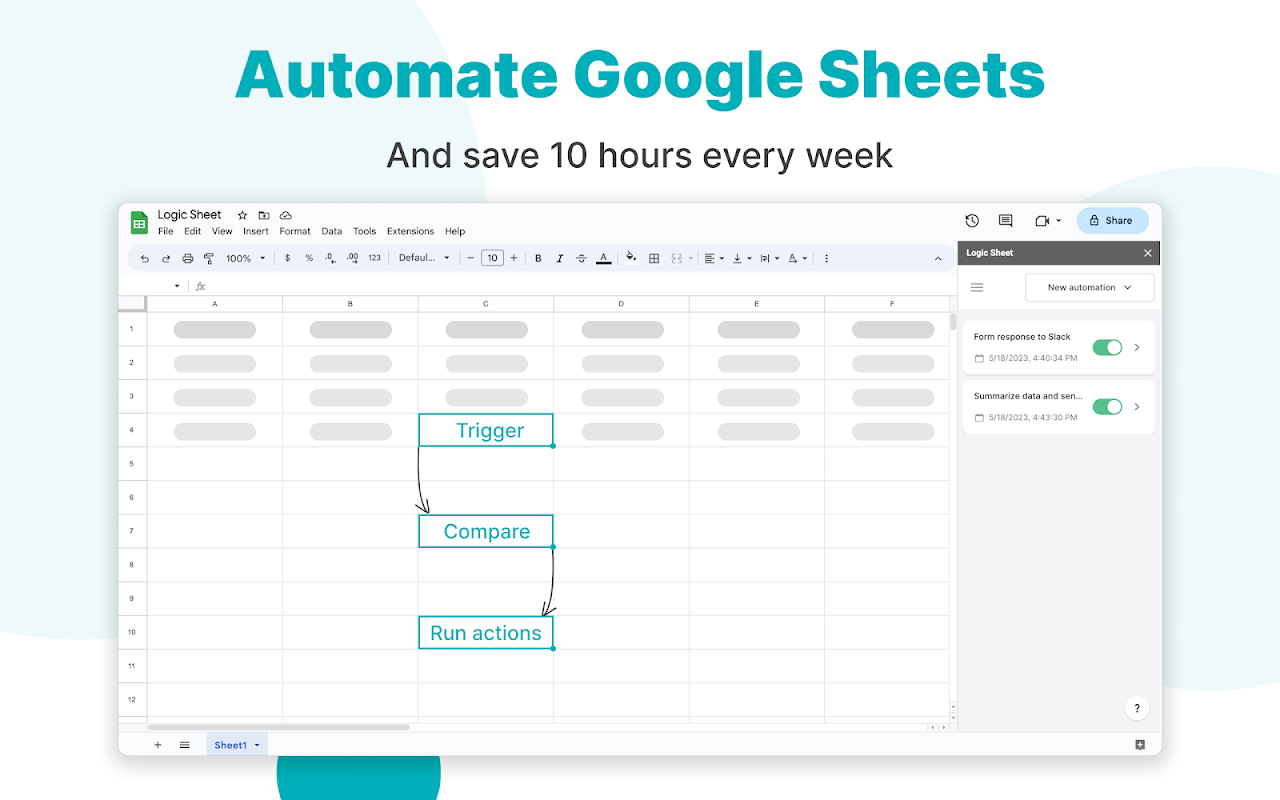
Image source: google.com
Common automation scenarios built in Google Sheets
Google Sheets automation is commonly used to handle lightweight operational tasks that reduce manual effort. These scenarios often combine formulas, scripts, notifications, and external connections to keep workflows moving.
- Auto-updating reports: Teams use automation in Google Sheets to refresh dashboards and summaries automatically. Data may be pulled from multiple tabs, connected systems, or through Google Sheets API automation. This reduces manual reporting effort and speeds up insights. Accuracy depends on formulas and API connections staying intact. As reports grow in size, maintenance efforts increase significantly.
- Notifications and alerts: Google Sheets email automation is often used to notify users when specific conditions are met. Triggers can send emails or messages when values change or deadlines approach. This works well for reminders and threshold-based alerts. As conditions increase, logic becomes harder to track. Silent failures are common in larger sheets.
- Data cleanup and validation: Automation helps standardize inputs using validation rules and cleanup scripts. Invalid or incomplete entries are flagged automatically. This improves data consistency across teams. Cleanup scripts often run on schedules or triggers. Errors can impact large datasets quickly if not monitored.
- Simple task tracking: Teams use automation to update task status, timestamps, or assignments automatically. Basic workflows can be modeled using formulas or scripts. Ownership is implied rather than enforced through structured rules. As tasks become interconnected, visibility gaps appear. This limits reliability for larger teams.
- Presentation generation: Some teams rely on Google Sheets to to turn spreadsheet data into presentations. Charts, tables, or summaries are pushed into Slides automatically. This saves time on reporting and reviews. Customization is limited without scripting. Changes often require manual adjustments.
Built-in automation features inside Google Sheets
Google Sheets includes several that help teams reduce manual work inside spreadsheets. These tools range from simple calculations to more advanced scripting options. Each feature supports a different level of complexity and technical skill. Teams often combine multiple features to automate reports, notifications, and data handling. Understanding these native tools helps teams choose the right approach for their workflows.
Formulas
Formulas are the foundation of Google Sheets automation. They calculate values automatically based on cell inputs. Teams rely on formulas for lookups, summaries, and logic. As sheets grow, formulas become nested and fragile. Debugging complex formulas is time-consuming.
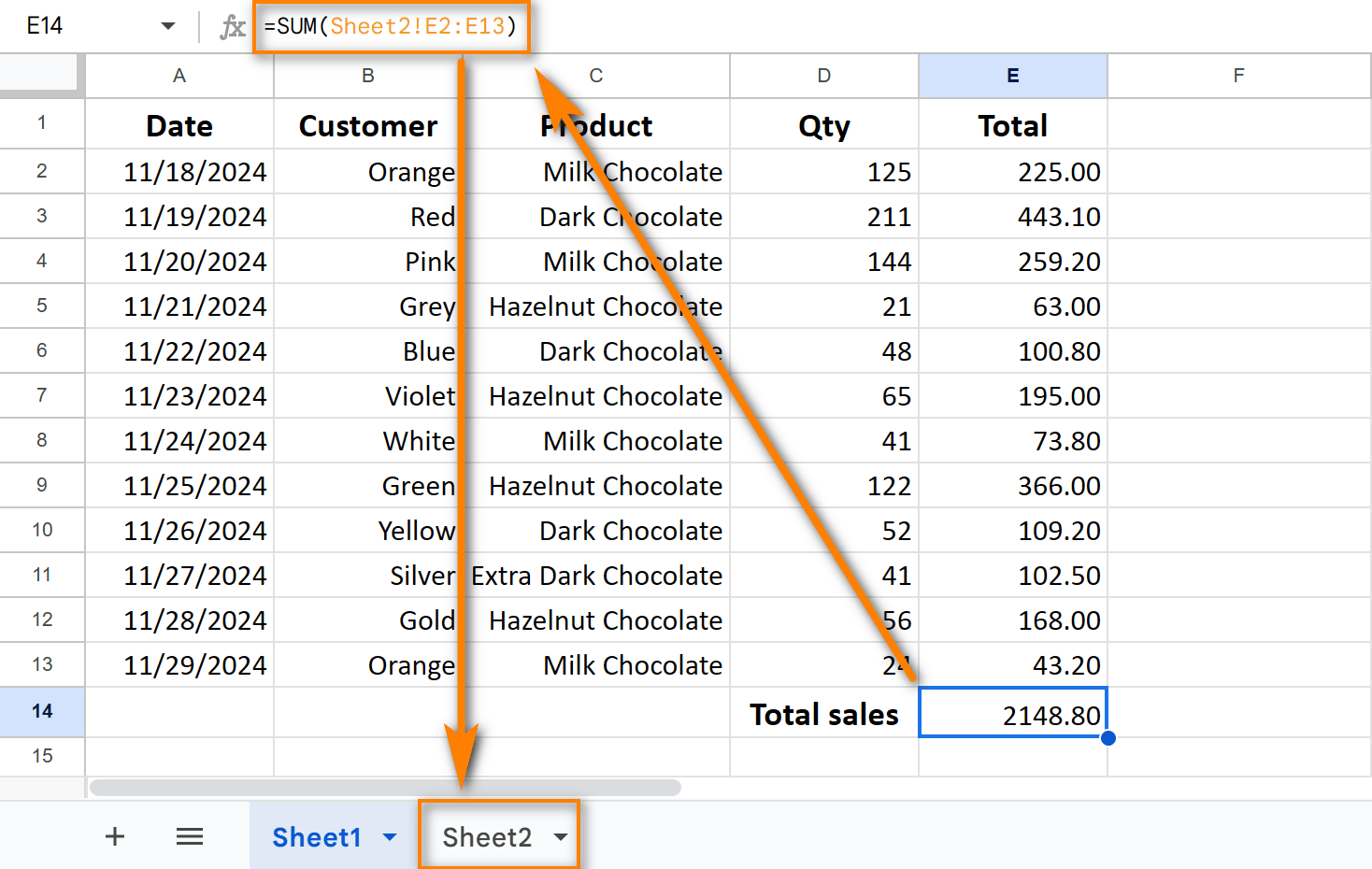
Image source: google.com
Pivot tables
Pivot tables summarize large datasets quickly. They are commonly used in automation in Google Sheets for reporting. Teams use them to group, filter, and aggregate data. Pivots require manual refresh and setup. Changes in source data can break reports.
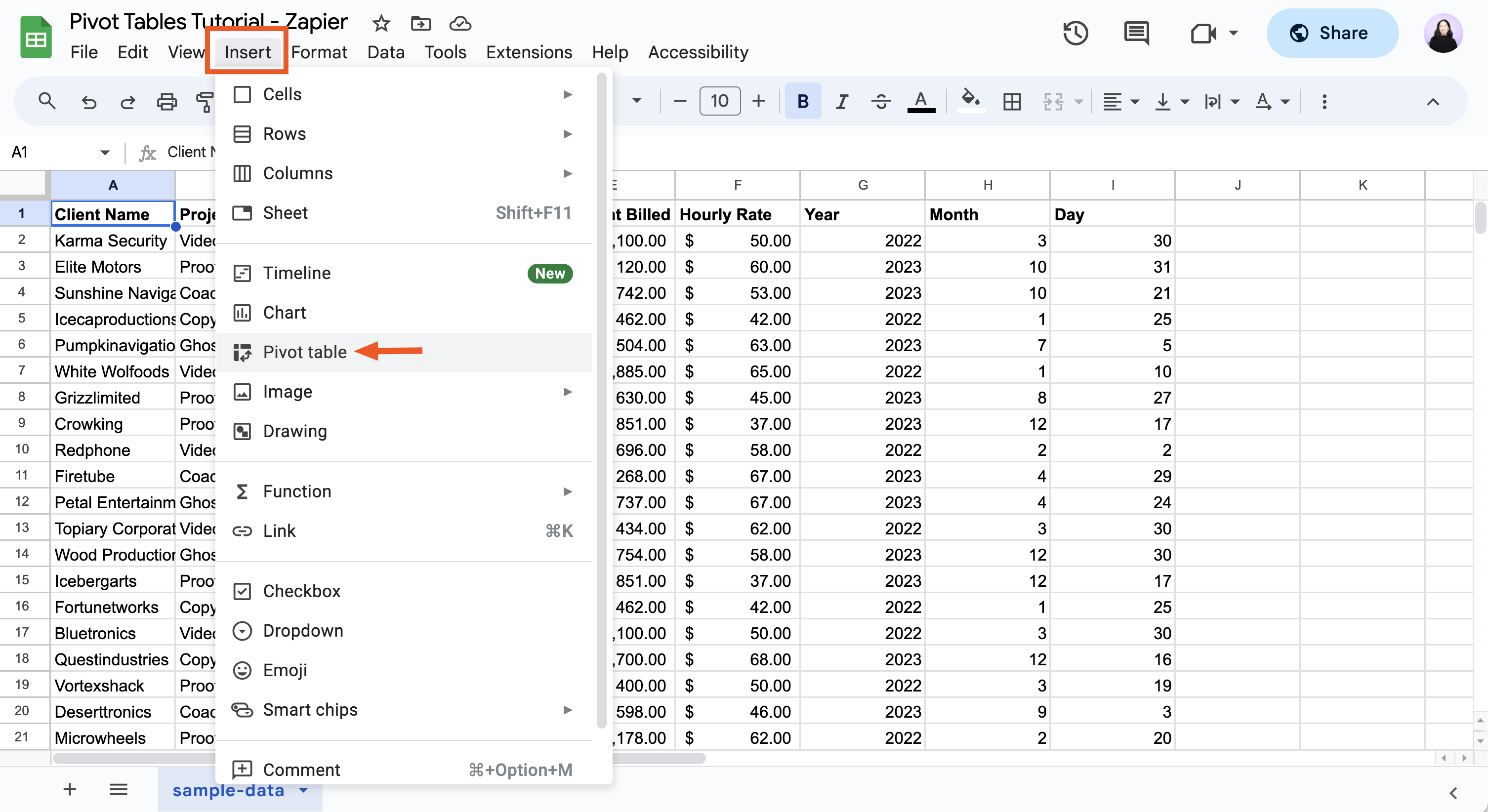
Image source: google.com
Built-in macros
Macros record repetitive actions and replay them automatically. They are useful for standard formatting or data cleanup. Macros are simple to create. They lack flexibility for complex logic. Maintenance becomes difficult across multiple users.
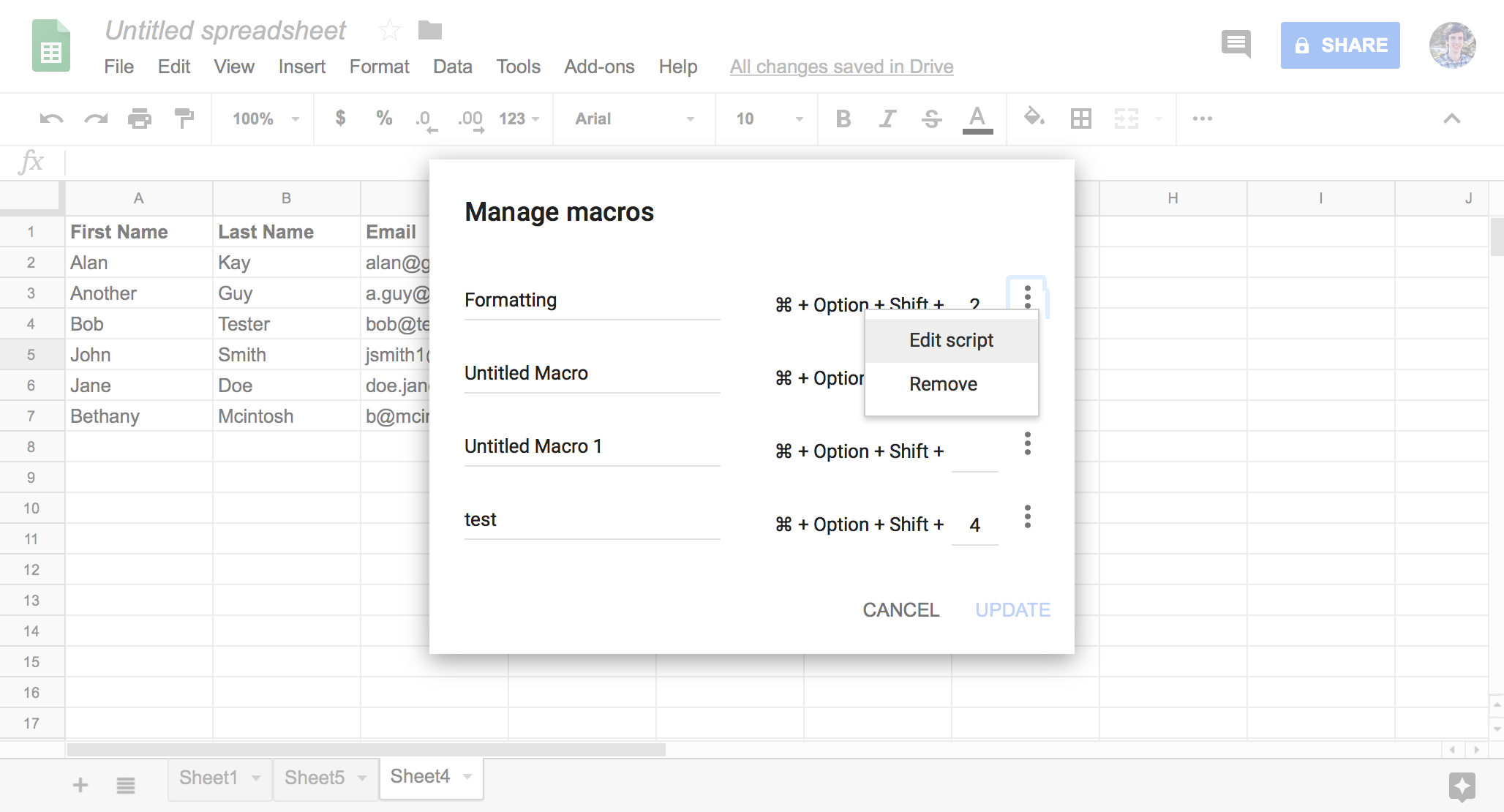
Image source: google.com
Apps Script
Google Sheets automation scripts allow custom logic using JavaScript. Teams use scripts for integrations, approvals, and notifications. Scripts enable advanced workflows. Debugging requires technical expertise. Errors often fail silently.
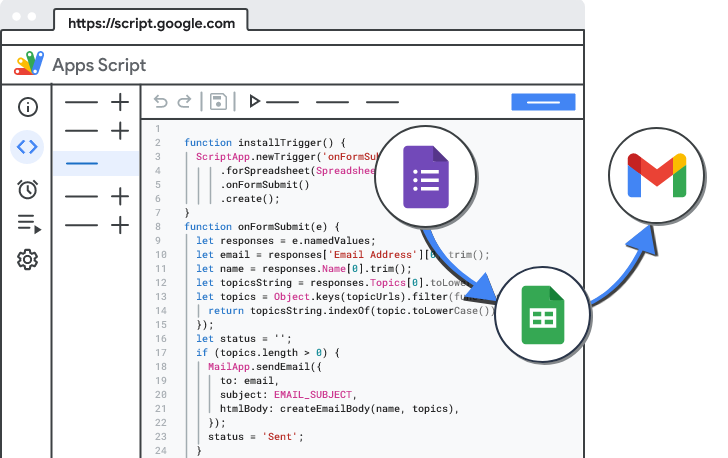
Image source: google.com
Extensions and add-ons
Extensions expand Google Sheets automation tools beyond native features. Popular tools support email automation, syncing, and integrations. Examples include n8n Google Sheets automation and Mailchimp automation with Google Sheets. Add-ons simplify setup. Long-term reliability depends on vendor support.
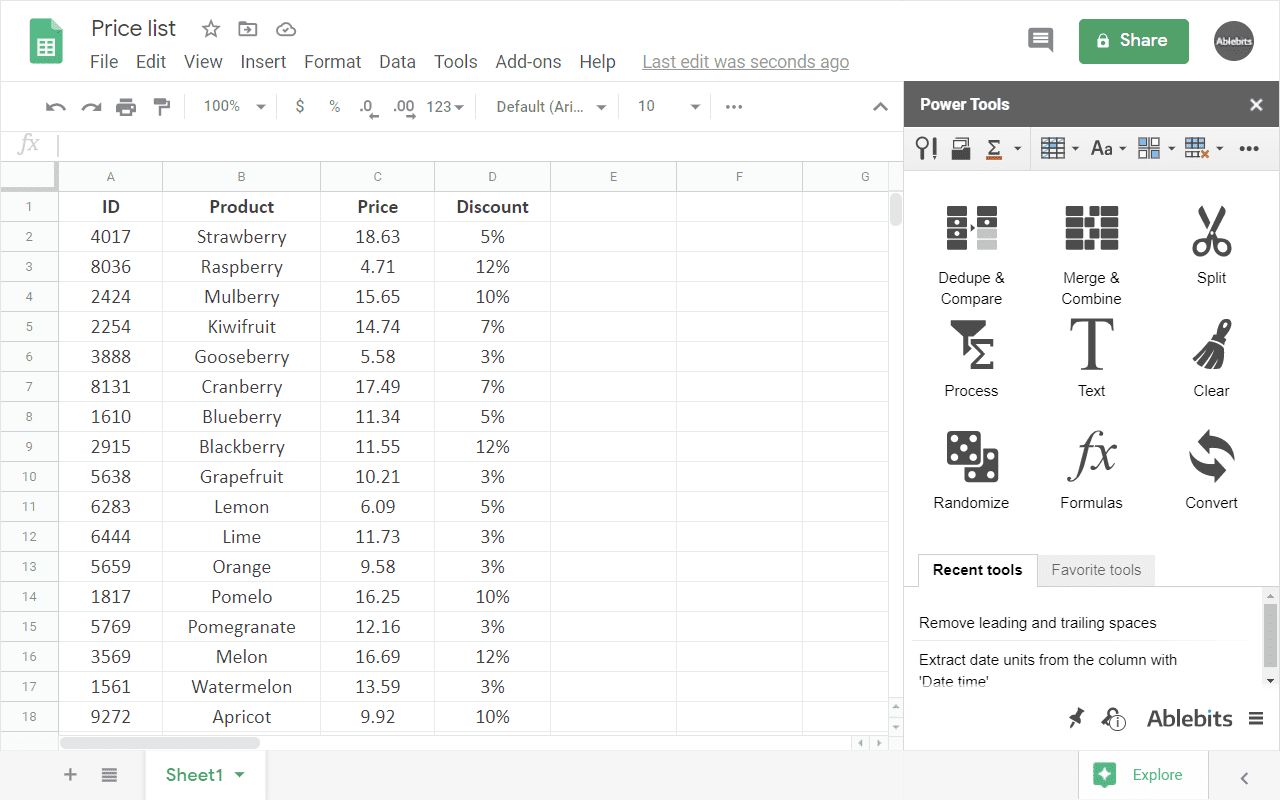
Image source: google.com
How to Automate tasks in Google Sheets with formulas
Step 1: Identify repeatable tasks worth automating
Start by listing tasks you perform frequently in Google Sheets. These usually include calculations, data lookups, text formatting, or date tracking. Common examples are totaling expenses, flagging values based on conditions, combining names or IDs, and calculating deadlines. If a task is repetitive or prone to manual errors, it's a strong candidate for automation with formulas.
Step 2: Apply core formulas for everyday calculations
Use foundational formulas to eliminate manual work. Functions like SUM, AVERAGE, and COUNTA automatically handle numeric totals, averages, and data counts as your sheet updates. Once applied, these formulas recalculate instantly whenever values change, ensuring reports stay accurate without repeated number crunching.
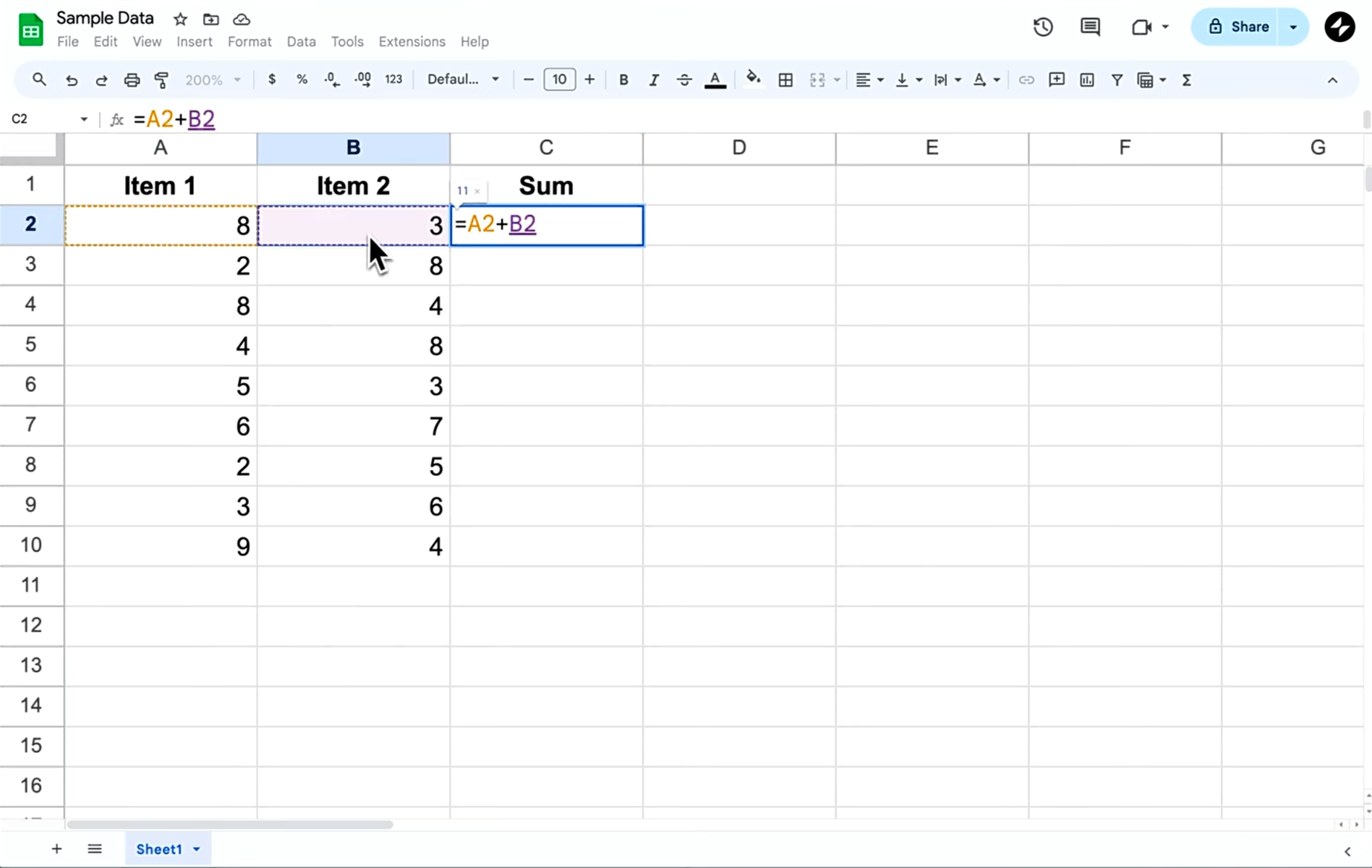
Image source: google.com
Step 3: Add logic and lookups for smarter automation
Introduce conditional and lookup formulas to make your sheet more dynamic. IF statements help classify or label data based on rules, while VLOOKUP (or similar lookup functions) pulls related information from other tables automatically. These formulas reduce the need to search, copy, or manually validate data across sheets.
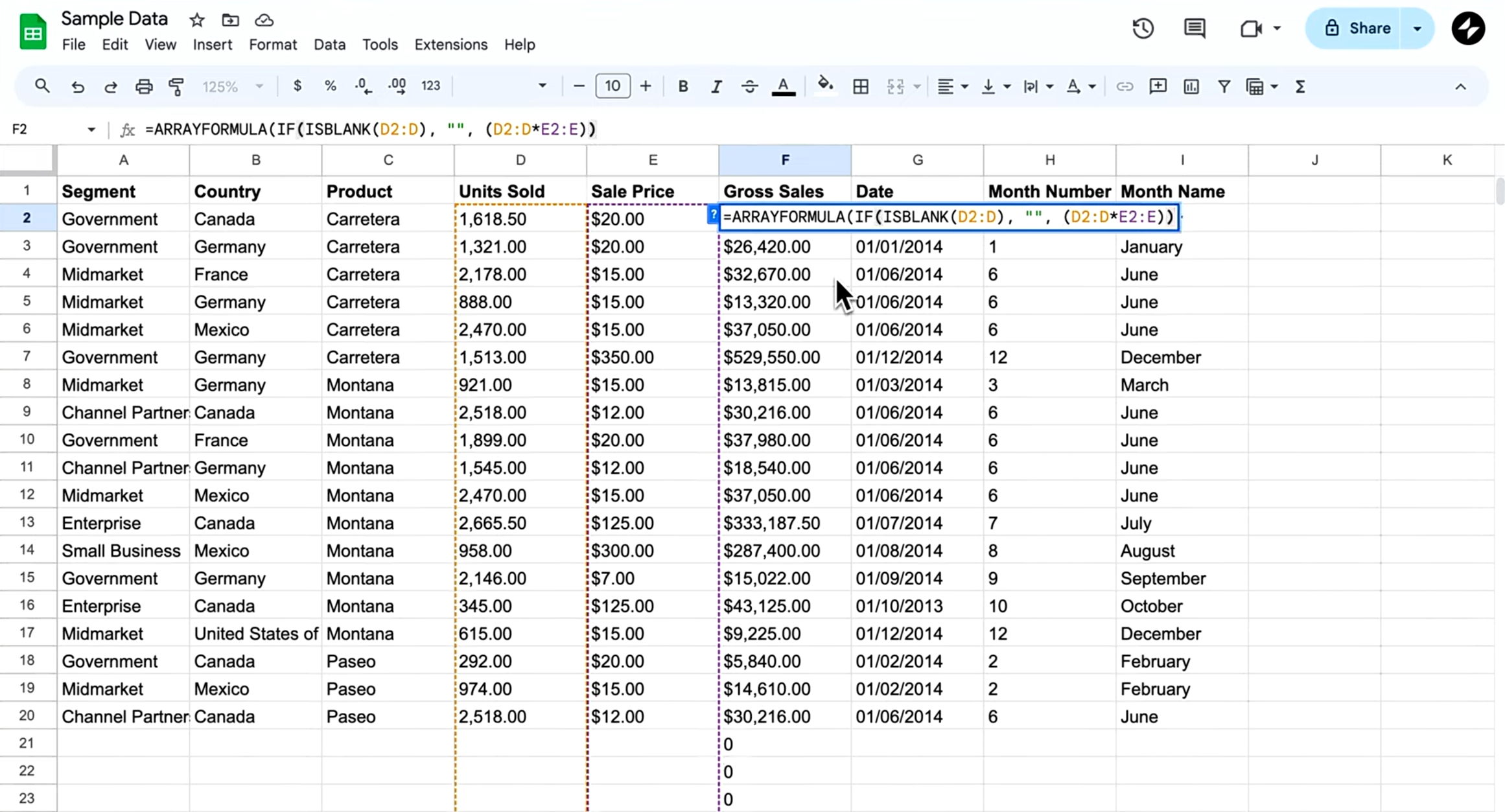
Image source: google.com
Step 4: Refine with text, dates, and error handling
Complete your automation by handling text, time, and errors gracefully. Use CONCATENATE (or &) to merge text fields, date functions like TODAY, NOW, and DATEDIF to automate timelines, and IFERROR to replace formula errors with clean, readable messages. This final step ensures your spreadsheets stay usable, reliable, and easy for others to understand.
Inevitable choice: When Google Sheets automation can't cover teams' needs
Although Google Sheets automation performs well on a small scale, problems appear as workflows become multi-step and collaborative:
- Scaling and performance latency: While Google Sheets is excellent for lightweight tasks, large datasets with multiple automated triggers often suffer from "calculation lag." As rows increase, scripts take longer to execute, leading to timeouts or partial data processing.
- The "Black box" of debugging: Troubleshooting Google Apps Script (GAS) requires specialized coding knowledge. When automation fails, there is often no proactive alert; the workflow simply stops, leaving team members to hunt through lines of code to find the break.
- Invisible error handling: Standard sheets lack robust error logging. If a multi-step automation fails at step two, it may still attempt to execute step three with corrupted or missing data, creating a "silent failure" that is difficult to audit.
- Complex logic sprawl: Creating multi-branching workflows (e.g., if X happens, notify Team A; if Y happens, update Database B) requires deeply nested logic. In a spreadsheet, this often results in "spaghetti code" that is nearly impossible for anyone other than the original creator to maintain.
- Permission & security friction: In collaborative environments, it is difficult to give a user "write" access to a specific automation without also giving them access to the sensitive raw data in the sheet. Notifications may trigger, but follow-up is manual. Approvals rely on email trails. This disconnect between automation and accountability leads teams to rethink .
Move beyond fragile spreadsheet automation
Emerging choice: Streamline and automate workflows easily in Lark
Teams that rely heavily on Google Sheets automation often want stronger reliability without losing flexibility. approaches automation by building it around structured data and execution steps. Instead of relying on cells and scripts, workflows are tied to records, statuses, and ownership. This makes automation easier to understand and maintain as teams grow, positioning Lark as a compelling for organizations seeking integrated automation capabilities.
Live data hub instead of a static spreadsheet
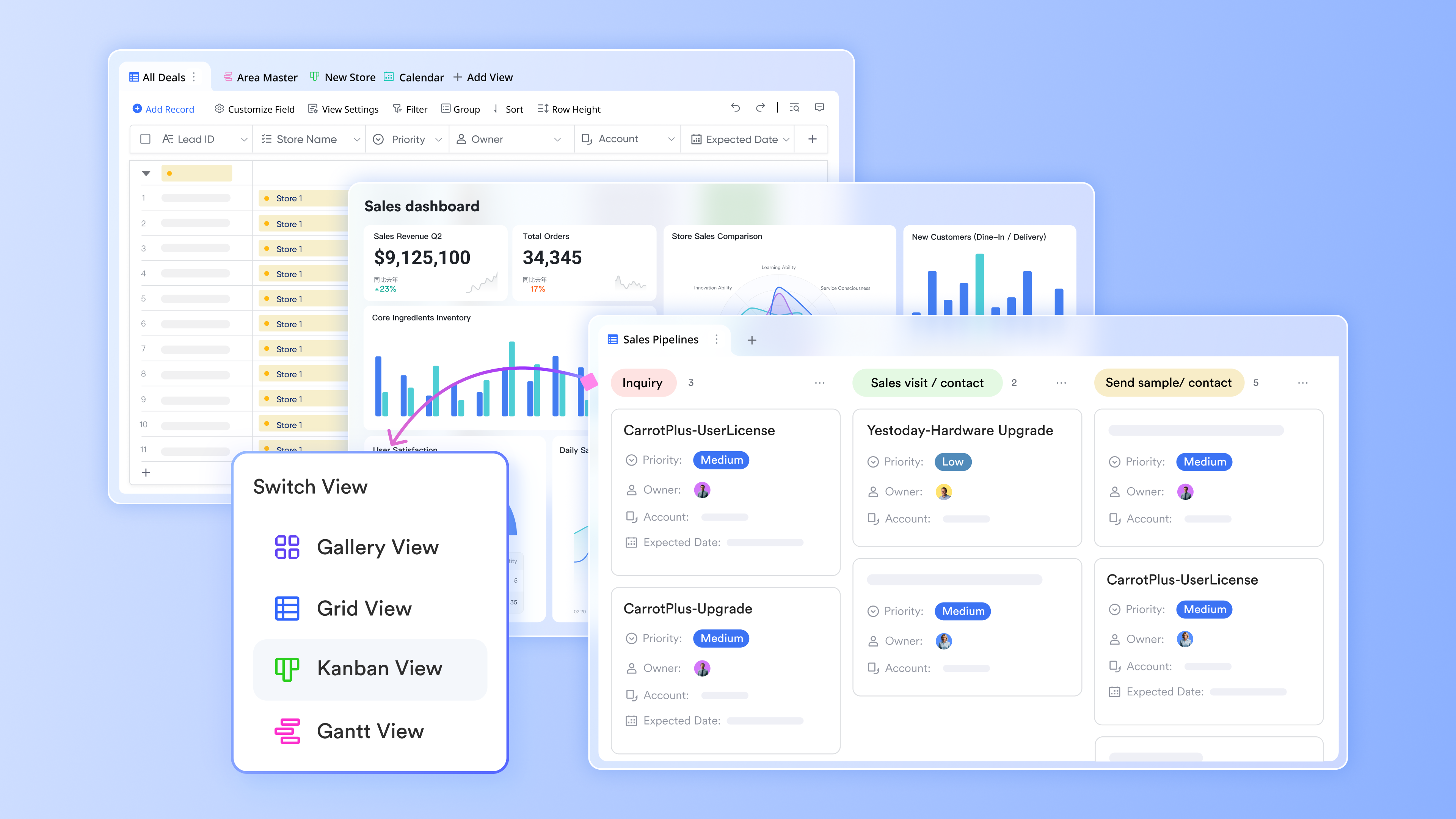
Unlike a static spreadsheet in Google Sheets, functions as a live database by enforcing multiple field types (such as "User" or "Date") to ensure data integrity. It uses a single-source-of-truth architecture, where a single dataset can be viewed simultaneously as a Grid, , or Kanban, ensuring that an update in one view instantly synchronizes across all others. By replacing fragile formulas with linked records, Lark creates a robust relational structure: For example, linking a "Project" to a "Client" creates a two-way connection that doesn't break if columns are moved or renamed. As for security and access, unlike Google Sheets, Lark Base provides granular advanced permissions that allow you to manage access at the table, record, and field levels, moving far beyond the "all-or-nothing" sharing model of Google Sheets. You can restrict users to viewing or editing only records related to themselves or those that meet specific conditions, while hiding sensitive columns like budgets or personal data within the same table.
AI-driven field shortcuts streamline data entry and management
Lark Base leverages AI field shortcuts to automate manual data entry and complex configurations. For example, "Extraction" can automatically extract key entities, "Summarization" summarizes long notes, and "Translation" translates text the moment data is entered, ensuring your records remain clean and actionable without manual intervention. By enabling the "Auto-update" feature, the AI dynamically re-processes information whenever a source field changes, effectively acting as a no-code engine for real-time data classification and enrichment. 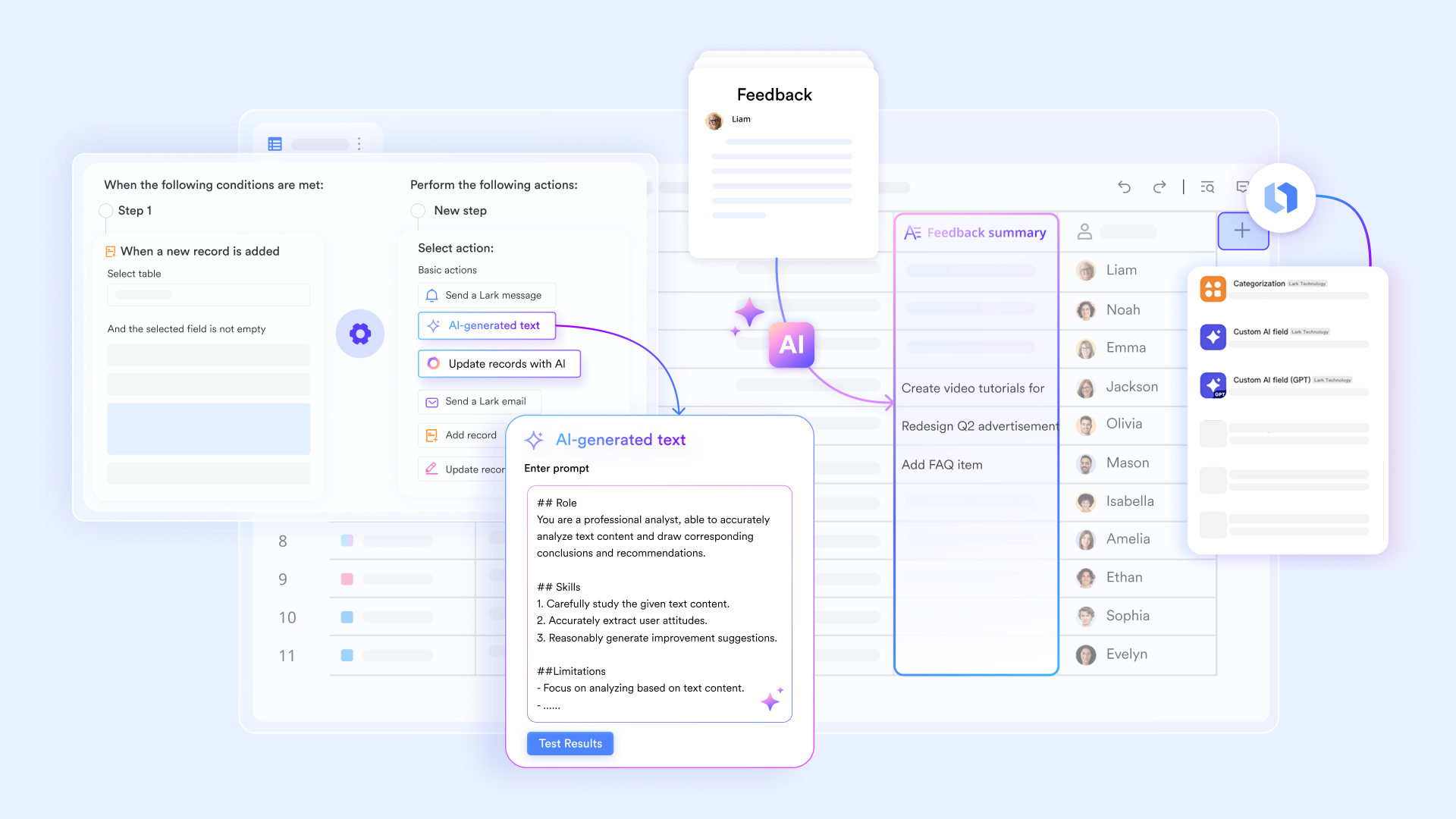
Native, no-code automation powers up the overall workflow
Lark Base's no-code automations feature replaces the technical complexity of Apps Script. It allows anyone to create sophisticated workflows through a simple drag-and-drop interface. Unlike the "polling" delays common in spreadsheet integrations, Lark is event-driven and real-time, triggering actions—such as sending rich interactive cards to —the exact millisecond a record is updated. It features advanced "Find and Update" logic that can batch-process complex datasets across multiple tables without the timeout risks or broken references associated with large Google Sheets. 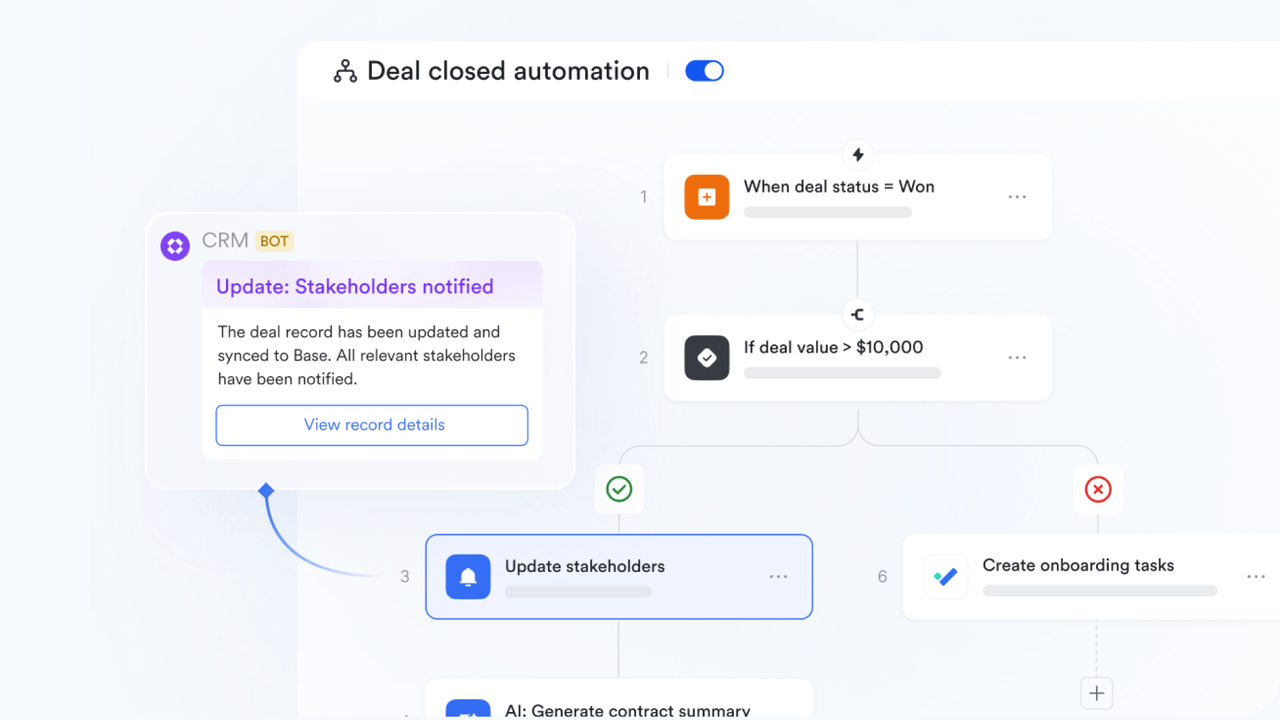
High-performance formulas with server-side computing
supports advanced formula calculations similar to spreadsheets, including filtering, counting, and aggregation. Unlike traditional spreadsheets that rely on local browser resources, Base runs calculations on the server after upgrades, significantly improving speed and stability. Built-in performance diagnostics help troubleshoot and optimize the base when it becomes lagging. This ensures formulas remain reliable even as data volume grows, reducing lag during filtering, sorting, and grouping. 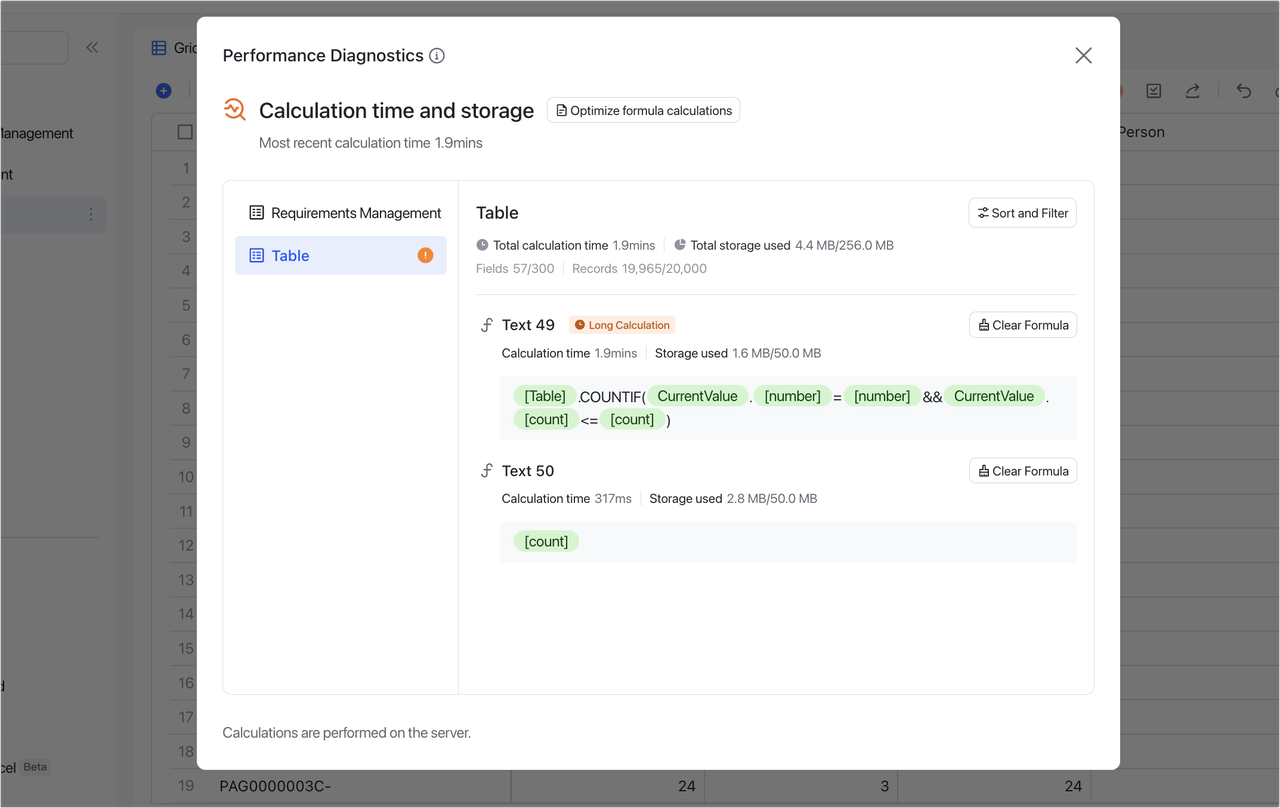
Deeper analysis through real-time dashboards
Instead of manual pivot tables, Lark Base uses dashboards and aggregation logic to summarize large datasets dynamically. With various blocks and charts, such as funnel charts, ranking blocks, or metric blocks, teams can group records, calculate totals, rankings, and trends without rebuilding pivot tables each time data changes. Also, the native dashboard supports pivot tables with greater flexibility, including hovering over data to see details, automatic syncing to Lark Base, and one-click table generation. This approach reduces maintenance overhead while providing clearer, real-time insights compared to static spreadsheet pivots. 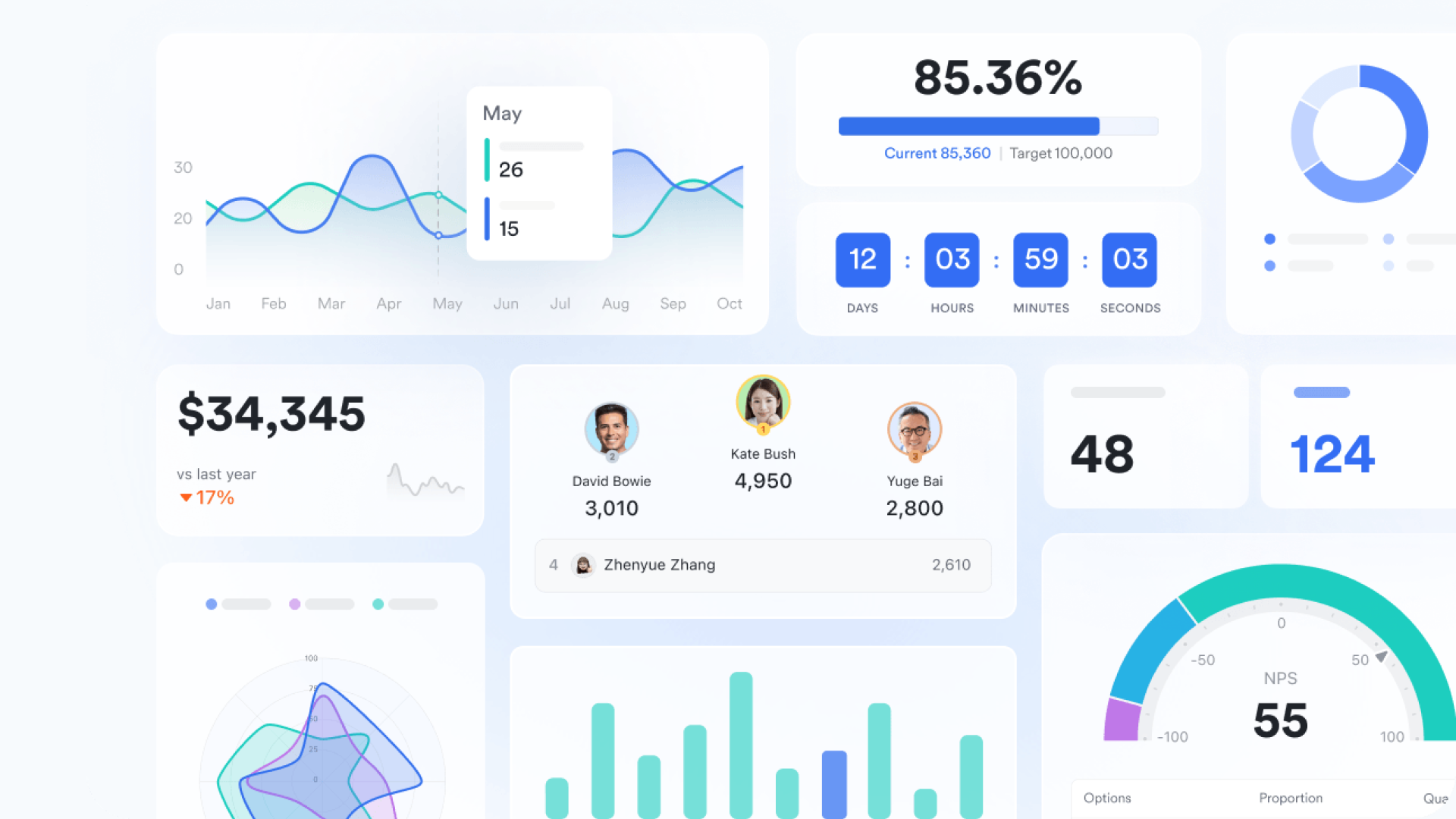
:
- Starter plan: Free forever plan that includes 11 powerful tools for up to 20 users. It also comes with 100GB of storage, 1000 automation runs, AI translations, and more.
- Pro plan: $12/user/month (billed annually) for up to 500 users. It includes everything in Starter plus group calling for up to 500 attendees, 15TB of storage, 50,000 automation runs, and more.
- Enterprise plan: for custom pricing. Supports unlimited users and includes even more automation runs and advanced security, compliance, and management features.
For small teams with simple communication needs

18 months message history
1000 Base automation runs/month
2000 rows per table in Base
Most POPULAR
For companies with comprehensive collaboration and management needs
Unlimited message history
500-participant video meetings
50k Base automation runs/month
20k rows per table in Base
For large companies with advanced security and organizational management needs
Get a personalized demo and pricing
Unlimited message history
500-participant video meetings
15 TB storage + 30 GB storage/user
500k Base automation runs/month
50k Base automation runs/month
Most POPULAR
For companies with comprehensive collaboration and management needs
Unlimited message history
500-participant video meetings
50k Base automation runs/month
20k rows per table in Base
Comparing Google Sheets automation vs Lark workflows
As automation needs grow, the differences between spreadsheet-based logic and structured workflows become clearer. Comparing Google Sheets automation with Lark workflows helps teams understand how each approach handles scale, reliability, and execution ownership. Google Sheets automation works well for small, lightweight tasks where speed and flexibility matter most. It allows teams to reduce manual effort using familiar formulas, scripts, and triggers. As workflows grow more complex, maintaining scripts and nested formulas becomes harder and riskier. Errors are harder to detect, and ownership is often unclear. focus on structured execution, making automation easier to manage, more reliable at scale, and better suited for growing team operations.
Conclusion
Google Sheets automation is an effective way to reduce repetitive work when workflows are simple and teams are small. It allows fast experimentation using familiar tools, making it easy to automate reports, notifications, and data cleanup. However, as automation becomes part of core operations, spreadsheet limitations become more visible. Debugging scripts, managing permissions, and maintaining reliability require increasing effort. Automation without clear ownership also creates execution gaps.
supports teams as they move beyond spreadsheet automation by combining structured data, , and built-in accountability. It preserves the flexibility teams value while improving reliability and scale. For teams looking to turn automation into dependable workflows rather than fragile scripts, Lark offers a more sustainable foundation.
Create reliable automation using Lark workflows
FAQs
How secure is Google Sheets automation for sensitive business data?
Google Sheets automation relies on sharing permissions, script access, and account-level security controls. This works for basic internal workflows and non-sensitive data. As automation expands, visibility into who can edit scripts or trigger actions becomes limited. Auditing and governance require manual checks. Teams handling sensitive workflows often explore platforms like Lark for stronger access control. Who should maintain automation scripts as teams grow?
Automation in Google Sheets is usually maintained by a small number of technically skilled users. This creates dependency risks when those individuals are unavailable. Documentation is often incomplete or outdated. As workflows grow, maintenance becomes a bottleneck. Structured automation tools such as Lark reduce reliance on custom scripts.
What happens when Google Sheets automation fails silently?
Silent failures are common in Google Sheets automation scripts, especially with time-based triggers or API limits. Errors may not notify users immediately. Data can become outdated without clear warnings. Teams often discover issues during reviews or audits. Platforms like Lark surface automation failures more visibly.
Can Google Sheets automation handle approvals and compliance?
Approvals in Google Sheets automation typically rely on comments, email triggers, or external tools. This works for simple automated approval steps. Compliance tracking and audit trails are difficult to maintain. As requirements increase, workflows become fragile. Many teams later adopt tools like Lark with built-in approval logic.
How do teams migrate automated workflows out of spreadsheets?
Most teams migrate automated gradually rather than all at once. Active workflows are prioritized first. Data from Google Sheets automation scripts is imported and validated. Teams often run both systems in parallel. Platforms like Lark support smoother transitions with structured automation.
Related reading