Microsoft Office has remained the world's most widely used productivity suite for decades, and understanding Microsoft Office pricing has become increasingly important as individuals and teams choose between traditional licenses and cloud-based subscriptions. The ecosystem has expanded significantly in recent years, evolving into the broader Microsoft 365 suite with multiple pricing tiers for Home, Personal, Family, Business, and Education users. If you're trying to determine which Office 365 plan is right for your needs, this guide walks through the pricing, core features, significant differences, and ideal use cases. Let's dive in now.
Start improving your workflow with the right tool
Office Home and Microsoft Home plans explained
The Office Home and Microsoft Home plans are designed for individuals and families who need essential productivity tools without the complexity of business features. These plans focus on simplicity, familiar desktop apps, and flexible device access depending on the option you choose. This section breaks down what each plan includes and how to decide which one fits your everyday work or personal needs.

Information source: microsoft.com
Update time: 2025-12-05
Note: Pricing and plan details reflect publicly available data as of the update date and may vary based on region, billing cycle, and number of agents.
Office Home 2024
Office Home 2024 is a one-time purchase for individuals who prefer owning classic desktop apps without ongoing subscription fees. It's ideal for users who work on a single computer and don't need cloud syncing or . This plan offers simplicity and stability for those who want the essentials without recurring costs.
Key features:
- Classic desktop apps: You get Word, Excel, PowerPoint, and OneNote in their traditional installable versions. These apps run fully offline and provide long-term reliability for everyday productivity. It suits users who only need core tools without AI or cloud enhancements.
- One-time payment: A single $149.99 payment grants lifetime access on one PC or Mac. This avoids subscription renewals, making budgeting predictable and straightforward. It's best for users who dislike monthly fees or rarely change their device setup.
- Single-device usage: The license is tied to one computer, which simplifies management but limits flexibility. There's no switching between devices or accessing premium mobile features. It works well for people who consistently use the same workstation.
Microsoft 365 Family
Microsoft 365 Family is designed for households or small groups that share across multiple devices. It supports up to six people, each receiving full app access and cloud storage. This plan offers substantial value for families needing flexibility, collaboration, and continuous updates.
Key features:
- Multi-user support: Up to six users can share the subscription, each with their own independent apps and settings. This avoids file mix-ups and maintains personal privacy across accounts. It's ideal for families or small teams seeking shared affordability.
- 1 TB storage per user: Each person receives 1 TB of OneDrive storage, totaling up to 6 TB for the entire plan. This supports large photo libraries, school files, work documents, and backups. It ensures every member has enough space without competing for shared storage.
- Works across all devices: Users can install Office apps on PCs, Macs, iPhone, iPads, and Android devices—up to 5 devices per person. This enables seamless work across laptops, tablets, and phones. It's a strong fit for families with mixed device ecosystems.
Microsoft 365 Personal
Microsoft 365 Personal is designed for individual users who want full access to Office apps along with generous cloud storage and multi-device flexibility. It blends traditional productivity tools with and AI enhancements. This plan suits professionals, students, and remote workers who need mobility and ongoing updates.
Key features:
- Use on up to five devices: One user can install and use the apps on up to five devices at once, offering unmatched flexibility. You can work on your laptop, switch to a tablet, and check files on your phone. This makes it ideal for people with multi-device workflows.
- 1 TB secure cloud storage: The included OneDrive storage provides room for large files, document syncing, and automatic backups. Your work stays accessible across devices without manually transferring files. This improves productivity and minimizes data-loss risks.
- Full suite with AI enhancements: You get Word, Excel, PowerPoint, Outlook, and OneNote with built-in Copilot features for drafting, analyzing, and organizing content. These tools help speed up workflows and reduce repetitive tasks. It's a meaningful upgrade for users who want smarter productivity tools.
Side-by-side summary: Microsoft Office 365 pricing
Which plan makes sense?
Choosing the right Microsoft Office plan depends on how many people need access, how many devices you use, and whether you prefer a subscription or a one-time purchase. Each plan is designed for a different type of workflow, from simple single-device use to fully cloud-enabled multi-user collaboration. The following breakdown helps clarify which option best aligns with your everyday needs.
Choose Office Home 2024
- If you dislike subscriptions, Office Home 2024 is ideal because it requires only a single upfront payment and eliminates monthly billing.
- If you work on only one computer, this plan fits nicely since the license applies to a single PC or Mac and keeps things simple.
- If you don't need cloud sync or AI tools, the classic offline apps meet basic productivity needs without modern online features.
Choose Microsoft 365 Personal
- If you want complete flexibility across devices, Microsoft 365 Personal lets you install apps on multiple devices and switch between them seamlessly.
- If you need cloud storage and continuous updates, its 1TB OneDrive integration and ongoing feature upgrades keep your files accessible and secure everywhere.
- If you value such as Copilot and Designer, this plan enhances writing, analysis, and visual creation through intelligent automation.
Choose Microsoft 365 Family
- If you have multiple household members or teammates, Microsoft 365 Family allows up to six people to use the subscription independently, each with a separate account.
- If you want the lowest per-user price, the shared subscription spreads the cost across users, making it more economical than individual plans.
- If everyone needs their own apps and cloud storage, each person receives full Office access and 1 TB of storage, supporting and collaboration.
Core features common in Microsoft 365 plans (Personal & Family)
The Personal and Family versions of Microsoft 365 share a core set of features designed to support flexible, cloud-enabled productivity across devices. These shared tools ensure that whether you're working individually or as part of a household, you get consistent access to storage, apps, and capabilities. The following highlights the essential features they share.
Multi-device access
- You can install and use Office apps (Word, Excel, PowerPoint, Outlook, OneNote, etc.) on multiple devices: PC, Mac, iPhone, iPad, Android phone/tablet.
- In the "Personal" plan, one user may use up to 5 devices simultaneously.
- In the "Family" plan, up to 6 people can each use up to 5 devices—making it ideal for households or across laptops, desktops, tablets, and phones.
Why it matters:
You're not tied to a single machine. Work from your laptop, tablet, or phone and switch freely without buying separate licenses per device.
Cloud storage (1 TB per user)
- Each user gets 1 TB (1000 GB) of secure cloud storage with their account.
- On the Family plan, that totals up to 6 TB (1 TB × 6 users).
What it enables:
- You can store documents, spreadsheets, presentations, and other work in the cloud—accessible from any linked device.
- Automatic syncing ensures you always have the latest version.
- Great for collaboration: Share files, , and avoid issues with version control.
Full suite of Office desktop apps + Premium tools
- Includes traditional productivity tools: Word, Excel, PowerPoint, Outlook, and OneNote.
- Also includes premium extras:
- AI-powered tools (e.g., "Copilot" features)—potentially help with document drafting, editing, data analysis, etc.
- Media tools: image editor (e.g., Microsoft Designer) and video editor (e.g,. Clipchamp)—helpful in or marketing assets without extra software.
What you get from this:
More than just letters and spreadsheets—you have a full creative + productivity suite. Handy for businesses, freelancers, or anyone who works across documents, presentations, visuals, and media.
Office Home 2024 (one-time purchase)—core desktop features only
For users who prefer a one-time license rather than a subscription:
- You get classic desktop apps like Word, Excel, PowerPoint, and OneNote, installed and usable on one PC or Office for Mac, giving you essential tools without requiring a subscription.
- No cloud storage, no mobile device apps, no , no automatic updates beyond security patches.
- Suitable for: Individuals who only work on one computer, don't need collaboration or cloud features, and prefer a fixed cost.
Limitations compared to 365 plans:
Office Home 2024 offers essential desktop functionality, but it lacks many of the conveniences of Microsoft 365 subscriptions. These limitations matter if you anticipate needing mobility, , or cloud-enabled workflows in the future.
- No access on phone/tablet: You cannot use the full Office apps on mobile devices, which restricts your ability to work on the go. This is a drawback for users who rely on phones or tablets for productivity.
- Cannot sync documents across devices: Files remain stored locally on your computer, meaning you must transfer them manually when switching devices. This limits workflow continuity and increases the chances of version conflicts.
- No access to newer features like AI tools or collaborative editing: The plan does not include or real-time co-authoring, features that streamline document creation and teamwork. As Microsoft continues innovating, these gaps may become more noticeable.
- Less flexibility if you later need cloud or mobile access: Upgrading requires switching to a subscription model, which may disrupt established workflows. Users who eventually need cloud storage or device freedom may find the one-time license restrictive.
Afterthought
Although Office Home 2024 provides strong and reliable desktop productivity for users who prefer traditional, one-time-purchase software, it still falls short in mobility, cloud syncing, and modern collaboration features. As a result, many teams look for tools that offer a more connected and flexible workflow. This is where Lark stands out—delivering an all-in-one, cloud-native workspace with real-time collaboration, mobile access, and seamless teamwork.
Evaluate your choices and begin optimizing your work
Meet Lark: Unified office workspace with flexible workflows for teams
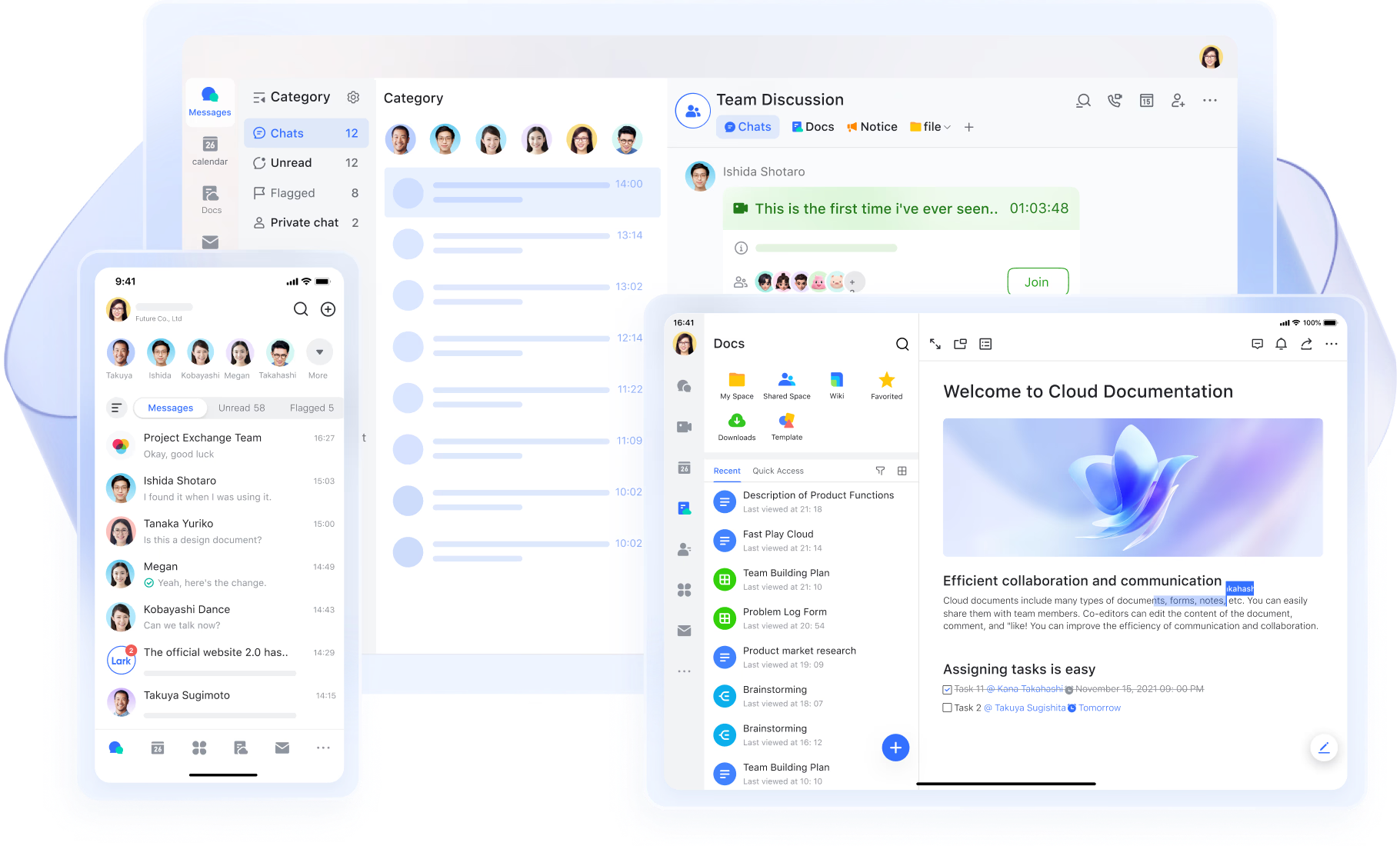
offers an all-in-one workspace that replaces multiple Microsoft 365 apps with a single connected environment. Teams use it to , manage spreadsheets, chat, , organize workflows, and automate daily operations without switching tools. Because everything is built natively into one system, collaboration becomes faster, cleaner, and more contextual for modern teams.
Unified document creation & collaboration
and Lark Sheets allow teams to create, edit, and co-author documents and spreadsheets in real time, removing the need to manage separate Word or Excel files. Multiple collaborators can comment, suggest edits, tag teammates, and see version changes instantly. Docs support rich media, tables, task checklists, mentions, and embedded files, making them suitable for SOPs, meeting notes, specifications, proposals, and reports. Lark Sheets handles data analysis, calculations, summaries, and sharing while maintaining real-time synchronization across teams, eliminating version conflicts typical in email-based file exchanges. 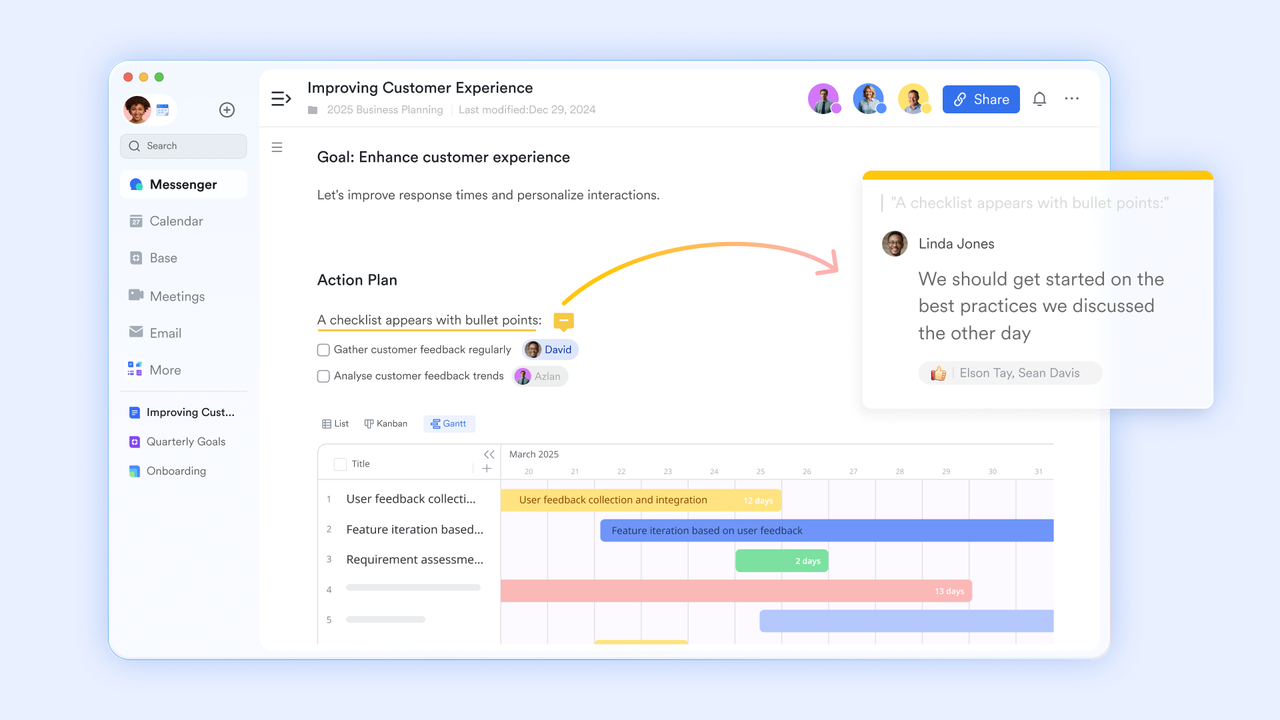
Knowledge management and internal wikis
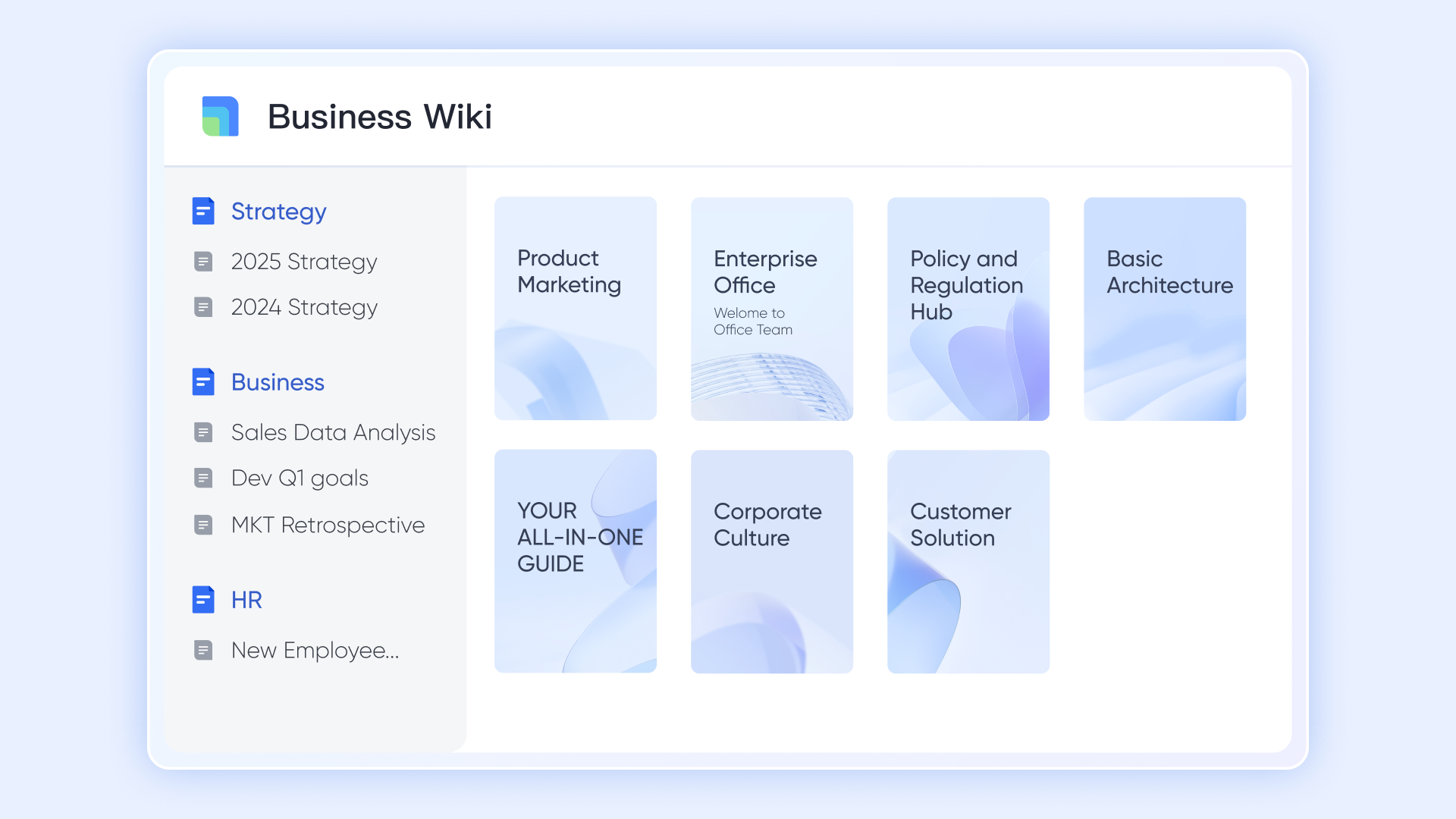
replaces complex SharePoint site setups with a simple, structured internal knowledge hub. Teams can organize Docs into topic-based folders for onboarding resources, process guides, technical documentation, and training libraries—granular permissions control who can view, edit, or access libraries. Searchable content helps staff find information instantly without navigating deep folder trees. Wiki supports linking within Docs and embedding files or trackers, so remains clean, accessible, and easy to maintain.
Team chat and contextual communication
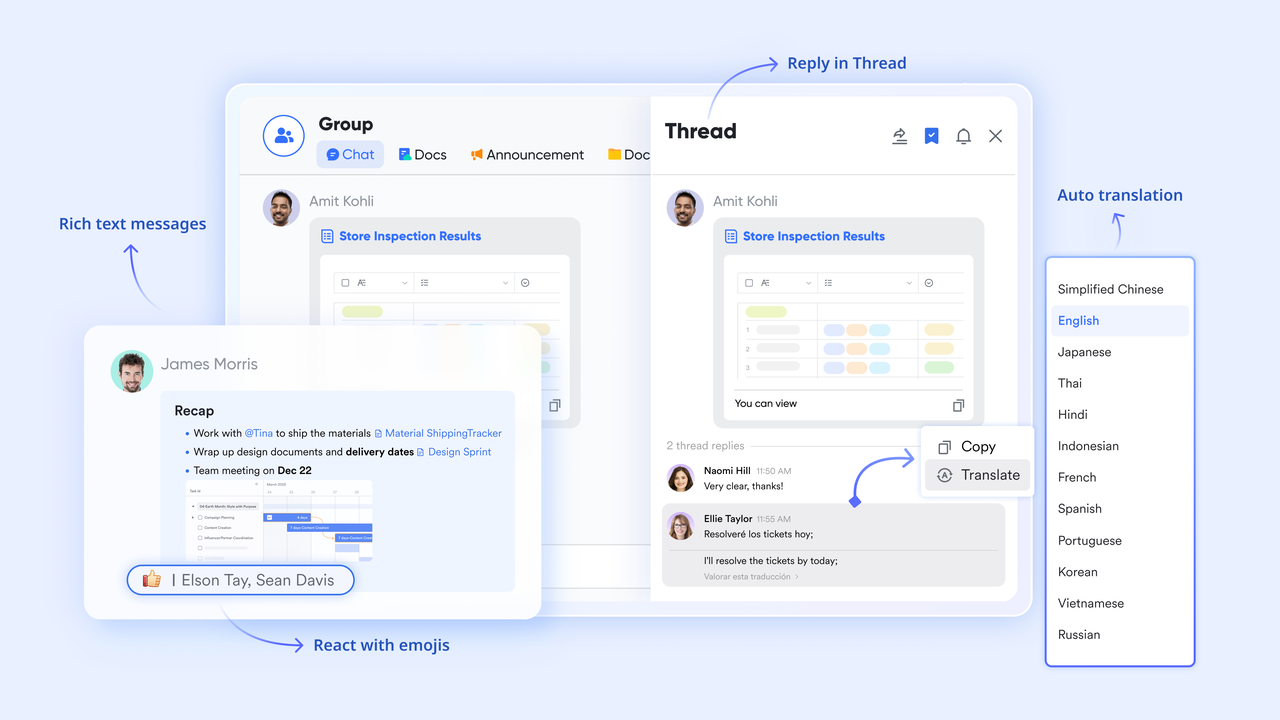
centralizes real-time communication directly inside the workspace. Team members can send messages, voice notes, and start video calls without switching apps. Messenger supports message threads, letting , tasks, or documents instead of being scattered across chat channels. Essential instructions can be pinned for visibility or flagged for personal follow-up. Docs, tasks, database records, and calendar events can be linked directly into chat messages, so conversations always stay anchored to the actual work being discussed.
Meetings and video collaboration
supports HD video conferencing, meeting scheduling, screen sharing, recording, participant management, chat, and . Calendar scheduling tools let teams create meetings directly from events, automatically invite participants, and attach agendas or Docs to each session for smoother coordination. During calls, teams can collaboratively edit documents or capture action items. Recordings and meeting notes stay connected to the session, so follow-ups remain organized and searchable across the workspace.

Task ownership and project execution
Lark Tasks supports individual task assignments, priority categorization, due dates, subtasks, , reminders, and team workload views. Tasks can be linked and displayed directly to docs, and the task list can be synced into Lark Base, so execution always stays connected to planning or reporting data. Team leaders can monitor progress across members and departments without chasing updates across multiple boards or apps. Tasks also feed into notifications inside Messenger, keeping accountability front-and-center during daily operations. 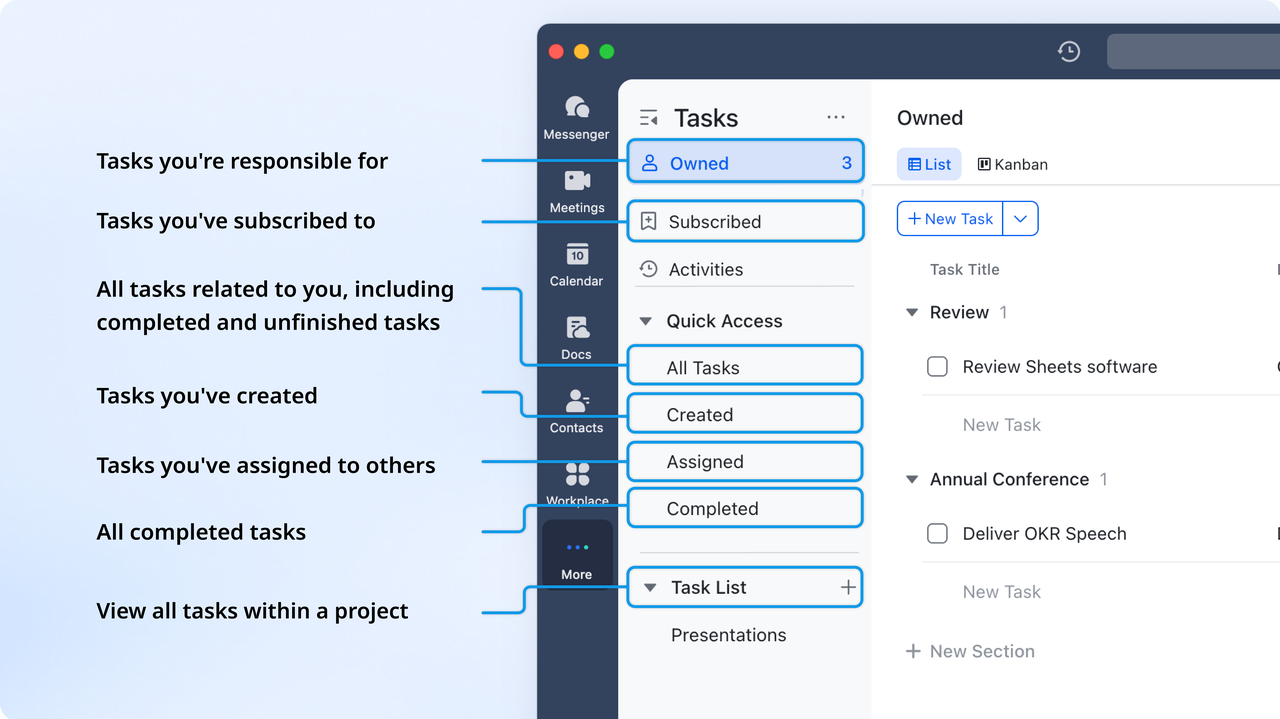
Calendar and scheduling management
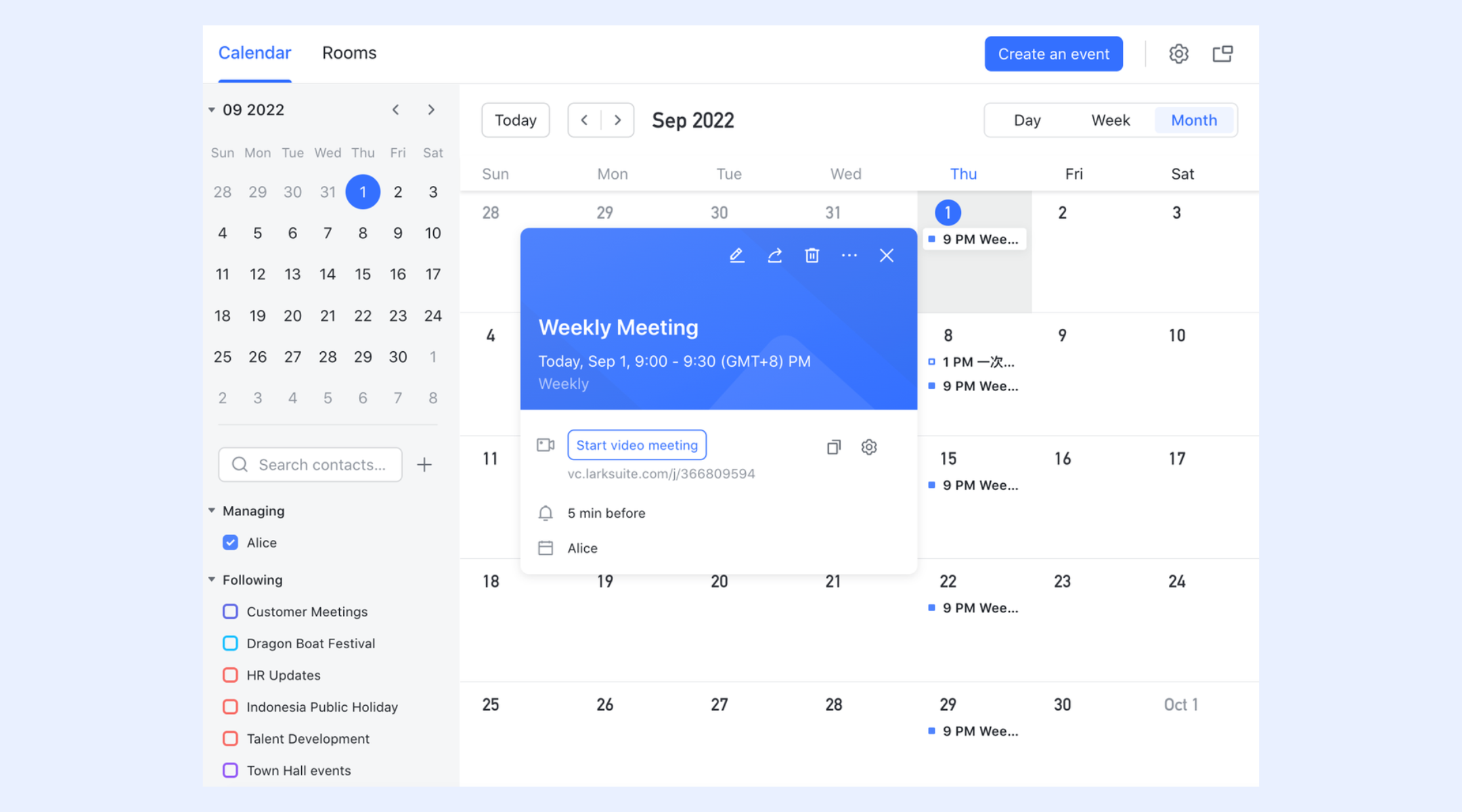
supports scheduling meetings, deadlines, sprint milestones, and employee shifts in one shared, collaborative calendar system. Tasks automatically sync with calendar deadlines, while meetings connect directly to video calls and agendas. Availability visibility prevents scheduling overlaps, and calendar overlays help project managers visualize . Calendar data also aligns with attendance timestamps, making workforce scheduling and capacity planning significantly easier than managing standalone calendars.
Low-code workflow and data management
replaces complex Power Apps deployments with an intuitive database system for business teams. Organizations use Base to create custom management systems for CRM pipelines, project trackers, bug databases, time sheets, inventory tables, support tickets, and more without technical setup. Each base record includes owners, priorities, due dates, stages, attachments, and relationships. Groups and filters create personalized views for managers, QA teams, or department leads. One-way and two-way links connect datasets across business workflows, providing traceability between tasks, leads, bugs, and billing records. 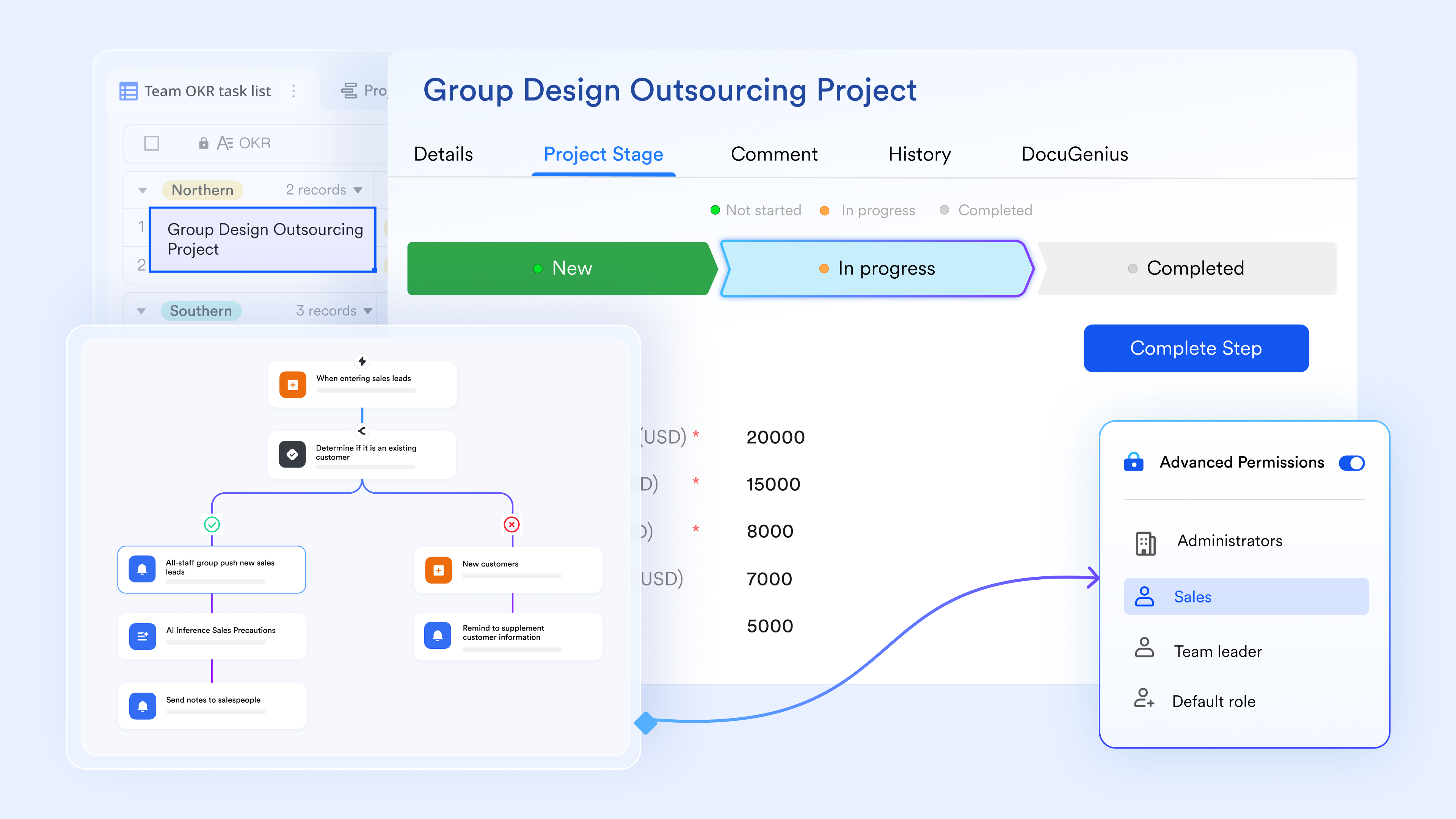
Central operational templates
for , bug tracking systems, , onboarding dashboards, attendance sheets, sprint planners, and . These templates eliminate complex setup and allow teams to launch functional work systems instantly. Fields, automation rules, dashboards, task structures, and reports come preconfigured and can be adjusted as workflows evolve, making rapid deployment accessible to non-technical operations teams.
:
- Starter plan: Free forever plan that includes 11 powerful tools for up to 20 users. It also comes with 100GB of storage, 1000 automation runs, AI translations, and more.
- Basic plan: $6/user/month (billed annually) for up to 500 users. It includes everything in Starter plus group calling for up to 500 attendees, 5TB of storage, 1000 automation runs, and more. For more details, please .
- Pro plan: $12/user/month (billed annually) for up to 500 users. It includes everything in Basic plus group calling for up to 500 attendees, 15TB of storage, 50,000 automation runs, and more.
- Enterprise plan: for custom pricing. Supports unlimited users and includes even more automation runs and advanced security, compliance, and management features.
For small teams with simple communication needs

18 months message history
1000 Base automation runs/month
2000 rows per table in Base
Most POPULAR
For companies with comprehensive collaboration and management needs
Unlimited message history
500-participant video meetings
50k Base automation runs/month
20k rows per table in Base
For large companies with advanced security and organizational management needs
Get a personalized demo and pricing
Unlimited message history
500-participant video meetings
15 TB storage + 30 GB storage/user
500k Base automation runs/month
50k Base automation runs/month
Most POPULAR
For companies with comprehensive collaboration and management needs
Unlimited message history
500-participant video meetings
50k Base automation runs/month
20k rows per table in Base
Conclusion
Choosing the right Microsoft Office plan ultimately depends on how you work, how many devices you use, and whether you prefer a one-time purchase or the flexibility of a subscription. Office Home 2024 suits users who want classic desktop apps on a single computer without ongoing fees, while Microsoft 365 Personal and Family offer multi-device access, cloud storage, continuous updates, and . For individuals, the Personal plan delivers substantial value, and for households, the Family plan provides the best cost per user.
If you're also exploring modern alternatives, offers a workspace that combines documents, spreadsheets, chat, meetings, and workflow tools in one environment. It's a valuable option for teams seeking a unified platform without juggling multiple apps. Consider comparing your workflow needs across both ecosystems to determine which solution provides the best balance of features, collaboration, and long-term flexibility.
Explore plans and find the right option for your team
FAQs
What is Microsoft Defender for Office 365 pricing, and how does it work?
Microsoft Defender for Office 365 pricing varies by tier and is typically included in business plans for enhanced security, including threat protection and anti-phishing tools. It is designed for organizations that need more advanced safeguards than what standard Office subscriptions provide. For teams considering workflow and security alternatives, Lark offers built-in protection features without requiring multiple add-ons.
Is the Microsoft Office app free to use on mobile devices?
The Microsoft Office app is free for basic viewing and editing on mobile devices, but advanced features require an active Microsoft 365 subscription. It consolidates Word, Excel, and PowerPoint into one app, making quick tasks easier on the go. Users who want mobile can compare this with Lark, which provides document sharing and communication on a single platform.
What options are available for schools using Office Education plans?
Office Education plans offer tools such as Word, Excel, PowerPoint, Teams, and OneDrive for students and teachers, often at discounted or no cost, depending on eligibility. These plans support digital learning environments with cloud-based collaboration and classroom . Schools exploring alternatives may consider Lark, which provides real-time collaboration and messaging suited to academic workflows.
What is Office A1, and who is it intended for?
Office A1 is a free, cloud-only version of Microsoft 365 for eligible academic institutions, offering online Office apps and Teams without desktop installations. It is ideal for schools needing web-based access with minimal setup or licensing complexity. Some institutions compare it to Lark, which also enables cloud-native collaboration and communication on a single platform.
Can I switch between Microsoft Office plans easily?
Users can upgrade or modify their Microsoft Office plans, with changes typically taking effect immediately or at the next billing cycle, depending on the direction of the switch. Plan adjustments may impact device limits, storage, or available features, so reviewing needs beforehand is essential. Those evaluating multi-plan flexibility may also consider Lark, which offers scalable options for shifting team requirements.
Related reading