














Microsoft Project for Mac: Alternatives, Workarounds, and Smarter Options

Akhil Nimmathota
Content Specialist
Nov 3, 2026
Akhil Nimmathota
Nov 3, 2026

20 min read
Add to preferred sources


If you're a Mac user looking to plan, schedule, and manage projects, you've likely come across Microsoft Project for Mac—or quickly realized it doesn't run natively on macOS. In this guide, we'll break down the reality of using Microsoft Project on a Mac, including its limitations, available workarounds, and the best alternatives. From cloud-based solutions like Asana and ClickUp to all-in-one collaboration platforms like Lark, you'll discover smarter tools that make project management seamless across devices. Whether you're searching for "Microsoft Project Mac" or "download Microsoft Project for Mac," this guide helps you find the best fit.
1. Lark: A connected workspace for project planning and collaboration
2. Asana: Visual task management and team coordination
3. ClickUp: Customizable workspaces with automation
4. Smartsheet: Spreadsheet-style project tracking
5. Trello: Lightweight visual project management
6. Wrike: Enterprise-ready project control
7. Monday.com: Visual workflows for cross-department projects
8. Teamwork: Agency-focused project tracking
9. Notion: Simple and flexible project documentation
10. ProjectManager: Online Microsoft Project alternative for Mac

Comparison table: Microsoft Project vs. top alternatives
When comparing Microsoft Project for Mac with today's leading project management tools, it's clear that flexibility and collaboration matter most. Modern alternatives go beyond static Gantt charts, offering live dashboards, automation, and team communication in one workspace. Below is a quick comparison of top tools that bring seamless productivity to Mac users—from Lark's all-in-one hub to lightweight options like Trello.
What is Microsoft Project used for?
Microsoft Project is a powerful project management software developed by Microsoft to help teams plan, schedule, and track work efficiently. It's widely used for building Gantt charts, setting timelines, assigning resources, and monitoring project progress. Businesses rely on Microsoft Project for Mac alternatives or workarounds because the native version only supports Windows.
The tool is ideal for large projects that require detailed planning, cost tracking, and reporting. Project managers use it to define tasks, manage dependencies, and analyze workload distribution. However, while it's known for its advanced capabilities, it can be complex and less collaborative compared to modern cloud-based options like Lark, Asana, or ClickUp. For Mac users, understanding what Microsoft Project is used for helps in finding the right Microsoft Project alternative for Mac that delivers the same precision with better accessibility and team collaboration.
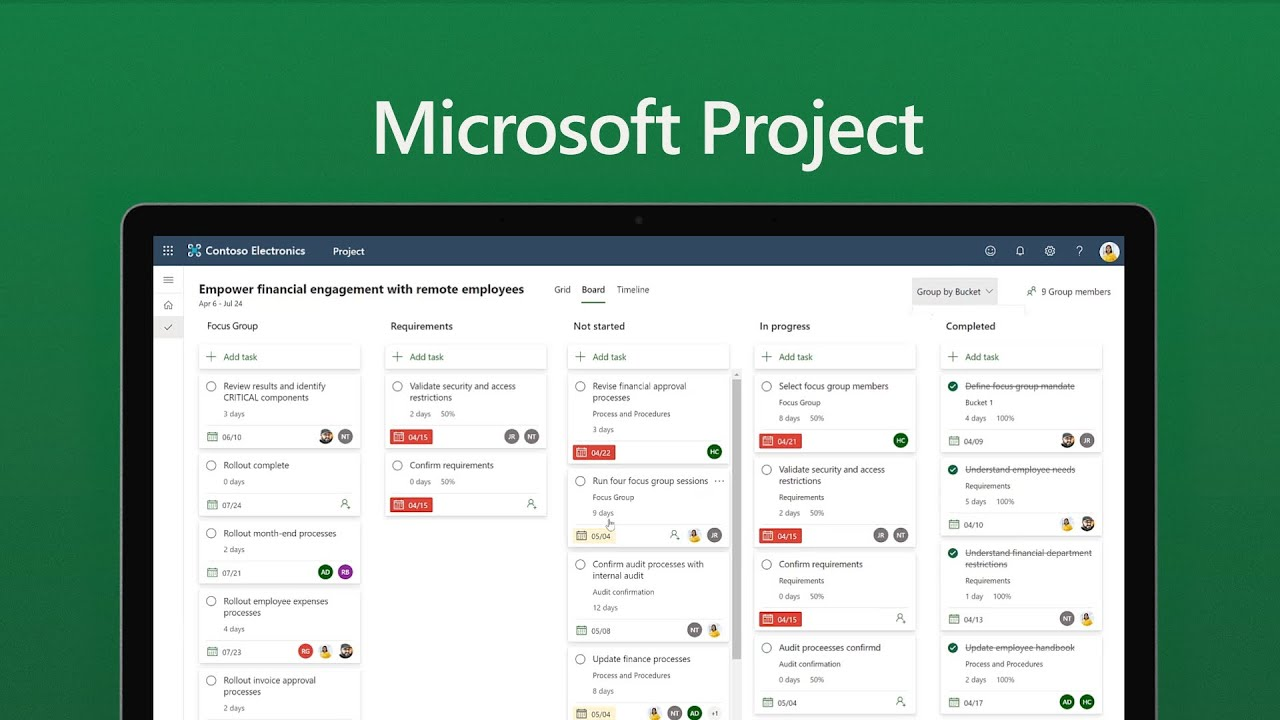
Image source: youtube.com
Why Microsoft Project is not ideal for Mac users
While Microsoft Project for Mac is a frequent search among professionals, the truth is that Microsoft never built a native version for macOS, namely no Microsoft Project on Mac. As a result, users often face compatibility issues, complex setup steps, and limited collaboration features. Here are reasons that many teams prefer switching to more modern, Mac-friendly project management tools.
- Lack of native macOS support: Microsoft Project doesn't have a desktop version built for macOS, which means you can't install it directly on your Mac. This often leads to performance issues and compatibility concerns when using third-party solutions. Mac users must rely on cloud or virtual options instead of enjoying a seamless native experience.
- Requires virtualization software (like Parallels or Boot Camp): To run Microsoft Project, users need virtualization tools such as Parallels Desktop or Boot Camp to emulate Windows on macOS. This setup consumes significant system resources and slows down performance. It also adds extra costs and technical maintenance to what should be a simple project management process.
- Limited real-time collaboration features: Microsoft Project was built for structured, top-down project control, not fluid team collaboration. While its web version offers some sharing capabilities, it lacks the instant co-editing and live communication available in tools like Lark or Asana. This limits transparency and slows decision-making in dynamic teams.
- Costly enterprise licensing and steep learning curve: Microsoft Project's advanced scheduling, dependencies, and reporting make it powerful—but also complicated. The software can take weeks for new users to learn and requires paid licenses that may not suit smaller teams or freelancers. Simpler tools often provide better value and faster onboarding.
- Cloud workaround (Project for the Web) still lacks full functionality: Although Microsoft Project for the Web is accessible from Mac browsers, it doesn't include all the capabilities of the desktop version. Key features like advanced resource management, baseline tracking, and offline editing are limited. This makes it a partial solution rather than a complete fix for Mac users.
Ways to use Microsoft Project on a Mac
Although there is no answer to questions like "Microsoft Project Download on Mac" or "Microsoft Project for Mac free download," users can rely on a few workarounds to access or manage their projects. Each option has its pros and cons depending on your needs—whether it's full functionality, simple file viewing, or browser-based access.
- Use Microsoft Project for the web: The easiest workaround is Microsoft Project for the Web, a cloud-based version accessible directly through your browser on macOS. It allows users to create tasks, timelines, and simple Gantt views without installing any software. However, compared to the desktop edition, it lacks advanced features like resource leveling, custom reporting, and offline editing, making it suitable mainly for light to moderate project tracking.
- Run Windows on Mac (via Parallels or Boot Camp): For full access to the desktop version, you can install Windows on your Mac using tools such as Parallels Desktop or Boot Camp. This allows you to run Microsoft Project just as you would on a PC, with complete functionality and file compatibility. The downside is that virtualization consumes significant system resources and can slow your device, making the experience less seamless for everyday use.
- Use a Microsoft Project viewer for Mac: If you only need to open and review .mpp files shared by others, a Microsoft Project viewer for Mac is a simpler choice. Tools like Project Plan 365 or MOOS Project Viewer let you view tasks, dependencies, and timelines without editing access. This is ideal for collaborators, stakeholders, or team members who just need visibility into project progress without investing in the full software or a Windows setup.
10 Best Microsoft Project alternatives for Mac
1. Lark: A connected workspace for project planning and collaboration
Lark brings together tasks, docs, chat, and automated approval in one connected platform—eliminating the need to juggle multiple apps. Teams can plan projects, assign work, share updates, and automate daily processes seamlessly. Real-time collaboration ensures everyone stays aligned, whether working remotely or on-site. It's the perfect solution for modern Mac users seeking an all-in-one productivity hub.
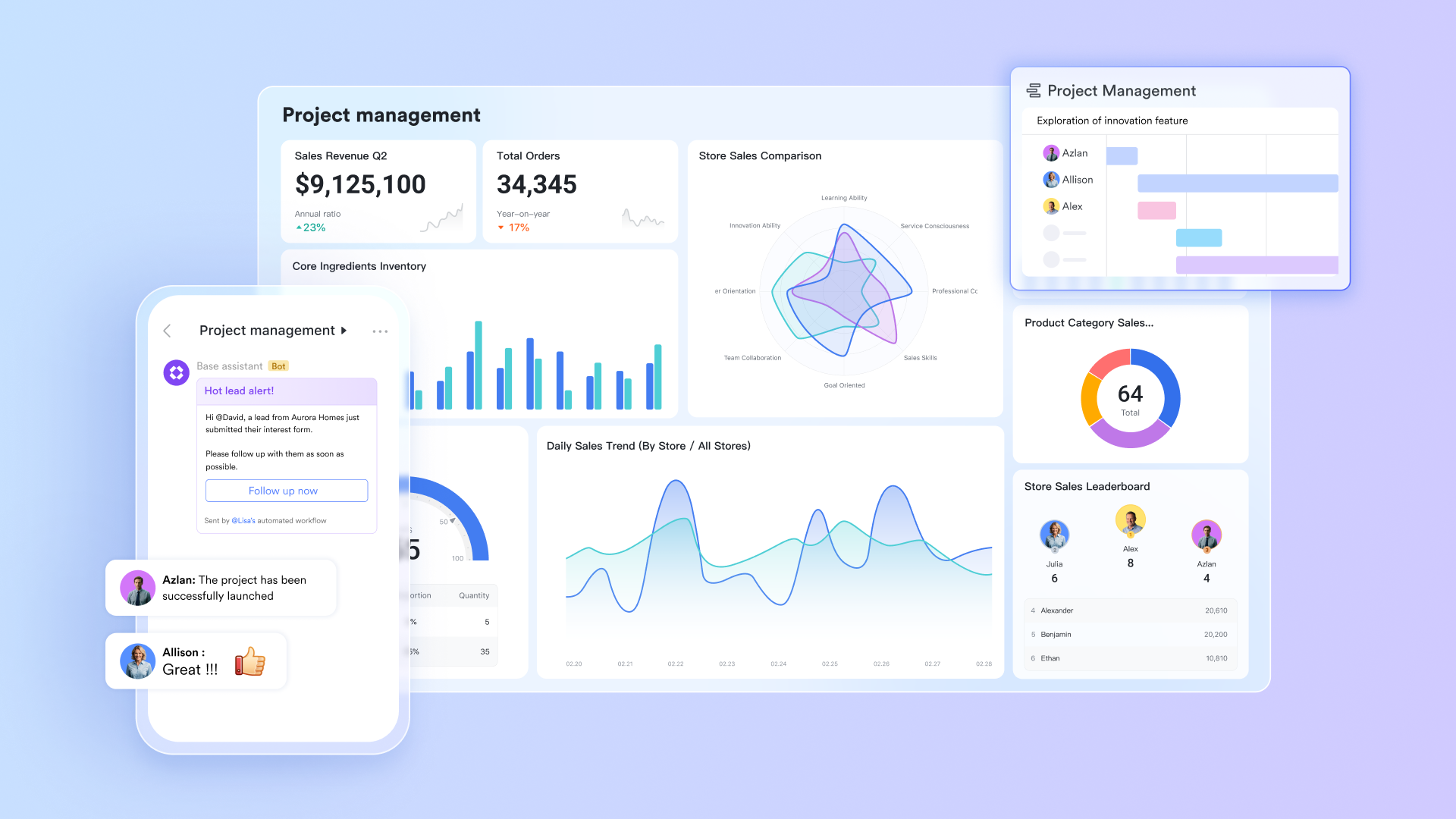
Lark Base: Manage layered project data effectively
Lark Base allows teams to break down projects into components—such as members, tasks, or deliverables—within structured tables. Data from different dimensions can be viewed together for a complete picture of project status. Each table remains connected, ensuring updates in one area reflect across others automatically. Teams can customize fields to record information like deadlines, ownership, and performance metrics. This flexibility helps manage complex projects efficiently without losing detail or context.
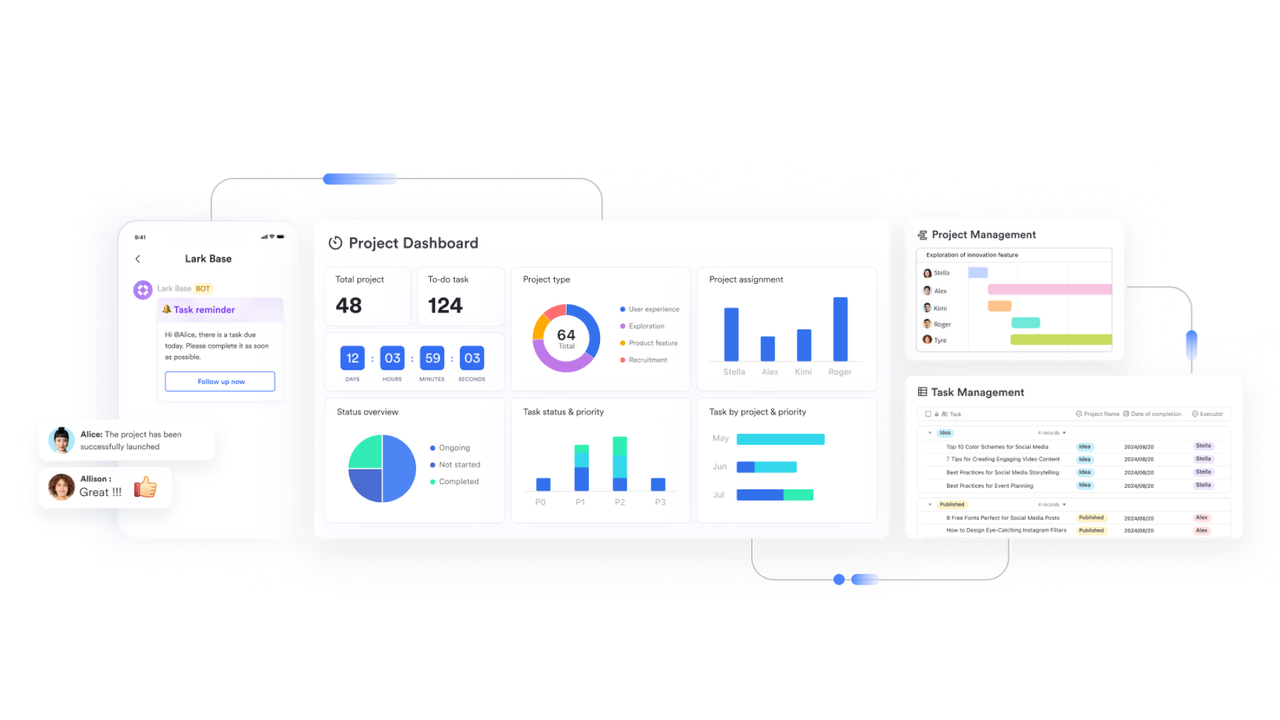
Multiple views in Lark Base: Track timelines and workflows easily
Teams can switch between Kanban, Grid, and Gantt views to analyze progress from different perspectives. The Kanban view offers a clear picture of task status and bottlenecks, while Gantt provides a timeline for planning schedules. These visualizations help leaders and contributors understand workload distribution at a glance. Adjusting tasks or dates updates all related elements instantly, maintaining data consistency. This multi-view setup ensures adaptability for various project management styles and team preferences.
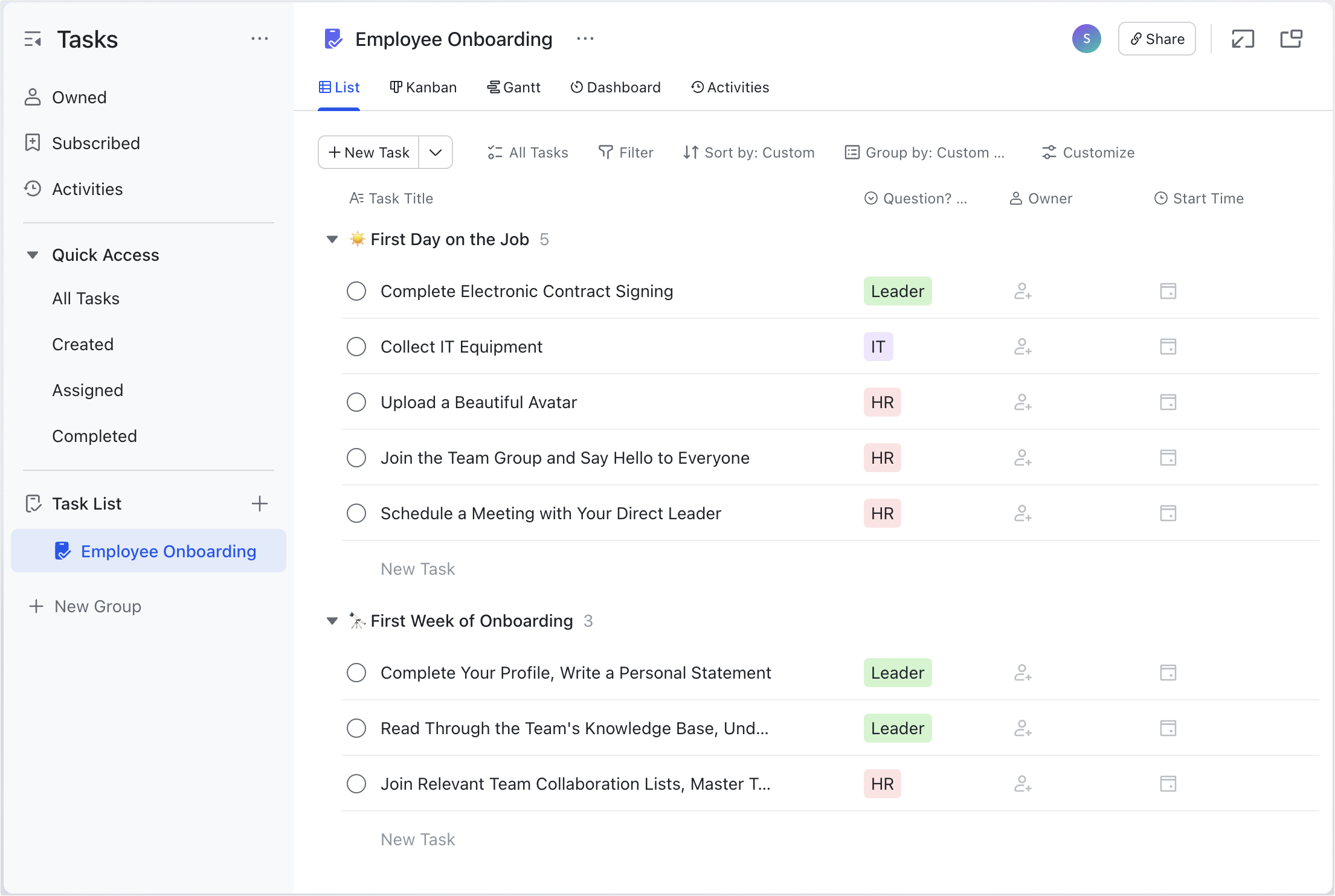
Lark Tasks: Centralize assignments and maintain accountability
Lark Tasks helps teams organize work clearly by allowing collaborators to create shared task lists that track ownership and deadlines. Each task can include fields for status, priority, and notes. Deadlines and reminders ensure timely execution, while recurring tasks handle routine activities automatically. Team members can filter and sort tasks by project, owner, or due date to stay focused on priorities. This structure keeps the entire team aligned, reducing missed deadlines and confusion during busy project phases.
Lark Docs & templates: Build detailed and collaborative plans quickly
With Lark Docs, teams can create comprehensive project plans that outline background information, goals, and key participants. Pre-designed templates, such as Project Plan or Timeline, make it easy to structure proposals and define milestones. Collaborators can comment, make edits, and assign responsibilities directly within the document, ensuring clarity at every step. Because changes appear instantly, everyone involved works from the same version, which may improve transparency. Lark Docs makes planning a shared process, turning project documentation into a live collaboration hub.
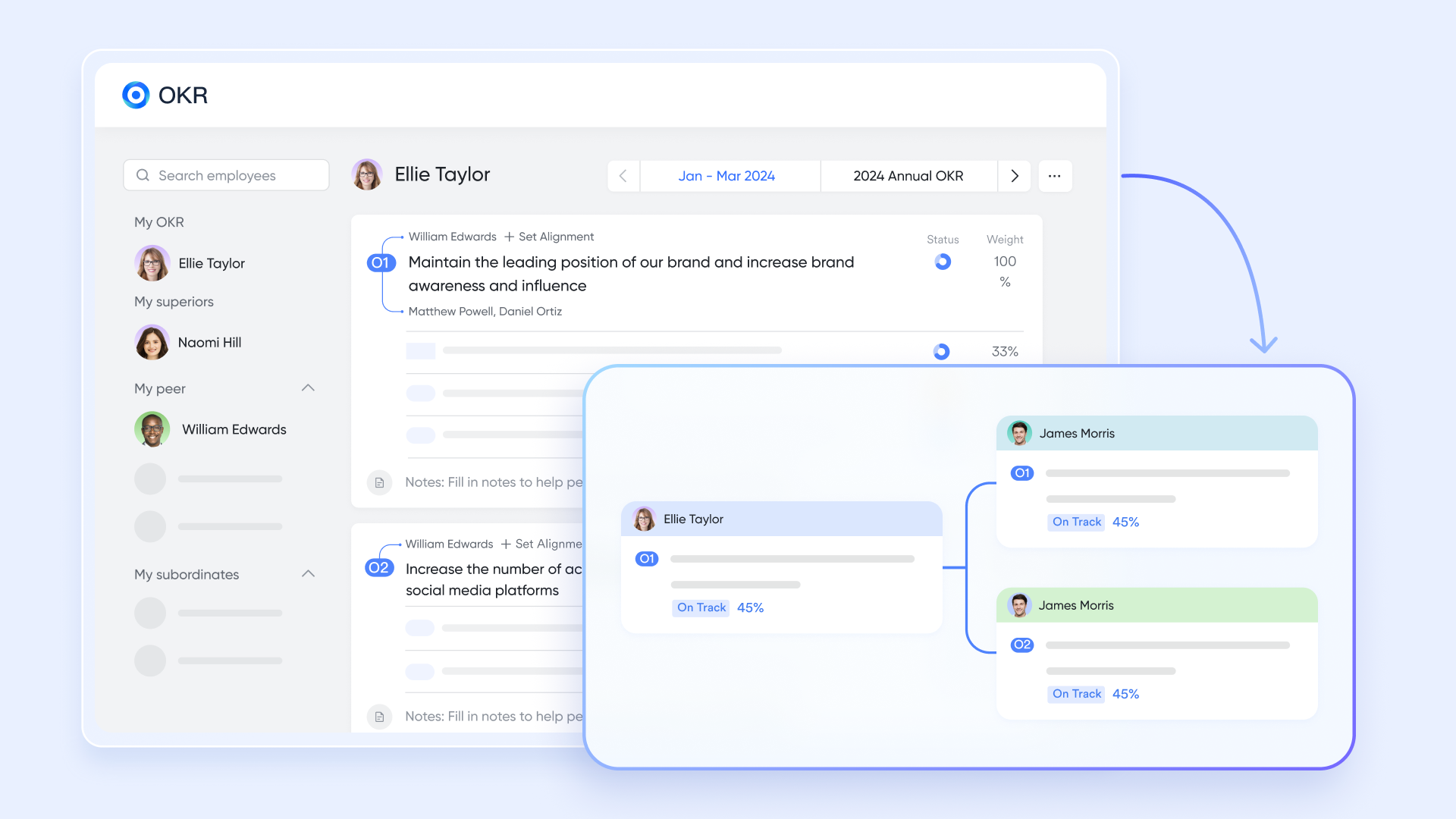
Lark OKR: Keep projects aligned with the company vision
Lark OKR tool helps teams connect daily work with strategic goals by defining measurable objectives and tracking key results. Teams can assign responsibilities, update progress, and visualize achievements in real time.
Regular check-ins and feedback discussions ensure accountability while promoting cross-team alignment. Managers can monitor OKR progress to identify areas that need support or adjustment. This approach ensures that every task contributes meaningfully to long-term organizational success.
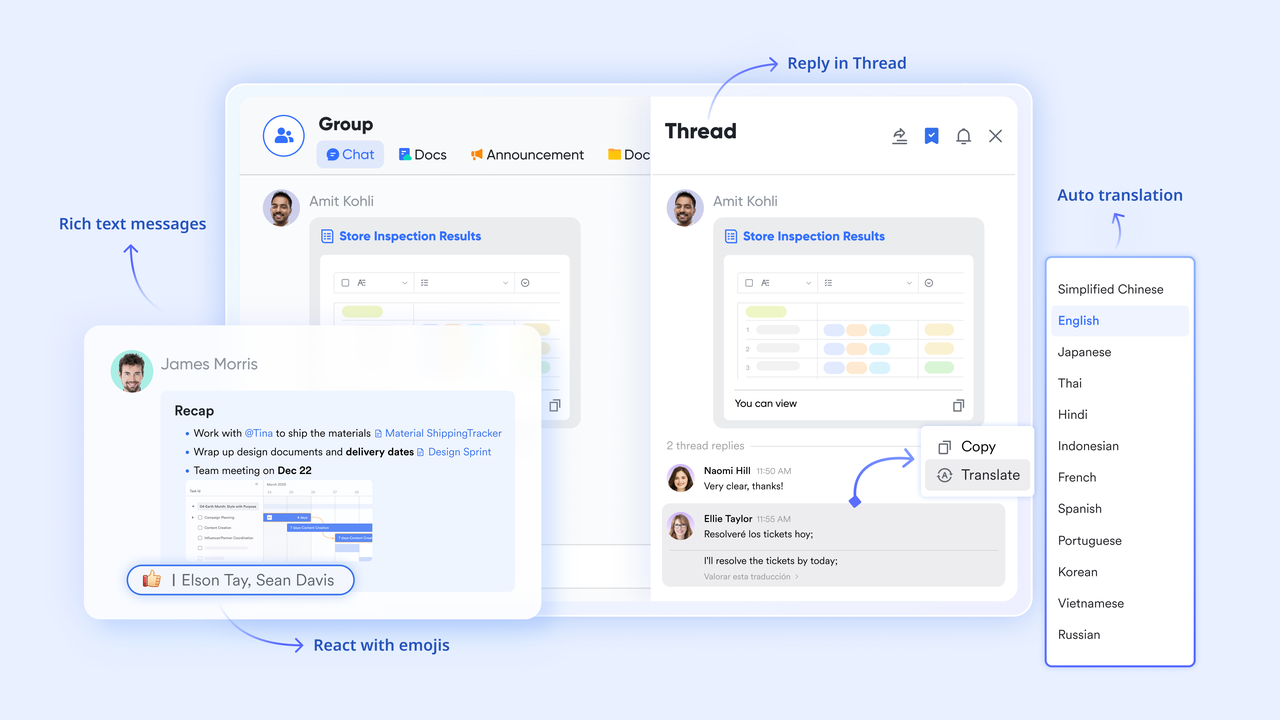
Lark Messenger: Keep communication connected to work
Within Lark Messenger, teams can make announcements, share workflow updates, or post key project references. Messages can include embedded tasks, links to Docs, or Base records, ensuring updates lead directly to action. Announcements can be for visibility, making it easier for new members to catch up.
Because communication happens in the same space as project data, discussions remain focused and relevant. This connection between messaging and project tools creates an agile environment where collaboration thrives.
- Starter plan: Free forever plan that includes 11 powerful tools for up to 20 users. It also comes with 100GB of storage, 1000 automation runs, AI translations, and more.
- Basic plan: $6/user/month for up to 500 users. It includes everything in Starter plus group calling for up to 500 attendees, 5TB of storage, 1000 automation runs, and more.
- Pro plan: $12/user/month for up to 500 users. It includes everything in Starter plus group calling for up to 500 attendees, 15TB of storage, 50,000 automation runs, and more.
- Enterprise plan: Contact sales for custom pricing. Supports unlimited users and includes even more automation runs and advanced security, compliance, and management features.
2. Asana: Visual task management and team coordination
Asana is a leading project management platform designed to help teams organize, track, and manage work visually. With timeline views, task dependencies, and progress tracking, teams can stay aligned on goals and deliverables. It's ideal for businesses looking to simplify planning and improve coordination across multiple projects.
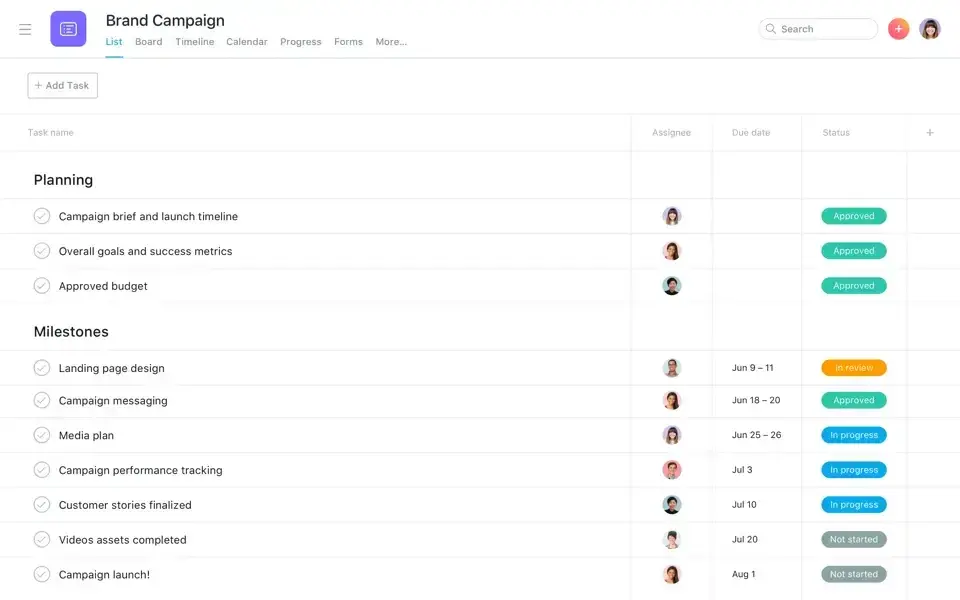
Image source: asana.com
Key features:
- Timeline view: Plan projects visually with drag-and-drop scheduling.
- Task management: Create, assign, and track progress in one place.
- Automation: Simplify recurring workflows and reminders.
Strengths:
- Excellent for visualizing project timelines and dependencies.
- User-friendly interface and fast onboarding.
- Integrates smoothly with productivity apps like Slack and Google Drive.
Limitations:
- Limited offline access.
- Advanced features are locked behind higher-tier plans.
Pricing:
Asana offers a free plan for individuals and small teams. Paid tiers start from around $10.99 per user/month, with advanced workflow and reporting features available in higher plans.
3. ClickUp: Customizable workspaces with automation
ClickUp is a powerful all-in-one project management tool that adapts to any team's workflow. From marketing to product development, ClickUp enables users to customize views, automate tasks, and centralize all work in one platform. It's ideal for teams needing flexibility and scalability across departments.
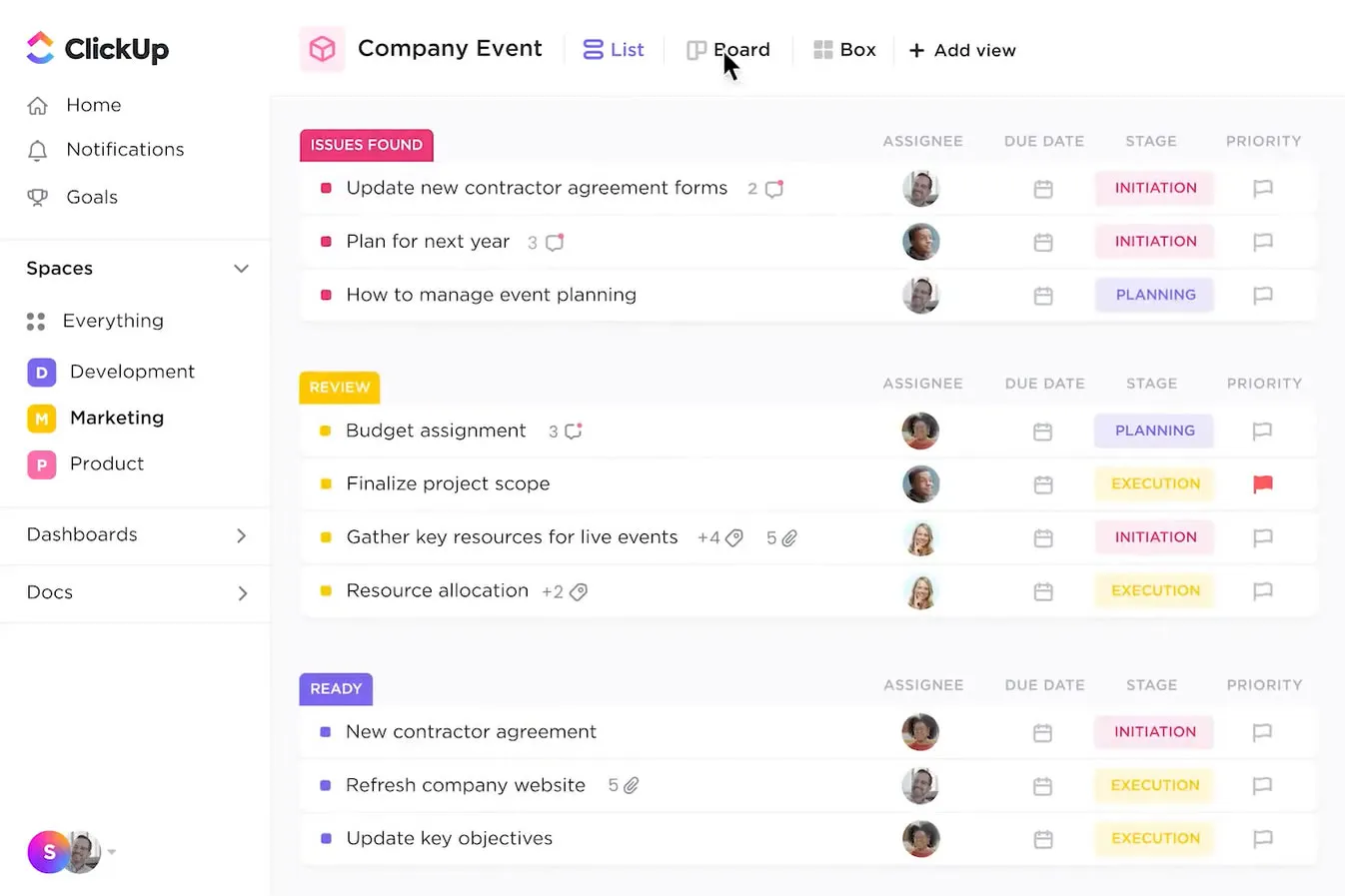
Image source: clickup.com
Key features:
- Custom views: Choose from list, board, calendar, and Gantt layouts.
- Task automation: Automate recurring tasks and updates.
- Goals & reporting: Track team performance in real time.
Strengths:
- Highly flexible with deep customization.
- Strong automation and goal-tracking features.
- Great for cross-functional collaboration.
Limitations:
- It can feel complex for new users.
- Performance may lag with large data sets.
Pricing:
ClickUp offers a generous free plan. Paid plans begin at $7 per user/month, while advanced Business plans with automation and dashboards start at $12 per user/month.
4. Smartsheet: Spreadsheet-style project tracking
Smartsheet combines the simplicity of spreadsheets with powerful project management features. Ideal for Excel-savvy teams, it allows easy collaboration, task automation, and detailed progress tracking. It's built for teams that want the comfort of grids with enterprise-grade functionality.
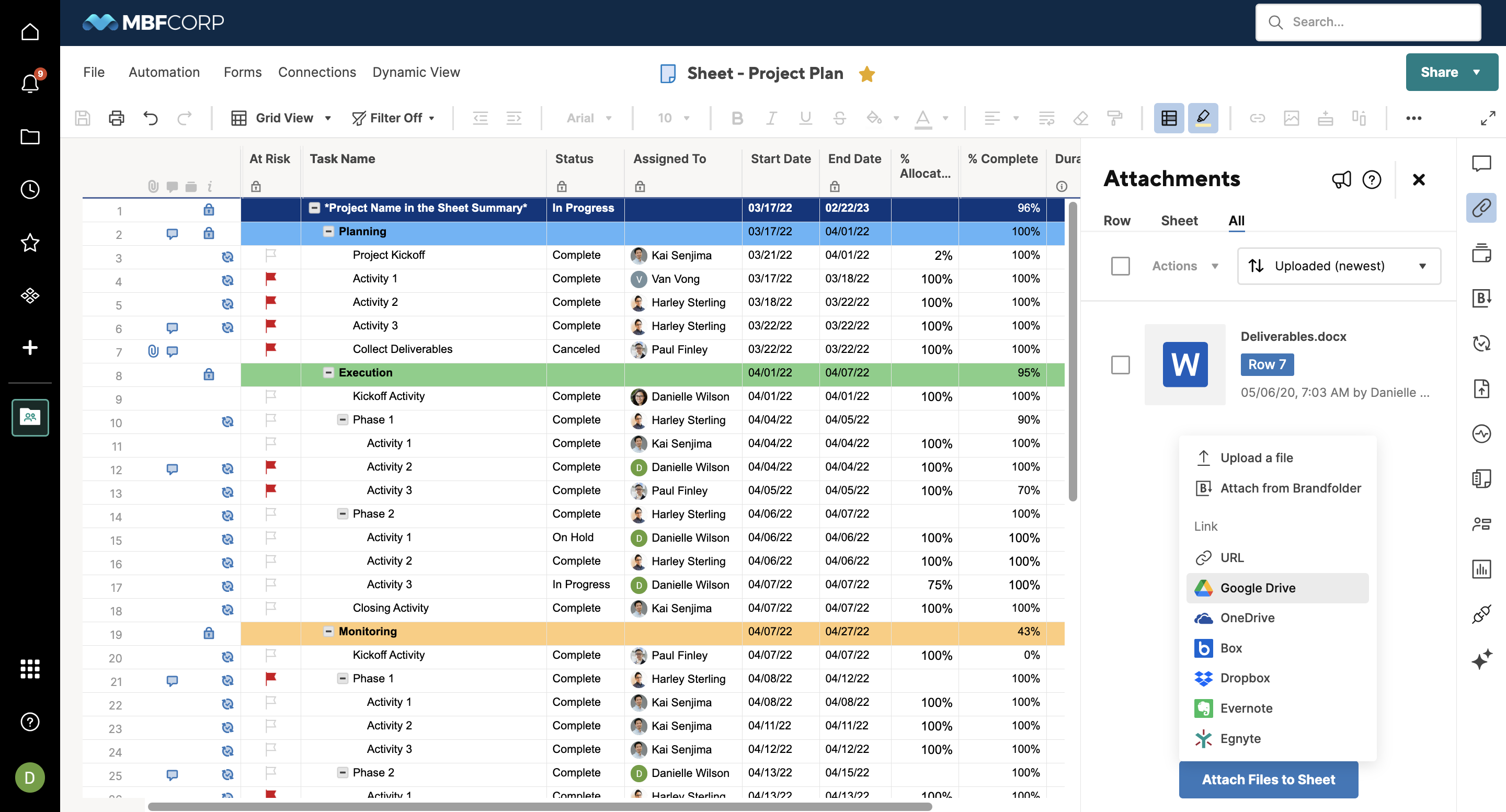
Image source: smartsheet.com
Key features:
- Grid and Gantt views: Switch between data and timeline perspectives.
- Workflow automation: Automate approvals and status updates.
- Reporting: Consolidate data across sheets for real-time visibility.
Strengths:
- Familiar spreadsheet interface.
- Strong automation and dashboard features.
- Excellent for data-heavy project tracking.
Limitations:
- Less intuitive for non-spreadsheet users.
- Collaboration features feel limited compared to visual tools.
Pricing:
Smartsheet plans start at $12 per user/month for essential features, with Business and Enterprise tiers offering advanced reporting, dashboards, and governance tools.
5. Trello: Lightweight visual project management
Trello is a simple yet effective tool for managing projects through visual Kanban boards. It's best suited for small teams and straightforward workflows. With cards and lists, teams can easily organize tasks, track progress, and stay focused without complexity.
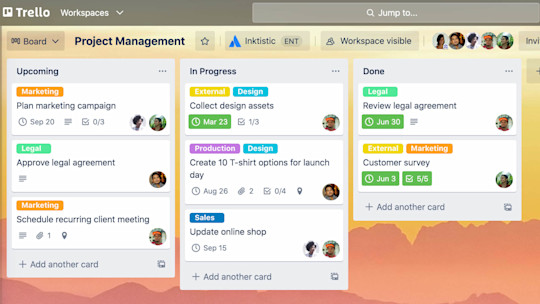
Image source: trello.com
Key features:
- Kanban boards: Drag-and-drop task organization.
- Power-Ups: Add automation, timelines, and integrations.
- Checklists & labels: Keep tasks organized at a glance.
Strengths:
- Very beginner-friendly.
- Great for visual thinkers.
- Fast setup with minimal learning curve.
Limitations:
- Limited for complex or large-scale projects.
- Lacks built-in time tracking and analytics.
Pricing:
Trello offers a free plan for individuals and small teams. Premium plans start at $5 per user/month, with more advanced workflow and automation options.
6. Wrike: Enterprise-ready project control
Wrike is a professional-grade project management platform tailored for large teams. It offers advanced Gantt charts, workload management, and real-time analytics. Wrike is designed for enterprises that manage multiple projects and need in-depth visibility into team performance.
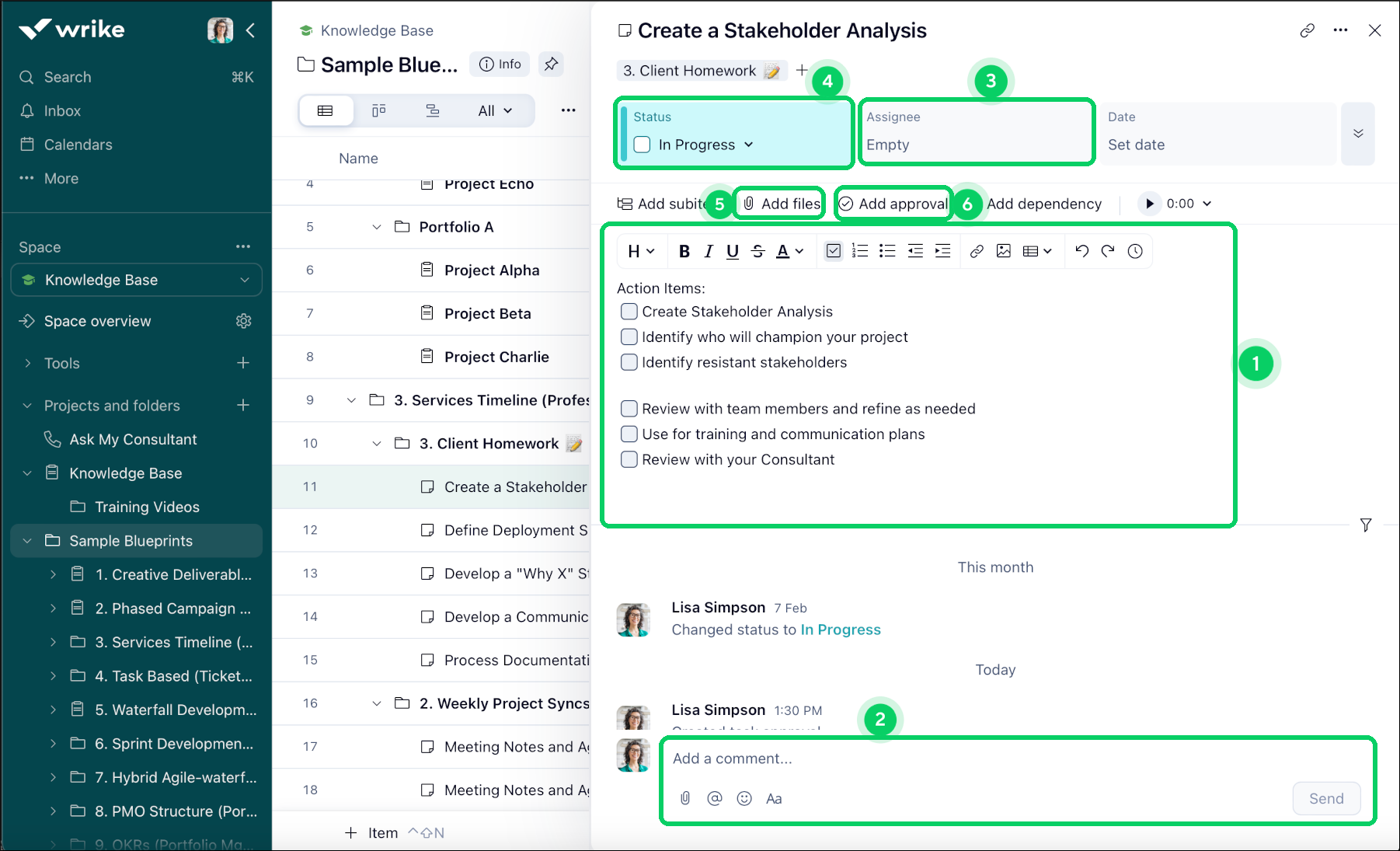
Image source: wrike.com
Key features:
- Gantt charts: Visualize dependencies and project timelines.
- Resource management: Balance workloads efficiently.
- Reports & dashboards: Monitor progress across teams.
Strengths:
- Built for complex, multi-project environments.
- Excellent reporting and analytics tools.
- Strong collaboration and proofing options.
Limitations:
- Steeper learning curve for new users.
- More expensive than basic tools.
Pricing:
Wrike offers a free plan with limited functionality, while professional plans begin at $10 per user/month, with custom enterprise options available for larger organizations.
7. Monday.com: Visual workflows for cross-department projects
Monday.com is a visually engaging work management tool built to help teams plan, track, and deliver projects efficiently. With its colorful dashboards and flexible boards, teams can coordinate tasks, manage timelines, and visualize progress across departments. It's ideal for growing teams that value collaboration and transparency.
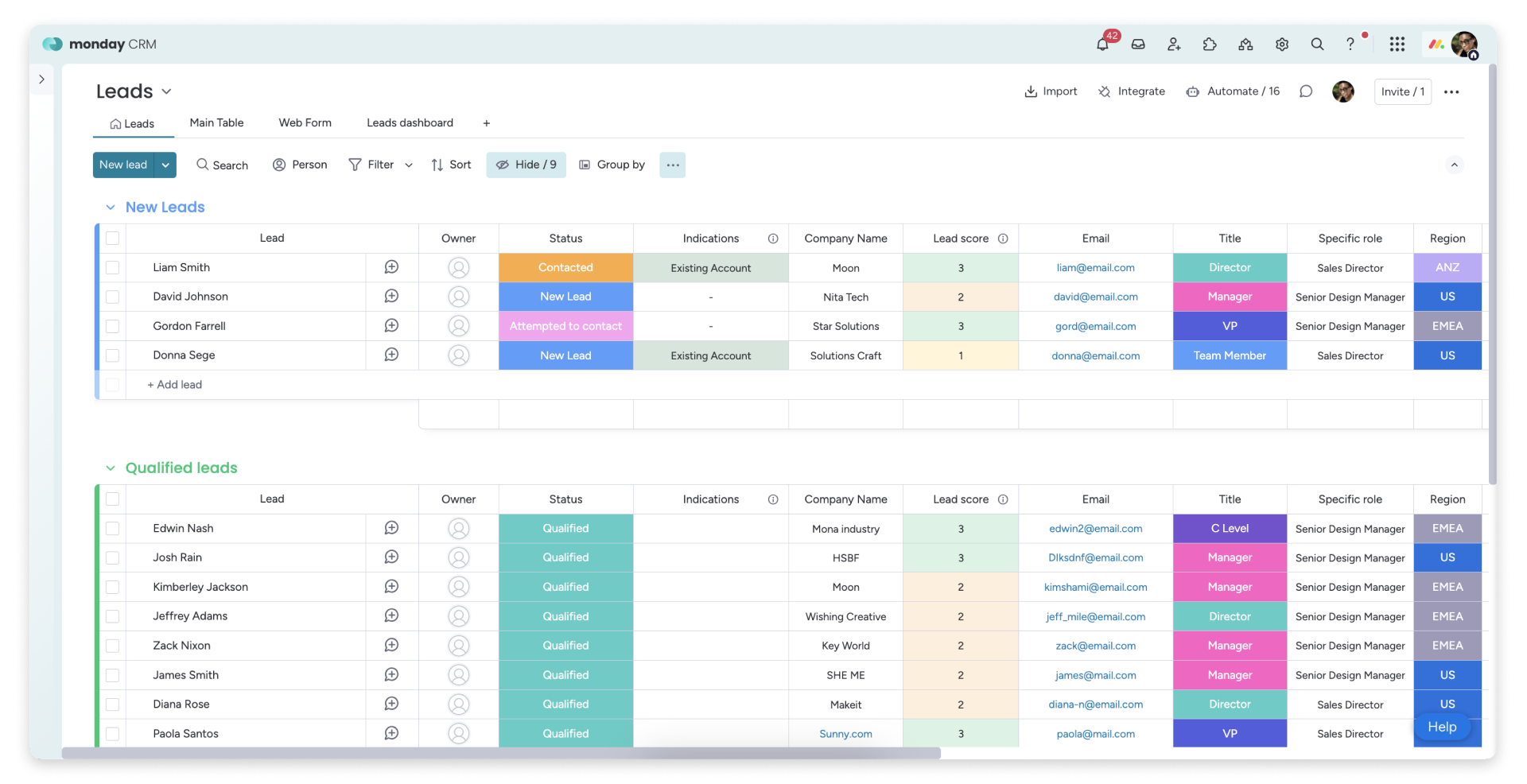
Image source: monday.com
Key features:
- Custom boards: Create workflows for projects, sales, or operations.
- Automation: Reduce manual updates with pre-set rules and triggers.
- Dashboards: Track performance metrics in real time.
Strengths:
- Highly visual and customizable workspace.
- Great for interdepartmental coordination.
- Easy to set up and scale as teams grow.
Limitations:
- It can feel overwhelming with too many boards.
- Advanced analytics and automations require higher-tier plans.
Pricing:
Monday.com offers a free plan for individuals. Paid plans start from $12 per user/month, with advanced dashboards, automation, and enterprise-grade features available in upper tiers.
8. Teamwork: Agency-focused project tracking
Teamwork is a project management platform designed for client-facing and service-based teams. It includes time tracking, billing, and workload management—making it ideal for agencies and consultancies managing multiple clients and projects. Teamwork focuses on helping teams deliver work profitably and transparently.
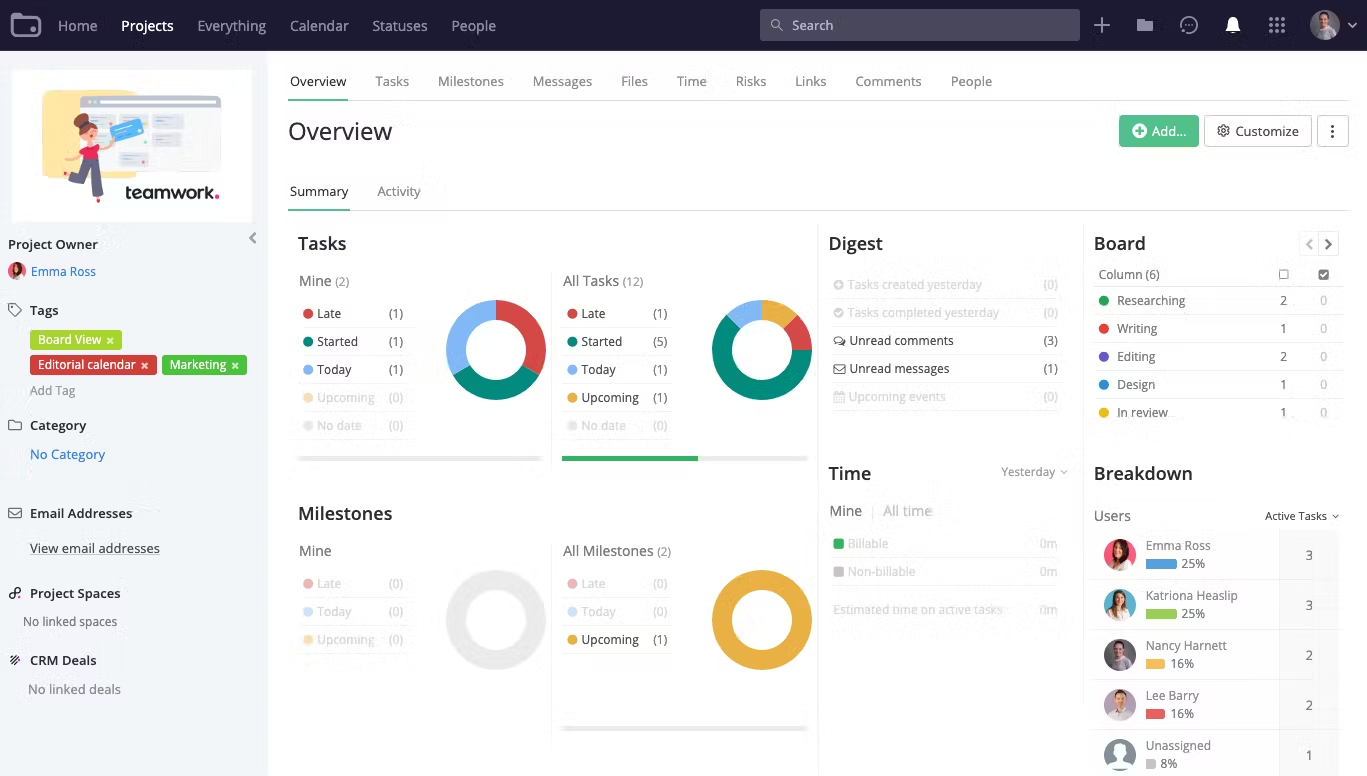
Image source: teamwork.com
Key features:
- Time tracking: Record billable hours directly in tasks.
- Client collaboration: Share project updates and dashboards securely.
- Workload management: Balance resources and prevent burnout.
Strengths:
- Tailored for agencies and service teams.
- Built-in billing and reporting tools.
- Excellent for client visibility and accountability.
Limitations:
- Interface can feel dated compared to newer tools.
- Fewer integration options than competitors.
Pricing:
Teamwork offers a free plan with basic task management. Paid plans start at $10.99 per user/month, with advanced features for time tracking, billing, and portfolio management available in higher tiers.
9. Notion: Simple and flexible project documentation
Notion blends note-taking, databases, and project tracking into one flexible workspace. It's ideal for teams that want to combine documentation, planning, and collaboration without switching between tools. From meeting notes to task dashboards, Notion helps teams stay organized and creative.
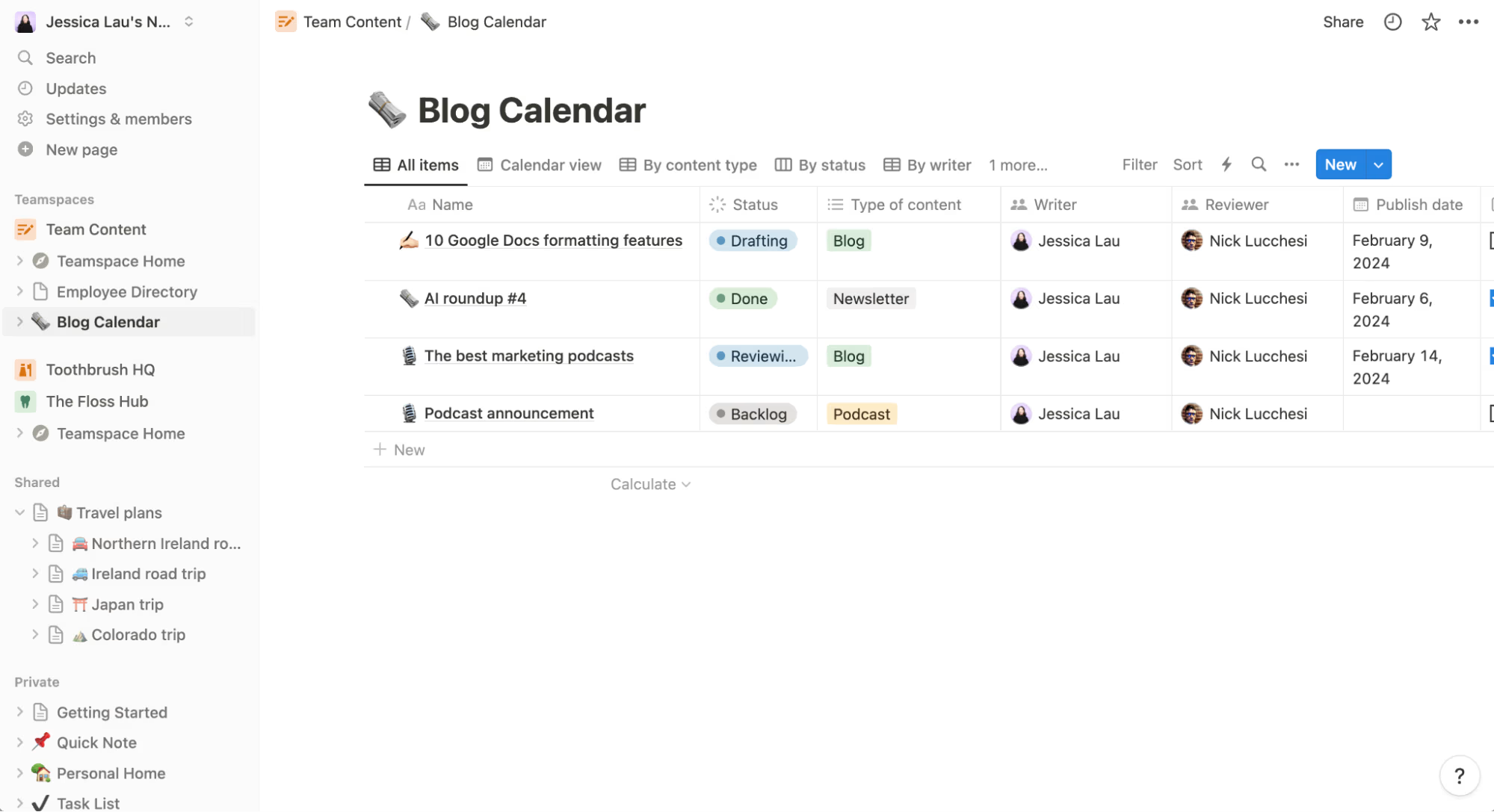
Image source: notion.so
Key features:
- Databases: Build custom tables for tasks, goals, or projects.
- Templates: Start quickly with project, roadmap, or OKR templates.
- Collaboration: Co-edit documents and leave comments in real time.
Strengths:
- Extremely flexible and adaptable to different workflows.
- Minimalist design is ideal for creative teams.
- Strong community with free templates and add-ons.
Limitations:
- It can require manual setup for advanced workflows.
- Limited automation compared to dedicated PM tools.
Pricing:
Notion offers a robust free plan for personal or small team use. Paid plans start from $10 per user/month, unlocking advanced collaboration, version history, and admin tools.
10. ProjectManager: Online version compatible with Mac
ProjectManager bridges the gap between Microsoft Project and modern web-based tools. It offers familiar Gantt charts, task tracking, and reporting—accessible directly from any browser. This makes it a strong choice for traditional Microsoft Project users who've switched to Mac.
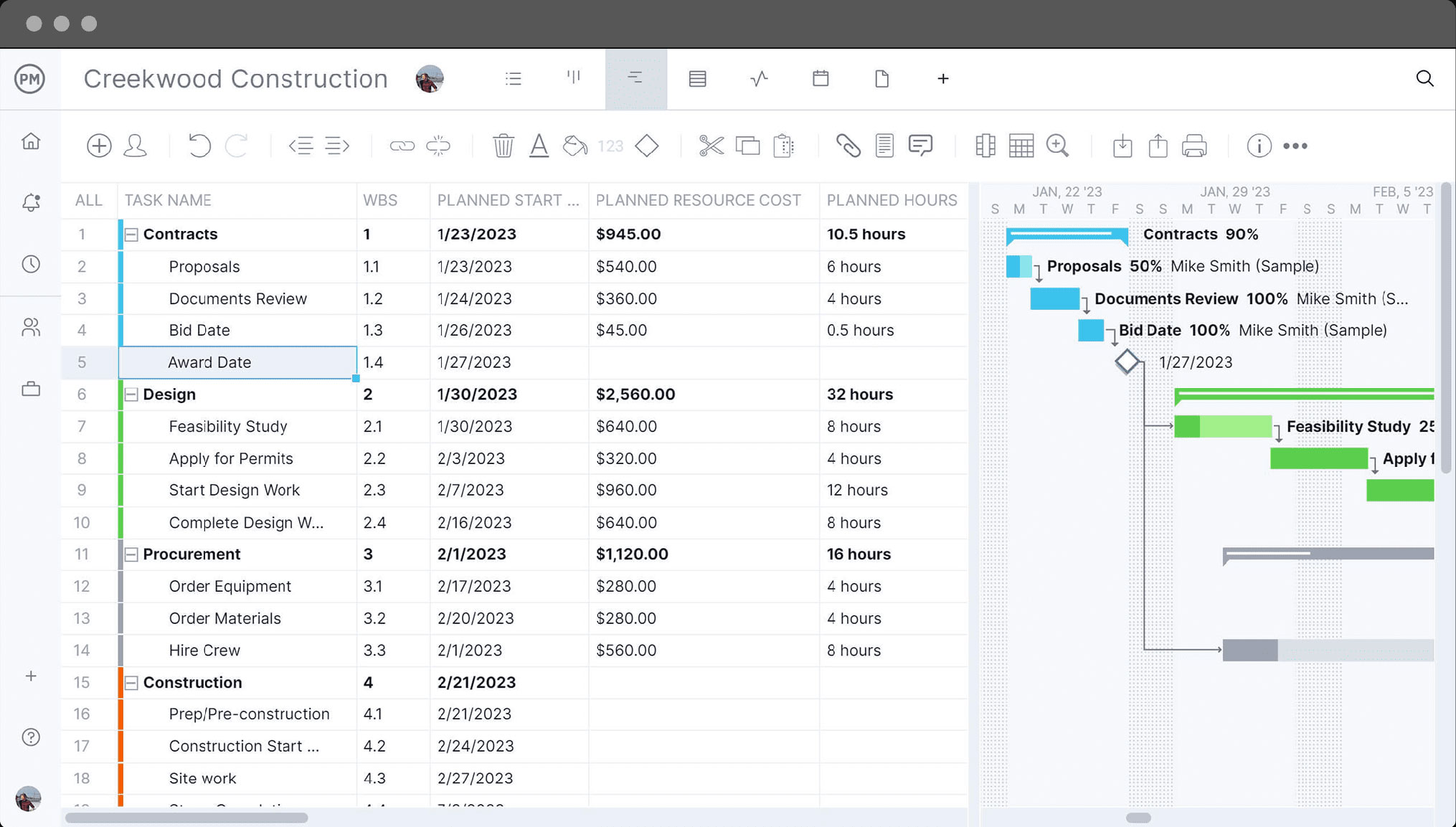
Image source: projectmanager.com
Key features:
- Gantt charts: Create, update, and share timelines online.
- Task management: Assign, prioritize, and track progress easily.
- Reporting: Generate custom performance and resource reports.
Strengths:
- Familiar interface for Microsoft Project users.
- Fully web-based. No need for virtualization or downloads.
- Ideal for hybrid Windows–Mac teams.
Limitations:
- Fewer integrations than top-tier tools.
- Interface feels less modern compared to competitors like ClickUp or Lark.
Pricing:
ProjectManager offers a free 30-day trial. Paid plans start from $14 per user/month, with additional reporting, portfolio, and enterprise capabilities available in advanced tiers.
Conclusion
For Mac users, Microsoft Project can feel restrictive—lacking native support, requiring virtualization, and offering limited collaboration. While options like Project for the Web or Microsoft Project viewers provide temporary fixes, they don't deliver a seamless, modern experience. That's why many professionals now prefer intuitive, cloud-based tools such as Asana, ClickUp, or Smartsheet. For those seeking a unified solution, Lark offers a smarter path,—combining tasks, docs, chat, and automation in one connected workspace accessible on Mac or web. With Lark, project planning and collaboration become effortless, keeping every team aligned and productive.
FAQs
Can I use Microsoft Project online without Windows?
Yes. You can use Microsoft Project for the Web, a browser-based version accessible on macOS without installing Windows. It allows you to create tasks, assign work, and view timelines. However, it lacks some advanced desktop features like detailed resource management, offline editing, and full Gantt chart control.
What's the best alternative to Microsoft Project for Mac users?
The best alternatives for Mac users include Lark, Asana, ClickUp, and Smartsheet—all cloud-based, collaborative, and accessible via browser. These tools offer powerful task tracking, Gantt charts, and real-time teamwork without compatibility issues. Lark, in particular, stands out for combining chat, docs, tasks, and automation in one seamless workspace.
Is there a free version of Microsoft Project for Mac?
No. Microsoft doesn't offer a free version of Microsoft Project for Mac. While you can access Project for the Web through a Microsoft 365 subscription, it's a paid service. For free project management, tools like Lark, Trello, or ClickUp offer generous free plans that work perfectly on macOS.
How does Lark compare to Microsoft Project for Mac users?
Lark offers a more collaborative, cloud-first experience than Microsoft Project. While Microsoft Project focuses on structured planning, Lark combines project tracking, team chat, documents, and approvals in one platform—accessible on any device, including Mac. It's simpler to use, real-time, and built for modern teams who need flexibility over rigid project scheduling.
Related reading
Table of contents
Start using Lark today

Manage all your work in one place
Boost team efficiency by 10x
Save up to 70% on software costs
Table of contents
Start using Lark today
Manage all your work in one place
Boost team efficiency by 10x
Save up to 70% on software costs
Keep reading



Lark recognized in 2023 Gartner® Collaborative Content Workspaces and Meeting Solutions reports
Lark, the global superapp for productivity, is delighted to announce it receives recognition in the Gartner's 2023 Innovation Insight for Collaborative Content Workspaces and Market Guide for Meeting Solutions.






2026 Lark Technologies Pte. Ltd.
Headquartered in Singapore with offices worldwide.






Explore: