Ticket tracking tools are the backbone of efficient project management. Whether you're resolving software bugs, managing customer complaints, or tracking internal requests, a structured tracking system helps teams move faster with clarity. Microsoft Excel remains a surprisingly popular choice, especially for small teams or those starting without a dedicated platform. Many find that an issue tracker in Excel provides just enough flexibility for simple workflows before upgrading to more advanced solutions like Lark — a collaboration suite designed to integrate communication, documentation, and task tracking.
In this guide, we'll walk through the fundamentals of issue and ticket tracking, how to create an issue tracker template in Excel, and when it might be time to consider more dynamic solutions as your team grows.
What is an issue tracker in Excel?
An issue tracker is a structured system that helps individuals and teams document, assign, and resolve issues efficiently. At its core, it acts as a centralized record — every ticket, bug, or service request moves through identifiable stages: "open," "in progress," "under review," and "closed." Issue trackers are essential tools for product teams, project managers, and teams to track issues, bug reports, and customer feedback.
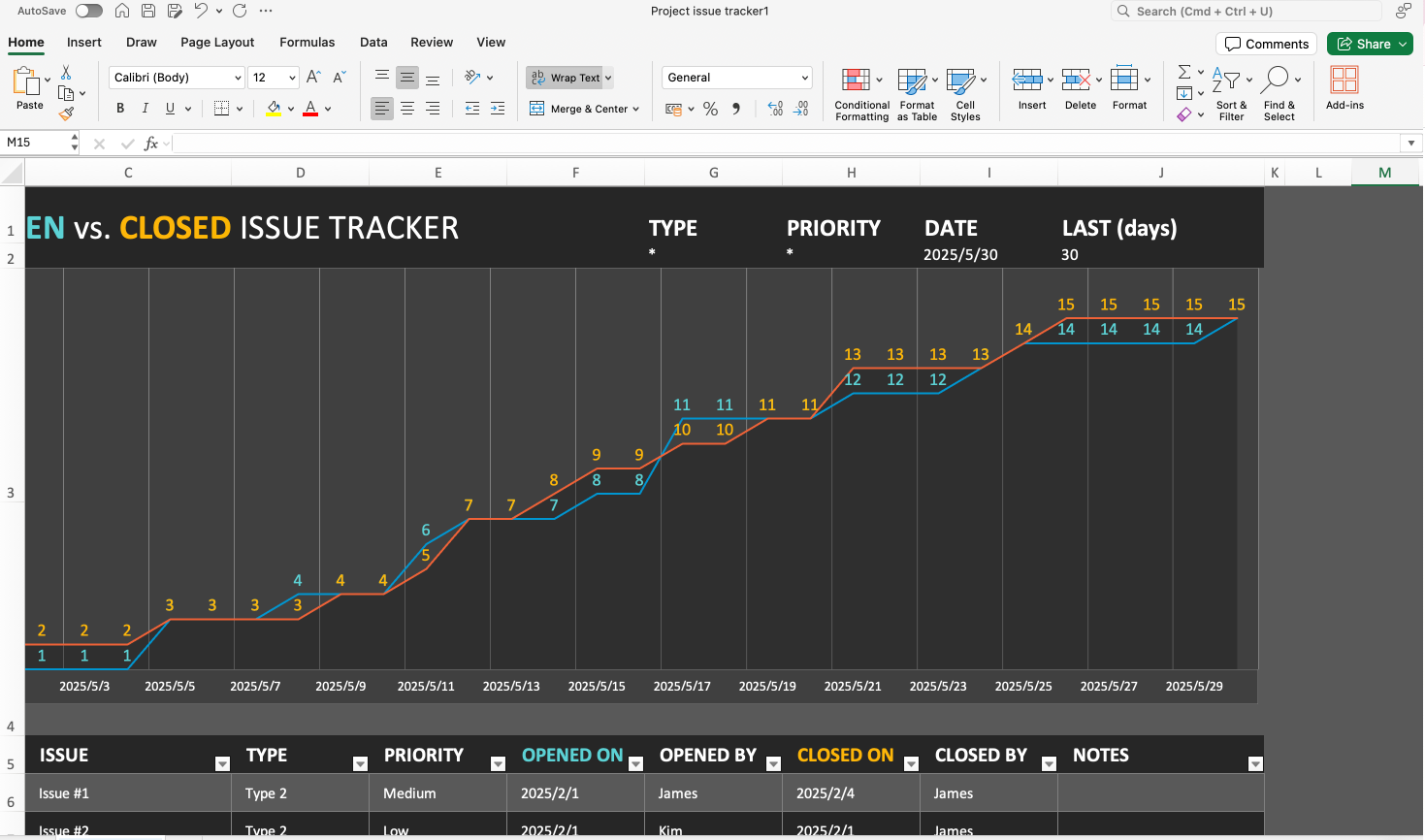
Image source: Snapshot of Excel
Ticket tracking tools provide this framework in many forms. Some are lightweight and flexible, like an issue tracker in Excel free file. Others are end-to-end SaaS solutions, such as Lark, Basecamp, Jira, or Asana, used by large organizations that need automated notifications and .
To understand why teams use an issue tracker template Excel free download, consider these key priorities:
- Visibility: A clear view of what issues exist and who owns them keeps teams accountable.
- Organization: Sorting by priority or category ensures urgent tasks get handled first.
- Traceability: Every step of ticket resolution — edits, updates, and comments — can be traced for audit or handover.
- Scalability: The right tracker, even a simple Excel version, can support both personal and enterprise workflows.
- Using issue trackers to identify patterns in reported issues helps in driving customer satisfaction. A customer issue tracking template is a great tool for managing client and customer issues, ensuring customer satisfaction.
Excel remains one of the most approachable ticket tracking tools for beginners. With structured data entry, sorting, and formulas, even non-technical users can manage a team's workload without steep learning curves. Excel templates have been created to help teams collect and manage issues, fix bugs, andefficiently. Note that Excel-based trackers can be customized to include fields such as site, client, or customer, and can be used to plan and manage resources. Yet, as many professionals discover, simplicity can eventually become a limitation — prompting the exploration of modern alternatives like Lark for real-time collaboration.
Using these resources not only helps track issues but also supports and continuous improvement.
Core Components of an Effective Excel Issue Log
A good issue tracker template starts with clearly defined fields that every team member understands and uses consistently. A consistent workflow aids understanding of the status process across issues and prevents confusion when multiple people contribute data.
Here are the core columns every issue log should include:
Templates include fields for issue ID, description, and status as a baseline. Issue tracking templates can categorize issues by priority so teams can focus on what matters most. Excel templates can include fields for issue ID and description, and Excel templates can include fields for issue ID and priority-ensuring nothing critical is missed.
Unique identifiers for each issue ensure tracking clarity, especially when sharing updates over email or chat. Structure the sheet with a frozen header row, filters enabled on all columns, and color-coded status cells for quick scanning.
Optional fields like department, client, project name, severity, root cause, and follow-up actions add depth for post-mortem analysis and trend detection.
How to build an effective issue tracker in Excel step by step
If you're building your first issue tracker in Excel template, the goal is clarity and consistency. Excel offers enough functionality to design a practical ticket log while keeping setup straightforward. Here's a professional approach to structuring it:
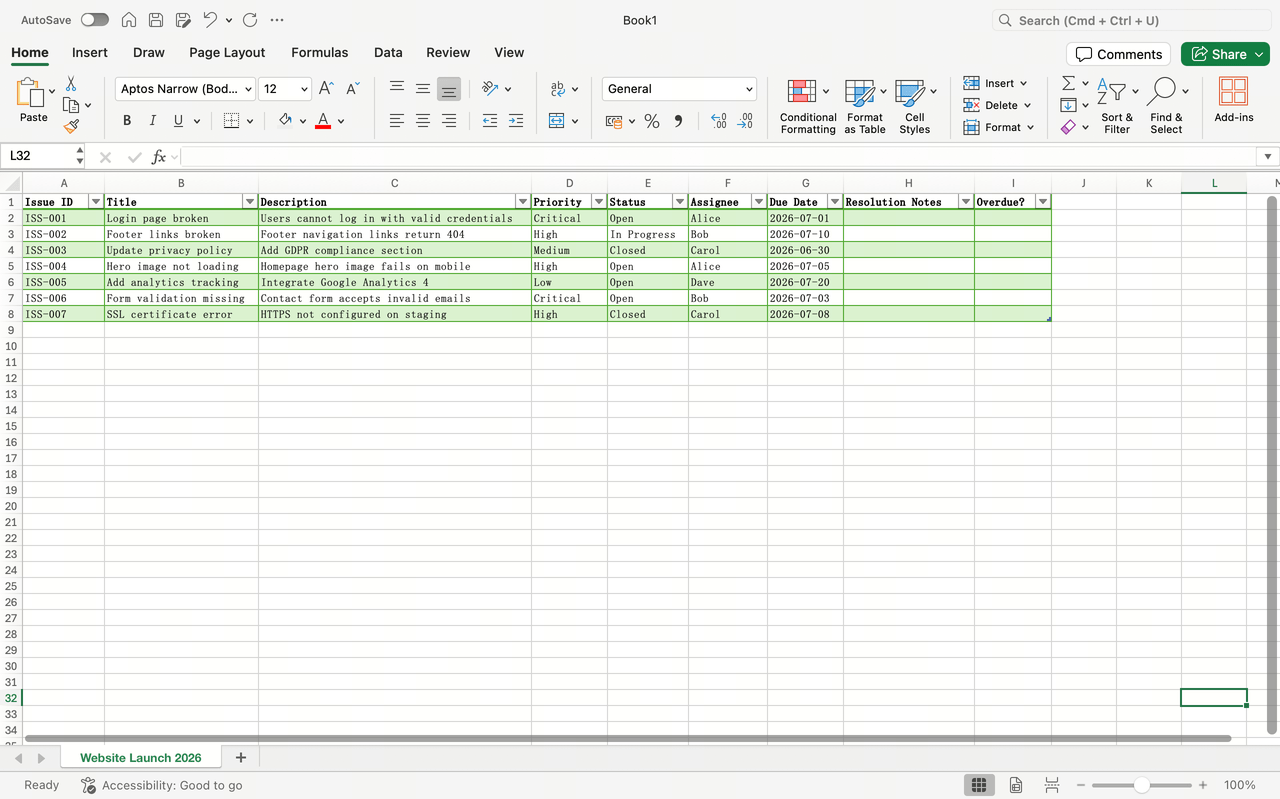
Step1: Create the base table
- Open a new workbook in Microsoft Excel.
- Rename the sheet to "Website Launch Q4 2026".
- Create a header row (Issue ID, Title, Description, Priority, Status, Assignee, Due Date, Resolution Notes).
- Select any cell in the data range and press Ctrl+T.
- Confirm "My table has headers" and click OK.
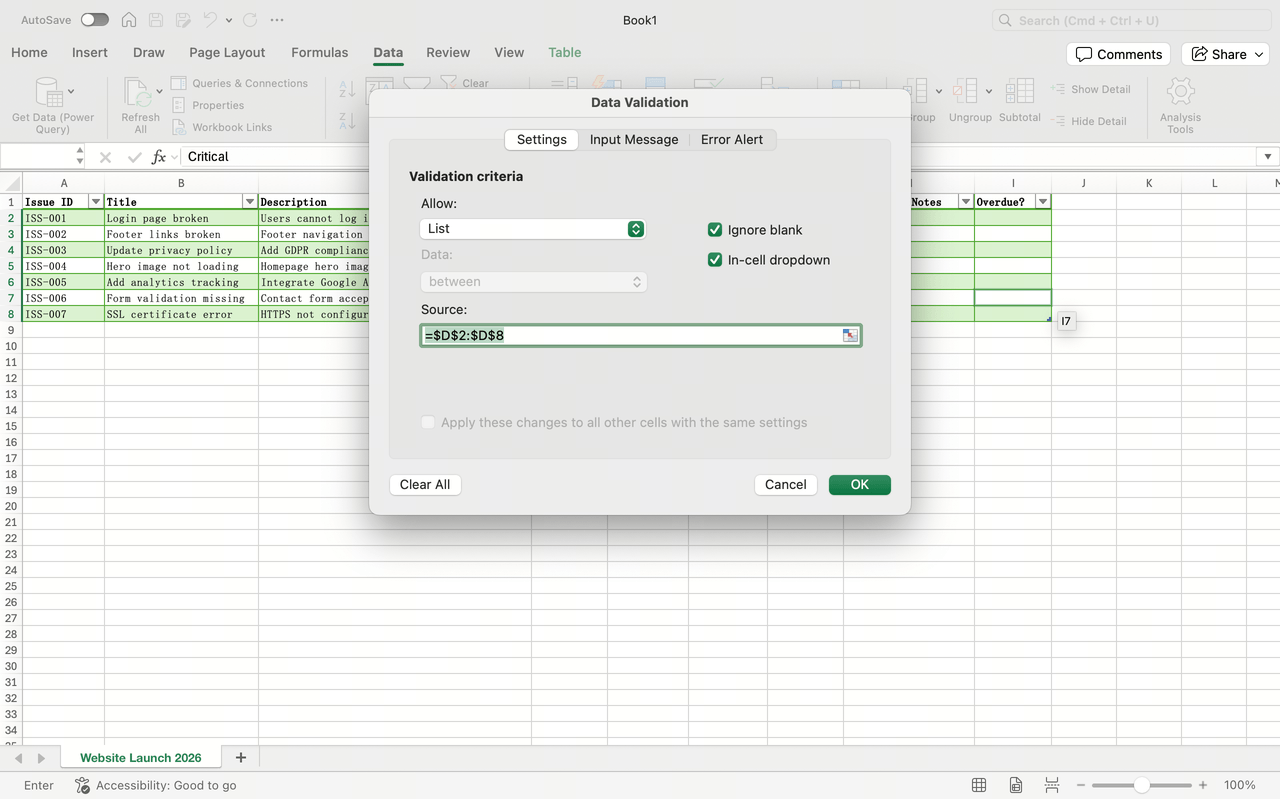
Step 2: Add data validation (drop-down lists)
- Create a "Lists" sheet listing valid options for Priority (Low/Medium/High/Critical), Status (Open/In Progress/Closed), Issue Type.
- Select the Priority column → Data → Data Validation →Allow: List → Source: select your list range.
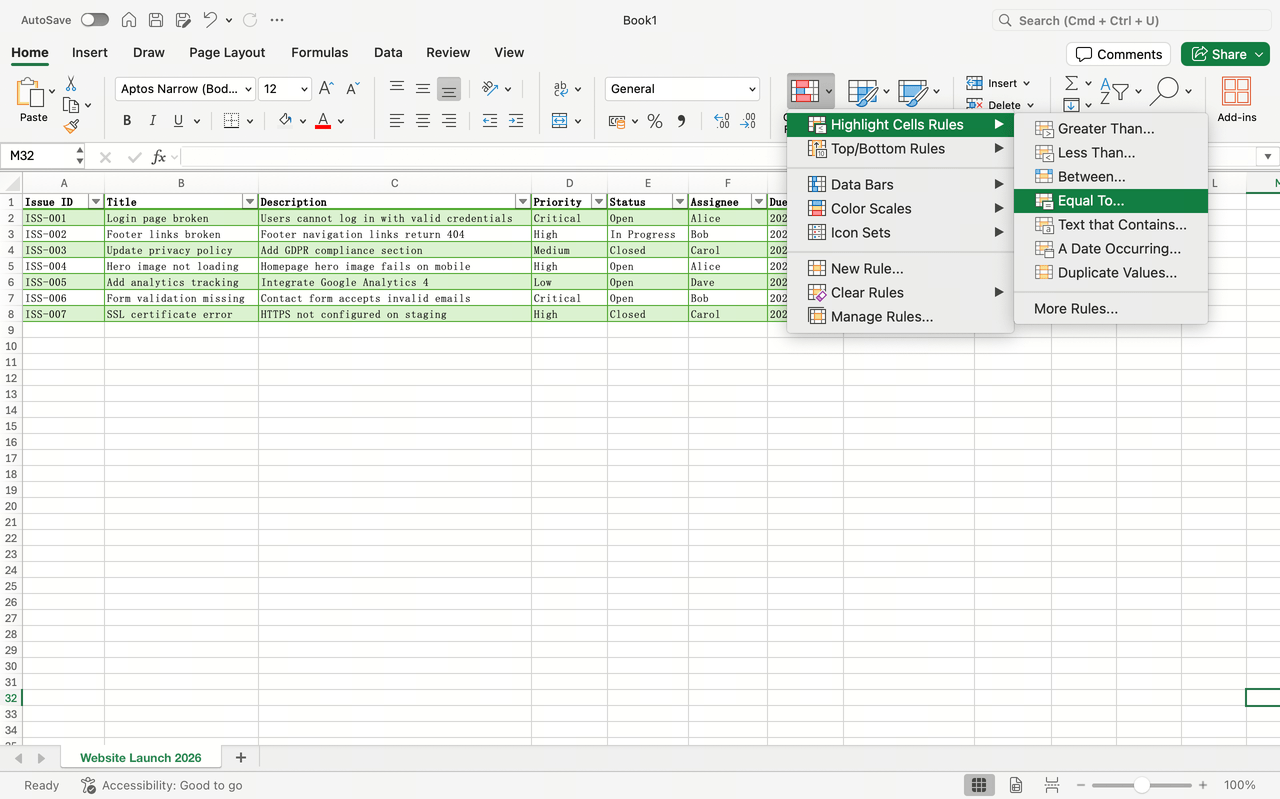
Step 3: Apply conditional formatting
- Highlight Critical items: Home → Conditional Formatting → Highlight Cells Rules → Equal To "Critical" → any color fill.
- Highlight overdue rows: Select all data rows → Conditional Formatting → New Rule → Use a formula: =AND($$H2E2<>"Closed") (adjust H/E to match your Due Date and Status columns)
Step 4: Add tracking formulas
- Add a helper column "Overdue?" with formula: =AND([@[Due Date]]<TODAY(), [@Status]<>"Closed")
- On a separate Dashboard sheet, use COUNTIFS for summaries: e.g., =COUNTIFS([Status],"Open",[Assignee],"John")
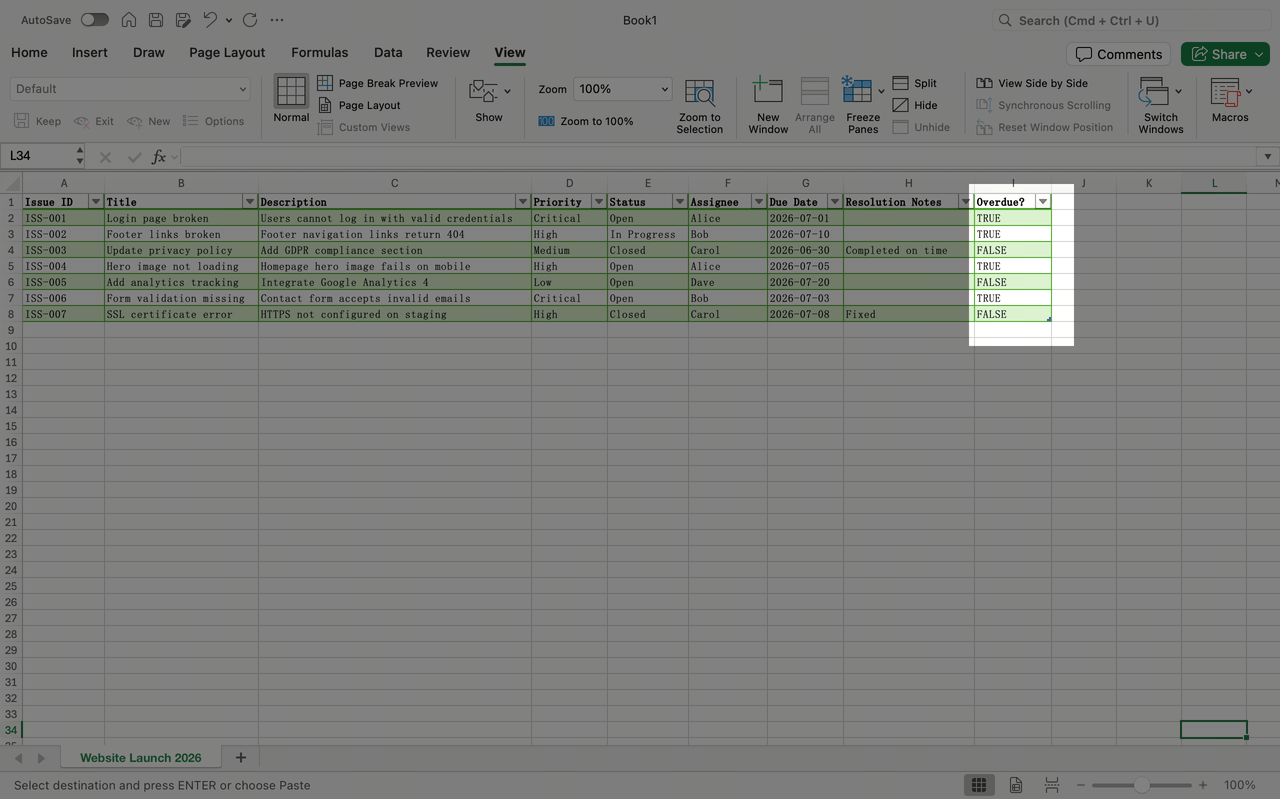
Step 5: Protect structure
- To keep headers visible while scrolling: View → Freeze Panes → Freeze Top Row
- To prevent edits to headers/formulas: Review → Protect Sheet
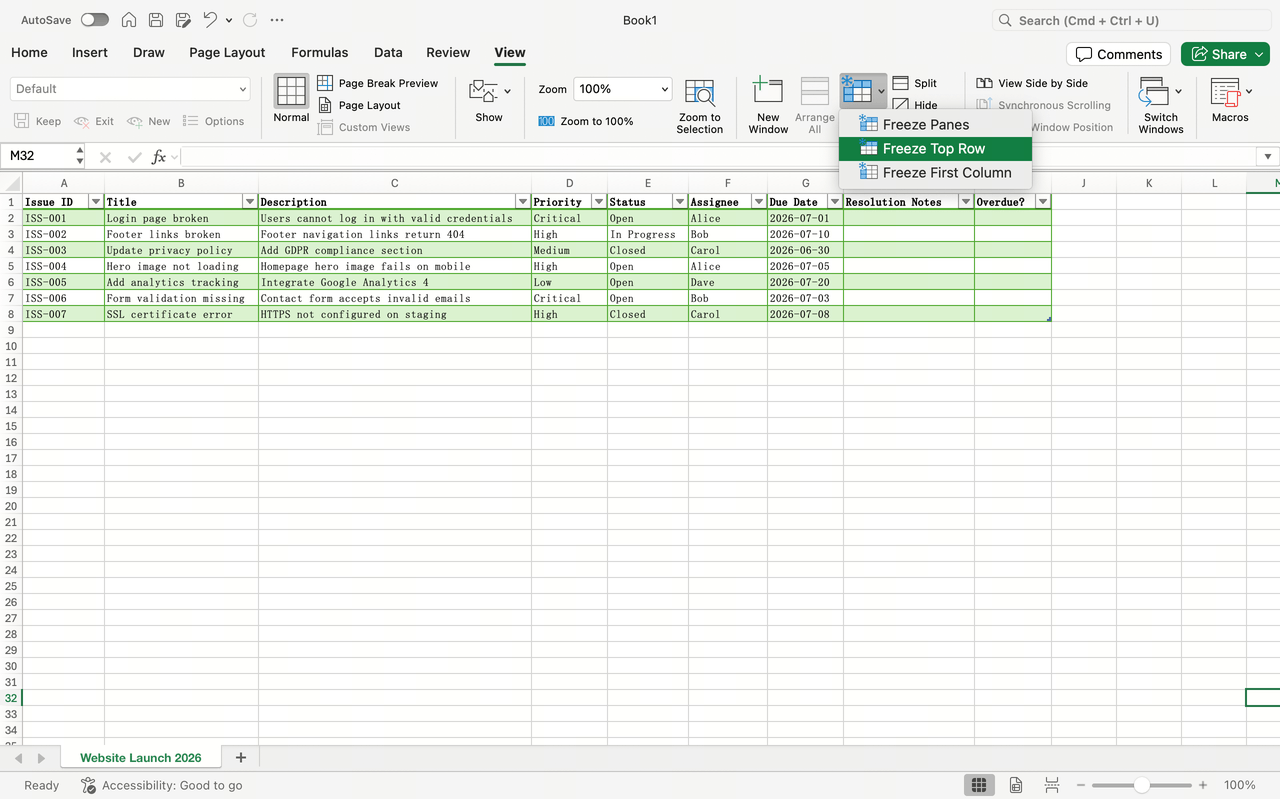
Step 6: Save as a reusable template
- File → Save As → Excel Template (*.xltx)
- Filename: Filename: Issue_Tracker_Template_v1.xltx
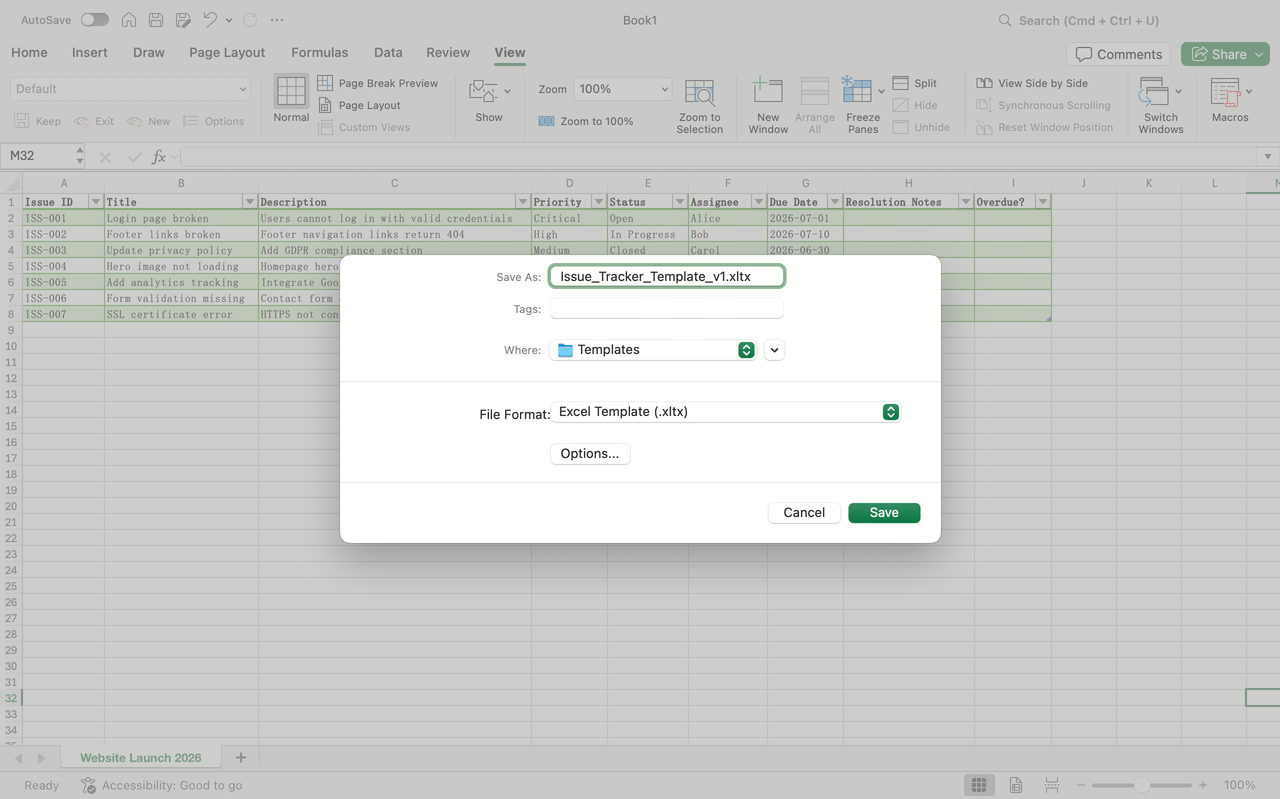
With these fundamentals, an issue tracker template in Excel becomes more than — it's a structured workflow that bridges the gap between manual tracking and digital automation. In the next section, we'll explore how ready-made issue tracker template Excel free download options can help you start faster and avoid design errors.
Ready-to-use issue tracker templates to get started
You don't need to start your ticket tracking tool from scratch. There are dozens of ready-made solutions you can adapt to your workflow. Platforms like Smartsheet, Microsoft, and ProjectManager provide a range of excel templates, including customer templates and bug report templates, with issue tracker template Excel free download options designed to help teams get organized instantly. Here are a few of the most useful types:
Project problem tracker template
A project problem tracker template helps identify and document challenges that may impact progress or deliverables. By categorizing problems, assigning accountability, and tracking resolution steps, this template ensures that risks are promptly addressed to keep projects on schedule.
Customer complaint tracker
For service and operations teams, templates often come formatted for customer-related issues. This version functions as both a ticket tracking tool and a client log: record complaints, track status, and to resolution. These templates help manage client and customer issues, track progress, and improve customer satisfaction by providing a structured way to address feedback and ensure follow-up.
Bug tracking report template
A bug tracking report template is essential for software development and QA teams. It streamlines the process of reporting, prioritizing, and resolving software defects. With clear sections for bug description, severity, and fix verification, it helps developers maintain application quality and performance throughout testing cycles.
Multi-project tracker
When several departments report issues simultaneously, use a template that supports multiple project tags. Tools like issue tracker templates in Excel are adaptable to both IT incidents and operational projects. These templates also help identify patterns across projects and clients, making it easier to spot recurring issues and address them proactively.
Issue log template
An provides a structured way to record, assign, and monitor project issues from discovery through resolution. It helps teams focus on tracking each issue's status, priority, and responsible owner to prevent delays and maintain project transparency.
Project issue tracker template
A project issue tracker template helps project managers and, prioritize, and monitor issues that arise during project execution. It typically includes fields such as issue ID, description, assigned owner, priority, and resolution date. This template provides a centralized view of all project challenges, ensuring accountability, smoother progress tracking, and timely resolution across departments

Image source: Snapshot of Excel
Manufacturer defect tracker template
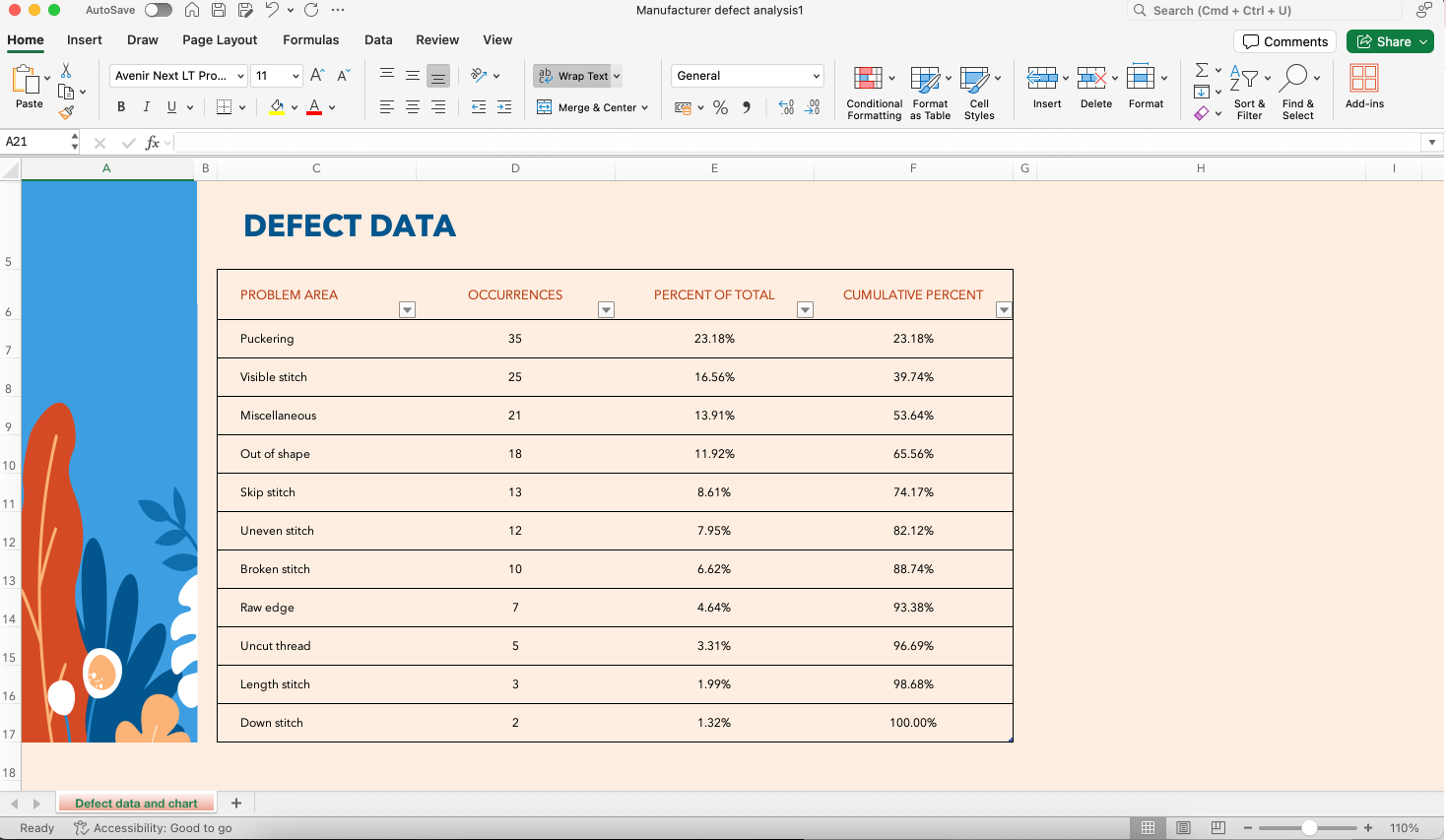
Image source: Snapshot of Excel
If you prefer a approach, try integrating the issue tracker in Excel template with PivotCharts or dashboards from template gallery. These quick-start files save hours of setup time while maintaining a professional layout. Over time, teams typically refine these sheets with formulas, macros, or even migration to unified collaboration tools like Lark for automated updates and visibility.
Here are some examples of how different templates can be used: a bug report template for software teams to fix bugs, a customer issue tracking template for support teams to track issues and improve , and a multi-project tracker to identify patterns across clients and projects.
Unlock more efficient issue tracking with templates
Key advantages of using Excel as your issue tracker
While dedicated ticket tracking tools like Asana, Basecamp, or Jira dominate, Excel still offers unbeatable flexibility — especially when you need something quick, offline, and customizable. Excel templates are valuable resources and a great tool for teams to track issues and track progress efficiently.
Here's why many teams continue using an issue tracker Excel solution before moving to heavier platforms:
- Accessibility and easy setup: Excel is available on virtually every operating system. Getting started with an issue tracker in Excel template requires no installation or learning curve. You can begin tracking immediately with free templates, making these resources accessible for teams of any size.
- Total control and customization: Unlike SaaS tools that restrict columns or workflows, an Excel-based issue tracker template in Excel can represent exactly what you need: from additional fields to custom formulas and conditional logic. Excel also allows teams to plan and manage their workflows effectively, adapting templates to fit specific project or plans.
- Clear visual insights: Through PivotTables and charts, Excel turns raw issue lists into . That makes it easier for managers to understand open vs. closed issues or detect recurring problem categories. Excel also helps identify patterns in issue data, which is essential for driving customer satisfaction by enabling proactive problem-solving.
- Data privacy and offline control: Some industries prefer offline ticket tracking tools for confidentiality. Excel files stored on secure drives or internal networks offer that control — crucial for teams with rigorous compliance requirements.
- Cost efficiency: Excel is already part of most business software suites. For startups or teams operating under budget constraints, setting up an in Excel free is a practical first step before investing in enterprise-scale tools.
Excel's adaptability explains why even expert project managers continue using it for ticket management. However, while its flexibility is a powerful advantage, several drawbacks emerge as projects expand. That brings us to the next critical point — where Excel starts to struggle.
Limitations of managing an issue tracker in Excel
Even the most well-designed issue tracker template Excel free download eventually hits its ceiling. Excel is great for structured logging but less efficient when collaboration and automation become core needs. Here's what to expect as you scale:
- Collaboration friction: When multiple users edit a , version conflicts quickly arise. Tracking edits or updating hundreds of rows across teams becomes tedious. Unlike modern ticket tracking tools, Excel struggles with simultaneous real-time updates.
- Manual processes: Excel's automation is limited without macros or integrations. Escalating overdue tickets or sending reminders usually requires manual intervention — something platforms like Lark handle effortlessly.
- Scalability constraints: As issue volume grows, spreadsheets become slower and harder to maintain. Filters lag, and large files risk corruption or lost data. A ticket tracking tool built for scale ensures smoother tracking without compromising performance.
- Limited reporting insights: While an issue tracker Excel can create summaries, it lacks dynamic dashboards or user-based analytics. It's harder to generate insights across teams, projects, or departments without additional software.
- Integration limitations: Excel doesn't easily integrate with or messaging tools. For teams that rely on daily collaboration, switching between chats, emails, and spreadsheets creates friction and slows progress.
For small-scale, short-term projects, these drawbacks might be manageable. But for teams needing continuous updates, real-time reporting, and , upgrading from Excel to a full-featured solution becomes a natural next step — such as moving into a workspace like Lark, which offers both database-level structure and built-in communication. As your team grows, you may need to seek additional resources beyond basic excel templates to effectively track issues and maintain efficient workflows.
Explore better issue tracker without limitations
A powerful, cost-effective alternative: Lark as a modern issue tracker
stands out as a powerful and flexible issue tracking tool thanks to the advanced data customization and automation capabilities of Lark Base — its multi-dimensional database engine. Combined with collaboration tools like Lark Messenger, Lark Tasks, and Dashboards, it enables a complete closed-loop workflow for managing issues from creation to resolution and archiving.
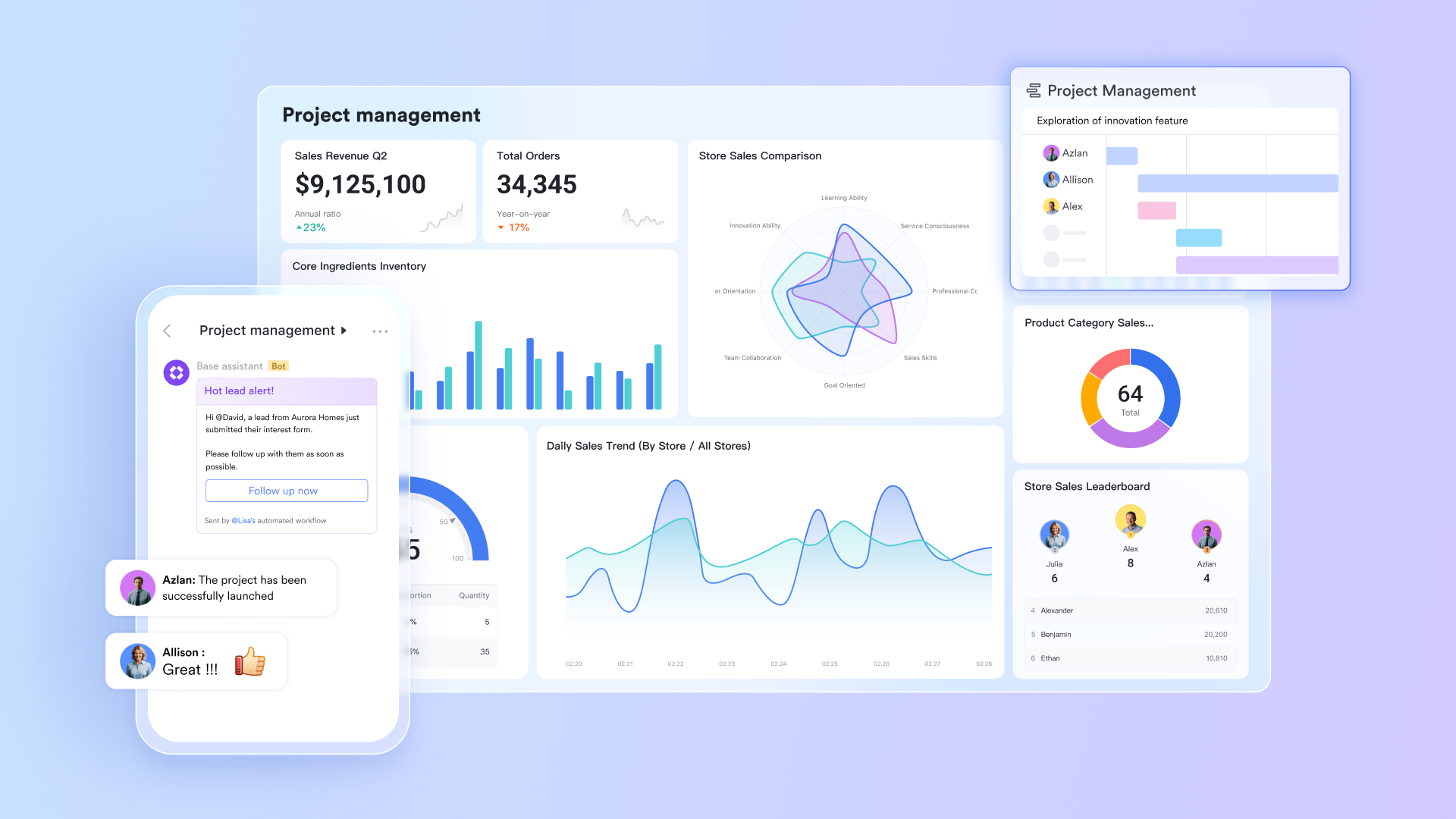
But don't just take our word for it — here is what our customers have to say about replacing siloed spreadsheets with an integrated workspace.

"To be the best retailer of convenience for the Philippines, we need to move with speed, clarity, and unity. At Philippine Seven Corporation, we hold ourselves to high standards of teamwork, reliability, and customer focus—and that means eliminating delays, closing gaps, and working as one. Partnering with Lark is helping us connect teams faster, cut down delays, and create conditions for better decisions every day. It's a critical step toward building a more responsive, data-driven organization that delivers on what we promise—both to our people and to our customers."

Francis Medina
Operations Division Director, Philippine Seven Corporation
Rich field types and custom tables for data standardization
is the foundation for a structured issue database. Lark Base's multi-dimensional tables allow teams to build a fully customized issue tracking database. It supports diverse field types — including text, single/multiple select, user, date, and attachment fields — enabling precise alignment with the structure of your issue data.
Example configurations include:
- Text fields for issue titles and detailed descriptions.
- Select fields for categorizing issue types (e.g., Bug, Request, Complaint) and setting priorities (High, Medium, Low).
- User fields for assigning owners and reviewers.
- Date fields for creation and due dates.
- Attachment fields for logs, screenshots, or QA proofs.
Advanced relational fields allow one-way or two-way linking across tables, such as connecting code commits or dependent issues. This structured design eliminates scattered data, ensures standardization, and lays the groundwork for traceable, auditable workflows 
Multiple views to fit different management need
Lark Base offers multiple dynamic views — Table, Gantt, Kanban, Calendar, and Gallery — so teams can visualize issues from the perspective that best fits their workflow: 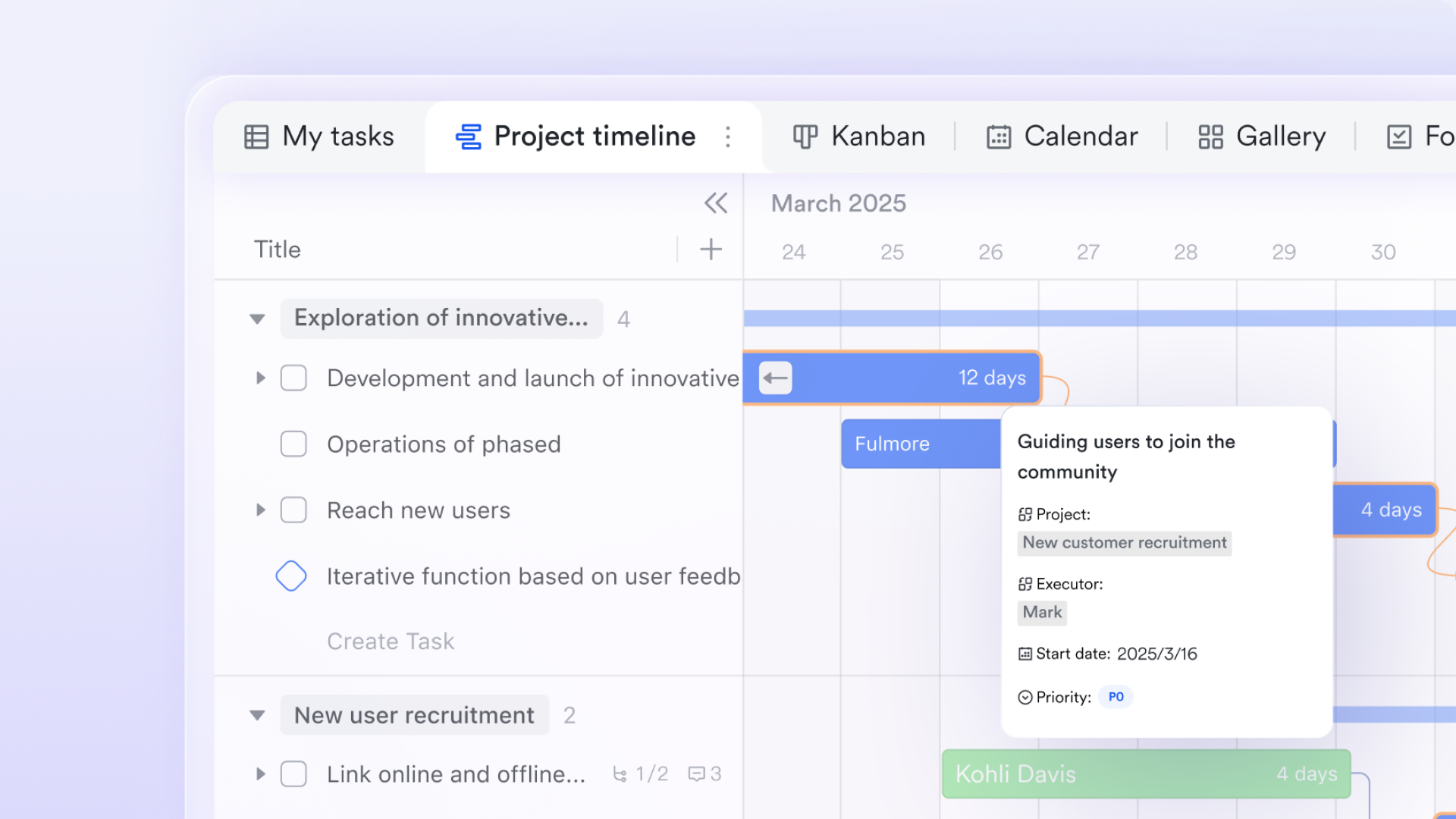
- The table view gives developers and QA engineers a full data grid for quick filtering and sorting (e.g., unresolved high-severity issues).
- The Kanban view is ideal for visual progress monitoring, showing workflow columns such as New → In Progress → Testing → Closed.
- The Calendar view displays open issues by due date, ensuring no deadline is missed.
- The Gallery view displays attachments like screenshots as front-facing cards, ideal for reviewing UI or design-related bugs.
These switchable views enhance transparency and allow stakeholders — from engineers to project managers — to track progress in real time
Custom triggers and automation to eliminate manual work
Lark Base's no-code automation engine can handle routine workflows based on custom conditions — reducing manual touchpoints and human error.
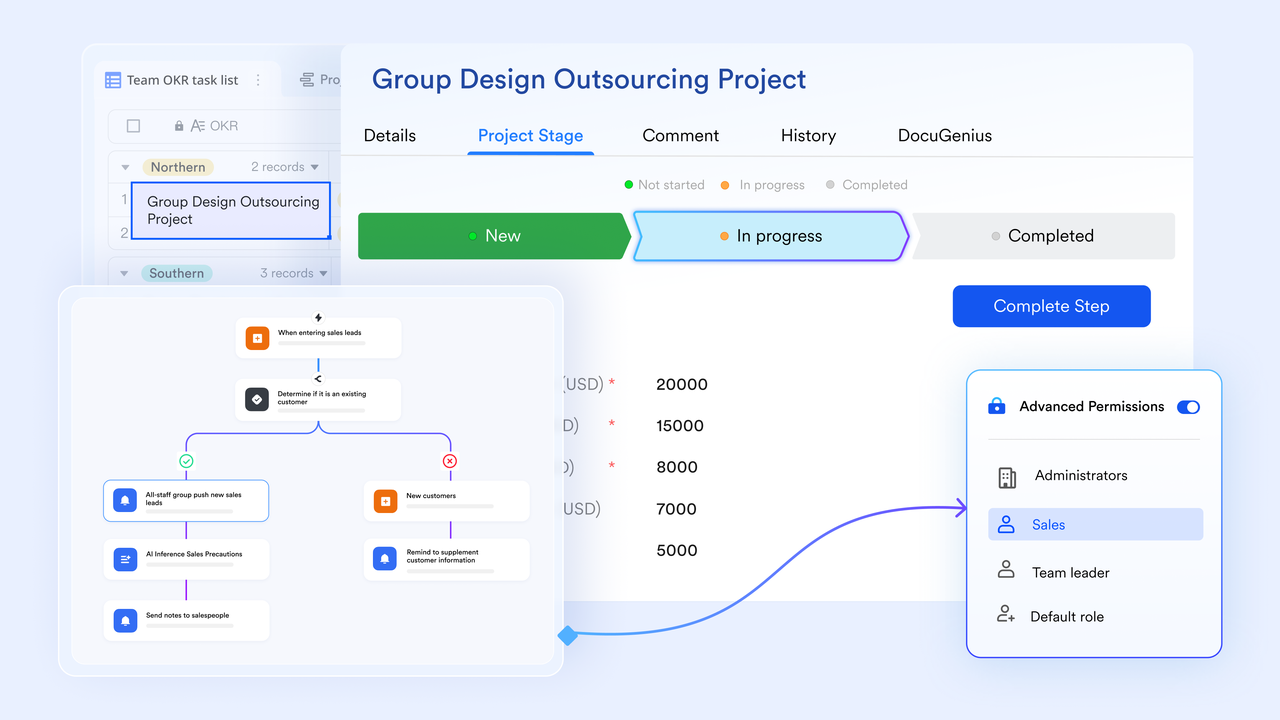
- When a high-priority issue is added, it can automatically schedule a meeting and send instant notifications with pre-set automation rules.
- If the status changes to "Testing," the assigned QA engineers automatically receive notifications,
- When an approval field changes to "Approved," Lark Base syncs that update to the relevant project chat group — keeping everyone informed without manual reminders.
This level of transforms issue tracking from passive logging into an intelligent, self-updating workflow system
Bot integration with Lark Messenger: connecting communication and tracking
Through Lark's bot framework, Lark Base integrates deeply with , creating a seamless link between communication and task management.
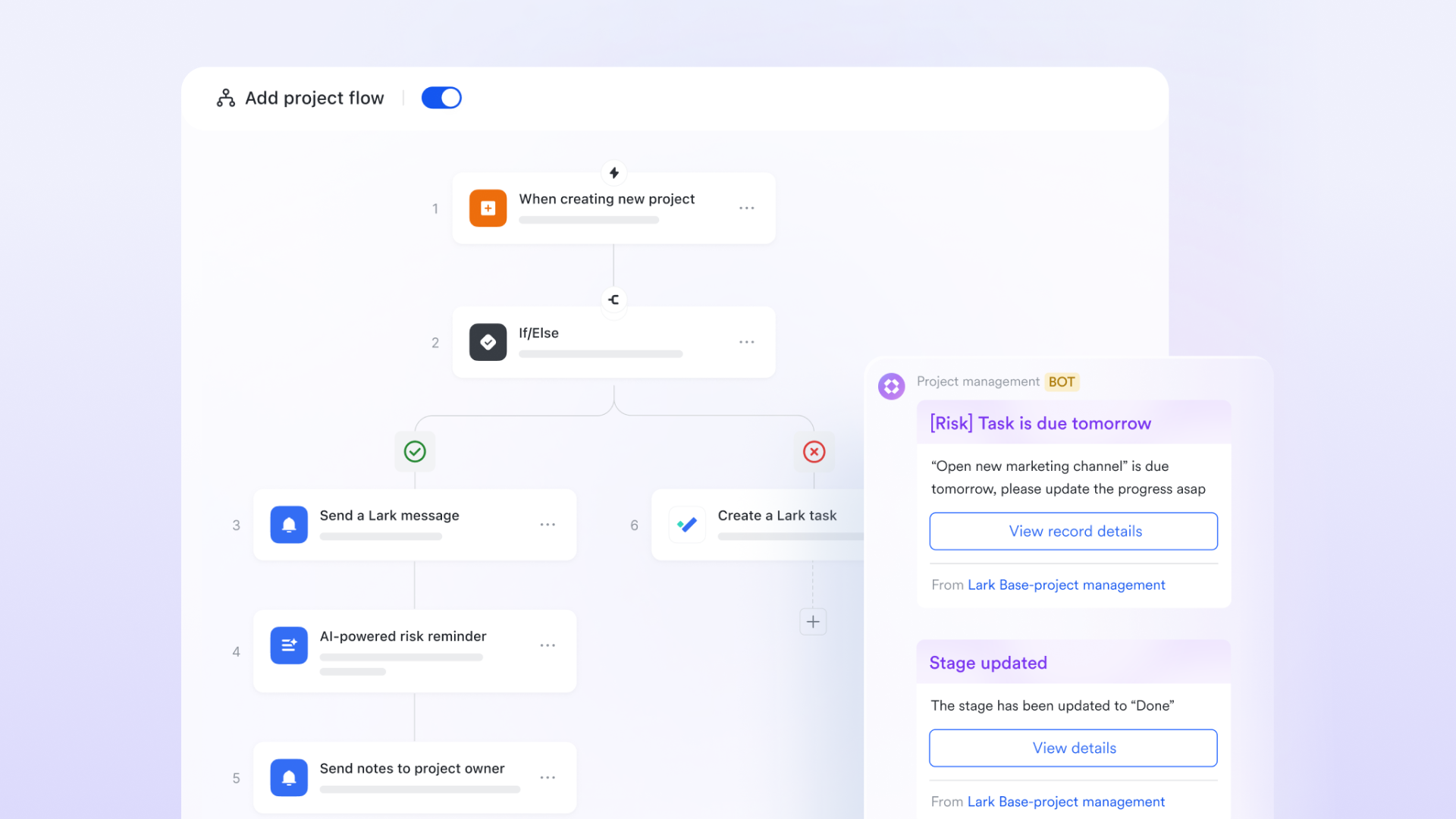
Teams can deploy a "bug collector" bot that allows members to submit issues directly from chat — just by tagging the bot in a message. The bot then logs the submission automatically in the Lark Base issue table.
Conversely, when an issue's status changes or receives a comment, the bot posts a real-time update in the linked group or personal channel.
Team members can also comment on these posts or convert their discussions back into structured records — ensuring every message feeds directly into the issue lifecycle
Visual dashboards and automated reports for data-driven management
Lark Base dashboards can convert raw issue data into intelligent visual analytics.
With slicers, teams can filter by issue category, assignee, or time period — e.g., view all unresolved front-end bugs from the past week. Pivot-based summaries track metrics such as average resolution time, issue volume per member, or daily backlog trends.

The Top-N analysis function highlights recurring issues — e.g., your top 5 most frequent defect categories.
Custom dashboard layouts, colors, and report themes ensure that these visual reports can be shared directly in team meetings or executive briefings, helping decision-makers identify bottlenecks and optimize processes. All-in-one workspace: tracking, chat, and docs
Unlike static Excel files, Lark integrates Docs, Sheets, and Chat within a unified environment. This allows teams to record updates, attach screenshots, or link supporting documentation right beside each issue. A QA tester, for example, can upload bug screenshots and mention a developer in the same record — no tab-switching required.

While Excel still suits smaller teams for free issue logs, Lark ensures the entire team stays connected and updated in real time — a difference that becomes invaluable as operations grow more complex.
Lark as a next step, not a replacement
Transitioning from Excel to Lark doesn't mean abandoning the spreadsheet mindset. In fact, many teams use existing issue tracker template Excel free download files as starting points, then import their data into Lark Base for better visibility. The learning curve remains minimal because the structure feels familiar, but capabilities expand through automation, scalable dashboards, and convenient communication.
In short, Lark offers a natural evolution for teams that outgrow manual ticket tracking tools. It keeps the simplicity of Excel while adding intelligence, speed, and shared accountability across every issue logged.
for Lark:
- Starter plan: Free forever plan that includes 11 powerful tools for up to 20 users. It also comes with 100GB of storage, 1,000 automation runs, AI translations, and more.
- Pro plan: $12/user/month (billed annually) for up to 500 users. It includes everything in Starter plus a group calling for up to 500 attendees, 15TB of storage, 50,000 automation runs, and more.
- Enterprise plan: for custom pricing. Supports unlimited users and includes even more automation runs and advanced security, compliance, and management features.
For small teams with simple communication needs

18 months message history
1000 Base automation runs/month
2000 rows per table in Base
Most POPULAR
For companies with comprehensive collaboration and management needs
Unlimited message history
500-participant video meetings
50k Base automation runs/month
20k rows per table in Base
For large companies with advanced security and organizational management needs
Get a personalized demo and pricing
Unlimited message history
500-participant video meetings
15 TB storage + 30 GB storage/user
500k Base automation runs/month
50k Base automation runs/month
Most POPULAR
For companies with comprehensive collaboration and management needs
Unlimited message history
500-participant video meetings
50k Base automation runs/month
20k rows per table in Base
Best practices for maintaining your issue tracker
Whether you're using Excel or modern ticket tracking tools like Lark, maintaining your issue tracker is essential for reliability and team alignment. An accurate, clean tracker ensures that you never lose sight of open issues, bottlenecks, or performance trends. Based on insights from Lark's official guides, here's how to build long-term discipline into your tracking process.
Creating an issue log
An issue log stands as your trusted ally in . This central hub empowers teams to capture, track, and resolve challenges with confidence. Whether handling customer concerns, managing bugs, or overseeing vital tasks, a well-crafted issue log keeps everything organized and under control.
Building your issue log starts simple yet smart—choose from readily available templates in Excel or Google Sheets. These templates come equipped with the basics: issue details, current status, importance level, team assignments, and reporting dates. Feel free to enhance your setup with extra columns for progress notes, trend spotting, or any details that matter most to your team and customers.
Setting up your issue log calls for with clear direction. Determine what issues deserve tracking, assign ownership for updates, and schedule regular reviews. Create straightforward guidelines that work—assign important tasks to capable team members and ensure unresolved matters reach the right people promptly.
Keep your data clean and consistent
Regular maintenance starts with standardization.
Use consistent field names, naming conventions, and labels for every issue — whether in an issue tracker Excel file or a . When your categories are uniform (e.g., "High Priority" vs. "Urgent"), it becomes much easier to filter and analyze your tickets later.
Lark's workflow templates emphasize clean input structures. This principle applies equally in Excel: clear, uniform data keeps project information actionable rather than overwhelming.
Update frequently and review weekly
An issue tracker in Excel template or database quickly loses its value if data isn't current. Assign responsibility for updating statuses daily and schedule short review sessions weekly. These meetings allow your team to:
- Verify that deadlines remain realistic.
- Re-prioritize issues based on new developments.
- Identify recurring problems that may require systemic fixes.
Lark Base, for example, supports automated reminders and weekly summary reports— features that eliminate manual chasing and keep all owners accountable.
Incorporate automation where possible
For teams using Excel, automation can mean formulas or basic conditional formatting. But in smarter ticket tracking tools, automation drives greater efficiency.
For instance, in Lark, you can set triggers such as:
- Automatically moving a record to "In Review" after a specific field update.
- Sending a chat notification when a ticket nears its deadline.
- Generating instant progress dashboards without manual effort.
These small automations reduce repetitive tasks, improve accuracy, and free teams to focus on problem-solving rather than data entry.
Use visualization to gain insights
A tracker is more than a log — it's a decision-making tool. Both Excel and Lark allow teams to .
In Excel, pivot tables show ticket trends like "average resolution time" or "issue density per category." When visualizing this data, you can use columns, lines, or pie charts. While pie charts can be visually appealing, column and line charts often provide clearer, more accurate representations of issue data.
In Lark, provide live, auto-refreshing overviews of tickets by status, owner, or team — turning data into actionable insights that guide planning.
Centralize communication
One of the biggest causes of issue tracking failure is scattered communication — issue updates discussed in emails, chat threads, or meetings without being logged back into the tracker.
Avoid this by making your tracker the single source of truth. Tools like Lark combines chat and docs directly into Base, ensuring every message, comment, or document link stays tethered to its relevant issue.
If you're still using an issue tracker in Excel free file, establish a team rule: "If it's not in the tracker, it doesn't exist." This simple policy helps maintain data completeness and visibility.
Review, close, and archive
Periodically review closed issues to archive outdated items and identify recurring types of problems. Archiving keeps your issue tracker Excel or Lark Base clean and fast, while retained records provide a valuable history for audits or future learning.
Maintaining an effective ticket tracking process isn't about complexity — it's about consistency. Whether you rely on a downloadable issue tracker template Excel free download or dynamic platforms like Lark, disciplined review cycles and automation habits are what turn tracking data into productive action.
Upgrade your issue tracking process with experts
Conclusion
Choosing the right ticket tracking tools depends on your team's size, complexity, and need for transparency. For individuals or smaller teams, an issue tracker Excel setup remains a simple and cost-efficient way to stay on top of tasks and bugs. Its flexibility allows quick customization, and with a bit of structure, you can build a reliable foundation using any issue tracker template in Excel.
That said, organizations handling a steady flow of requests or customer tickets will quickly reach Excel's limits. Modern platforms like address these challenges through automation, real-time communication, and analytics. With Lark, teams can replicate the familiar spreadsheet format while enabling advanced workflows, shared dashboards, and AI-powered ticket routing for support or IT teams.
Ultimately, no matter the tool — from an issue tracker in Excel free template to cloud-based ticket systems — success lies in consistent maintenance, clear accountability, and a culture of transparency. By choosing technology that evolves with your team's needs, you'll spend less time managing spreadsheets and more time actually solving issues.
FAQs
How do I create a tracker in Excel?
Start by defining your core fields — Issue ID, Title, Priority, Status, Assignee, and Due Date. Apply conditional formatting for quick visuals, and use formulas to calculate overdue tasks. You can also use an issue tracker in Excel template from Microsoft or Smartsheet to save setup time.
How to make a complaint tracker in Excel?
A complaint tracker functions like any ticket tracking tool, but focuses on customer feedback. Include columns for Customer Name, Complaint Description, Issue Source, and Resolution Status. Automate highlighting of overdue tickets via conditional formatting. For teams managing recurring customer requests, Lark's Customer Support Ticket Management Template can streamline this with automation and structured workflows.
Does Microsoft have an issue tracker?
Yes. Microsoft offers various issue tracker template Excel free download options through its template gallery. These can be adapted into bug logs, maintenance trackers, or customer ticketing sheets. However, Microsoft tools like Power Automate or SharePoint integration can also extend Excel's functions for basic workflow automation.
How to prepare an issue tracker?
Preparation begins with categorization — decide how you'll classify tickets (by priority, department, or category). Next, establish rules for ownership and updates. Whether you use a simple issue tracker Excel workbook or an advanced platform like Lark's AI-powered ticketing system, consistency in data and communication ensures your tracker drives decisions, not confusion.
Related reading